
Tembo product screens examples
Browse Tembo screen design examples. Preview the interface screenshots and explore related UI patterns. Move engineering work to the cloud
Explore the examples
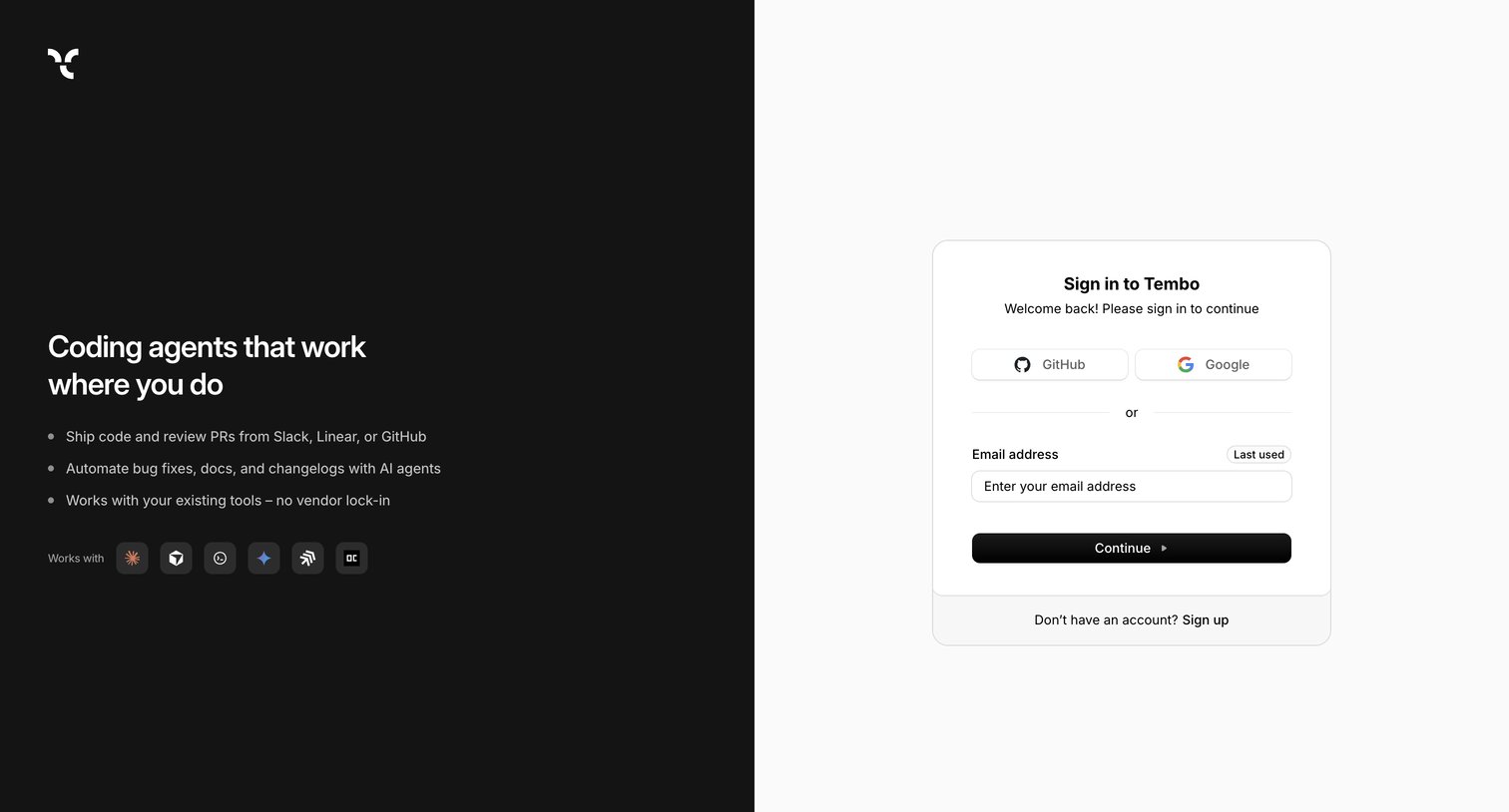
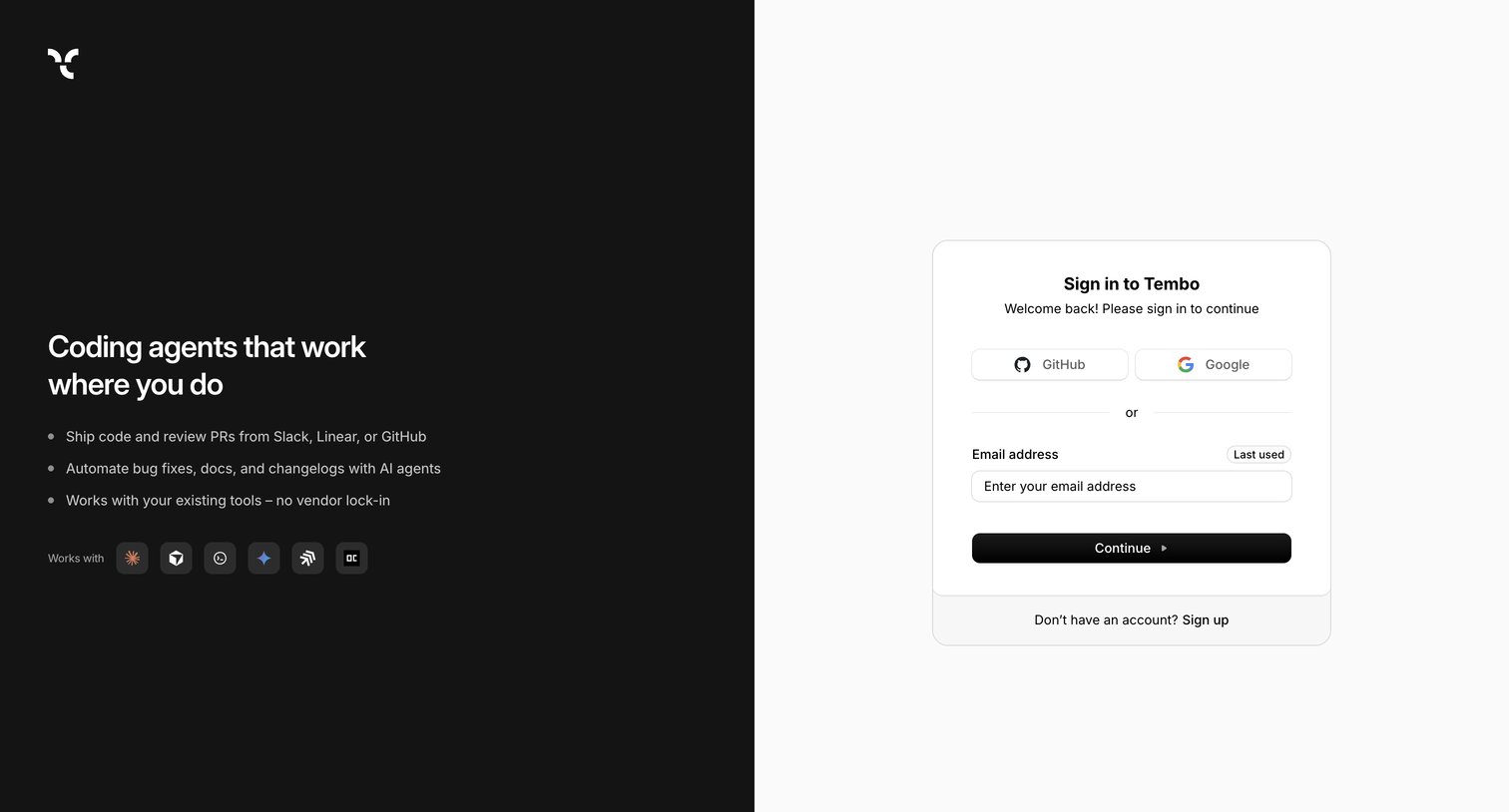
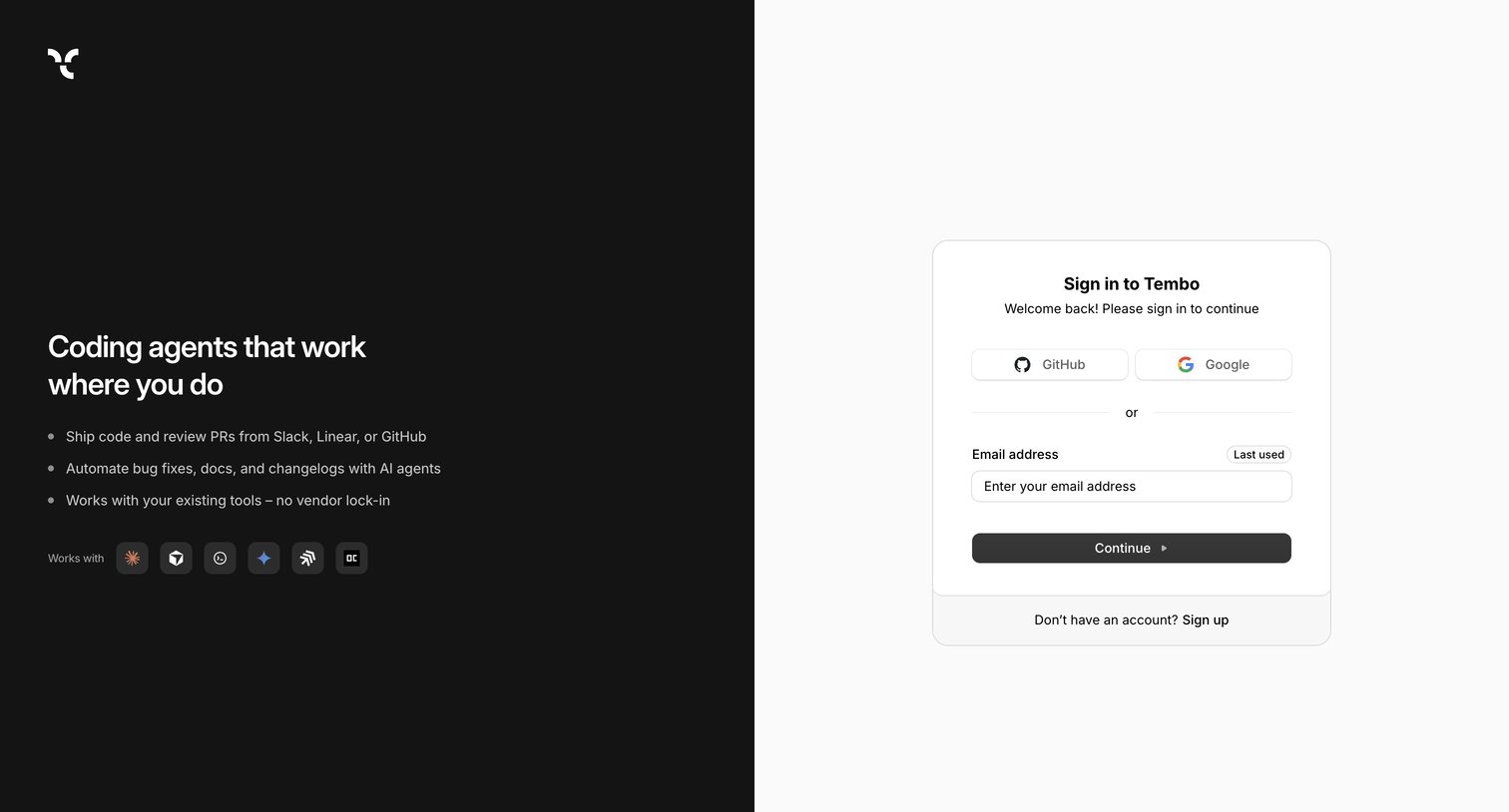
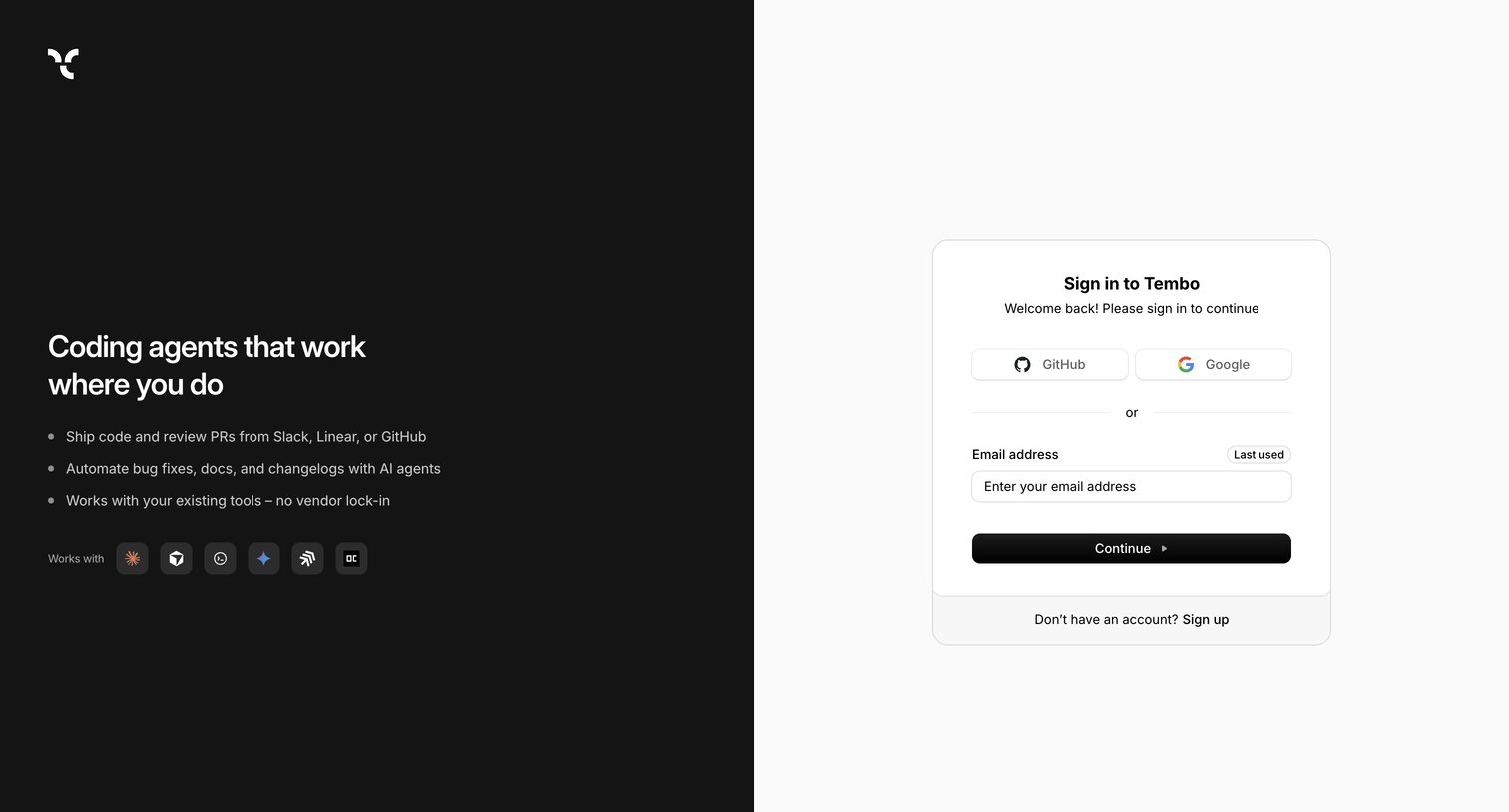
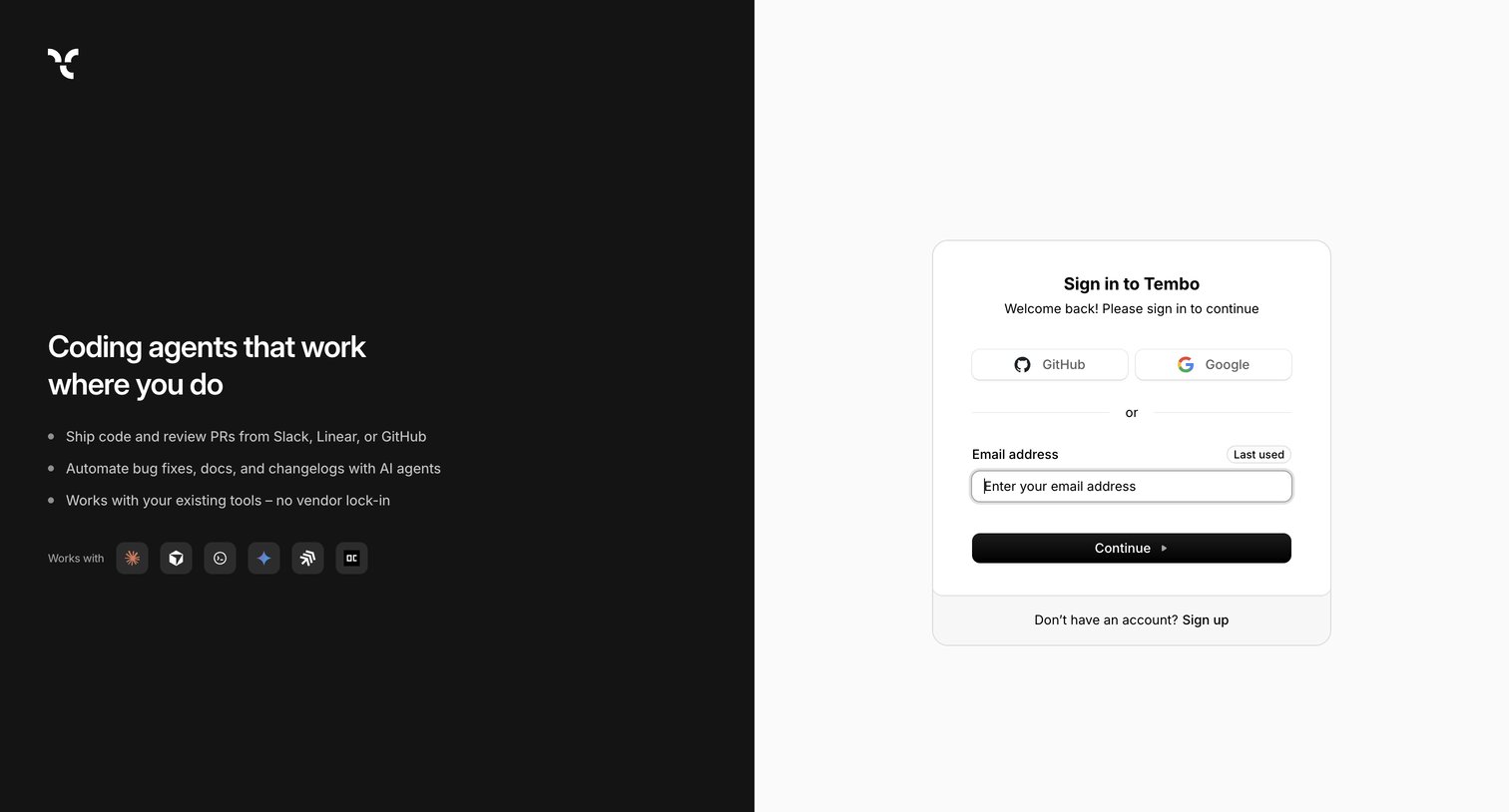
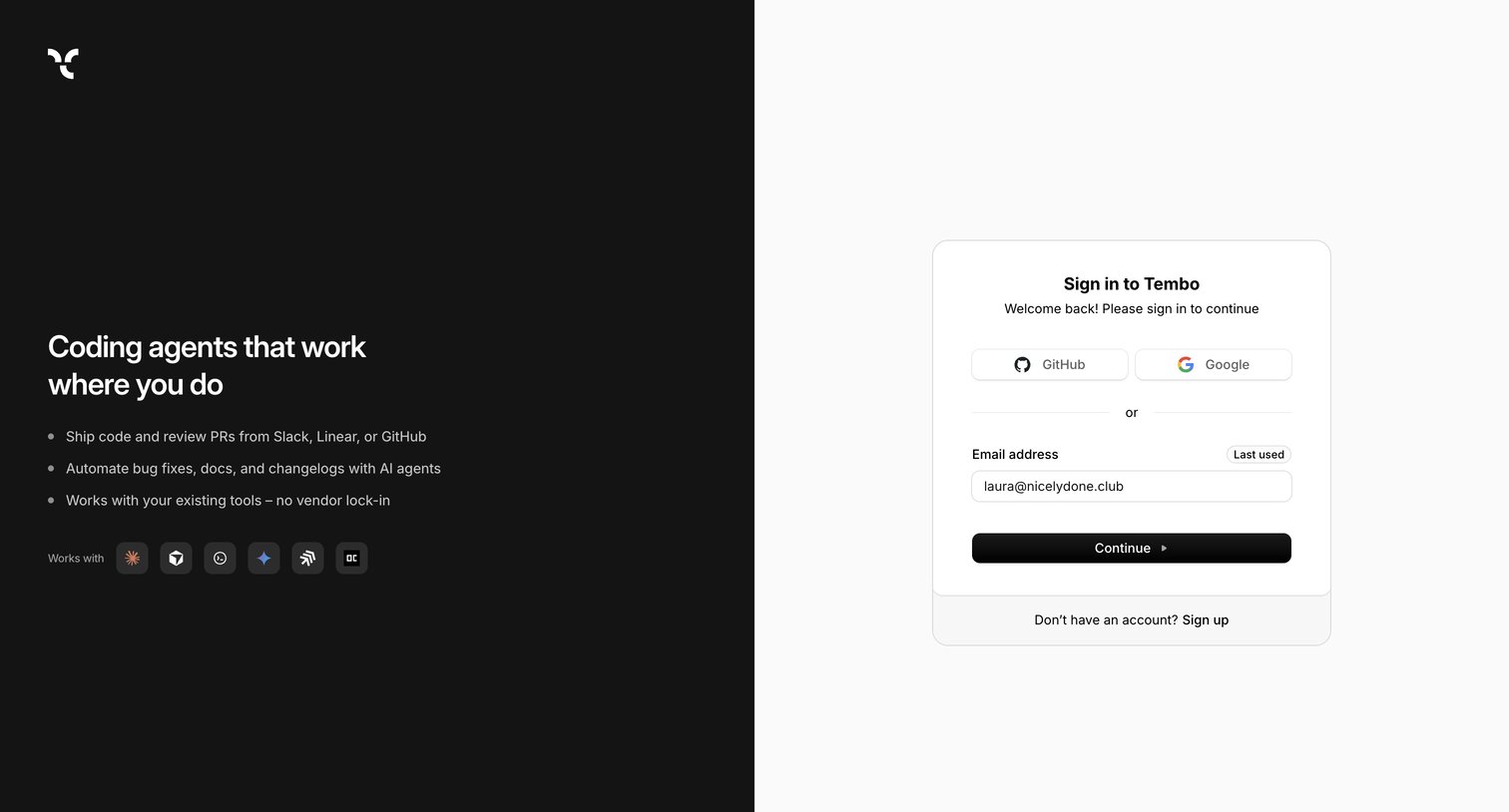
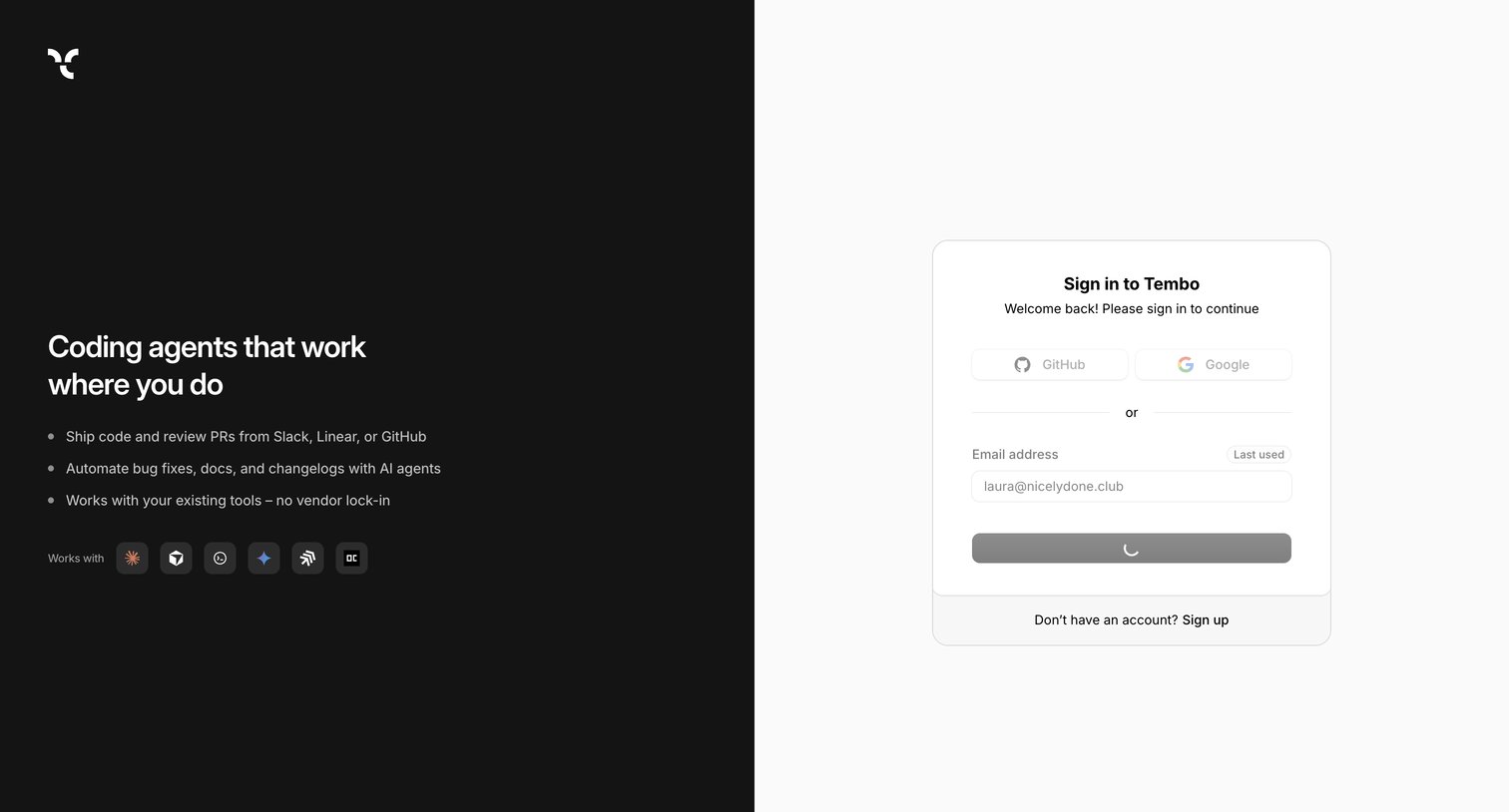
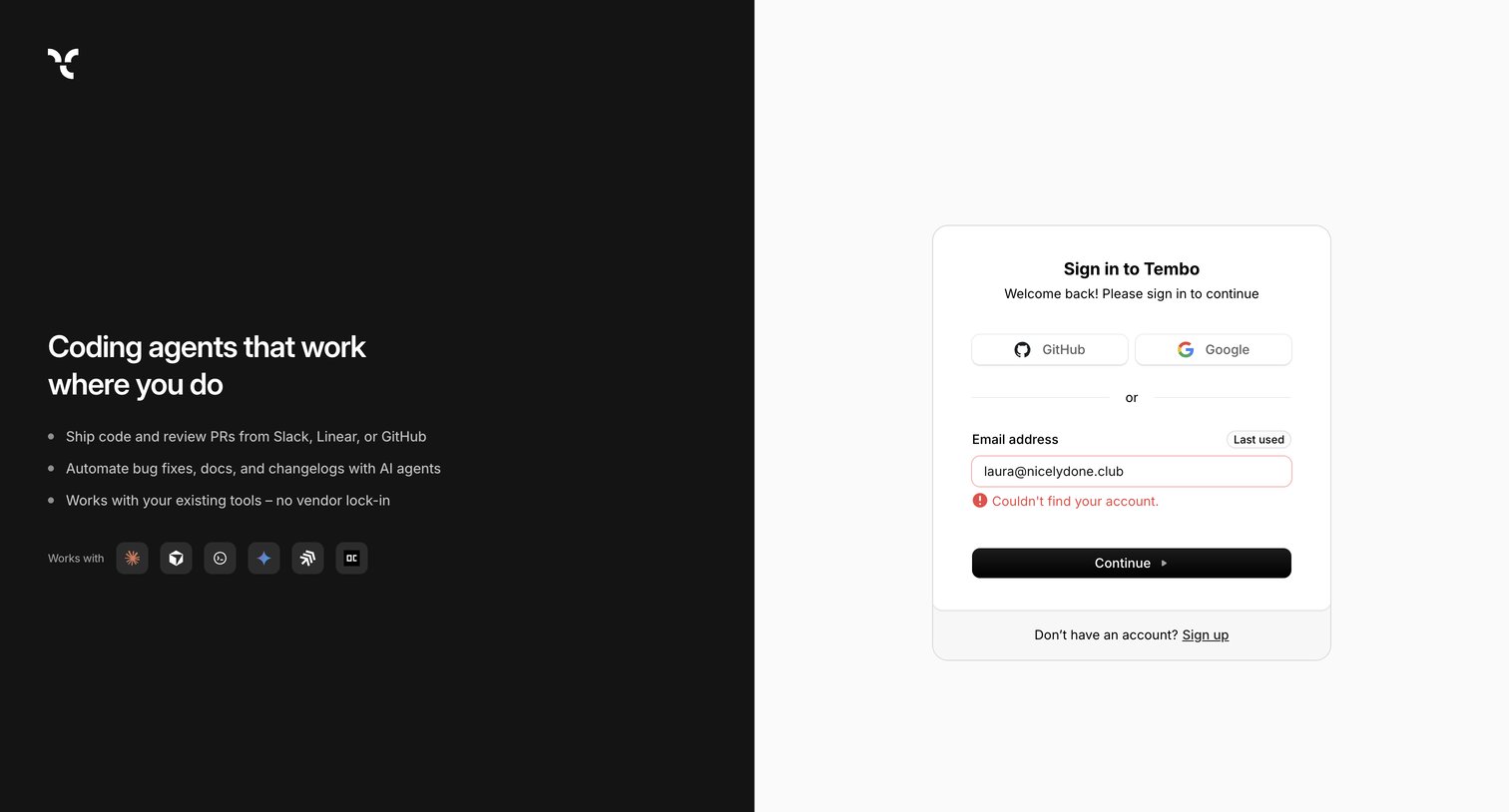
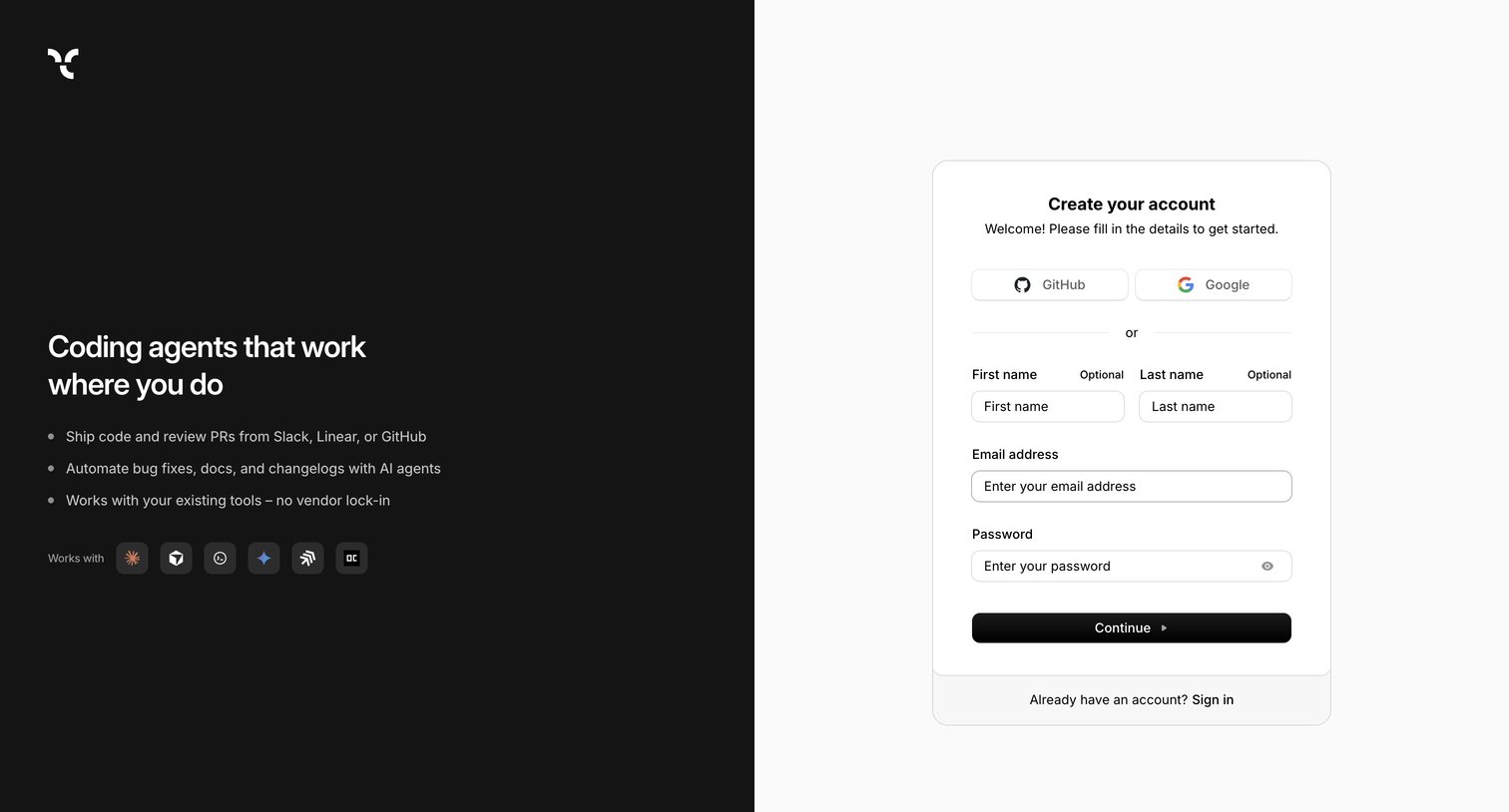
Signup screen where the user creates an account using GitHub, Google, or an email and password combination, alongside a value proposition for coding agents.
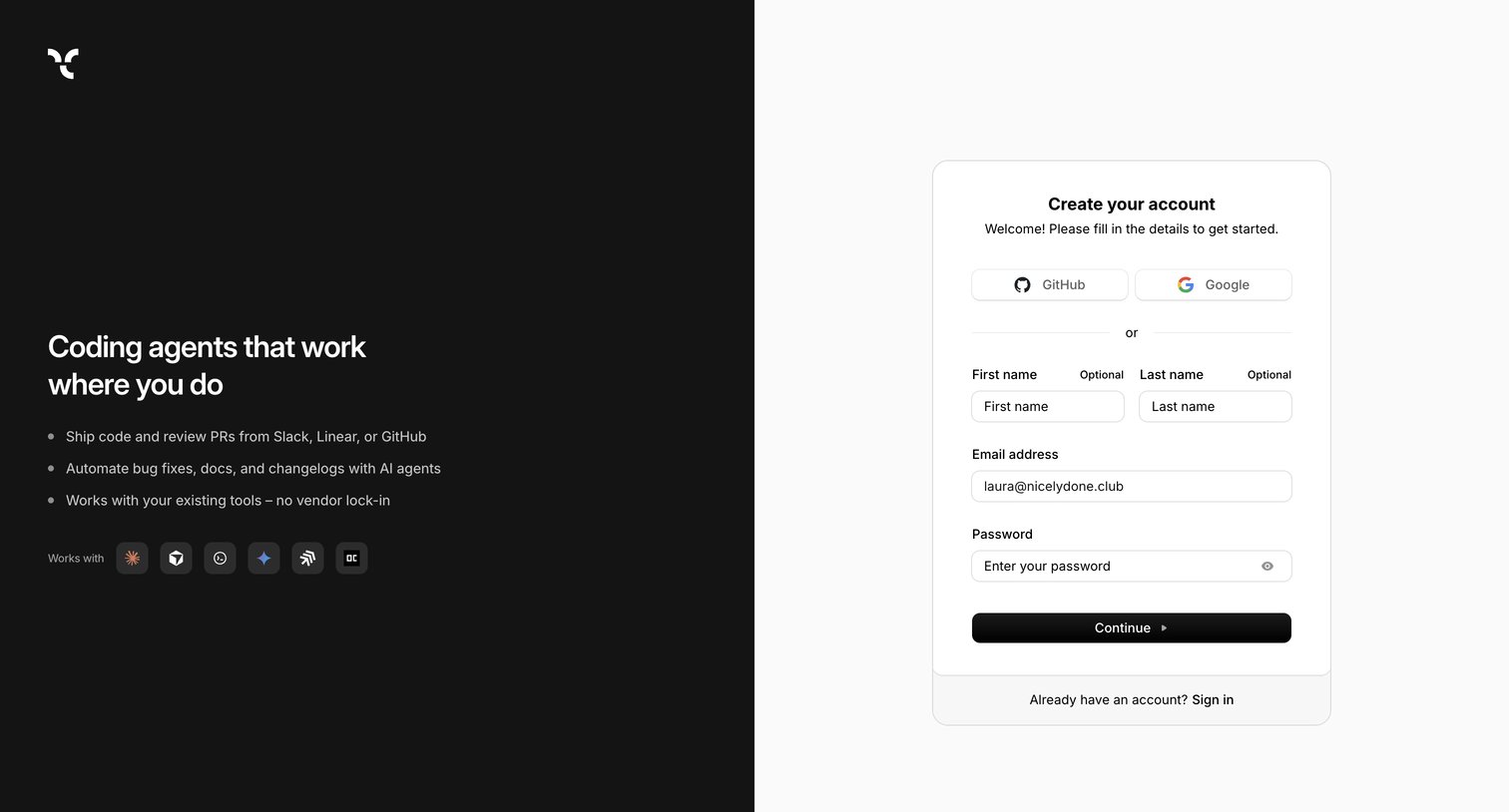
Signup page where the user creates an account using GitHub, Google, or email, alongside a feature pitch for coding agents.
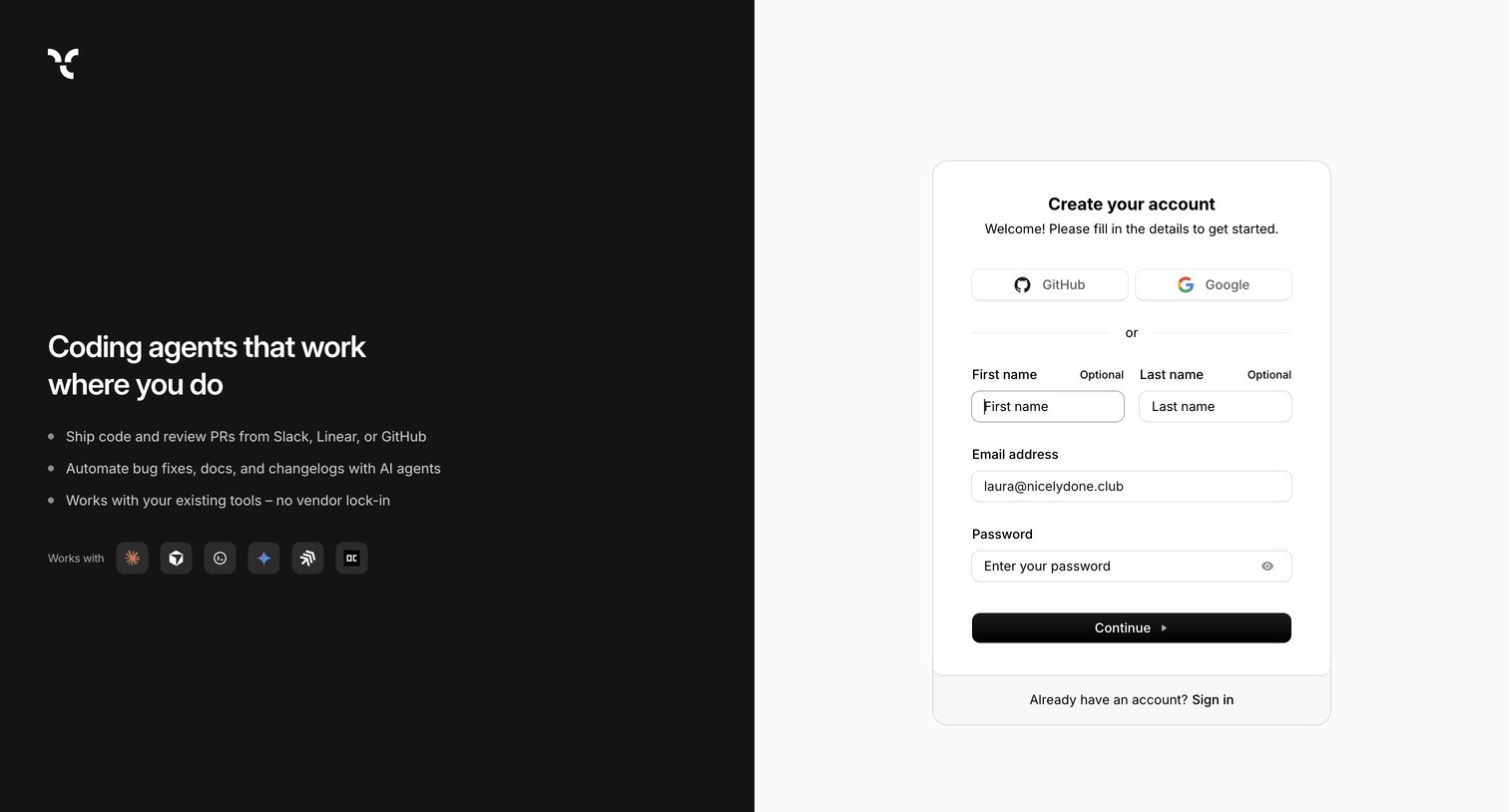
Signup screen where the user can create an account using GitHub, Google, or an email and password, featuring a side panel highlighting product capabilities and integrations.
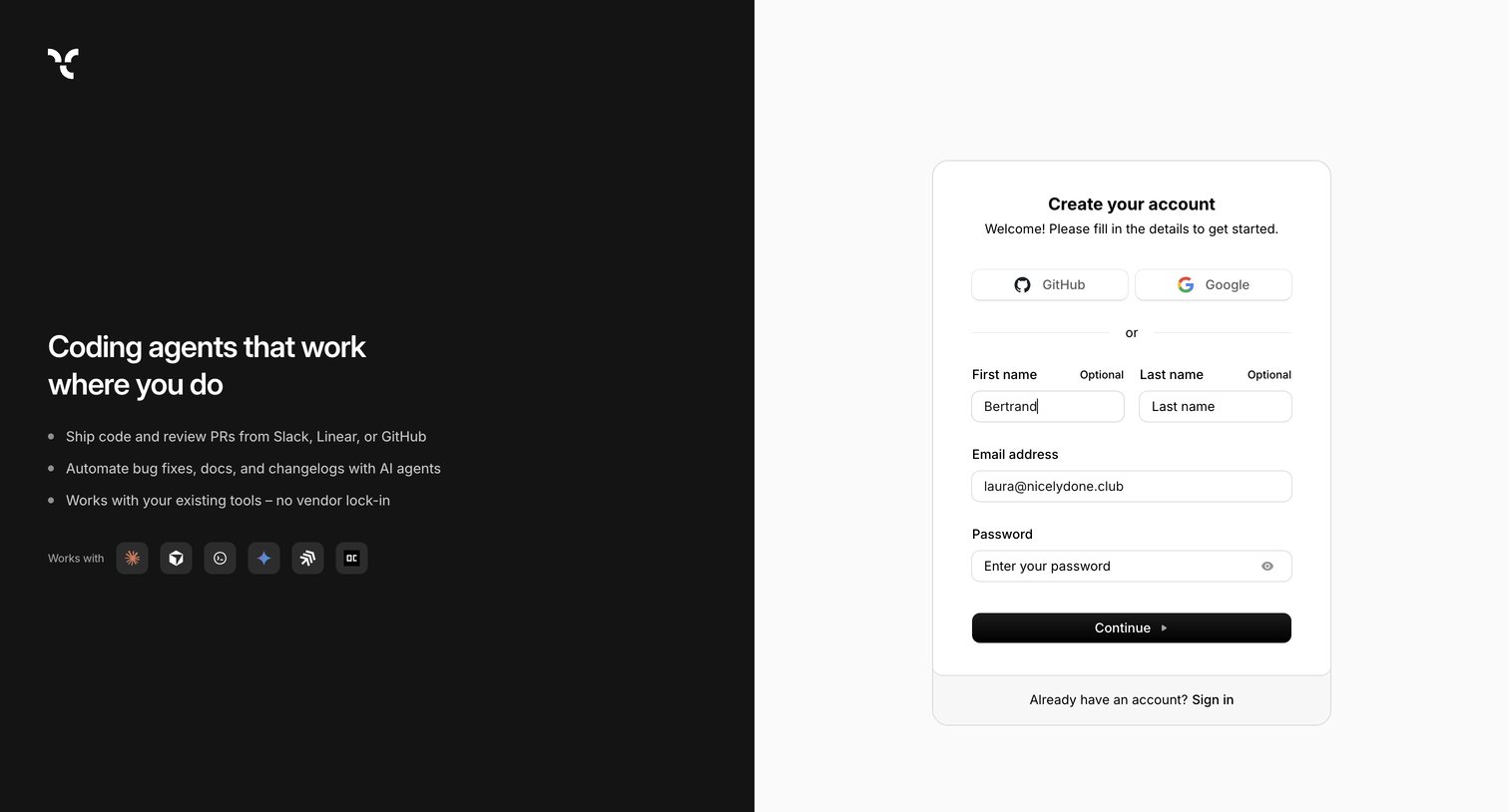
Signup page where the user can create an account using GitHub, Google, or an email and password, featuring a split-screen design with product benefits on the left.
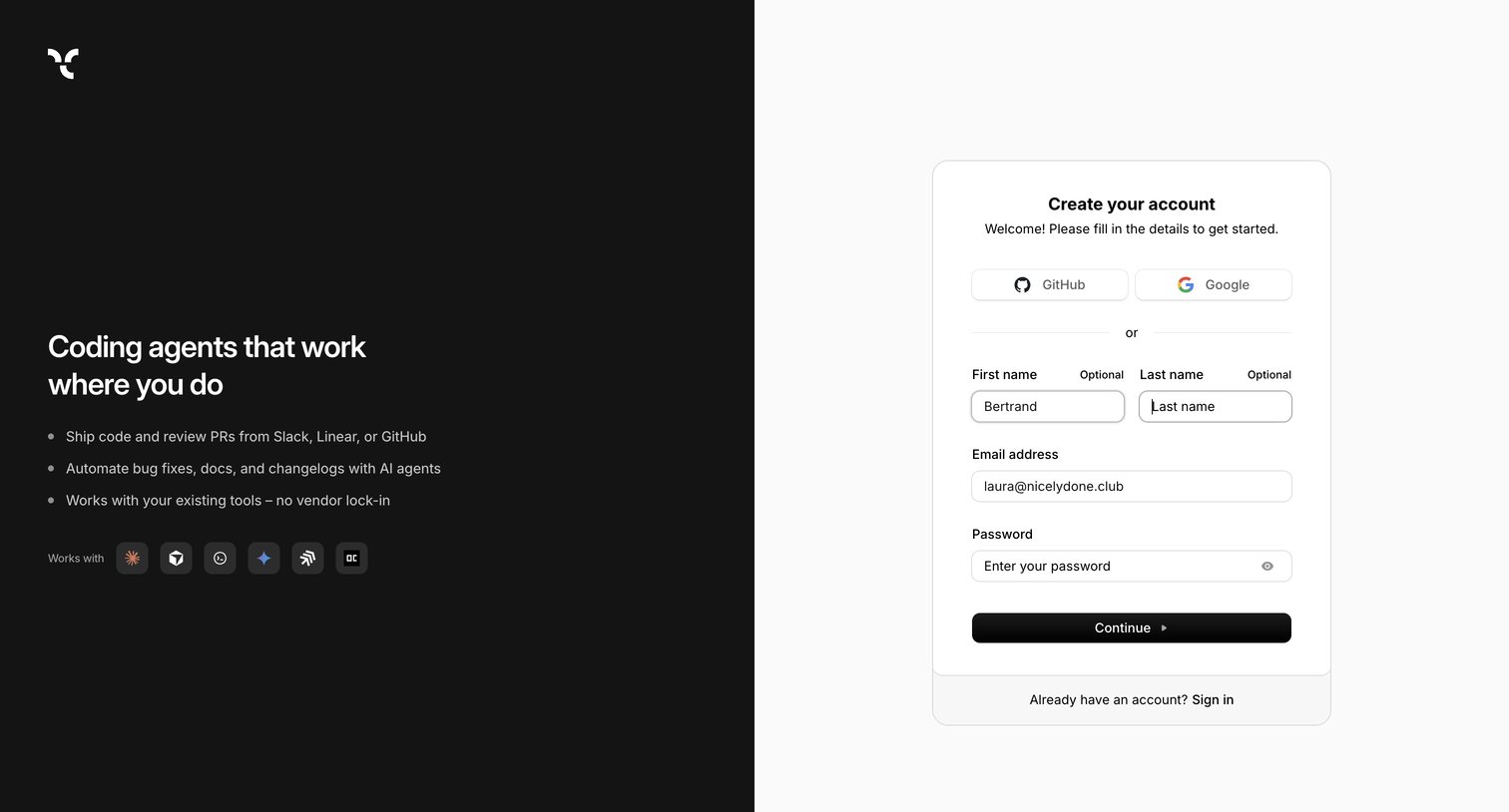
Signup screen where the user can create an account via GitHub, Google, or email, accompanied by a promotional sidebar highlighting AI agent capabilities and tool integrations.
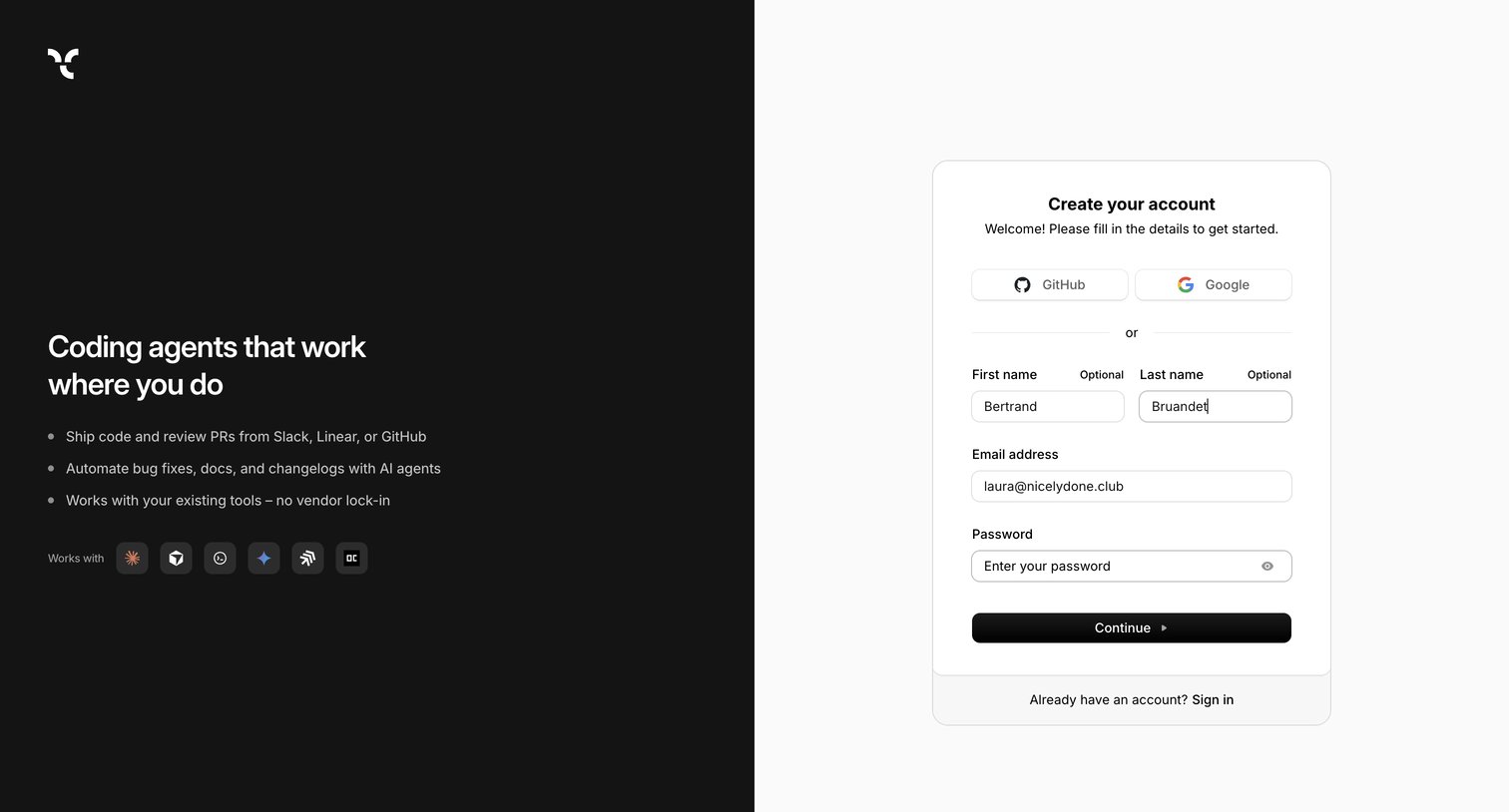
Signup screen where the user can create an account using GitHub, Google, or an email and password, alongside a marketing panel highlighting AI coding agents and integrations.
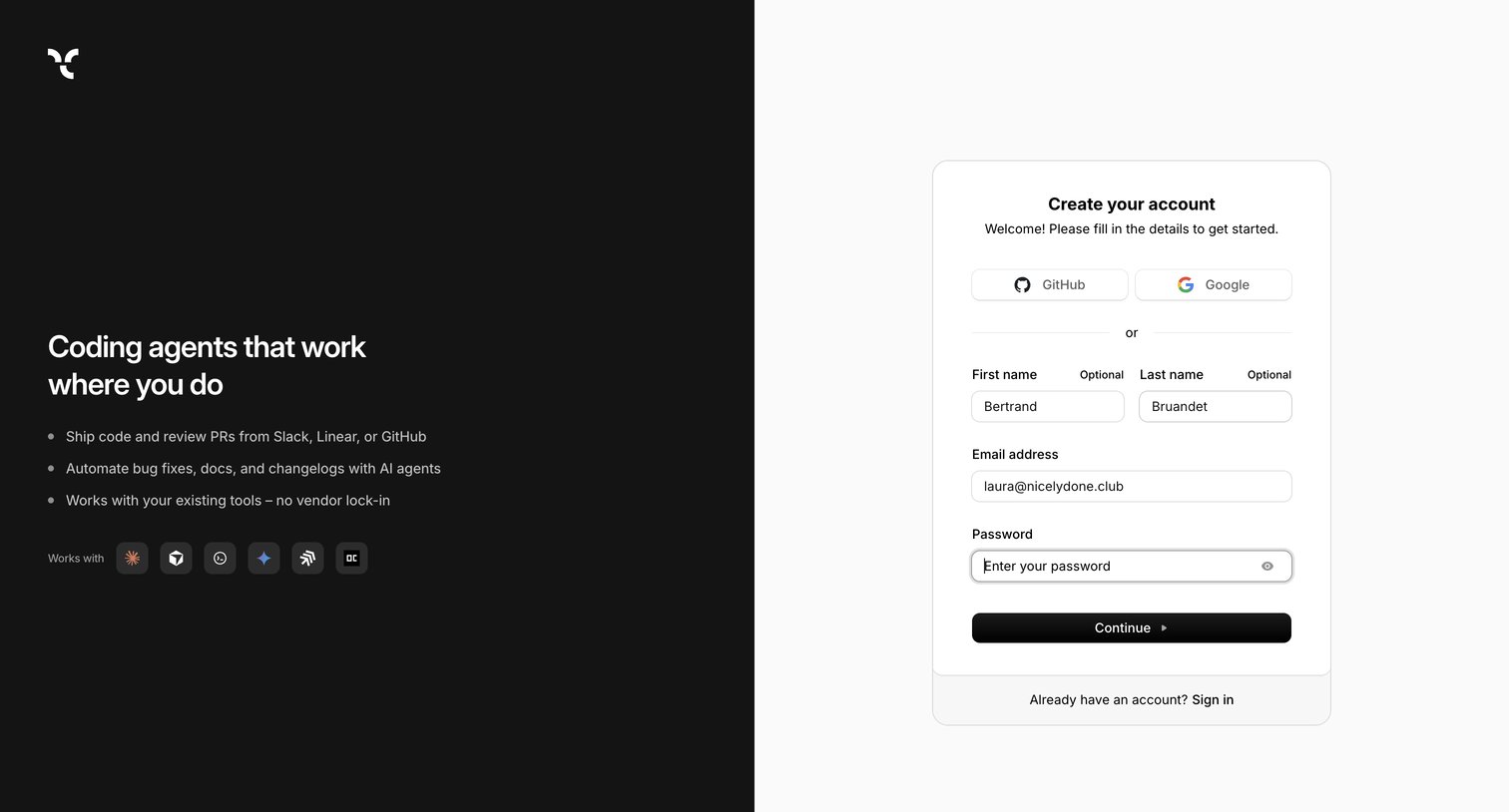
Signup page where the user creates an account using GitHub, Google, or by providing their name, email, and a password.
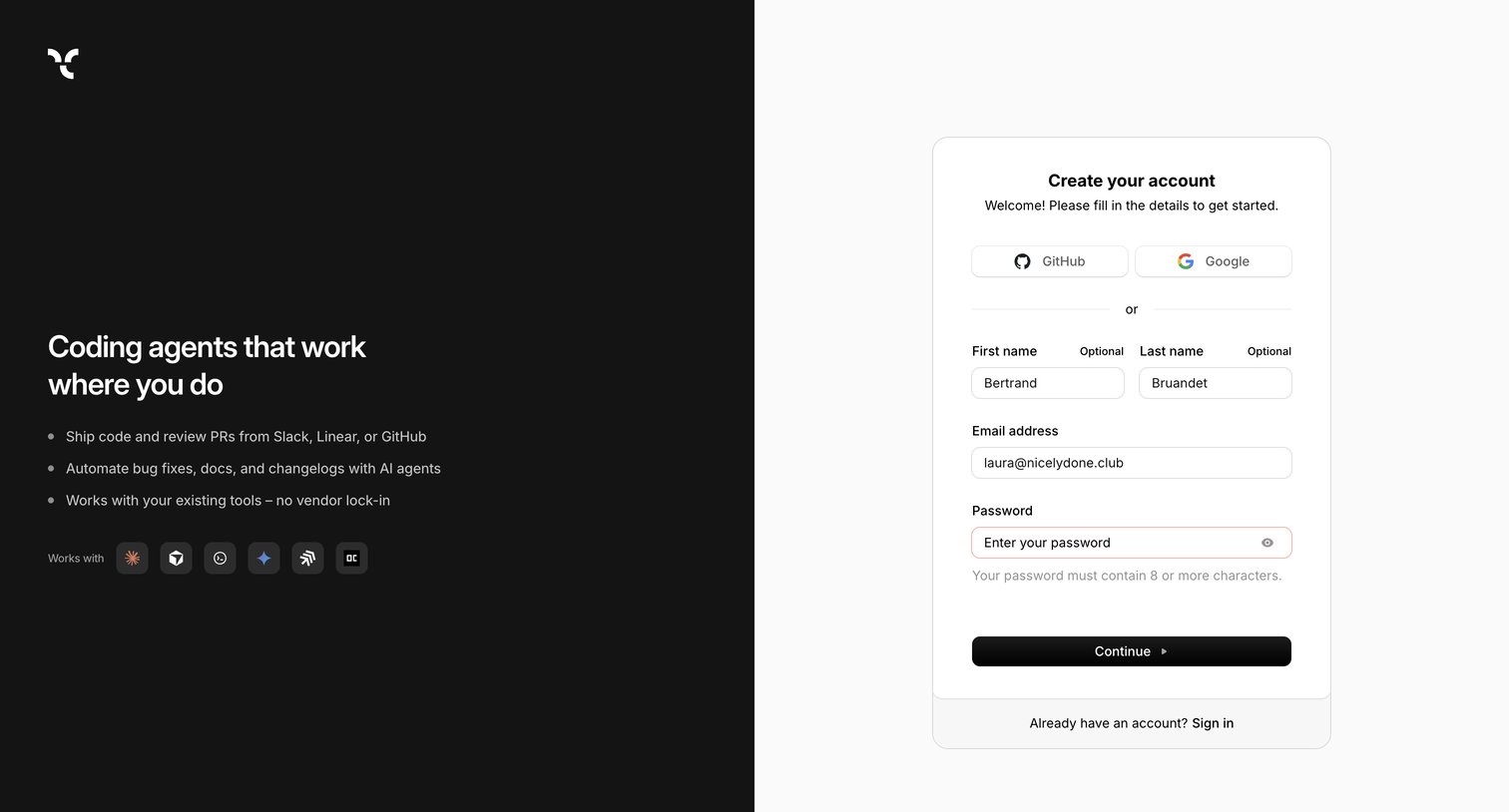
Signup page where the user creates an account using GitHub, Google, or email and password, alongside a feature pitch for coding agents.
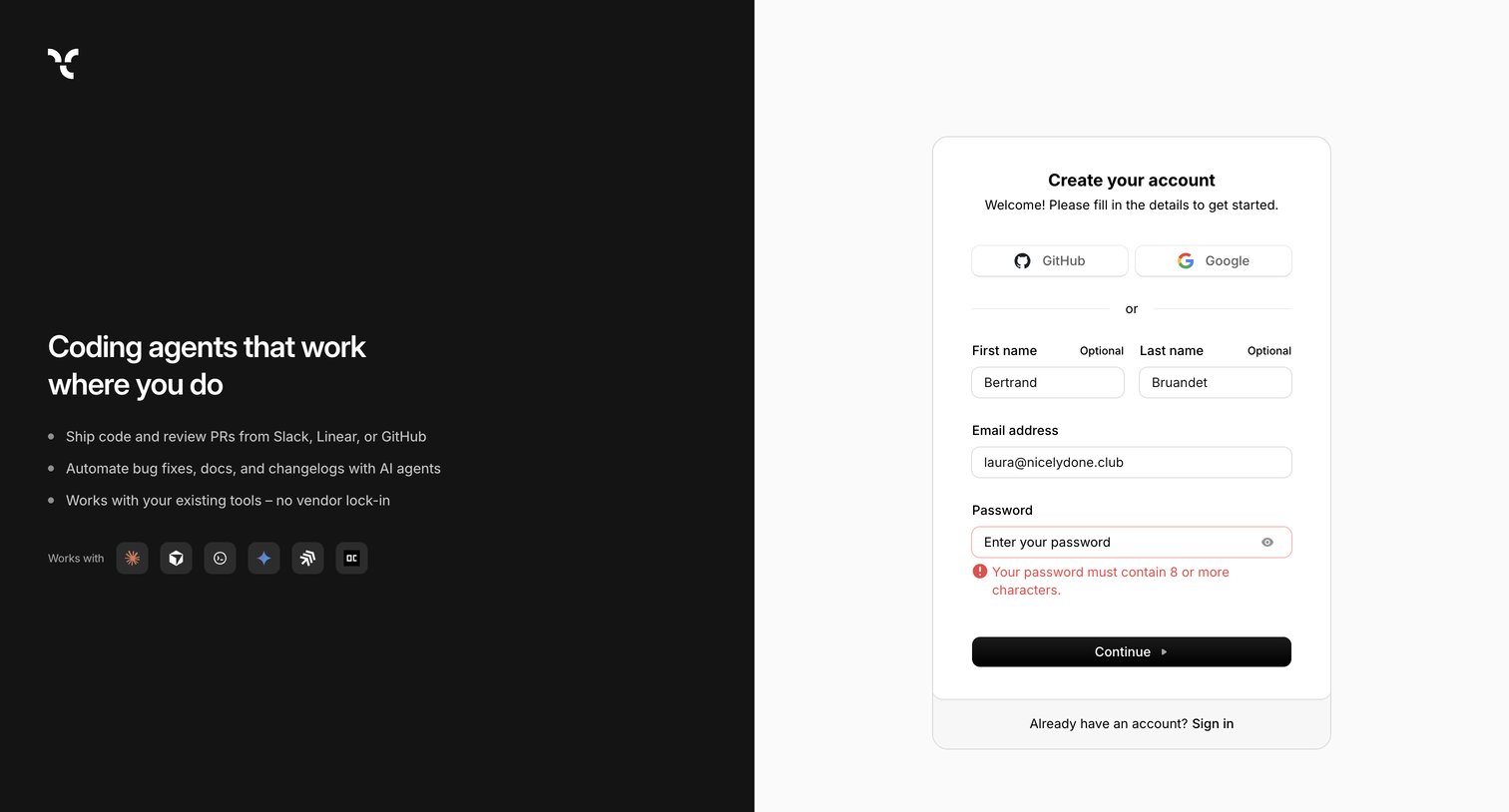
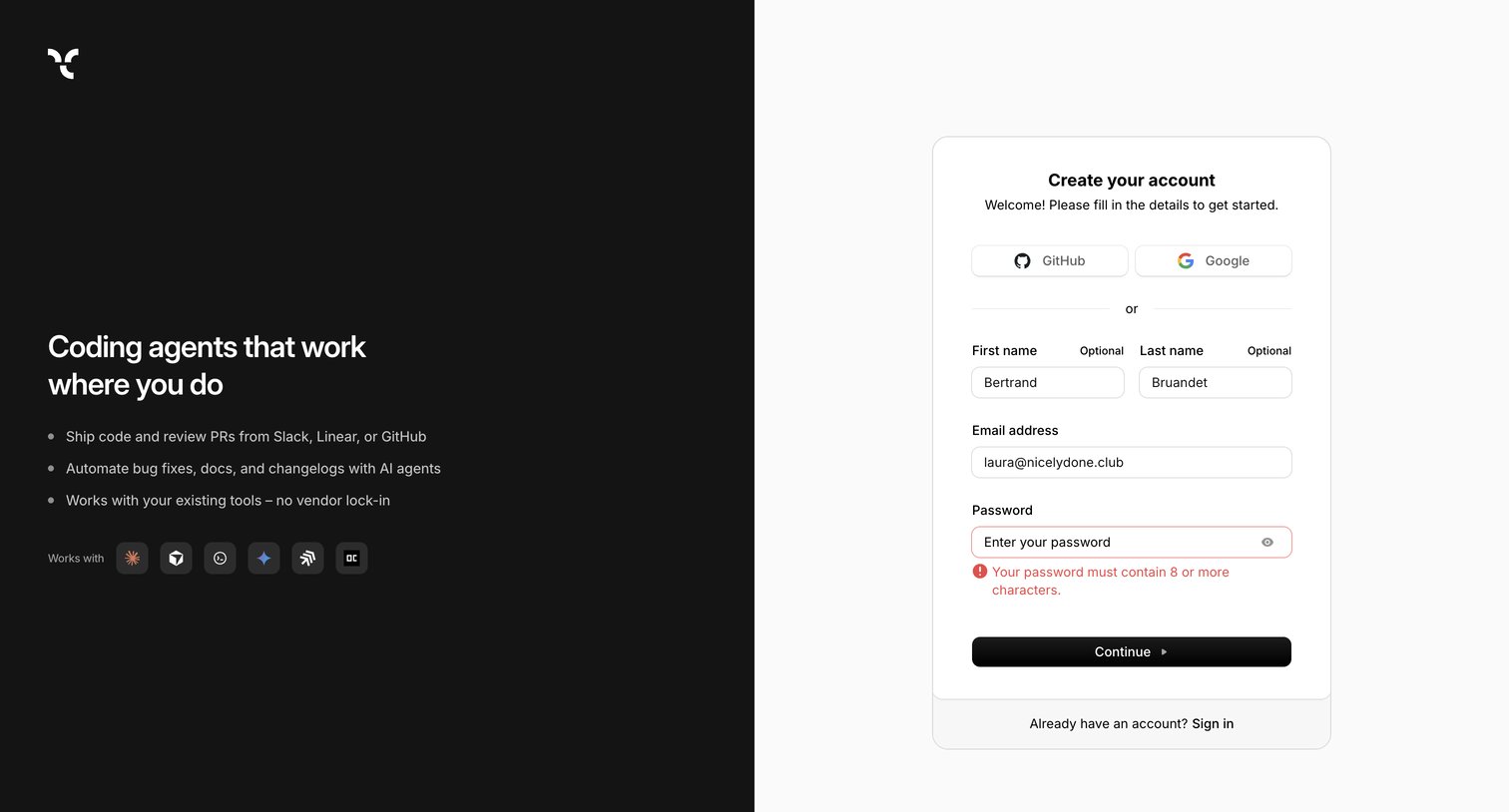
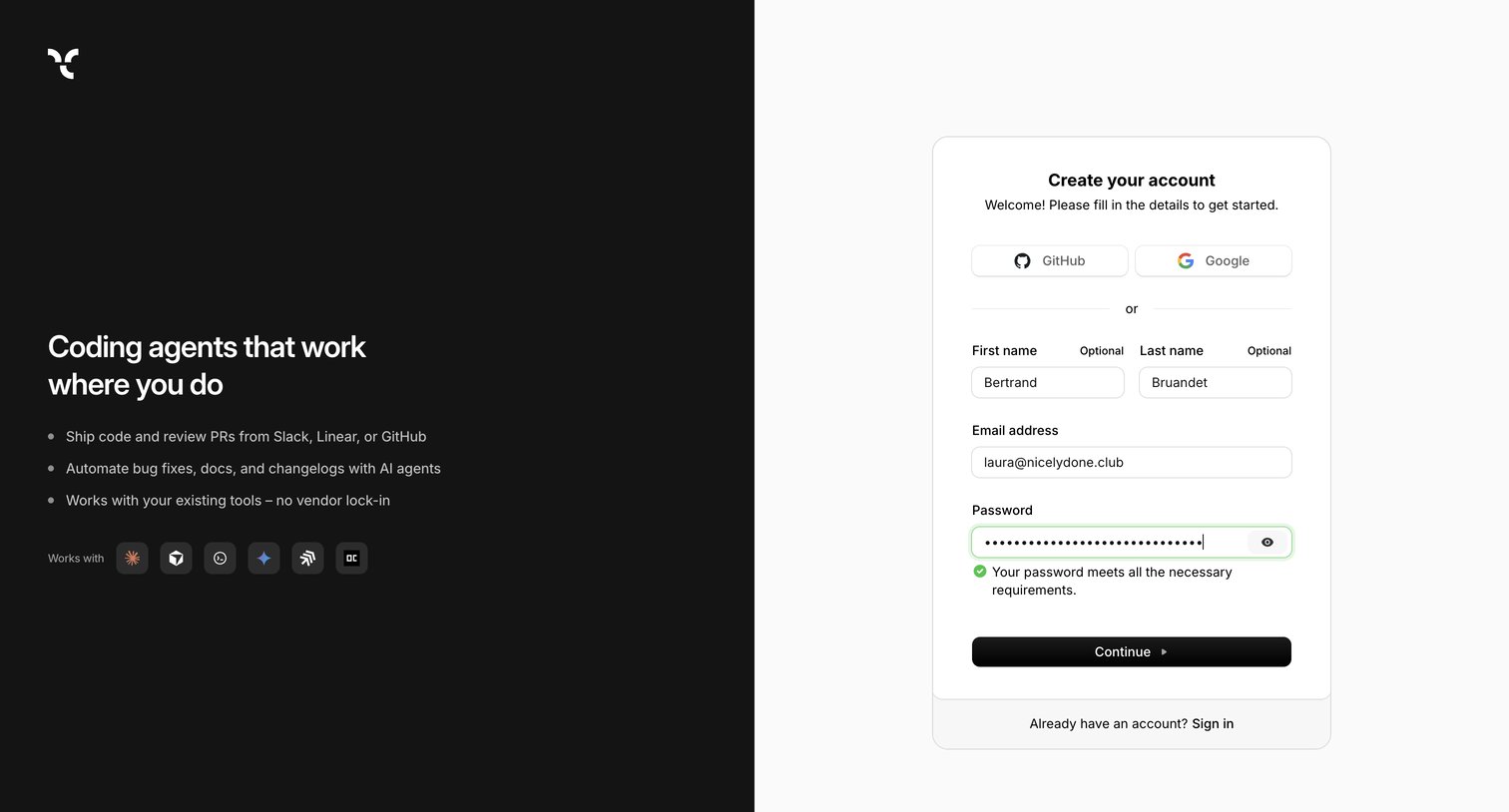
Signup screen where the user can create an account using GitHub, Google, or by filling out a standard email and password form with inline validation.
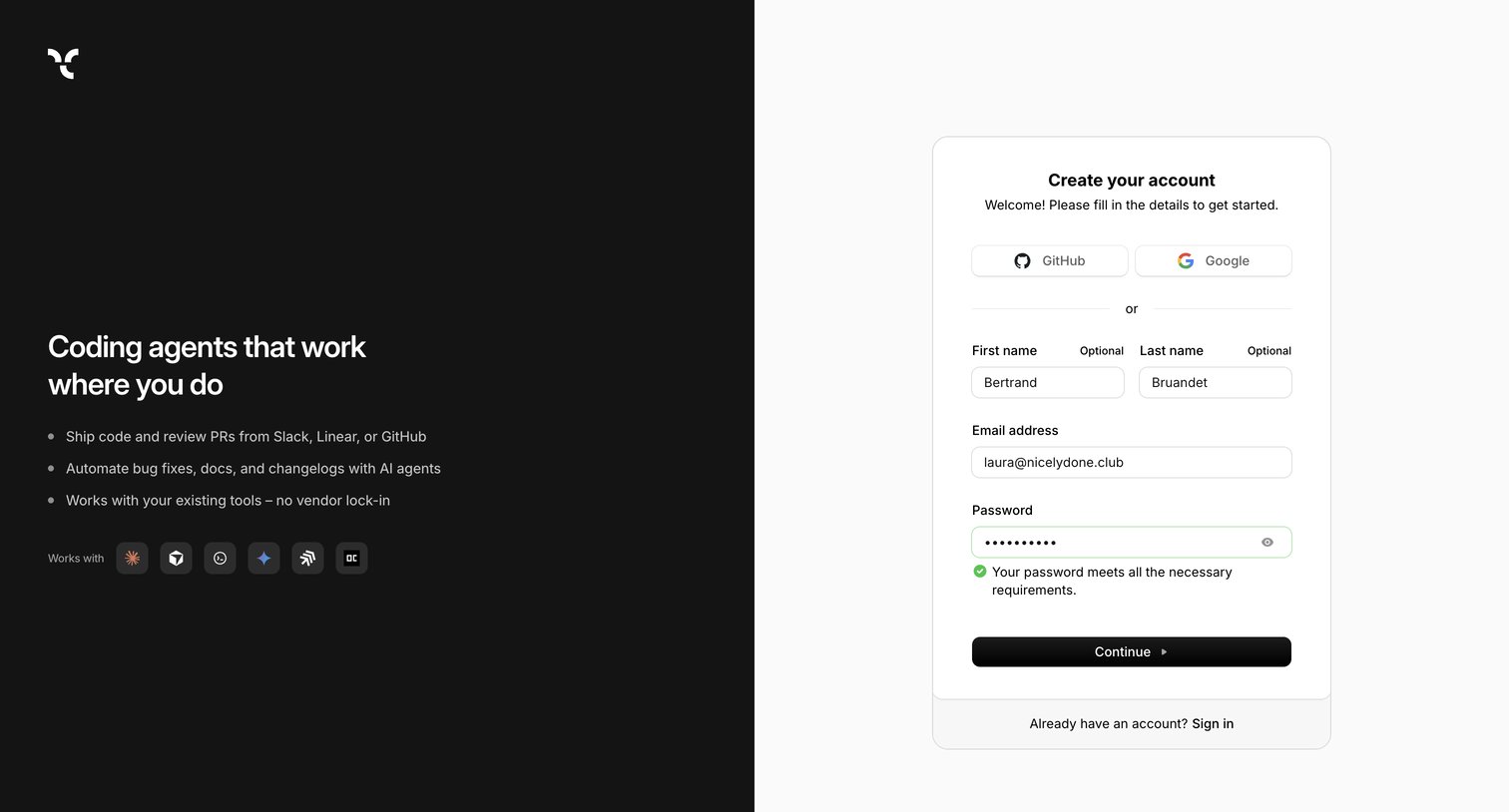
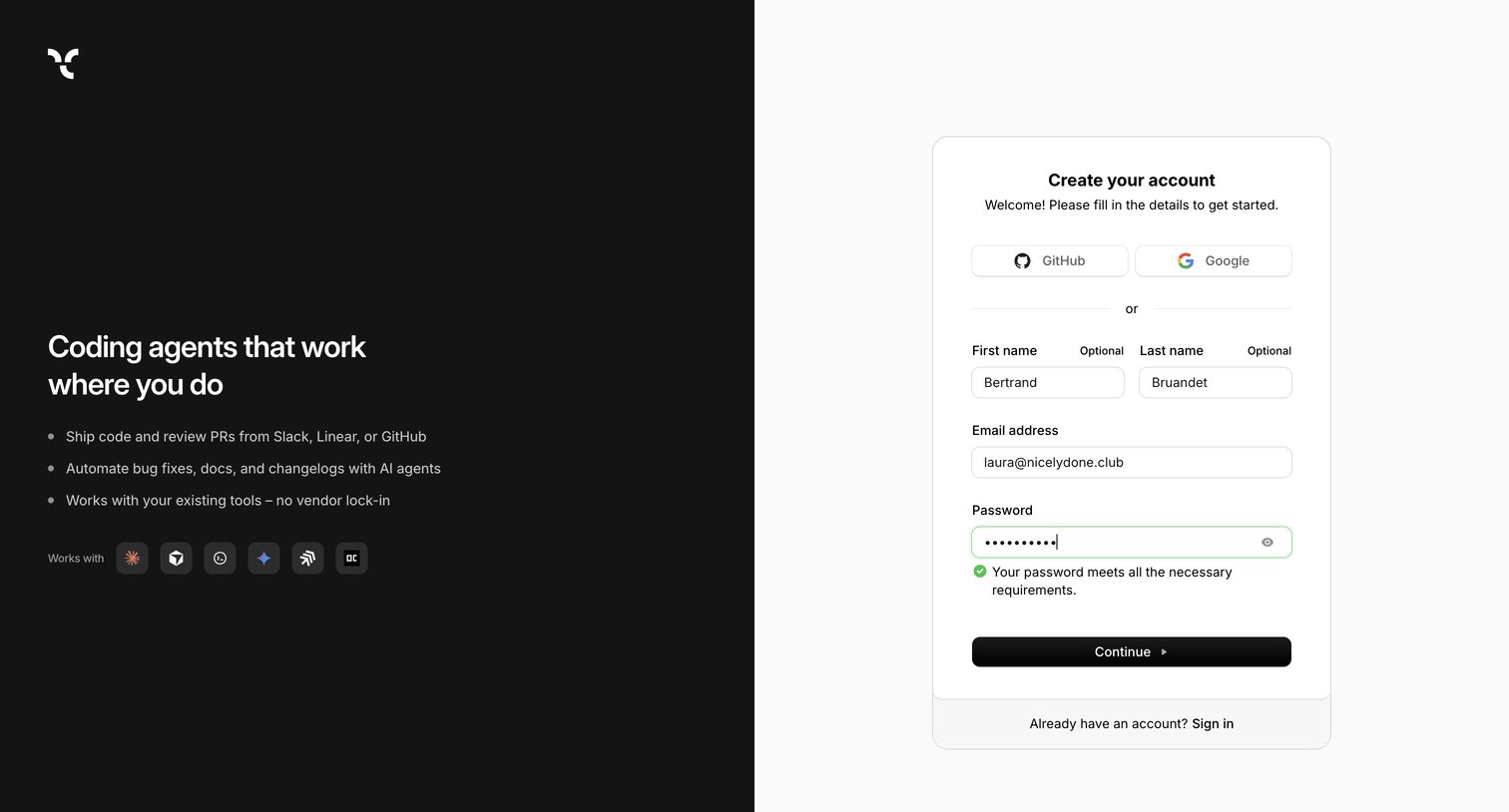
Signup screen where the user creates an account using email and password or OAuth providers, featuring a dark marketing sidebar highlighting product capabilities.
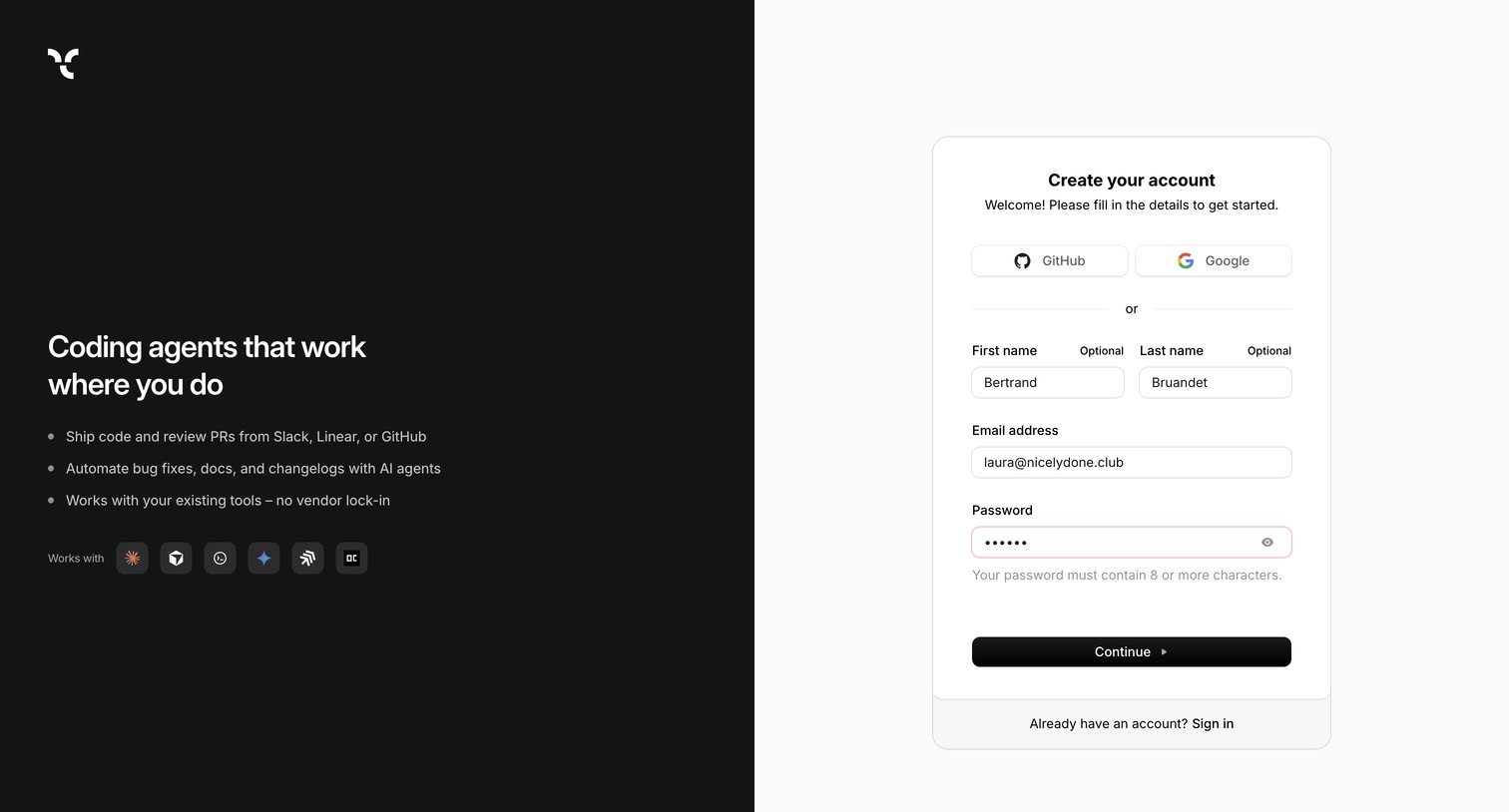
Signup page where the user creates an account using GitHub, Google, or an email and password, alongside a list of product features and integrations.
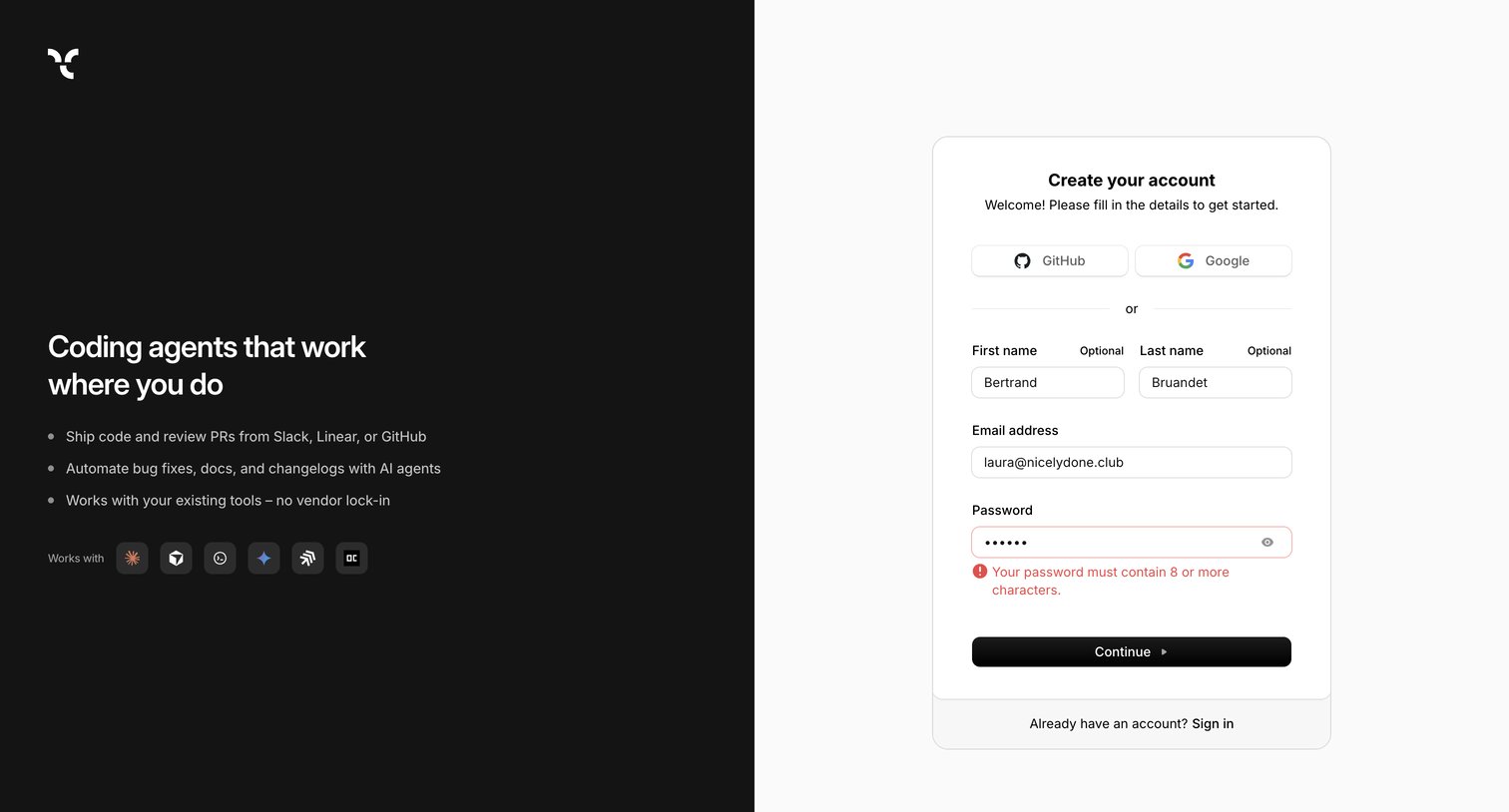
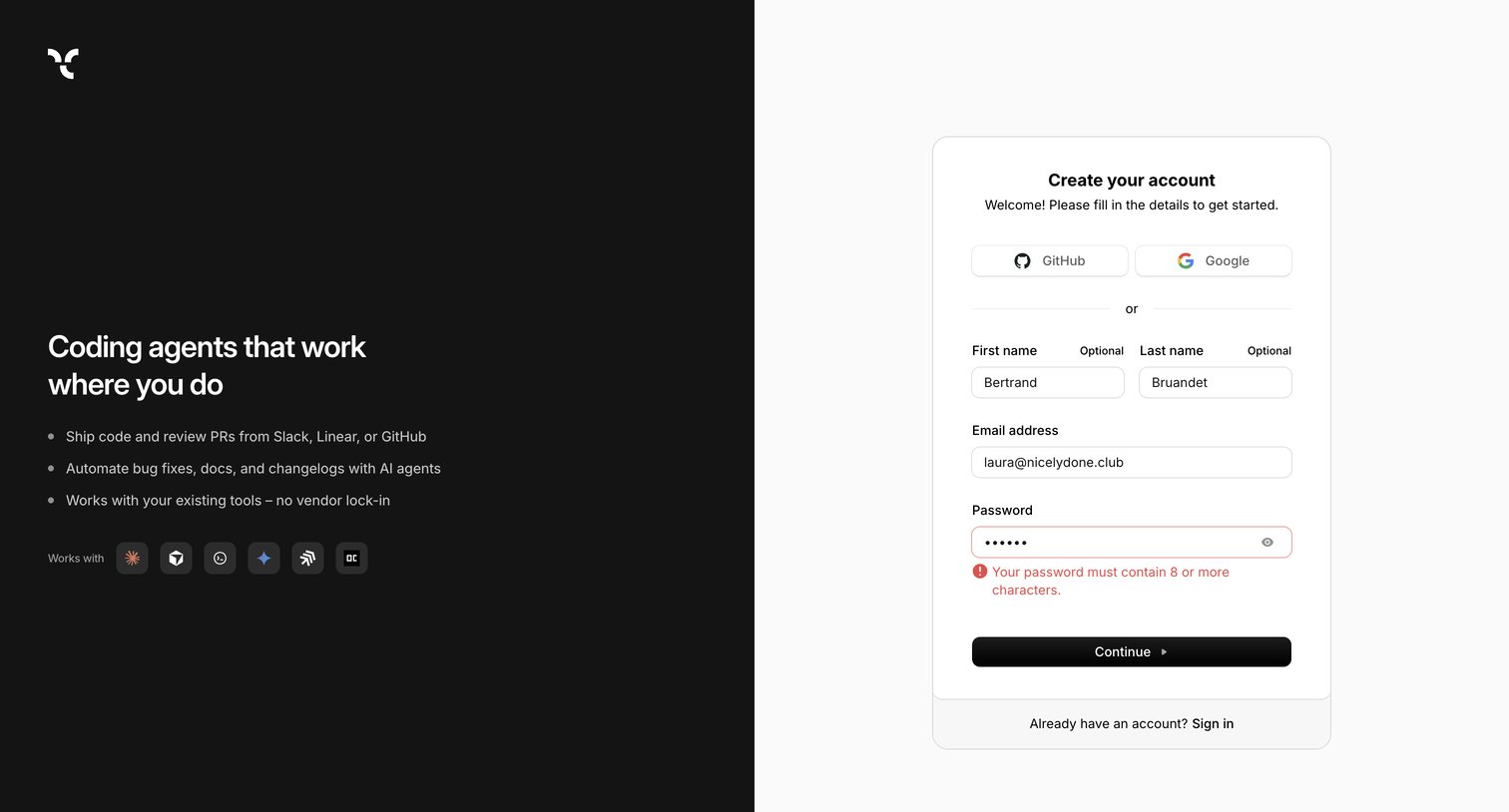
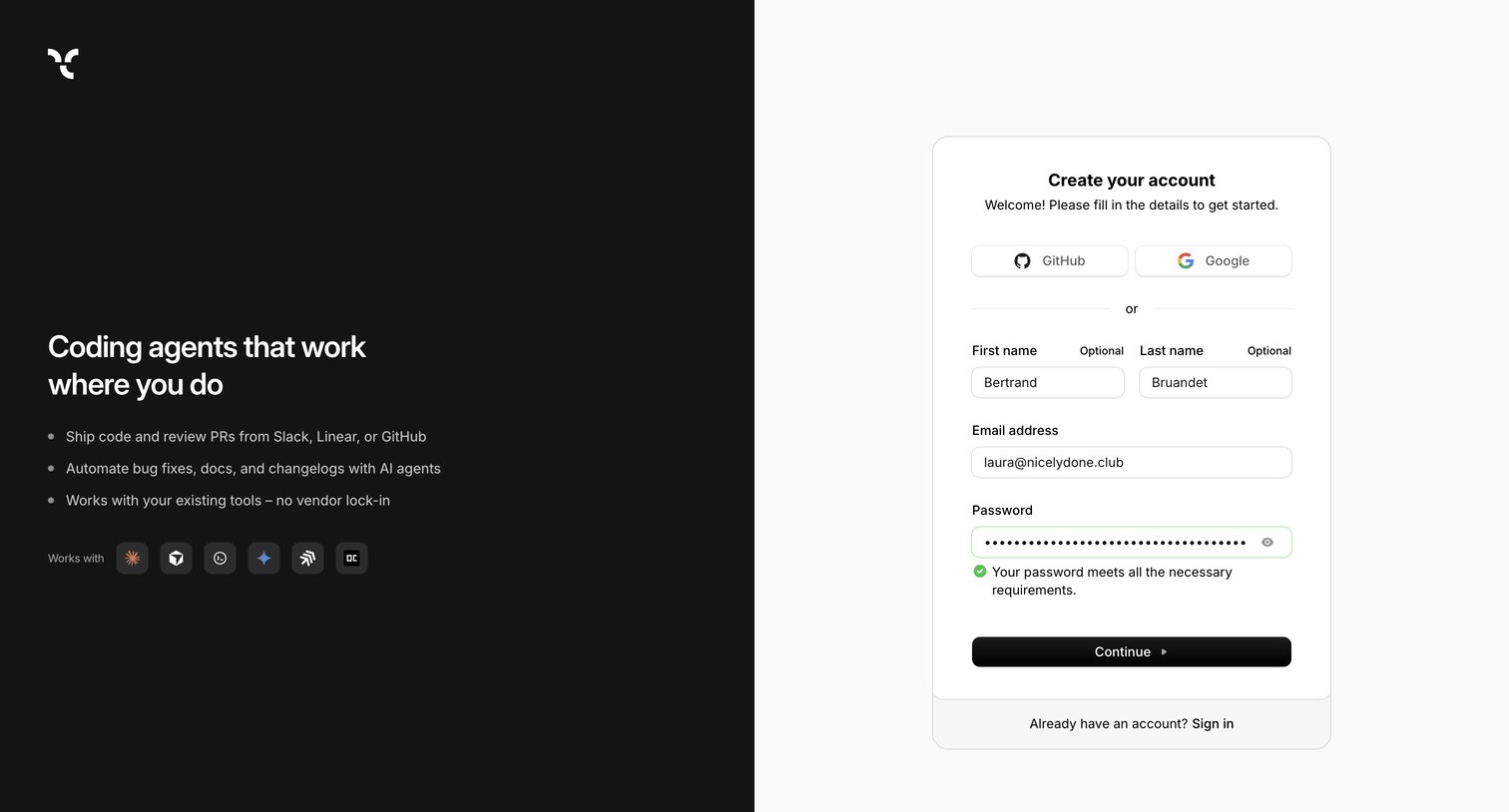
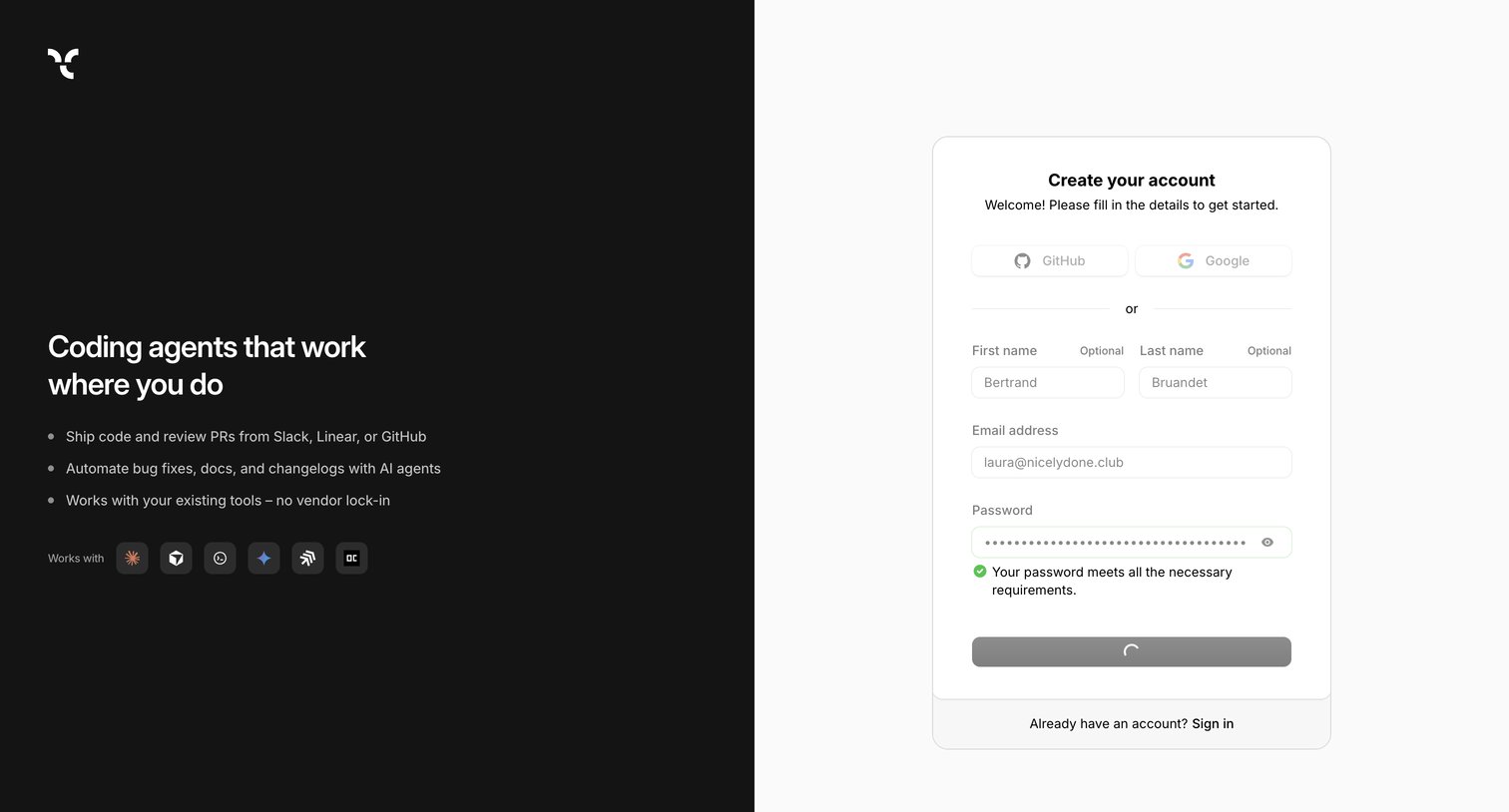
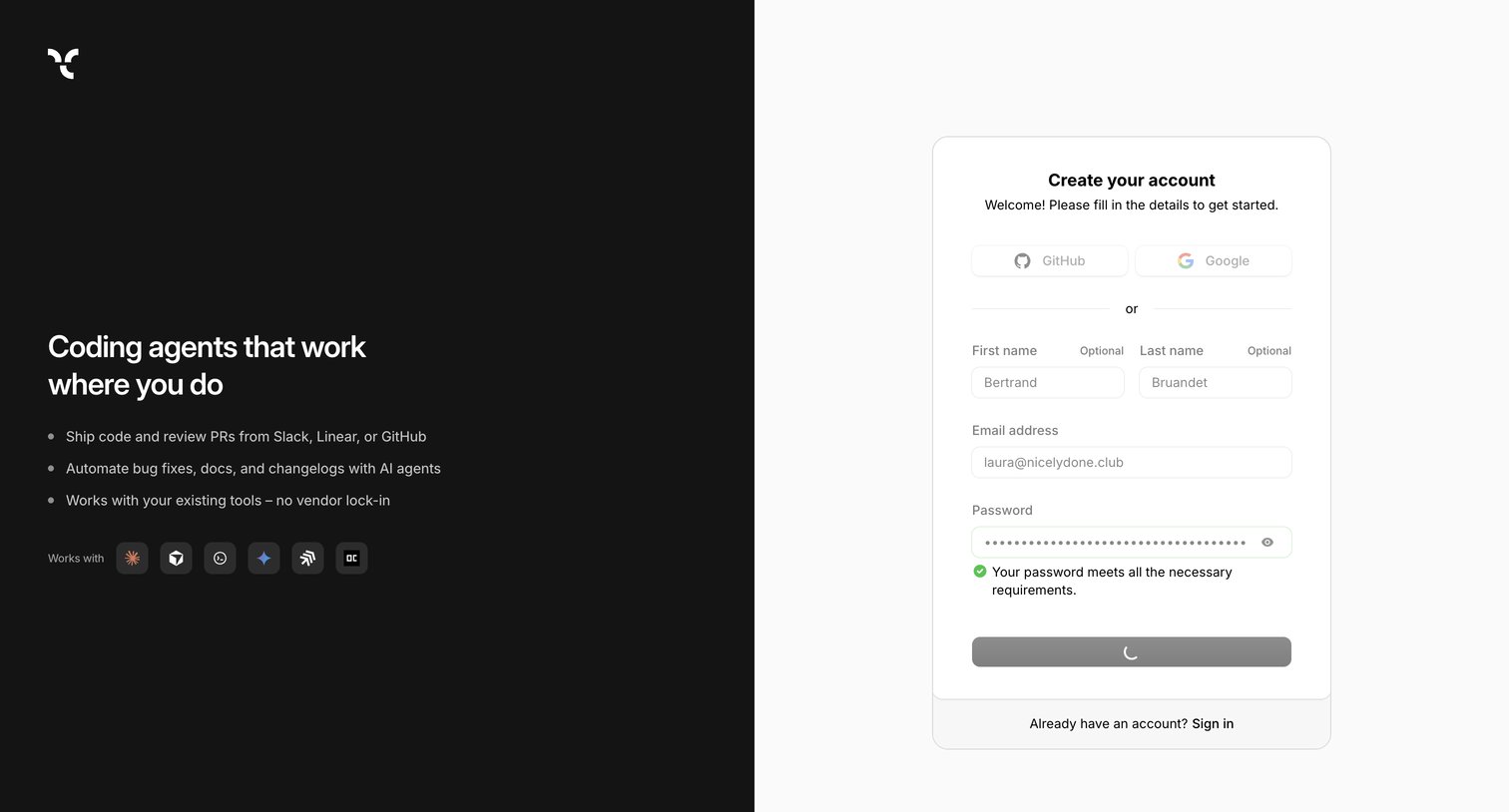
Signup page where the user is creating an account, showing a successful password validation message and a loading state on the submit button.
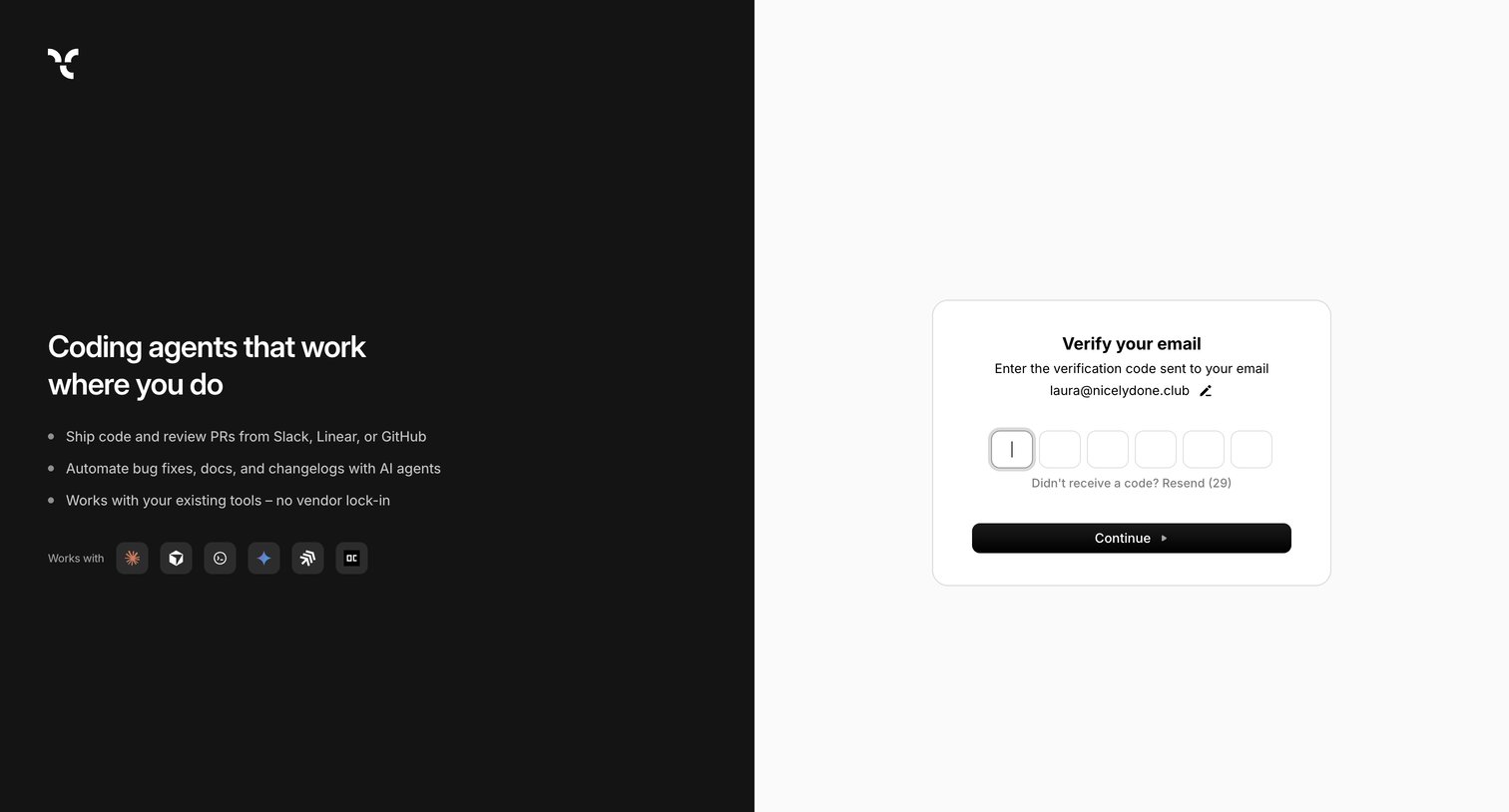
Verification screen where the user enters a 6-digit code sent to their email, accompanied by a marketing sidebar highlighting product benefits and integrations.
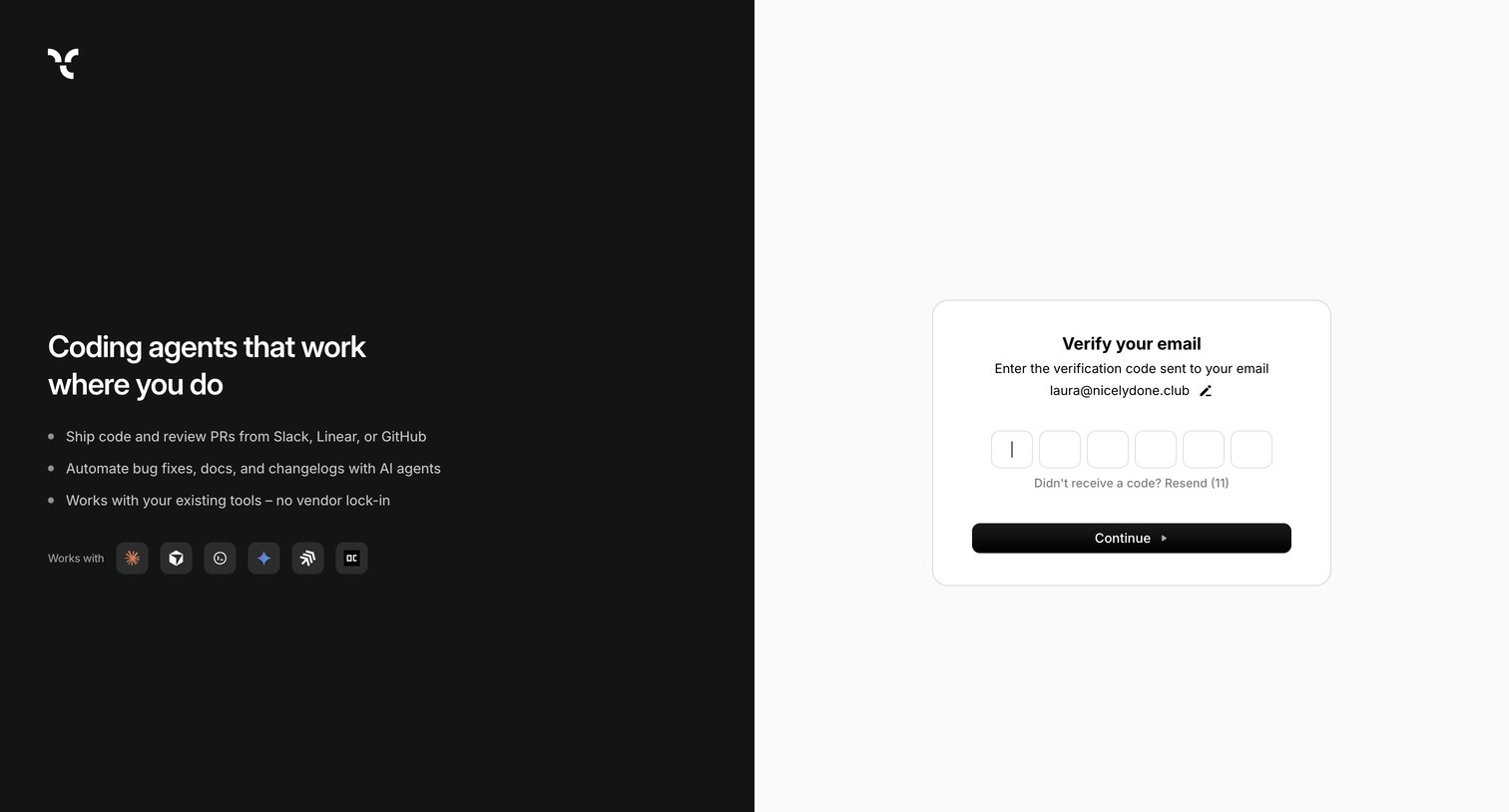
Verification screen where the user enters a 6-digit code sent to their email to confirm their account.
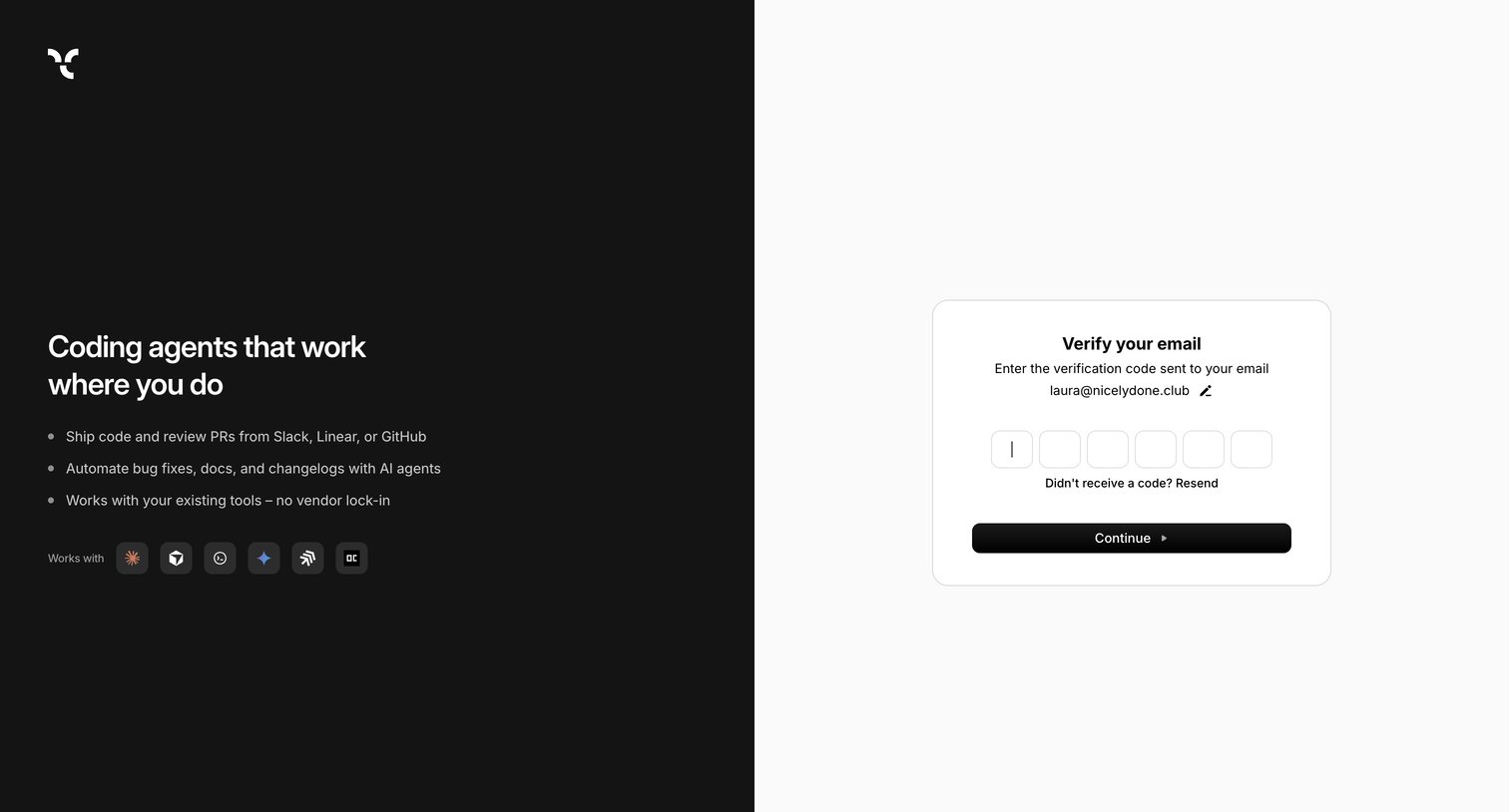
Authentication screen where the user enters a 6-digit verification code sent to their email to complete signup, alongside marketing copy highlighting integrations.
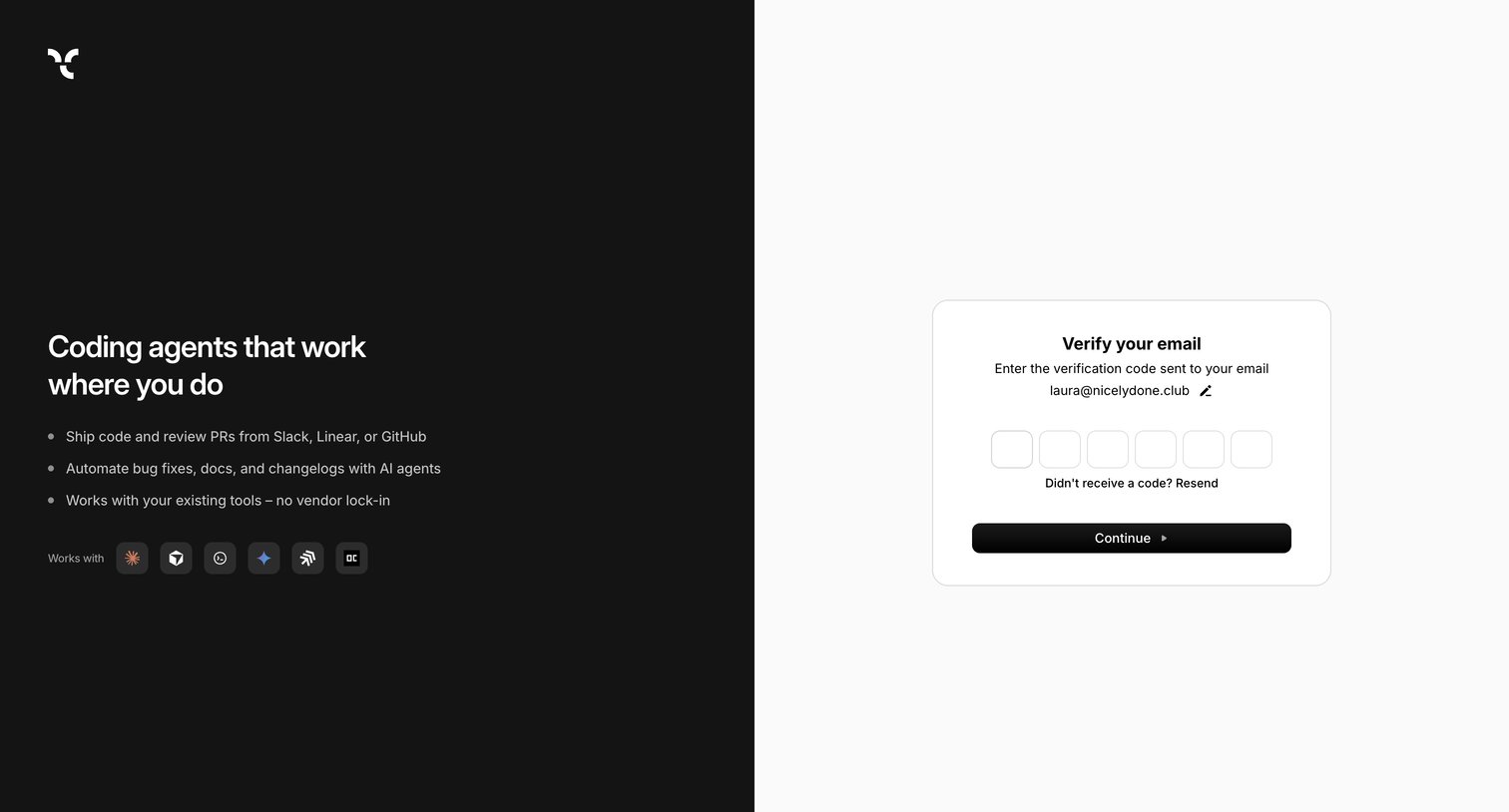
Verification screen where the user enters a 6-digit code sent to their email to confirm their account.
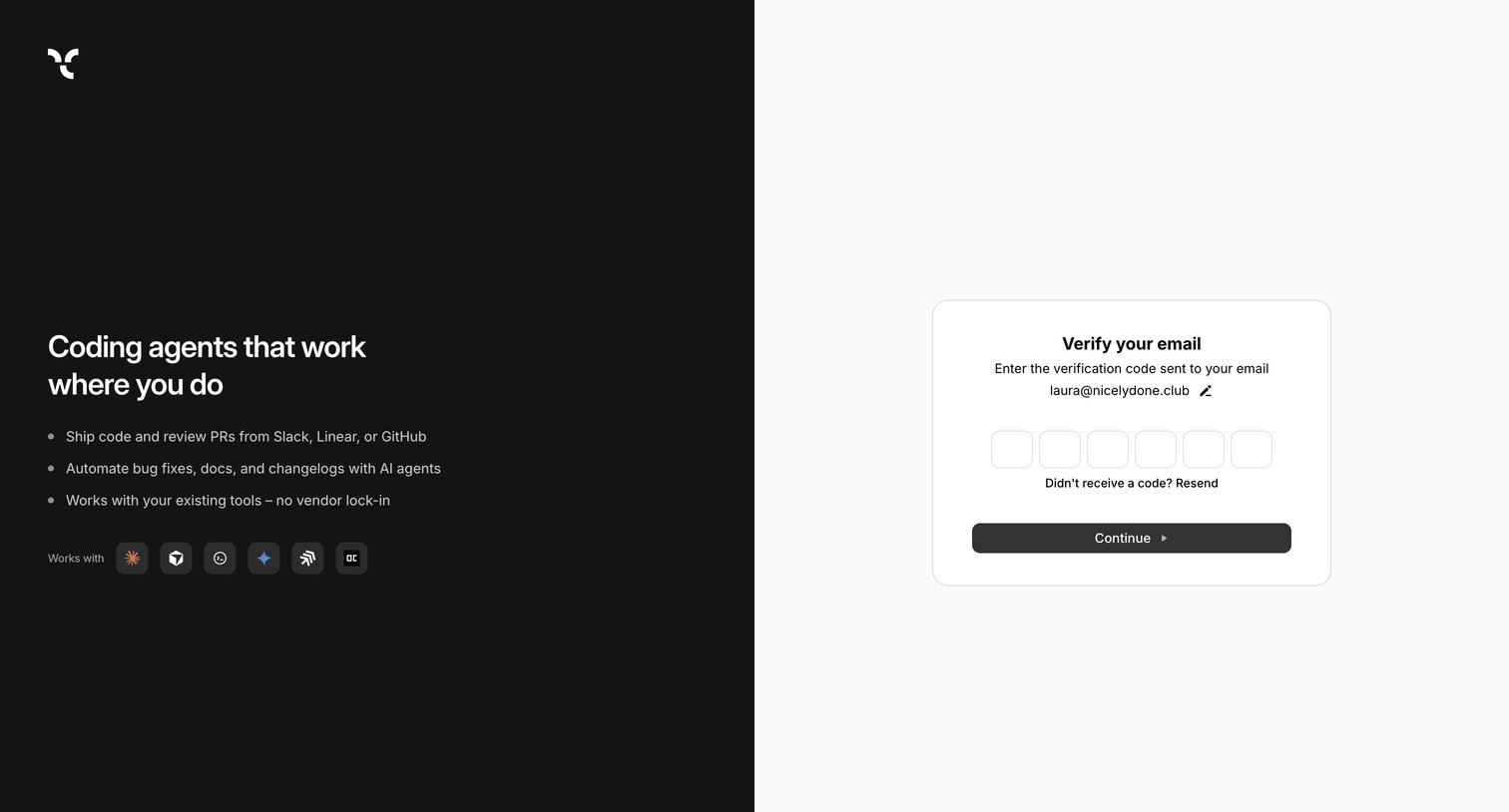
Auth screen where the user enters a 6-digit verification code sent to their email to continue the sign-up process.
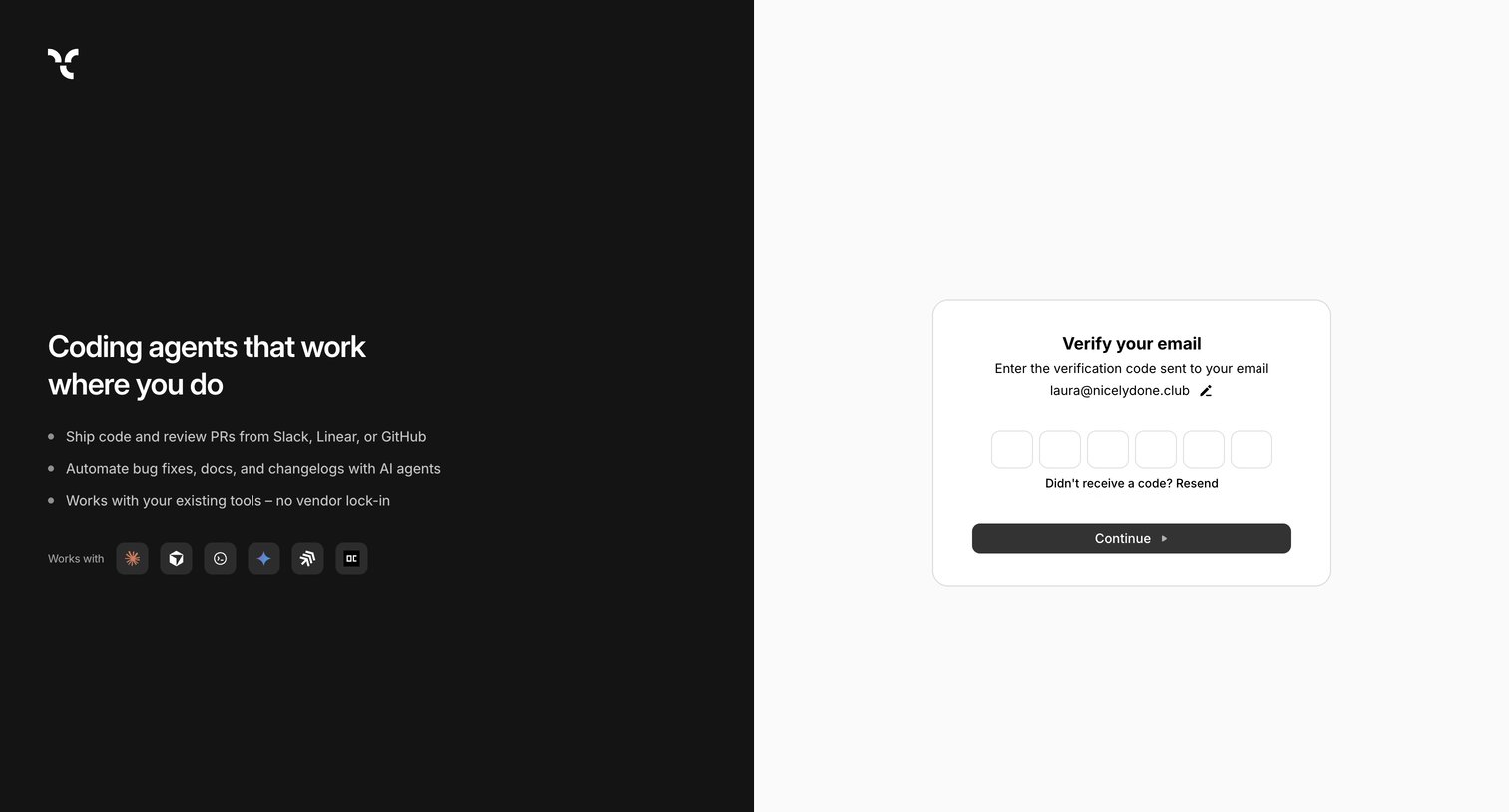
Auth screen where the user enters a 6-digit code sent to their email to verify their account, with product value propositions displayed alongside.
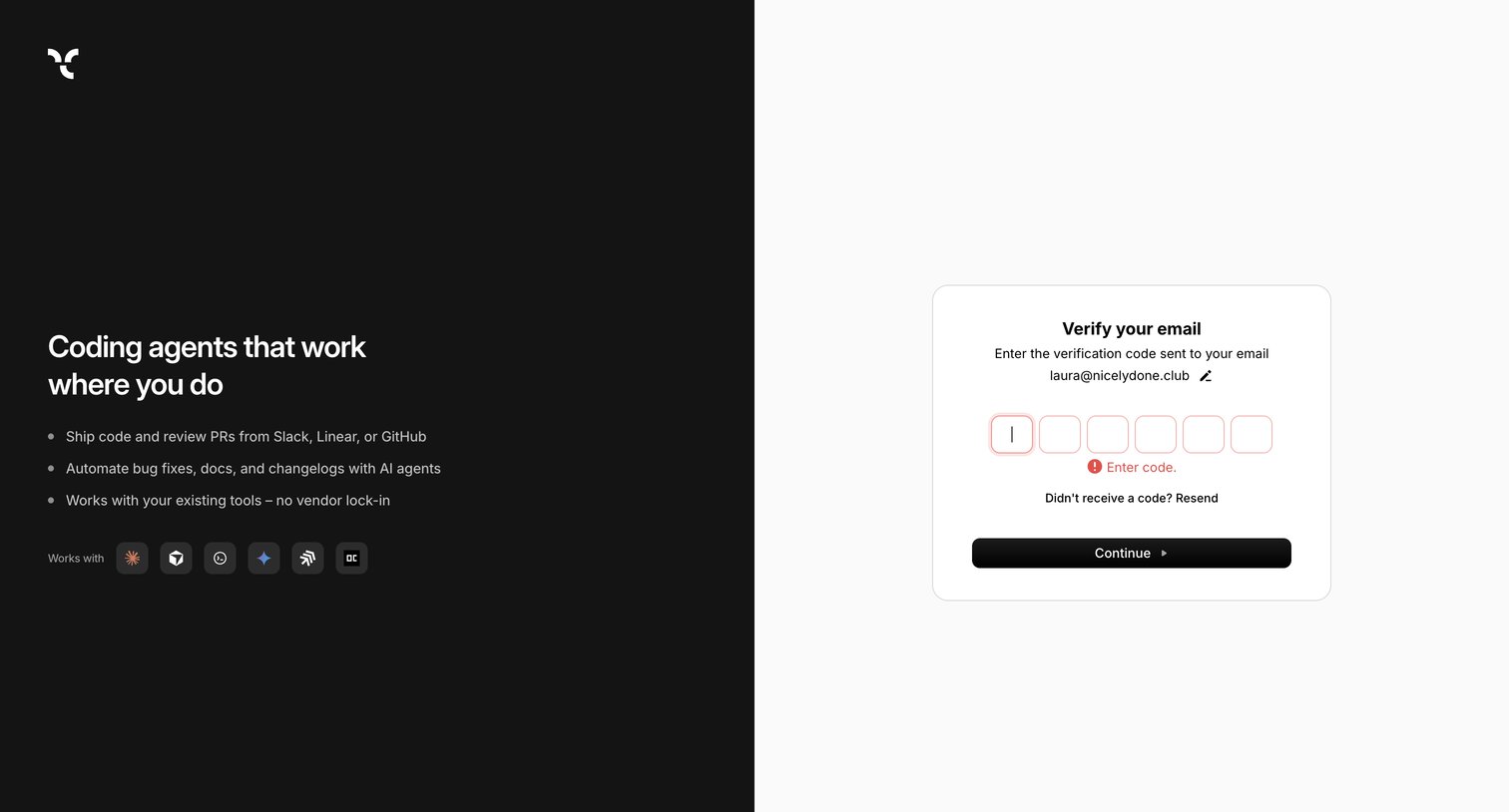
Email verification screen where the user is prompted to enter a 6-digit code, currently showing an error state for an empty submission.
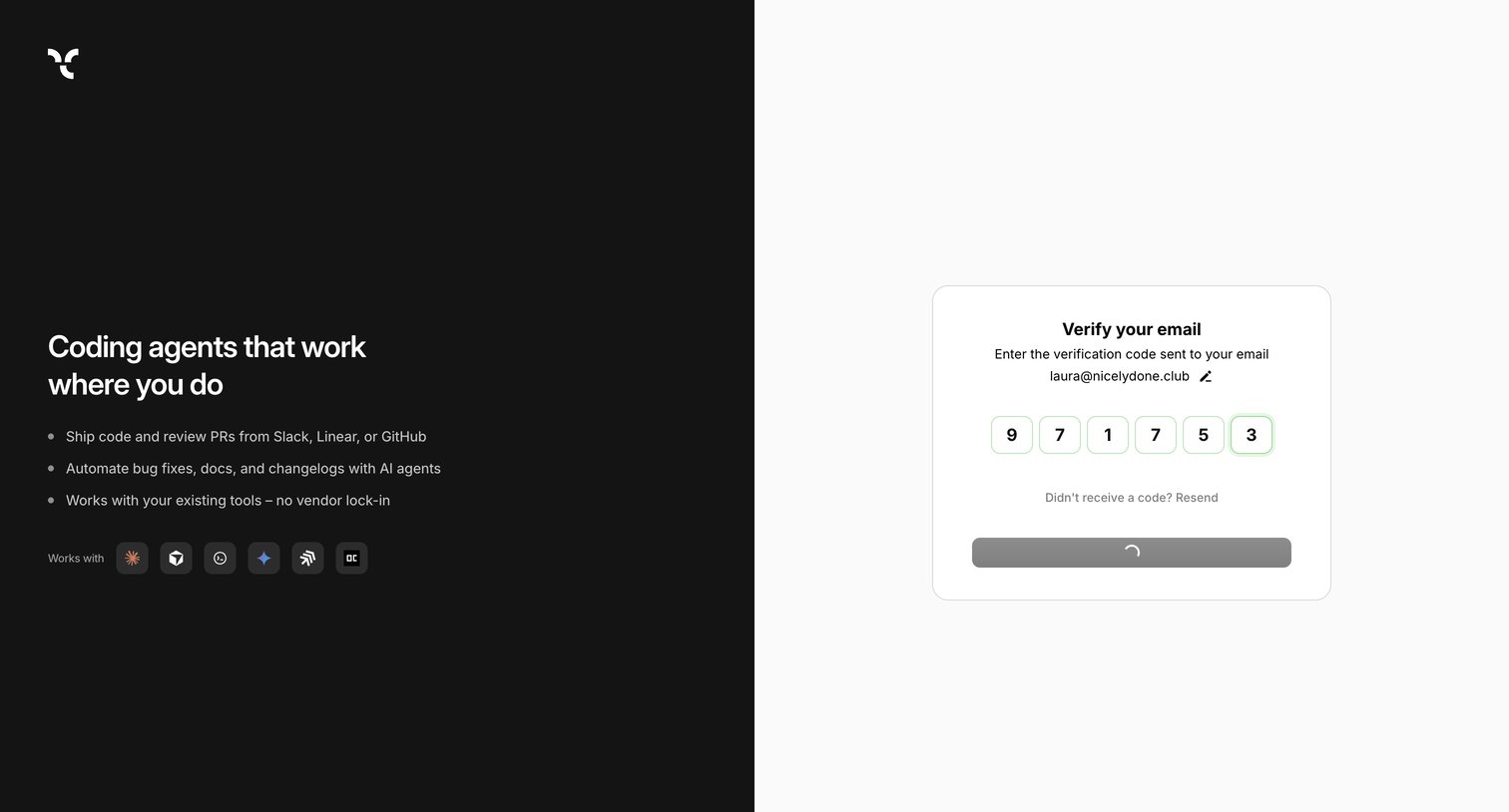
Verification screen where the user enters a 6-digit code sent to their email to complete their account signup.
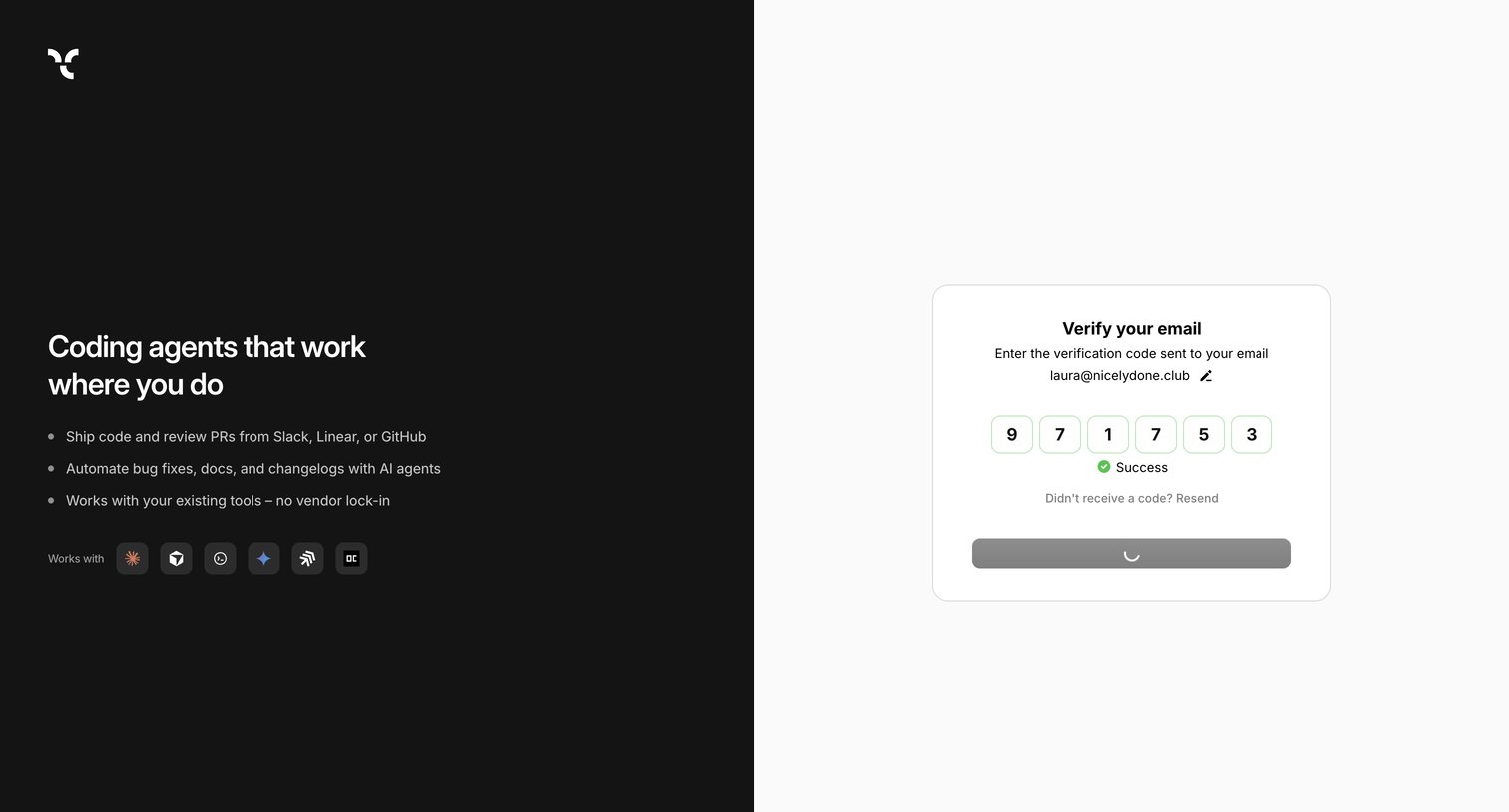
Email verification screen where the user enters a 6-digit code to complete sign-up, shown alongside product benefits and integrations.
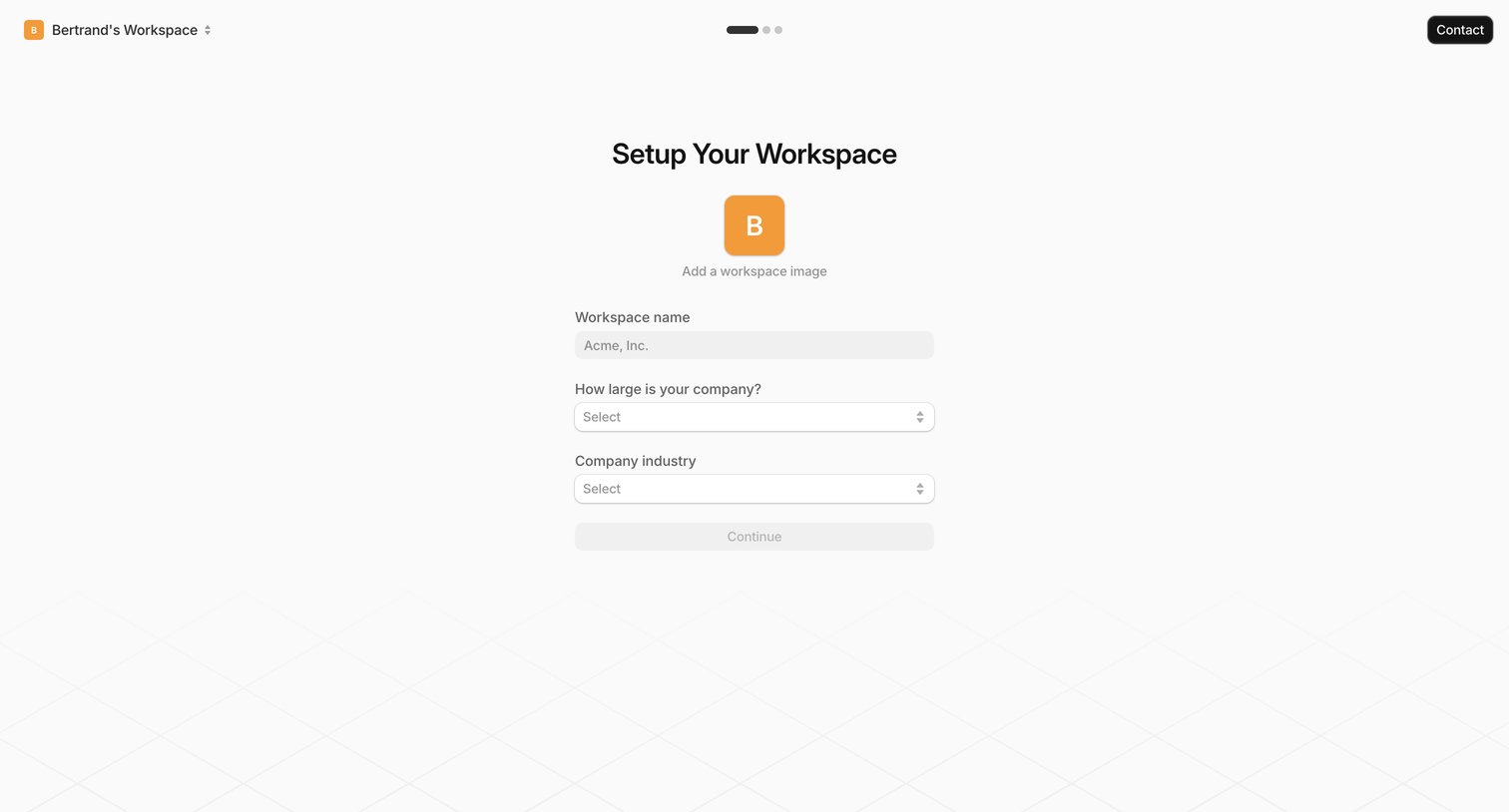
Onboarding step where the user names their workspace, selects their company size, and chooses an industry.
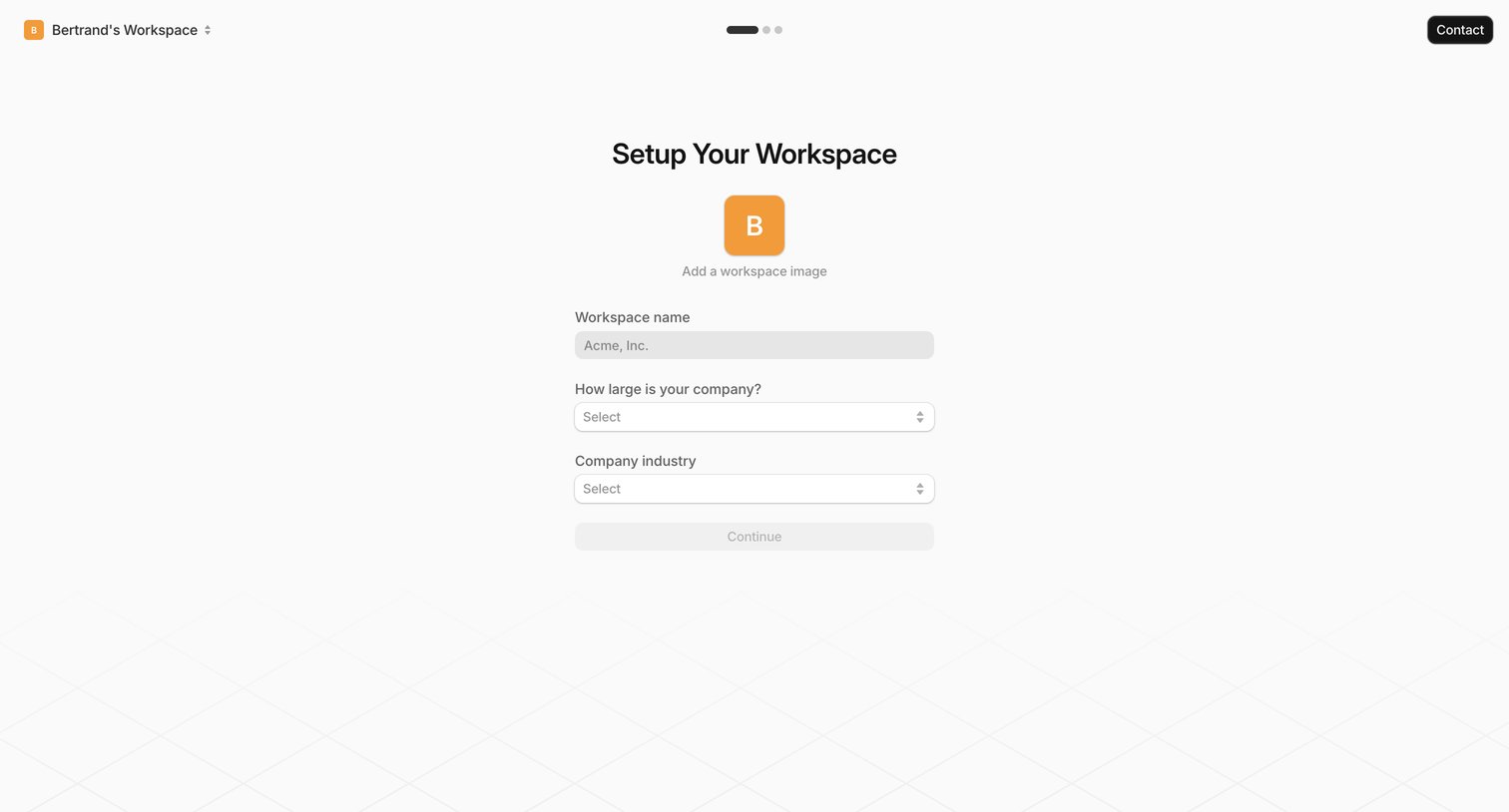
Onboarding step where the user names their workspace and specifies their company size and industry.
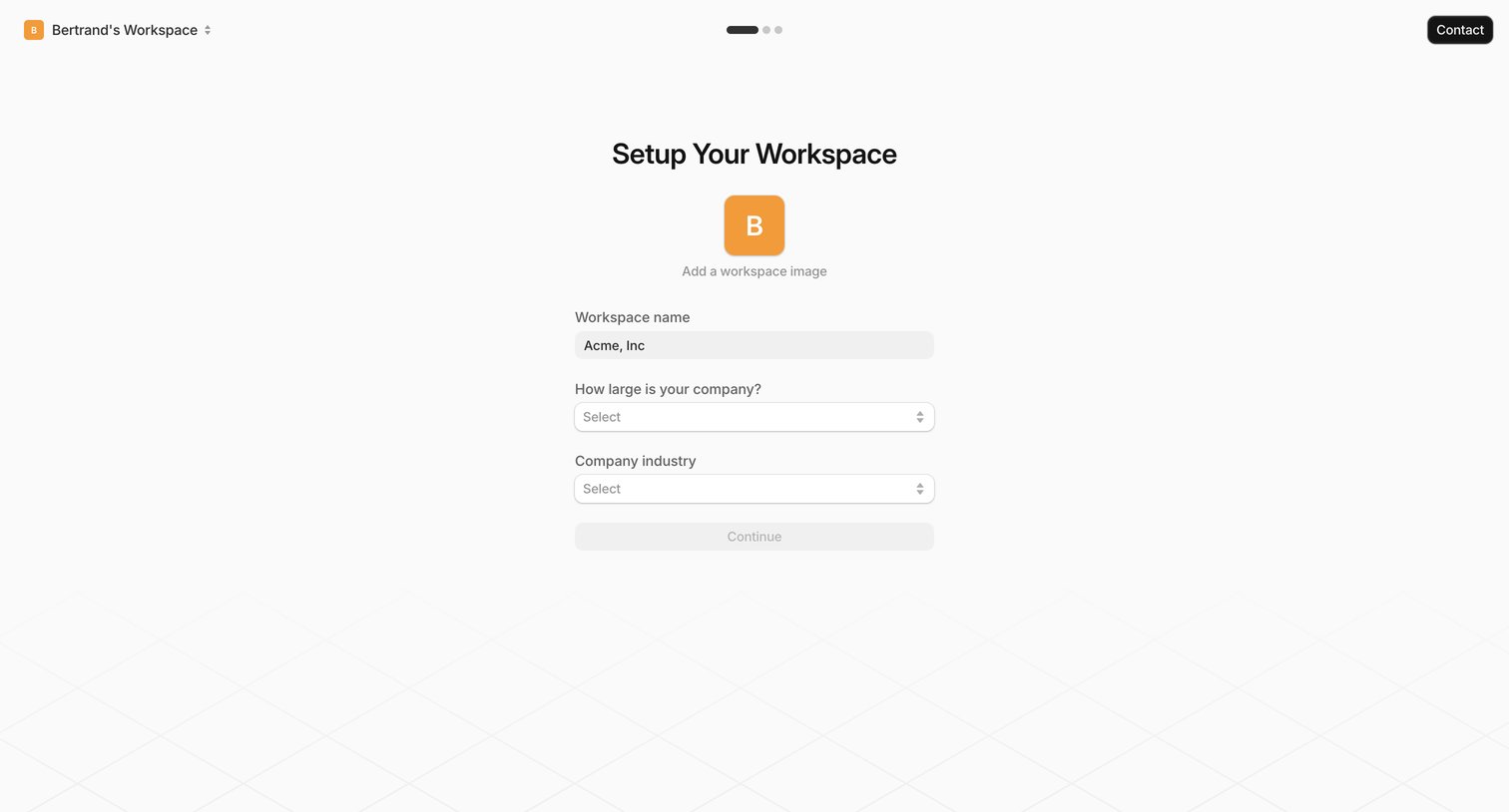
Onboarding step where the user names their workspace, uploads an image, and selects their company size and industry.
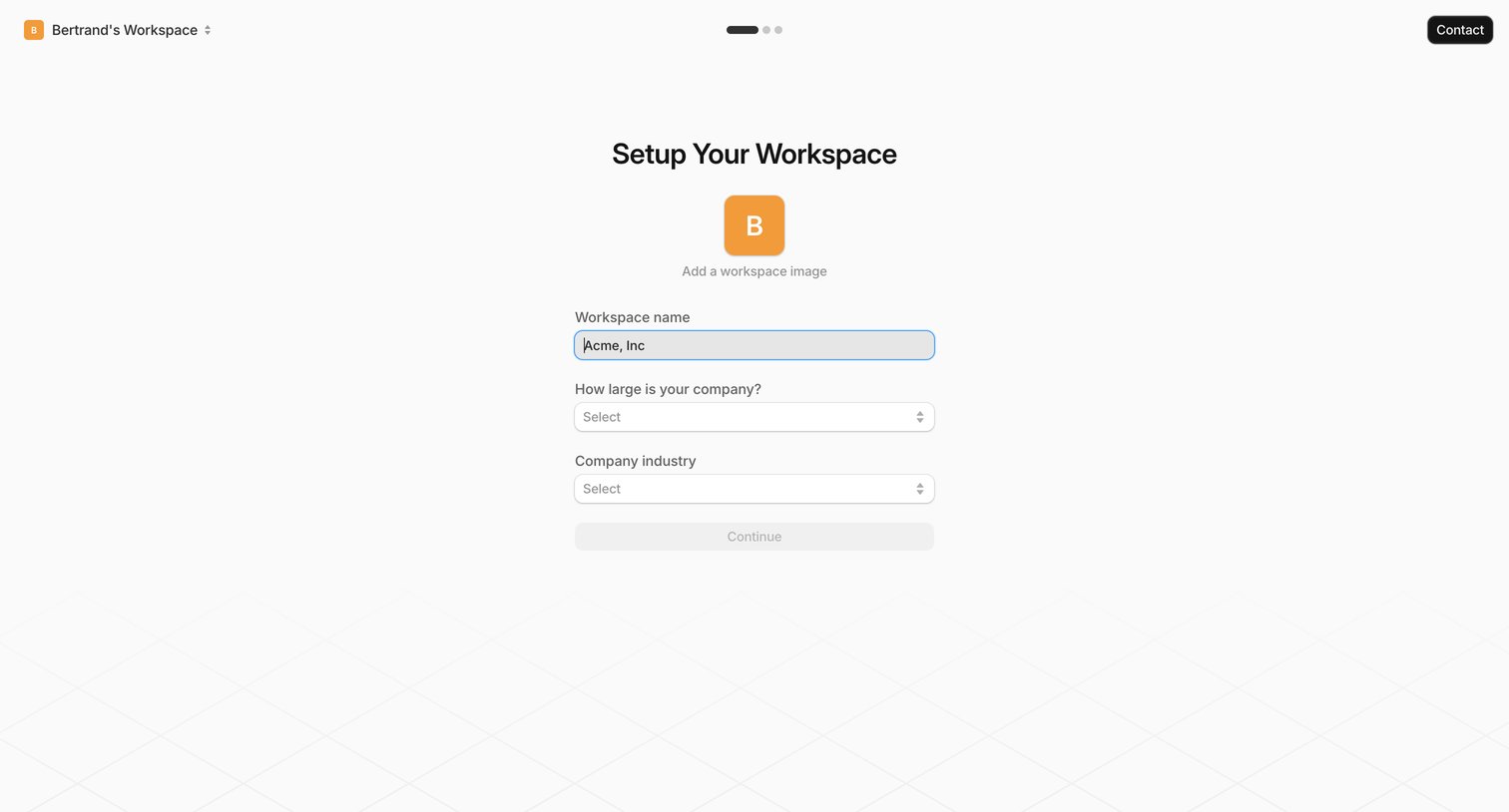
Onboarding step where the user names their workspace, selects their company size and industry, and optionally uploads a workspace logo.
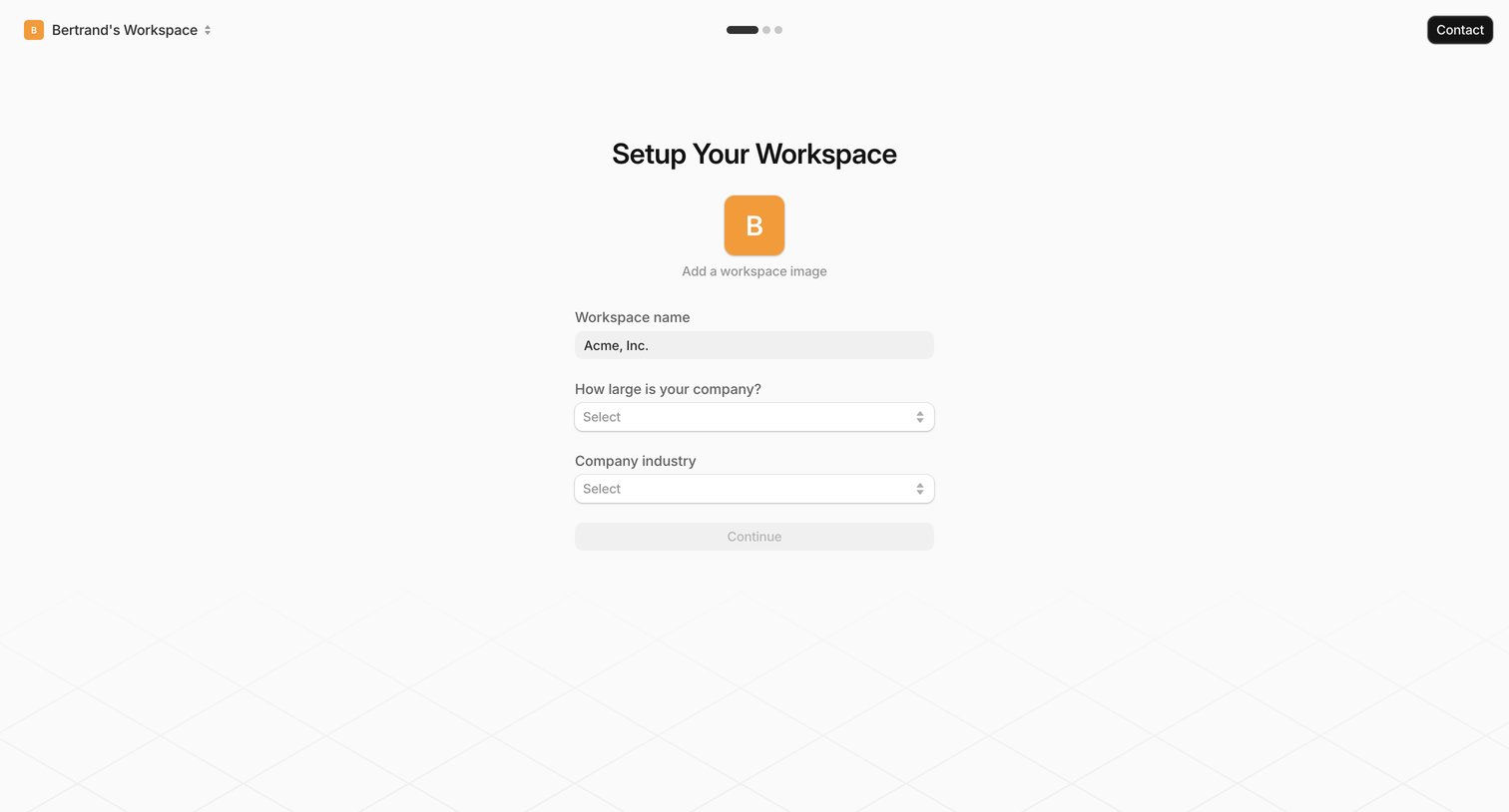
Onboarding step where the user names their workspace, selects company size, and chooses their industry.
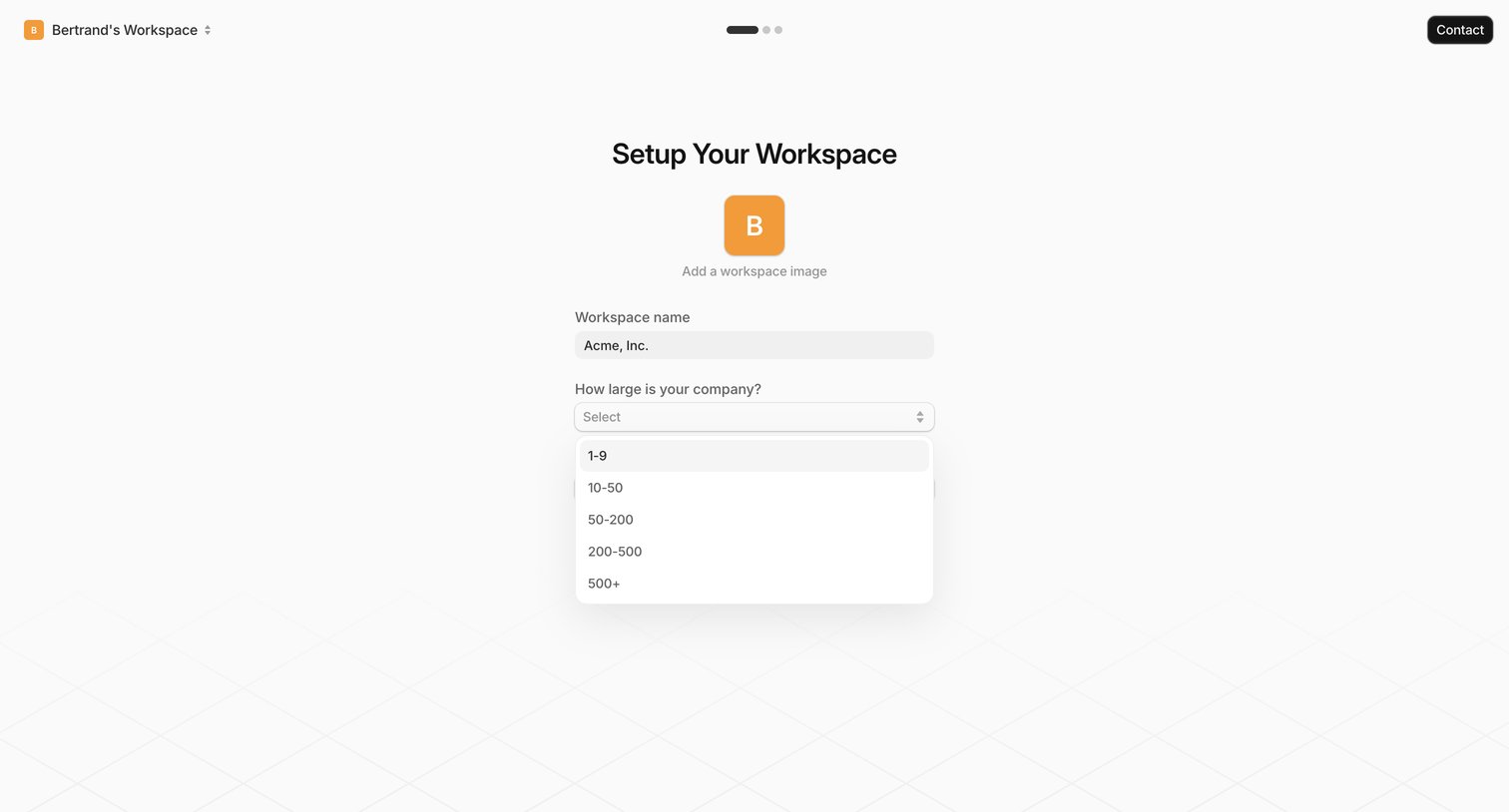
Onboarding step where the user names their workspace, uploads an avatar, and selects their company size from a dropdown.
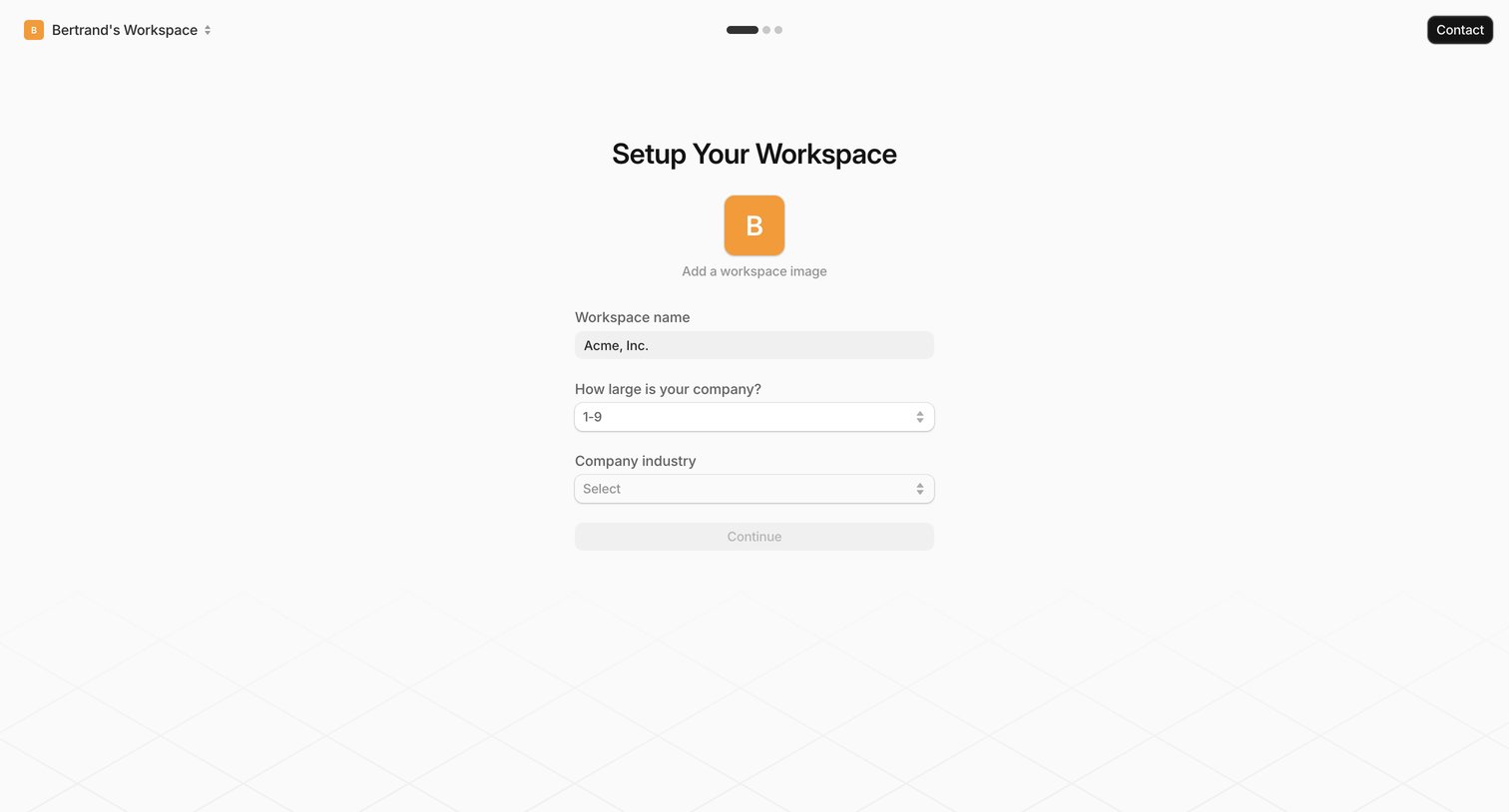
Onboarding step where the user configures their new workspace by providing a name, company size, and industry.
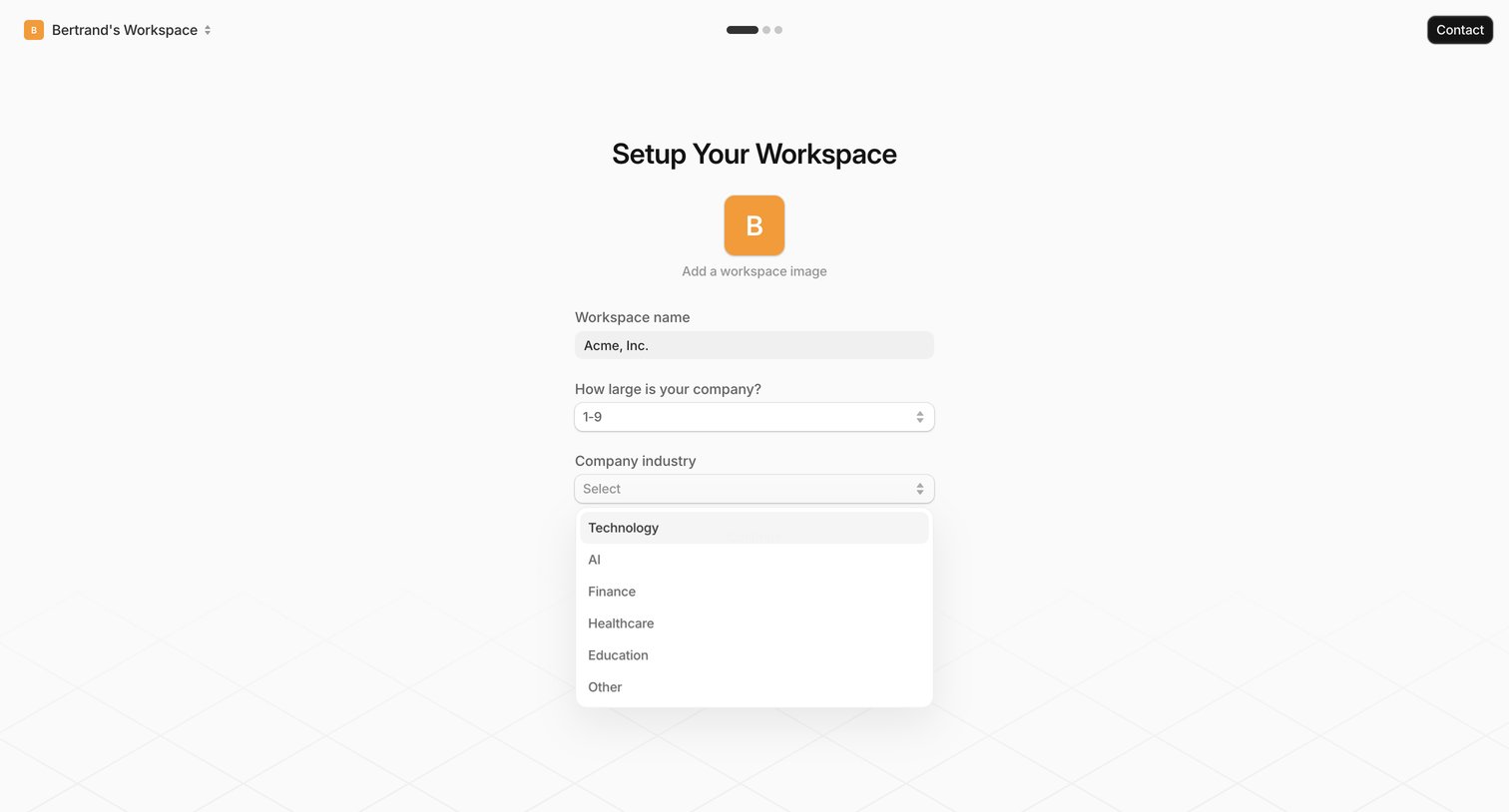
Onboarding step where the user configures their workspace by providing a name, company size, and industry.
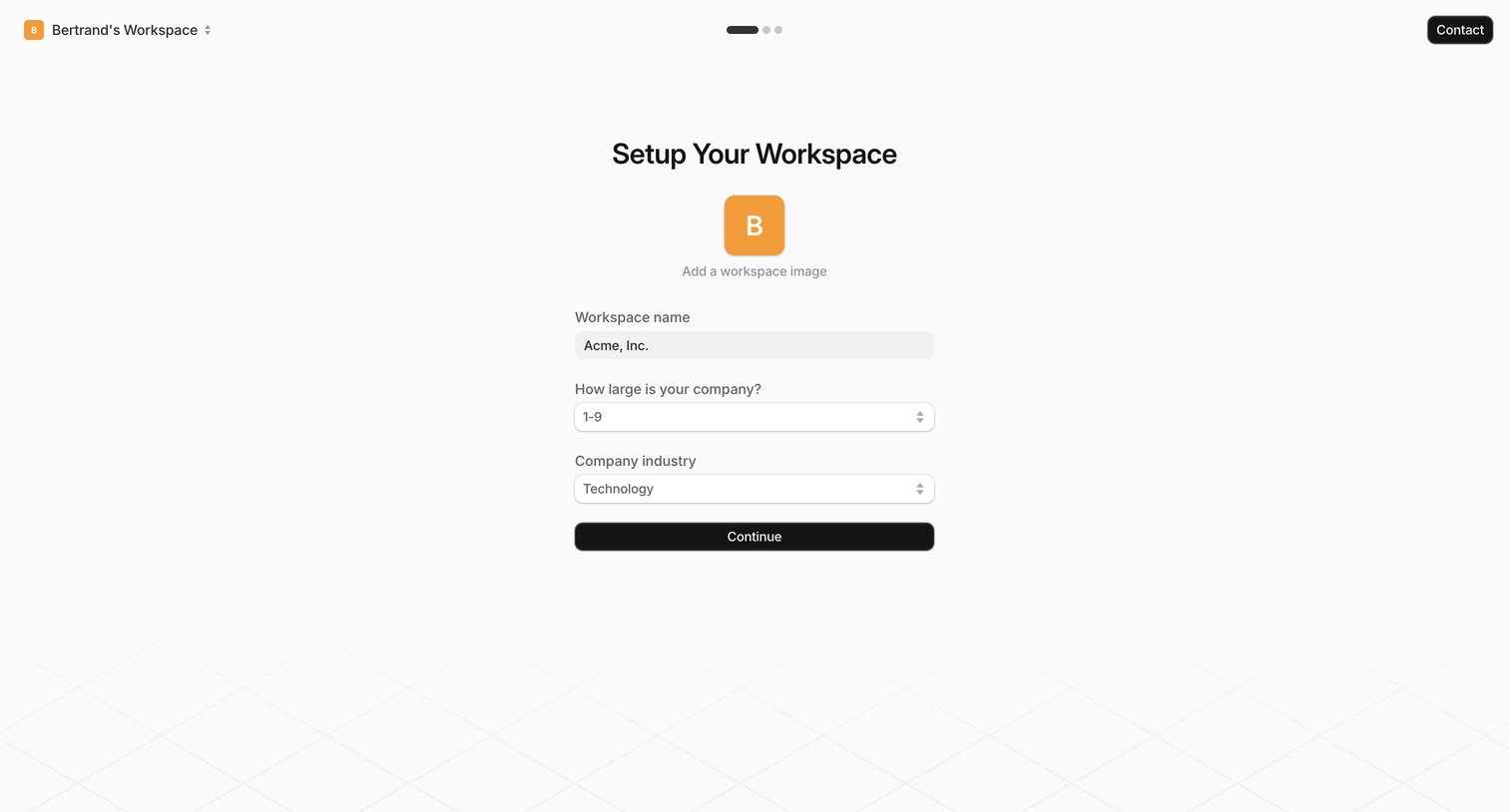
Onboarding step where the user configures their workspace name, company size, and industry.
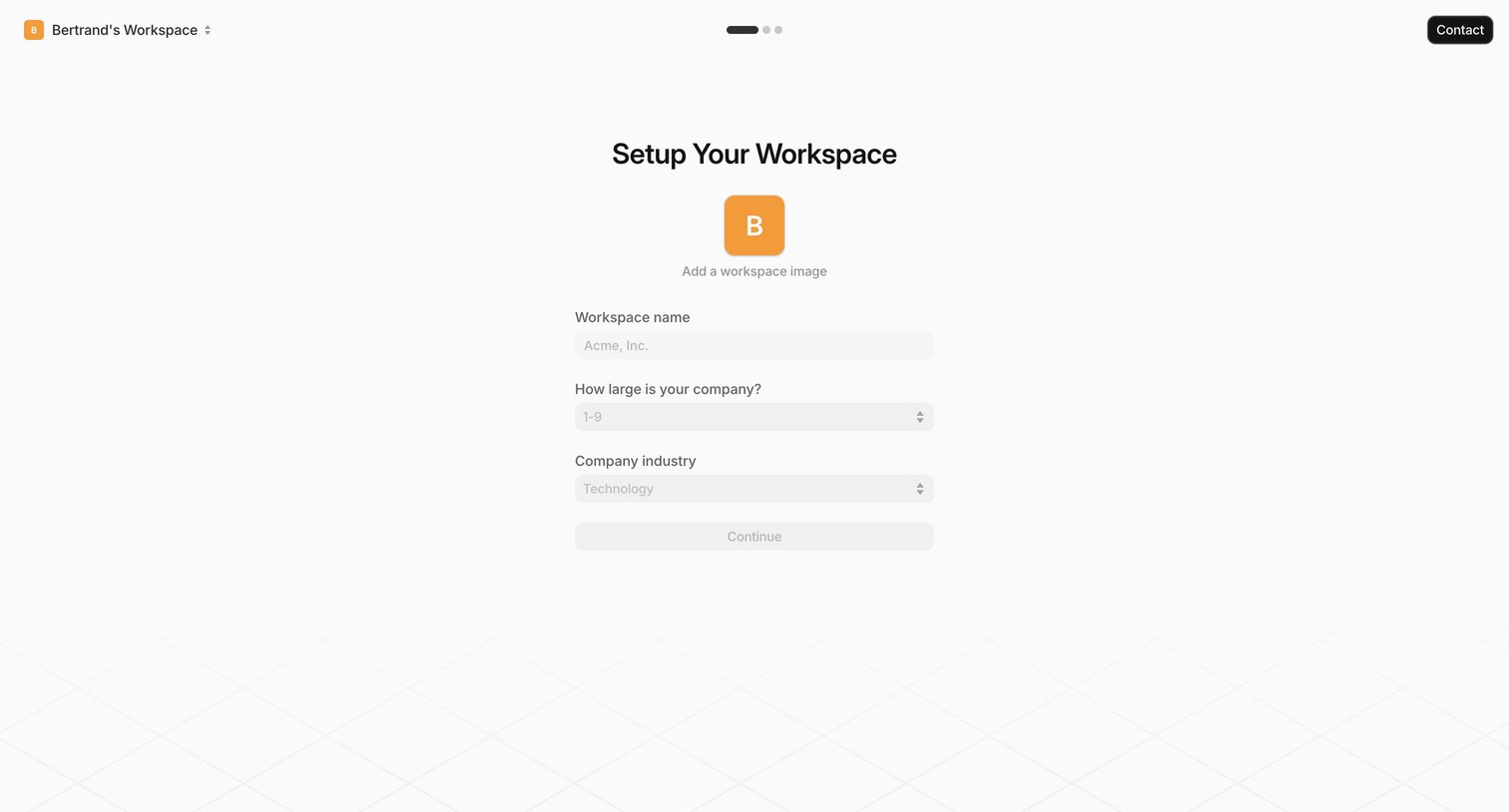
Onboarding step where the user names their workspace, specifies company size, and selects an industry to initialize their account.
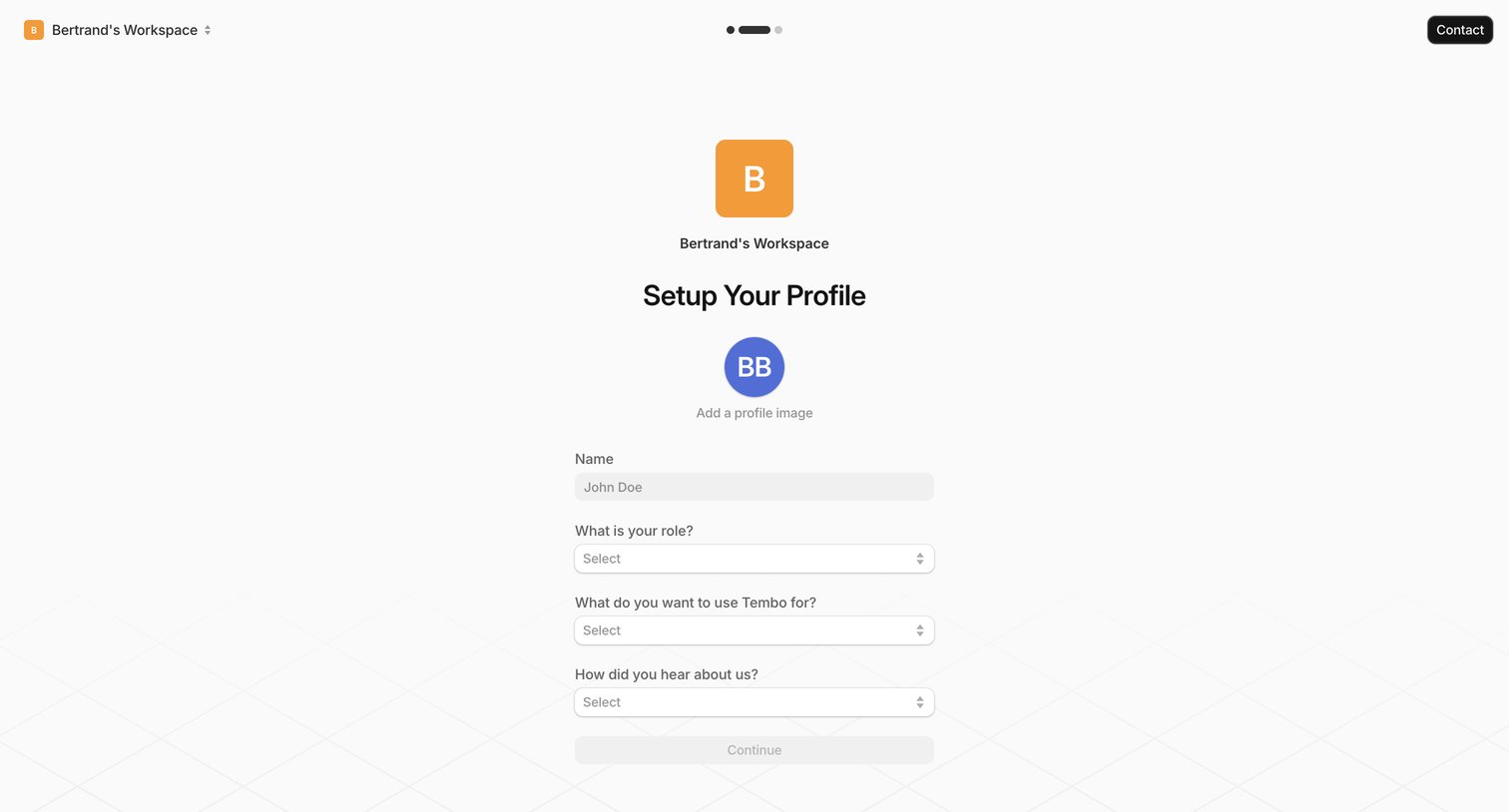
Onboarding step where the user sets up their profile by providing their name, role, intended use case, and a profile image.
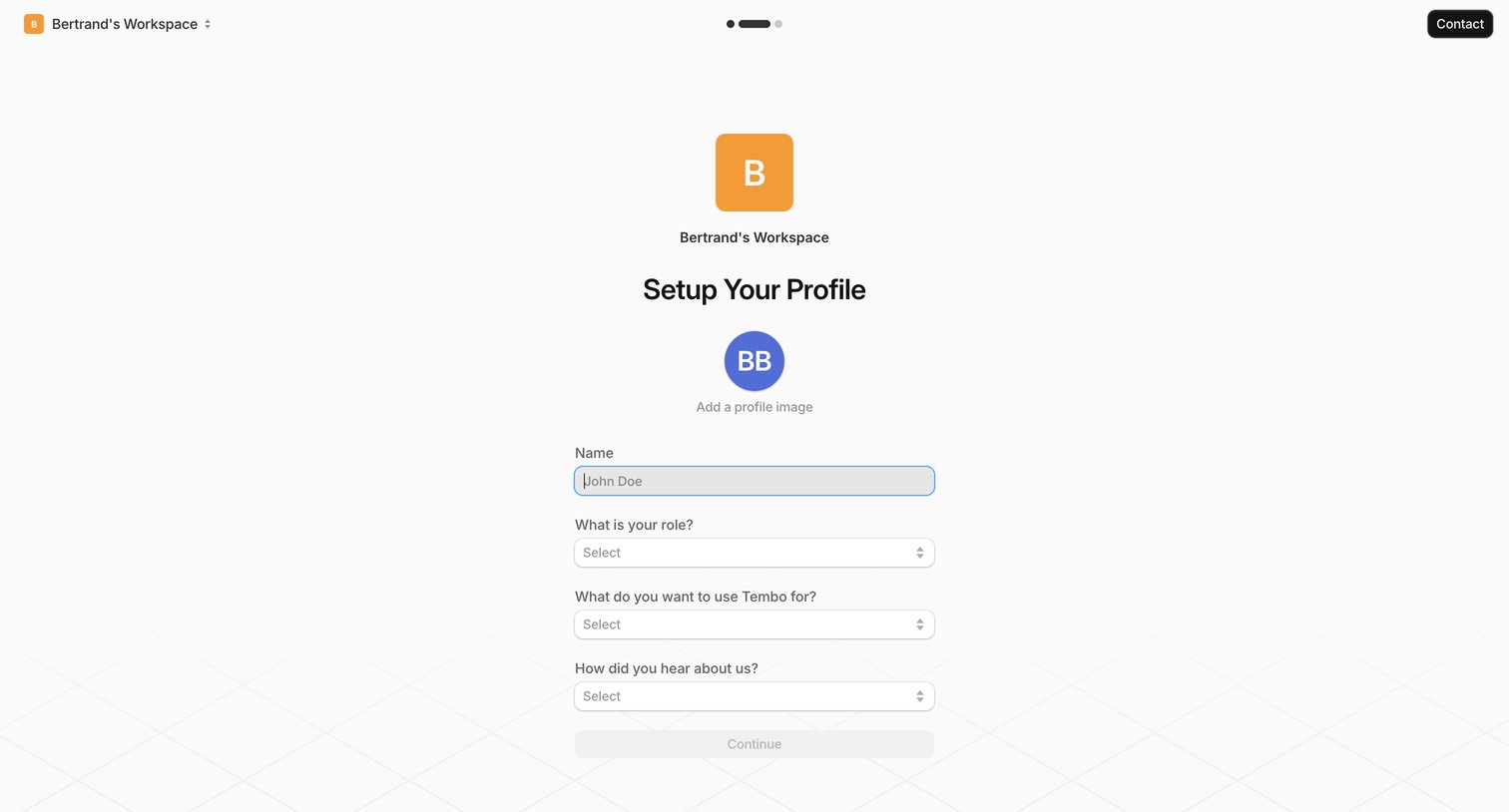
Onboarding step where the user sets up their profile by providing their name, role, intended use case, and how they heard about the product.
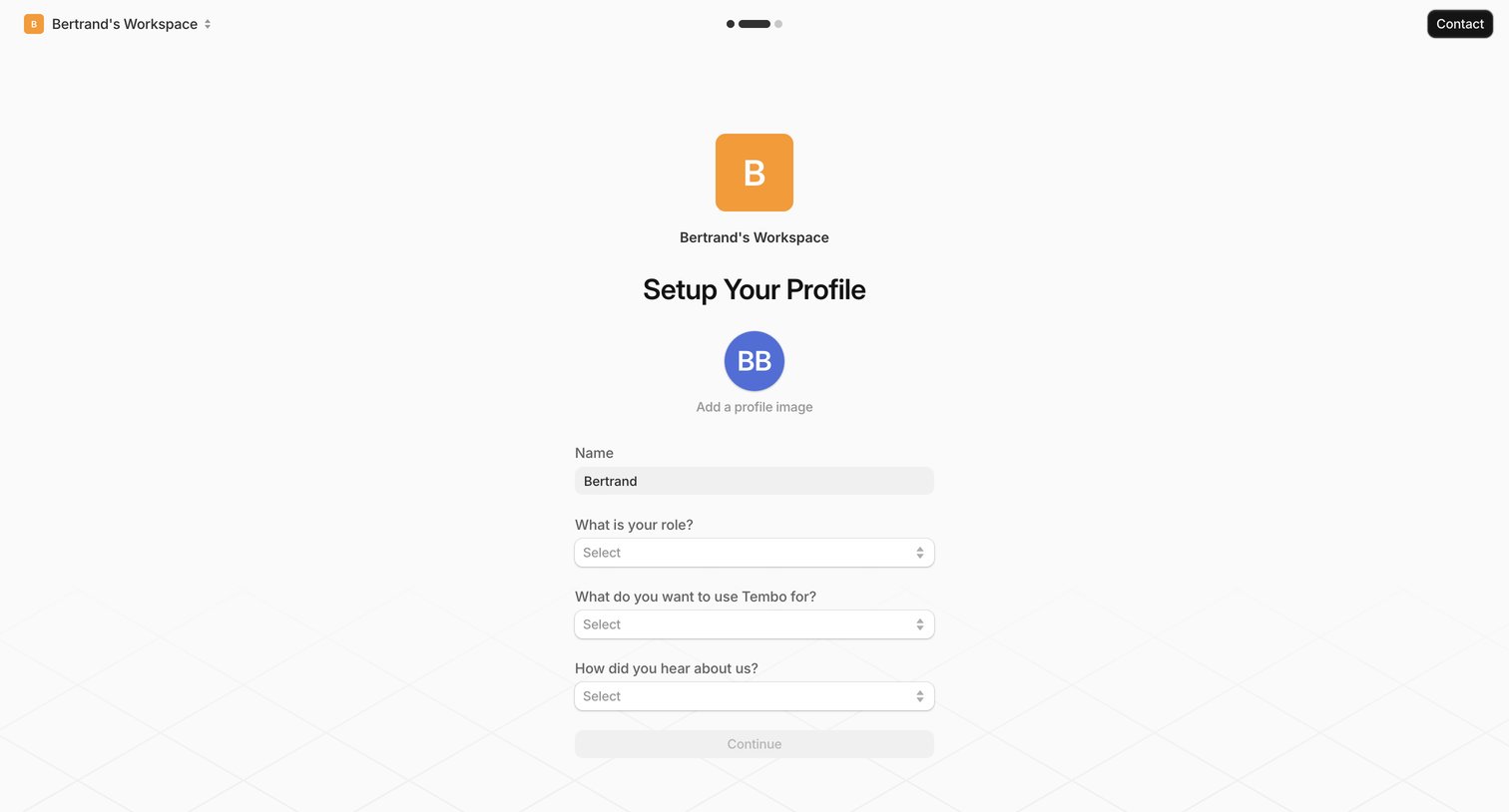
Onboarding step where the user sets up their profile by providing their name, role, intended use case, and referral source.
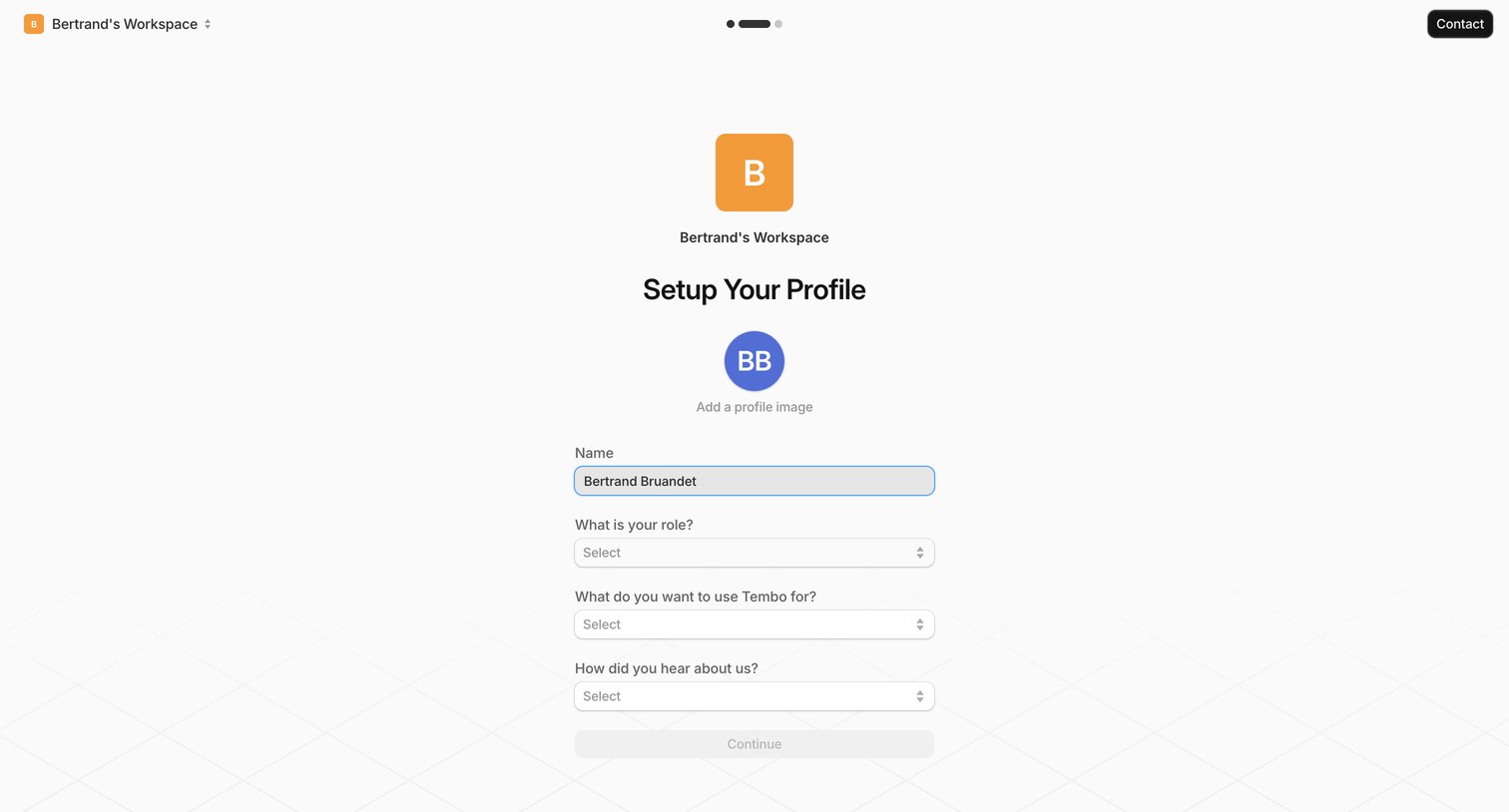
Onboarding step where the user sets up their profile by providing their name, role, intended use case, and how they heard about the product.
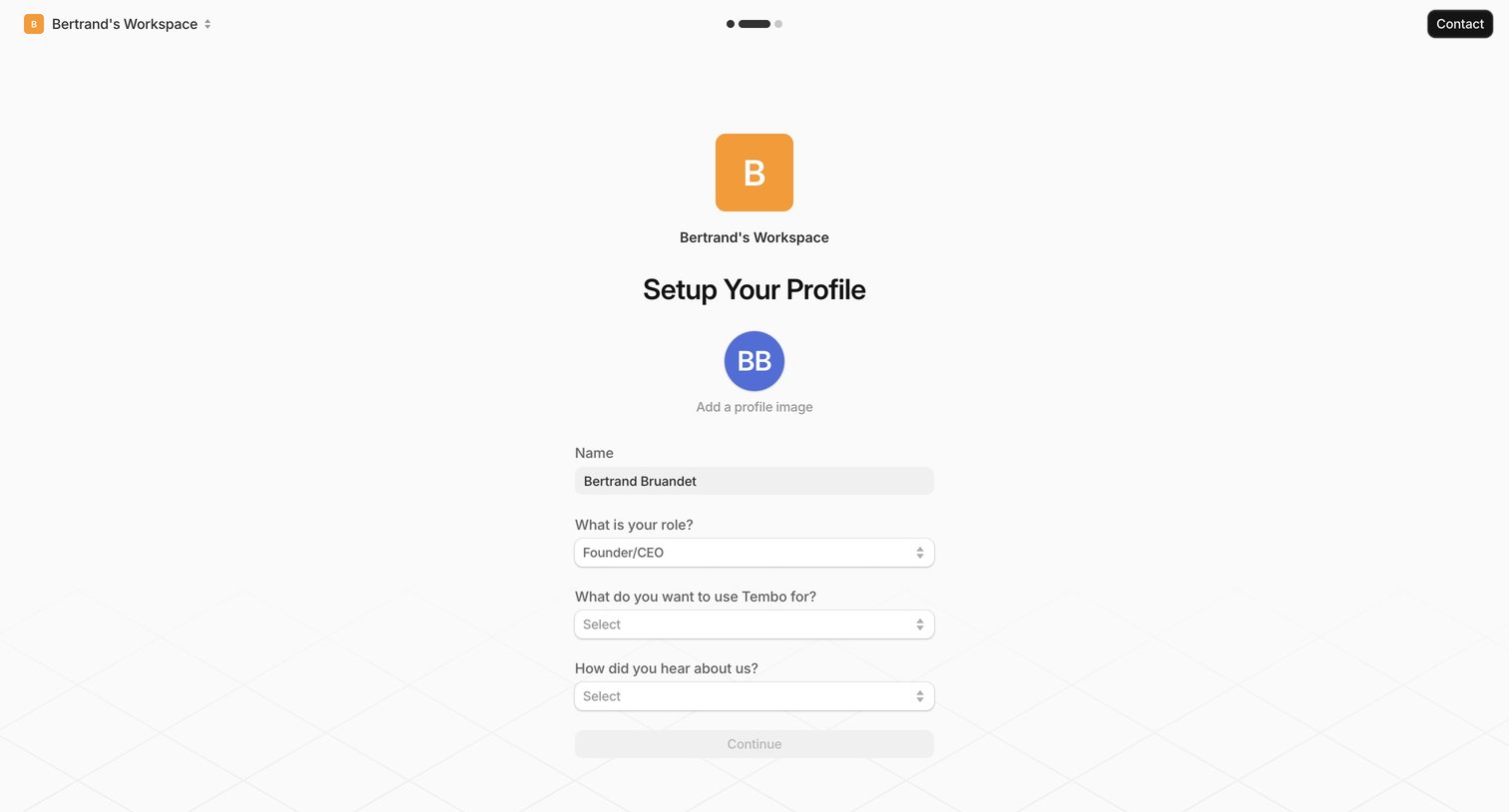
Onboarding step where the user sets up their profile by providing their name, role, and intended use case.
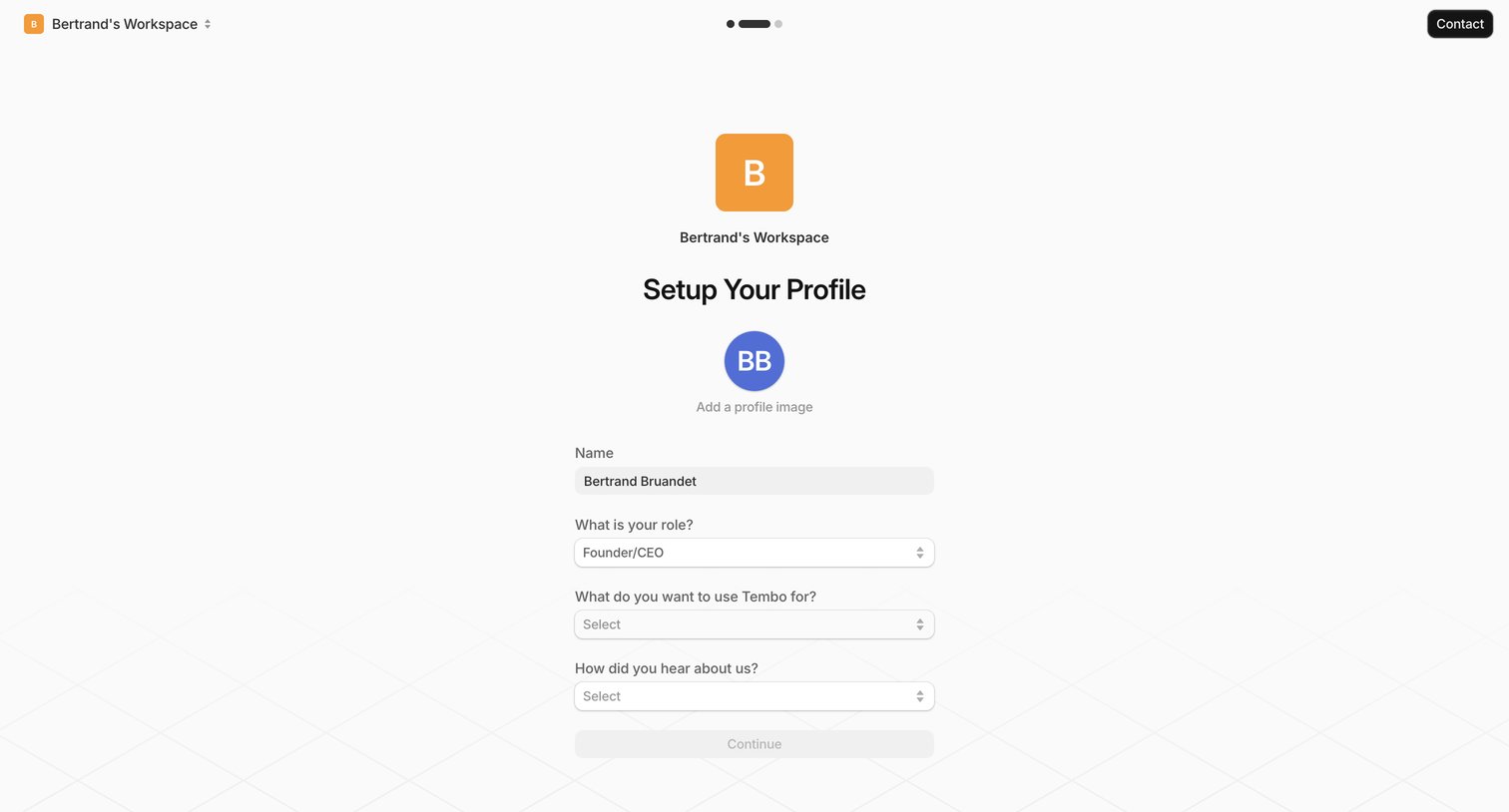
Onboarding step where the user configures their personal profile by entering their name, role, and intended use cases.
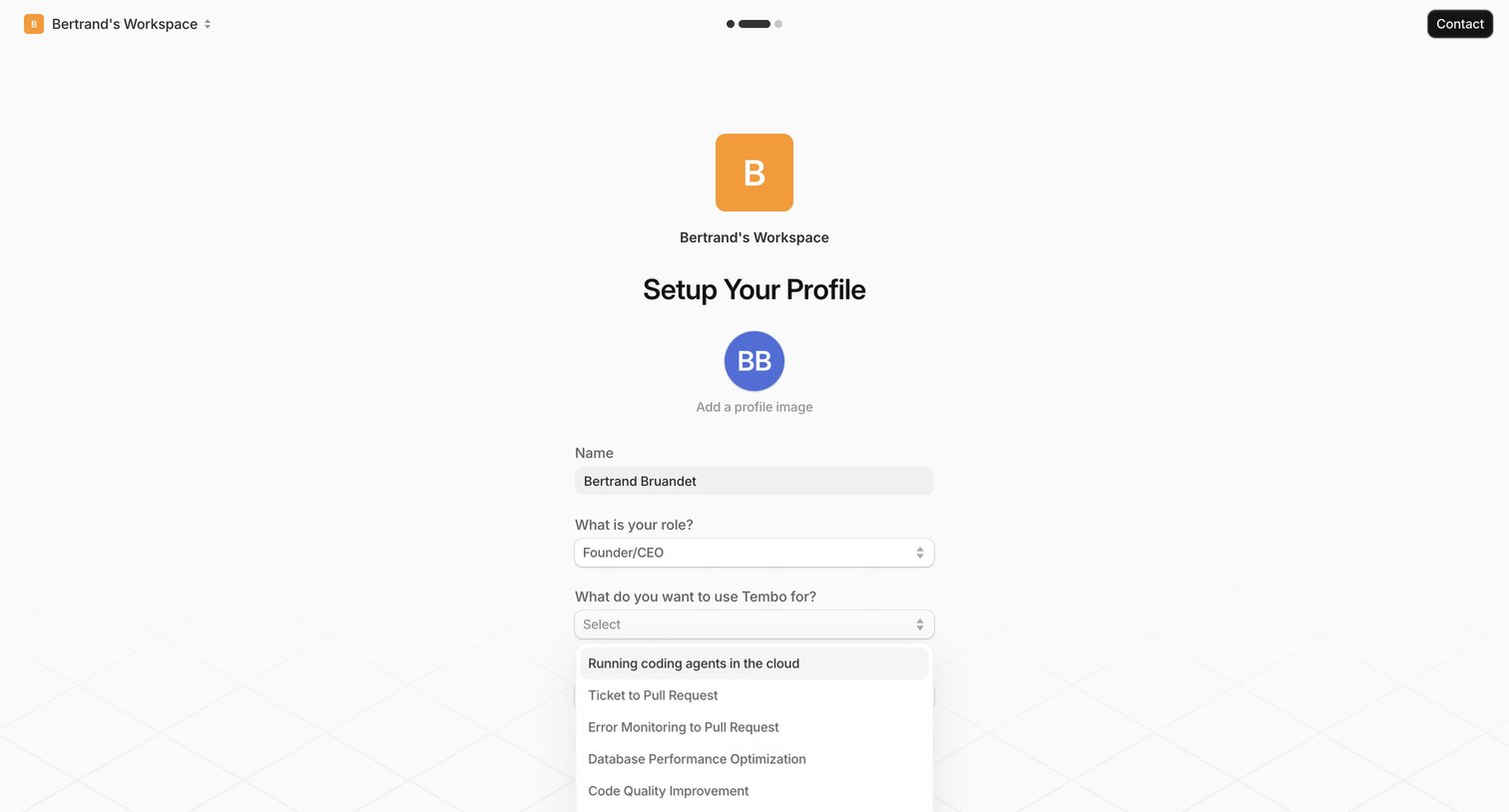
Onboarding step where the user sets up their profile by confirming their name, selecting their role, and choosing a primary use case via an open dropdown menu.
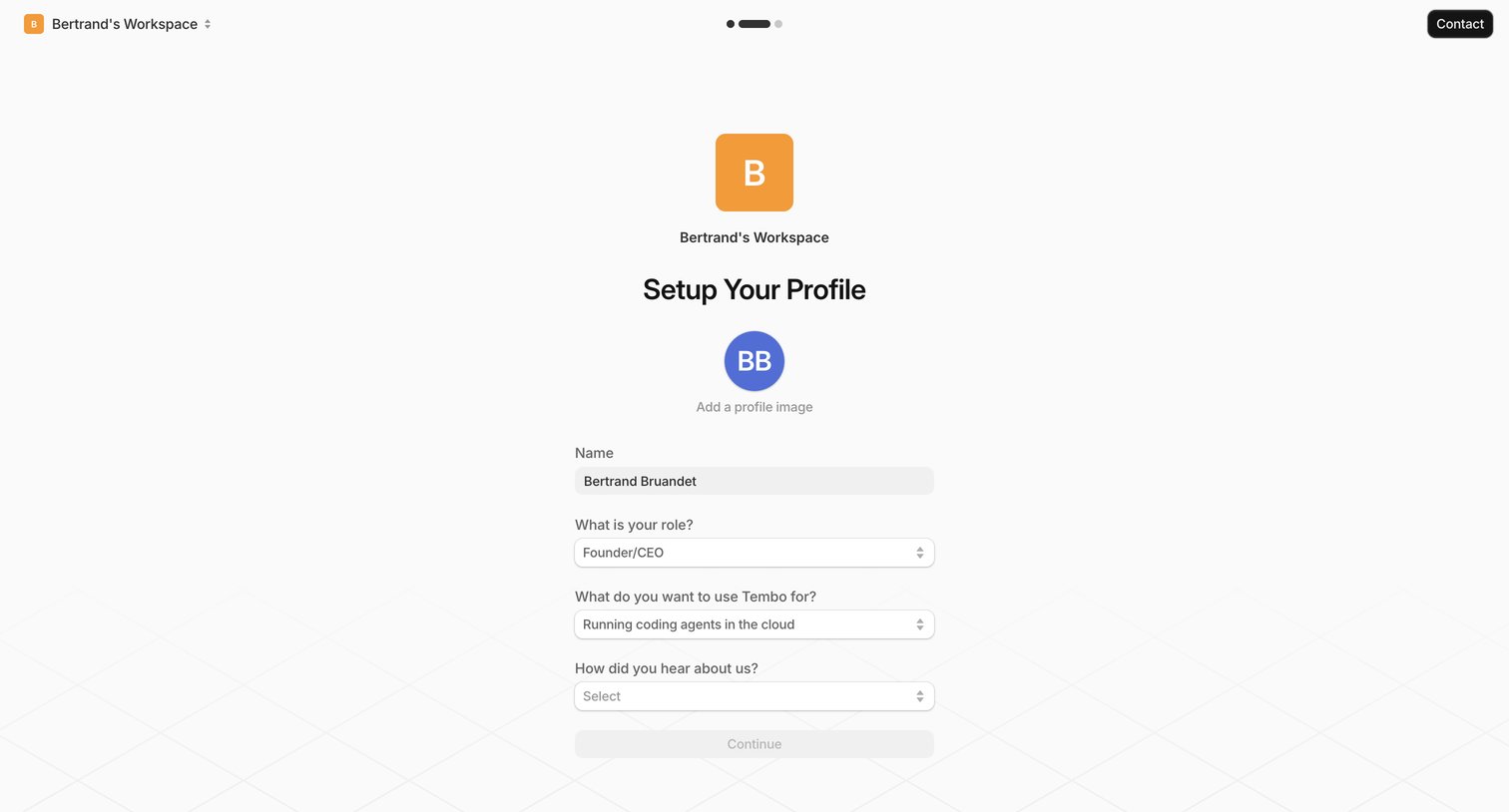
Onboarding step where the user sets up their profile by providing their name, role, and intended use case.
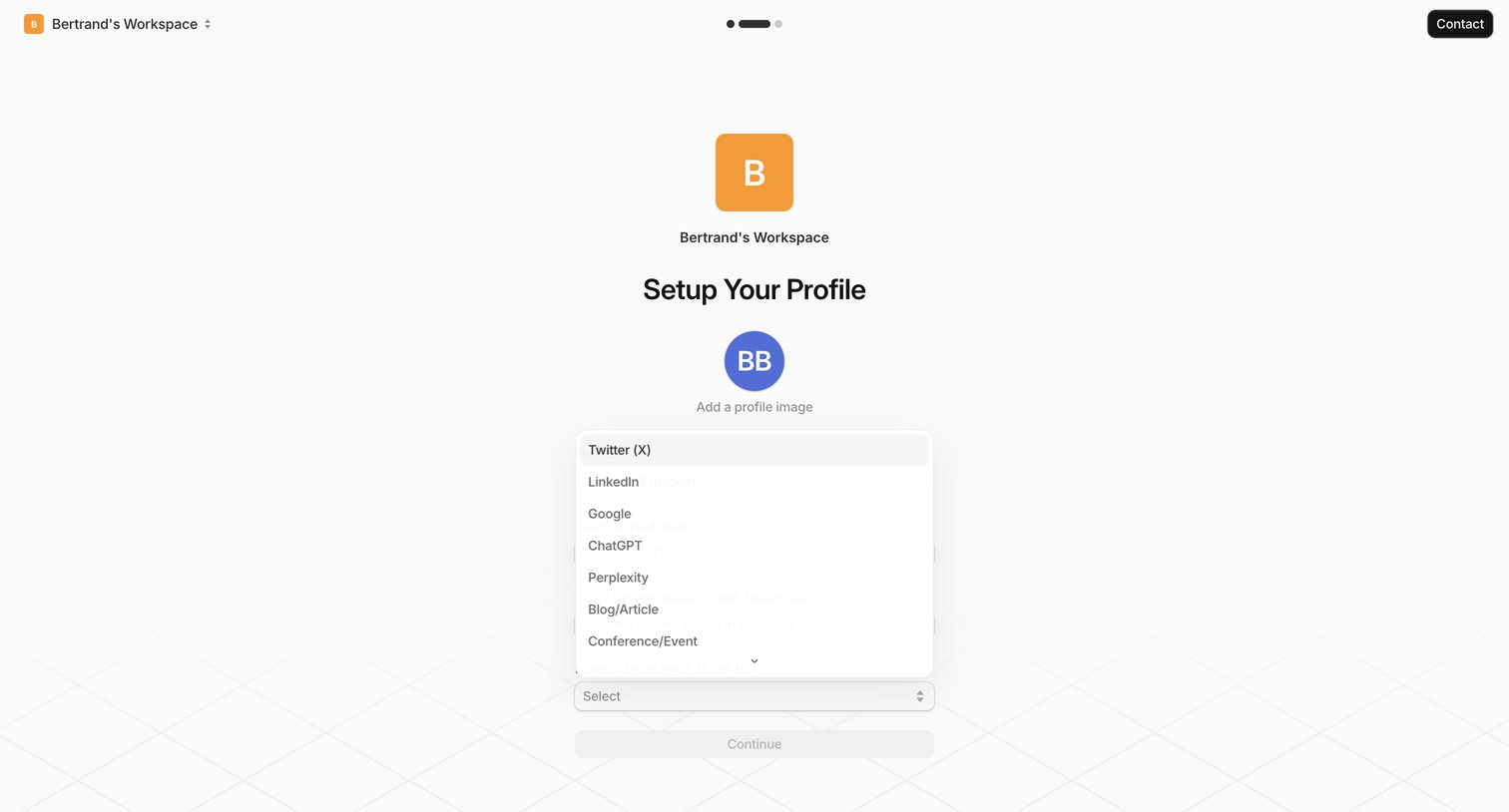
Onboarding step where the user sets up their profile by adding an image and answering a 'how did you hear about us' dropdown.
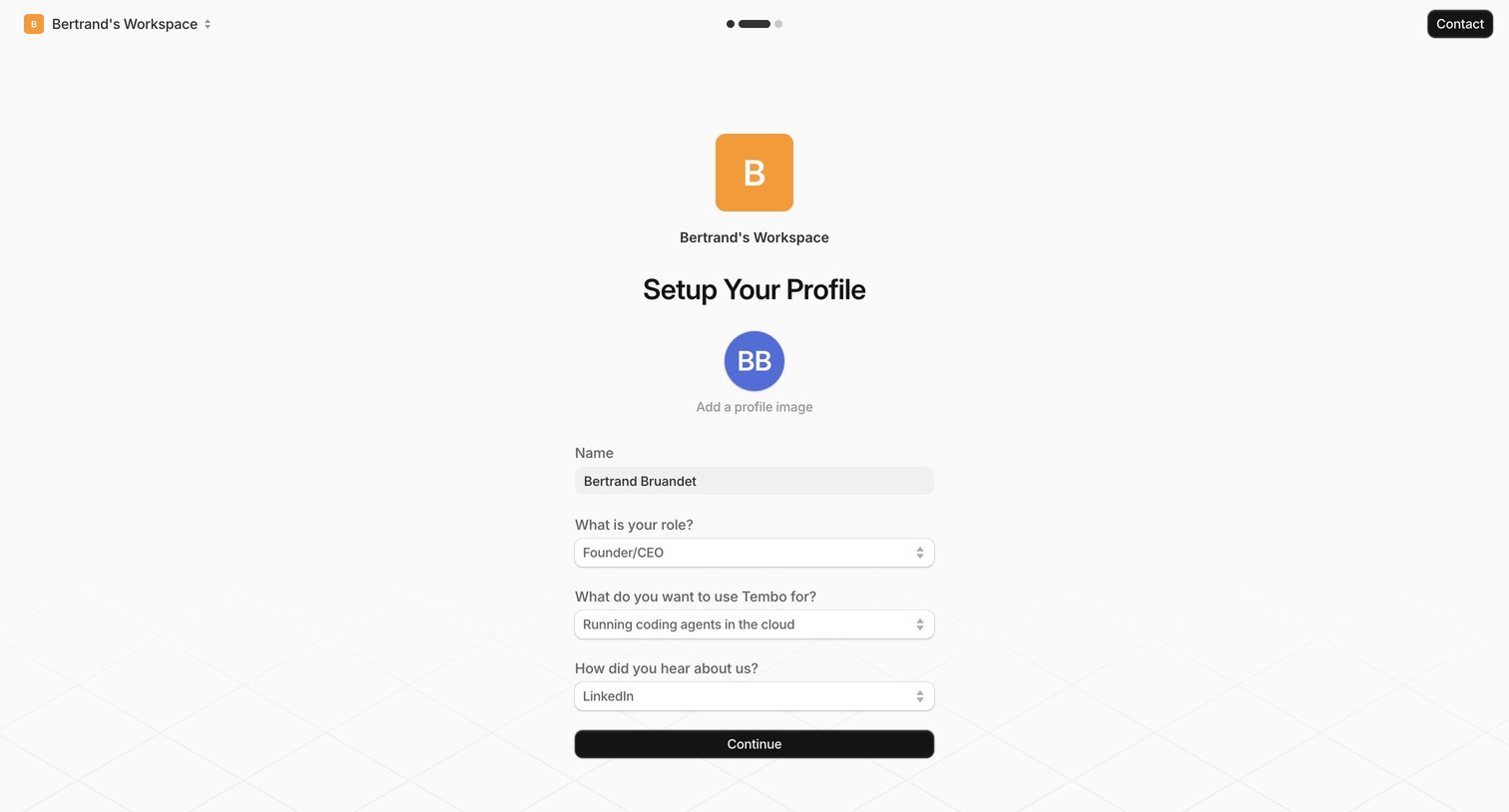
Onboarding step where the user sets up their profile by providing their name, role, use case, and referral source.
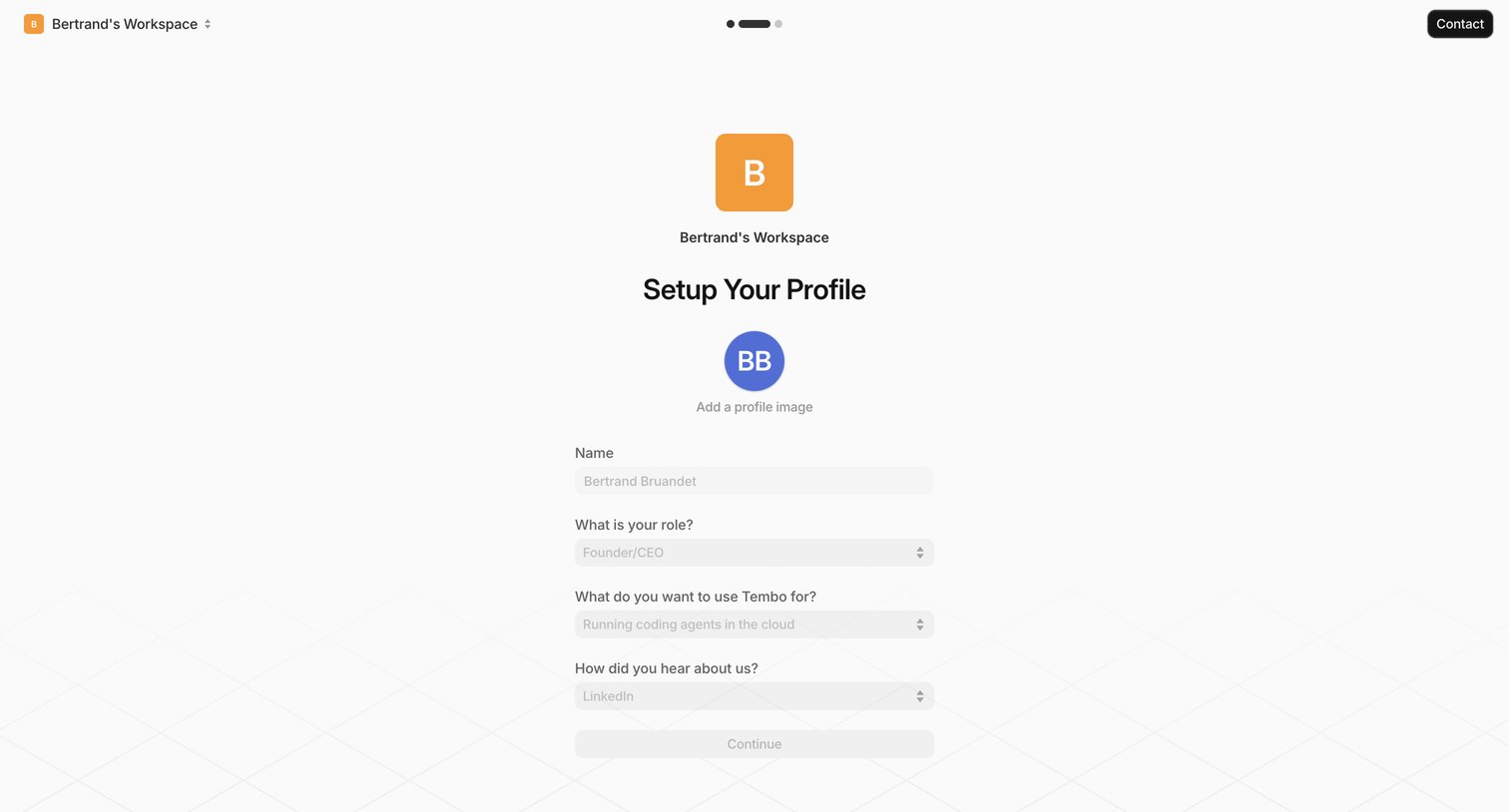
Onboarding step where the user sets up their profile by confirming their name, role, intended use case, and discovery source.
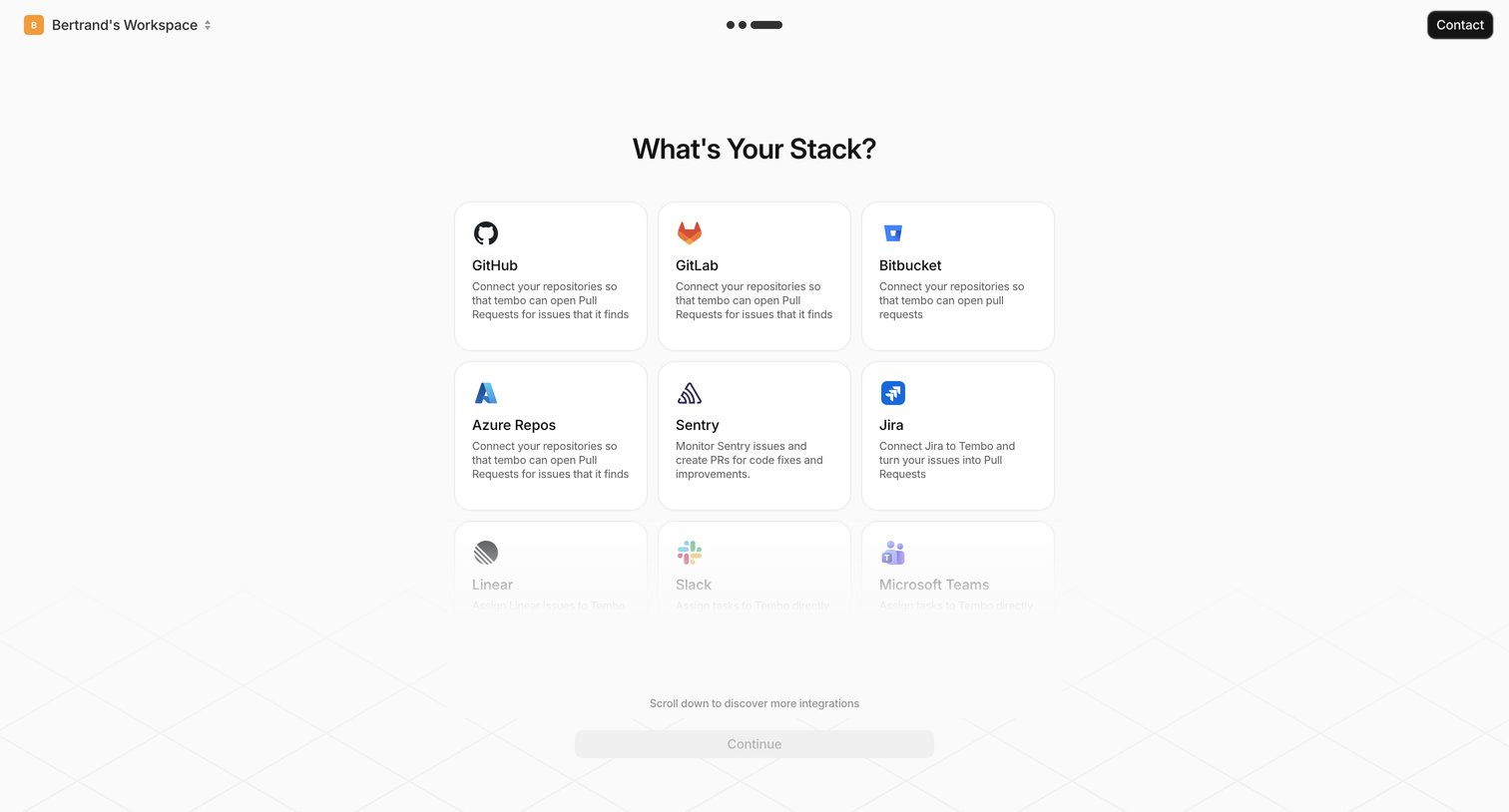
Onboarding step where the user selects developer tools and integrations like GitHub, GitLab, and Jira to connect to their workspace.
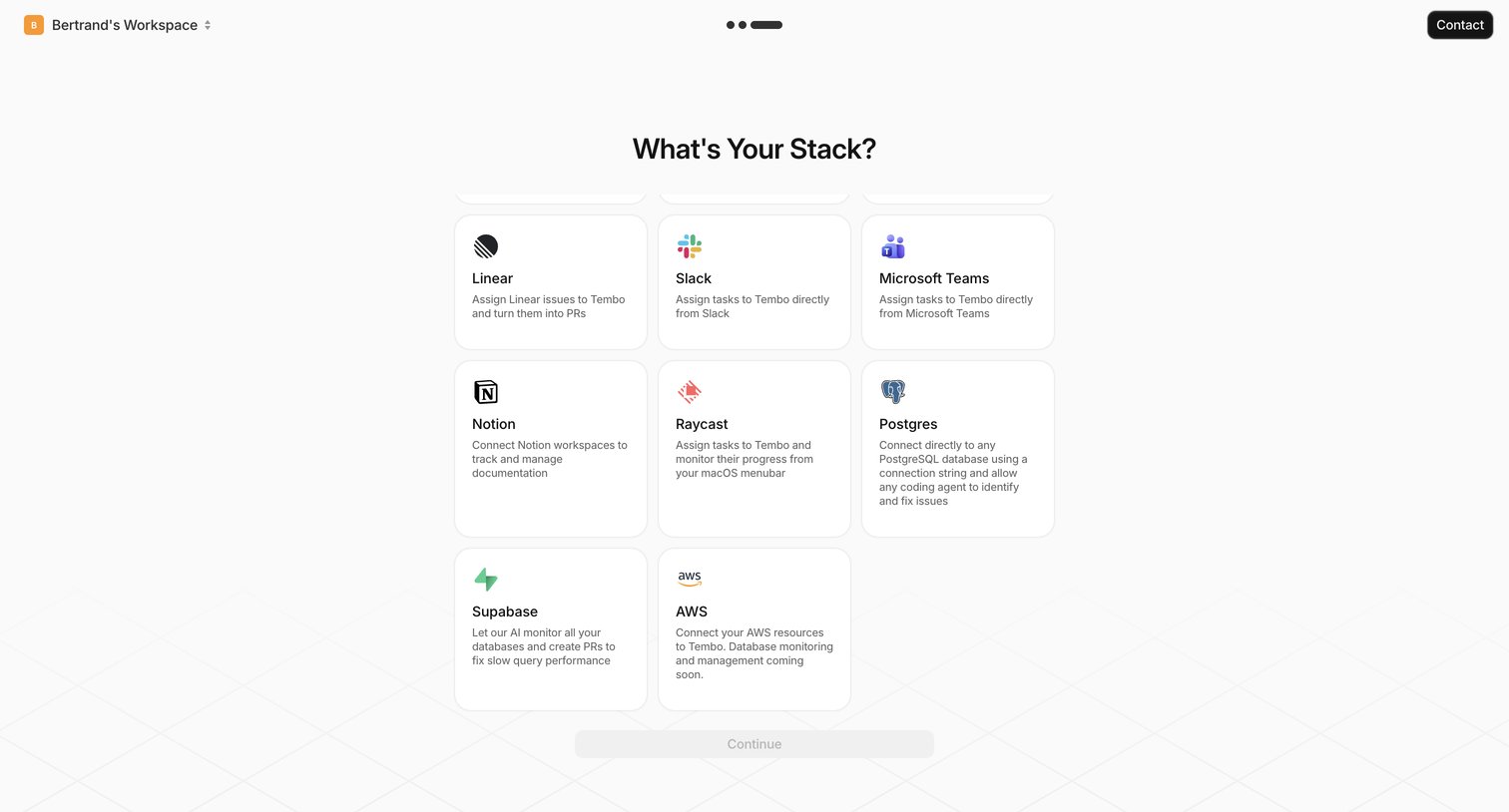
Onboarding step where the user selects their tech stack from a grid of integrations like Linear, Slack, and AWS to connect to their workspace.
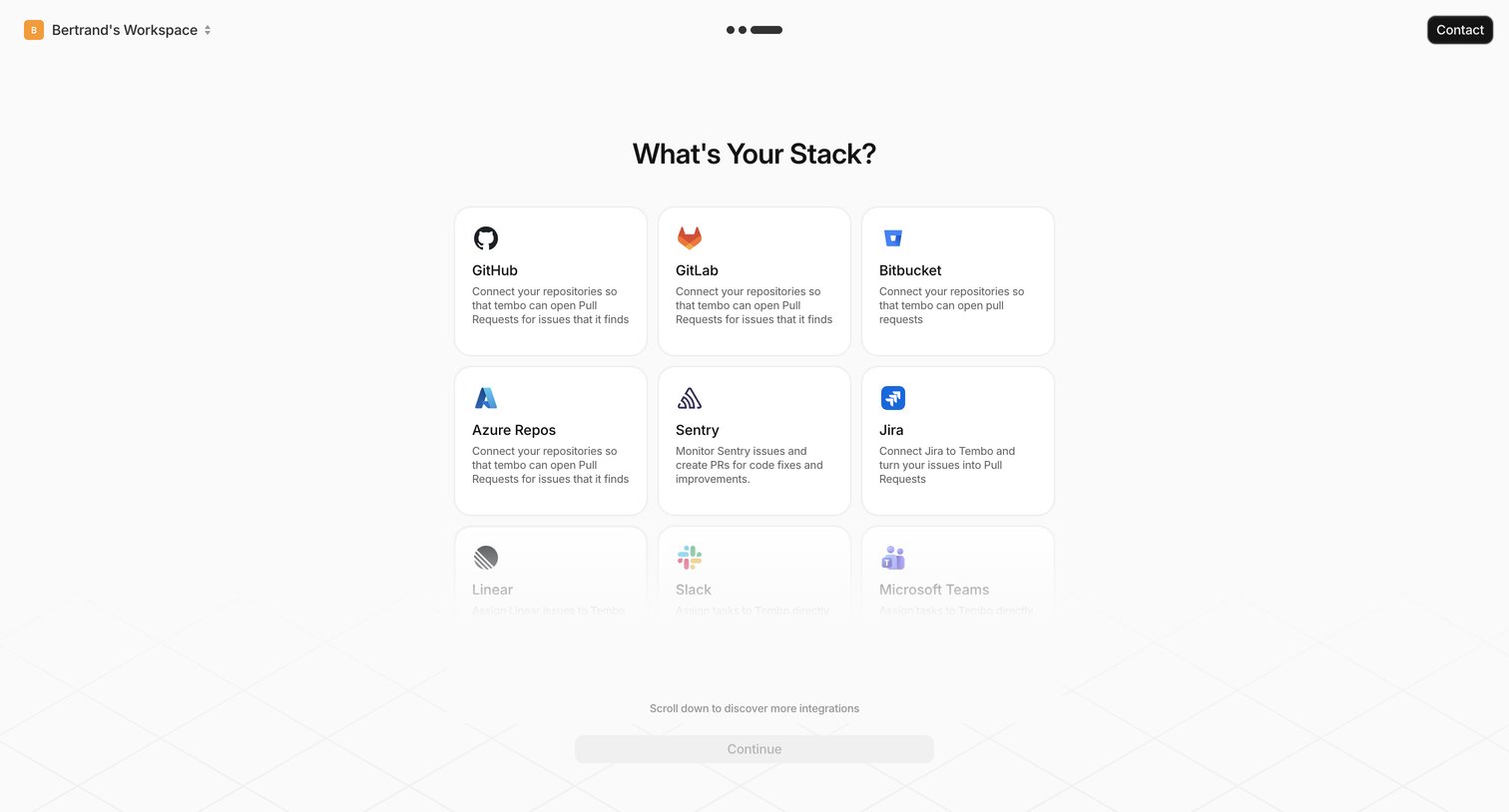
Onboarding step where the user selects integrations like GitHub, GitLab, and Jira to connect to their workspace.
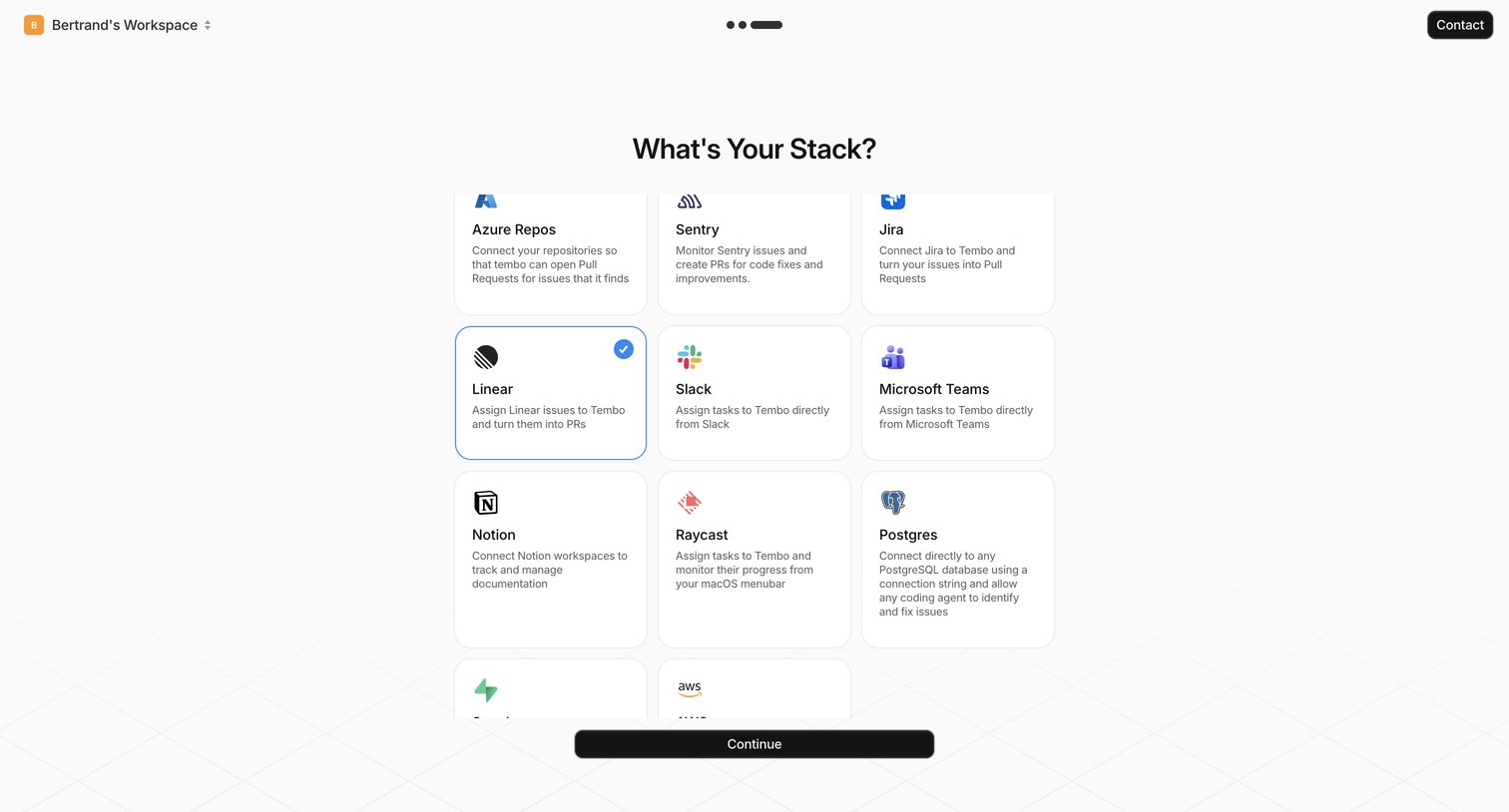
Onboarding step where the user selects their tech stack from a grid of integrations like Linear, Slack, and Notion to connect to their workspace.
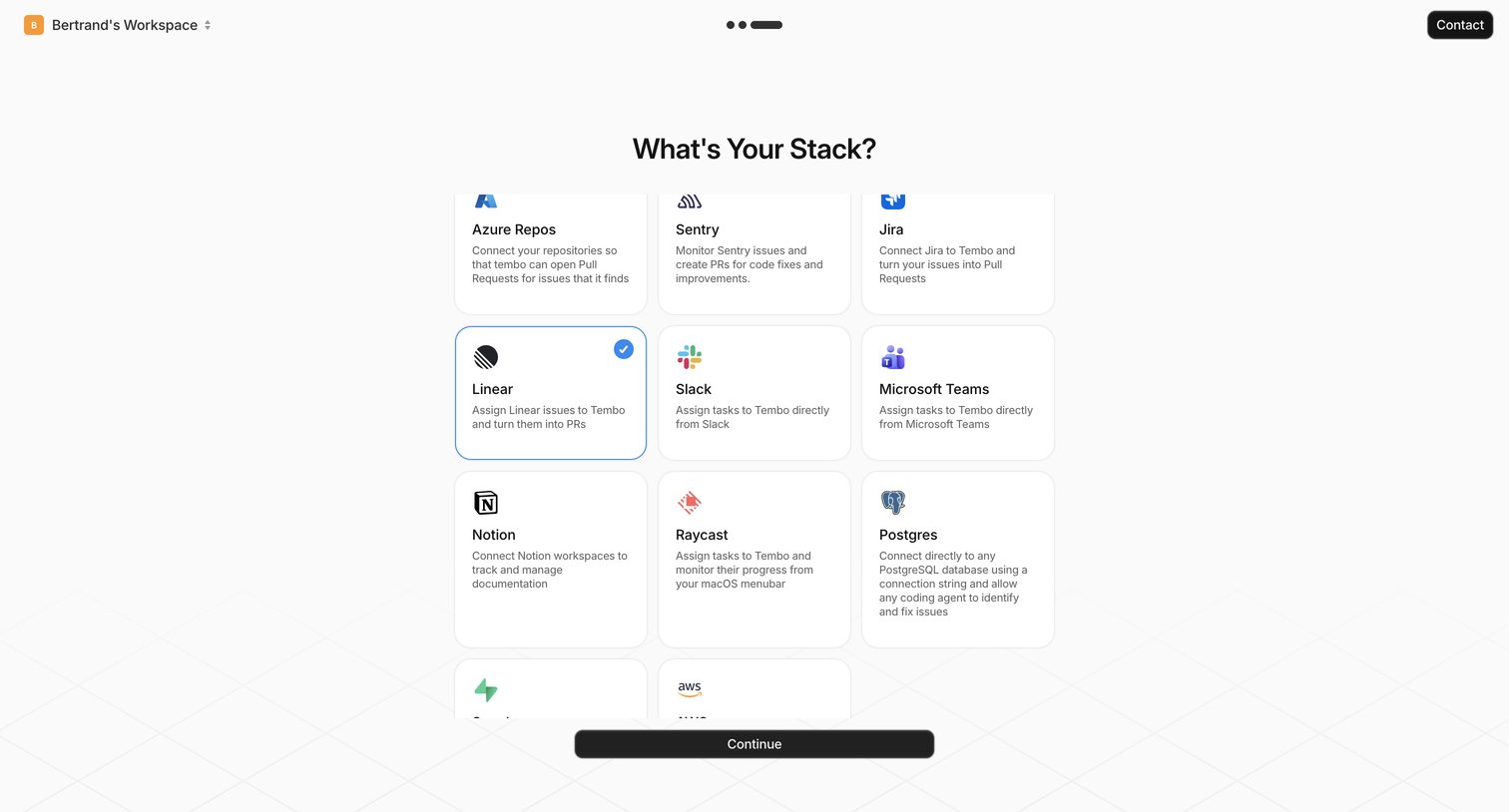
Onboarding step where the user selects tools like Jira, Slack, and Notion to connect to their workspace.
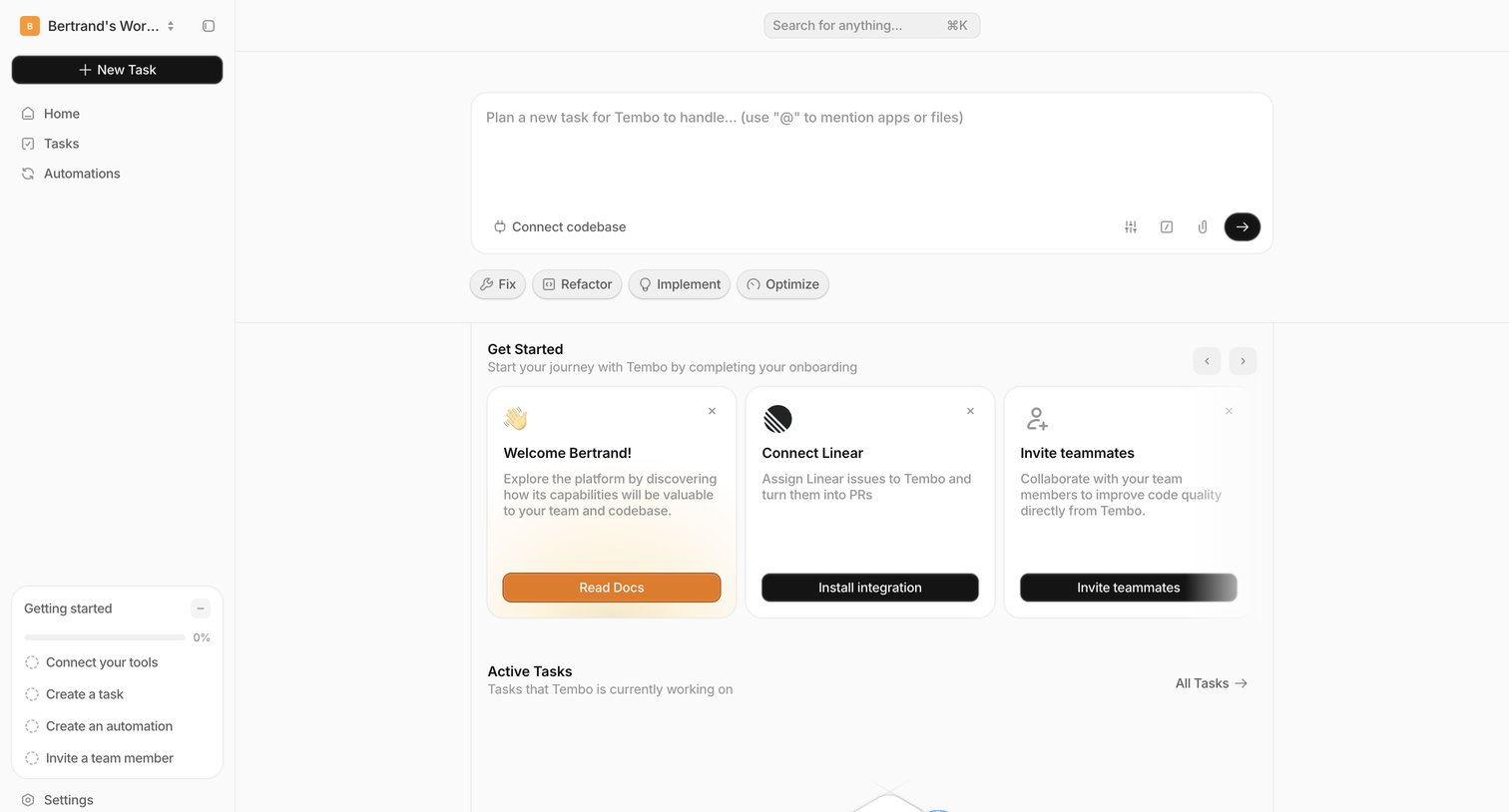
Home screen where a new user can prompt the AI agent to handle a task, complete their onboarding checklist, and connect integrations like Linear.
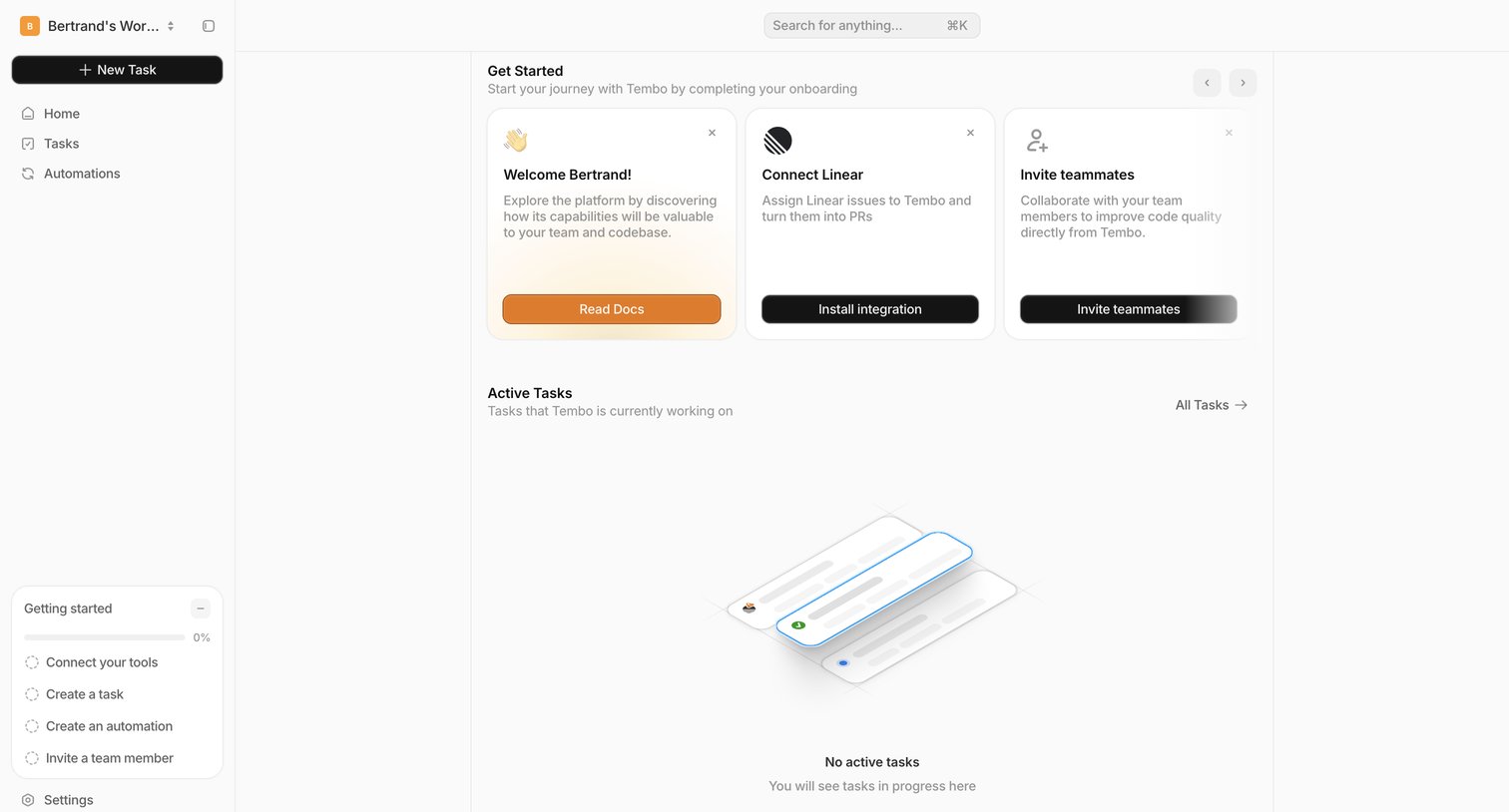
Home page where the user is prompted to complete onboarding steps like connecting Linear and inviting teammates, with an empty active tasks list below.
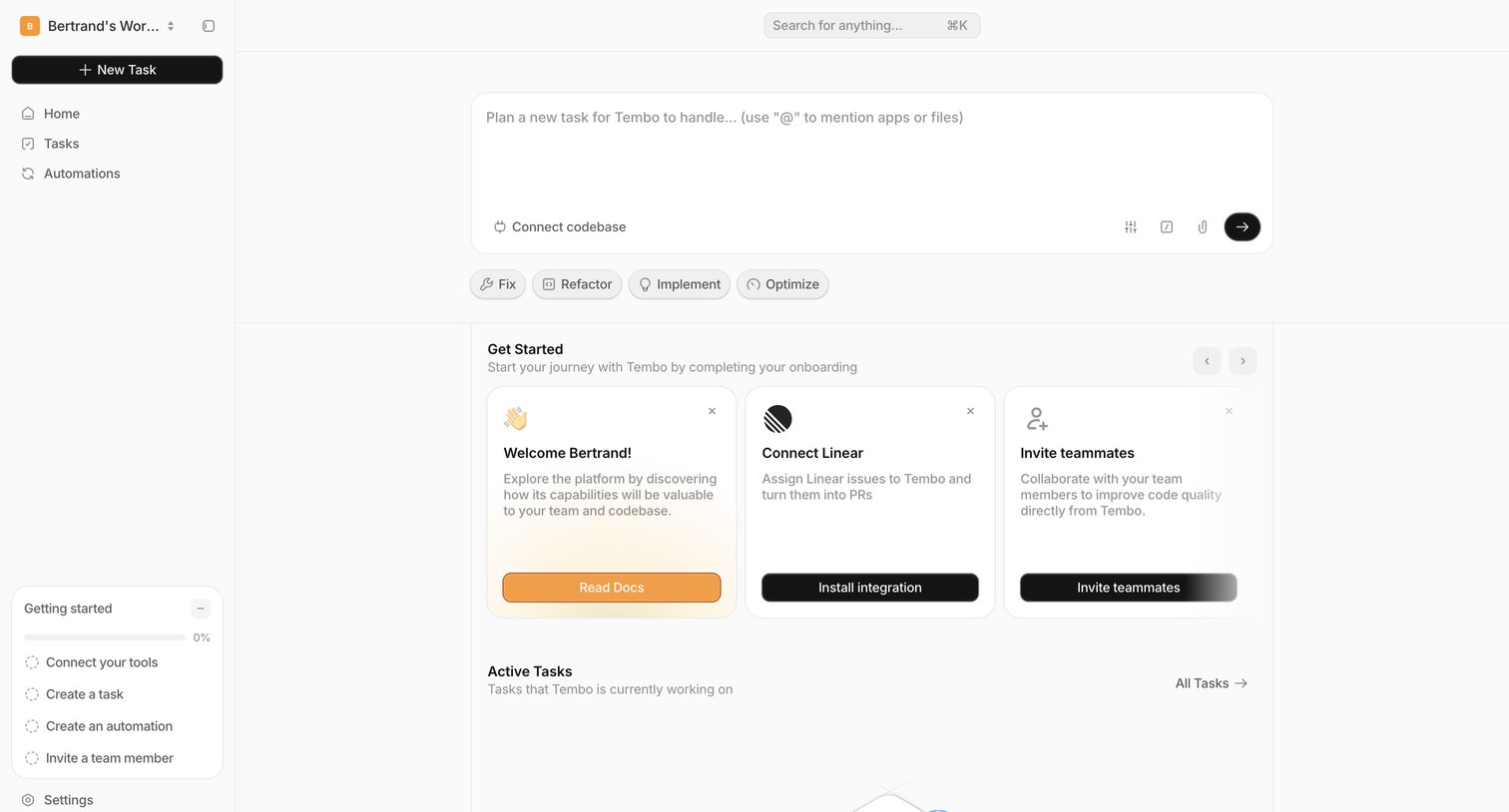
Home view for a new workspace featuring an onboarding checklist, integration prompts for tools like Linear, and a composer to assign the first AI task.
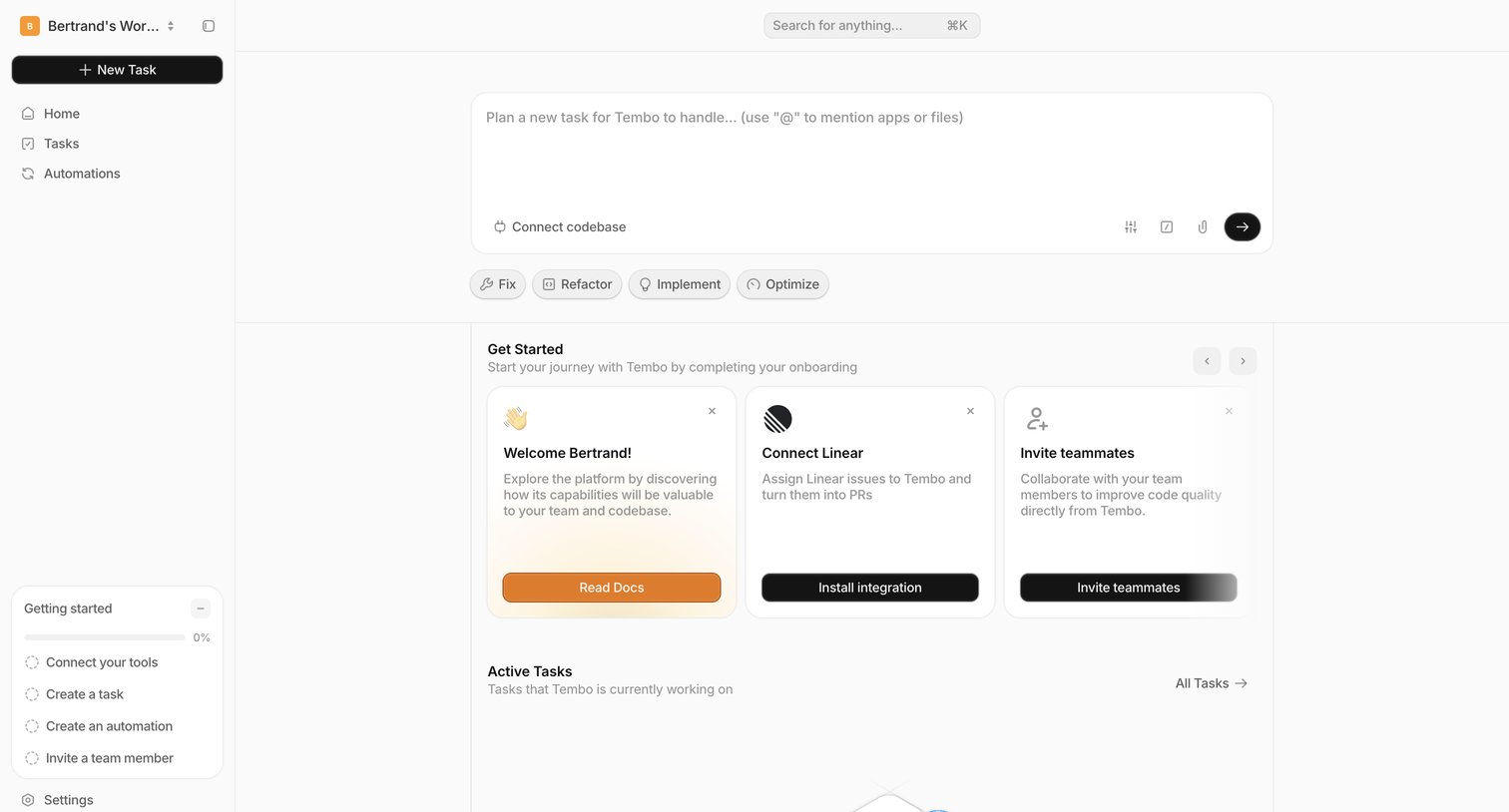
Home page where the user can prompt the AI to plan a new task, complete an onboarding checklist, and connect external tools like Linear.
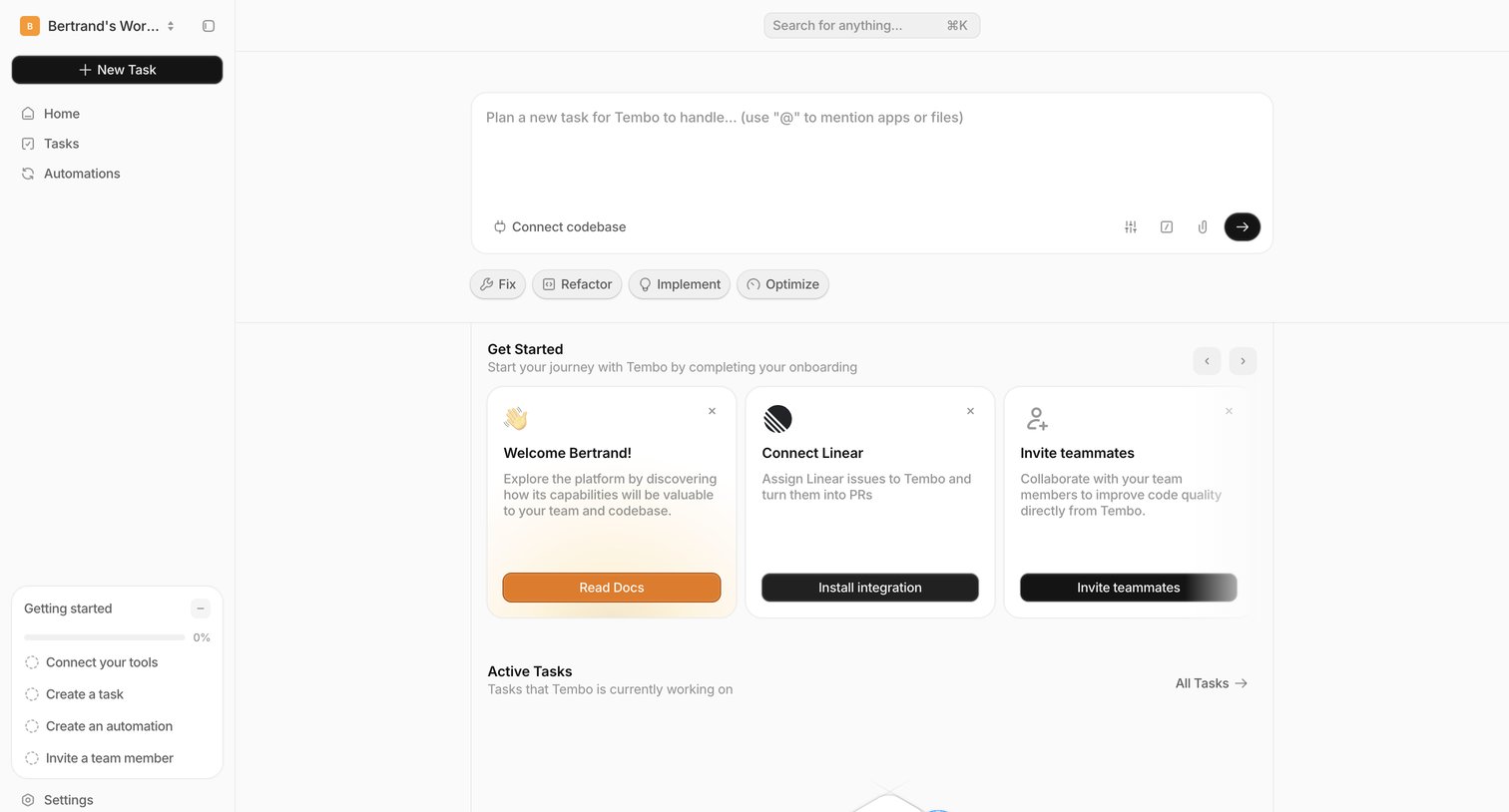
Home screen where the user can prompt the AI agent to plan a new task, complete onboarding steps via a carousel, and view active tasks.
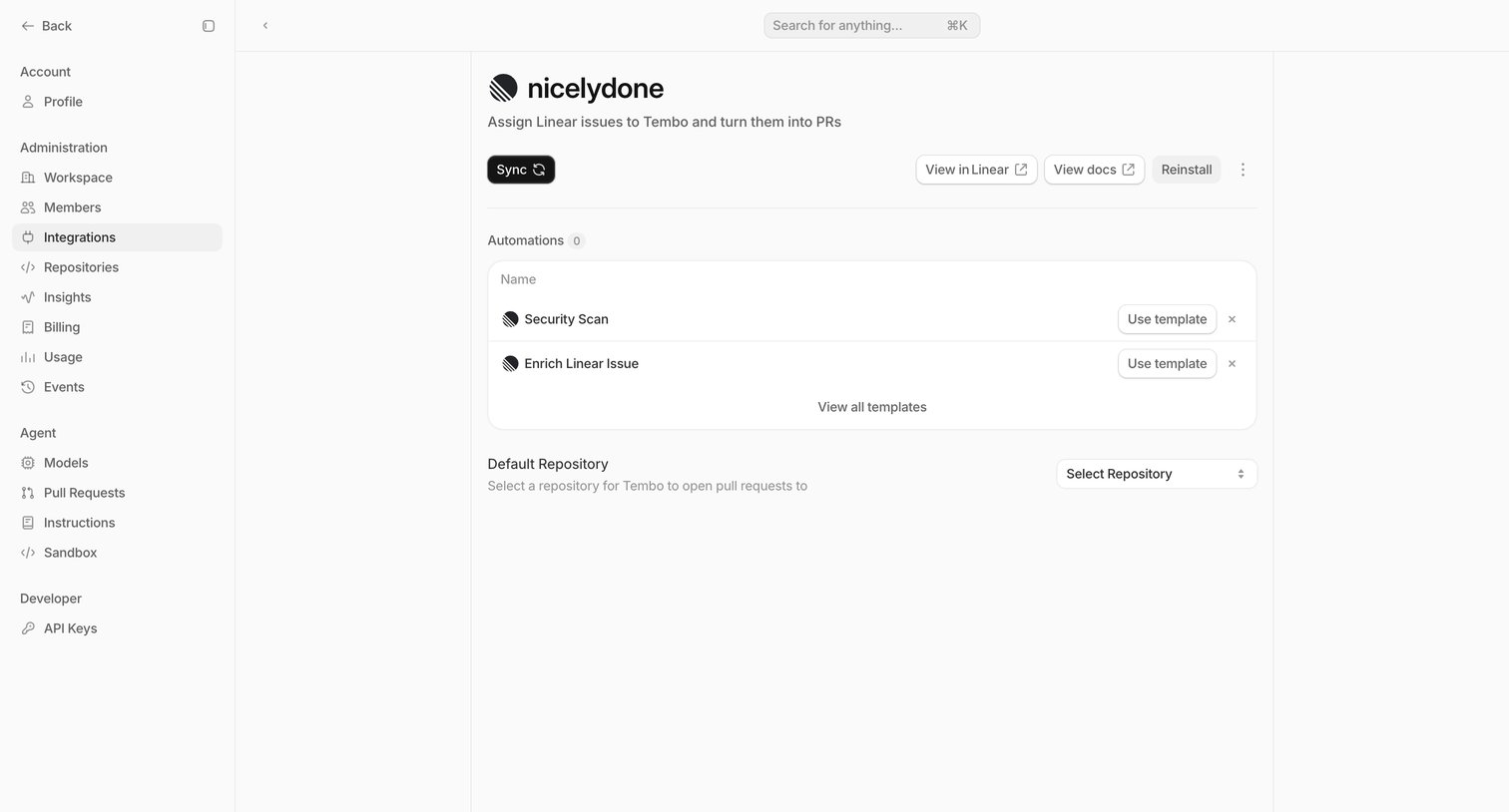
Settings page where the user configures the nicelydone Linear integration, manages automation templates, and selects a default repository.
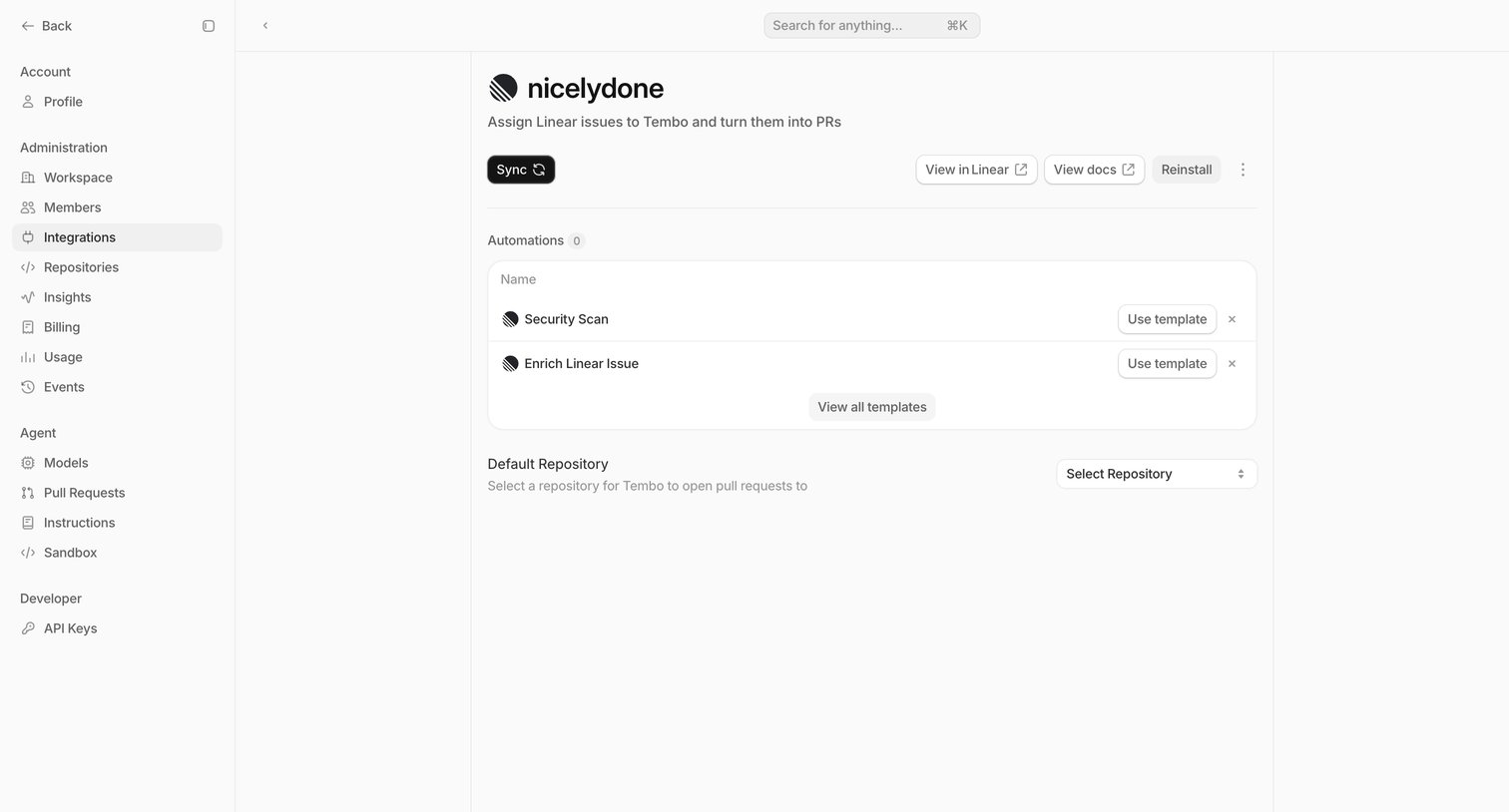
Settings page where the user configures a Linear integration, manages automations from templates, and selects a default repository.
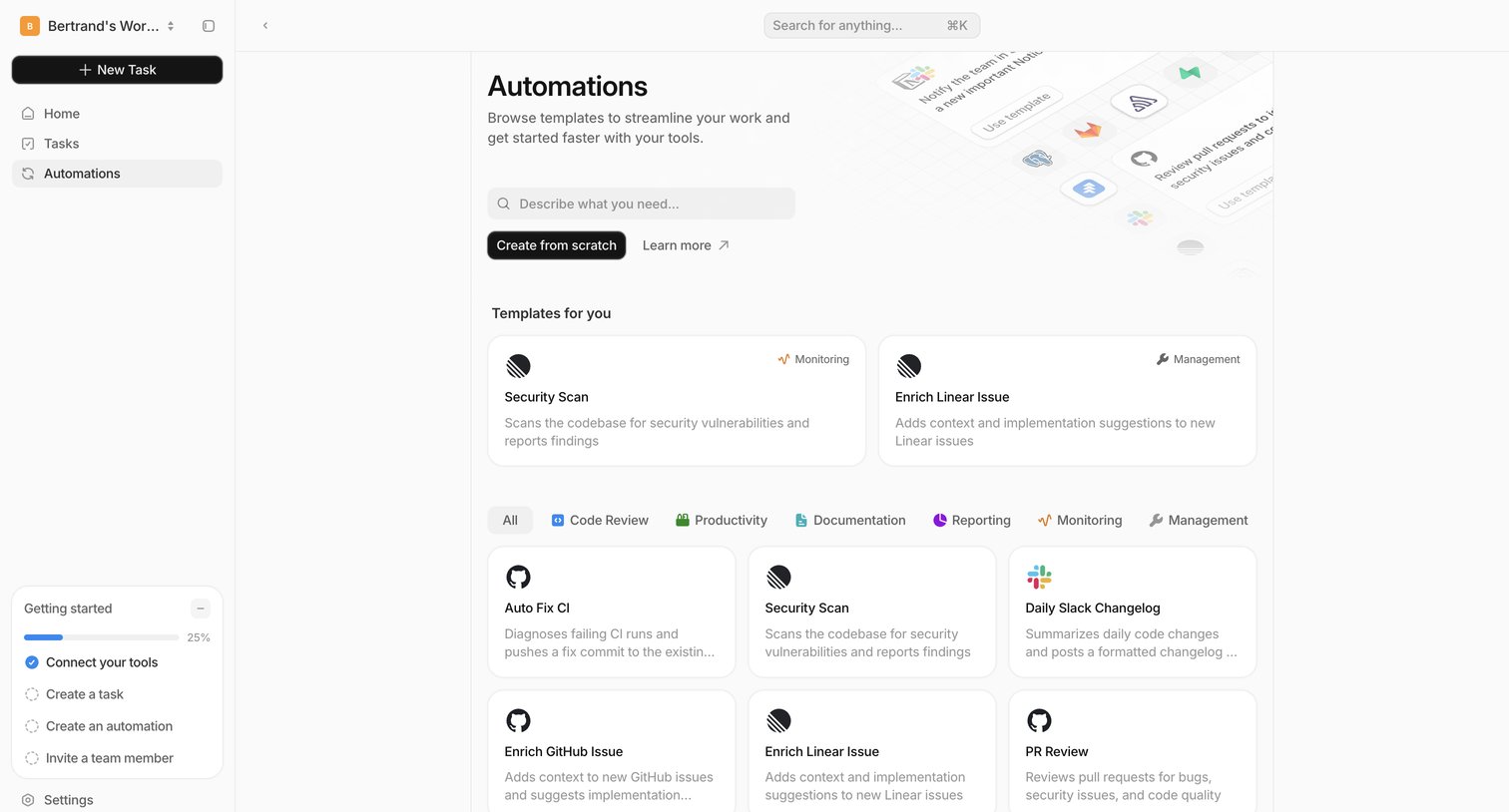
Template gallery where the user can search, filter by category, and select a pre-built automation or start from scratch.
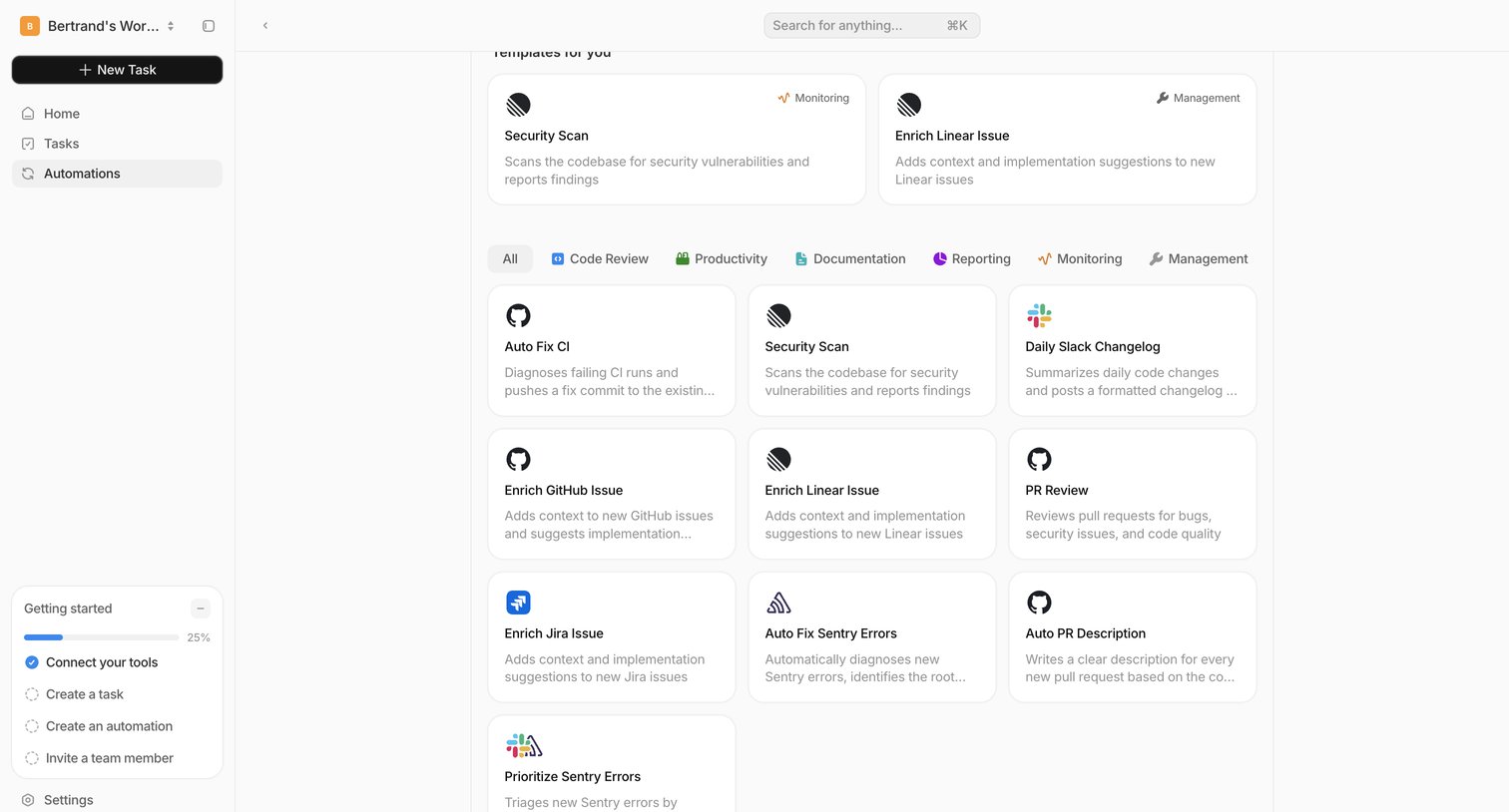
App view where the user browses and filters automation templates to create a new workflow, alongside a getting started checklist.
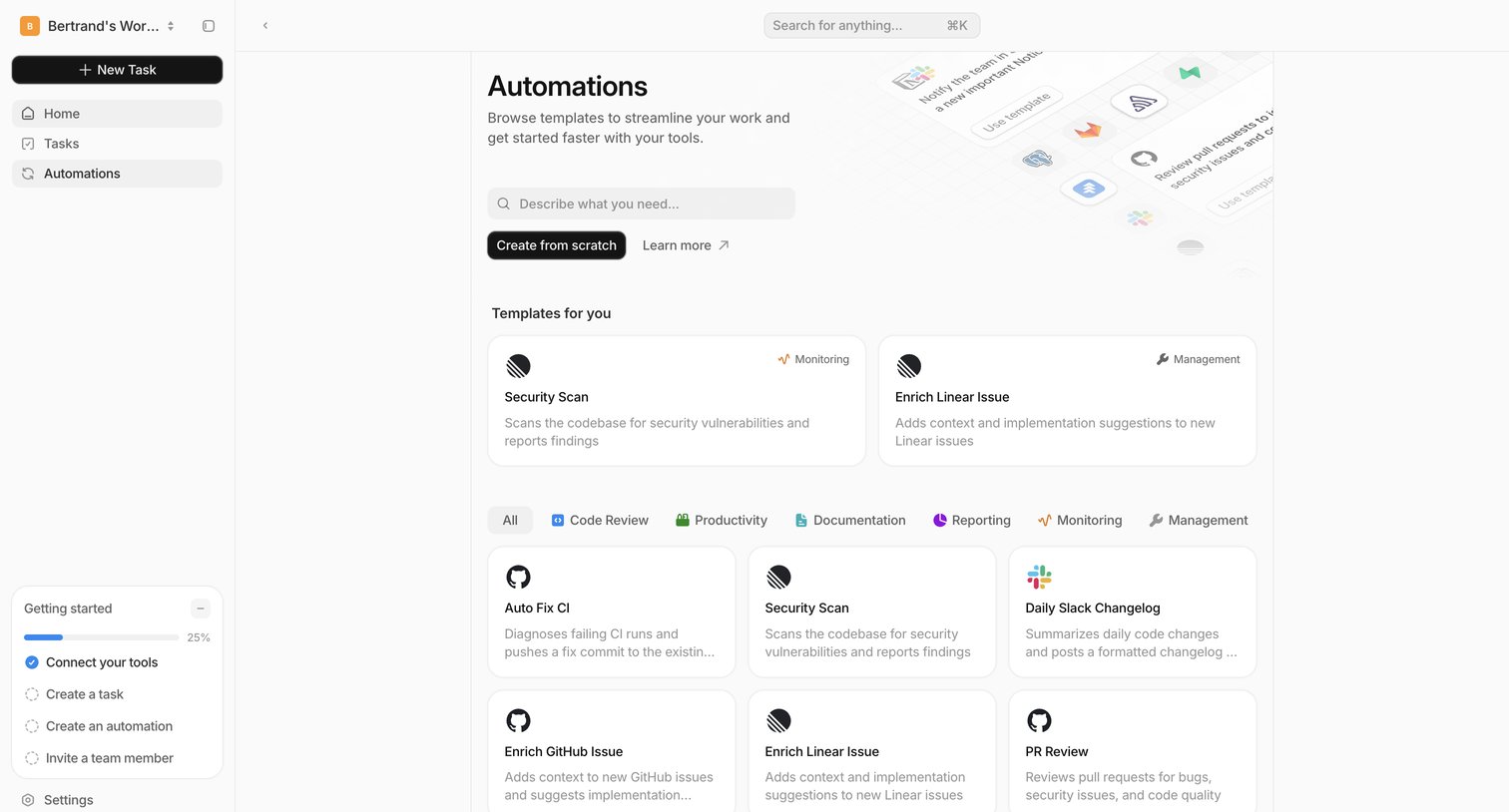
Template gallery where the user browses, filters, and searches for automation workflows like Security Scan or PR Review to add to their workspace.
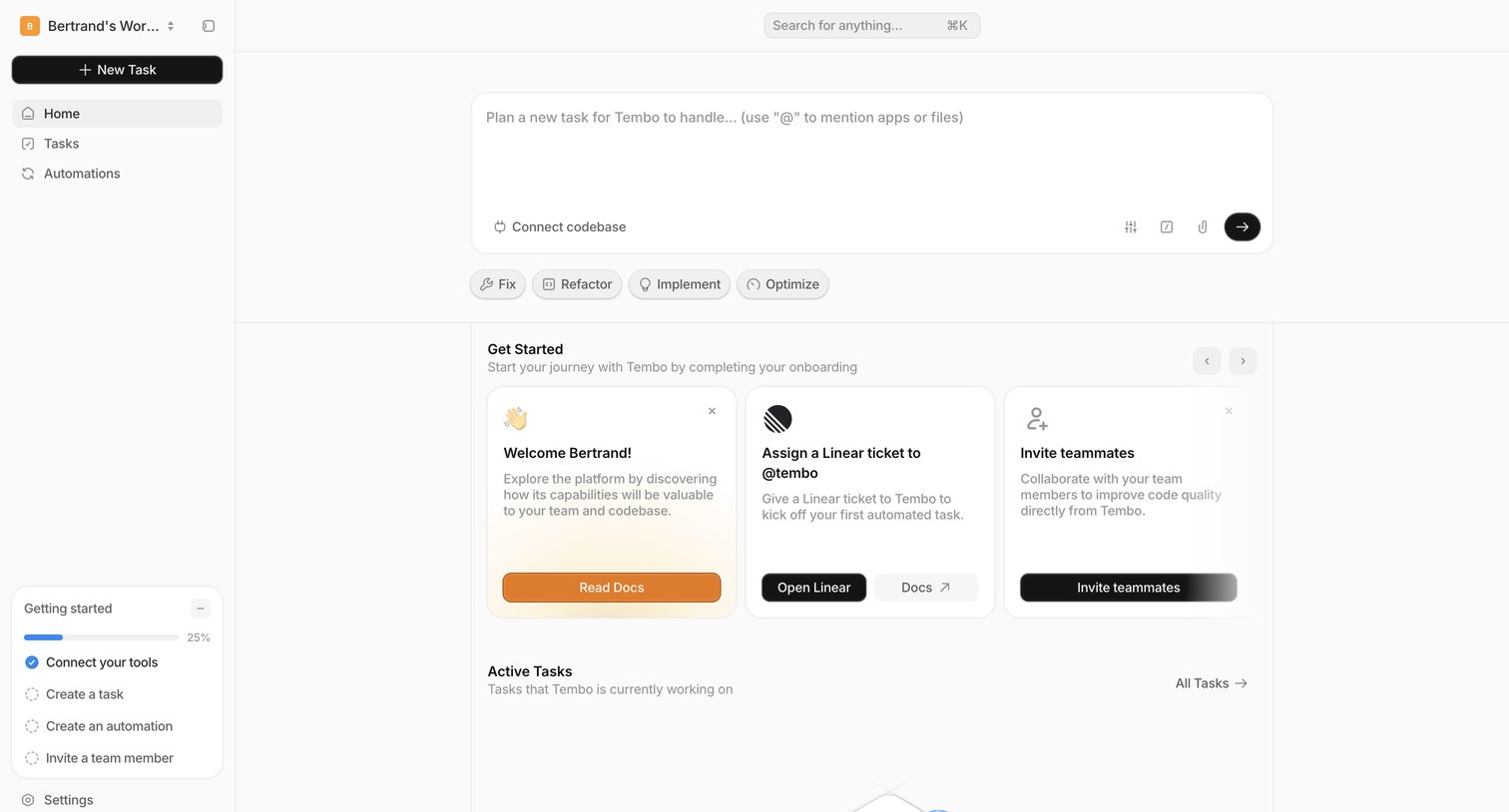
Home dashboard where the user can prompt an AI agent to handle tasks, complete onboarding steps like connecting tools, and view active automated tasks.
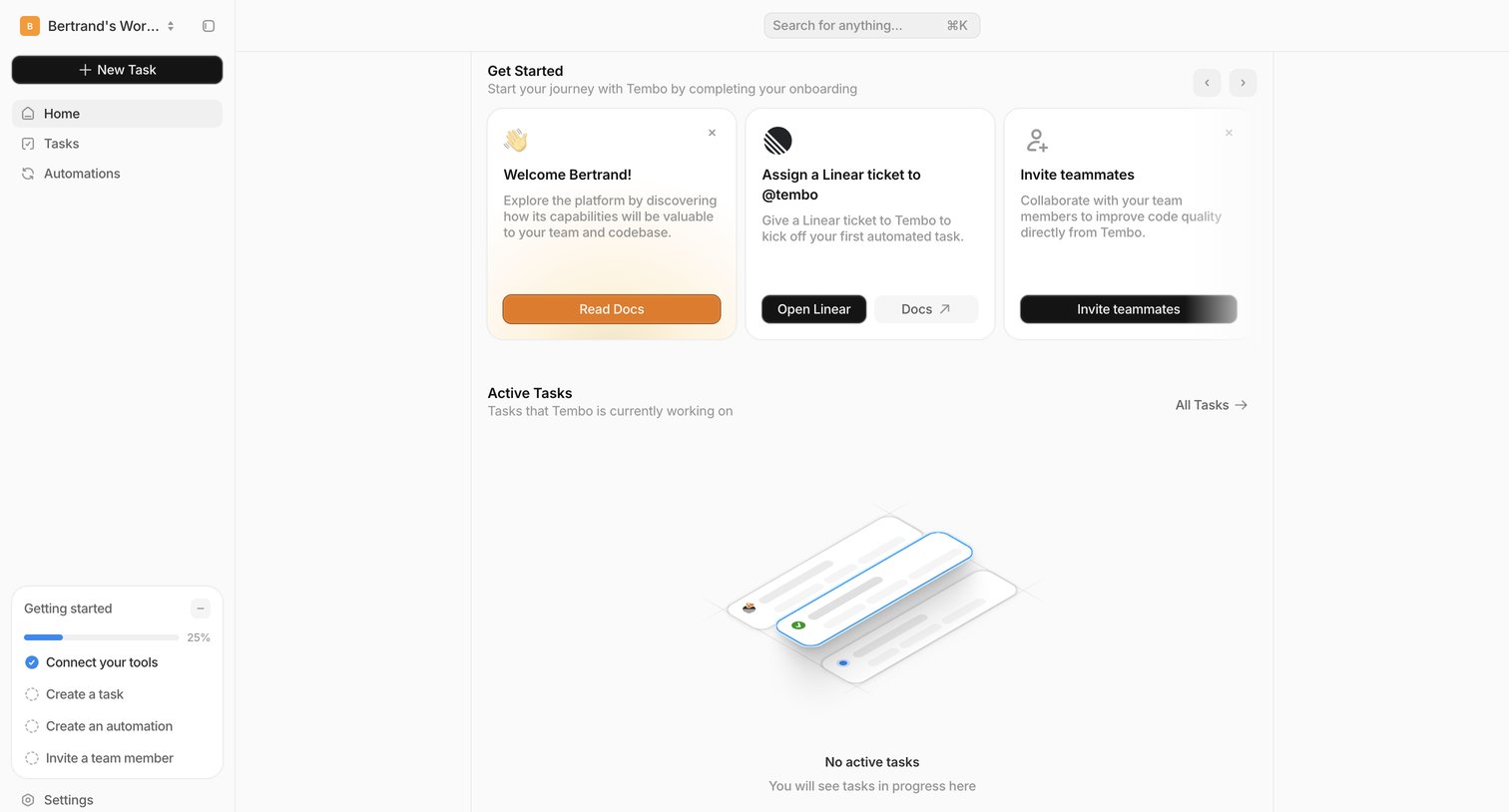
Home screen where the user is guided to complete onboarding steps like reading docs, assigning a Linear ticket, and inviting teammates, alongside an empty state for active tasks.
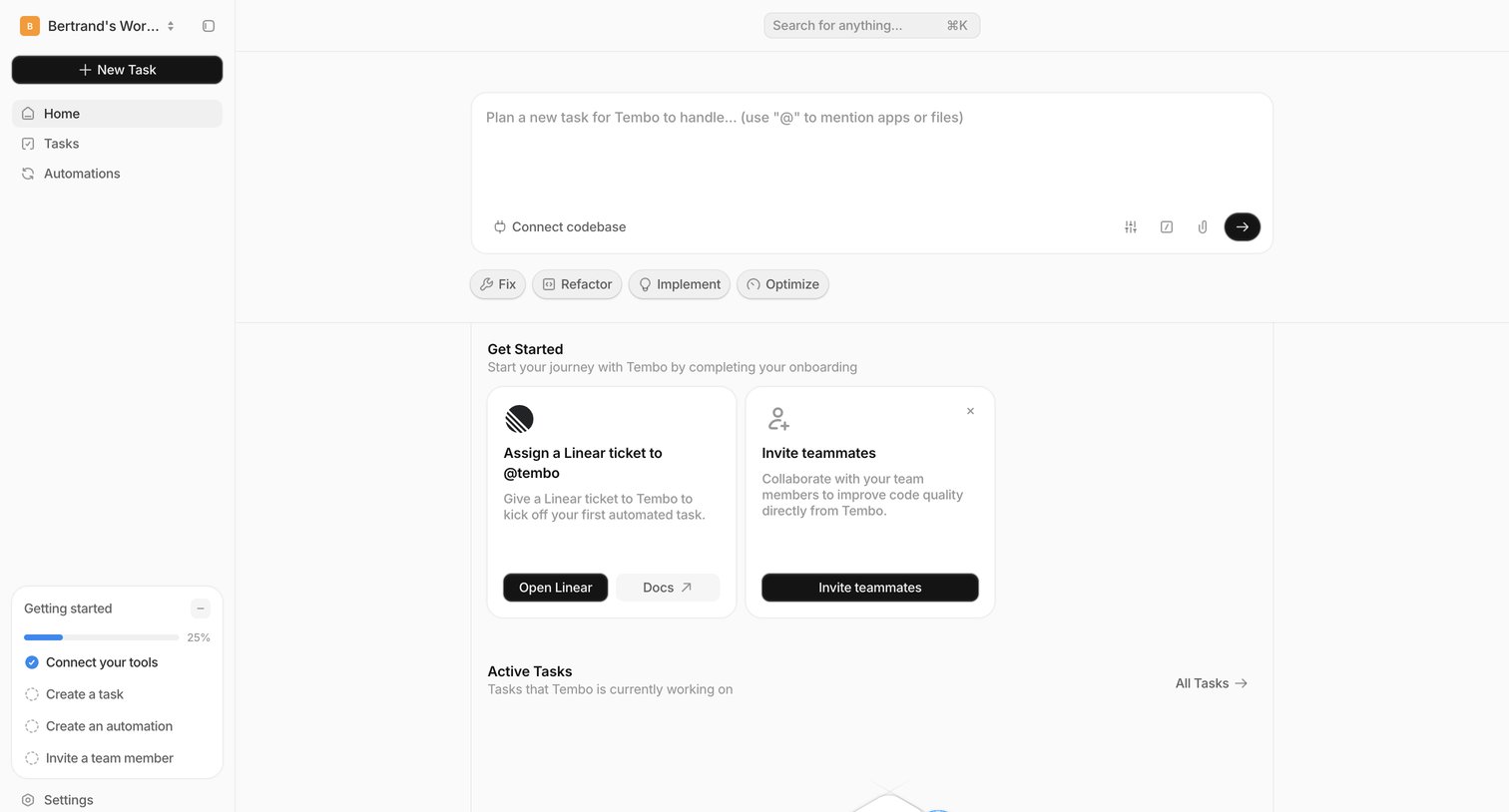
Home screen where the user can prompt the AI agent to plan a new task, complete onboarding steps like connecting Linear, and view active tasks.
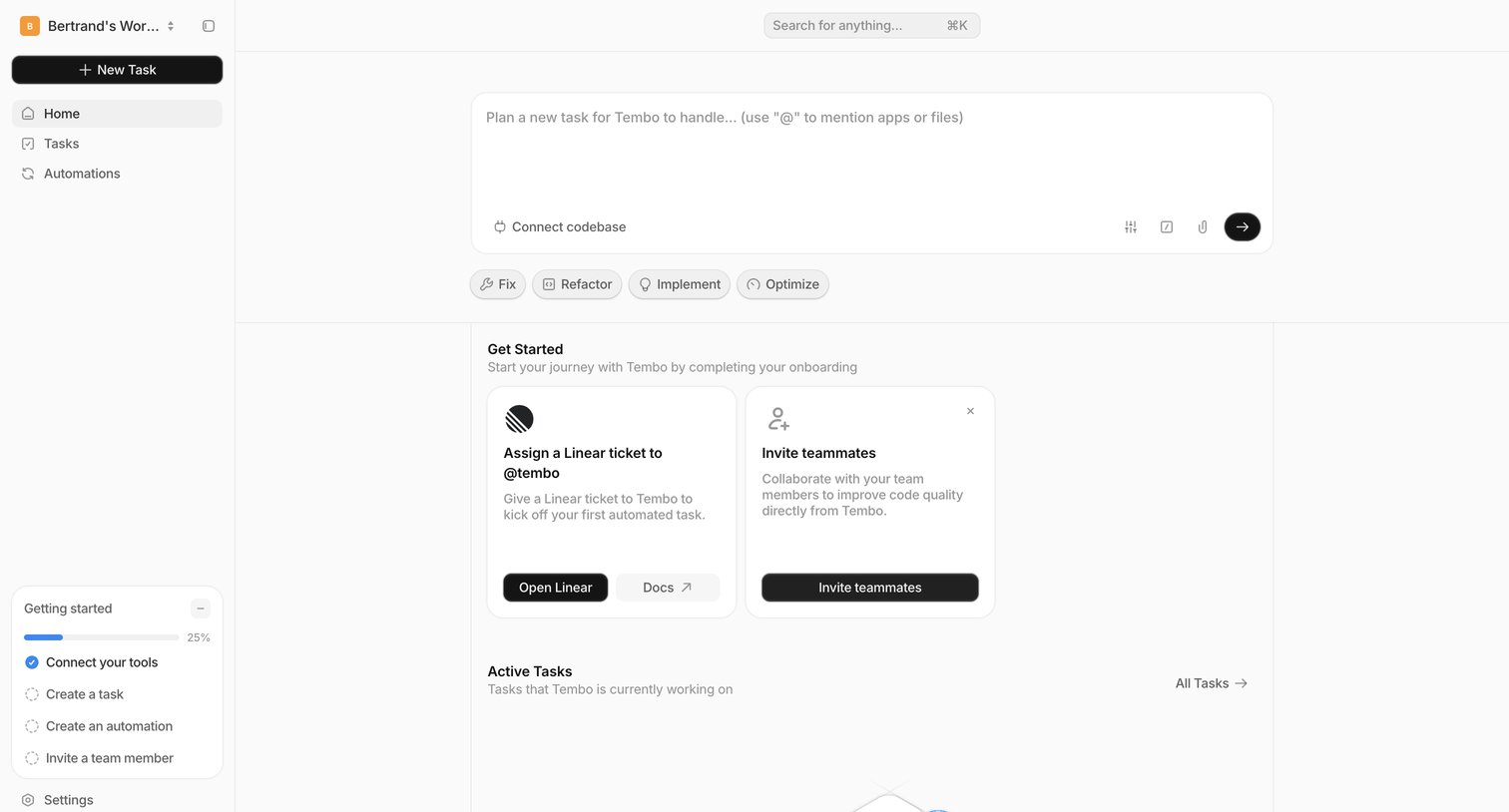
Home screen where the user can prompt an AI agent to create a new task, complete a setup checklist, and view active tasks.
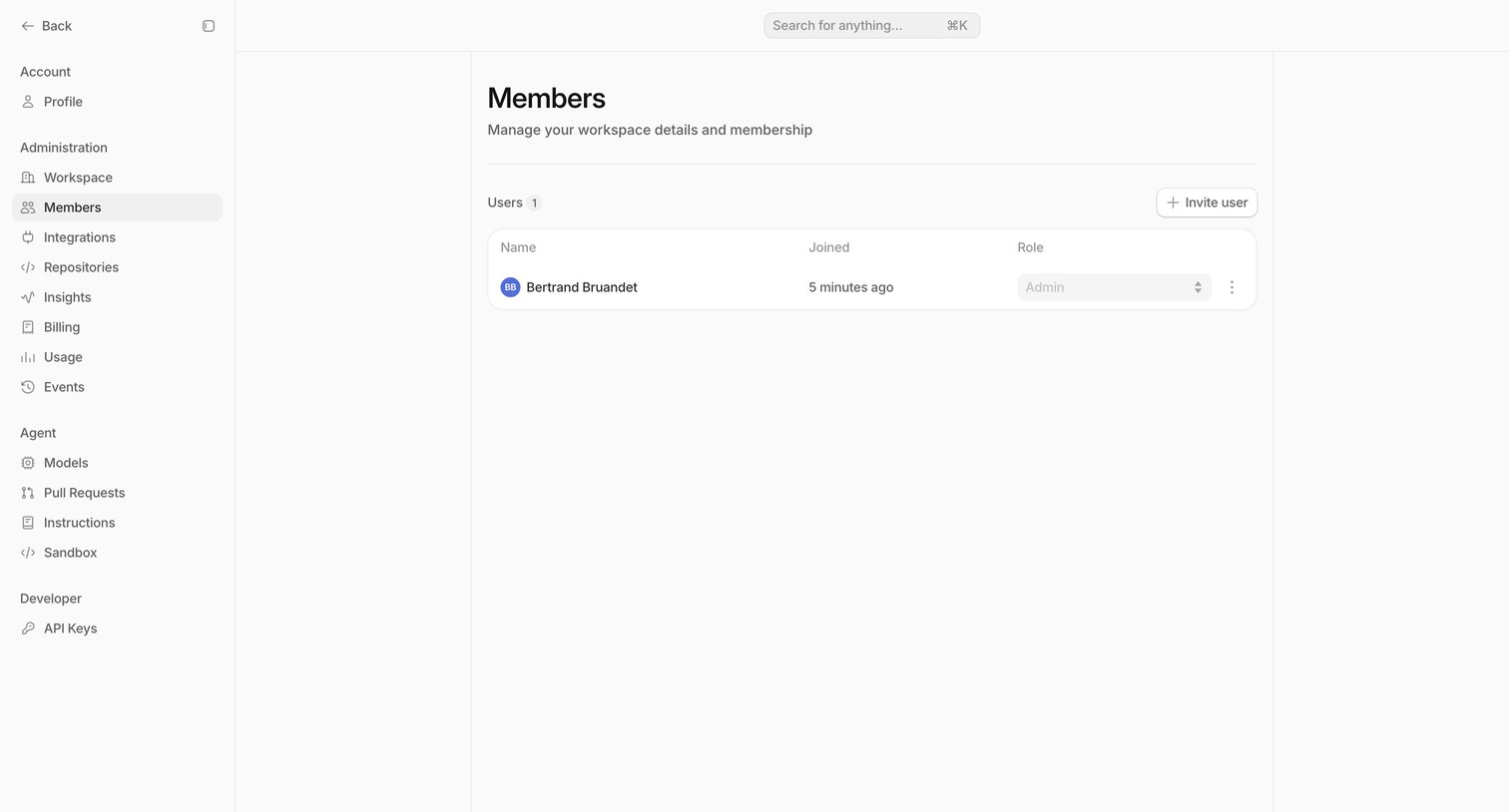
Settings page where the user manages workspace members, views their joined date, assigns roles, and can invite new users.
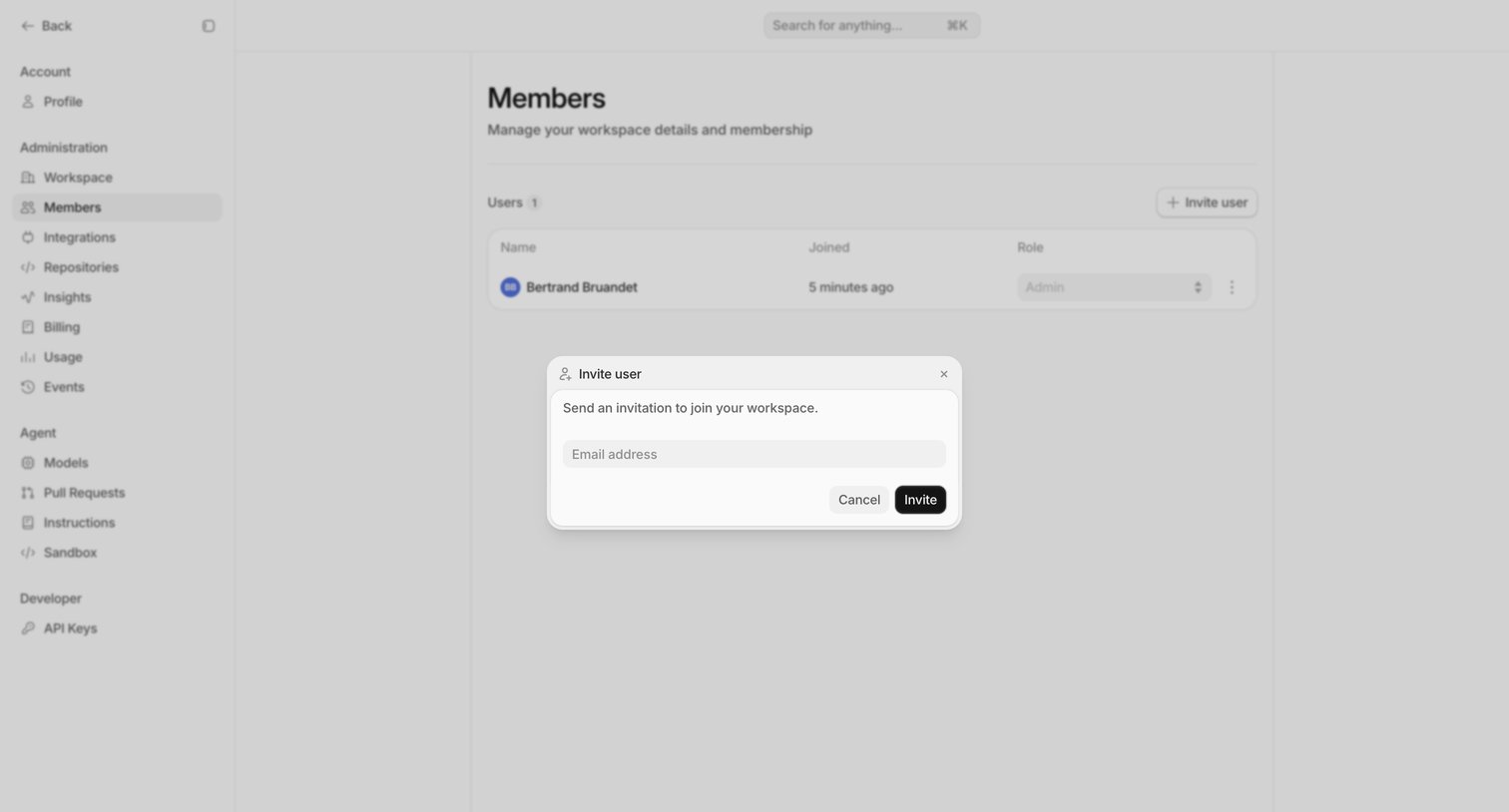
Settings page where the user manages workspace members and invites a new user via email.
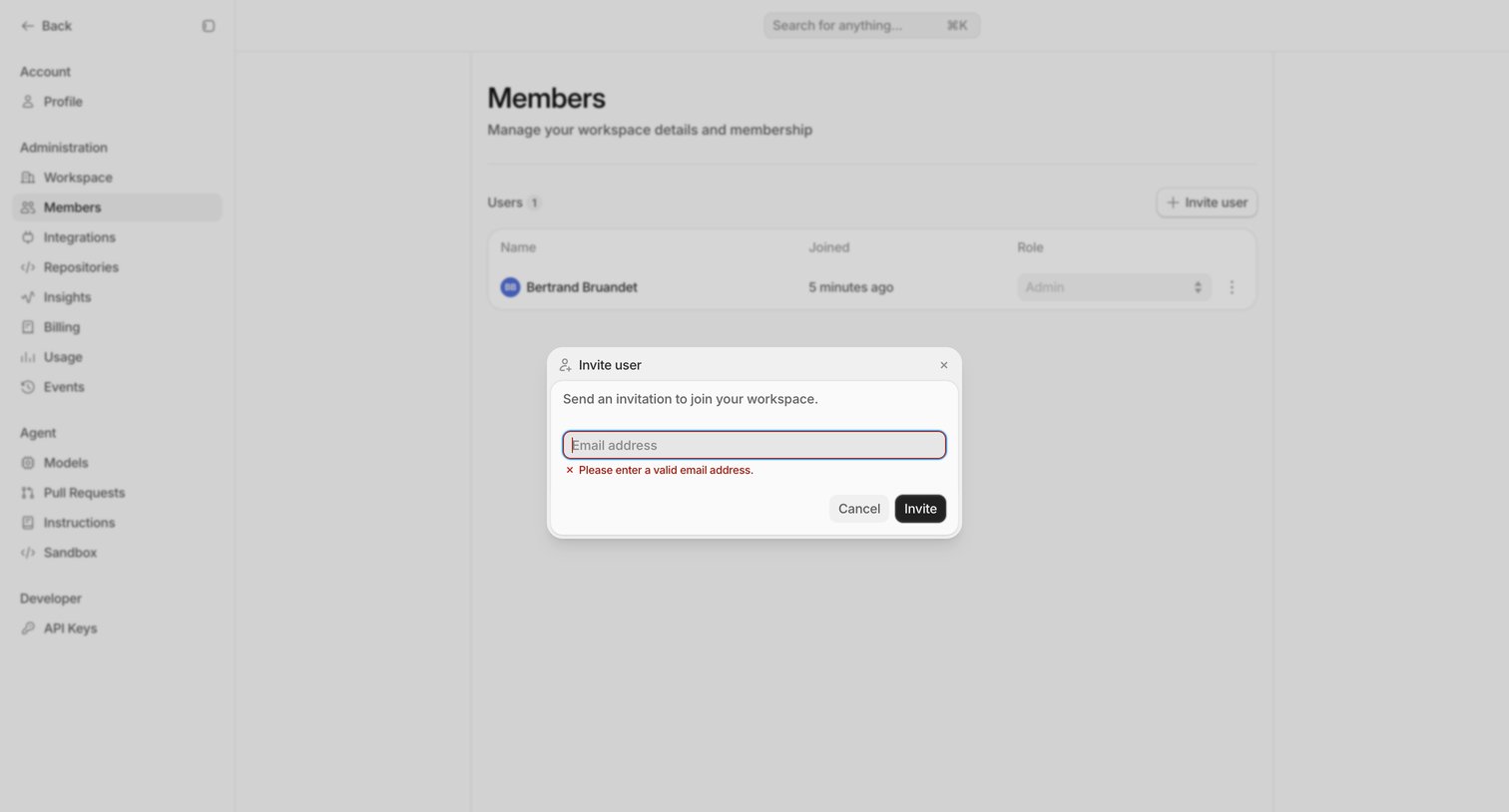
Settings page where the user attempts to invite a new teammate by email but encounters a validation error for an invalid address.
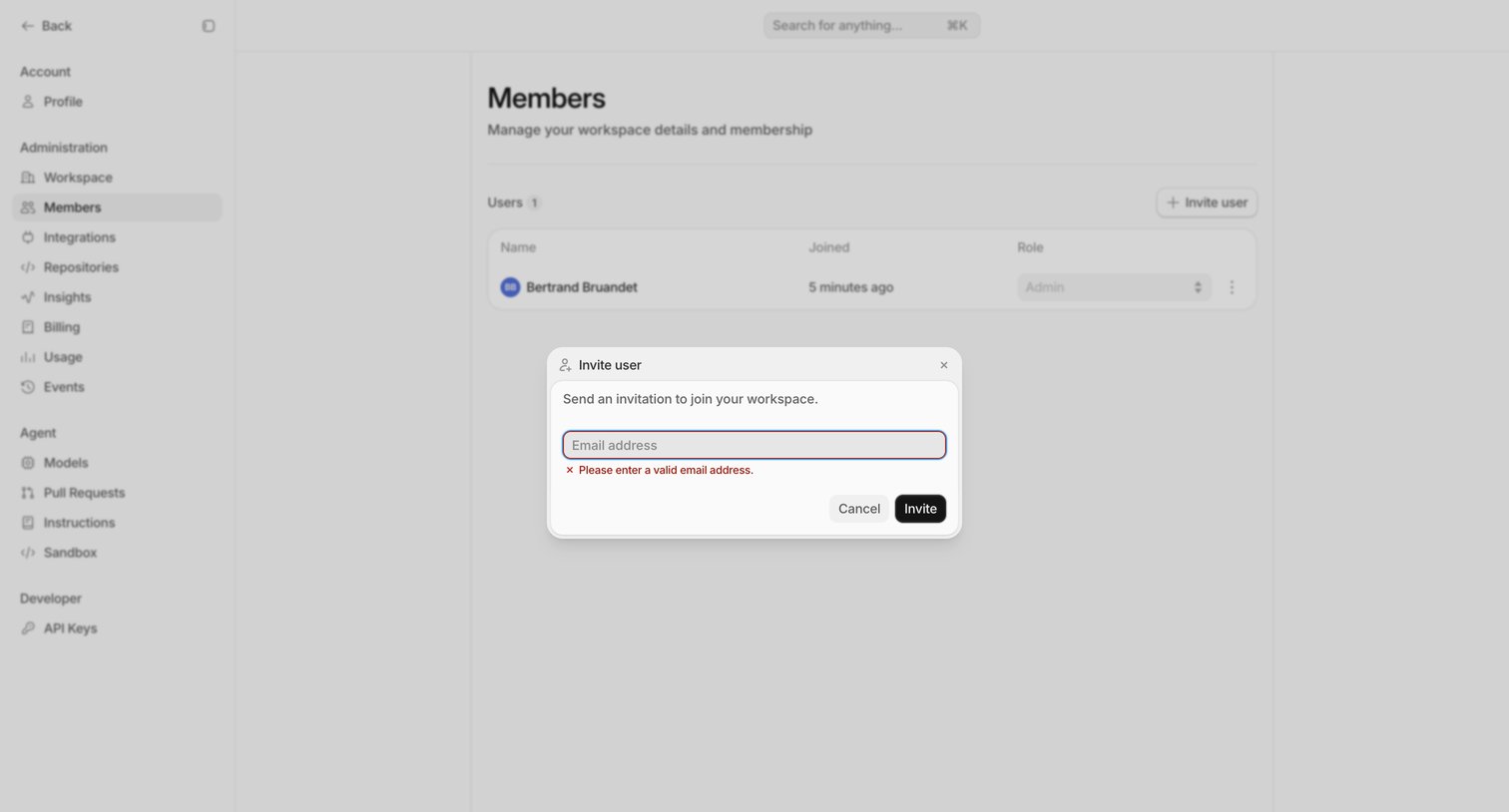
Workspace settings page where the user manages members and roles, currently showing an invite modal with a validation error for an invalid email address.
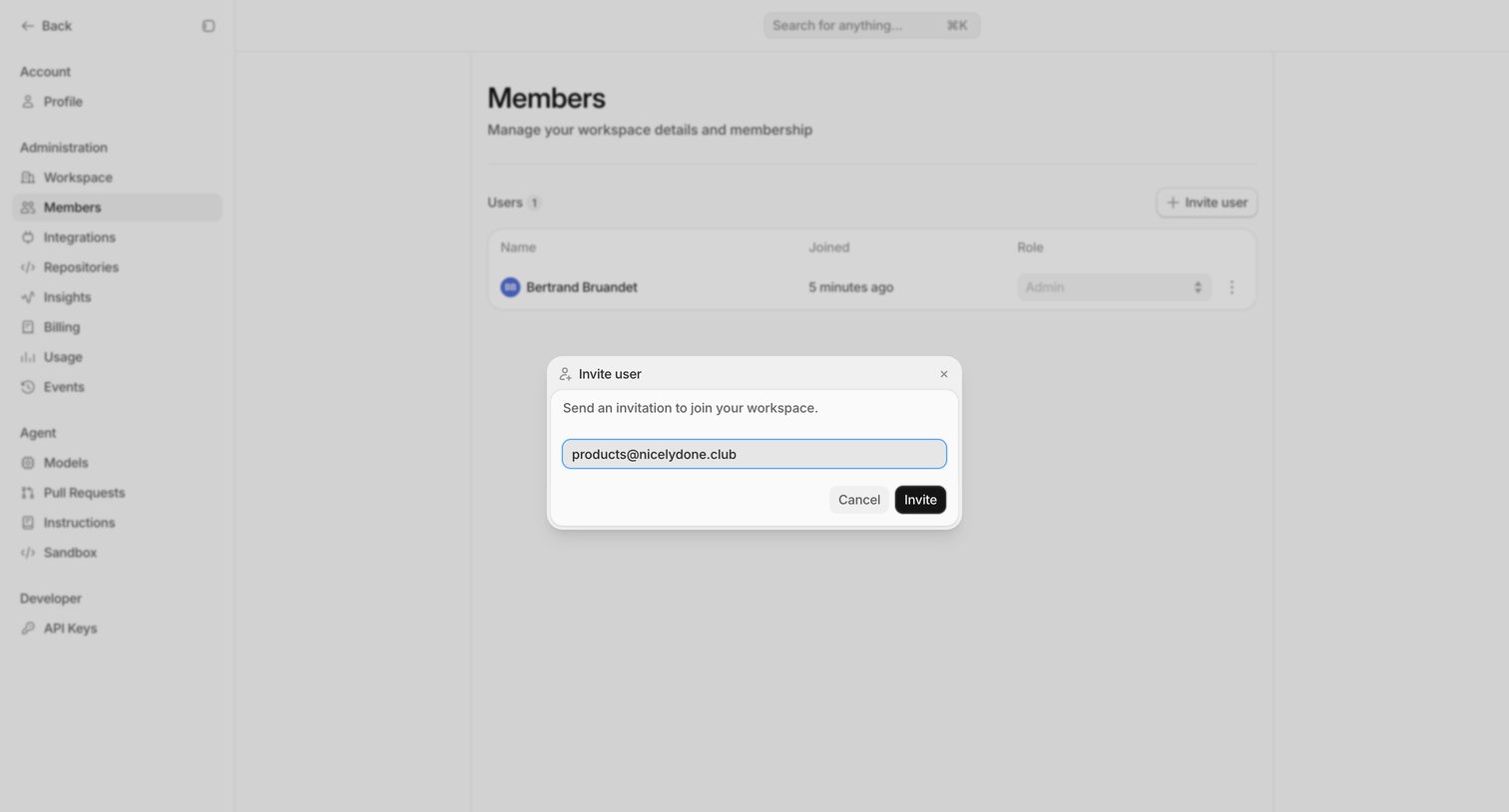
Settings page where the user invites a new teammate to their workspace via email.
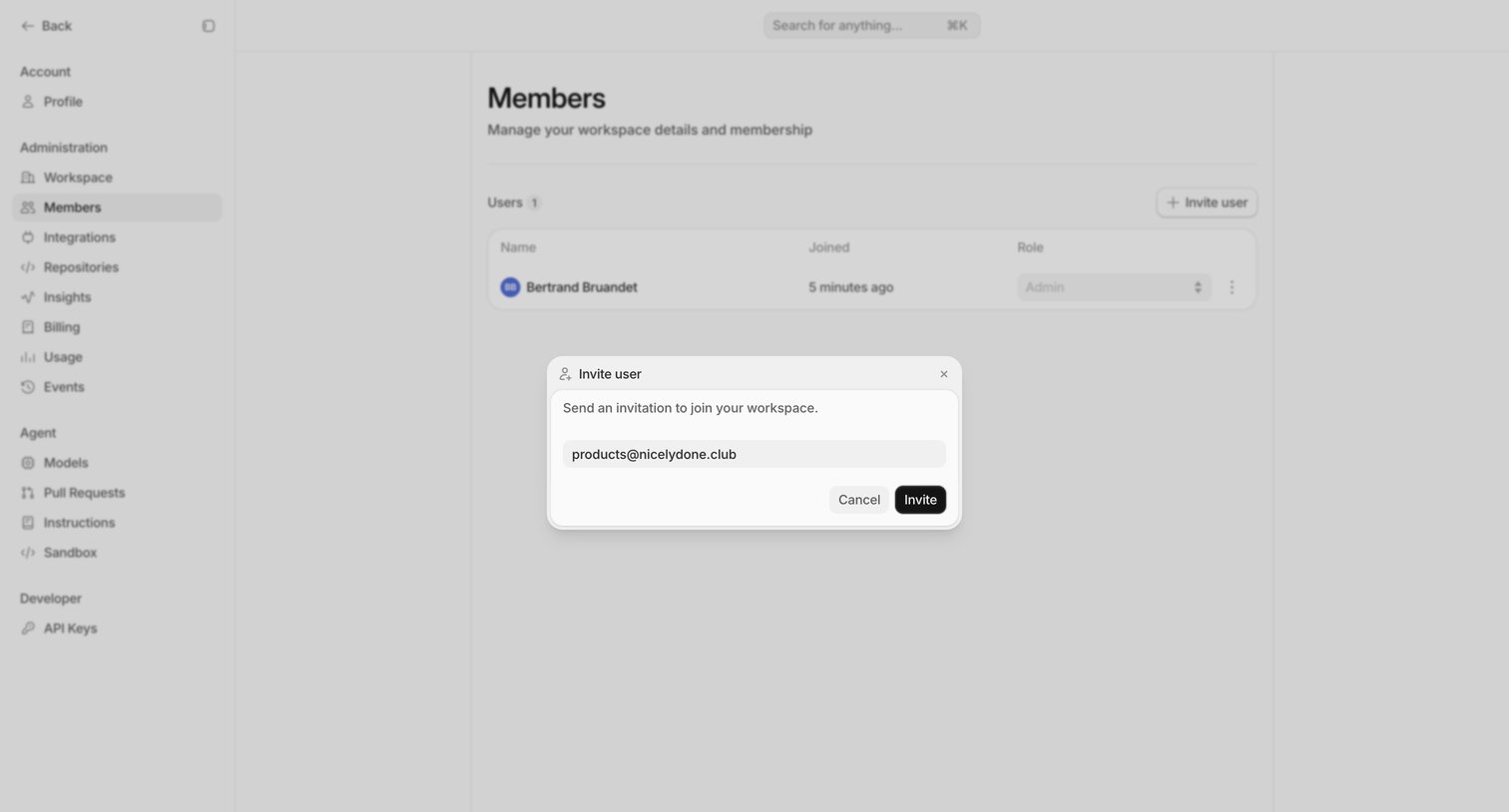
Settings page where the user manages workspace members and invites a new teammate via email.
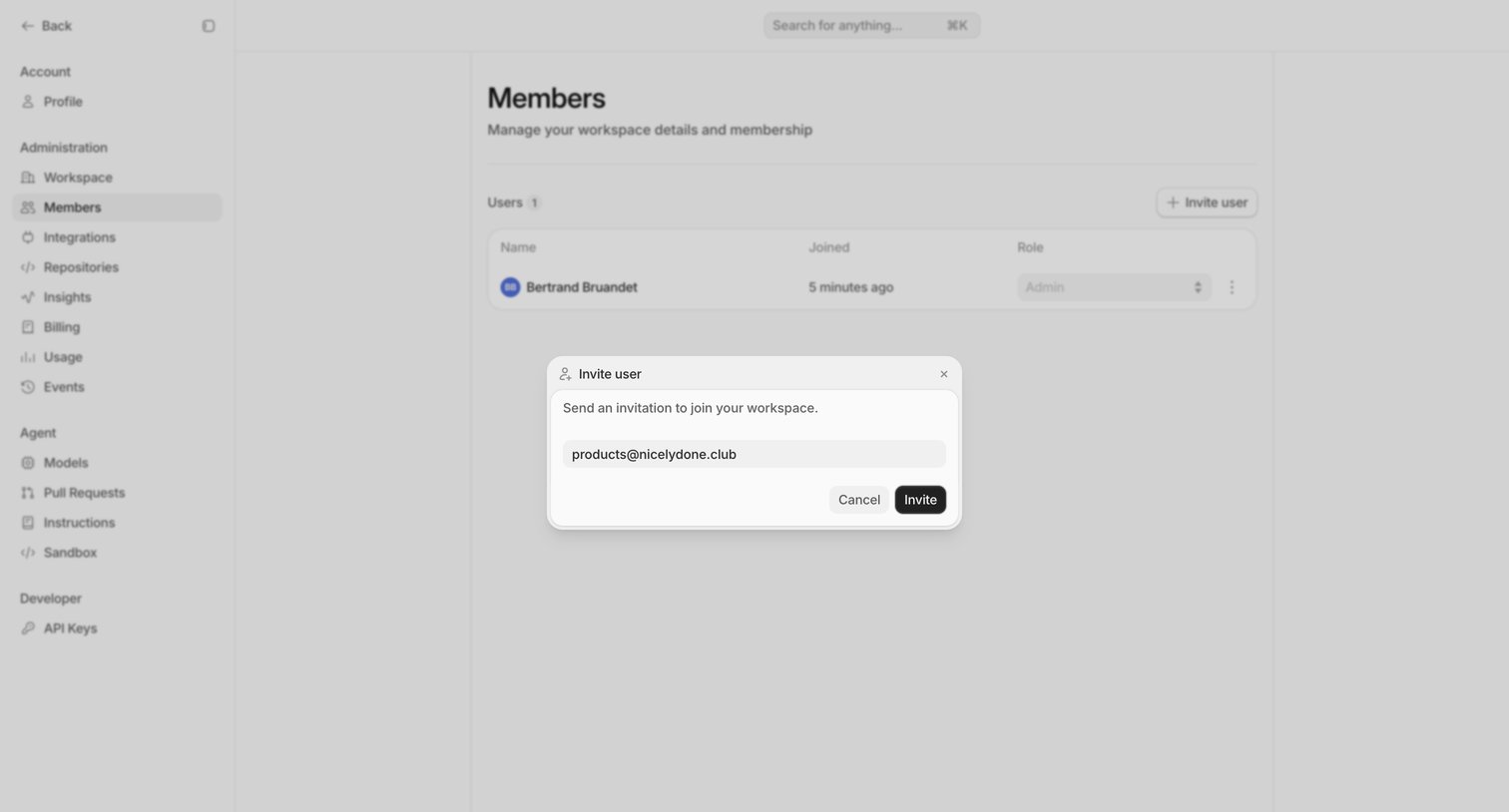
Settings page where the user manages workspace members and is currently inviting a new teammate via an email modal.
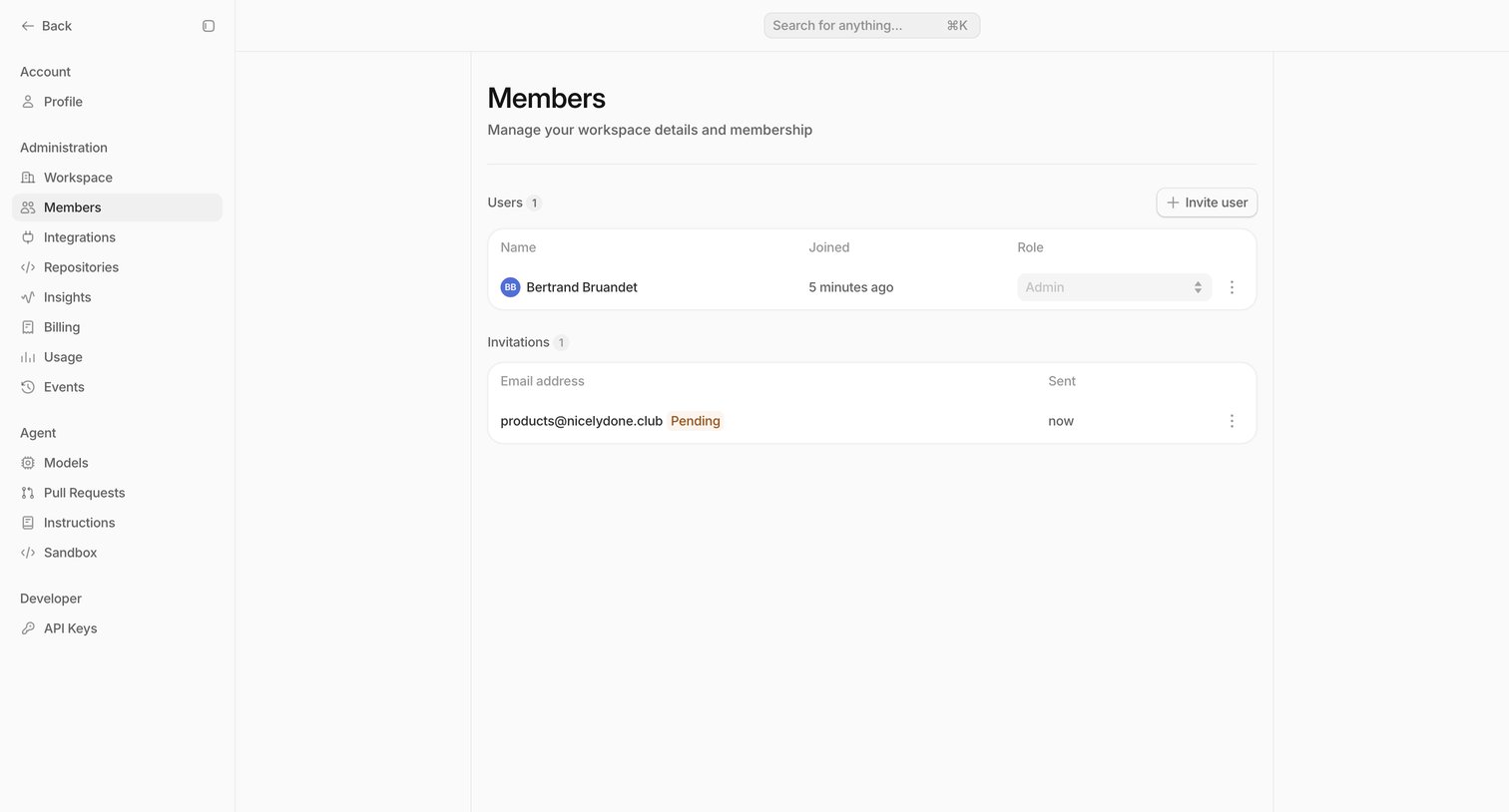
Settings page where the user manages workspace members, views existing users and their roles, and tracks pending email invitations.
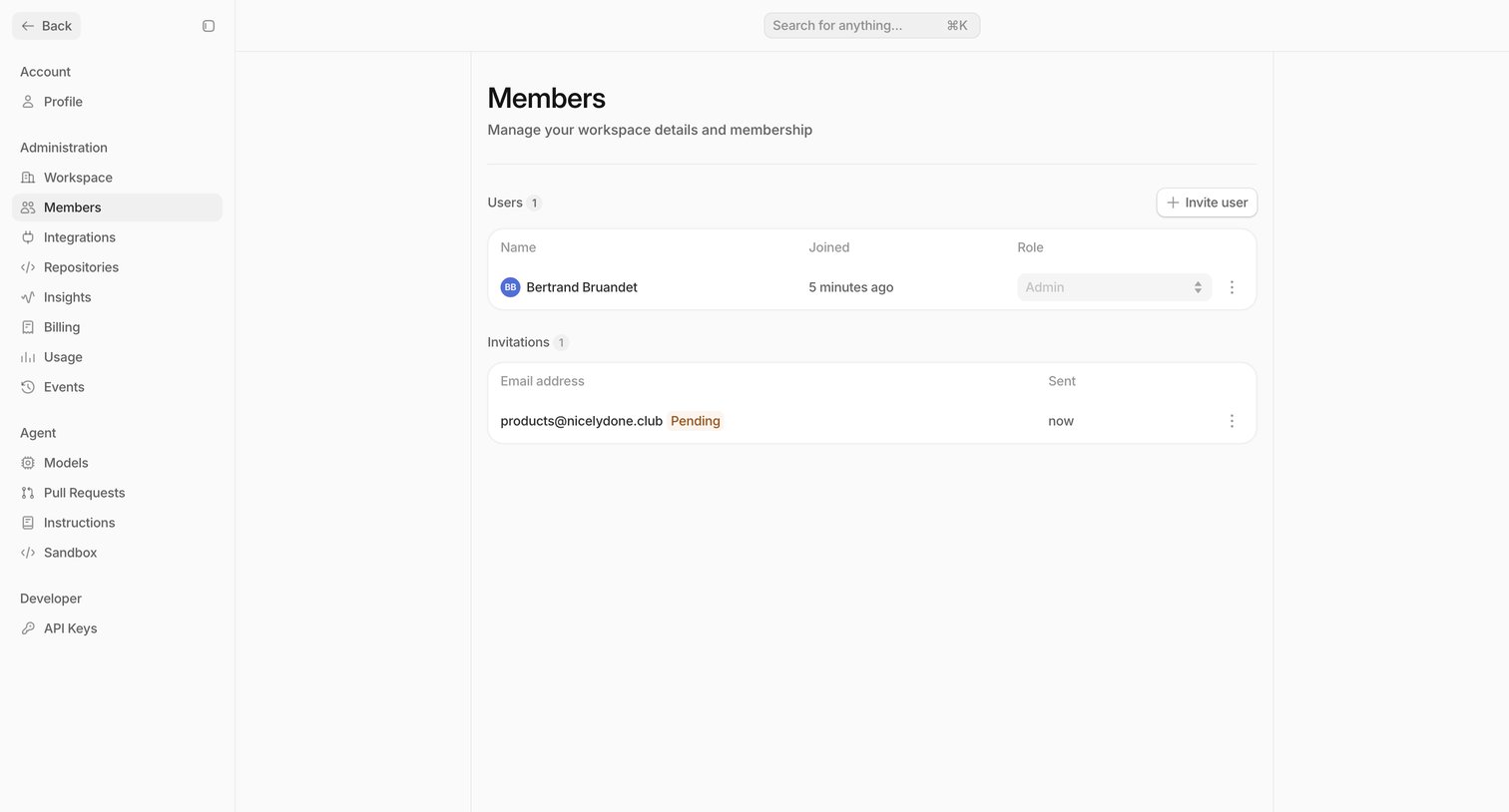
Settings page where the user manages workspace members, views active users, and checks pending invitations.
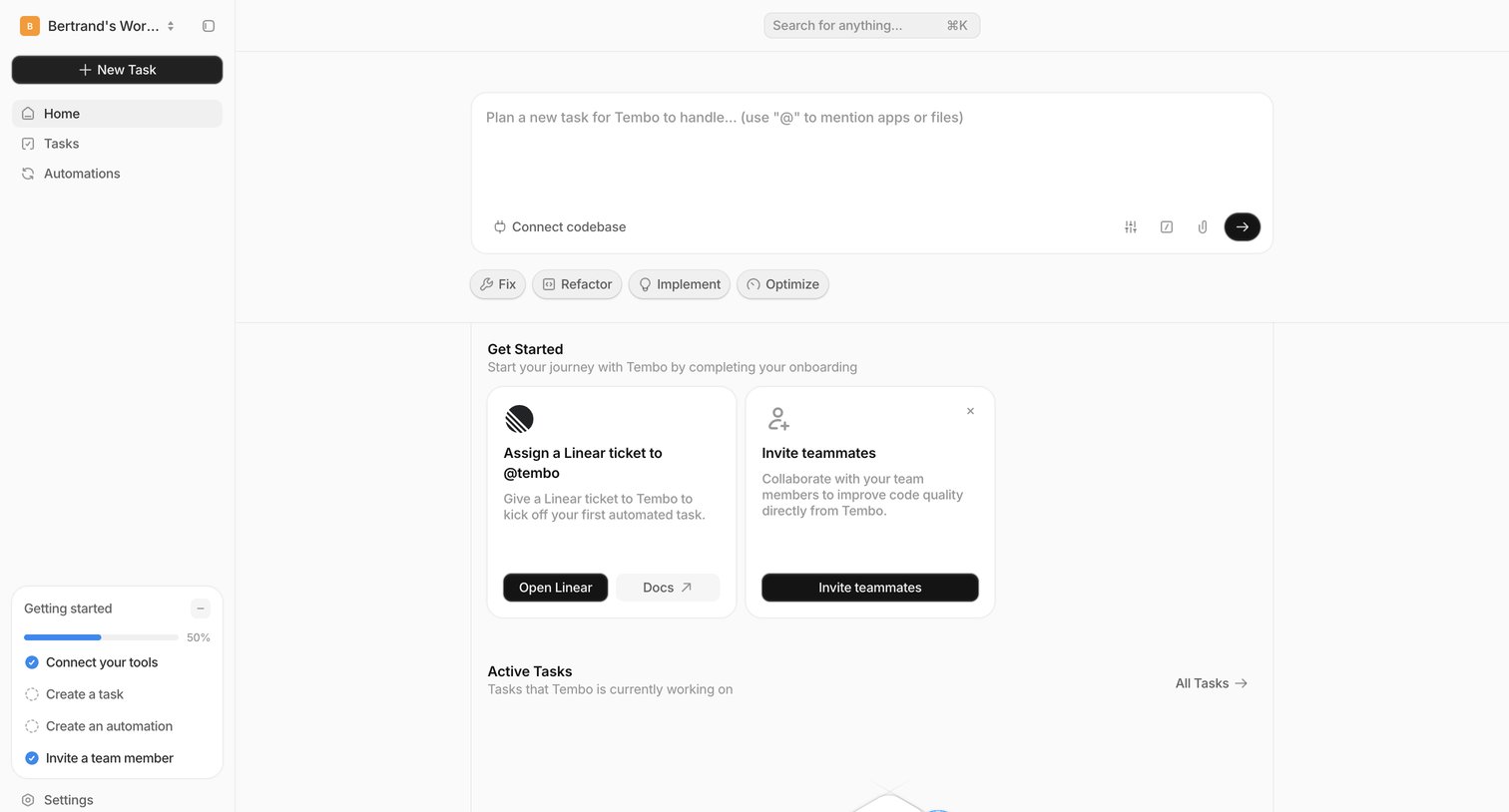
Home screen where the user can prompt the AI agent to handle a new task, complete onboarding steps like connecting Linear, and view currently active tasks.
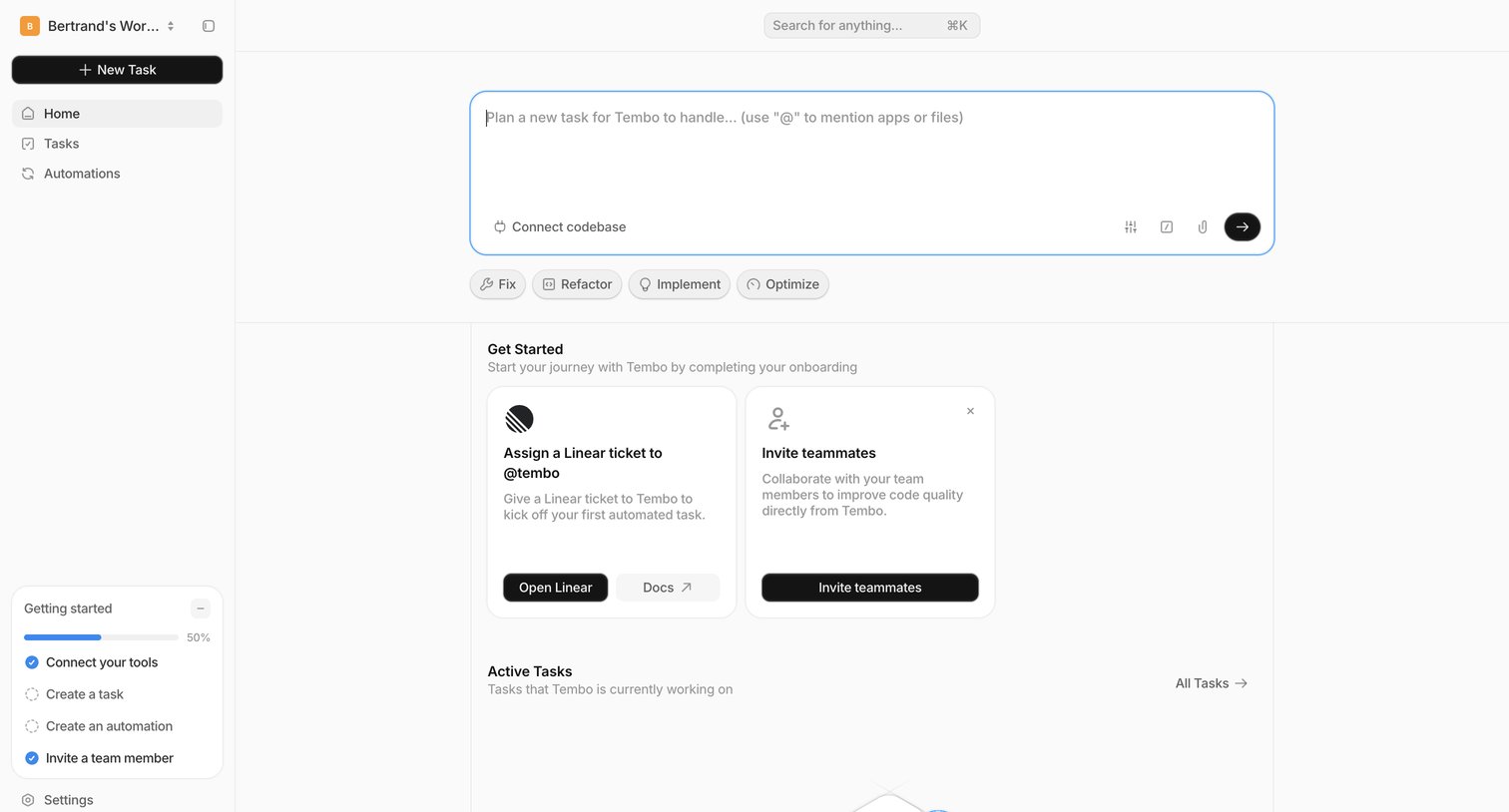
Home screen where the user can prompt the AI agent to plan a new task, complete onboarding steps like connecting Linear, and view active tasks.
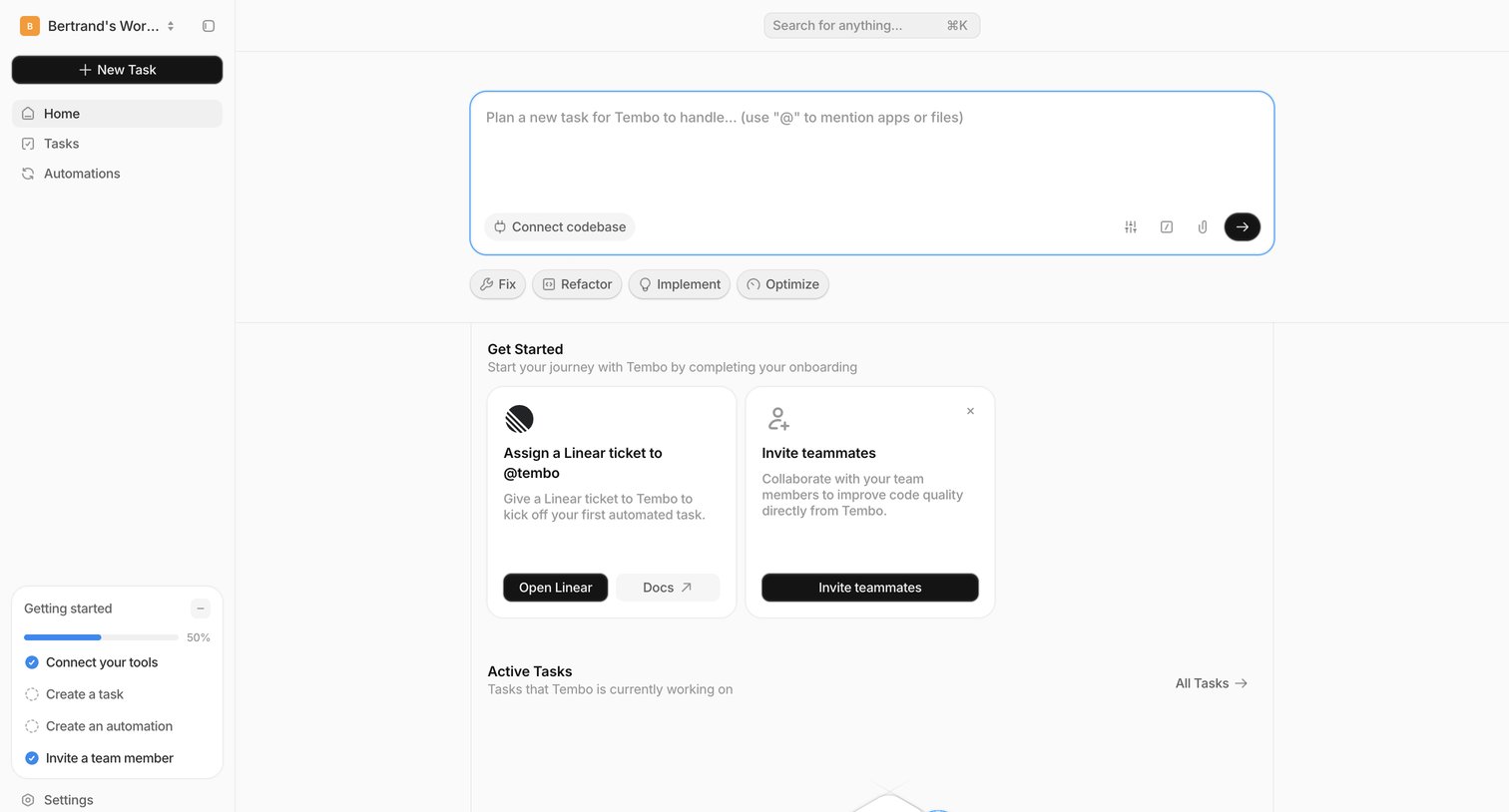
Home view where the user can prompt the AI agent to plan a new task, complete onboarding steps like connecting Linear, and view active tasks.
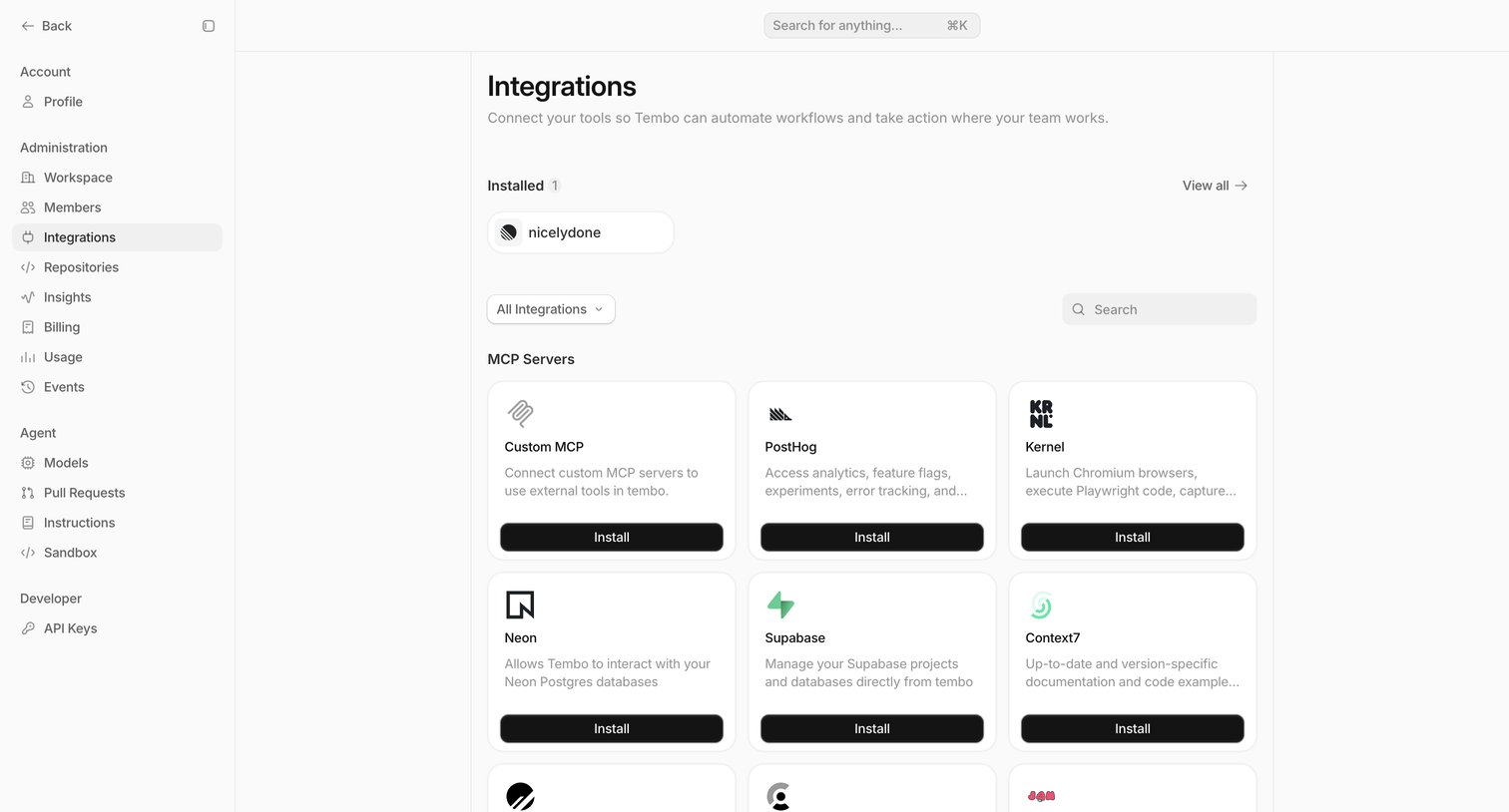
Settings page where the user can view installed integrations and browse a marketplace of MCP servers like PostHog, Supabase, and Clerk to install.
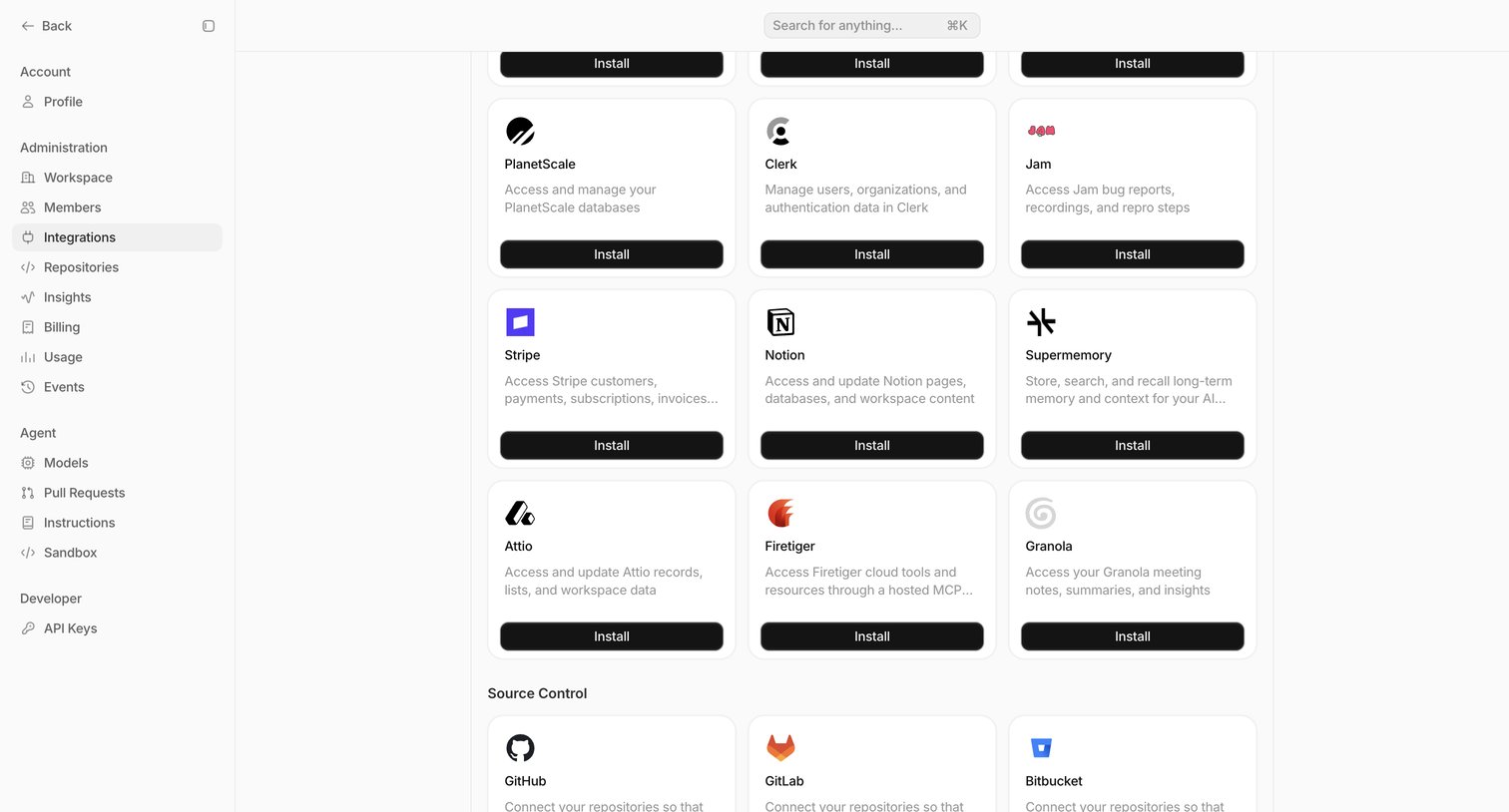
Settings page where the user can browse and install third-party integrations like Stripe, Notion, and GitHub.
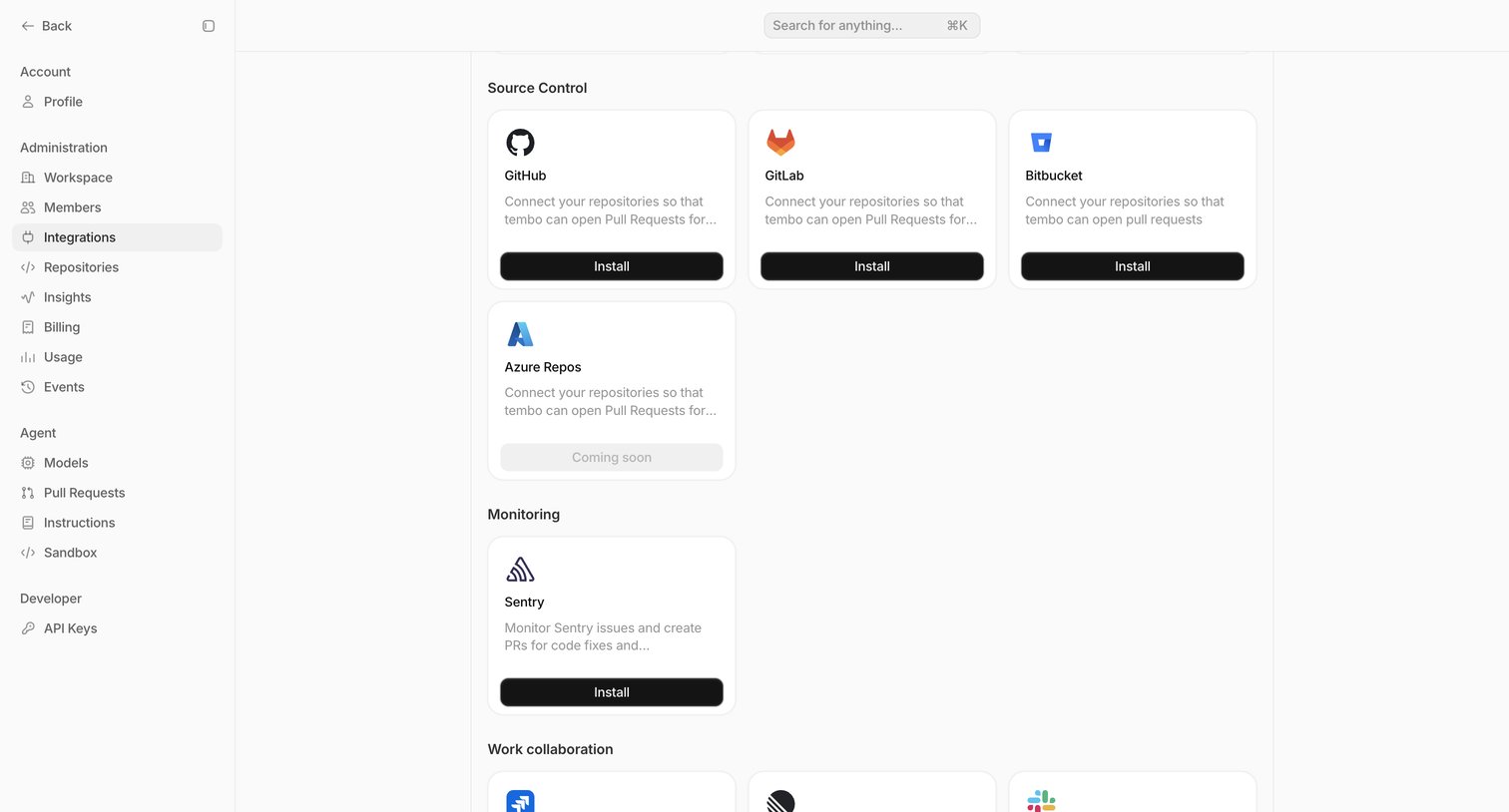
Settings page where the user can browse and install integrations for source control, monitoring, and work collaboration tools like GitHub, Sentry, and Jira.
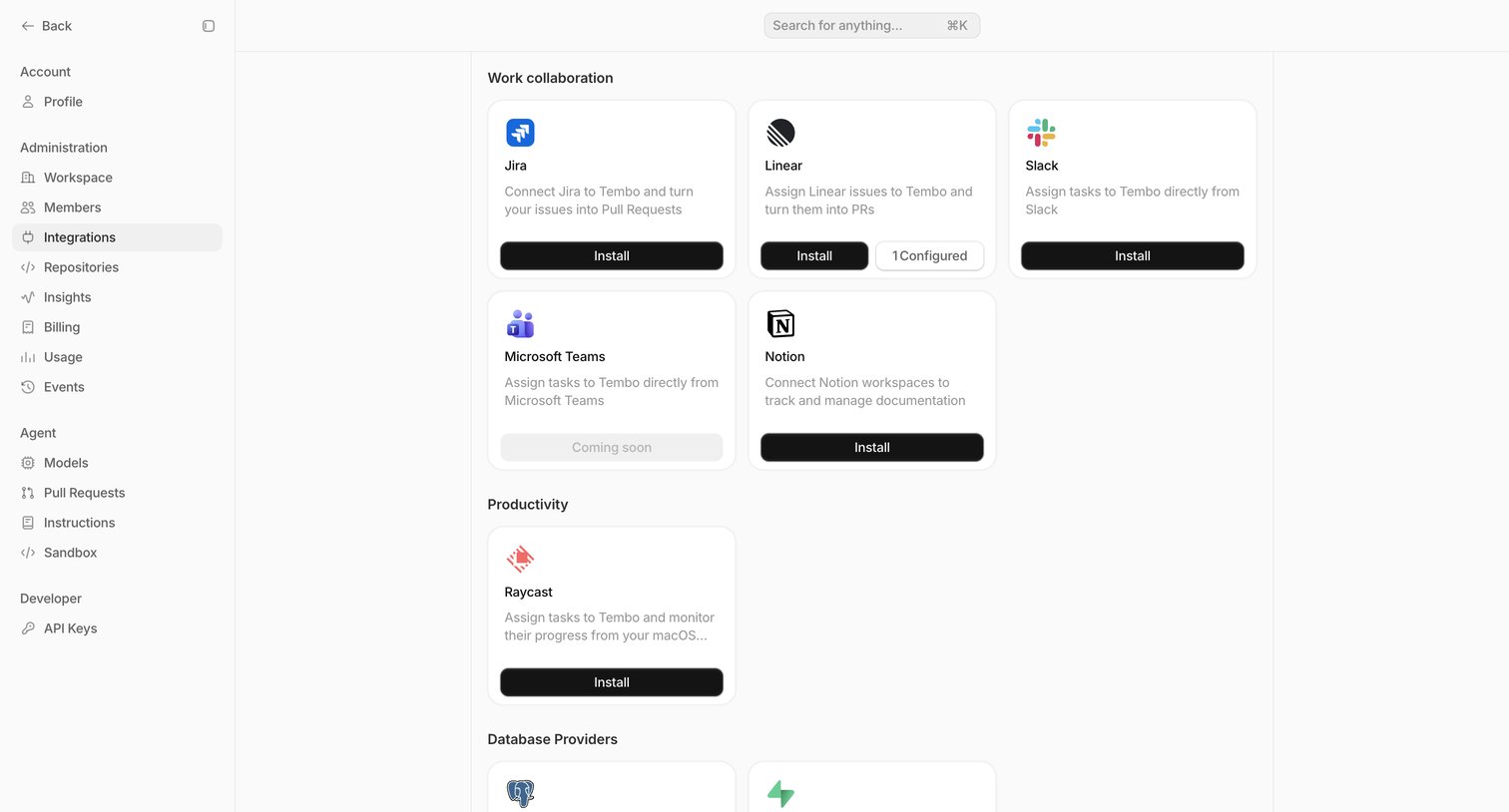
Settings page where the user can browse and install third-party integrations like Jira, Linear, and Slack, organized by categories like Work collaboration and Productivity.
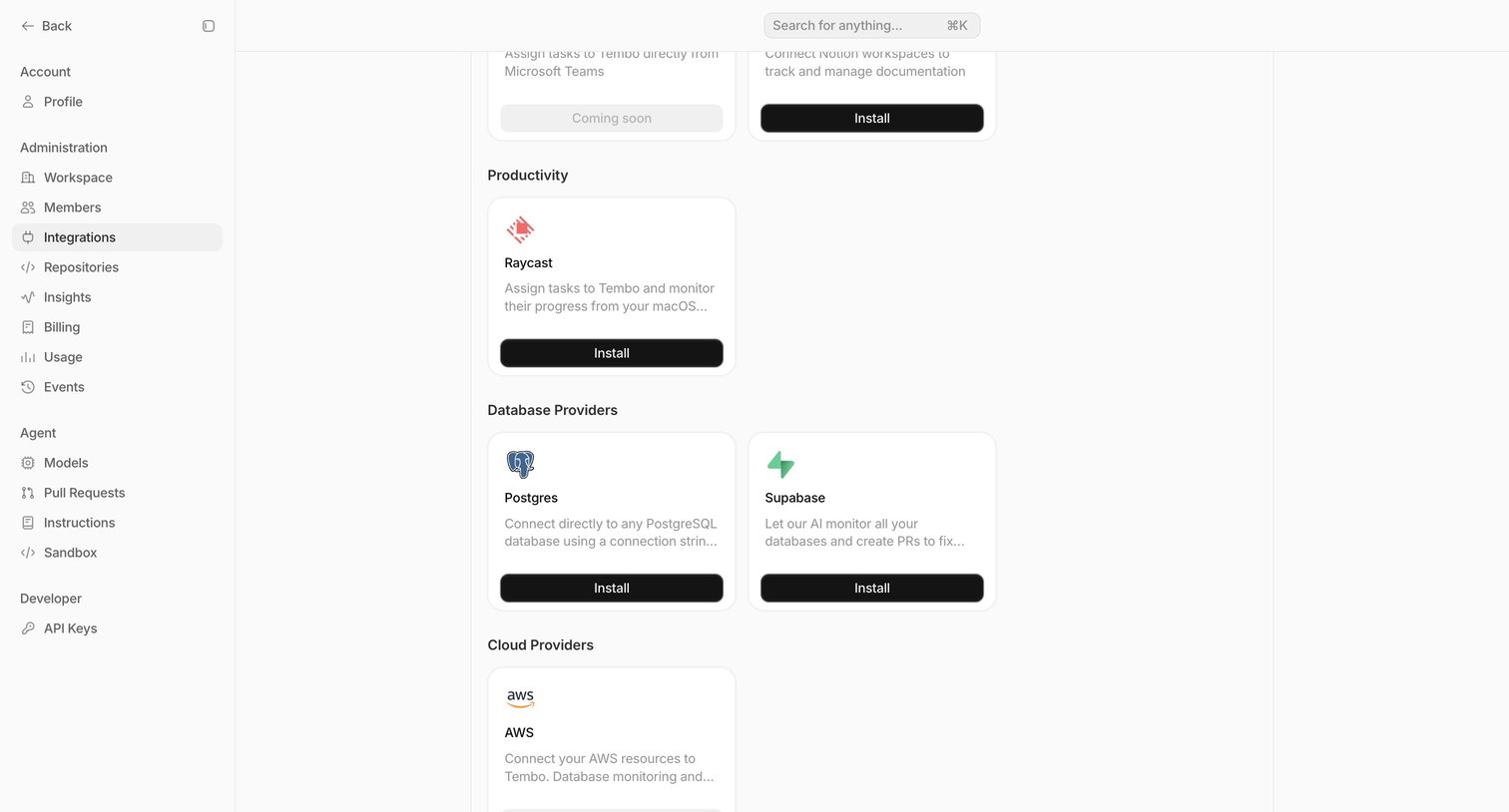
Settings page where the user browses and installs integrations for productivity tools, database providers, and cloud services.
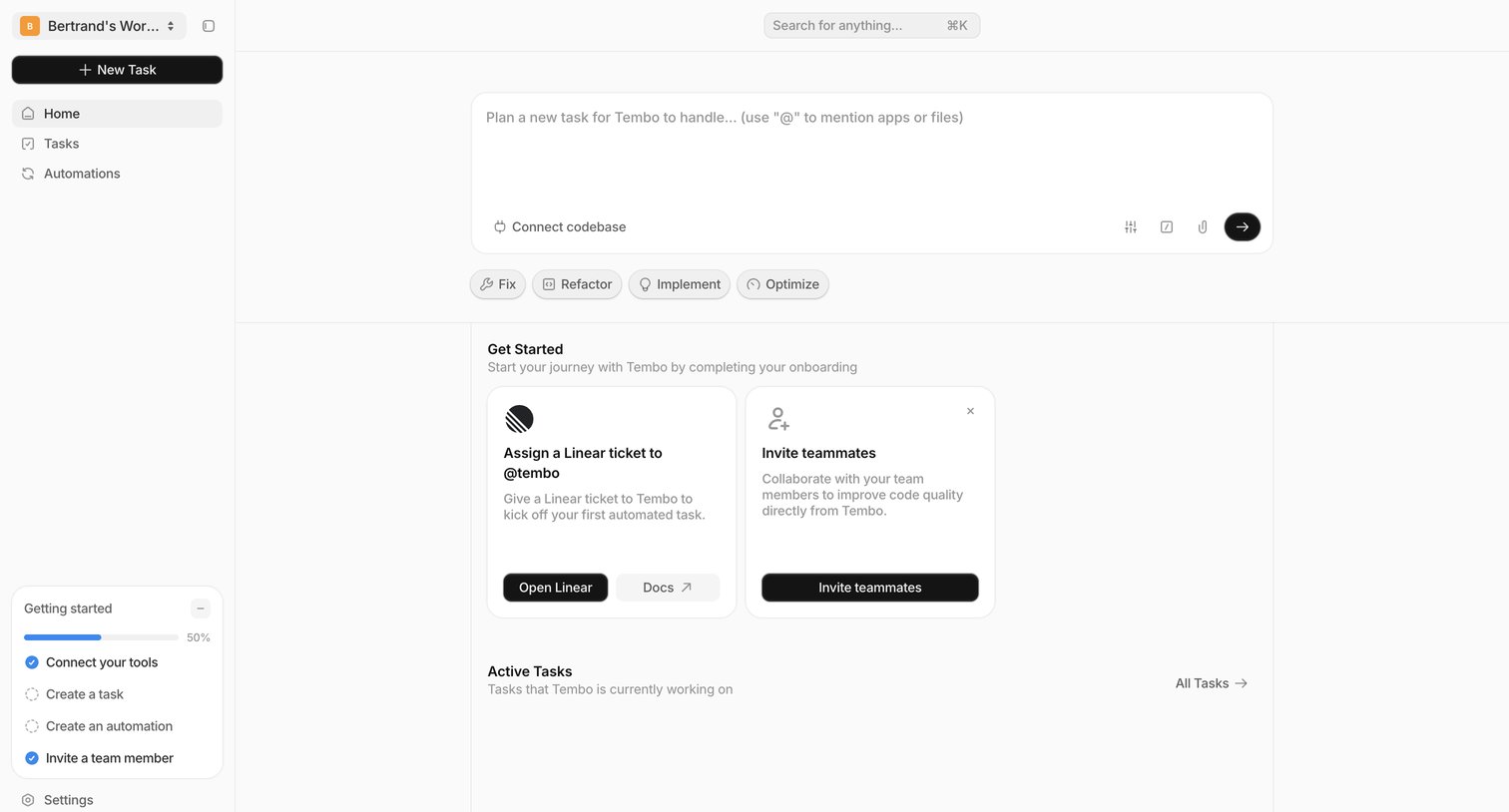
Home dashboard where the user can prompt the AI agent to plan tasks, complete onboarding steps like connecting Linear, and view active tasks.
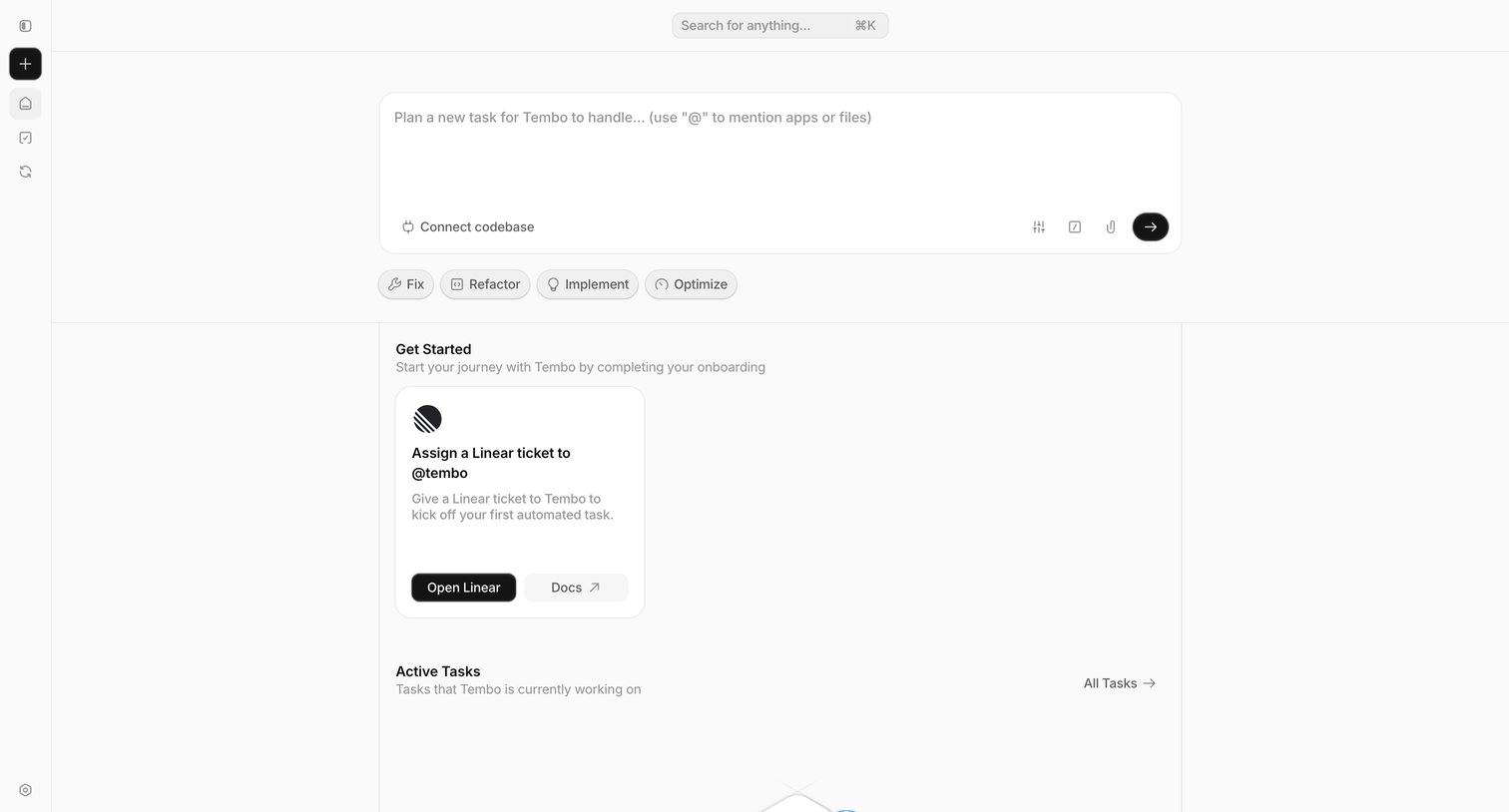
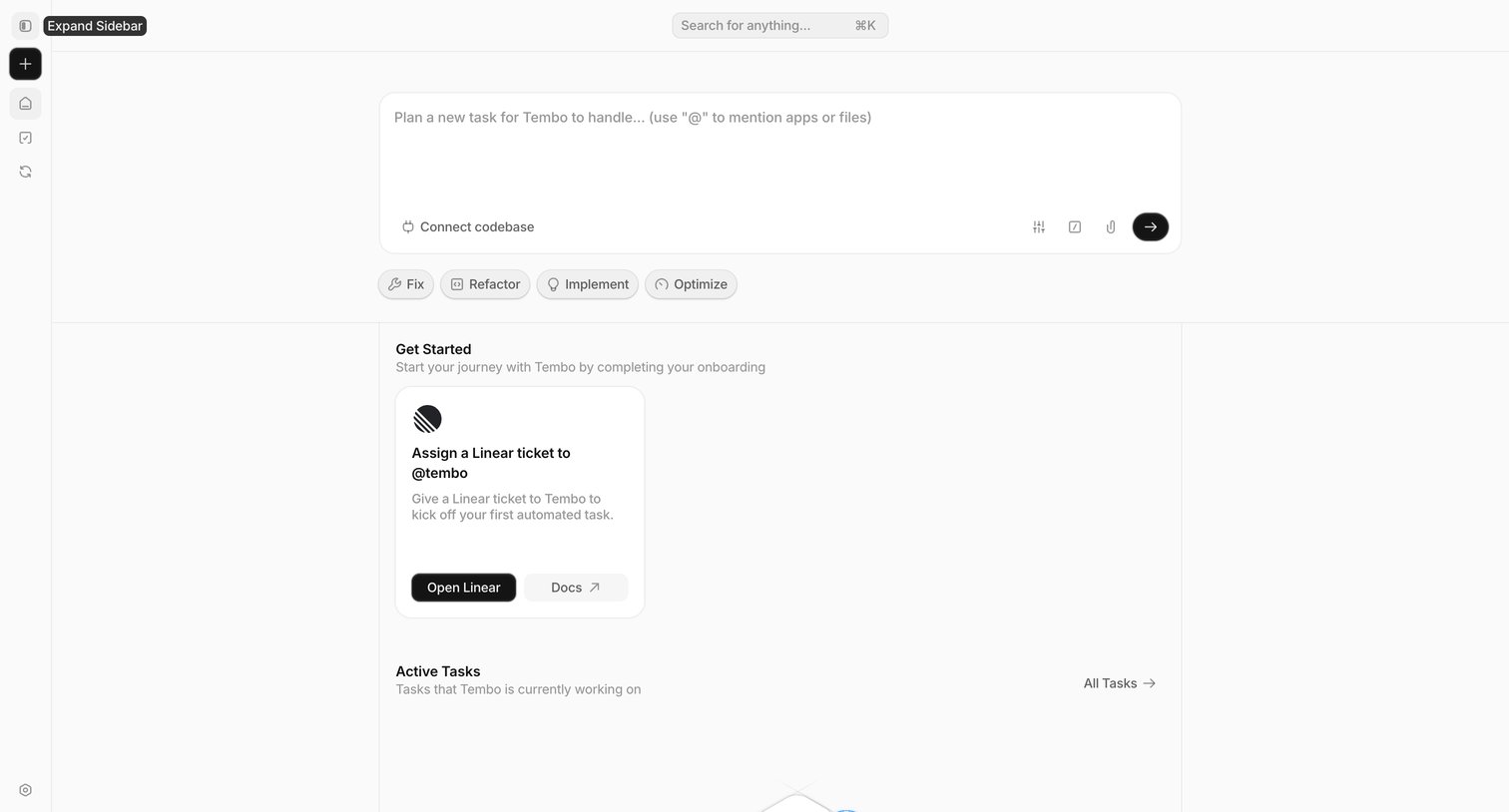
Home screen where the user can prompt the AI agent to plan a task, use suggested prompt starters, or complete an onboarding step to assign a Linear ticket.
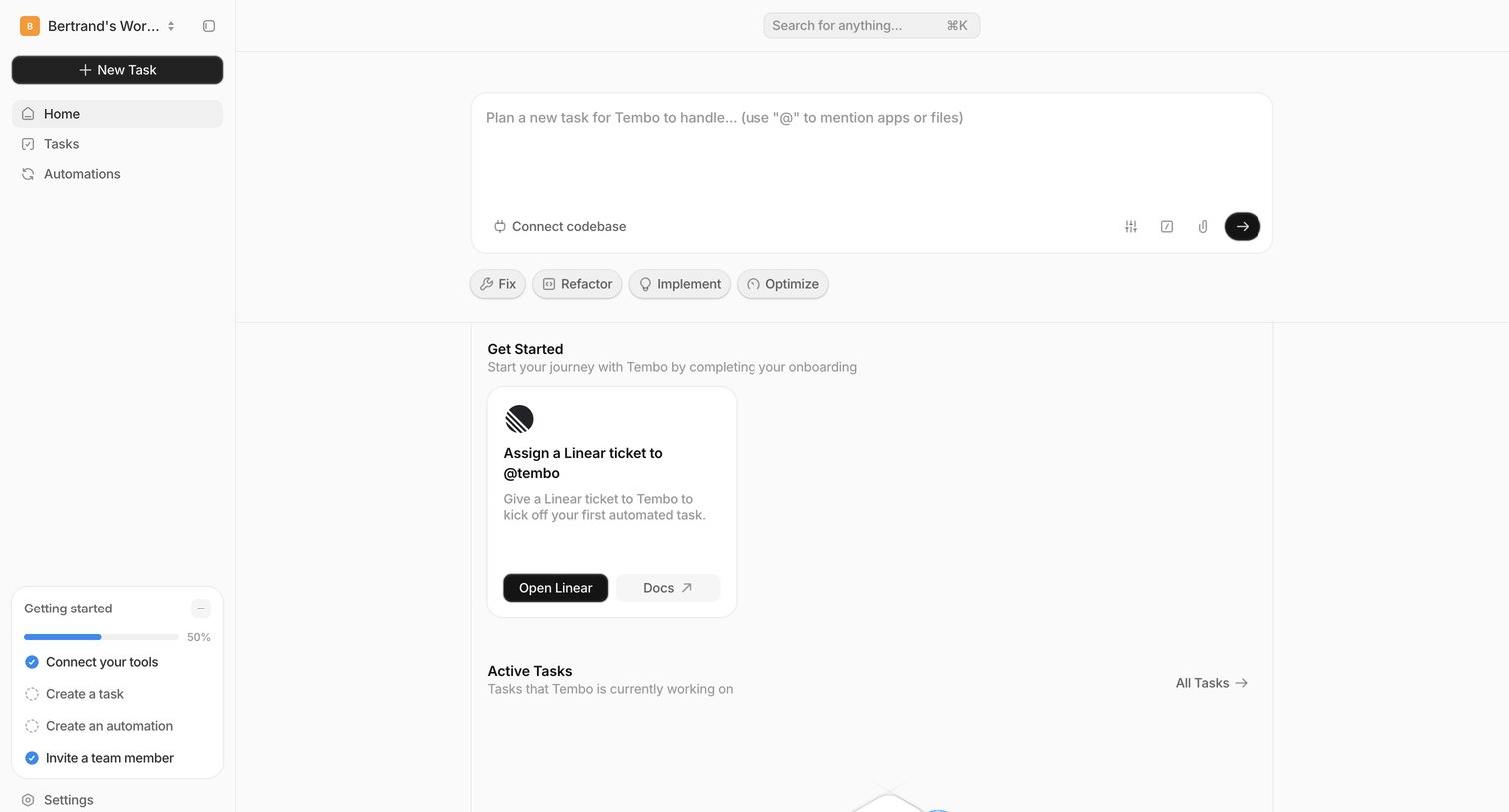
Home screen where the user plans a new automated task for the AI agent and tracks their onboarding progress.
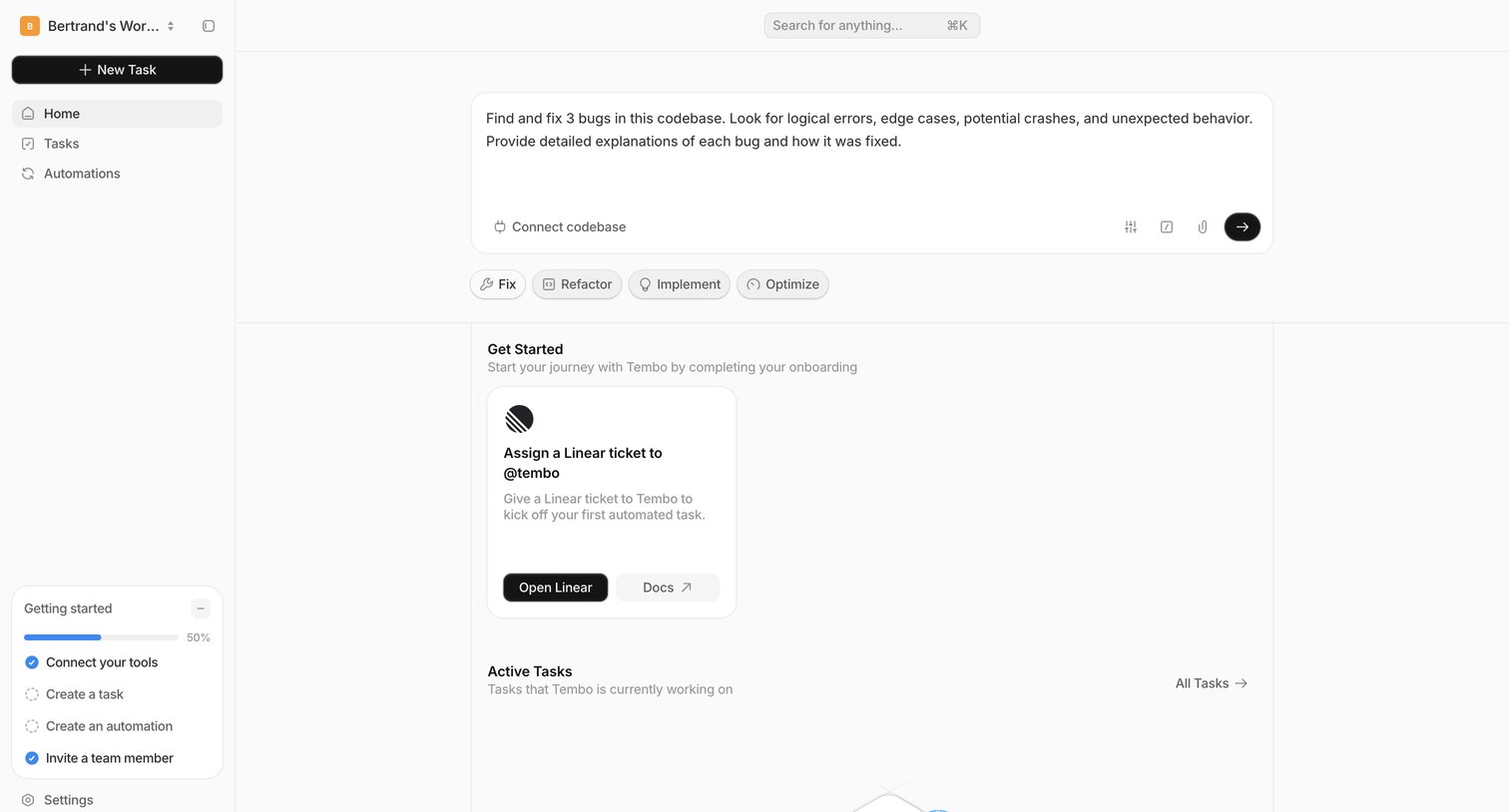
Home screen where the user can start a new task via an AI prompt, complete onboarding steps, and view active tasks.
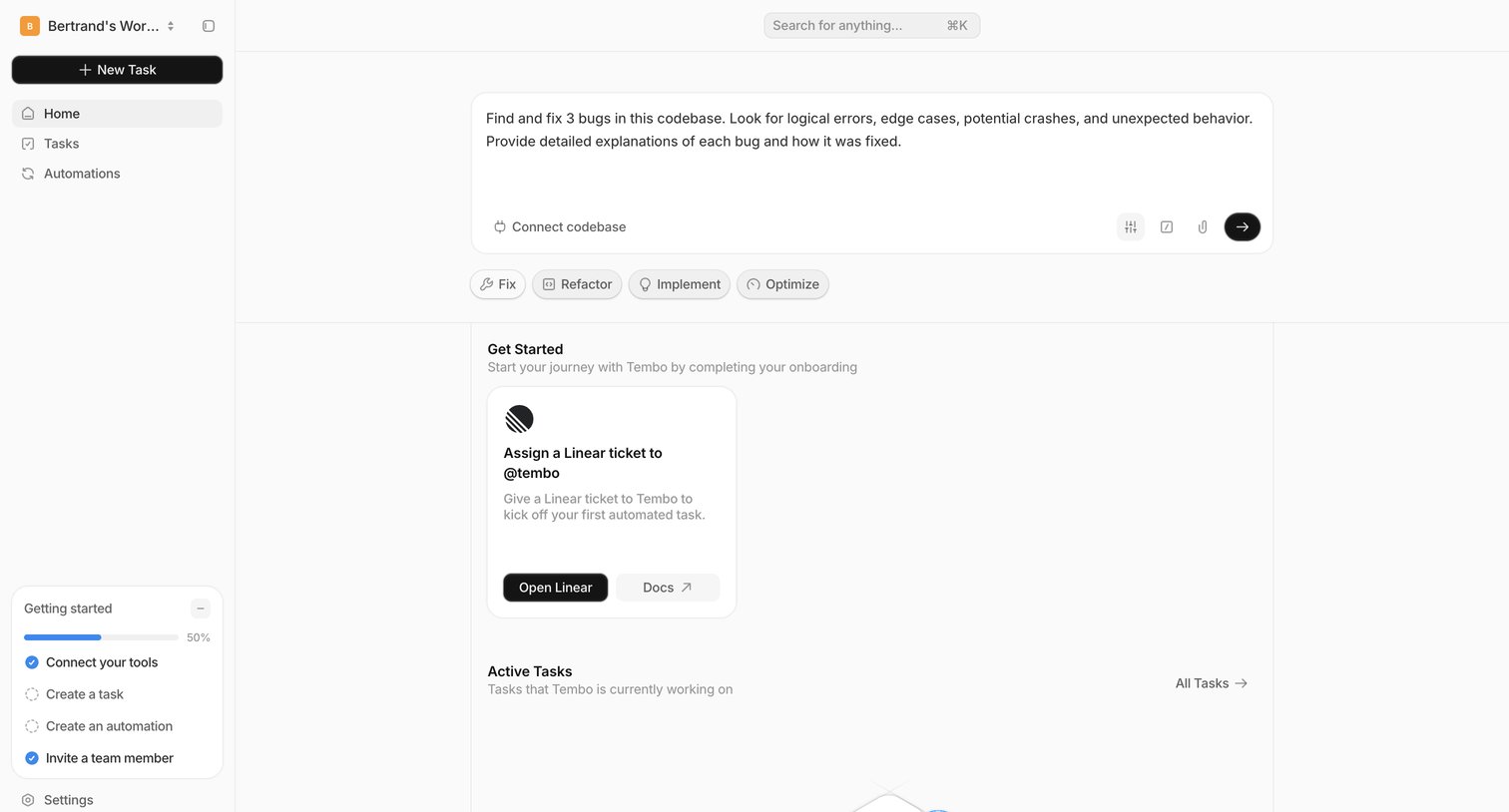
Home screen where the user can prompt the AI agent to execute tasks, track their onboarding progress, and view active automated tasks.
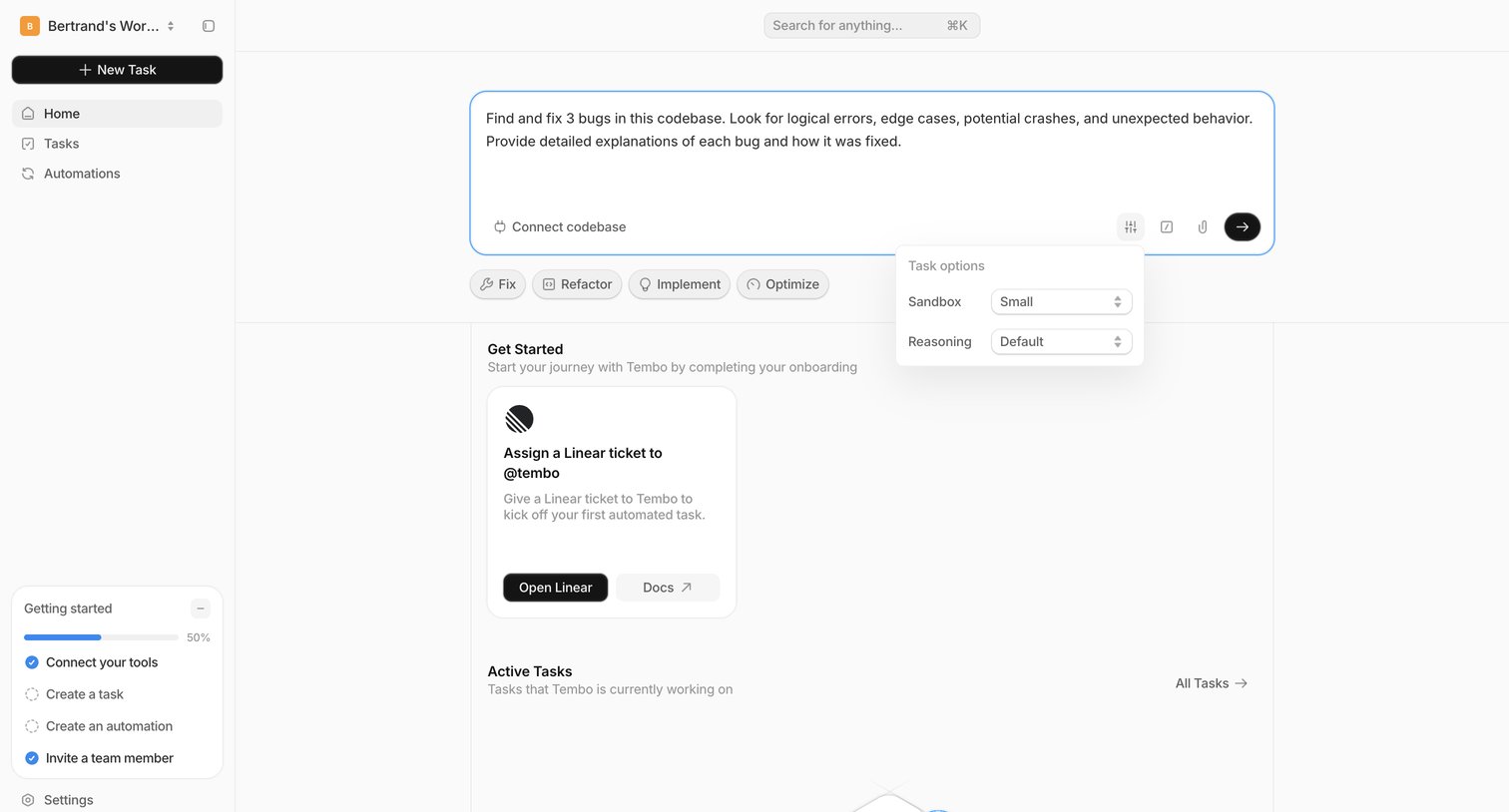
Home screen where the user can prompt an AI agent to execute codebase tasks, configure reasoning settings, and complete an onboarding checklist.
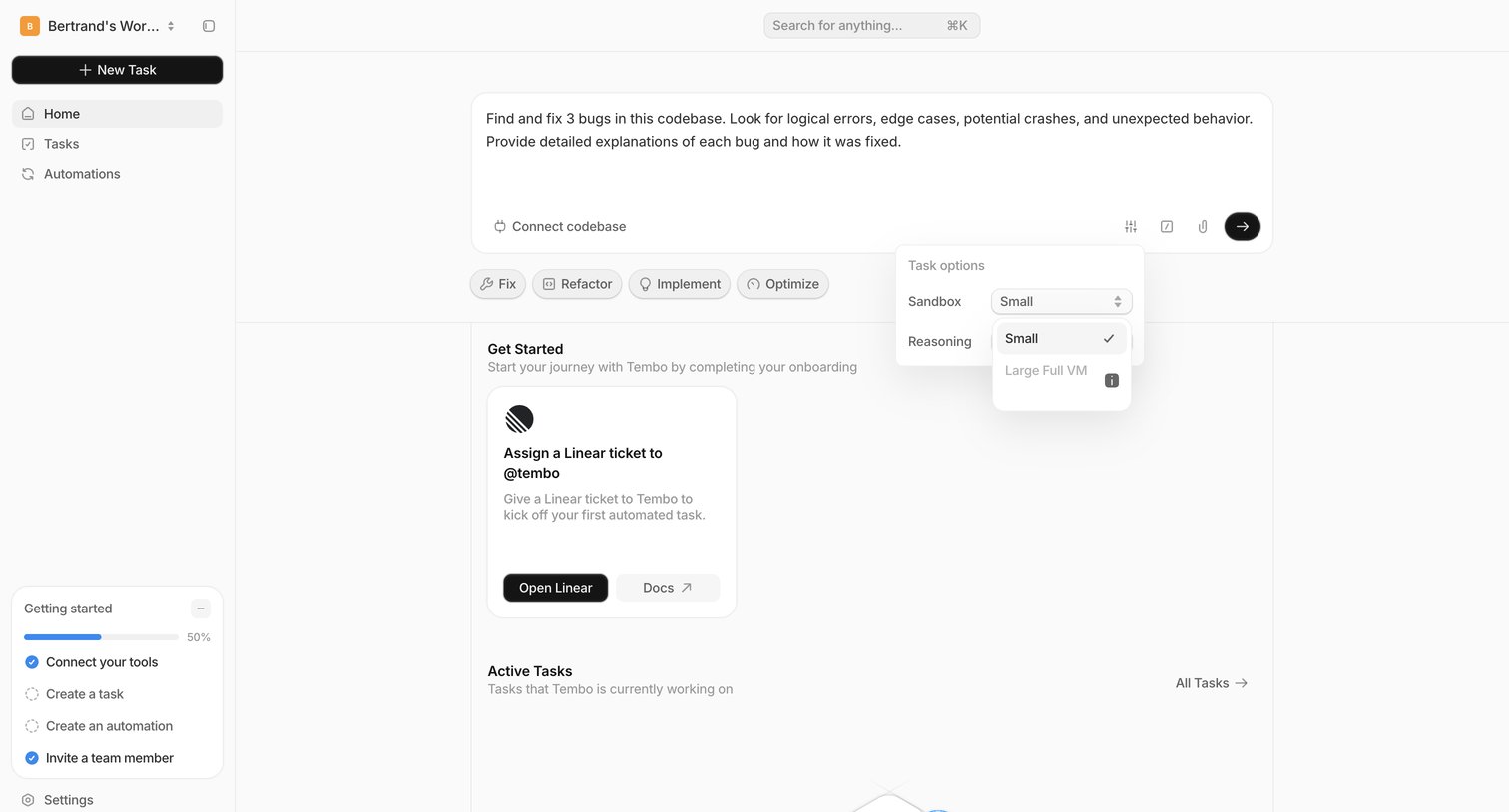
Home screen where the user can create an AI task via a large prompt composer, select prompt suggestions, and view onboarding steps and active tasks.
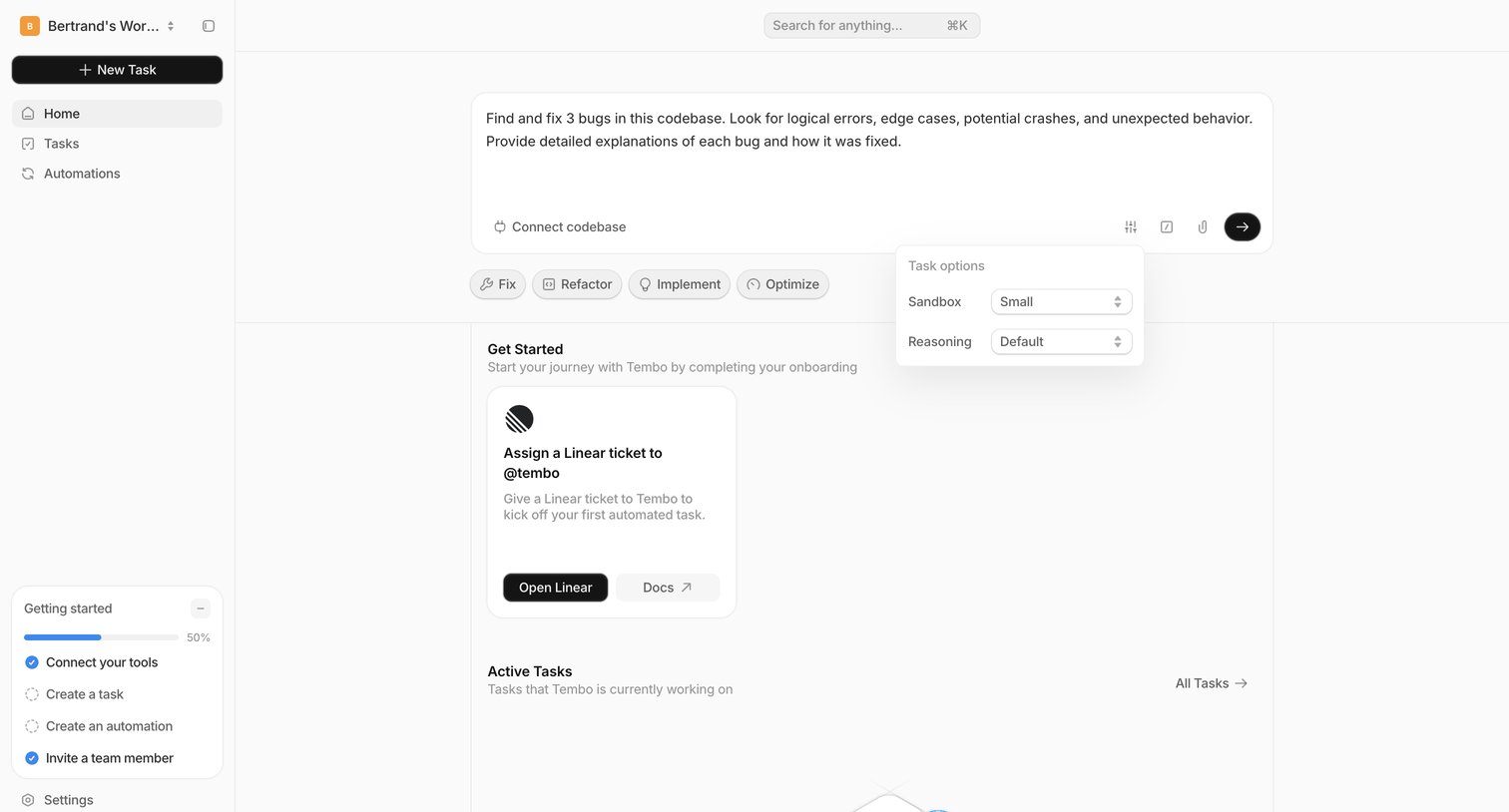
Home screen where the user can prompt an AI agent to execute codebase tasks, configure sandbox options, and track active automated tasks.
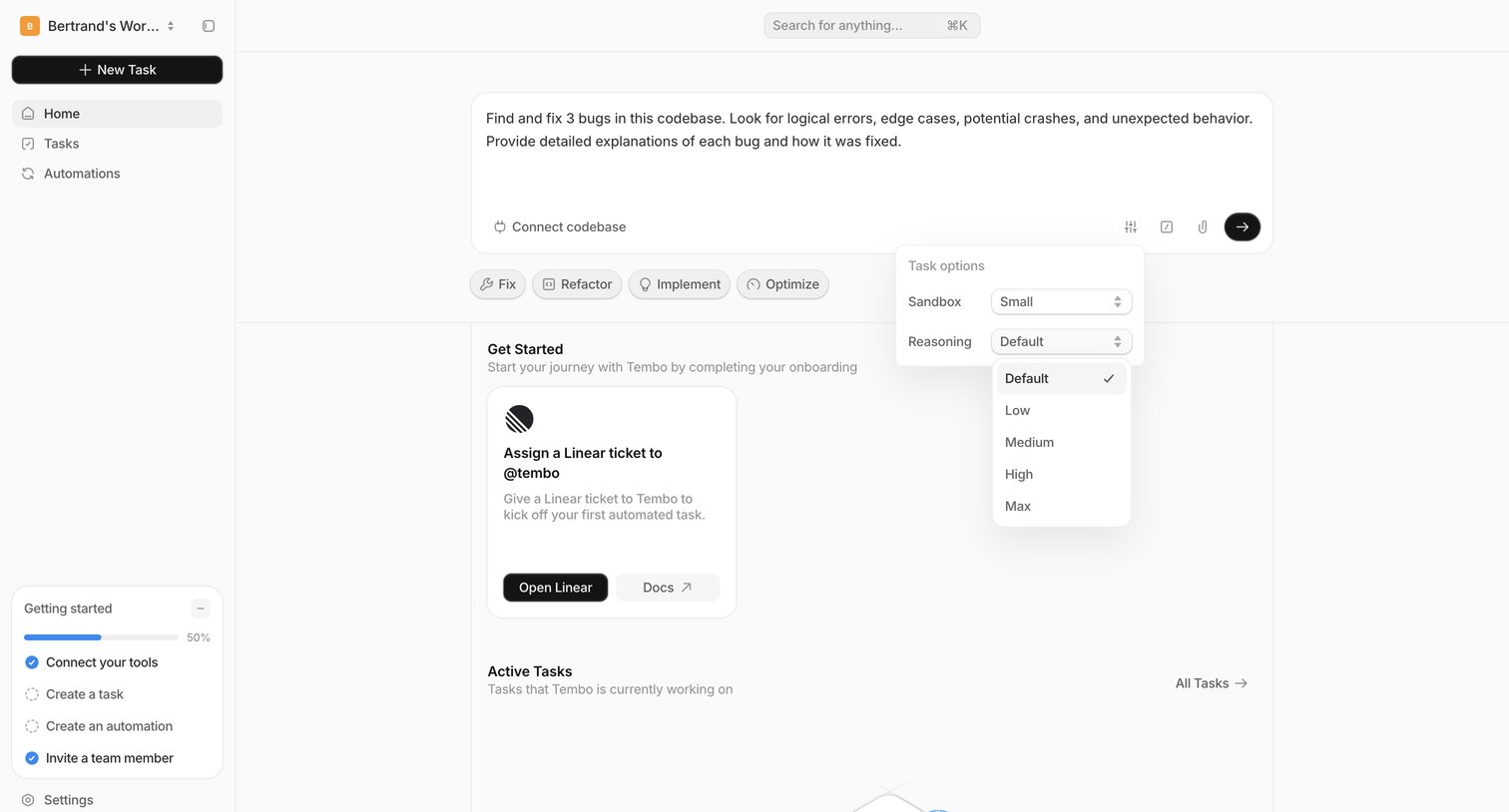
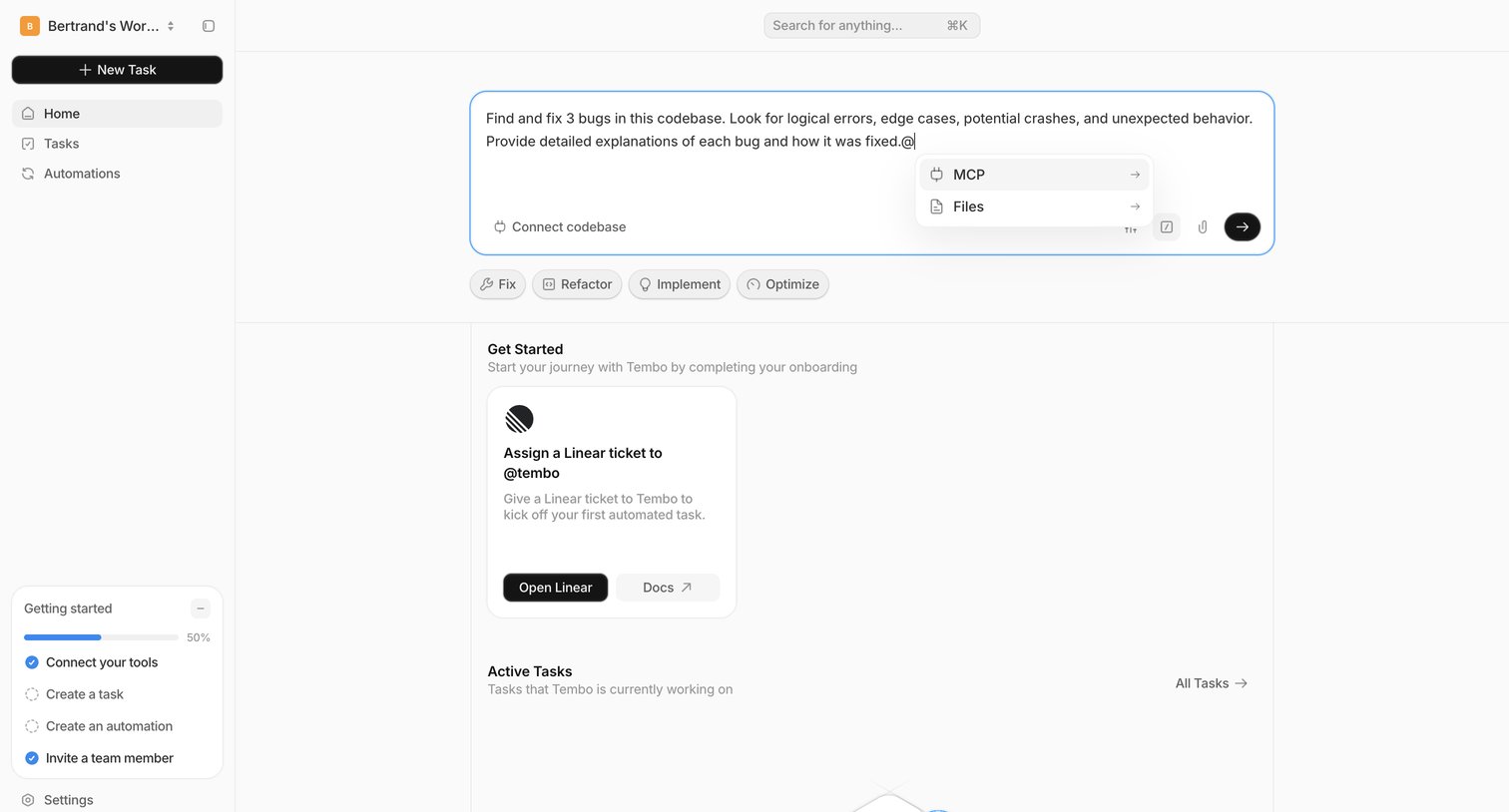
Home screen for an AI agent workspace featuring a large prompt input with an active mention menu, prompt suggestions, and an onboarding checklist.
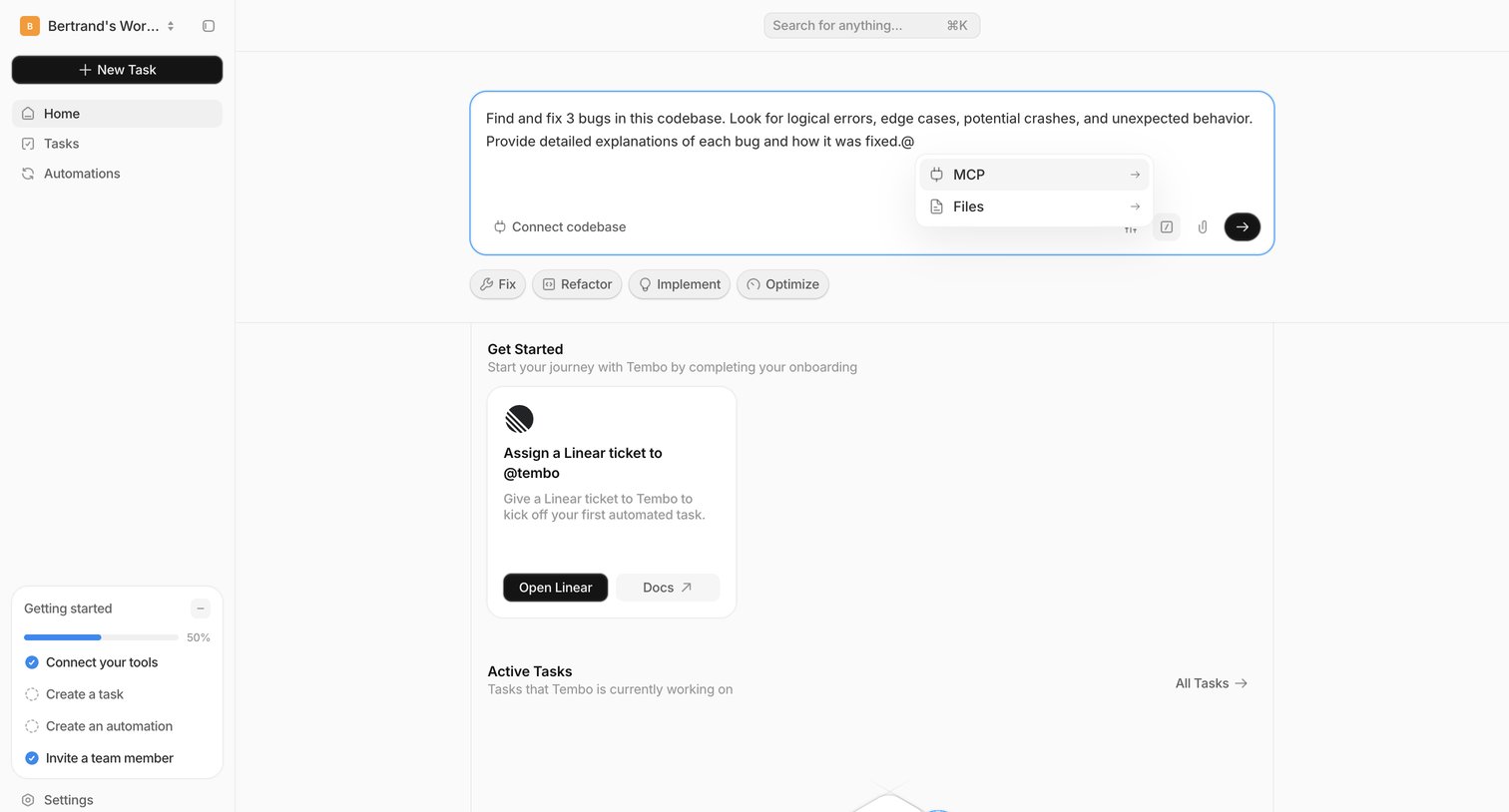
Home screen where the user can start a new AI task via a prompt, track onboarding progress, and view active tasks.
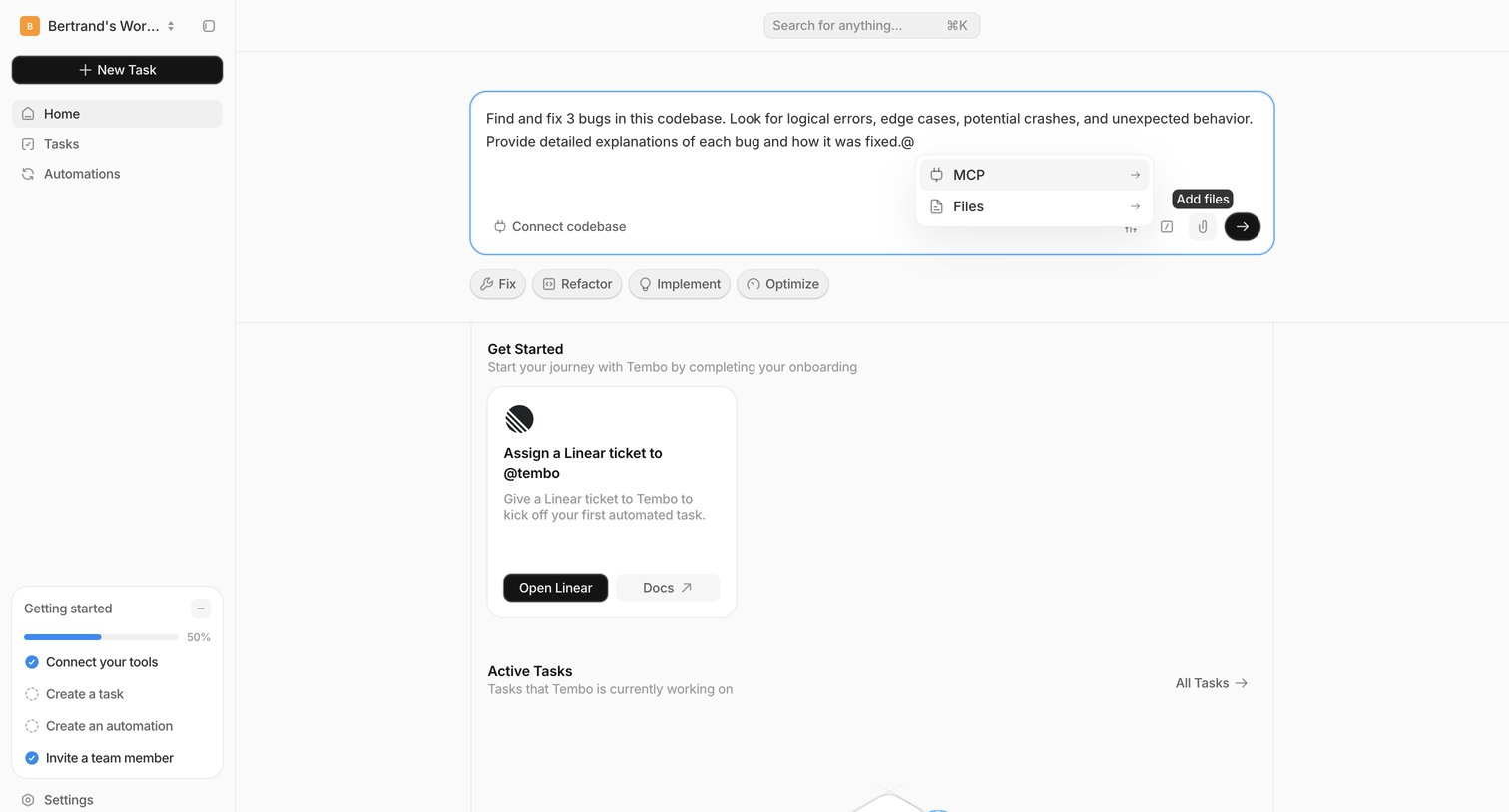
Home screen where the user can kick off an automated task via an AI prompt, complete onboarding steps like connecting tools, or view active tasks.
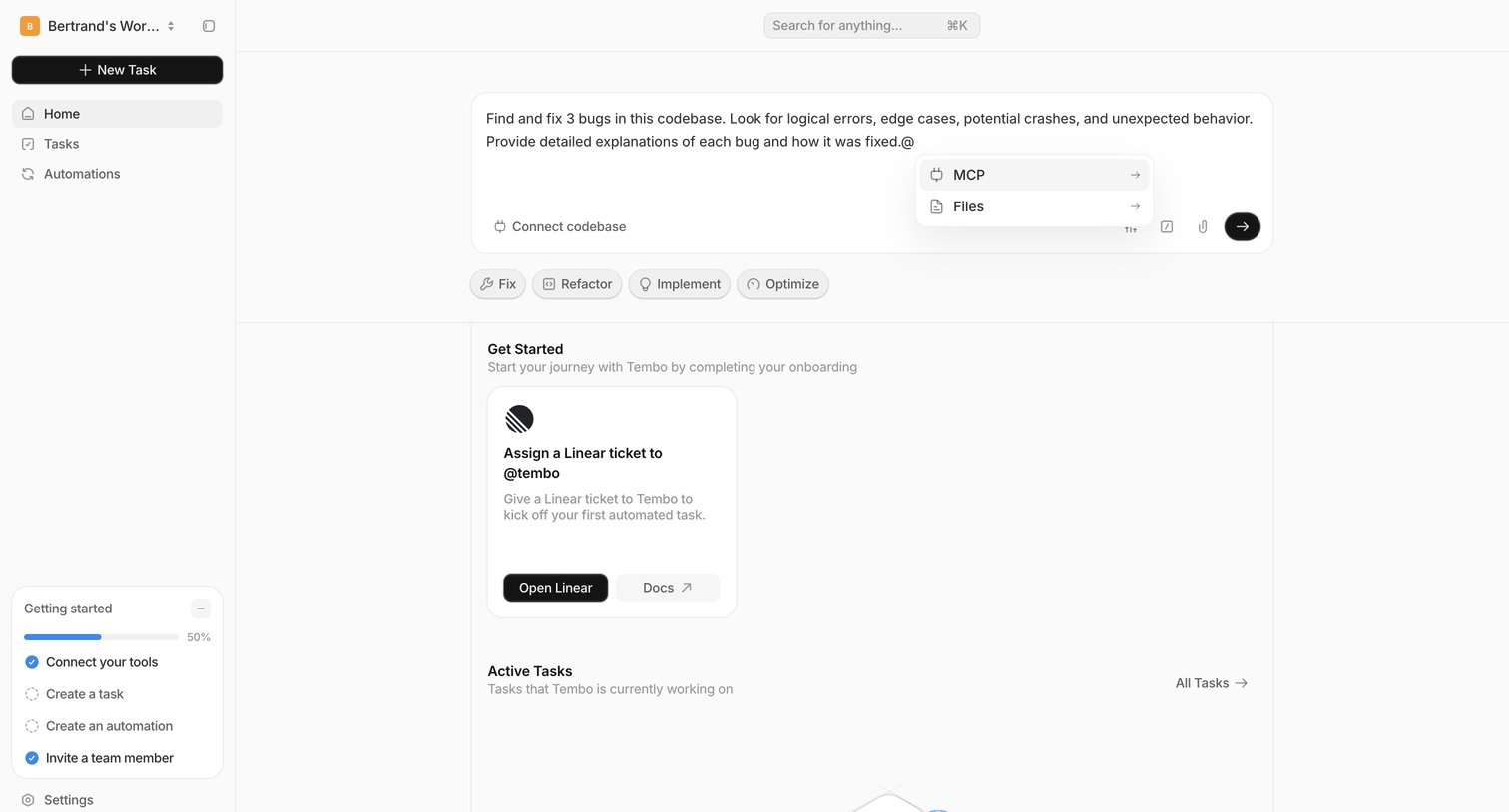
Home page where the user can start a new automated task via an AI prompt, complete an onboarding checklist, and view active tasks.
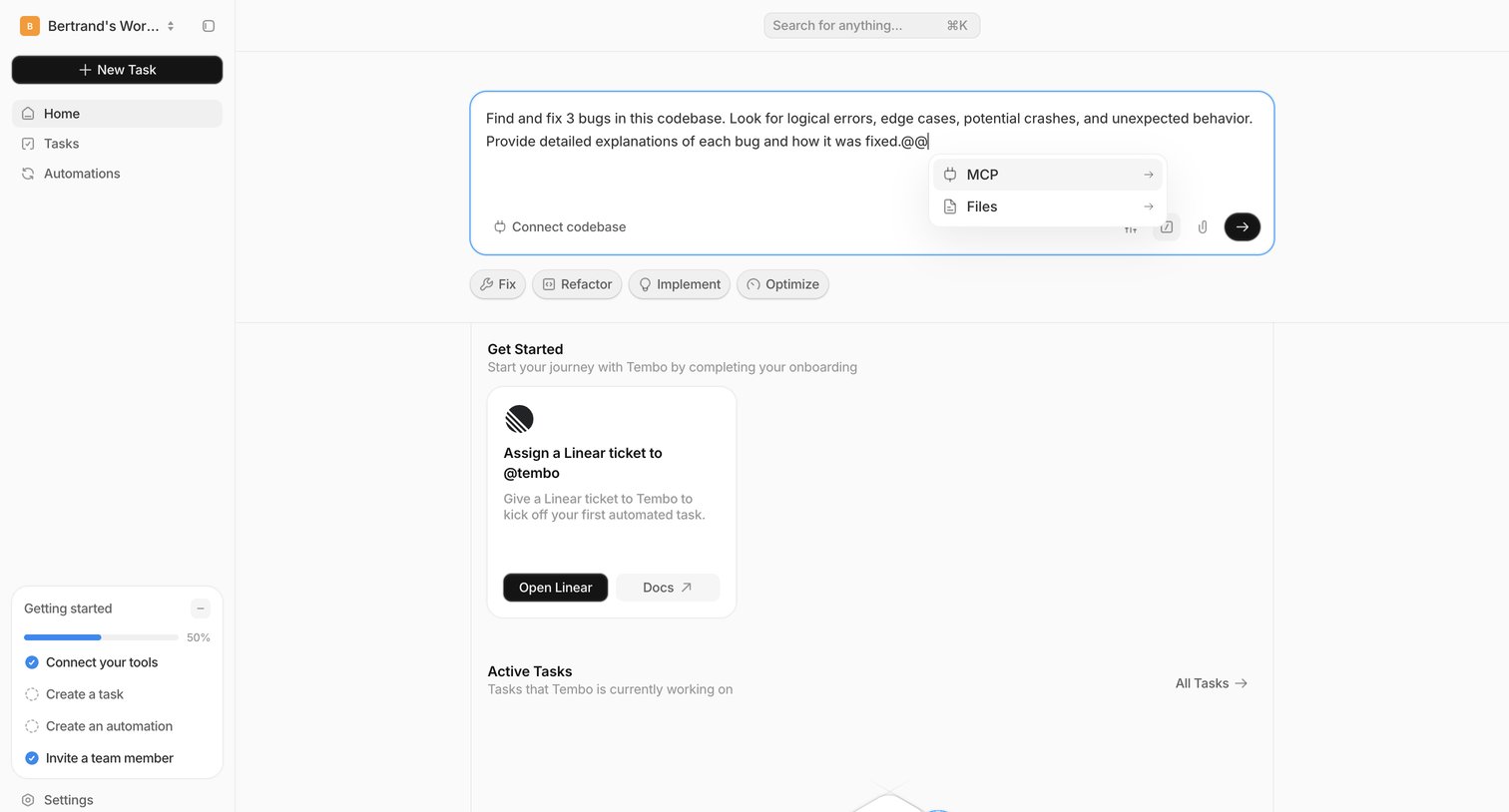
Home screen where the user can prompt the AI agent to create a task, complete onboarding steps, or view active tasks.
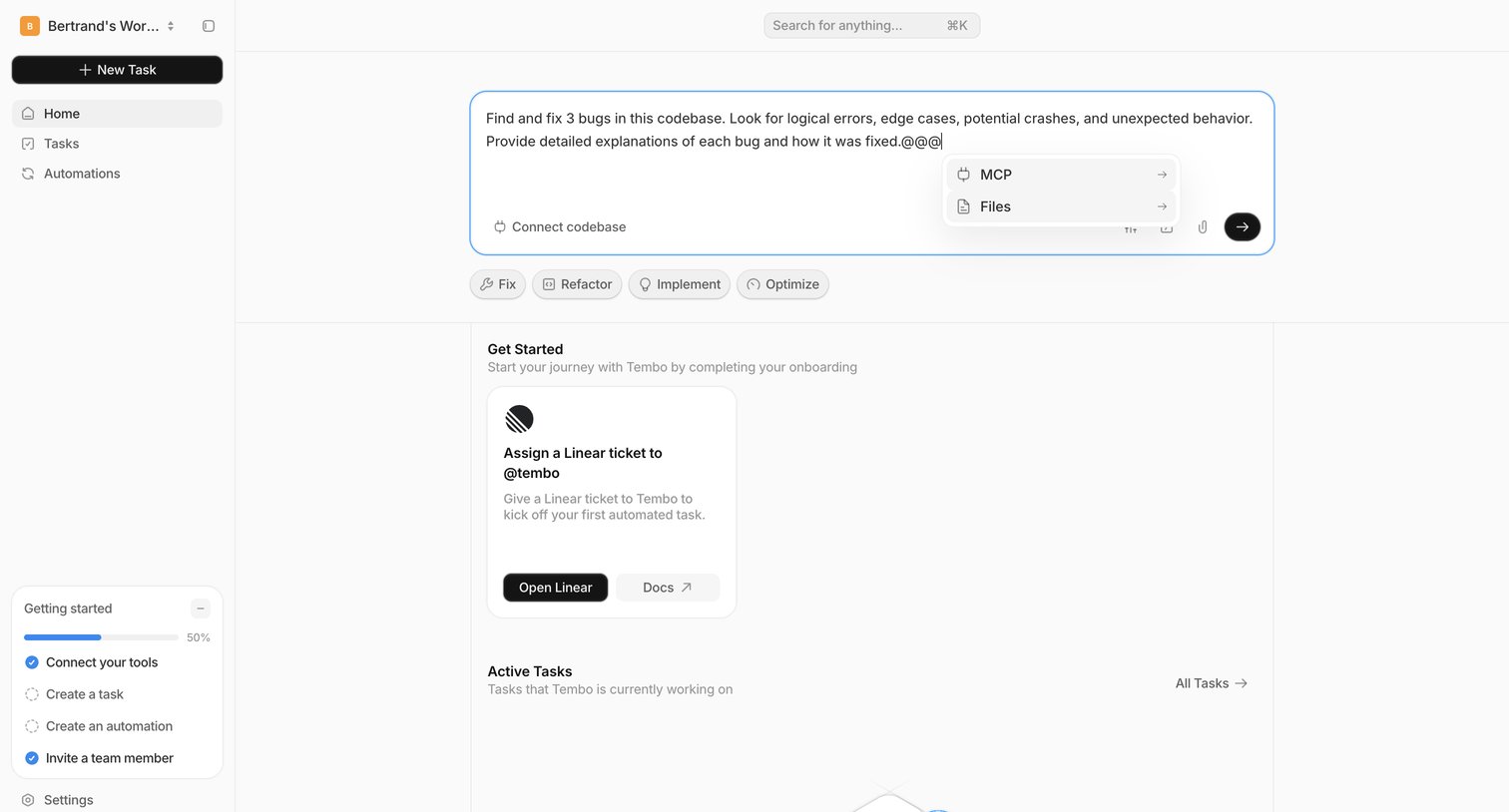
Home screen where the user prompts the AI agent to fix bugs in a codebase, completes a getting-started checklist, and views active tasks.
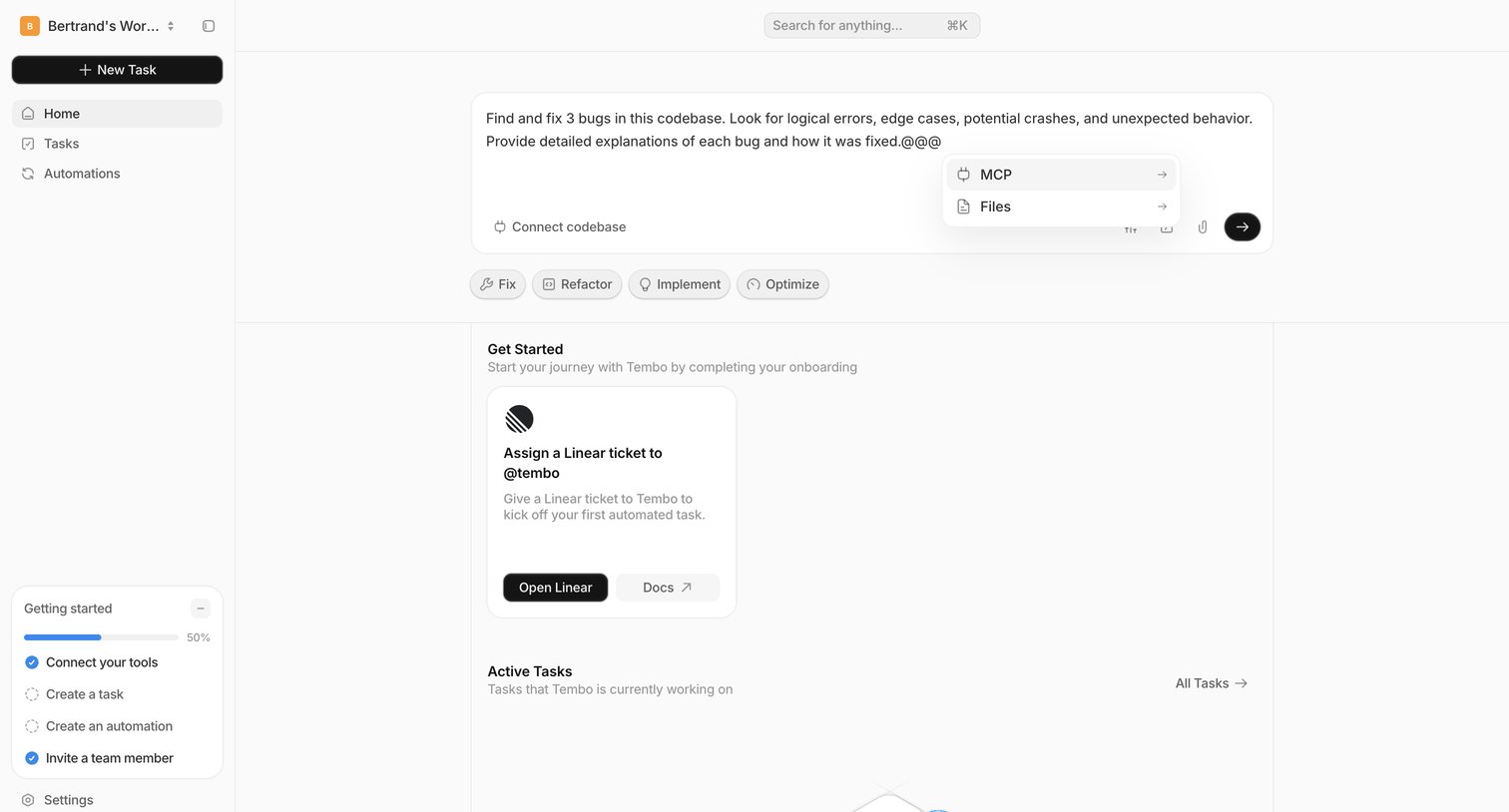
Home screen where the user can prompt the AI agent to fix bugs, complete onboarding steps like connecting tools, or view active tasks.
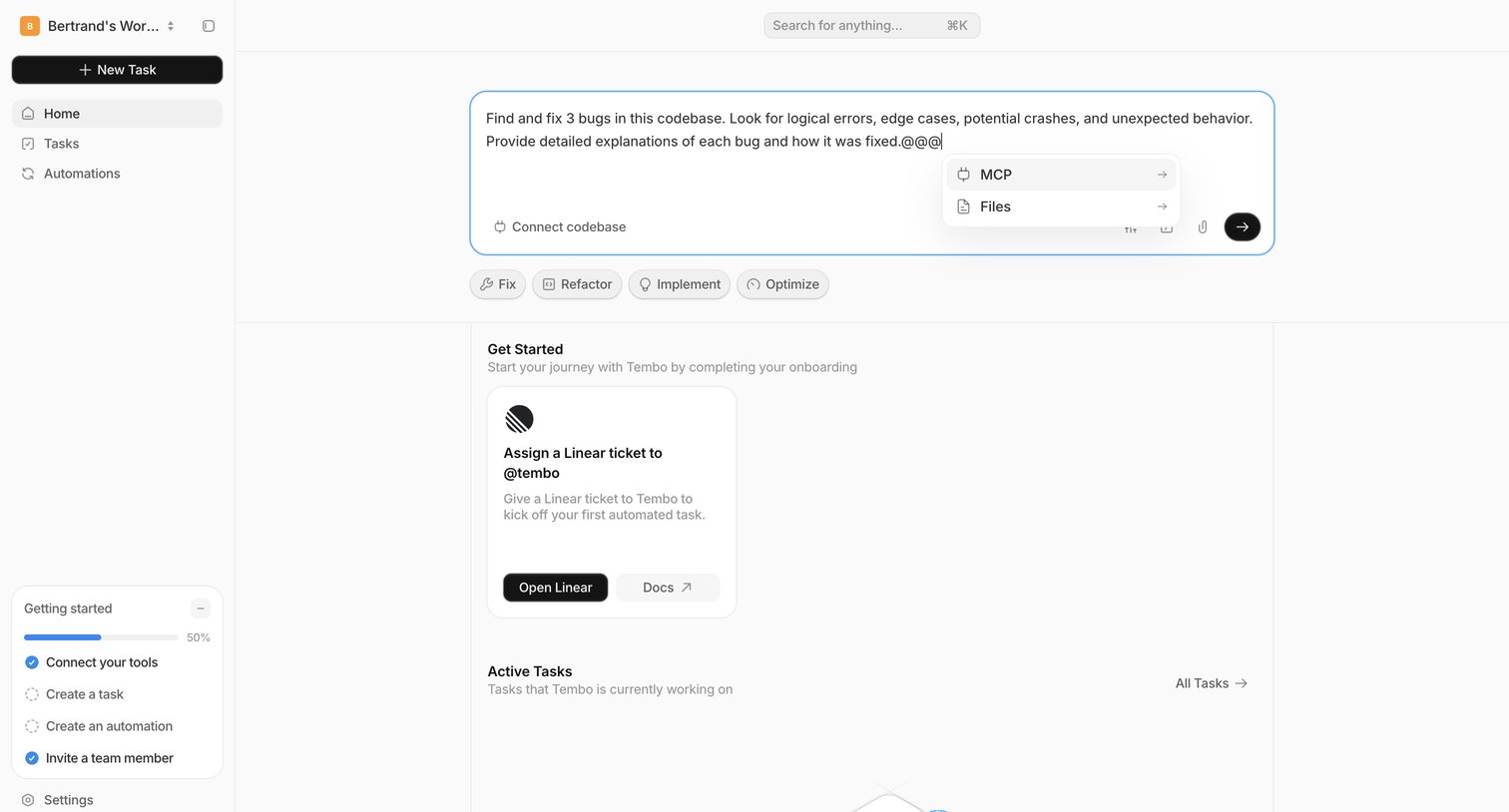
Home screen where the user can prompt an AI agent to perform codebase tasks, complete an onboarding checklist, and view active automated tasks.
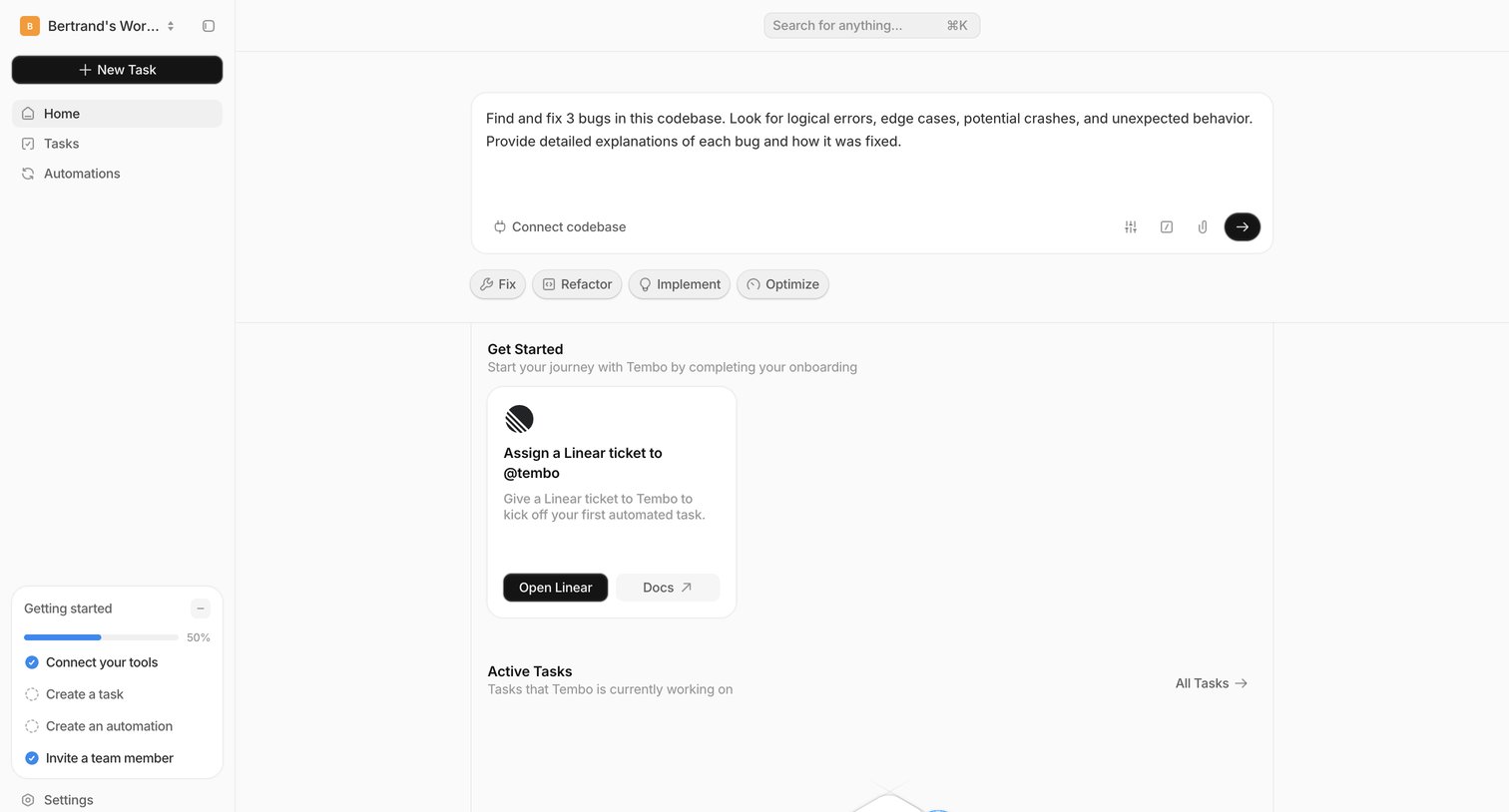
Home screen where the user can input an AI prompt to start a task, complete onboarding steps, and view active tasks.
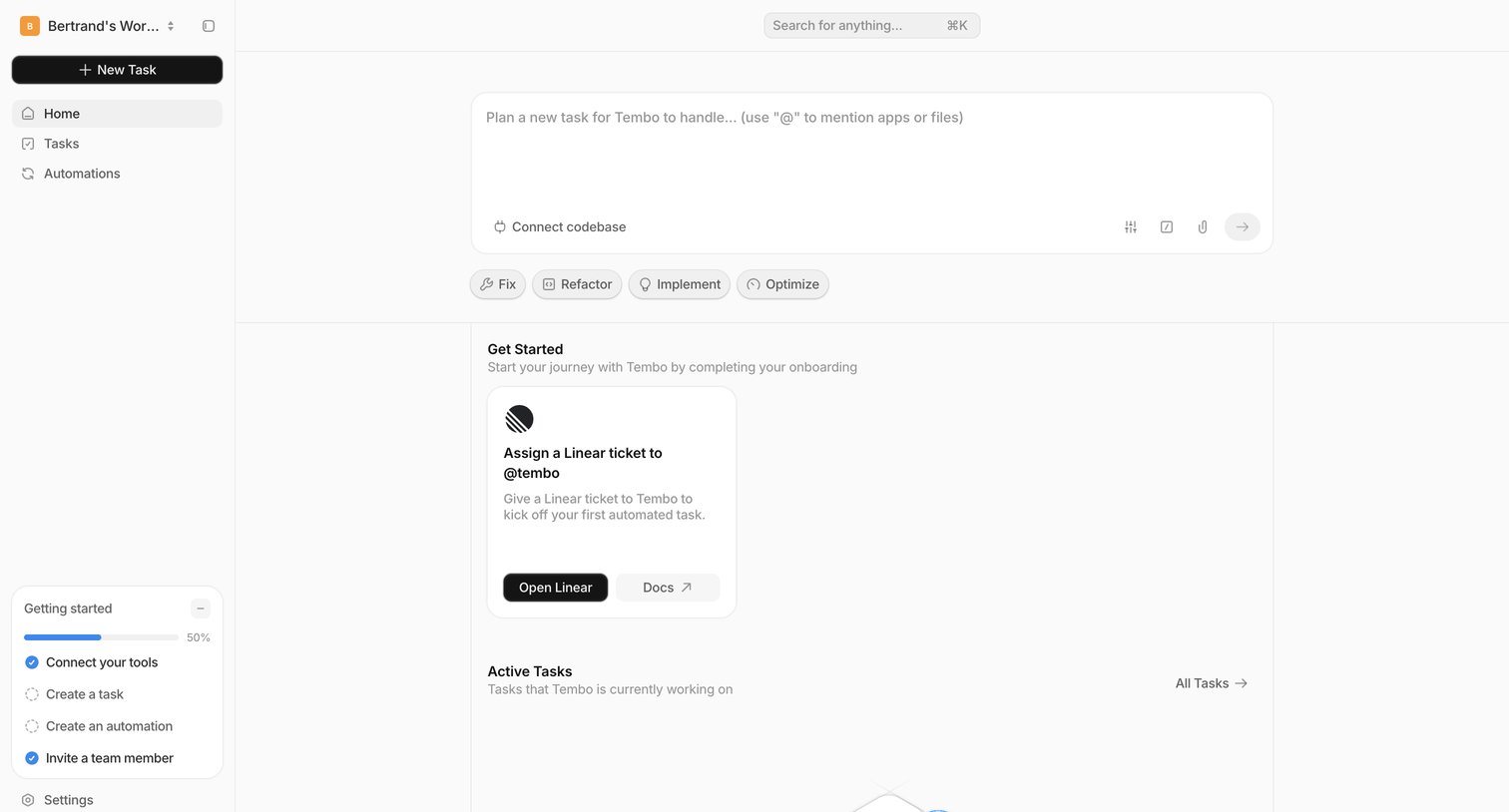
Home screen where the user can plan a new automated task via a central composer, track their onboarding progress, and view active tasks.
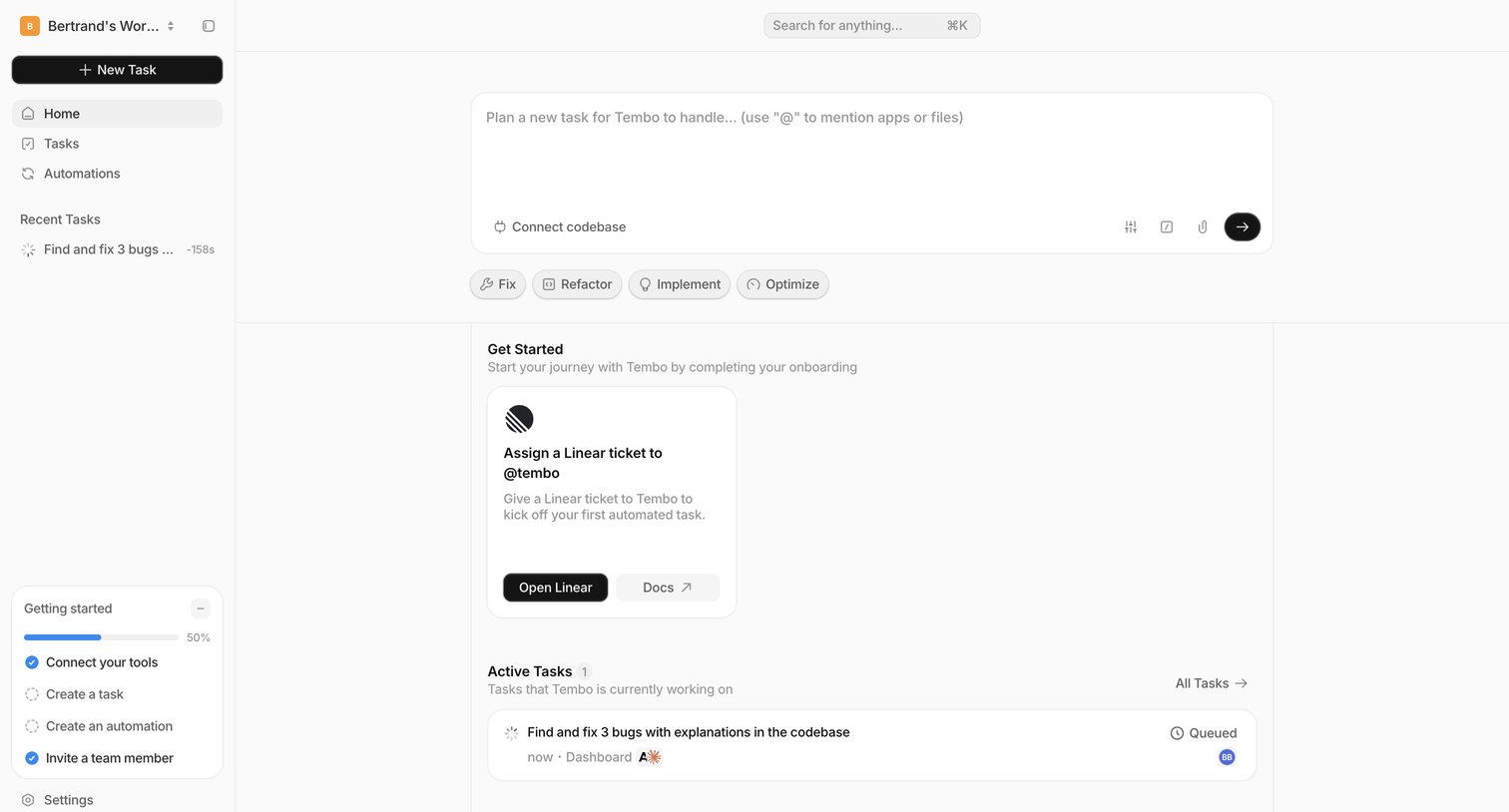
Home screen where the user can prompt the AI to plan a new task, complete their onboarding checklist, and view currently active tasks.
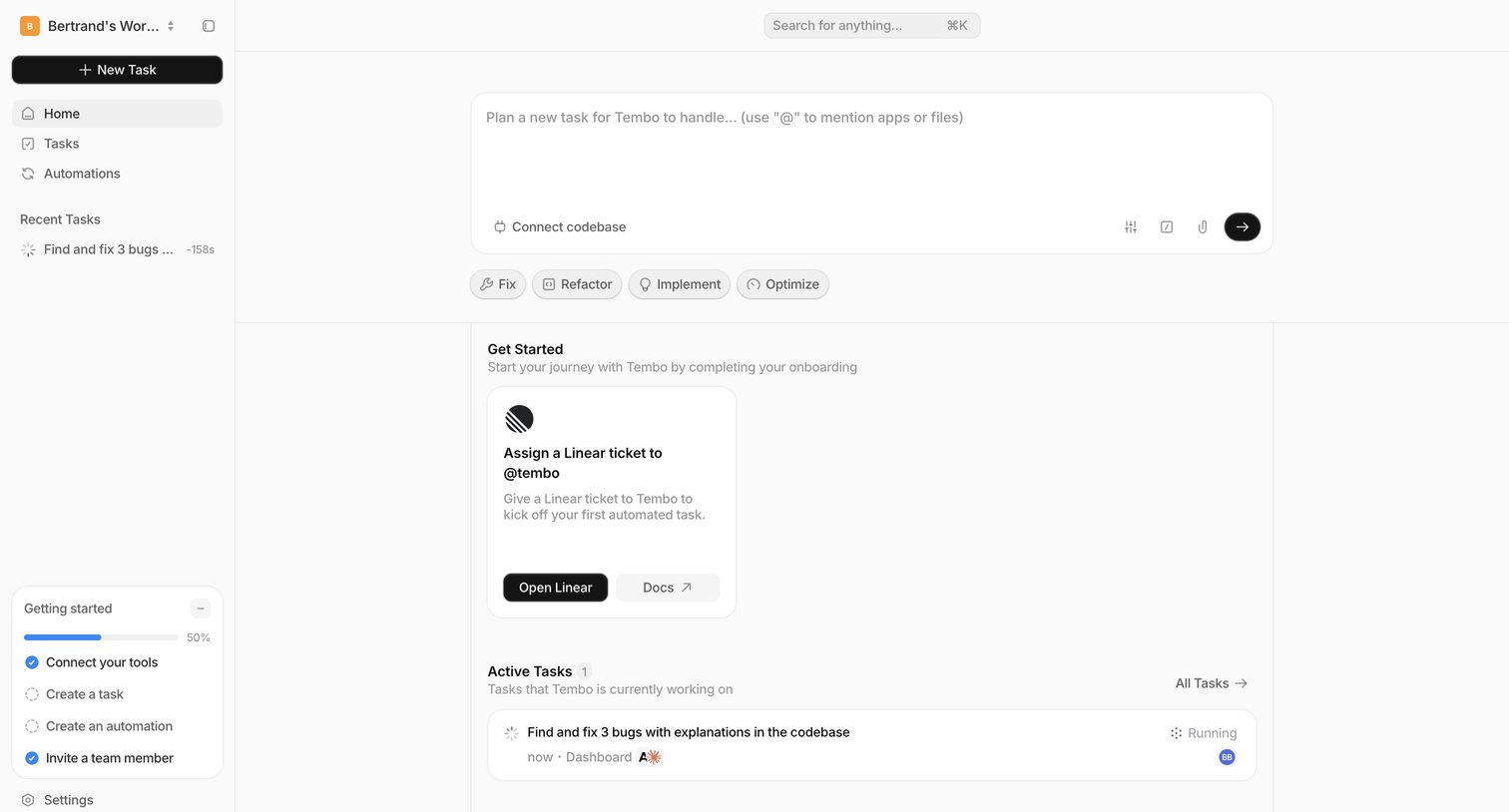
Home screen where the user can plan a new task for the AI agent, complete onboarding steps like assigning a Linear ticket, and monitor currently running tasks.
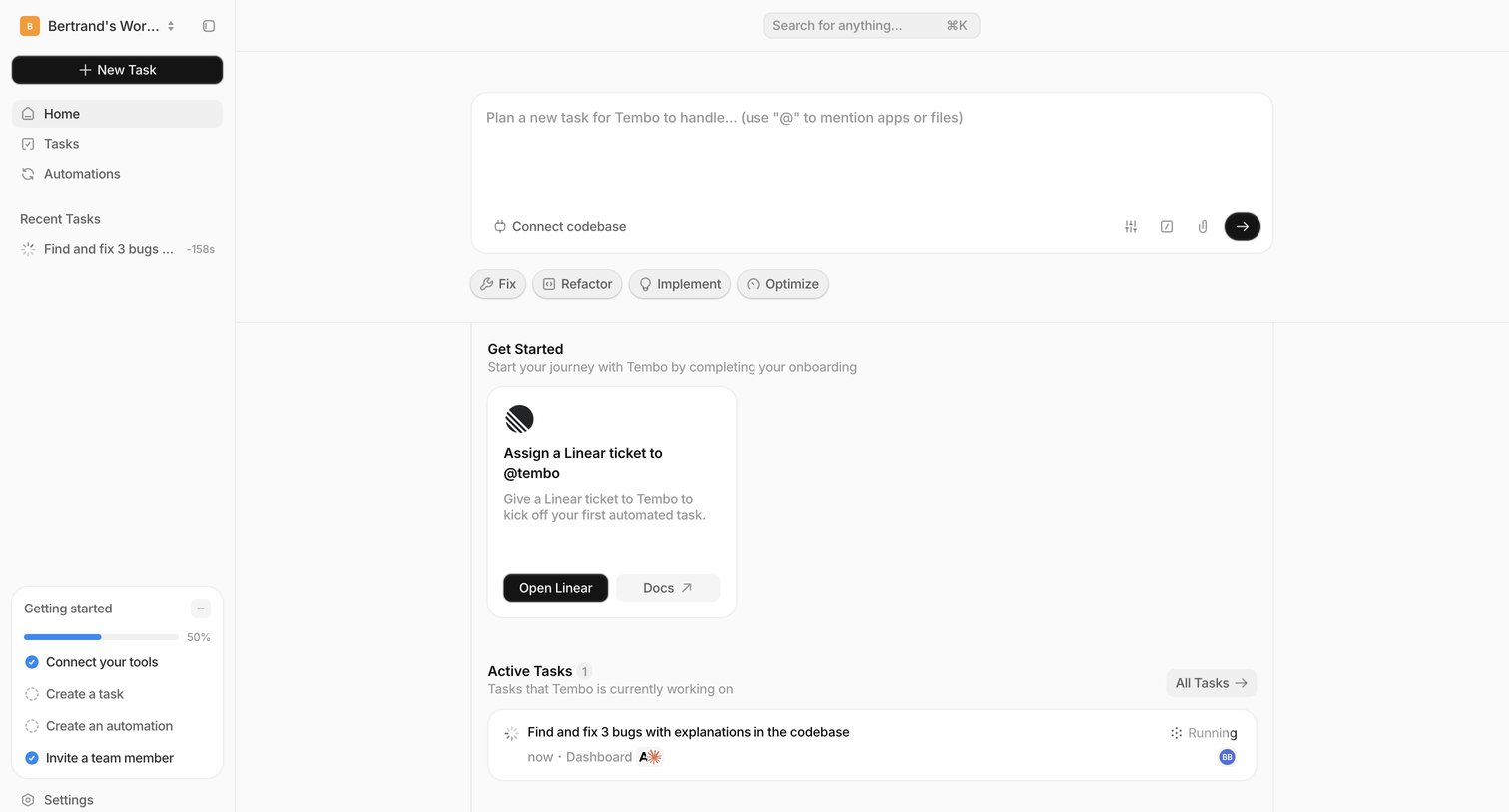
Home screen where the user can instruct the AI agent to plan a new task, view active tasks, and complete onboarding steps.
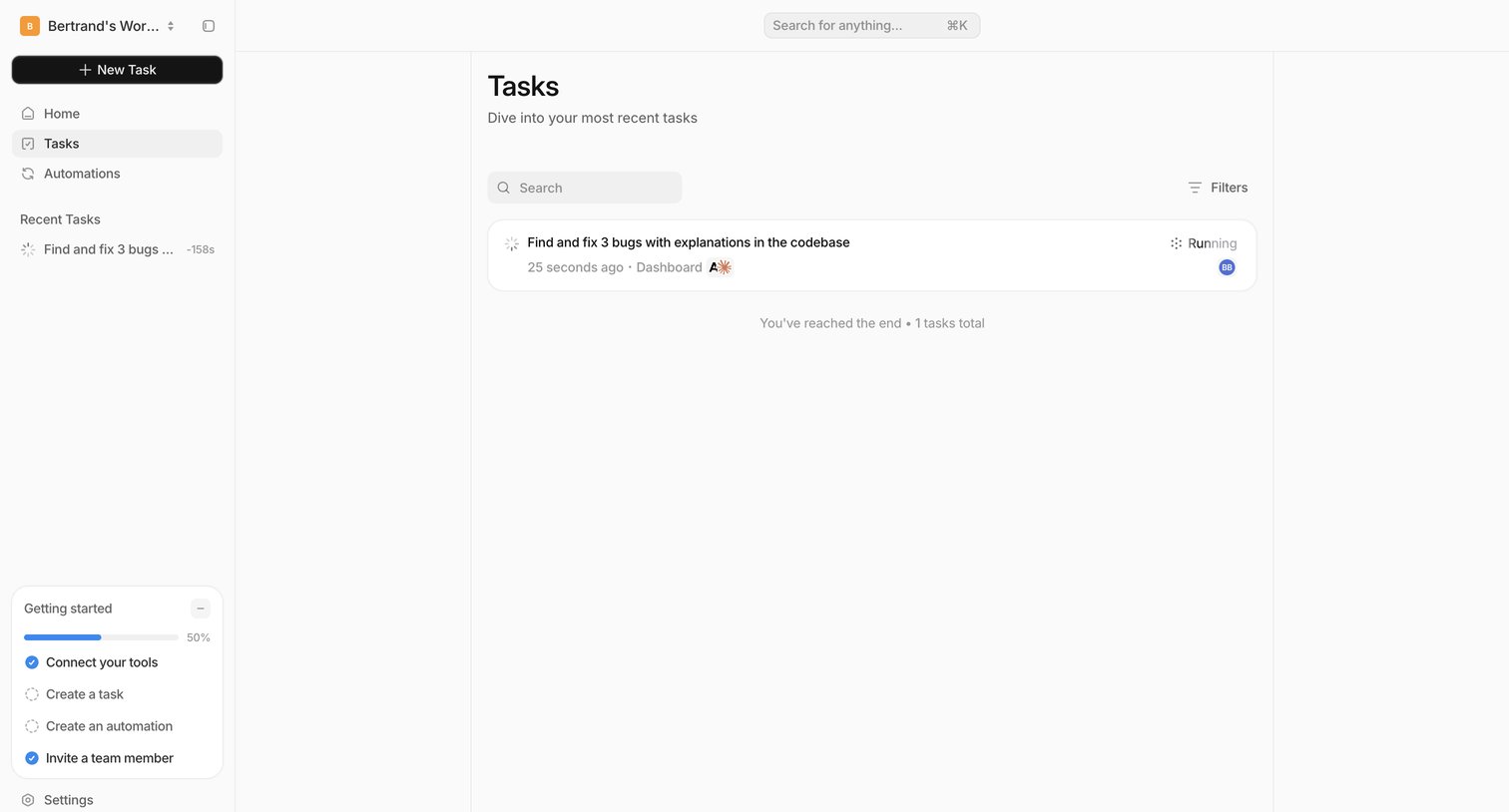
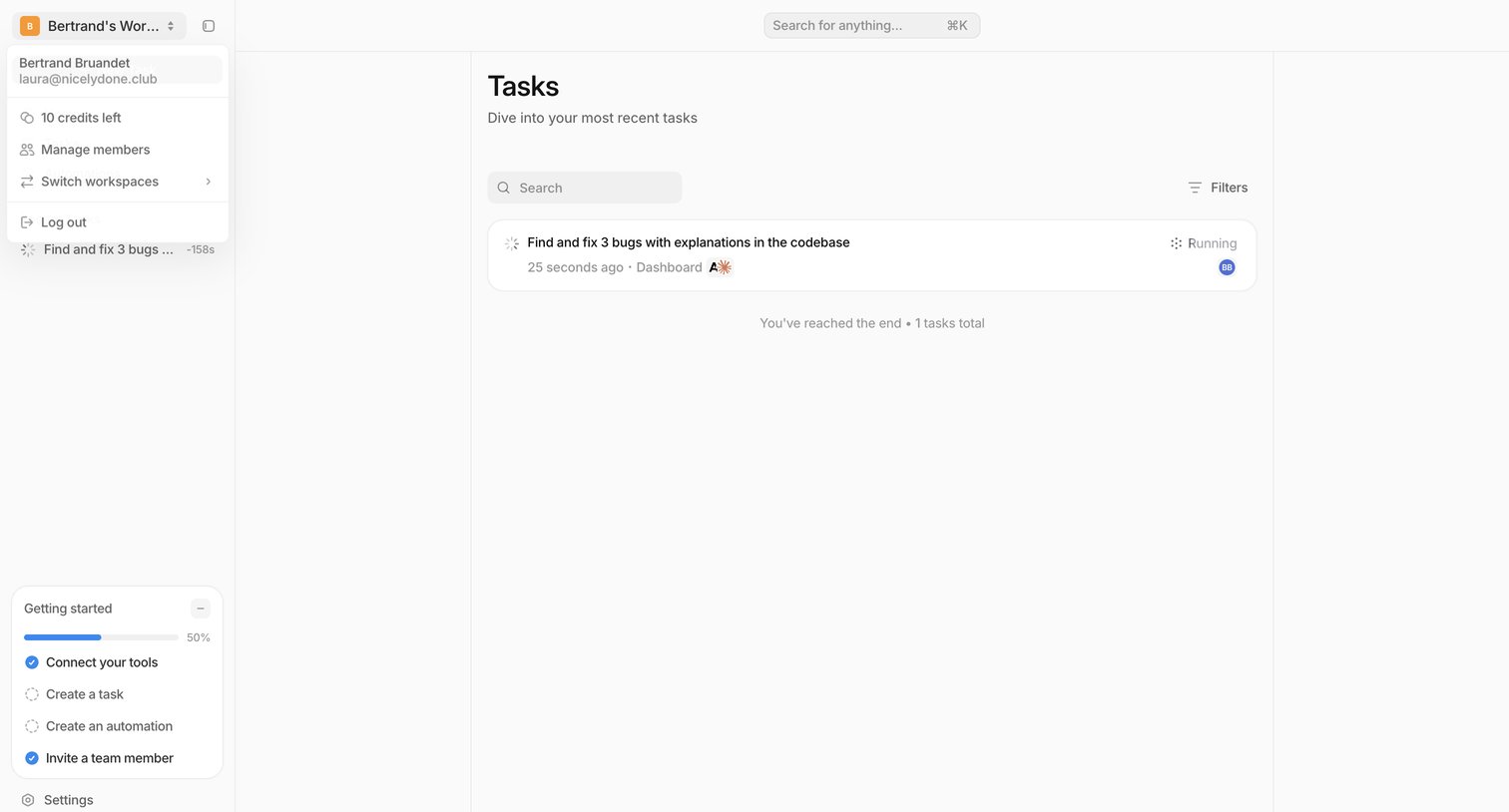
List view where the user searches and filters their recent tasks, with a sidebar showing an open workspace switcher and an onboarding checklist.
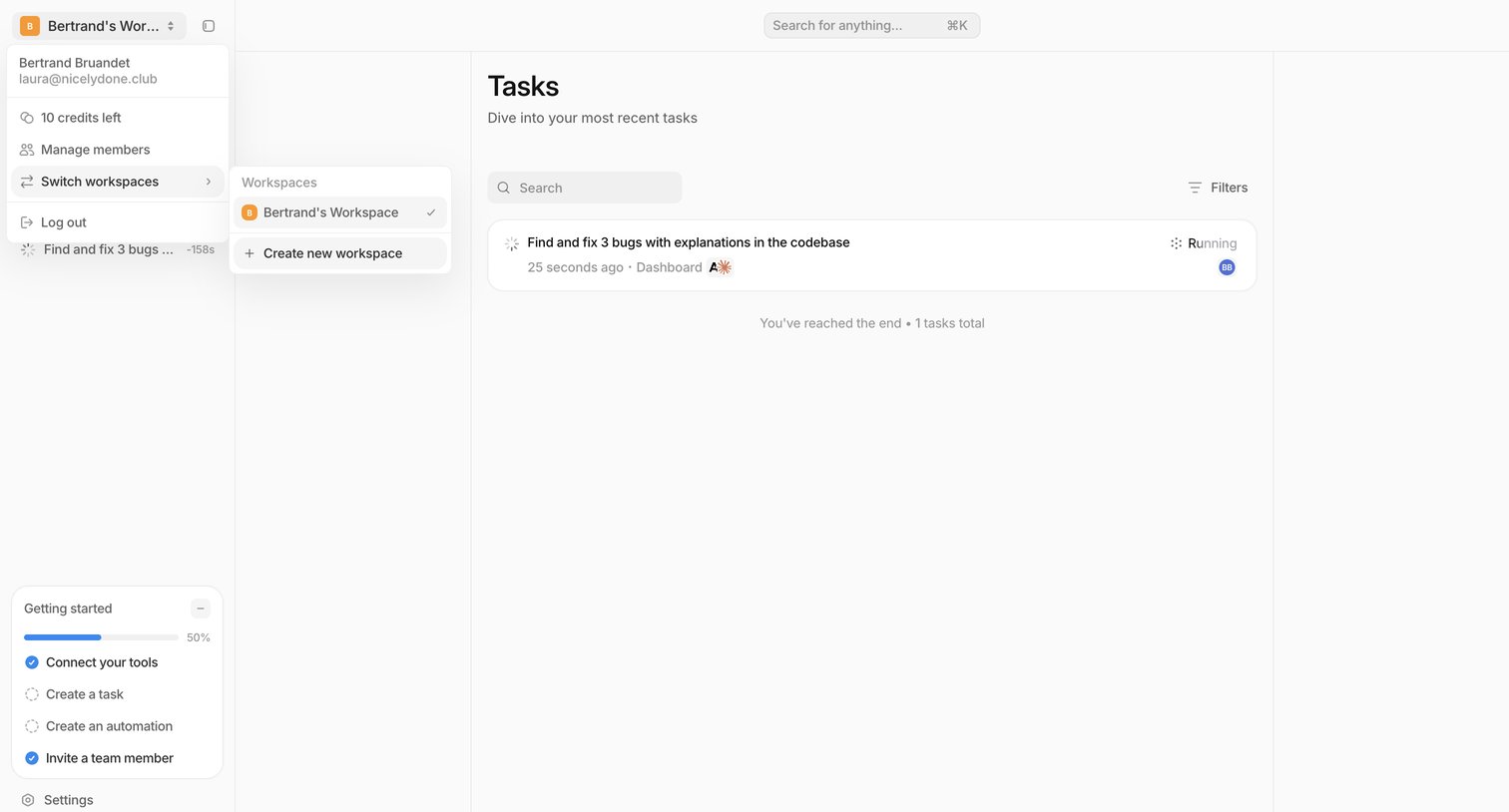
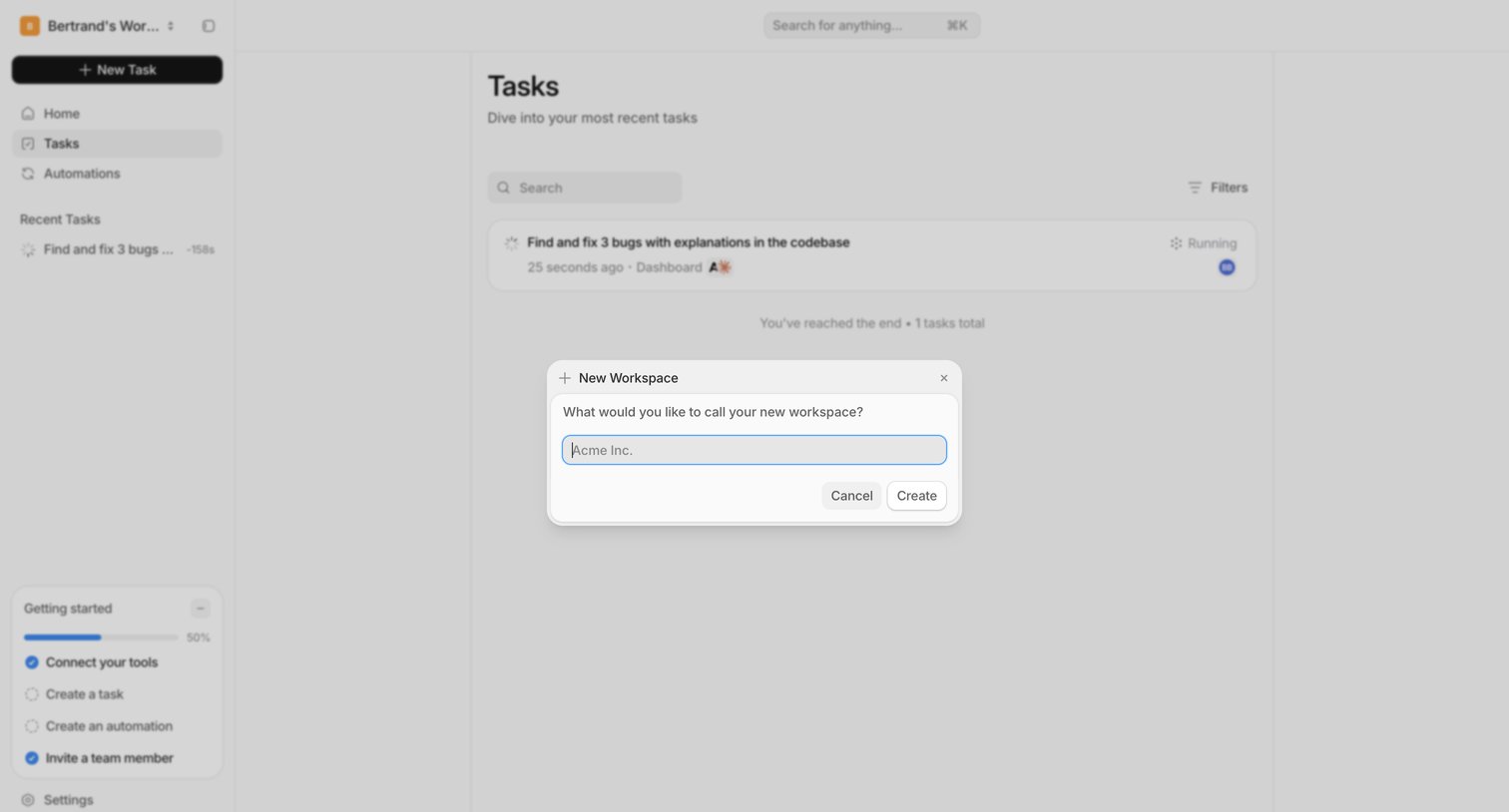
Tasks list view with a modal overlay prompting the user to enter a name and create a new workspace.
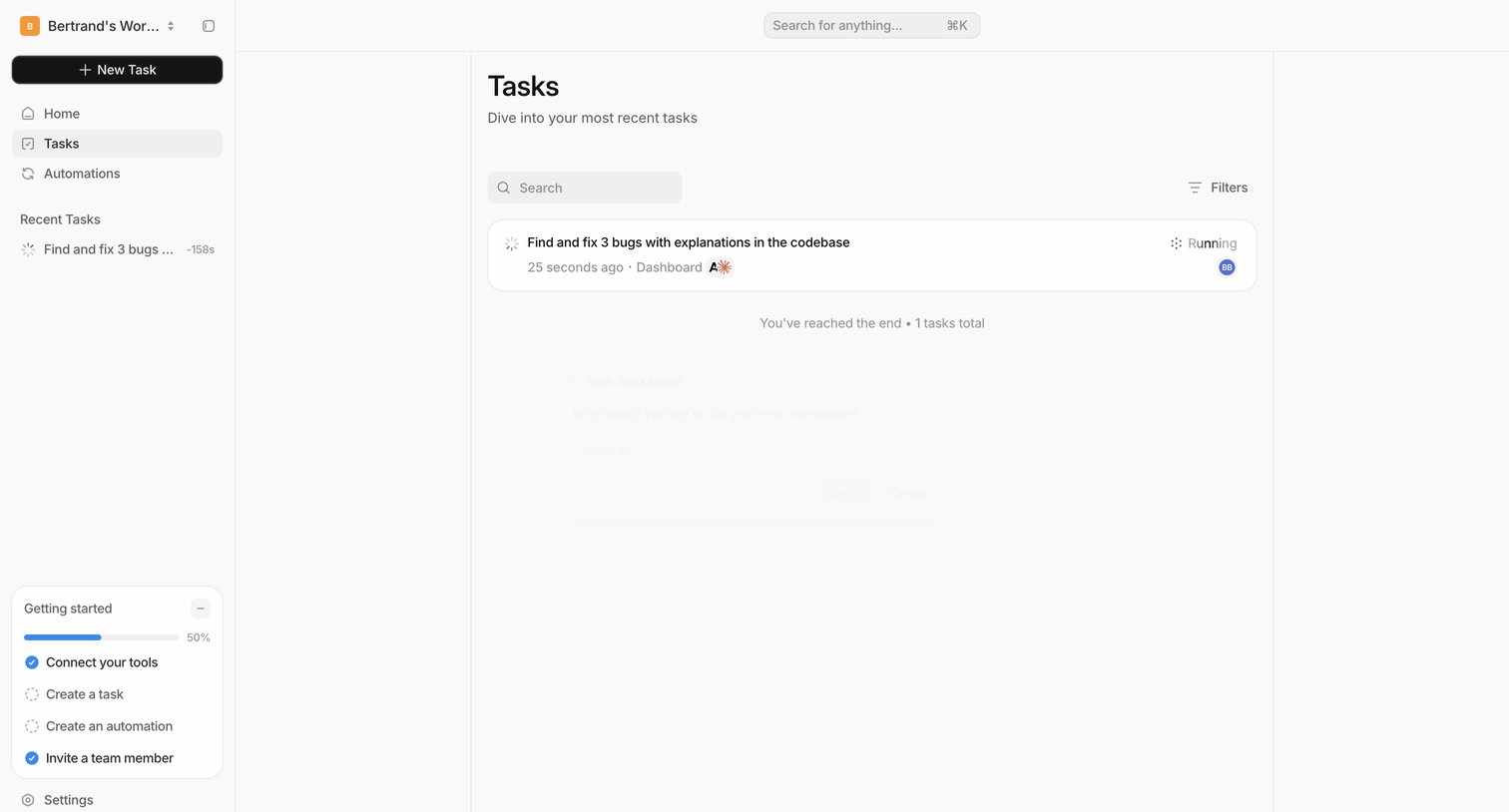
List view where the user can search, filter, and monitor the status of their recent tasks.
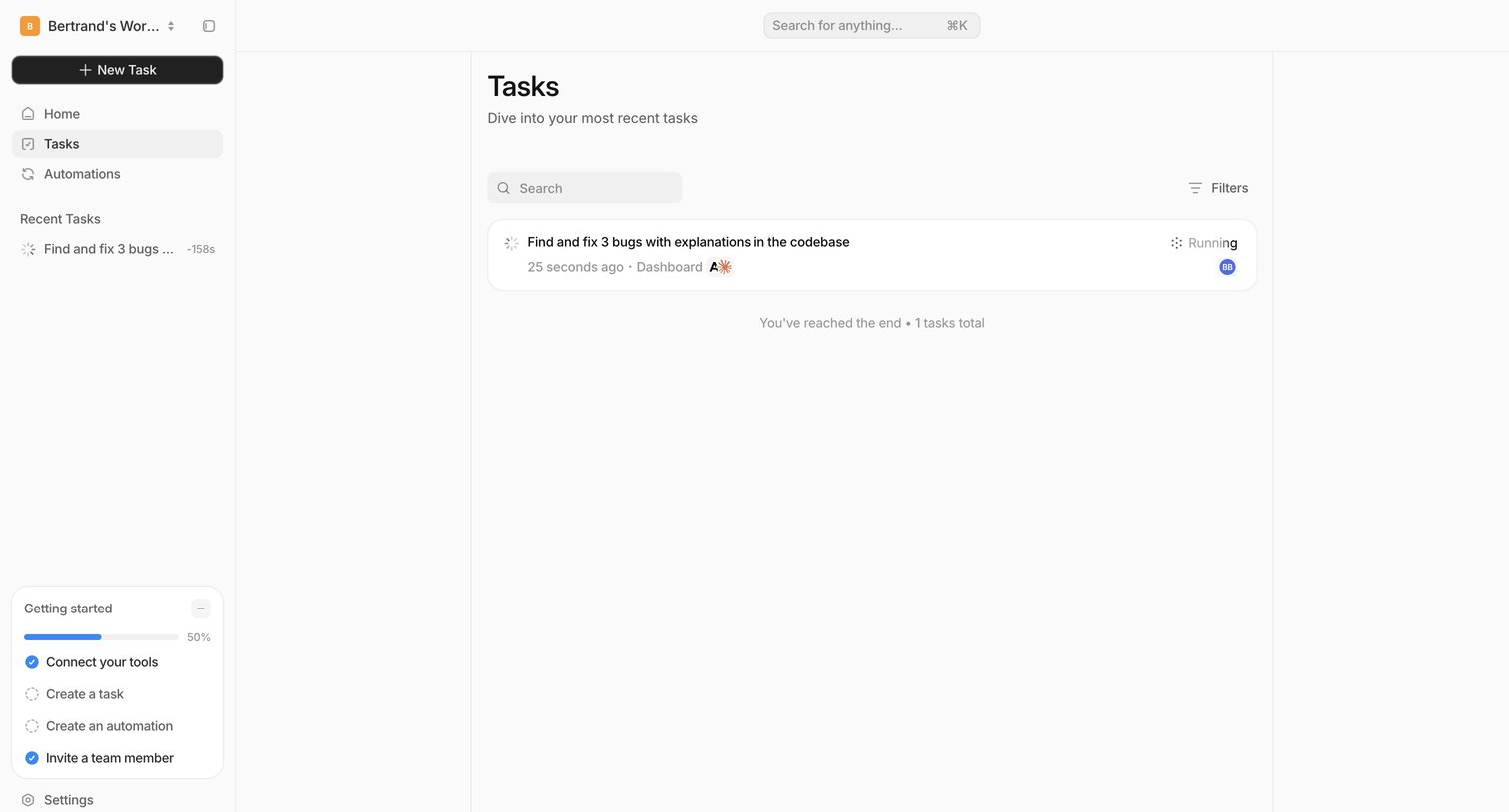
List view where the user can search, filter, and monitor the status of their recent tasks, alongside an onboarding checklist.
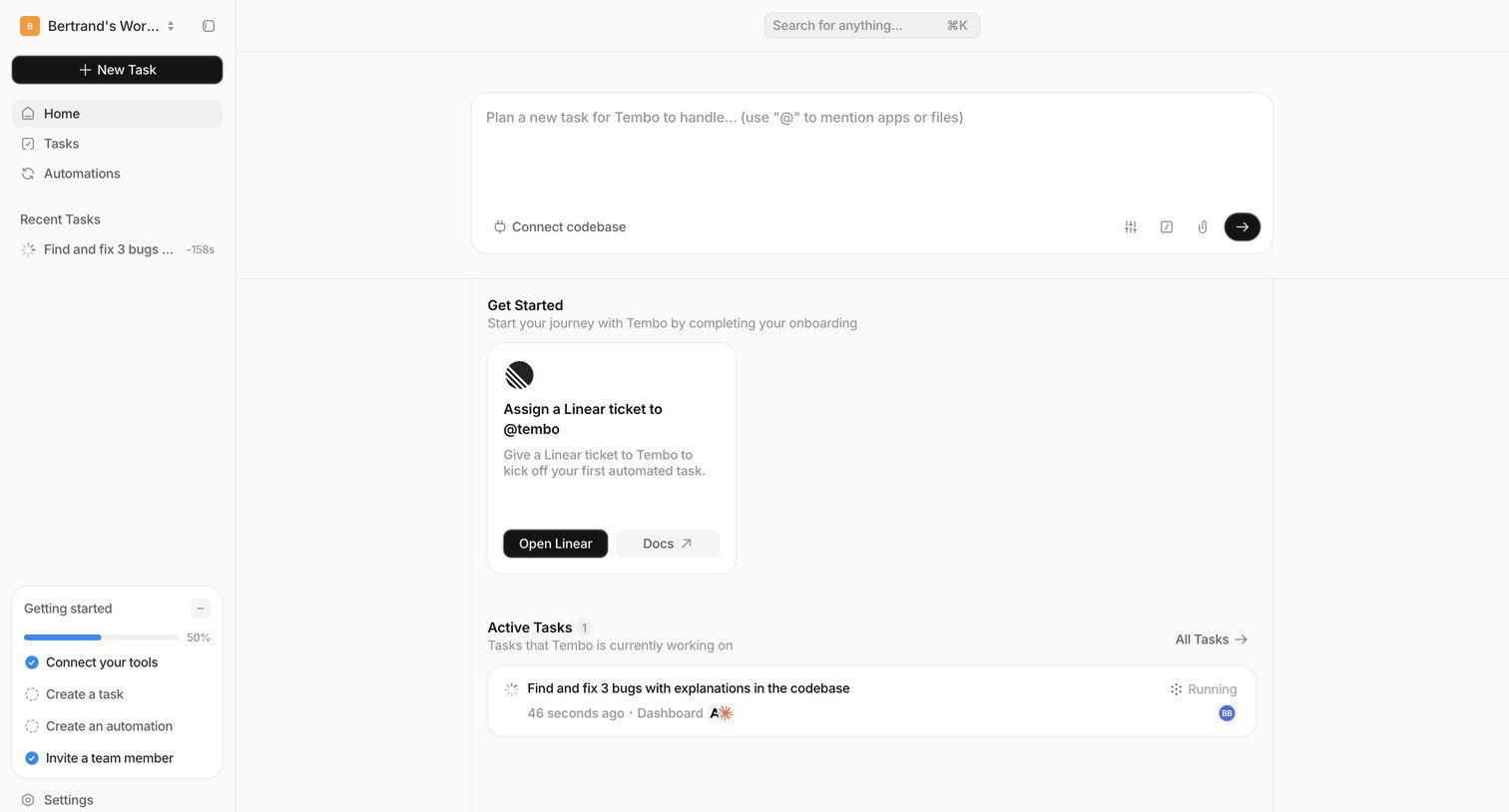
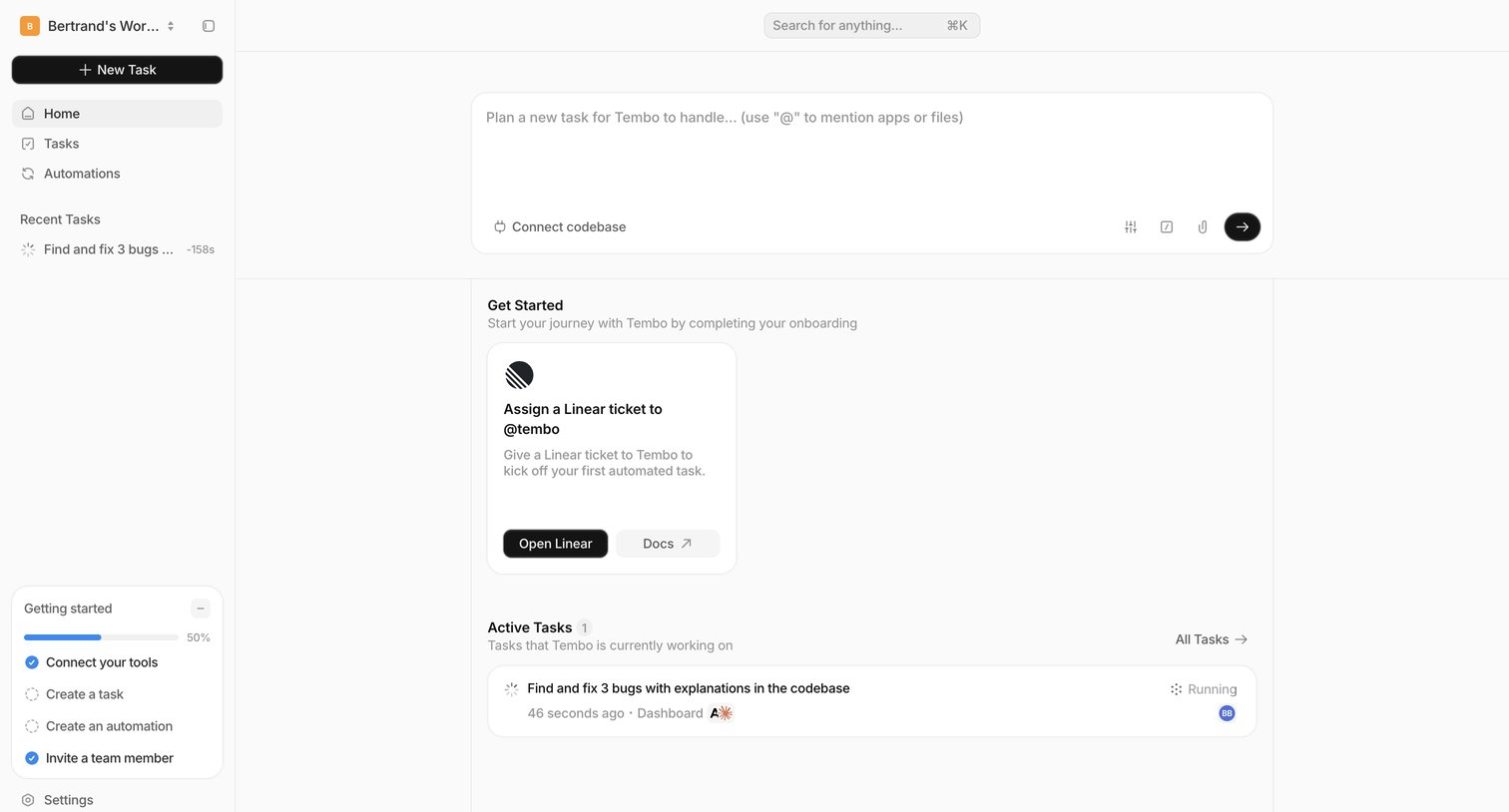
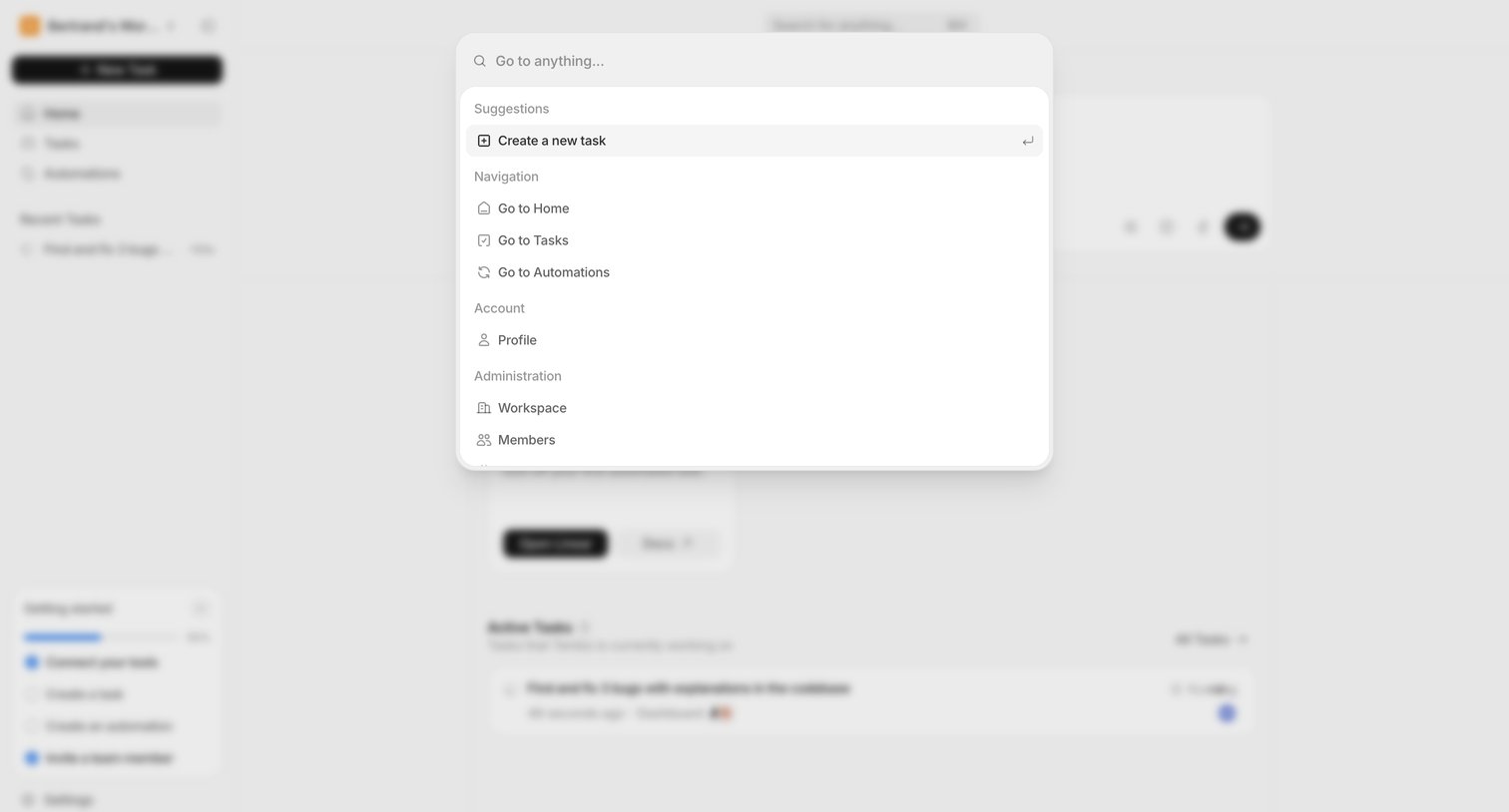
Search overlay where the user can quickly jump to tasks, navigation pages, account settings, and workspace administration.
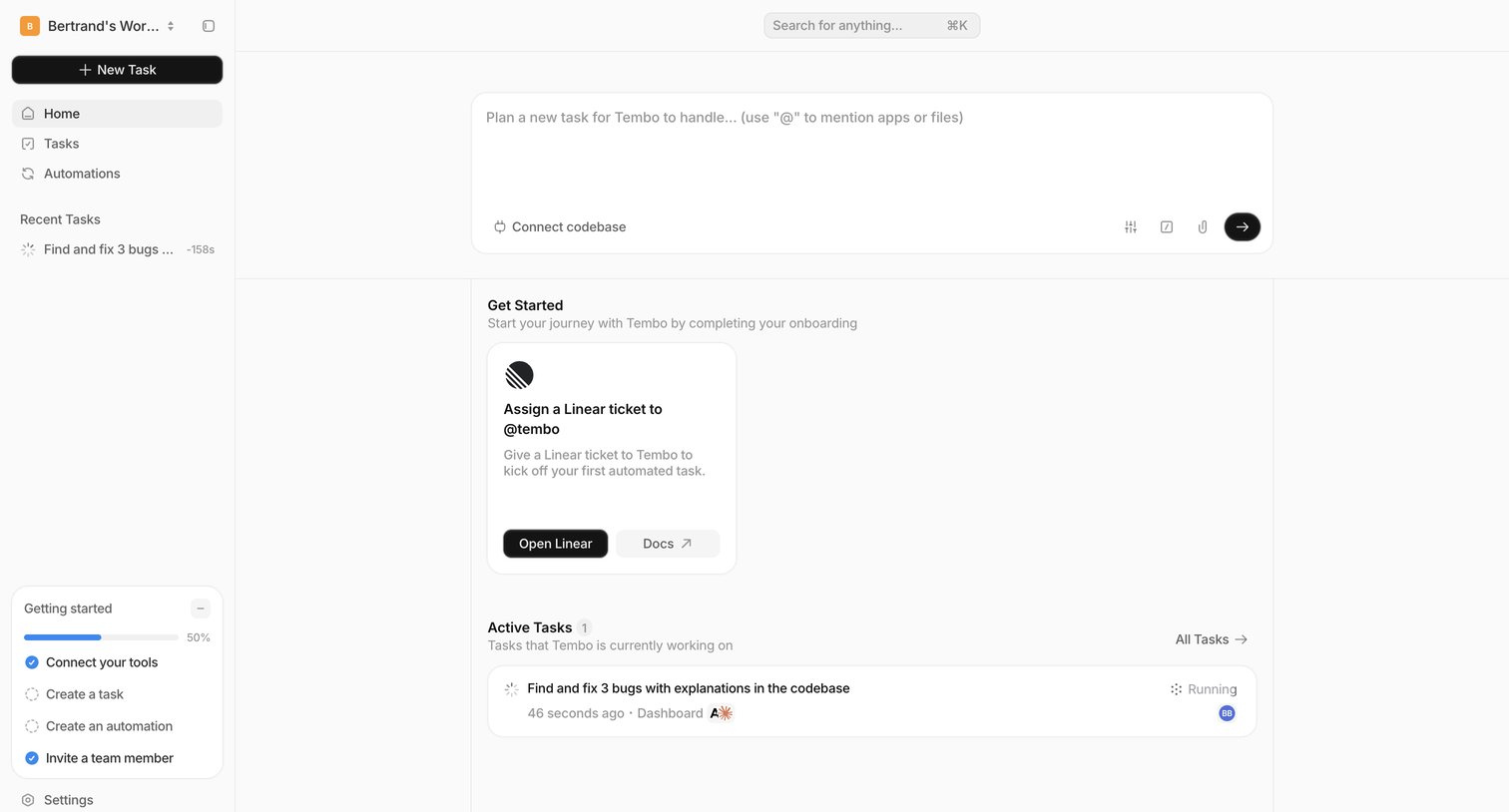
Home page where the user can plan a new task via an AI prompt, complete onboarding steps, and view active tasks.
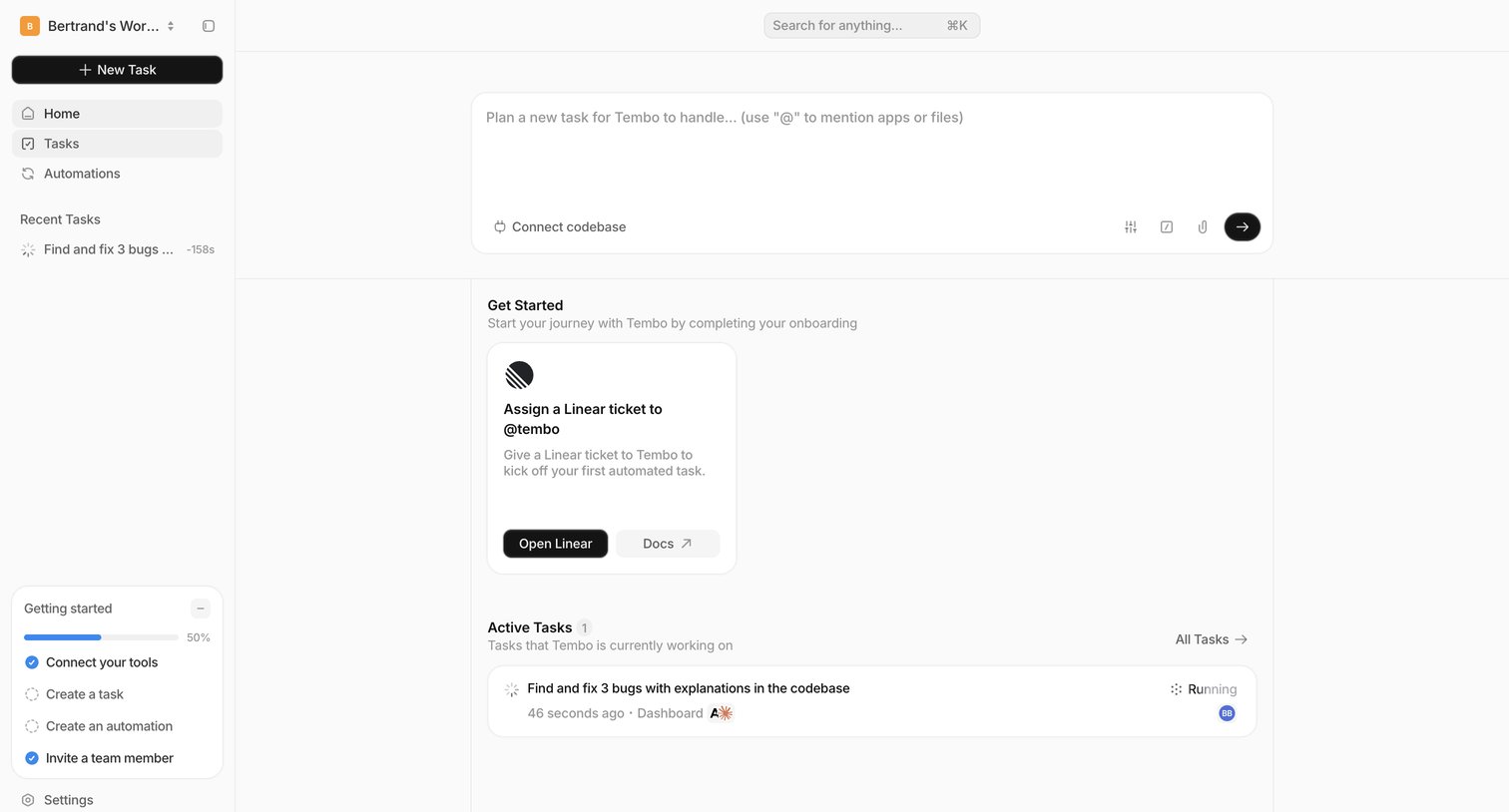
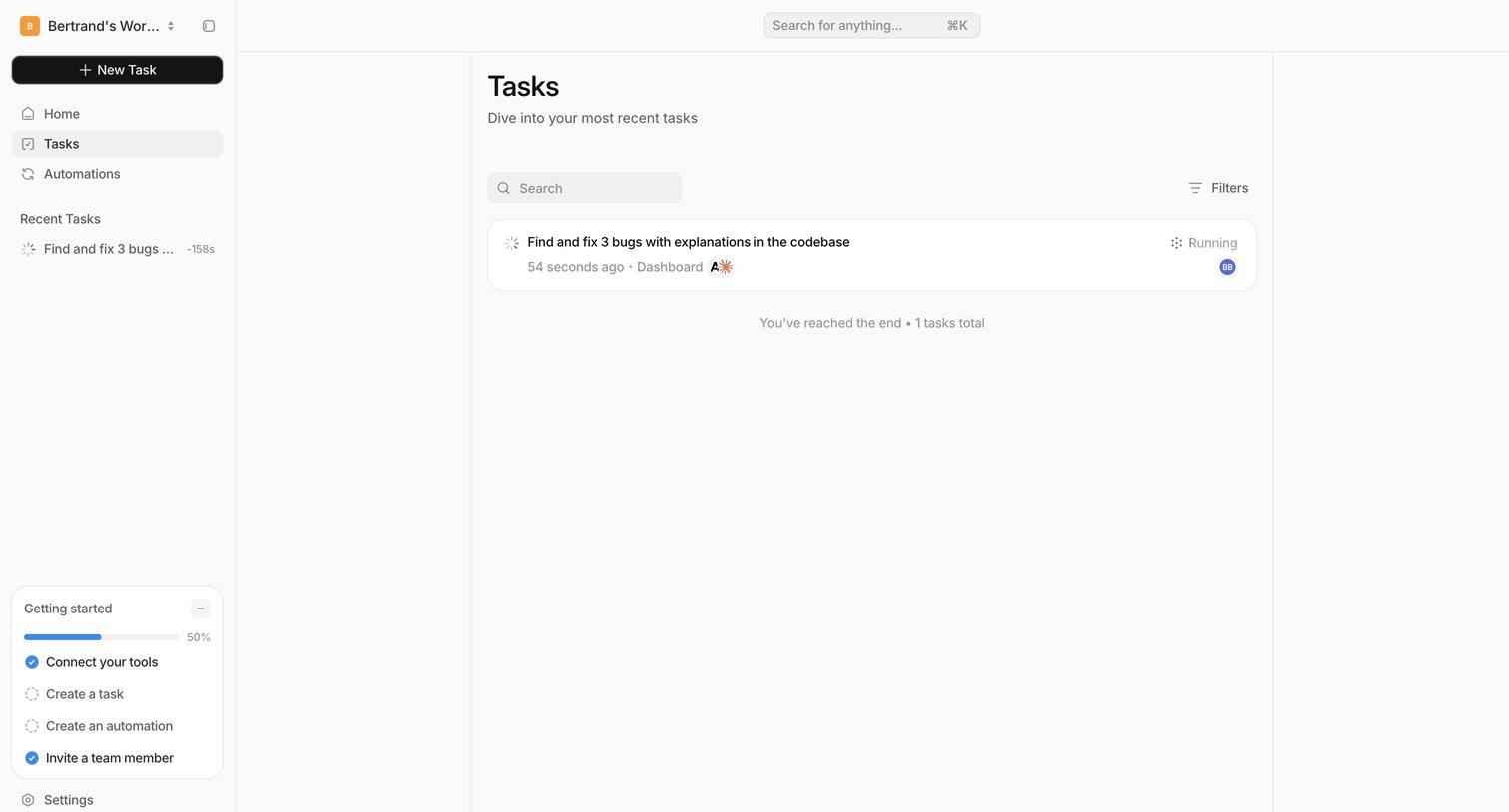
List view where the user can search, filter, and monitor the status of recent tasks, alongside an interactive getting started checklist.
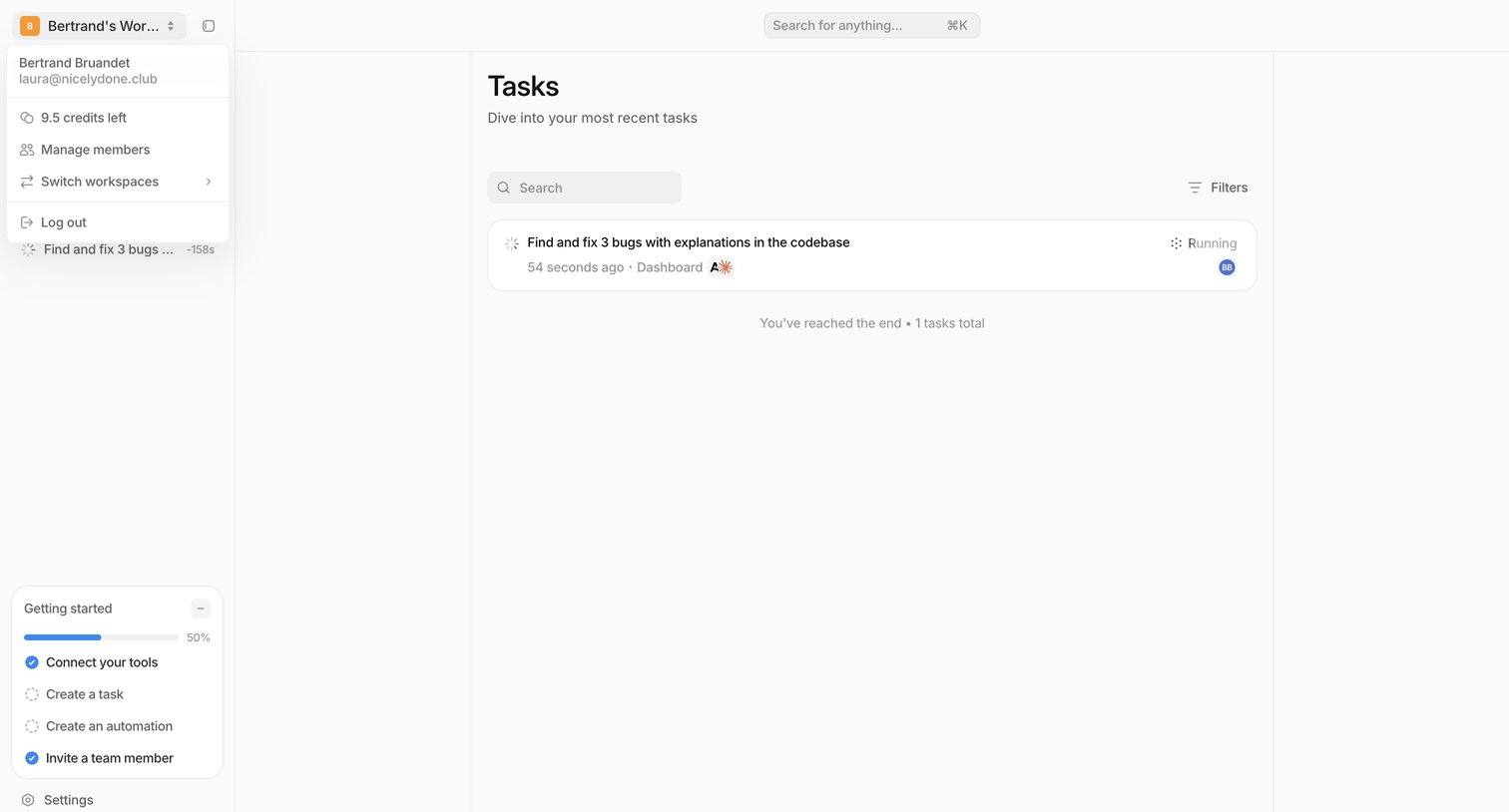
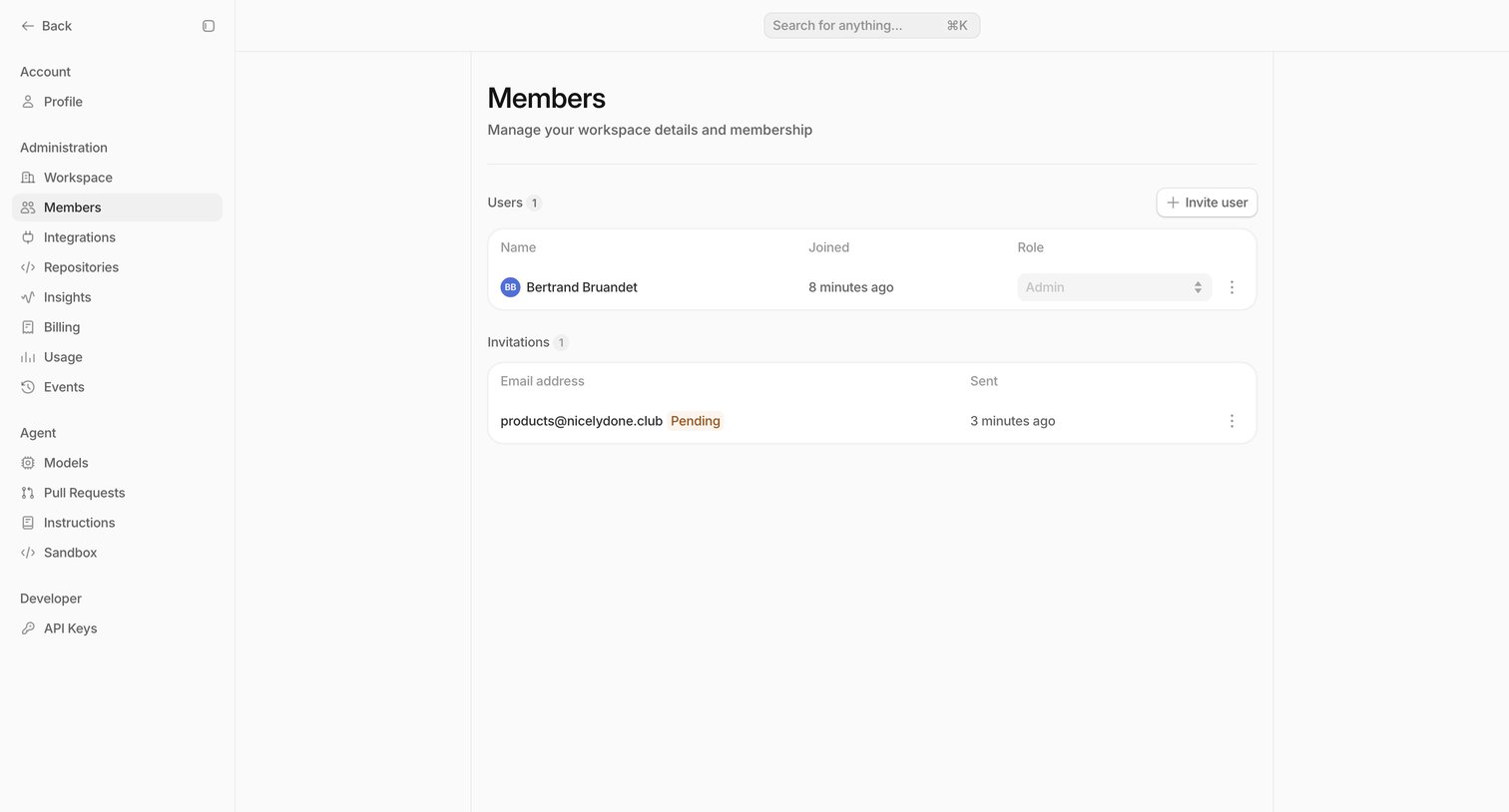
Settings page where the user manages workspace members, views active users and pending invitations, and can invite new teammates.
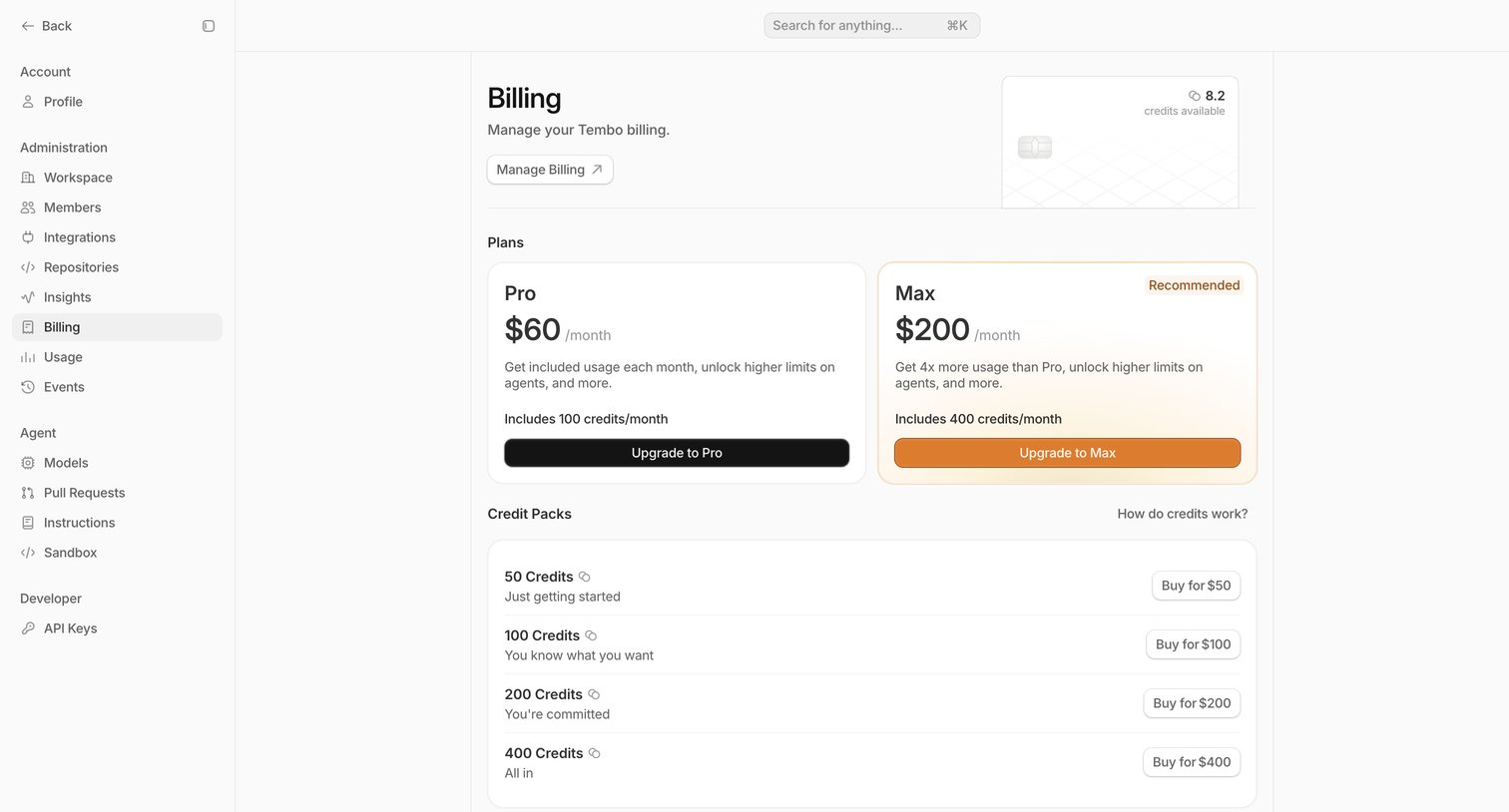
Settings page where the user manages their workspace billing, upgrades to Pro or Max plans, and purchases additional credit packs.
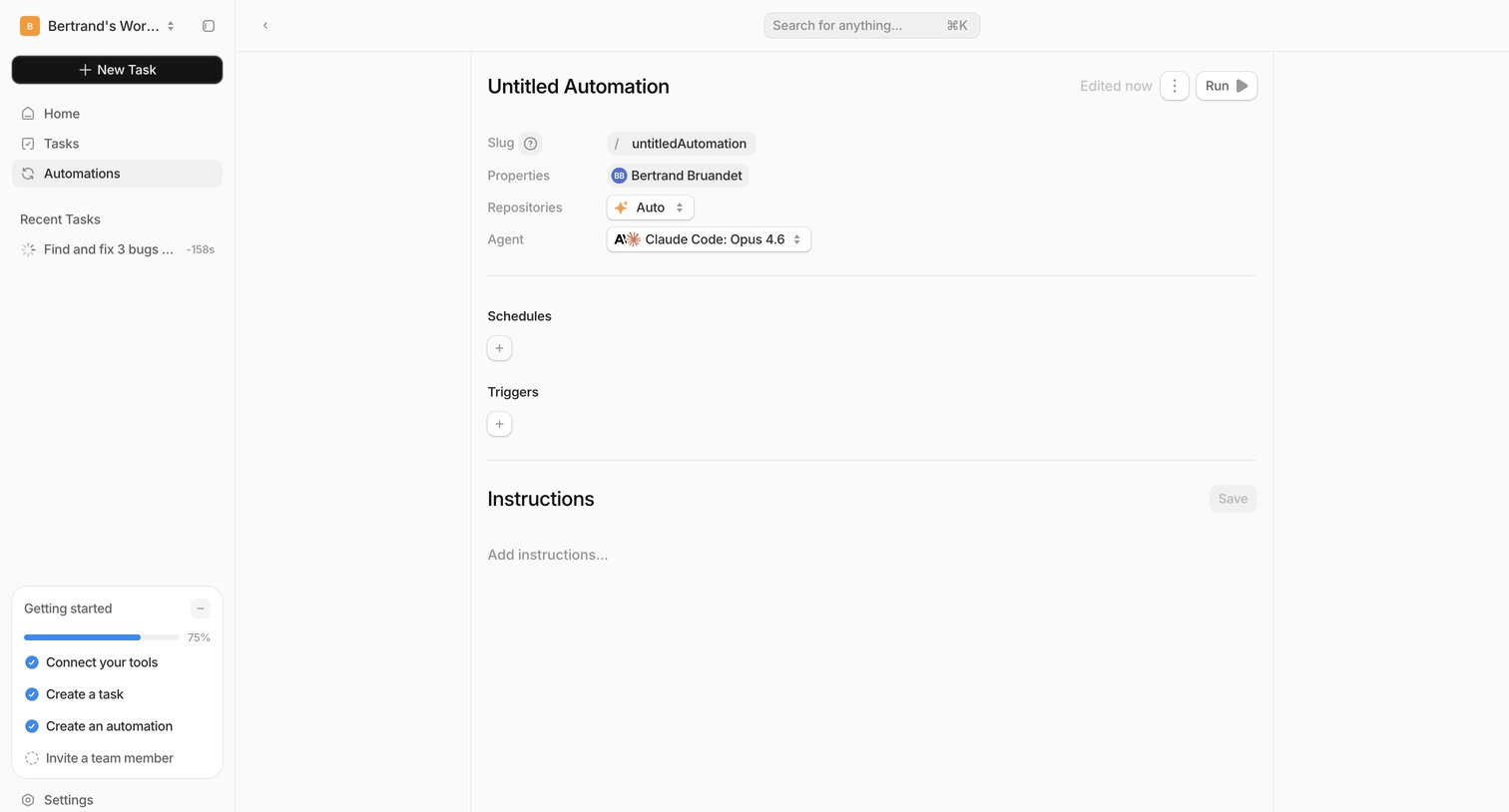
Detail page where the user configures an automation by setting its slug, agent, schedules, triggers, and instructions.
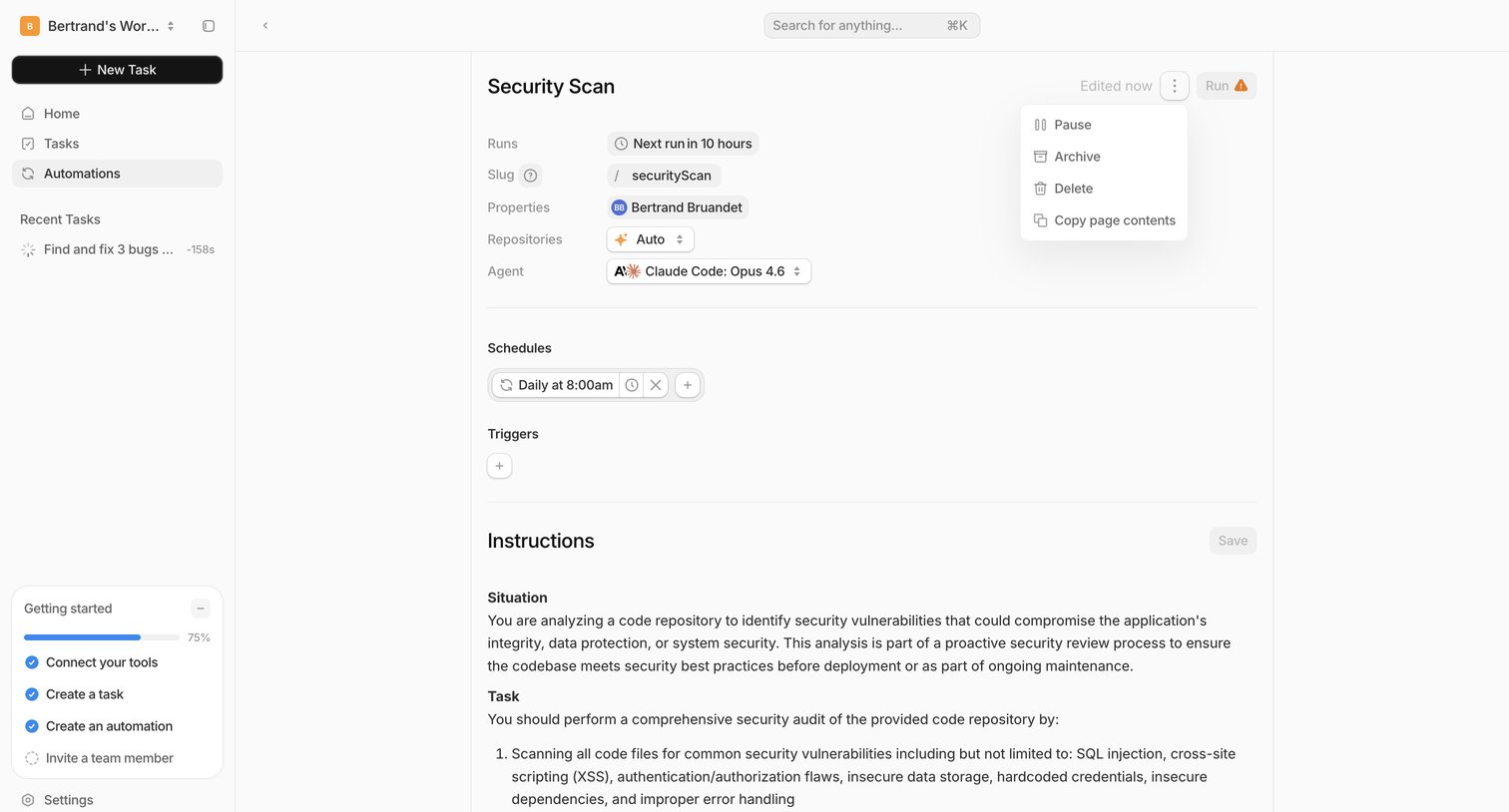
Detail page where the user configures a Security Scan automation, including its schedule, AI agent, and instructions.