Setup Wizard screen examples
Setup Wizard screen design examples from SaaS apps. See how SaaS apps divide configuration into a sequence of steps. Explore how step labels, required information, and back or continue actions fit within each…
Explore the examples
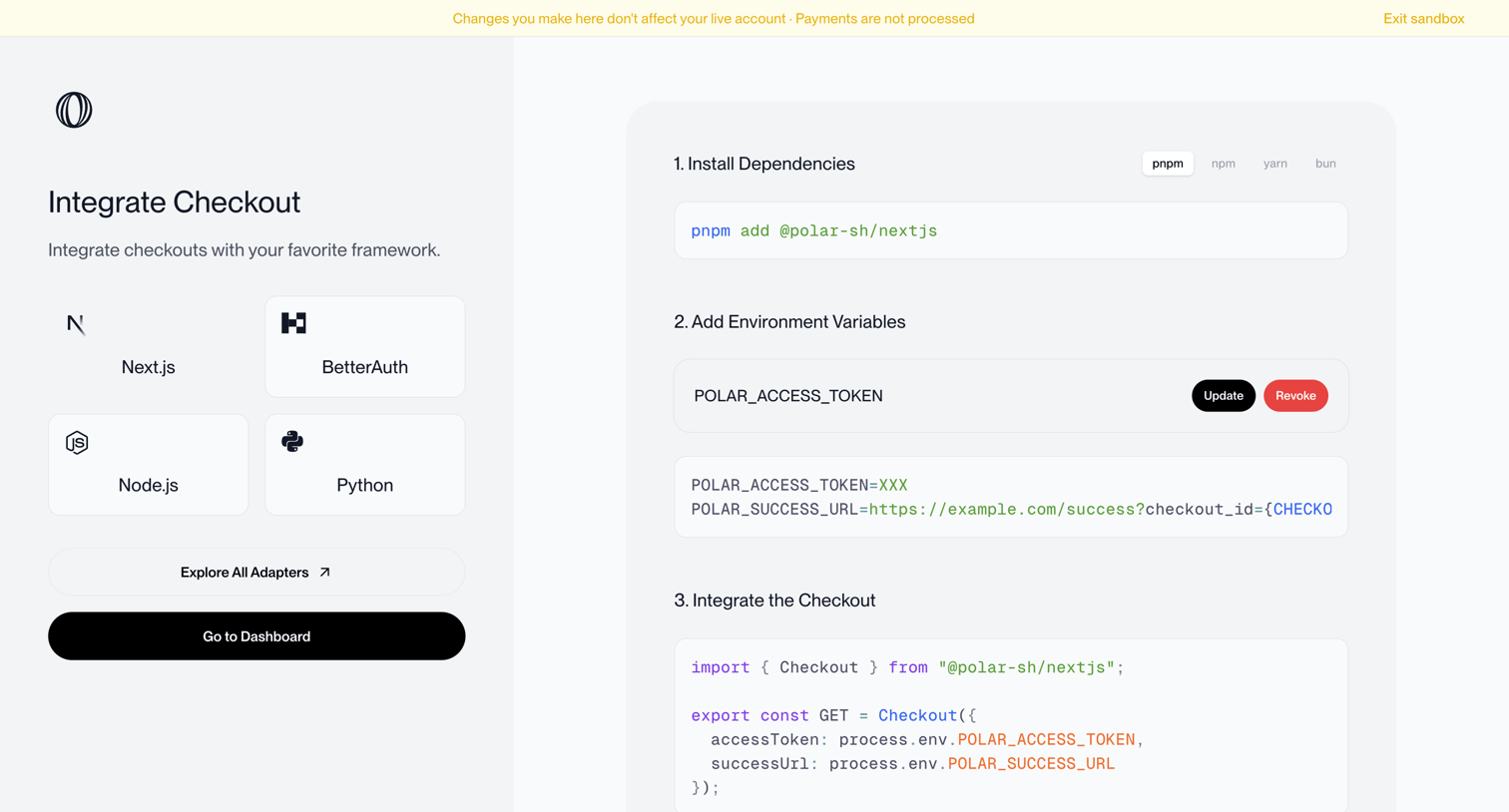

Onboarding step where the user selects their preferred framework and follows a numbered guide to install dependencies and add environment variables for a checkout integration.
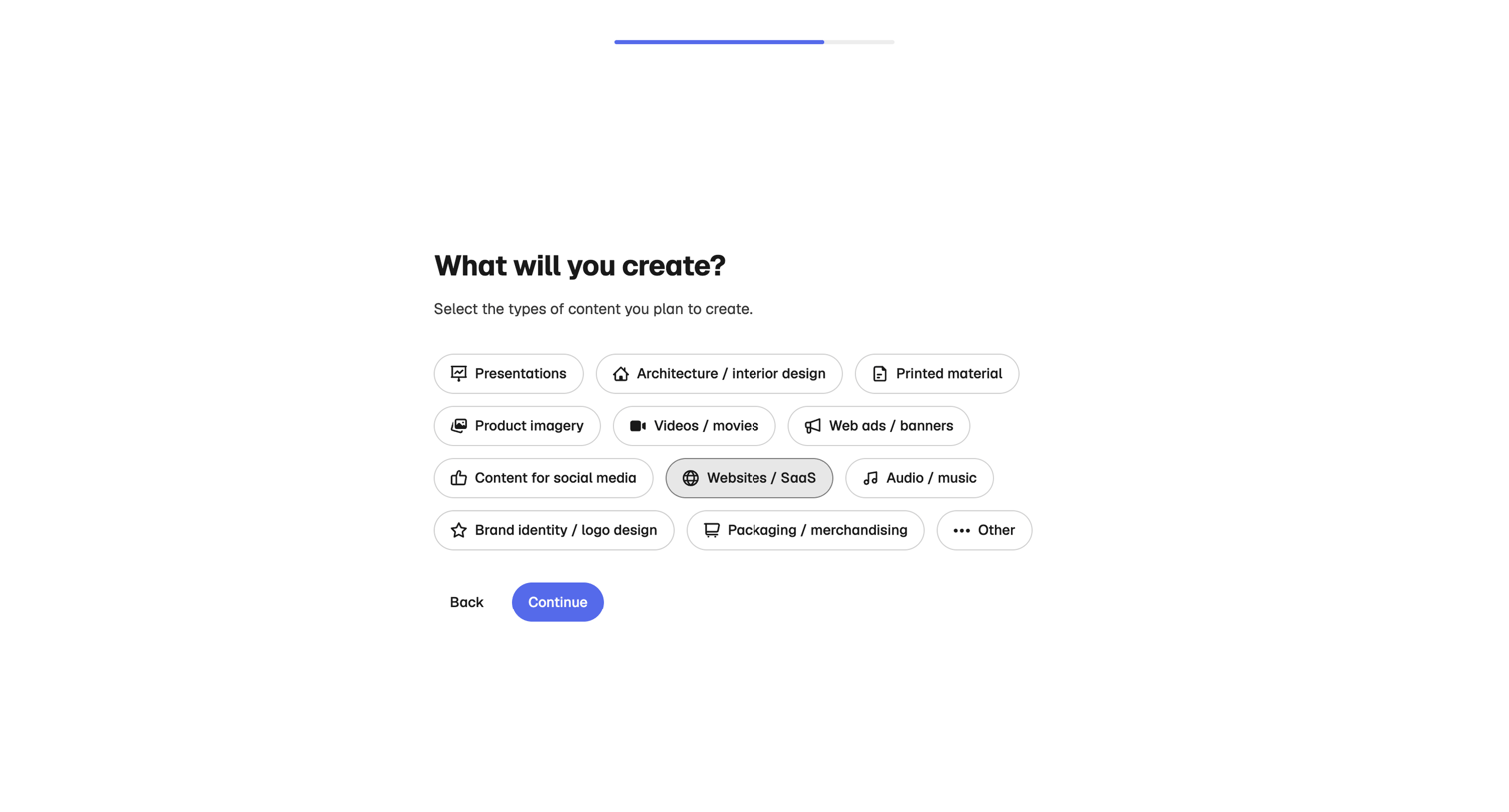

Onboarding step where the user selects the types of content they plan to create, such as presentations, websites, or product imagery, using a grid of selectable pills.
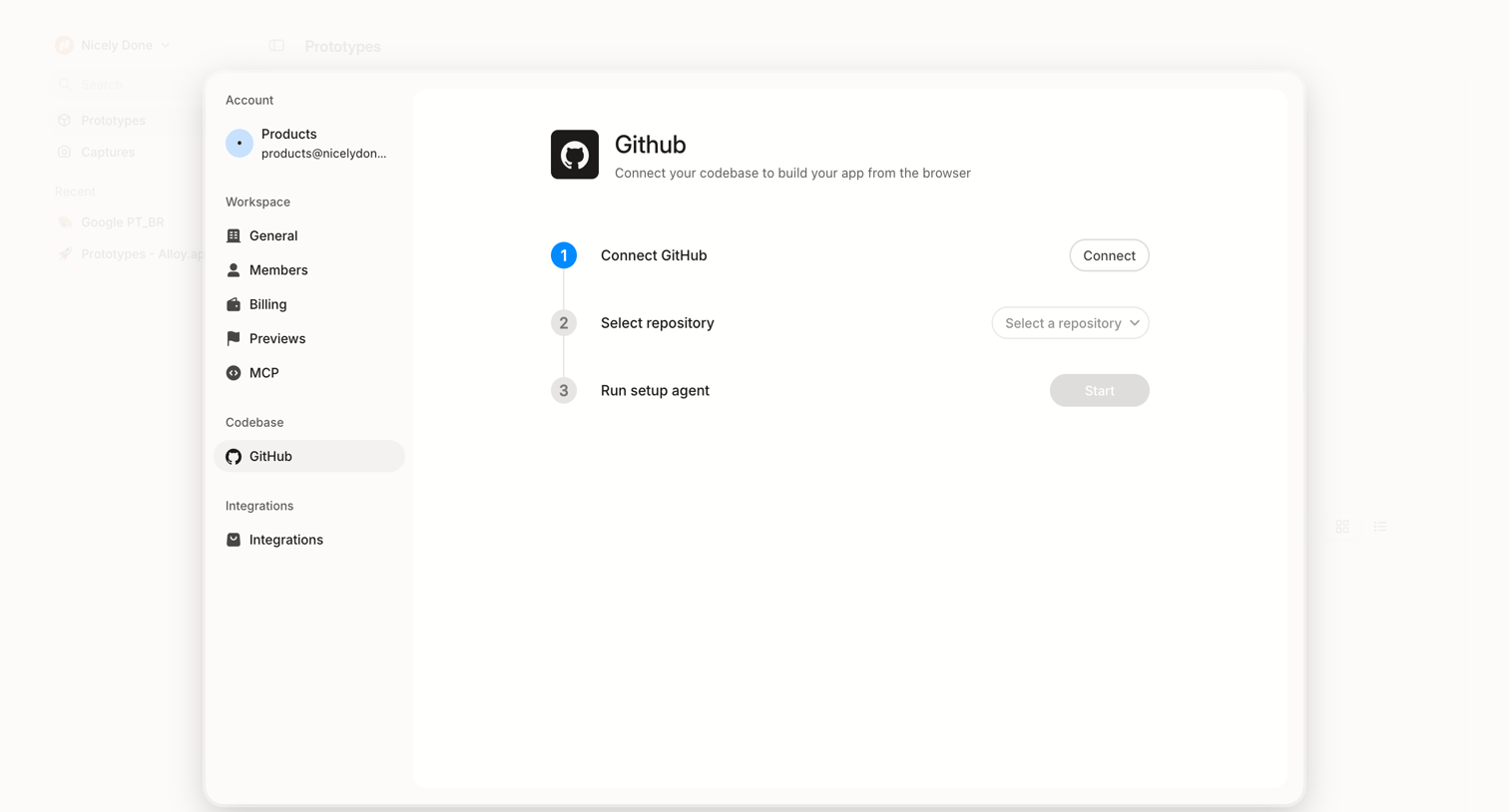

Settings modal where the user connects their GitHub codebase via a three-step vertical setup process.
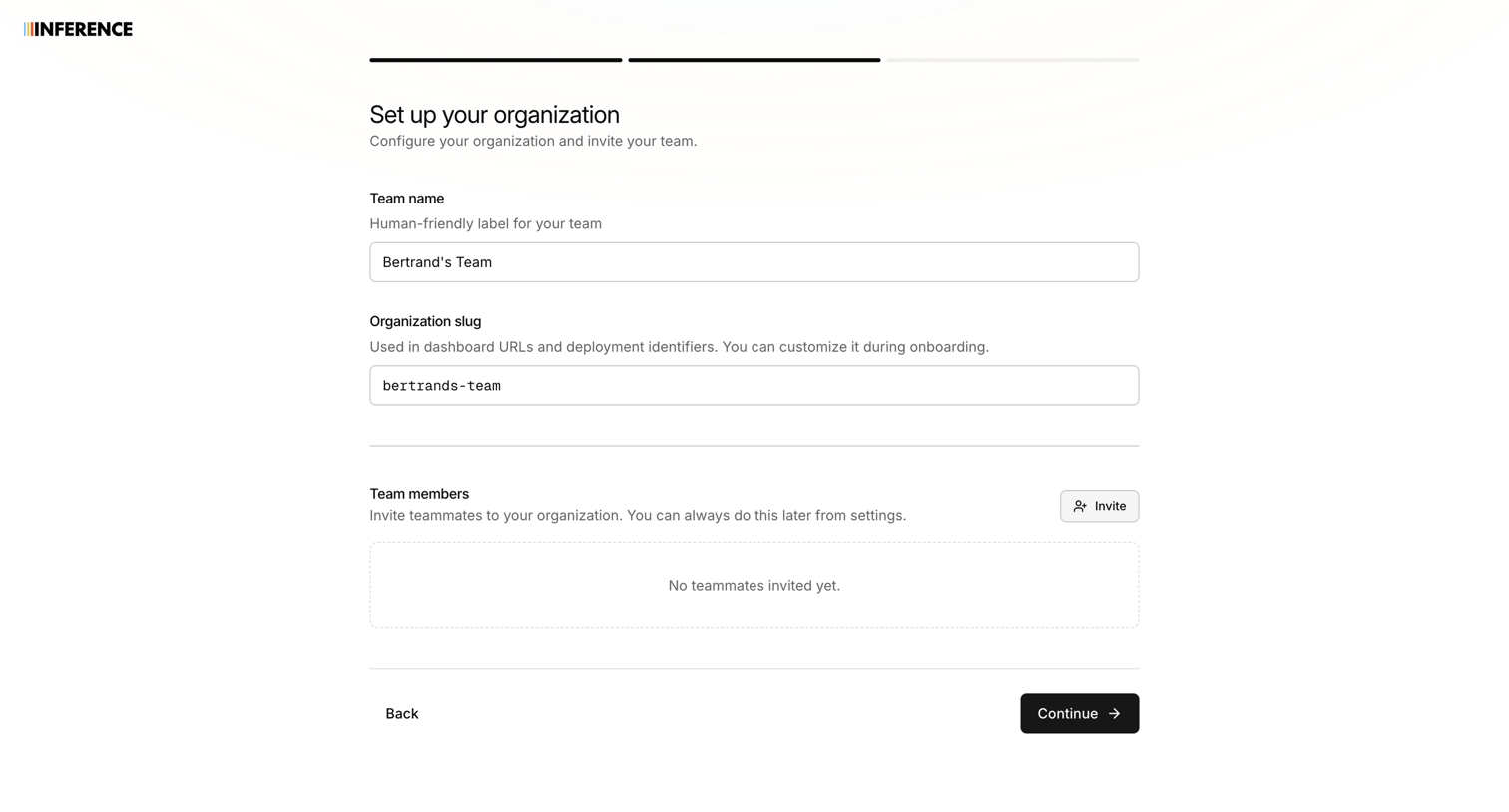

Onboarding step where the user names their organization, sets a custom slug, and can invite initial team members.
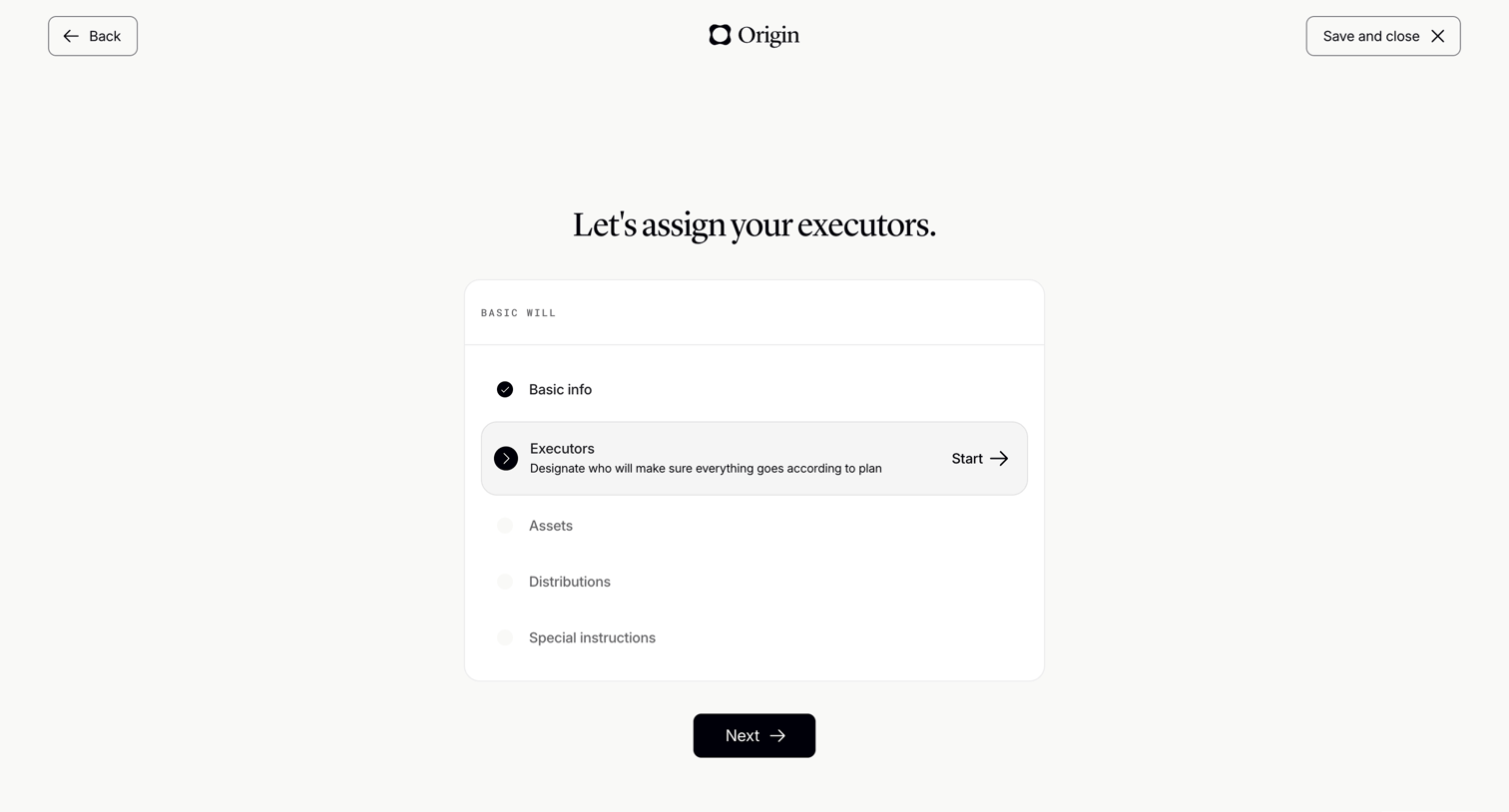

Onboarding step where the user starts the executors section of their basic will.
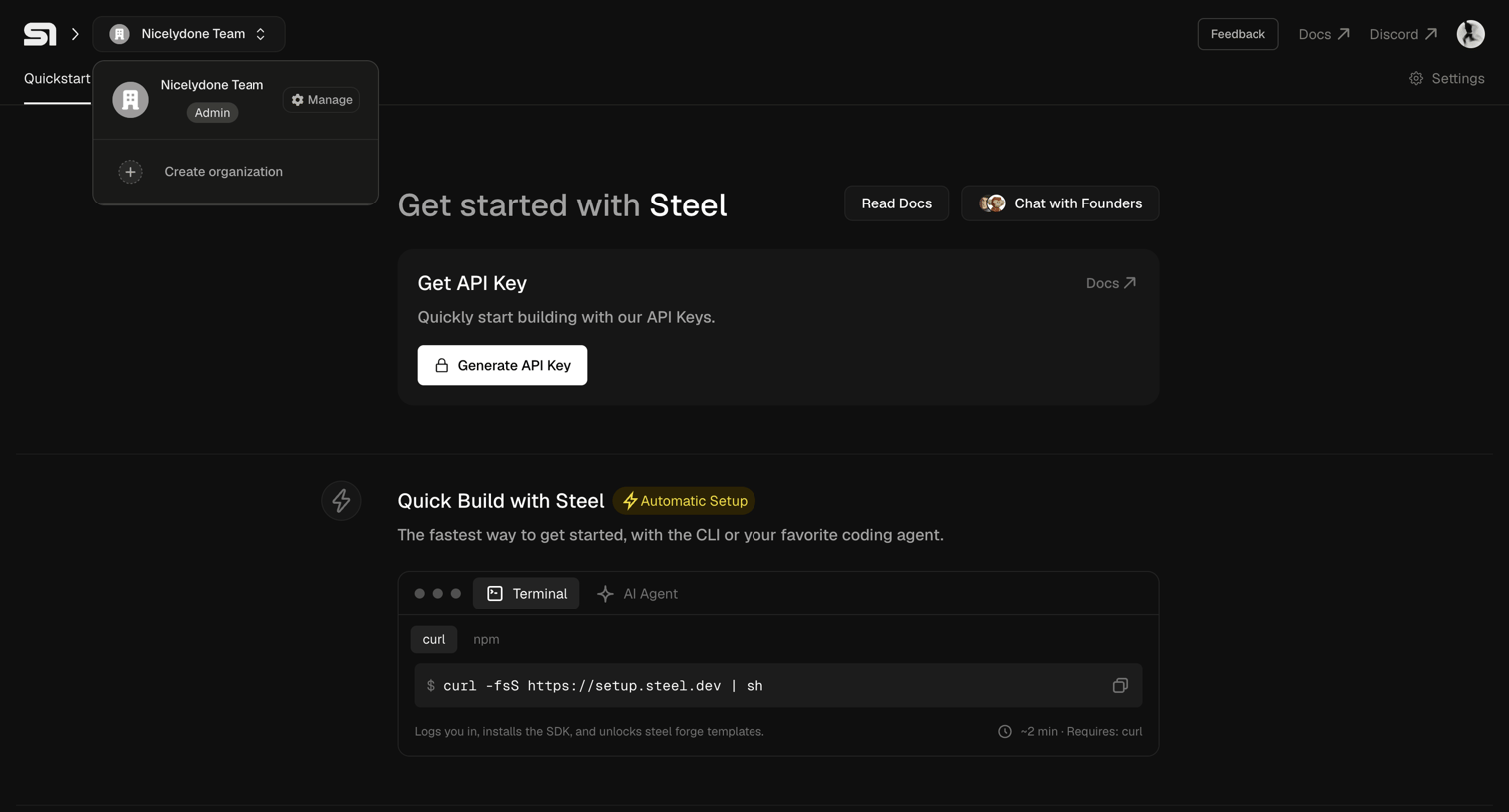

Onboarding screen where the user is prompted to generate their first API key and copy a terminal command to quickly build with the SDK.
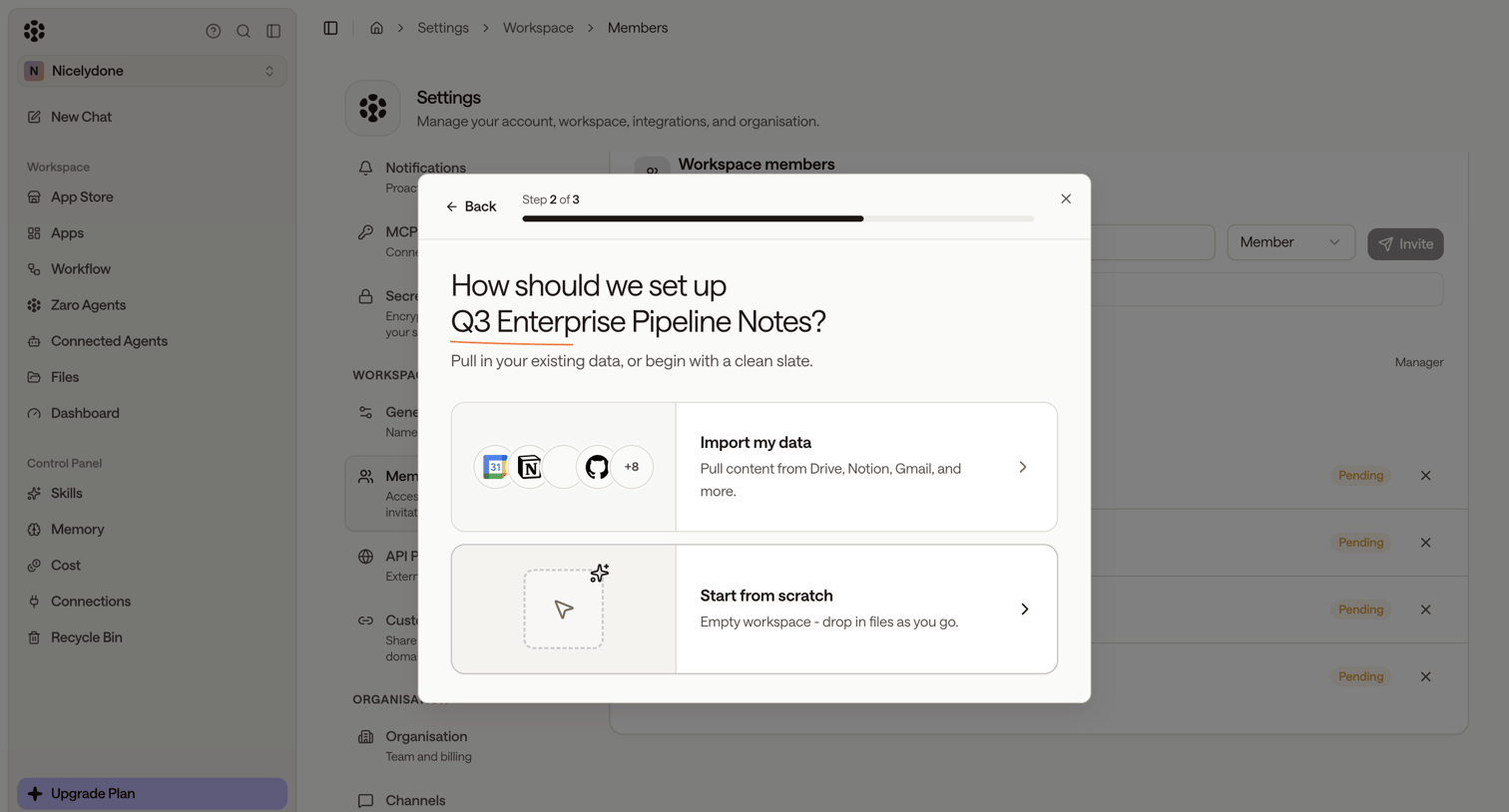

Creation wizard where the user chooses whether to import existing data from external apps or start from scratch to set up a new workspace.
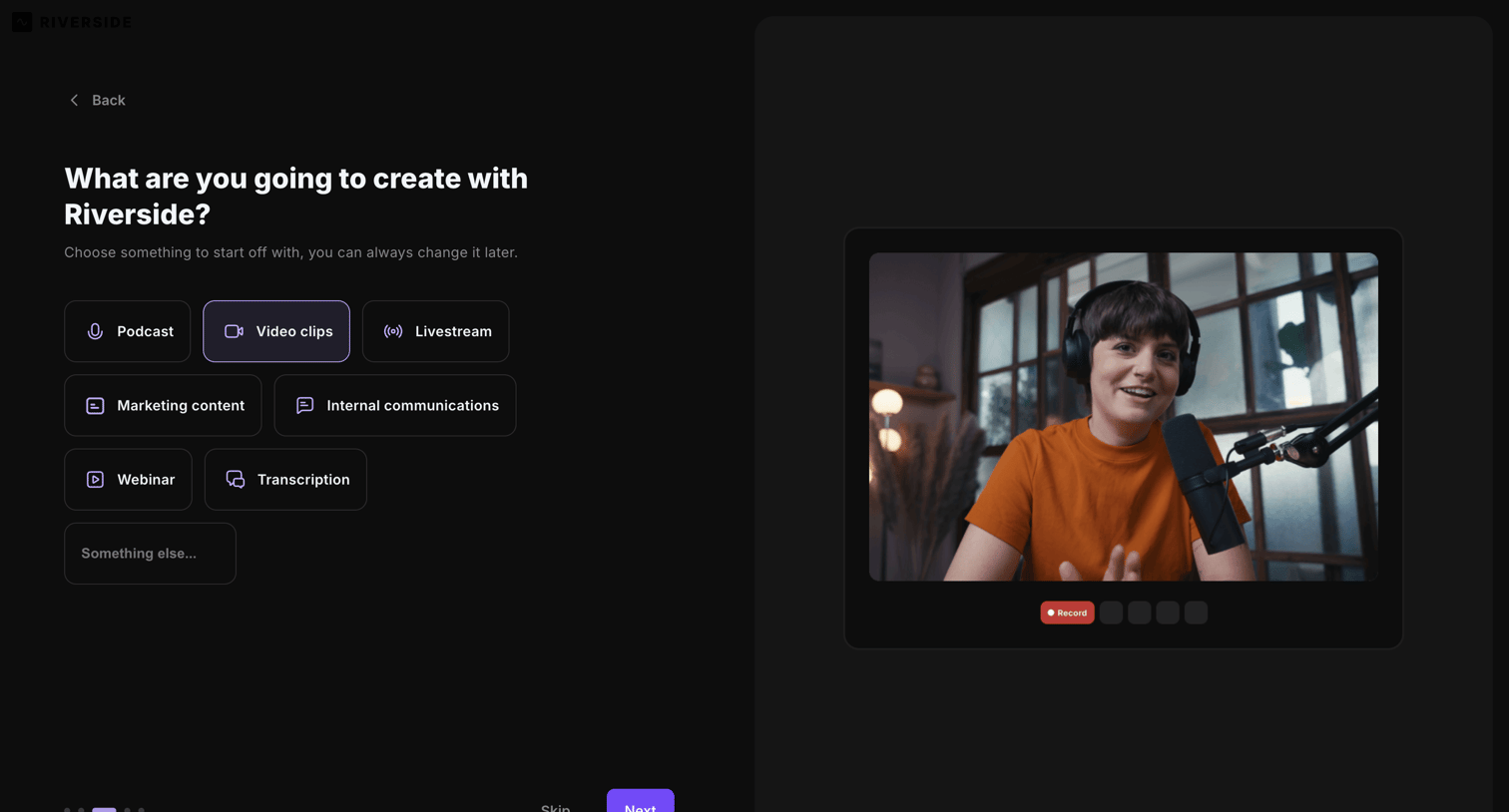

Onboarding step where the user selects their primary use case, such as podcast, video clips, or livestream, to personalize their workspace.
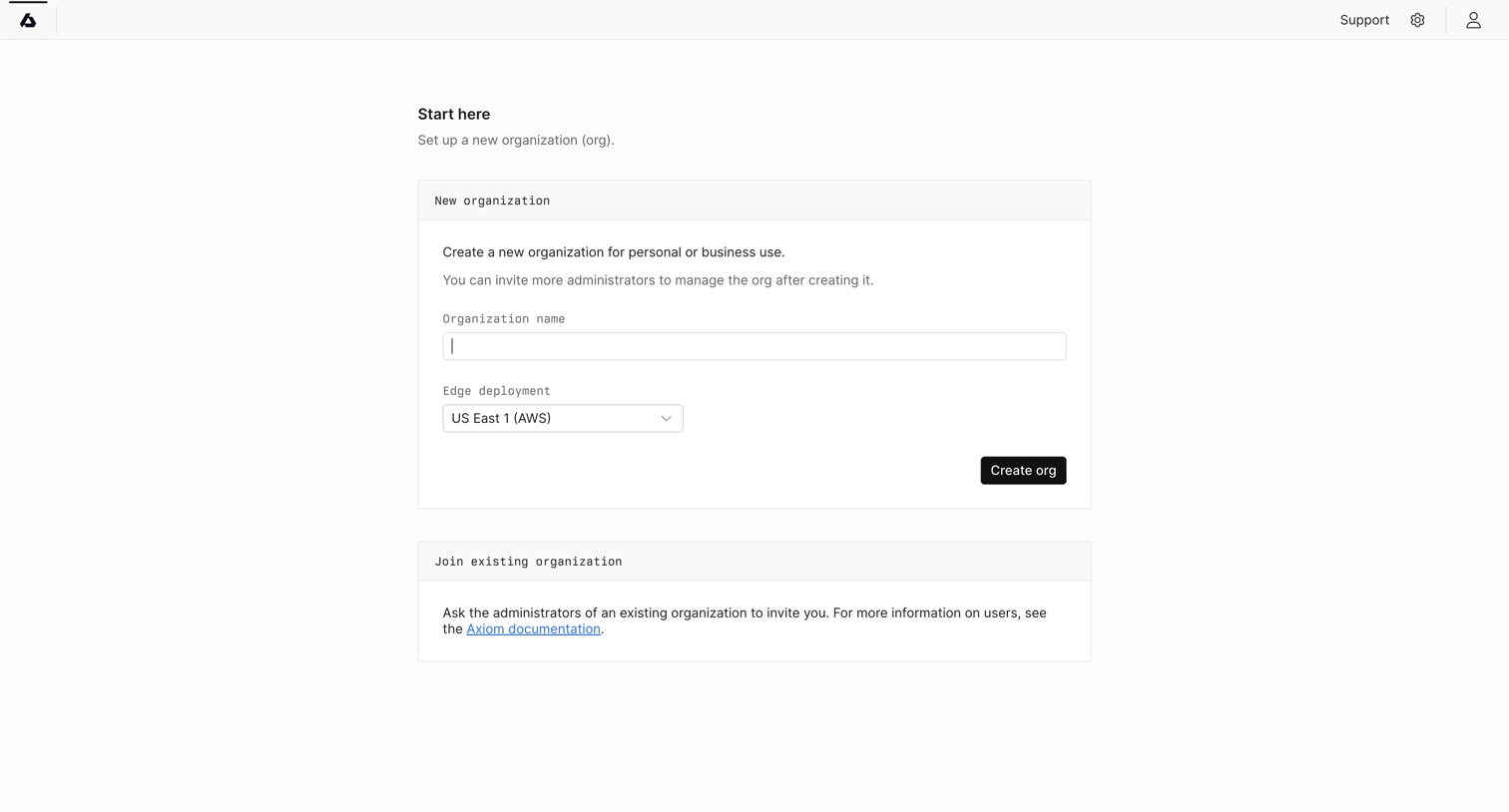

Onboarding screen where the user sets up a new organization by providing a name and picking an edge deployment region, or learns how to join an existing one.
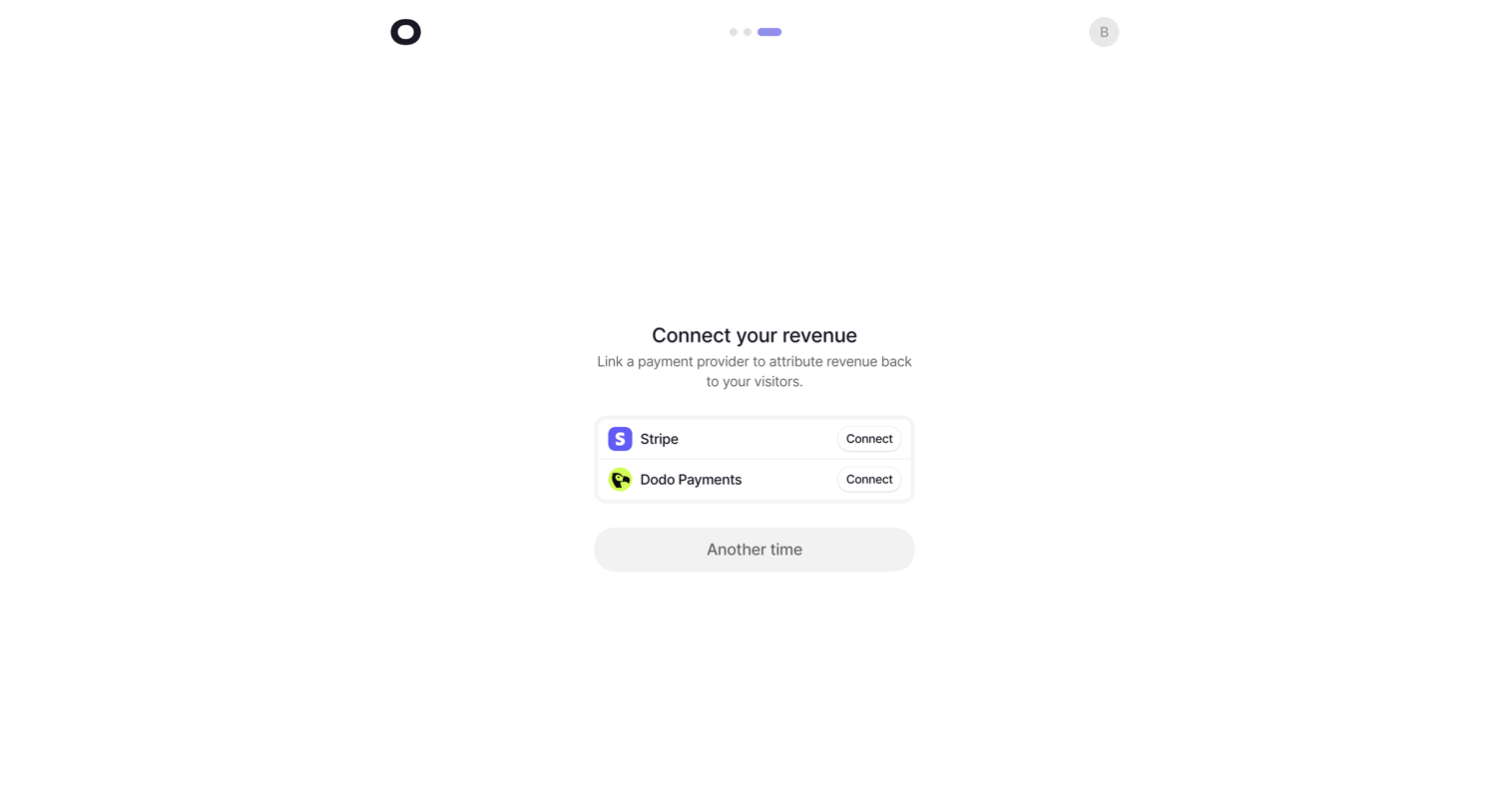

Onboarding step where the user connects a payment provider like Stripe or Dodo Payments to attribute revenue back to visitors.
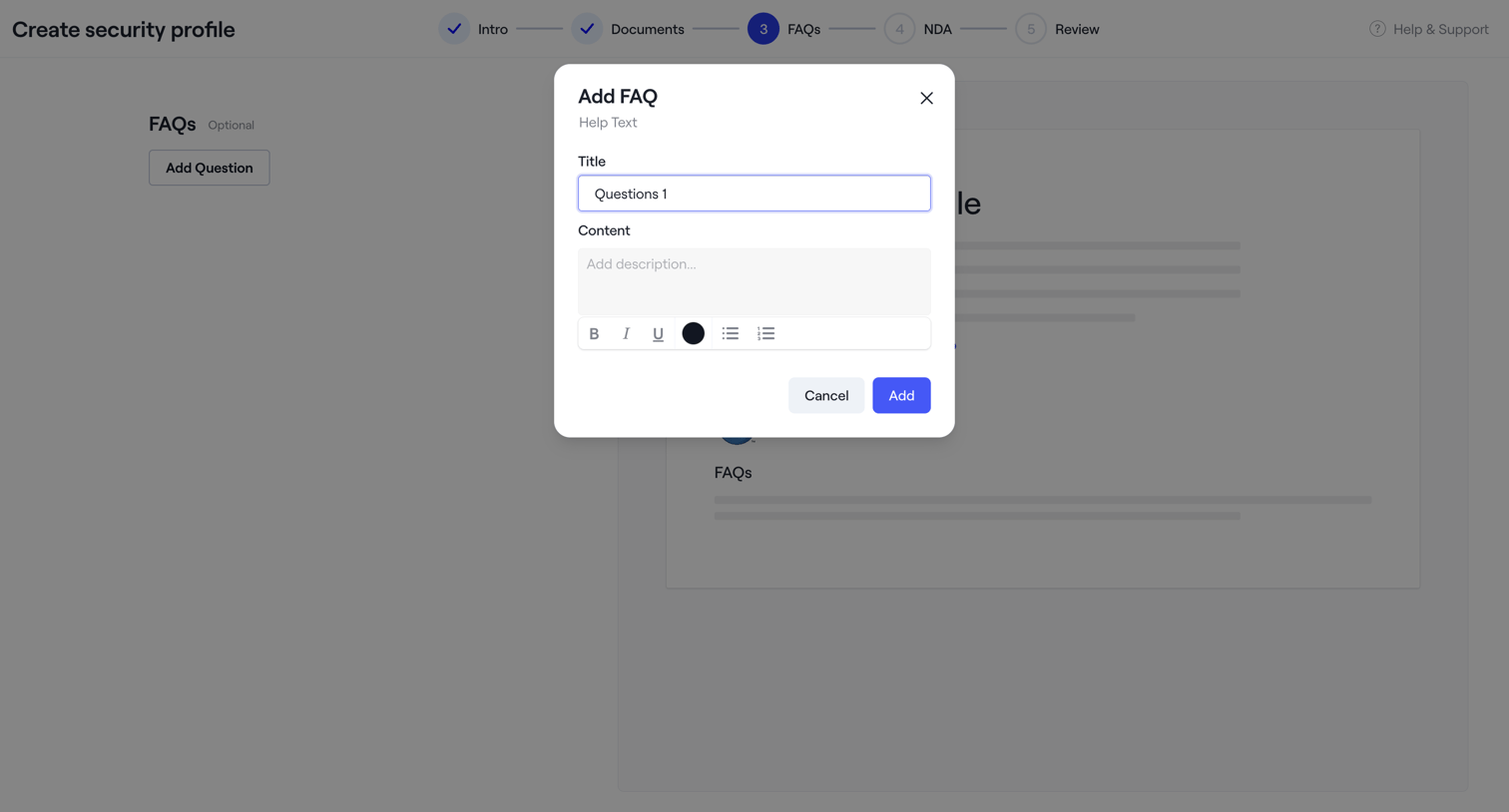

Wizard step for creating a security profile where the user adds FAQs via a modal with a rich text editor.
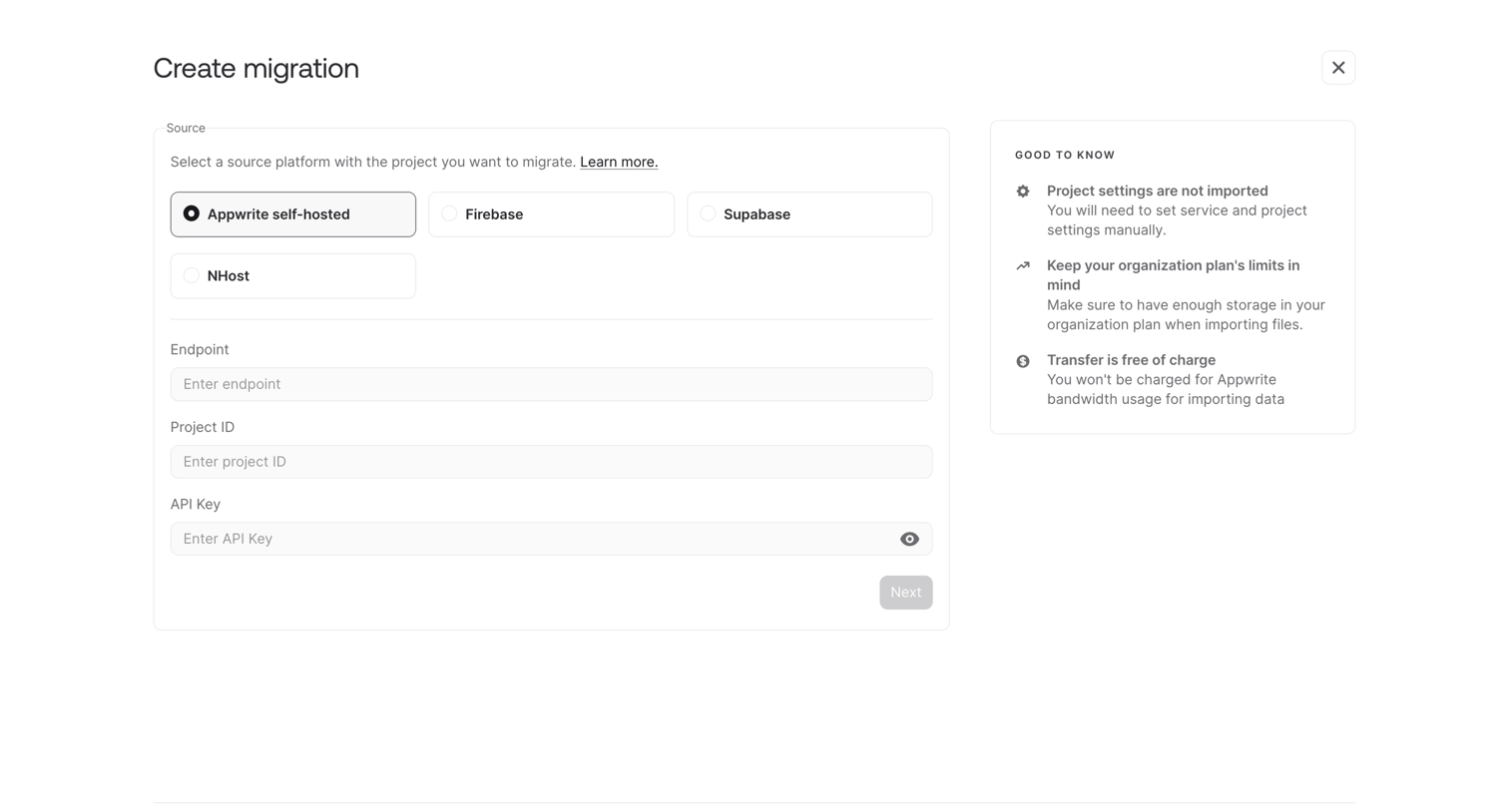

Wizard step where the user configures a data migration by selecting a source platform and entering connection credentials.
Explore the full SaaS screen library
Upgrade to unlock the full library.
Trusted by the best teams








About Setup Wizard
See how SaaS apps divide configuration into a sequence of steps. Explore how step labels, required information, and back or continue actions fit within each setup screen.