Communication screen examples
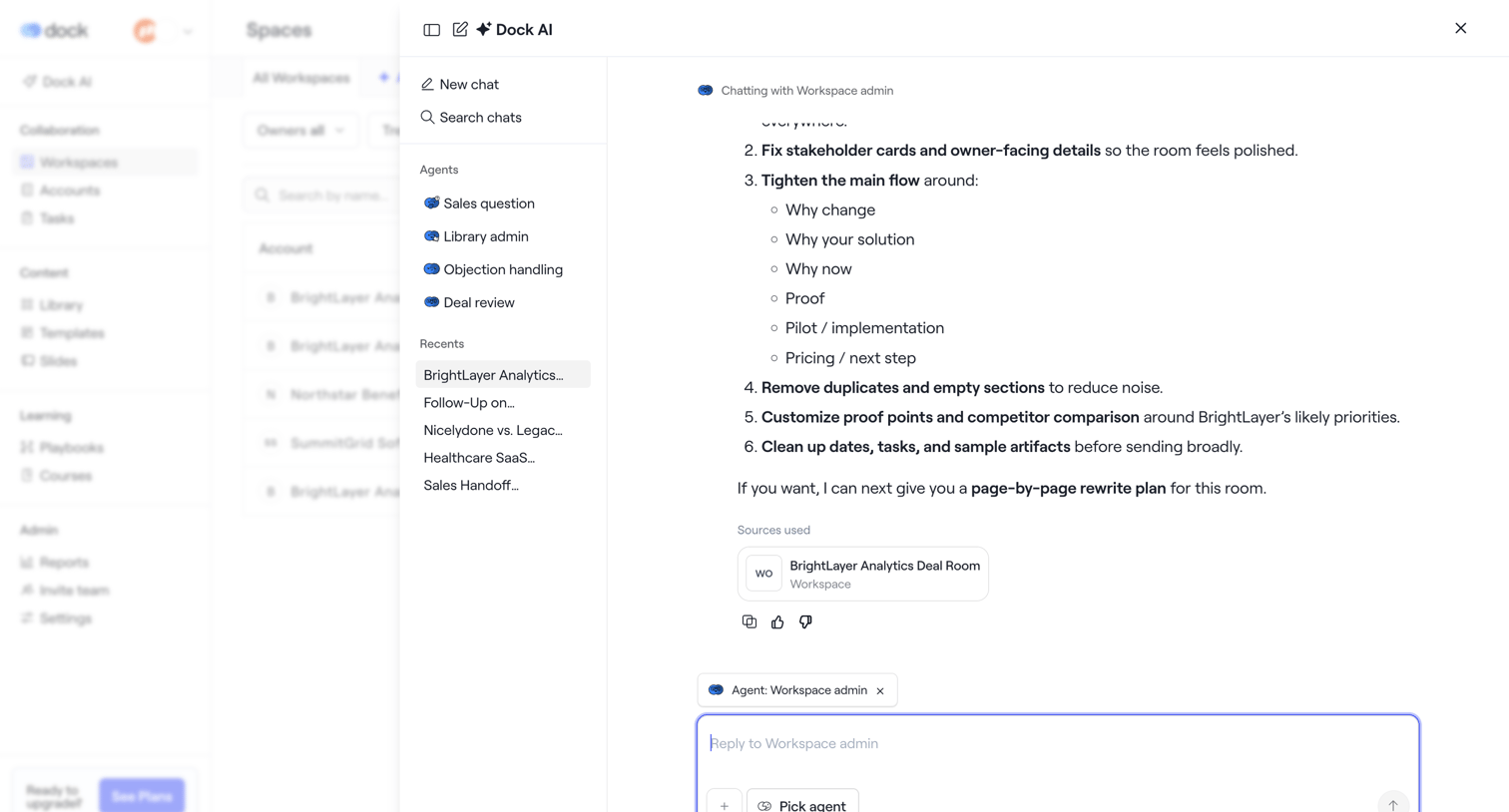
Communication screen design examples from SaaS apps. Browse examples from Dock, Beside, Cushion.
Explore the examples

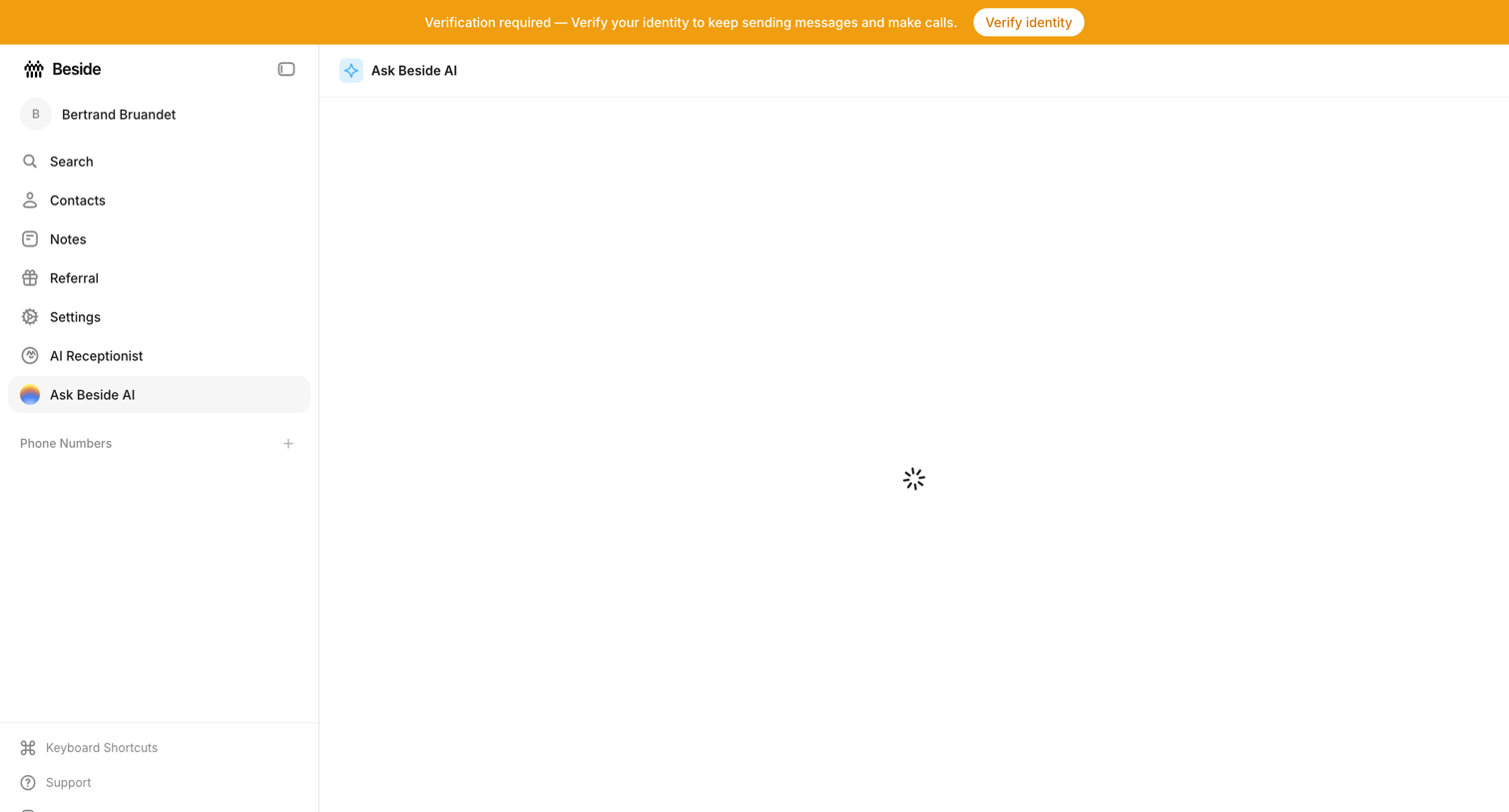

AI chat interface where the main conversation view is currently loading, accompanied by a prominent system banner requiring identity verification.
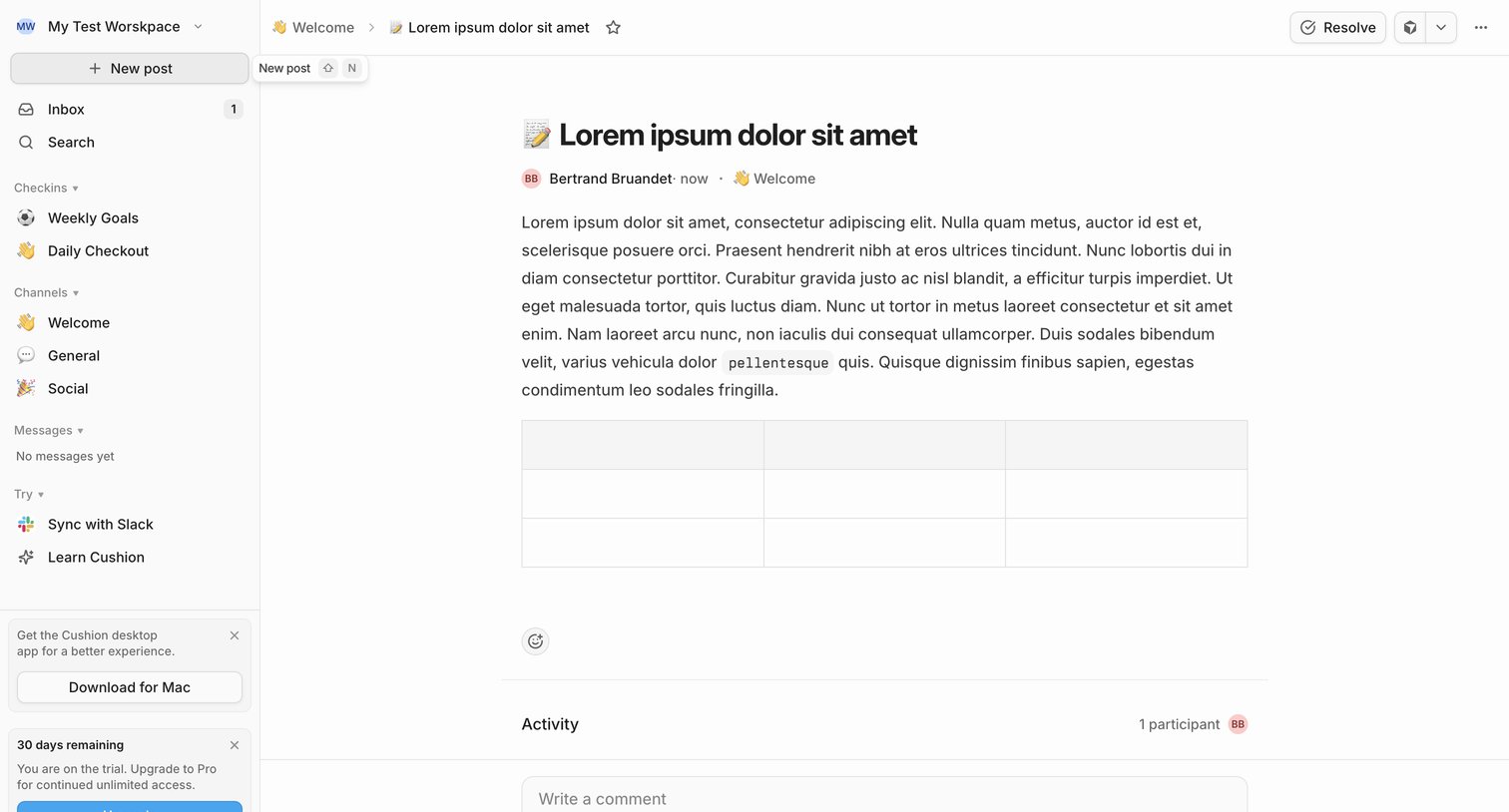

Detail page where a user reads a team update in the Welcome channel, views activity participants, and can write a comment or resolve the post.
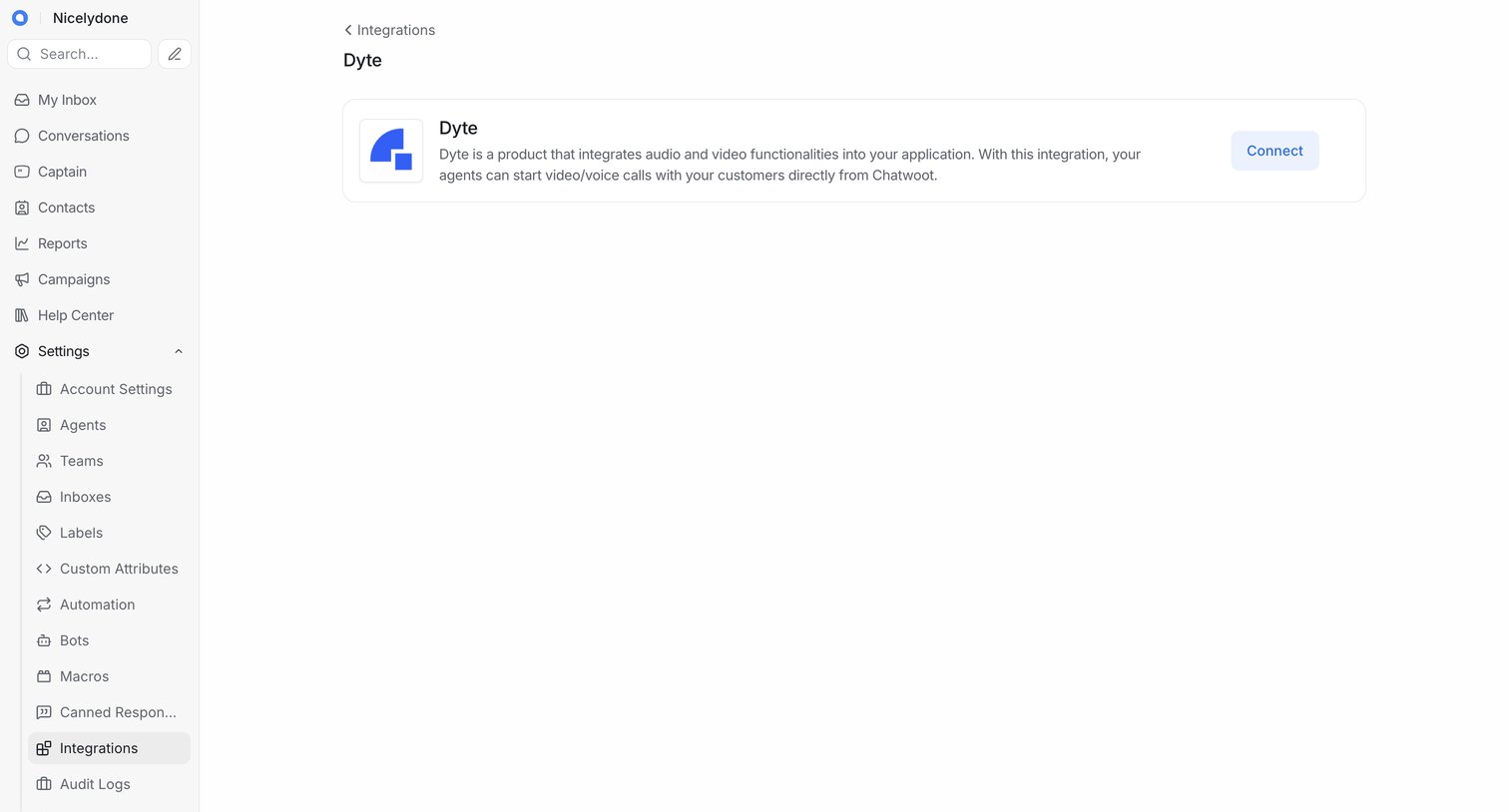

Settings page where the user views details about the Dyte video and voice integration and can connect it to their workspace.
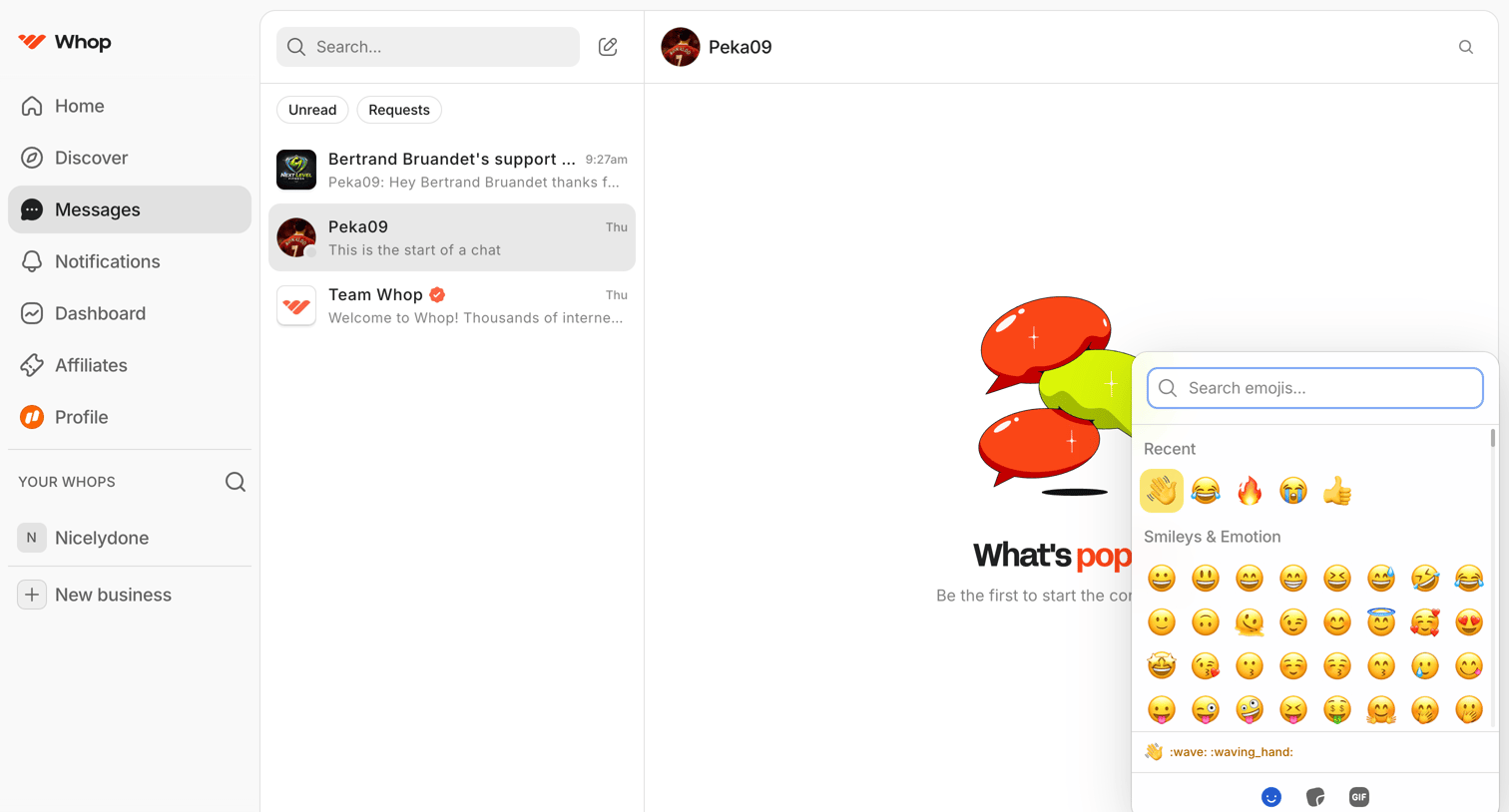

Messaging inbox where the user is composing a new message to Peka09 and has opened the emoji picker over an empty chat history.
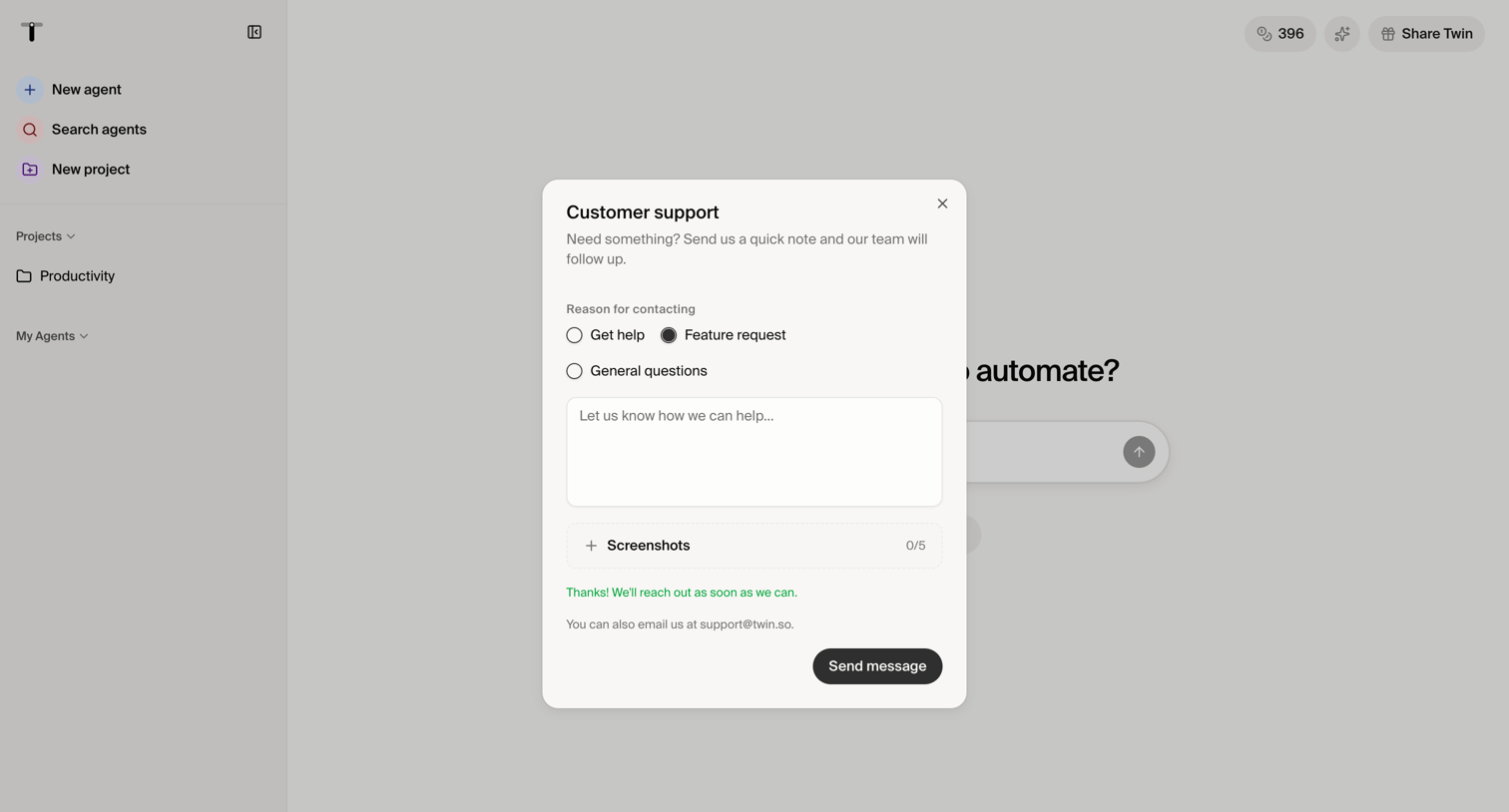

Home page where the user is filling out a customer support modal to request help or suggest a feature, including an option to attach screenshots.
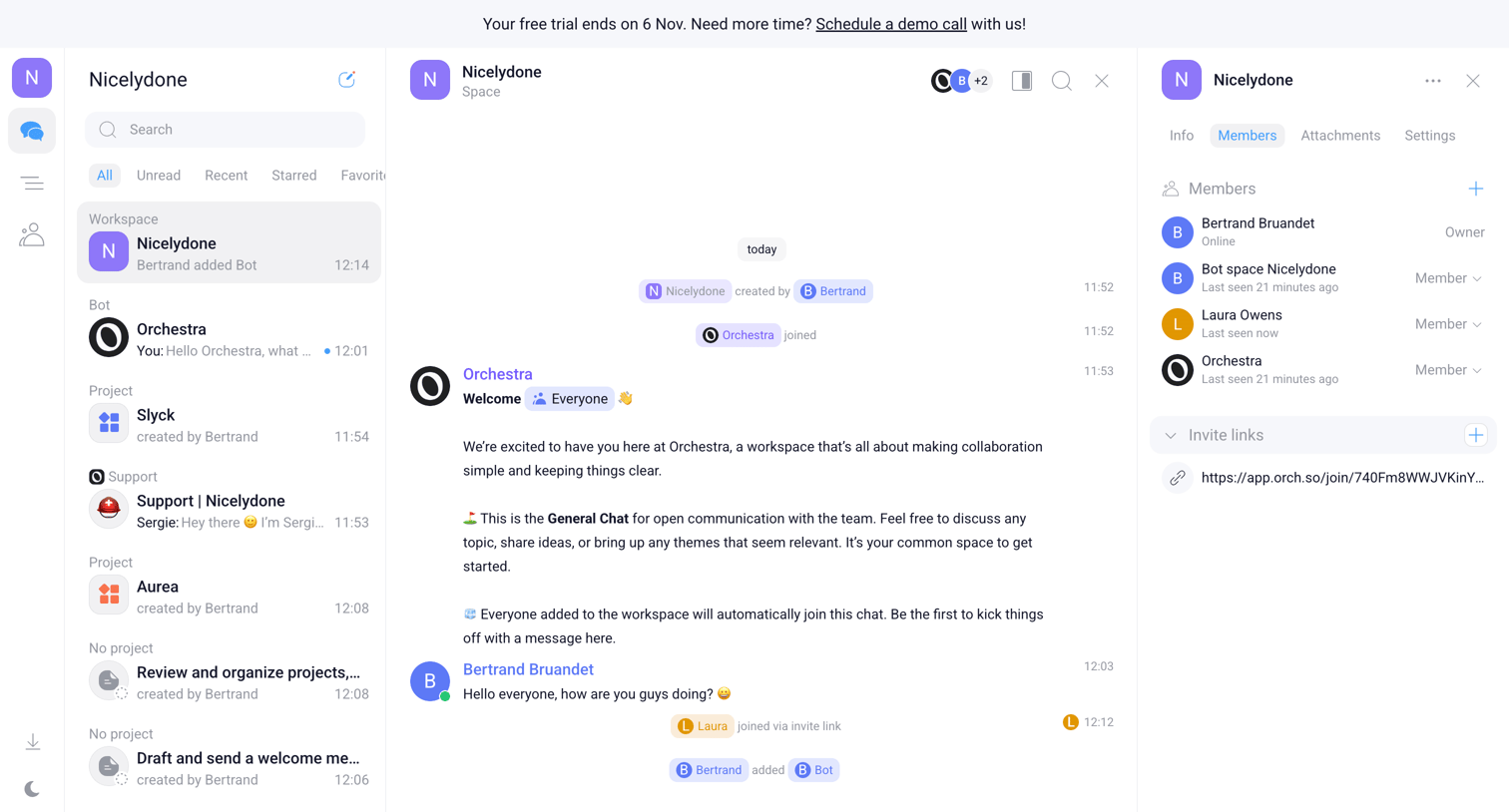

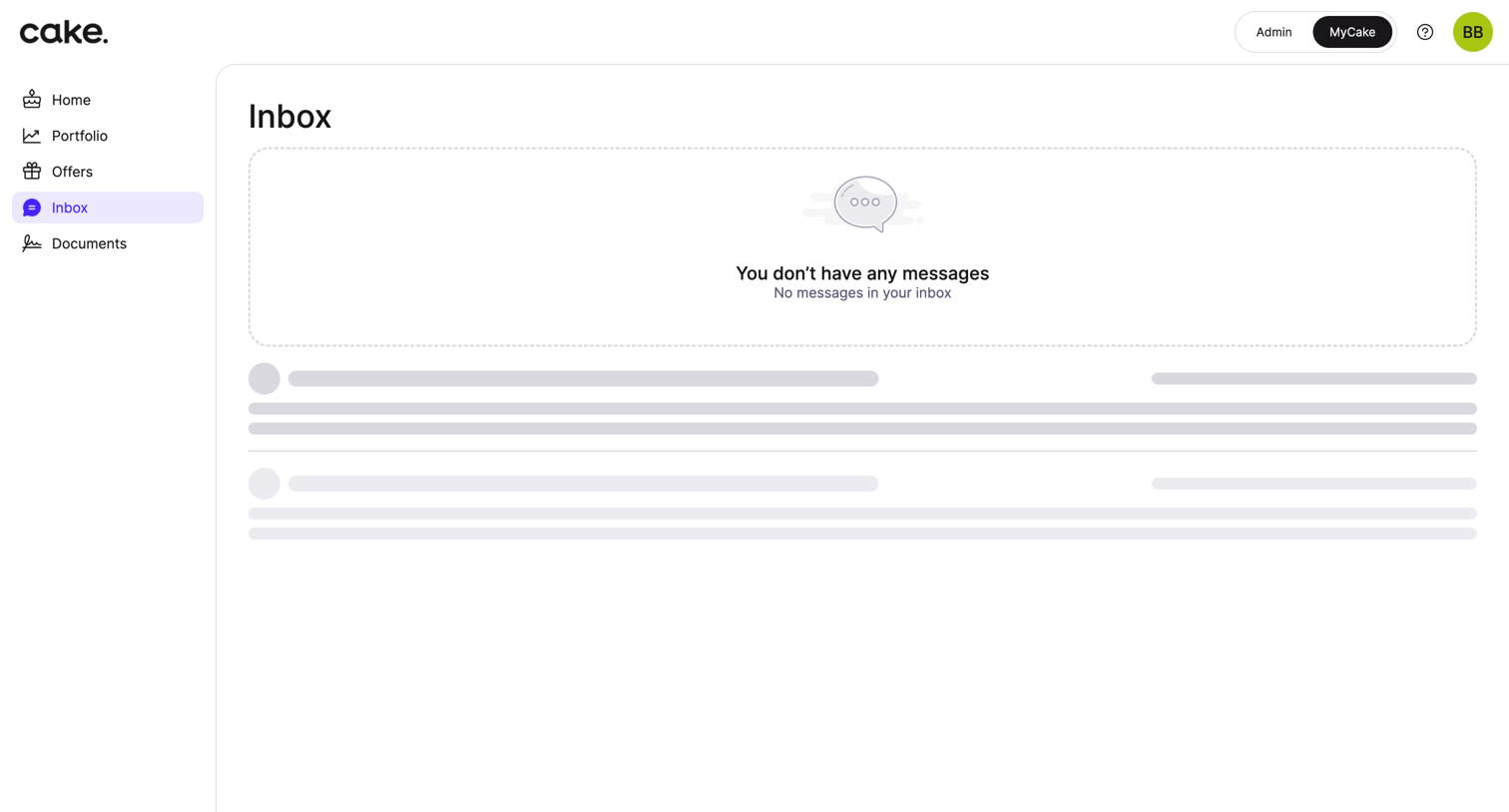

Inbox view showing an empty state with a placeholder illustration and skeleton loading rows for messages.
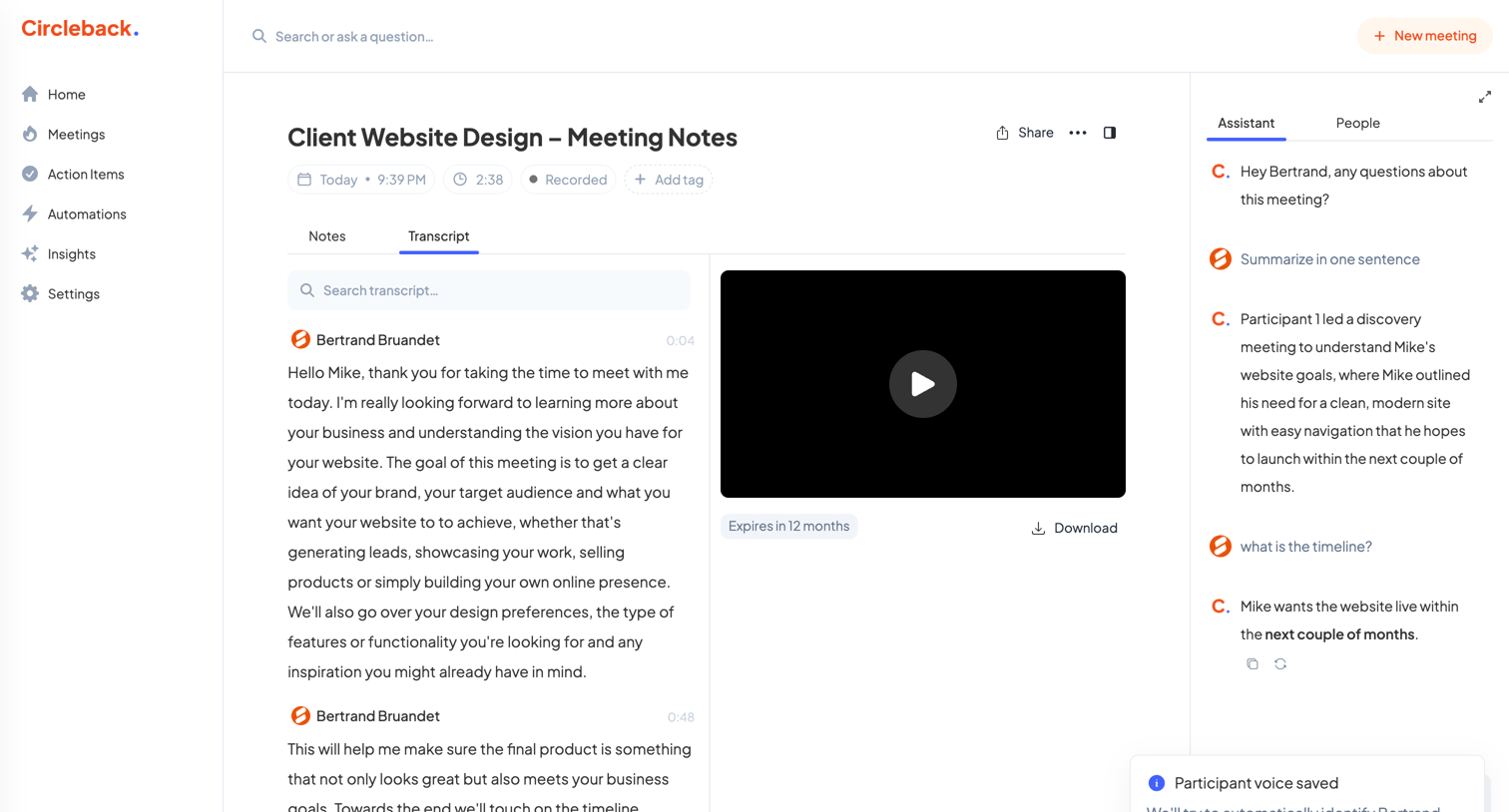

Detail page for a recorded meeting where the user can read the transcript, watch the video playback, and chat with an AI assistant about the meeting content.
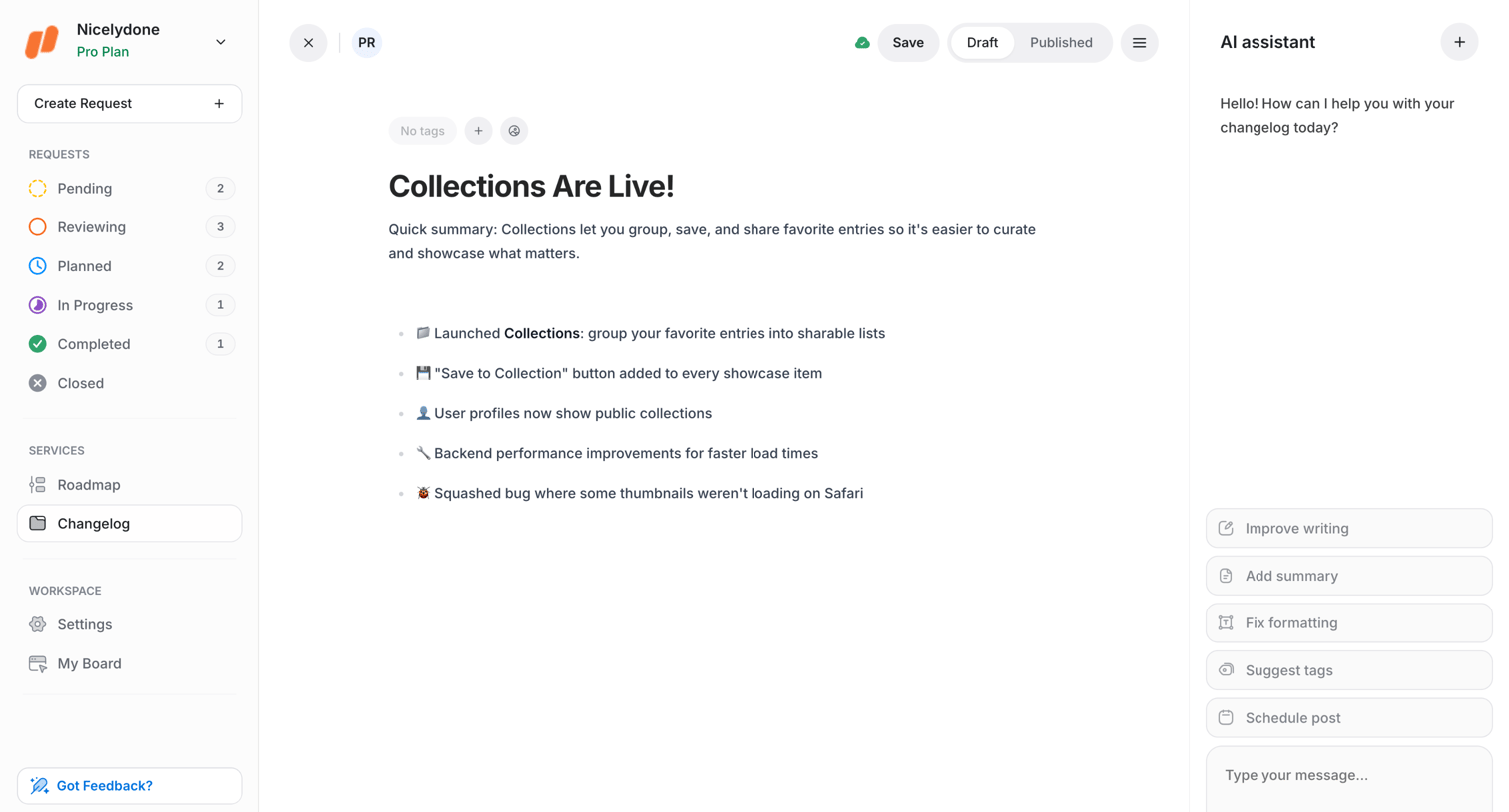

Content editor where the user drafts a changelog release note alongside an AI assistant panel for writing improvements and tag suggestions.
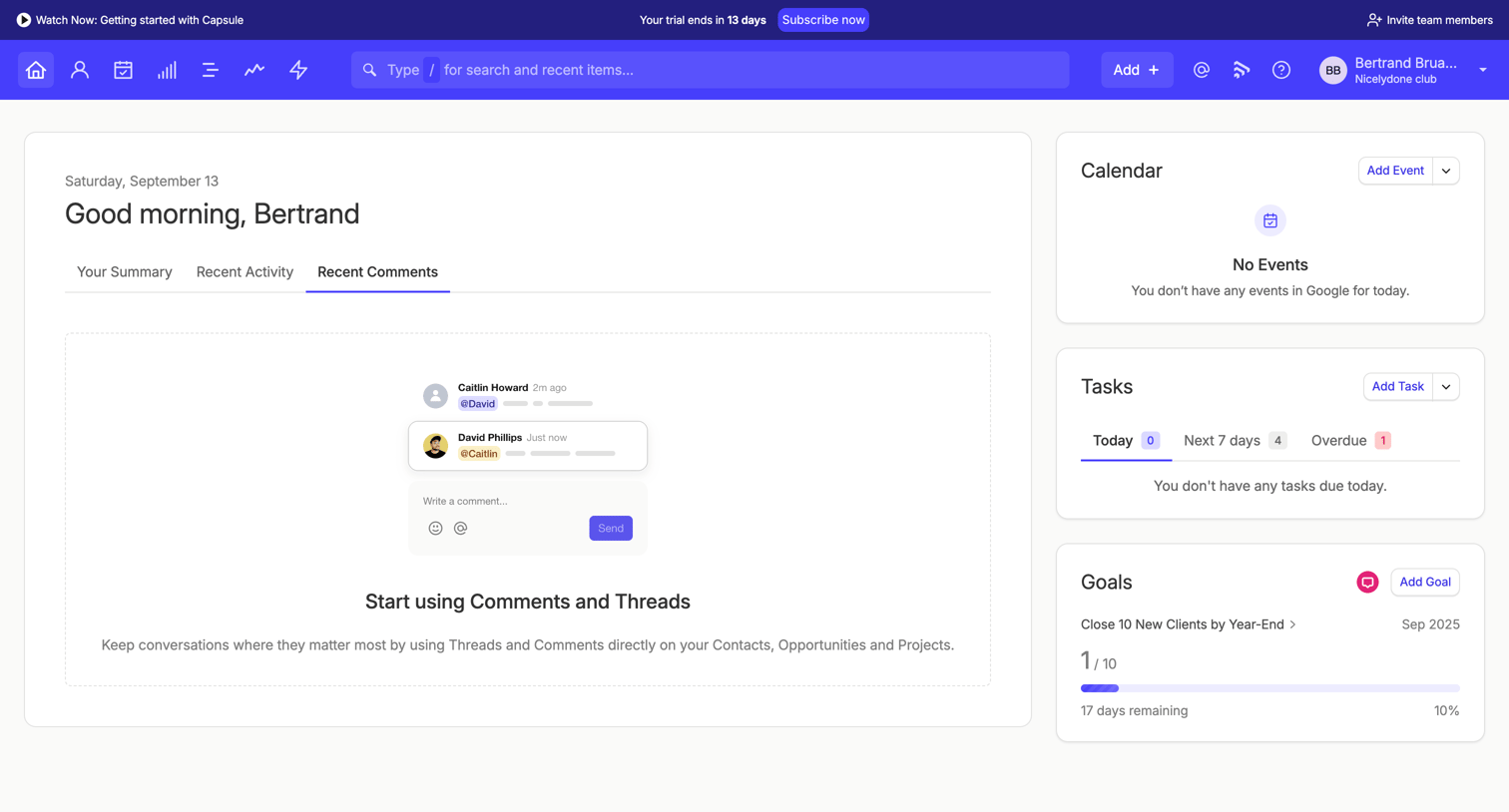
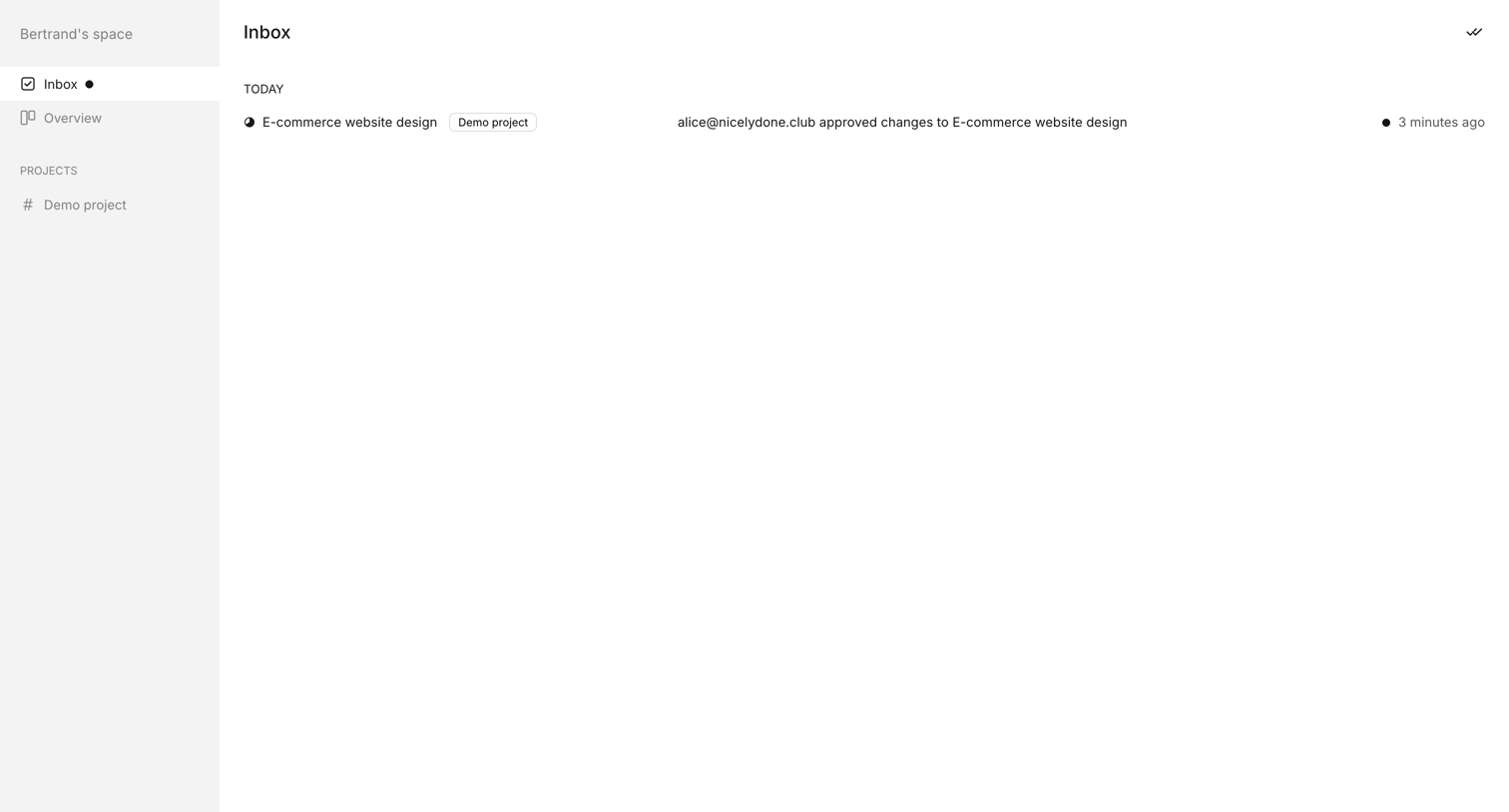

Inbox page where the user views recent notifications about project approvals and changes.
Explore the full SaaS screen library
Upgrade to unlock the full library.
Trusted by the best teams







