Message screen examples
Message screen design examples from SaaS apps. Browse examples from Dock, Beside, Exa.
Explore the examples
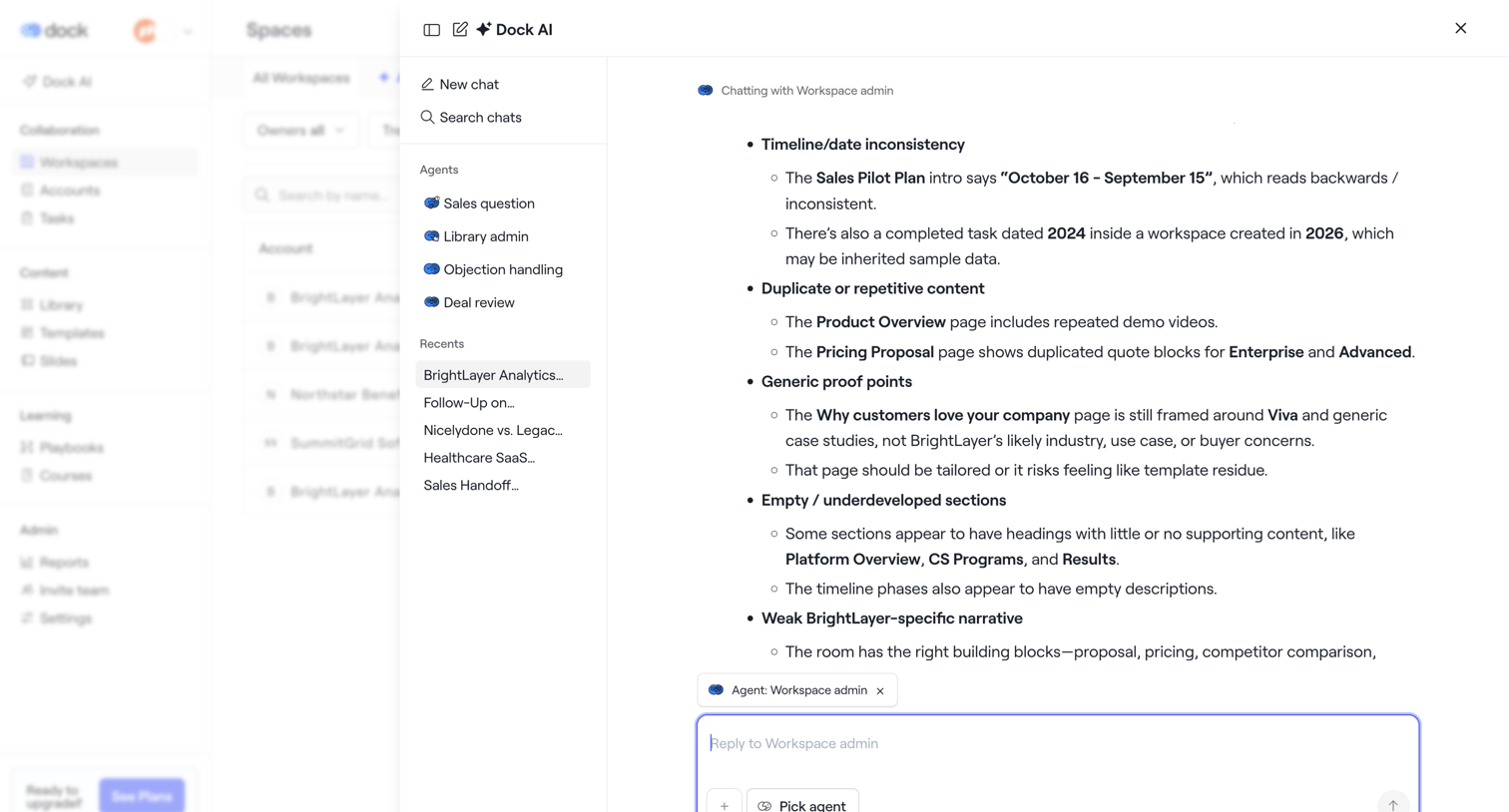

List view where the user has opened a large AI assistant drawer to chat with a workspace admin agent about document inconsistencies.
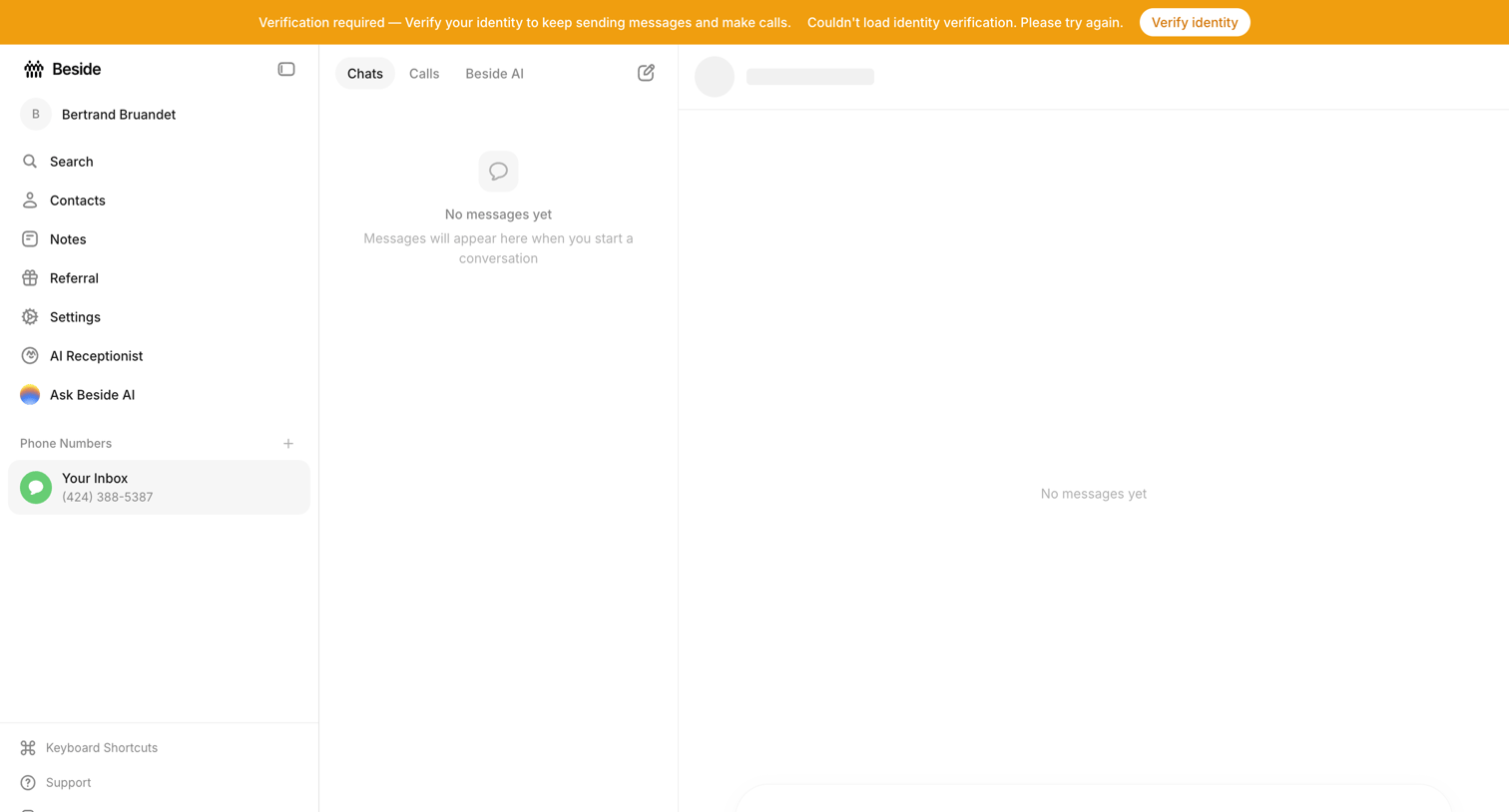

Inbox view where the user is prompted to verify their identity to continue sending messages, showing empty states for both the chat list and conversation panes.
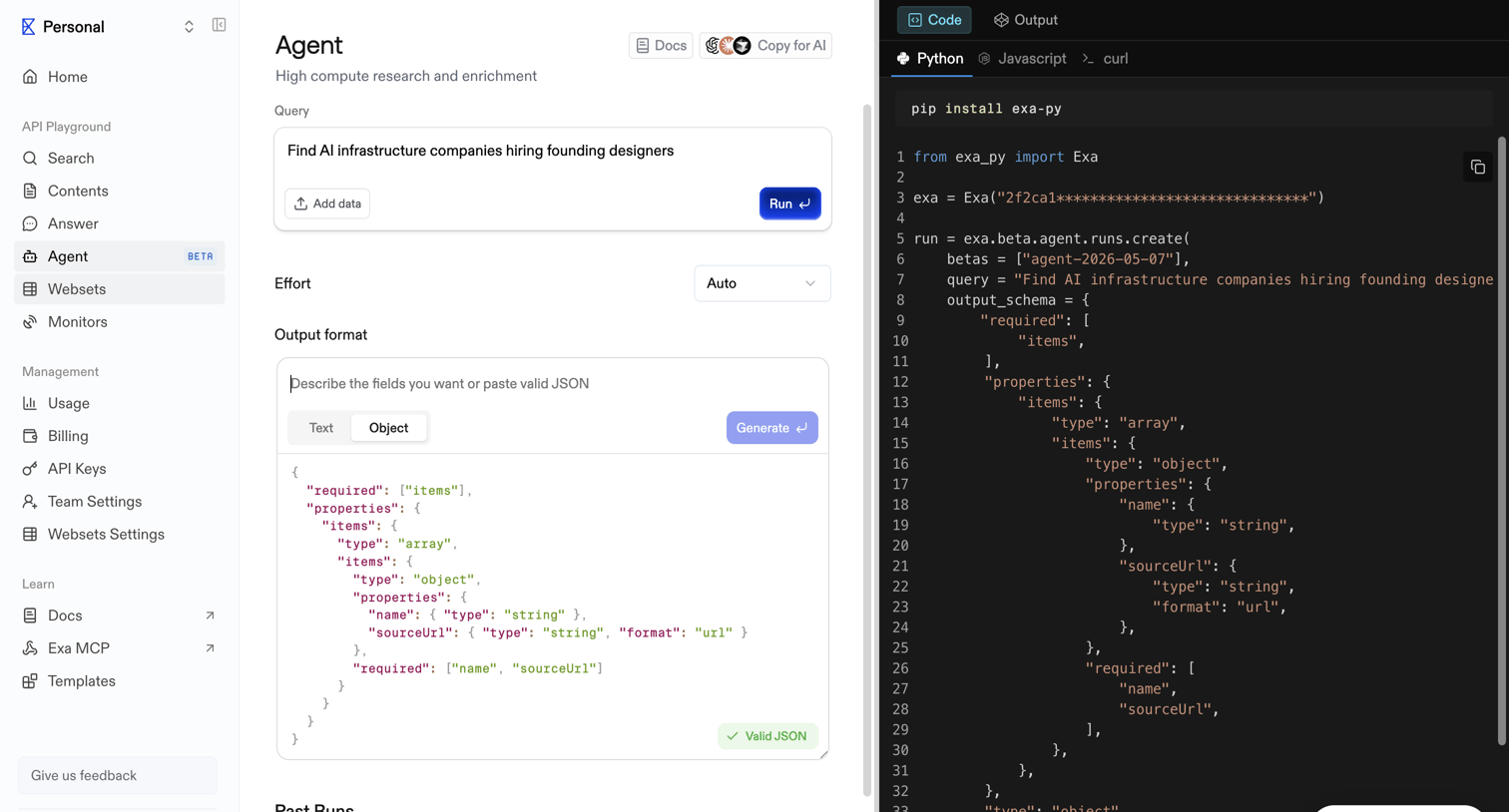

API playground where the user configures an AI agent's query, effort level, and JSON output schema while viewing the corresponding code snippet.
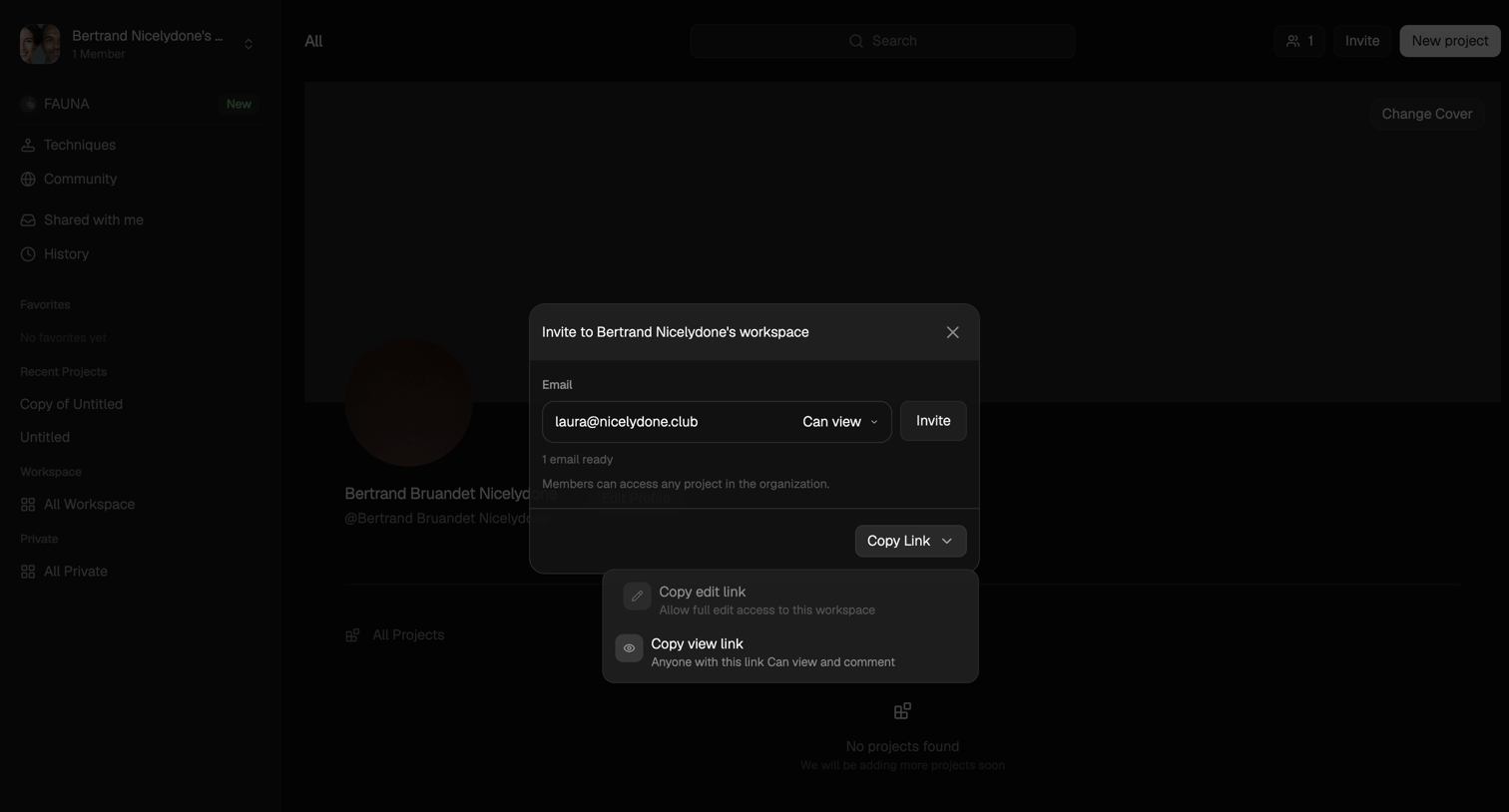

Detail page where the user invites teammates to their workspace via email or by copying a role-specific shareable link.
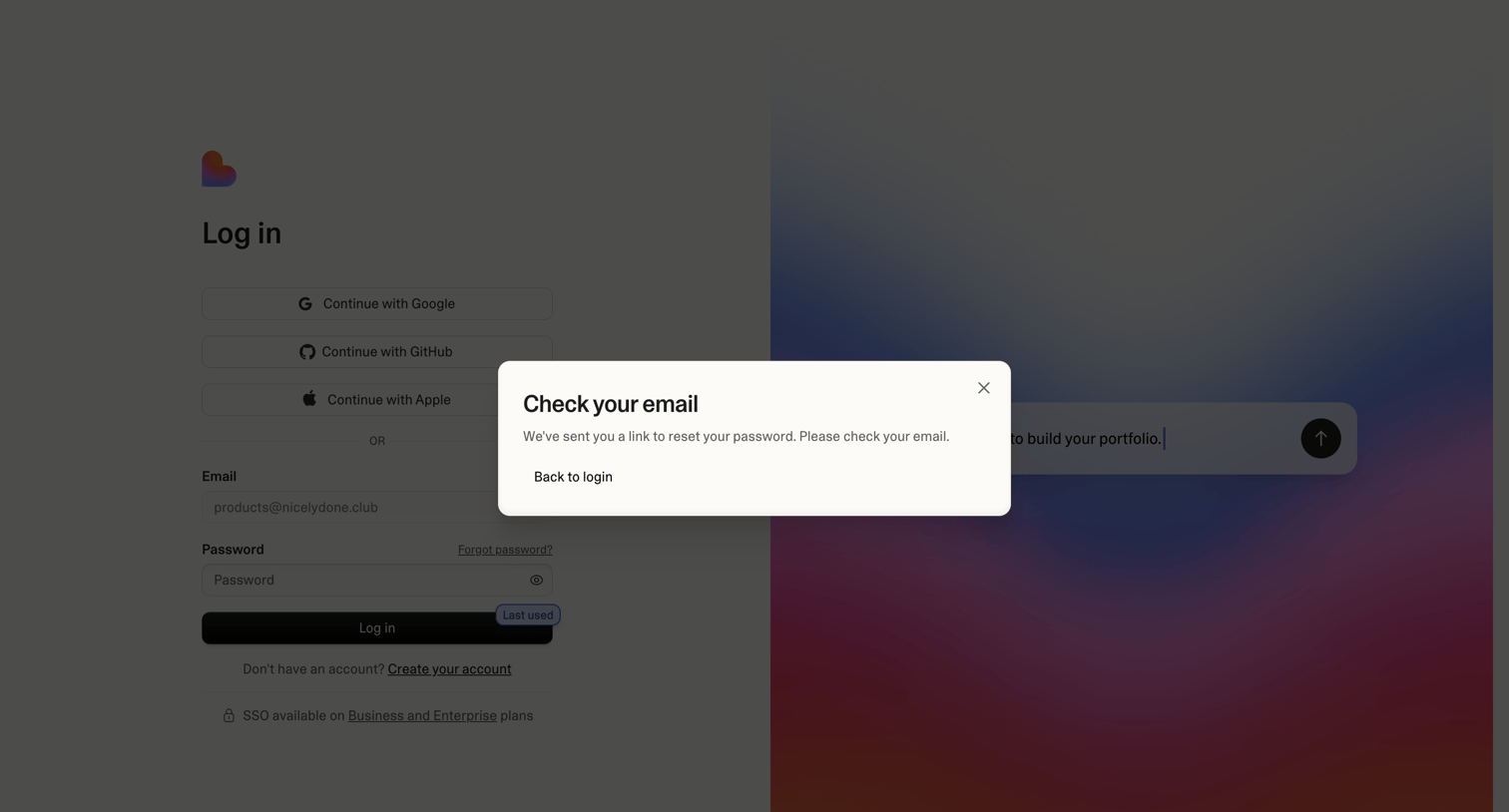

Authentication screen where a modal confirms that a password reset link has been sent to the user's email, prompting them to return to the login flow.
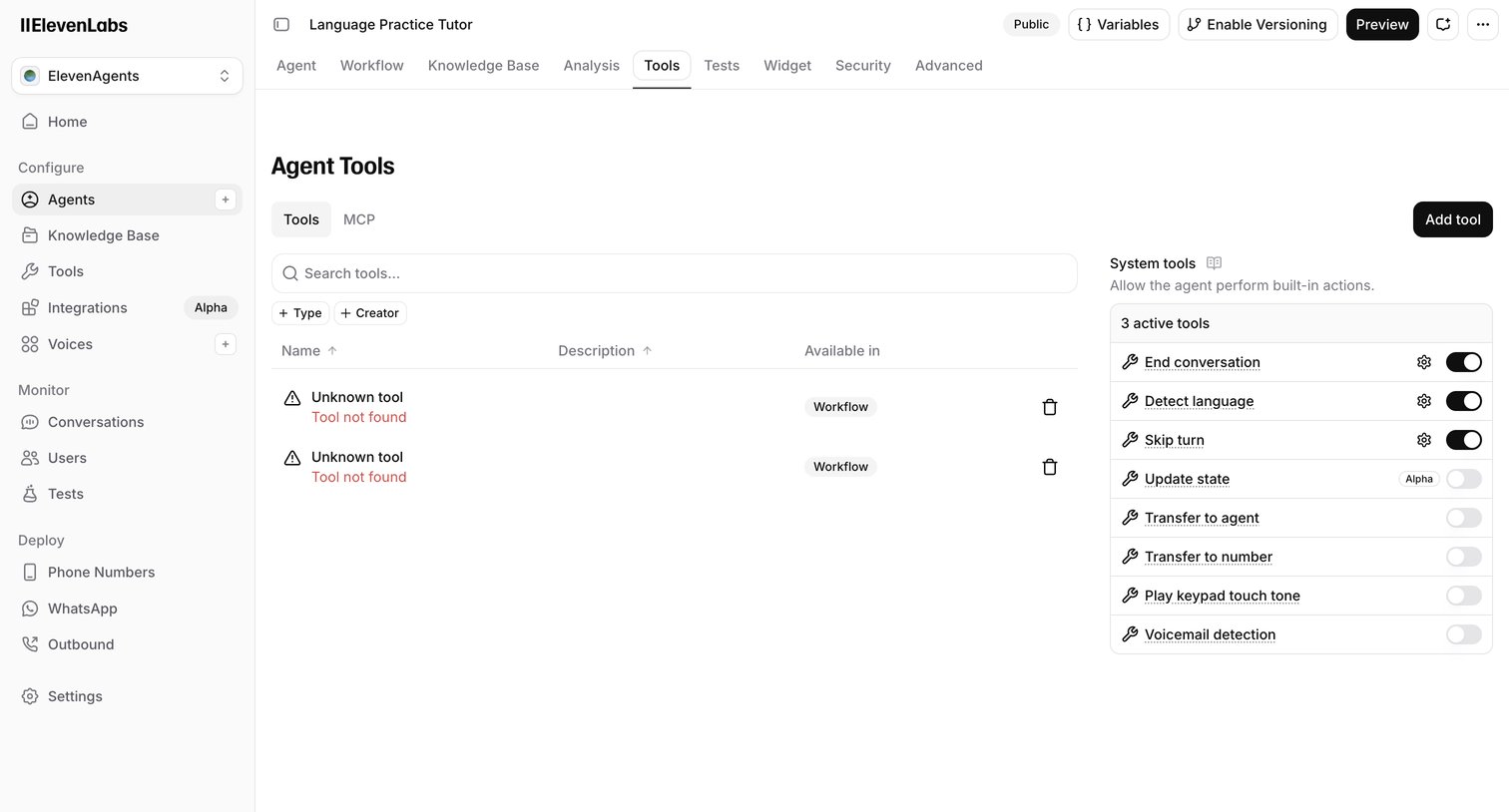

Settings page where the user configures custom and system tools for an AI agent, including enabling built-in actions like ending conversations or detecting language.
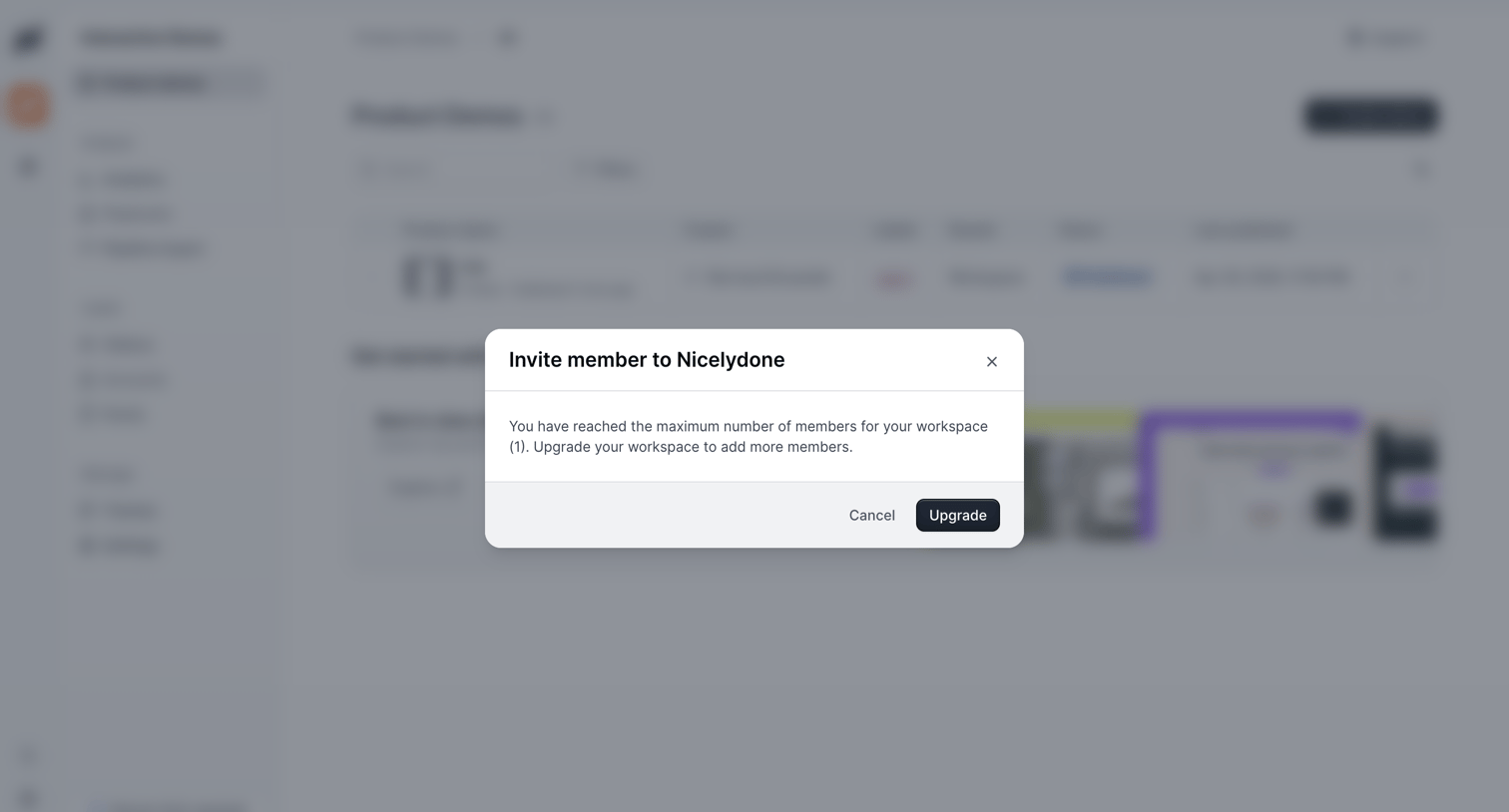

Upgrade prompt modal triggered when a user tries to invite a new member but has reached their workspace seat limit.
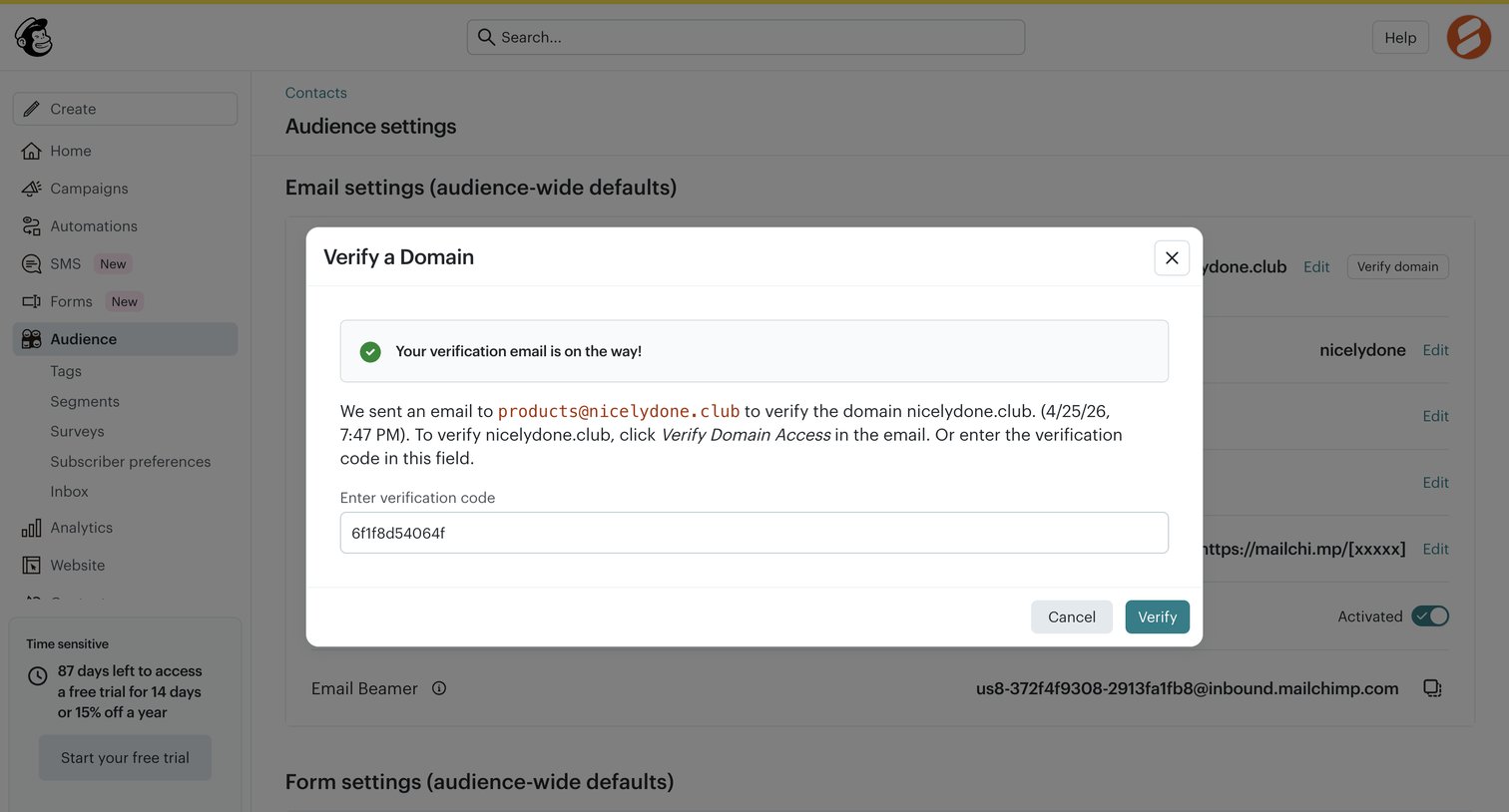

Settings page where the user enters a verification code sent to their email to verify a custom domain.
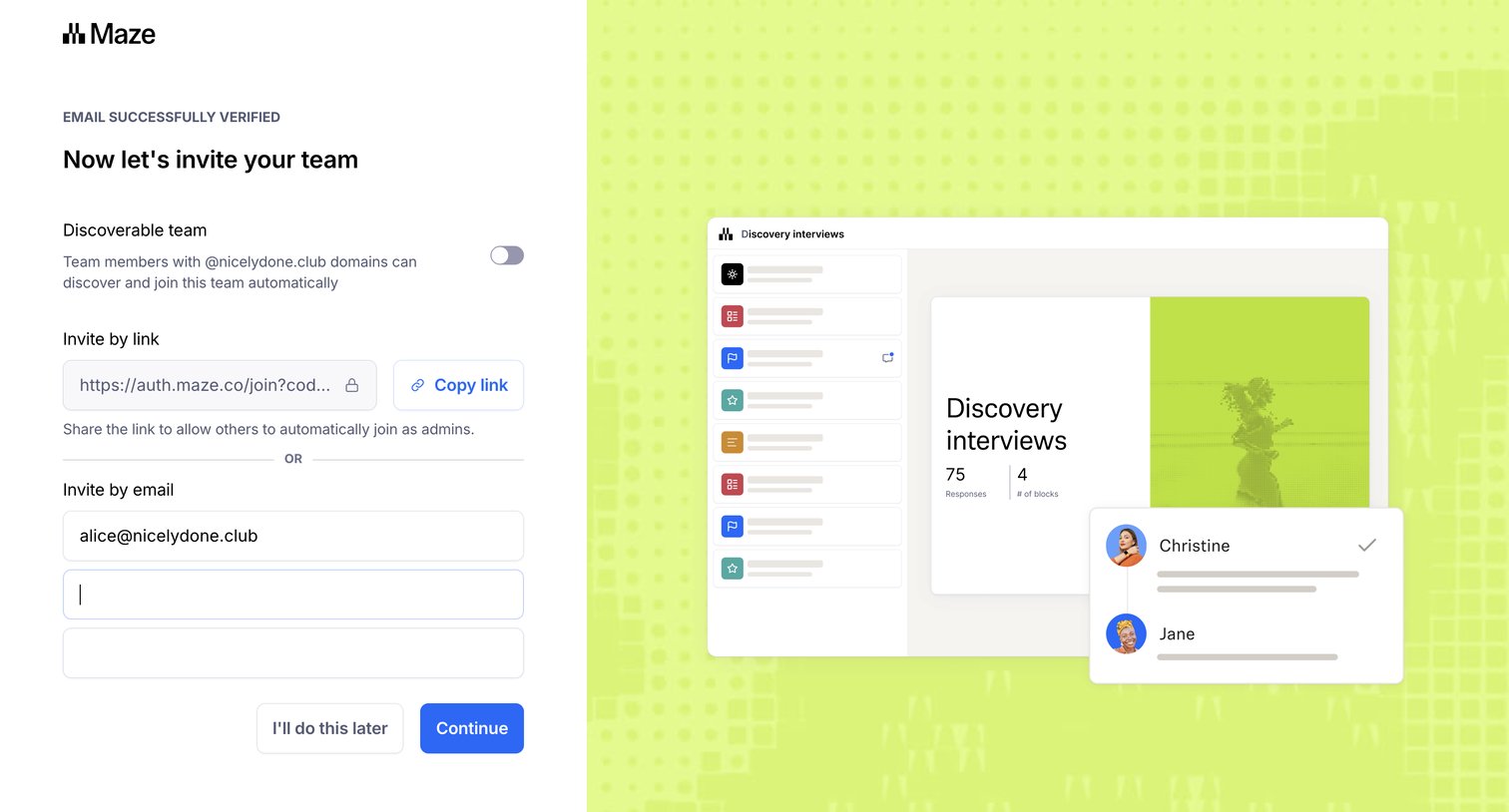

Onboarding step where the user can enable domain discoverability, copy an invite link, or invite teammates by email before continuing.
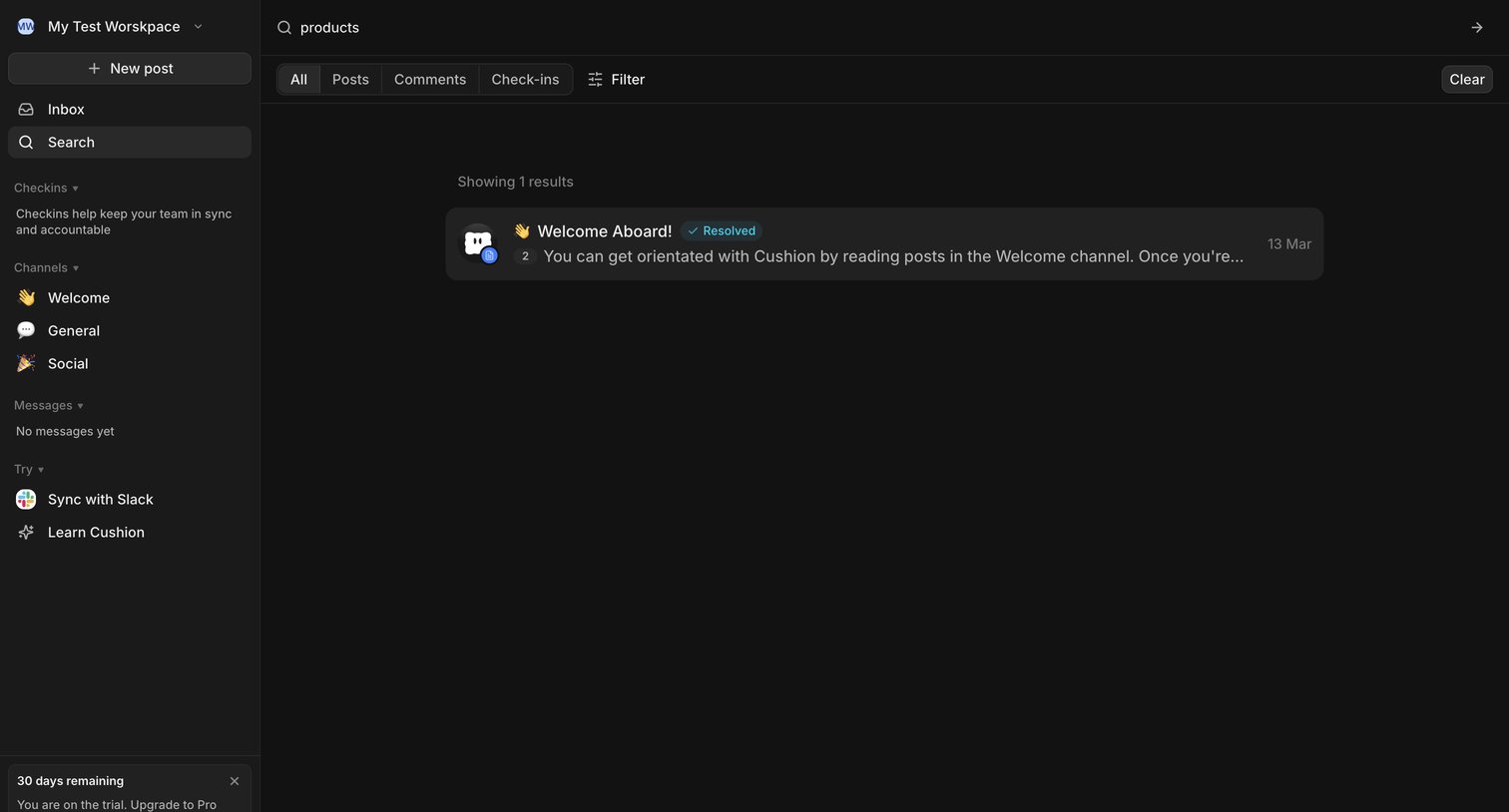

Search results page where the user filters by posts, comments, or check-ins to find specific content within their workspace.
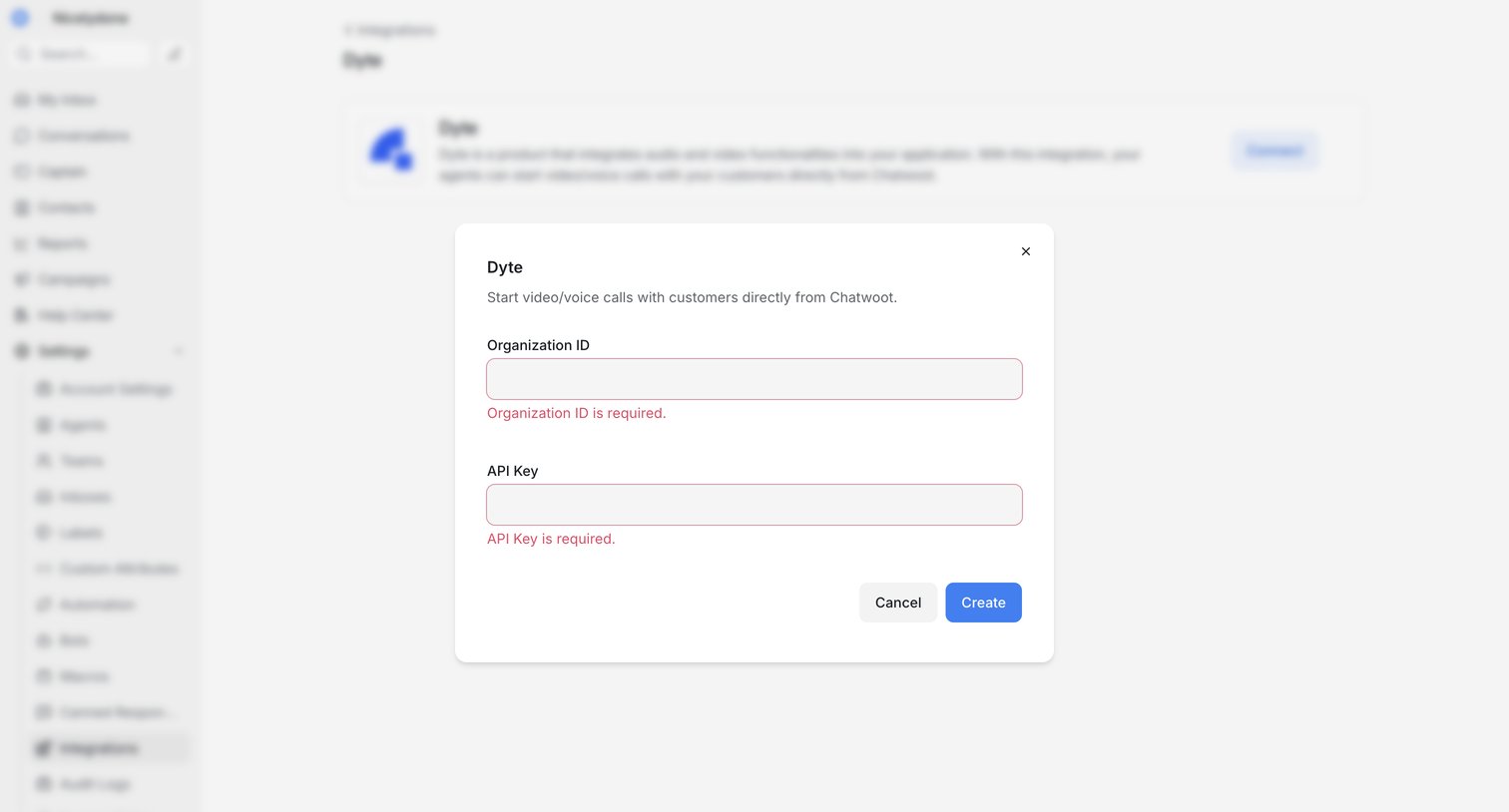

Settings page where the user configures the Dyte integration by entering their Organization ID and API Key, currently showing validation errors in a modal.
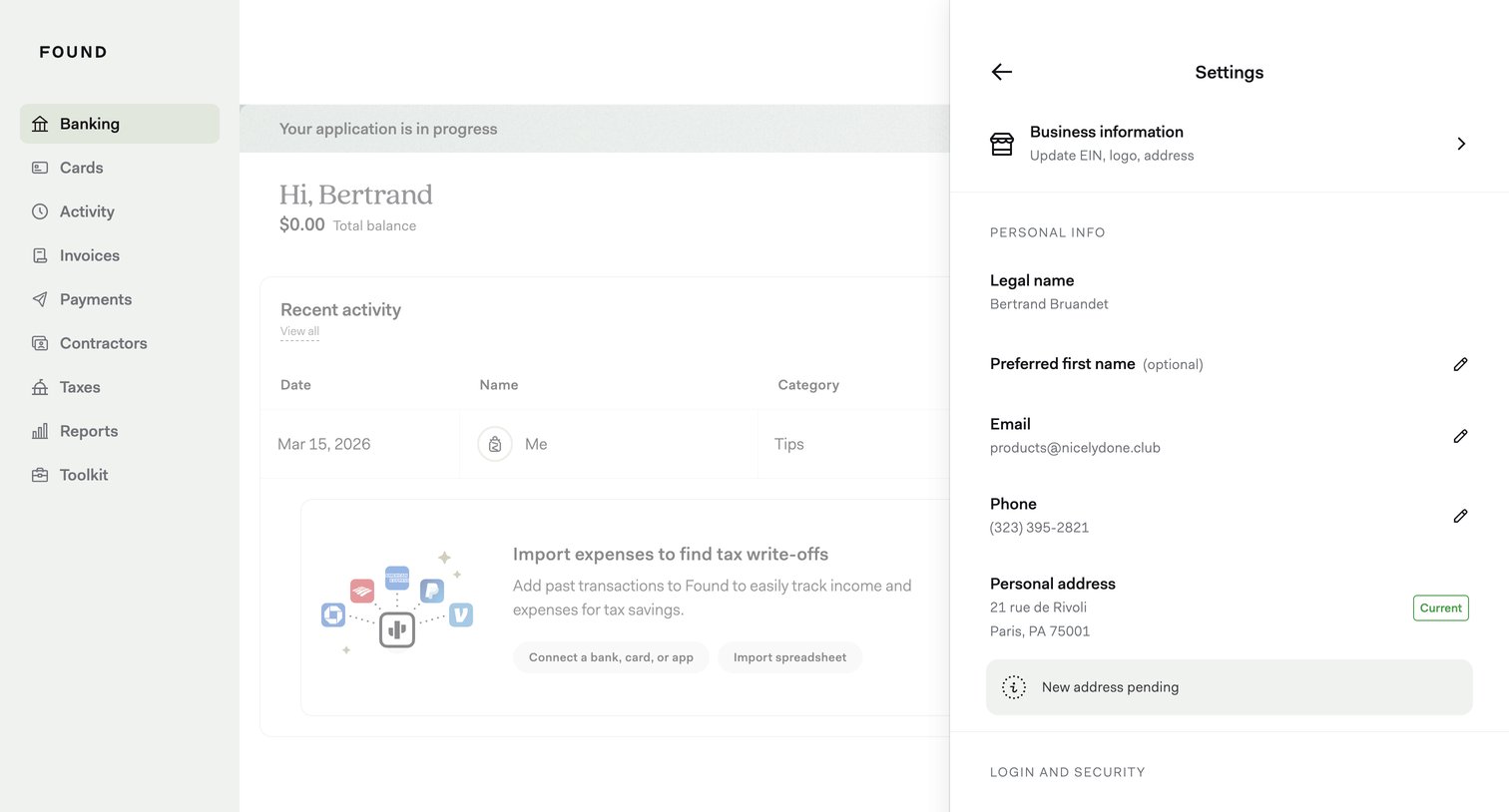

Settings drawer where the user views and edits their personal information, address, and login security details over a banking dashboard.
Explore the full SaaS screen library
Upgrade to unlock the full library.
Trusted by the best teams







