Navigation bar screen examples
Navigation bar screen design examples from SaaS apps. Browse examples from Dock, Beside, Exa.
Explore the examples
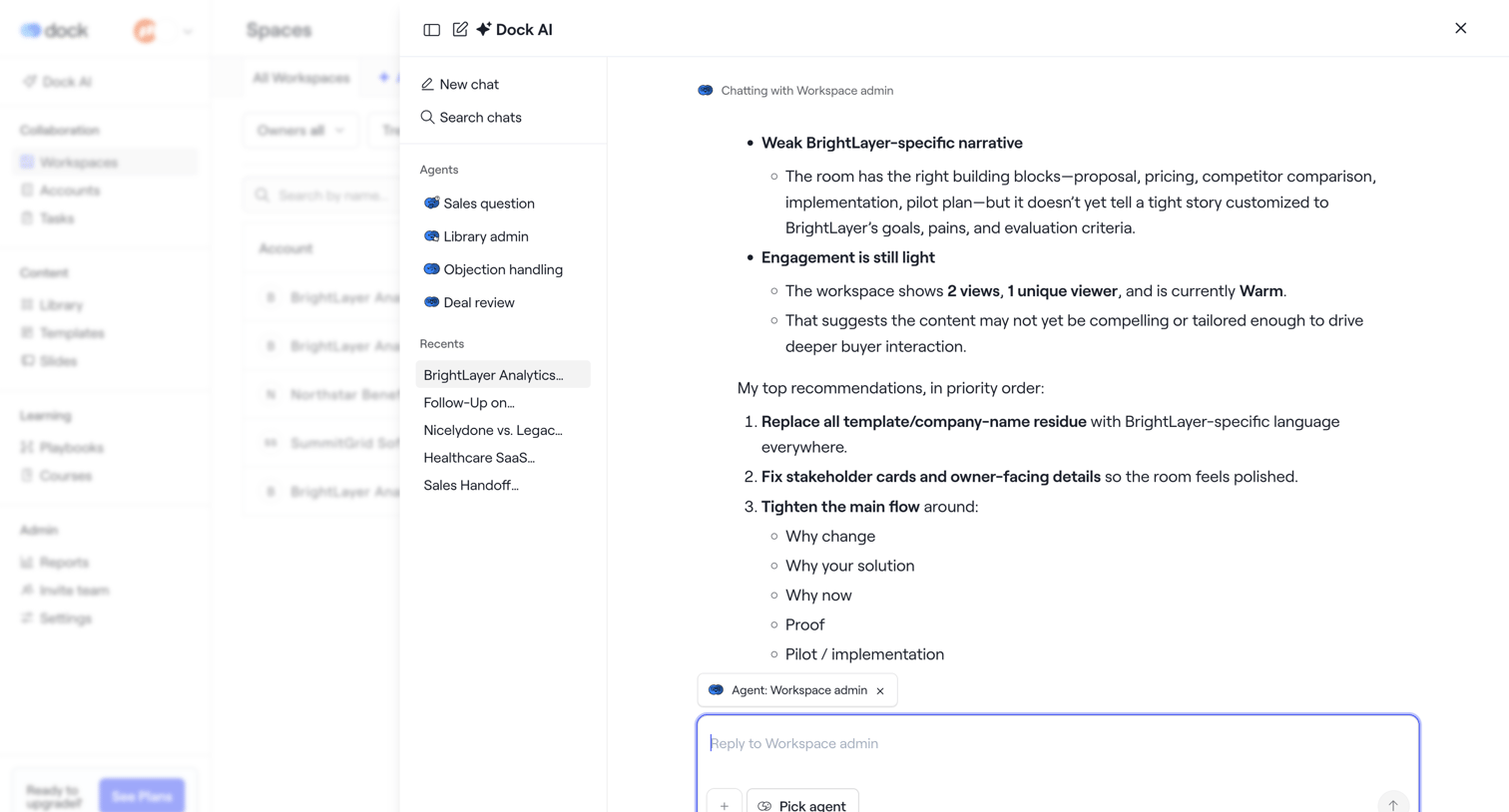

AI chat overlay where the user interacts with a Workspace admin agent to review recommendations and engagement metrics for a specific workspace.
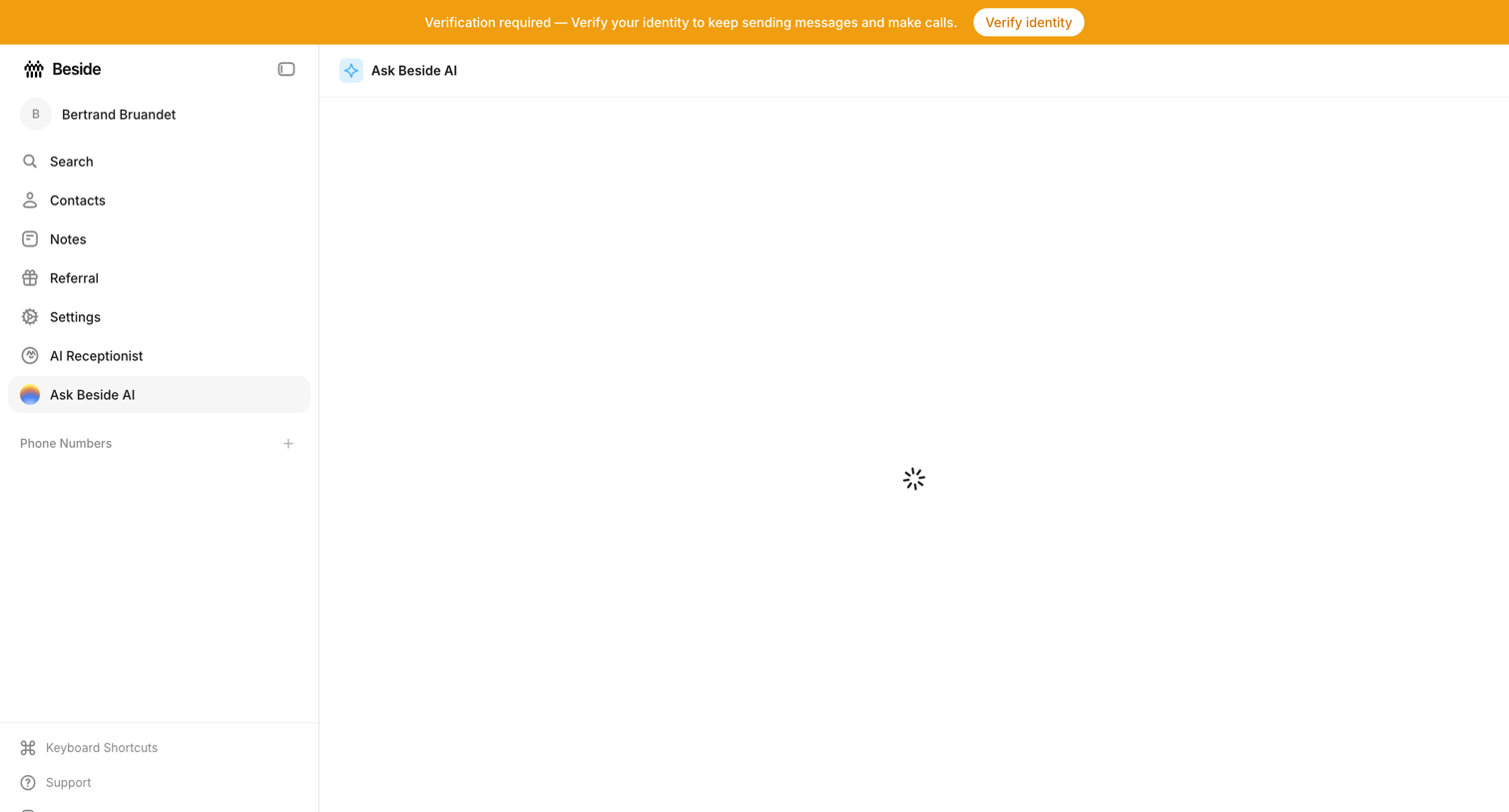

AI chat interface where the main conversation view is currently loading, accompanied by a prominent system banner requiring identity verification.
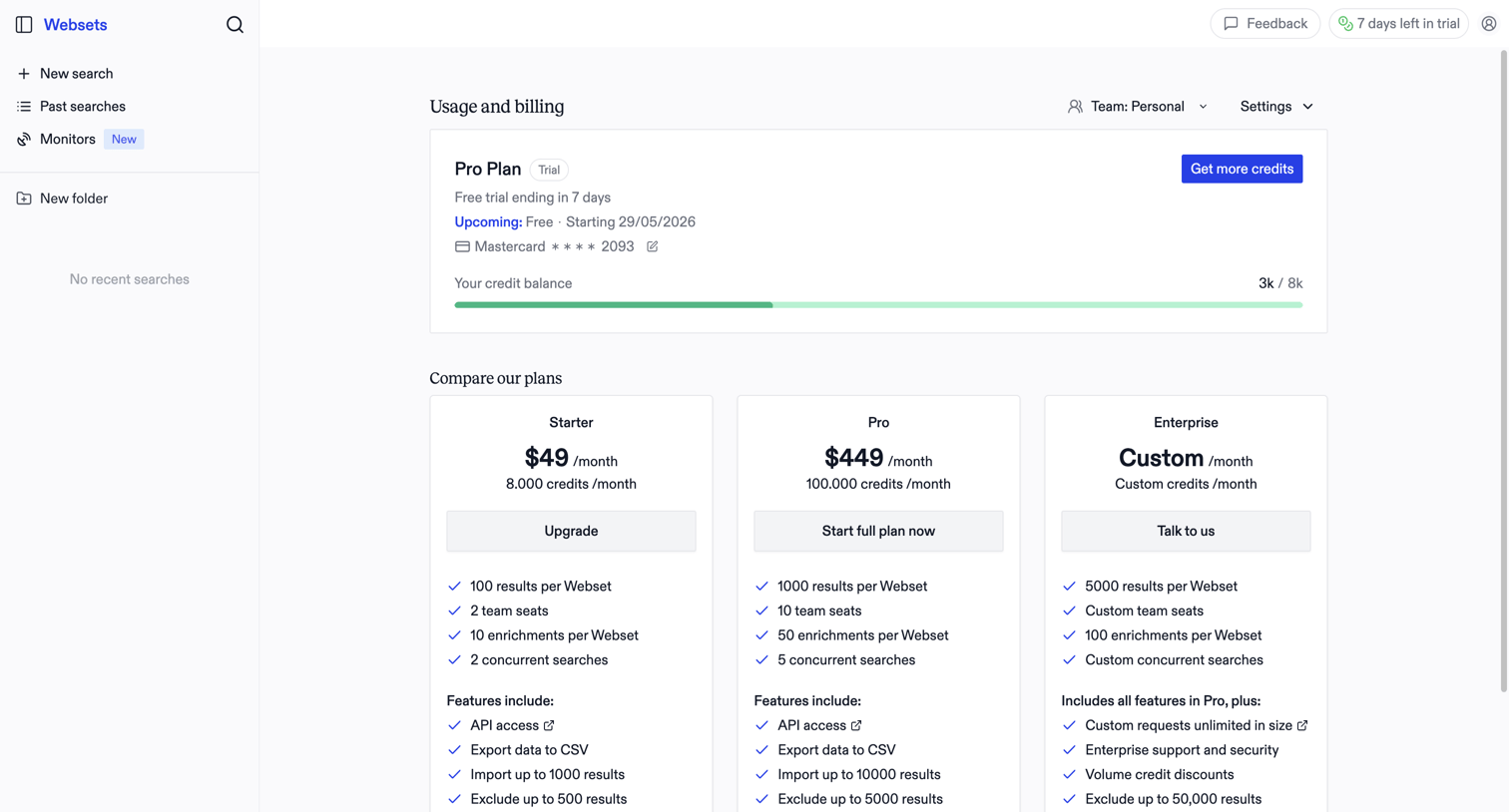

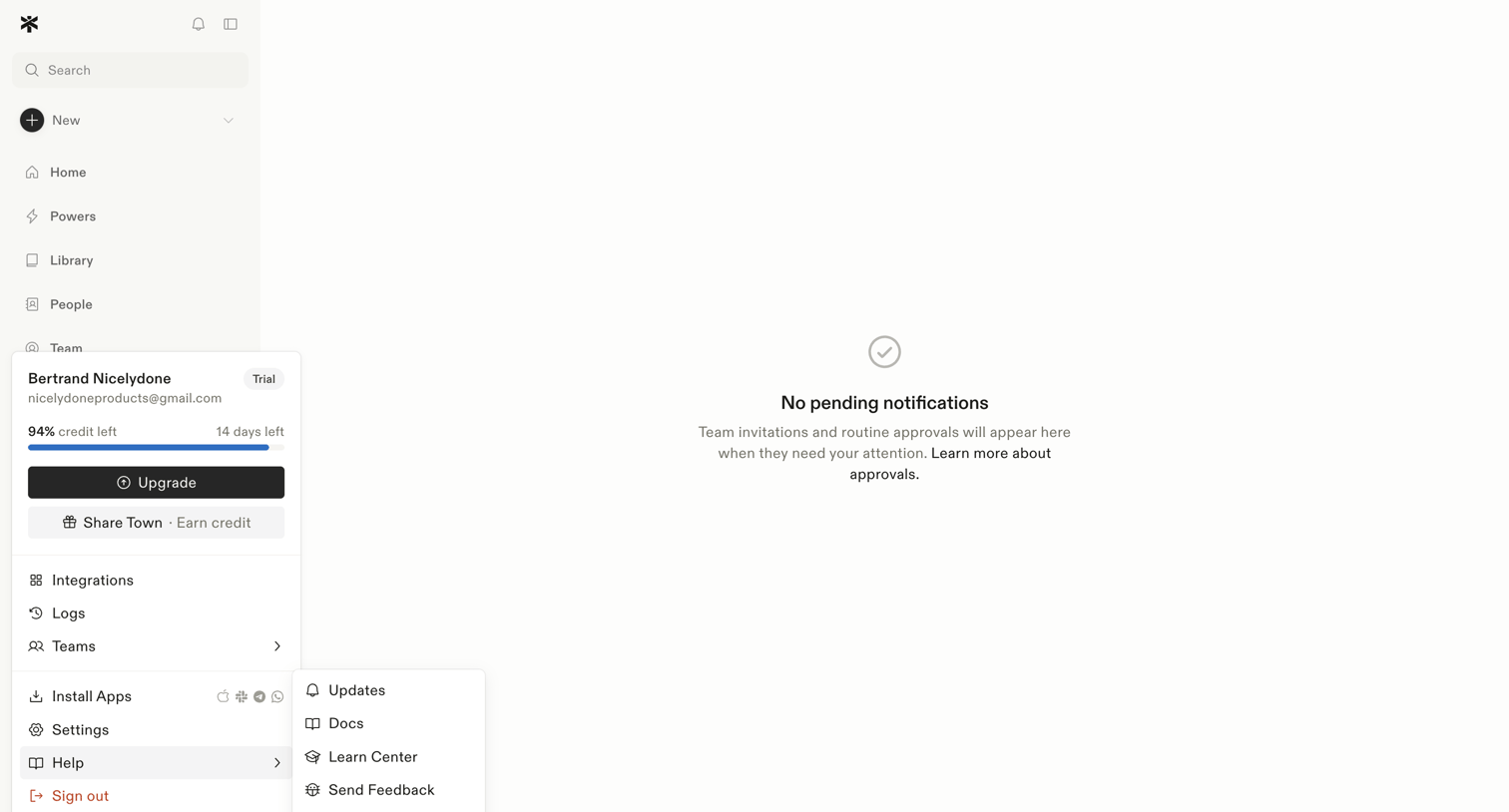

Inbox view where the user manages team invitations and routine approvals, currently showing a zero-state message with no pending items.
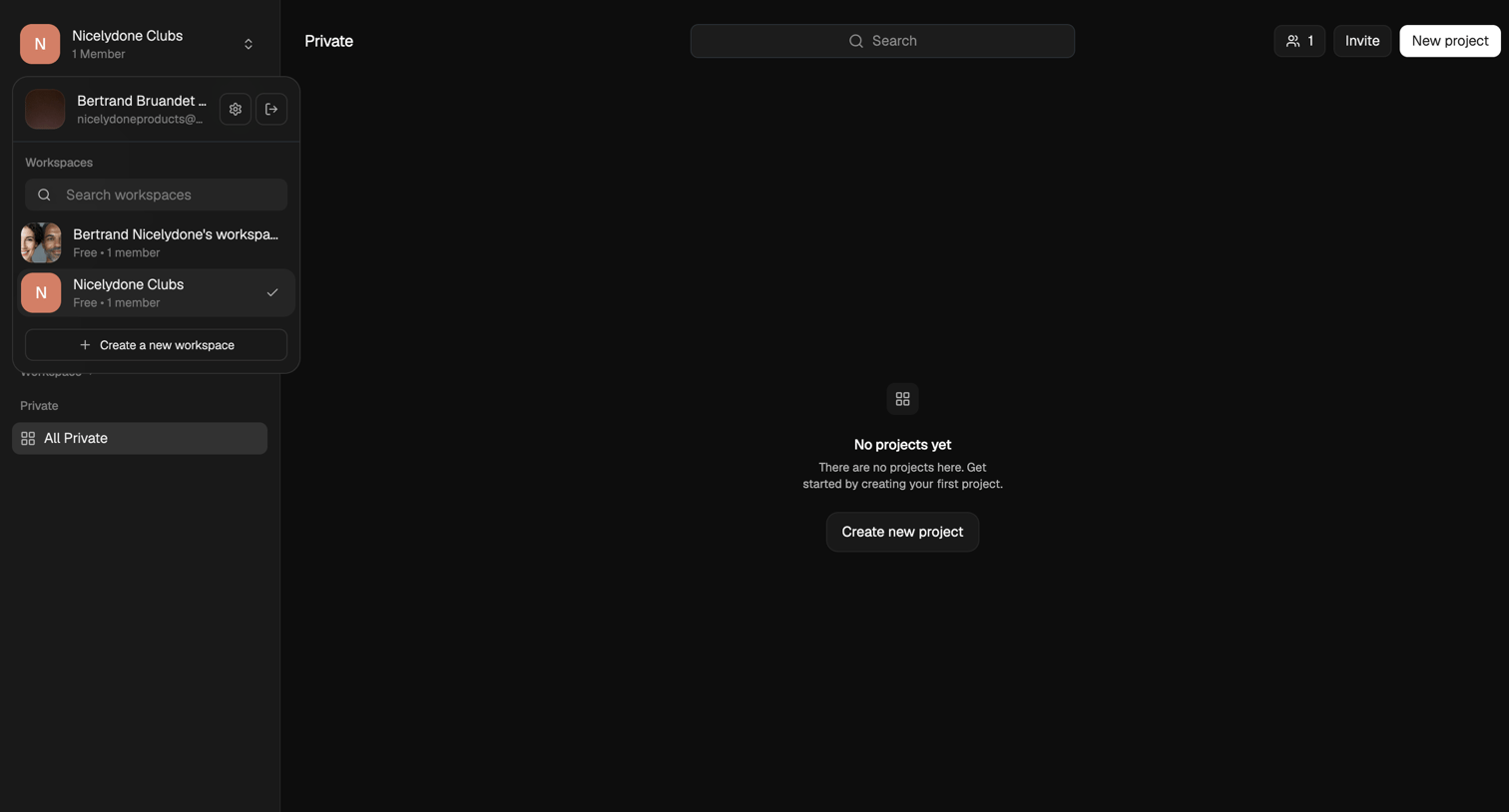

List view where the user is prompted to create their first project in a private workspace.
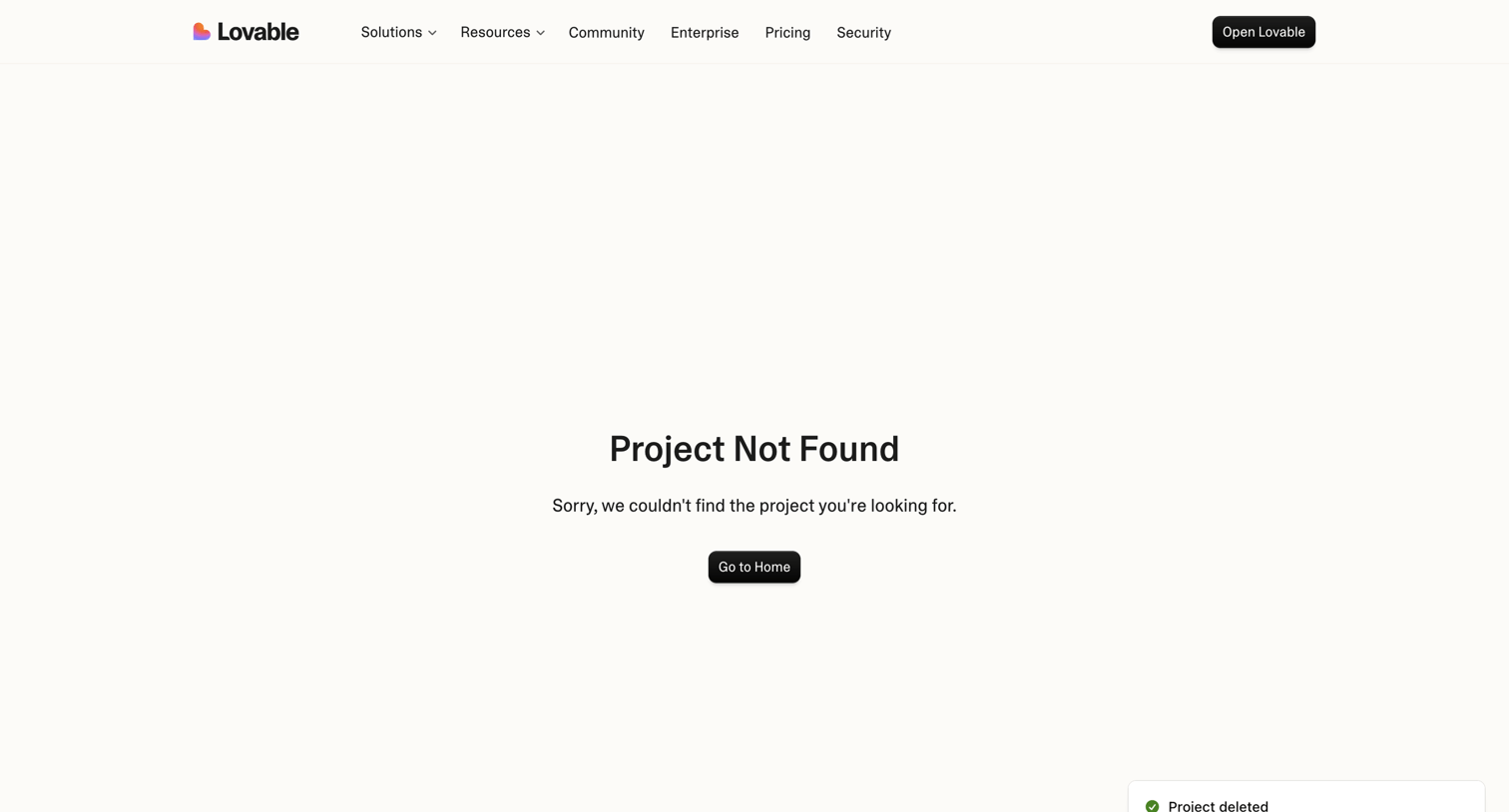

404 error page indicating a project could not be found, featuring a success toast confirming the project's deletion.
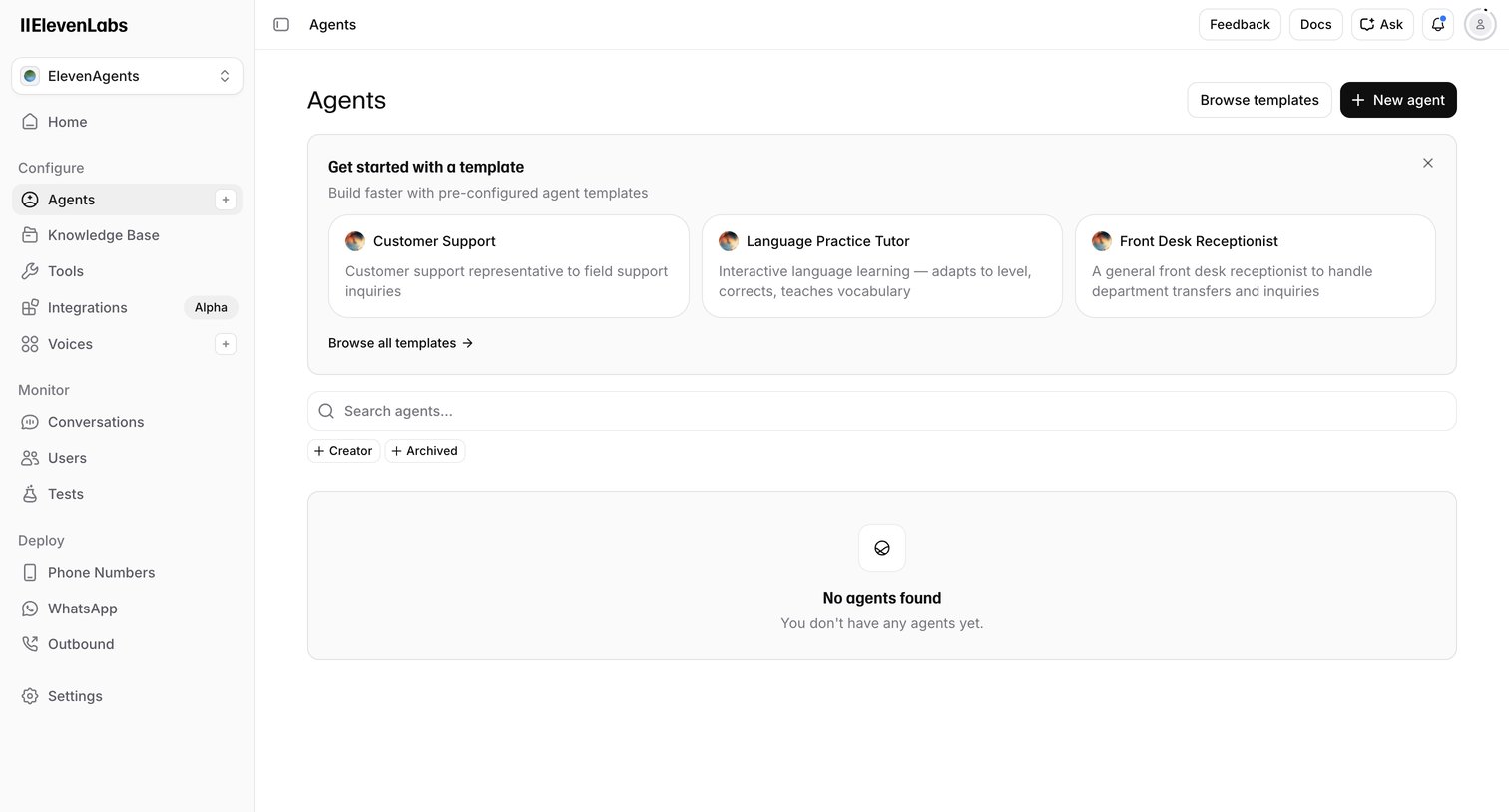

List view where the user can create a new AI agent, search existing ones, or start from templates like Customer Support or Language Practice Tutor.
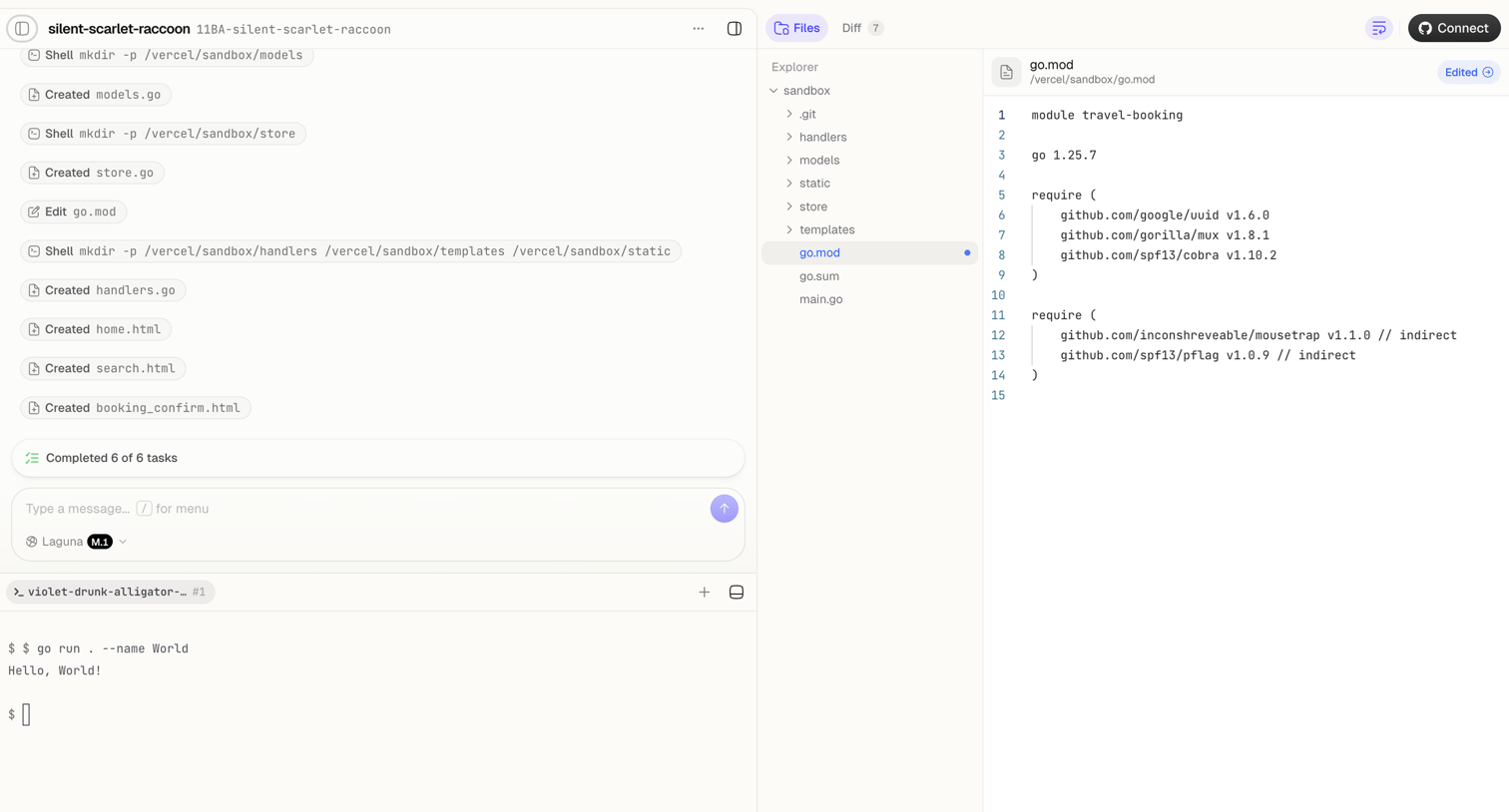

Agent trace interface where the user monitors an AI completing file creation and shell tasks, alongside a code editor showing the modified go.mod file and a live terminal.
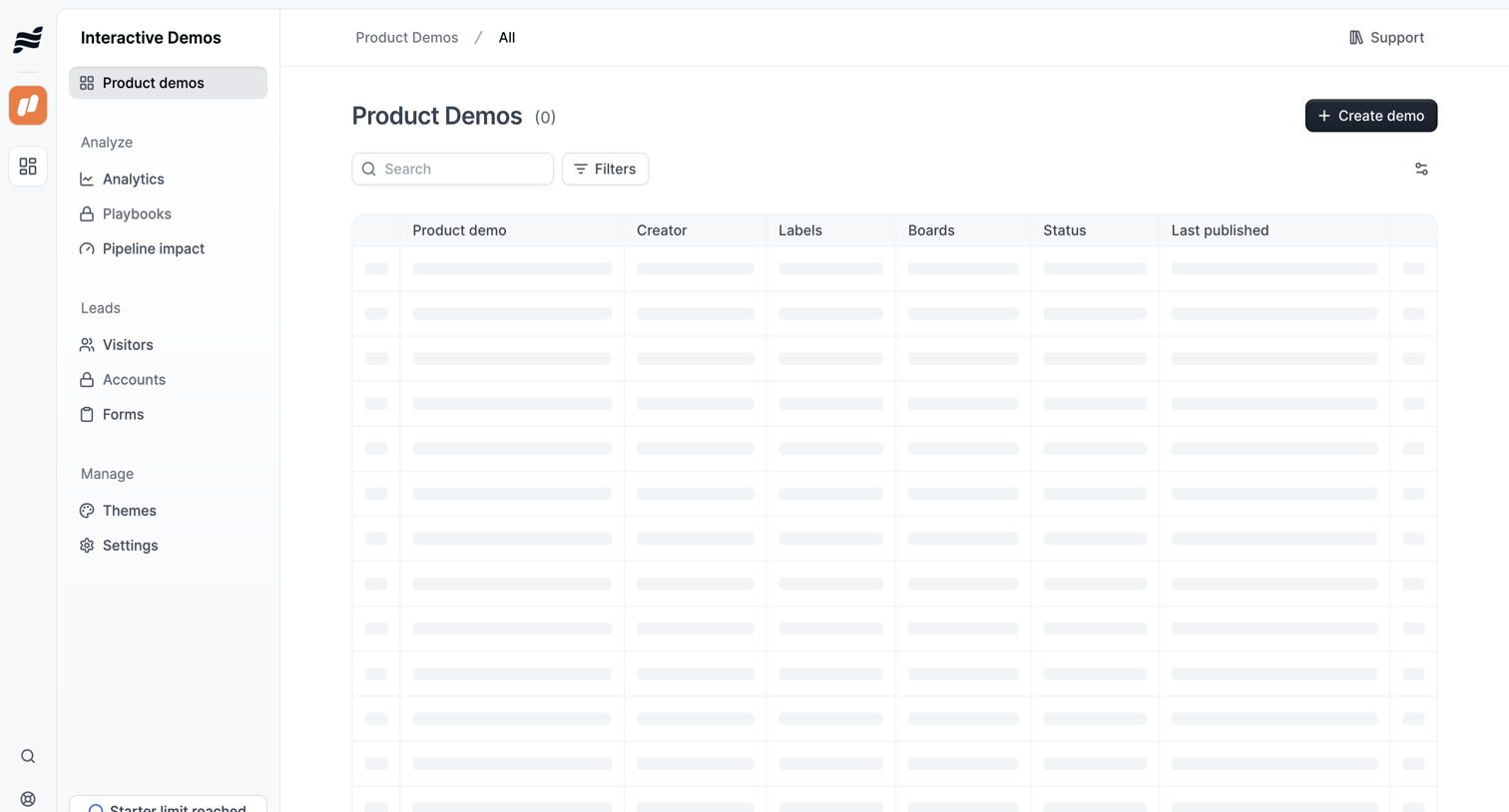

List view where the user manages product demos, currently showing a skeleton loading state for the data table alongside search and filter controls.
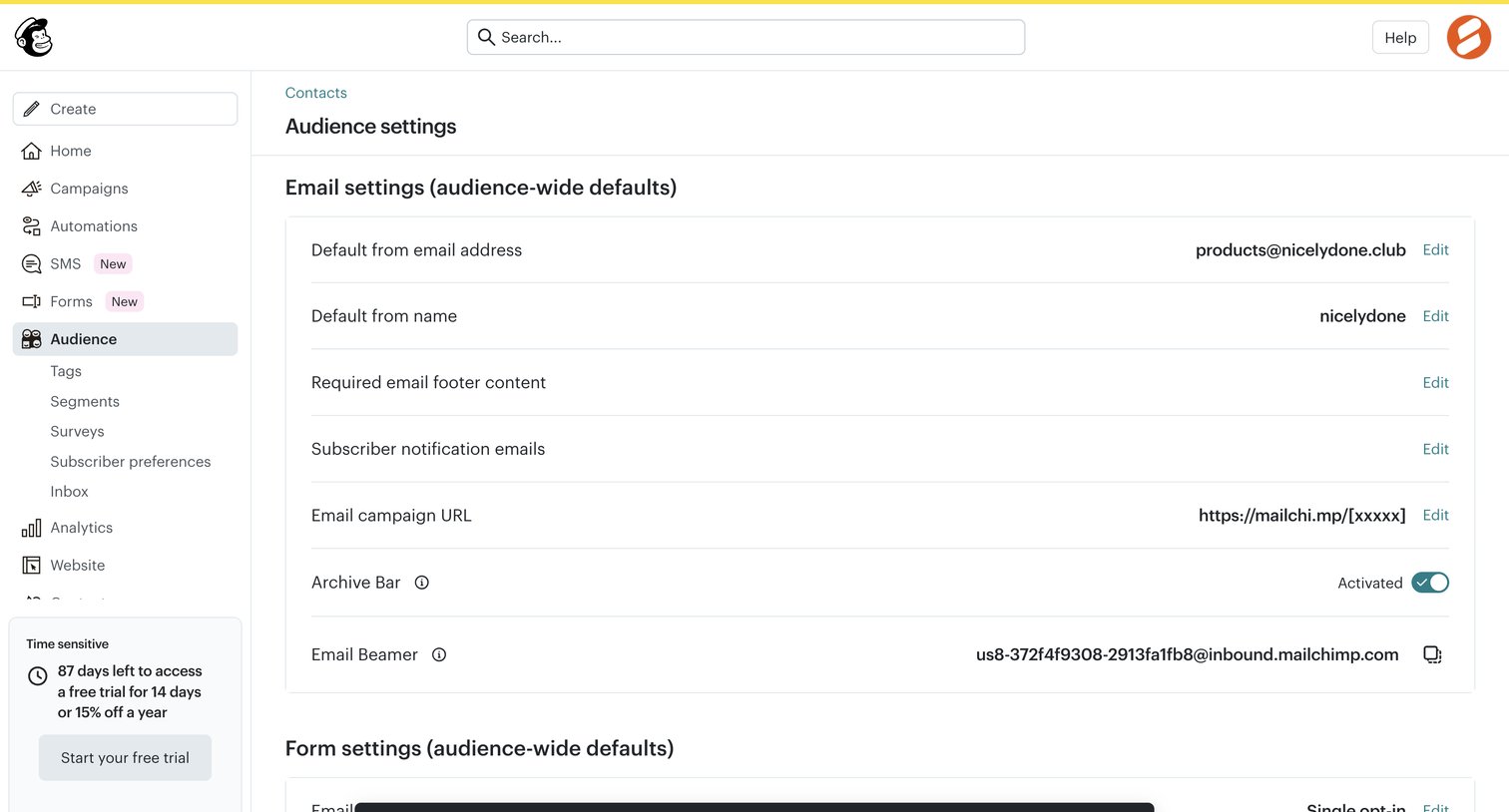

Settings page where the user configures audience-wide defaults for email and form settings, featuring a success toast confirming domain verification.
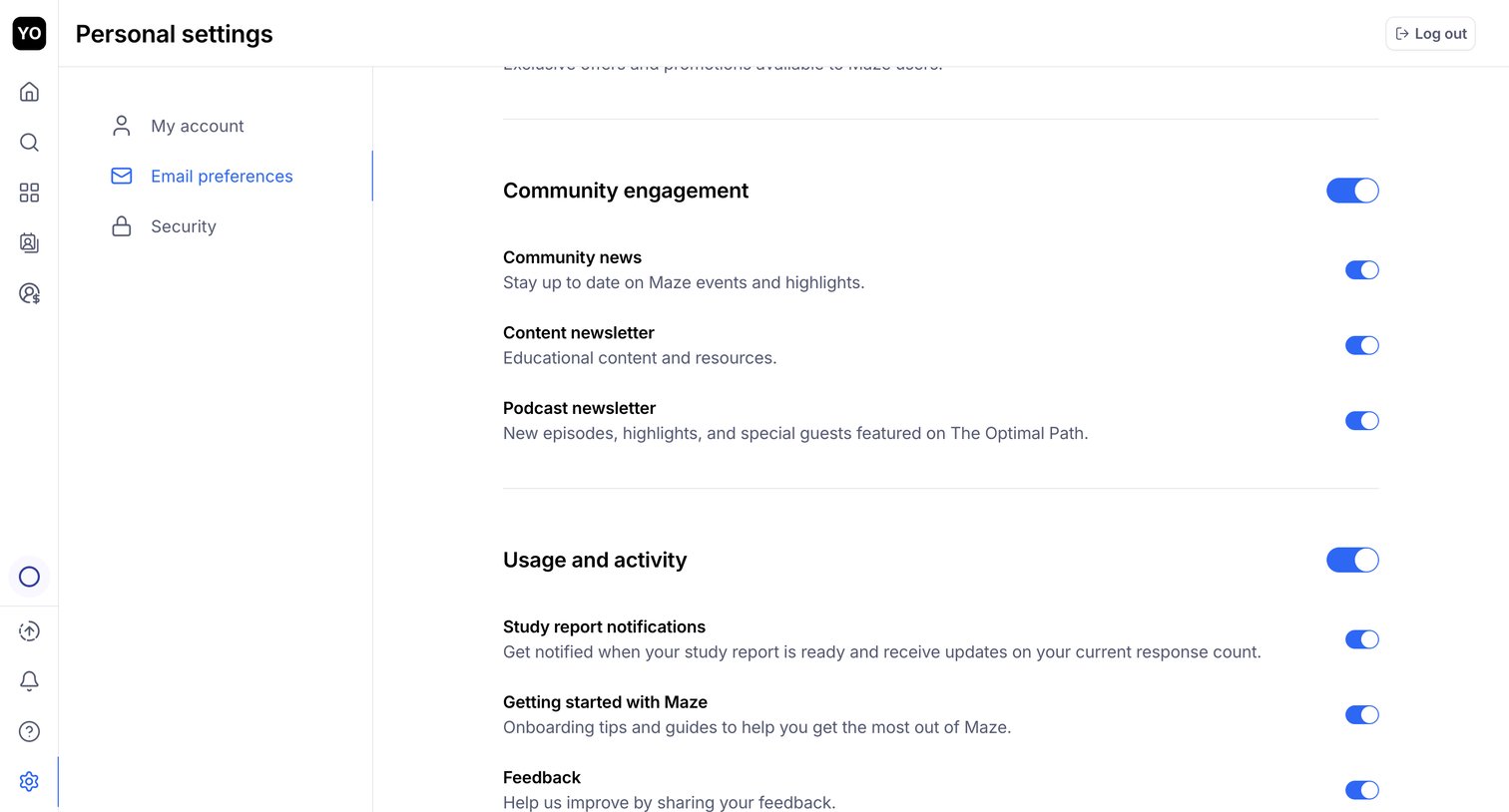

Settings page where the user configures their email preferences for community news, newsletters, and study report notifications via a list of toggles.
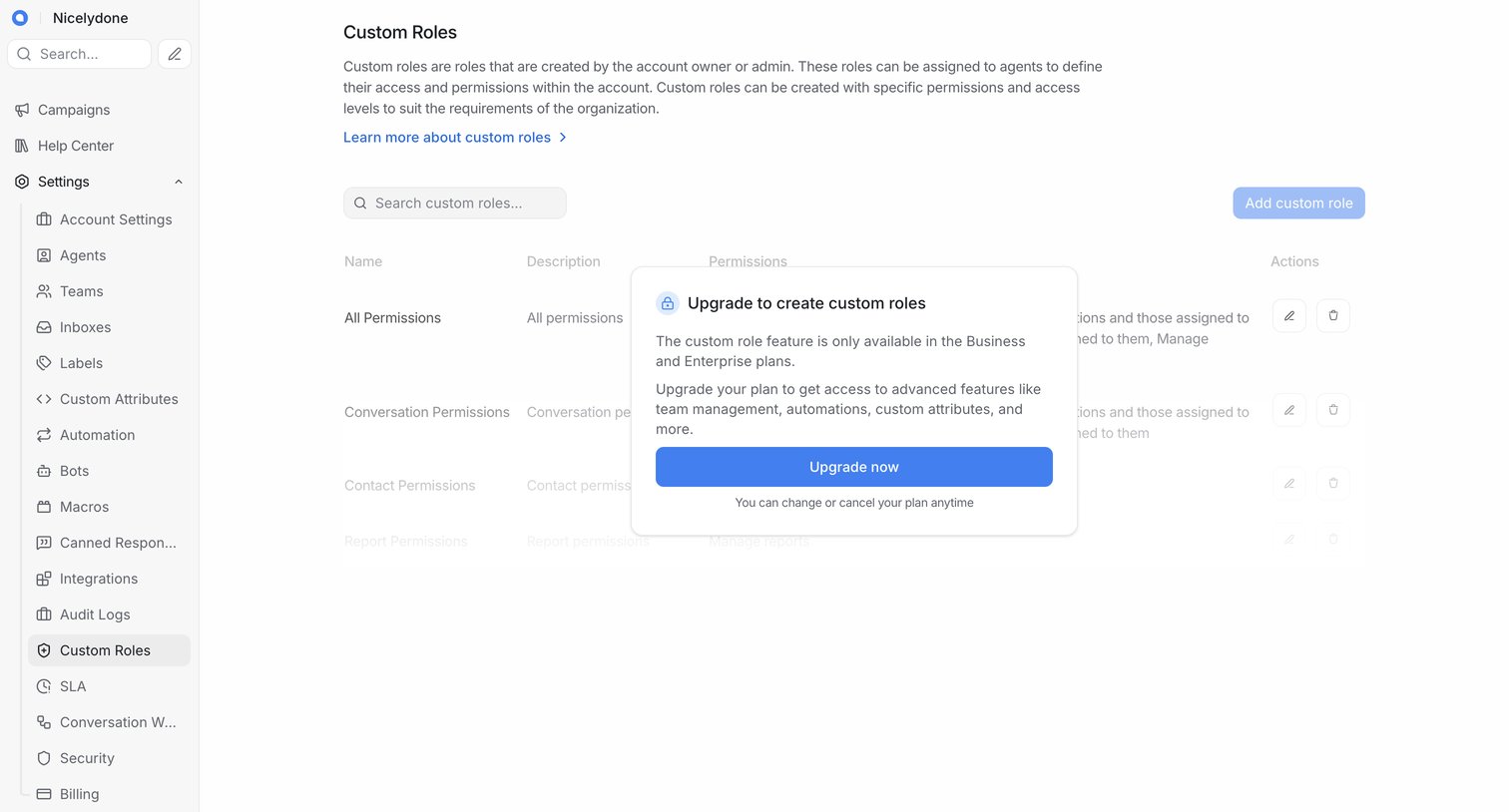

Settings page where the user is blocked from creating custom roles by an upgrade modal prompting them to switch to a Business or Enterprise plan.
Explore the full SaaS screen library
Upgrade to unlock the full library.
Trusted by the best teams







