Integration screen examples
Integration screen design examples from SaaS apps. Browse examples from Dock, Beside, Exa.
Explore the examples
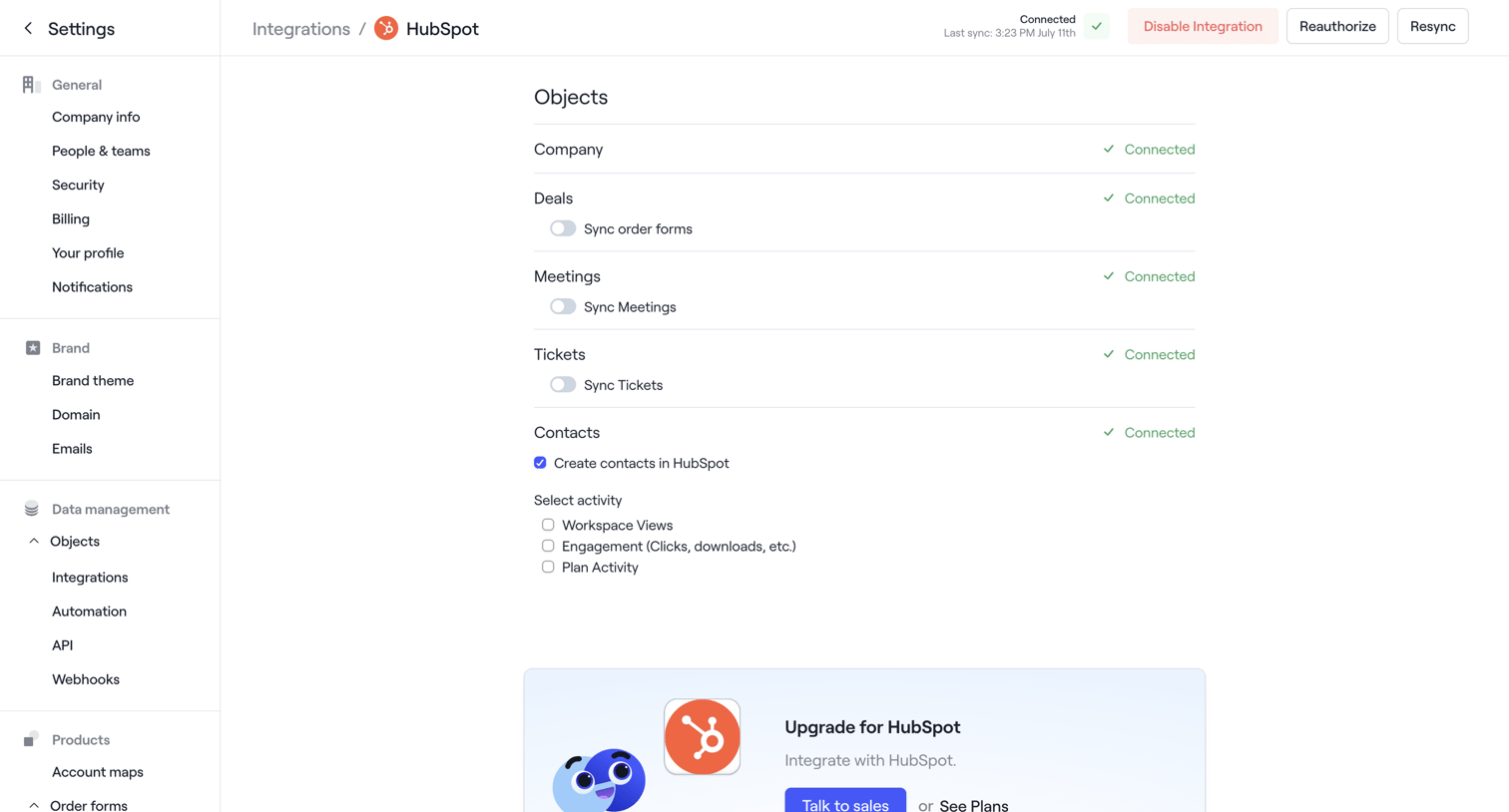

Settings page where the user configures object sync preferences for the HubSpot integration and encounters a rate limit error toast.
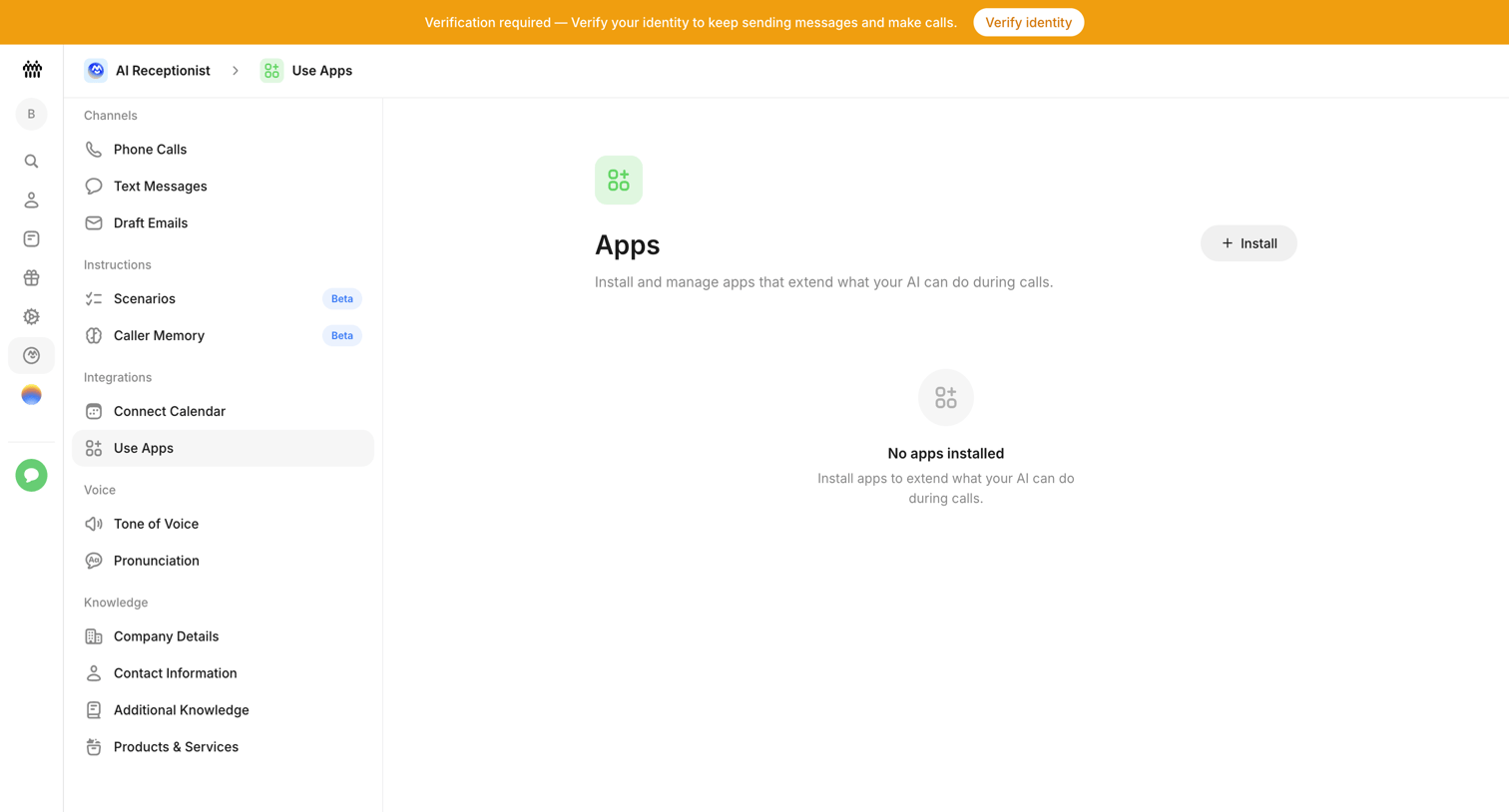

Settings page where the user manages installed apps for their AI receptionist, currently showing an empty state.
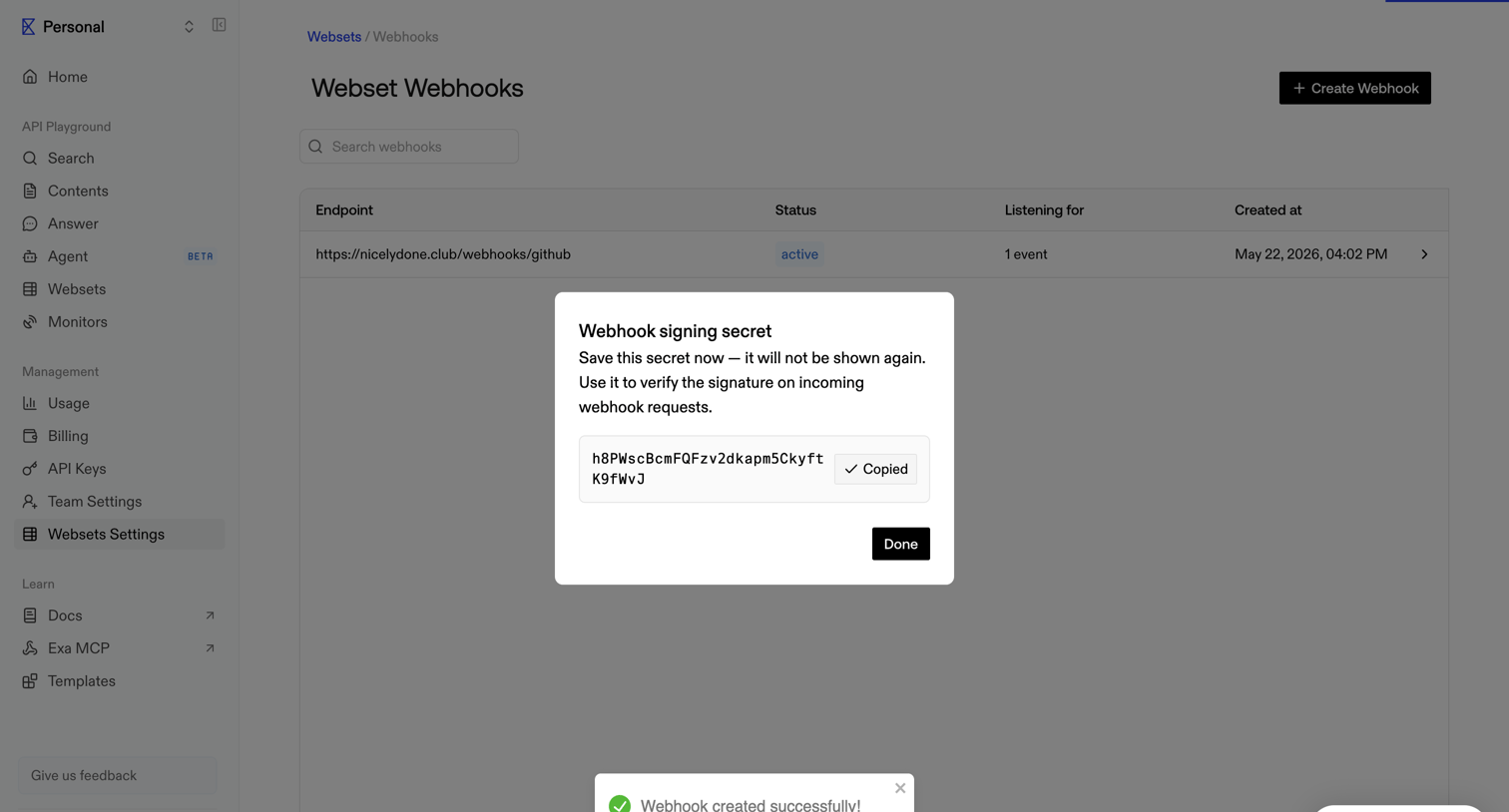

Settings page where the user views their newly generated webhook signing secret in a modal after successful creation.
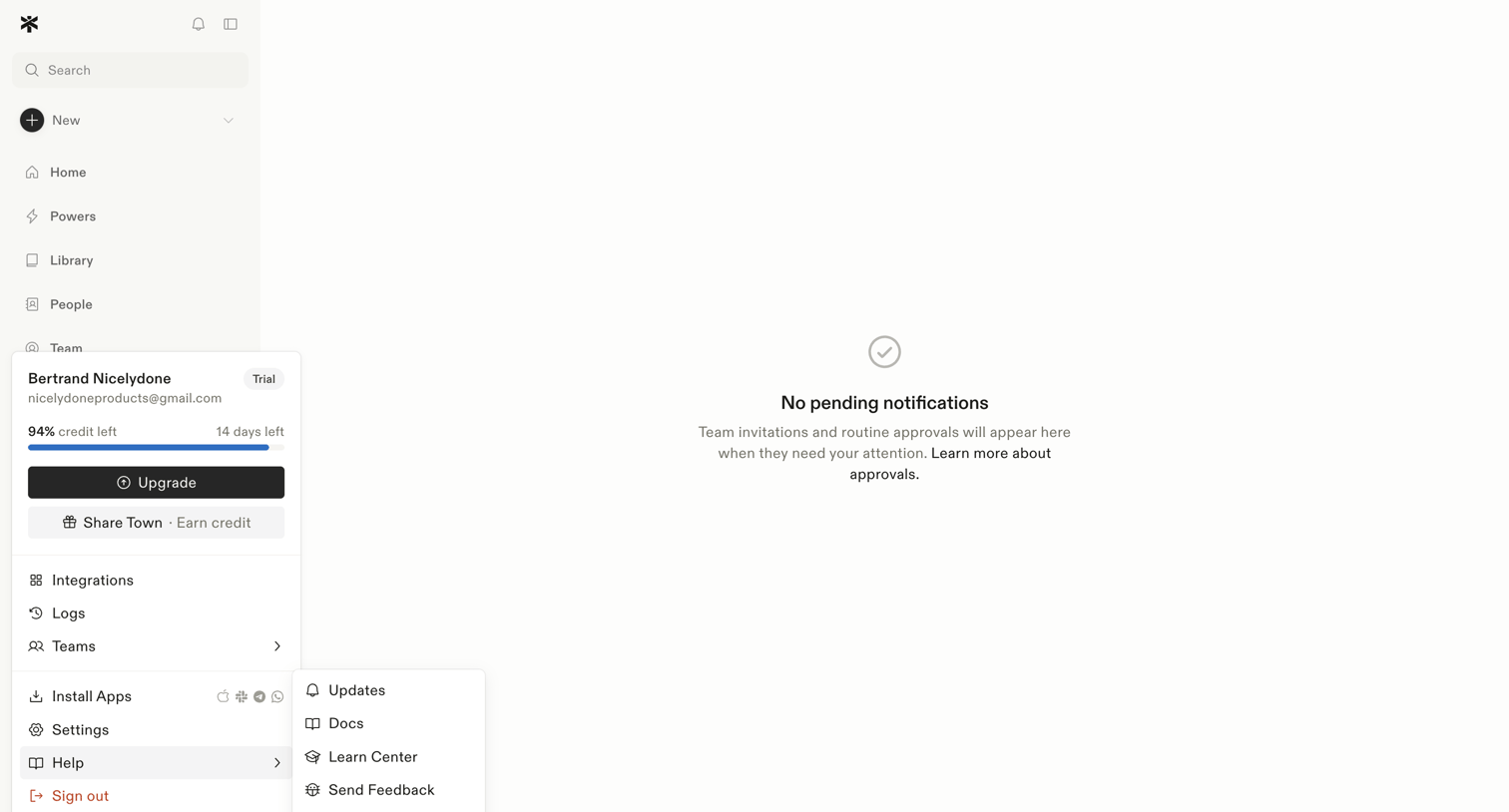

Inbox view where the user manages team invitations and routine approvals, currently showing a zero-state message with no pending items.
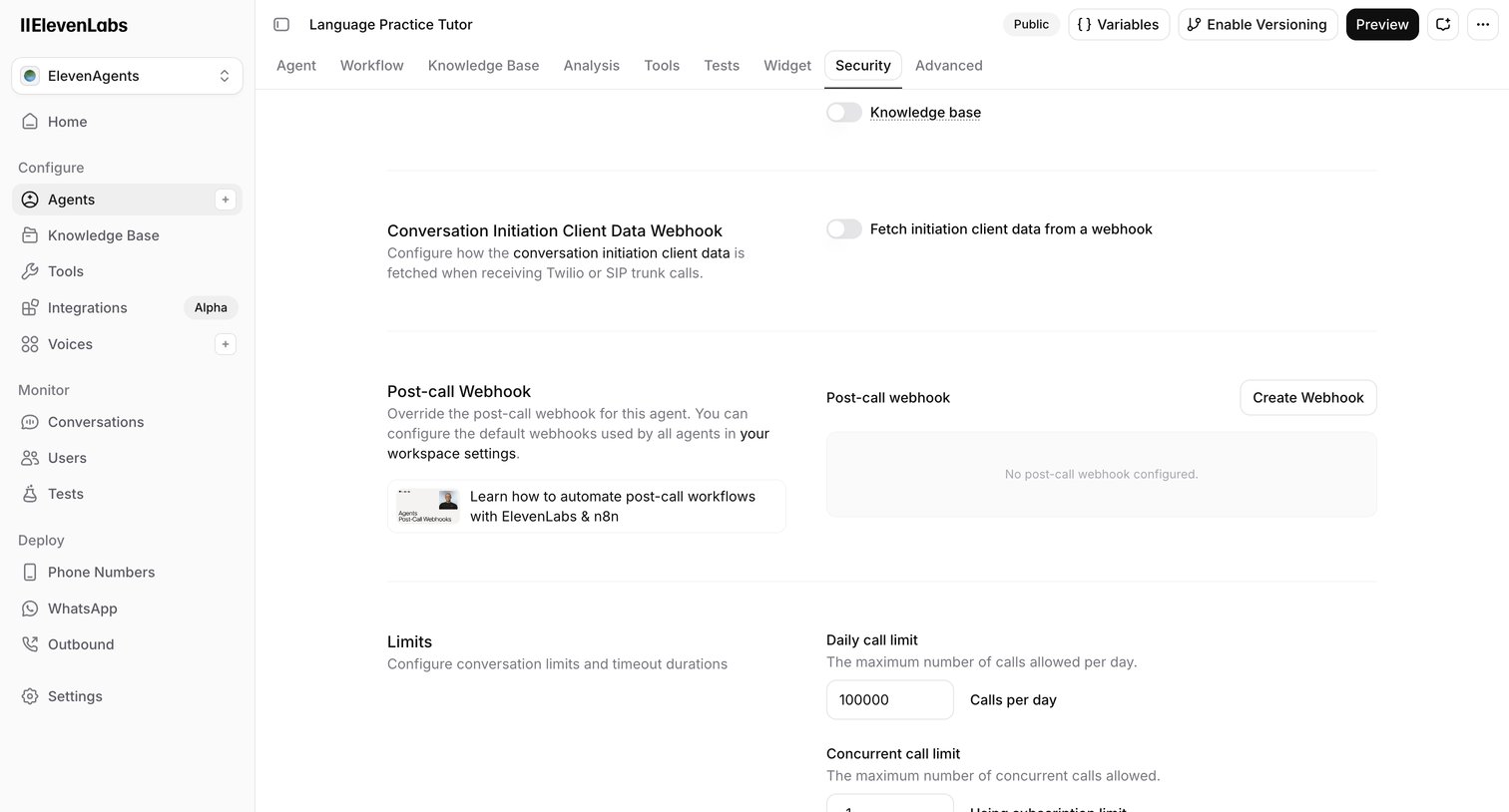

Settings page where the user configures webhooks, call limits, and data fetching preferences for a specific AI agent.
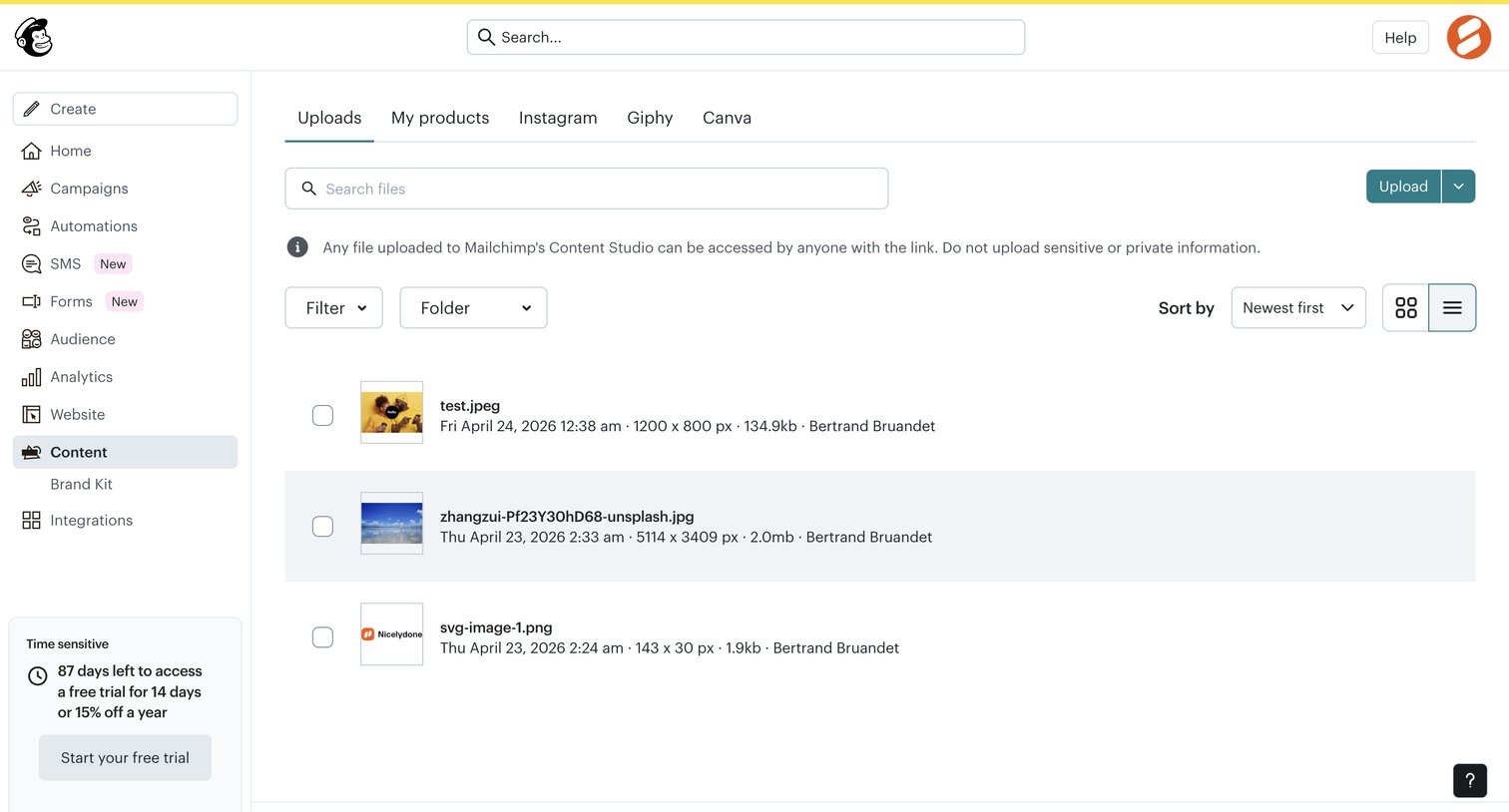

List view where the user manages uploaded files in their content studio, with options to search, filter by folder, and upload new assets.
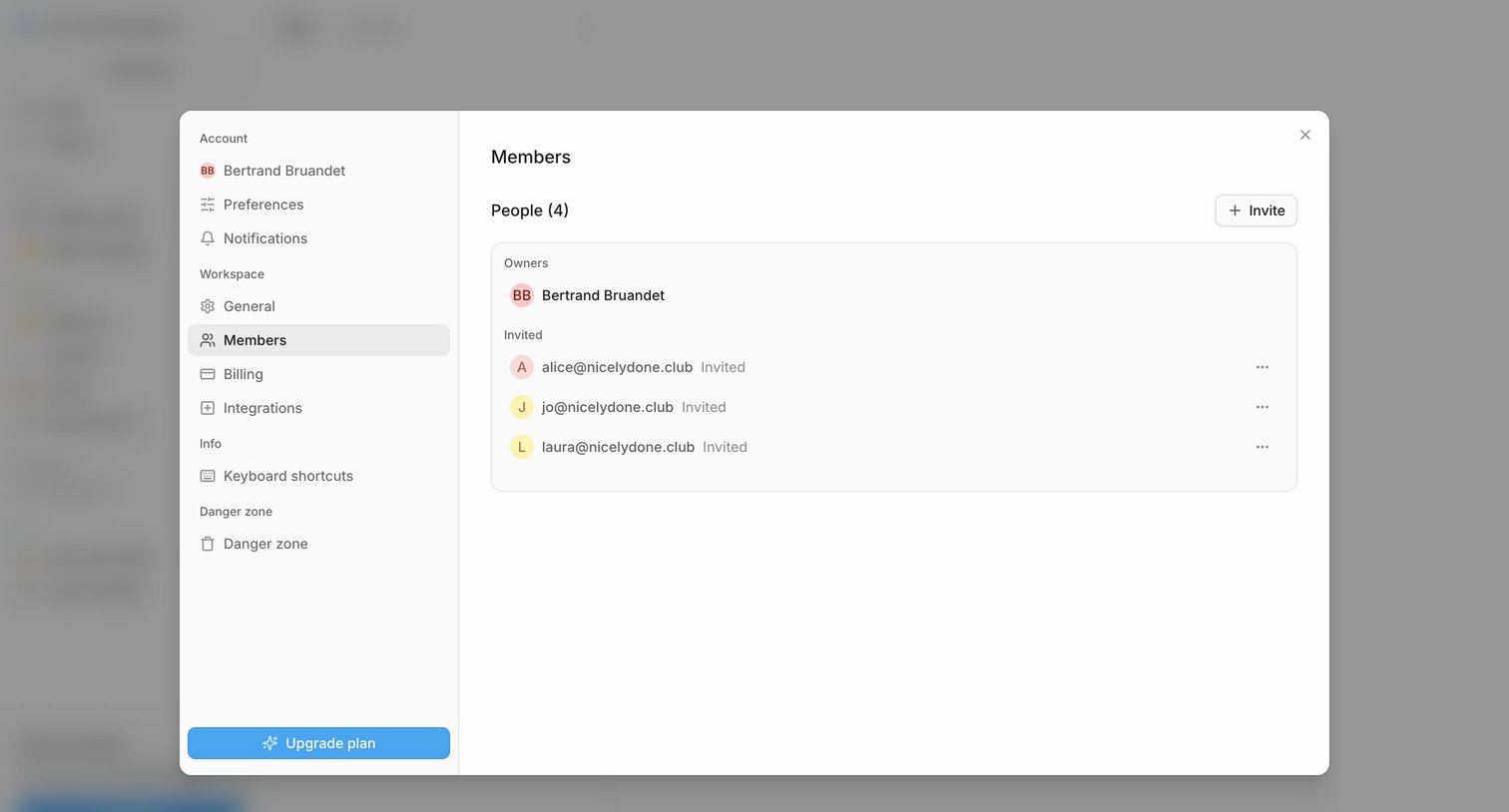

Settings modal where the user manages workspace members, views pending invitations, and can invite new people.
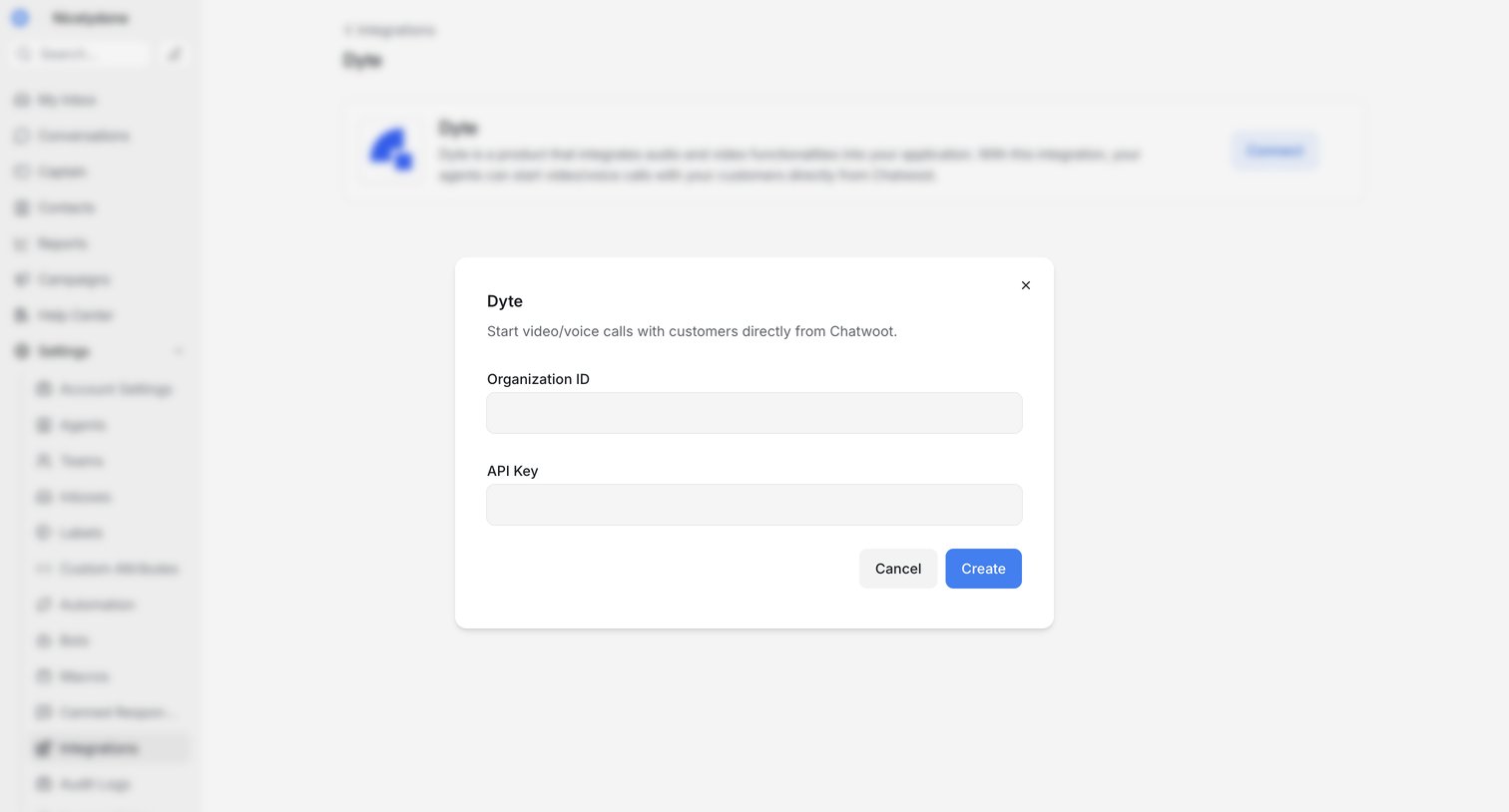

Settings page where the user configures the Dyte integration by entering their Organization ID and API Key in a modal.
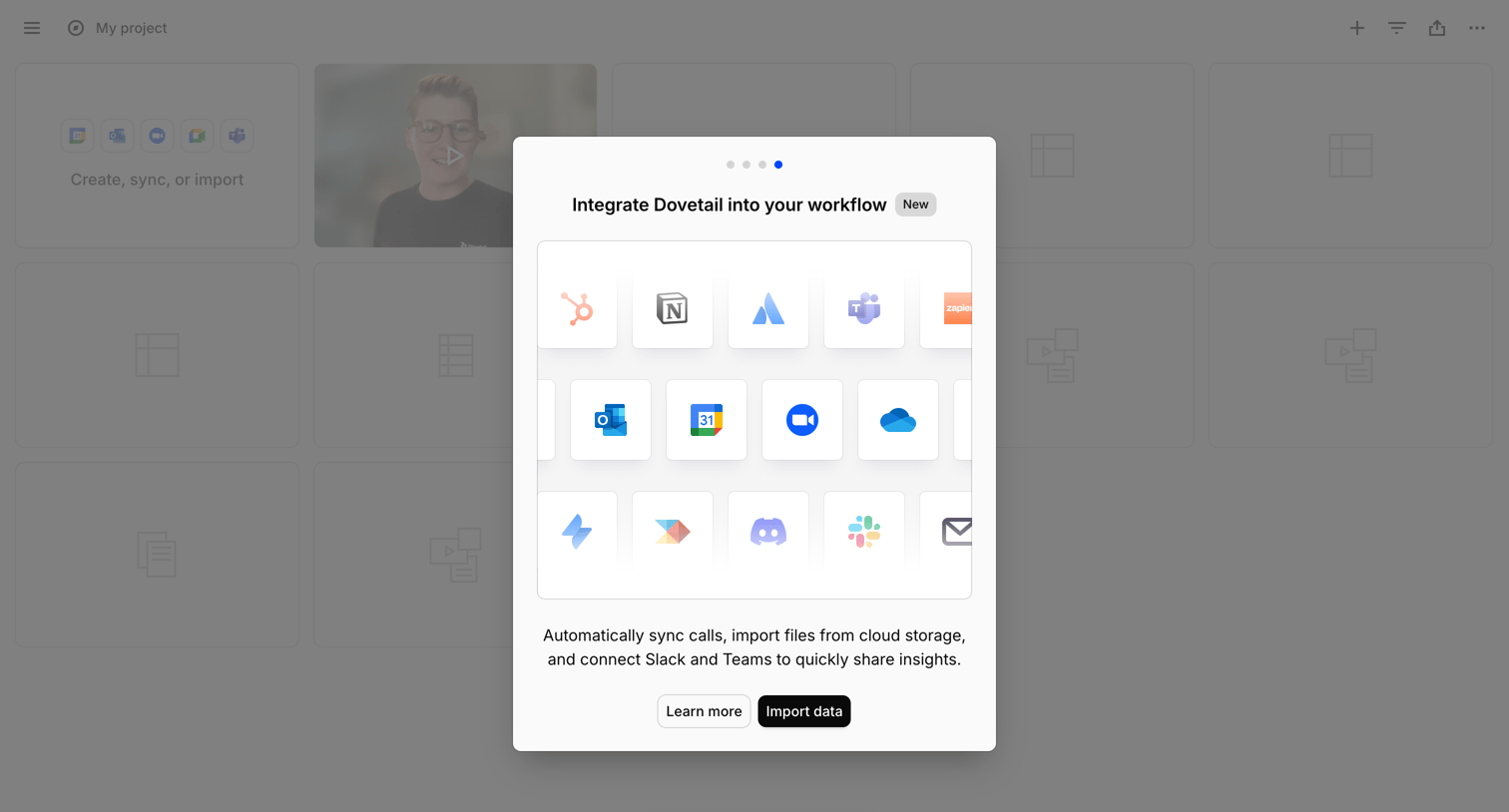

List view with a modal prompting the user to integrate their workflow by connecting apps like Slack, Teams, and Google Drive to import data.
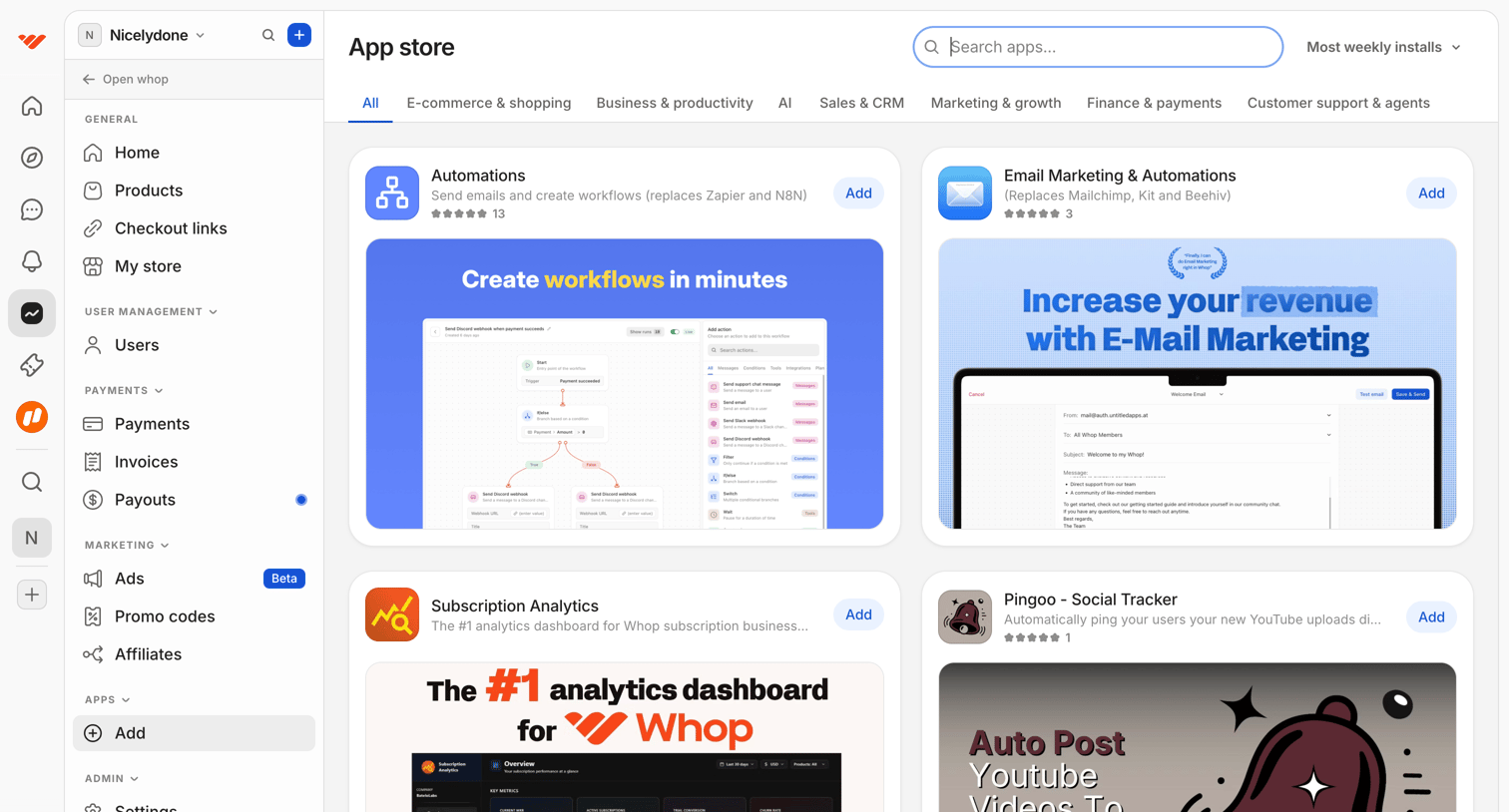

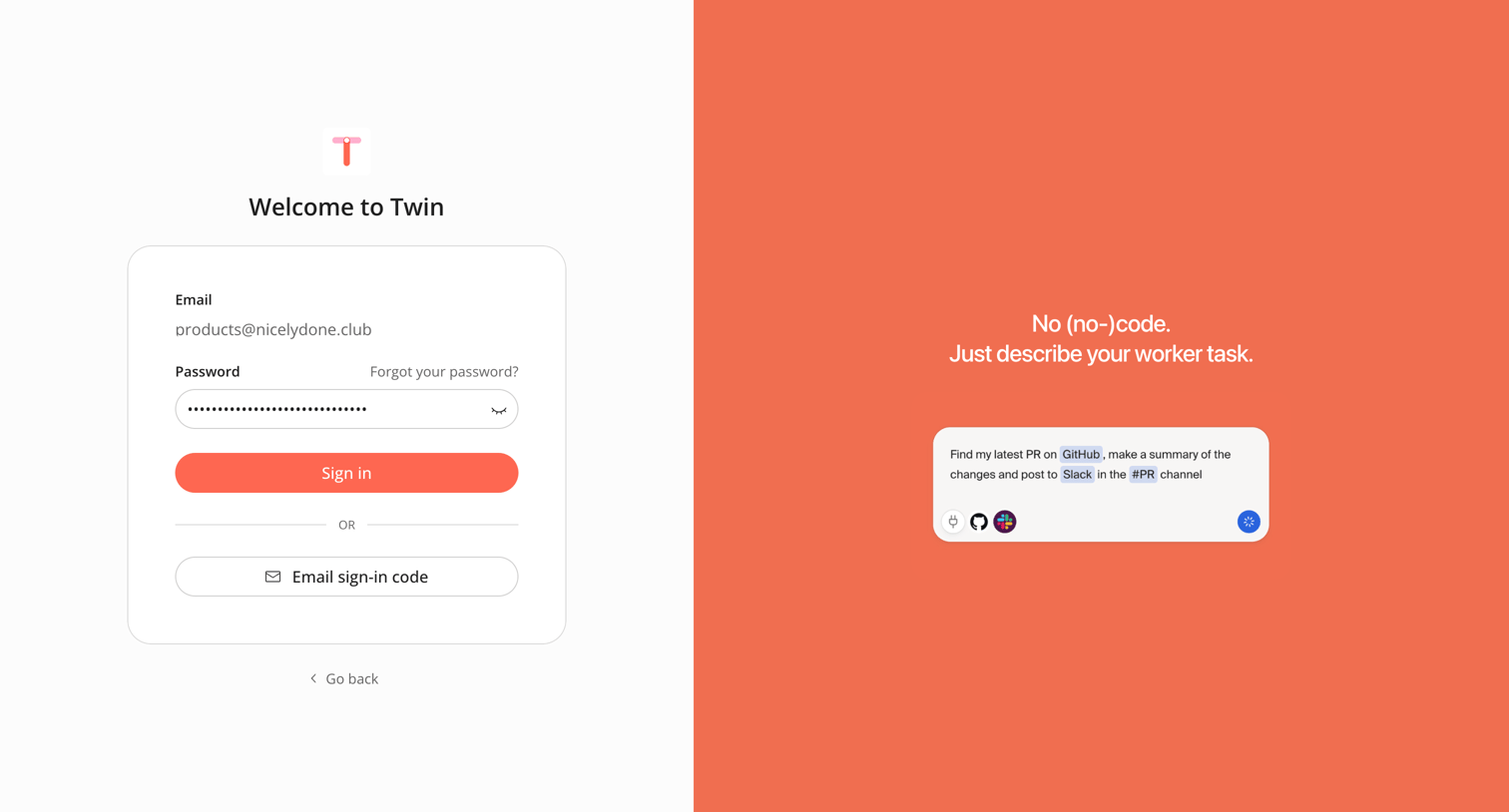

Sign-in screen where the user authenticates with a password for a pre-filled email or opts to request an email sign-in code.
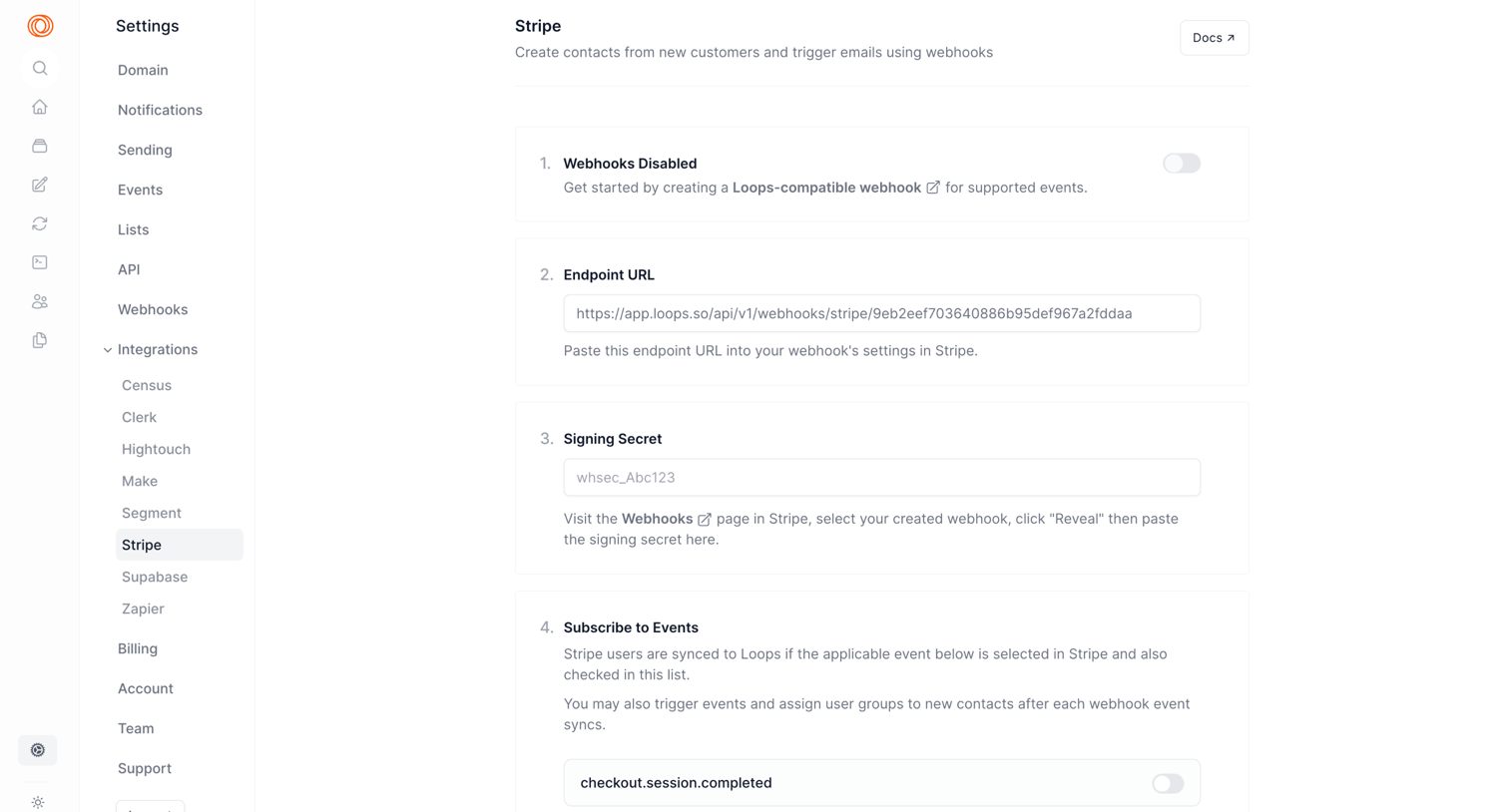

Settings page where the user configures the Stripe integration by setting up webhooks, providing a signing secret, and subscribing to specific events.
Explore the full SaaS screen library
Upgrade to unlock the full library.
Trusted by the best teams







