Workflow configuration screen examples
Workflow configuration screen design examples from SaaS apps. Browse examples from Dock, Missive, Linear.
Explore the examples
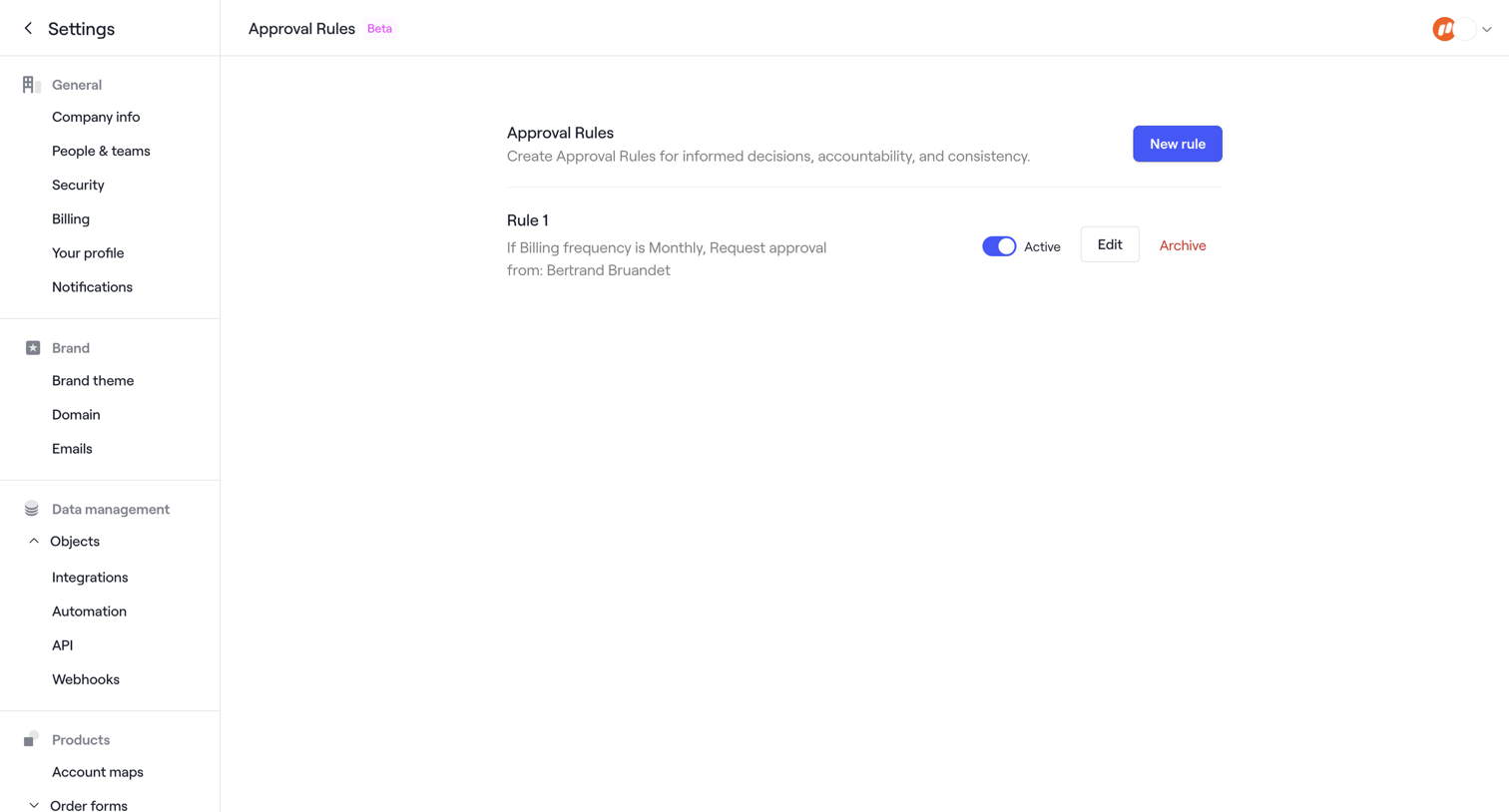

Settings page where the user manages approval rules for order forms, showing a newly created rule and a success toast.
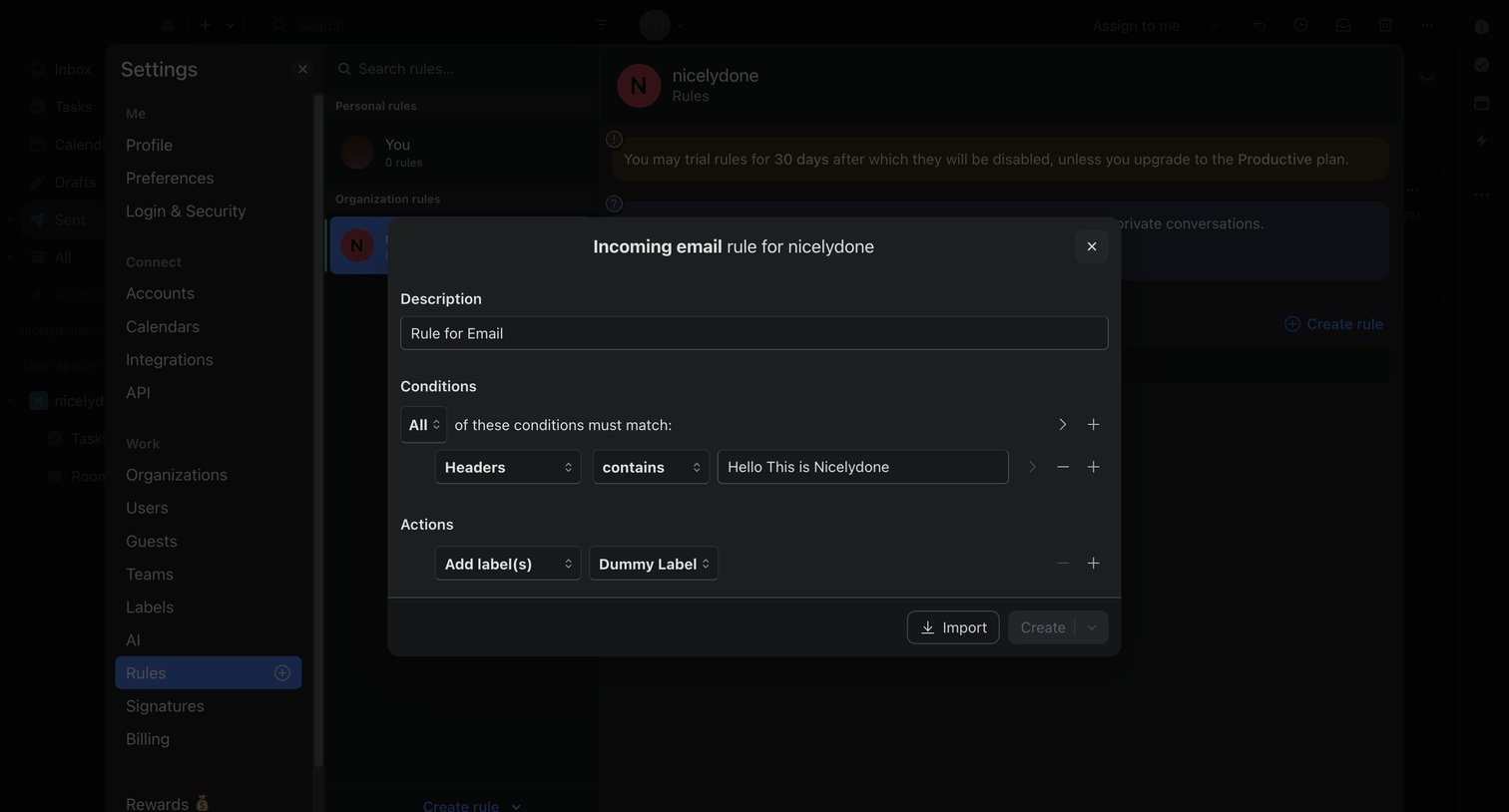

Settings modal where the user configures an incoming email rule by setting specific header conditions and label actions.
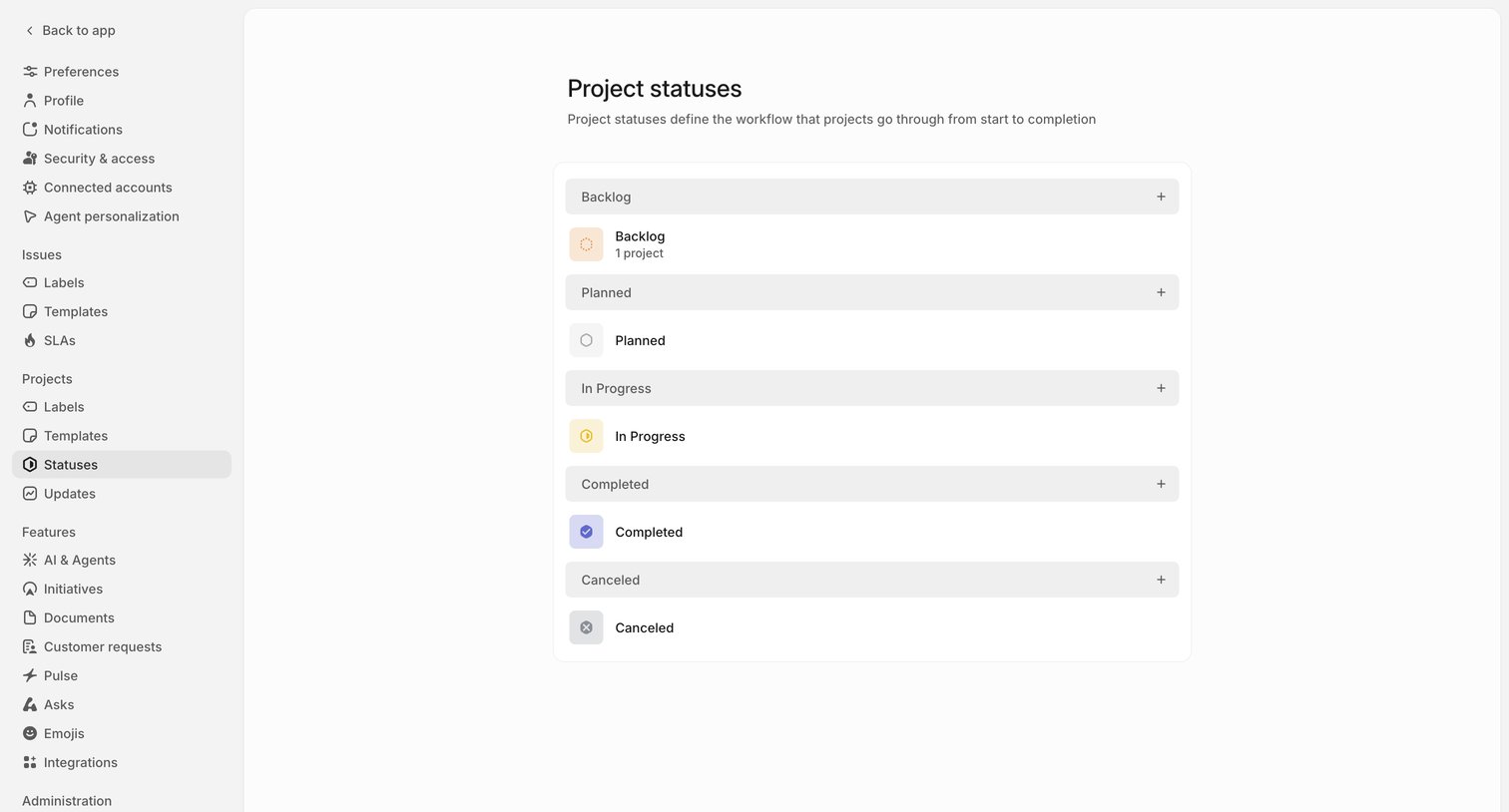

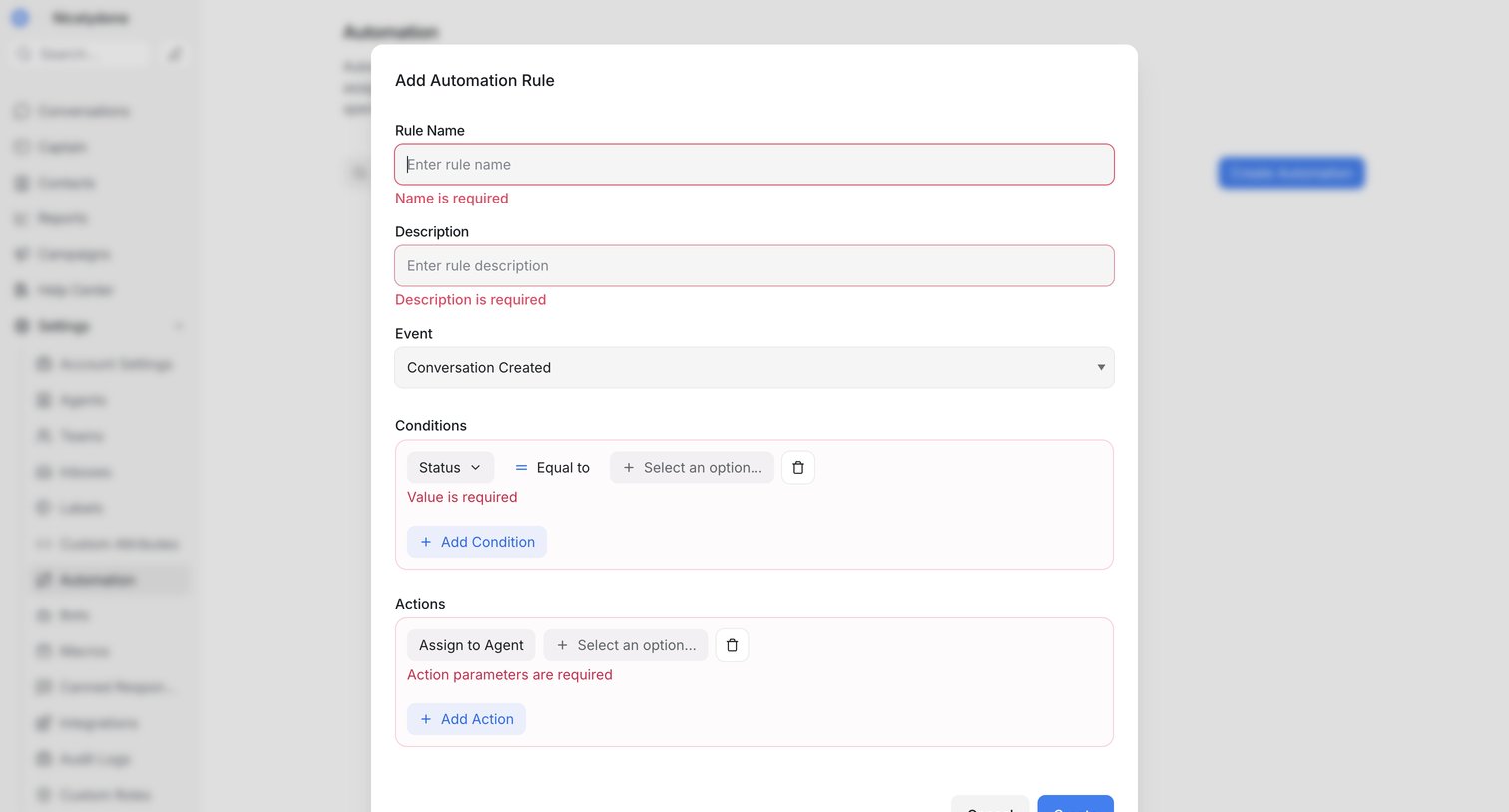

Settings page where the user configures a new automation rule by defining its name, trigger event, conditions, and resulting actions.
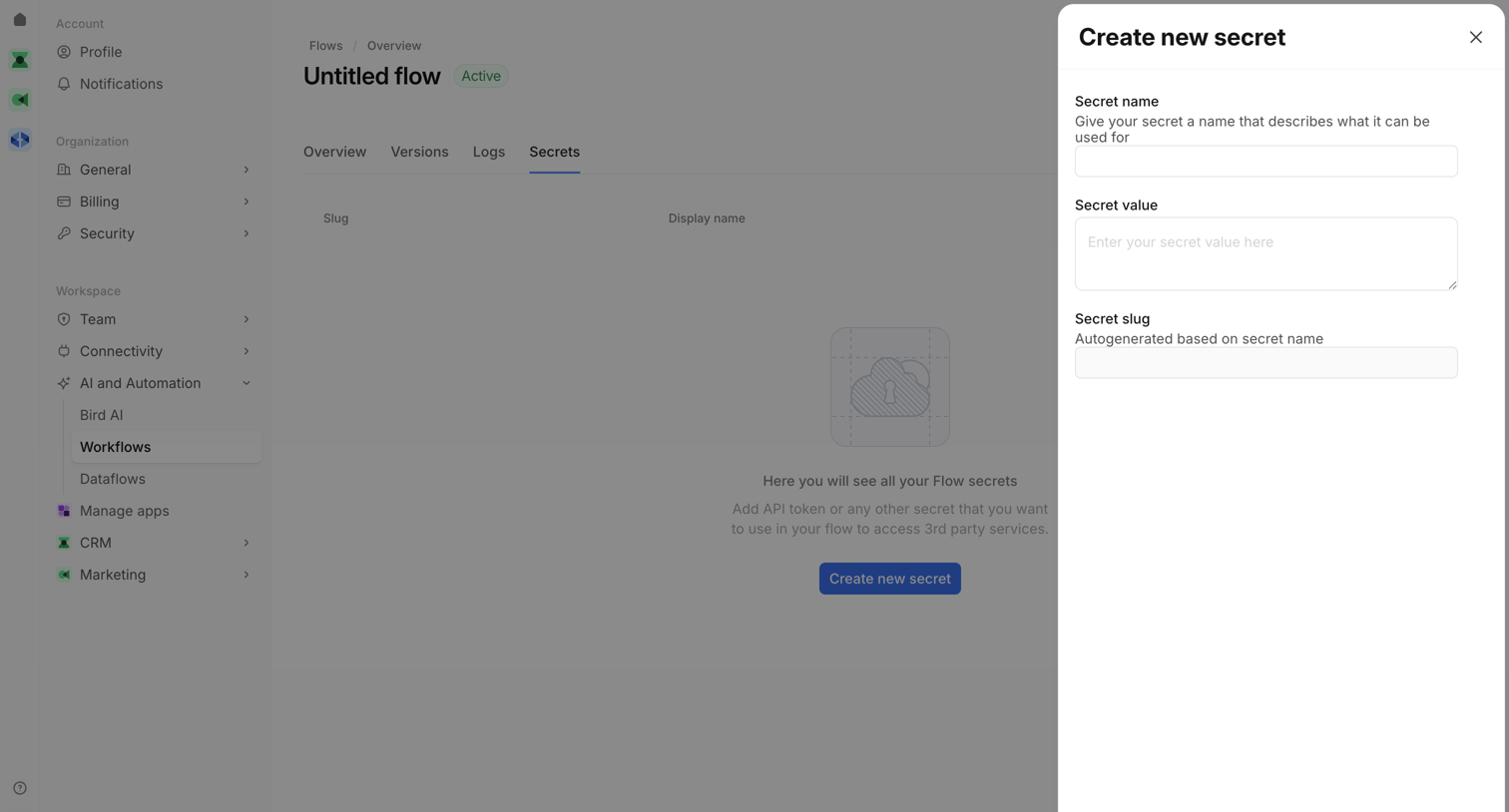

Detail page for a workflow where the user is creating a new API secret via a right-side drawer, while the underlying view shows an empty state for the secrets tab.
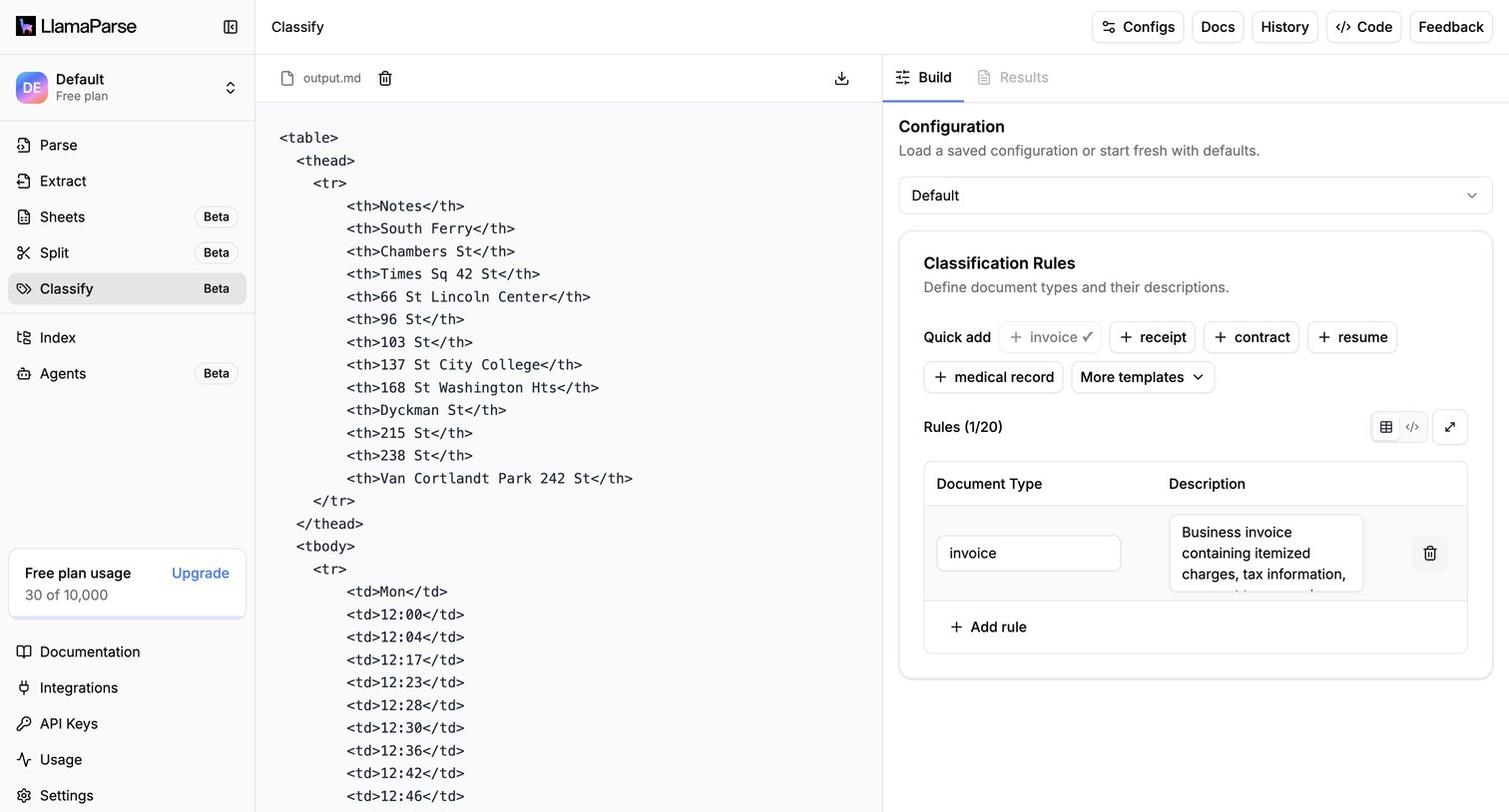

IDE-style workspace where the user configures document classification rules alongside a markdown preview of the parsed output.
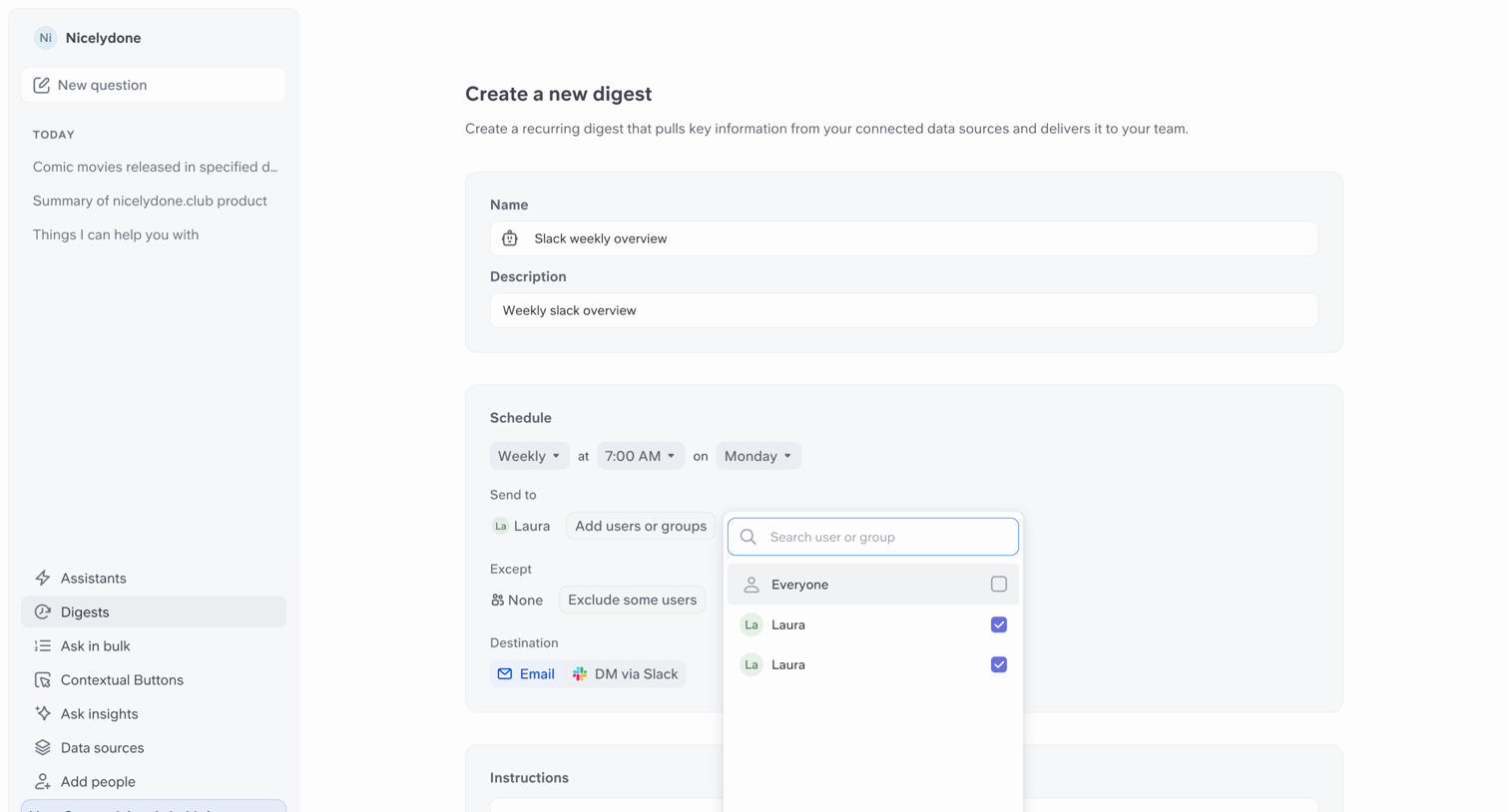

Create page where the user configures a recurring digest by setting its name, schedule, recipients, and instructions.
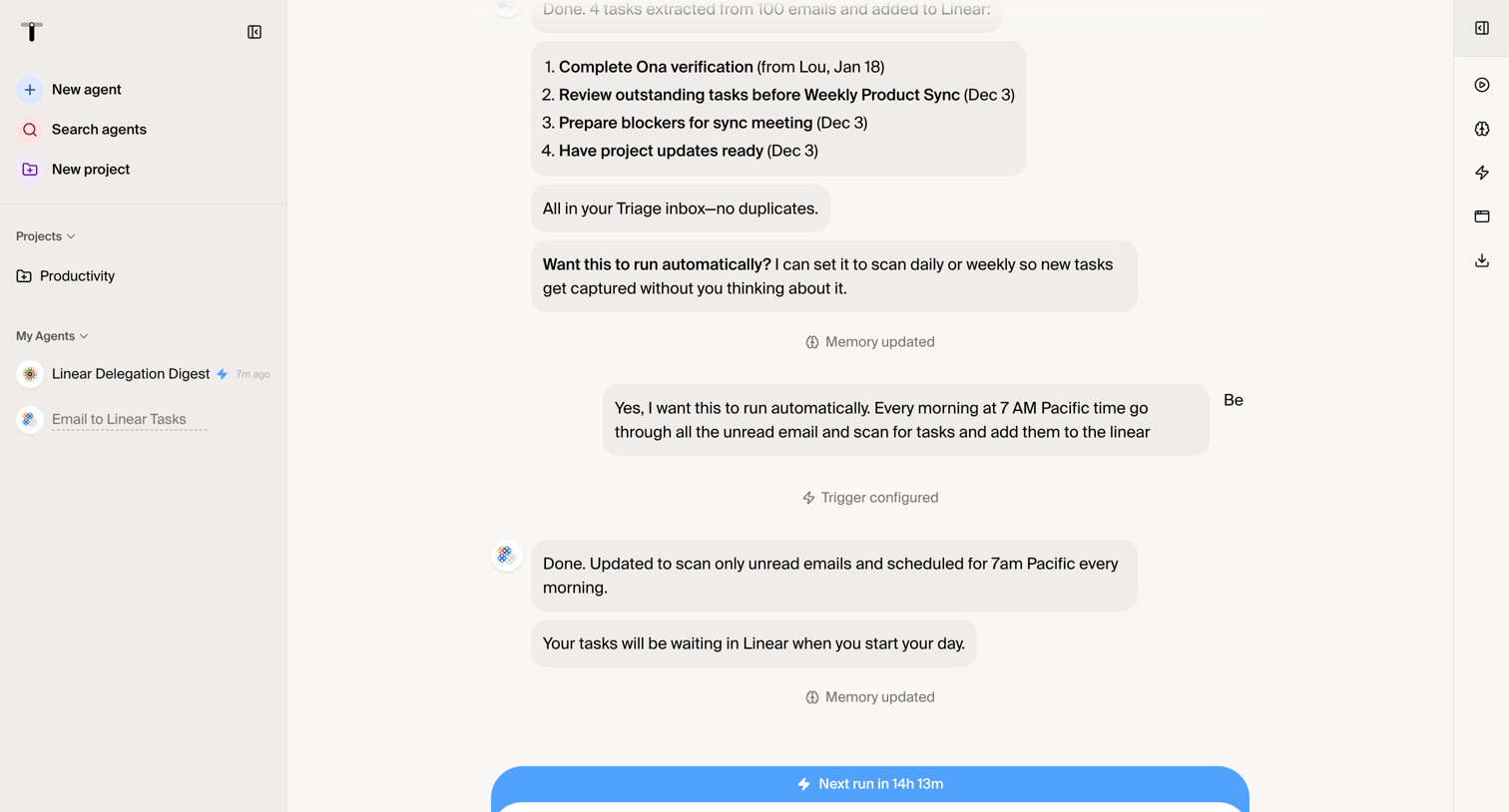

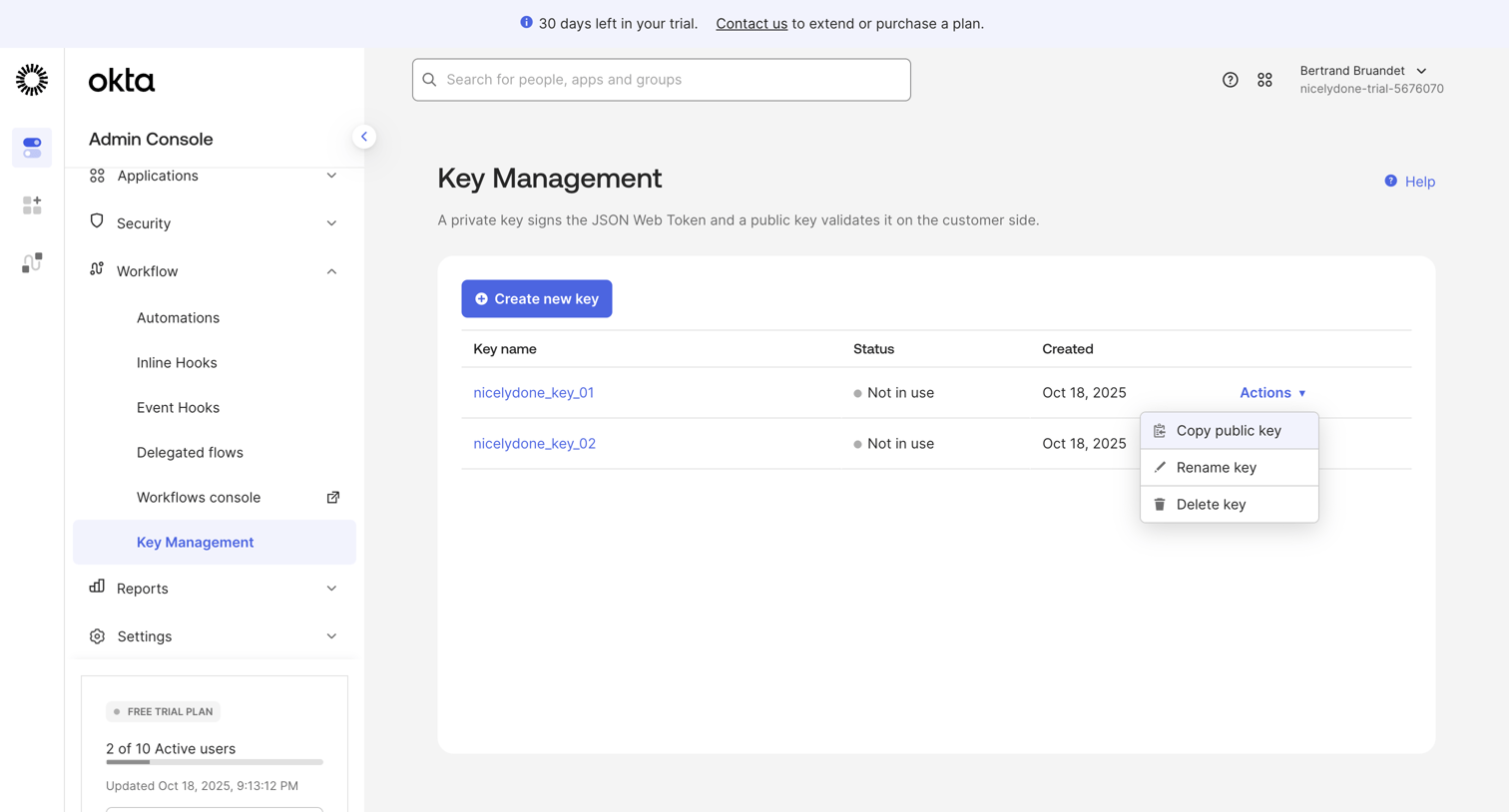

Settings page where the user manages private and public keys for workflow validation, with options to create, rename, copy, or delete keys.
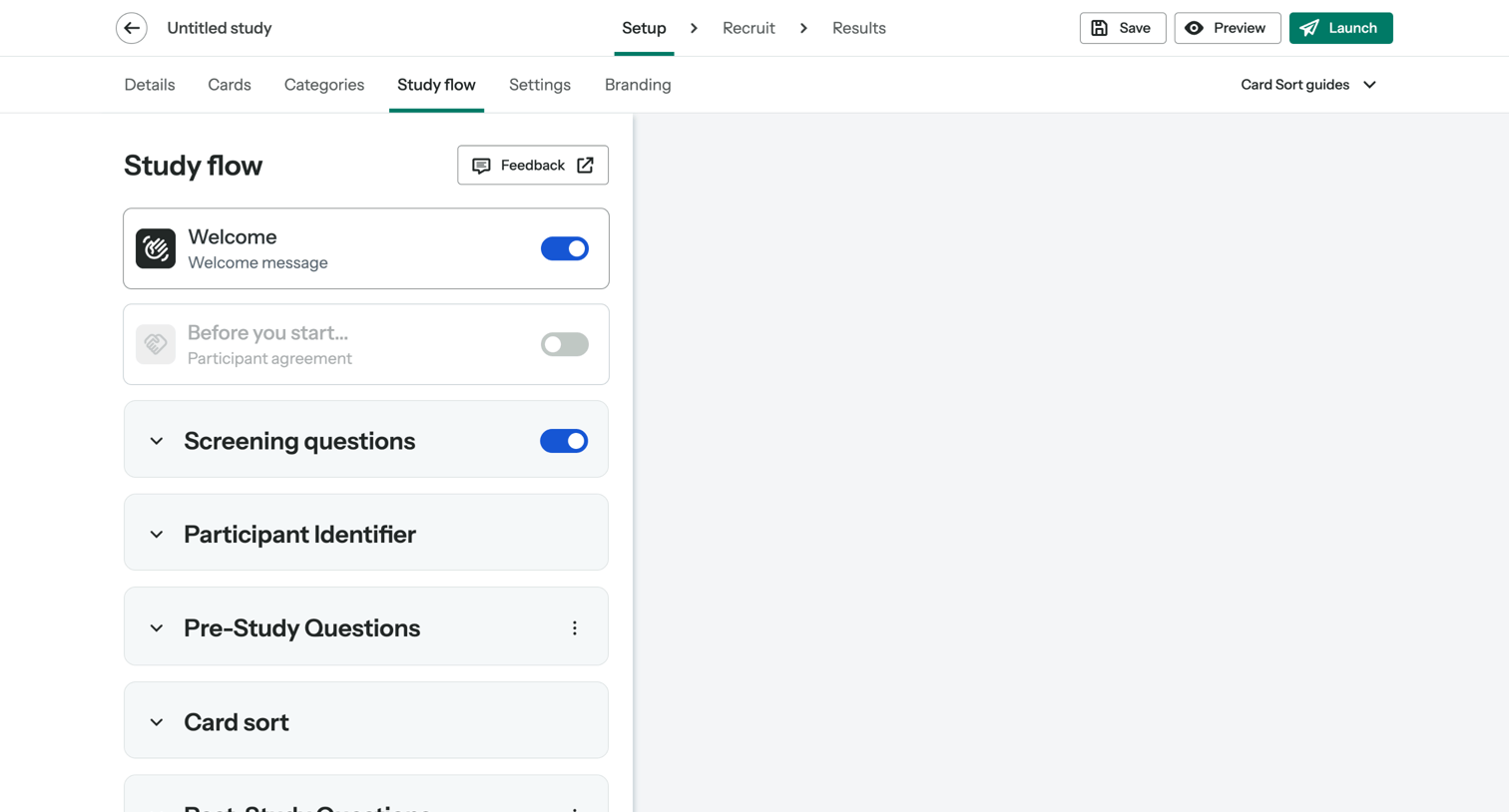

Workflow editor where the user configures the sequence of steps for a research study, toggling sections like welcome messages and screening questions.
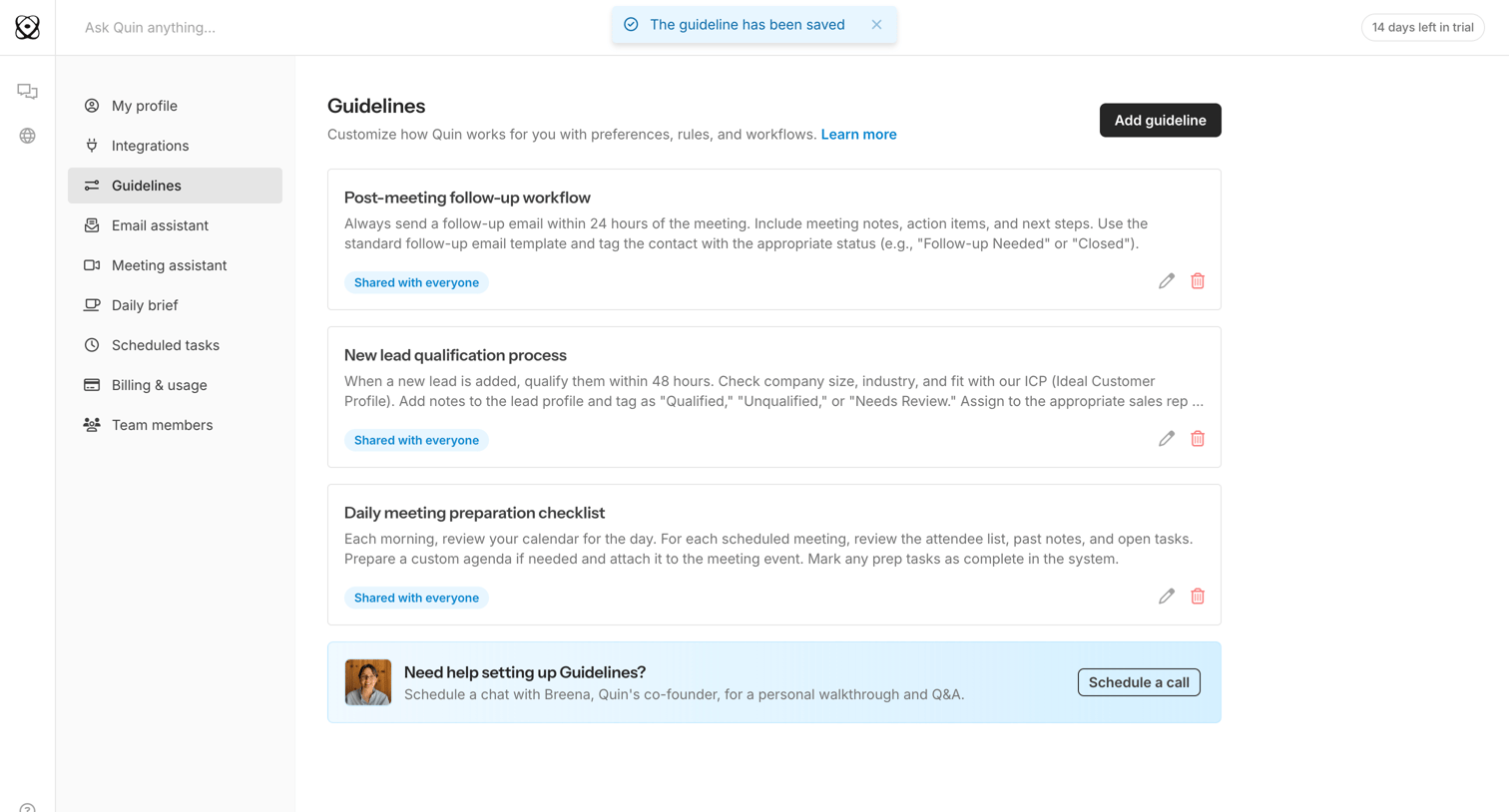

Settings page where the user configures custom guidelines, rules, and workflows for their AI assistant.
Explore the full SaaS screen library
Upgrade to unlock the full library.
Trusted by the best teams







