Missive design examples
Explore Missive UI design examples. Team email, chat & tasks
Product screens


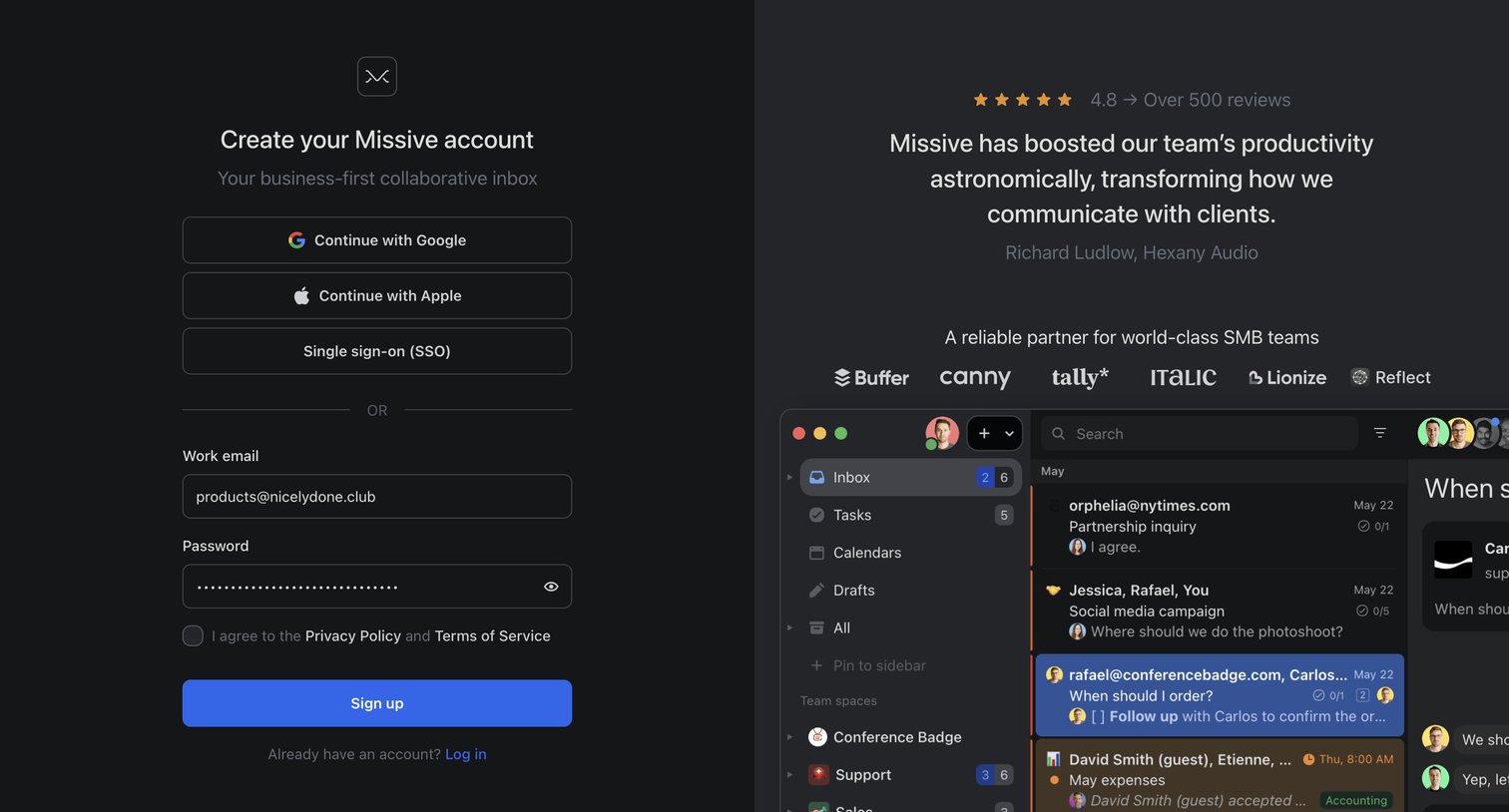
Signup page where the user creates an account via email, Google, Apple, or SSO, alongside a customer testimonial and logo wall.
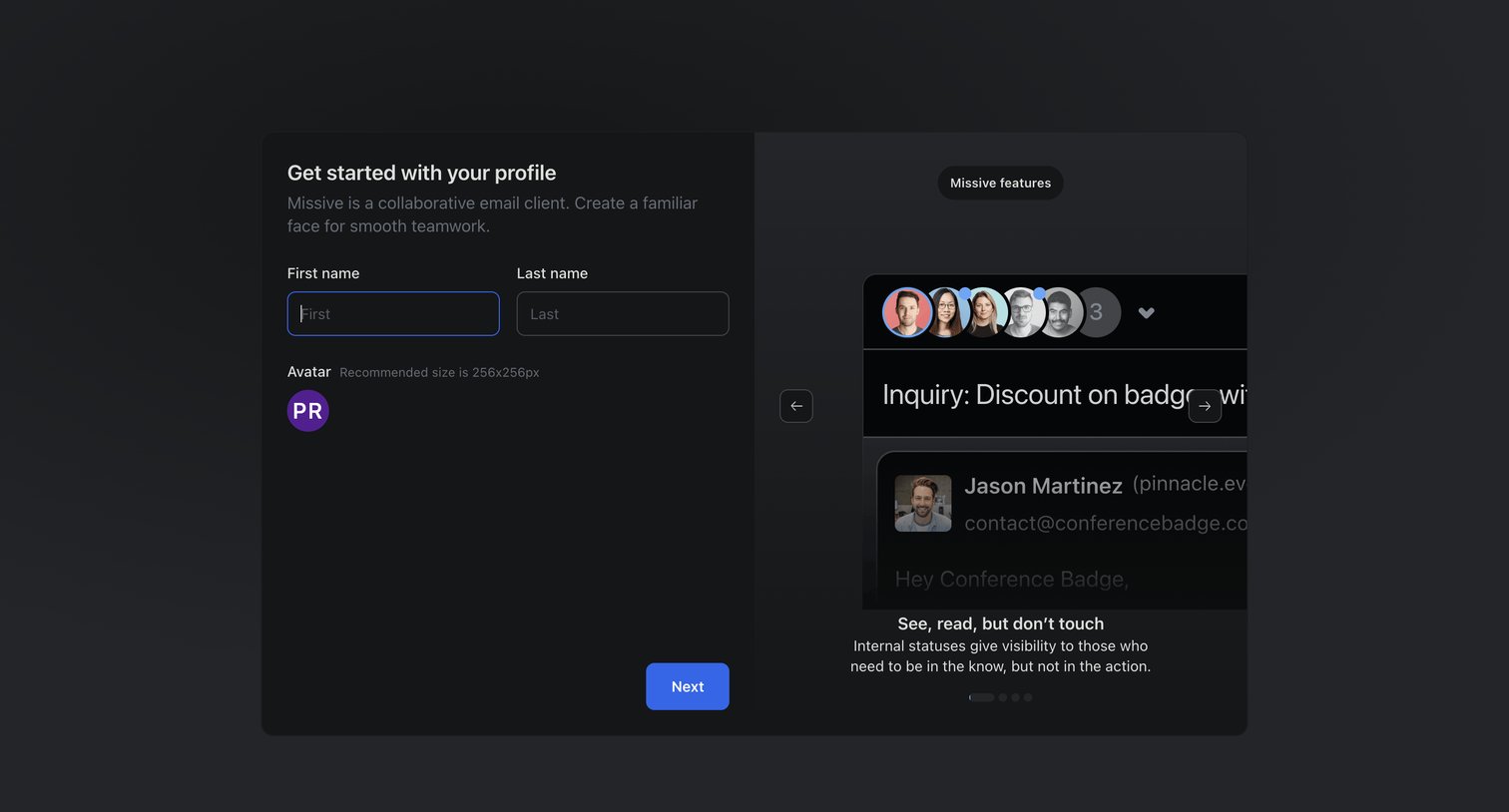
Onboarding step where the user enters their first and last name and sets an avatar, alongside a carousel highlighting product features.
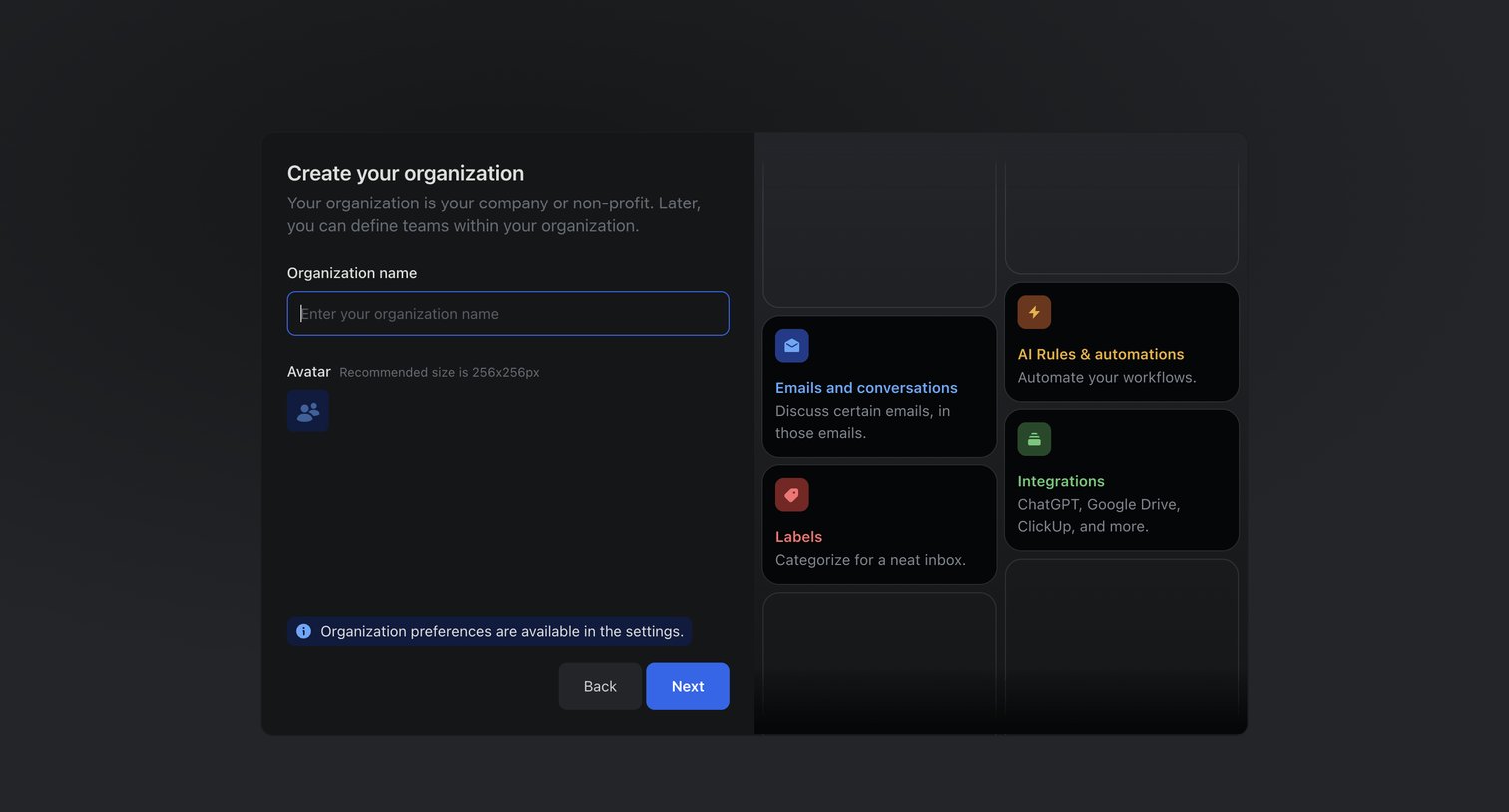
Onboarding step where the user names their new organization and uploads an avatar, alongside a bento-style preview of features like emails, rules, and integrations.
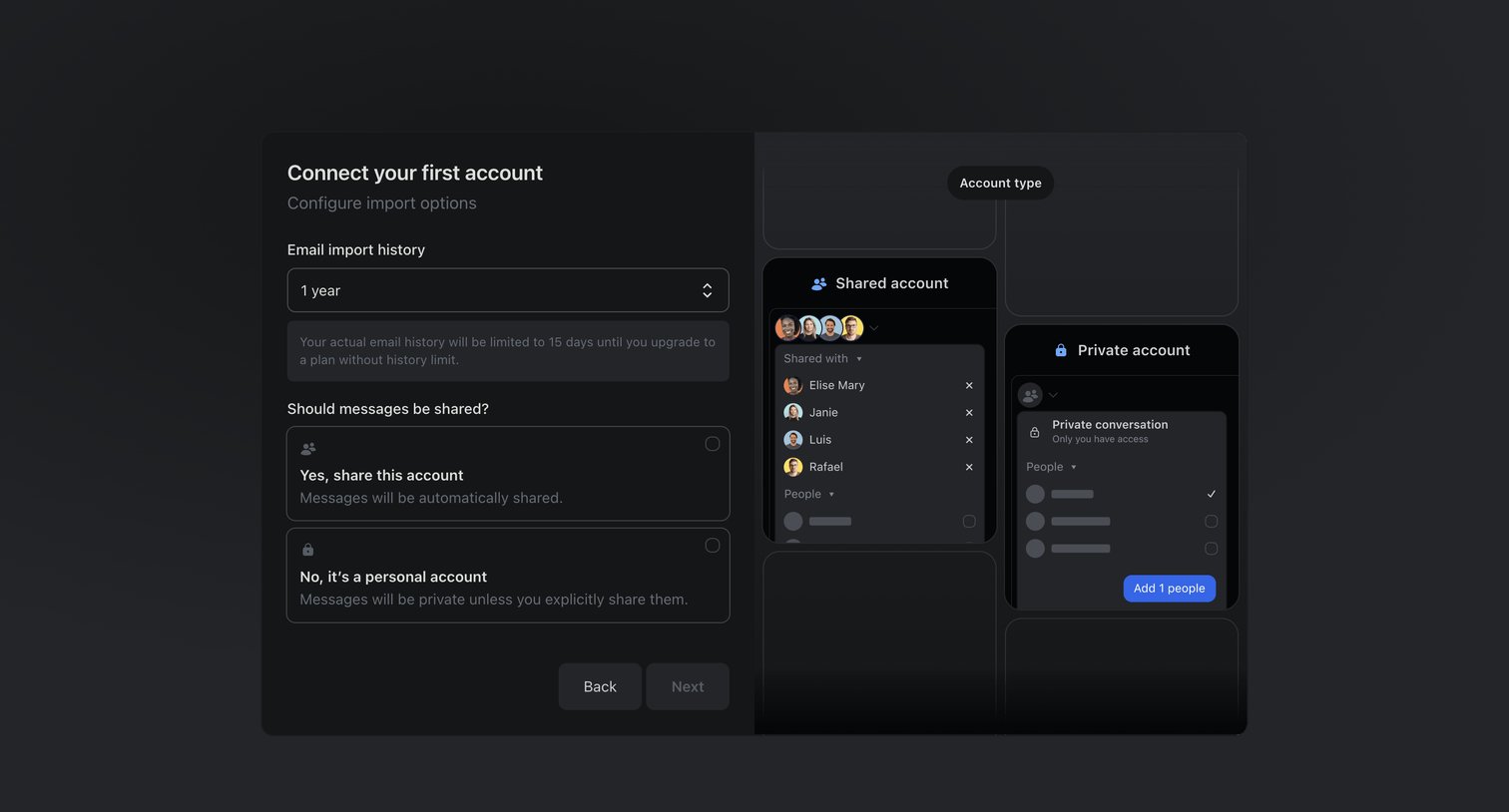
Onboarding step where the user configures email import history and sharing preferences for their first connected account.
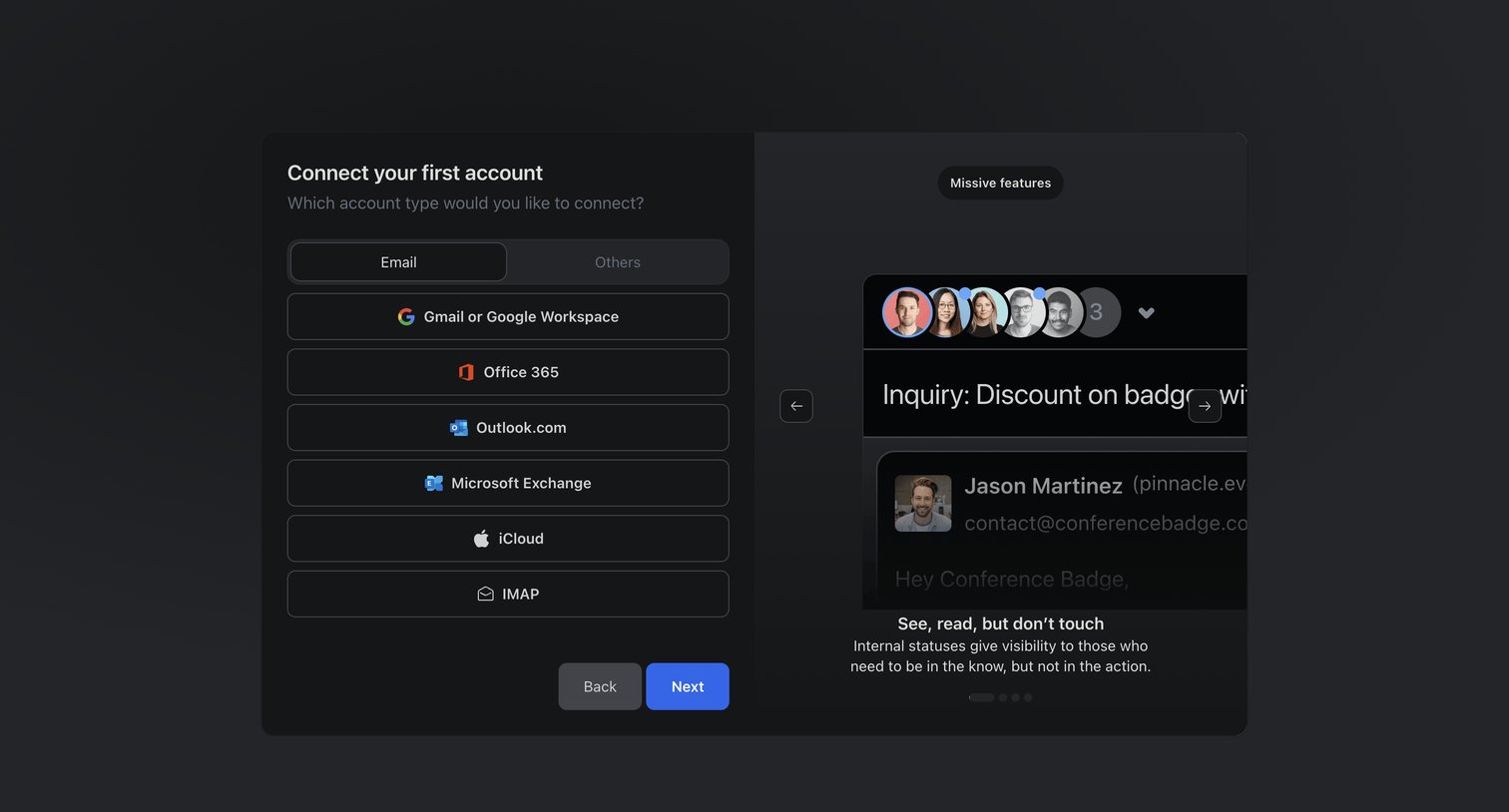
Onboarding step where the user selects an email provider like Gmail or Office 365 to connect their first account, accompanied by a feature carousel.
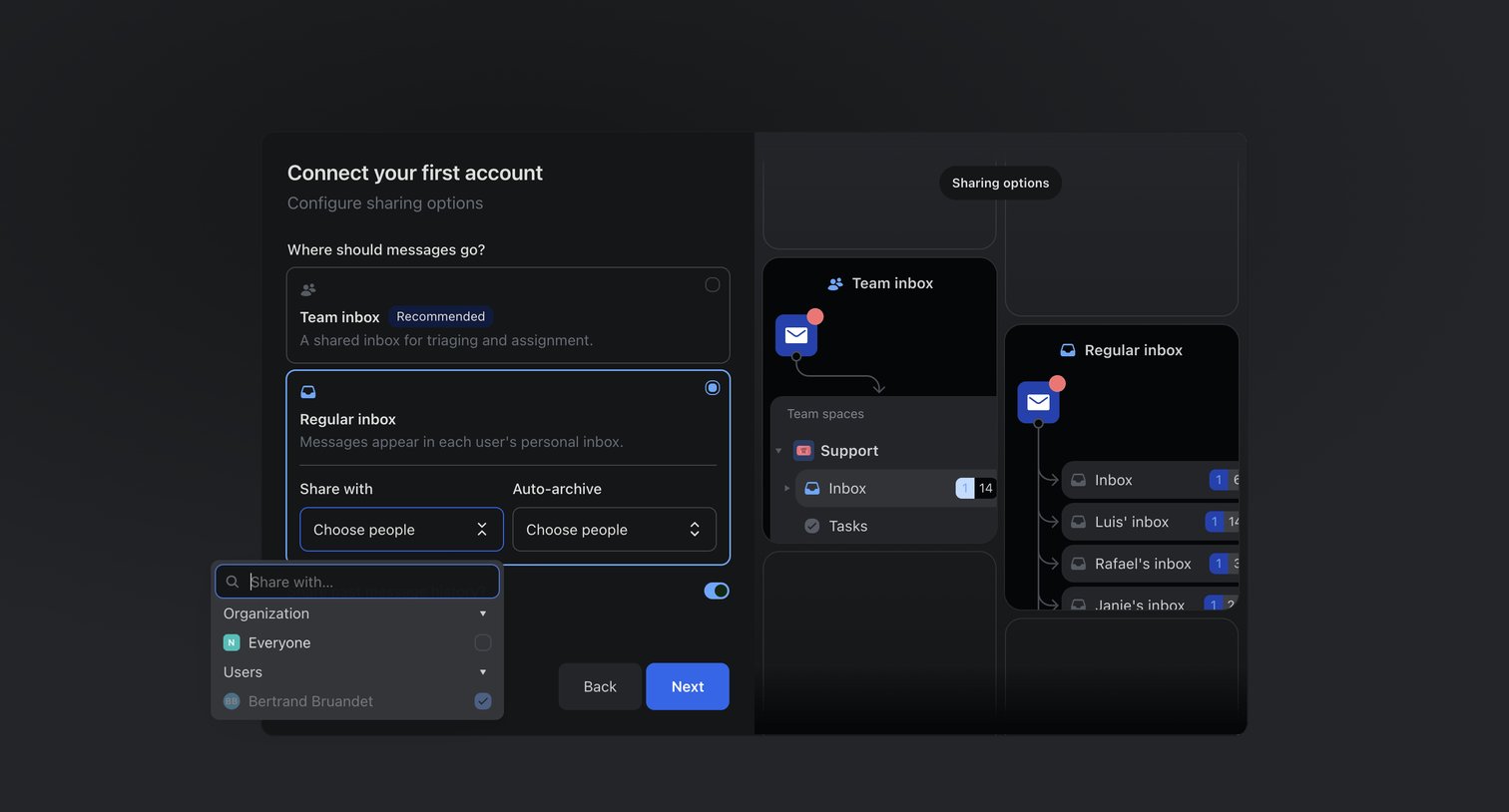
Onboarding step where the user configures sharing options for their first connected account, choosing between a team or regular inbox.
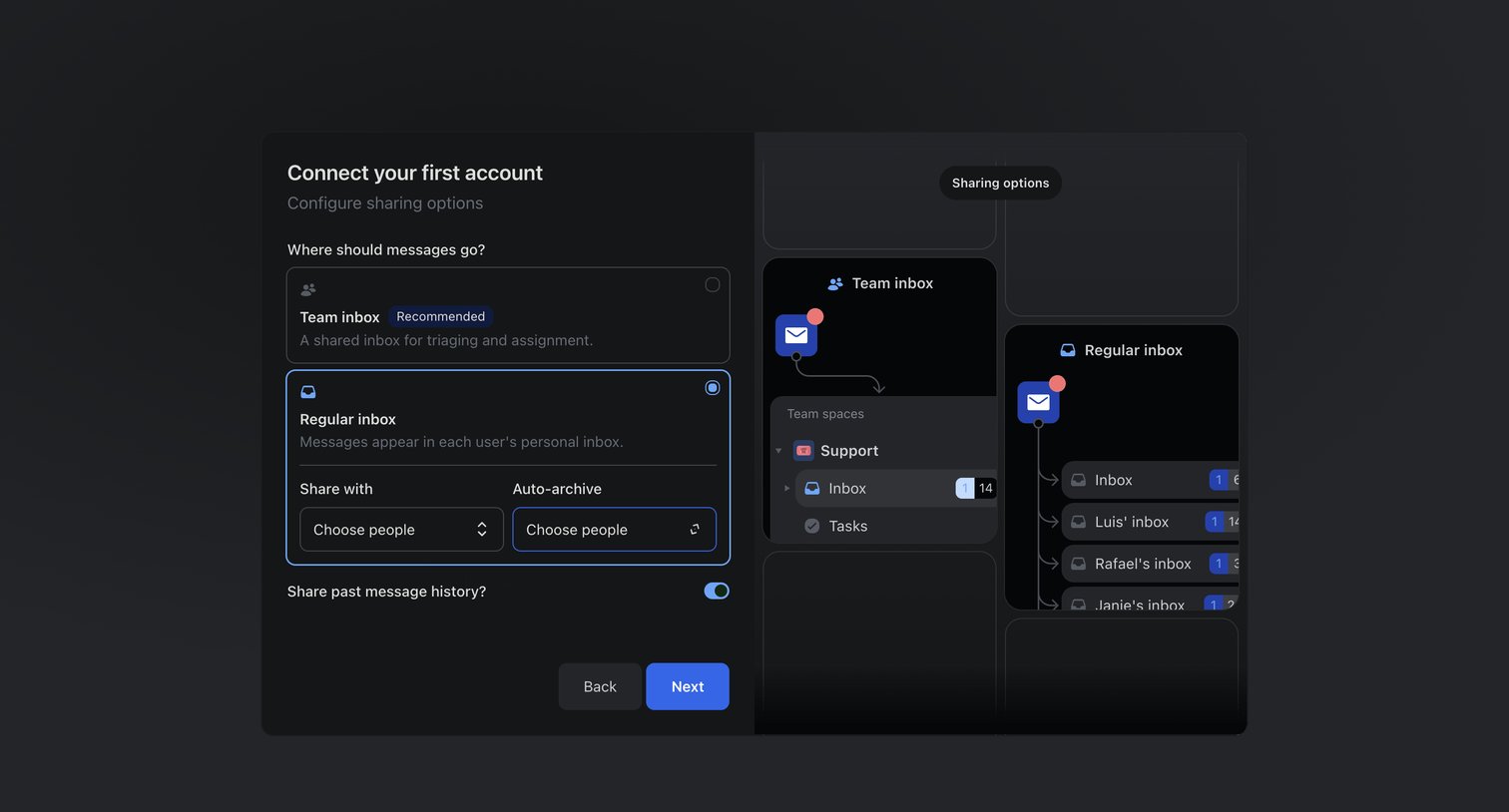
Onboarding step where the user configures sharing options for their first connected account, choosing between a team inbox and a regular inbox while viewing a live routing diagram.
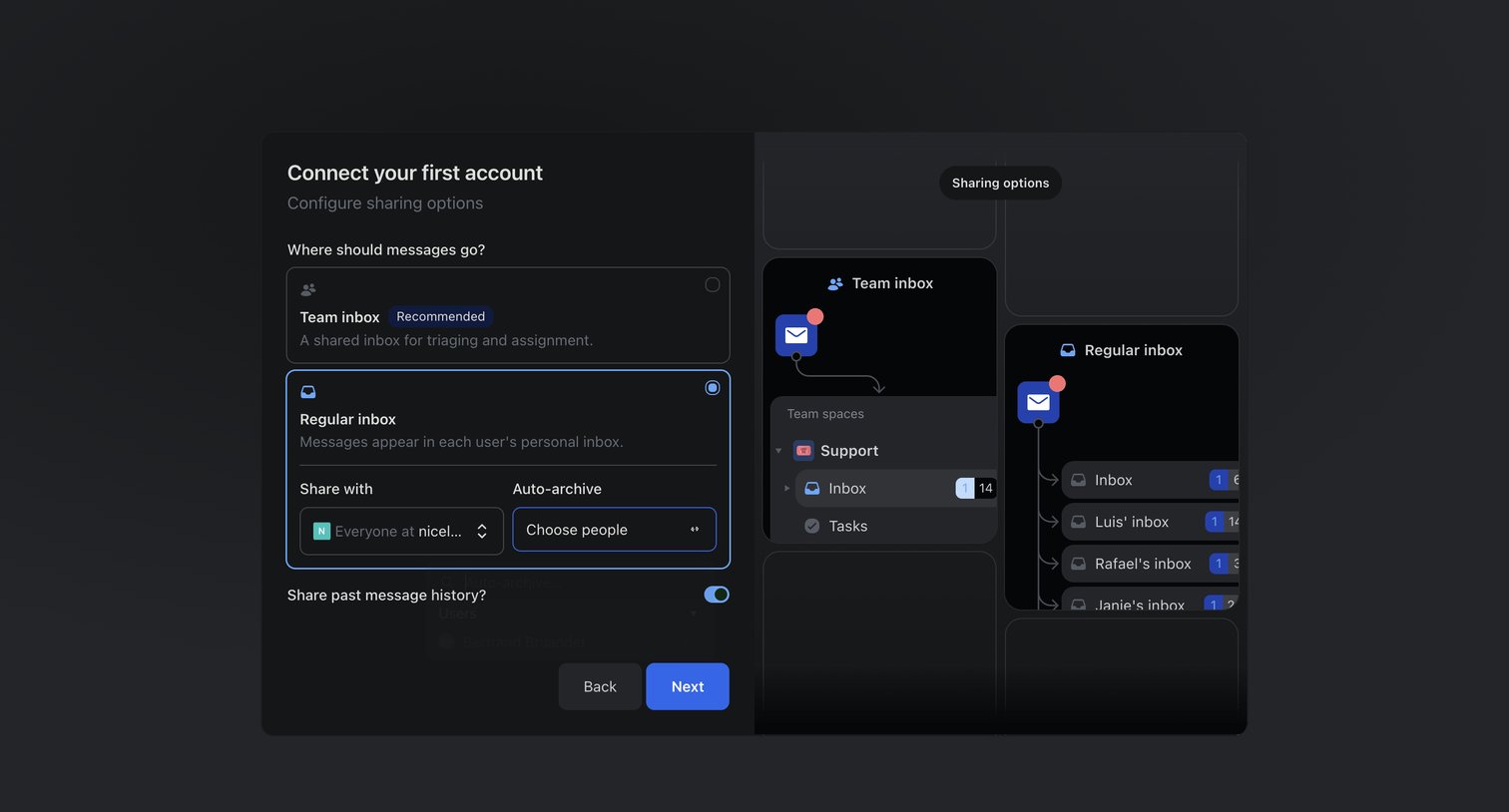
Onboarding step where the user configures sharing options for their first account, choosing between a team inbox and a regular inbox with specific sharing rules.
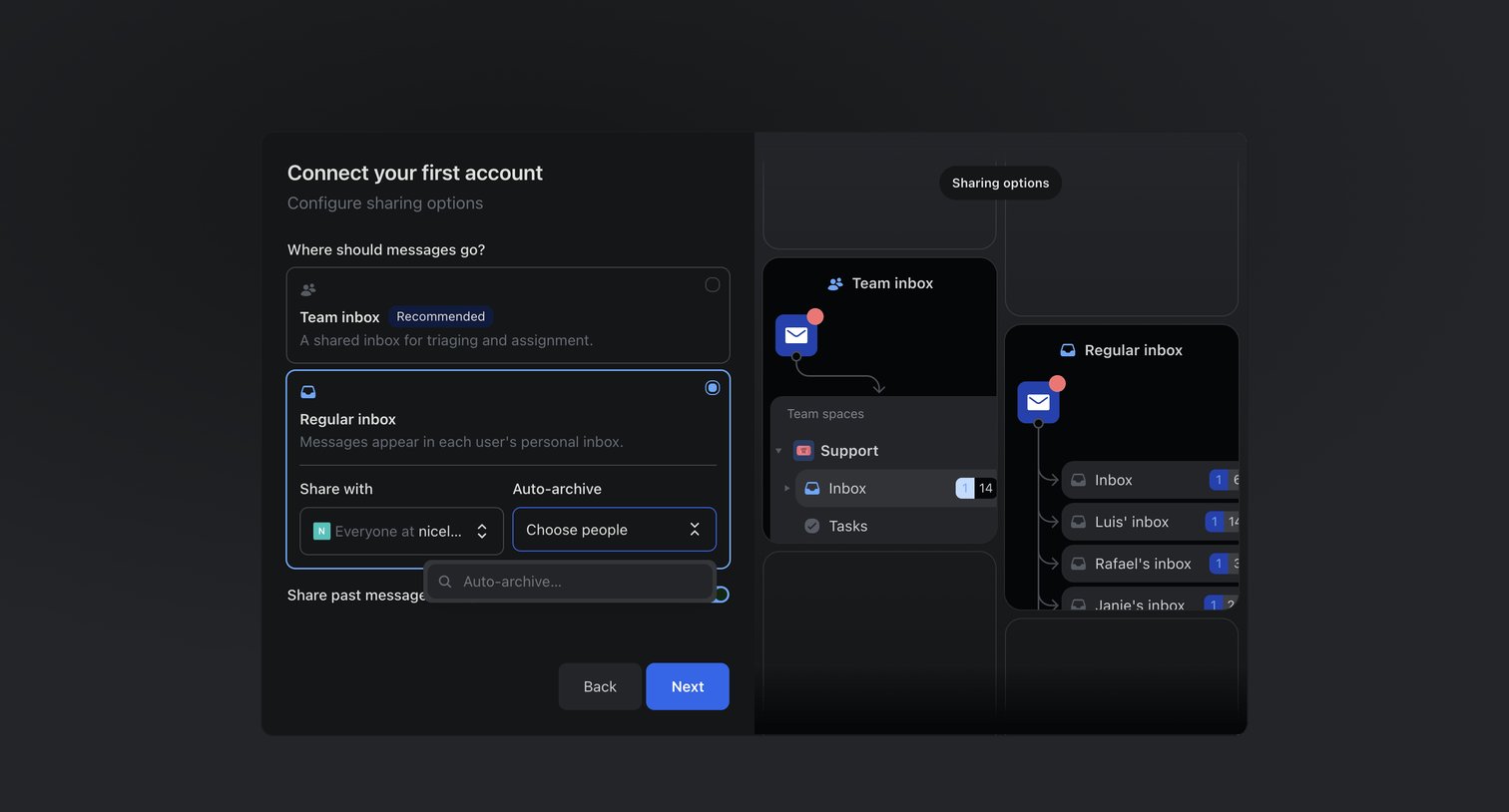
Onboarding step where the user configures sharing options for their first connected account, choosing between a team inbox and a regular inbox with a dynamic visual preview of the routing.
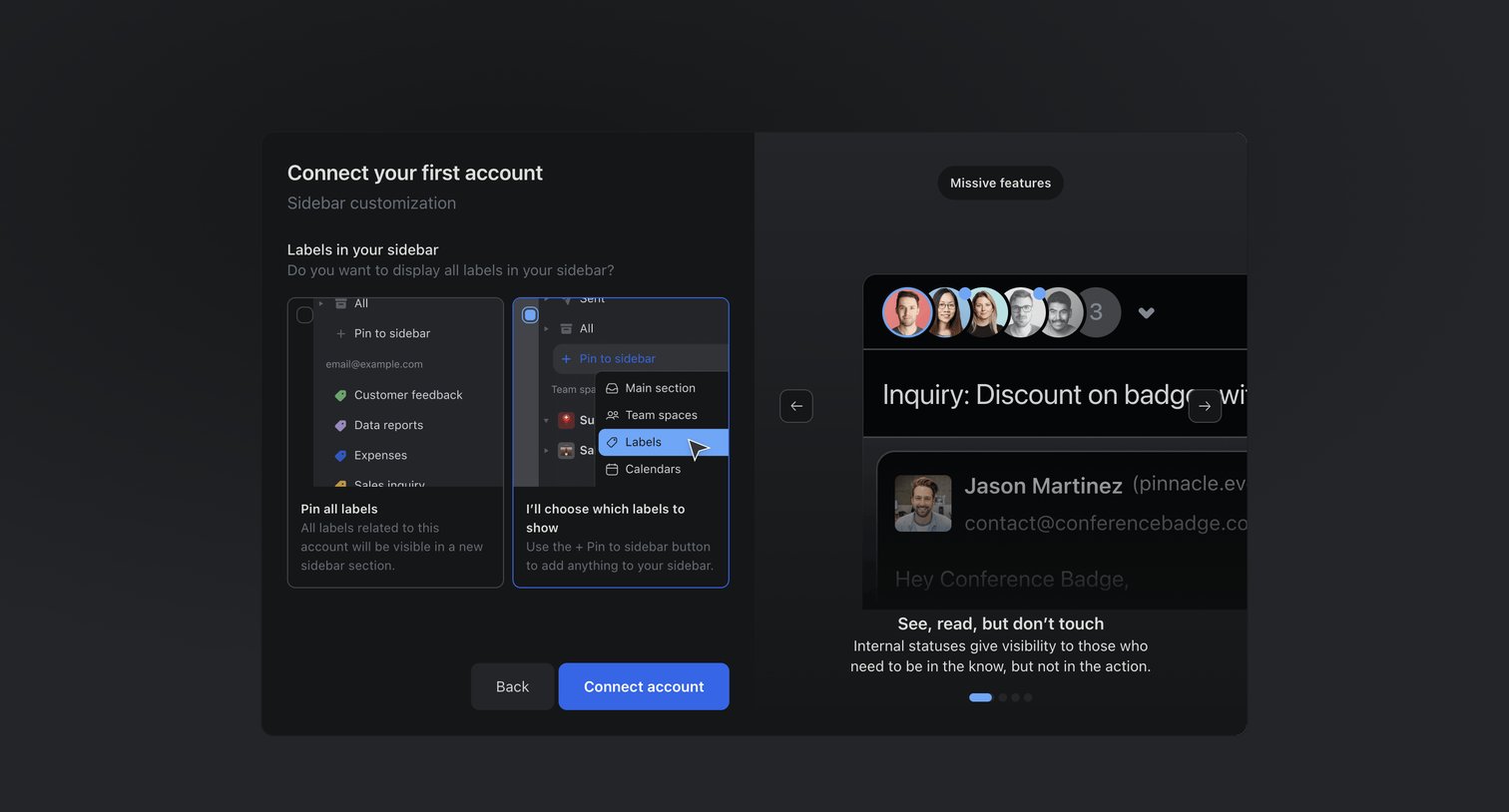
Onboarding step where the user configures their sidebar by choosing between pinning all labels or selecting them manually, alongside a carousel highlighting product features.
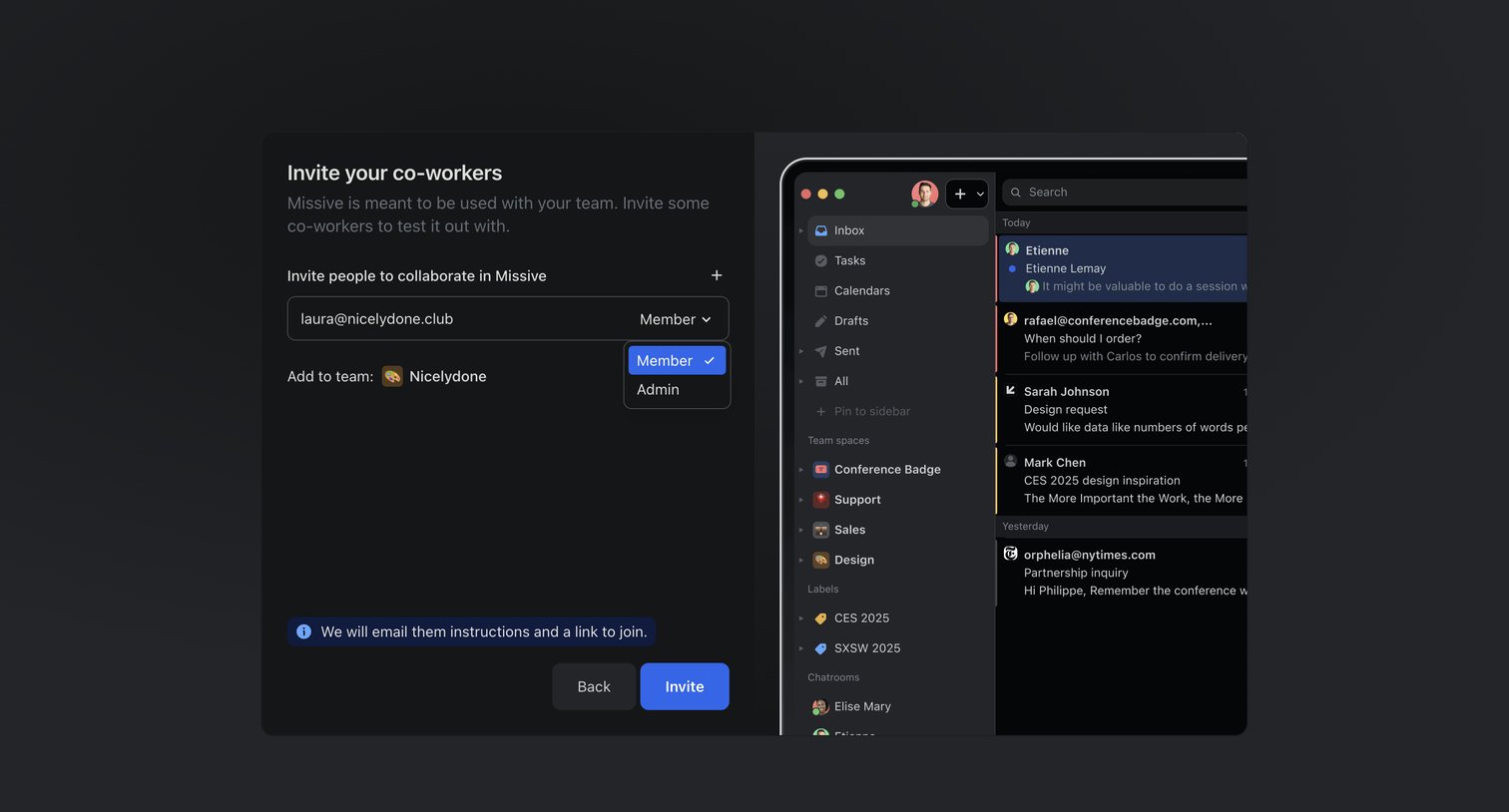
Onboarding step where the user invites co-workers by email and assigns them a member or admin role before continuing.
Browse the full SaaS app library
Explore real SaaS apps with their product screens, marketing screens, flows, and components.
Trusted by the best teams







