Time selector screen examples
Time selector screen design examples from SaaS apps. Browse examples from Missive, Cushion, Okta.
Explore the examples
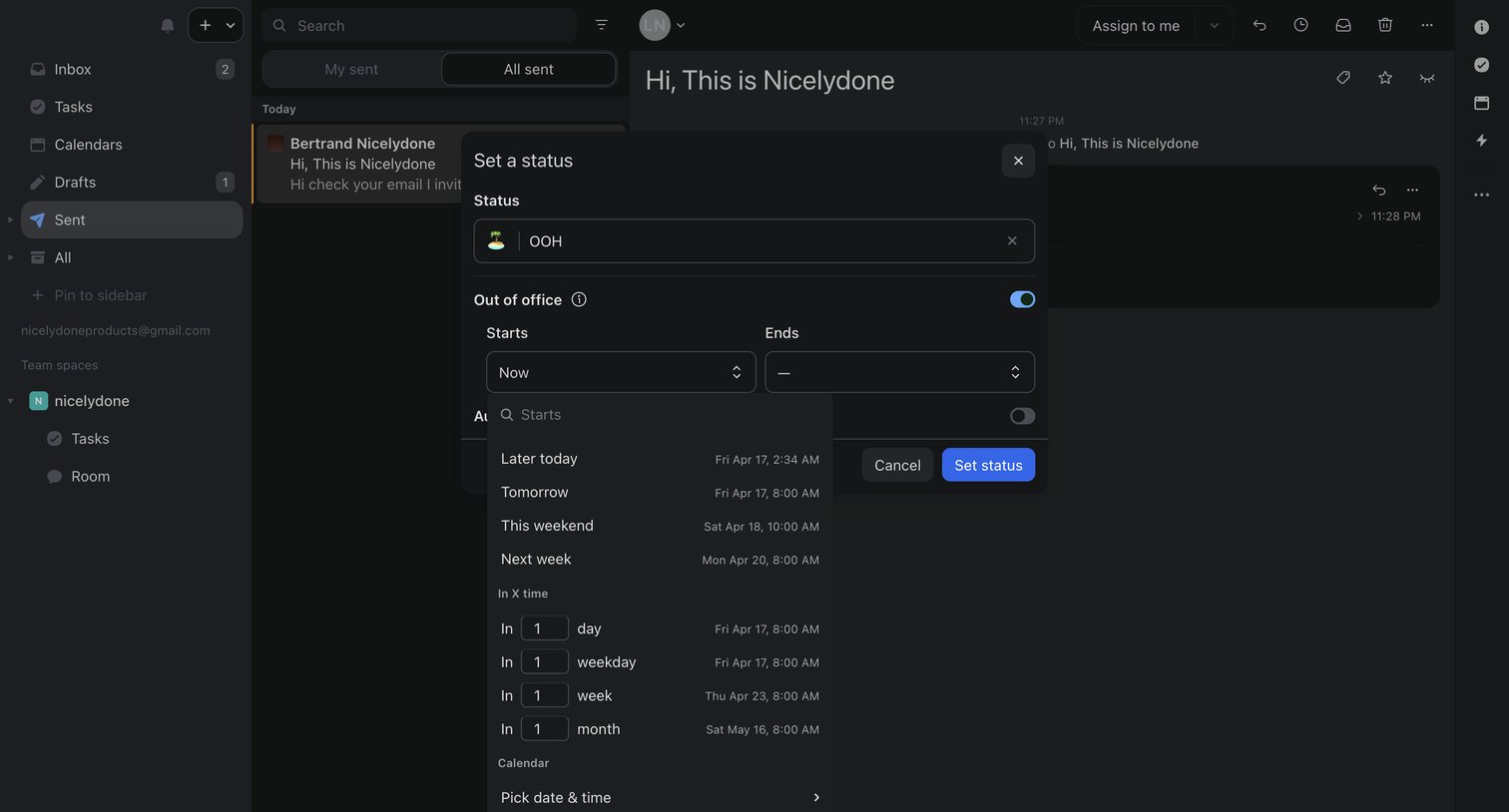

Inbox view where the user is setting an out-of-office status with a custom start and end time via a modal.
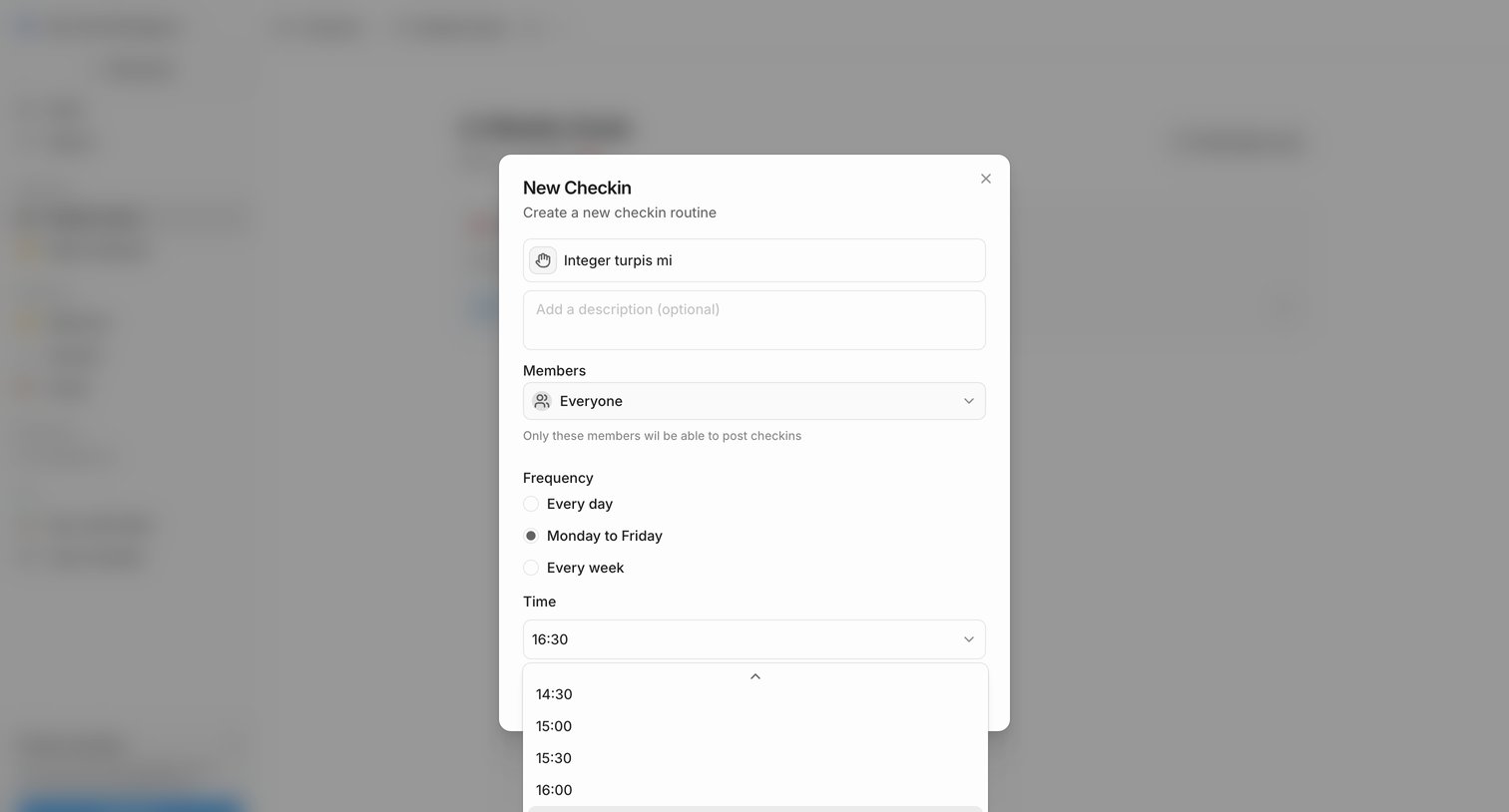

Creation modal where the user configures a new checkin routine by setting its title, description, target members, frequency, and time.
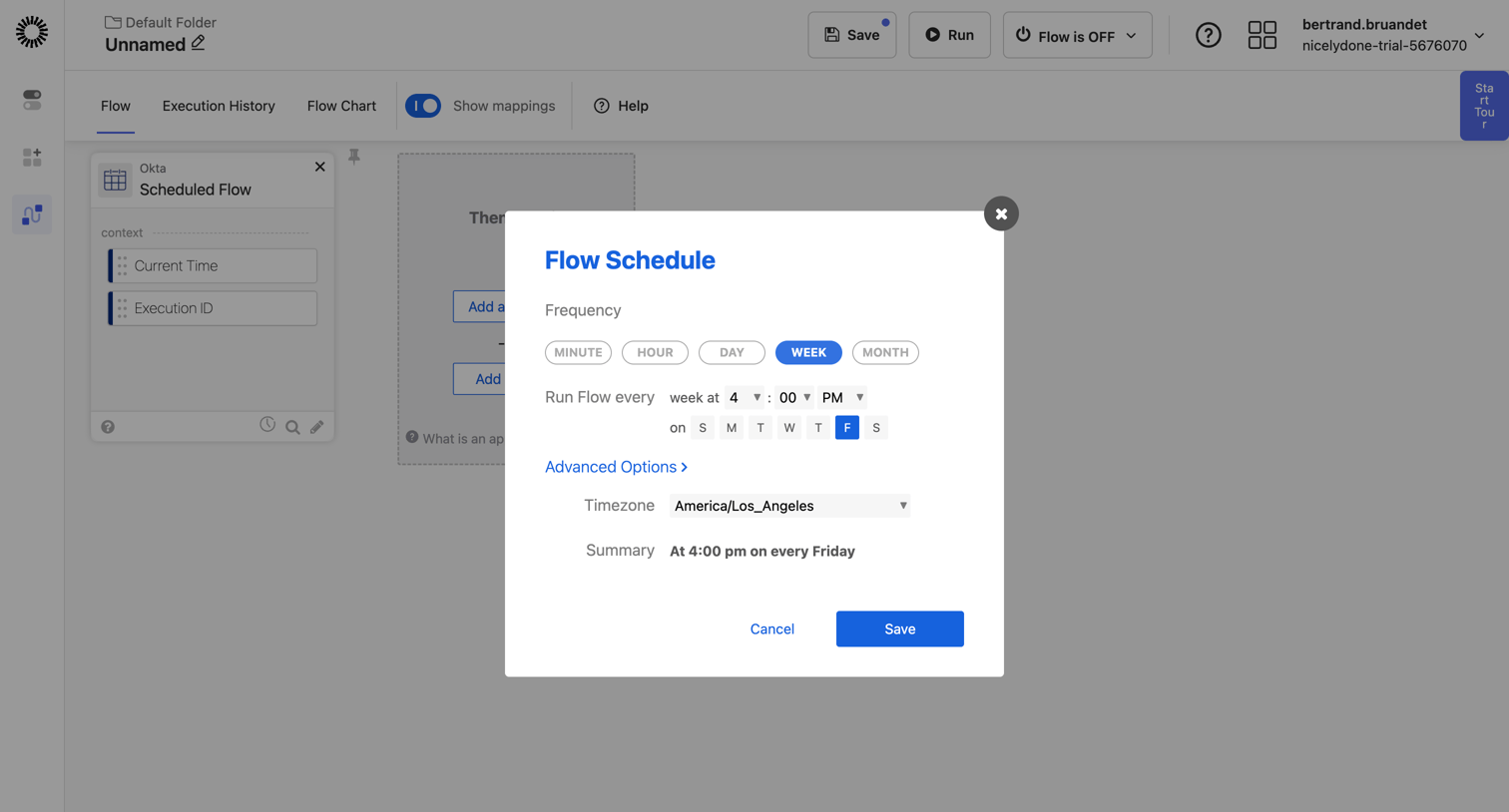

Workflow editor where the user configures the frequency, time, and timezone for a scheduled automation flow via a modal.
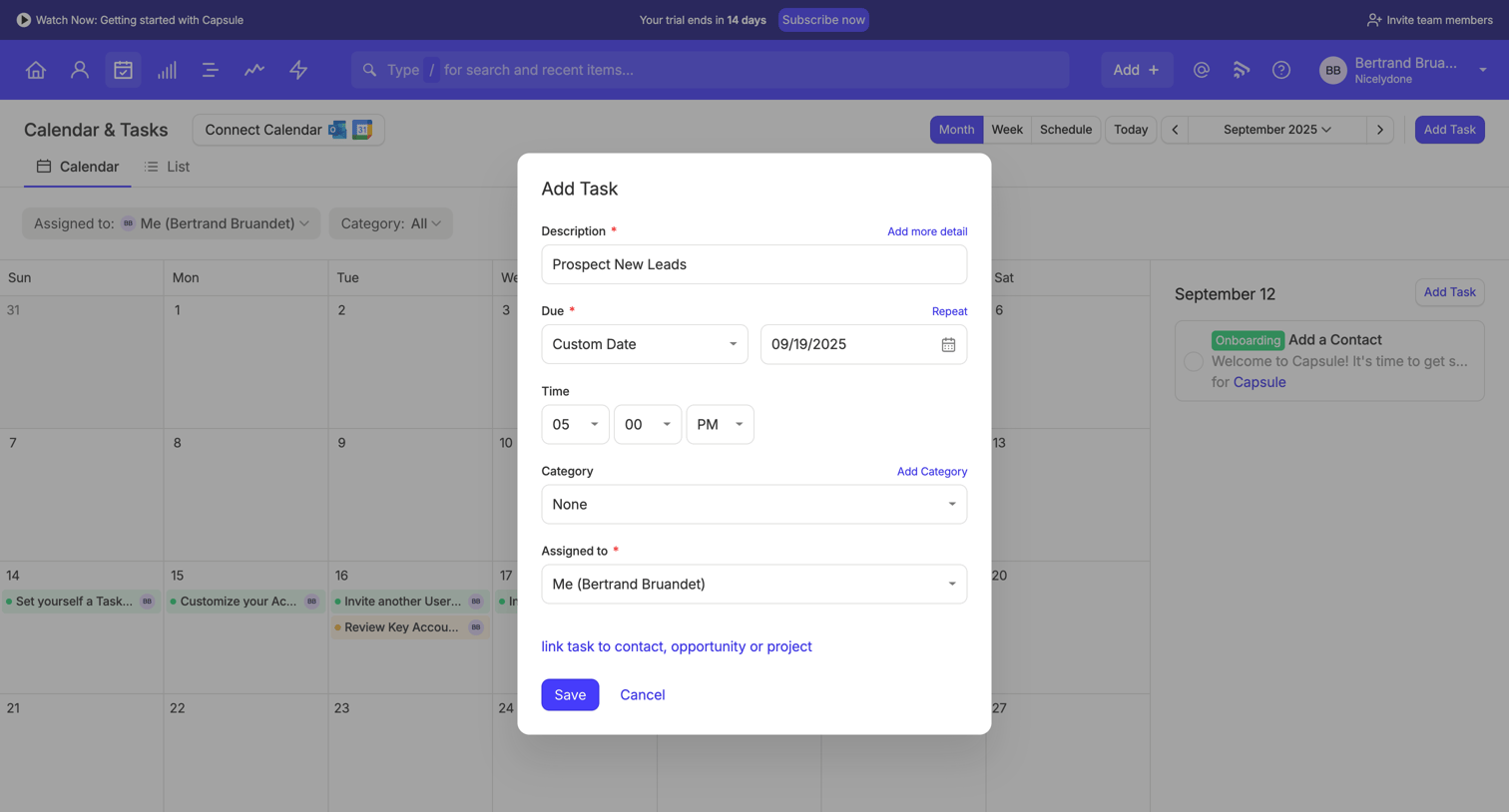

List view where the user creates a new task with a description, due date, time, category, and assignee over a calendar.
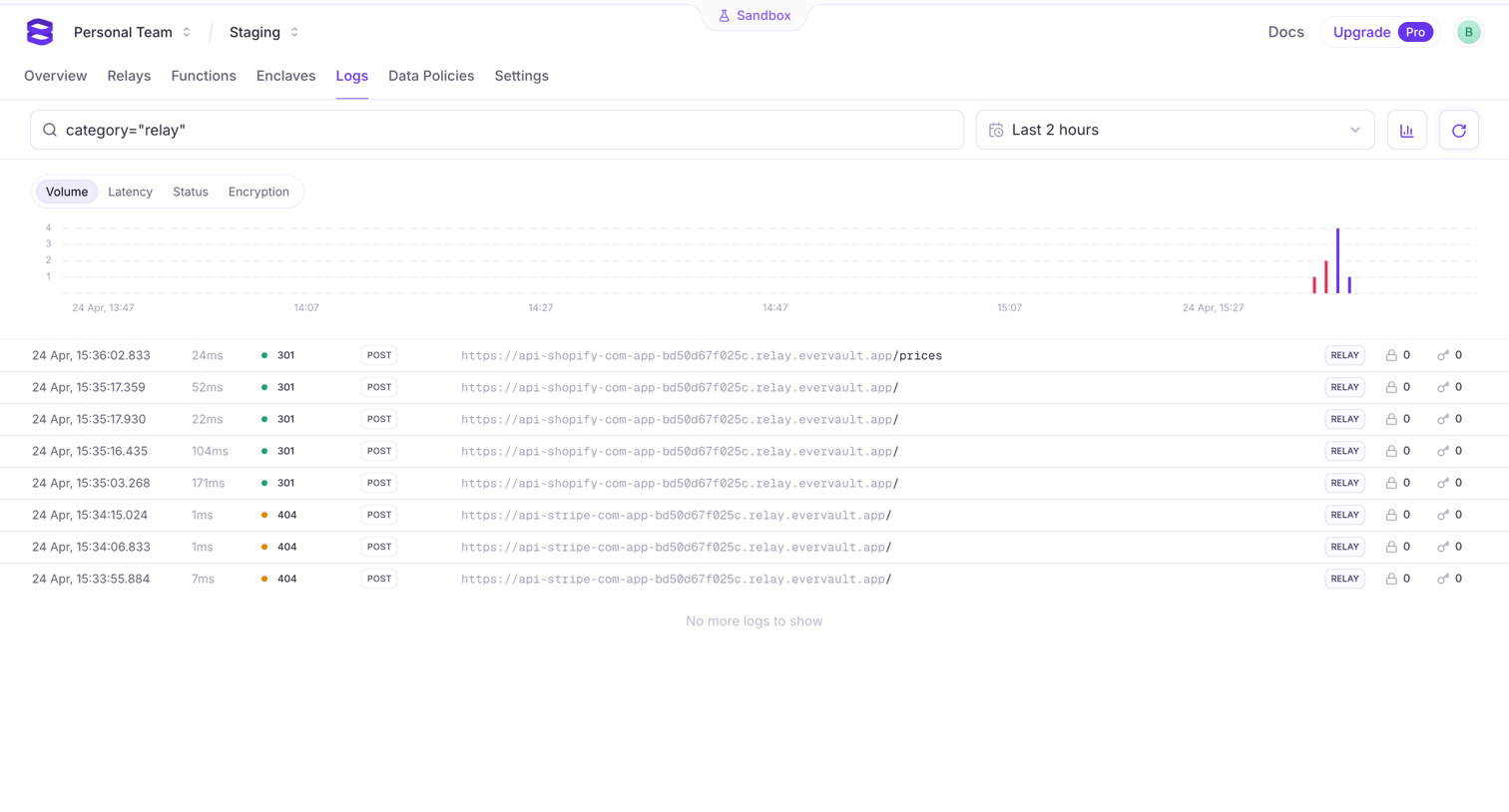

List view where the user monitors API relay logs with a volume chart and a query search bar.
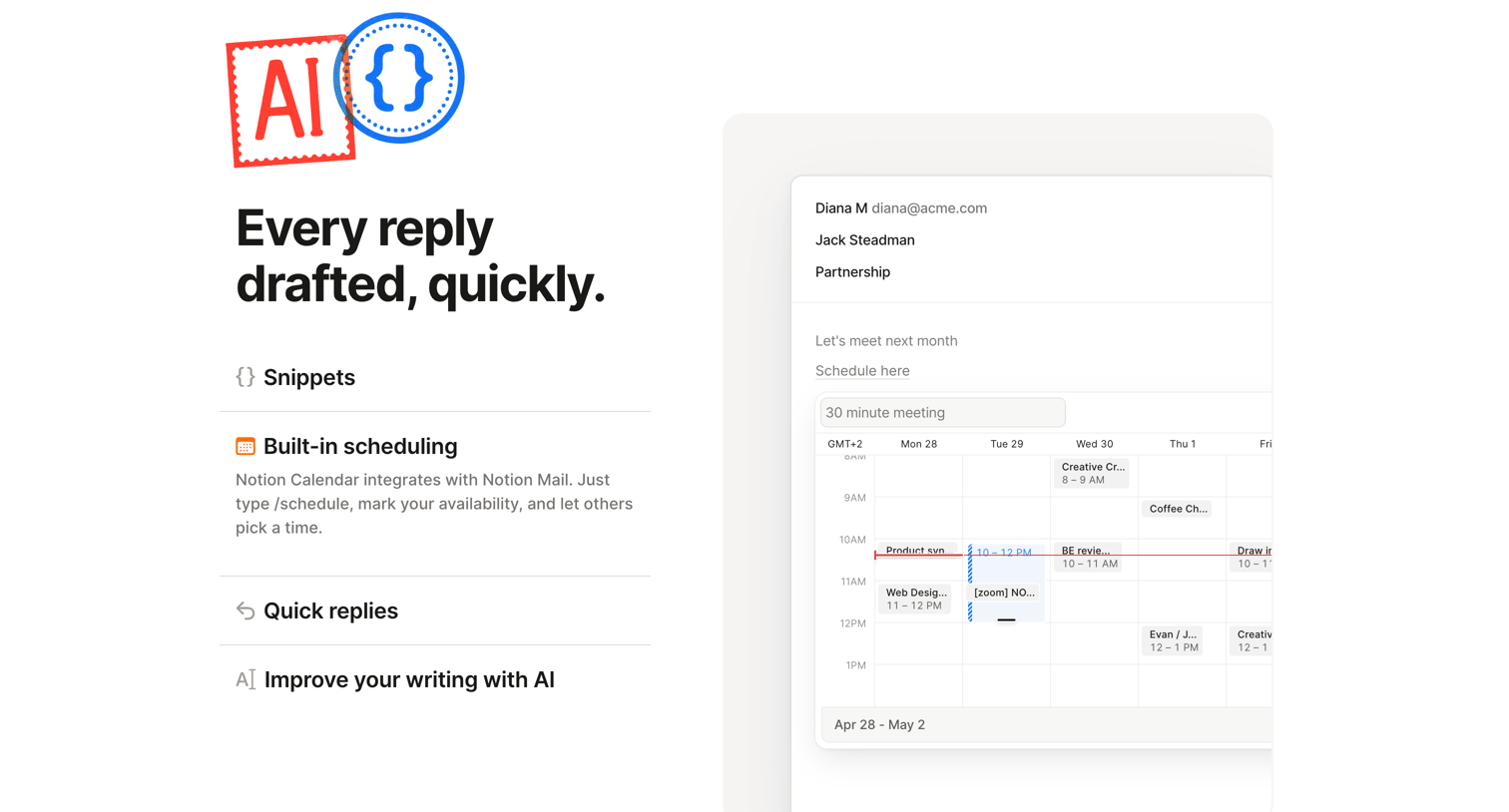

Product page section highlighting the built-in scheduling feature with a mockup showing an interactive calendar embedded directly in the email composer.
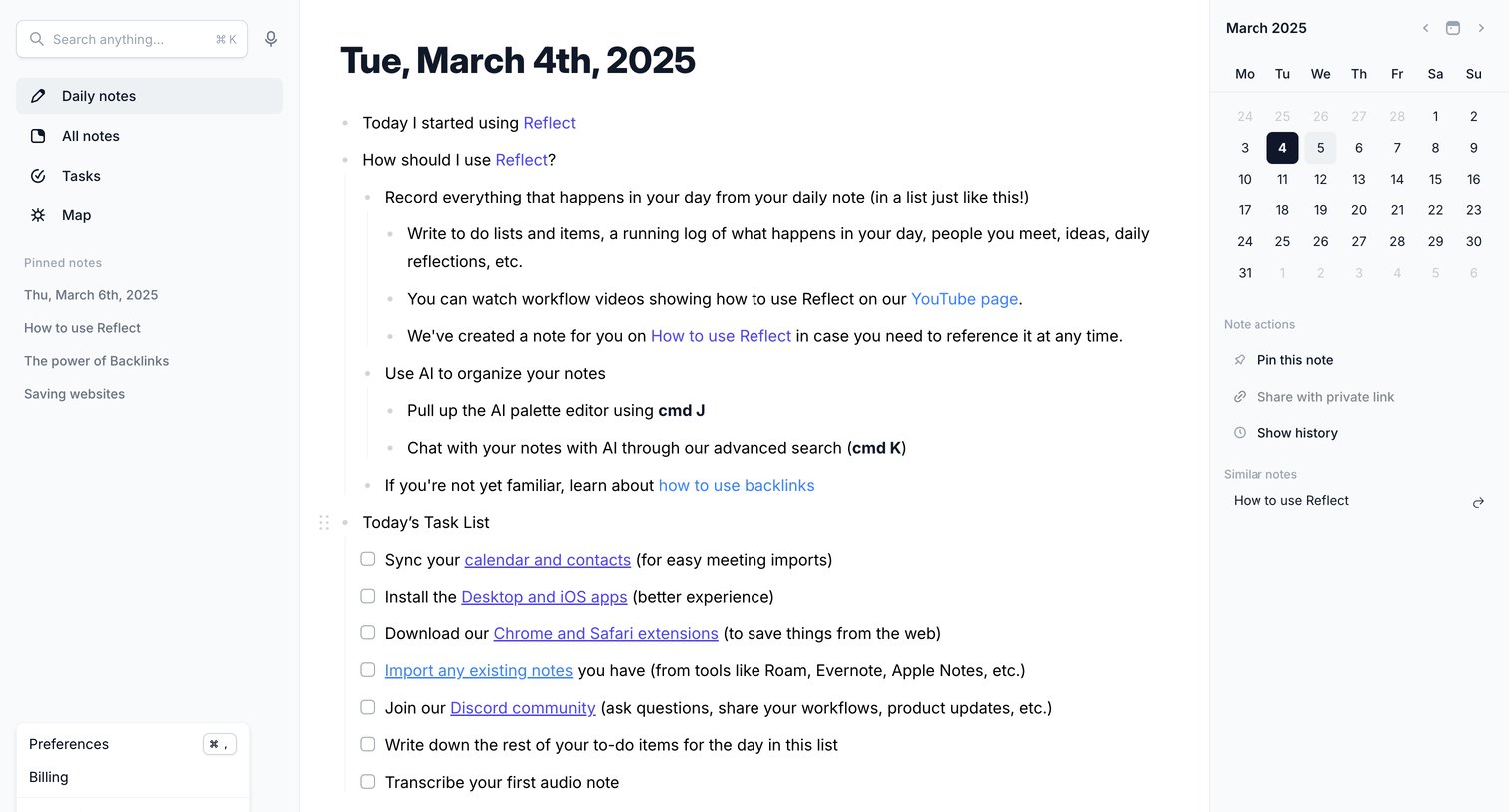

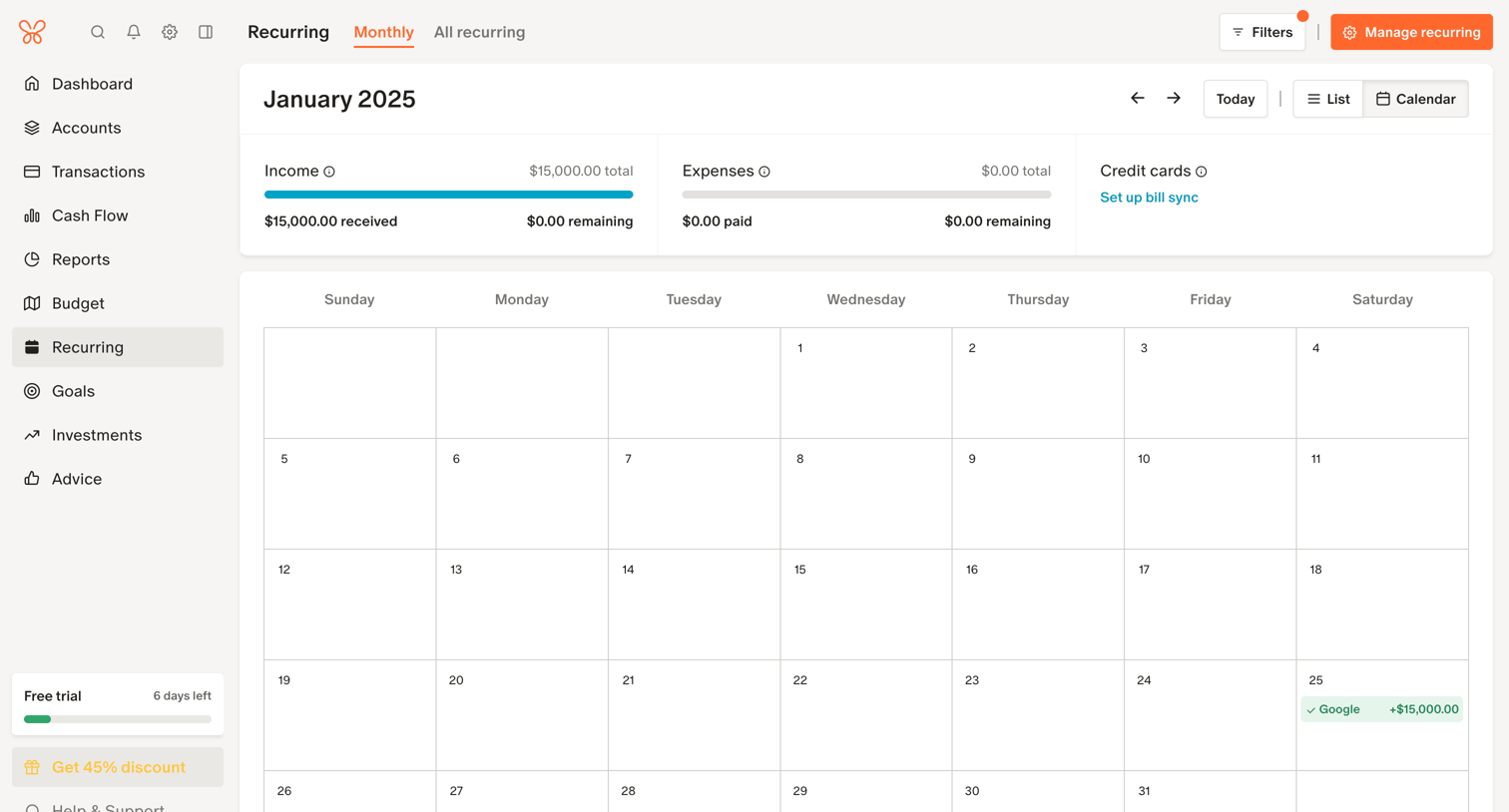

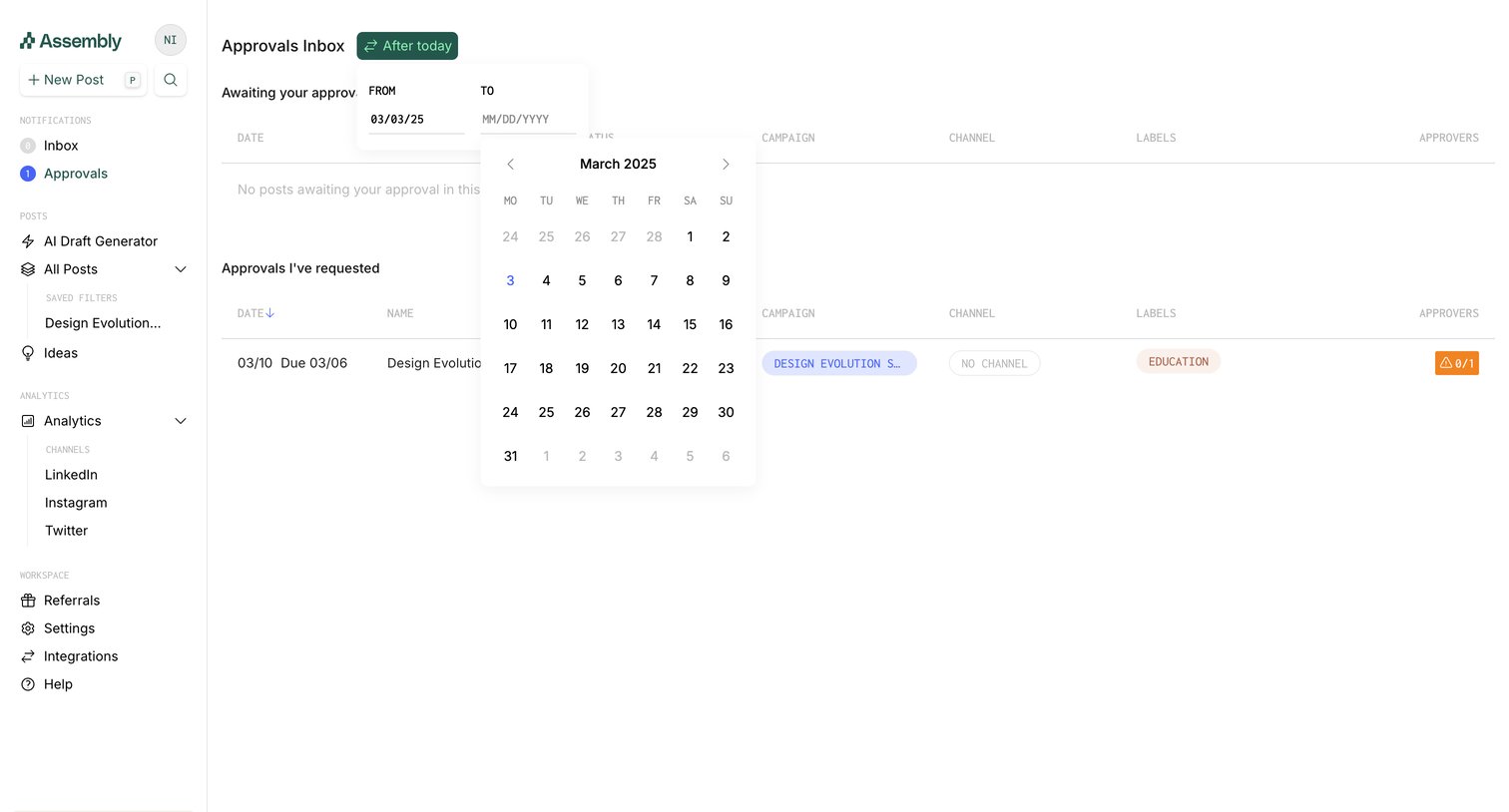

Inbox page where the user manages pending approvals and tracks requests they have sent, currently filtering by a date range.
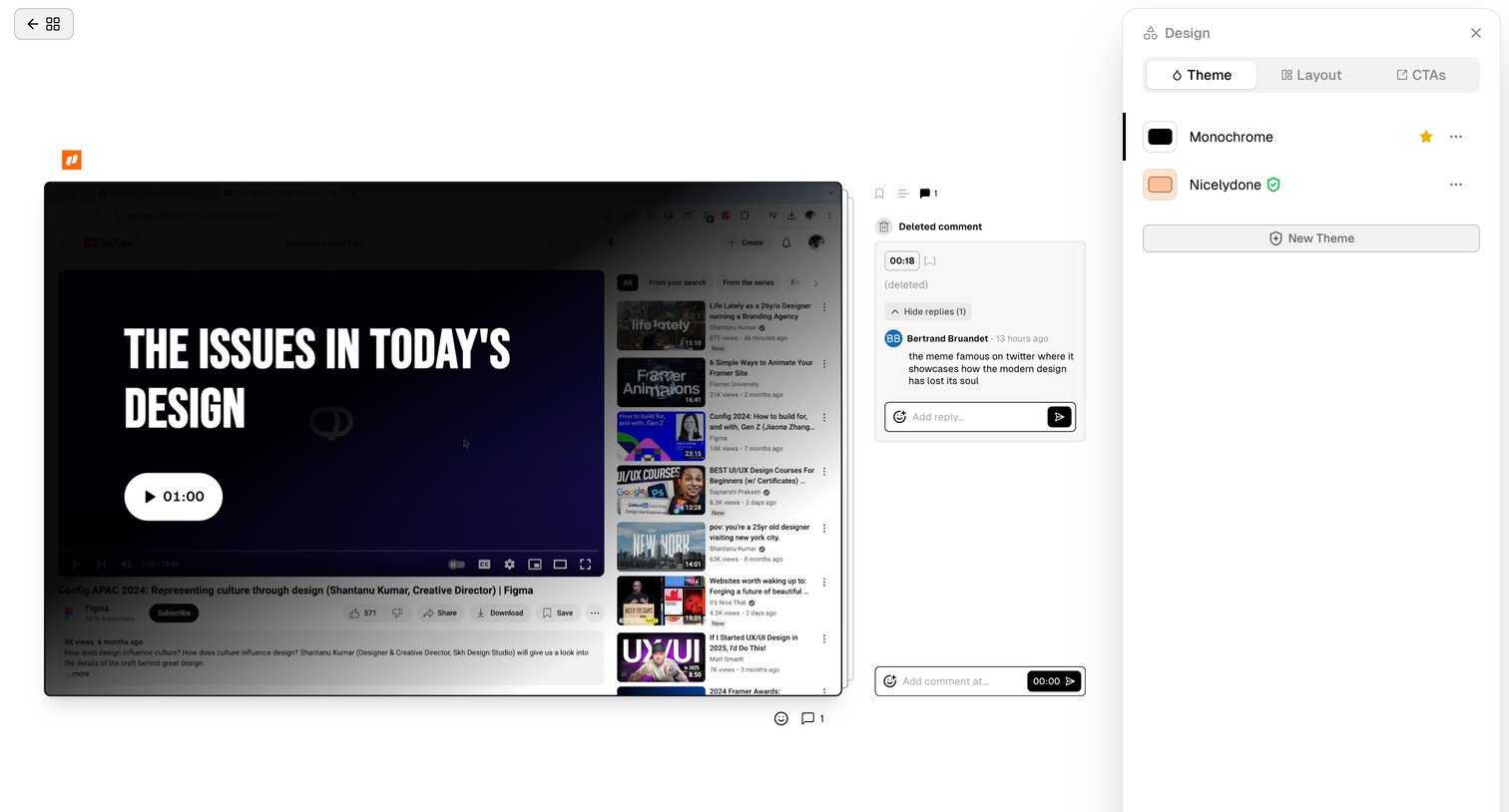

Design editor where the user customizes the theme of a video share page and reviews a comment thread.
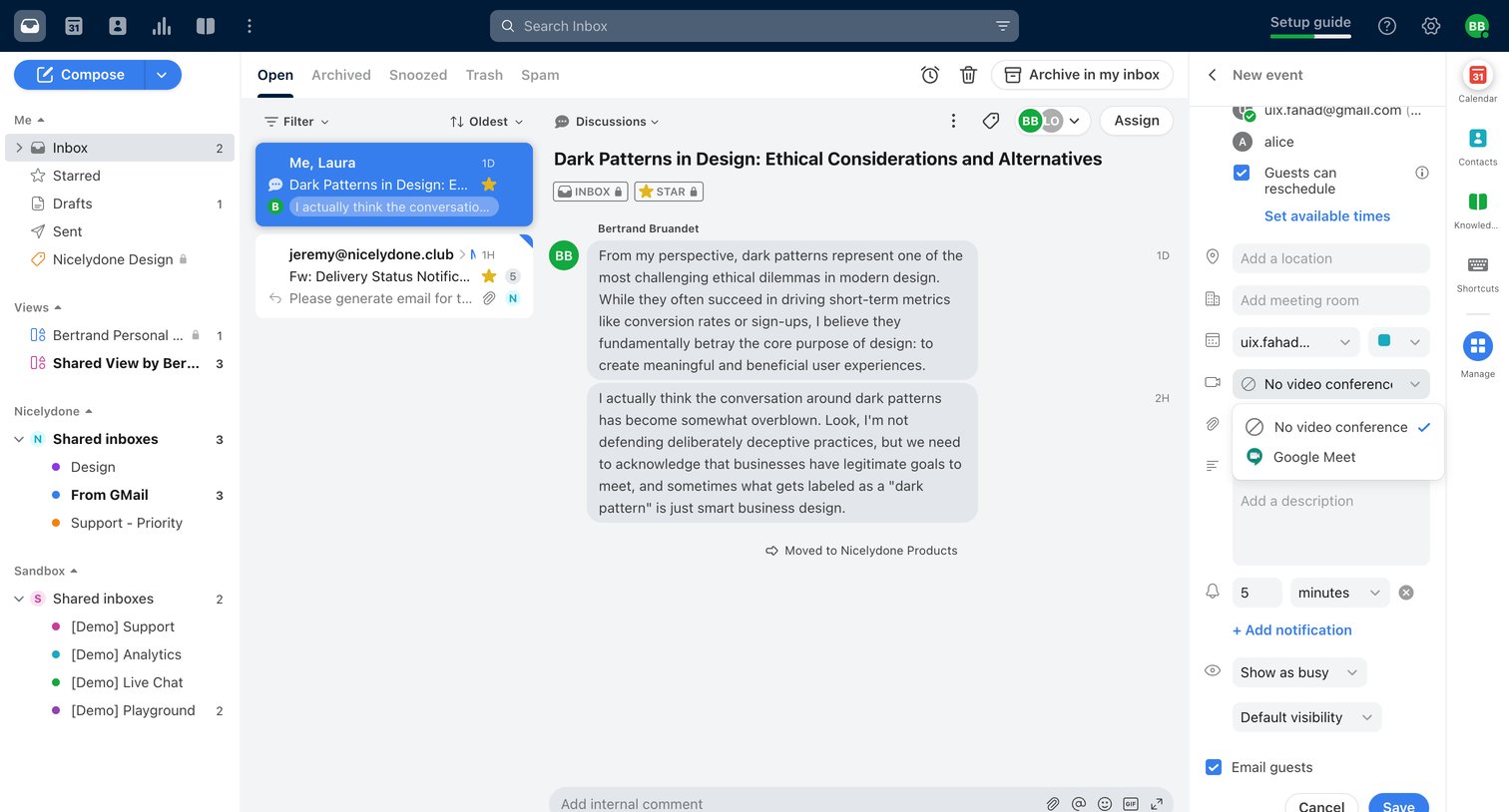

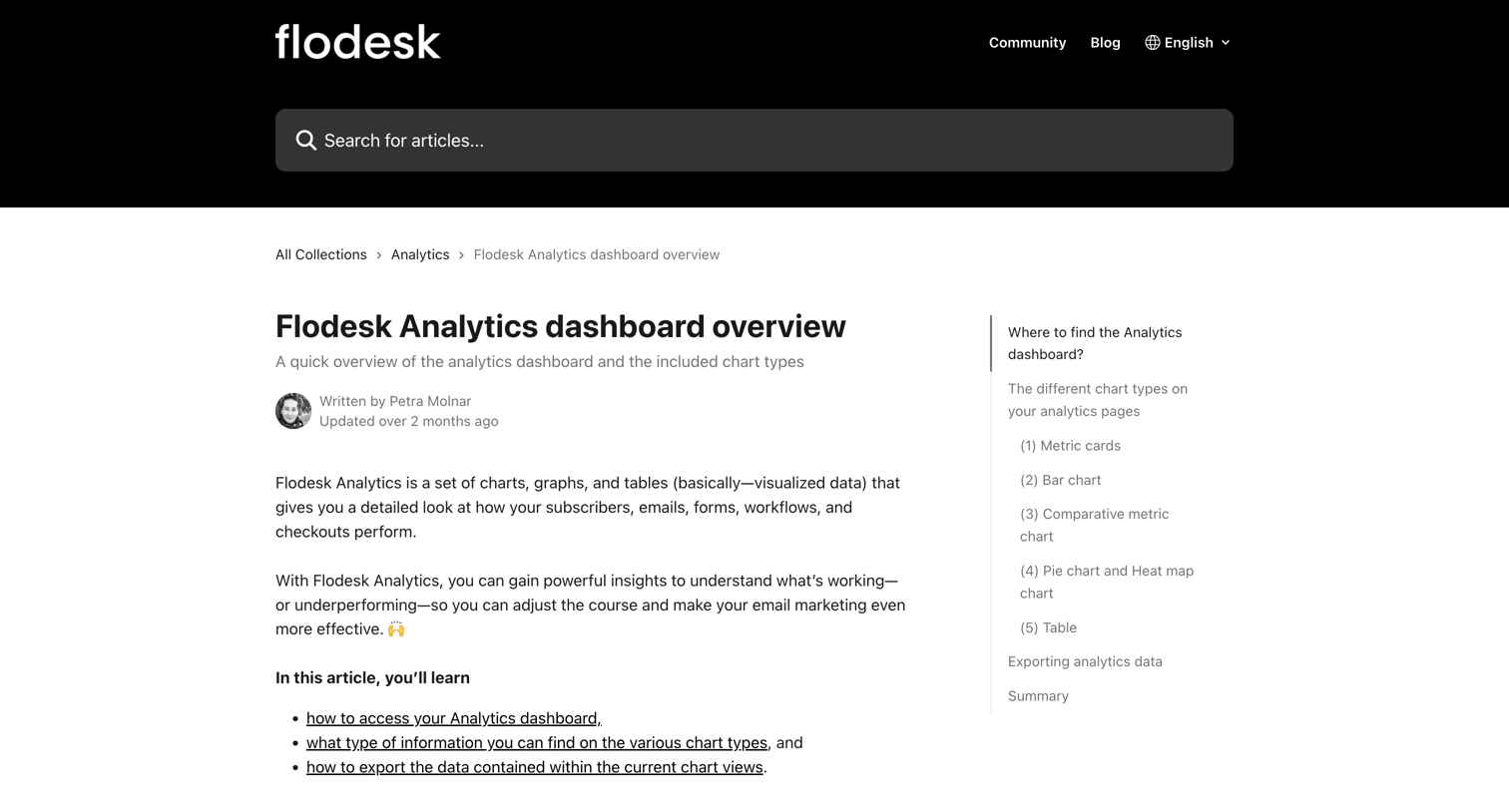

Help center article explaining the different chart types and data available on the analytics dashboard, featuring screenshots of bar charts, pie charts, and data tables.
Explore the full SaaS screen library
Upgrade to unlock the full library.
Trusted by the best teams







