User account screen examples
User account screen design examples from SaaS apps. Browse examples from Origin Financial, Dock, Bloom.
Explore the examples
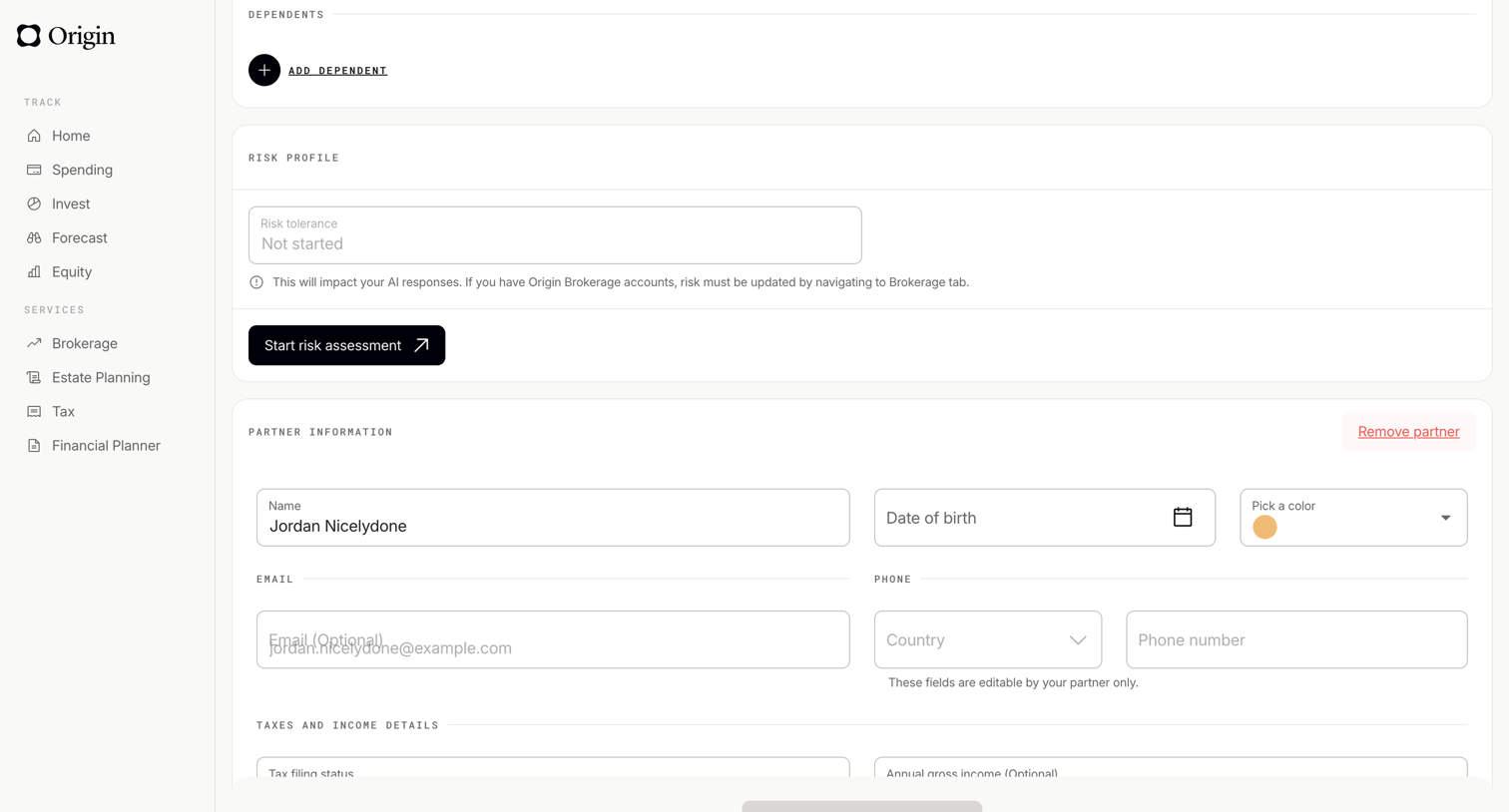

Settings page where the user manages their dependents, risk profile, and partner information via form fields.
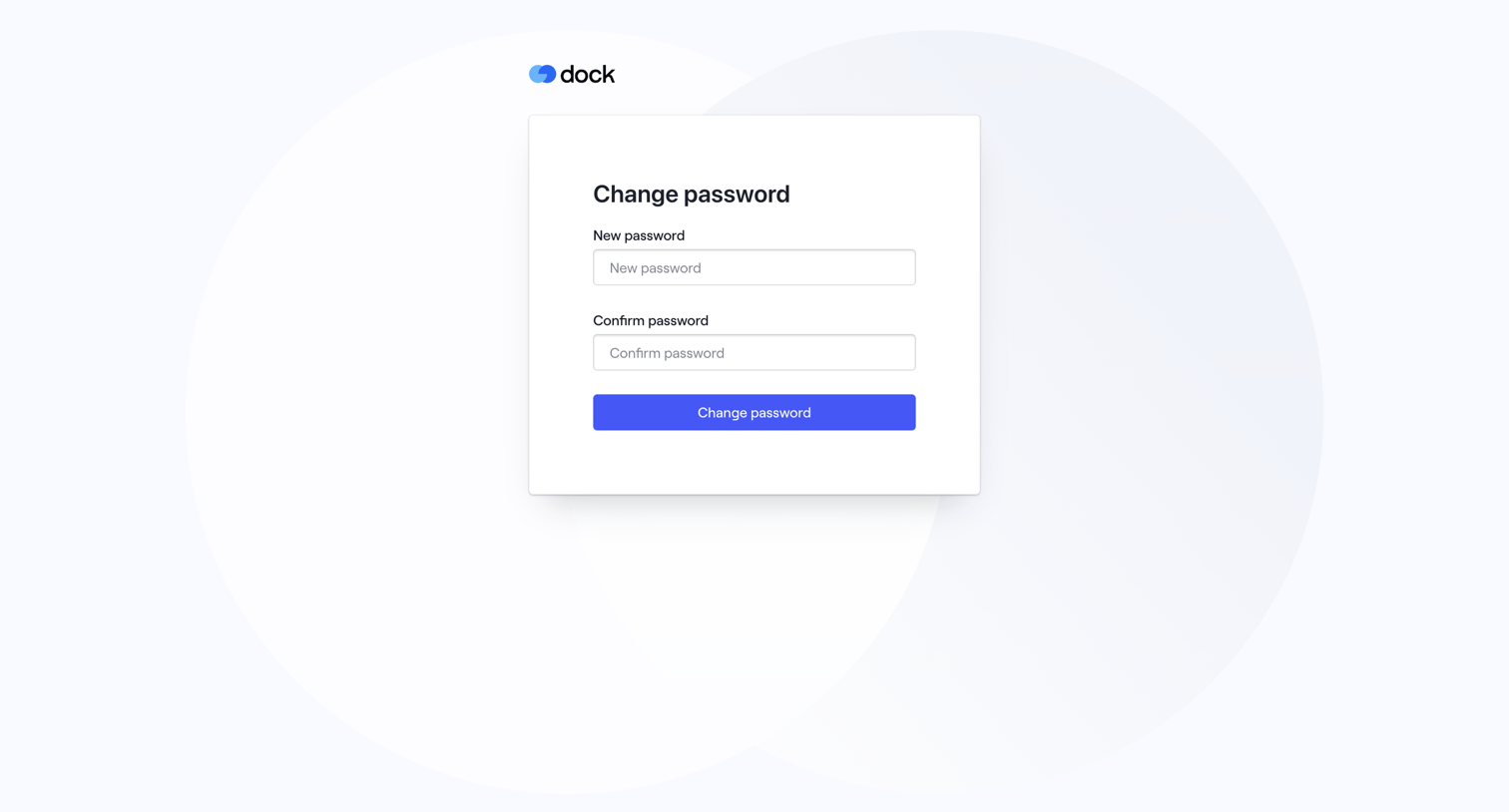

Authentication screen where the user sets and confirms a new password to recover their account.
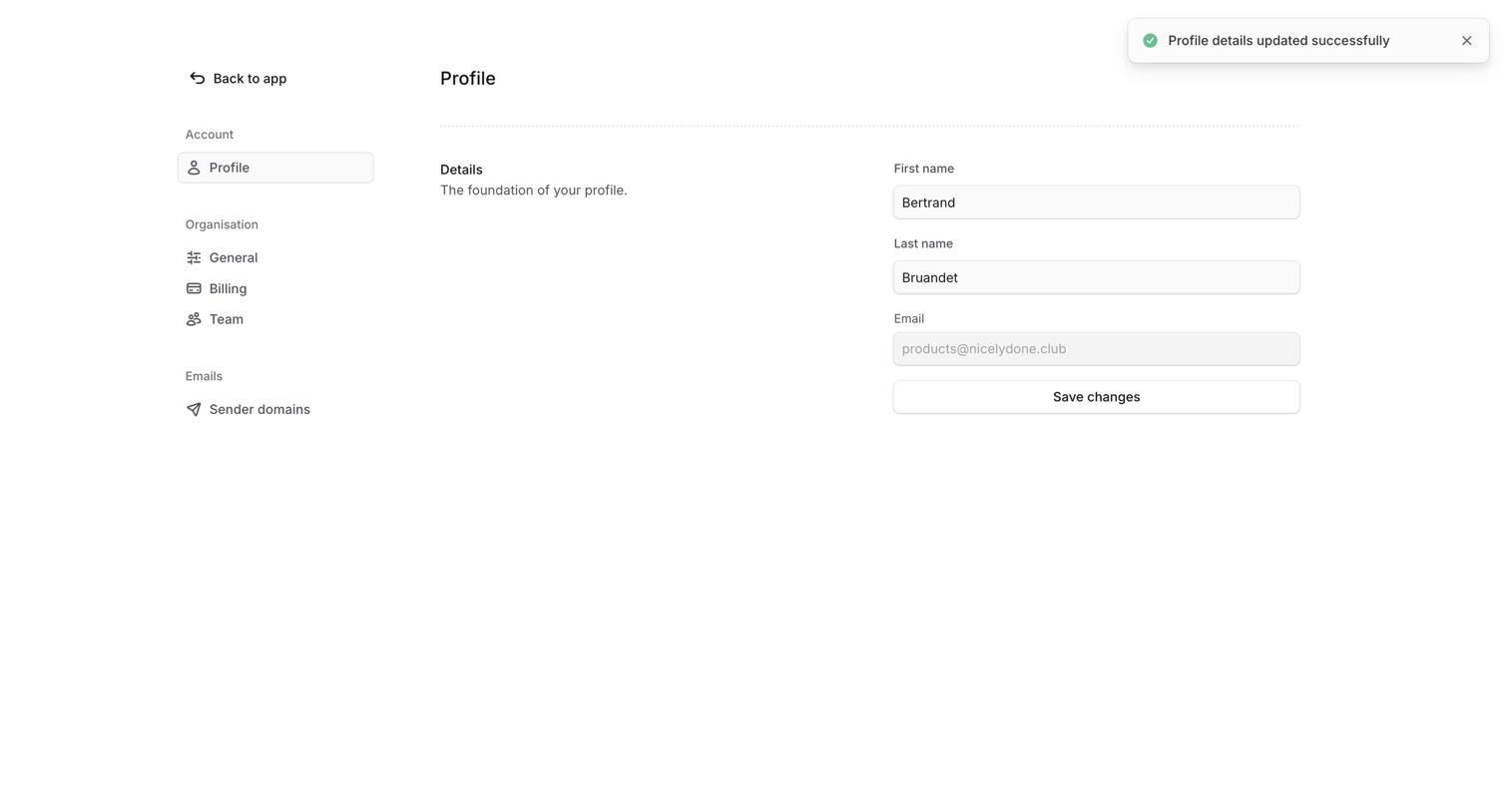

Settings page where the user updates their profile details like first and last name, confirming the changes with a success notification.
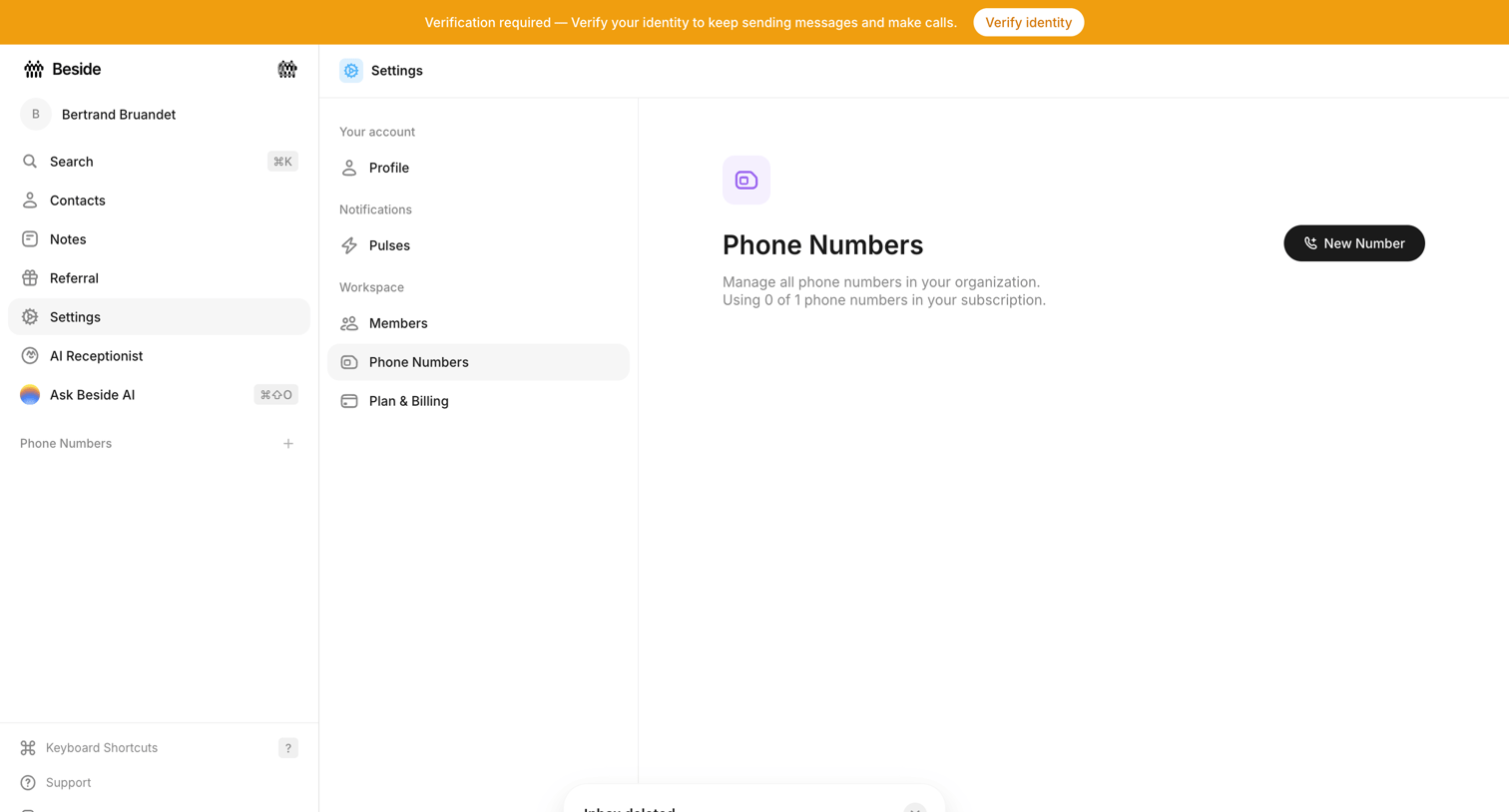
Settings page where the user manages workspace phone numbers, currently showing an empty state with a prompt to add a new number and a system banner requiring identity verification.

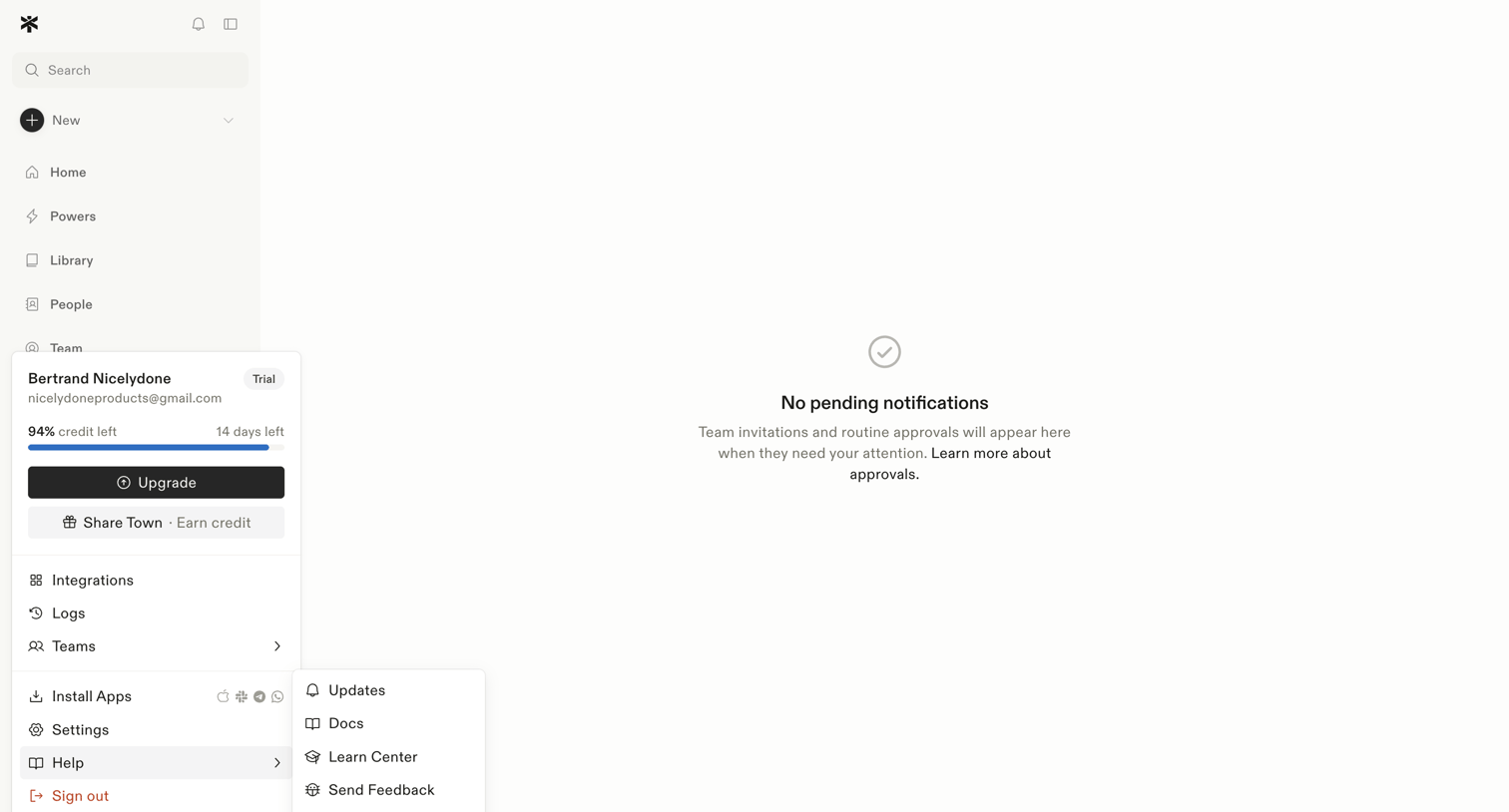

Inbox view where the user manages team invitations and routine approvals, currently showing a zero-state message with no pending items.
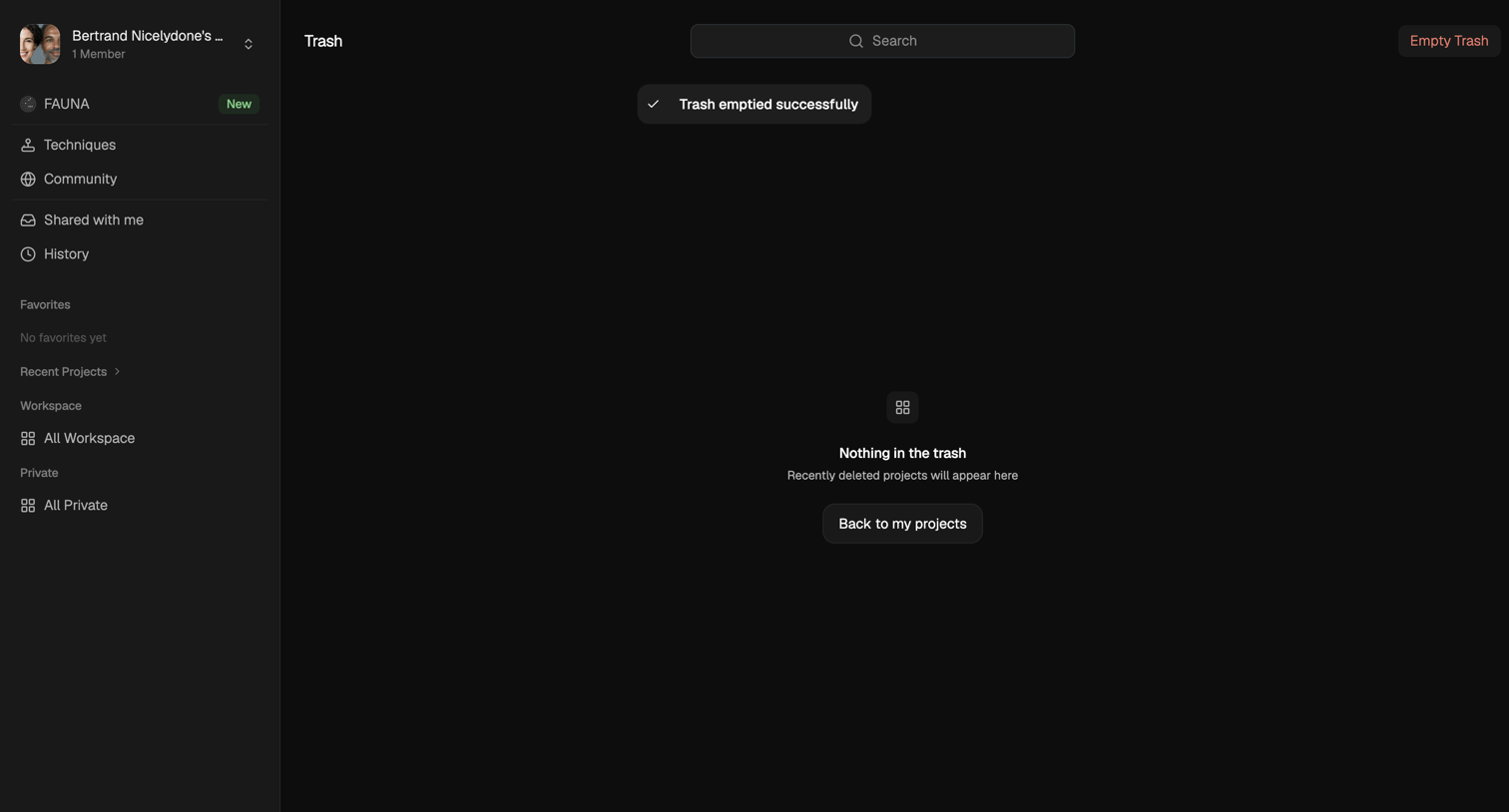

Trash page showing an empty state and a success toast after the user emptied all deleted projects.
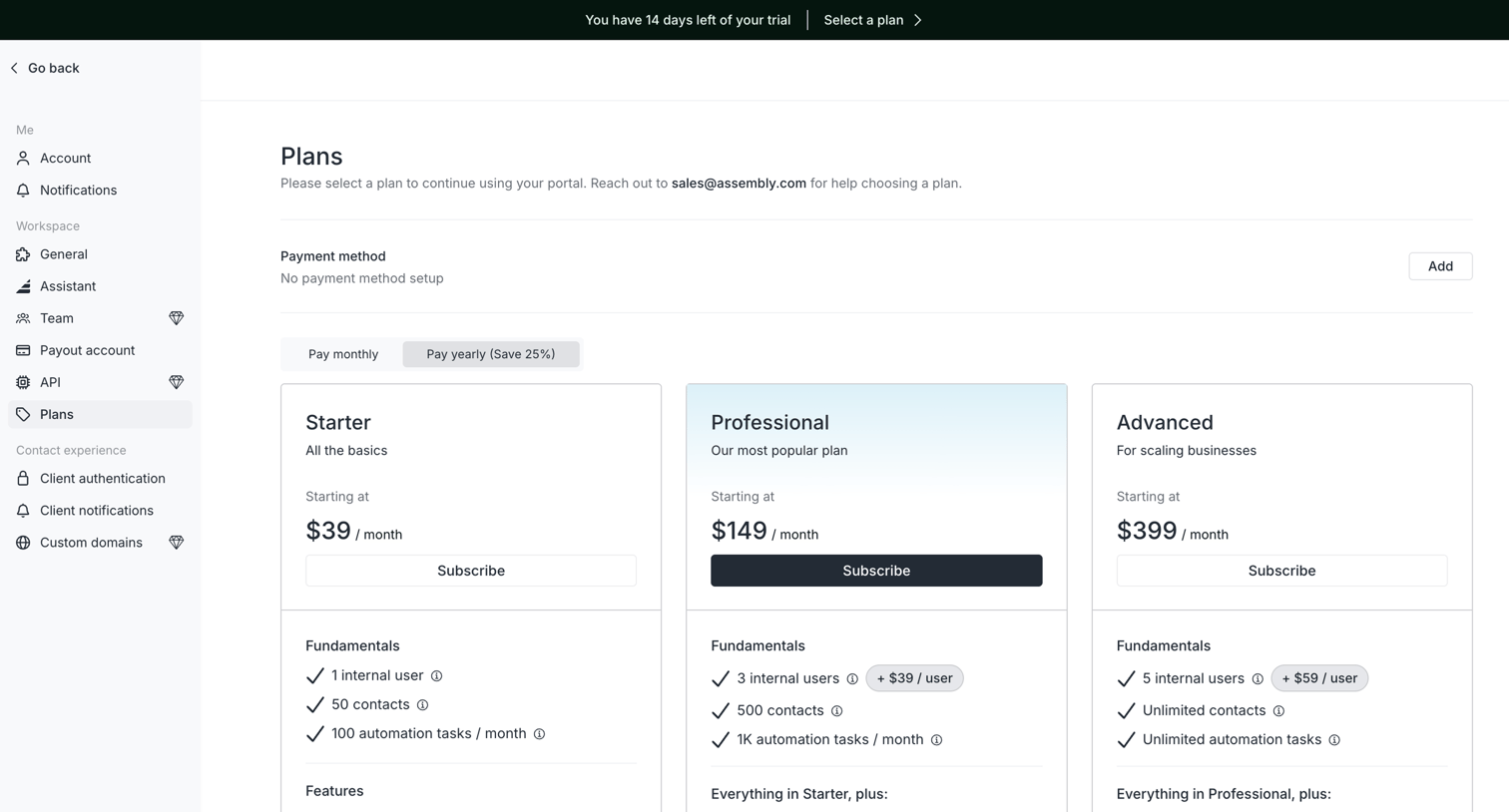

Settings page where the user selects a subscription plan between Starter, Professional, and Advanced tiers to continue using their portal.
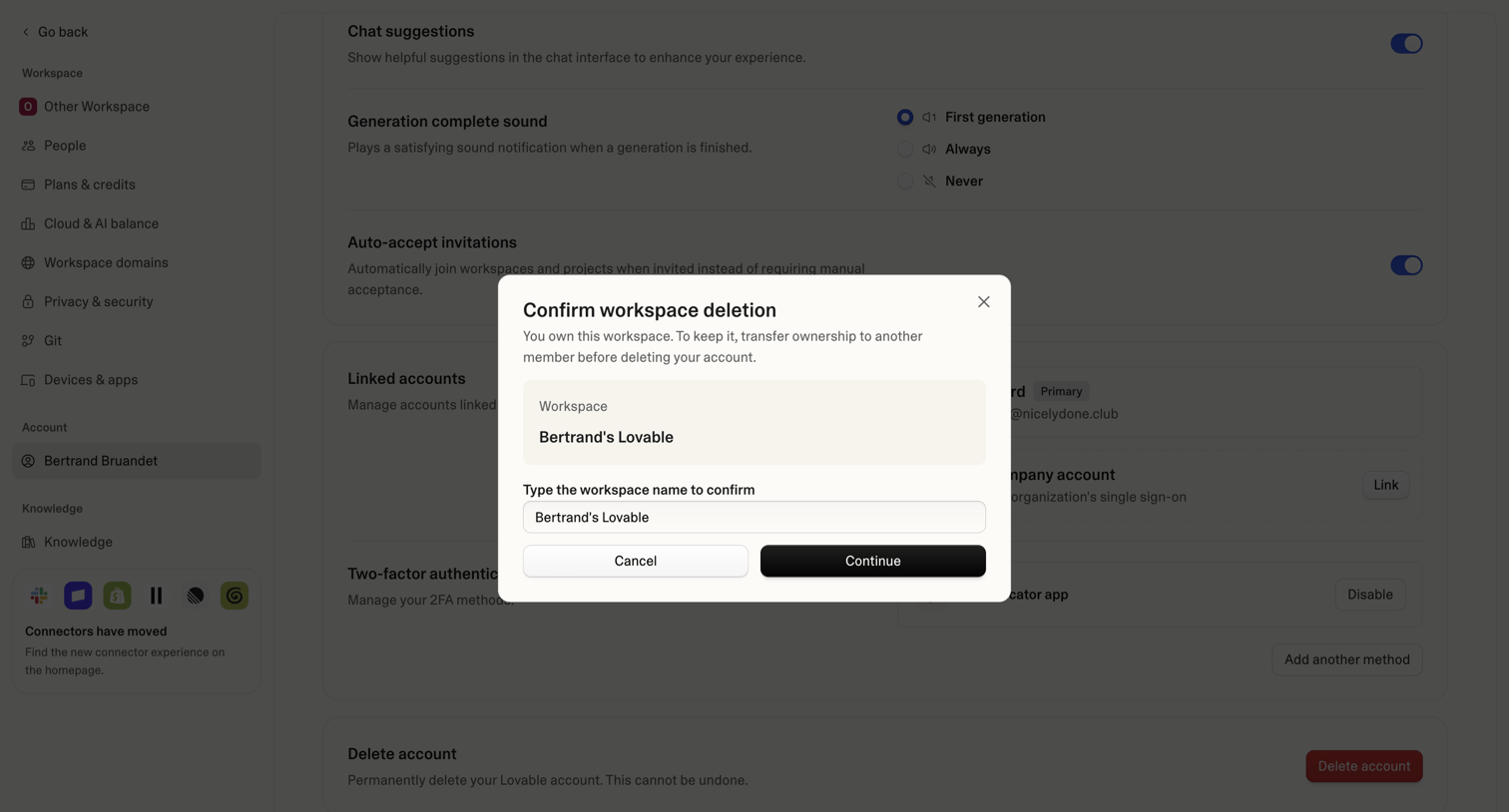

Settings page where the user is prompted to confirm the deletion of their workspace by typing its name, blocking the underlying account settings view.
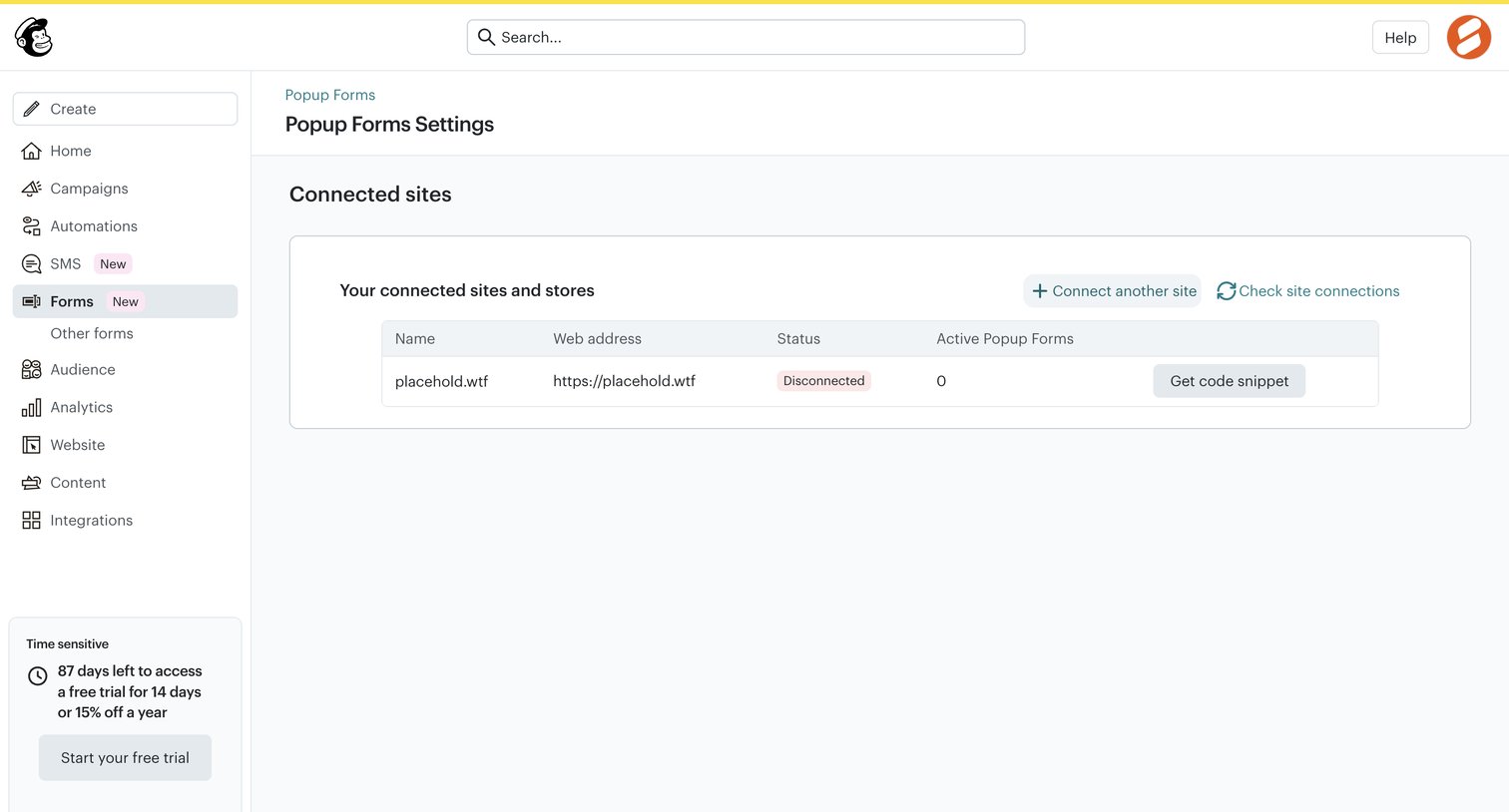

Settings page where the user manages connected sites and stores for their popup forms, including getting code snippets and checking connection status.
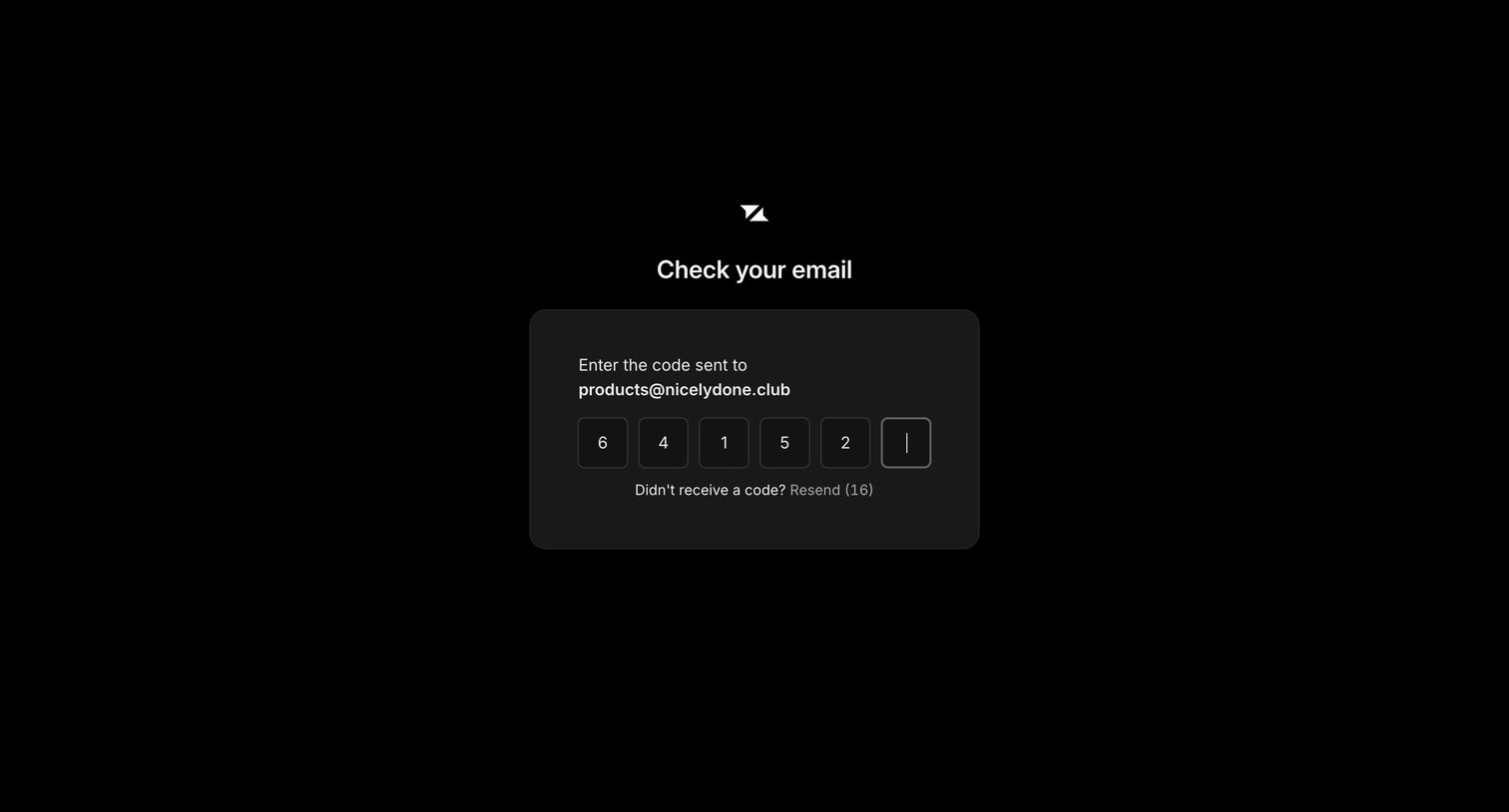

Verification screen where the user enters a 6-digit code sent to their email address to authenticate.
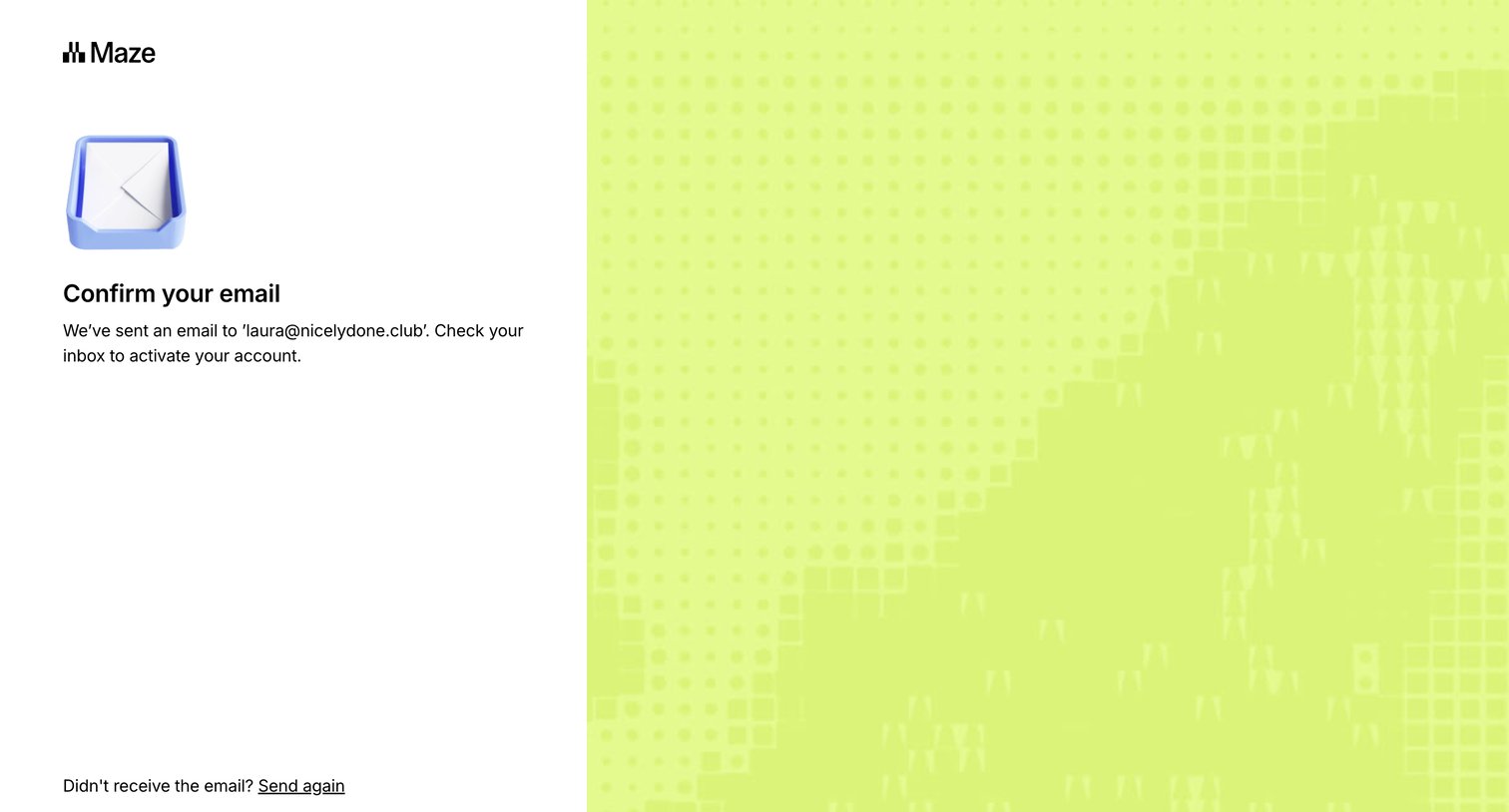
Auth screen where the user is instructed to check their inbox to confirm their email address, with options to resend the link or return to signup.
Explore the full SaaS screen library
Upgrade to unlock the full library.
Trusted by the best teams







