Onboarding screen examples
Onboarding screen design examples from SaaS apps. See how SaaS apps introduce the first useful tasks in a new account. Explore how setup guidance and starter actions relate to the main product workspace.
Explore the examples


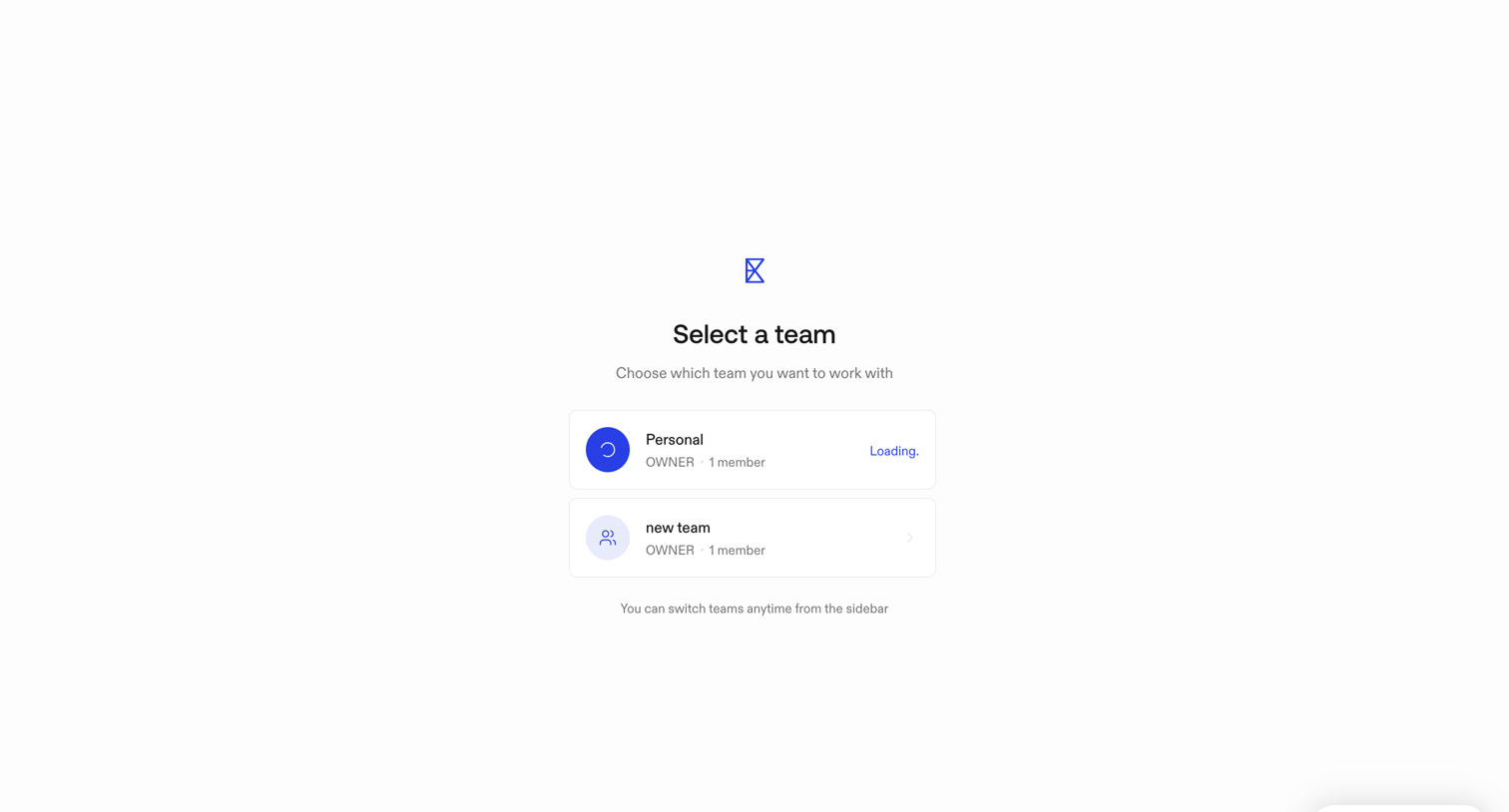

Onboarding step where the user selects which team workspace to enter, with the personal team currently loading.
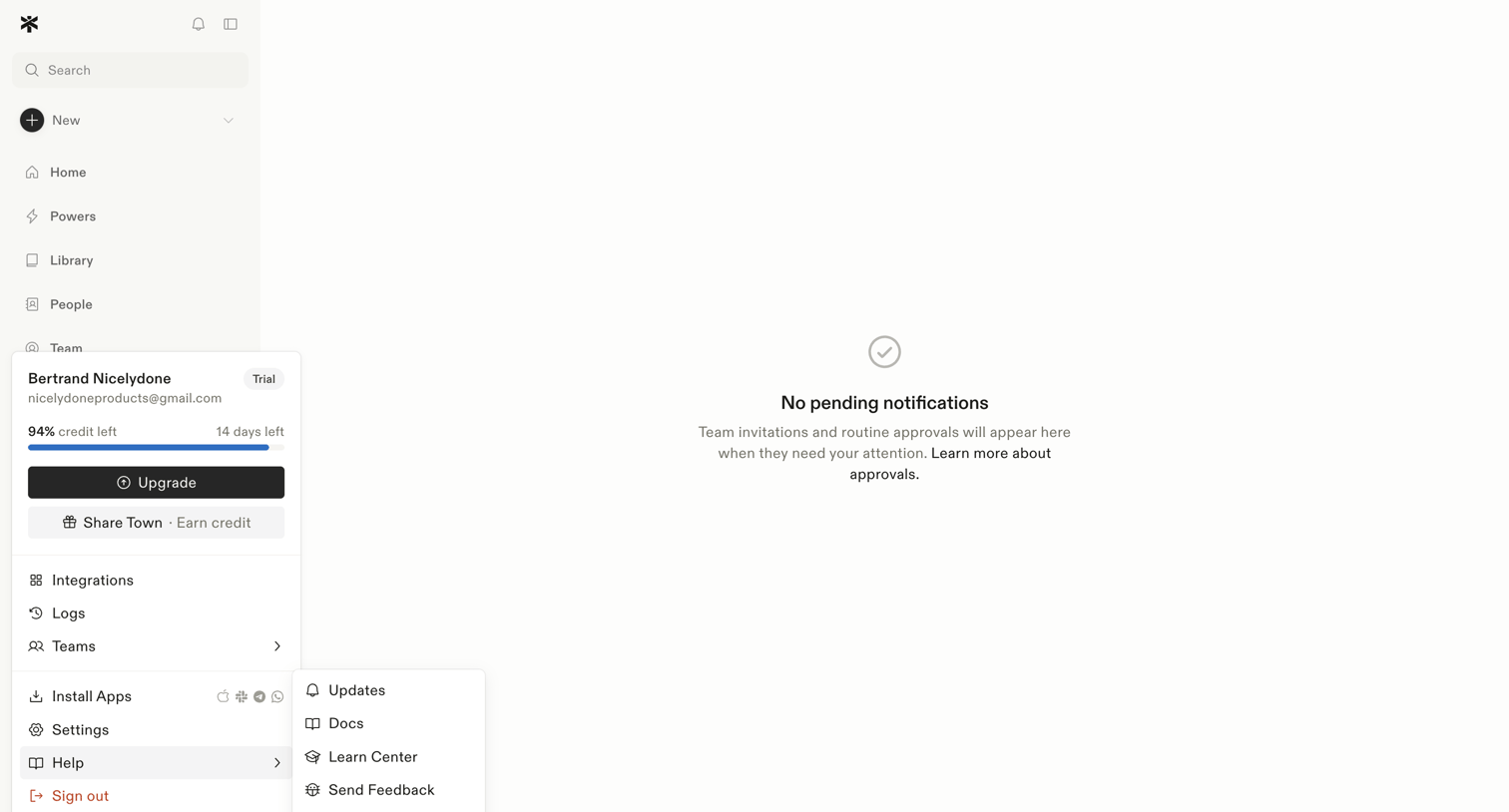

Inbox view where the user manages team invitations and routine approvals, currently showing a zero-state message with no pending items.
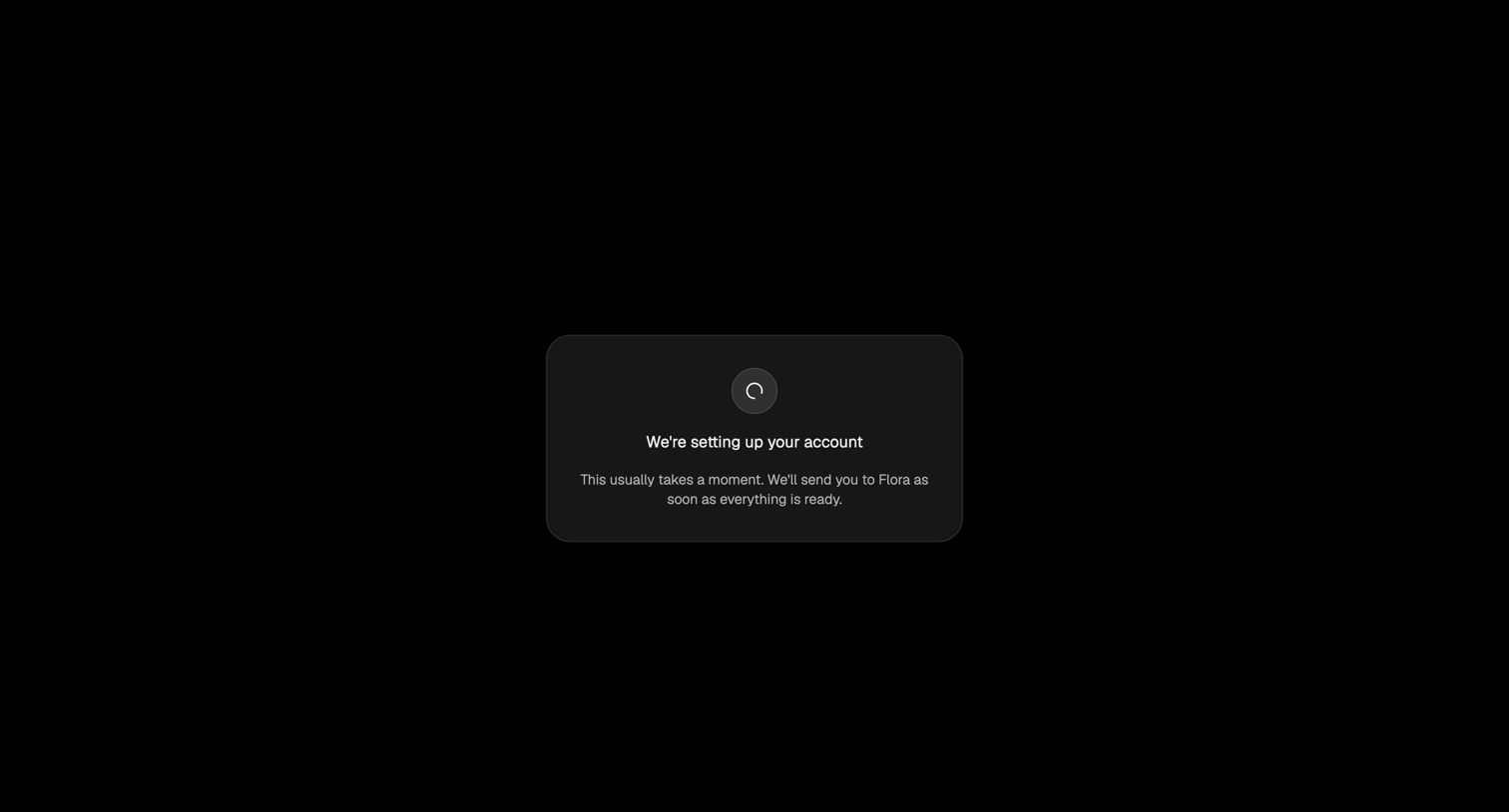

Loading screen where the system provisions the user's new account before redirecting them to the app.
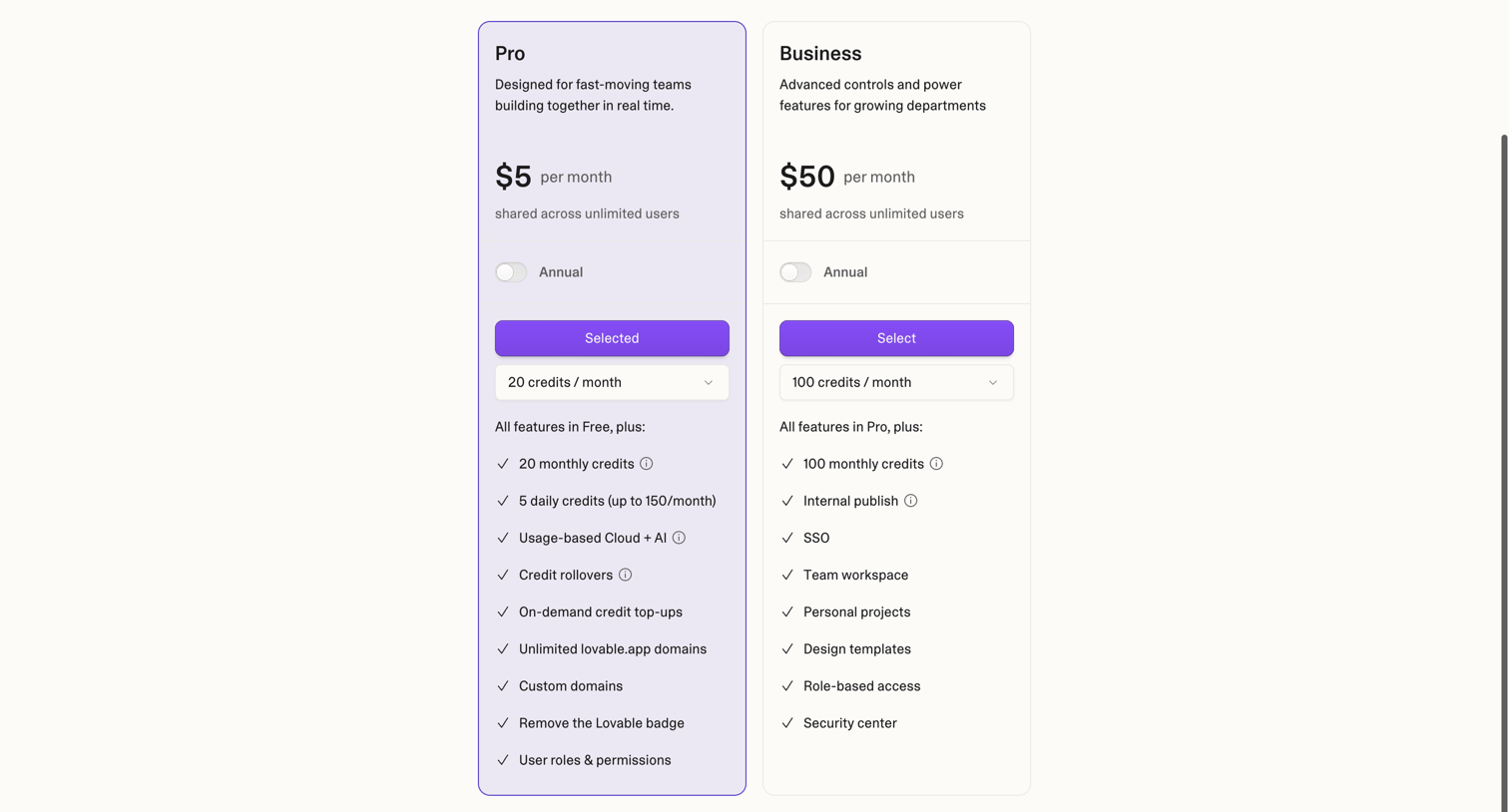

Onboarding step where the user selects a Pro or Business plan and allocates monthly credits before creating their workspace.


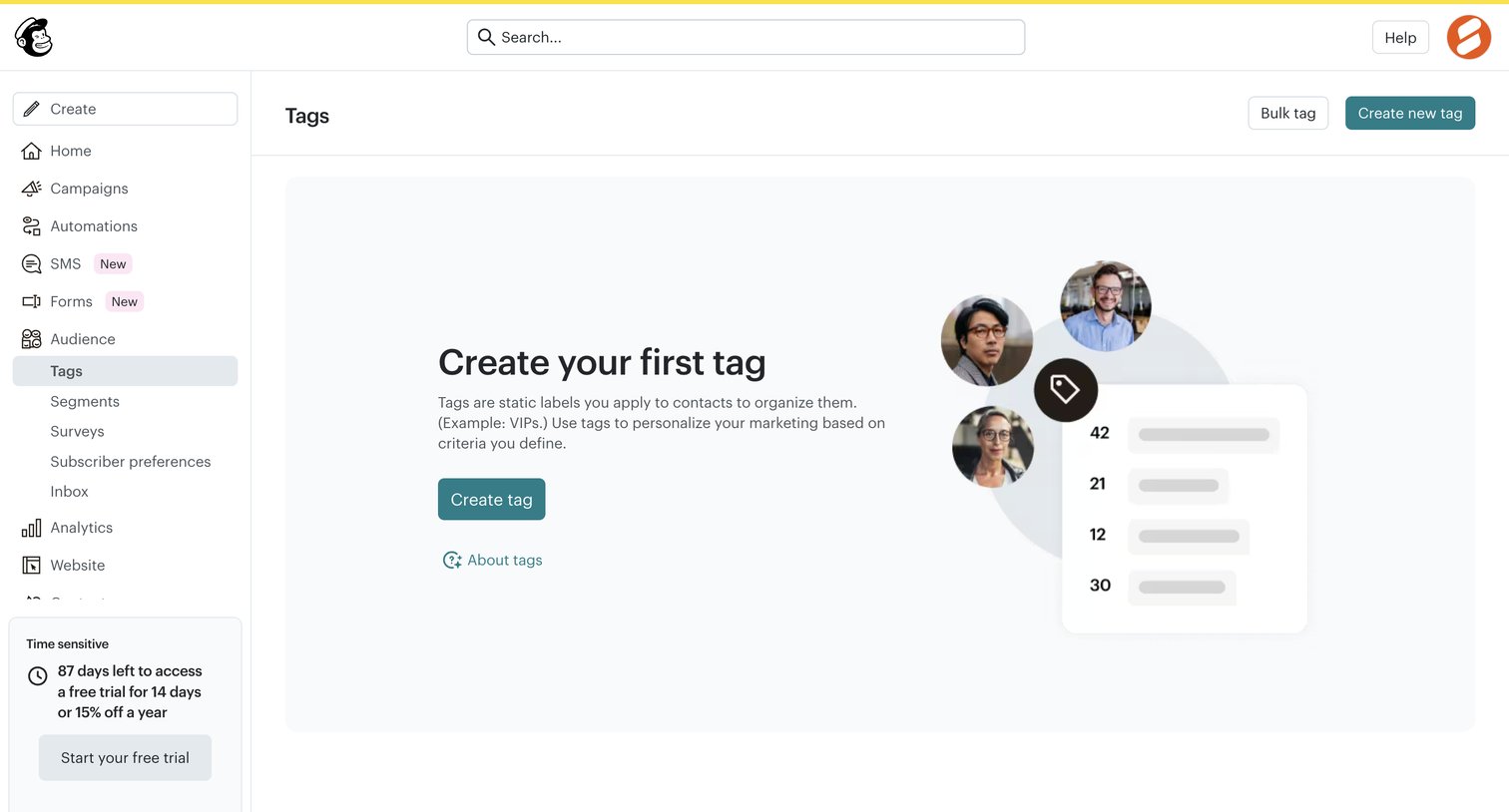

List view empty state where the user is prompted to create their first tag to organize audience contacts, alongside a prominent trial countdown banner in the sidebar.
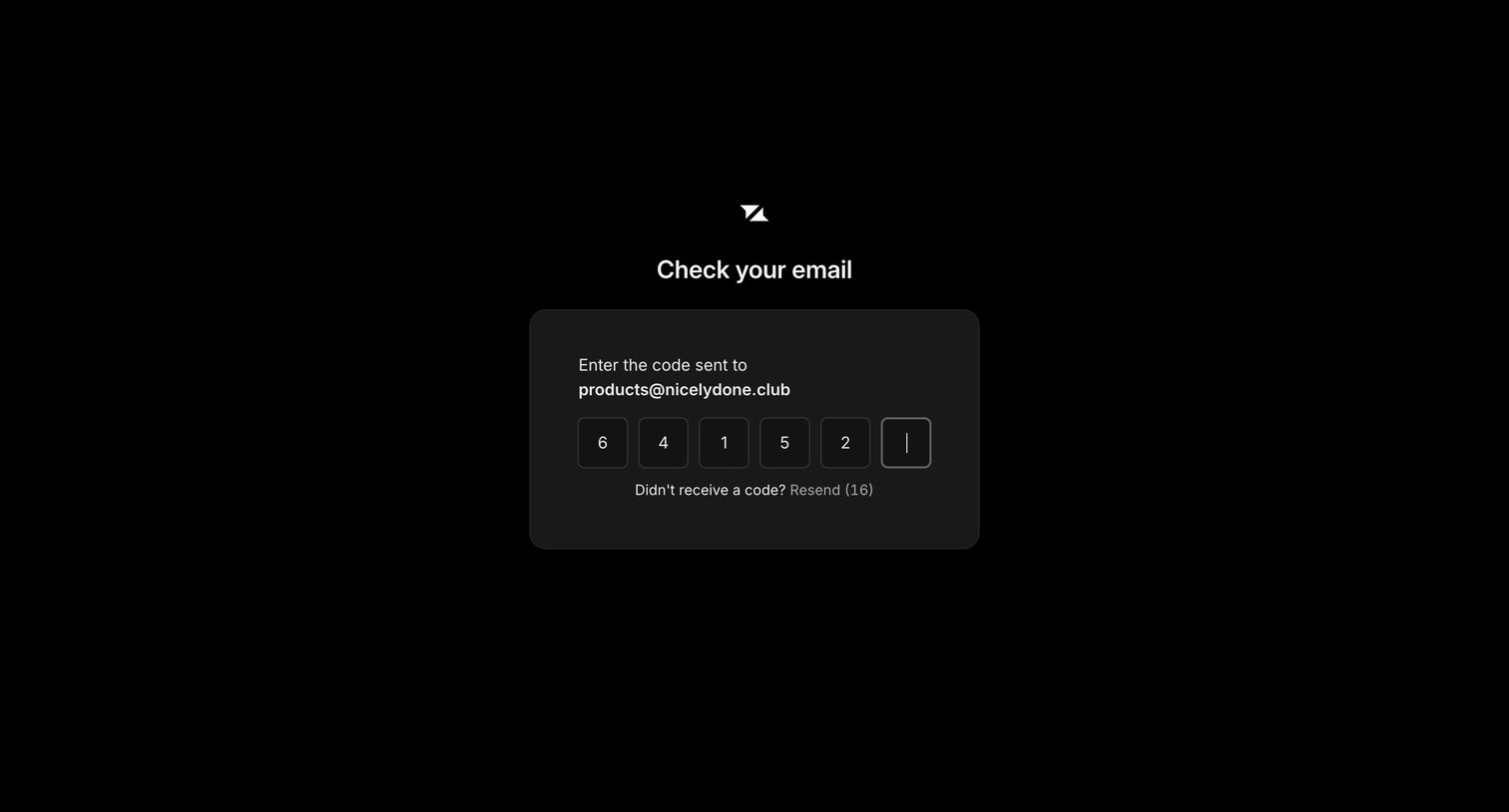

Verification screen where the user enters a 6-digit code sent to their email address to authenticate.
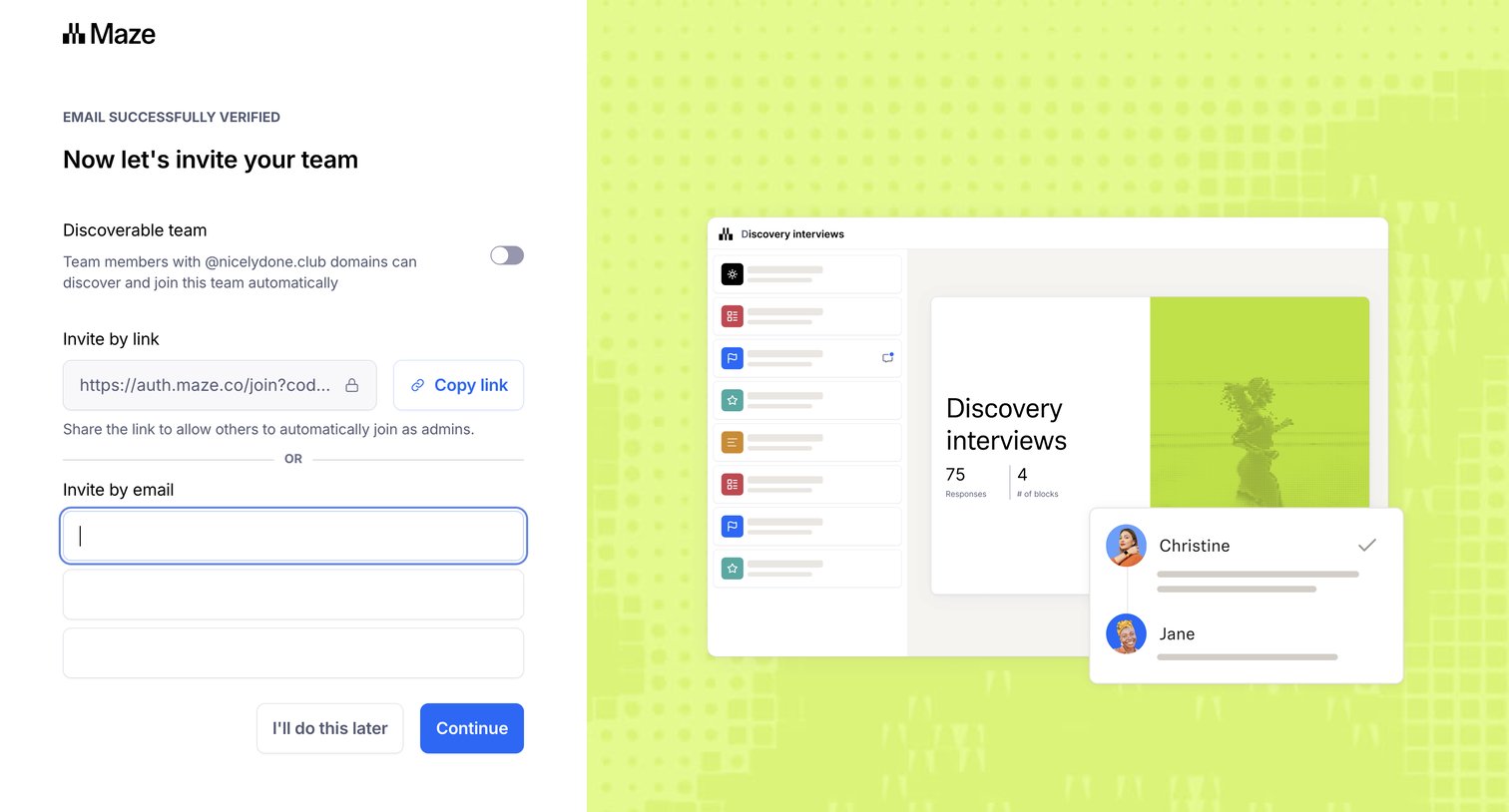

Onboarding step where the user can make their workspace discoverable by domain and invite teammates via a shareable link or email addresses.
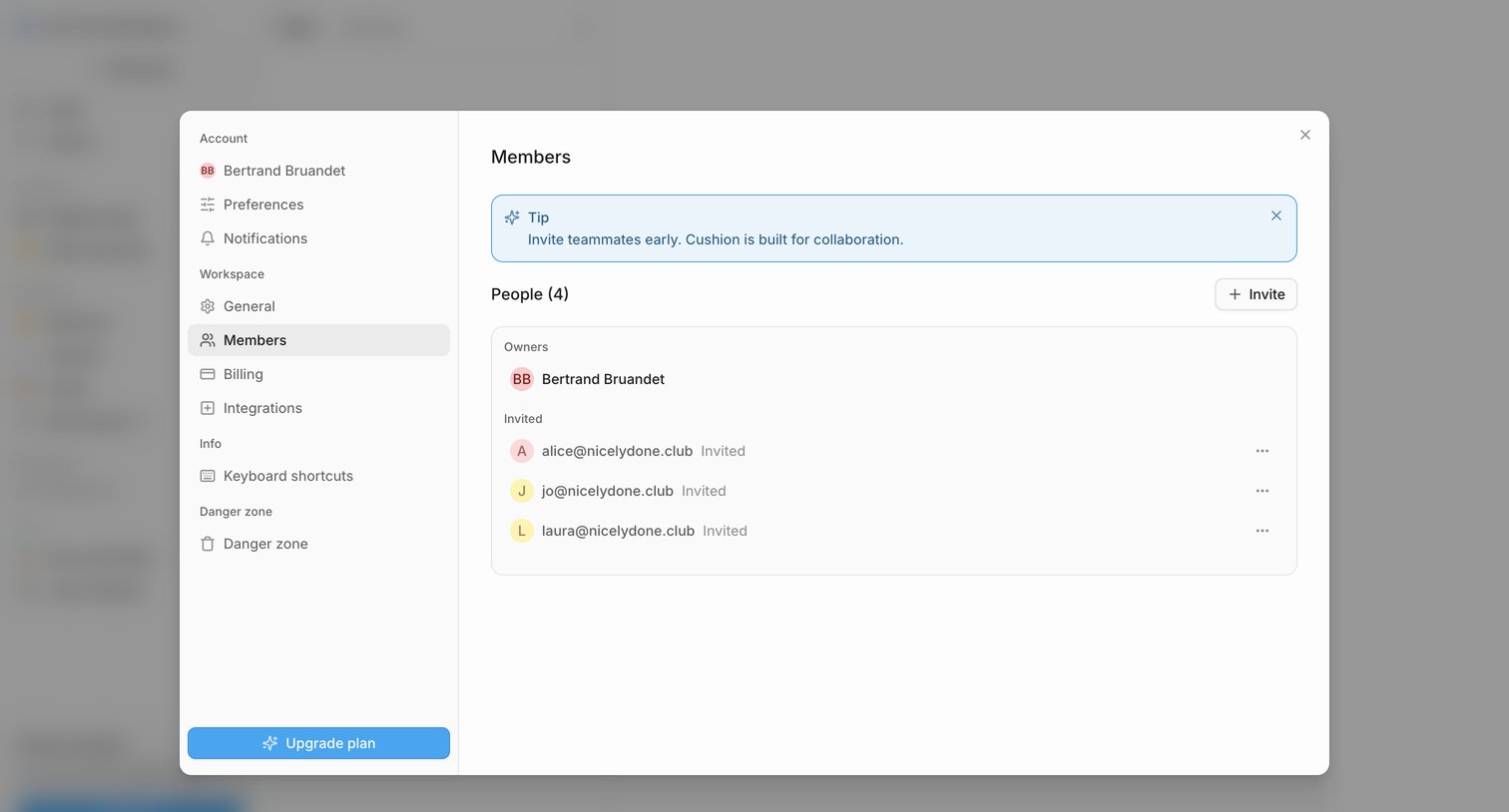

Settings modal where the user manages workspace members, views invited teammates, and can invite new people or upgrade their plan.
Explore the full SaaS screen library
Upgrade to unlock the full library.
Trusted by the best teams








About Onboarding
See how SaaS apps introduce the first useful tasks in a new account. Explore how setup guidance and starter actions relate to the main product workspace.