Workspace settings screen examples
Workspace settings screen design examples from SaaS apps. Browse examples from Polar, Latitude.sh, Alloy.
Explore the examples
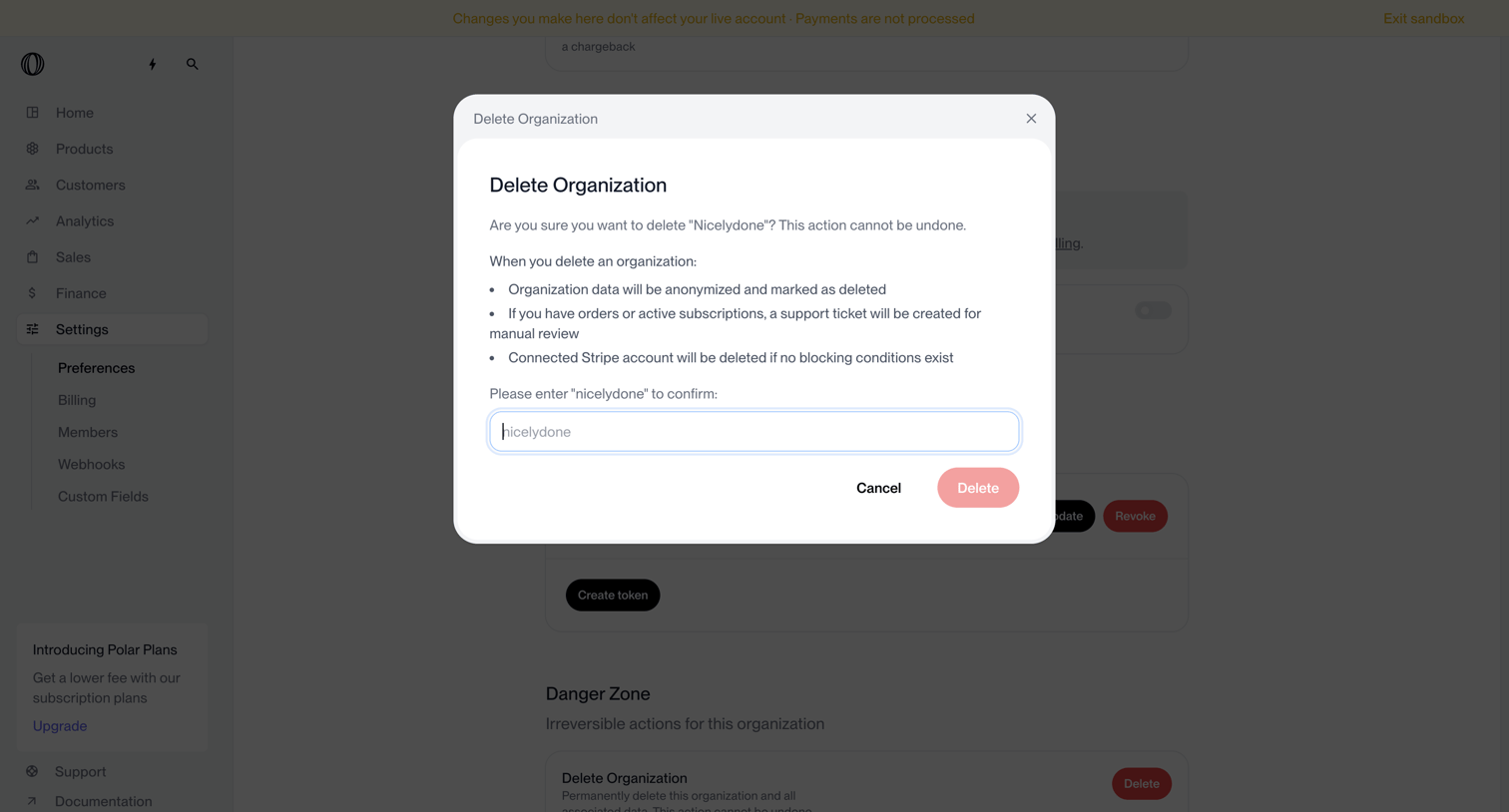

Settings page where the user confirms the deletion of their organization by typing its name into a destructive alert dialog.
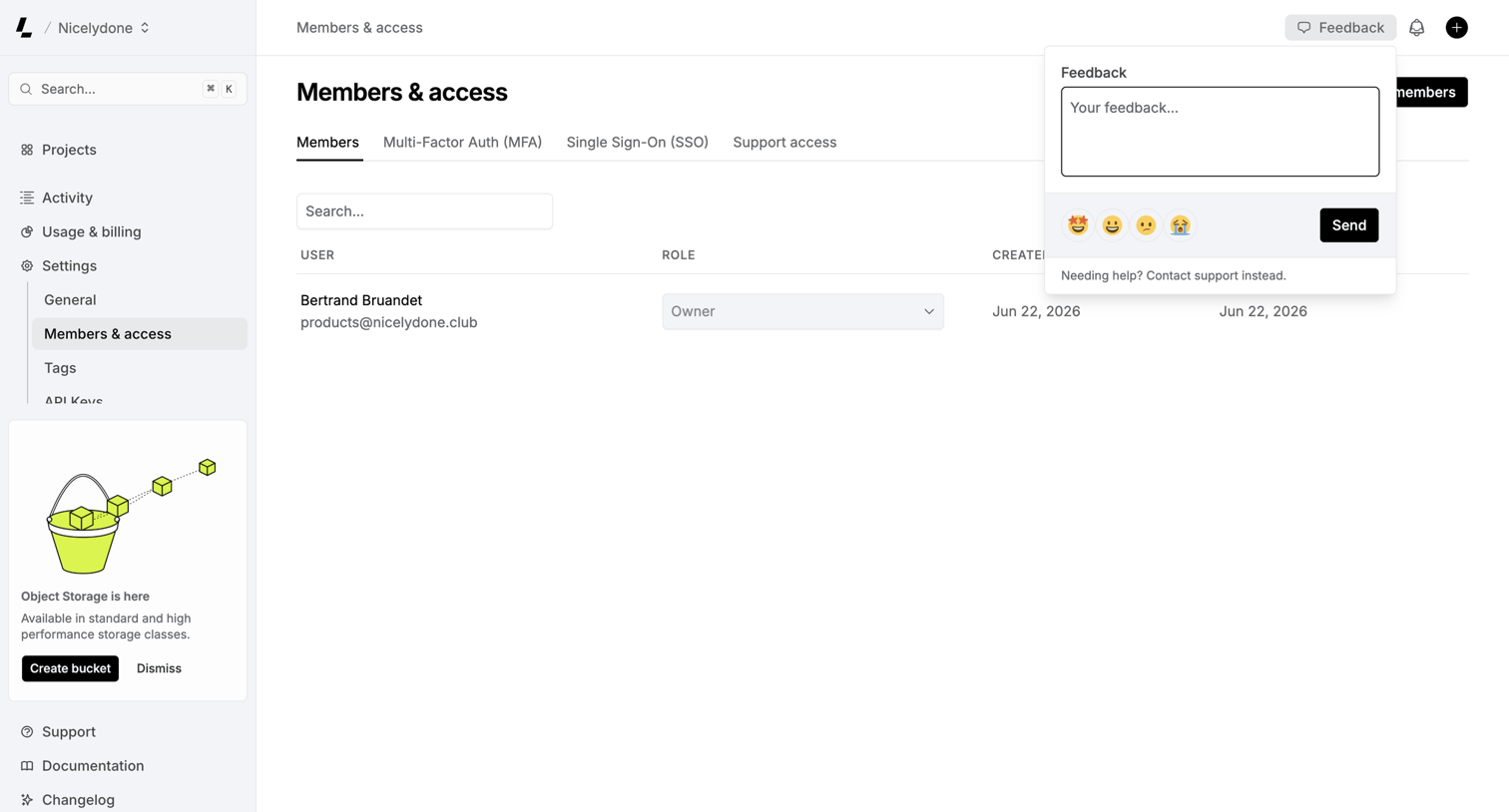

Settings page where the user manages workspace members and their roles, with a feedback popover currently open to collect user input.
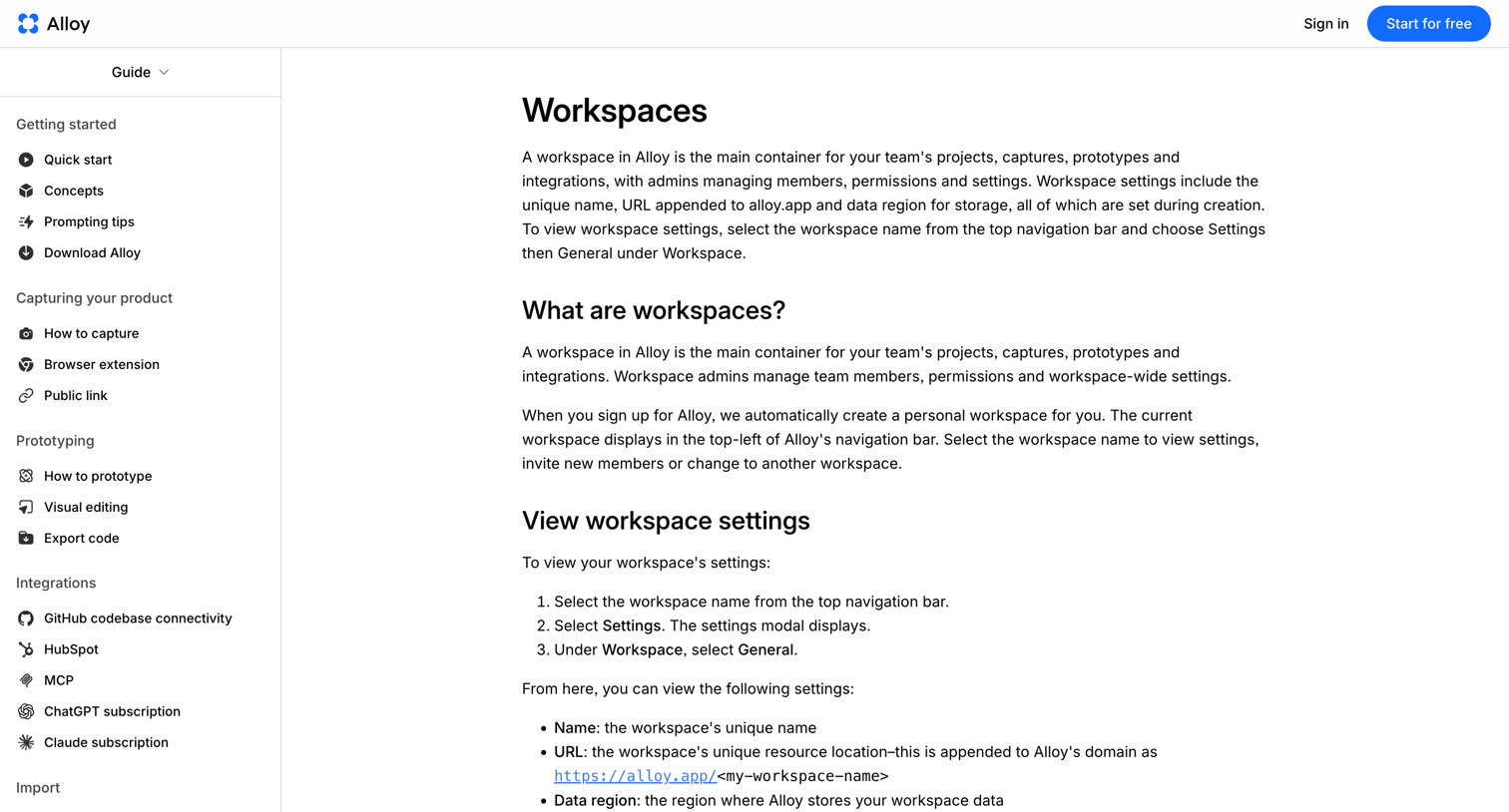

Help center article explaining the concept of workspaces, how to view their settings, and how to delete them.
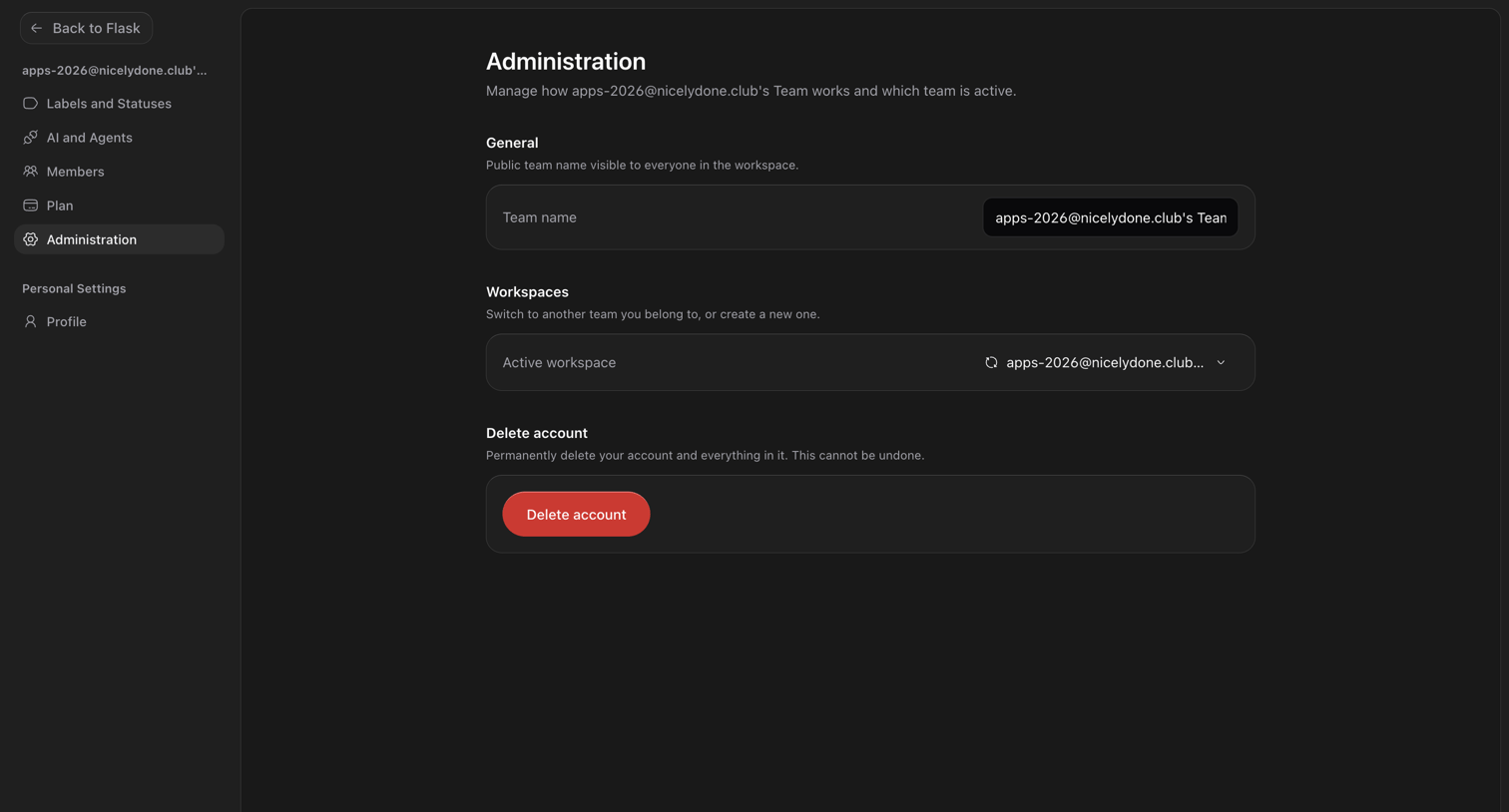

Settings page where the user can update the team name, switch active workspaces, and permanently delete their account.
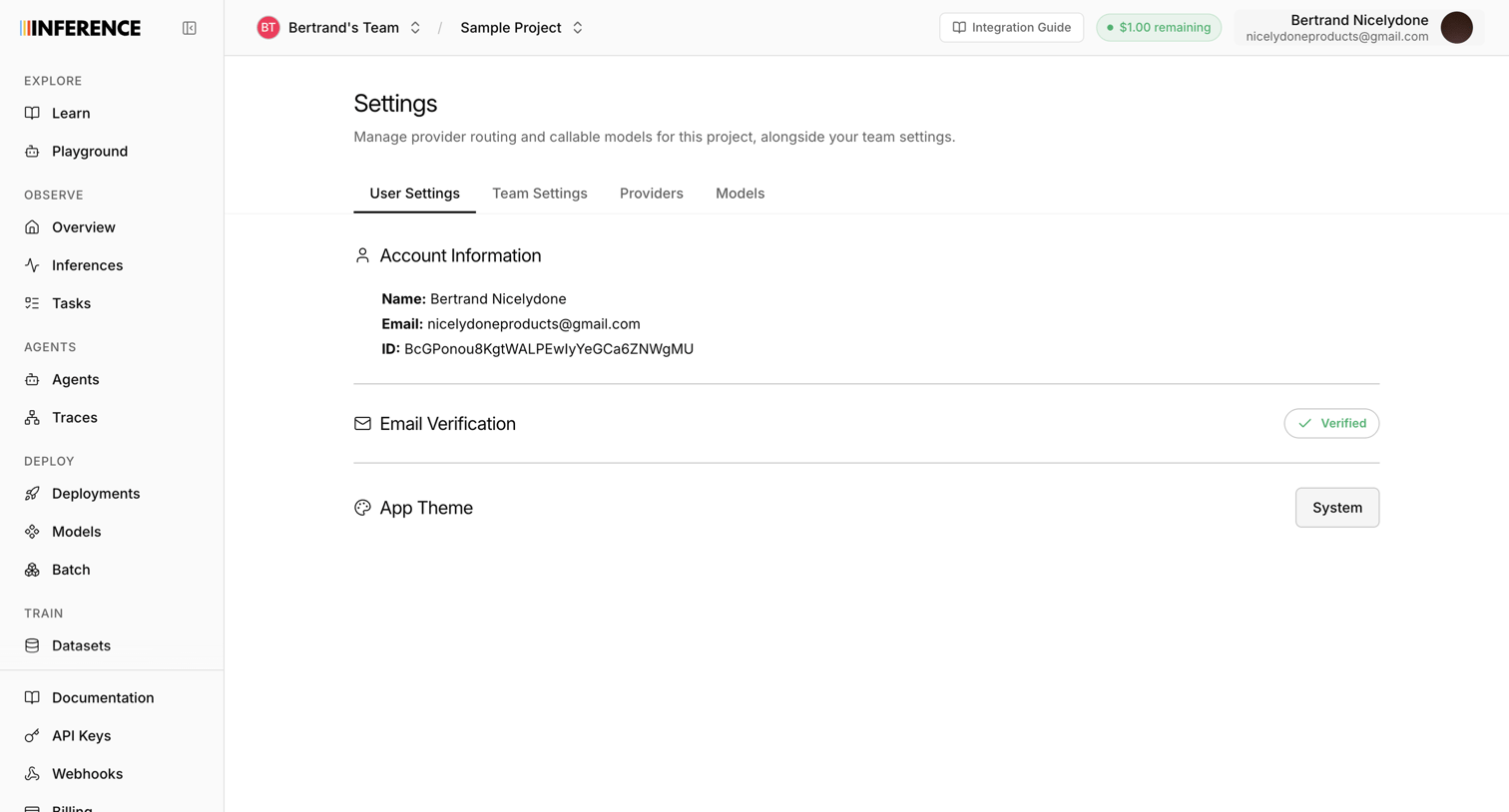

Settings page where the user views their account information, checks their email verification status, and configures the app theme.
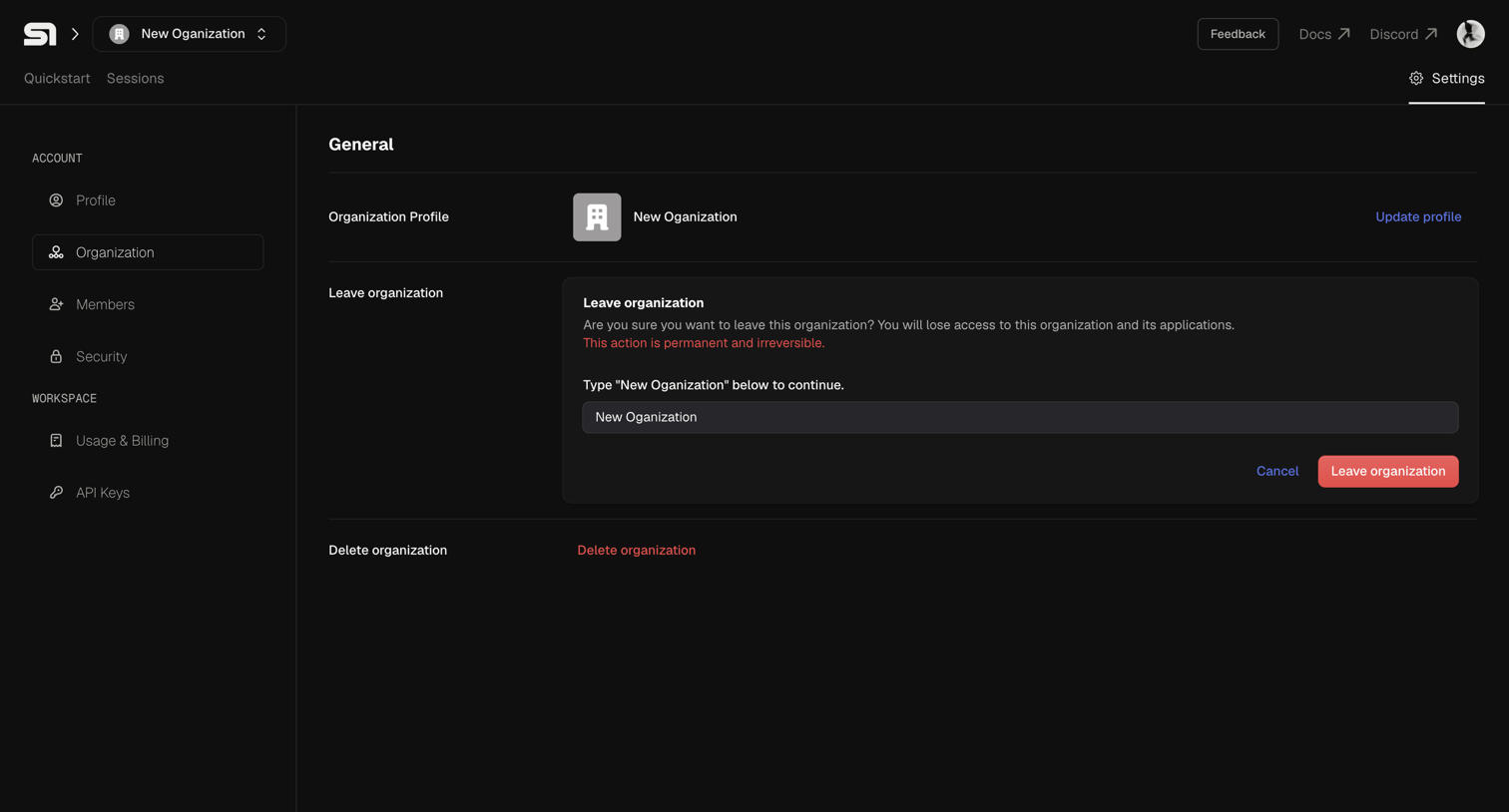

Organization settings page where the user can update the profile, leave the workspace by typing its name to confirm, or delete the organization entirely.
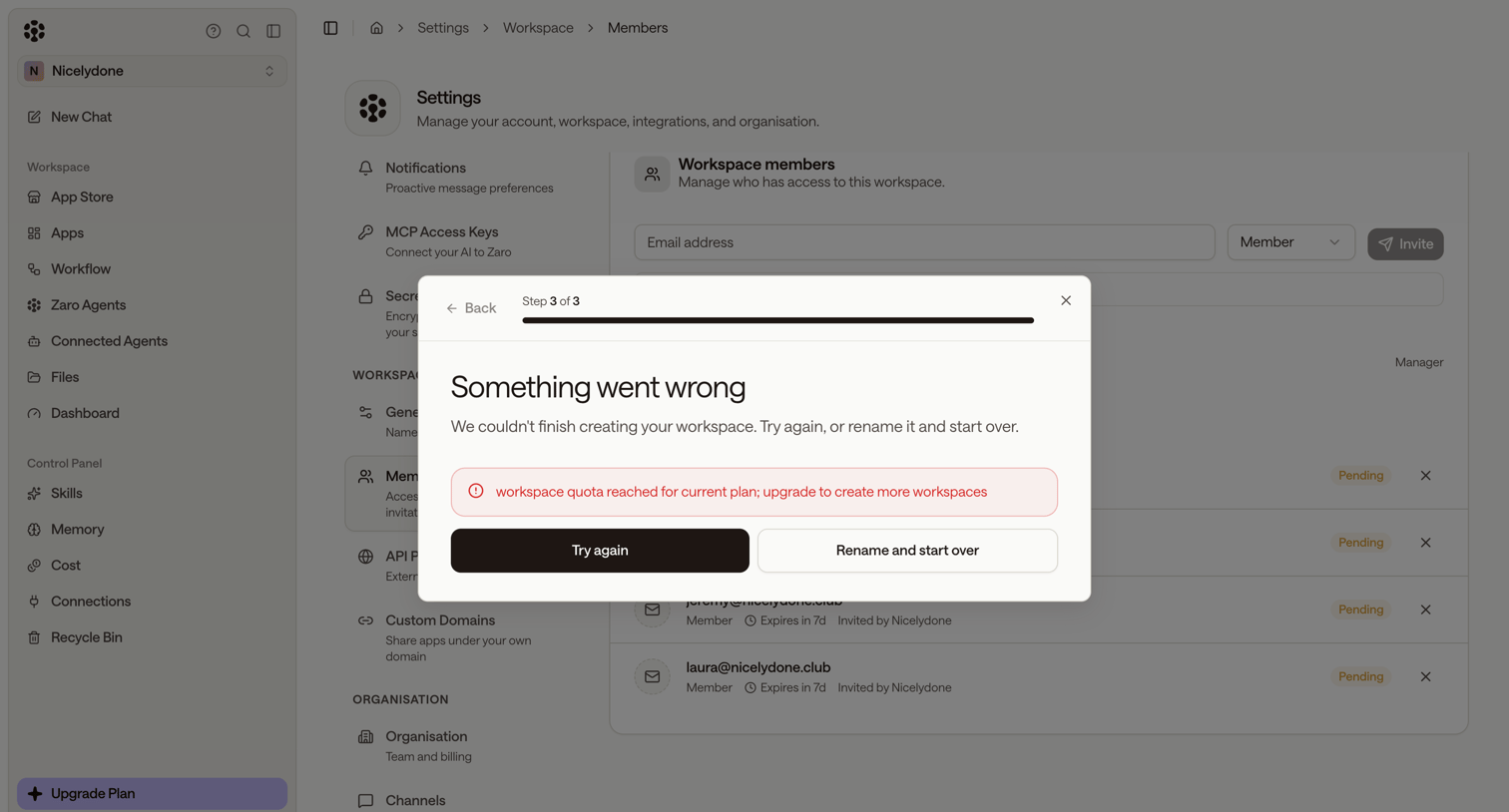

Settings page where a modal blocks workspace creation due to a plan quota limit, prompting the user to try again or rename the workspace.


Settings page where the user must type their organization ID into a modal to confirm the deletion of their workspace.
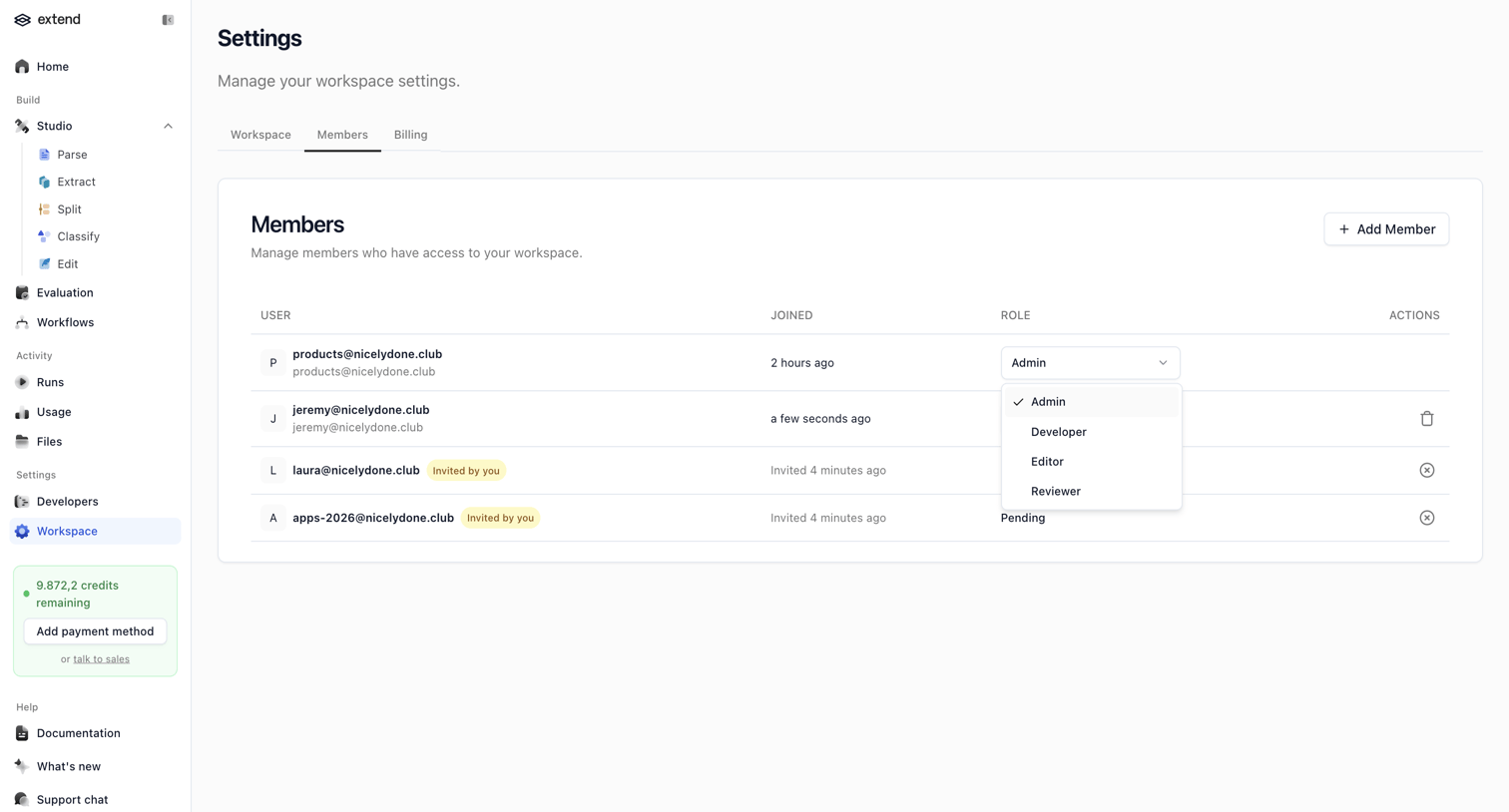

Settings page where the user manages workspace members, including adding new members, changing roles, and revoking pending invites.
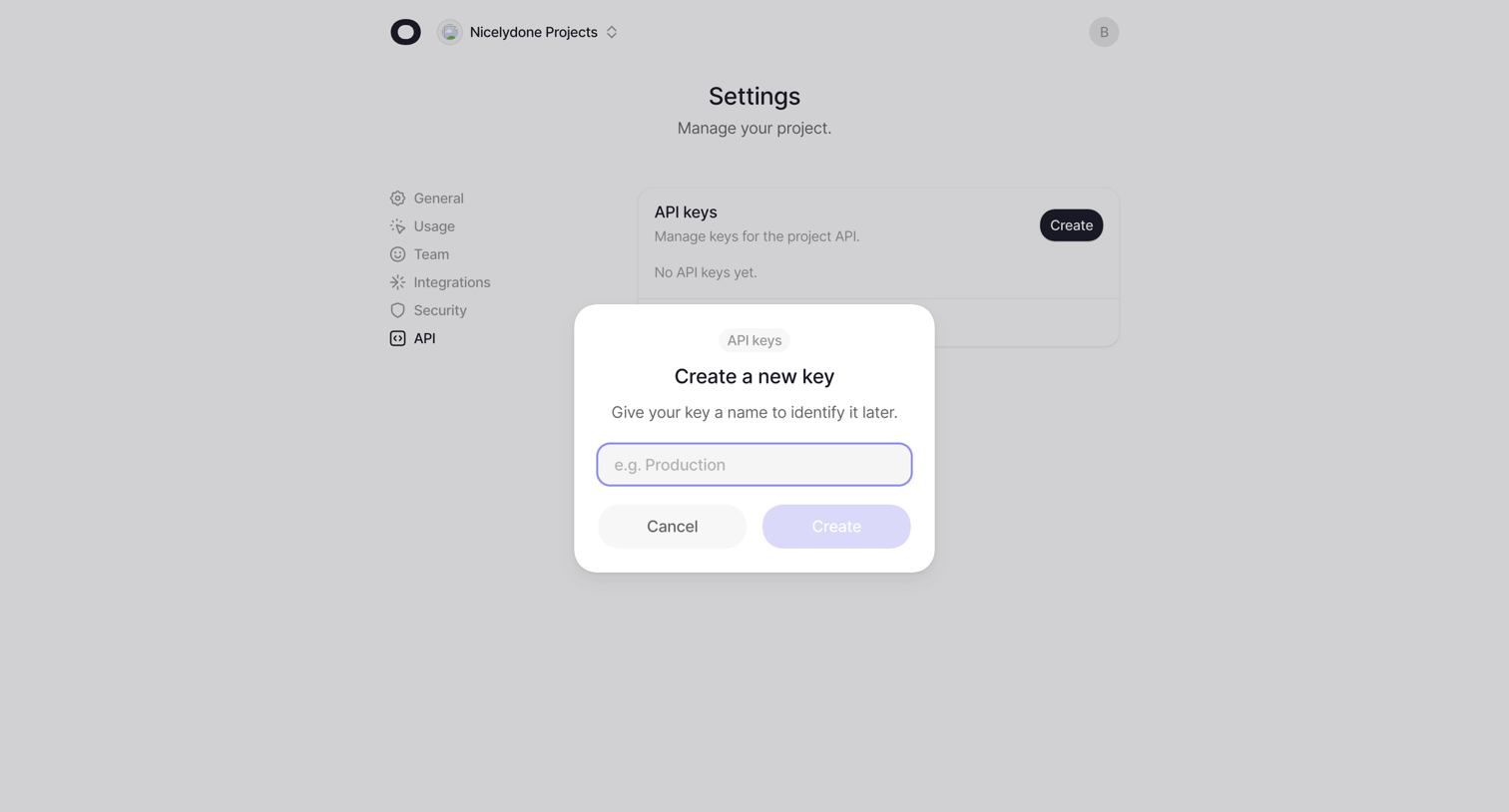

Settings page where the user creates a new API key by providing a name in a modal.
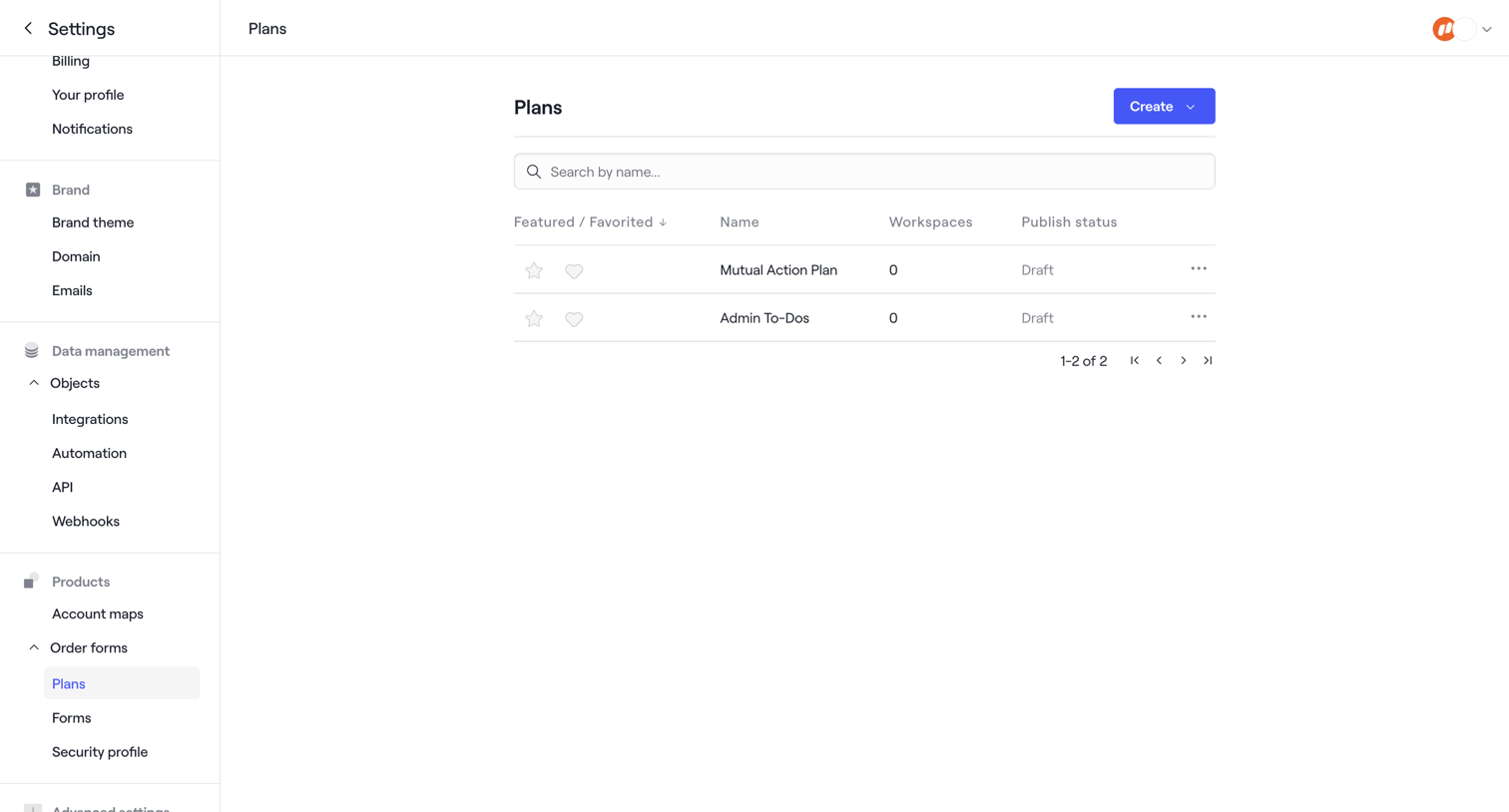

The screen displays a settings interface with a two-column layout. The left column features a vertical navigation menu, categorized into 'Settings', 'Brand', 'Data management', 'Products', and 'Advanced settings'. The 'Products' category is expanded, and 'Plans' is the…
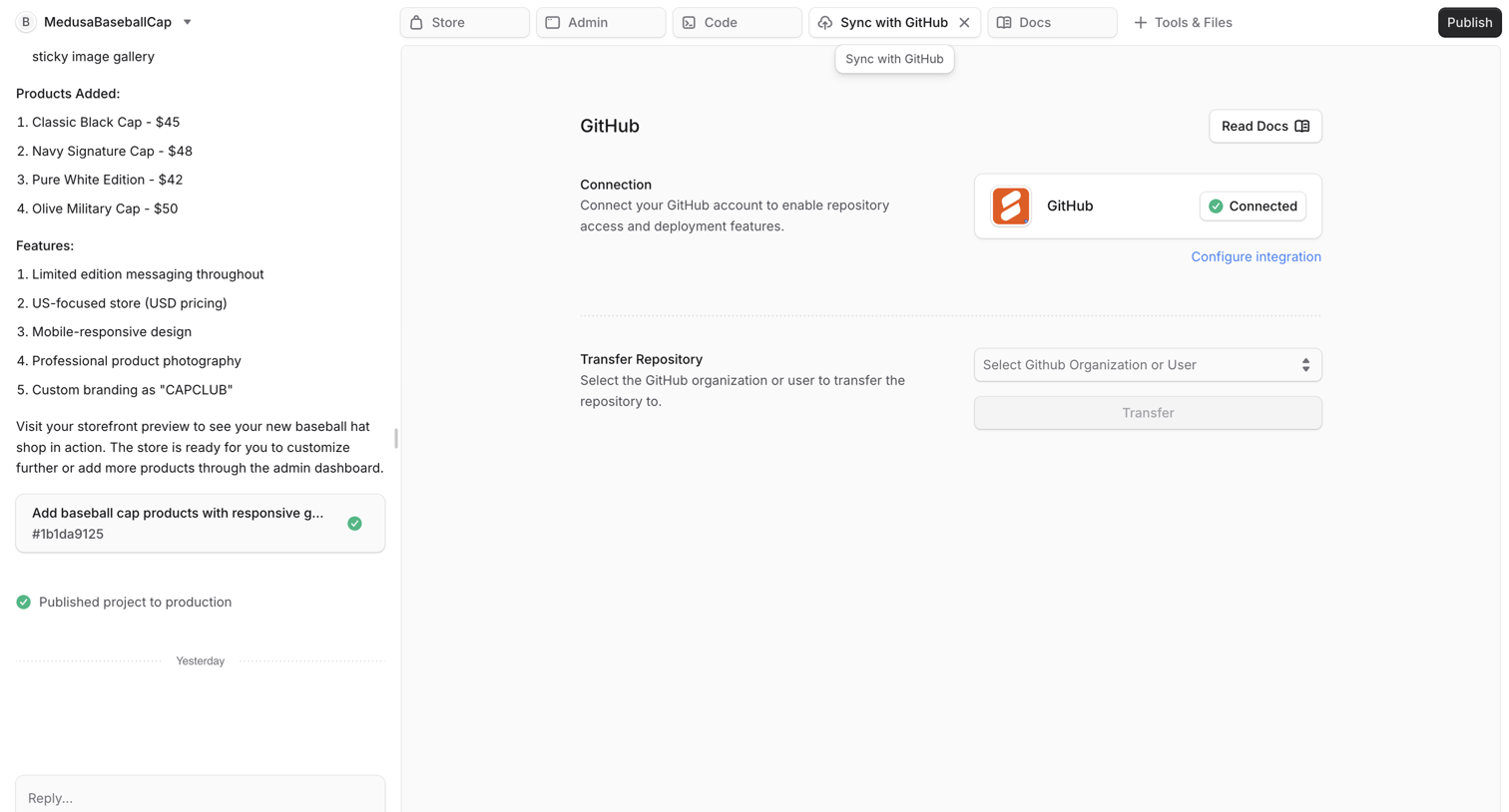

Settings page where the user reviews their active GitHub connection and can transfer the repository to an organization, alongside an active AI assistant chat.
Explore the full SaaS screen library
Upgrade to unlock the full library.
Trusted by the best teams







