Wizard screen examples
Wizard screen design examples from SaaS apps. See how SaaS apps divide configuration into a sequence of steps. Explore how step labels, required information, and back or continue actions fit within each…
Explore the examples
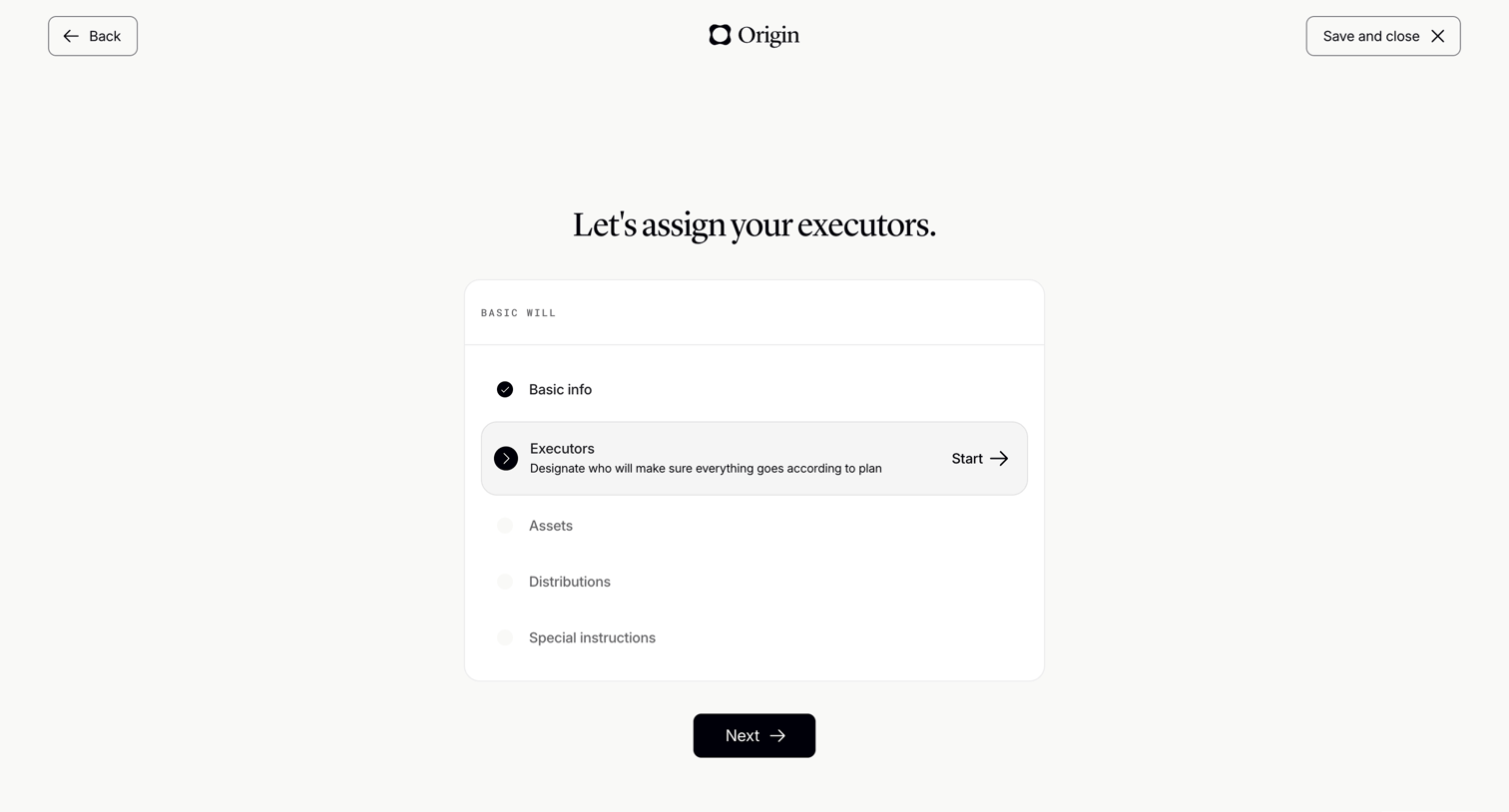

Onboarding step where the user starts the executors section of their basic will.
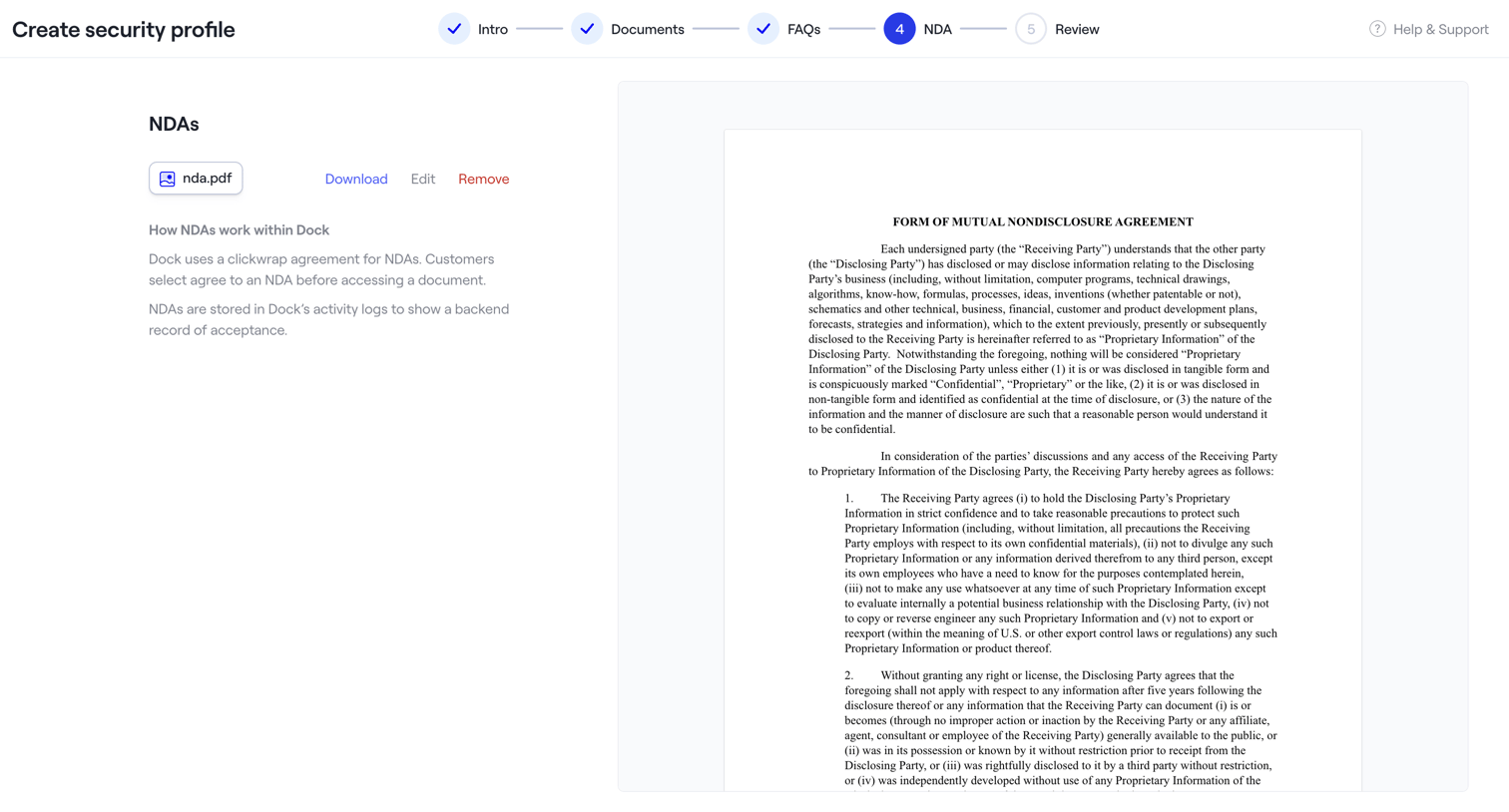

The screen is part of a multi-step wizard titled "Create security profile". A horizontal stepper at the top indicates the current progress: "Intro", "Documents", and "FAQs" steps are marked as completed with a checkmark, while "NDA" is the active step (4) highlighted in blue,…
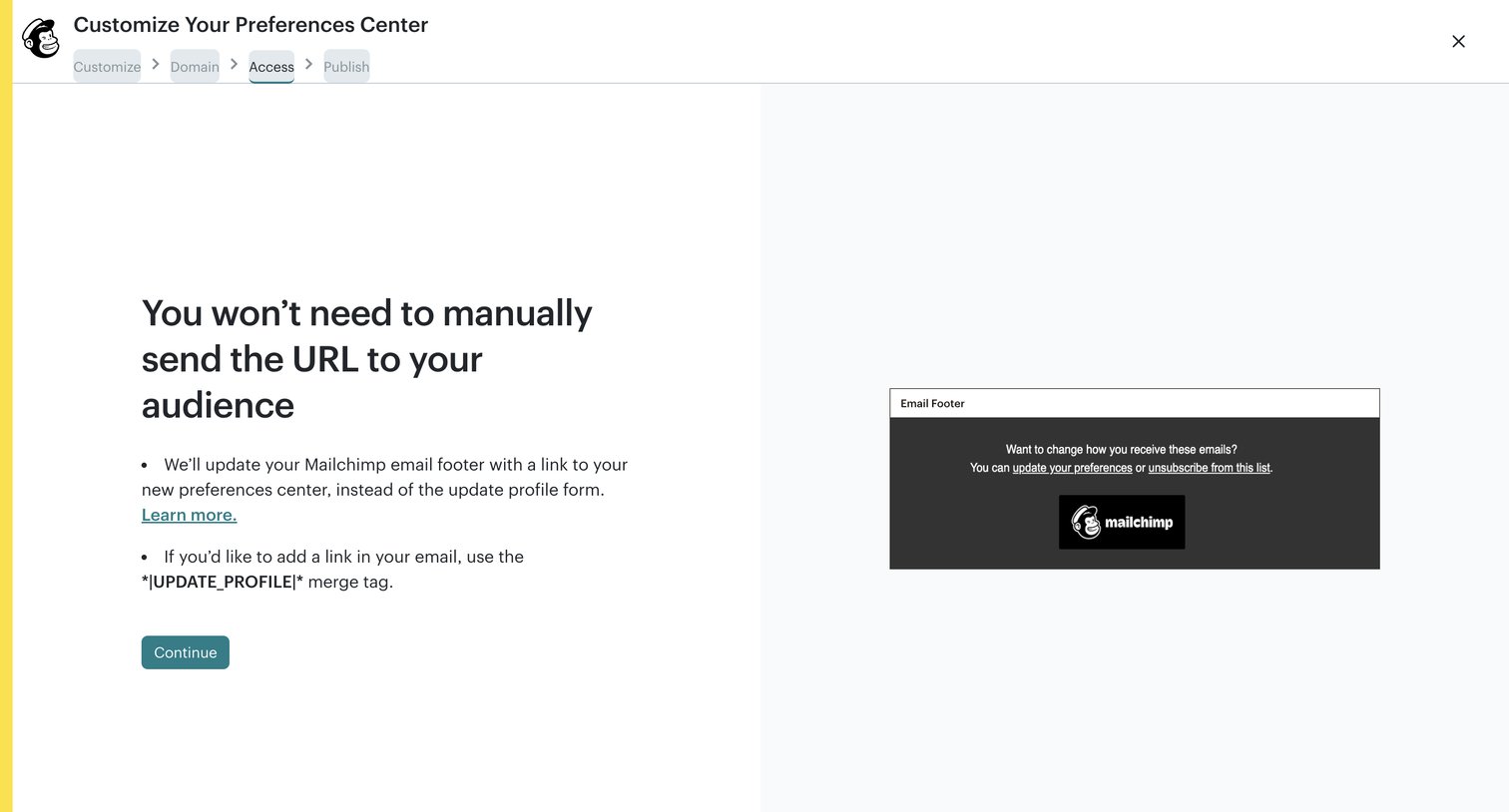

Wizard step where the user reviews how their audience will access the new preferences center via an email footer link.
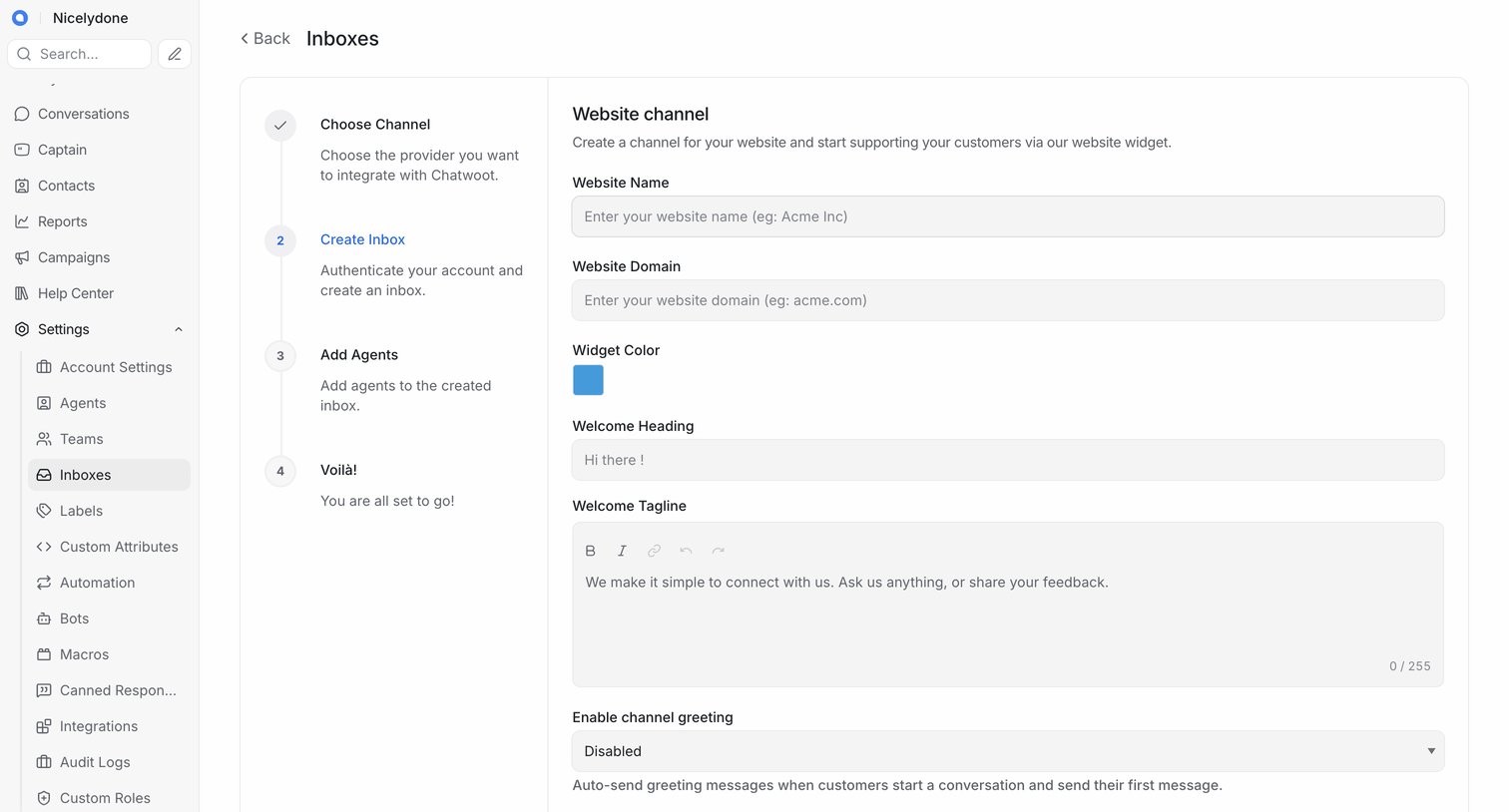

Wizard for creating a new website inbox channel, including configuring the website domain, widget color, and welcome messages.
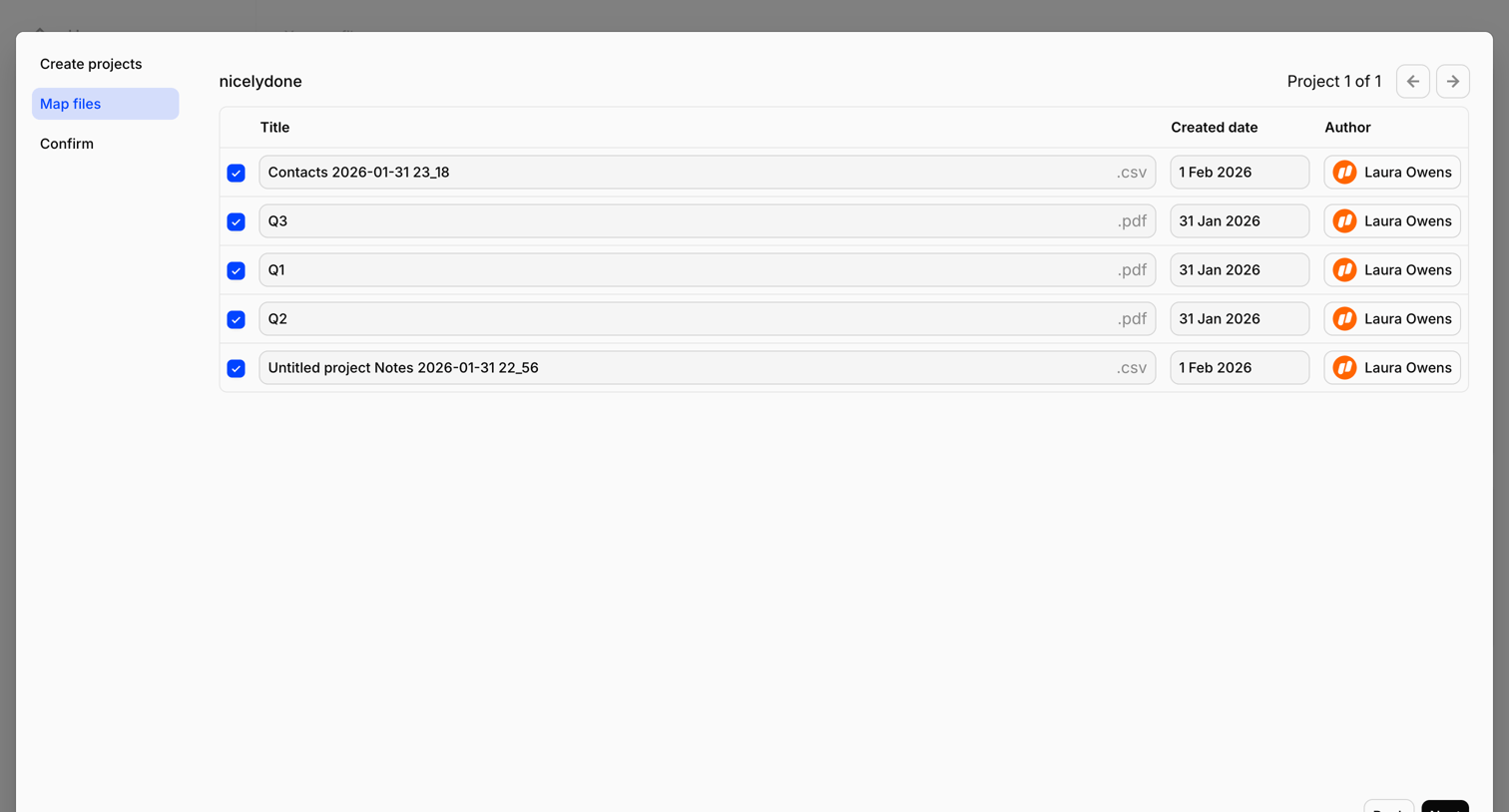

Wizard step where the user reviews and edits titles, creation dates, and authors for a batch of CSV and PDF files before finalizing the import.
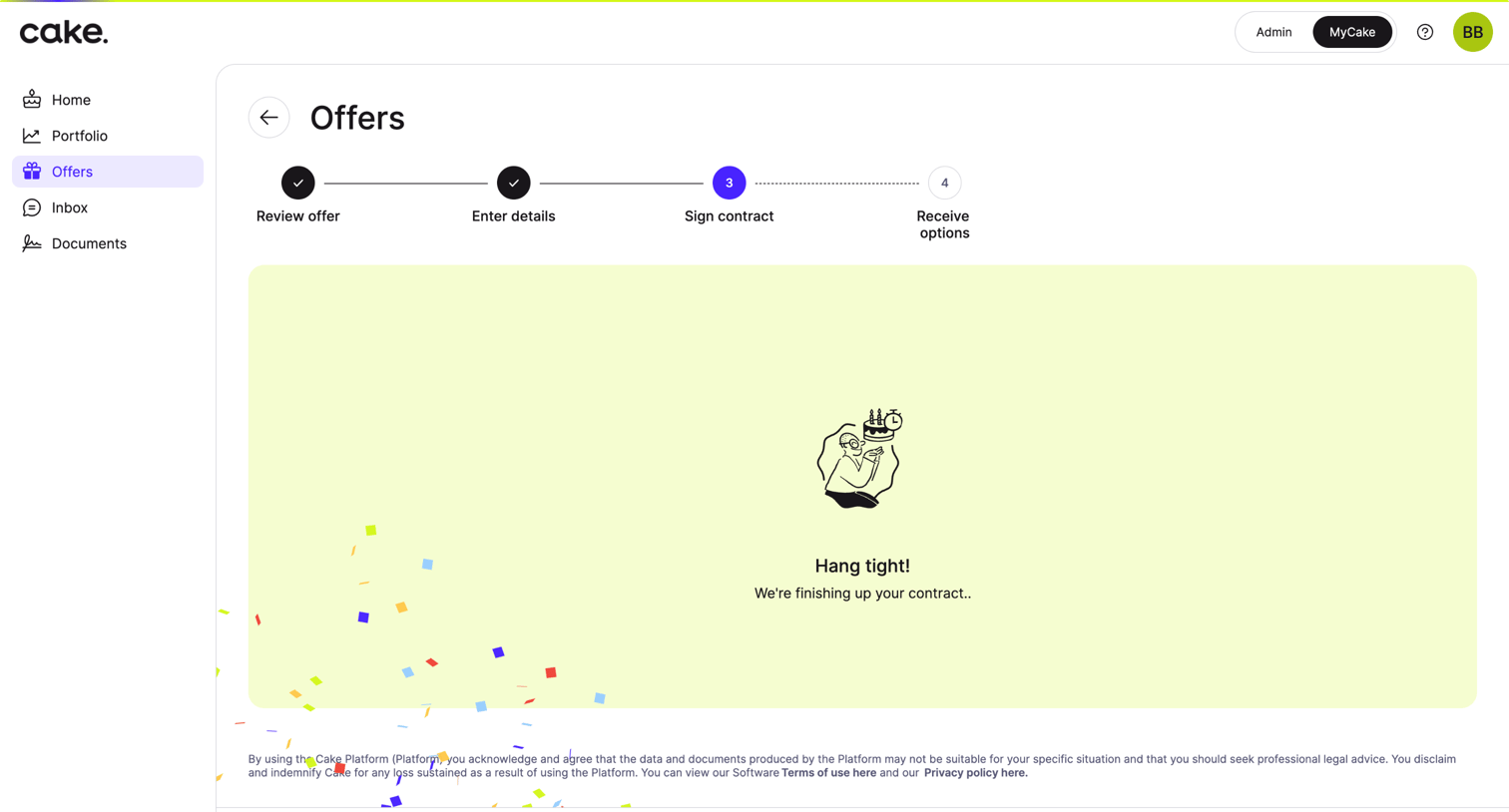

Onboarding step where the user waits for their contract to be generated before they can sign it.

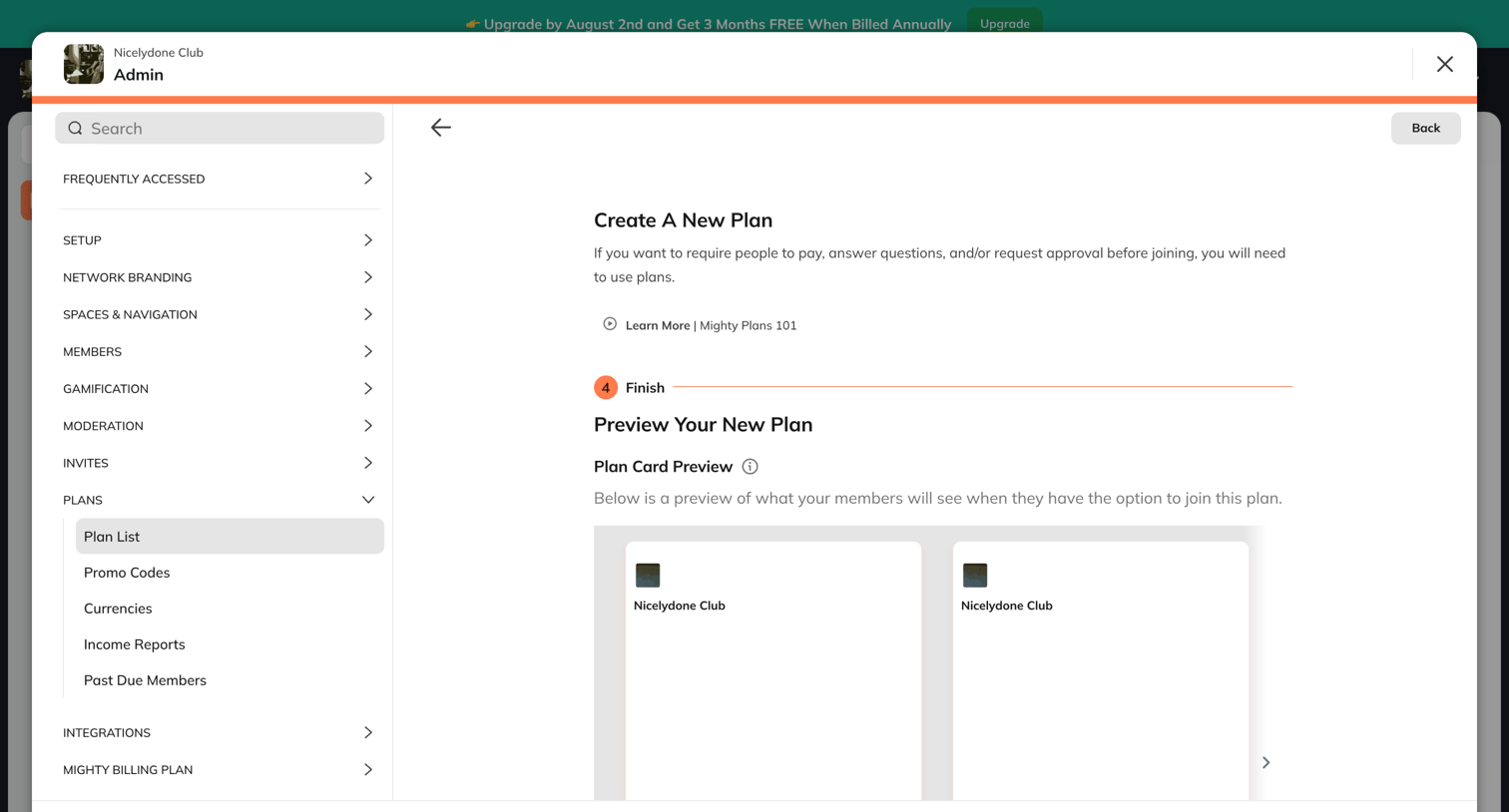

Wizard step where the admin previews the newly configured membership plan card before finishing.
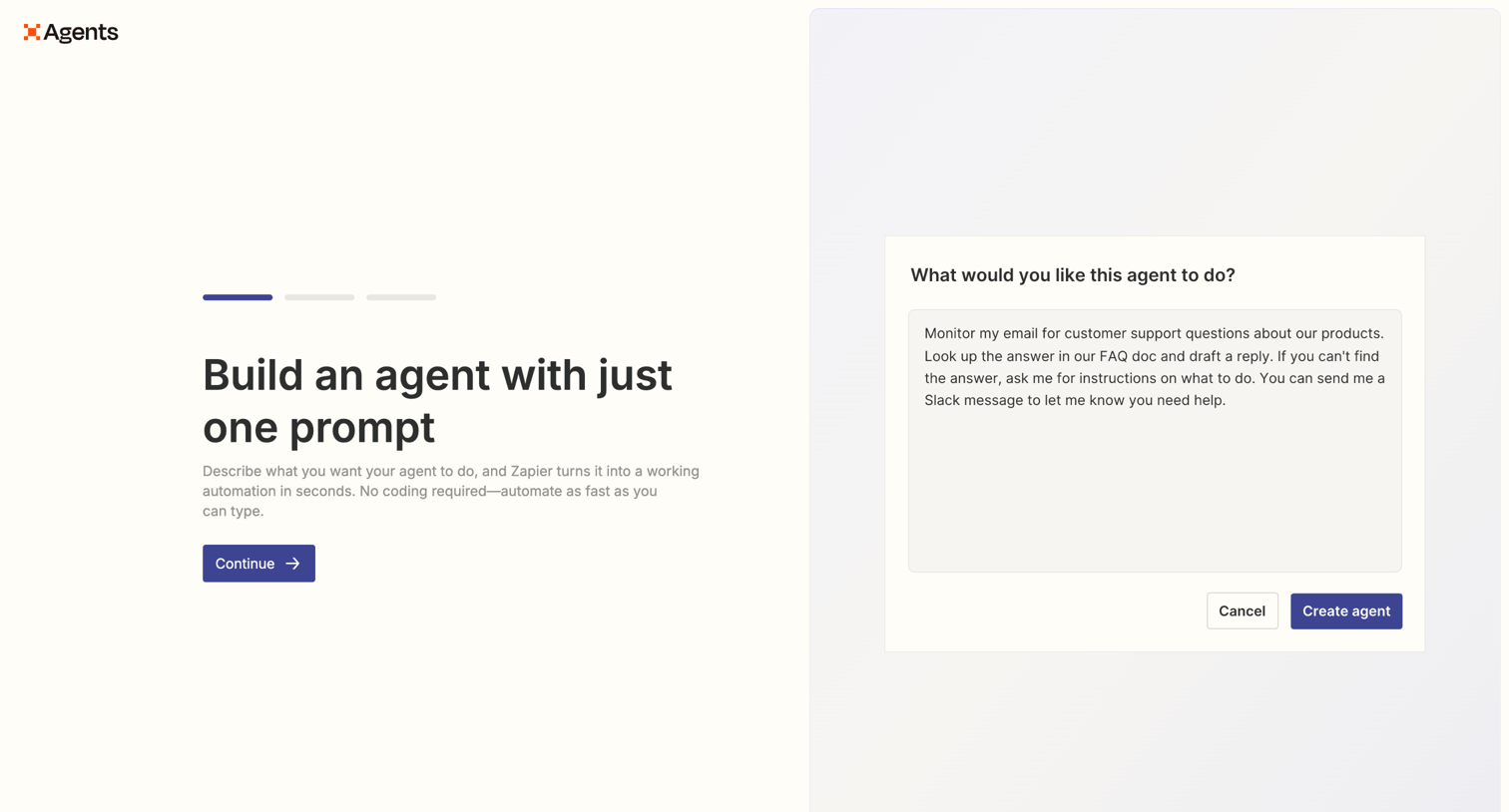

Creation wizard where the user describes what they want their AI agent to do via a single text prompt.
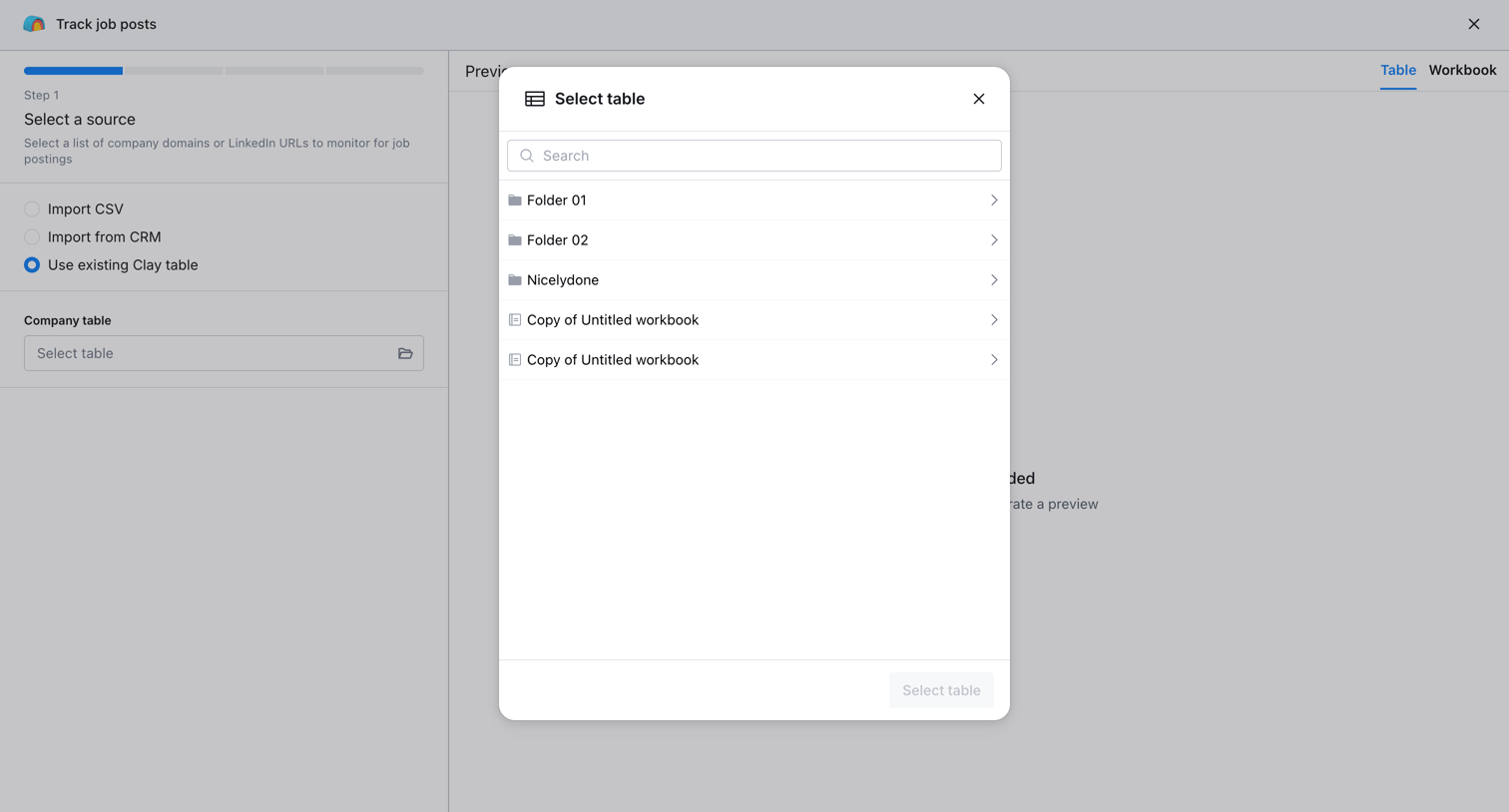

Creation wizard where the user selects a data source by picking an existing table from a searchable folder list inside a modal.
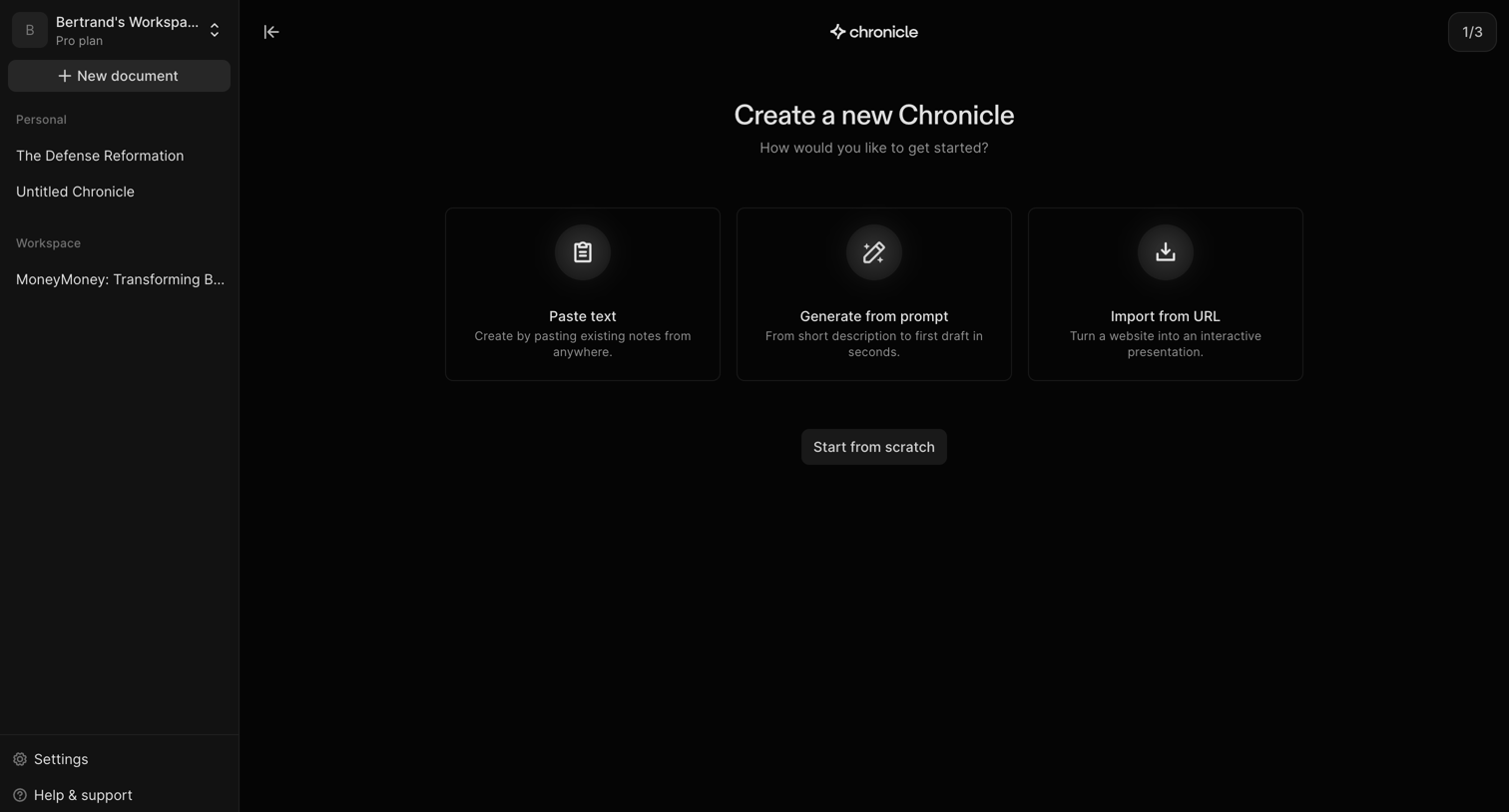

Creation screen where the user chooses to start a new document by pasting text, generating from a prompt, importing from a URL, or starting from scratch.
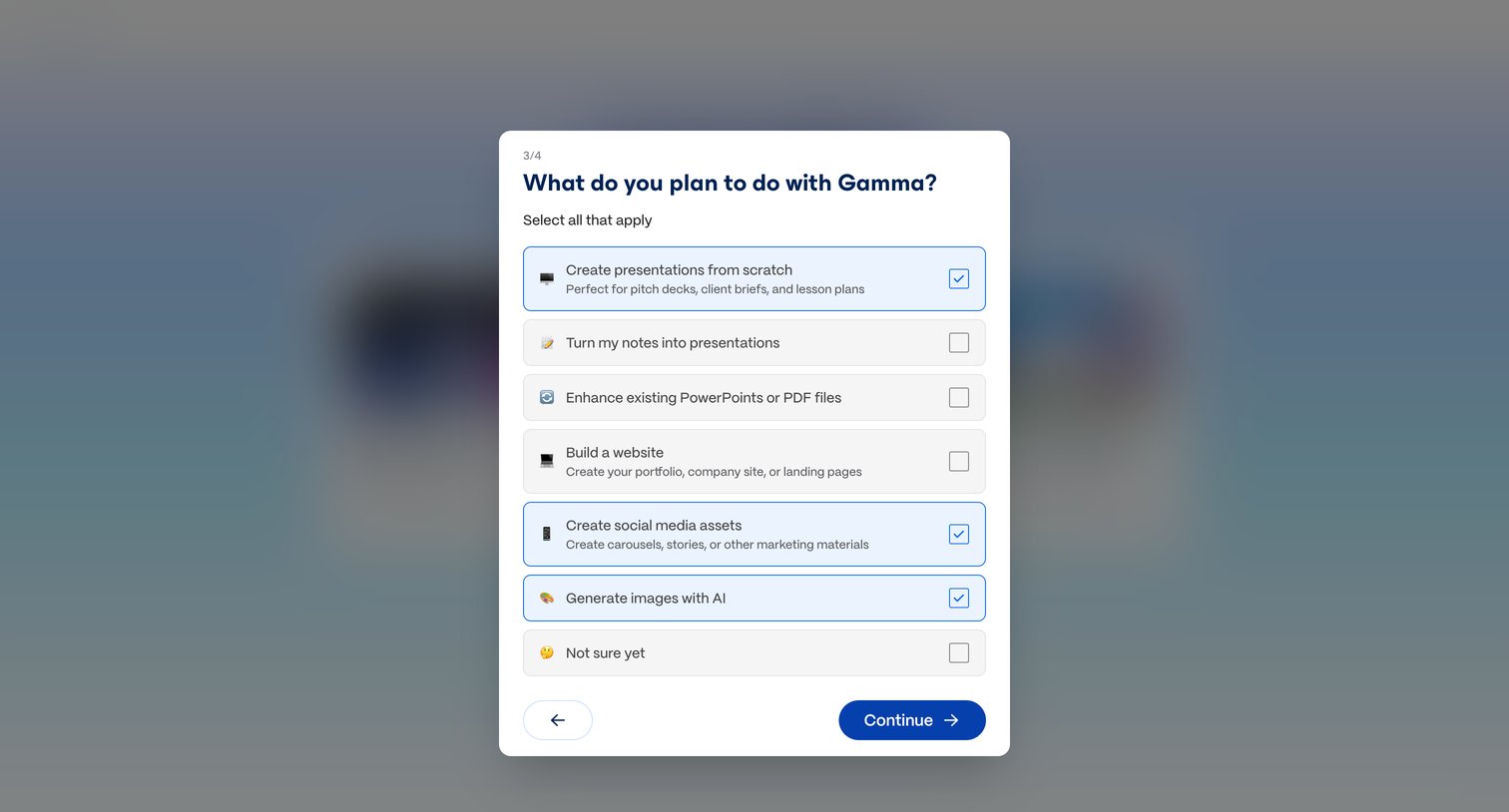

Onboarding step where the user selects their intended use cases for Gamma, such as creating presentations, building websites, or generating images.
Explore the full SaaS screen library
Upgrade to unlock the full library.
Trusted by the best teams








About Wizard
See how SaaS apps divide configuration into a sequence of steps. Explore how step labels, required information, and back or continue actions fit within each setup screen.