Video management screen examples
Video management screen design examples from SaaS apps. Browse examples from Dock, HeyGen, Kinescope.
Explore the examples
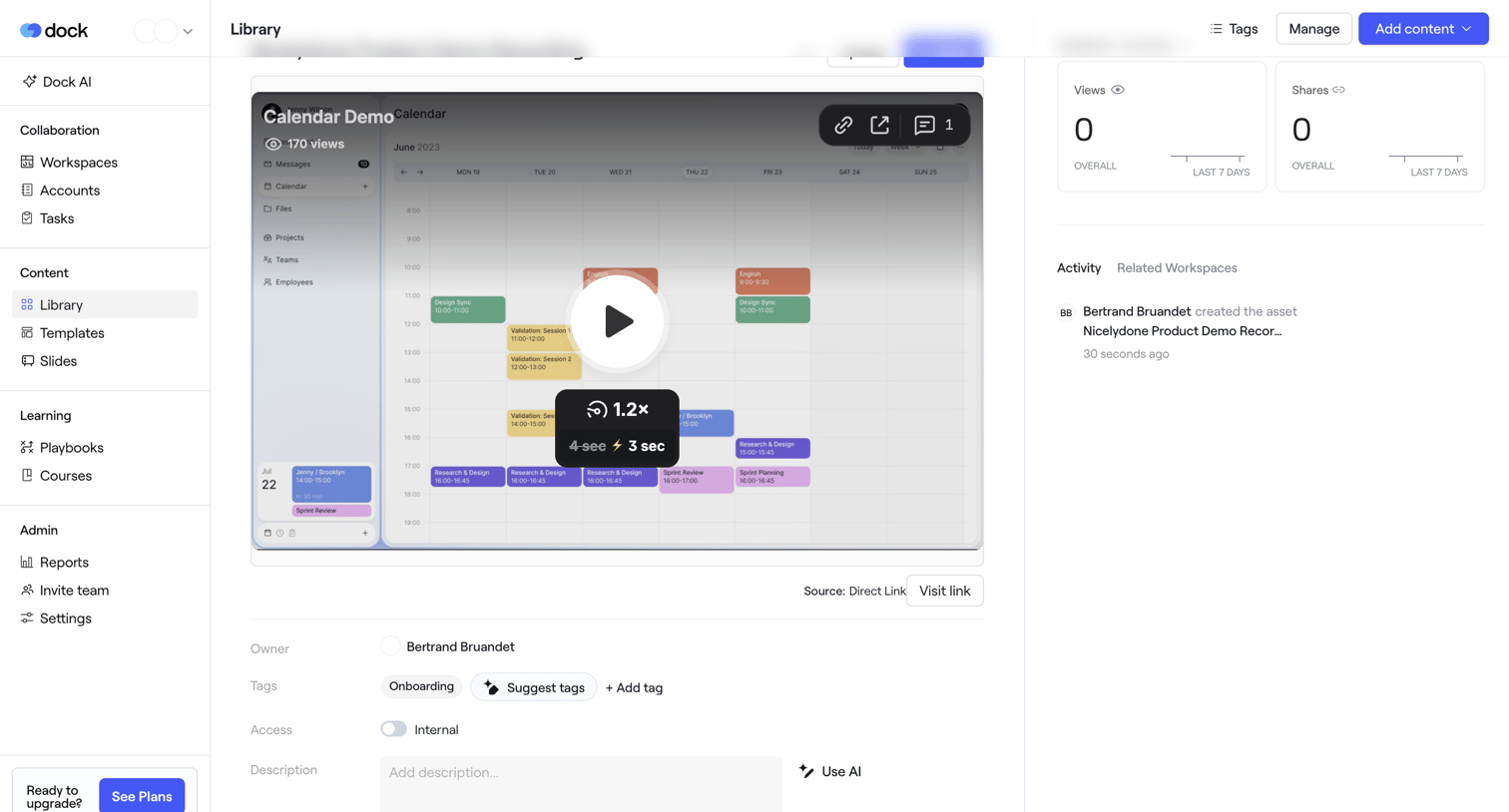

Detail page for a video asset in a content library, featuring a video player, view and share metrics, an activity feed, and editable metadata including AI-assisted tags and description.
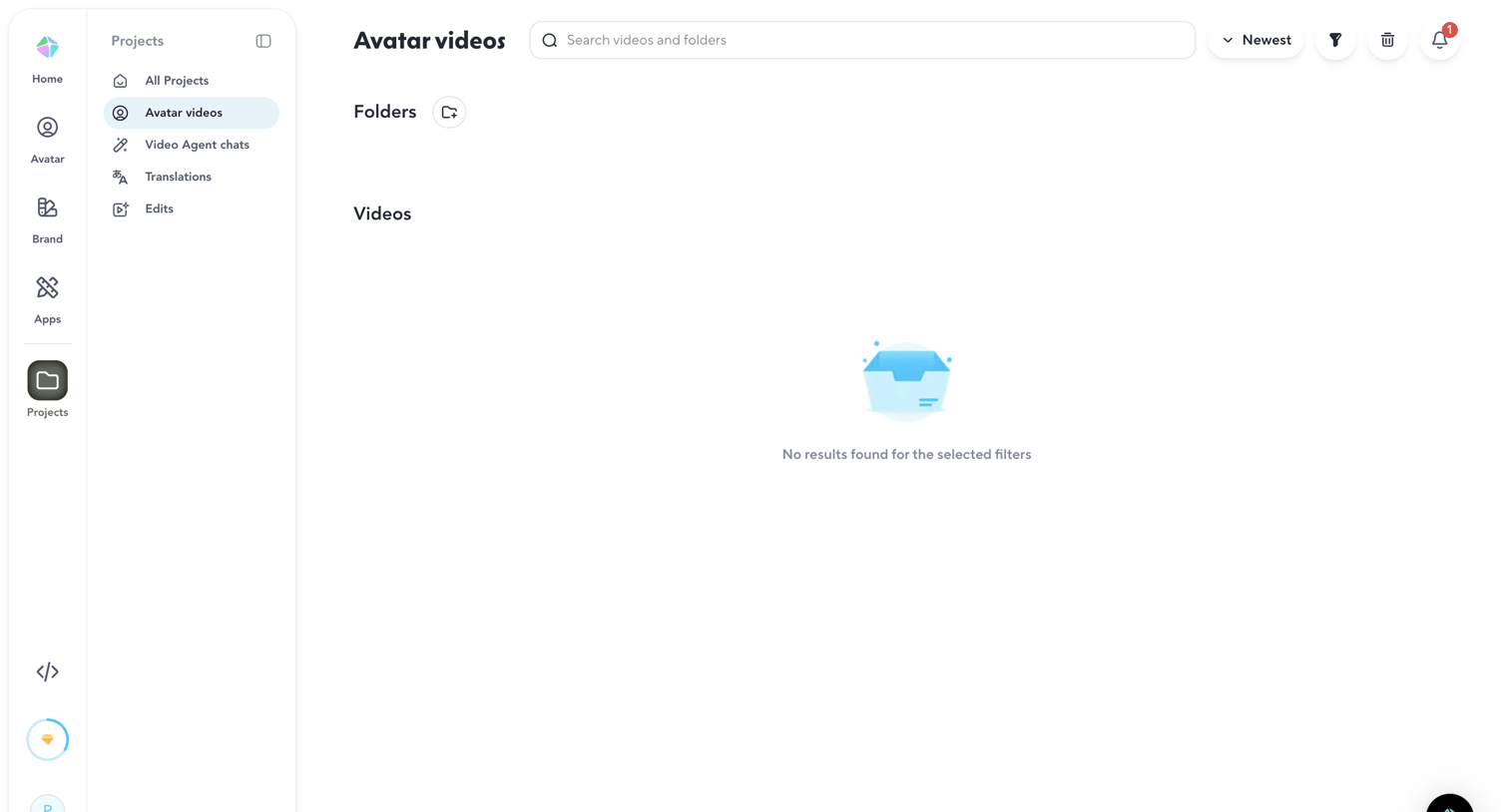

List view showing an empty state for avatar videos and folders because no results match the current search or filters.
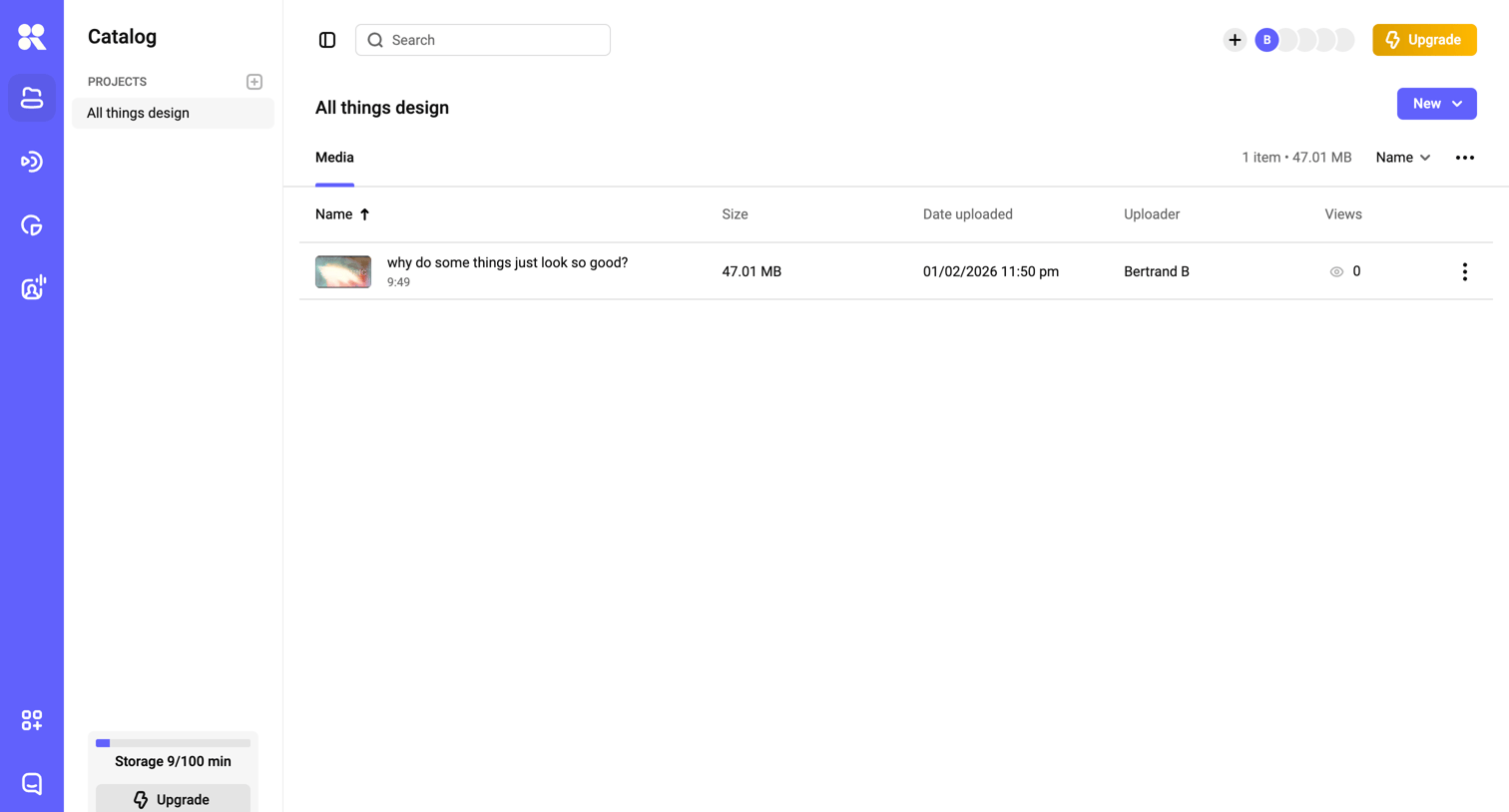

List view where the user manages uploaded video media for a specific project, viewing details like size, upload date, and view counts.
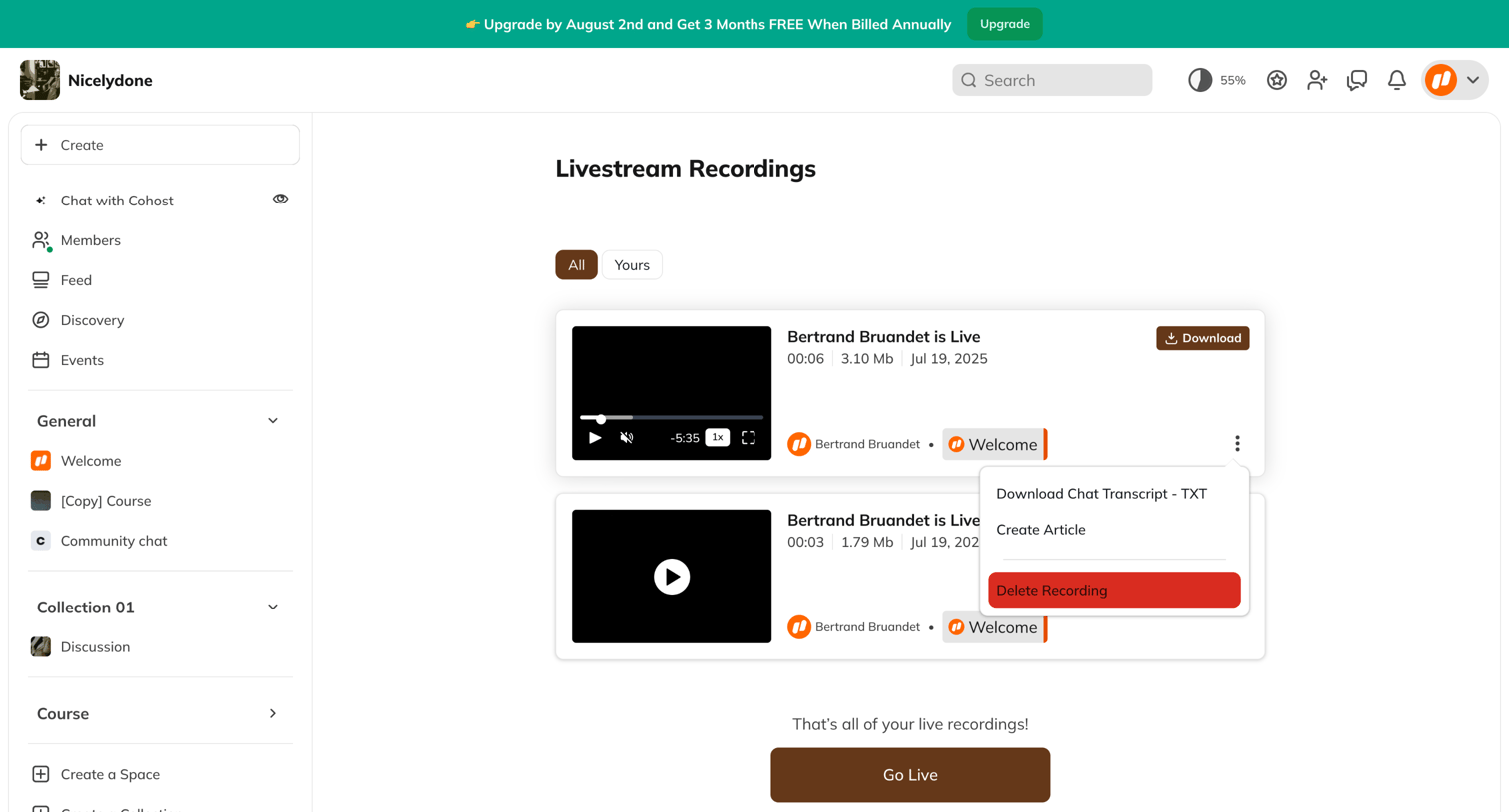

List view where the user manages past livestream recordings, with options to download transcripts, delete videos, or start a new broadcast.
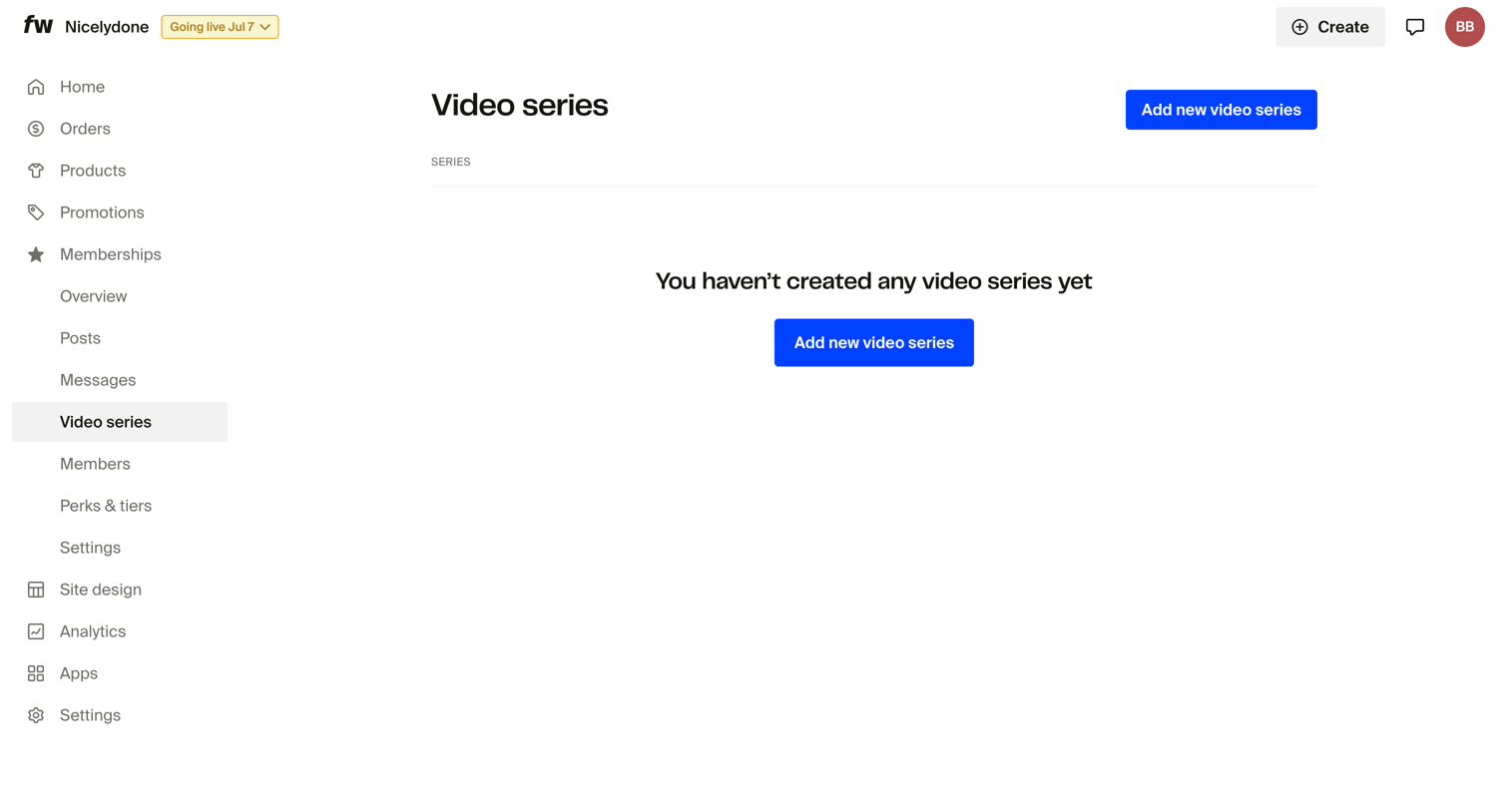

List view where the user manages their video series memberships, currently showing an empty state with a prompt to add a new series.
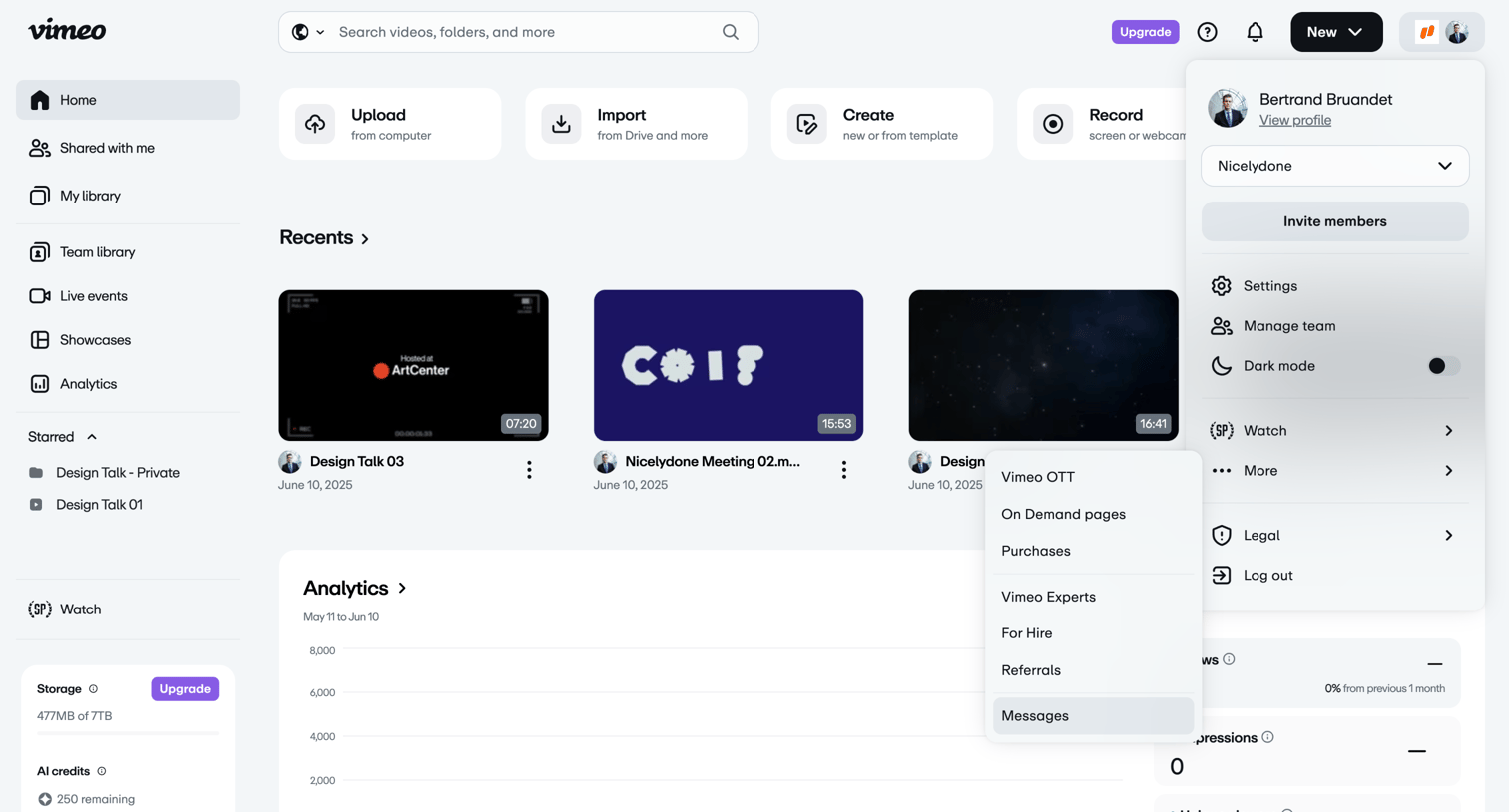

Home dashboard where the user can quickly upload or record new videos, access recent uploads, and view high-level analytics on views and impressions.
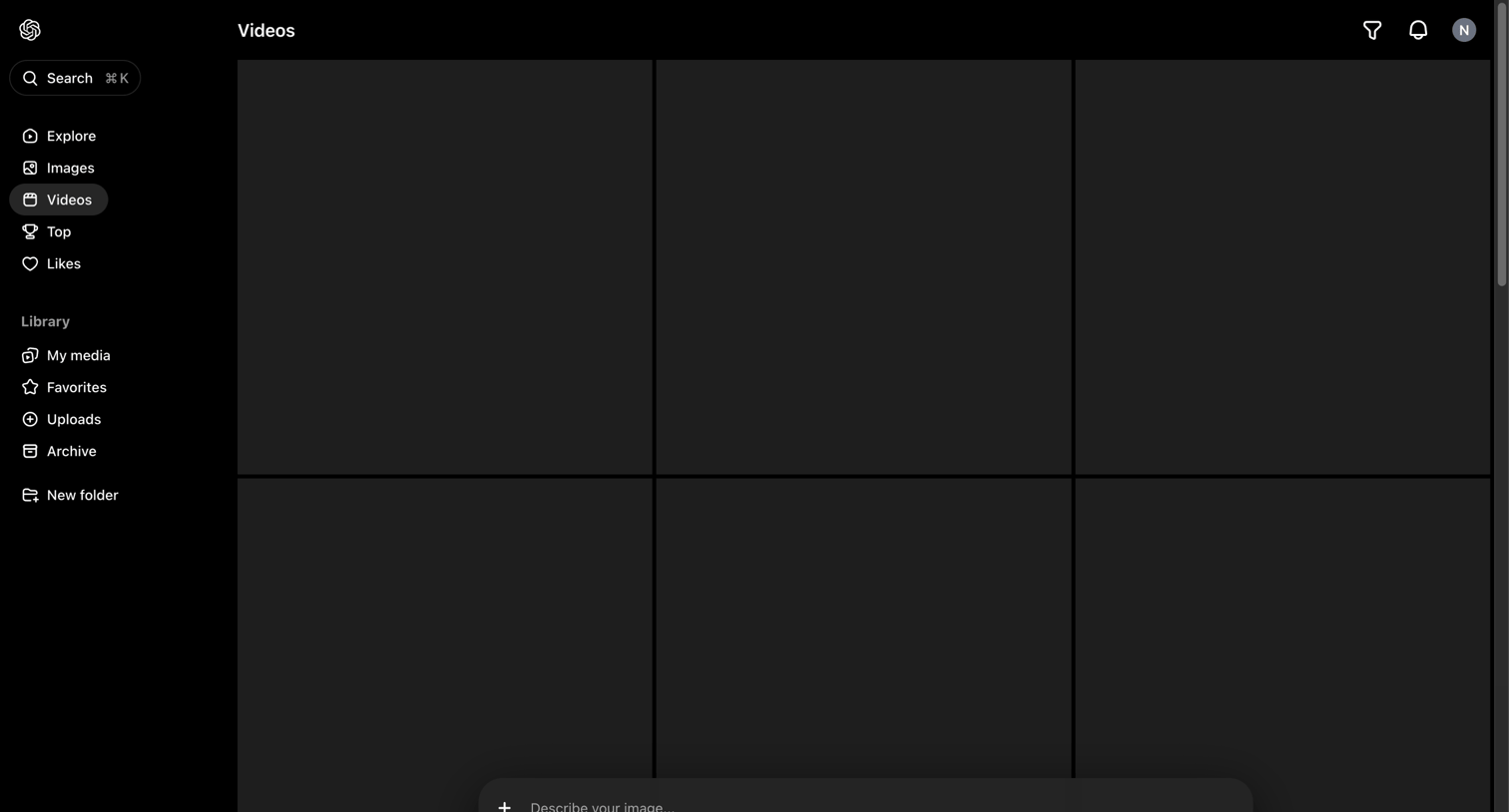

List view where the user browses a grid of videos, featuring a persistent floating AI composer to generate new media from a text prompt.
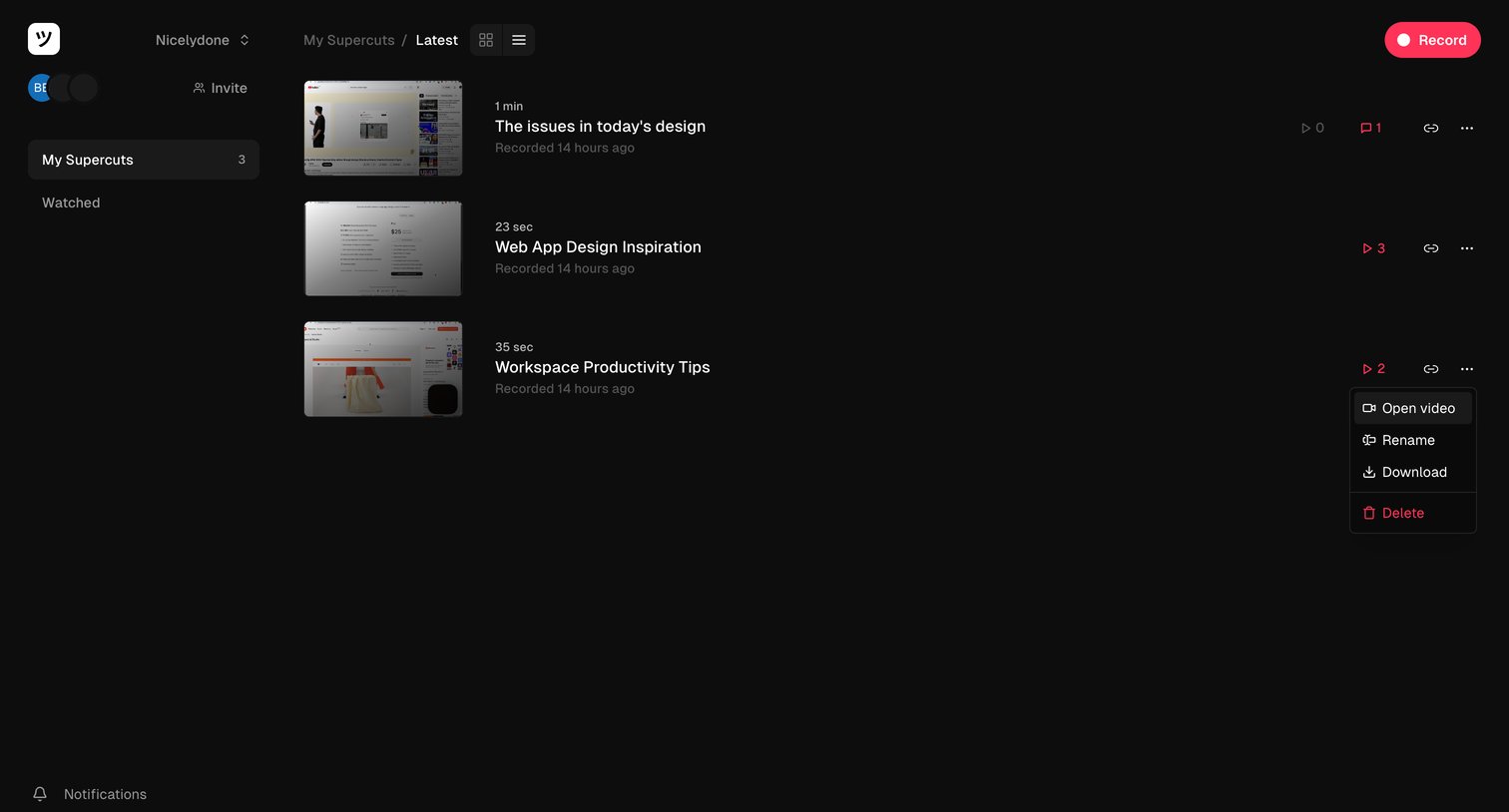

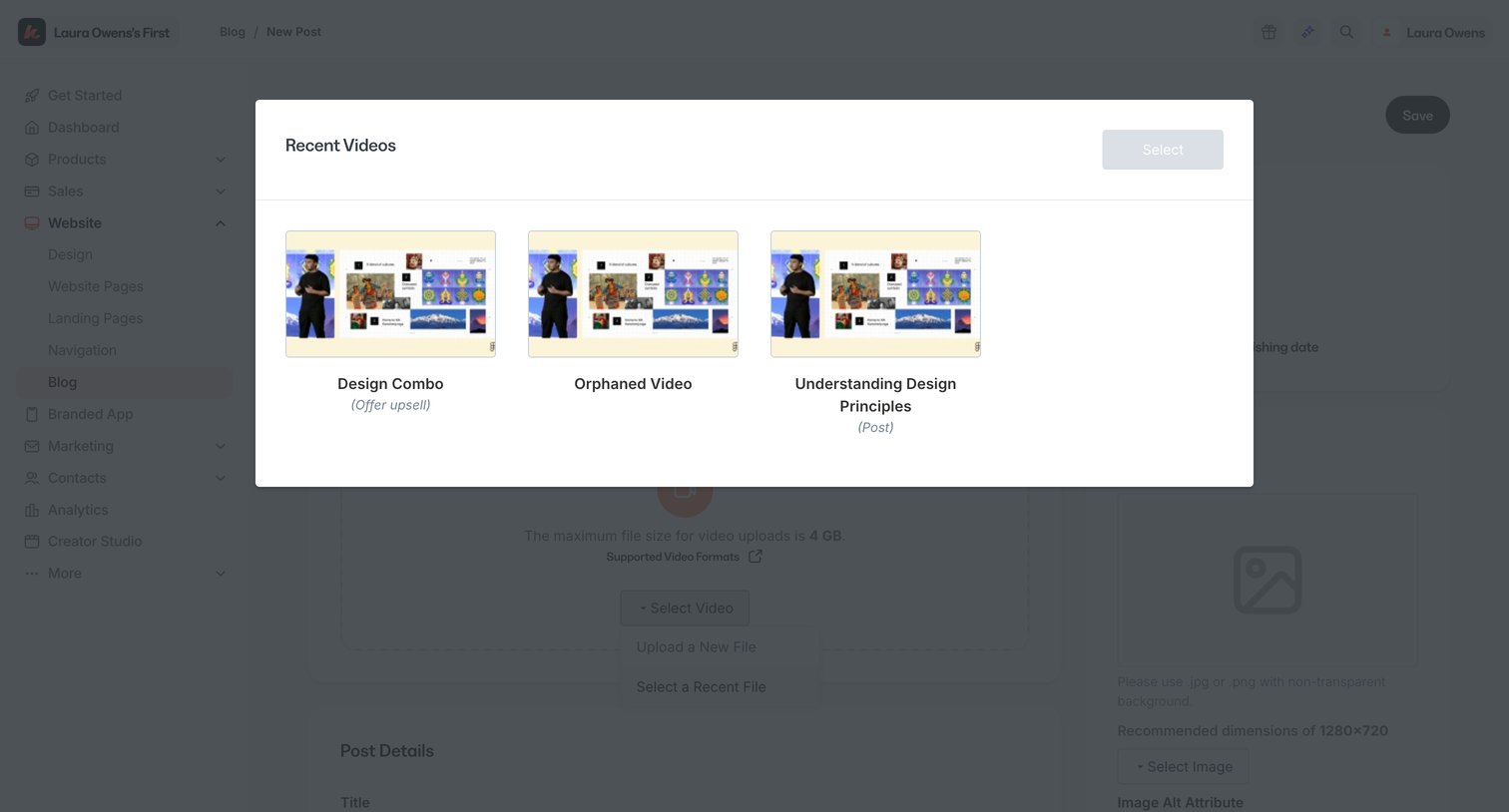

Create page for a new blog post where the user selects a recent video from a modal overlay to insert into the content.
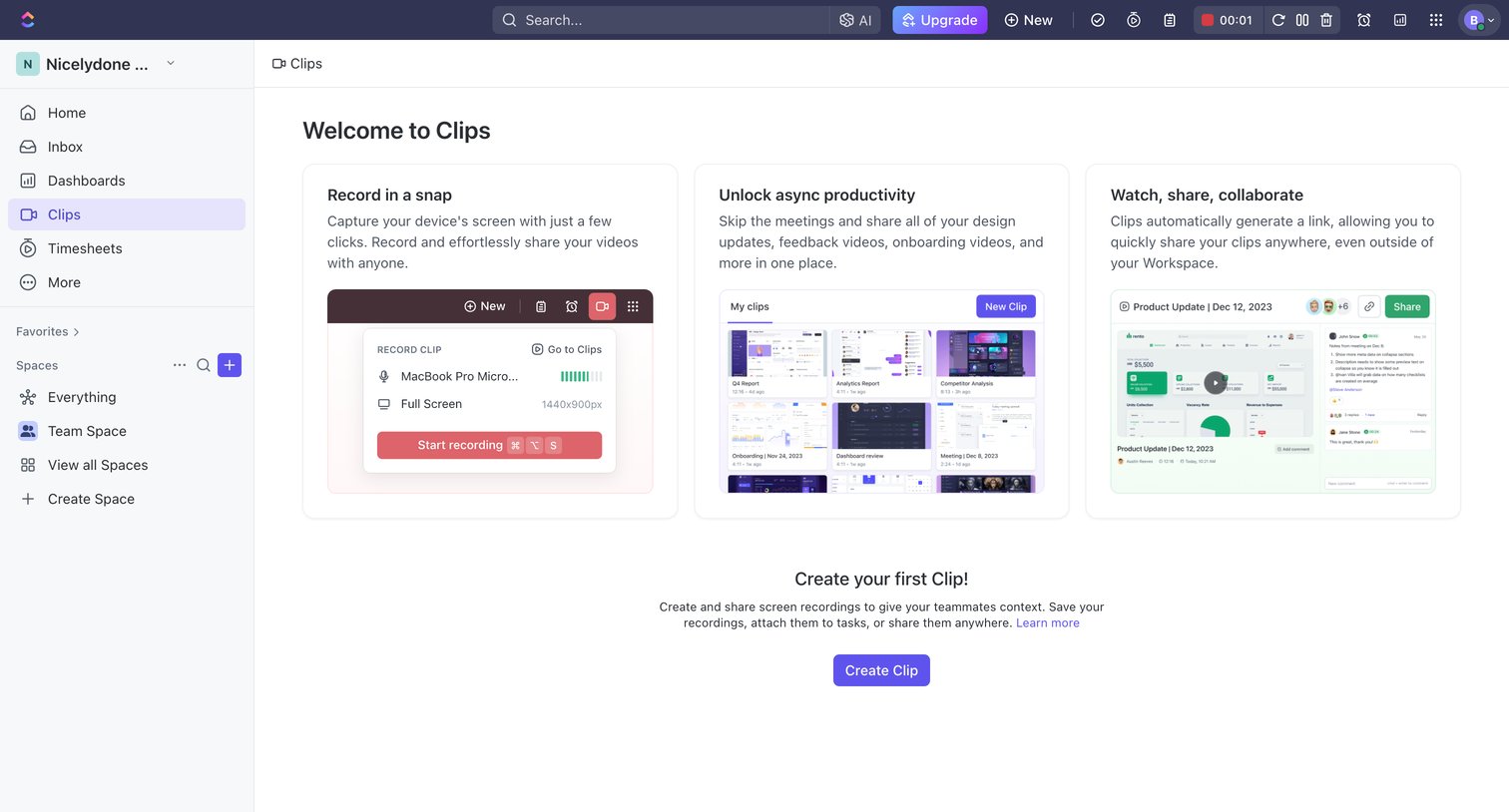

Empty list view for the Clips feature, showing a three-card feature grid explaining how to record, share, and collaborate on screen recordings, alongside a primary call to action to create the first clip.
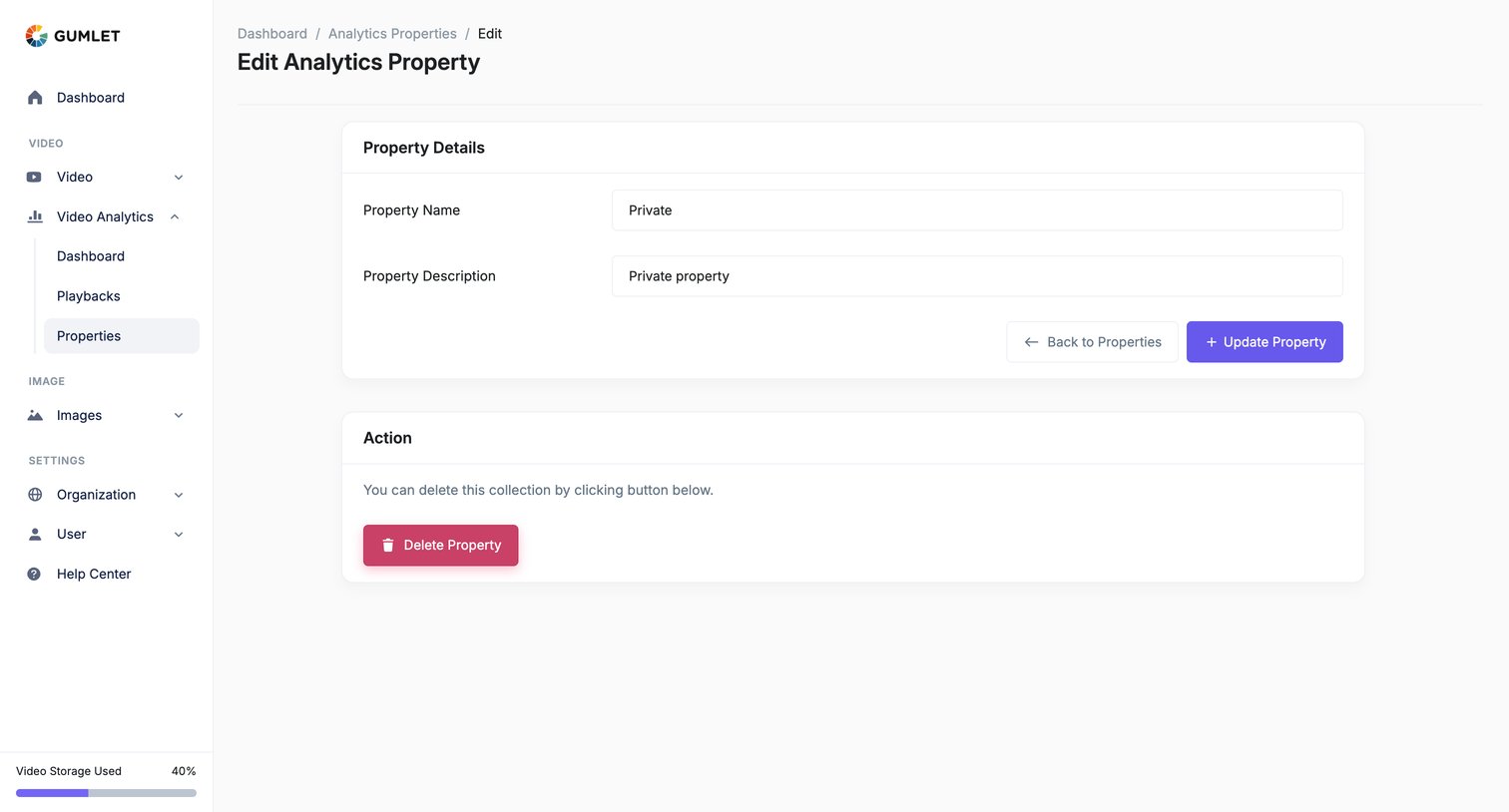

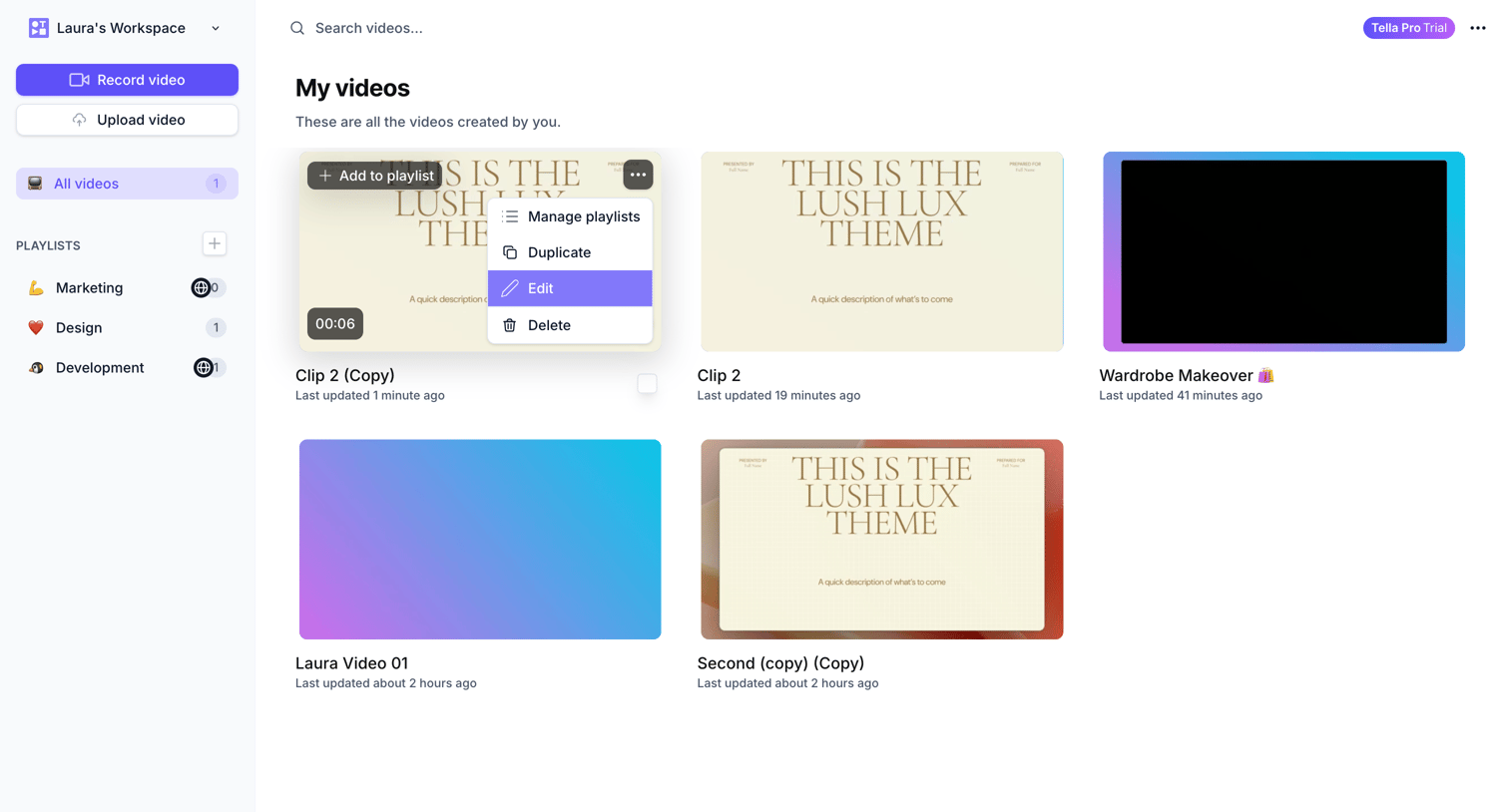

Video library where the user manages their recorded clips and organizes them into playlists.
Explore the full SaaS screen library
Upgrade to unlock the full library.
Trusted by the best teams







