Setup screen examples
Setup screen design examples from SaaS apps. Browse examples from Dock, Beside, Exa.
Explore the examples
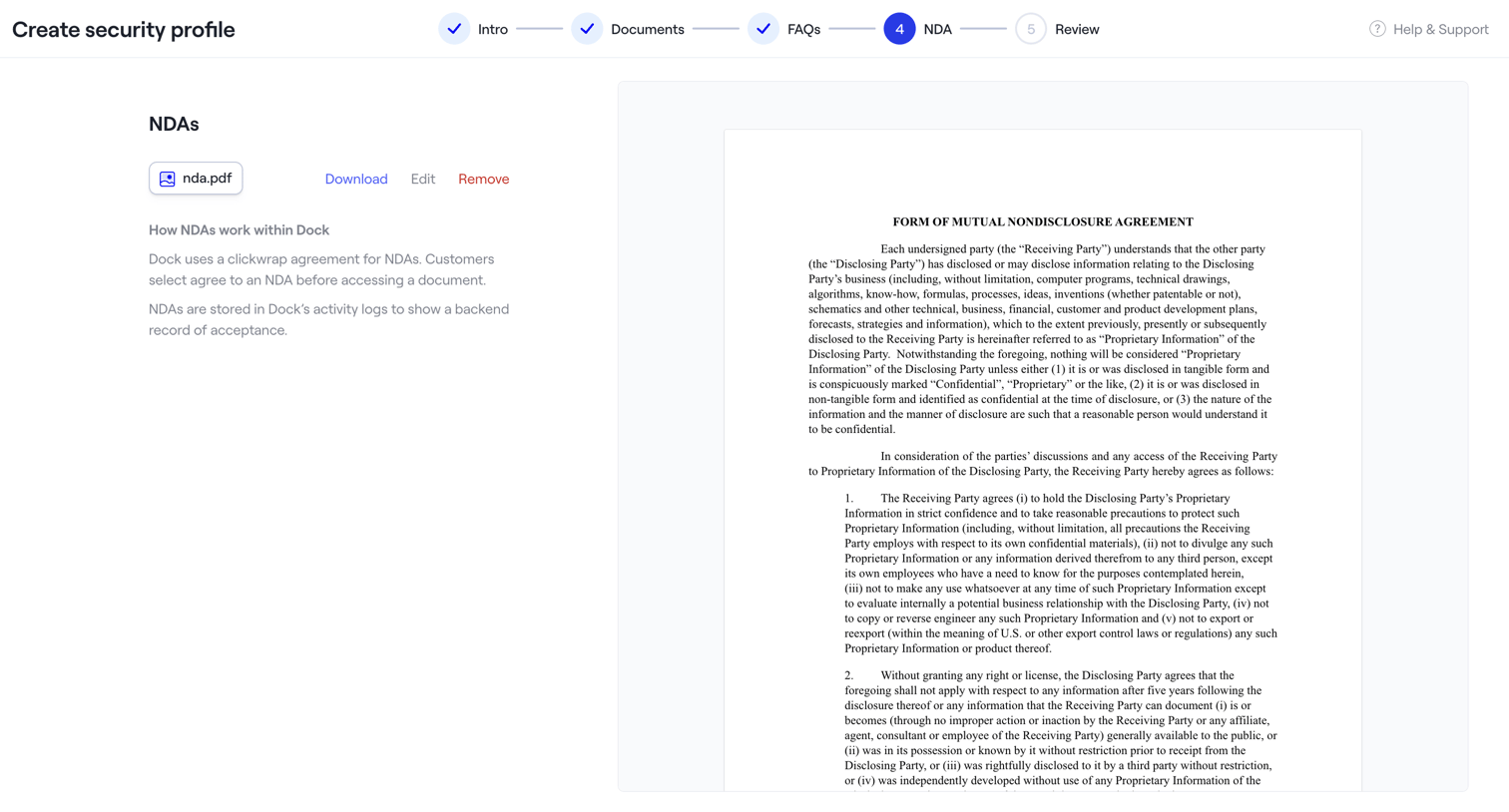

The screen is part of a multi-step wizard titled "Create security profile". A horizontal stepper at the top indicates the current progress: "Intro", "Documents", and "FAQs" steps are marked as completed with a checkmark, while "NDA" is the active step (4) highlighted in blue,…
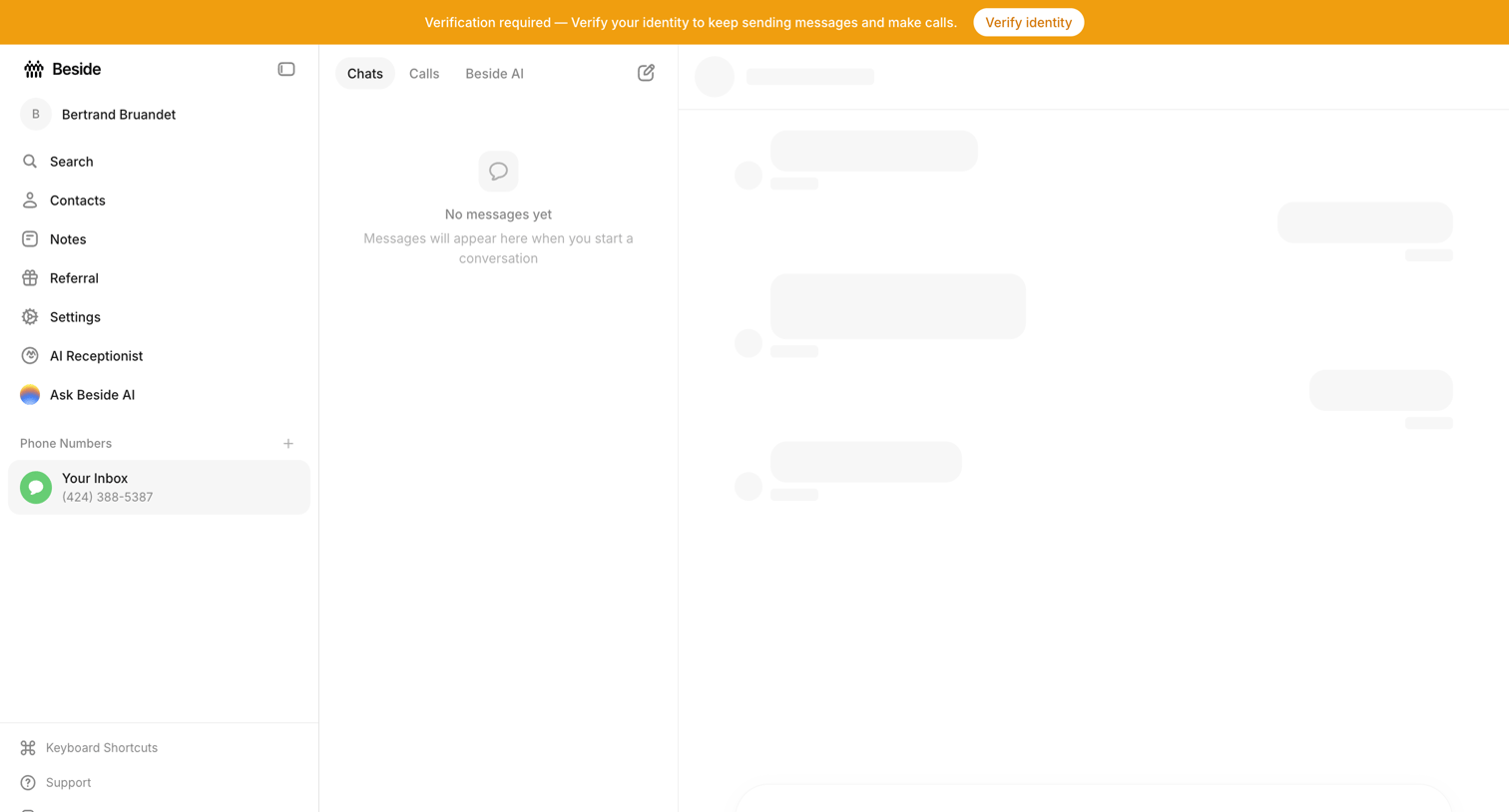

Messaging inbox where the user is prompted to verify their identity to continue sending messages, while the chat list is empty and the main conversation area shows loading skeletons.
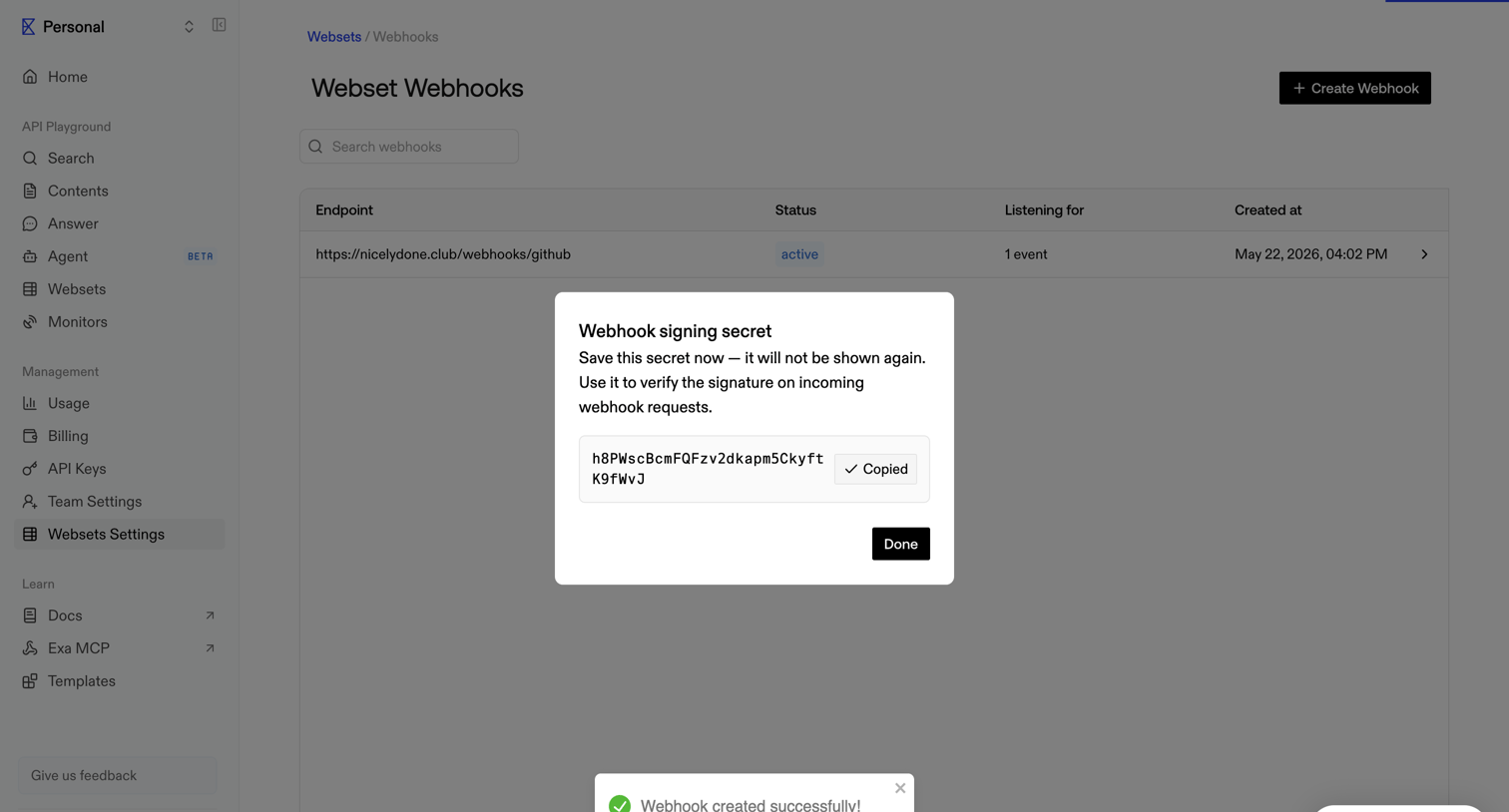

Settings page where the user views their newly generated webhook signing secret in a modal after successful creation.
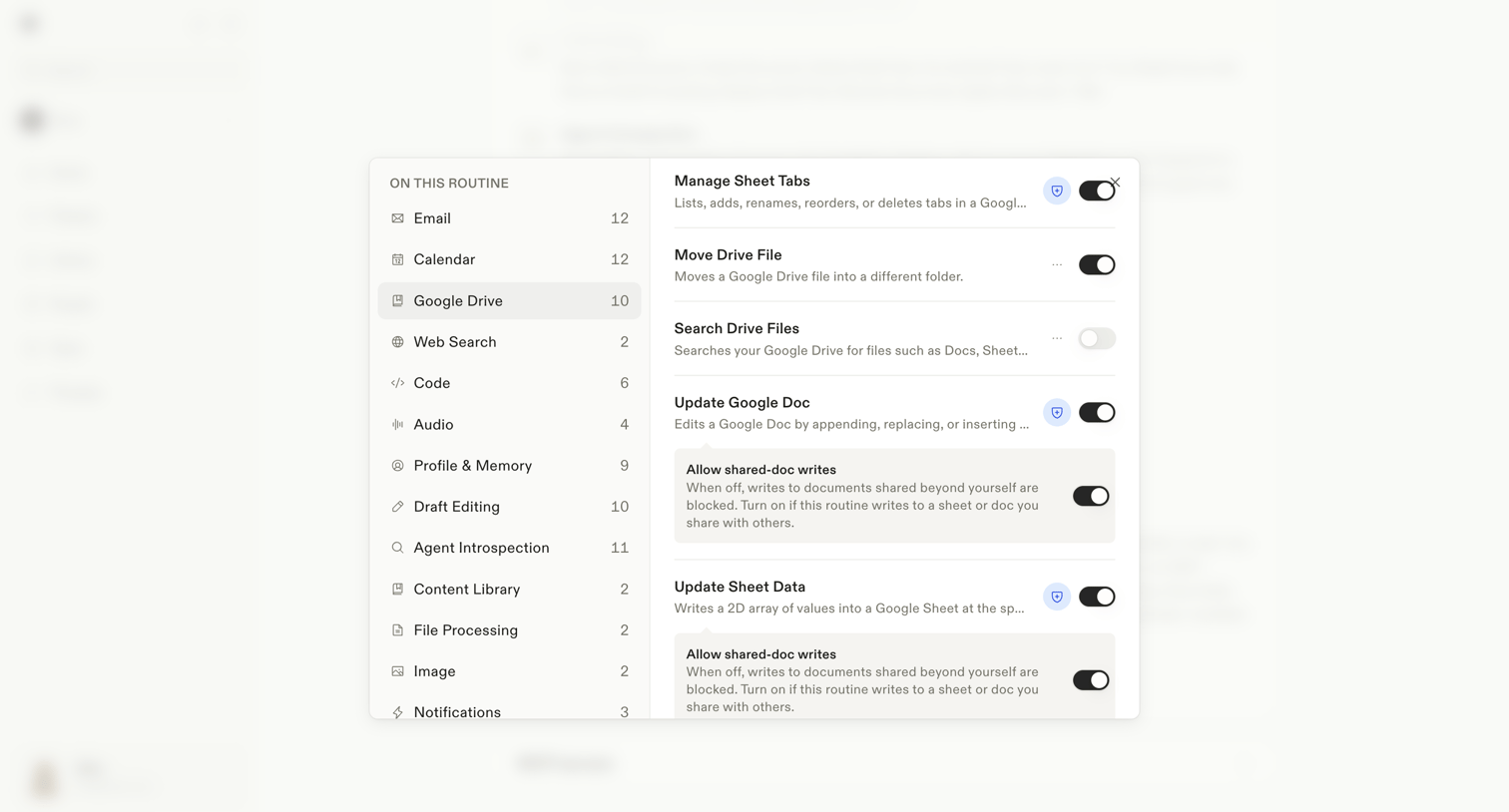

Settings modal where the user configures specific Google Drive file and sheet permissions for an AI routine.
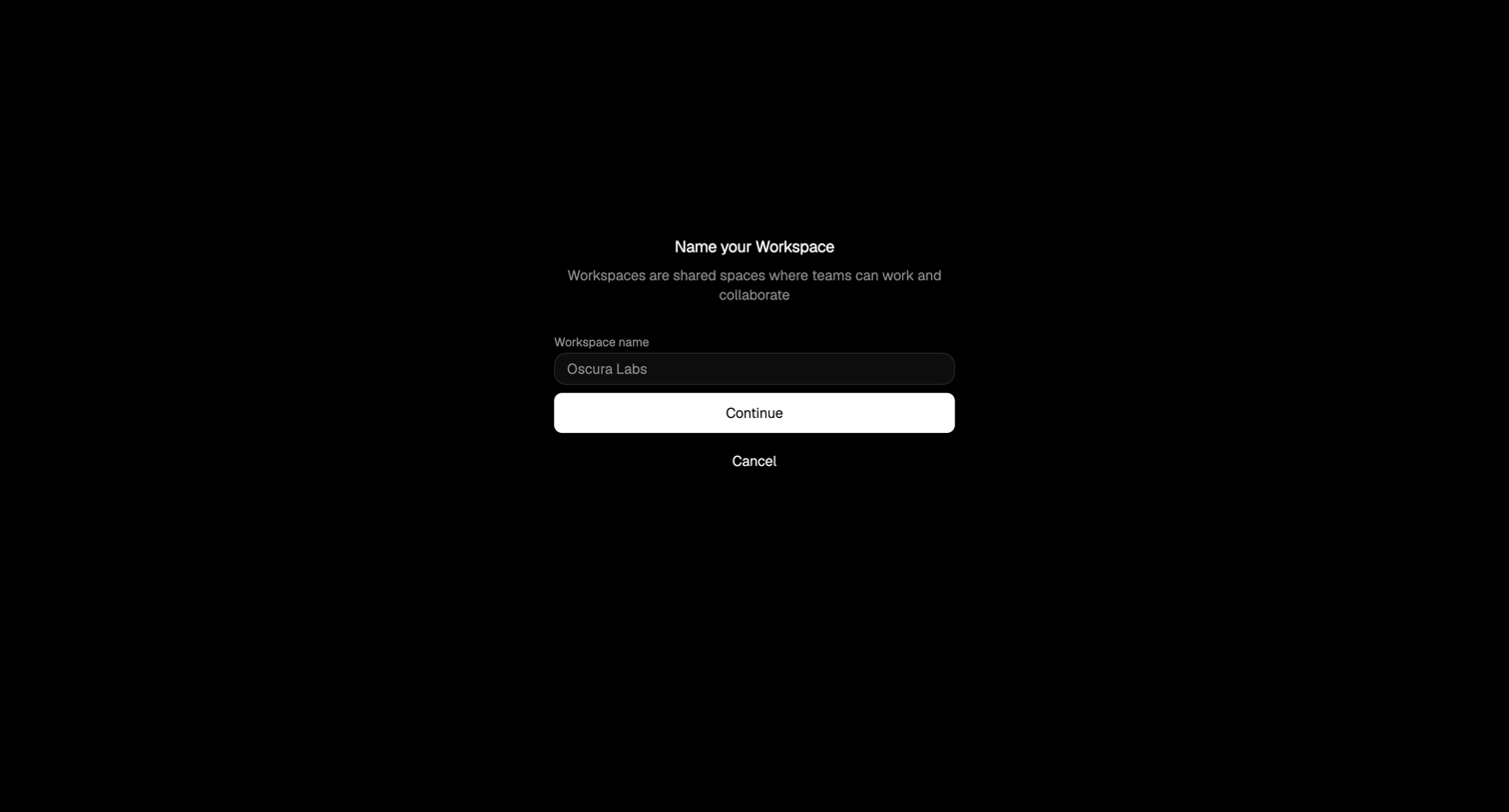

Creation screen where the user enters a name for their new workspace before continuing.
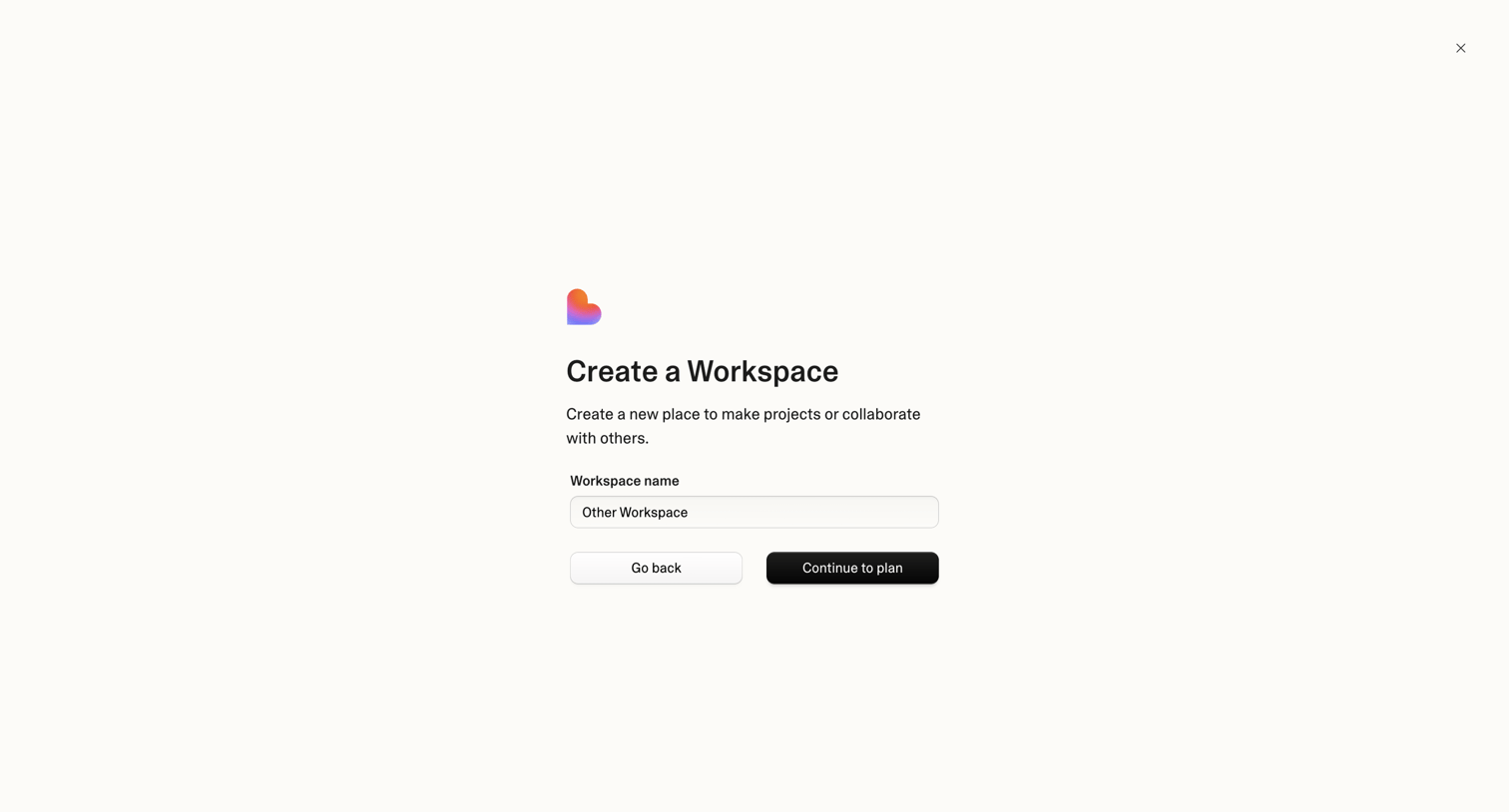

Creation modal where the user names a new workspace and proceeds to plan selection.
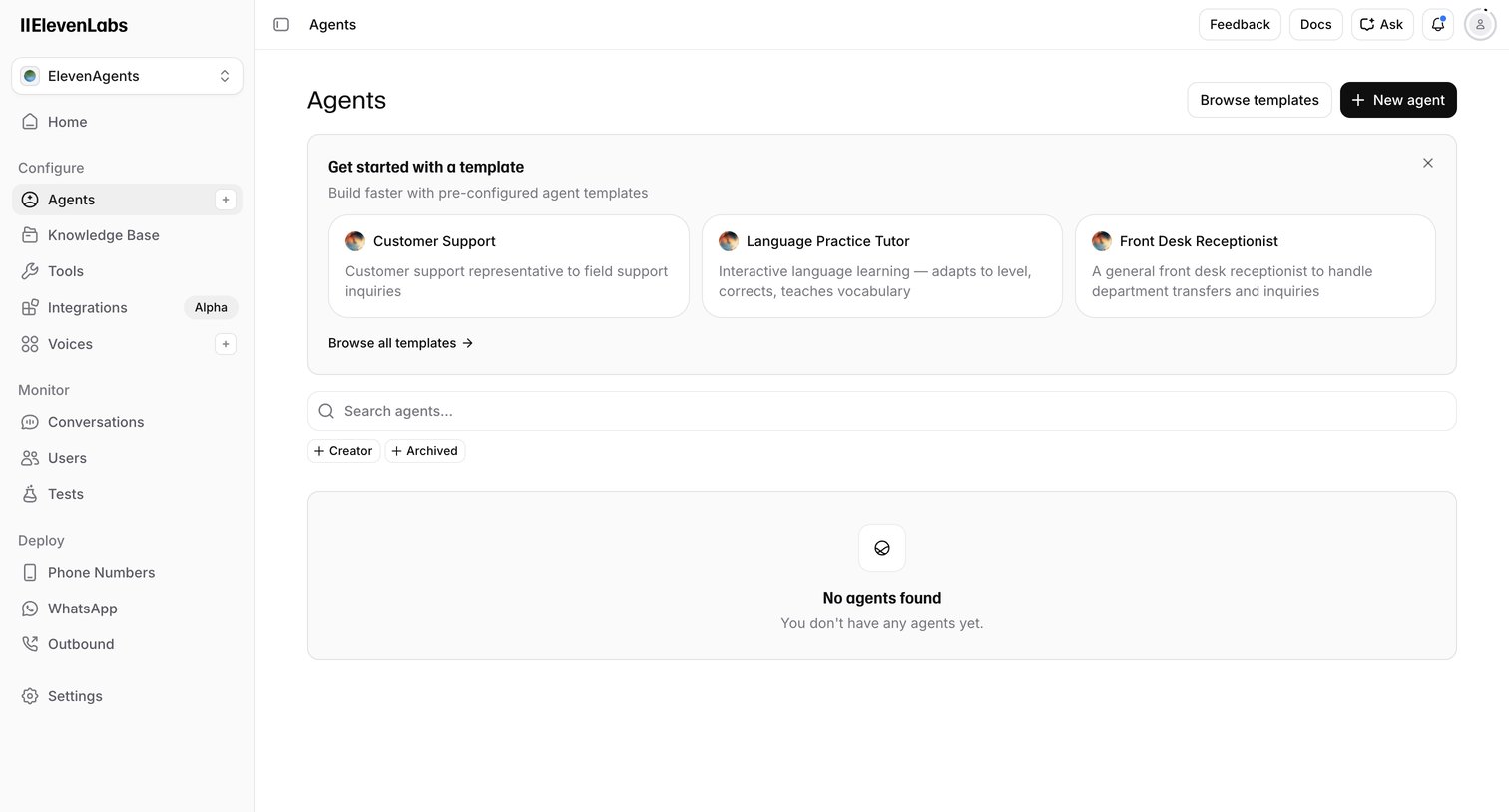

List view where the user can create a new AI agent, search existing ones, or start from templates like Customer Support or Language Practice Tutor.
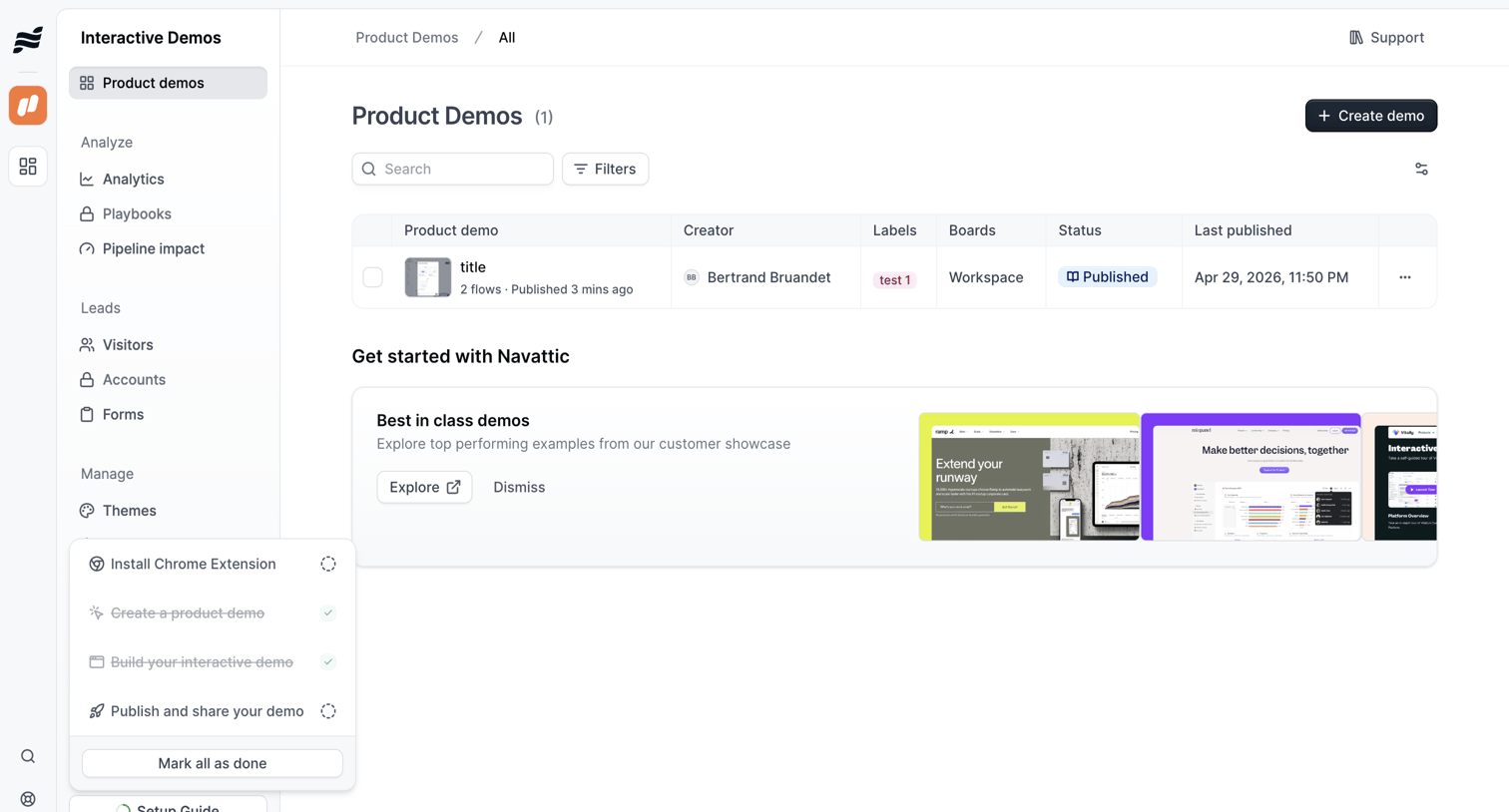

List view where the user manages their interactive product demos, searches existing flows, and accesses an onboarding setup guide.
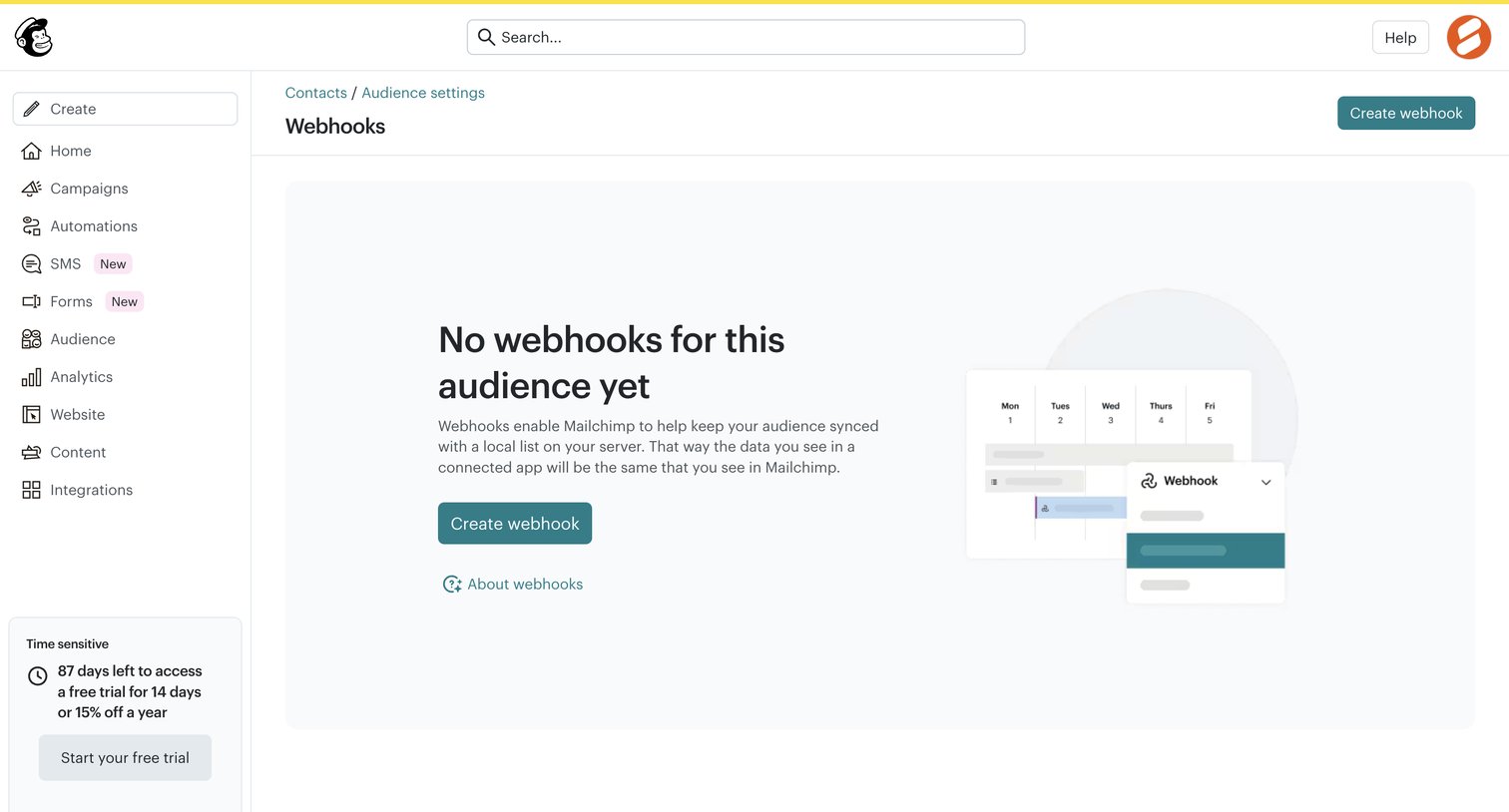

Settings page where the user manages webhooks for their audience, currently showing an empty state with a prompt to create the first one.
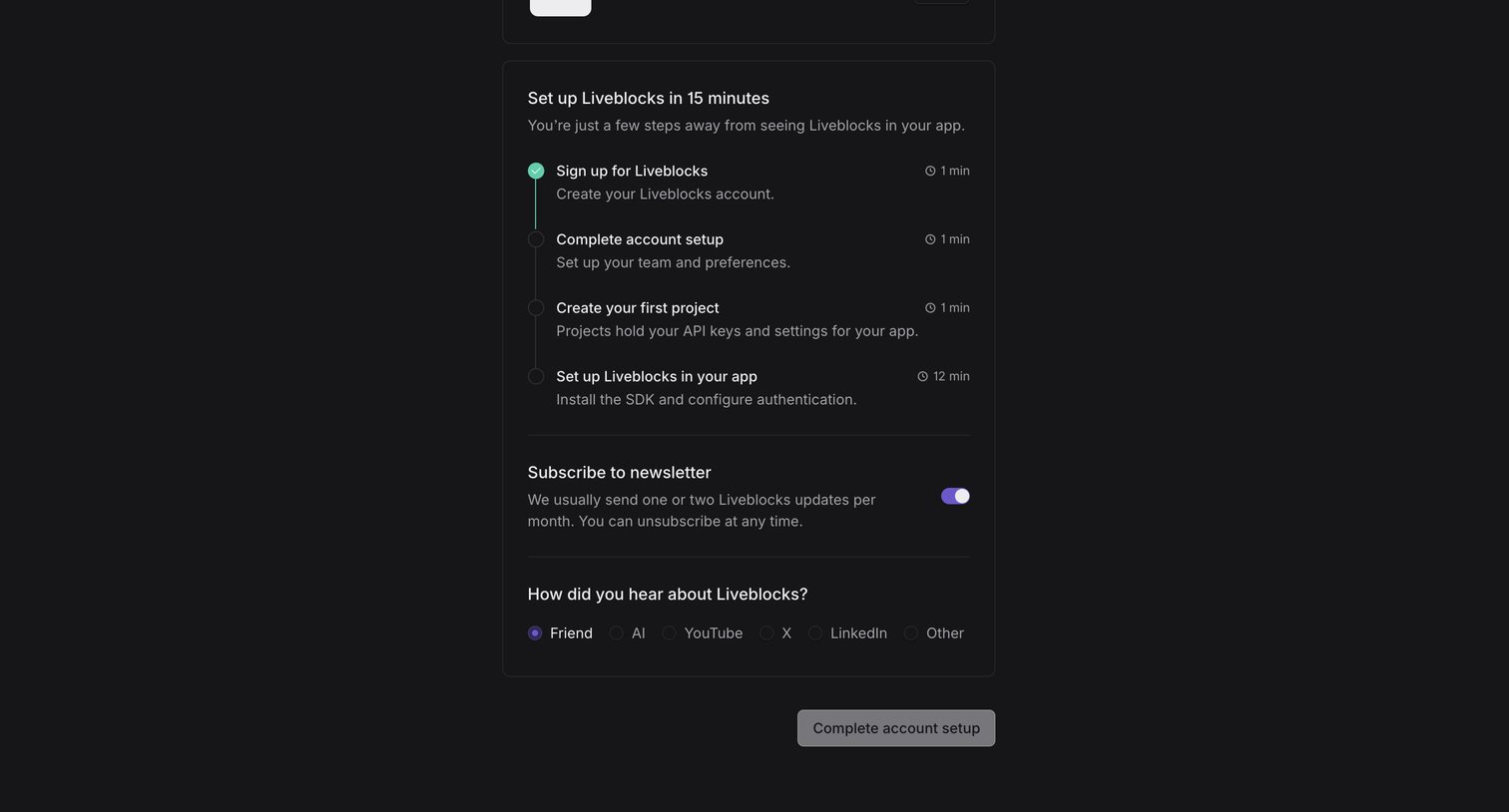

Onboarding screen where the user completes their account setup by following a 15-minute checklist, subscribing to a newsletter, and answering a discovery survey.
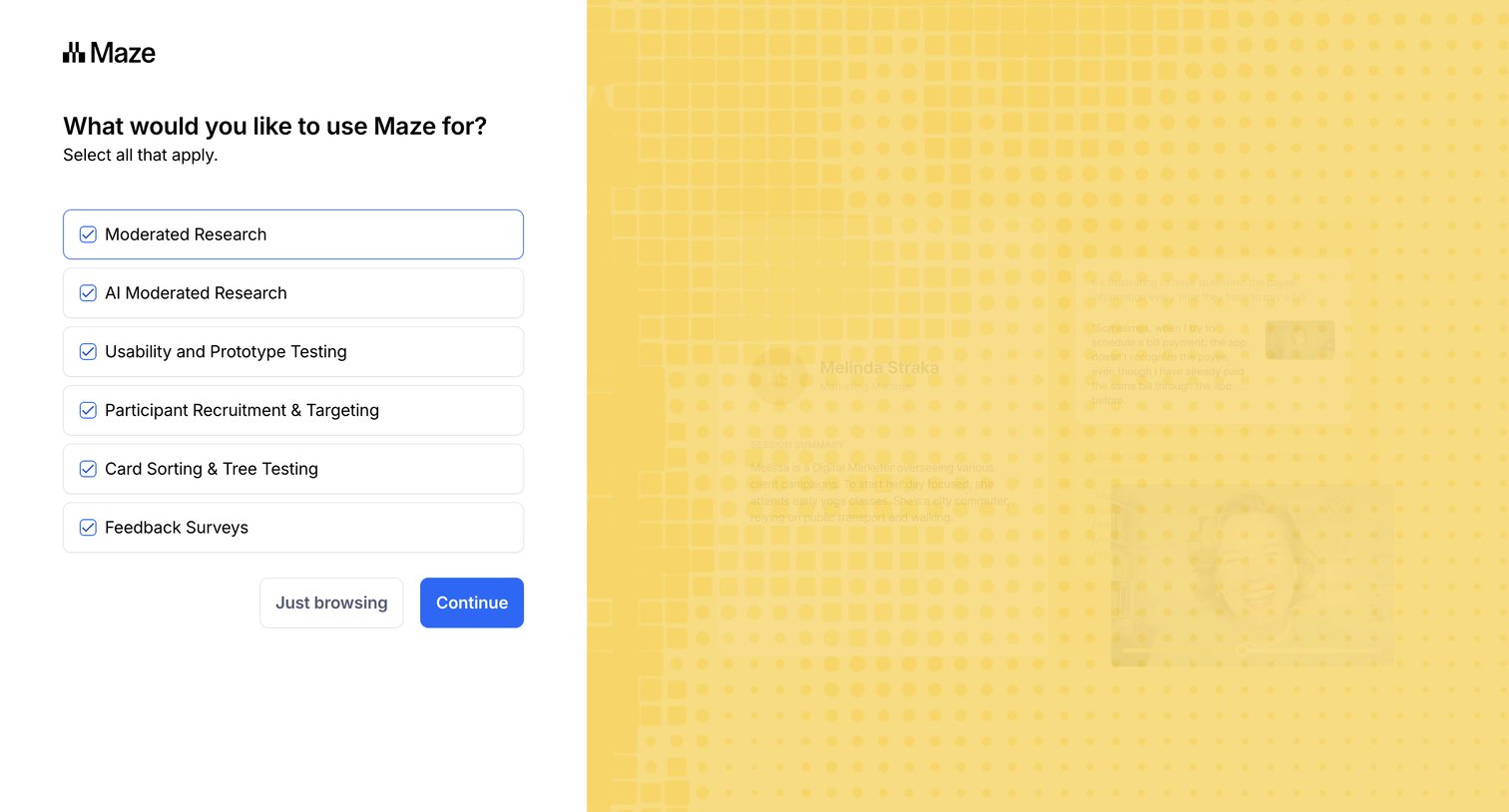

Onboarding step where the user selects their intended use cases for Maze, such as moderated research or feedback surveys.
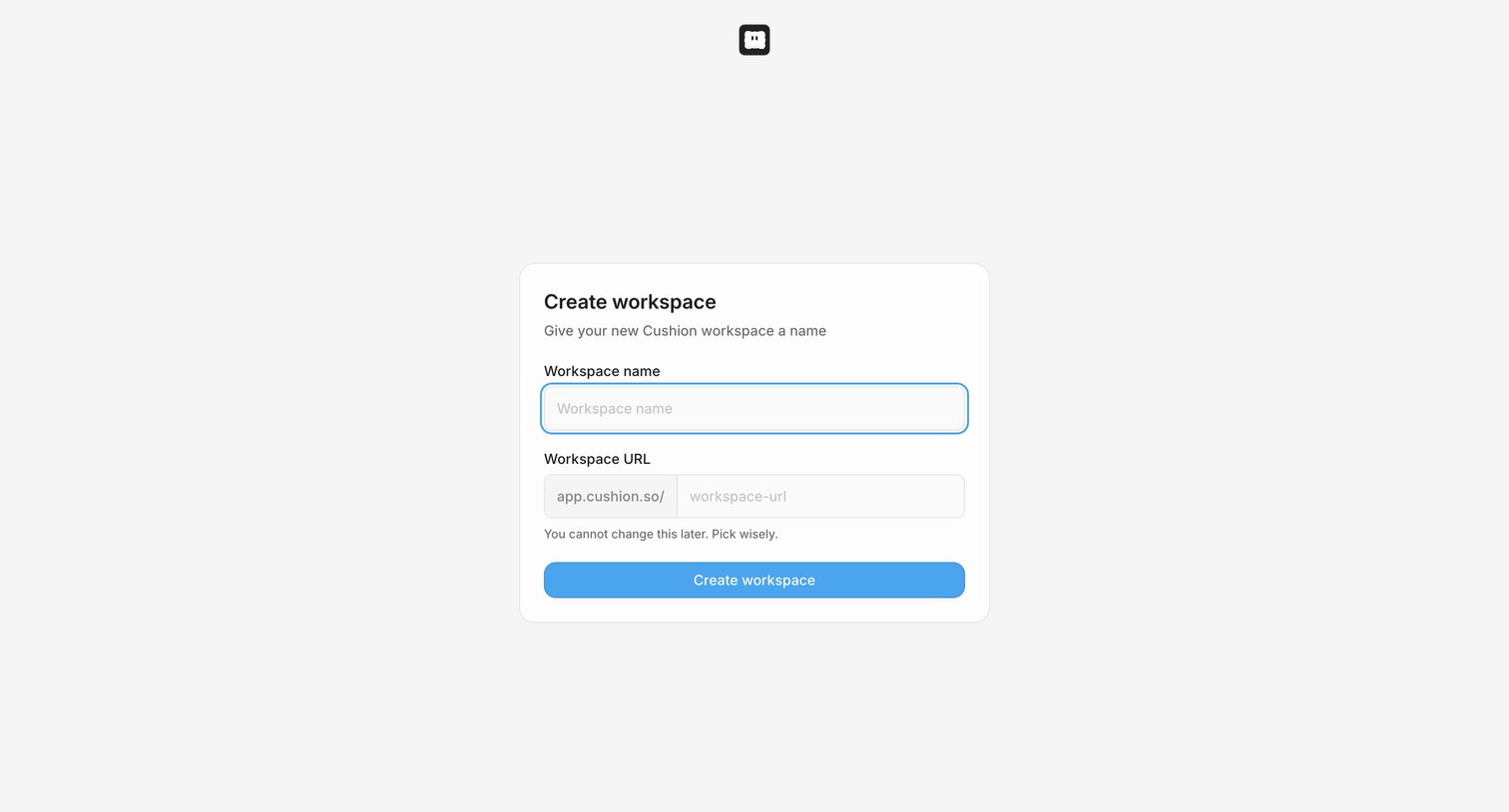

Onboarding step where the user names their new workspace and sets its custom URL before entering the app.
Explore the full SaaS screen library
Upgrade to unlock the full library.
Trusted by the best teams







