Instructions screen examples
Instructions screen design examples from SaaS apps. Browse examples from Dock, Beside, Flora.
Explore the examples
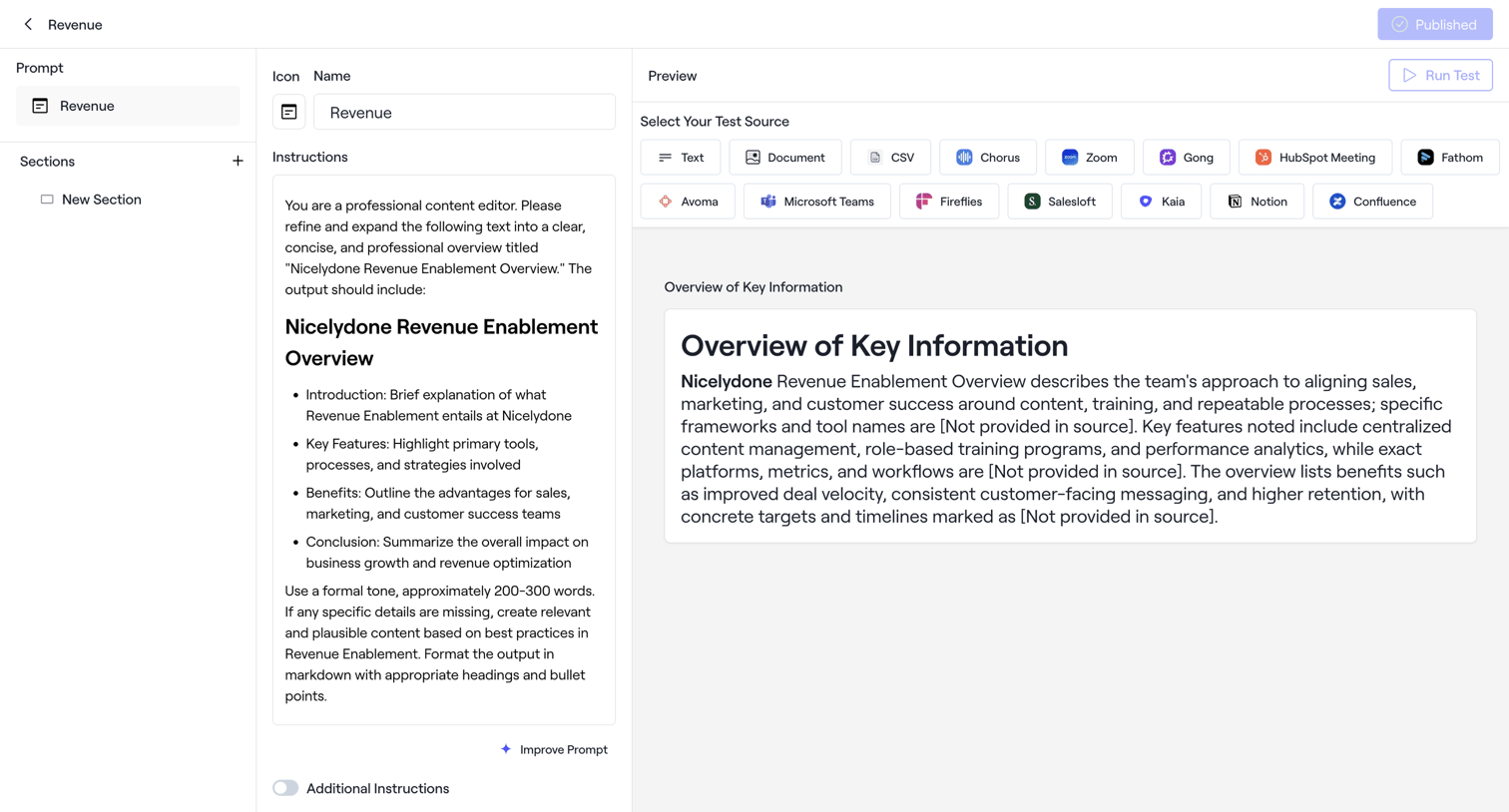

Content editor where the user configures an AI prompt's instructions, toggles settings, and previews the output against connected data sources.
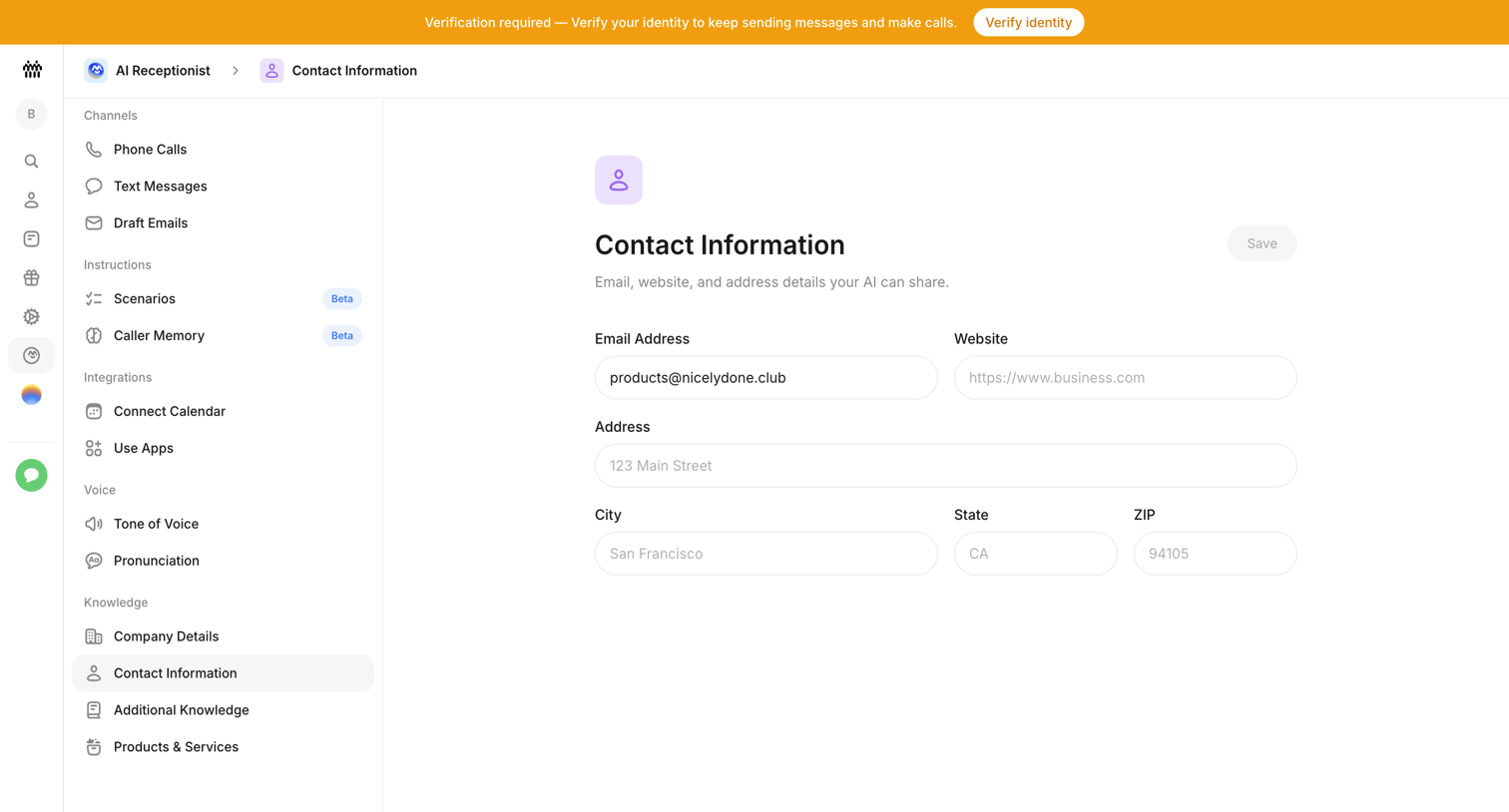

Settings page where the user configures the email, website, and physical address details that their AI receptionist can share.
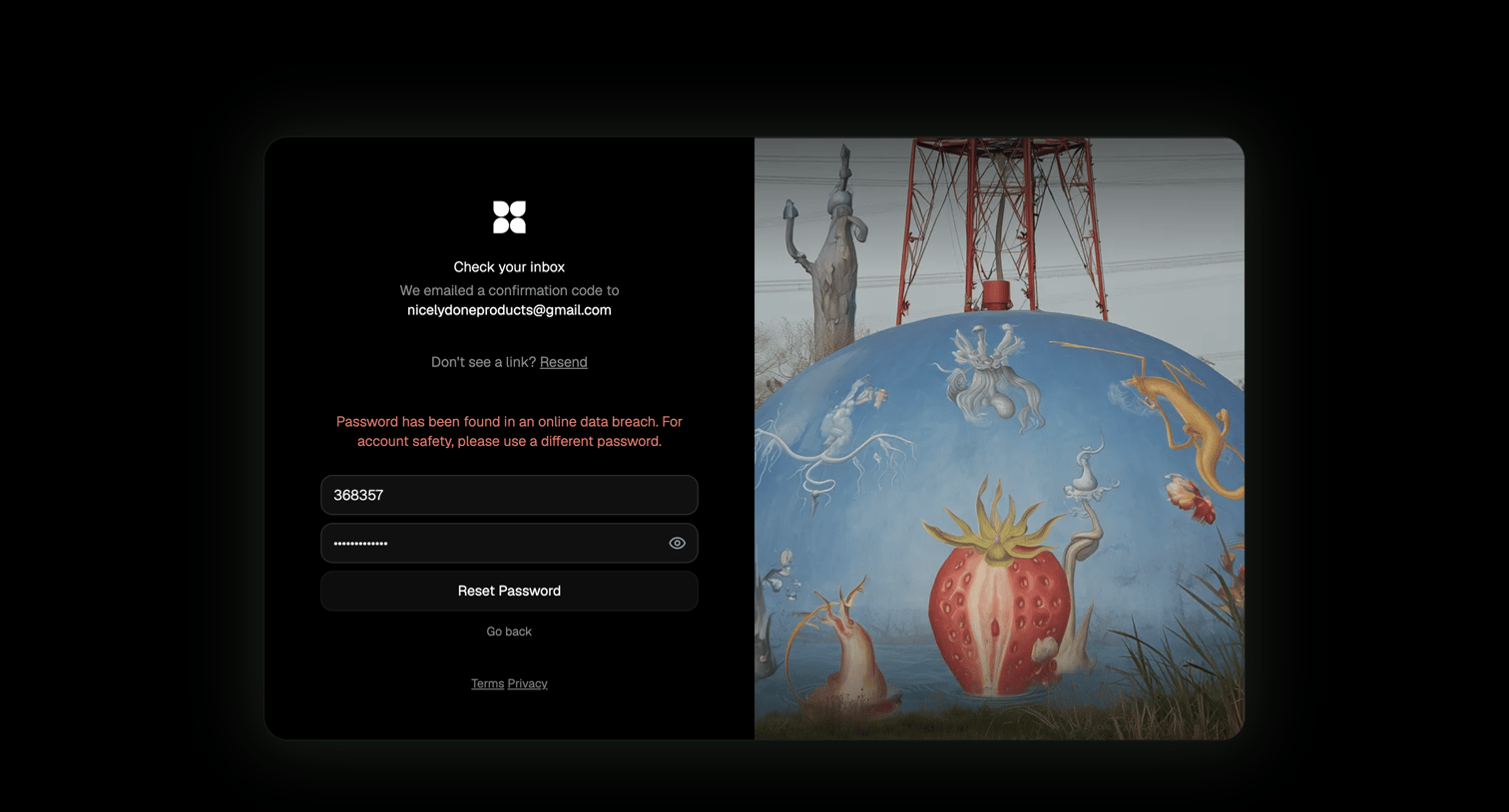

Password recovery screen where the user must enter an emailed confirmation code and a new password, currently displaying a data breach warning.
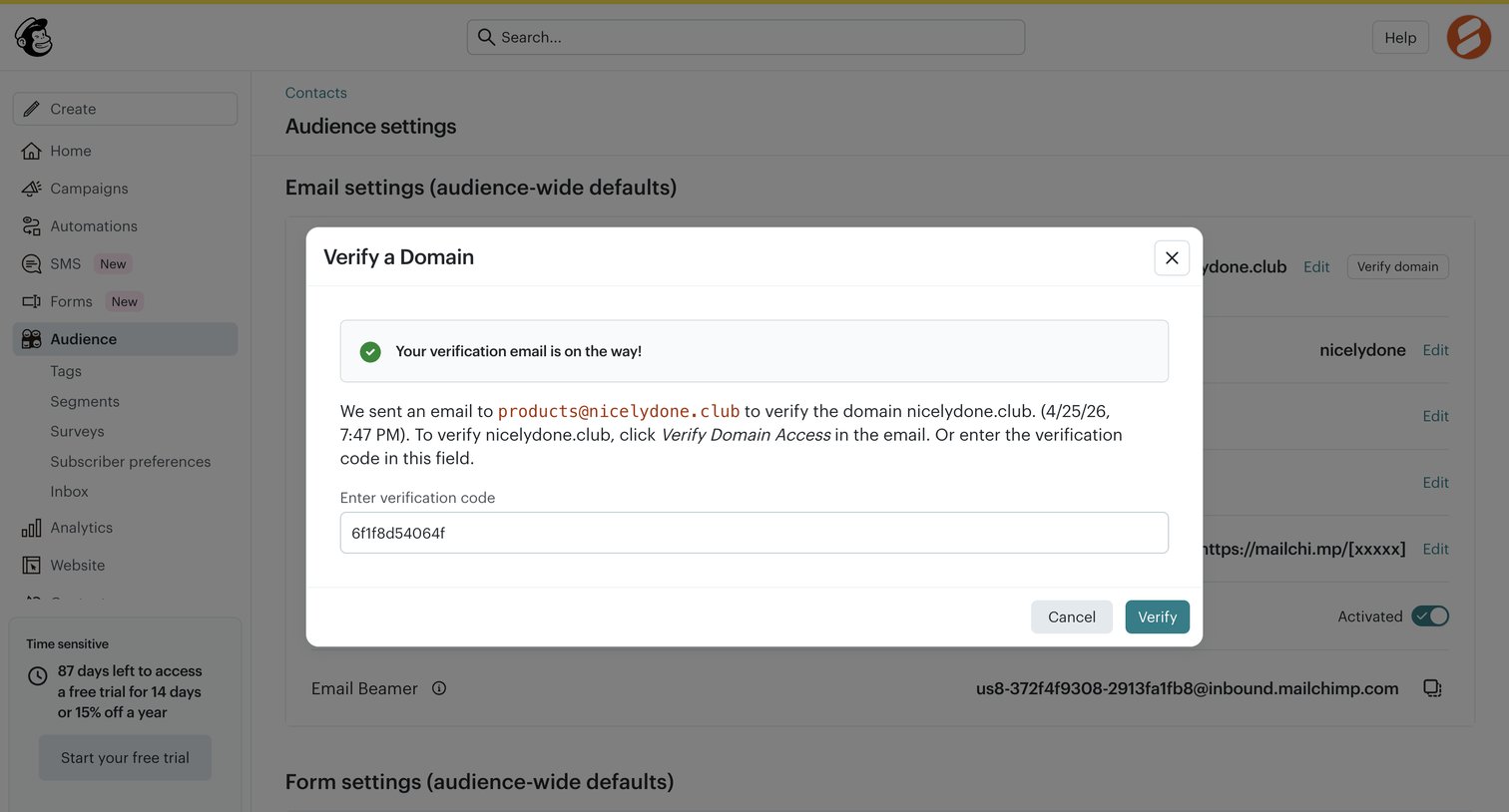

Settings page where the user enters a verification code sent to their email to verify a custom domain.
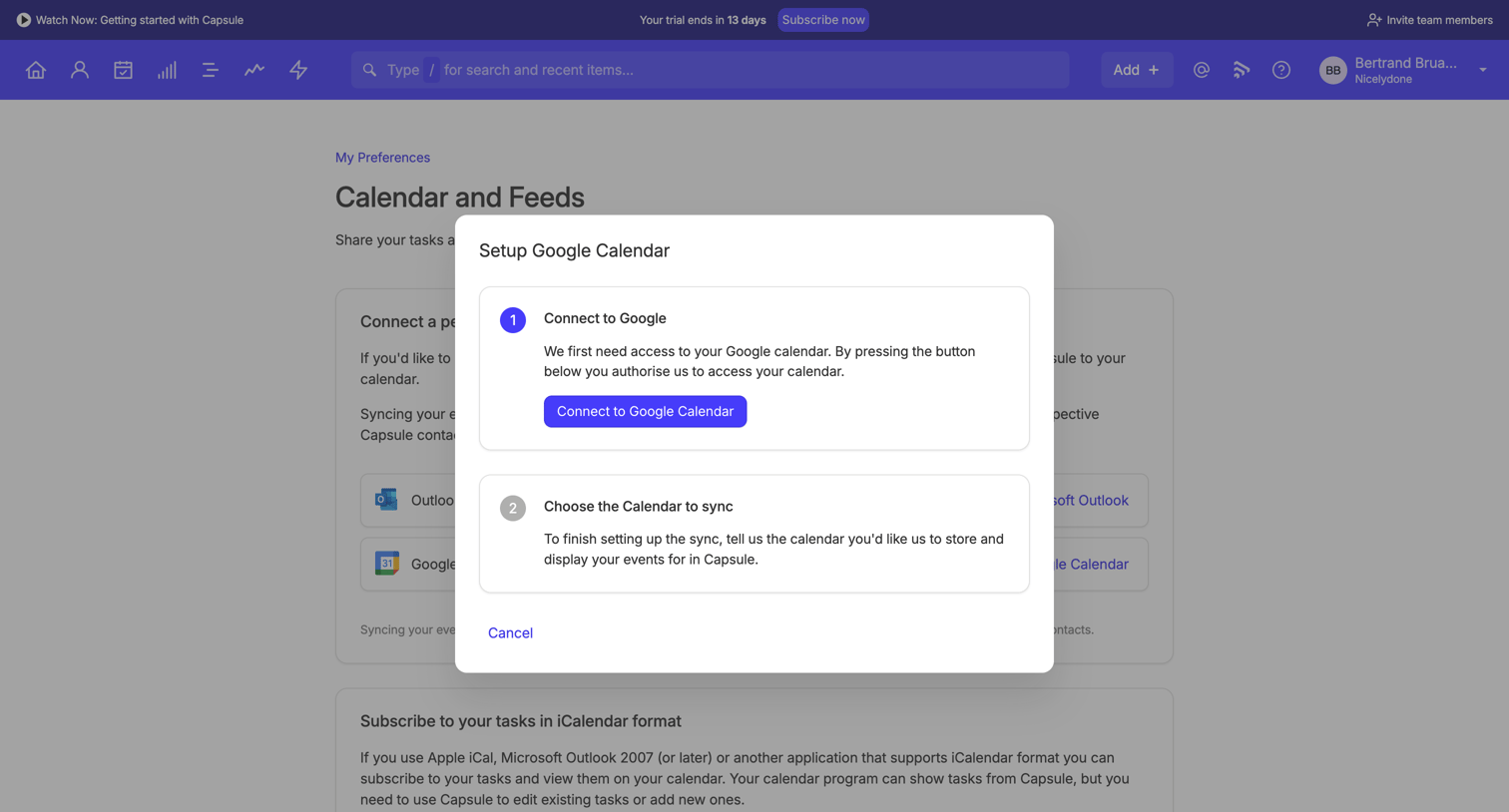

Settings page where the user connects their Google Calendar via a two-step setup modal over their calendar preferences.
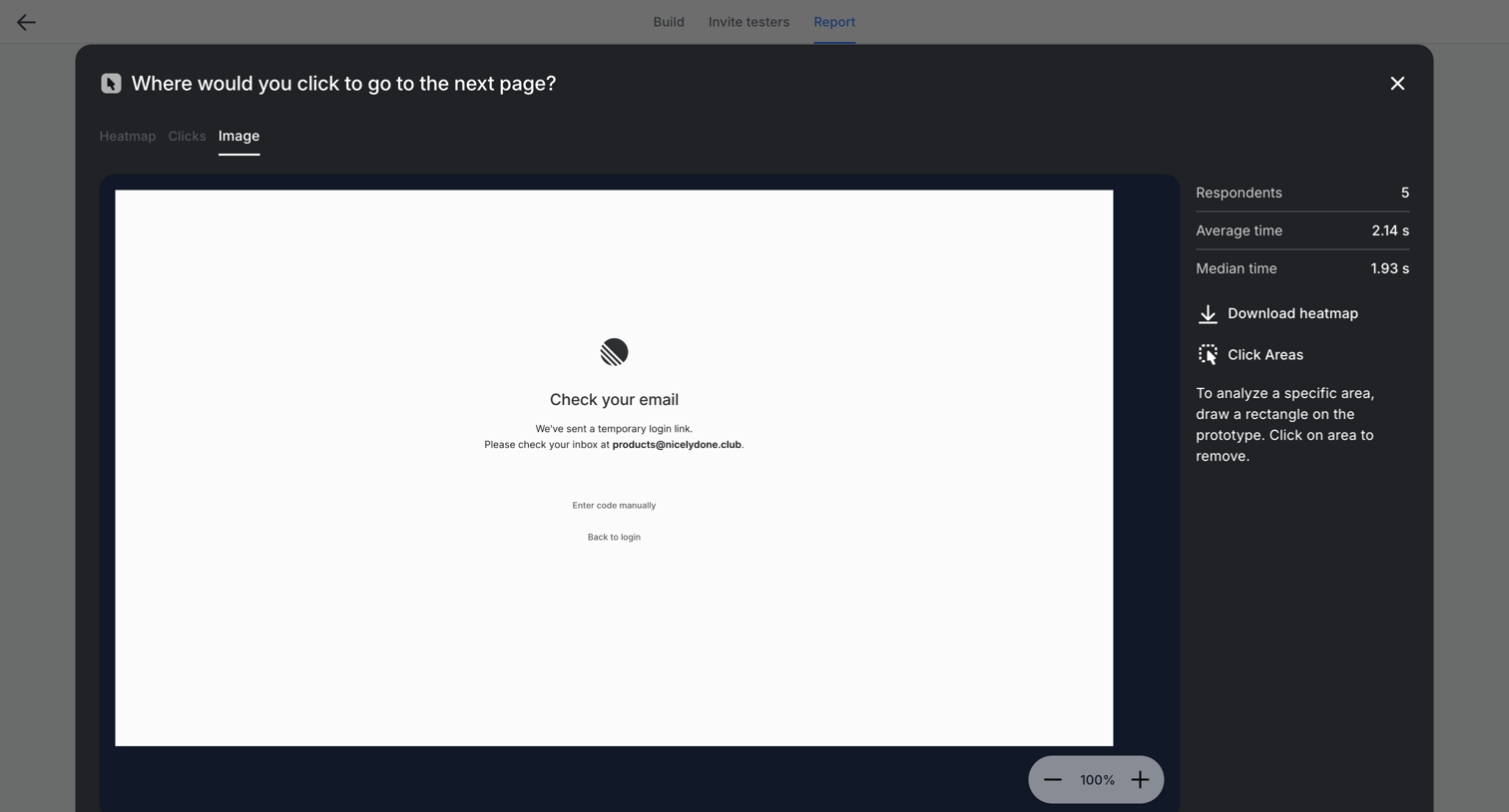

Detail modal showing the results of a click test, displaying the prototype image alongside respondent metrics and options to download a heatmap.
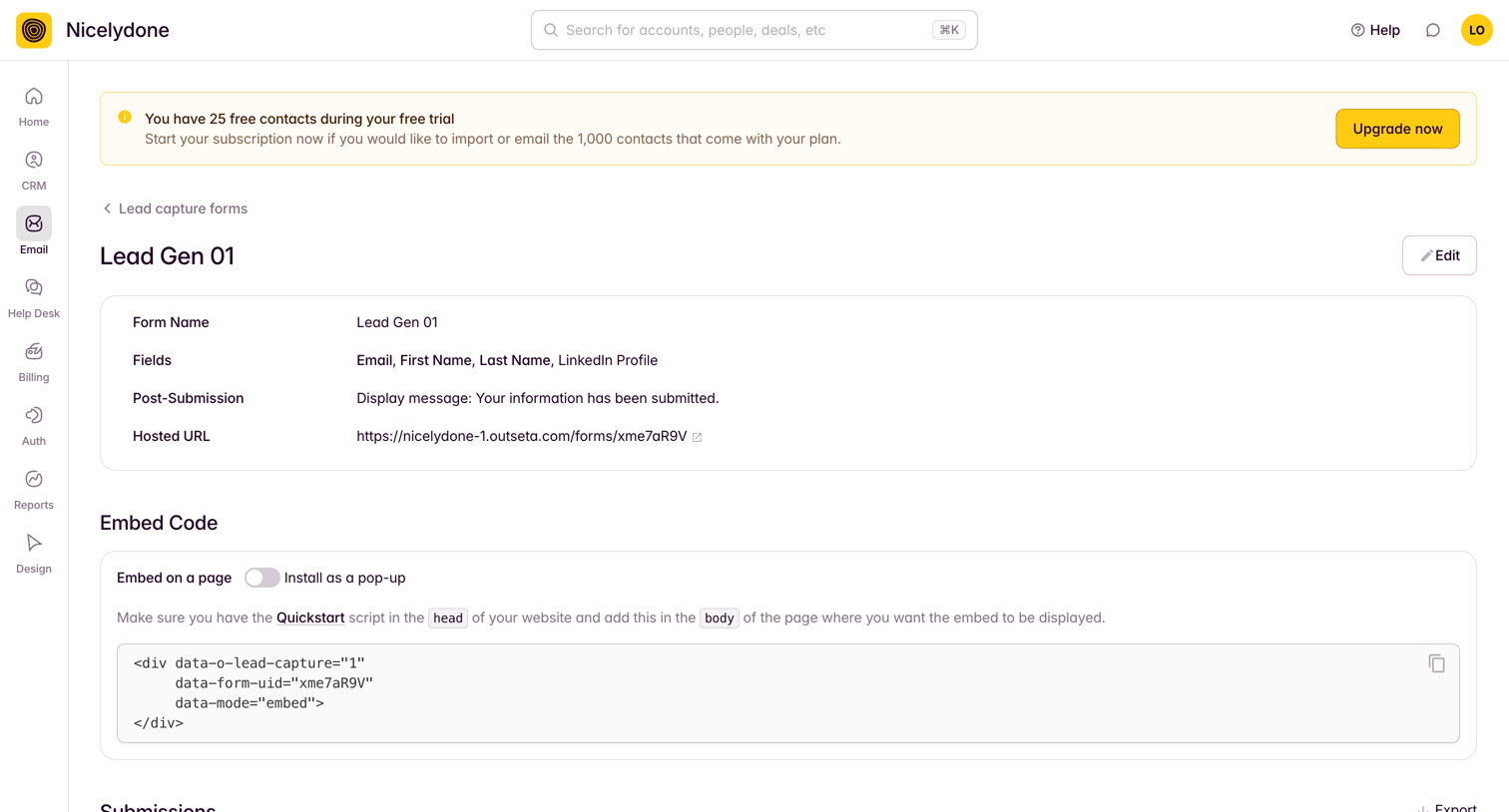

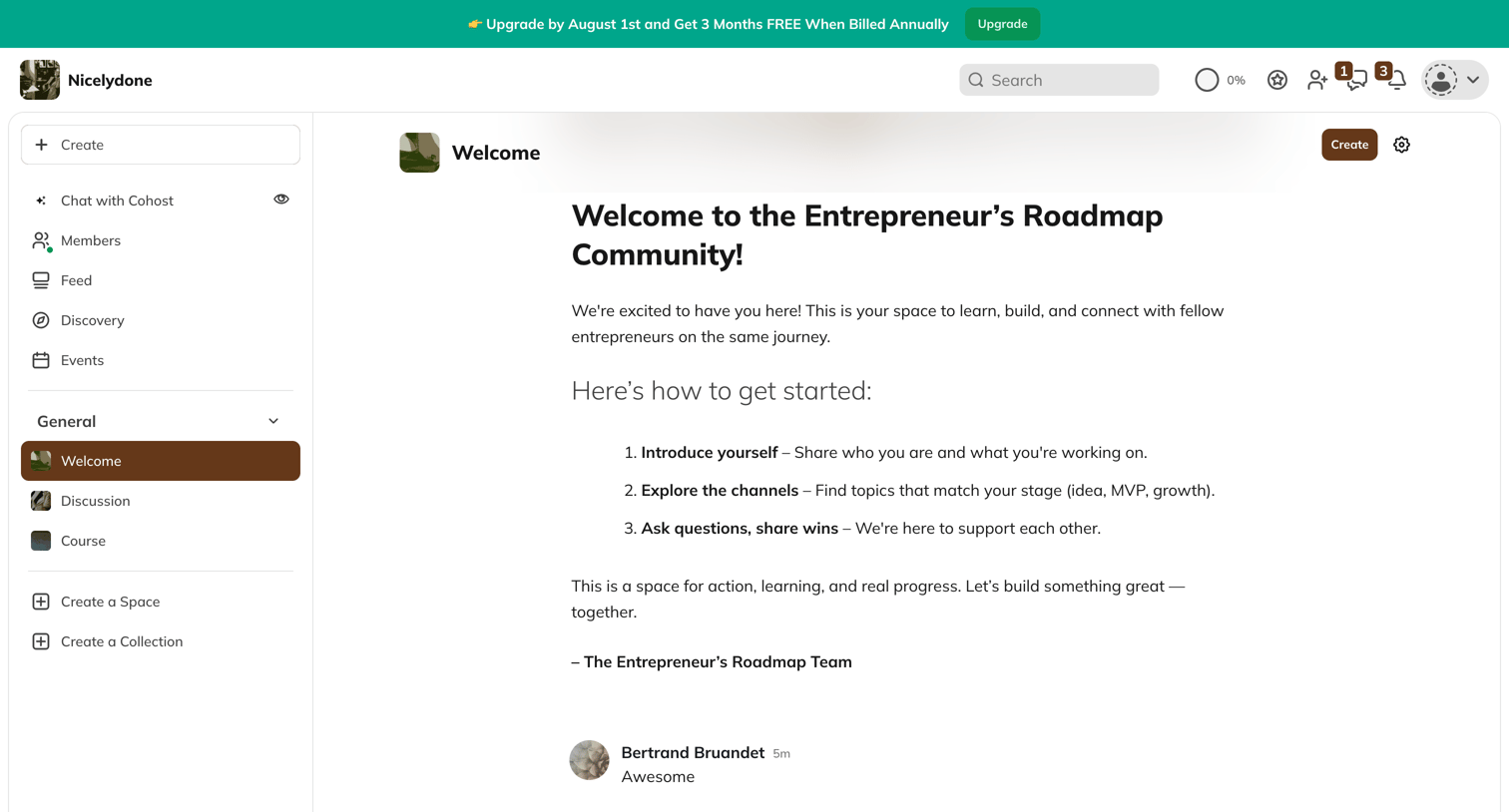

Detail page where a community welcome post introduces the user to the space and allows them to leave a comment.
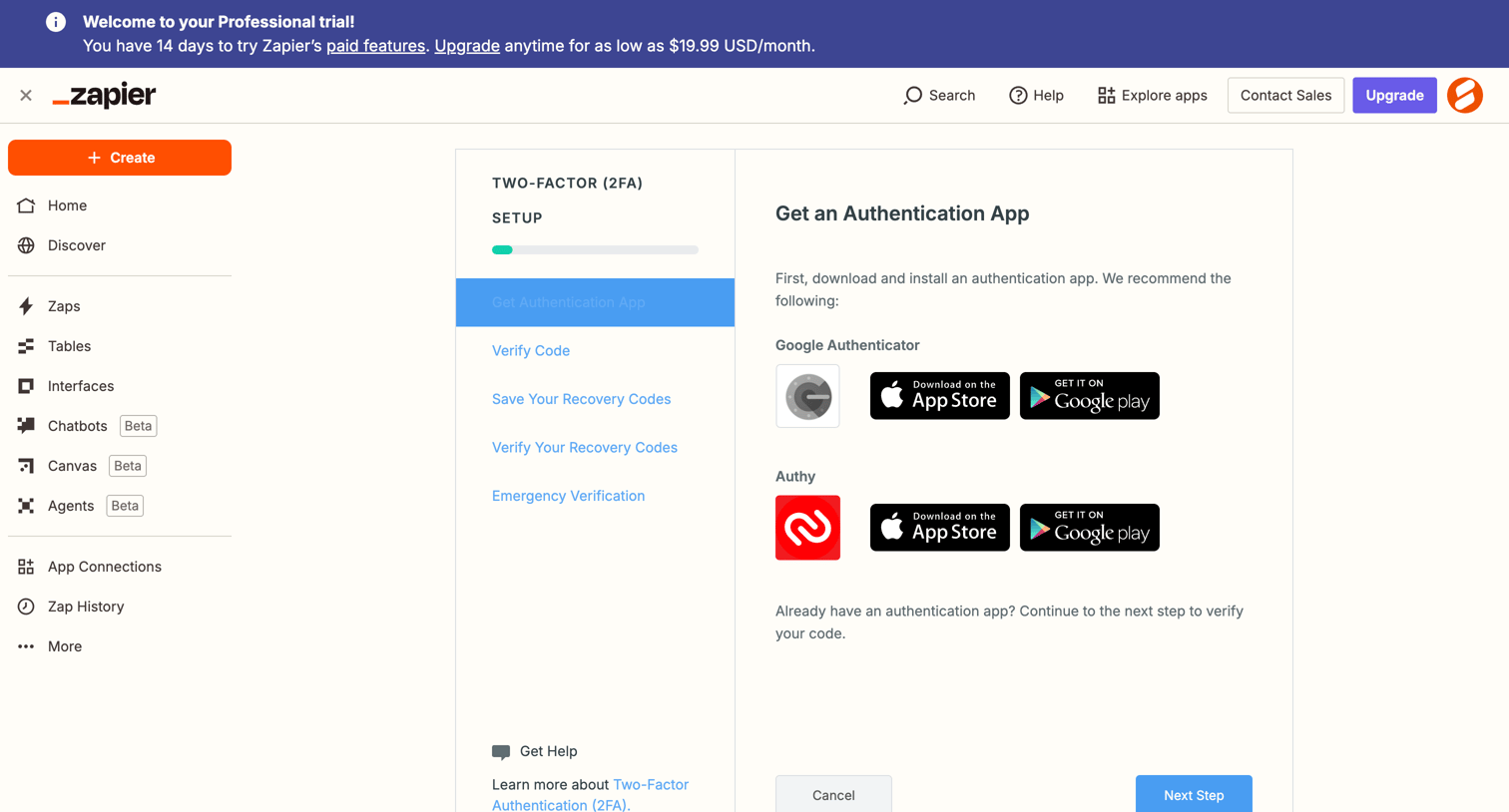

Multi-factor authentication setup step where the user is prompted to download an authenticator app like Google Authenticator or Authy.
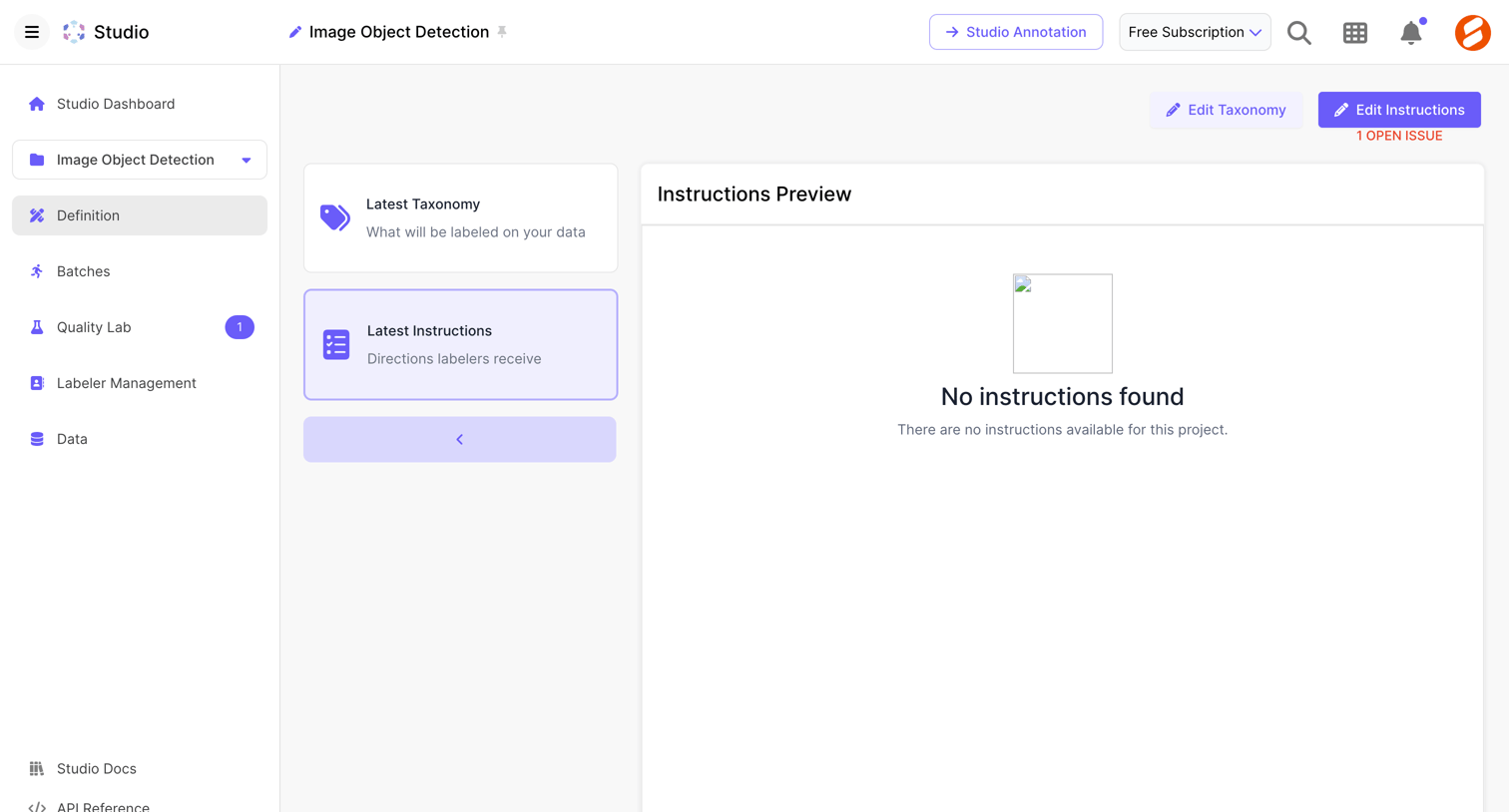

Detail page where the user configures the taxonomy and instructions for an image object detection project, currently showing an empty instructions preview.
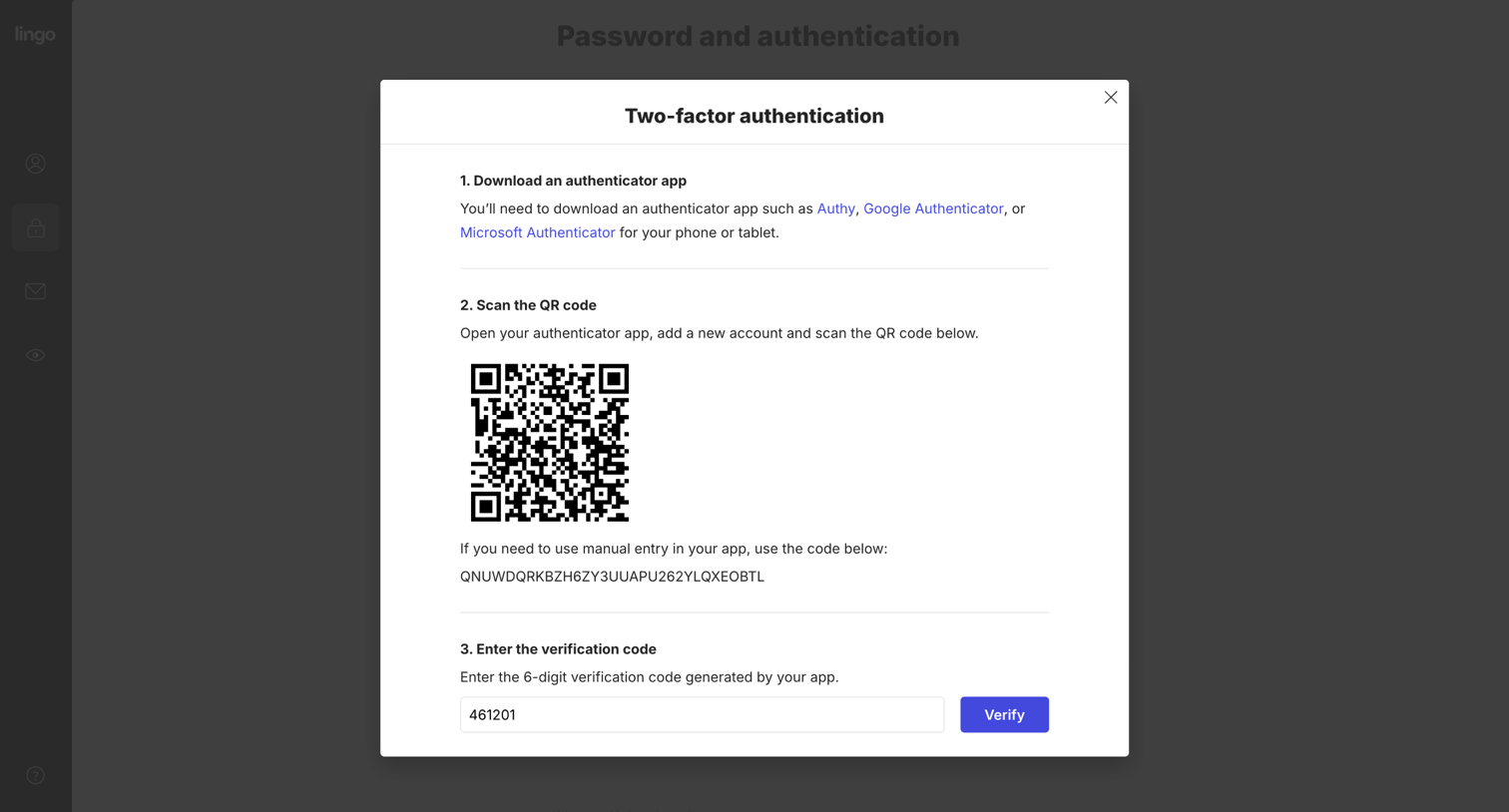

Settings modal where the user sets up two-factor authentication by scanning a QR code and entering a verification code.
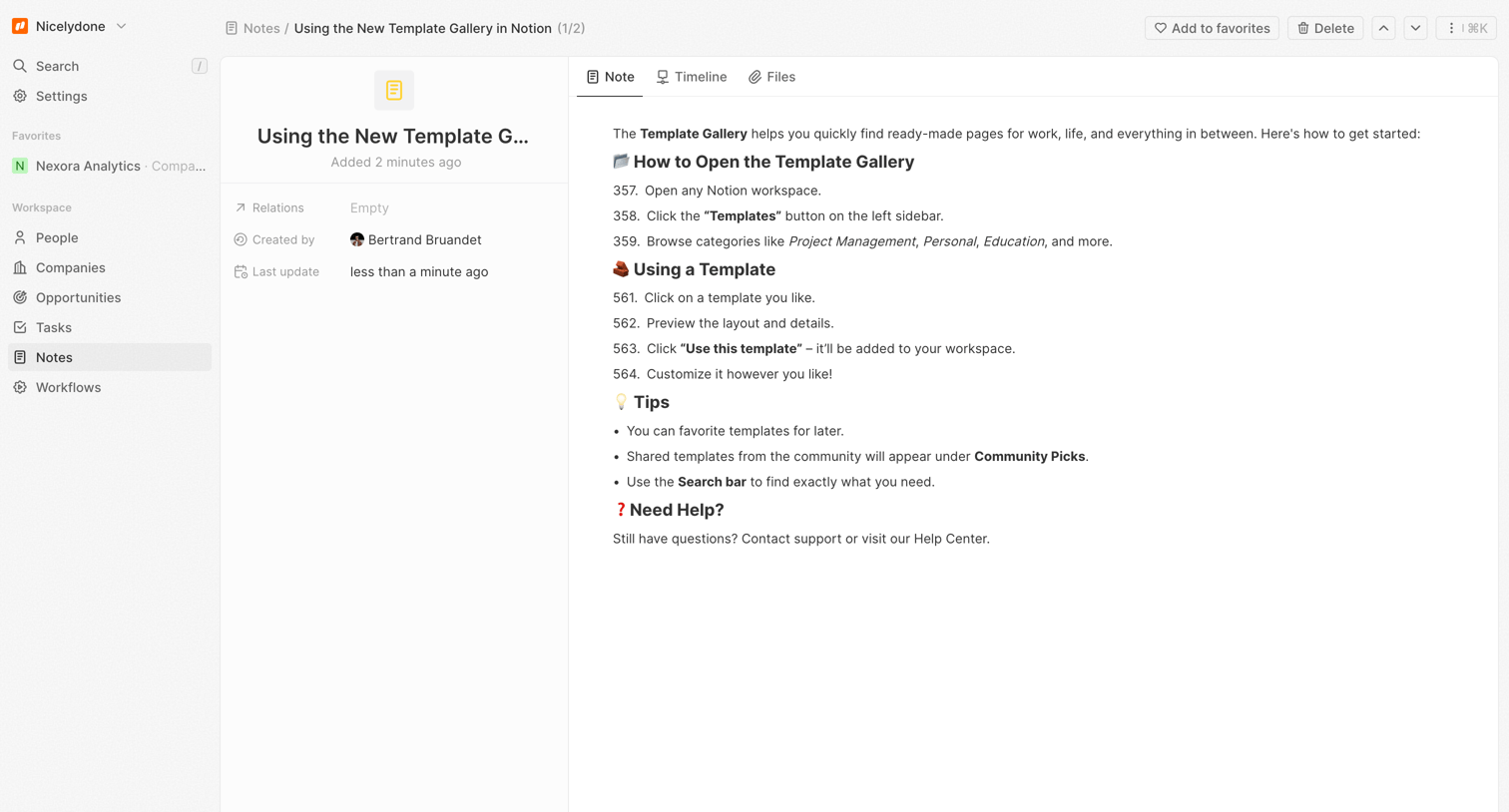

Detail page where the user views the rich text content of a specific note alongside its metadata properties like creator and last update time.
Explore the full SaaS screen library
Upgrade to unlock the full library.
Trusted by the best teams







