Expense management screen examples
Expense management screen design examples from SaaS apps. Browse examples from Origin Financial, Lithic, Copilot.
Explore the examples
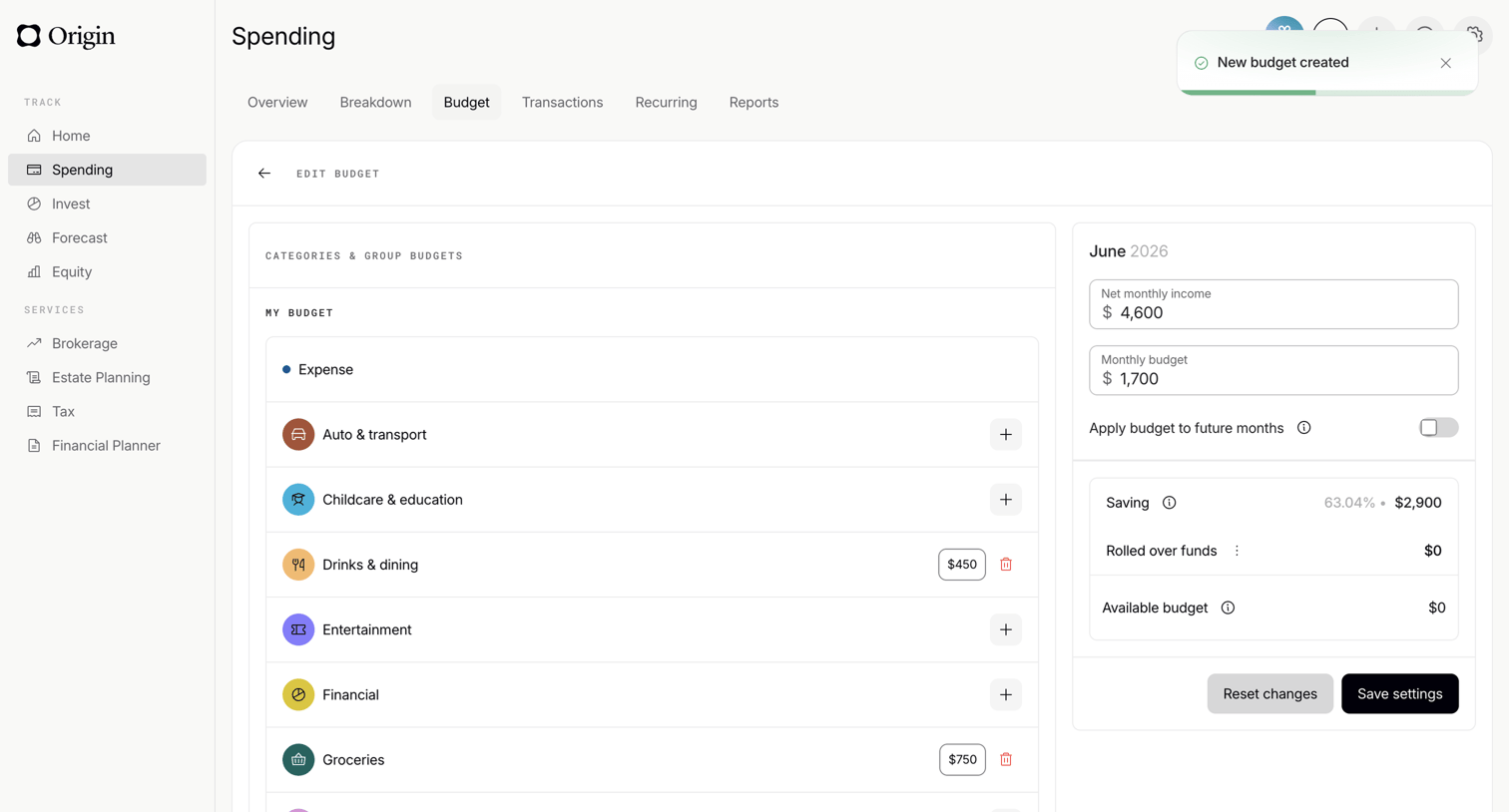

Budget editing screen where the user configures monthly income and allocates funds across expense categories like auto, childcare, and dining.
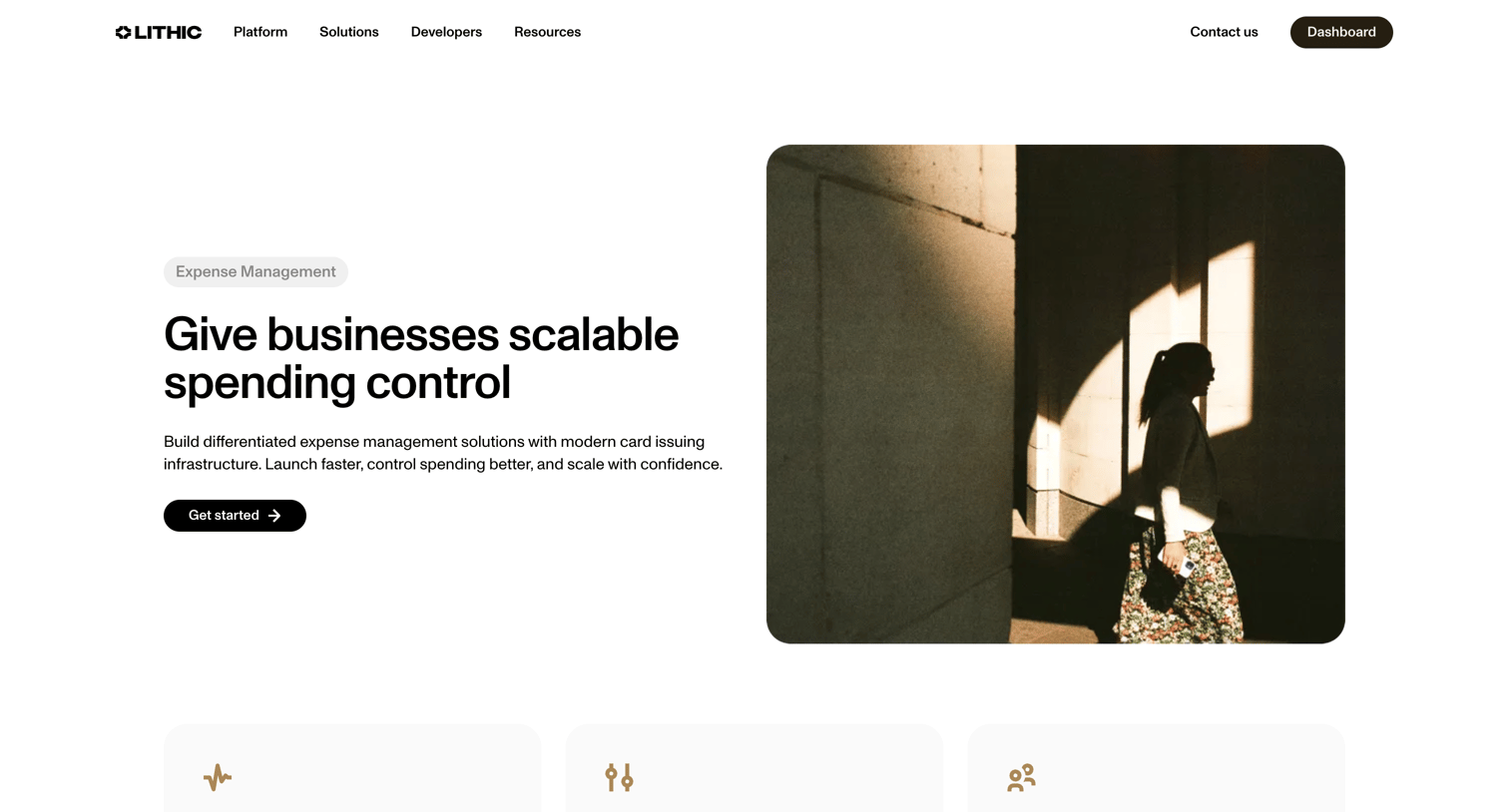

Use case page detailing how businesses can build expense management solutions with modern card issuing infrastructure, highlighting platform capabilities, core features, and developer tools.
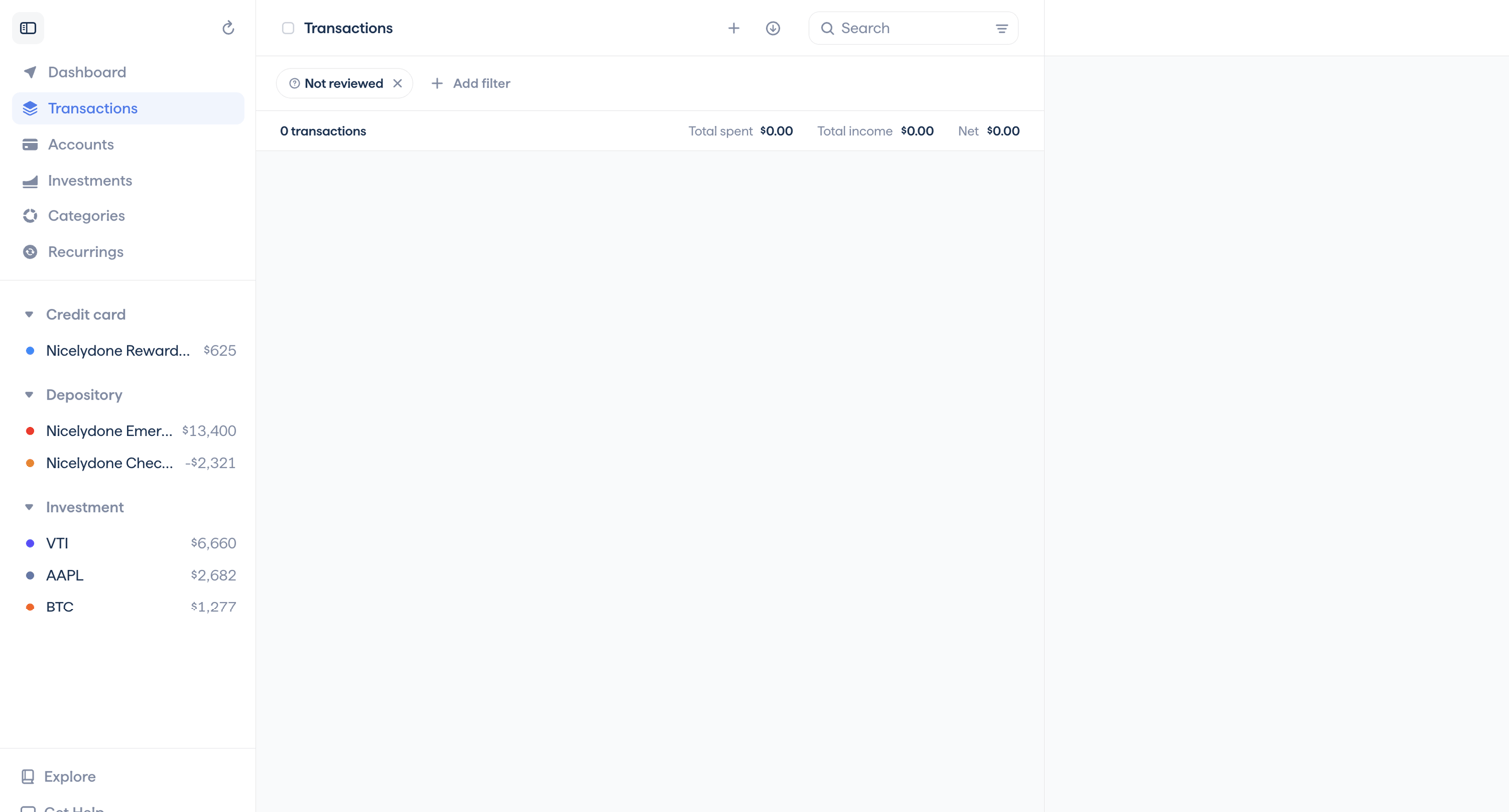

List view where the user manages financial transactions, currently showing an empty state filtered by 'Not reviewed' with summary metrics for spent and income.
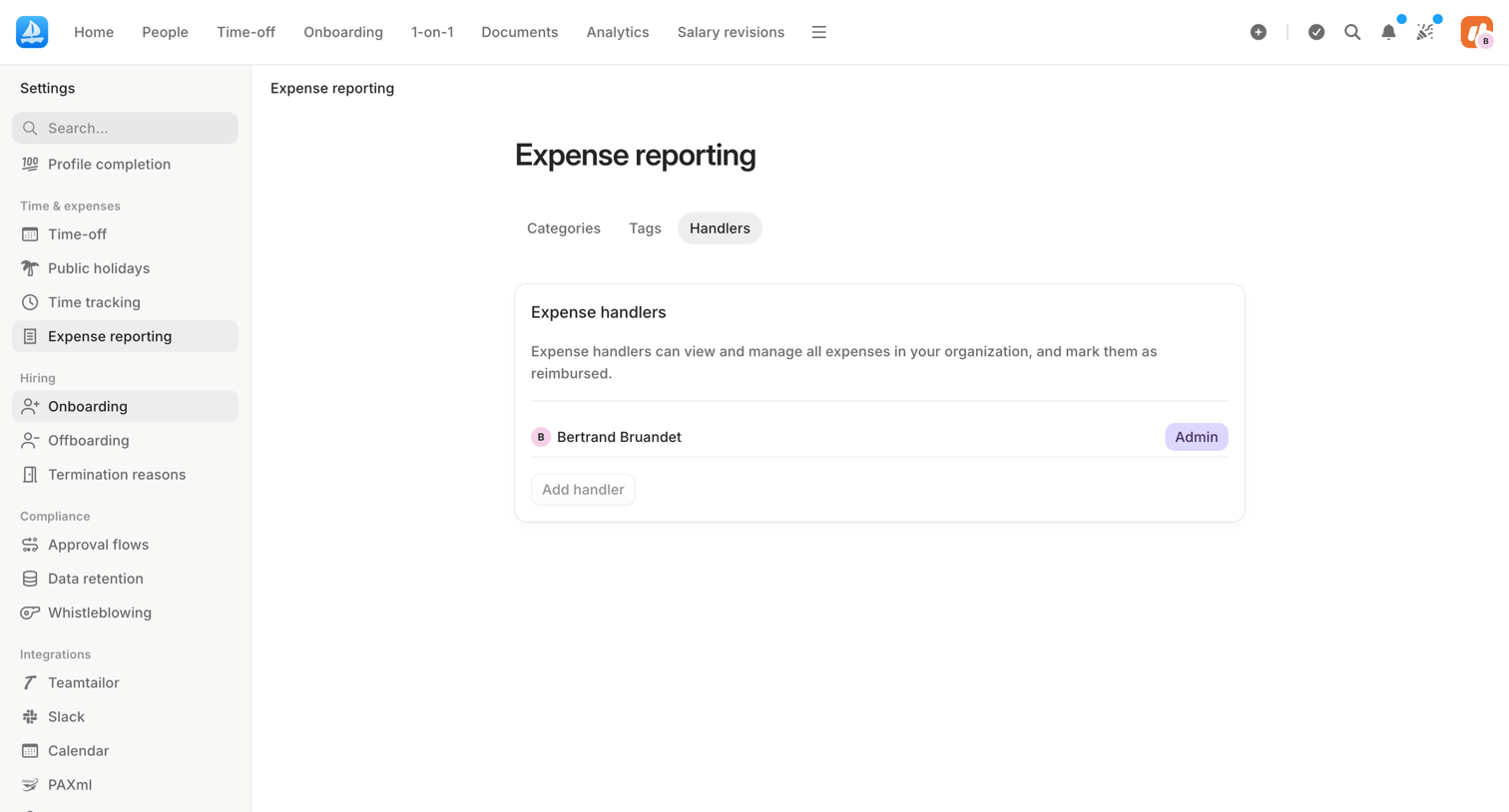

Settings page where the user manages expense handlers who can view and reimburse organizational expenses.
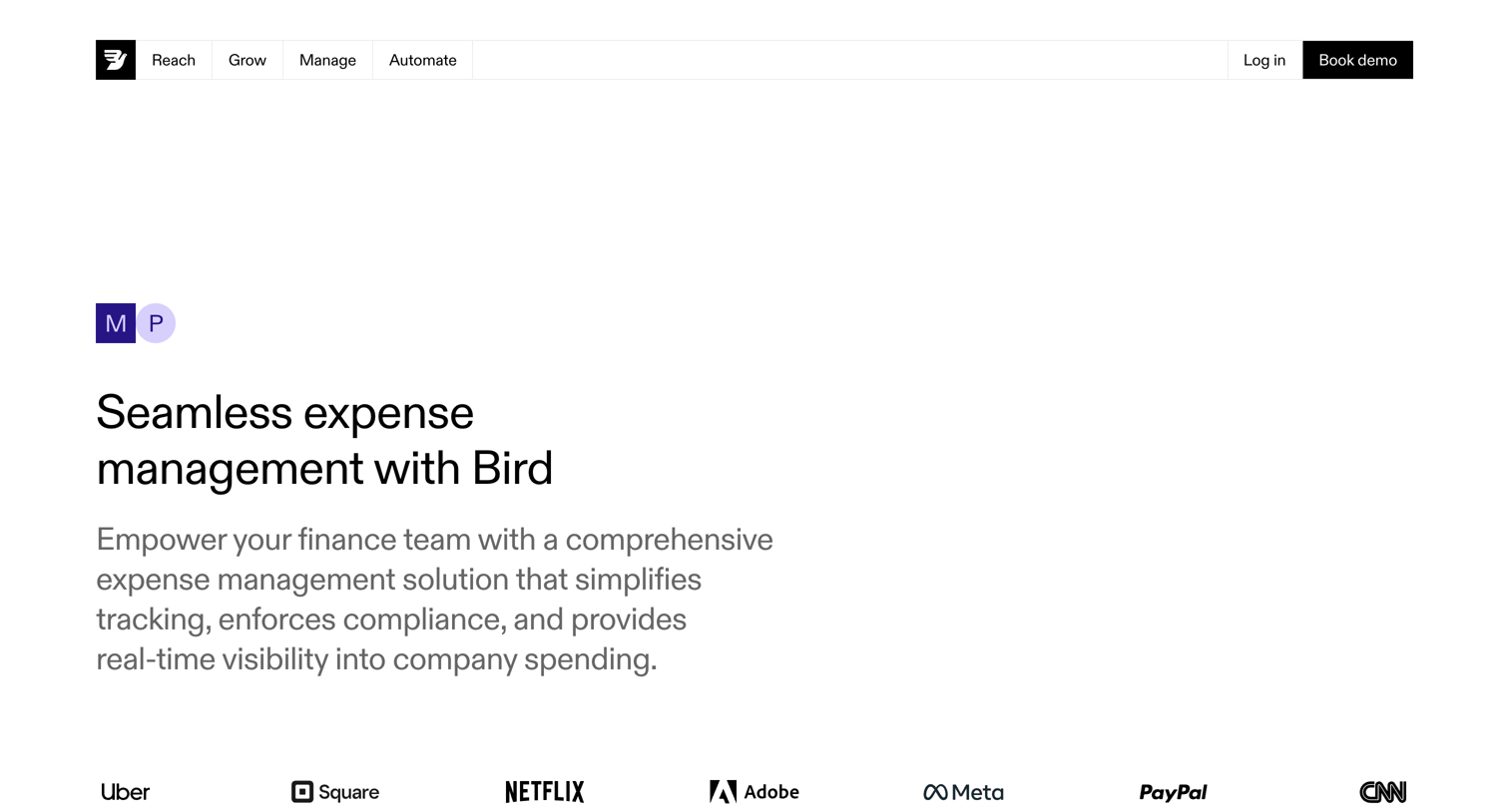

Feature page where the user learns about the enterprise expense management suite, including automated workflows, compliance, and global capabilities, and can book a demo.
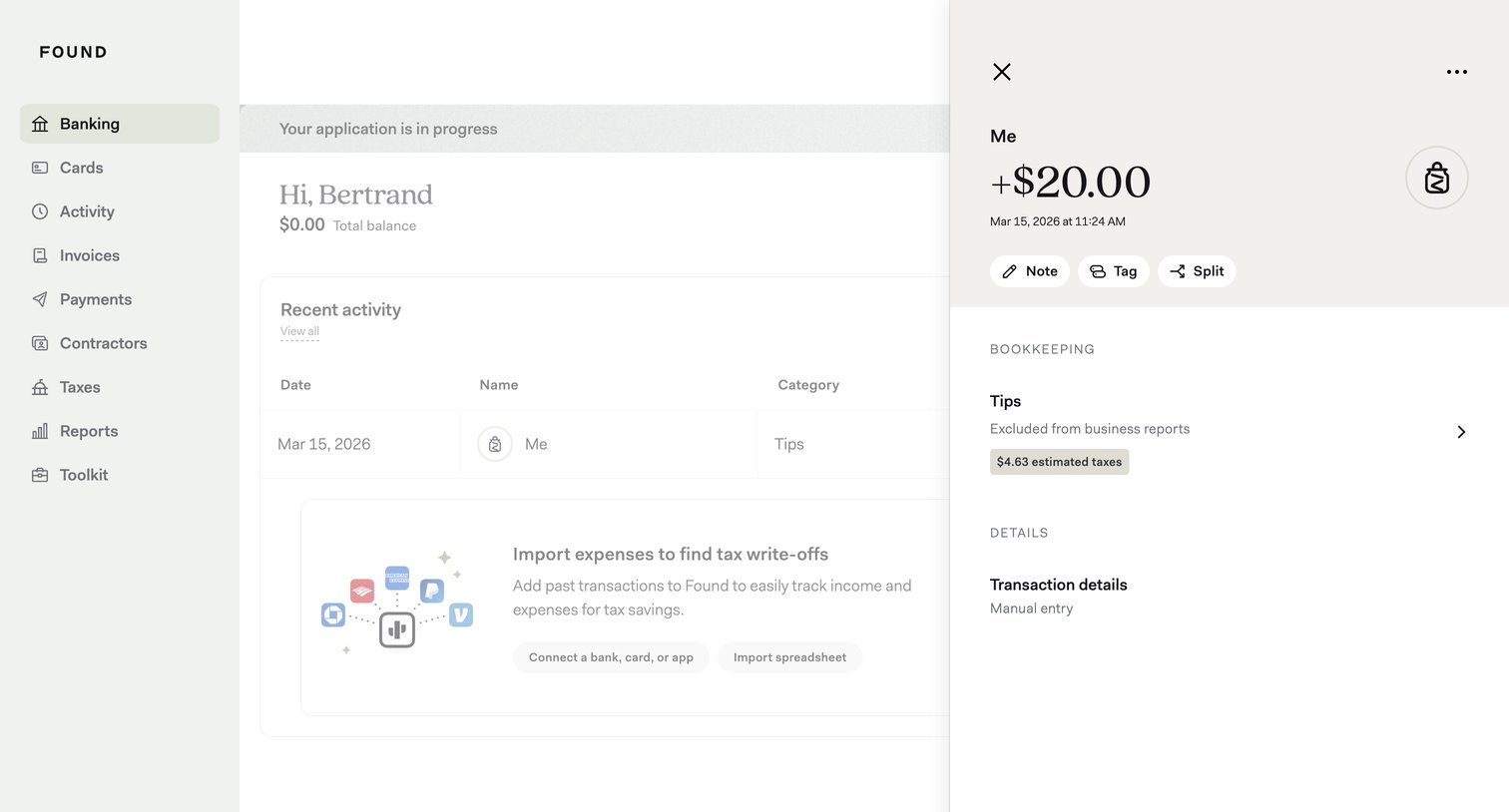

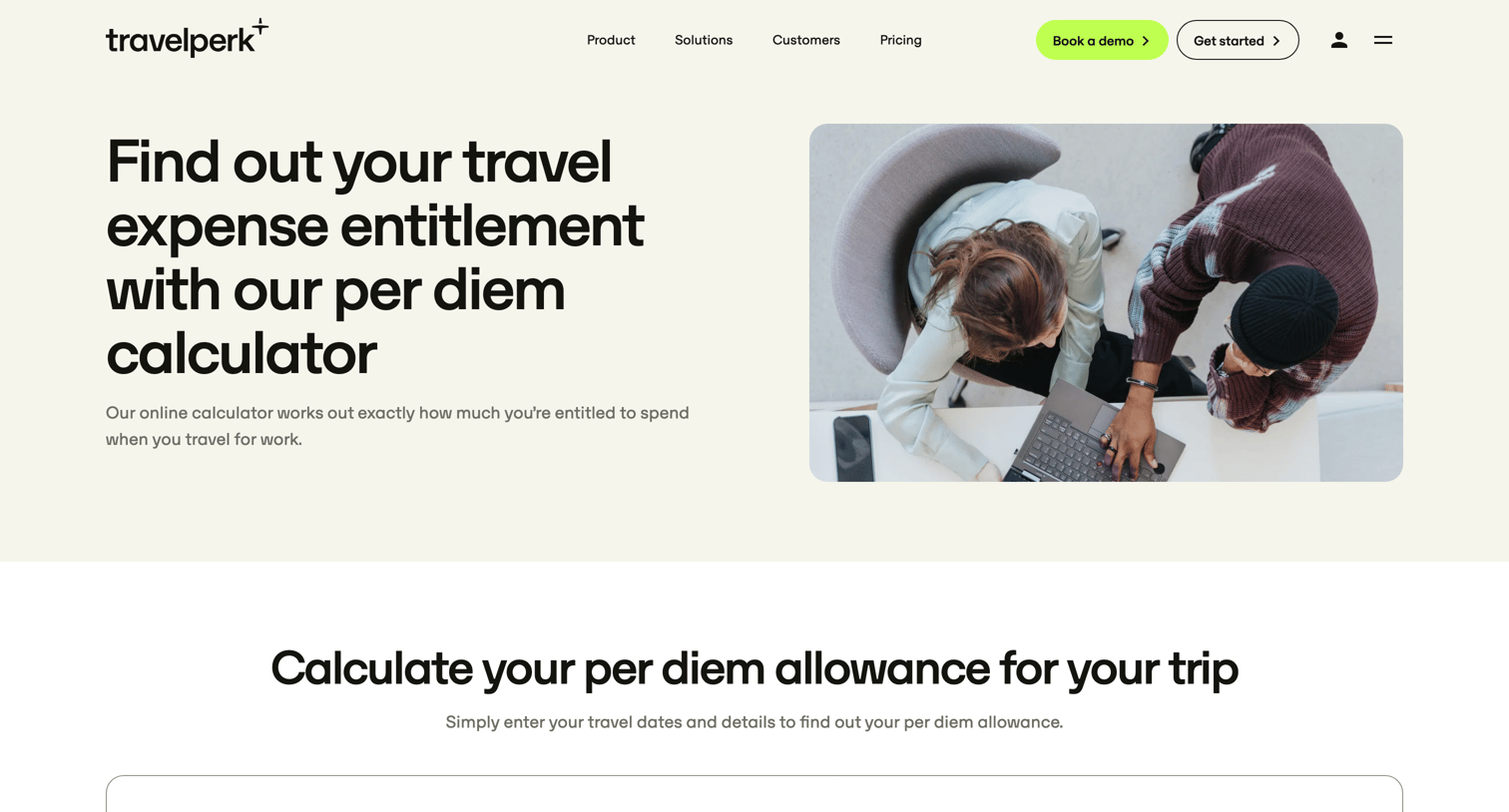

Marketing tool page where the user can calculate their travel expense per diem allowance by entering travel dates and locations.
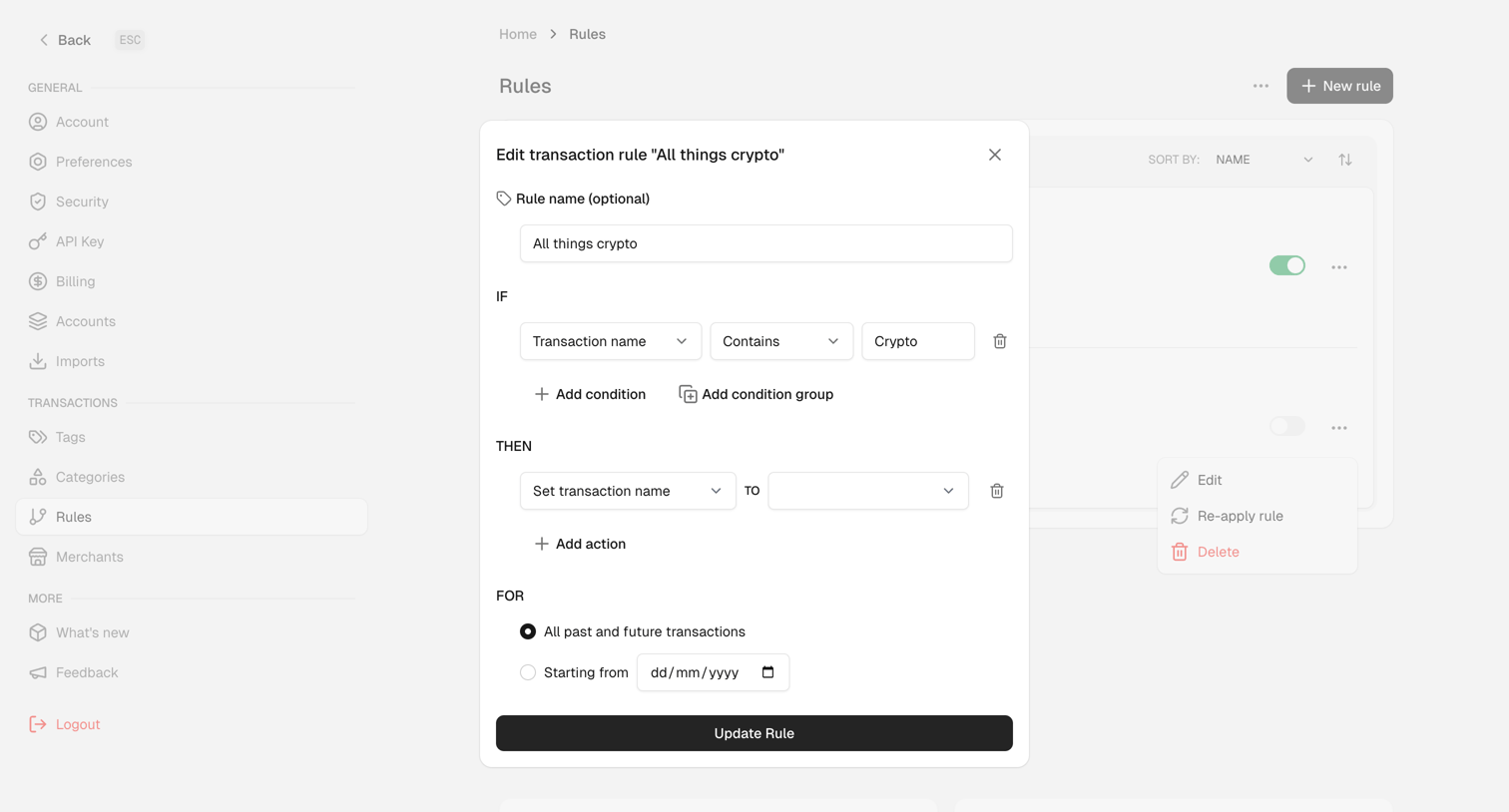

Settings page where the user edits a transaction rule with IF/THEN conditions to automatically categorize crypto transactions.
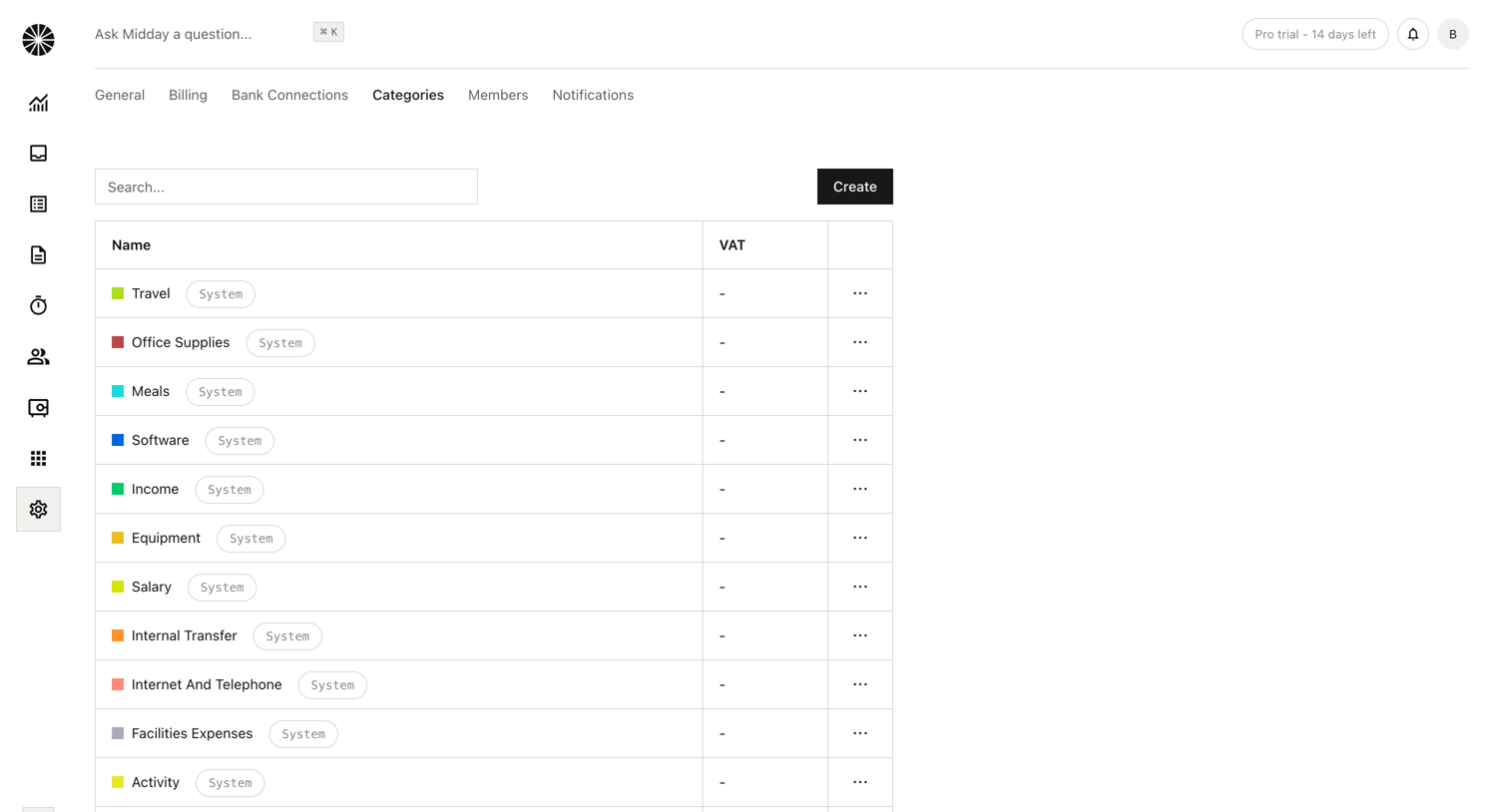

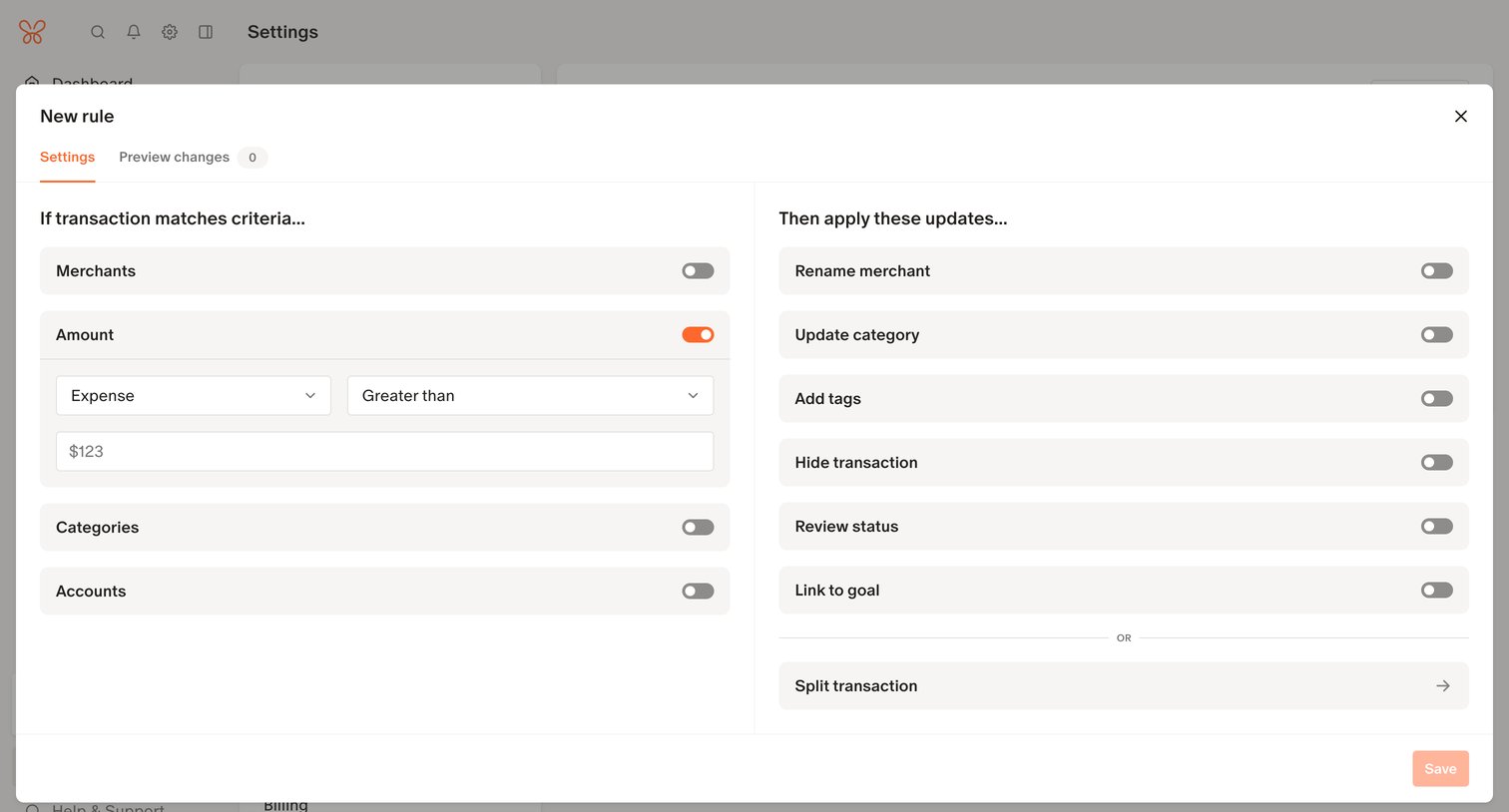

Settings modal where the user configures a new transaction rule by defining if/then criteria for amounts, merchants, and categories.


Marketing changelog page where users can browse, search, and filter recent product updates and new features by category.
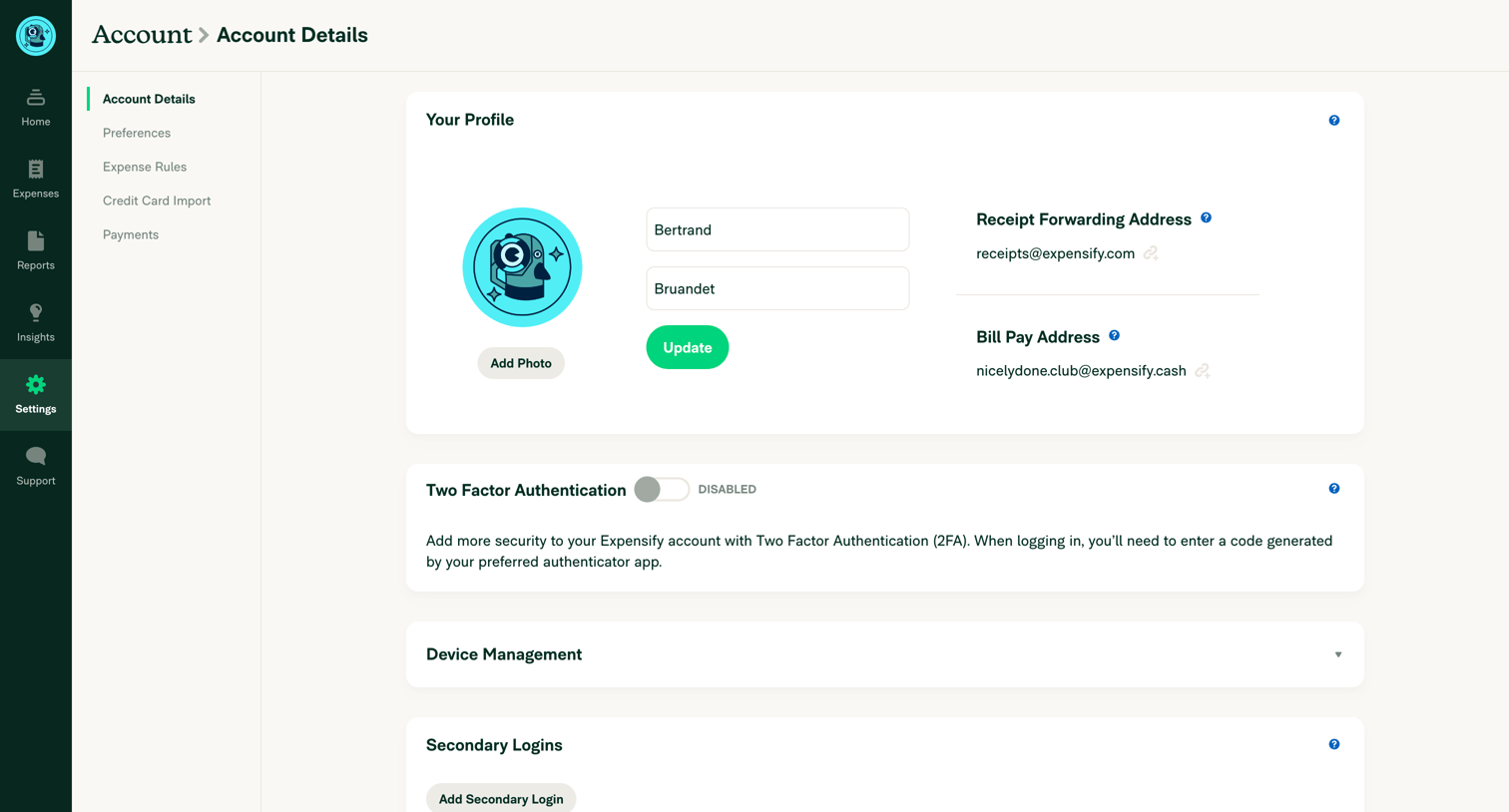

Settings page where the user manages their personal profile, authentication methods, delegated access, and account lifecycle.
Explore the full SaaS screen library
Upgrade to unlock the full library.
Trusted by the best teams







