Skip to content

Cancel changes screen examples

Cancel changes screen design examples from SaaS apps. Browse examples from Flora, Capsule, Glide.

Explore the examples
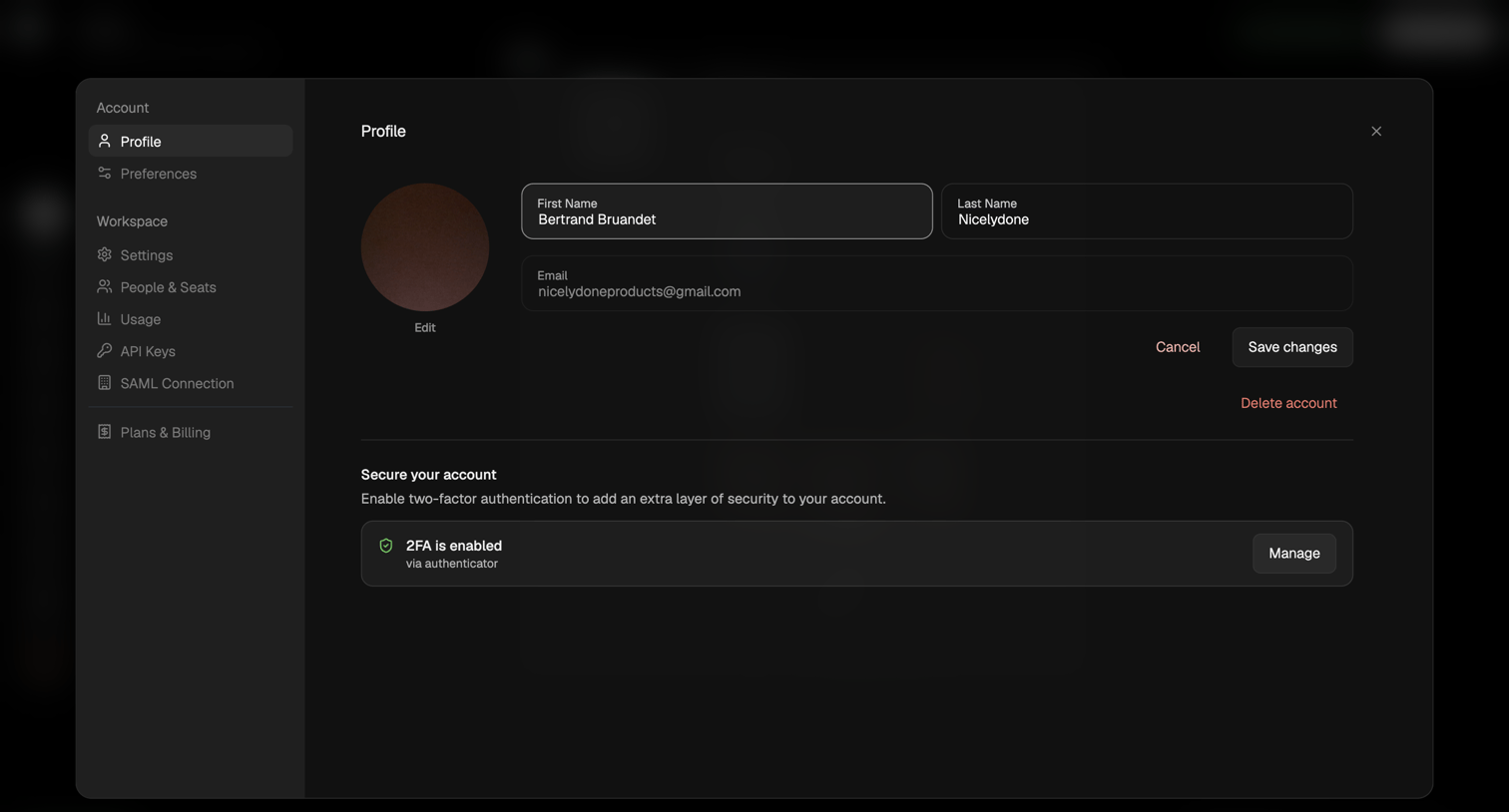
Flora - FLORA - Untitled screen
Flora logo
Flora

Settings modal where the user updates their name and email, and manages their two-factor authentication status.
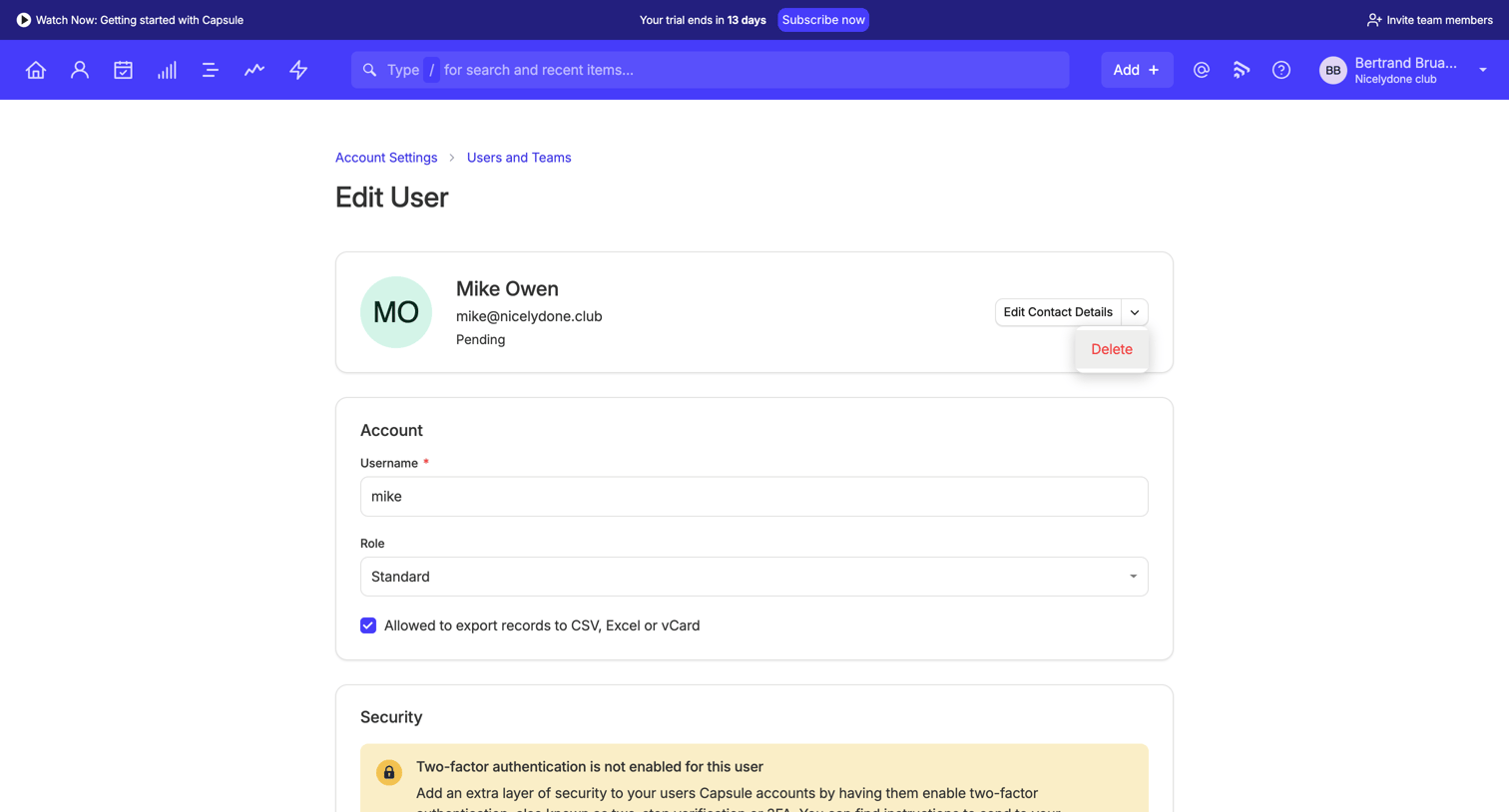

Capsule - Edit User | Nicelydone club CRM screen
Capsule logo
Capsule

Settings page where an admin configures a specific user's profile, role, security preferences, and team assignments.
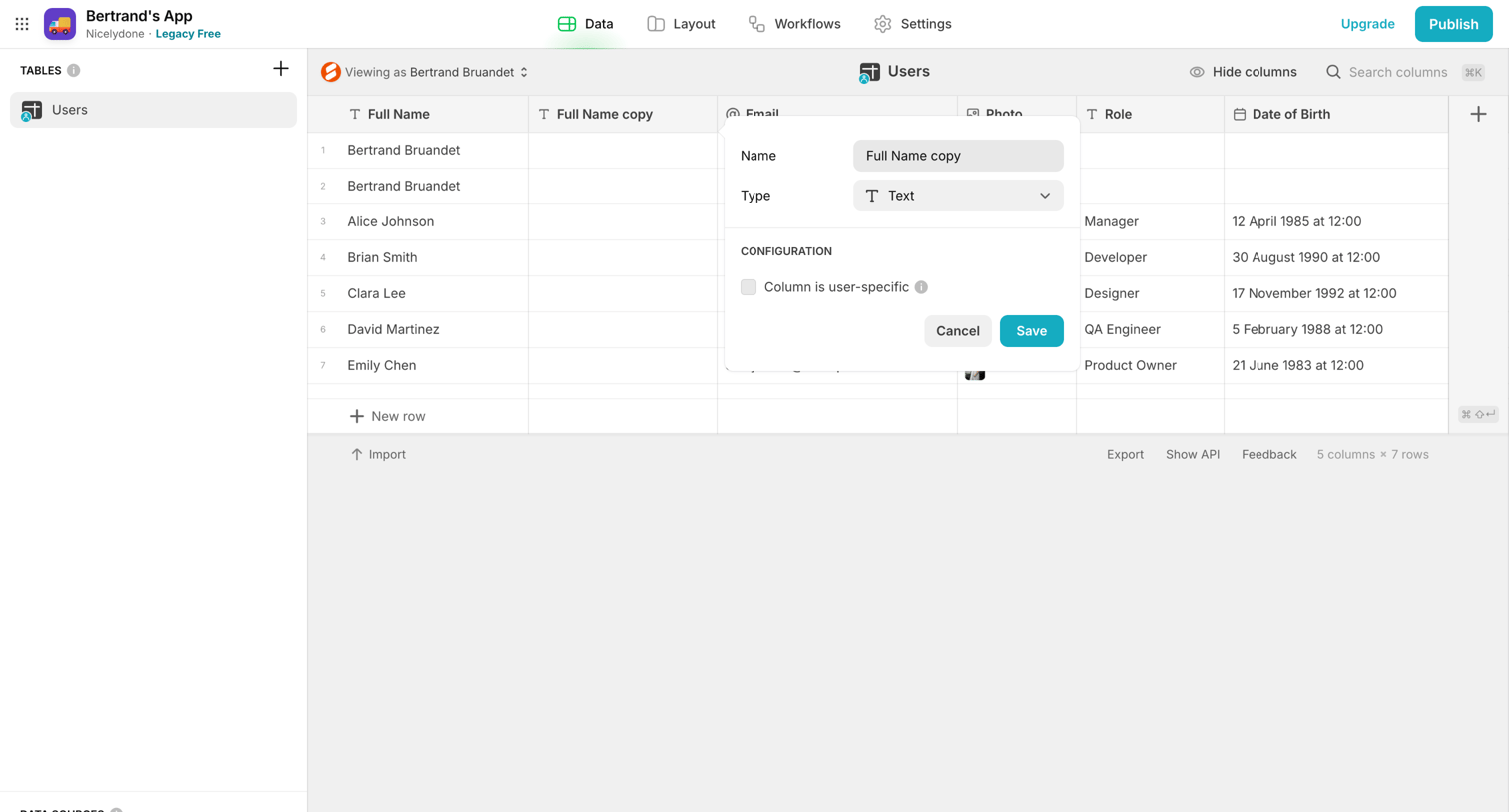

Glide - Bertrand's App · Glide screen
Glide logo
Glide

Data editor list view where the user is configuring a column named 'Full Name copy' to set its type and user-specific behavior.

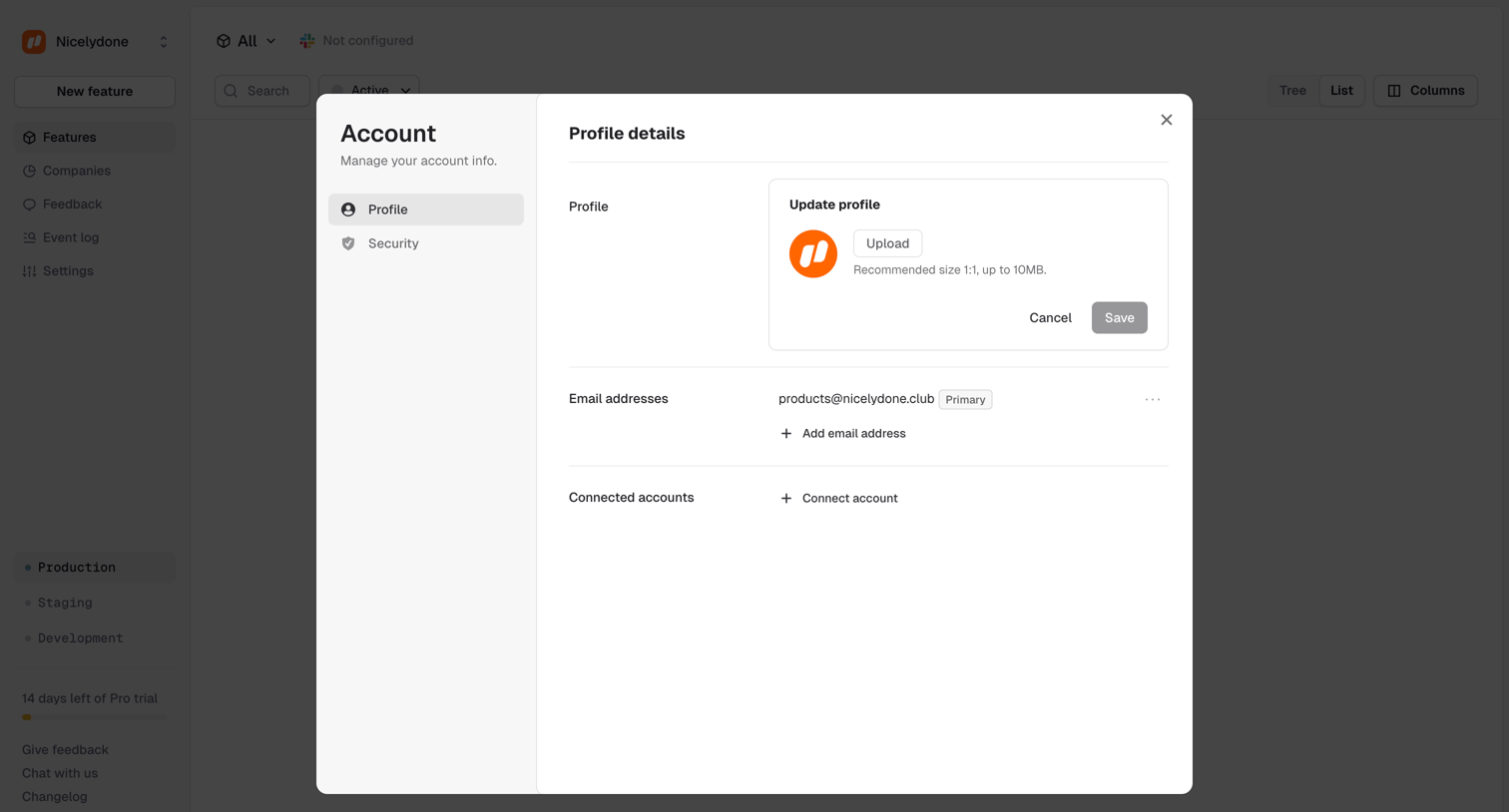
Reflag - Features › All screen
Reflag logo
Reflag

Settings modal where the user updates their profile picture, manages email addresses, and links connected accounts.

Outseta - Custom Properties screen
Outseta logo
Outseta

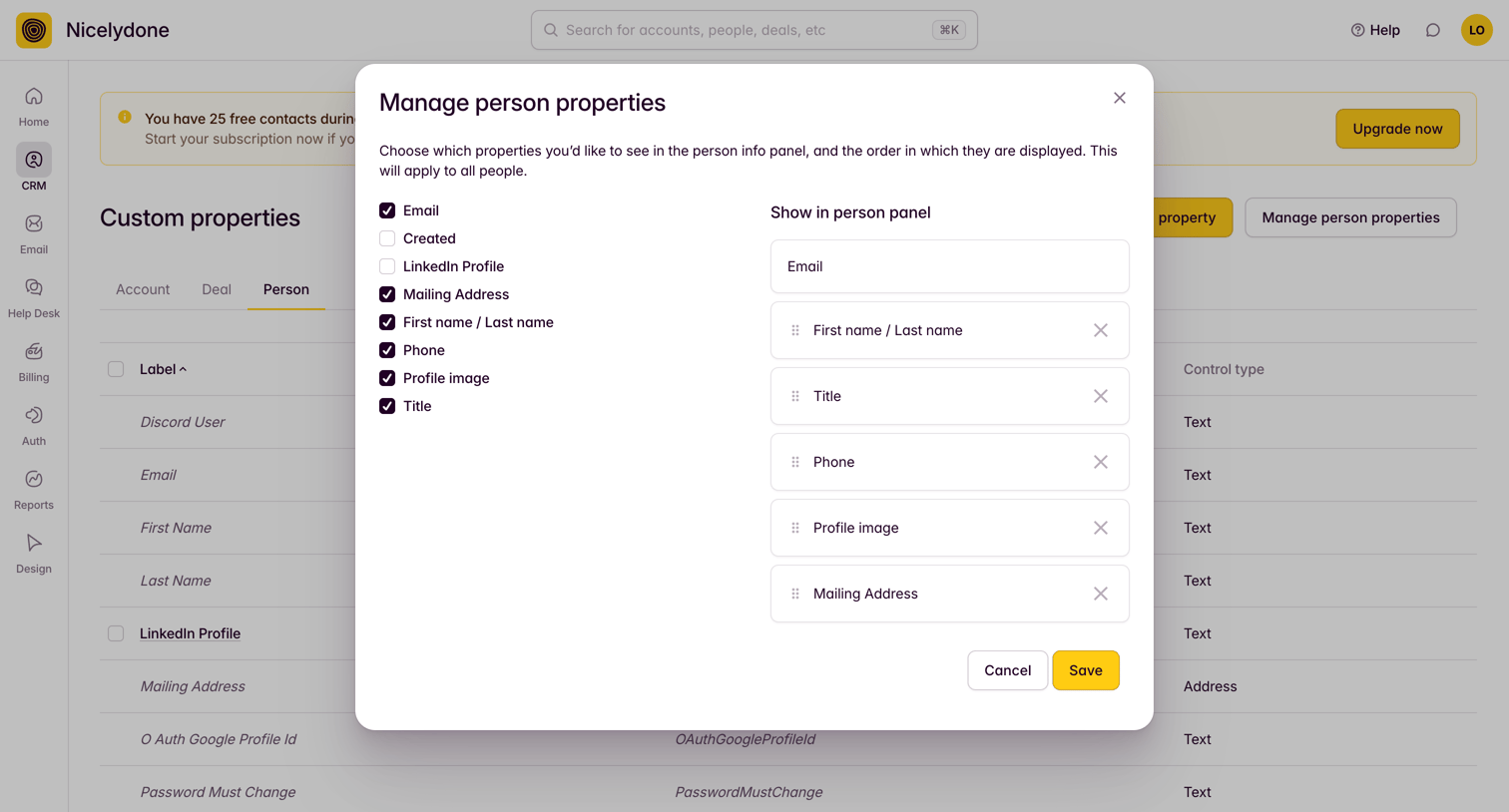
Settings page where the user configures which custom properties are visible in the person info panel via a drag-and-drop modal.

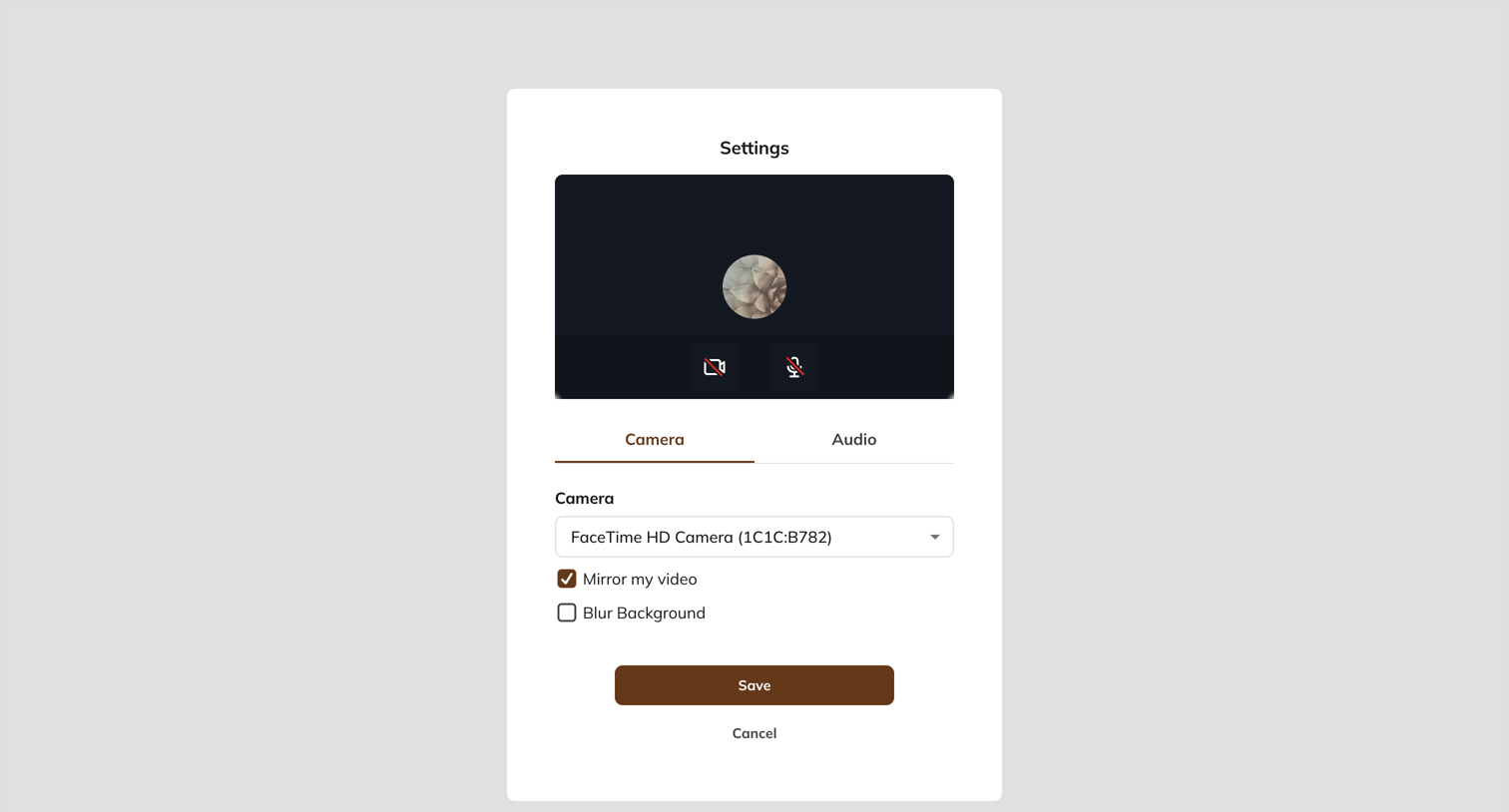
Mighty - Welcome screen
Mighty logo
Mighty

Settings modal where the user configures their camera input, with options to mirror the video and blur the background before saving.

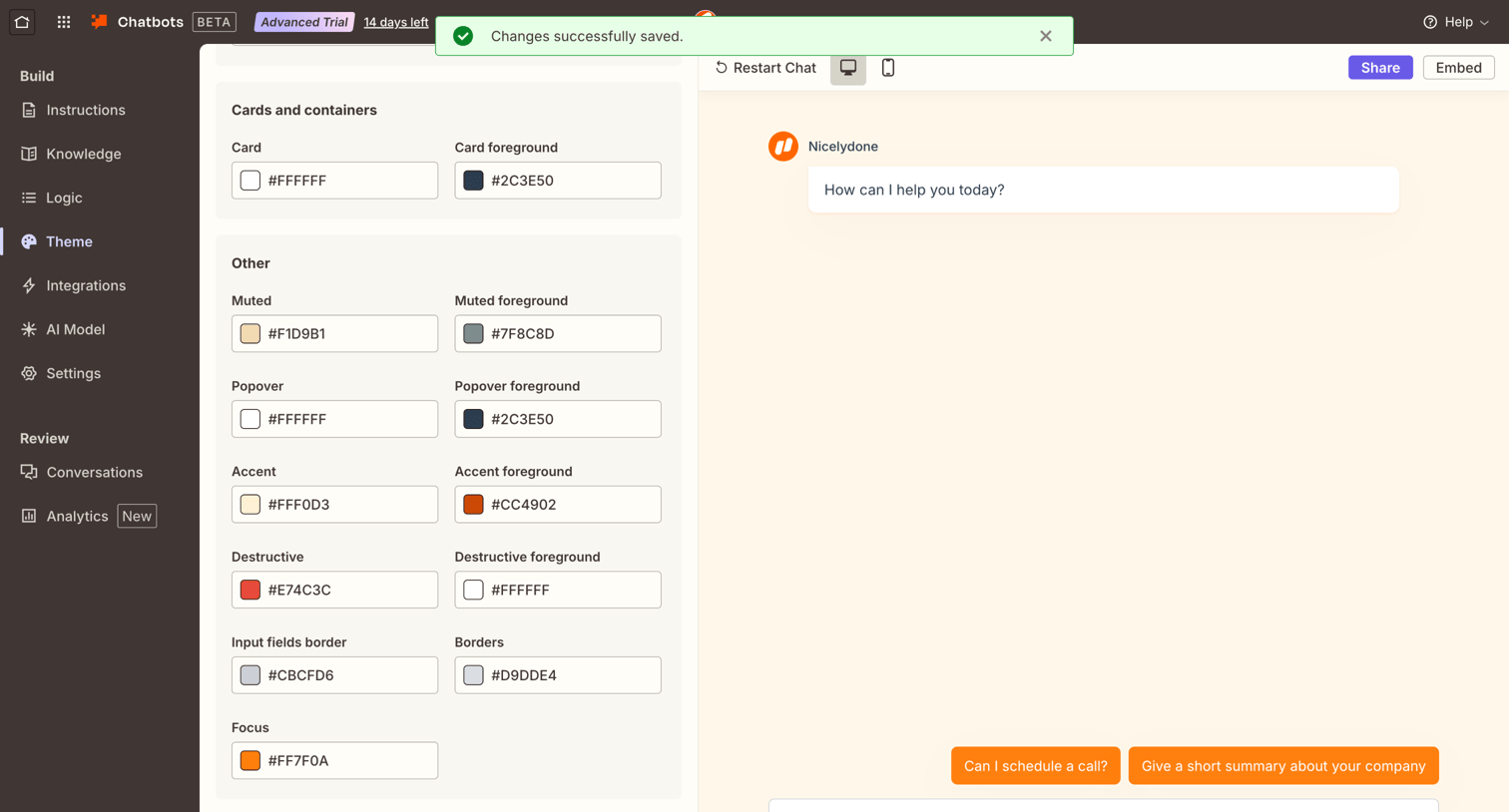
Zapier - Chatbots - Nicelydone screen
Zapier logo
Zapier

Settings page where the user customizes the color theme for their chatbot, including card, popover, and accent colors, with a live interactive preview.

The org - The Org screen
The org logo
The org

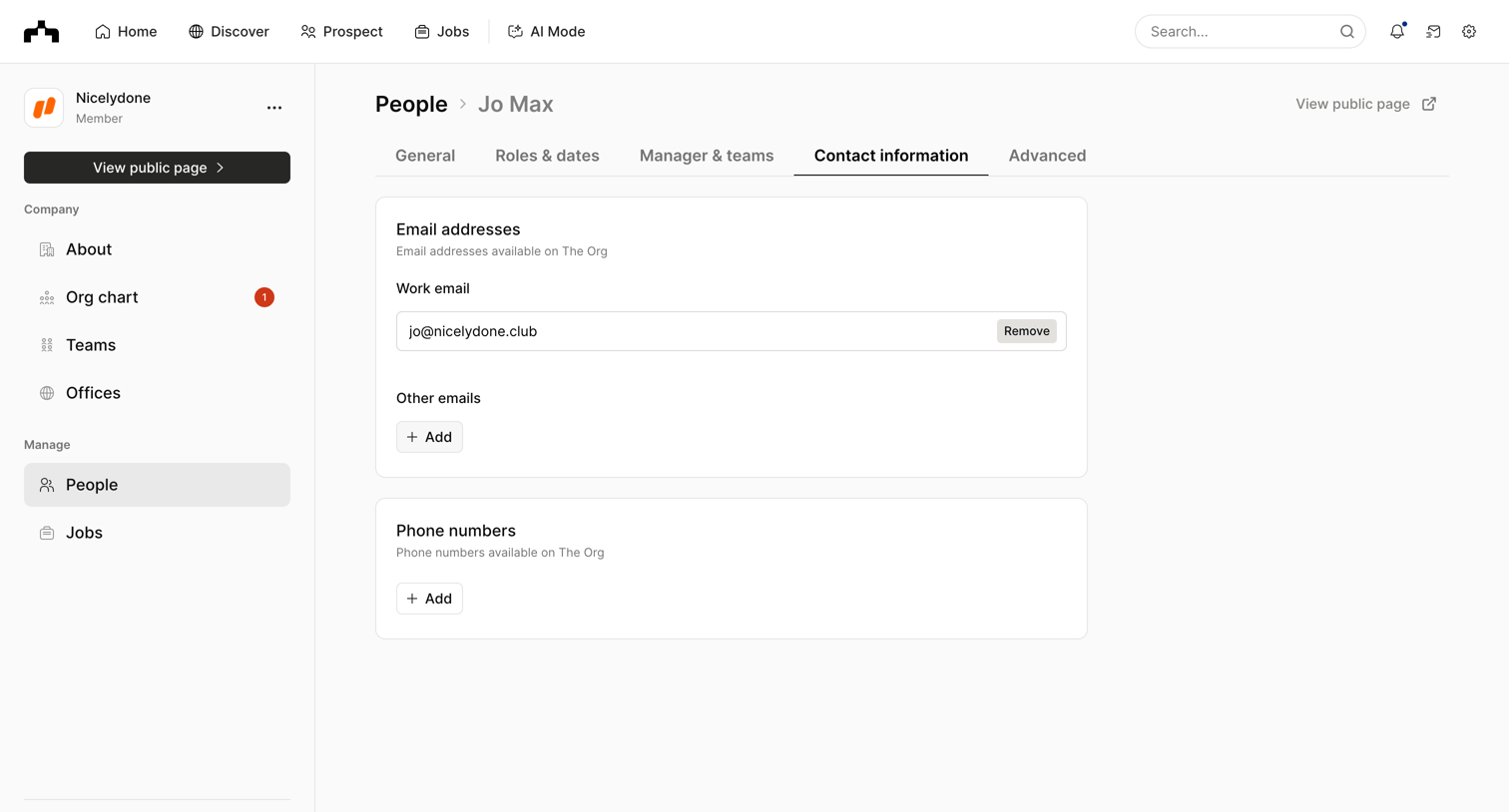
Detail page where the user manages an employee's contact information, featuring a floating toolbar to confirm unsaved changes.

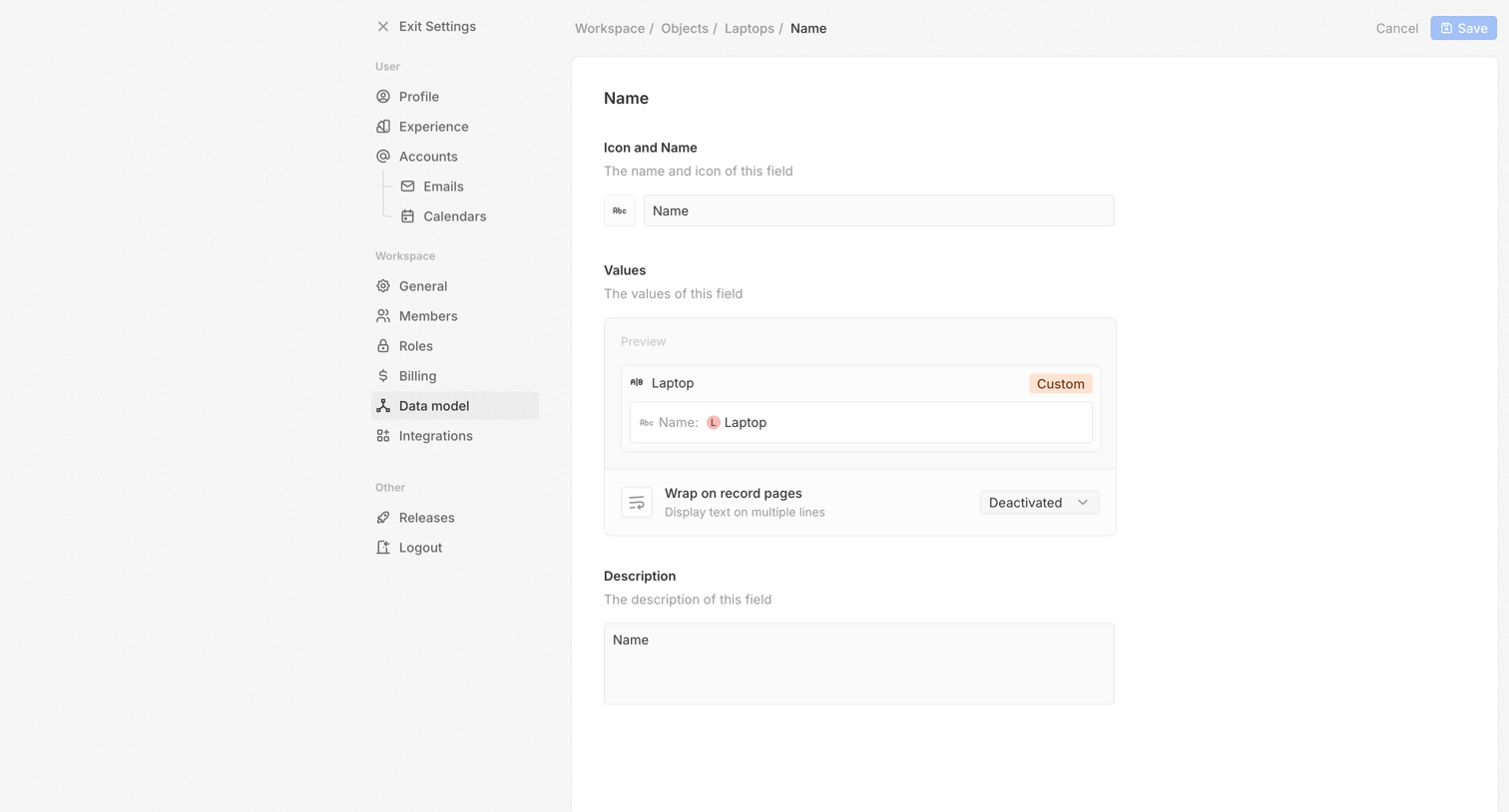
Twenty - Data model - Settings screen
Twenty logo
Twenty

Settings page where the user configures the name, preview values, and description for a specific data model field.

Vimeo - Nicelydone 01 screen
Vimeo logo
Vimeo

Detail page where the user configures the appearance, branding, and player controls for a specific video asset.

Mangomint - Mangomint App screen
Mangomint logo
Mangomint

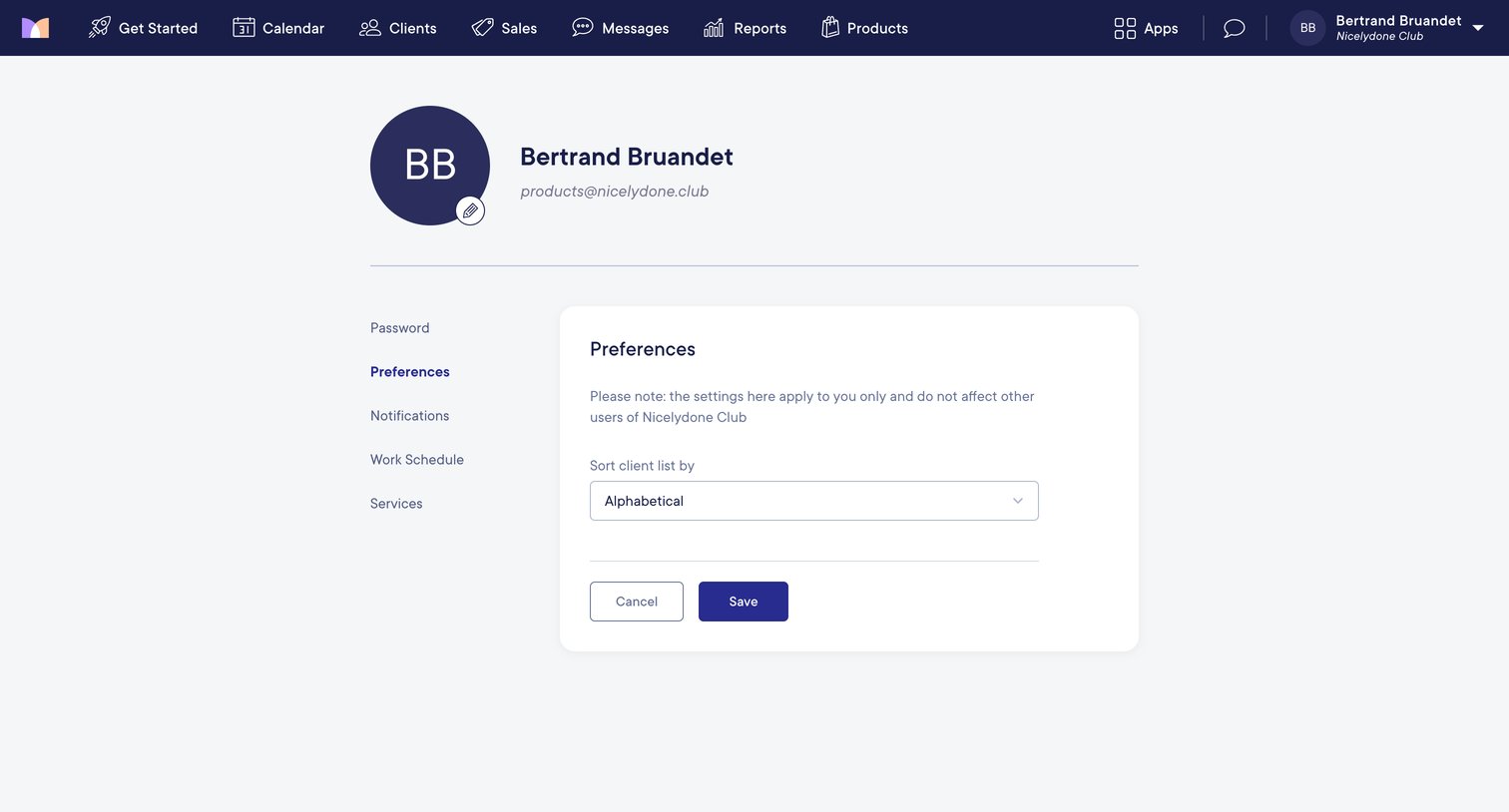
Settings page where the user configures their personal preferences, specifically the default sorting order for their client list.

Gamma - Settings | members - Gamma screen
Gamma logo
Gamma

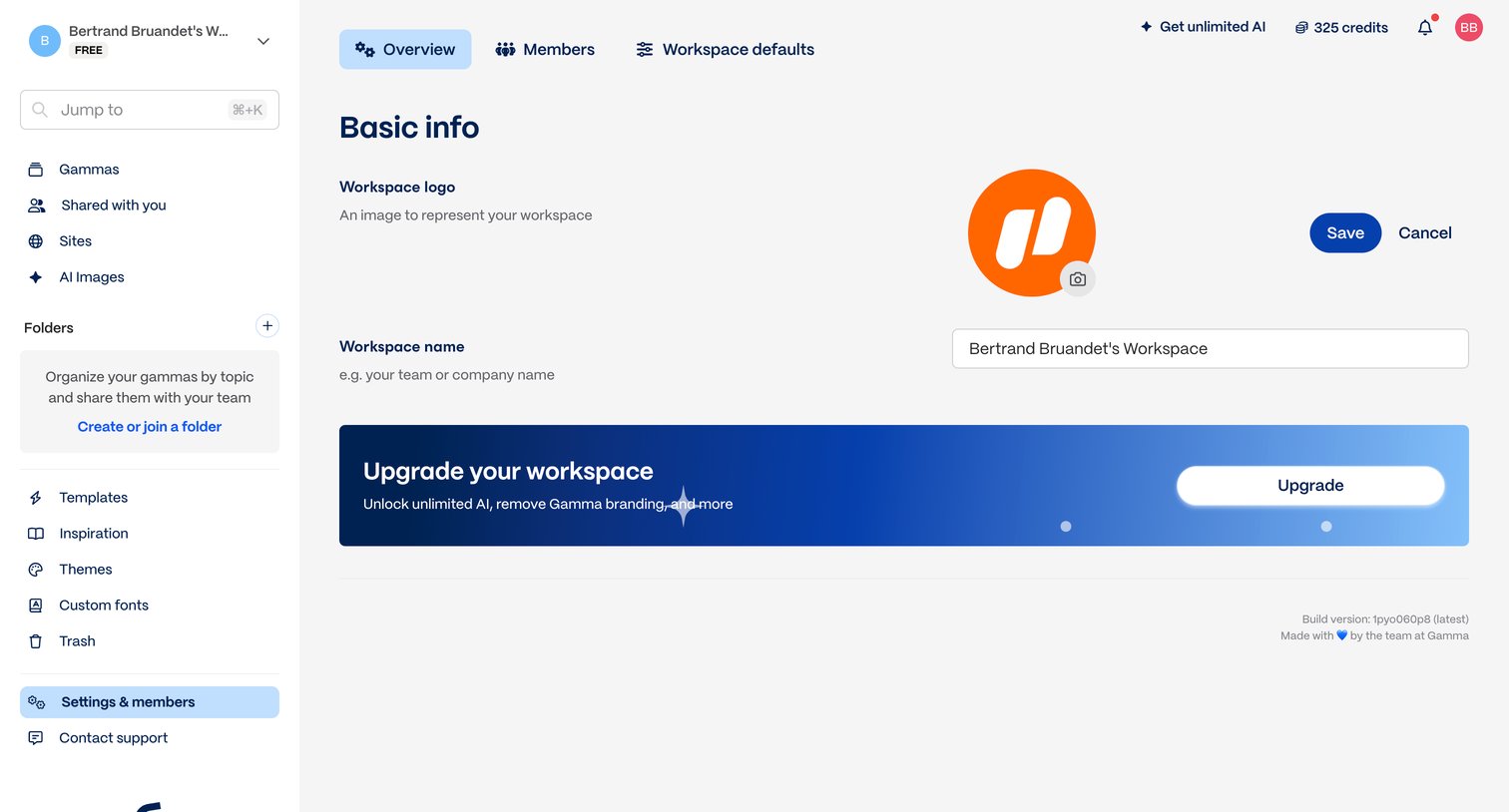
Settings page where the user configures their workspace name and logo, and sees a prominent banner to upgrade for unlimited AI.

Explore the full SaaS screen library

Upgrade to unlock the full library.

Trusted by the best teams