Edit screen examples
Edit screen design examples from SaaS apps. See how SaaS apps let people change an existing item. Explore how editable fields, current values, and save or cancel actions appear together while keeping…
Explore the examples
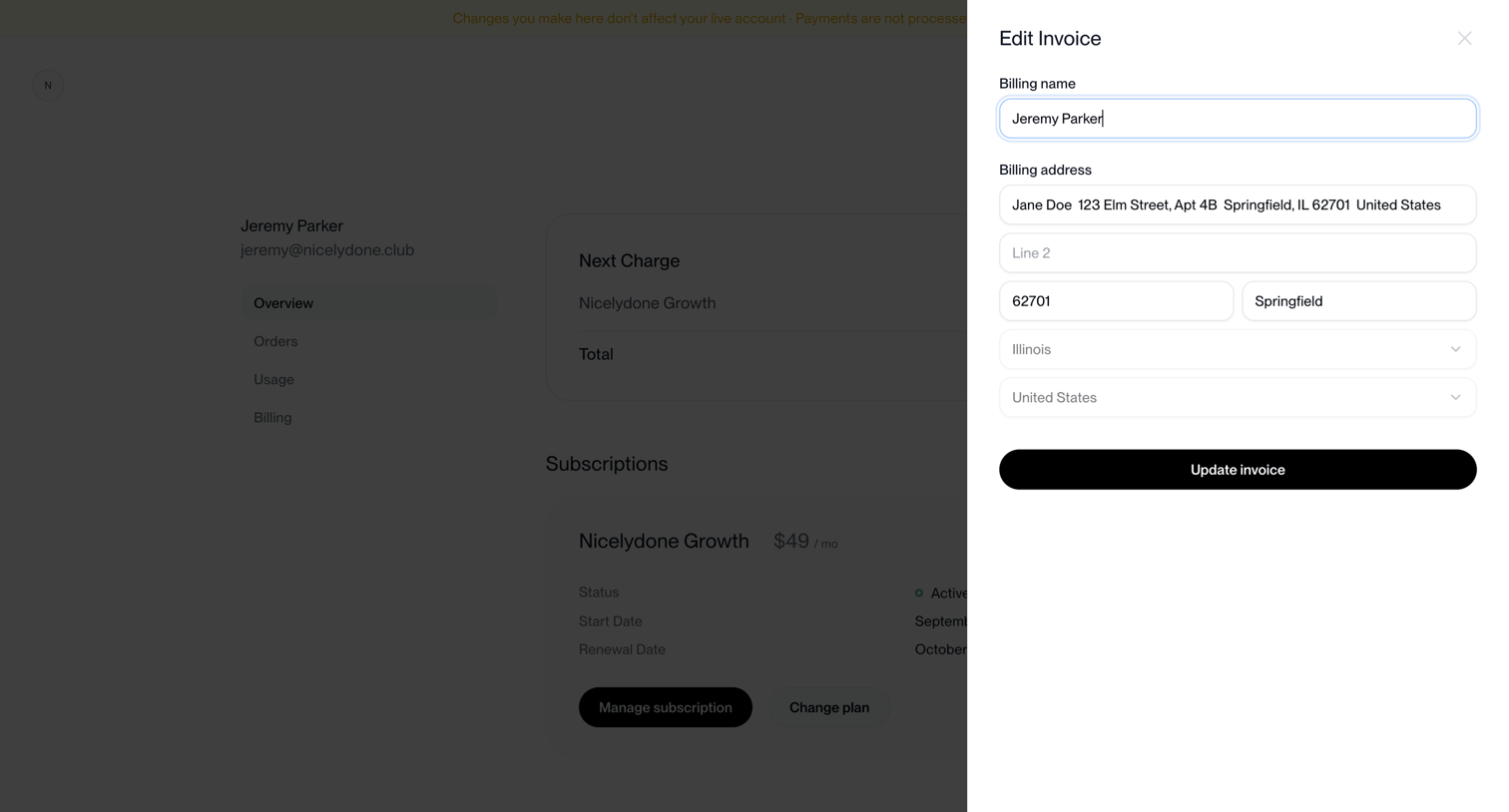

Customer portal billing page where the user is updating their invoice address details inside a side drawer.
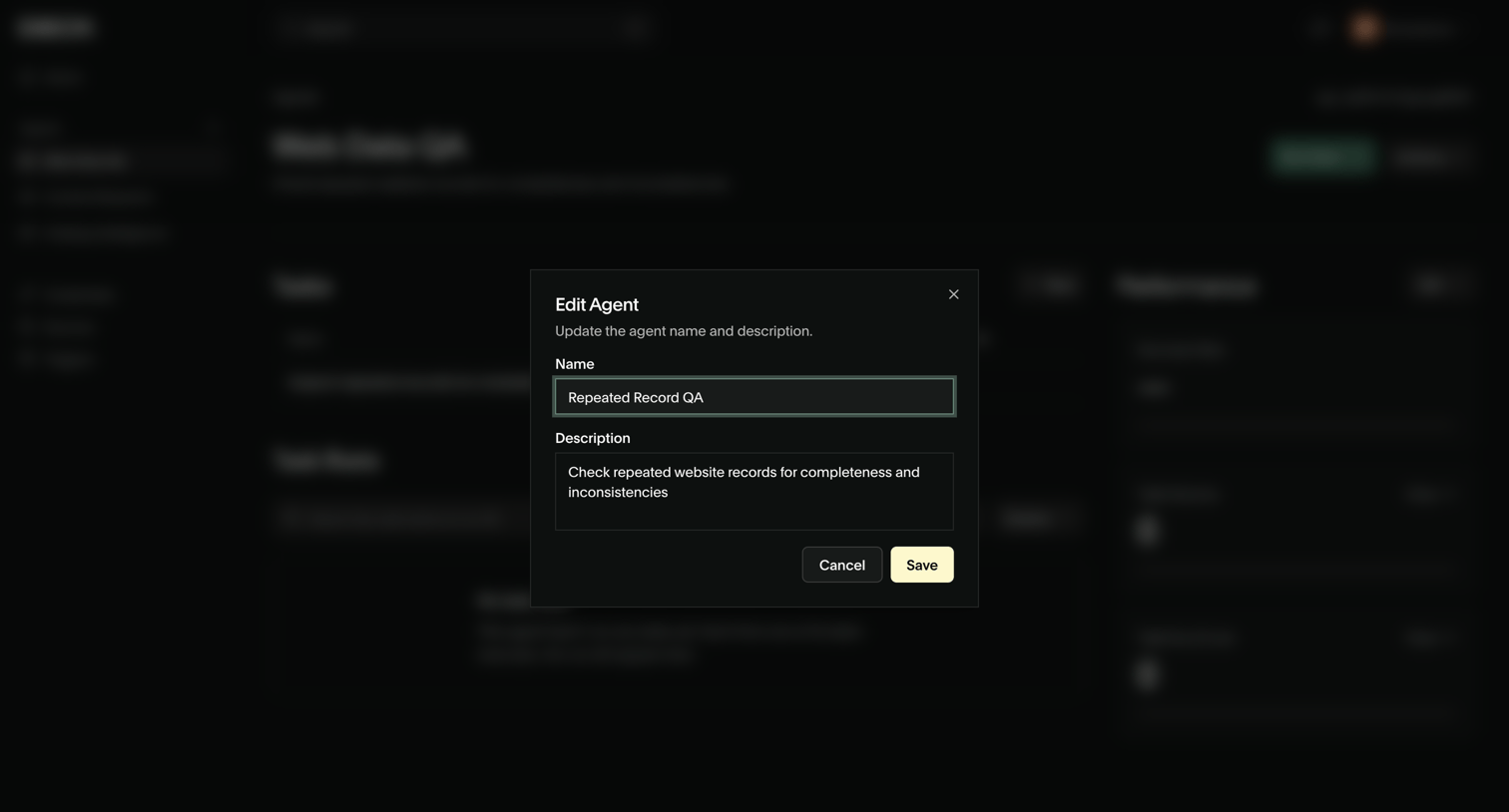

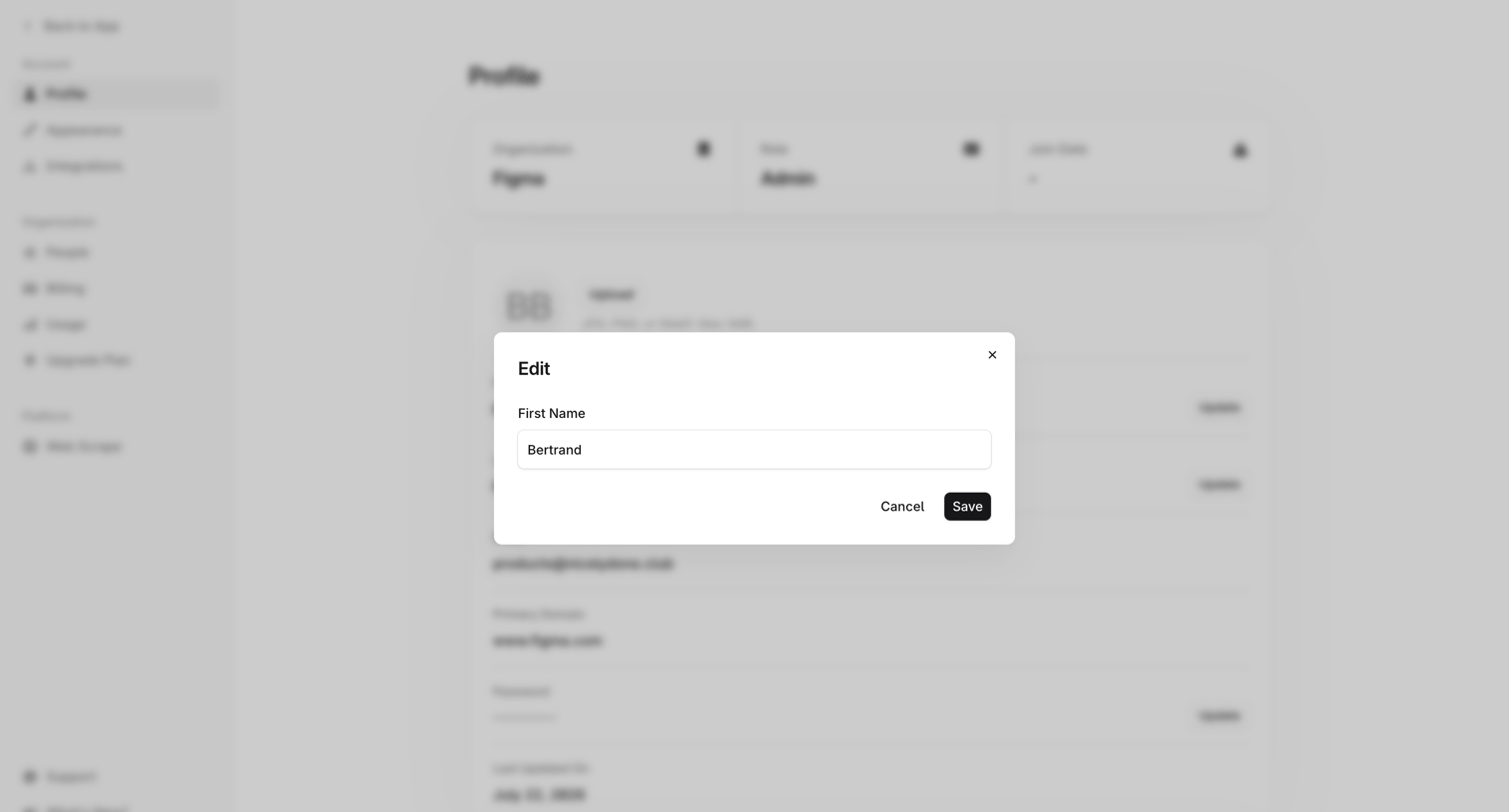

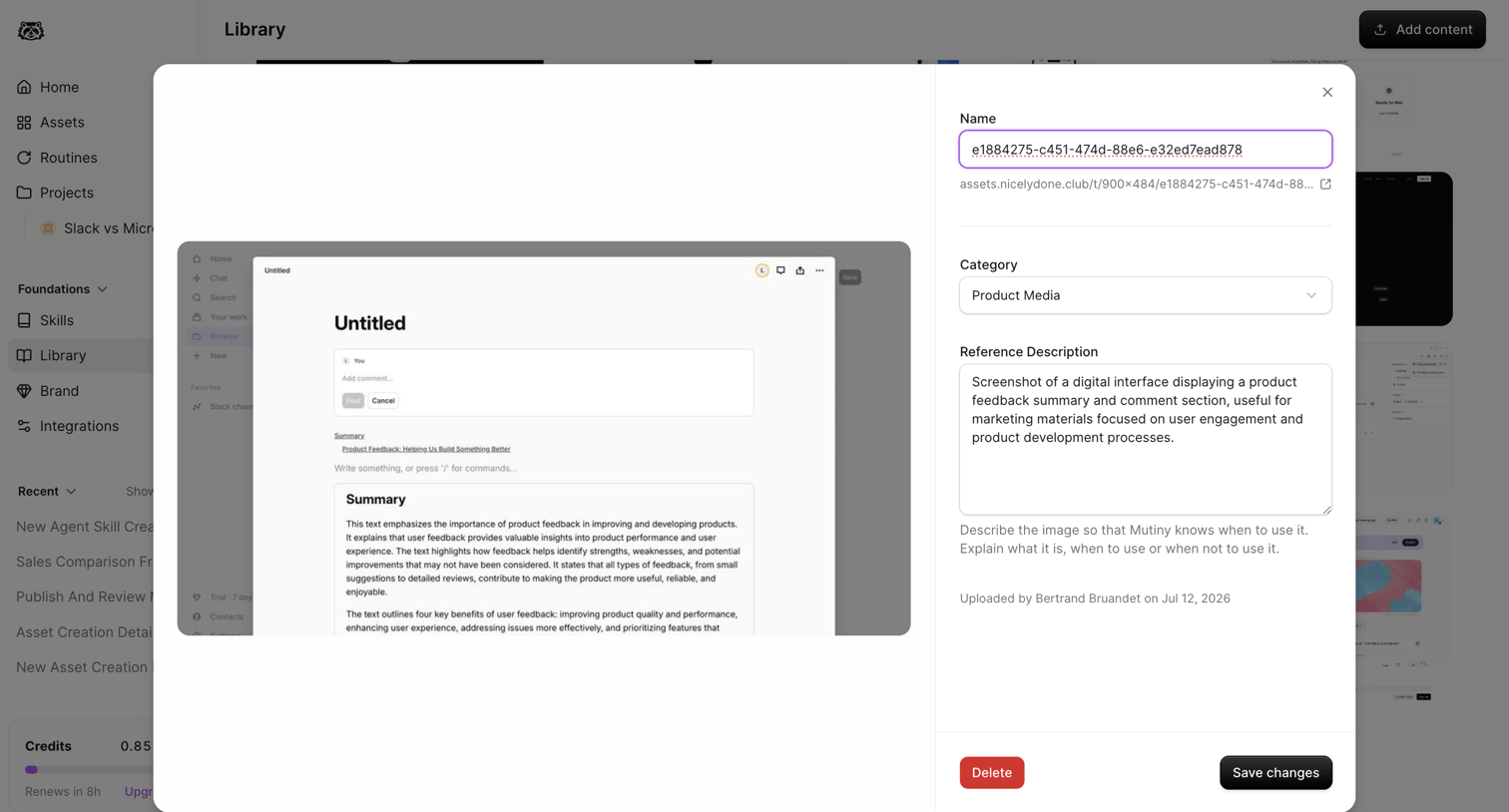

Detail modal where the user edits the name, category, and reference description of a saved library asset.
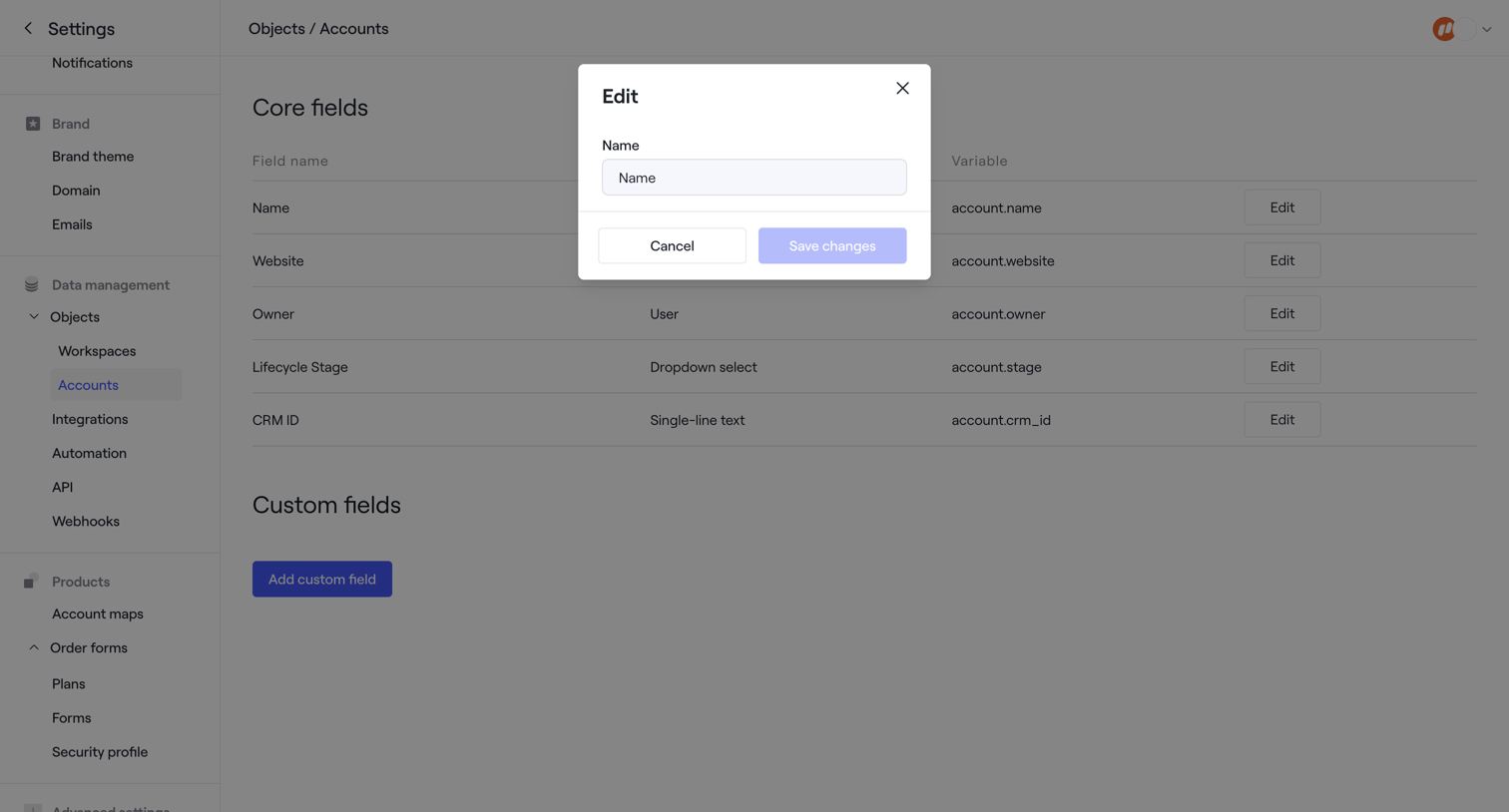

Settings page where the user edits the name of a core field for the Account object via a modal.
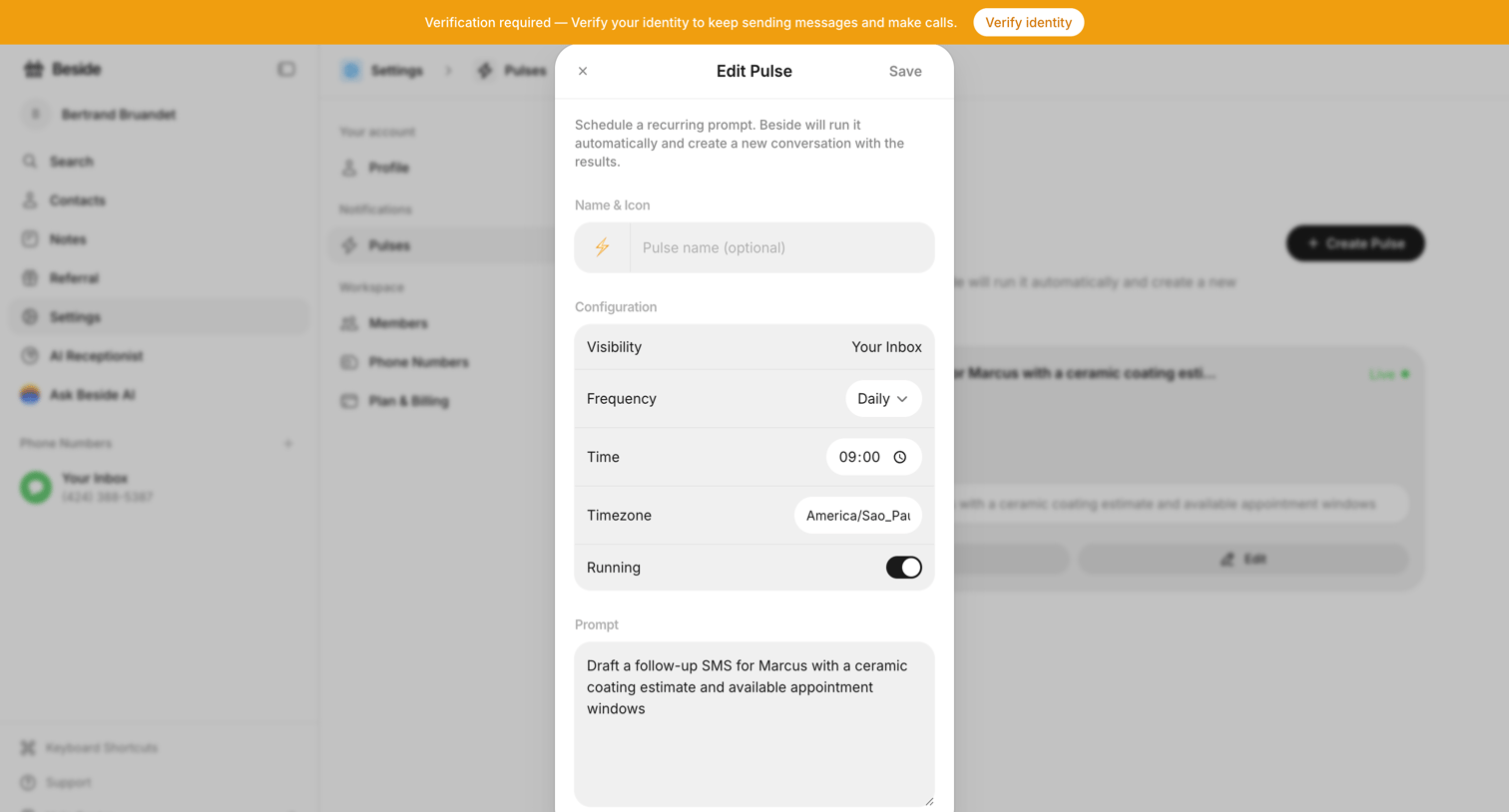

Settings modal where the user configures a recurring AI prompt, setting its visibility, frequency, time, timezone, and the prompt text.
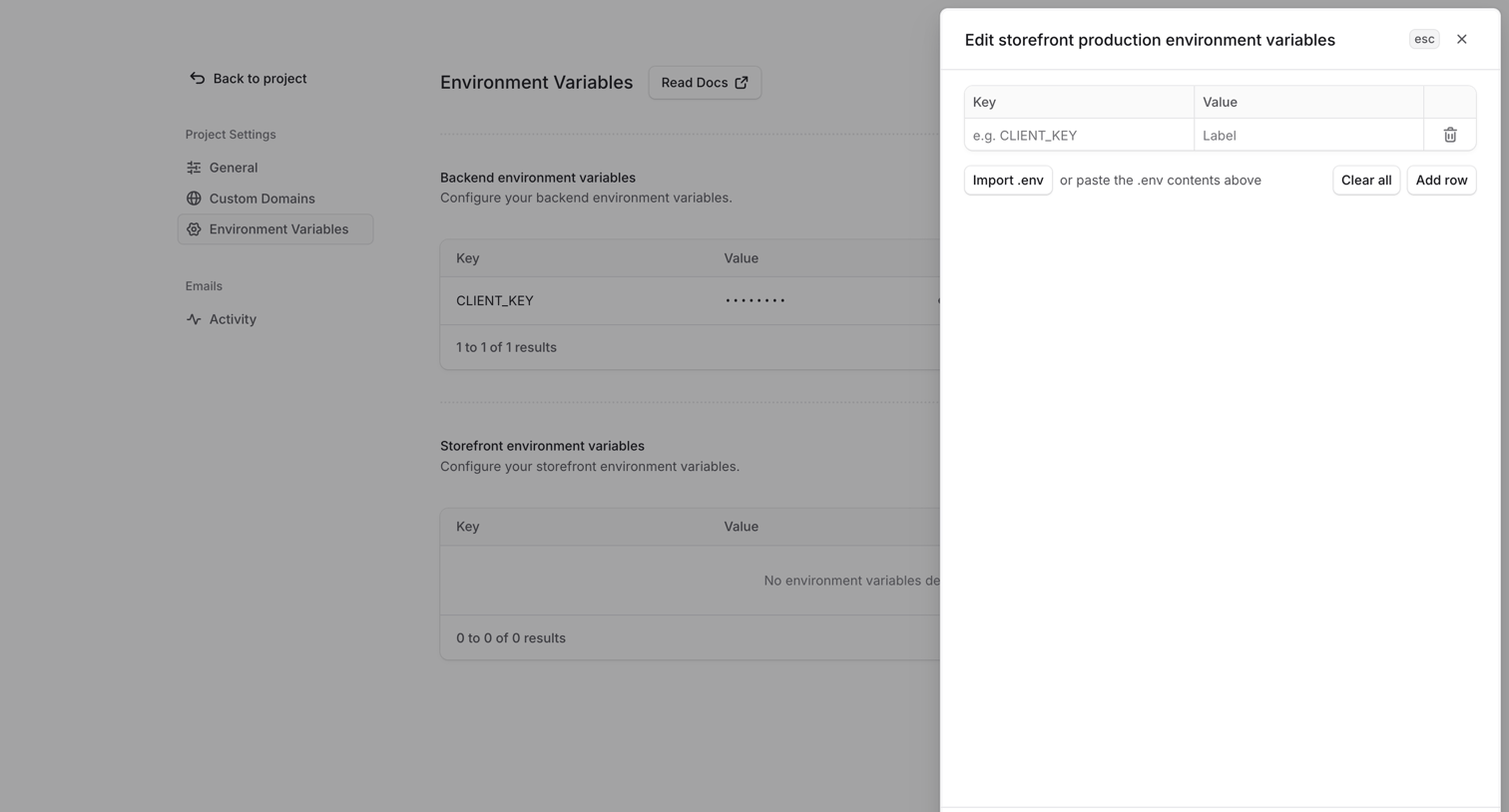

Settings page where the user configures project environment variables, with a side drawer open to edit key-value pairs or import an .env file.
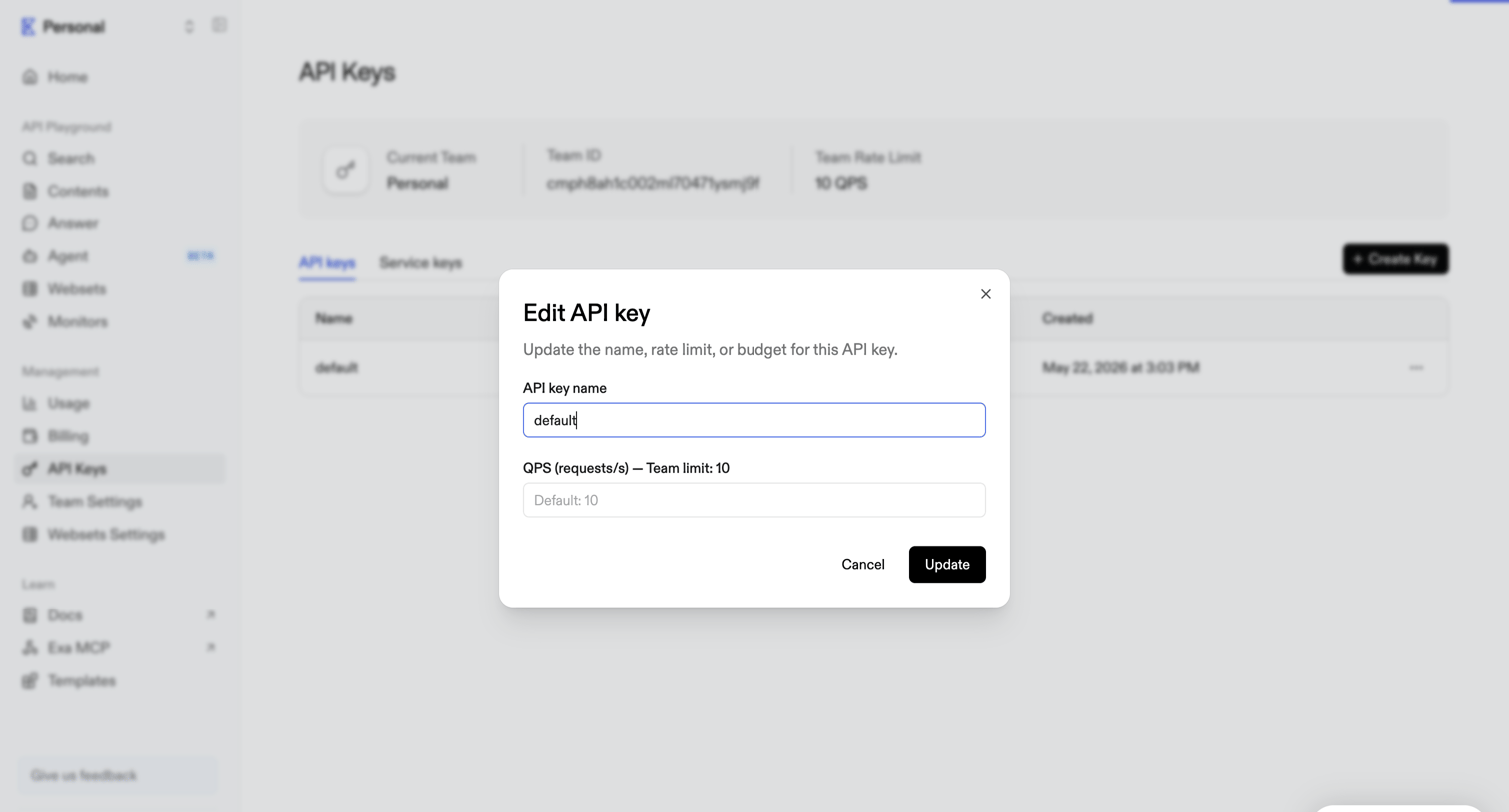

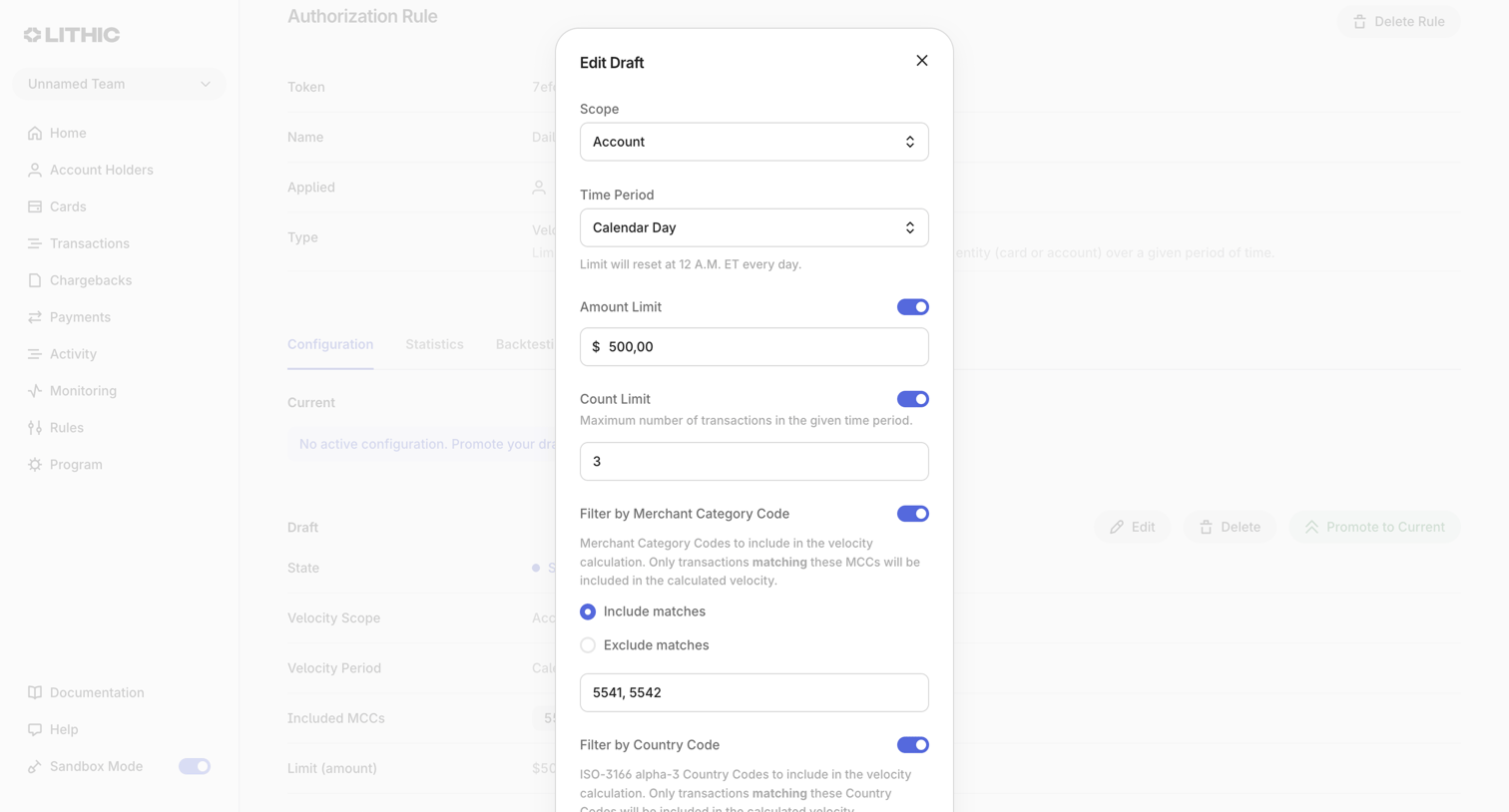

Detail page where the user edits a draft authorization rule, configuring scope, time period, amount limits, and merchant category filters.
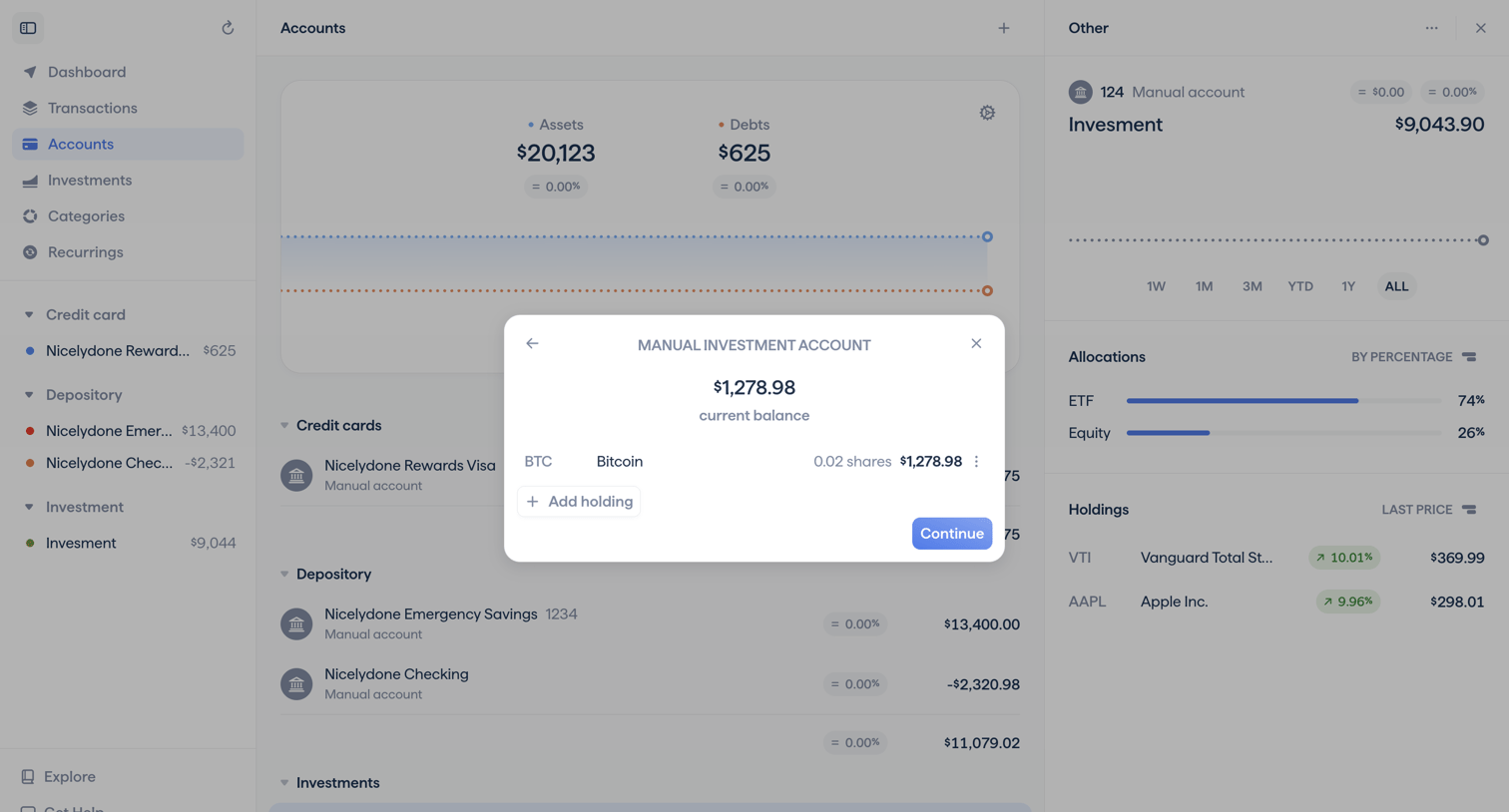

Detail page where the user edits a manual investment account, viewing its current balance and adding specific holdings like Bitcoin.
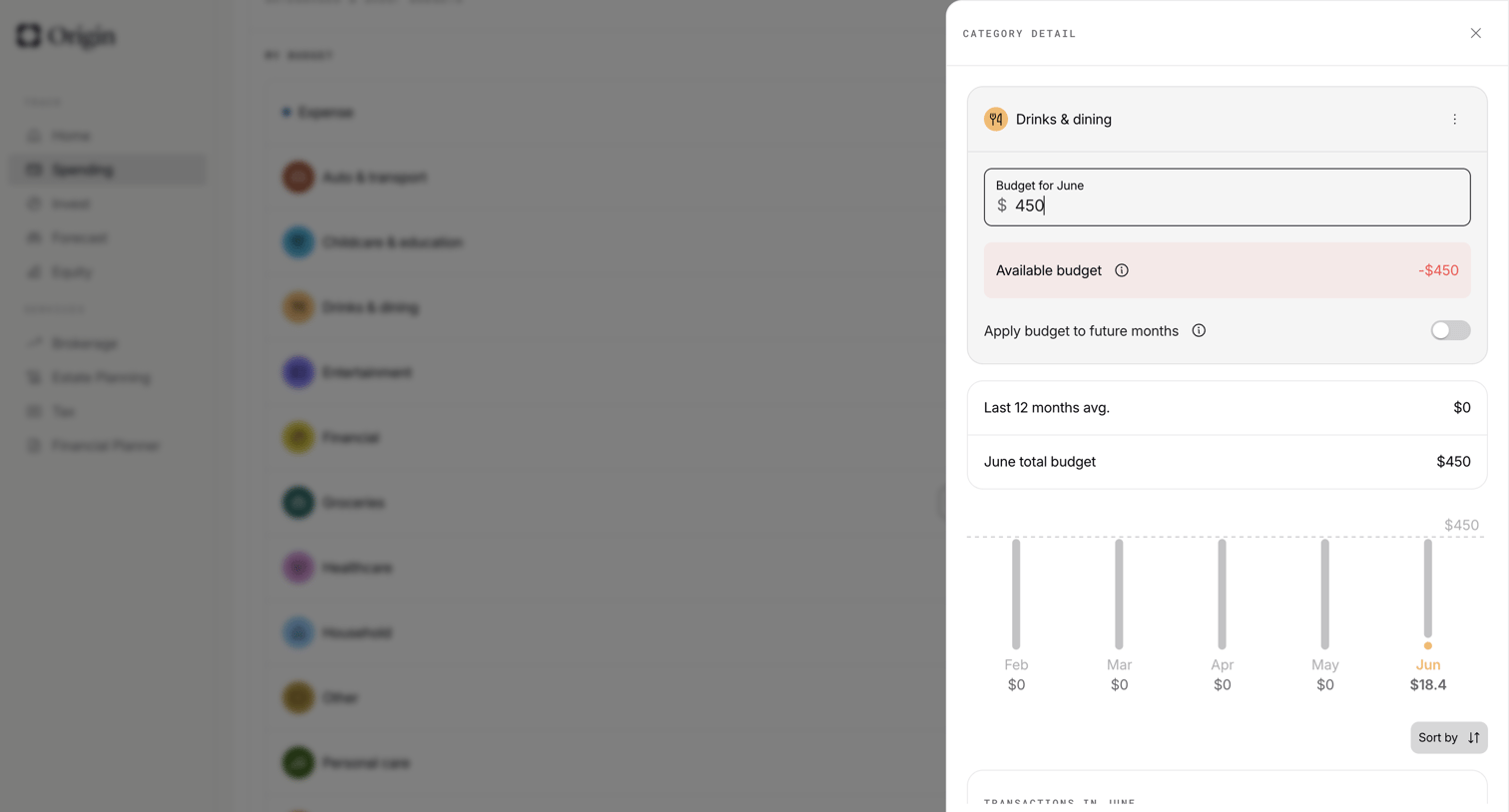

Drawer where the user edits the monthly budget for a specific spending category, toggles future application, and views historical spending trends.
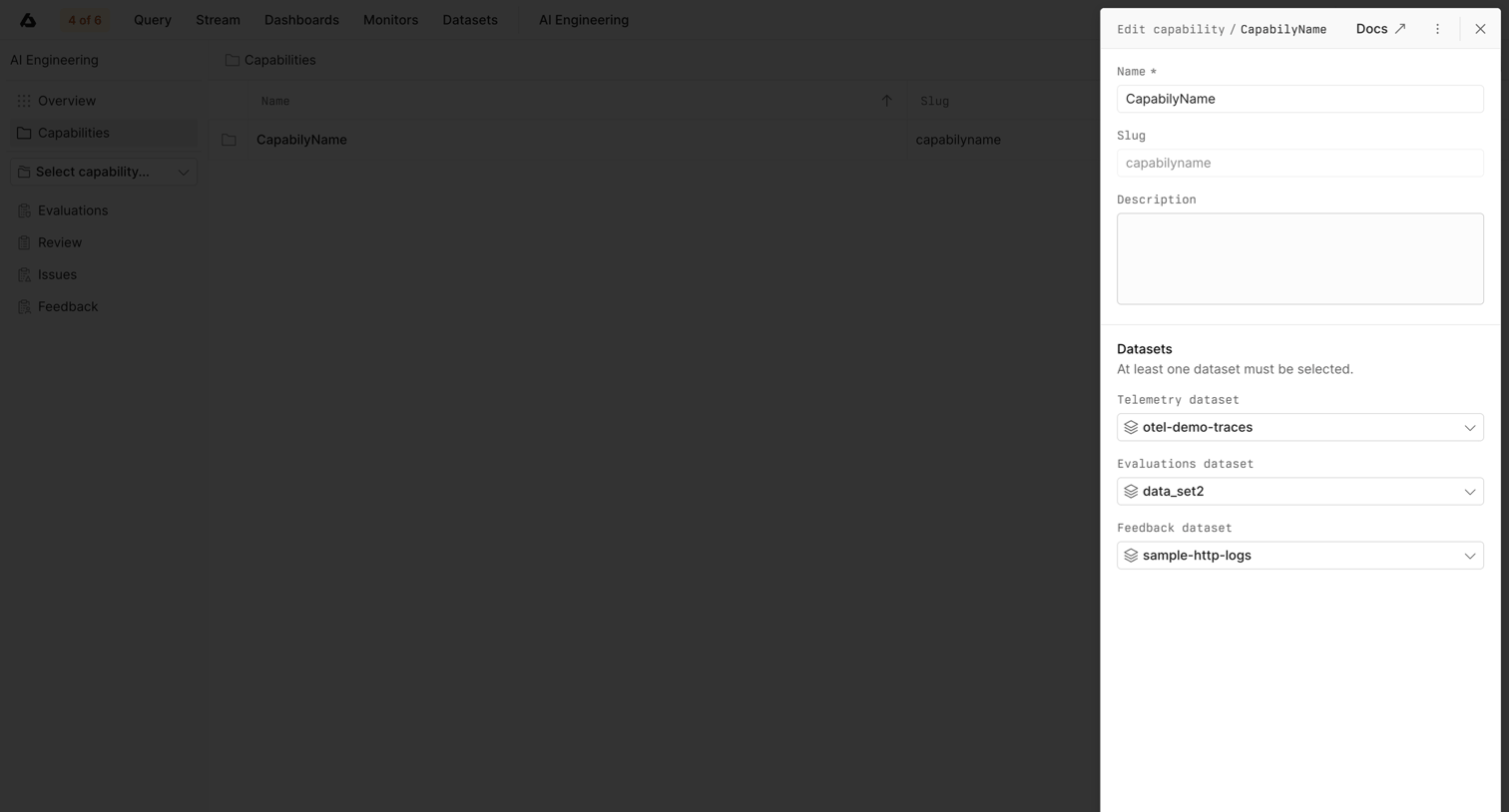

Detail page where the user edits an AI capability's name, description, and associated datasets via a side drawer.
Explore the full SaaS screen library
Upgrade to unlock the full library.
Trusted by the best teams








About Edit
See how SaaS apps let people change an existing item. Explore how editable fields, current values, and save or cancel actions appear together while keeping the item in context.