Preferences screen examples
Preferences screen design examples from SaaS apps. Browse examples from Polar, Magnific, Axiom.
Explore the examples
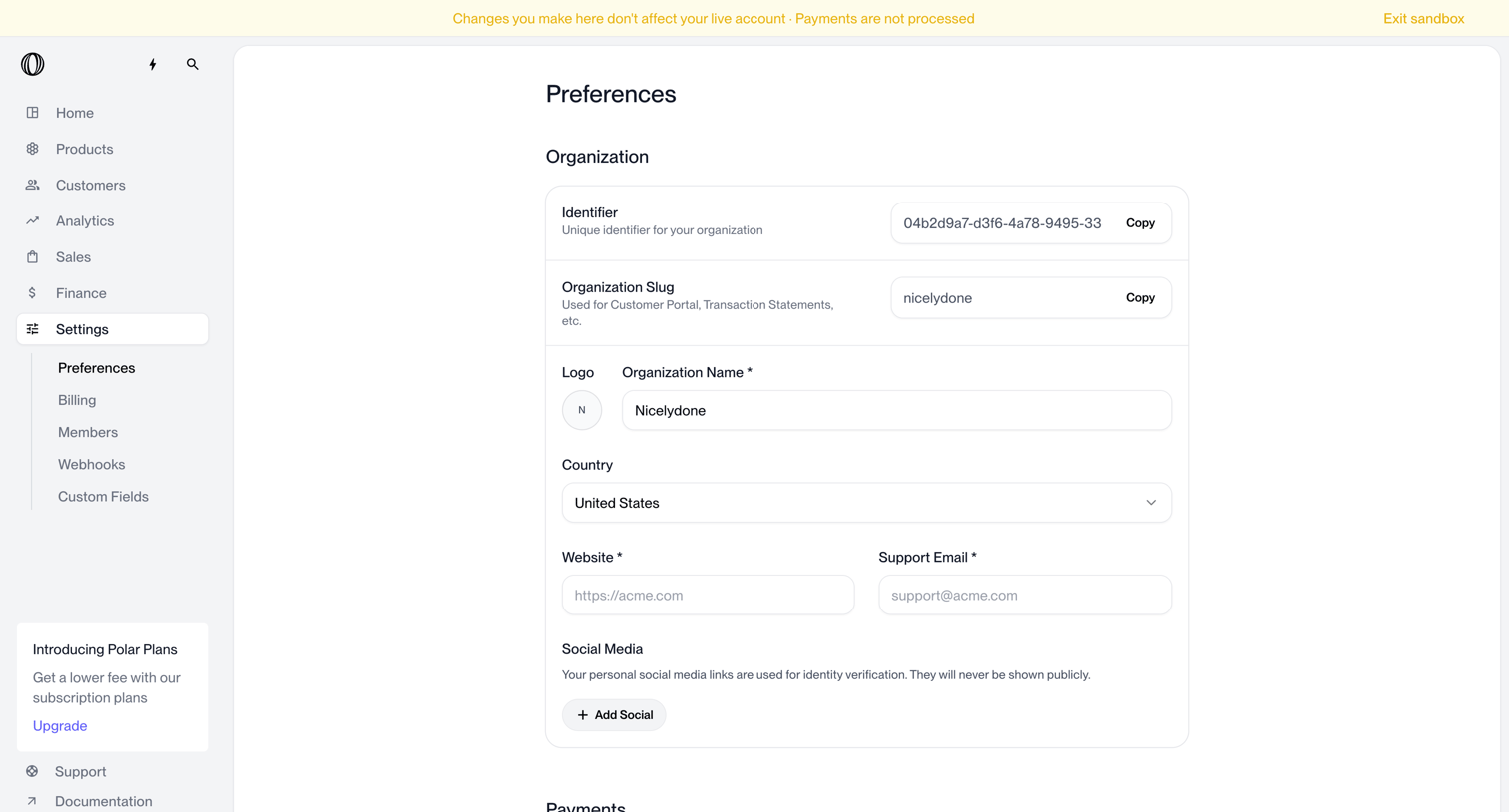

Settings page where the user configures organization preferences like identifier, slug, name, country, website, support email, and social media links.
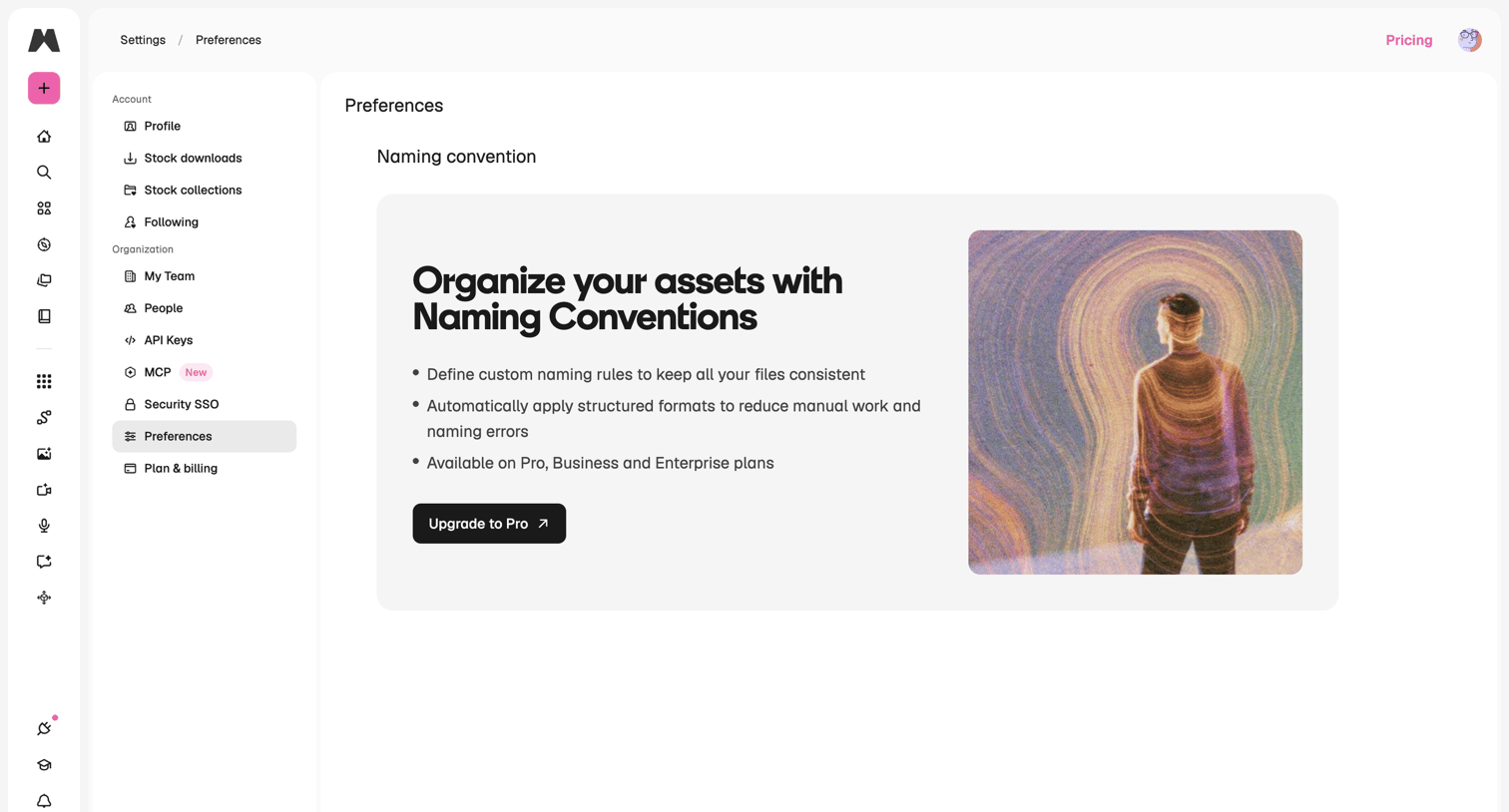

Settings page where the user views organization preferences, currently showing an upgrade prompt to access the naming conventions feature.
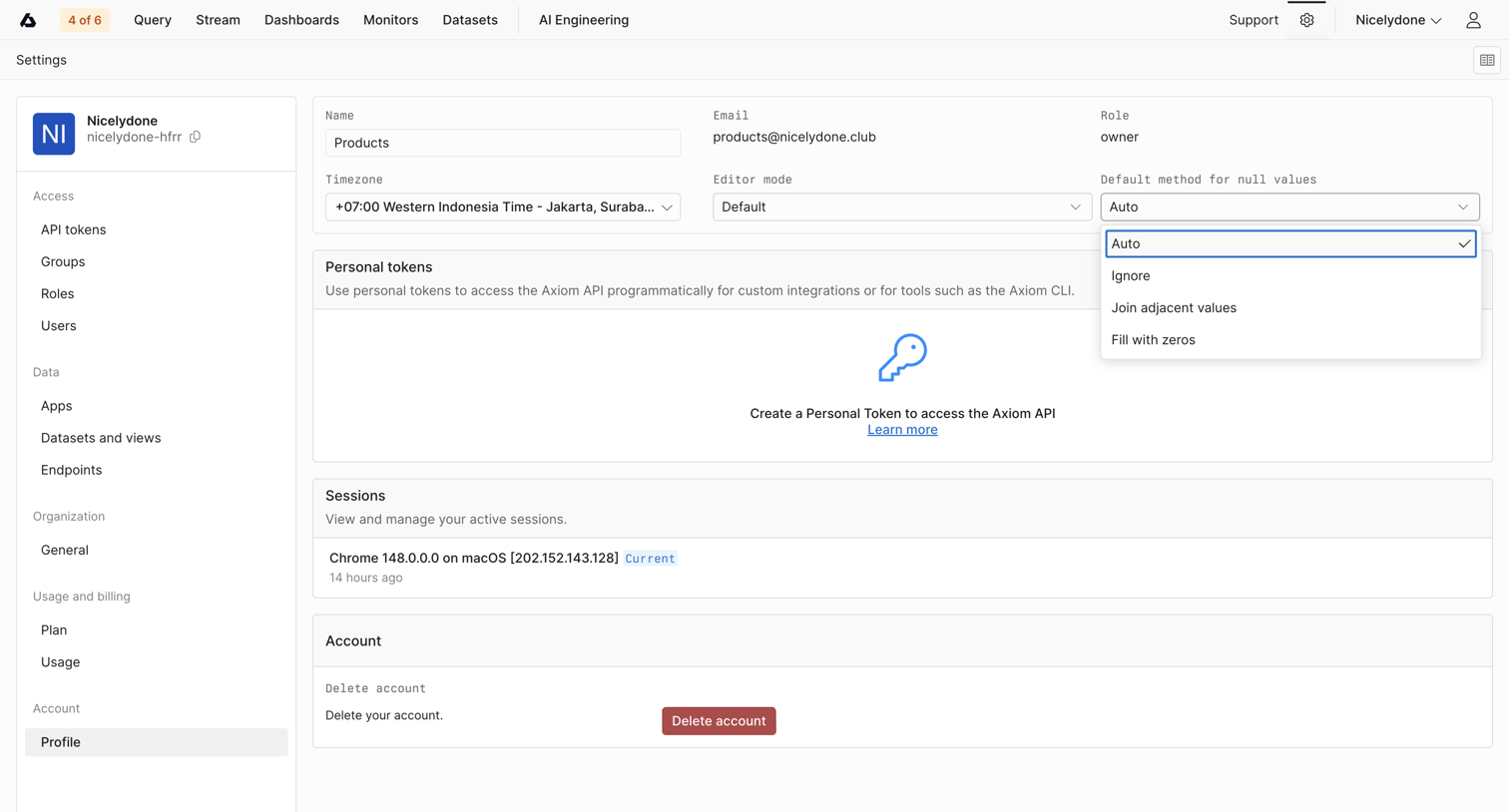

Settings page where the user manages their profile details, timezone, editor preferences, personal tokens, active sessions, and account deletion.
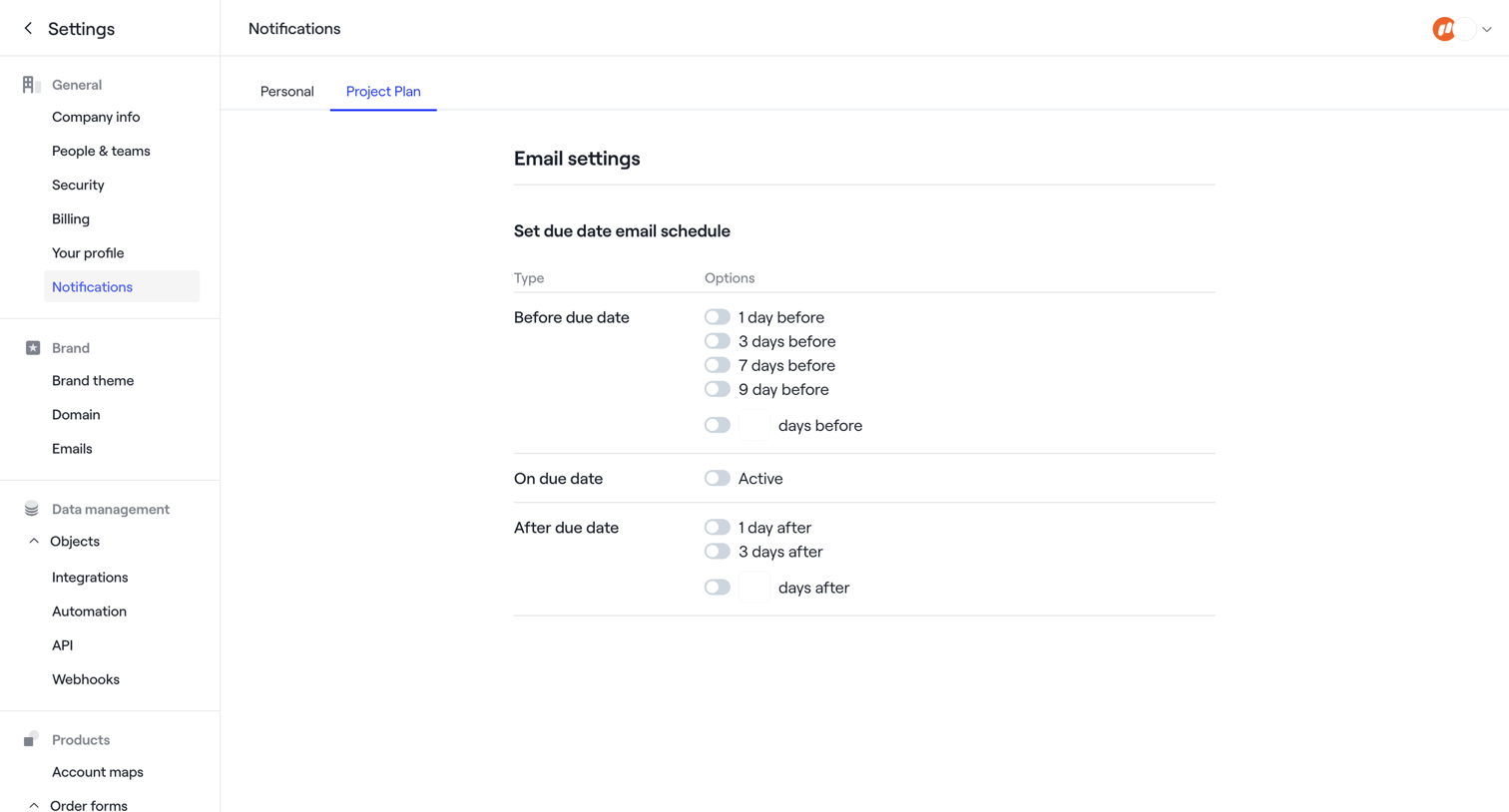

Settings page where the user configures email schedules for project plan due dates, including before, on, and after the due date.
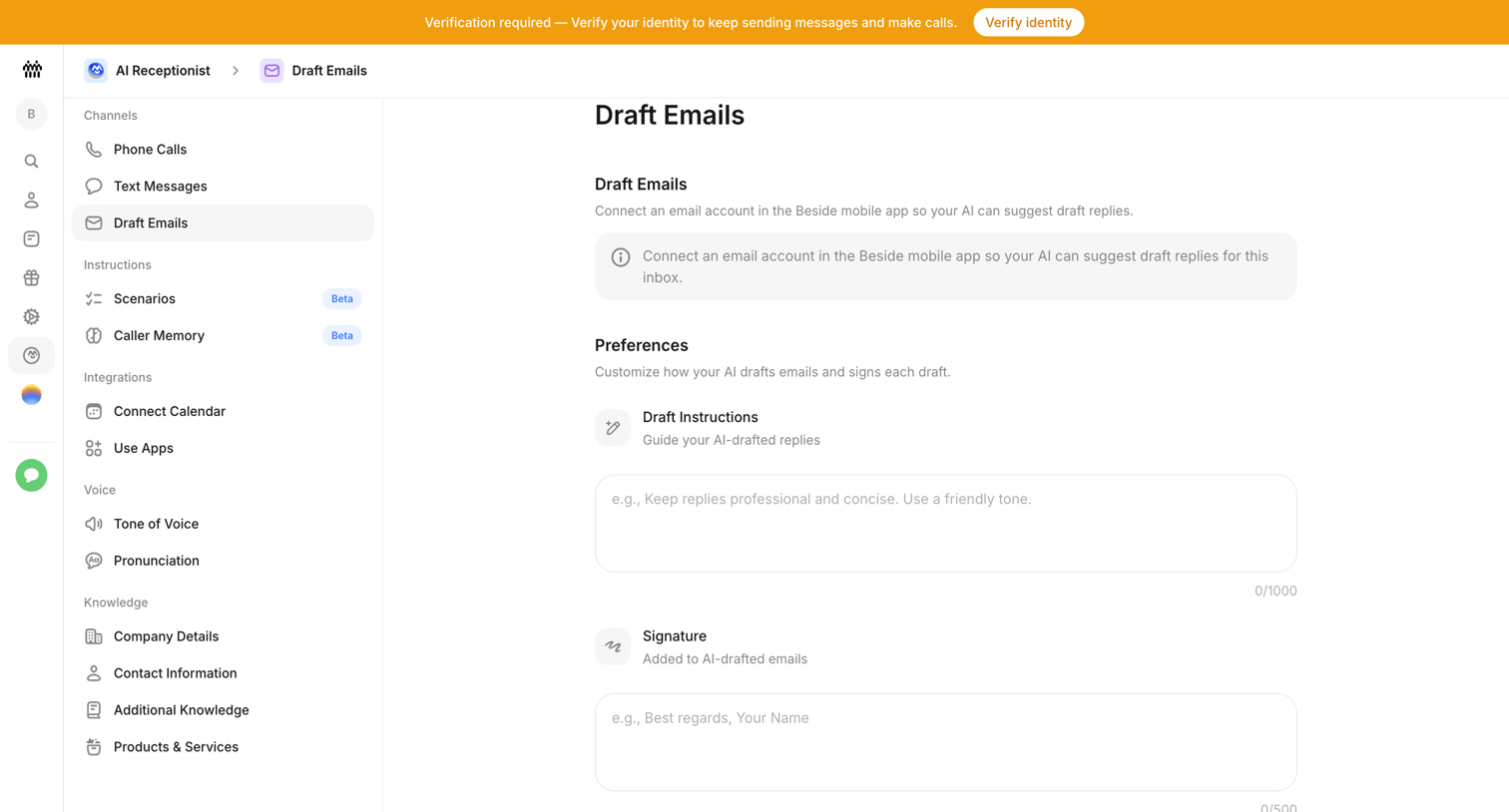

Settings page where the user configures email drafting preferences for their AI receptionist, including custom instructions and a signature.
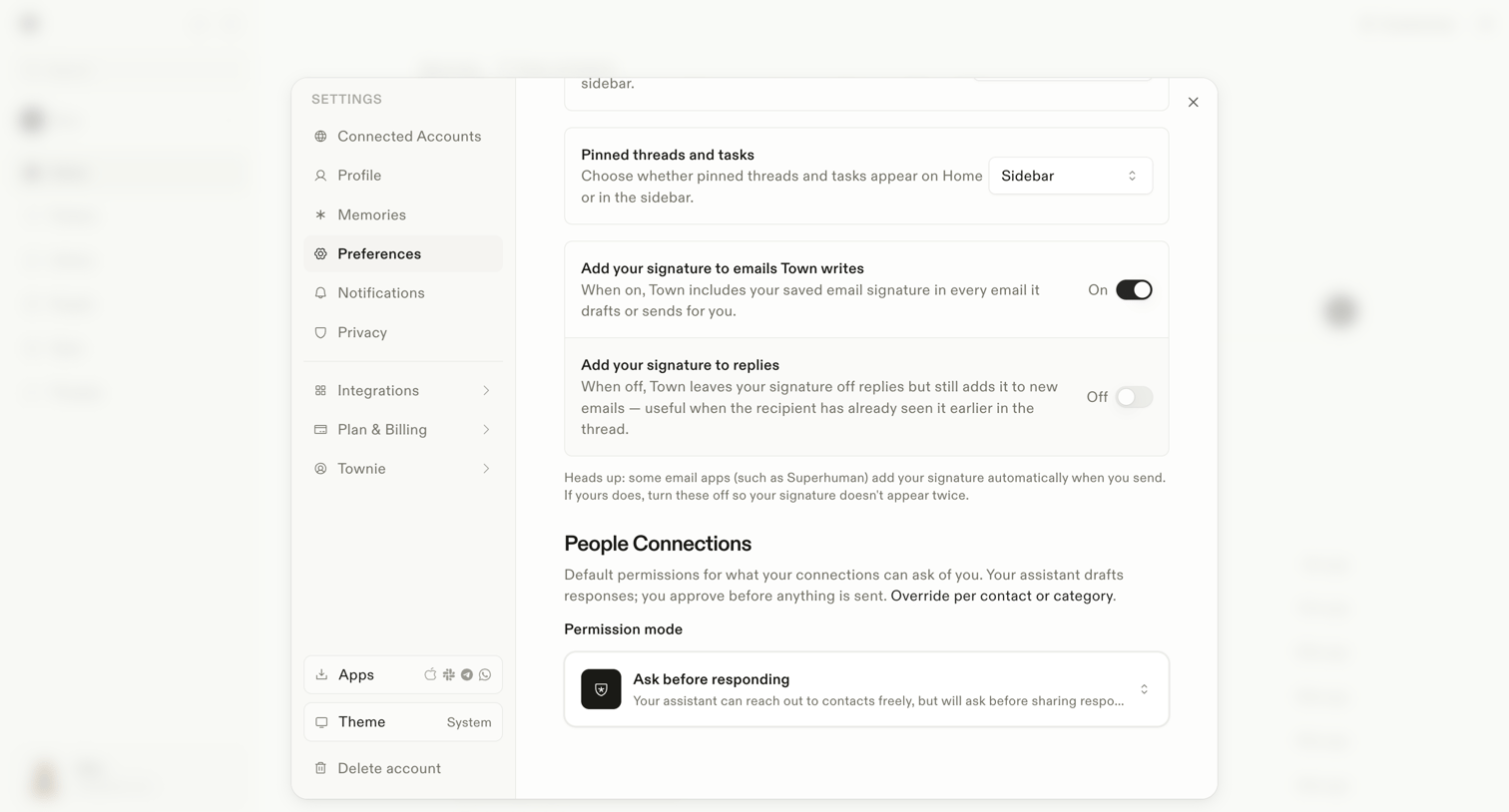

Settings modal where the user configures general preferences like pinned threads location, email signatures, and default permission modes for their AI assistant.
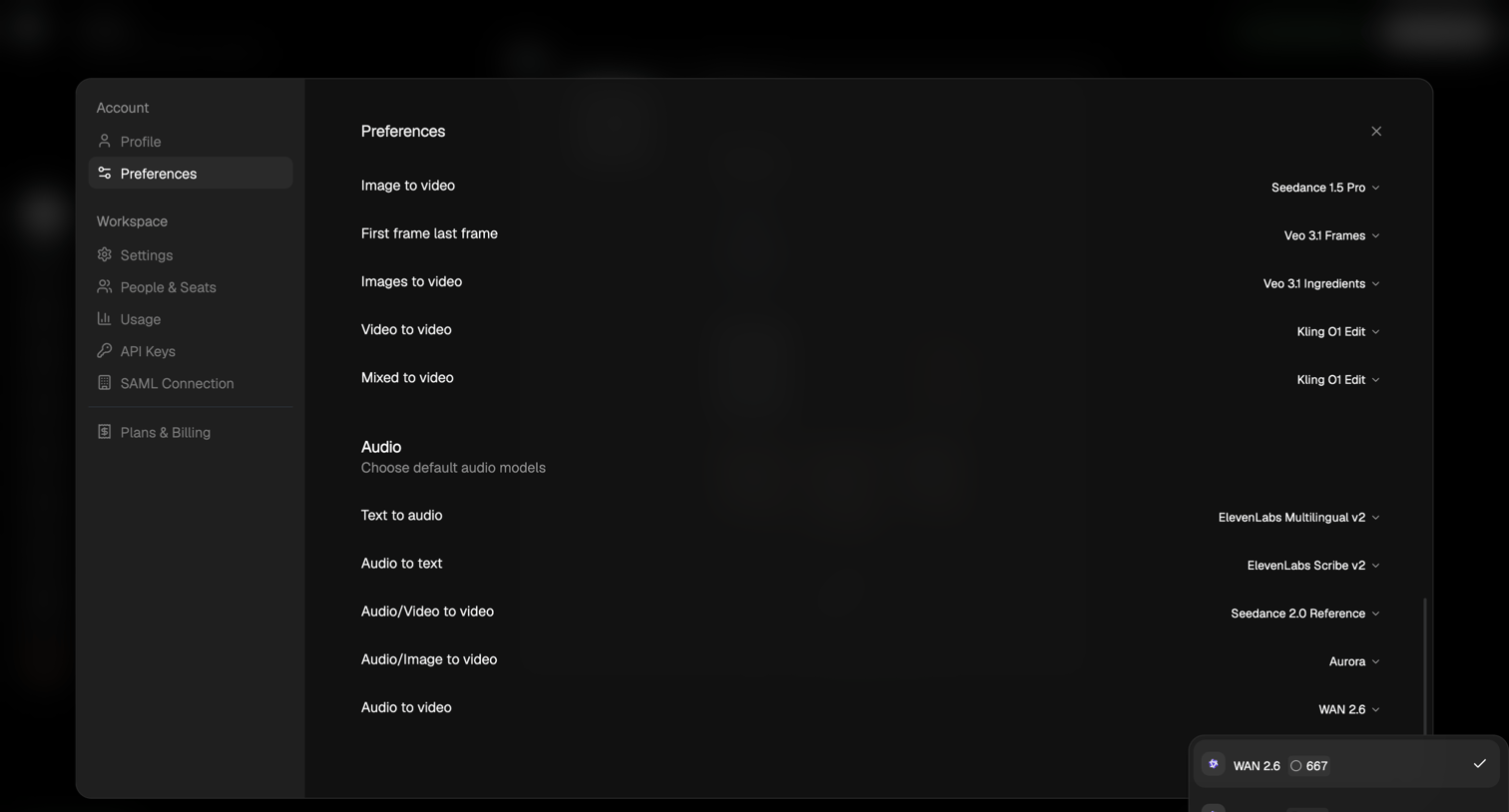

Settings modal where the user configures default AI models for various generation tasks like image-to-video, text-to-audio, and mixed-to-video.
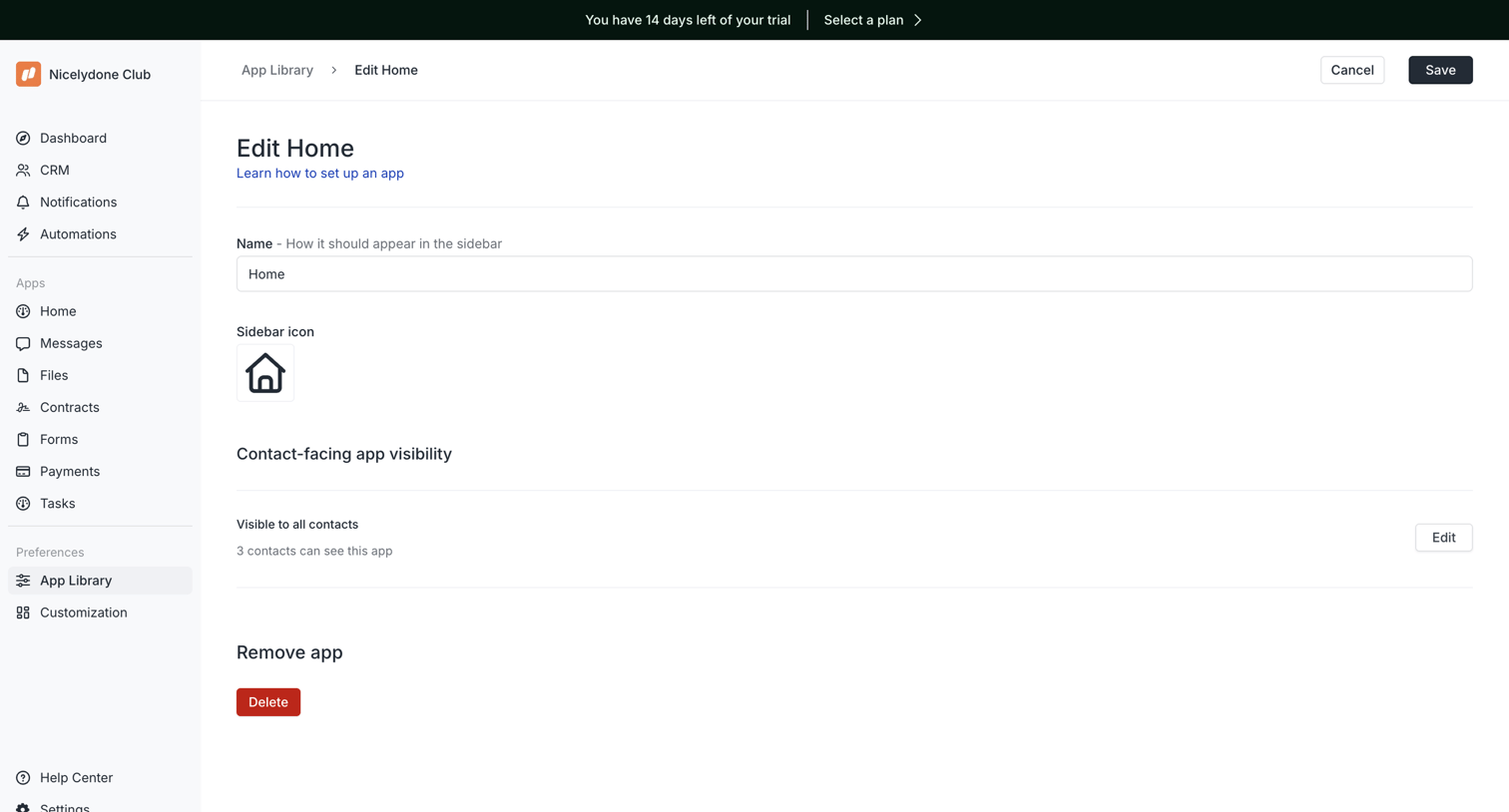

Settings page where the user configures the name, icon, and visibility of a specific app within their workspace.
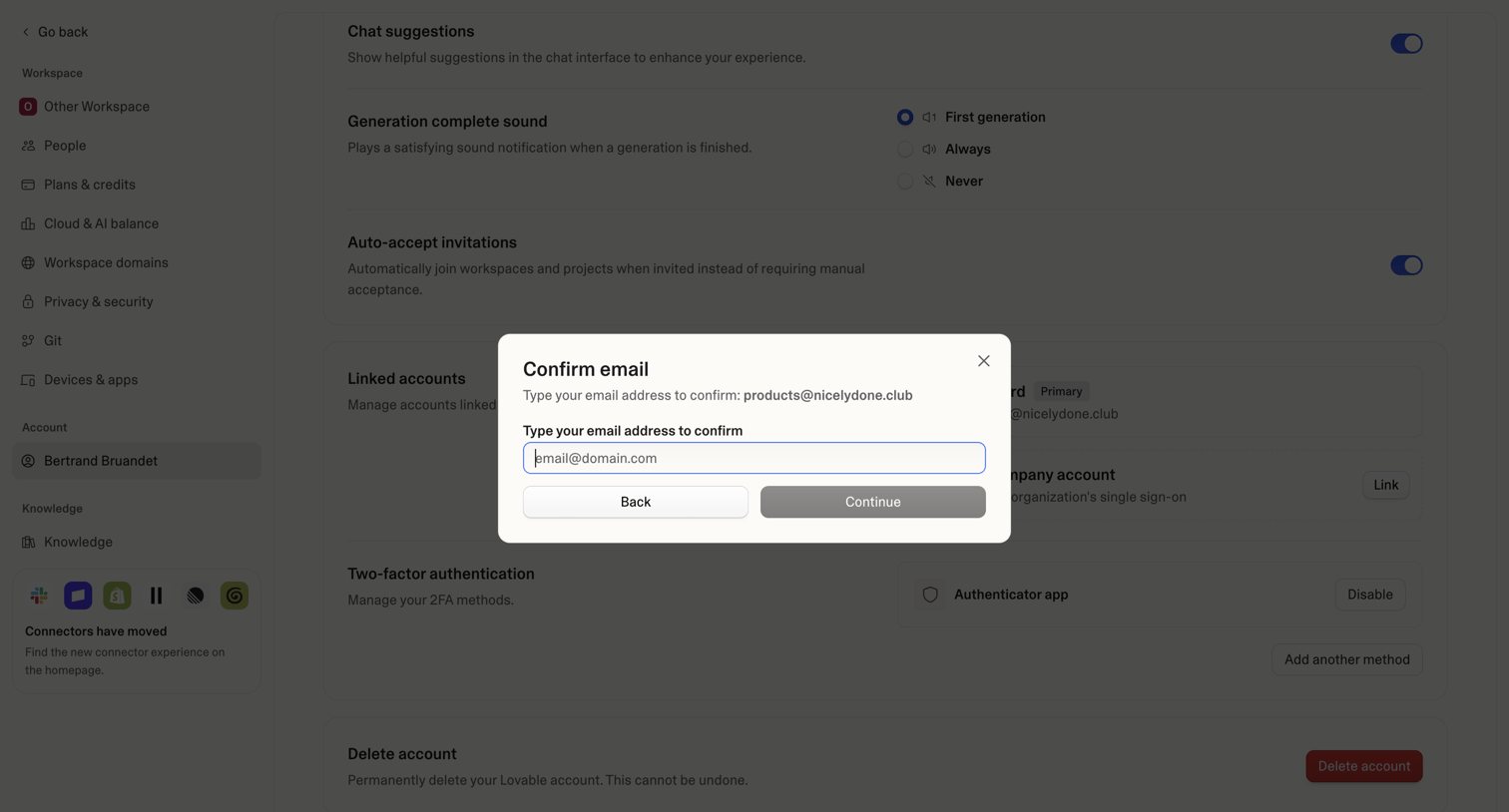

Settings page where the user must type their email address in a modal to confirm an action, with underlying options for chat suggestions, 2FA, and account deletion.
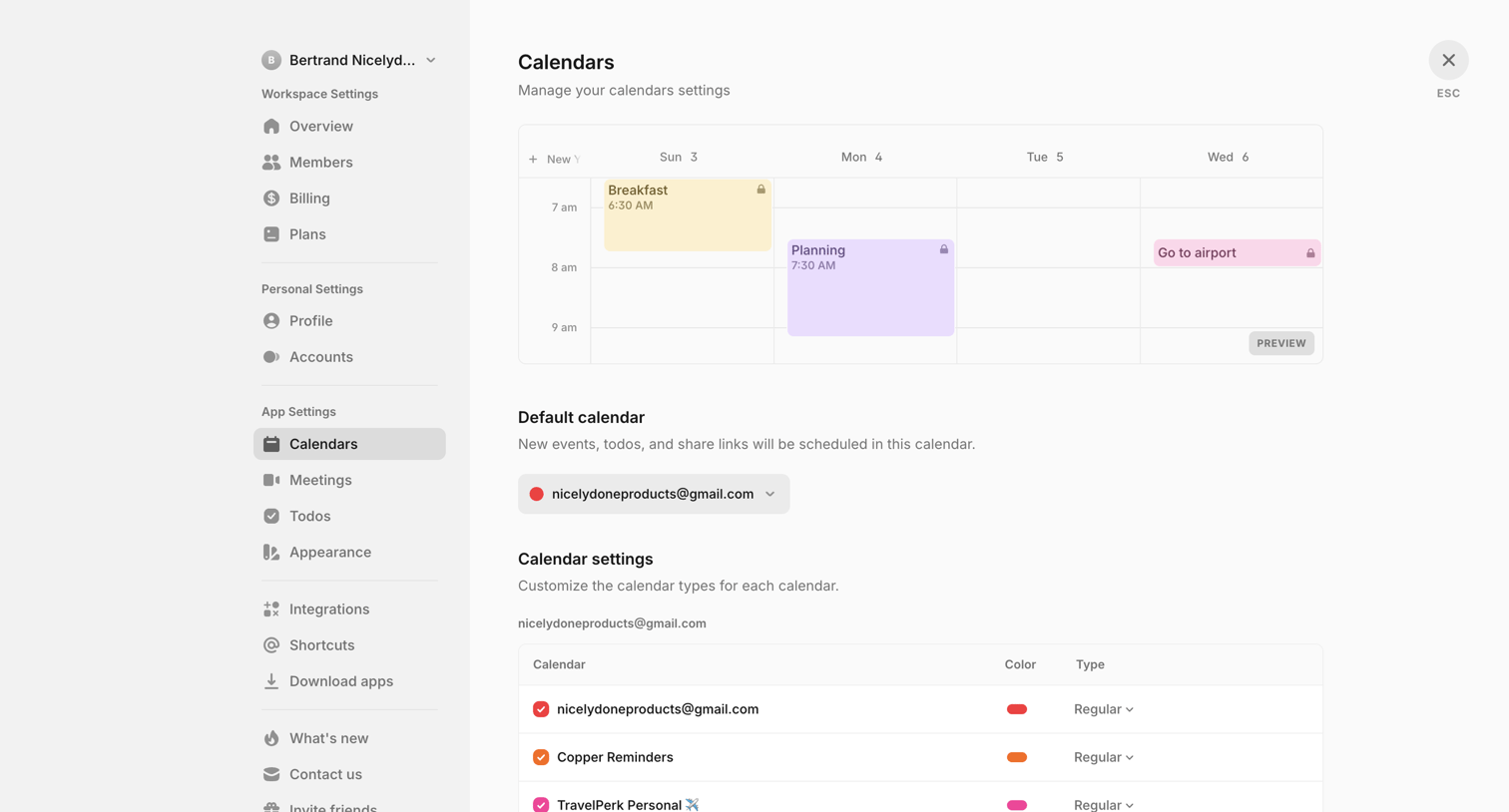

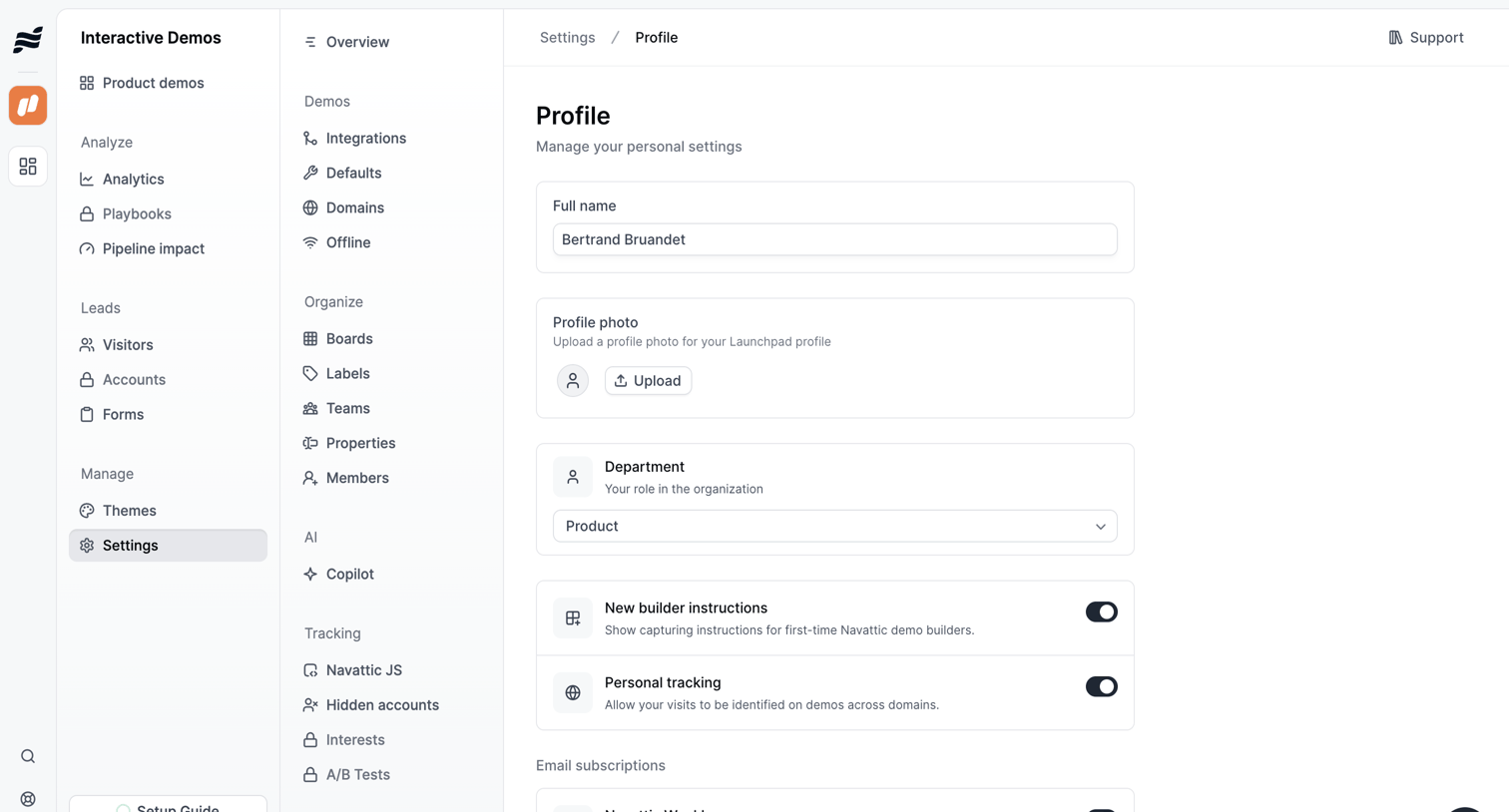

Settings page where the user updates their full name, profile photo, department, and preferences like email subscriptions.
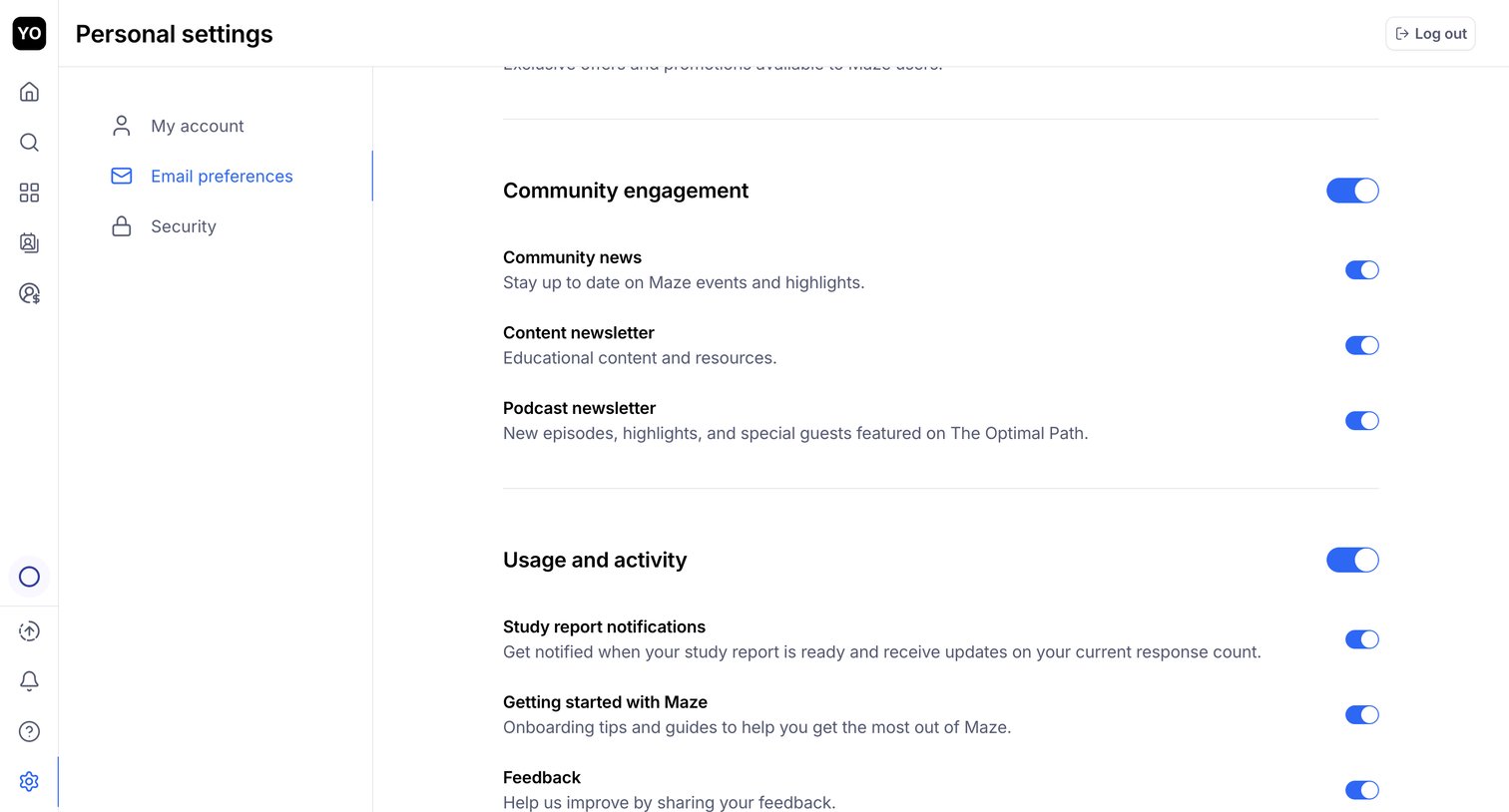

Settings page where the user configures their email preferences for community news, newsletters, and study report notifications via a list of toggles.
Explore the full SaaS screen library
Upgrade to unlock the full library.
Trusted by the best teams







