Pagination screen examples
Pagination screen design examples from SaaS apps. Browse examples from Polar, Dock, Voiceflow.
Explore the examples
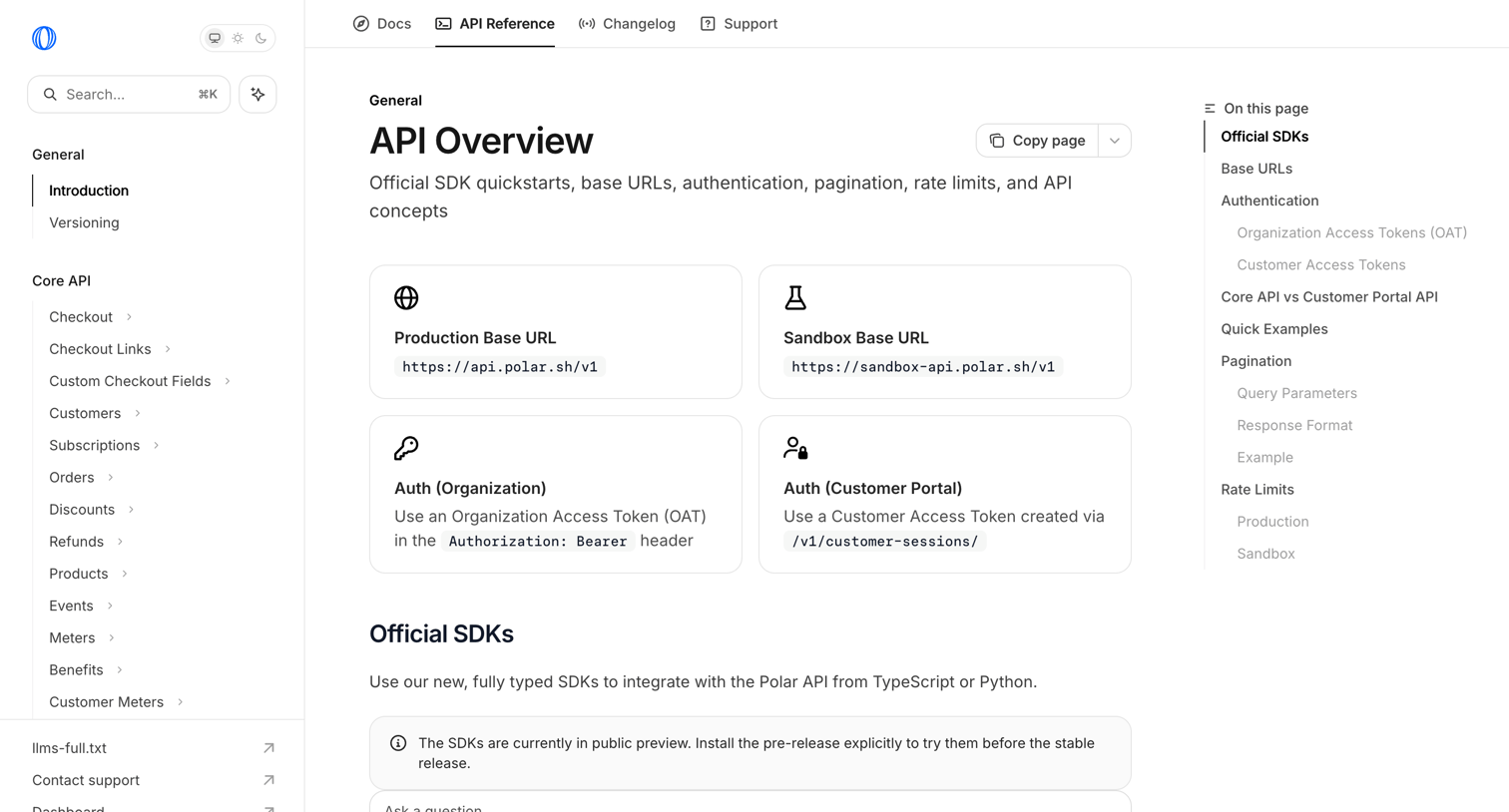

API reference overview page explaining base URLs, authentication, pagination, and rate limits for integrating with Polar.
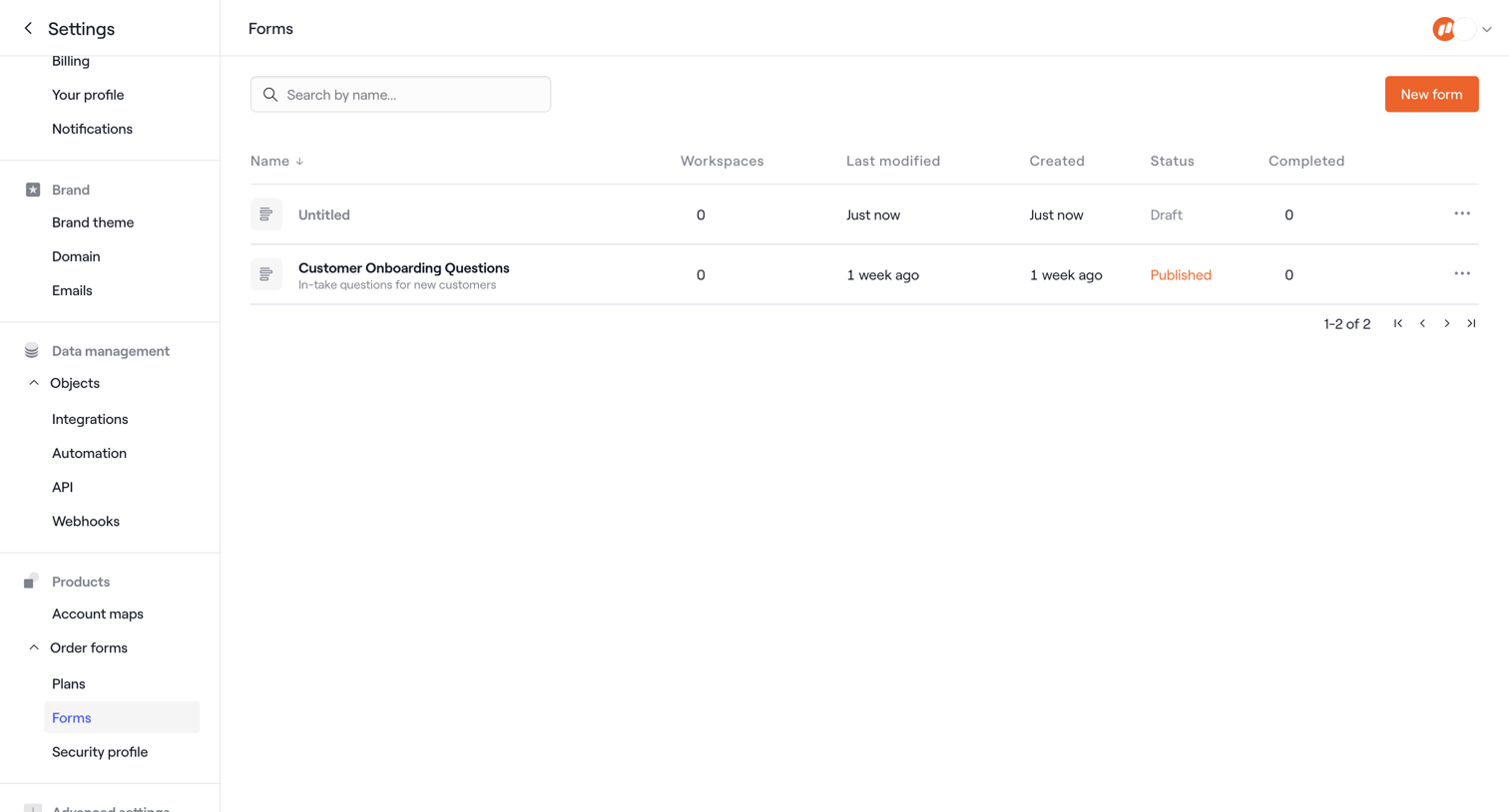

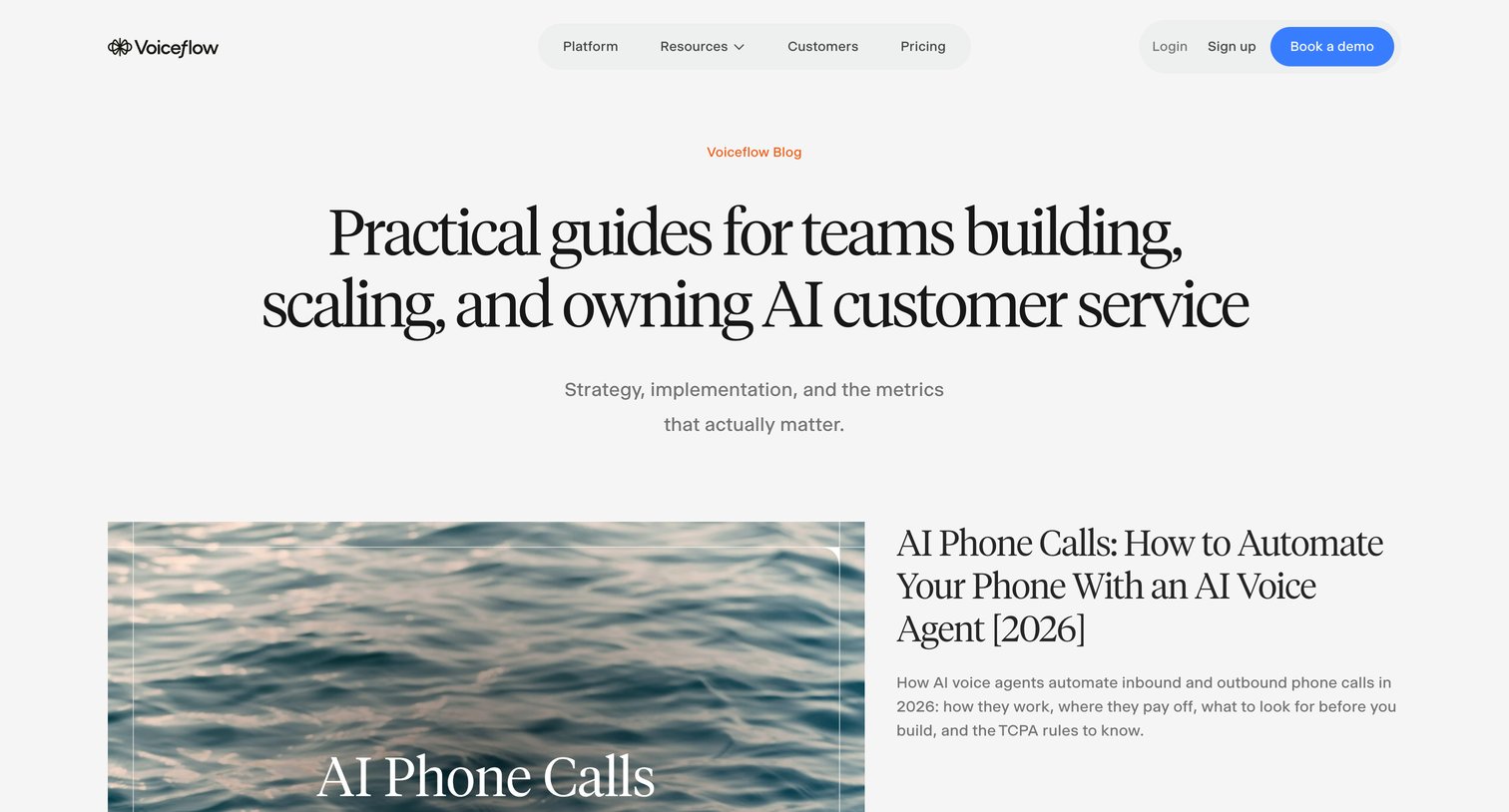

Blog index page featuring practical guides for teams building and scaling AI customer service agents, displaying a featured article alongside a paginated grid of recent posts.
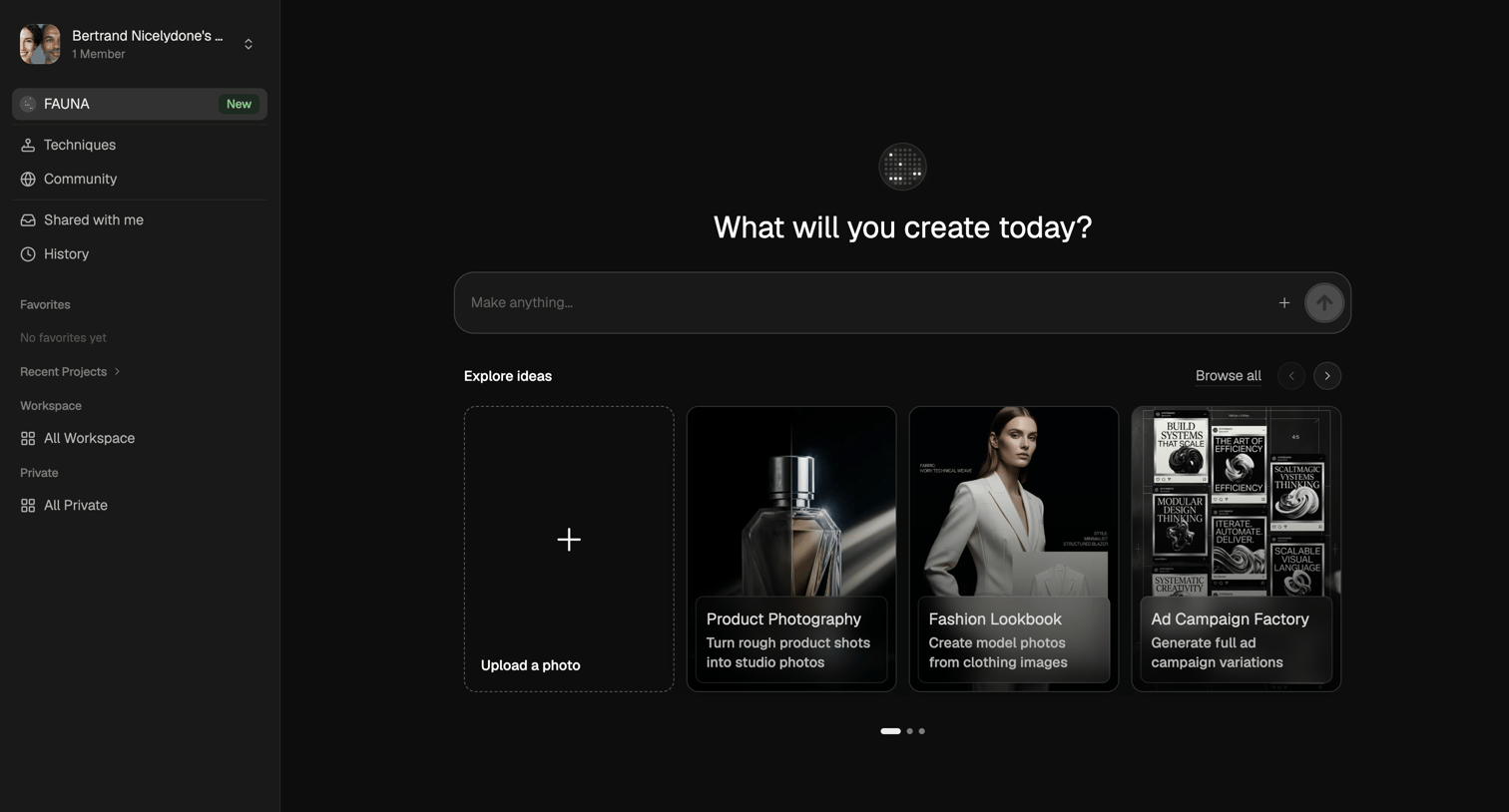

AI generation start screen where the user can enter a prompt to make anything or explore template ideas like product photography and fashion lookbooks.
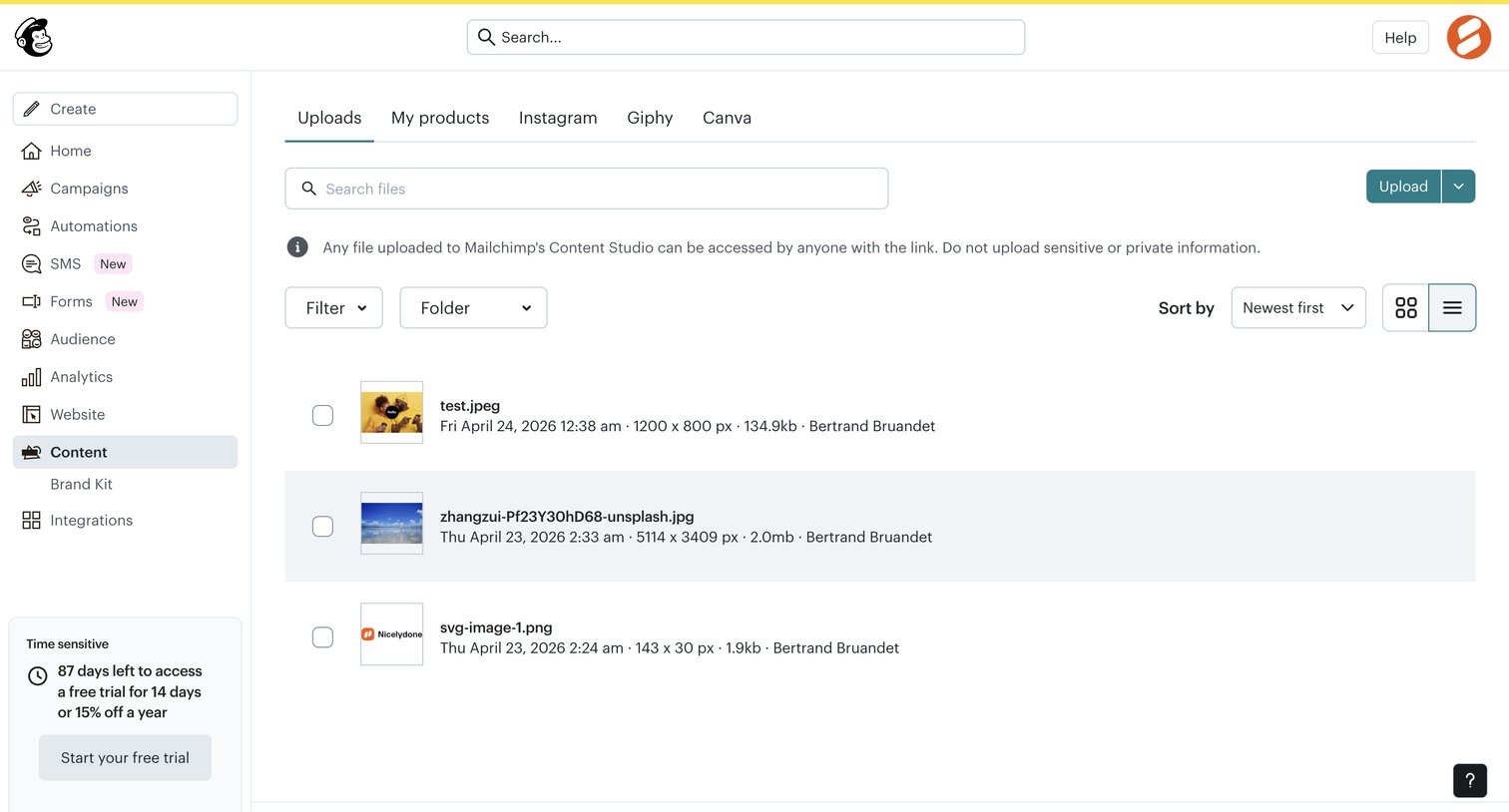

List view where the user manages uploaded files in their content studio, with options to search, filter by folder, and upload new assets.
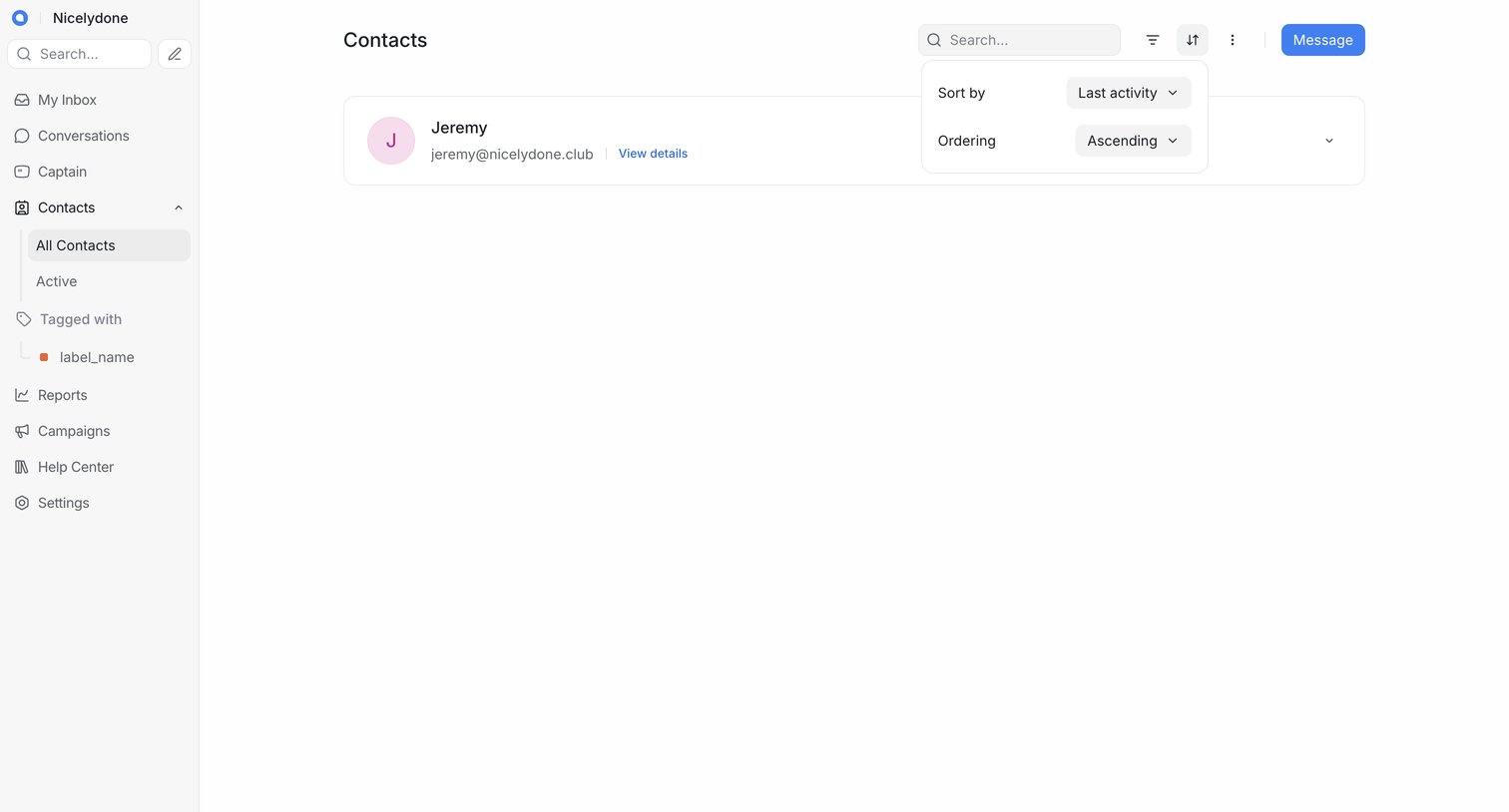

List view where the user searches and sorts their customer contacts by activity.
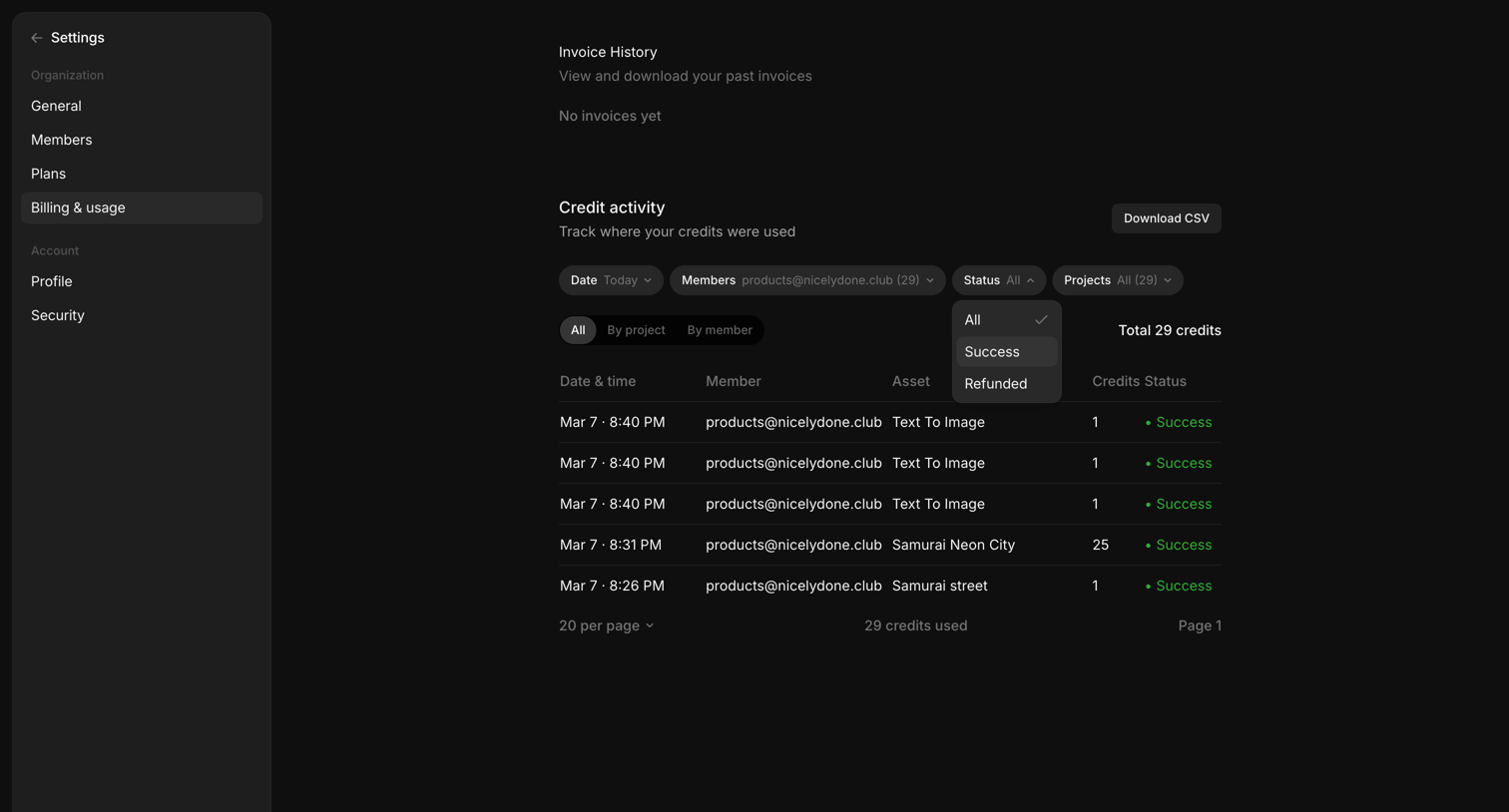

Settings page where the user views their invoice history and tracks credit activity across members and projects via a filterable data table.
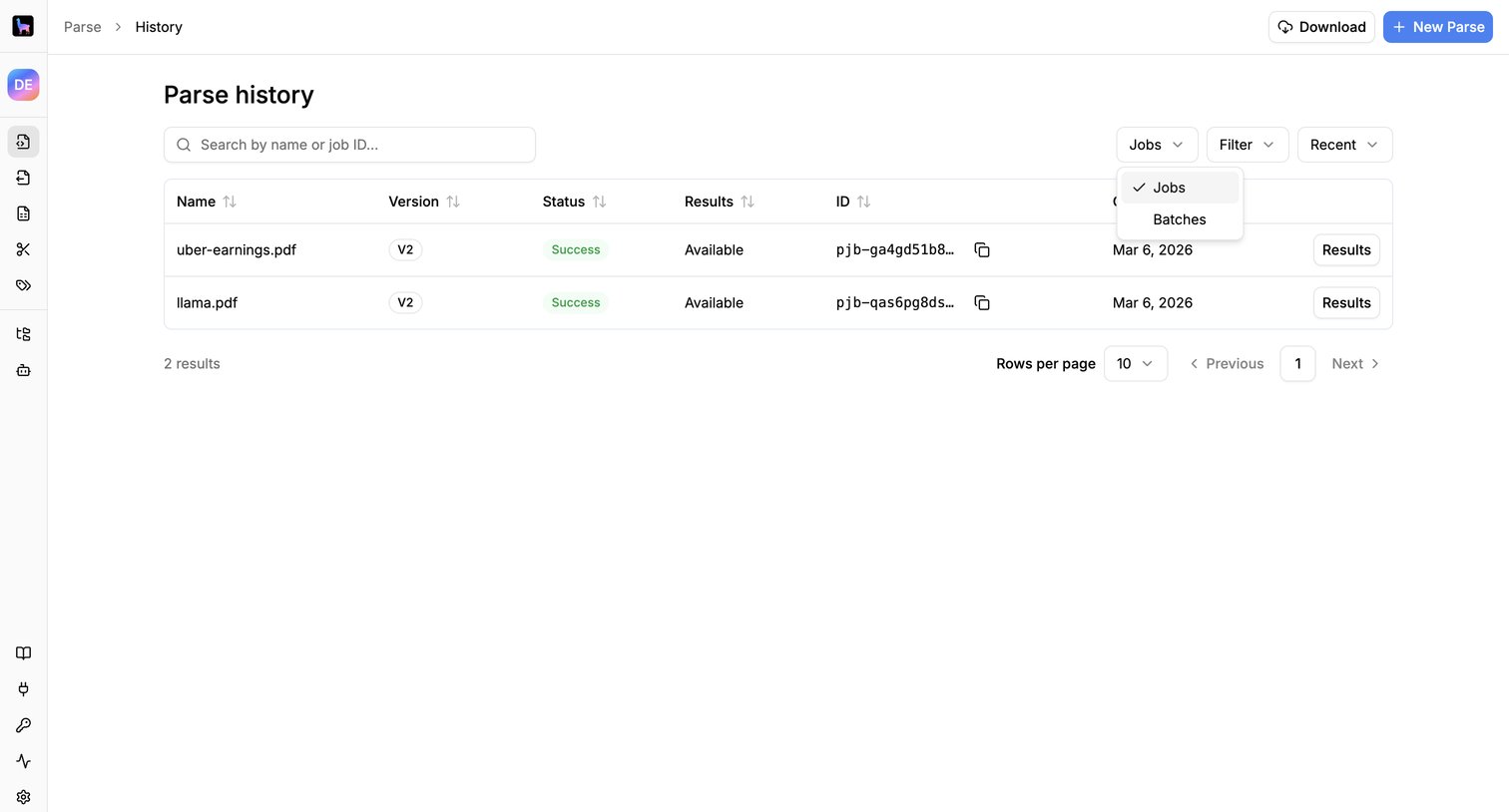

List view showing the history of document parsing jobs with search, filtering, and pagination.
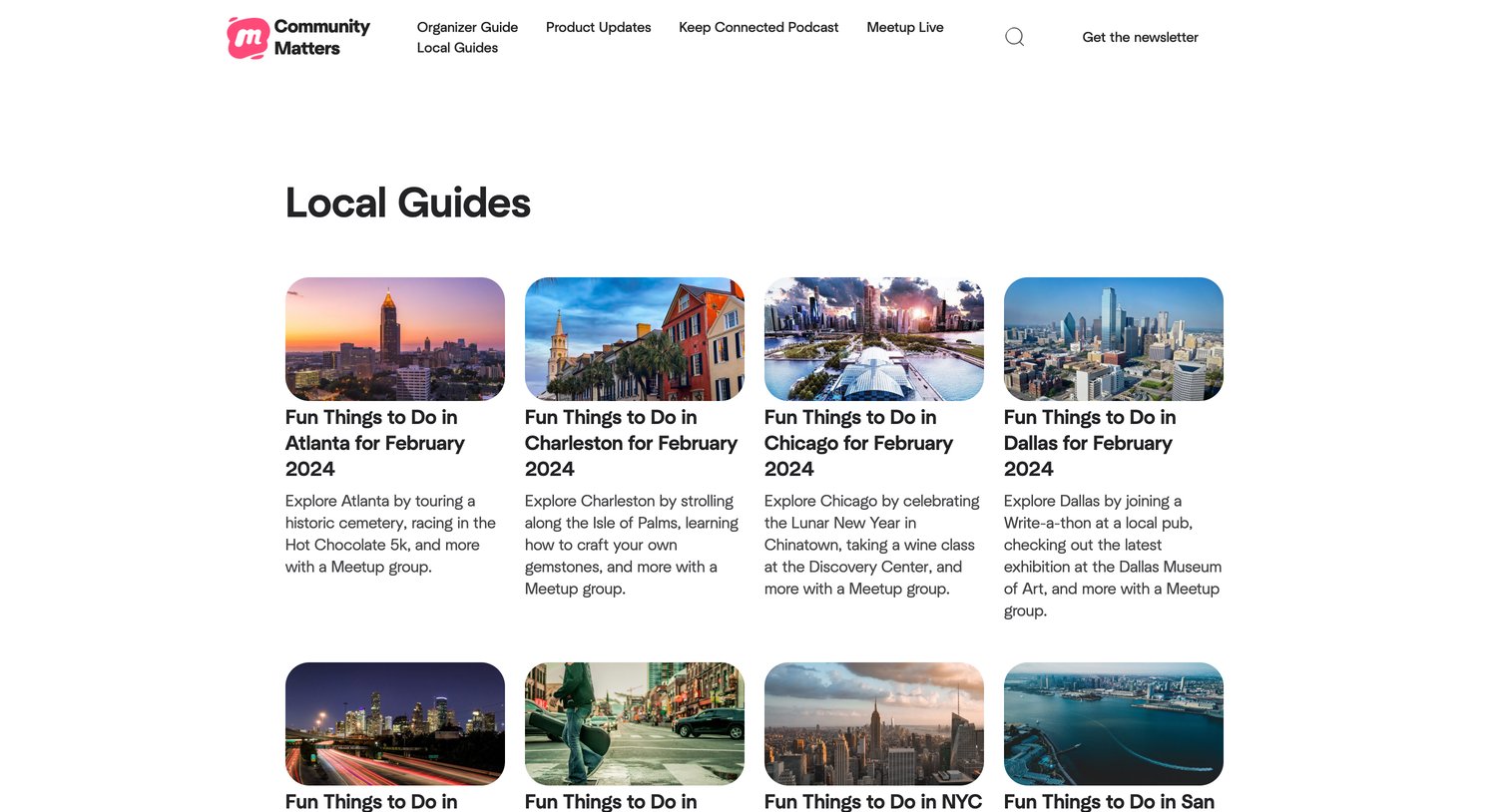

Blog category index page displaying a four-column grid of local guide articles for various cities, complete with bottom pagination.
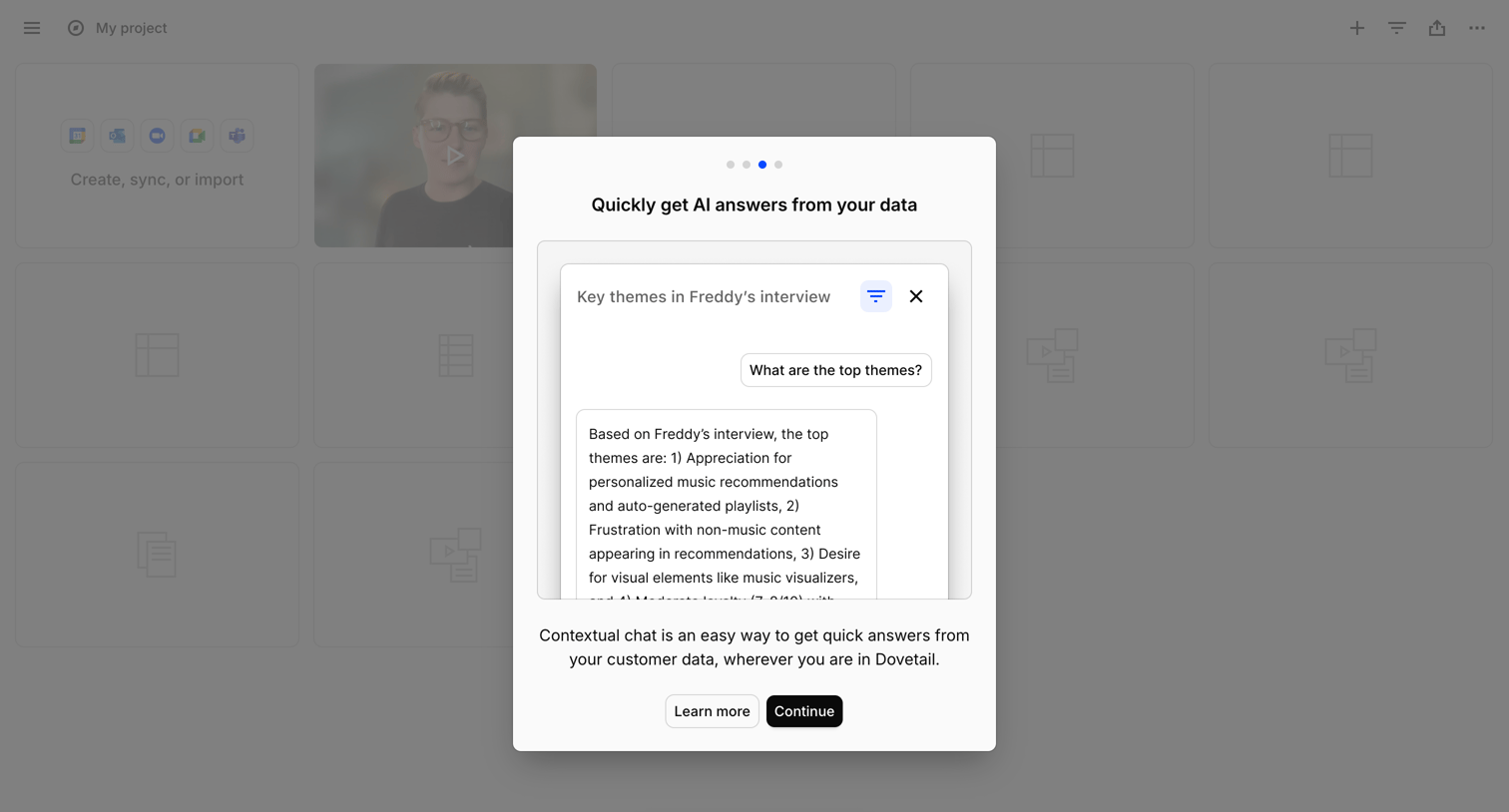

Project list view where a modal introduces a new contextual AI chat feature, alongside a floating AI trigger button at the bottom of the screen.

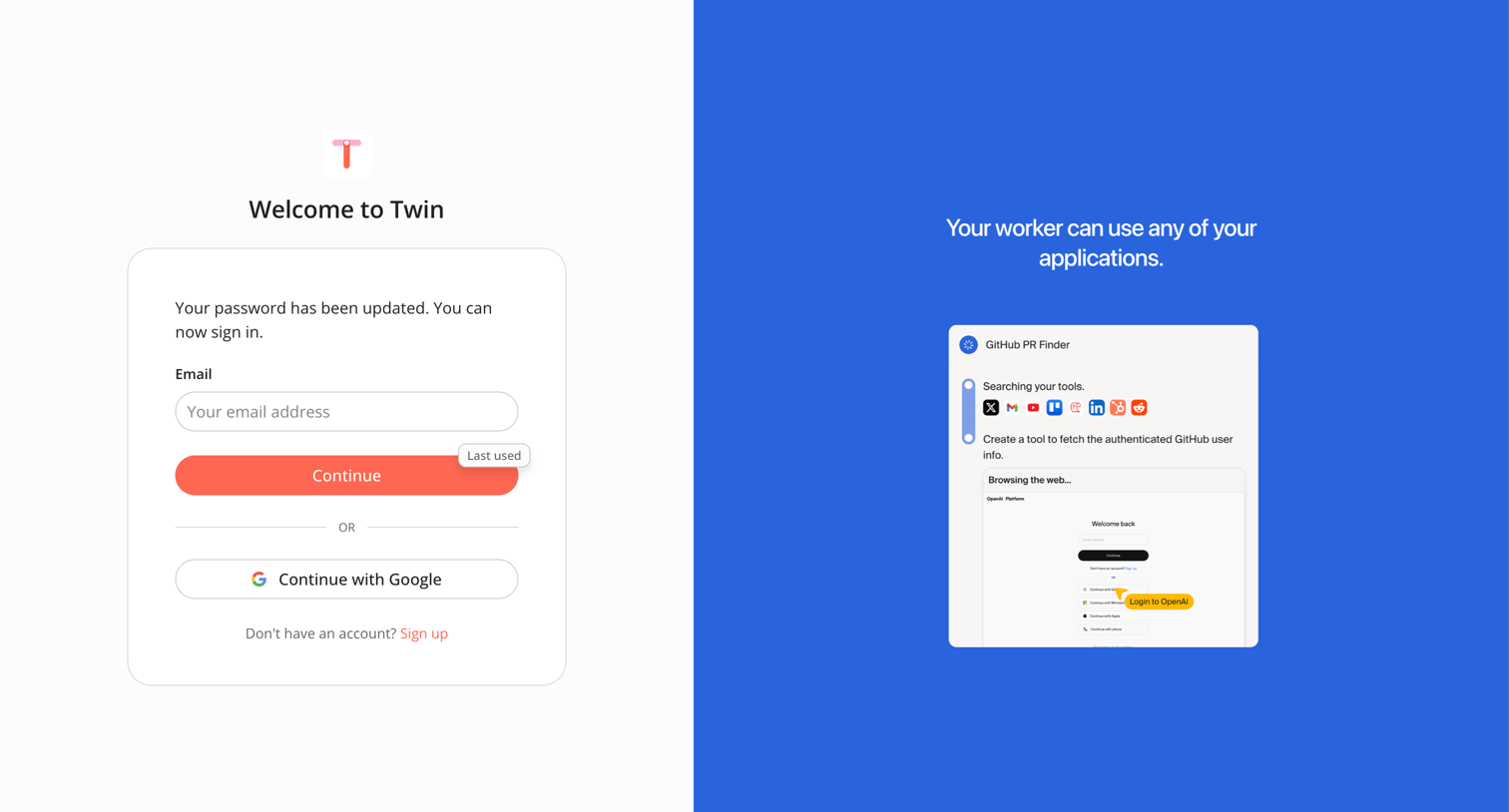

Sign-in screen where the user is prompted to authenticate with email or Google after successfully updating their password, featuring a product capability carousel on the right.
Explore the full SaaS screen library
Upgrade to unlock the full library.
Trusted by the best teams







