Mfa screen examples
Mfa screen design examples from SaaS apps. Browse examples from Okta, Typeform, Grammarly.
Explore the examples
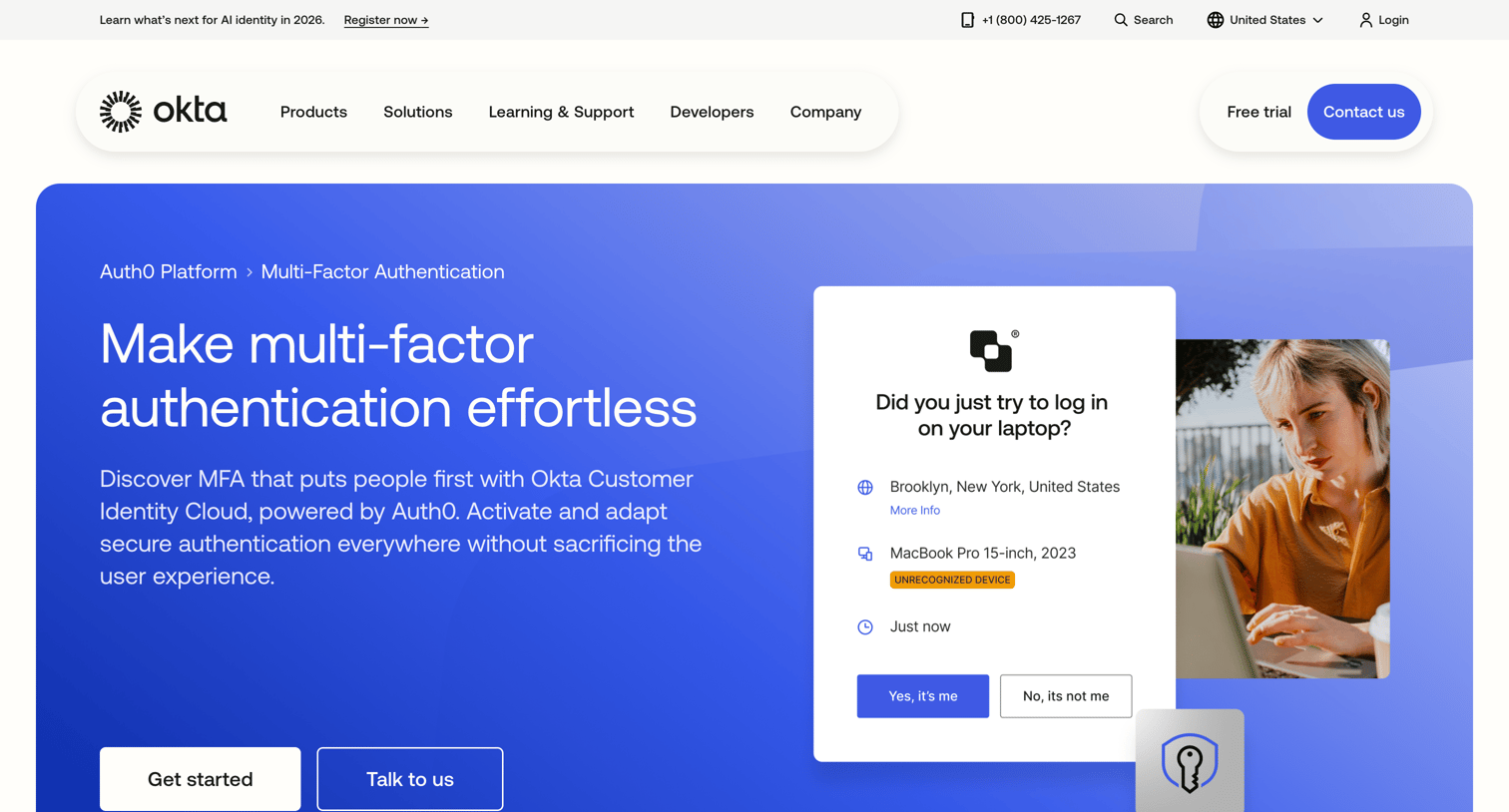

Feature page detailing Okta's Multi-Factor Authentication capabilities, highlighting WebAuthn and push notifications alongside UI mockups.
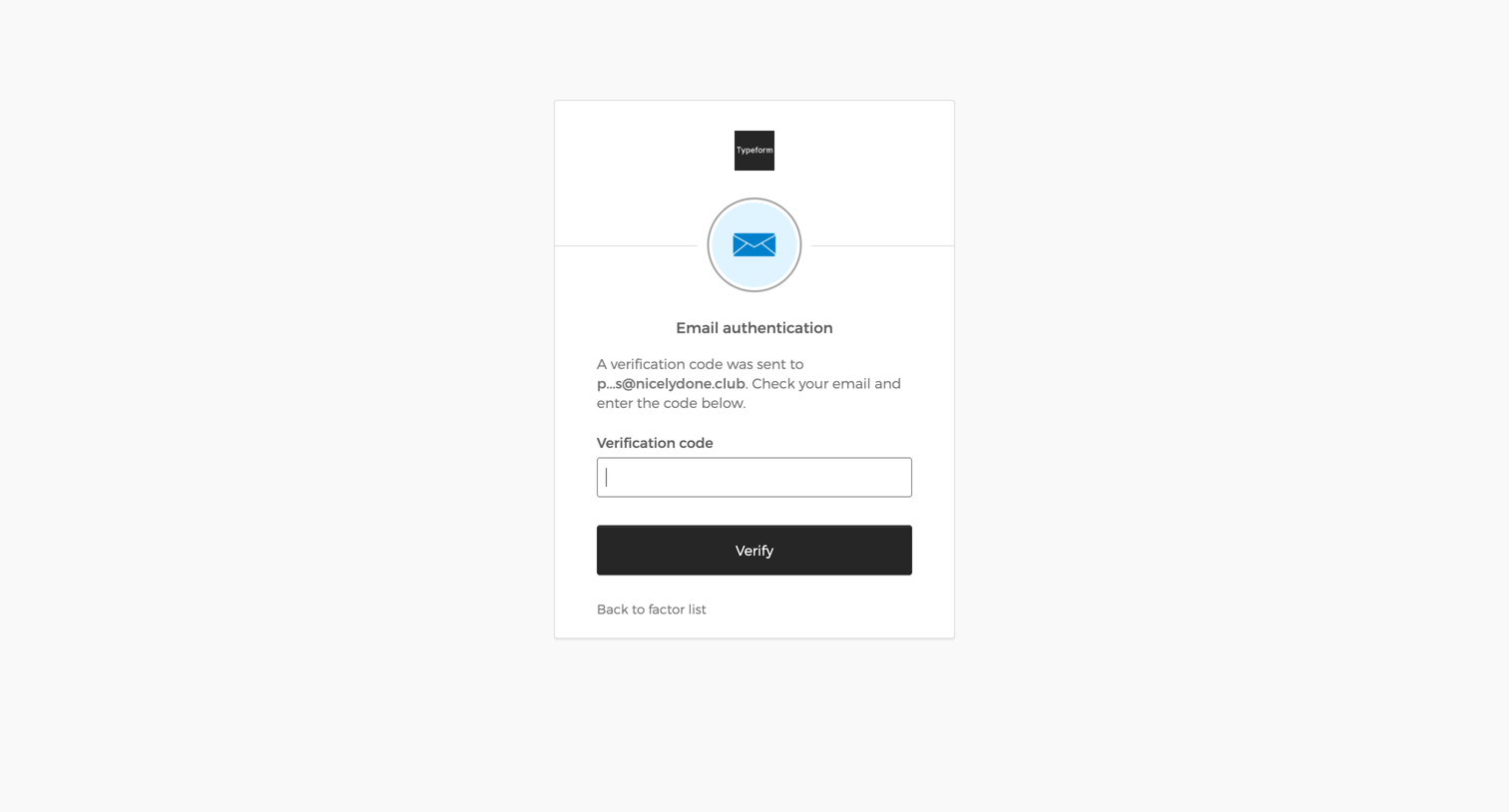
Verification screen where the user enters a code sent to their email to authenticate.
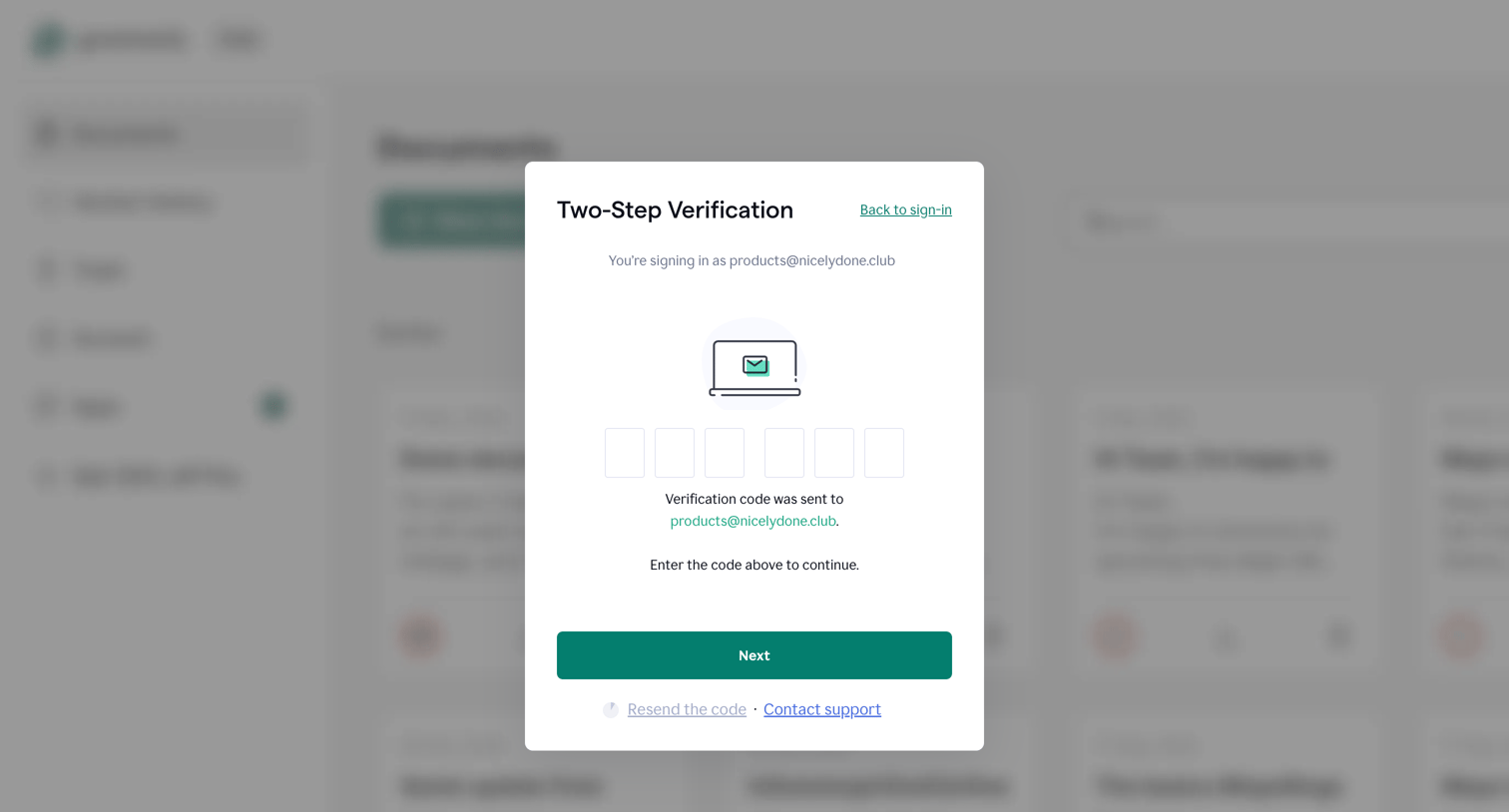

Verification screen where the user enters a 6-digit code sent to their email to complete the two-step sign-in process.
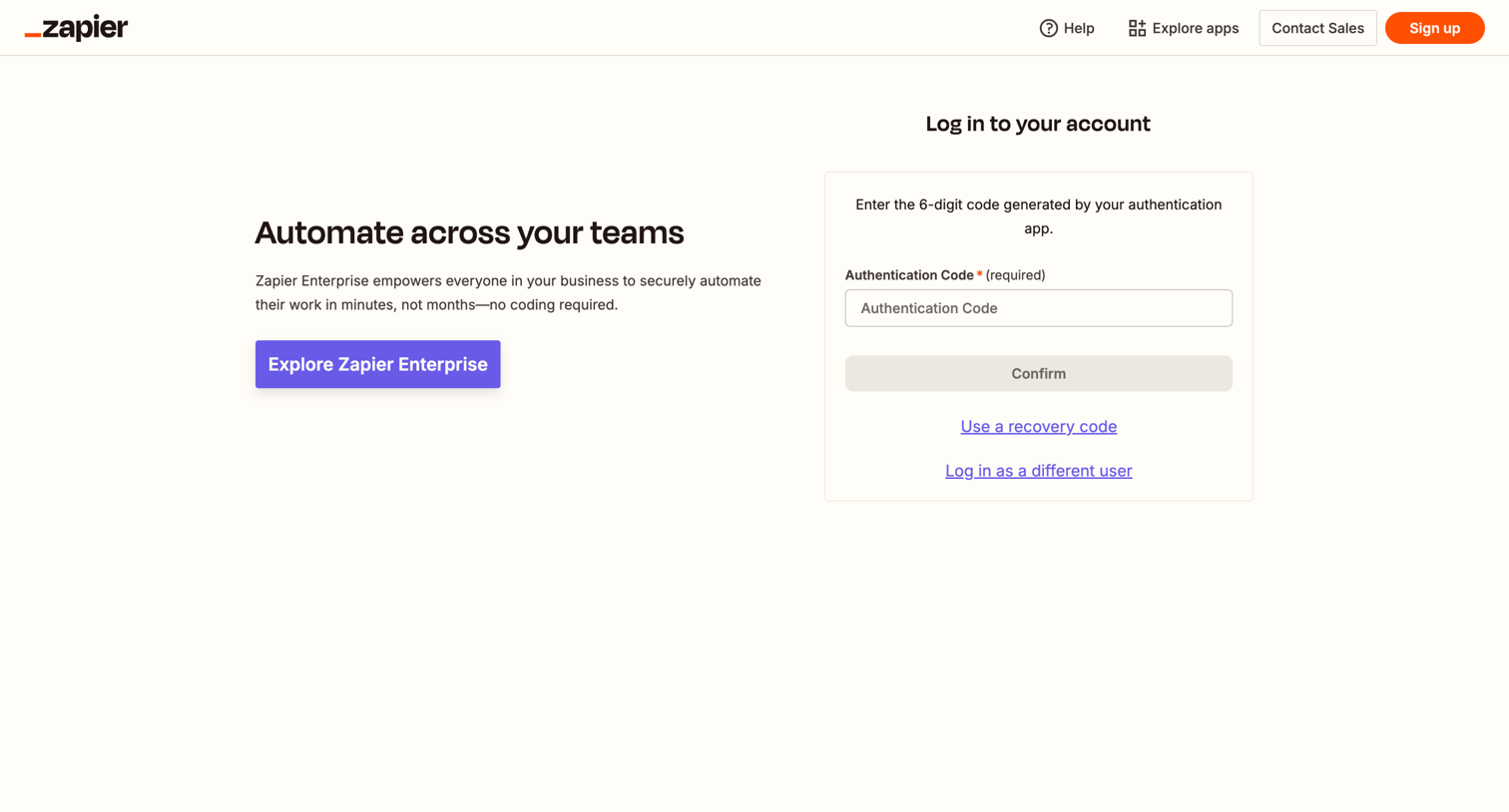

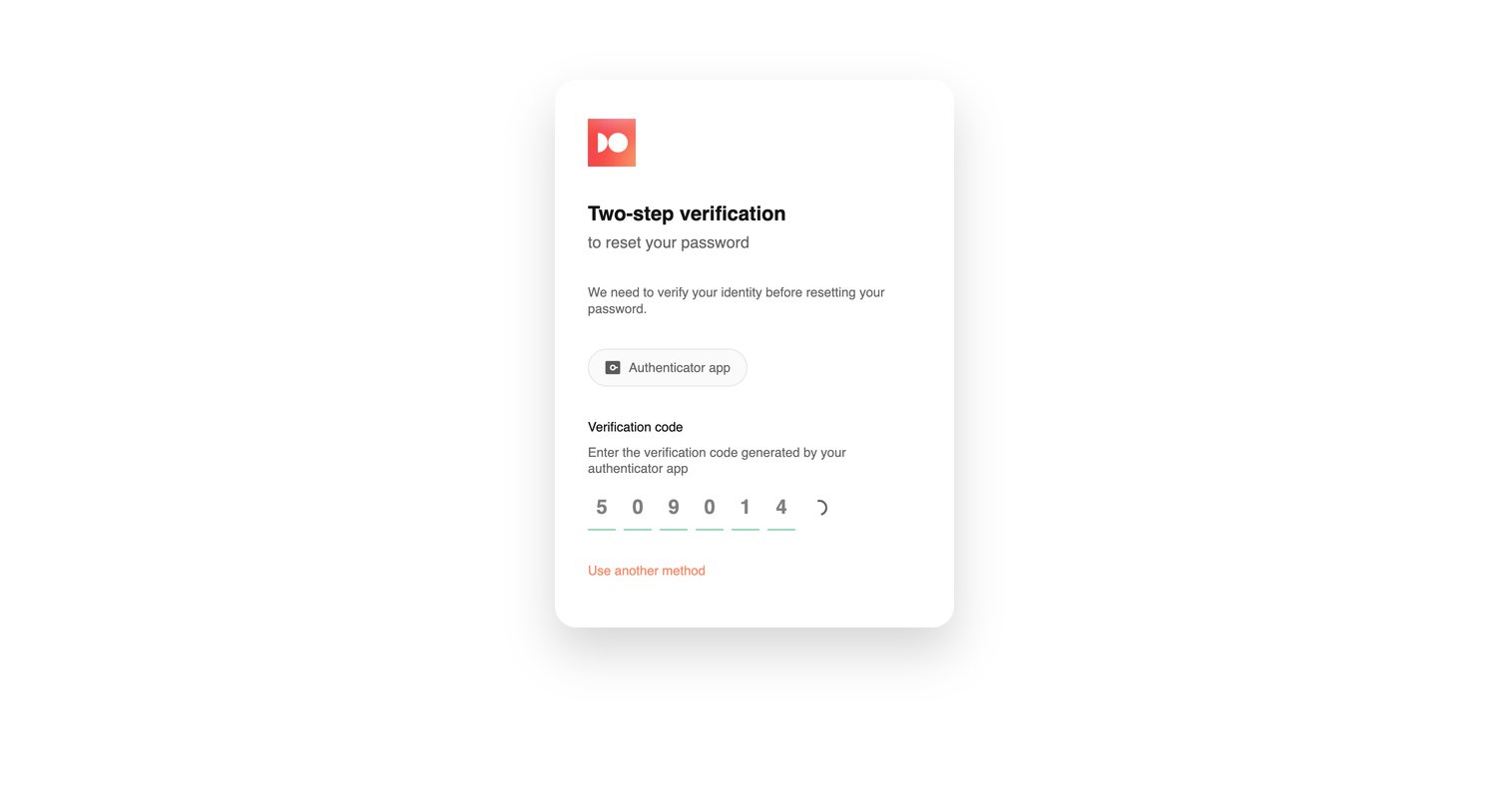

Verification screen where the user enters a 6-digit authenticator app code to proceed with resetting their password.
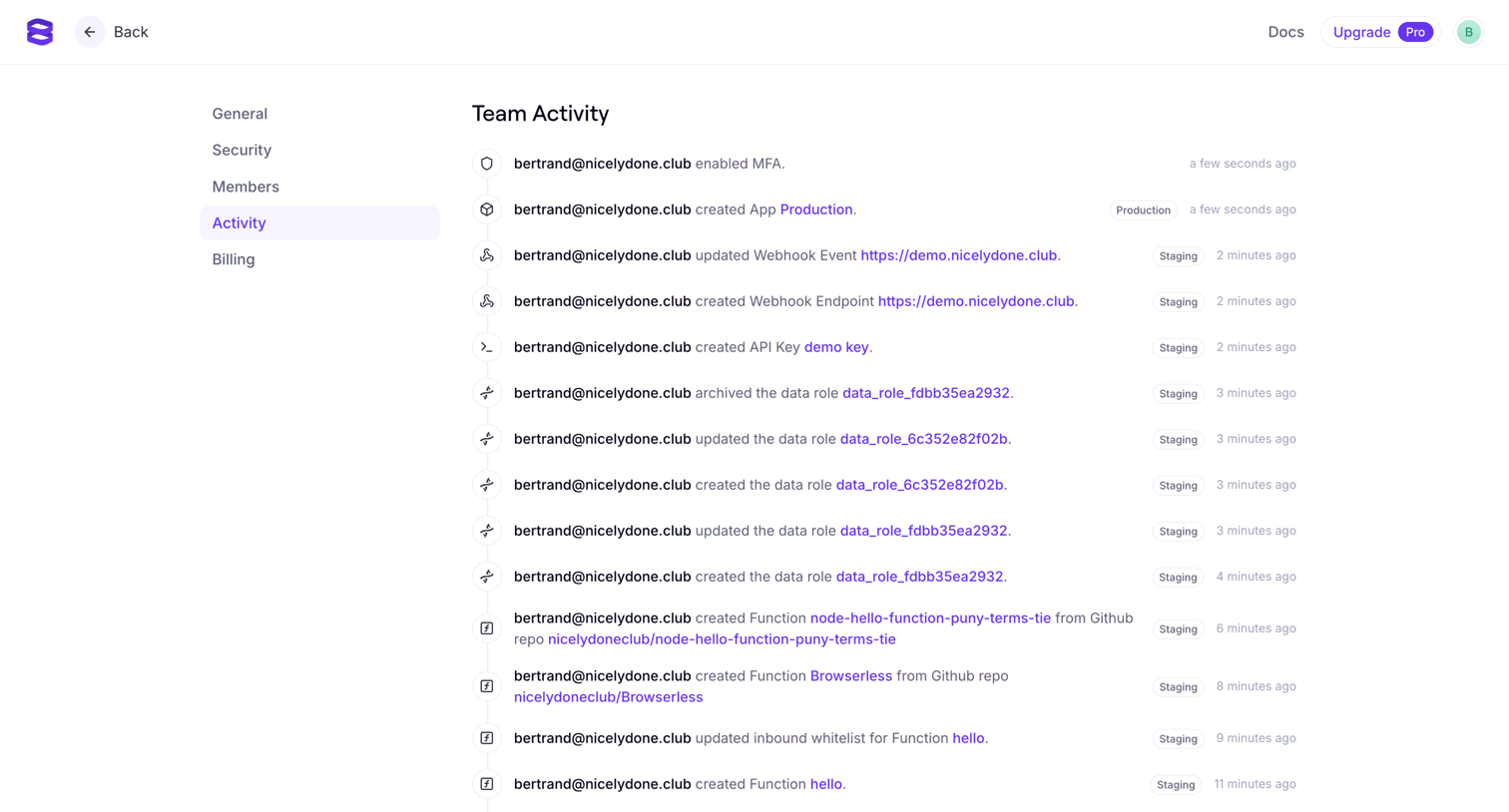

Settings page where the user views a chronological audit log of team activity, including MFA enablement, app creation, and webhook updates.
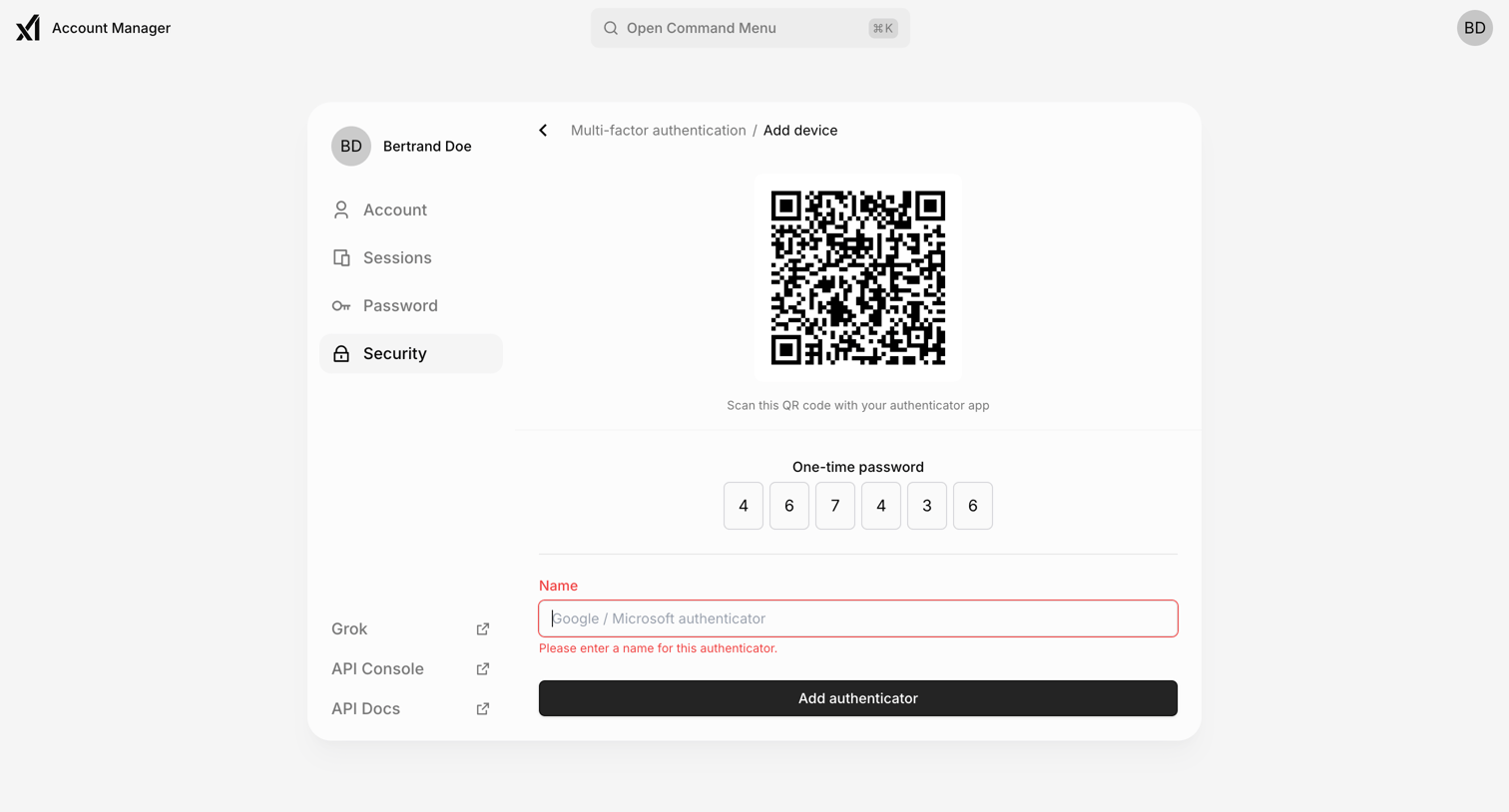

Security settings screen where the user sets up a new multi-factor authentication device by scanning a QR code and entering a one-time password, showing a validation error on the name field.
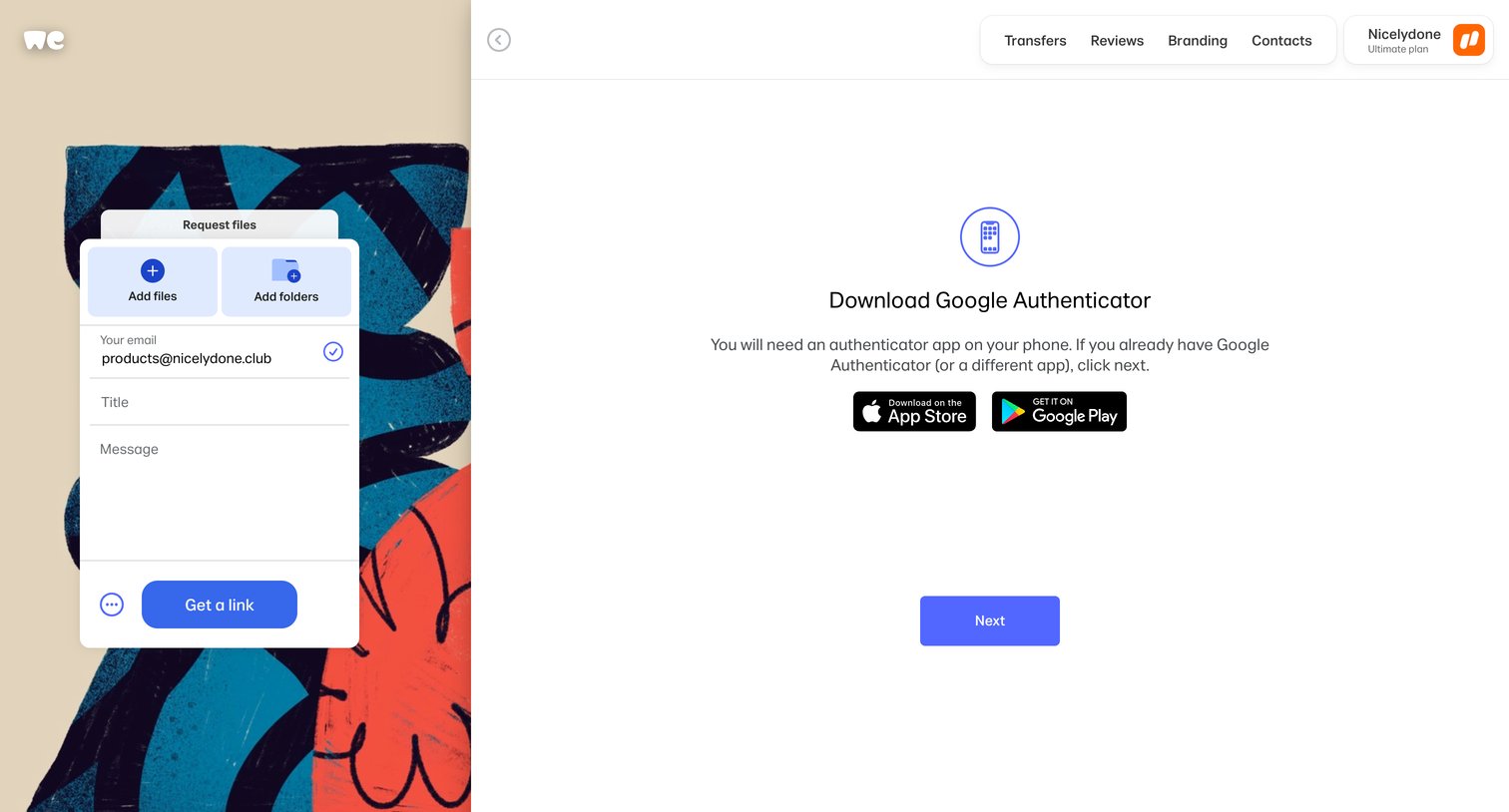

Verification screen where the user is instructed to download an authenticator app like Google Authenticator before proceeding to the next step of MFA setup.
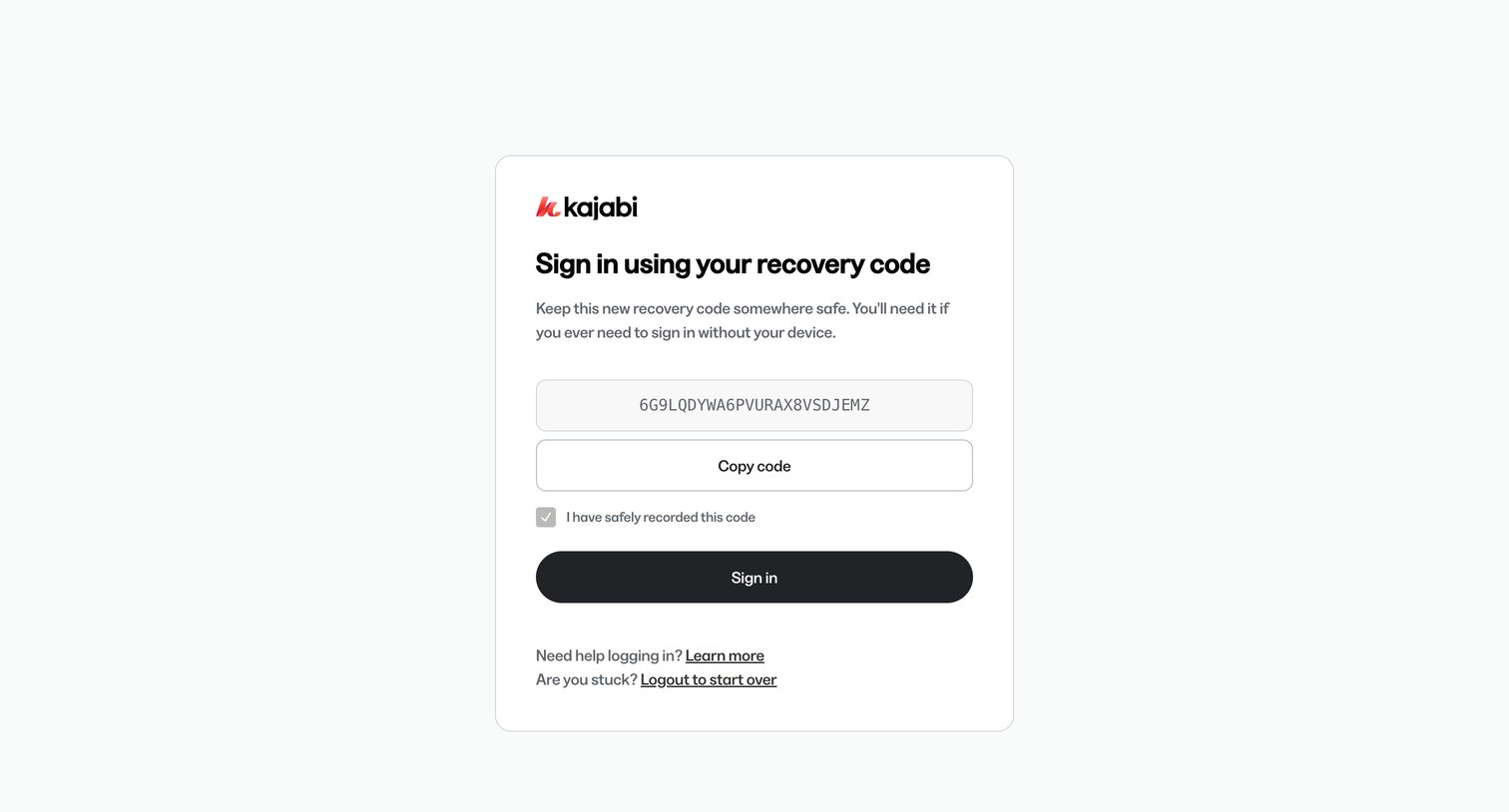

Verification screen where the user is prompted to copy and safely record a new multi-factor authentication recovery code before completing sign-in.
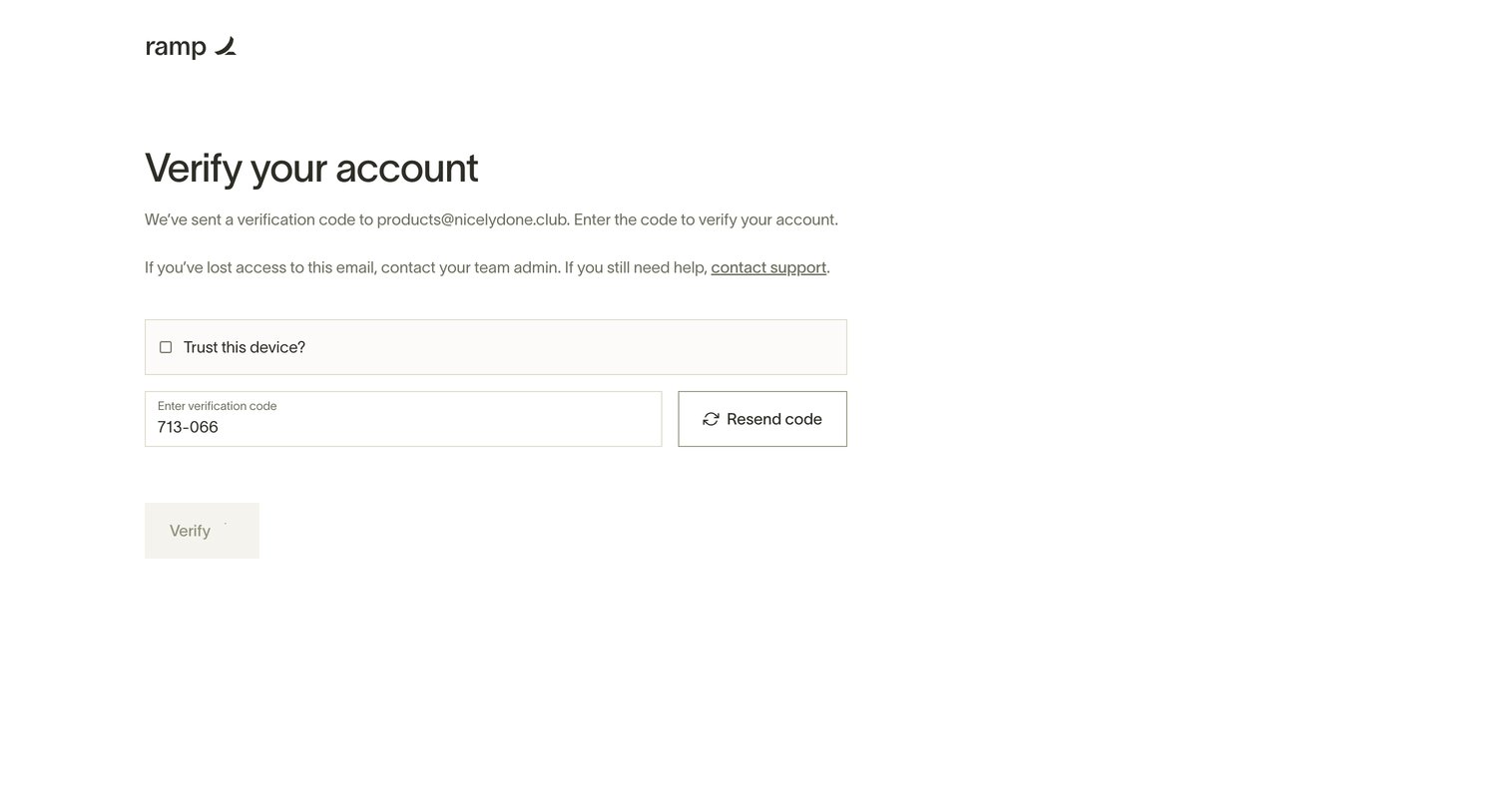

Verification screen where the user enters a code sent to their email to authenticate their account, with an option to trust the current device.
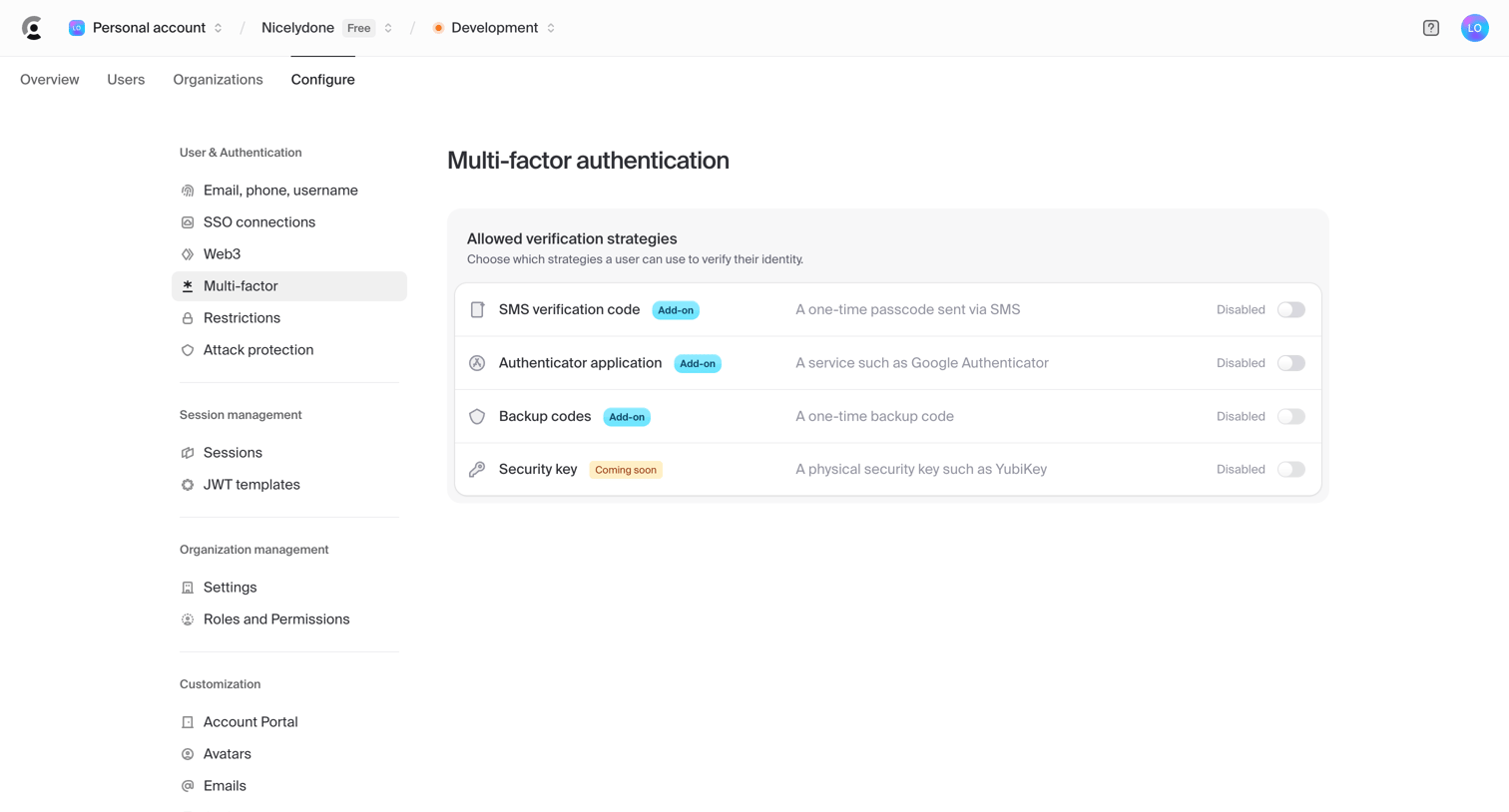

Settings page where the user configures allowed multi-factor authentication strategies like SMS, authenticator apps, backup codes, and security keys.
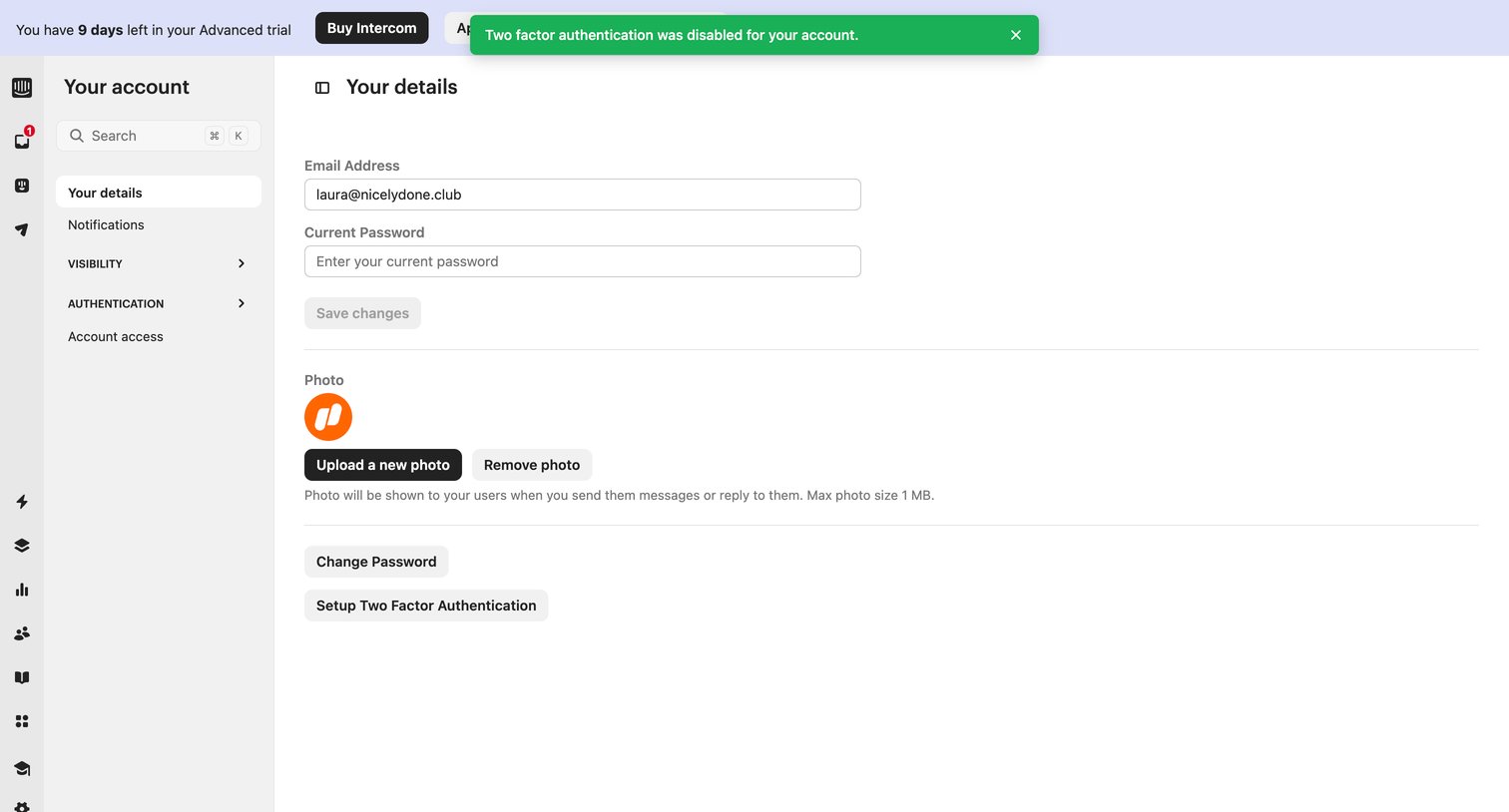

Settings page where the user manages their email, password, profile photo, and two-factor authentication.
Explore the full SaaS screen library
Upgrade to unlock the full library.
Trusted by the best teams







