Notion Mail product screens examples
Browse Notion Mail screen design examples. Preview the interface screenshots and explore related UI patterns. The inbox that thinks like you
Explore the examples
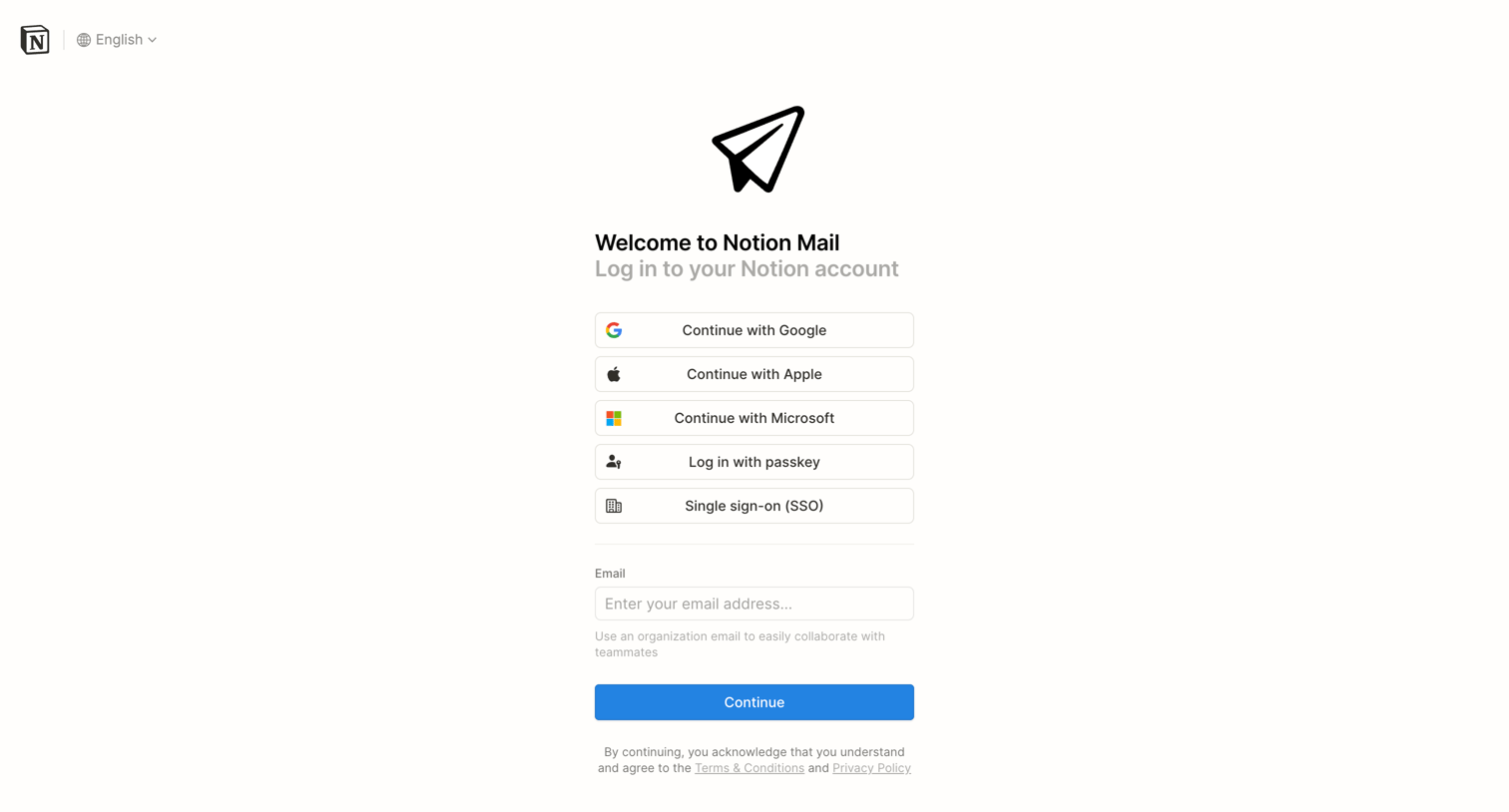

Sign-in screen where the user authenticates to Notion Mail using Google, Apple, Microsoft, a passkey, SSO, or email.
Onboarding screen where the application is getting set up, featuring a centered loading spinner and a floating cookie consent banner at the bottom.
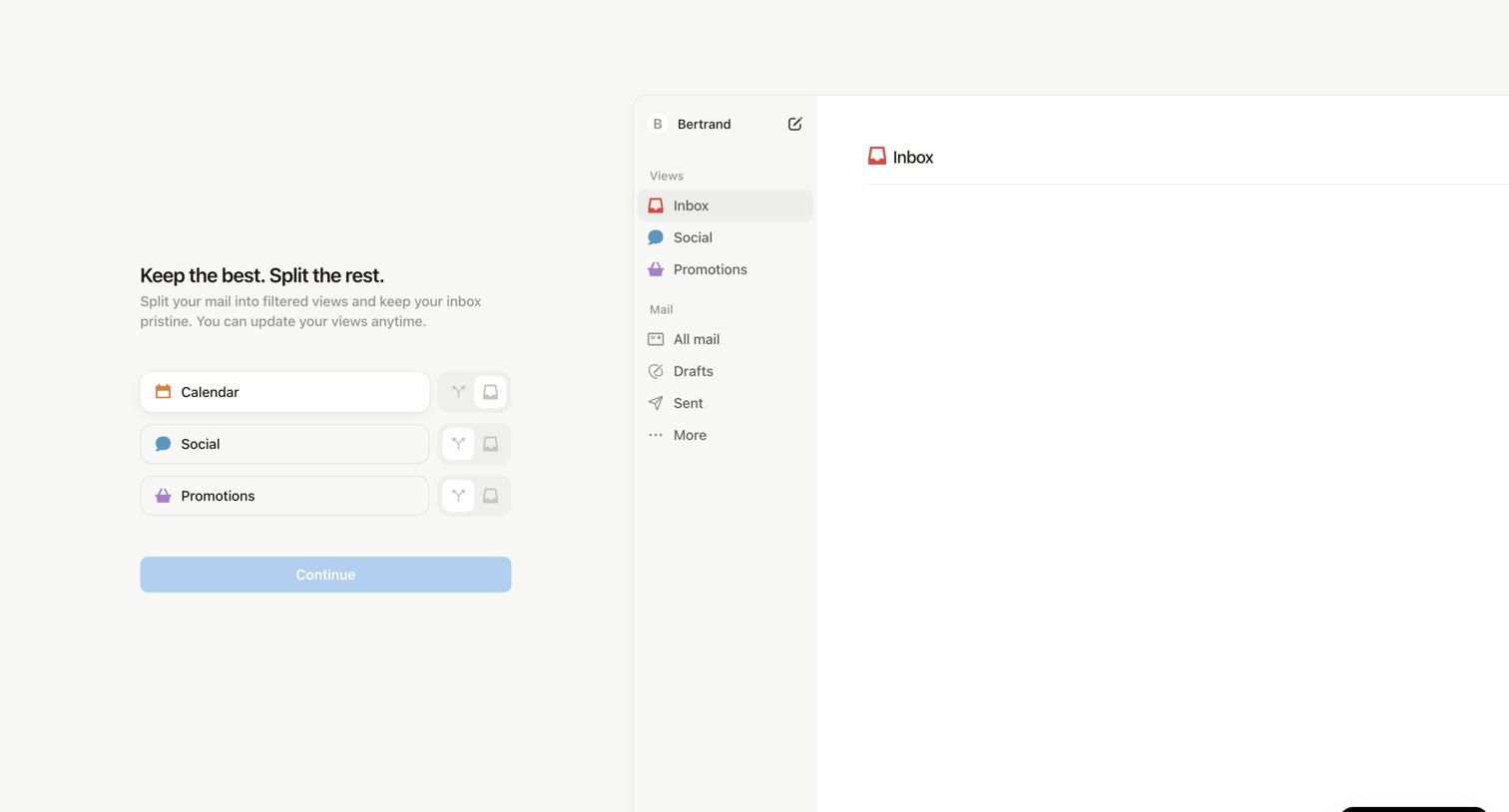
Onboarding step where the user configures filtered inbox views like Calendar, Social, and Promotions before entering the app.
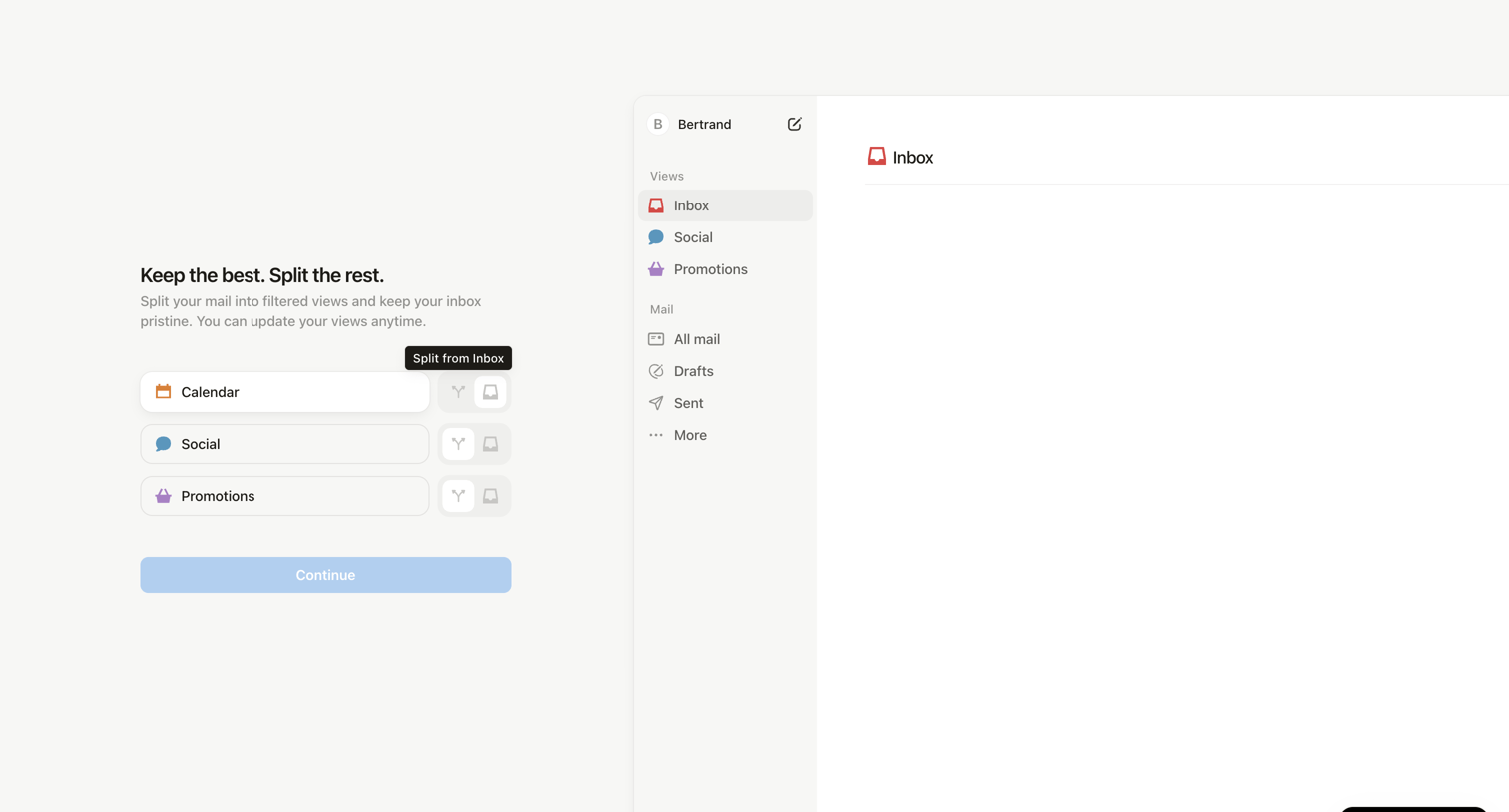
Onboarding step where the user configures filtered views for their inbox like Calendar, Social, and Promotions.
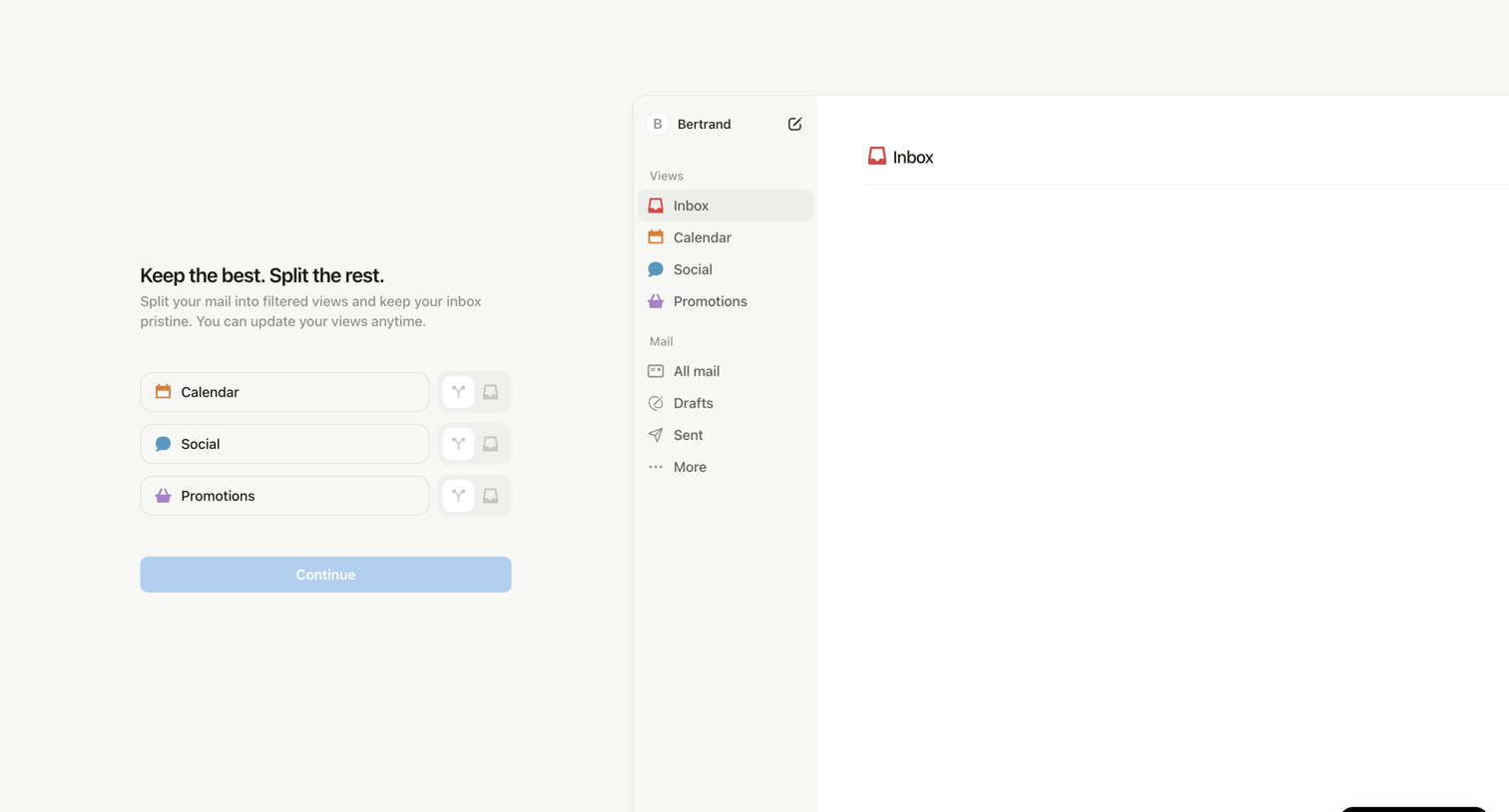
Onboarding step where the user configures filtered inbox views like Calendar, Social, and Promotions before continuing to the app.
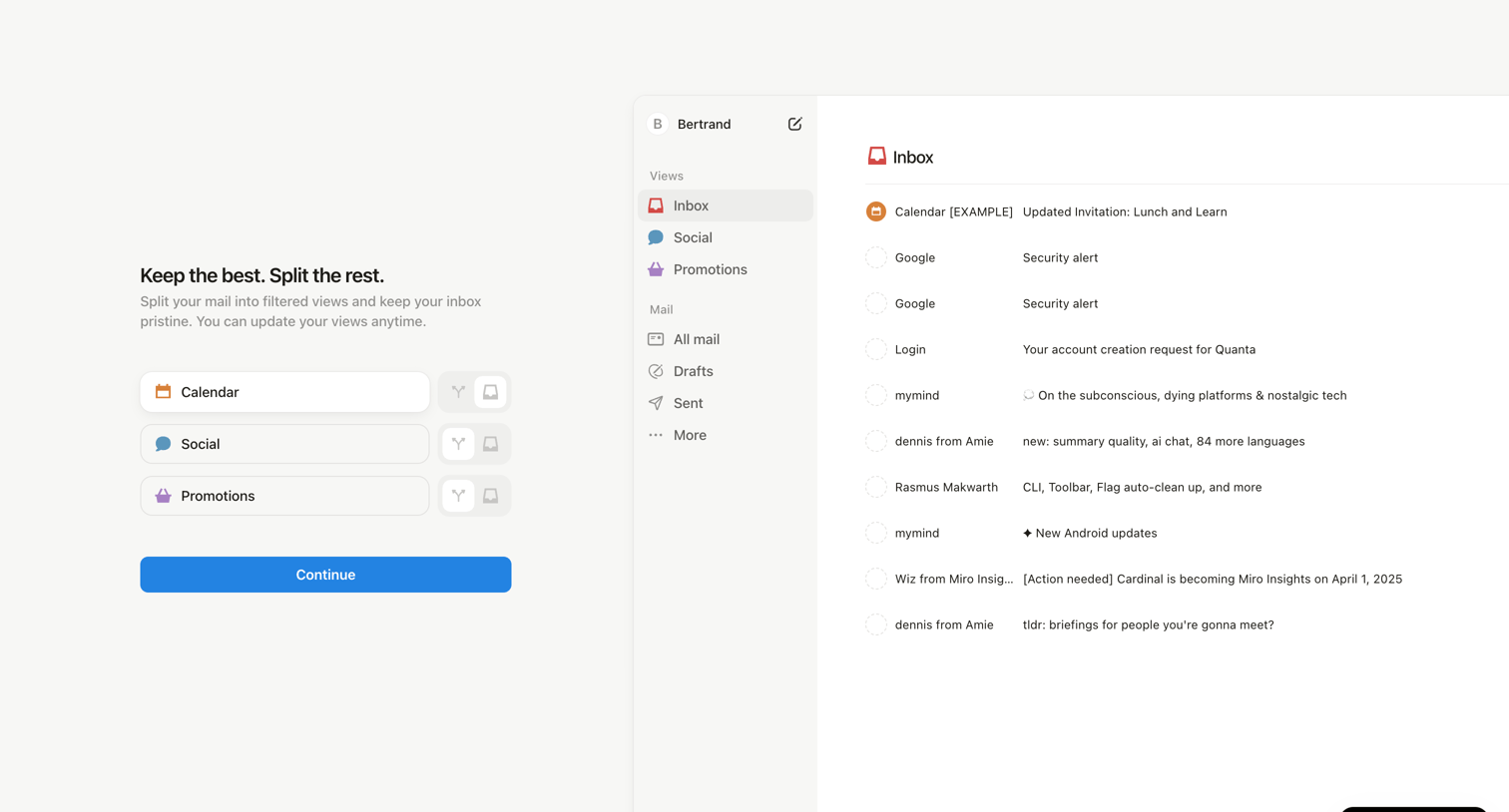
Onboarding step where the user configures their inbox by splitting mail into filtered views like Calendar, Social, and Promotions, alongside a live preview of the resulting interface.
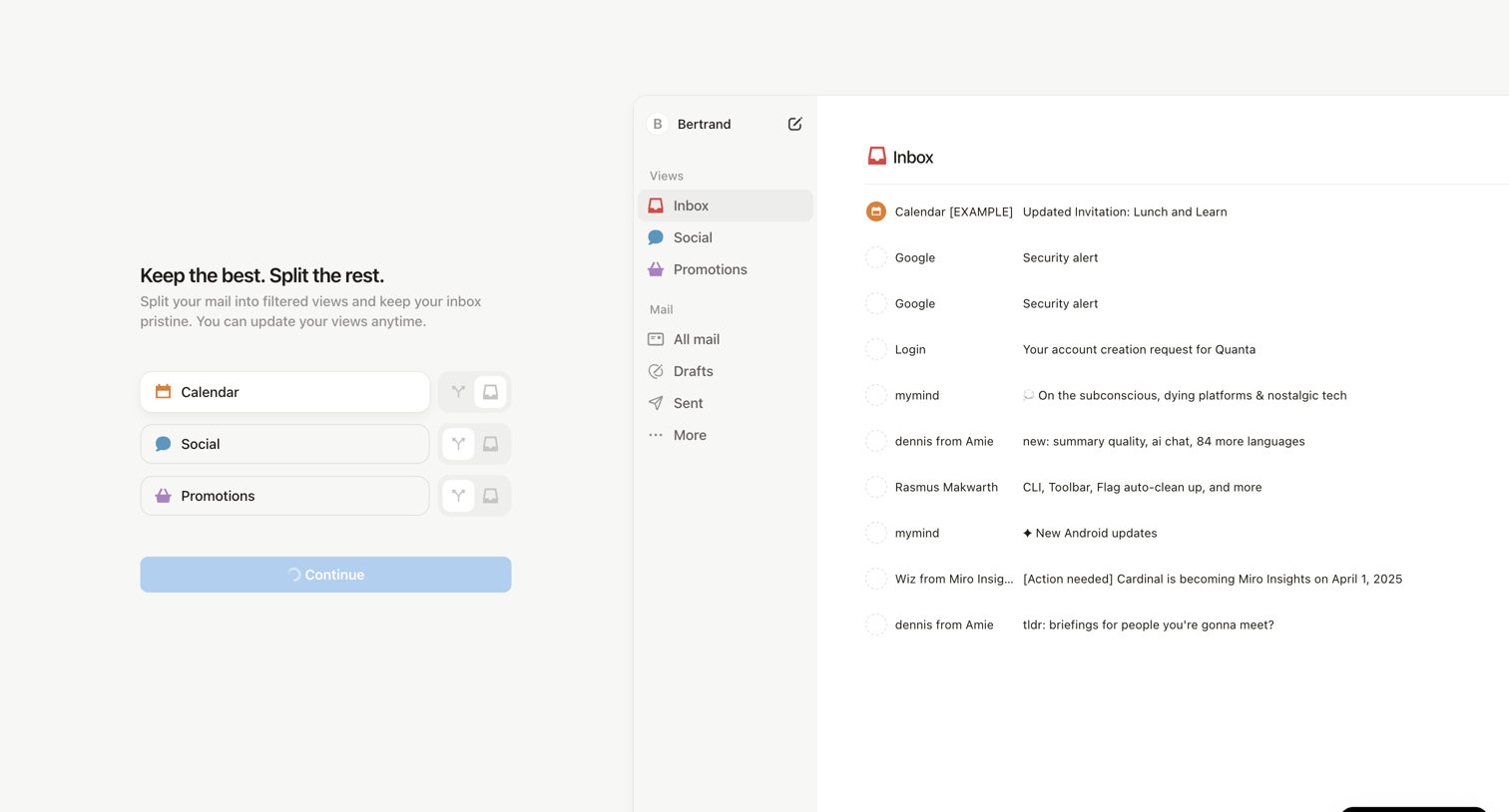
Onboarding step where the user configures filtered views like Calendar, Social, and Promotions for their new email inbox, while a loading state processes the setup.
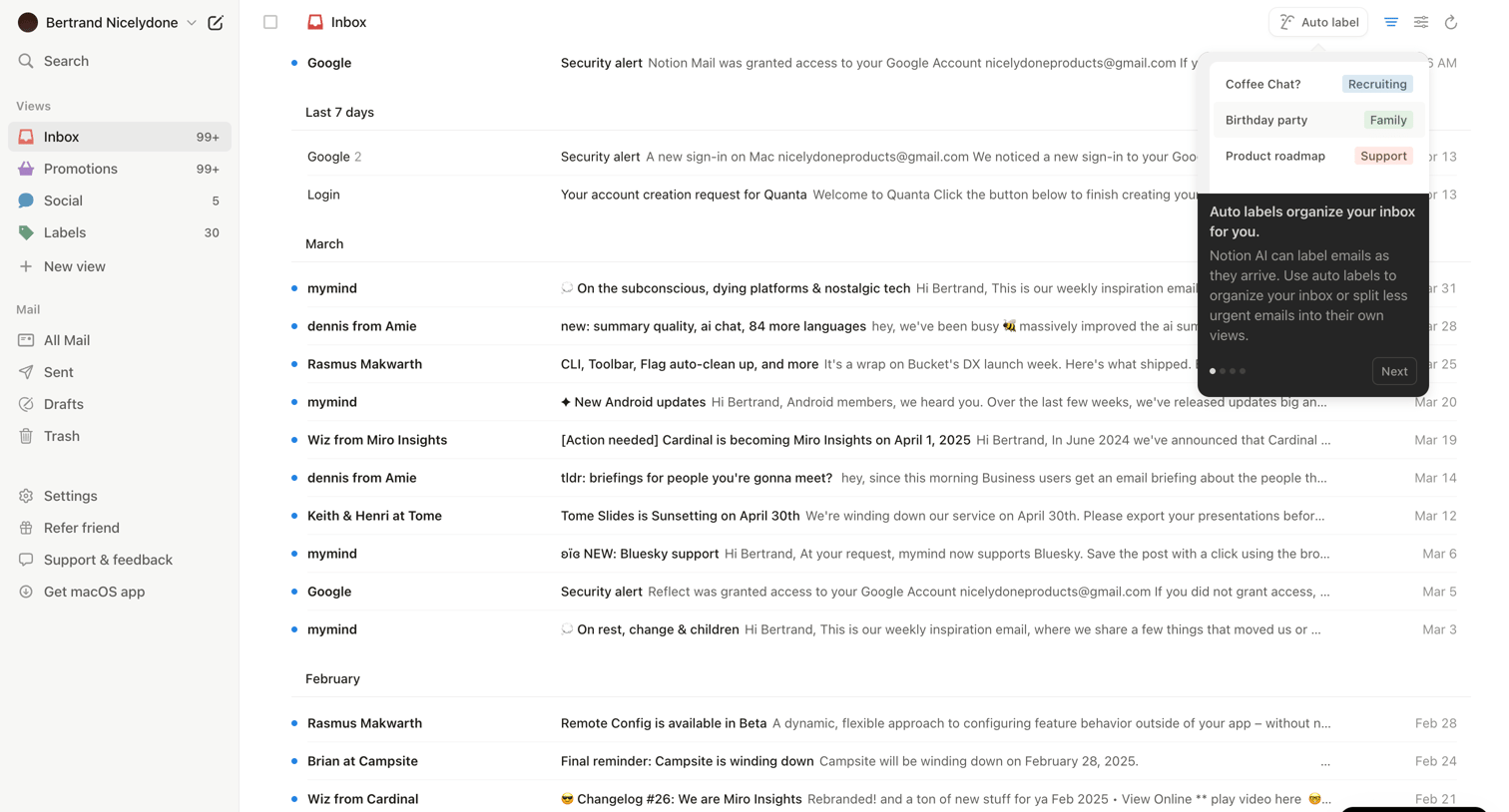
Email inbox where a product tour tooltip introduces the user to an AI-powered auto-labeling feature.
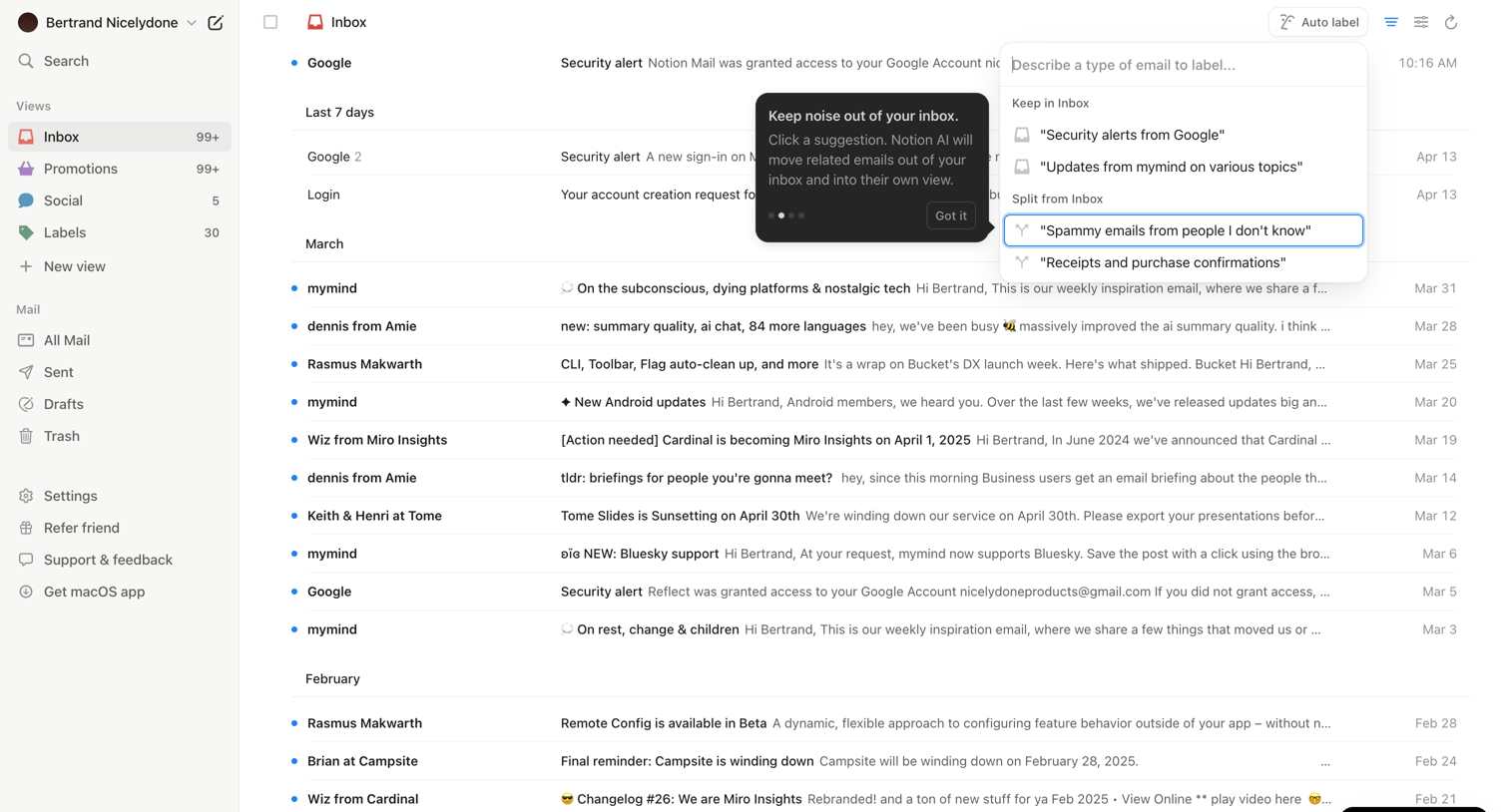
Email inbox where the user is guided by a coach mark to use an AI auto-labeling popover that suggests categories like 'Security alerts' or 'Spammy emails' to organize their messages.
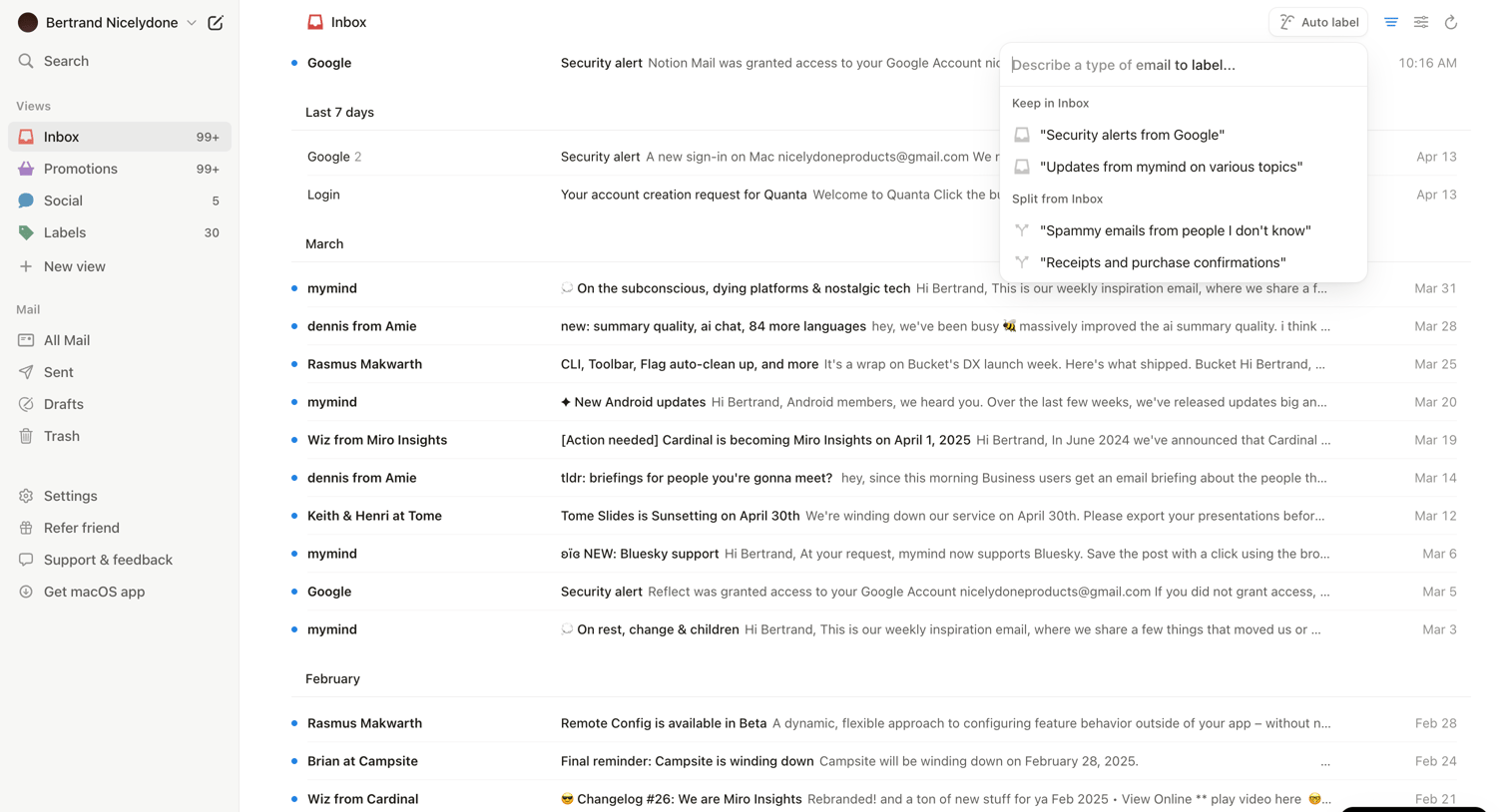
Email inbox where the user is configuring an AI auto-labeling rule to sort incoming messages.
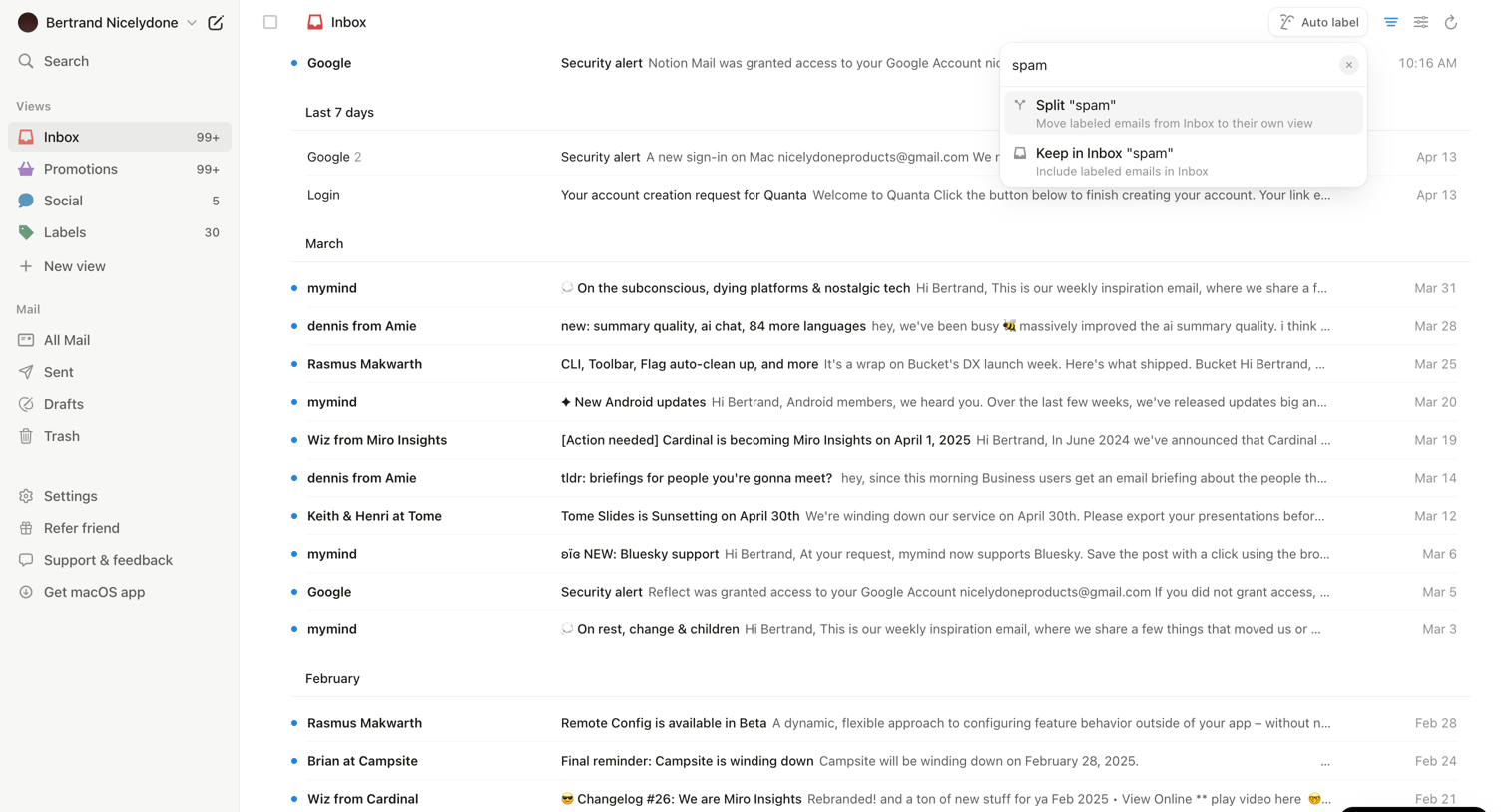
Email inbox where the user views recent messages, with a popover open to configure view settings for the 'spam' label.
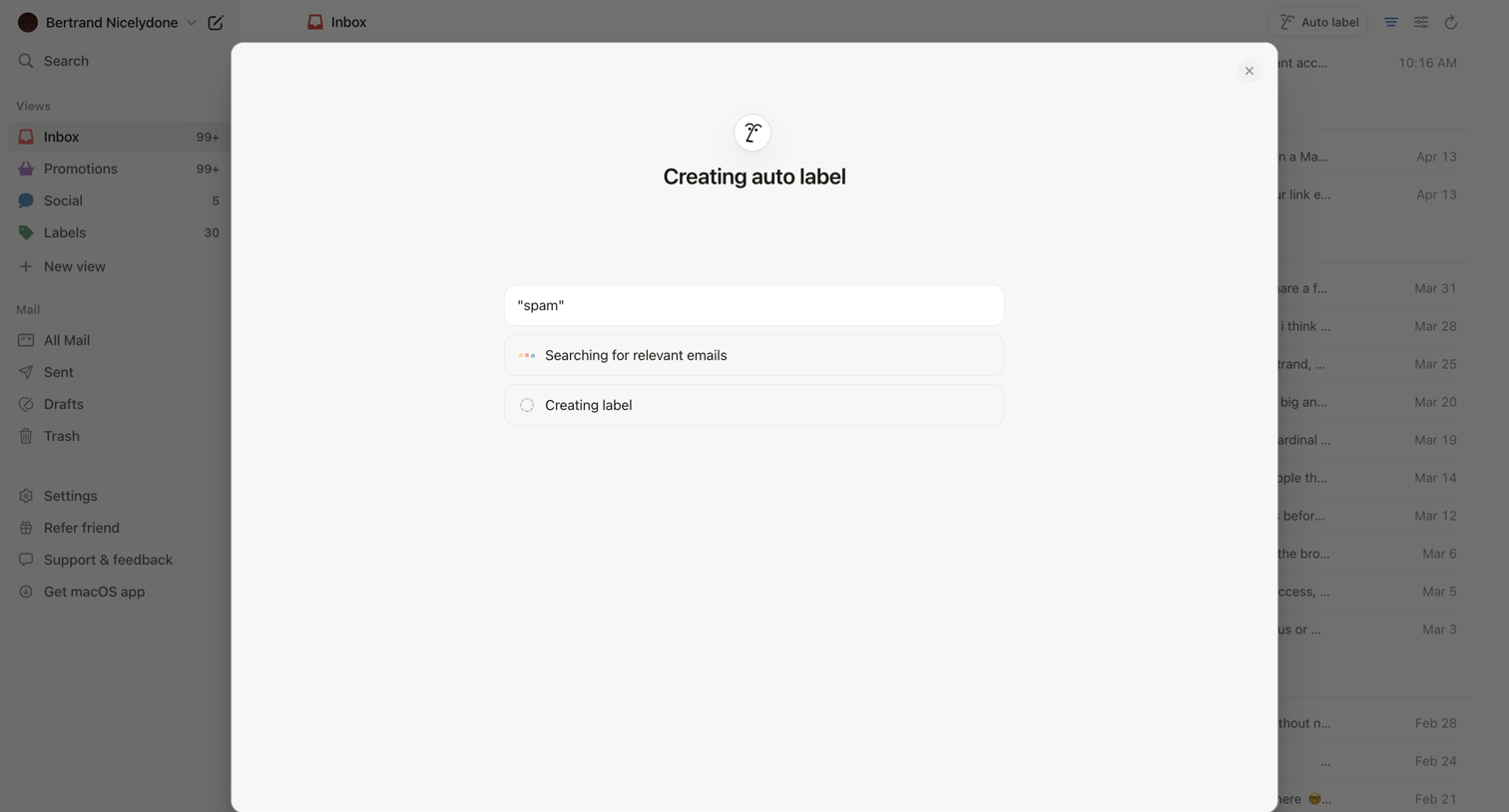
Inbox view where a modal displays the progress of an AI agent creating an auto-label for 'spam', showing steps like searching for relevant emails.
Explore the full SaaS screen library
Upgrade to unlock the full library.
Trusted by the best teams







