
Liveblocks design examples
Explore Liveblocks UI design examples. Build amazing real‑time collaborative products
Product screens

Signup screen where the user creates an account using their name and email or via Google and GitHub.
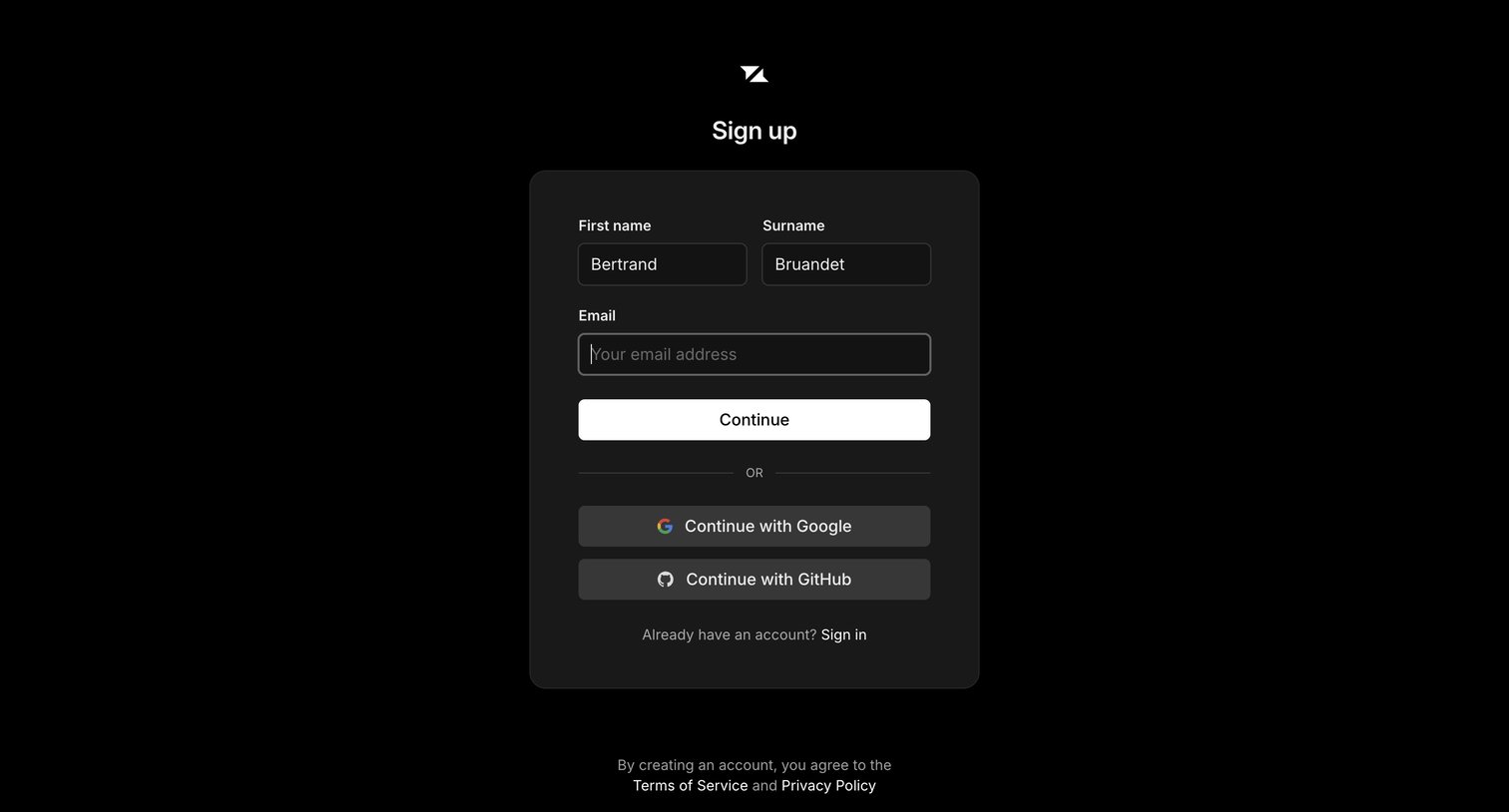
Sign-up screen where the user can create an account using their name and email, or authenticate via Google or GitHub.
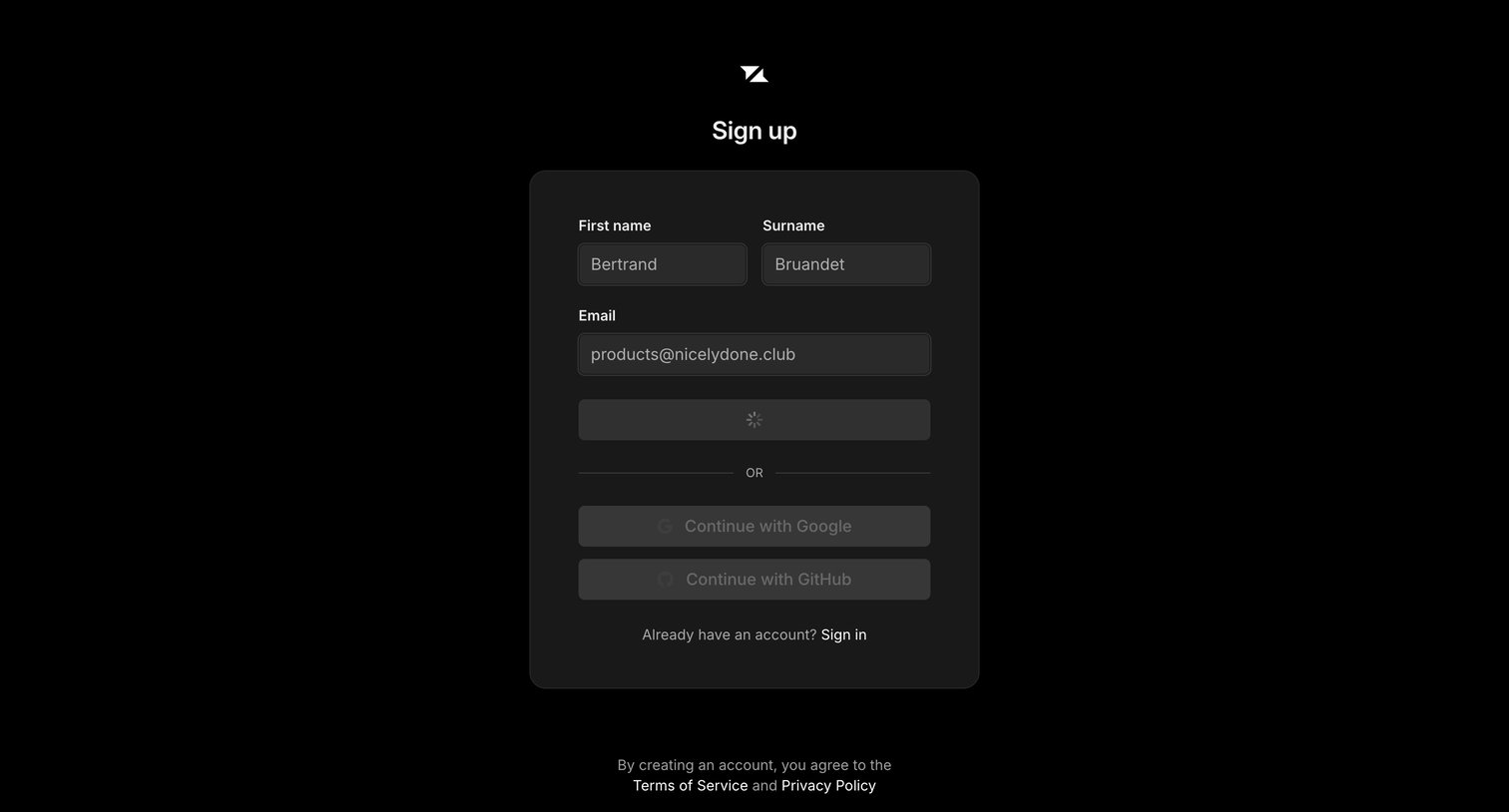
Sign-up screen where the user is submitting their name and email, currently showing a loading state, with alternative options to continue via Google or GitHub.
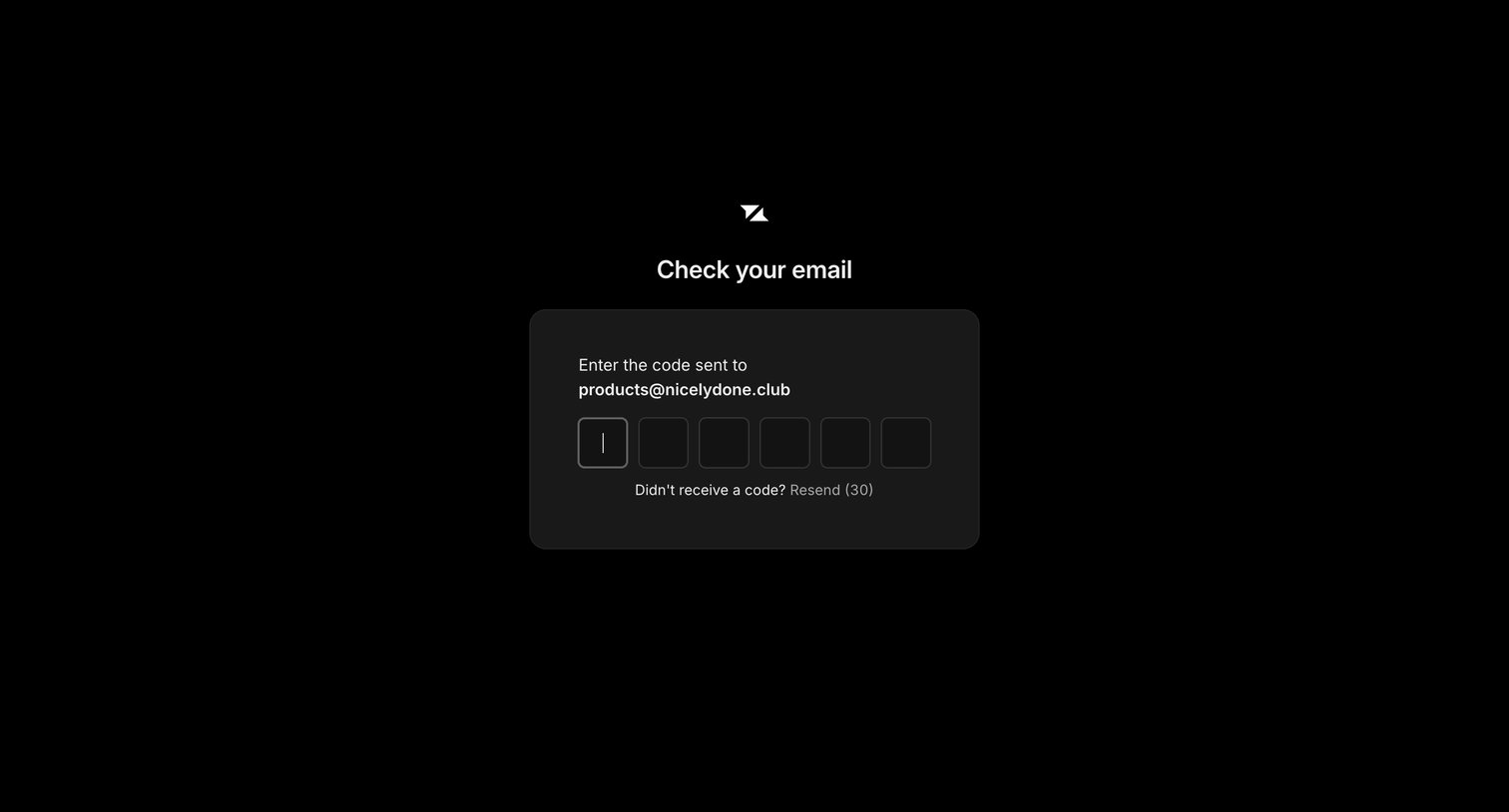
Verification screen where the user enters a 6-digit magic code sent to their email address to authenticate.
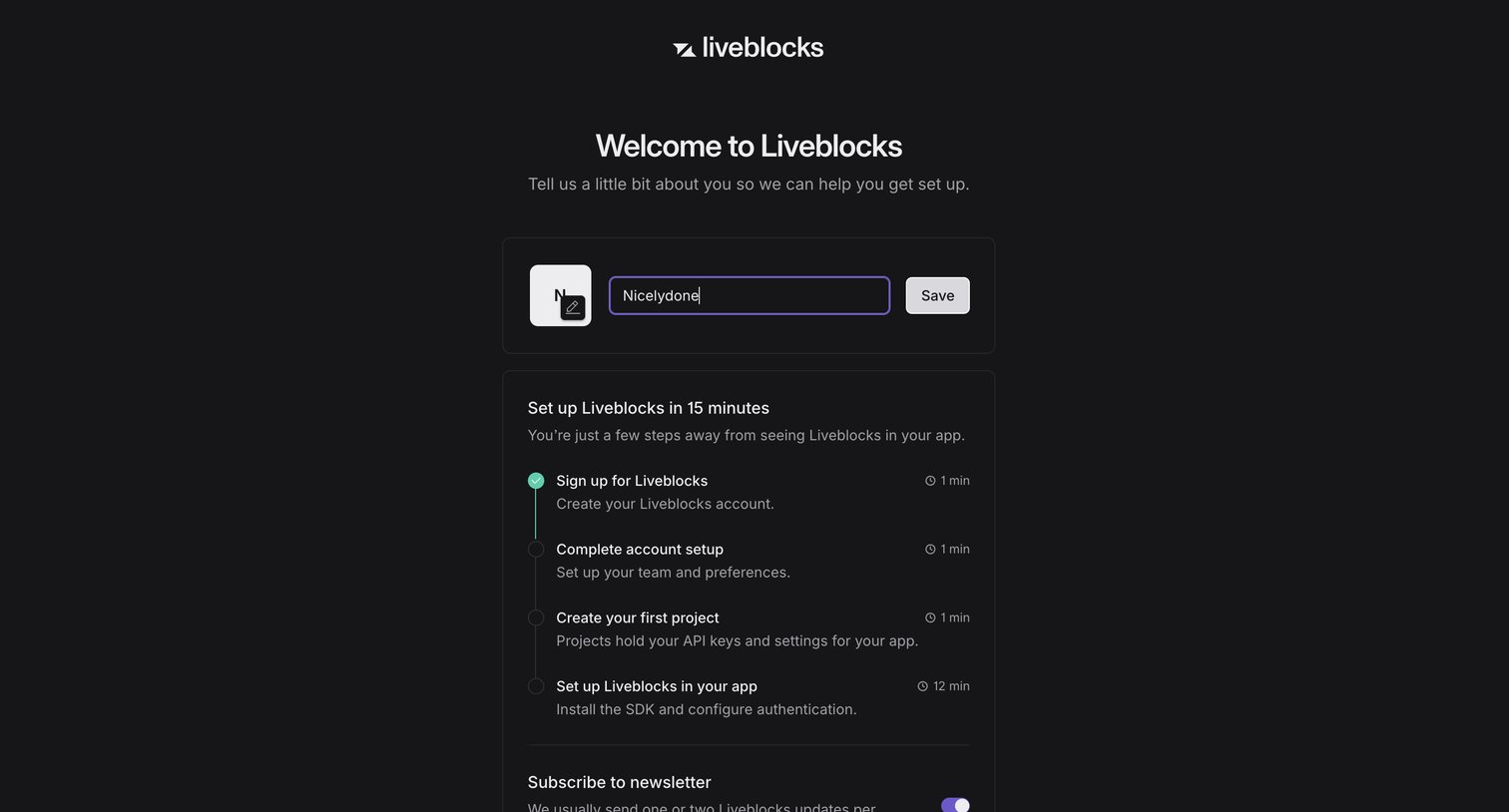
Onboarding step where the user names their workspace, views a setup checklist, and manages their newsletter subscription.
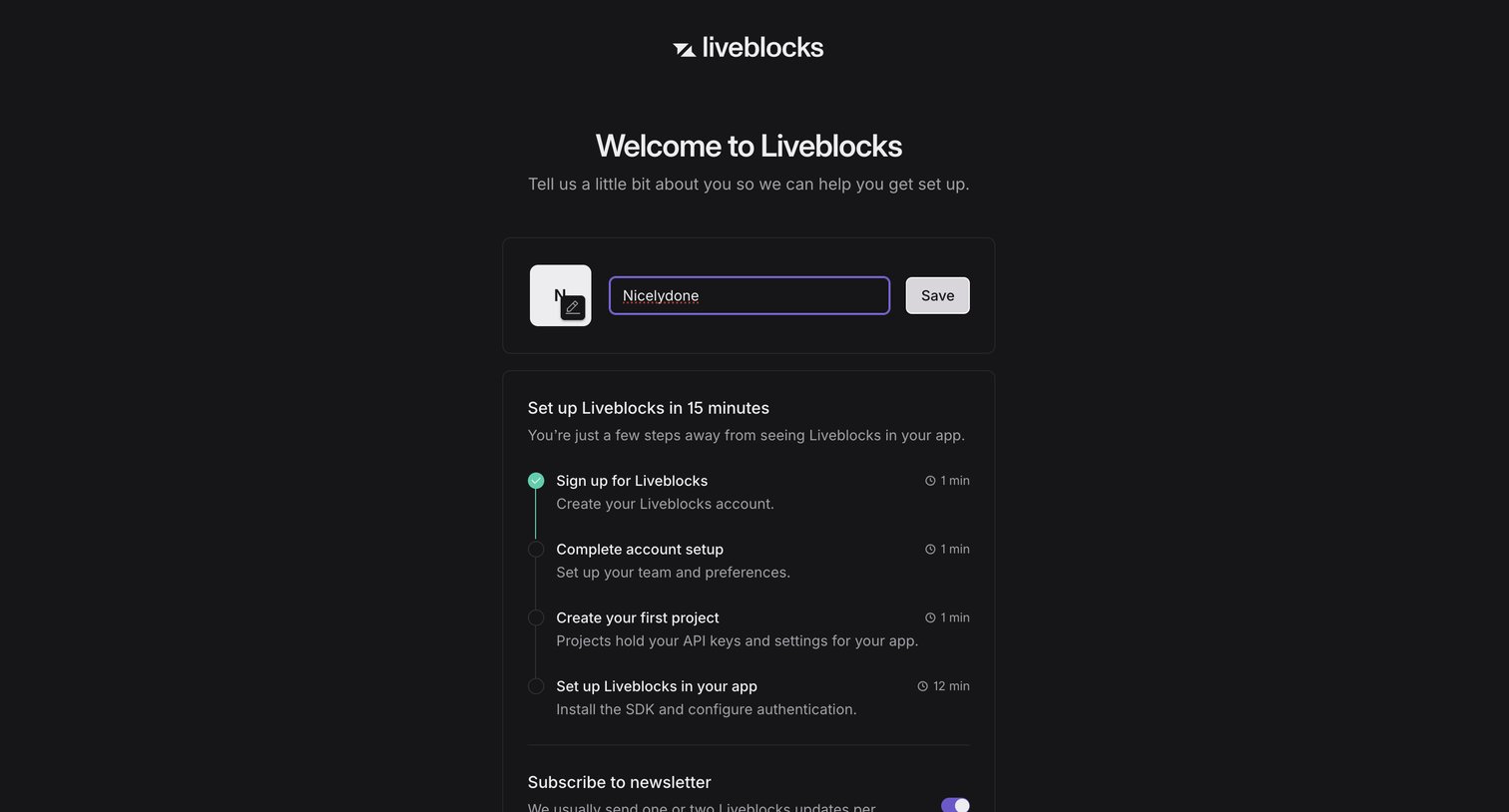
Onboarding screen where the user sets their account name and follows a step-by-step setup checklist.
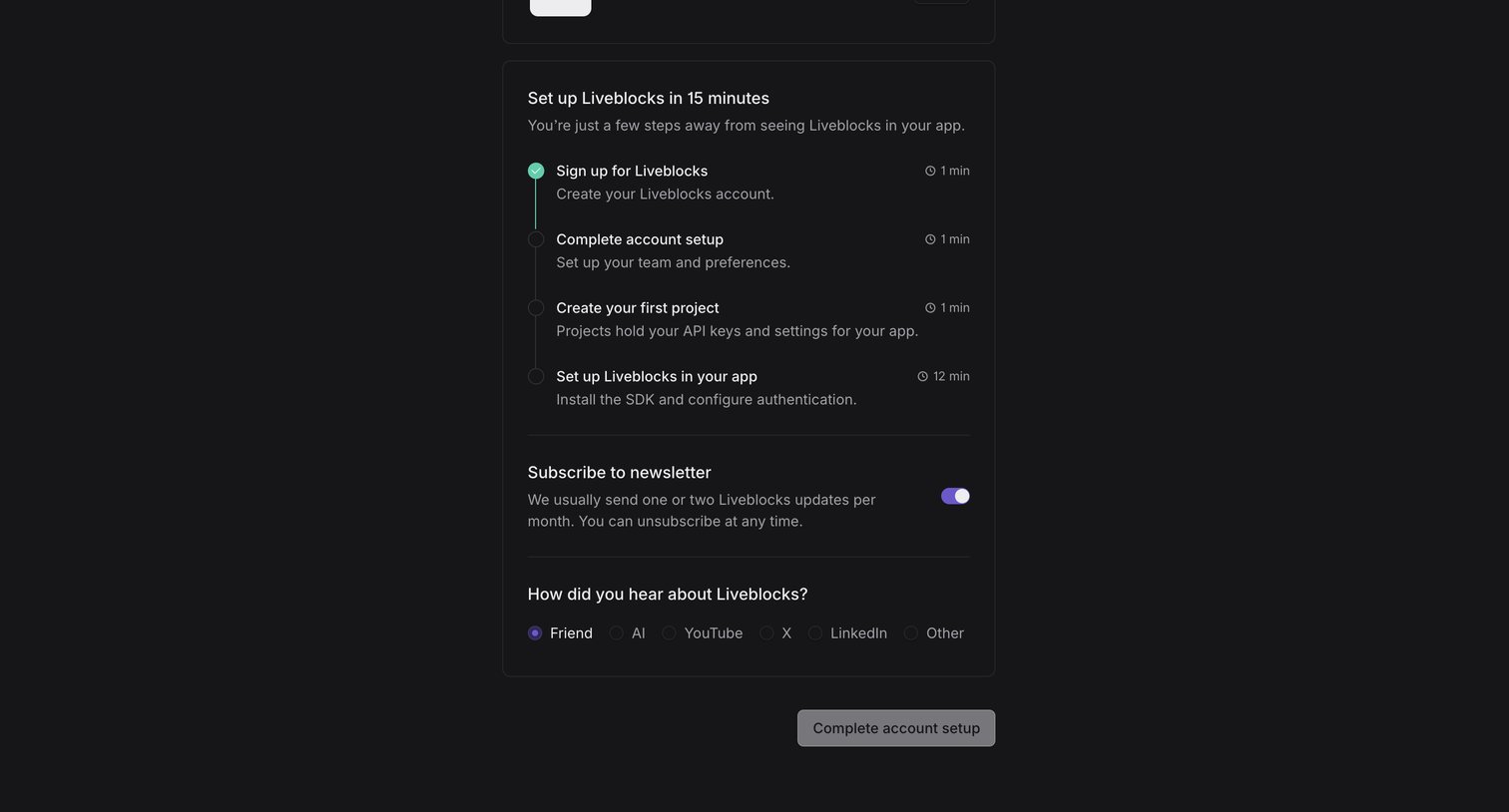
Onboarding step where the user completes their account setup by subscribing to a newsletter and answering a how-did-you-hear-about-us question.
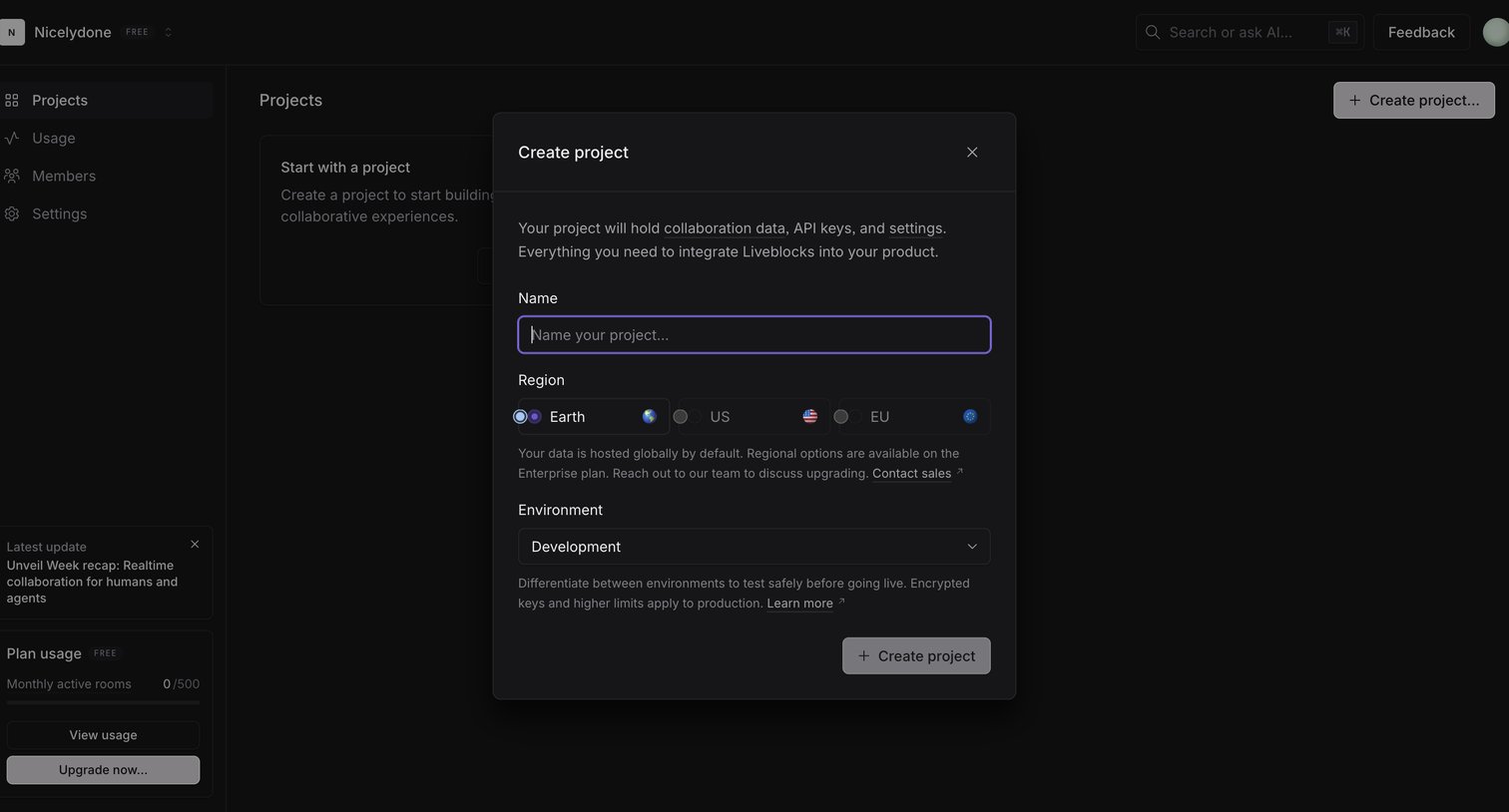
Dashboard overlay where the user creates a new project by providing a name, selecting a hosting region, and choosing an environment.
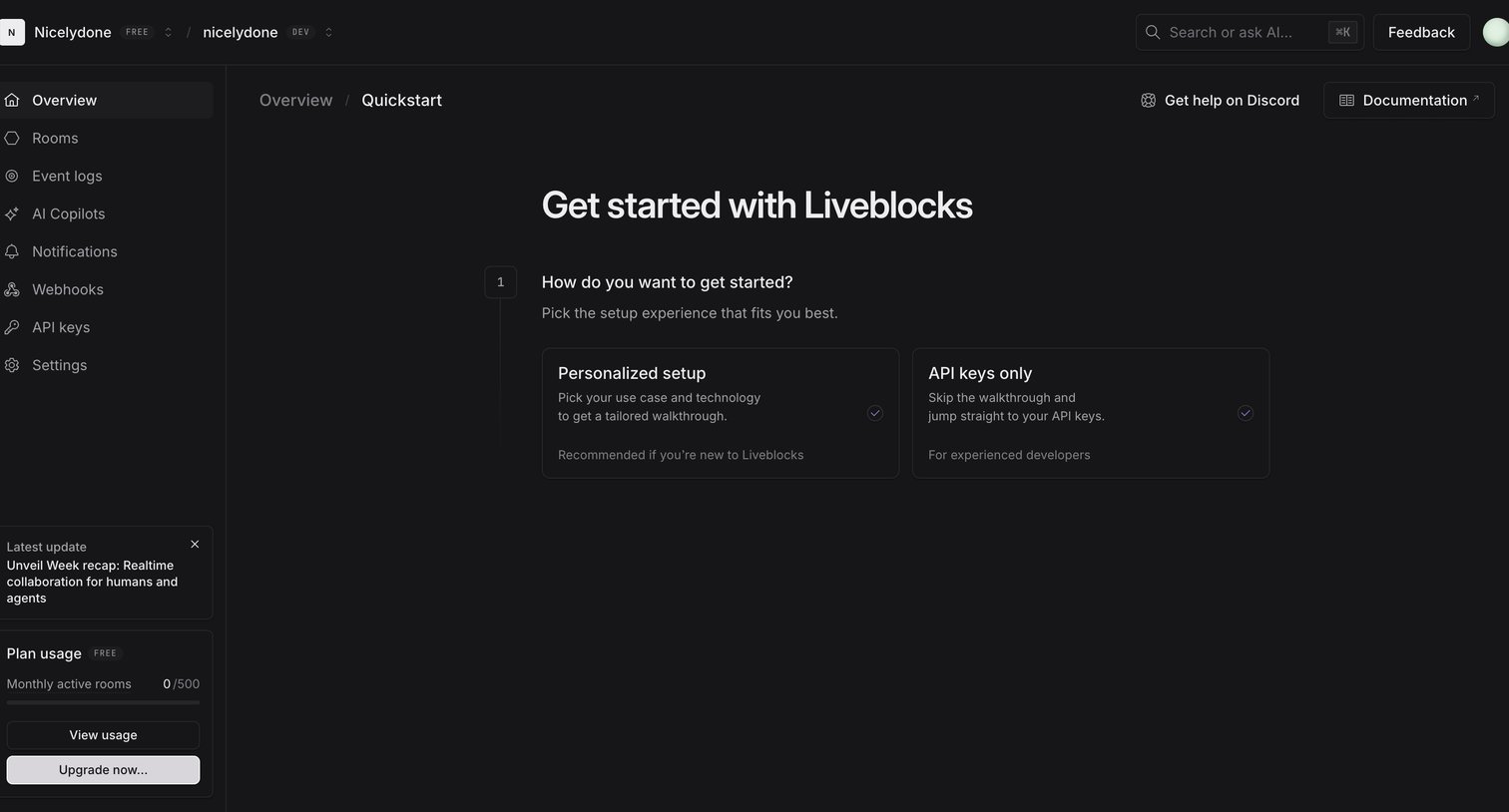
Onboarding screen where the user selects between a personalized setup walkthrough or jumping straight to API keys for their new Liveblocks project.
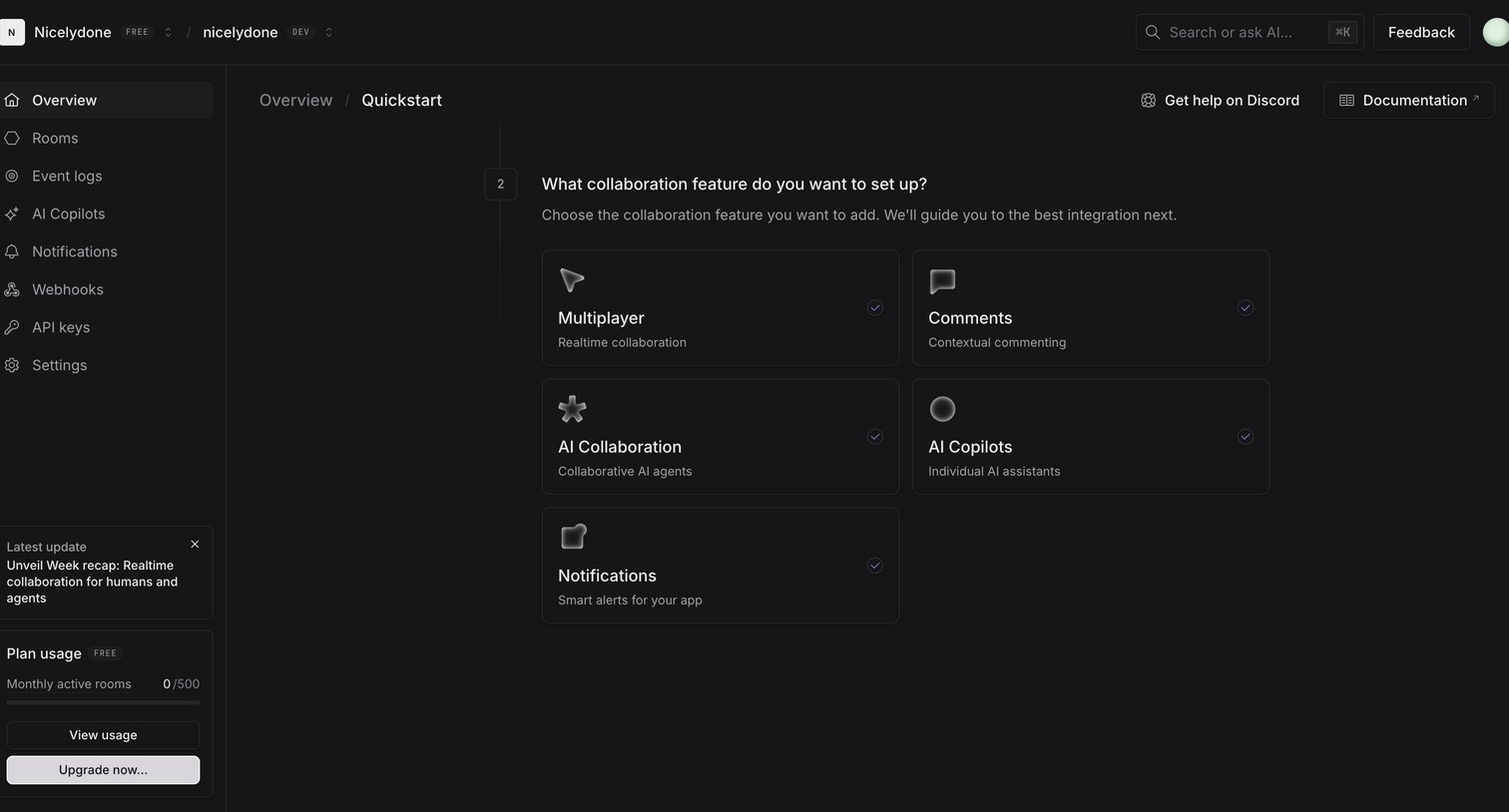
Onboarding quickstart step where the user selects which collaboration feature to set up, such as Multiplayer, Comments, or AI Copilots.
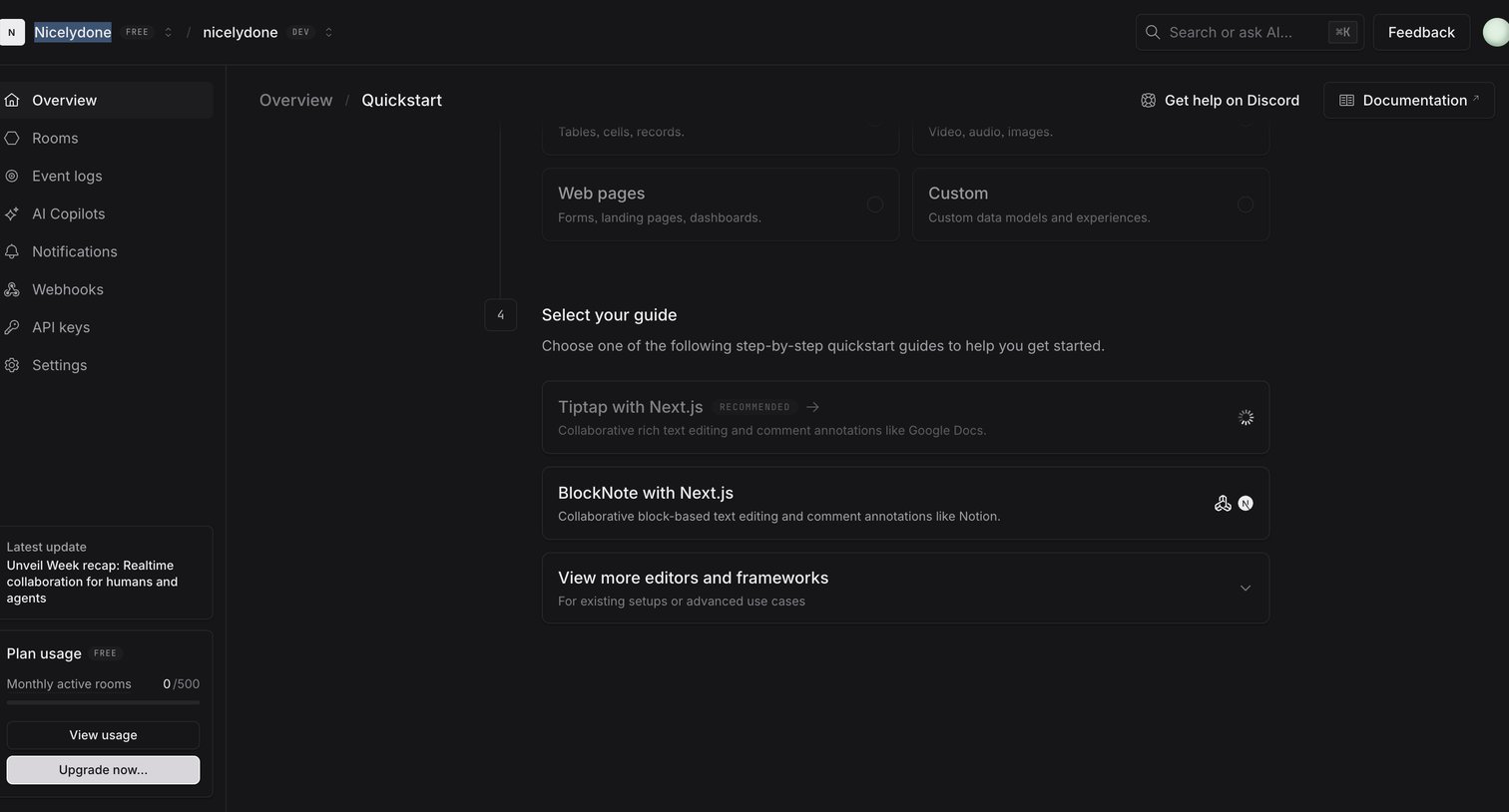
Onboarding screen where the user selects a framework guide like Tiptap or BlockNote with Next.js to set up their project.
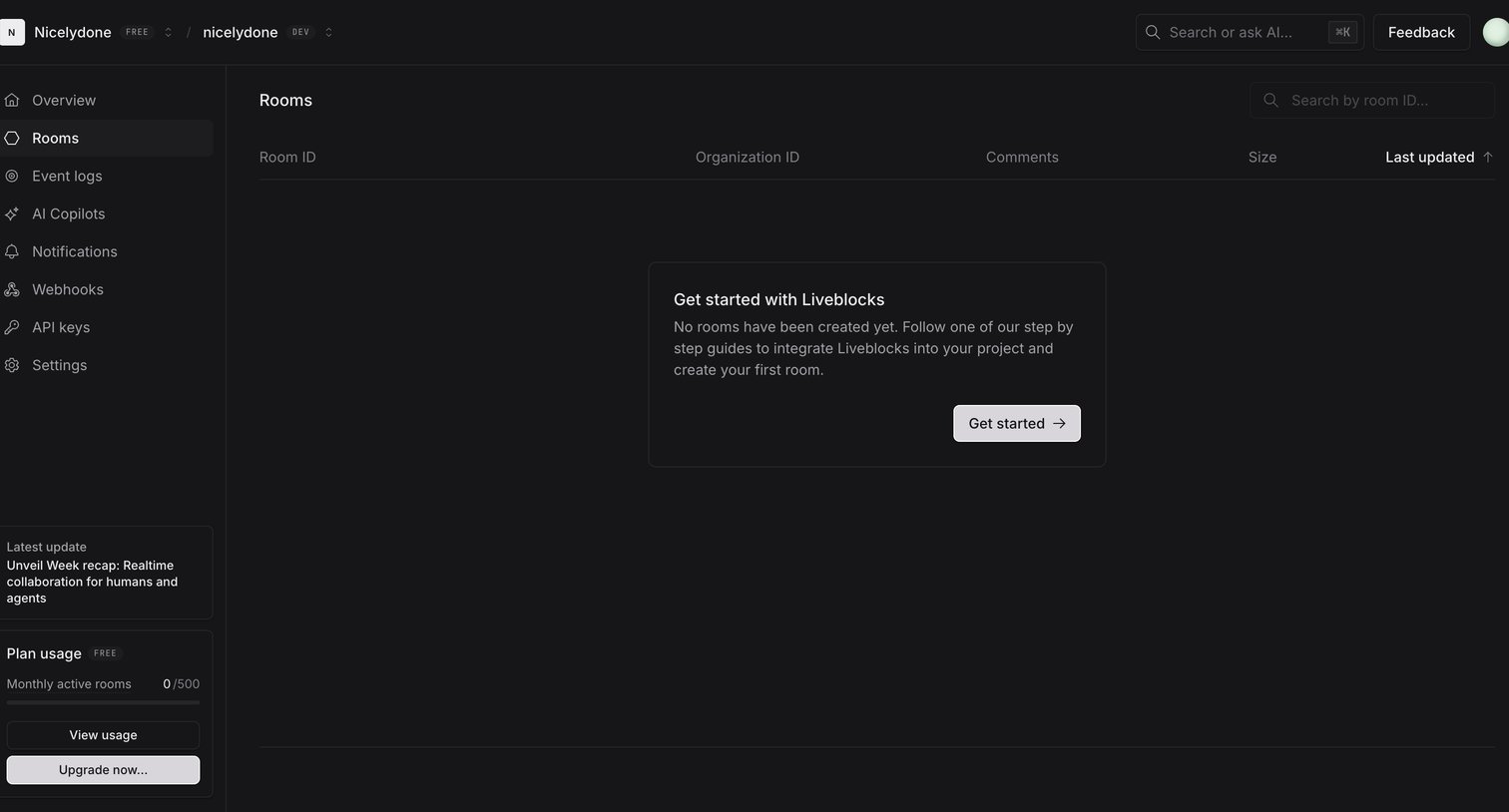
List view showing an empty state for rooms with a prompt to read guides and create the first room.
Browse the full SaaS app library
Explore real SaaS apps with their product screens, marketing screens, flows, and components.
Trusted by the best teams







