Tally design examples
Explore Tally UI design examples. Free Online Form Builder
Product screens
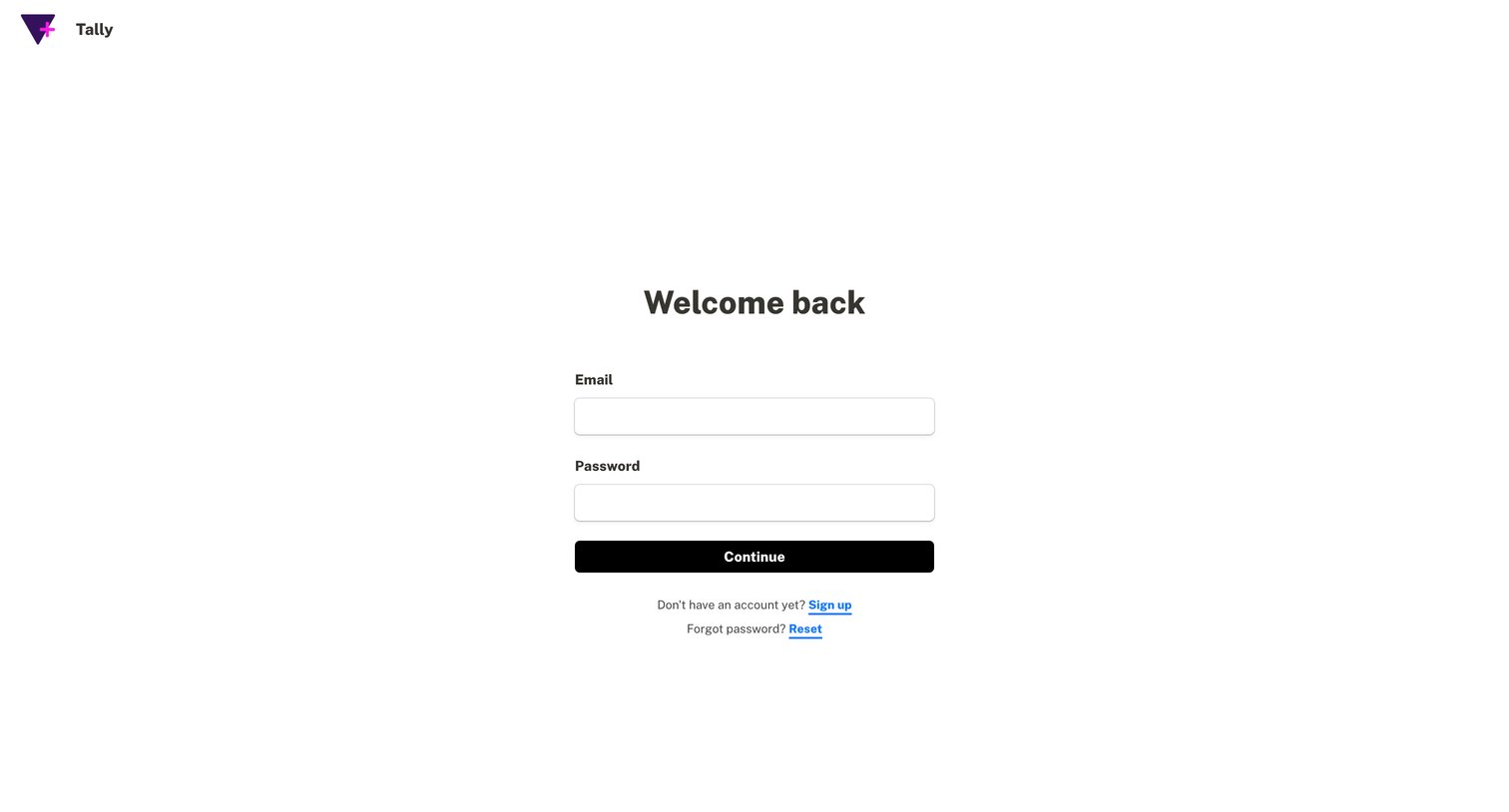
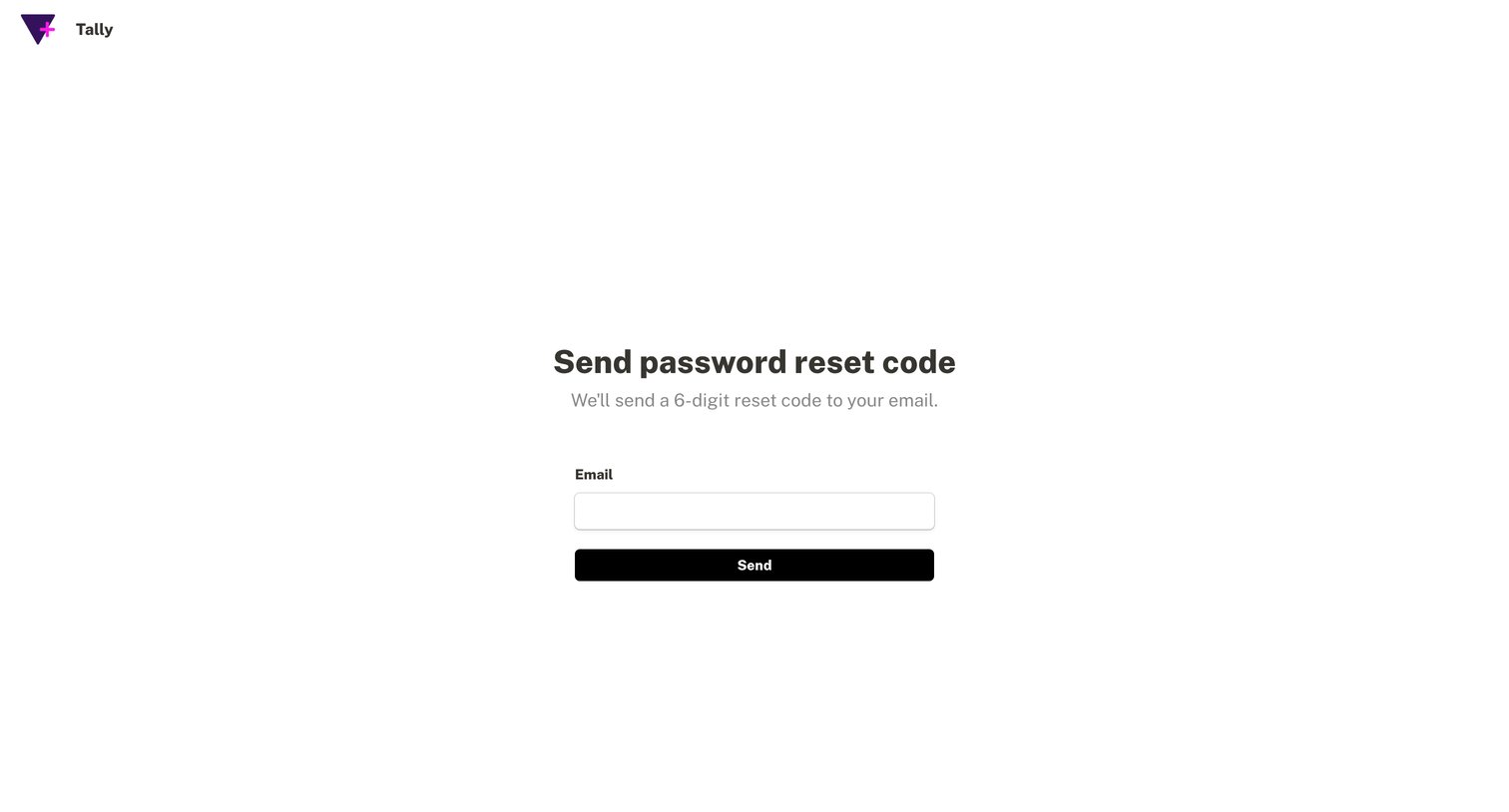

Password recovery screen where the user enters their email to request a 6-digit reset code.
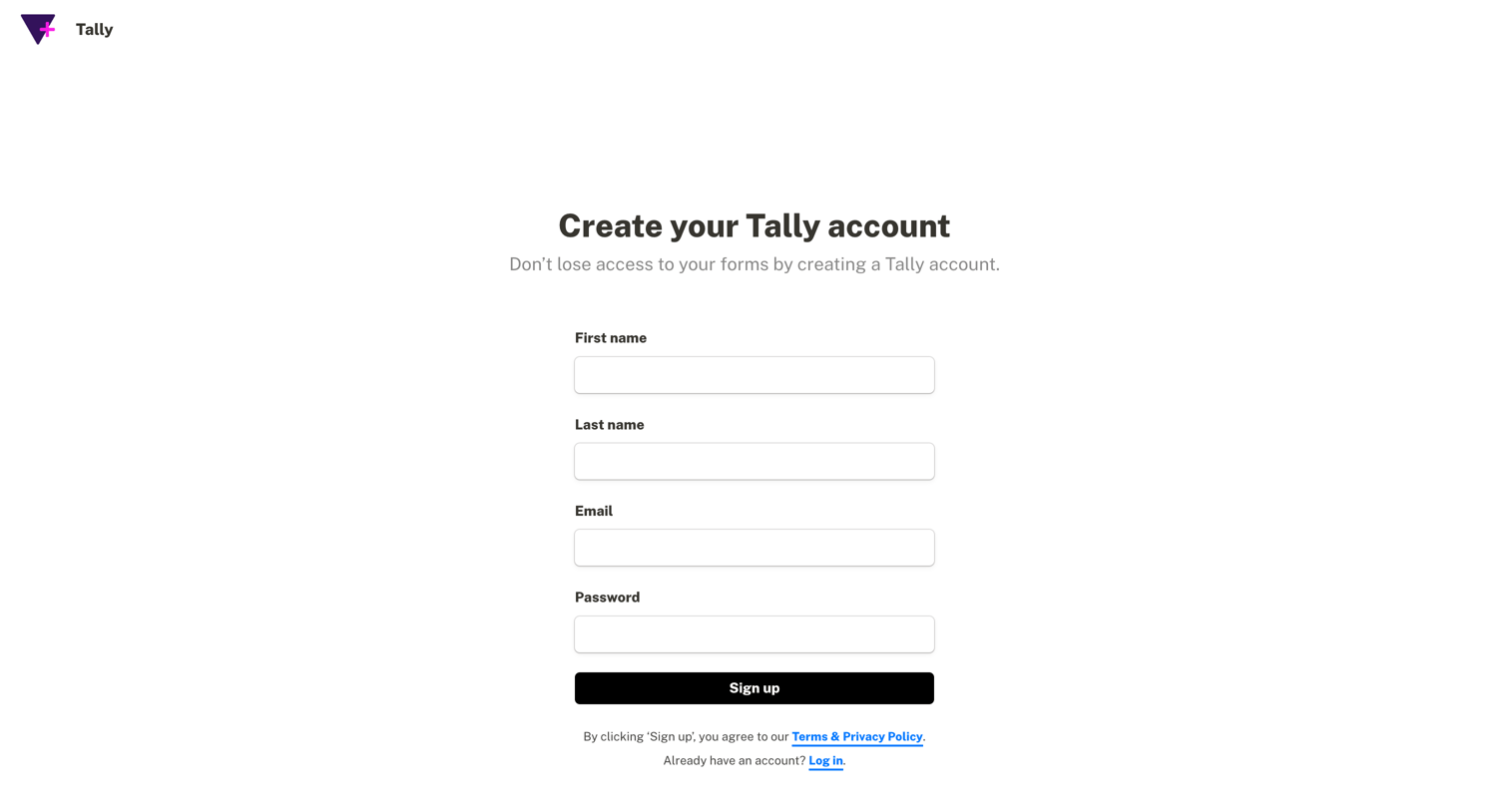
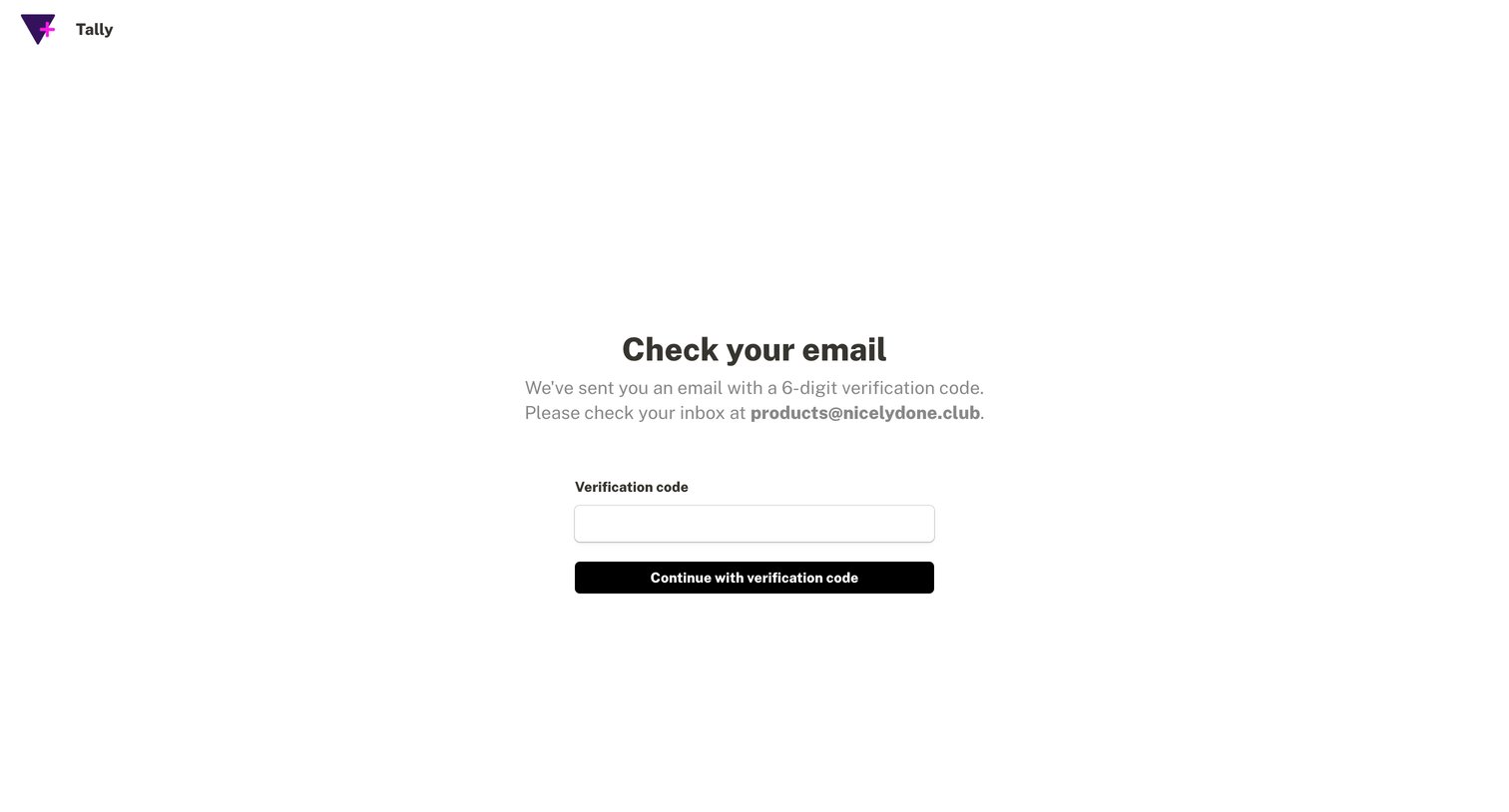
Verification screen where the user enters a 6-digit code sent to their email to continue the authentication flow.
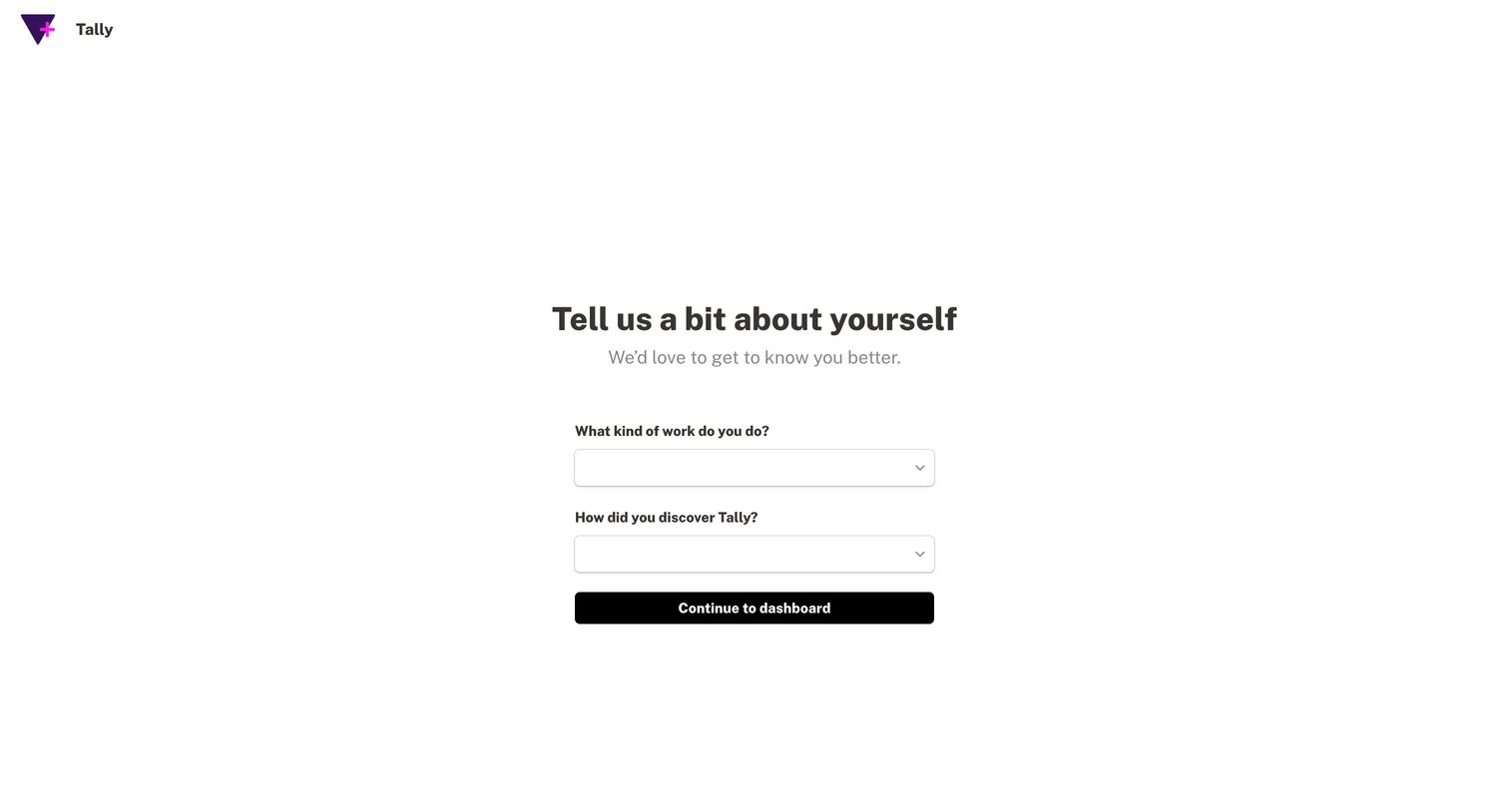
Onboarding step where the user selects their role and how they discovered the product before continuing to the dashboard.
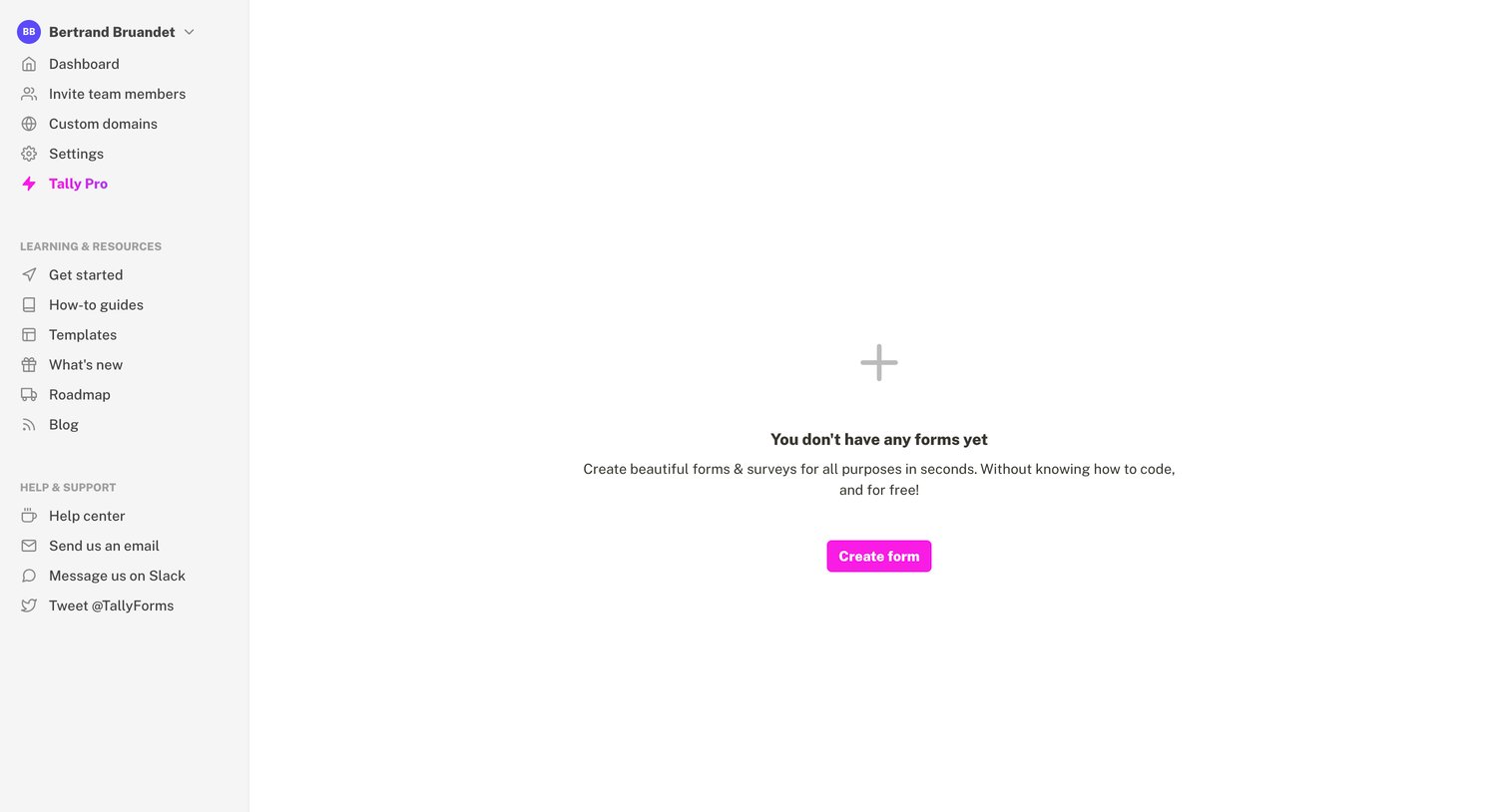
Dashboard where the user is prompted to create their first form because the workspace is empty.
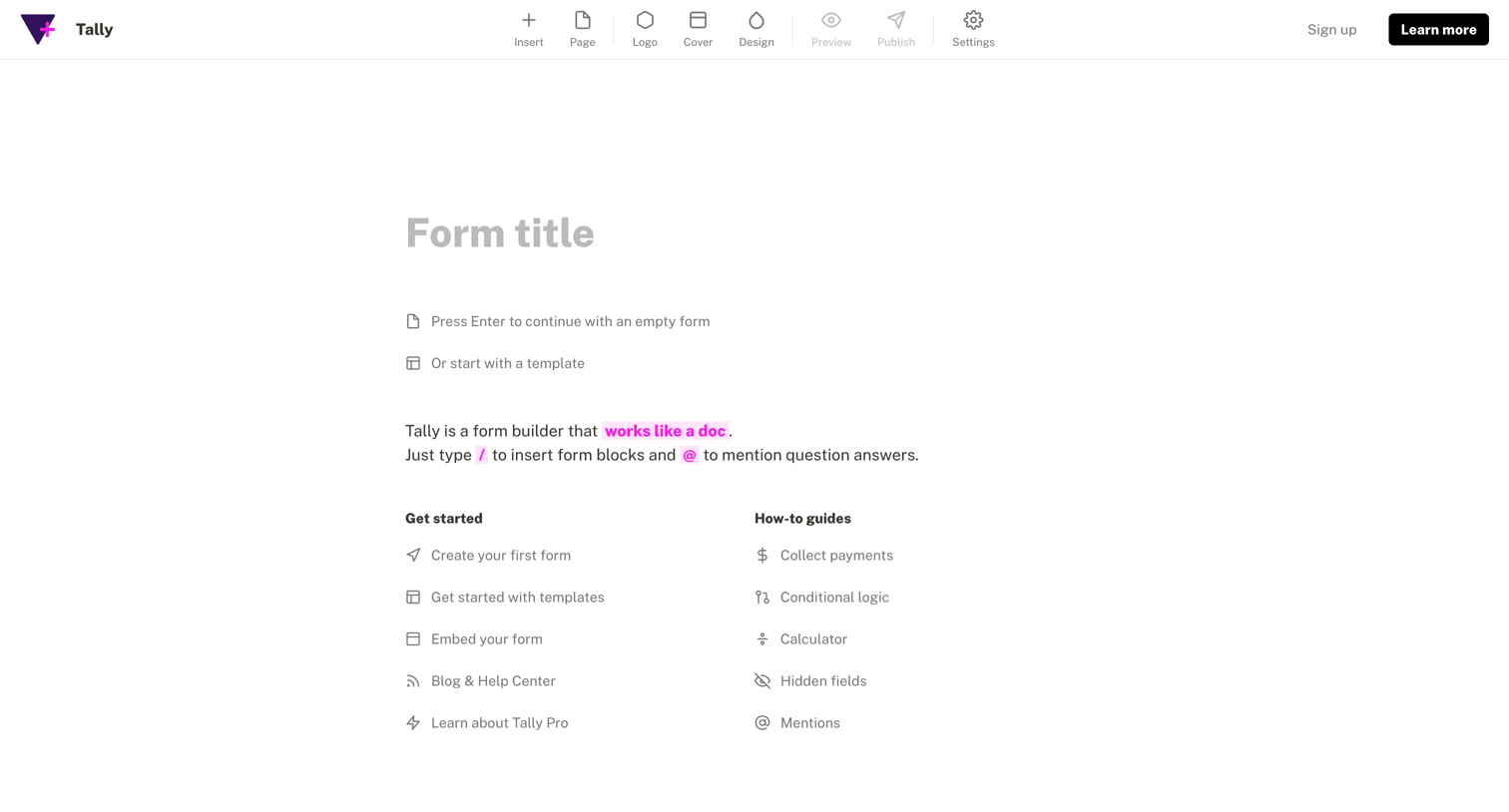
Unauthenticated form builder canvas where the user can start typing to create a form, use a template, or browse getting-started guides.
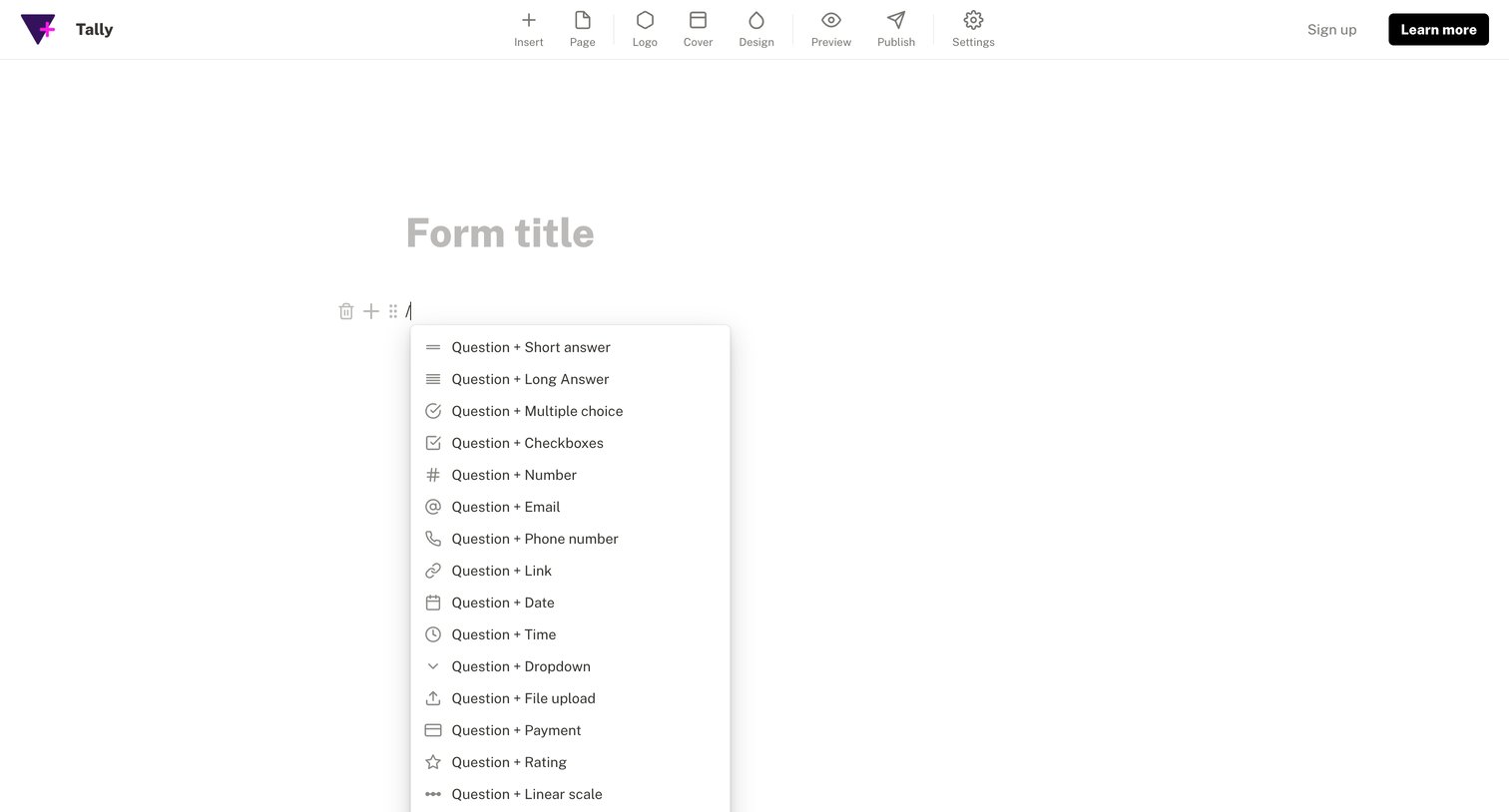
Form builder canvas where the user is adding a new question block via a slash command menu.
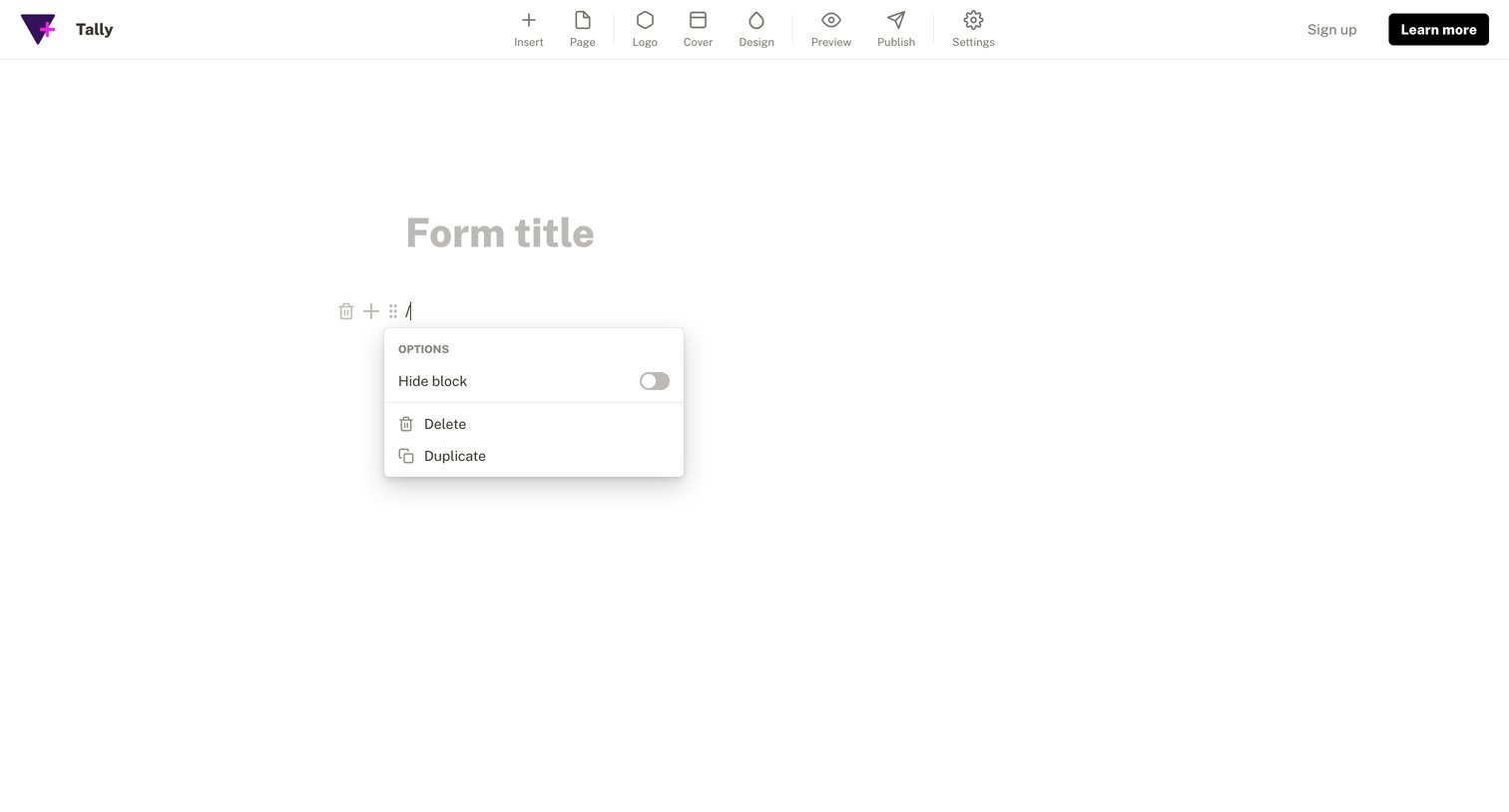
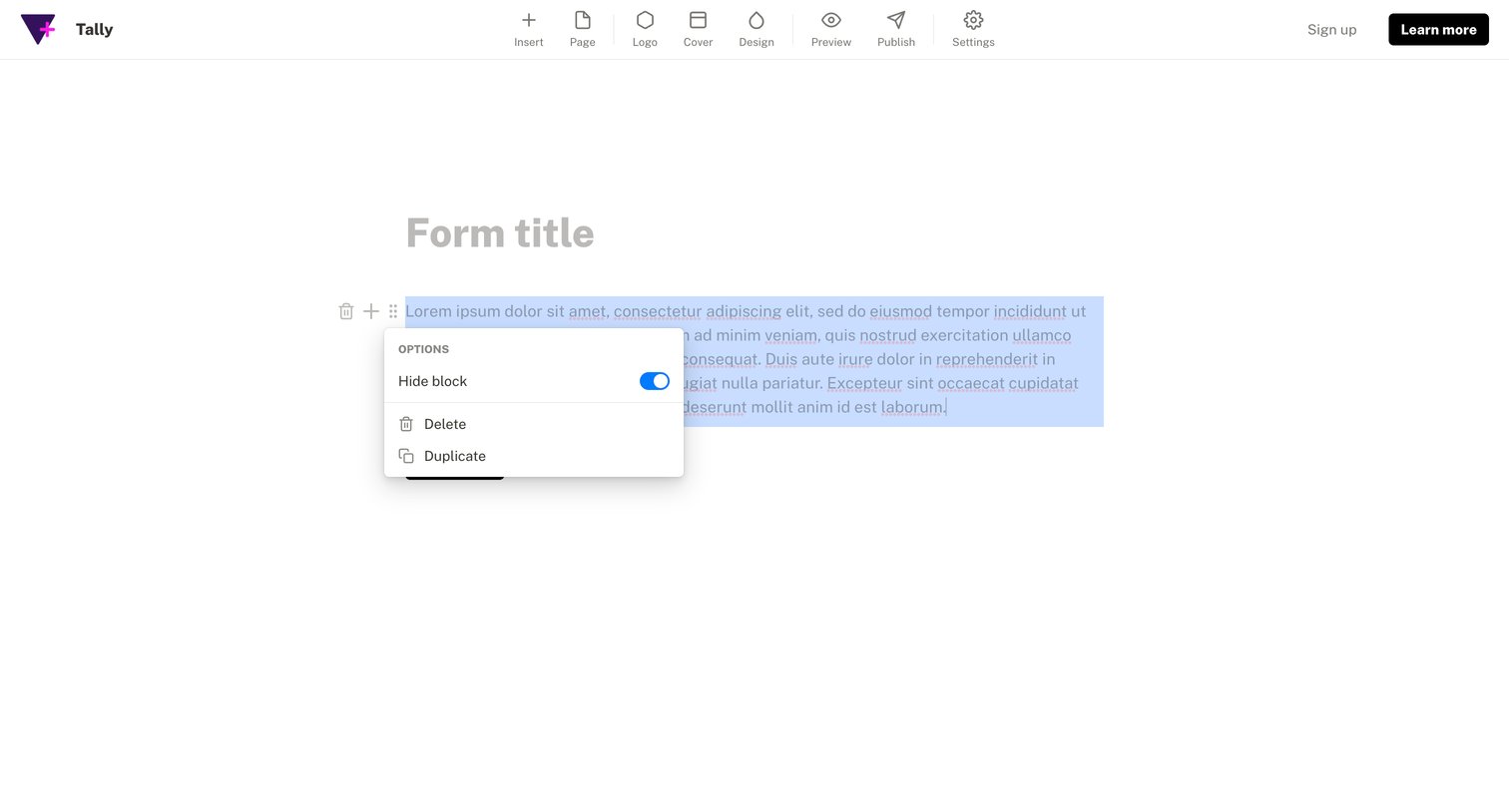
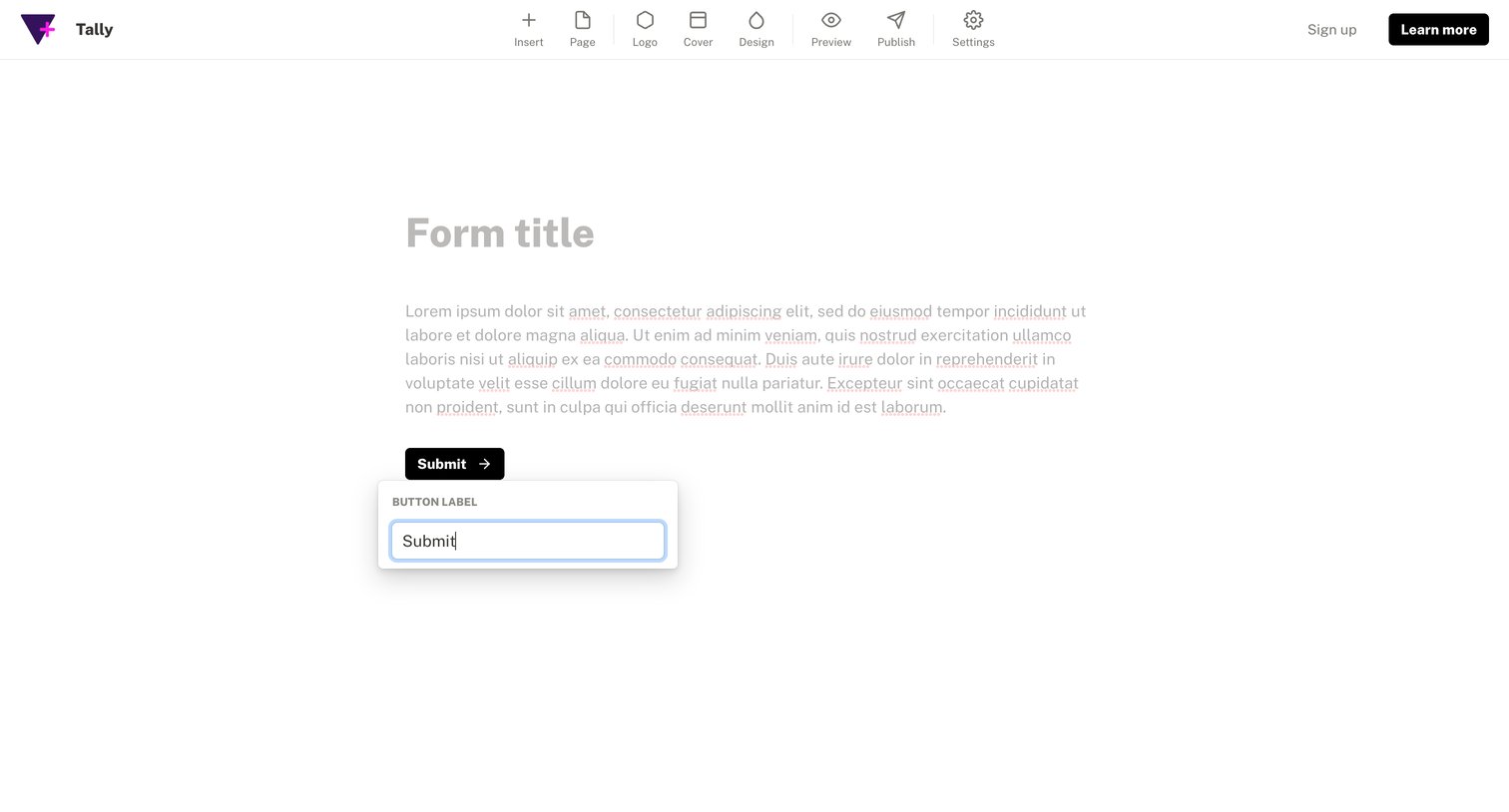
Form builder canvas where an unauthenticated user edits a submit button label via an inline popover.
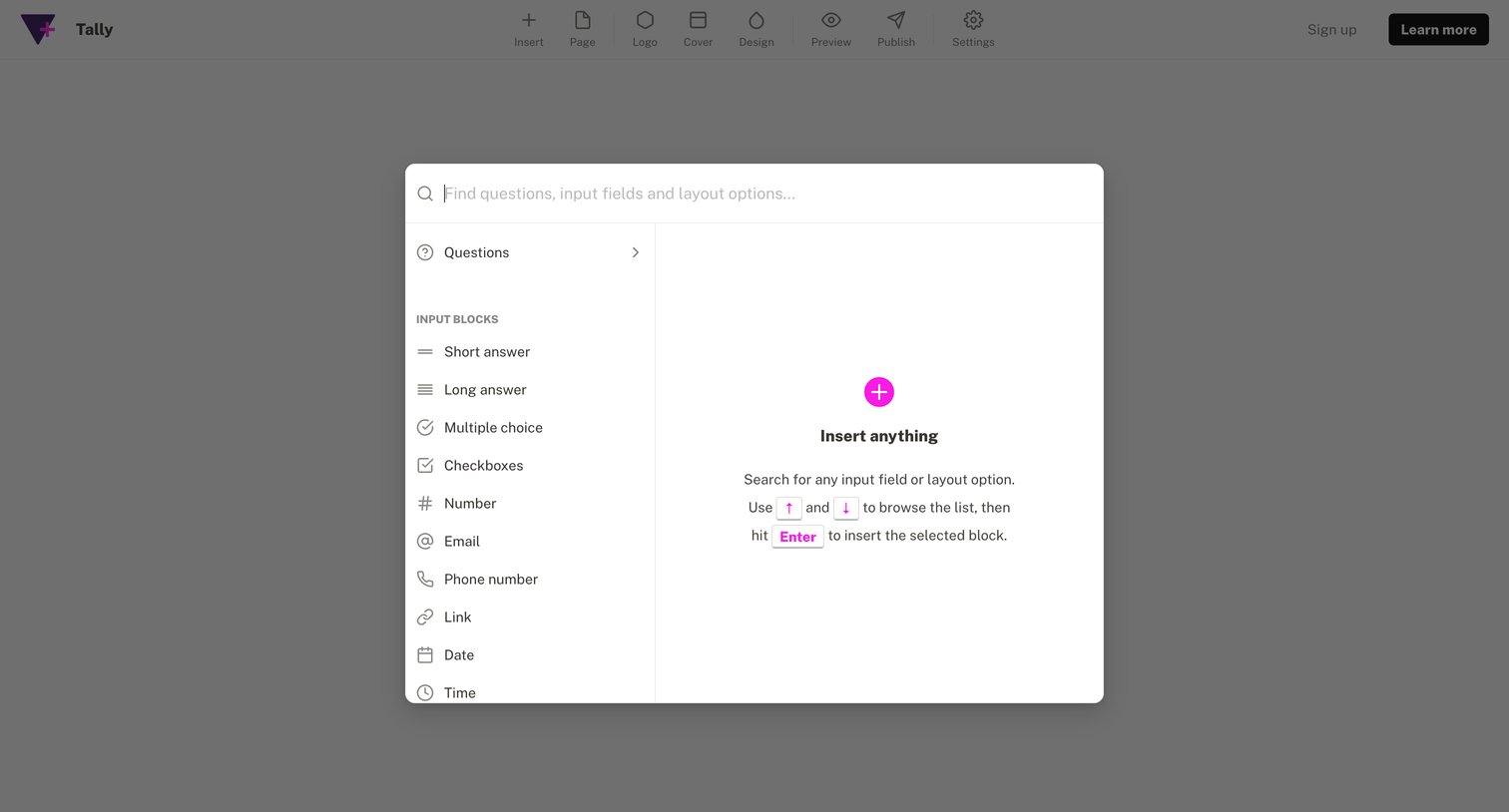
Form builder where the user searches for and inserts input blocks like short answer, multiple choice, or email fields via a command palette.
Browse the full SaaS app library
Explore real SaaS apps with their product screens, marketing screens, flows, and components.
Trusted by the best teams







