Vercel Flow Example: Sharing feedback
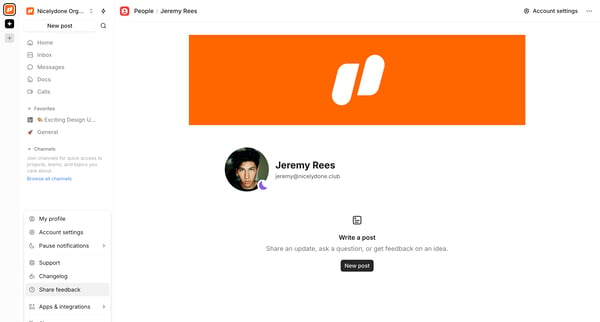
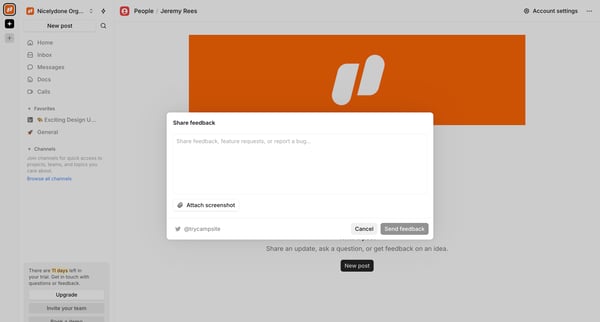
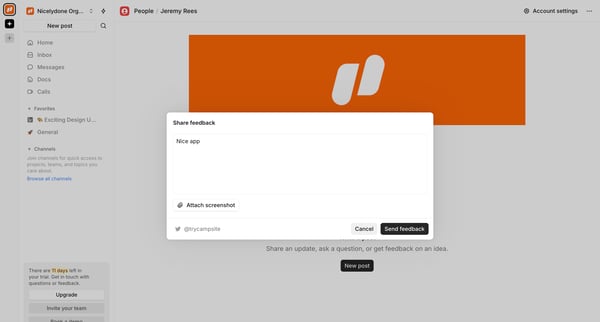
Preview this Vercel user flow: Sharing feedback. Explore the opening screens.
Preview these flows

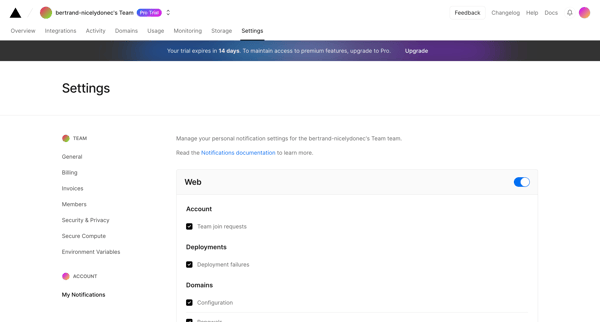
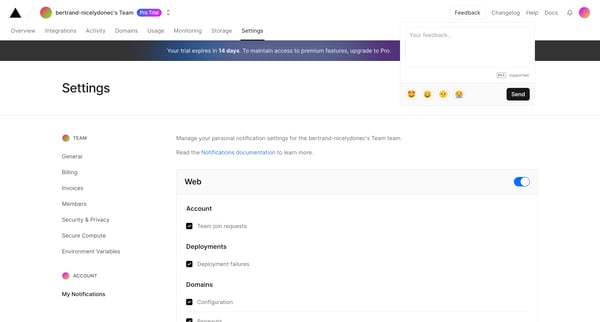
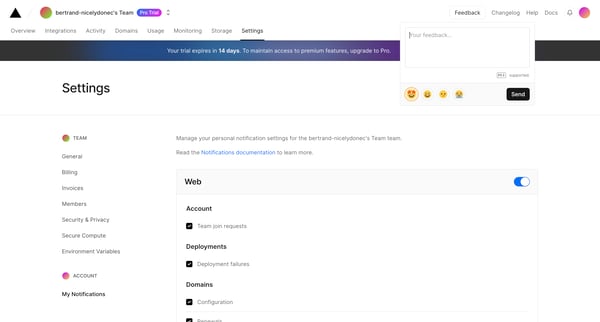
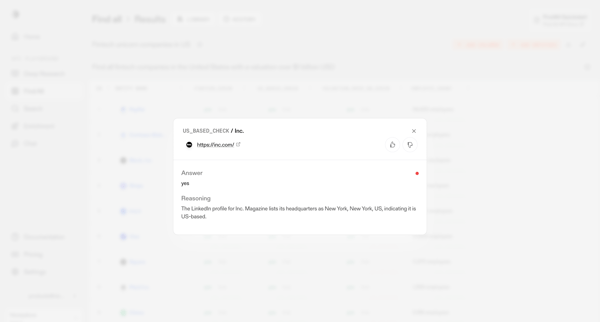
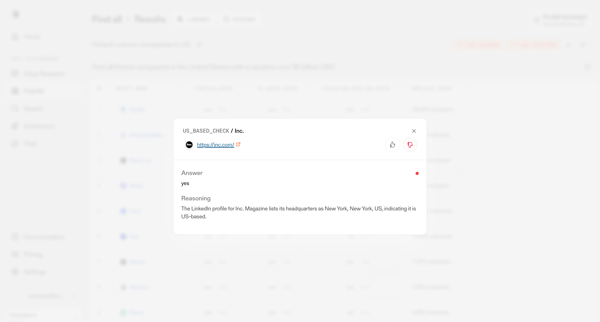
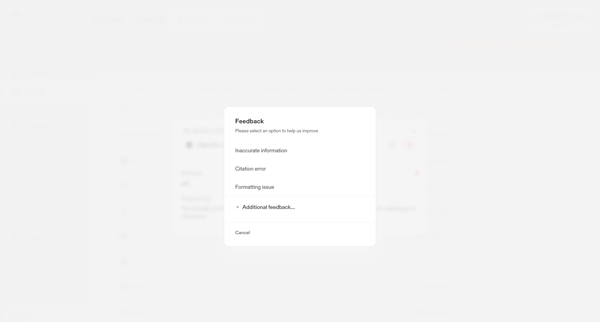
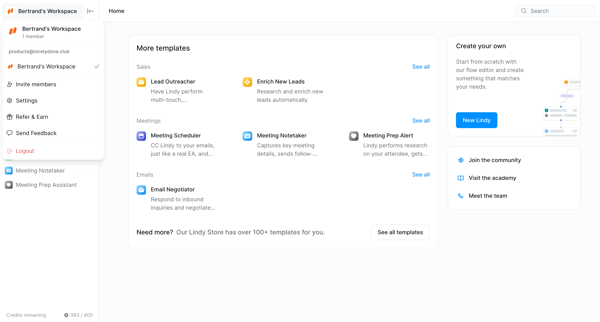
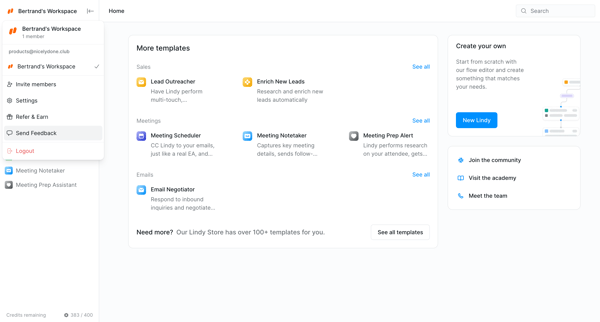
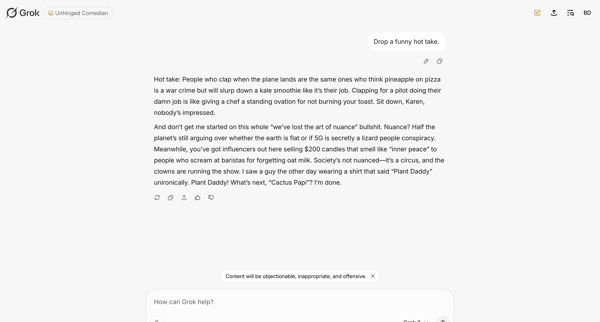
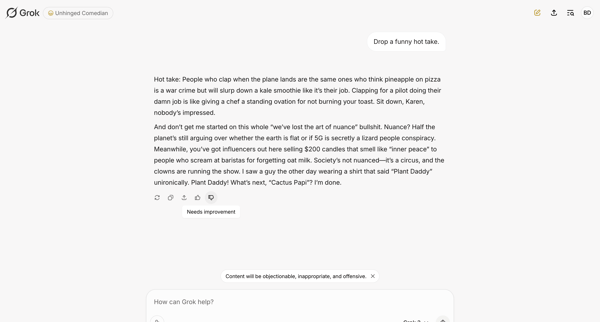
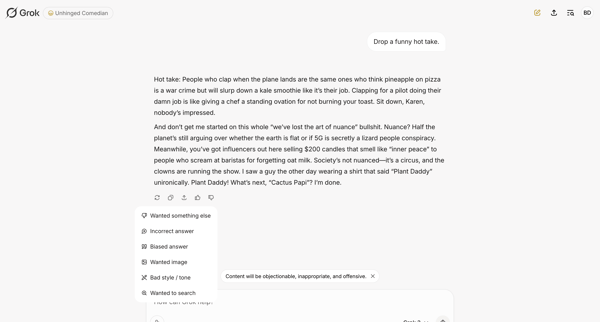
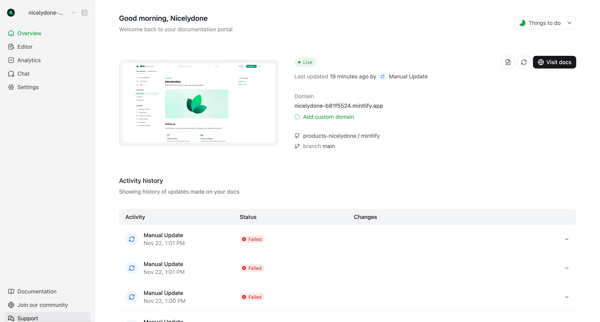
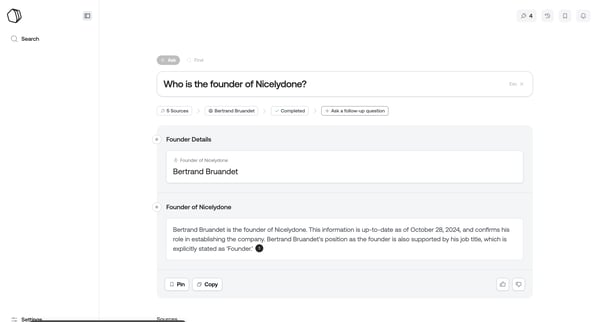
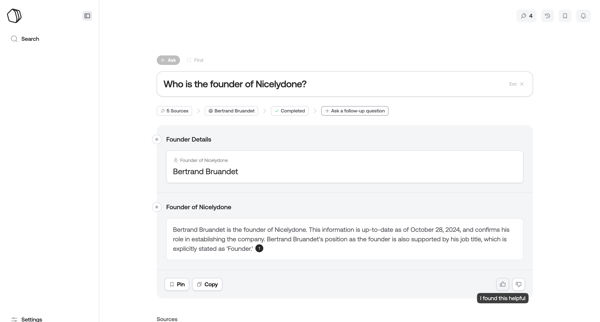
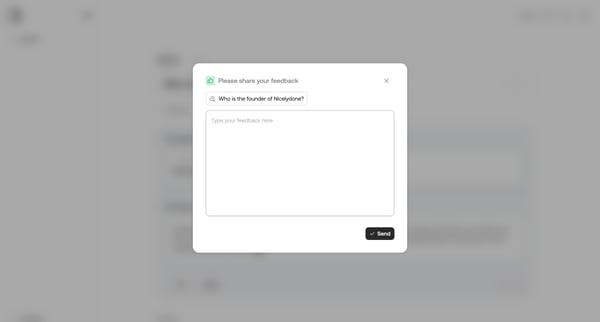
This user flow guides the user through sharing feedback on Vercel's platform, from accessing notification settings to successfully submitting their feedback.
Related user flows



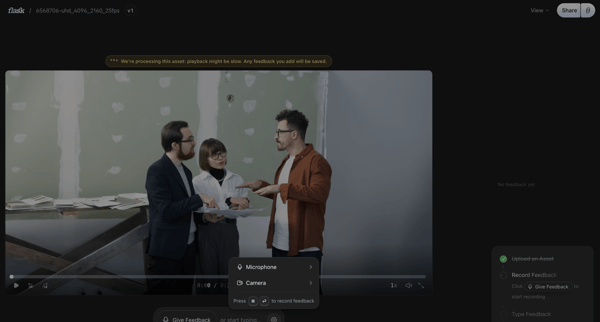
Reviewing a video asset on the detail page and recording timestamped voice or text feedback via a floating composer

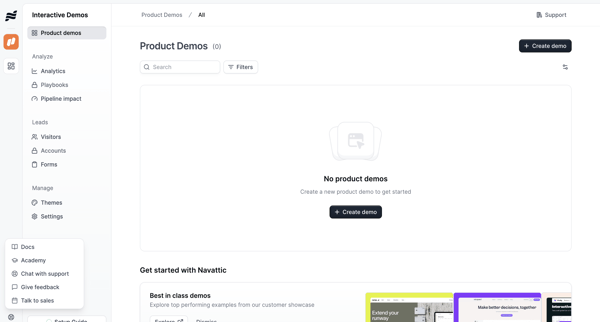
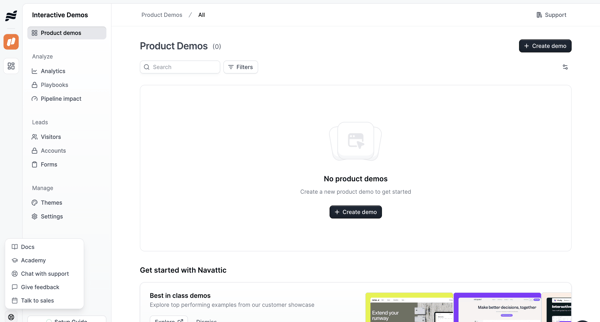
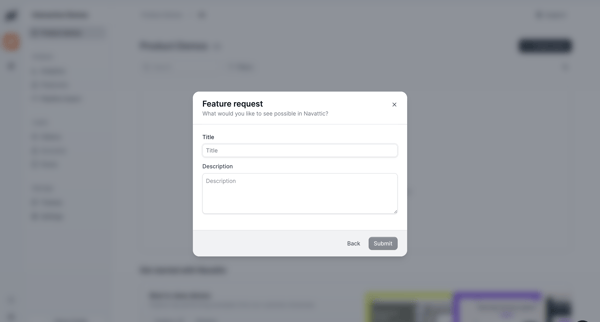



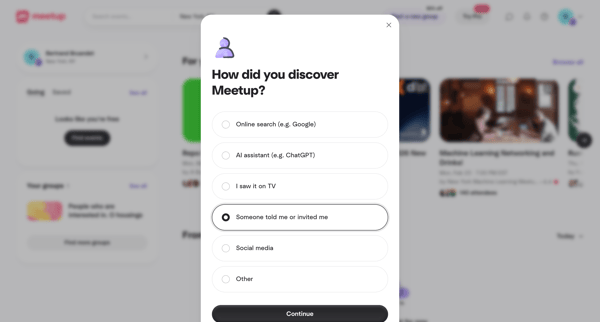





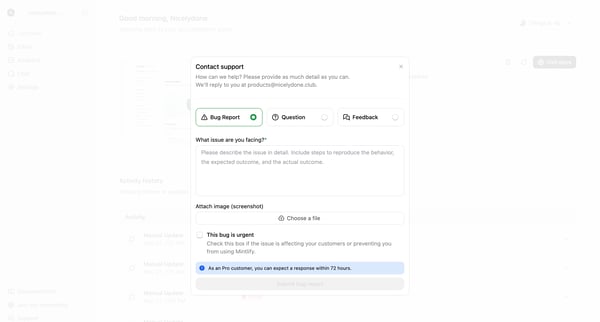
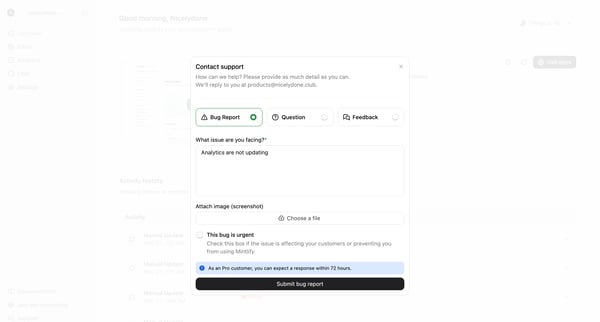

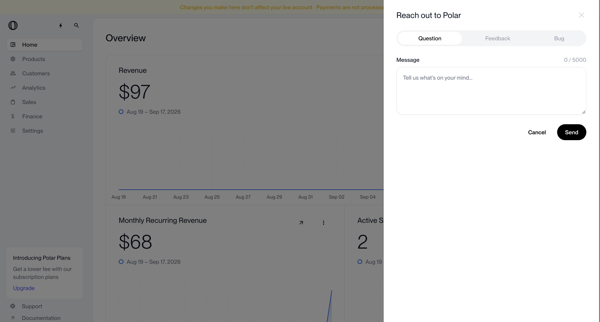
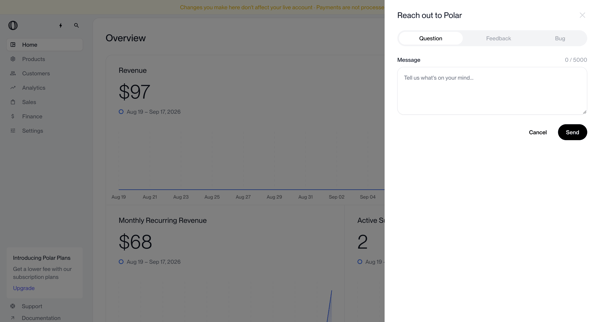
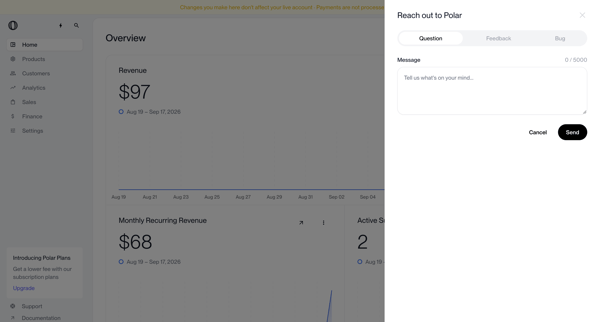
User opens support drawer from dashboard metrics view to submit a question, feedback, or bug report via segmented form

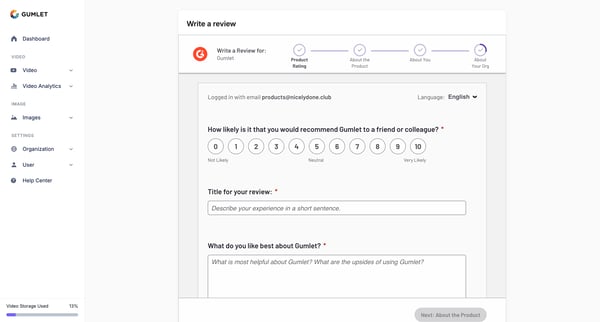
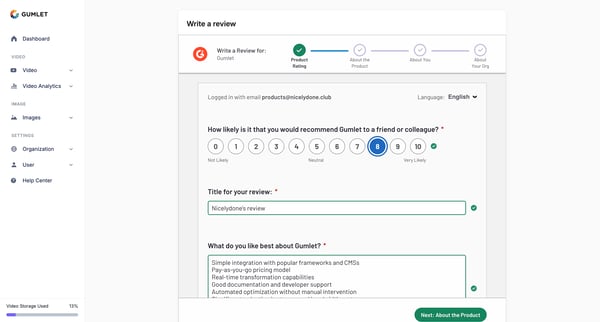
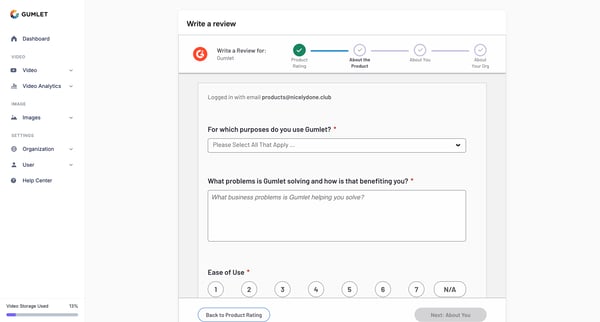

Explore the full SaaS flow library
Browse the full SaaS flow library.
Trusted by the best teams







