Mutinyhq Flow Example: Configuring brand themes
Preview this Mutinyhq user flow: Configuring brand themes. Explore the opening screens.
Preview these flows

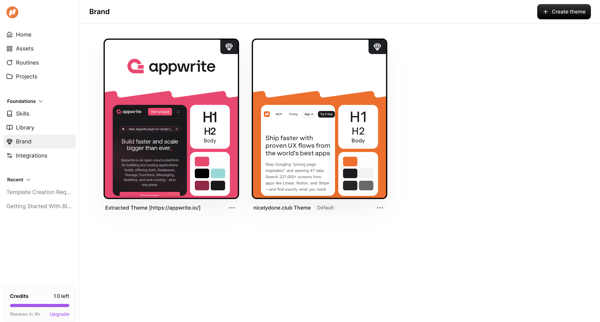
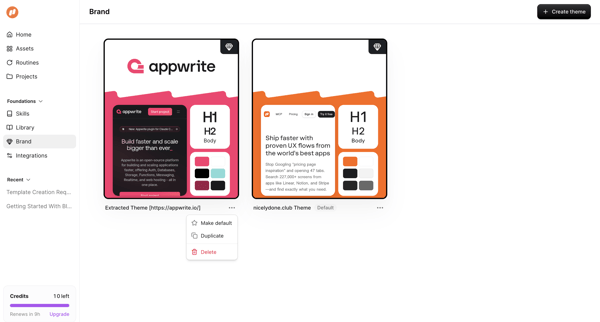
User views and interacts with a gallery of extracted and default brand themes in a list view, opening a context menu on a theme card to access duplicate, make default, and delete options
Related user flows

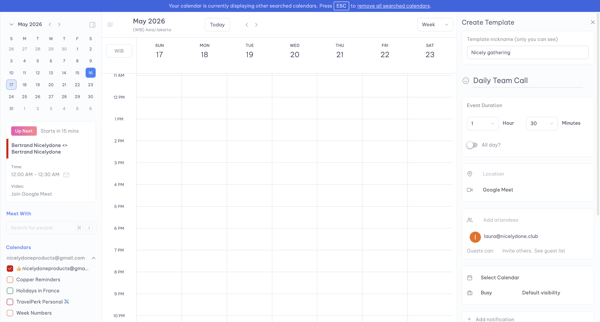
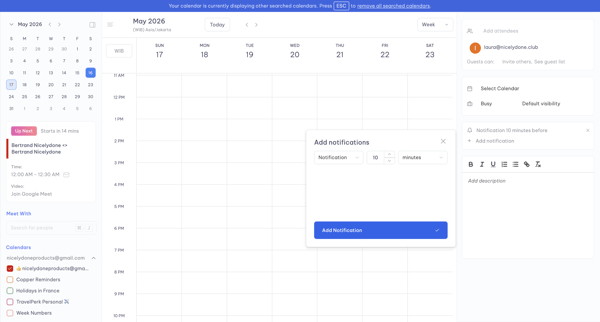
User opens Create Template panel from calendar week view and adds a notification via modal while editing event template details

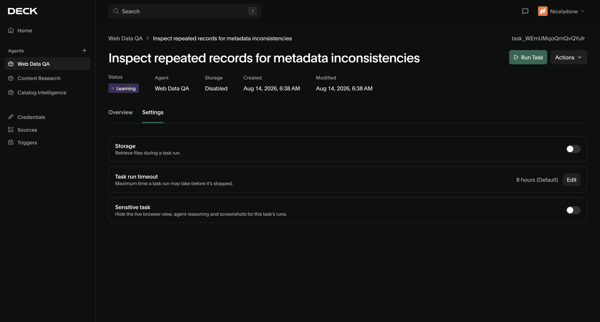
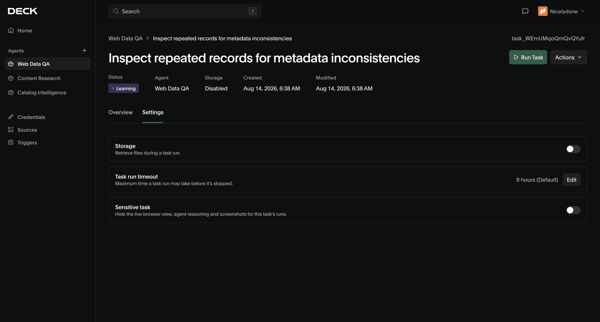
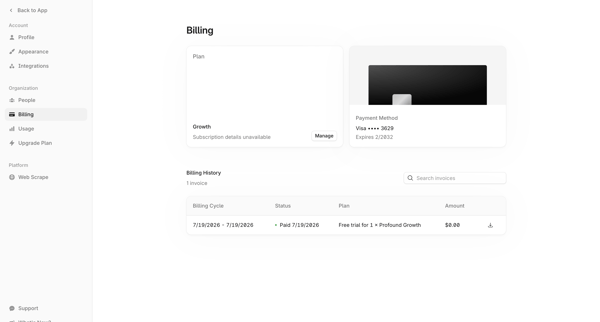
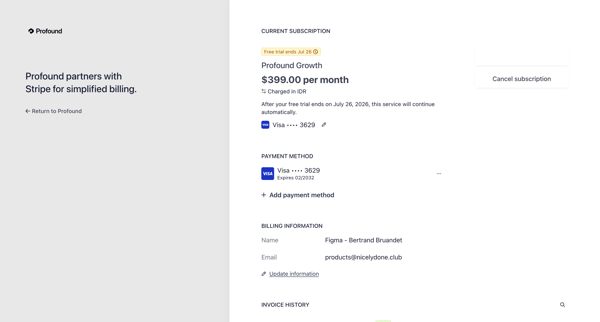

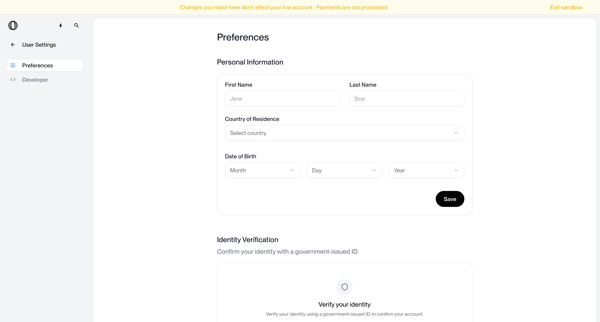
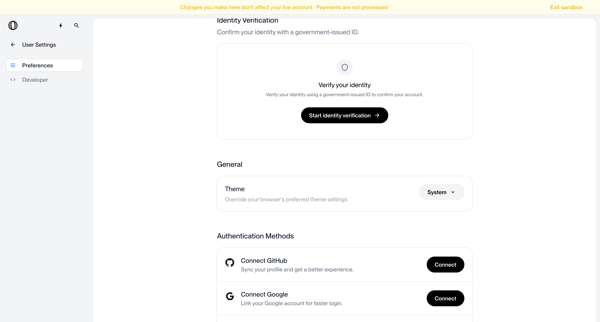
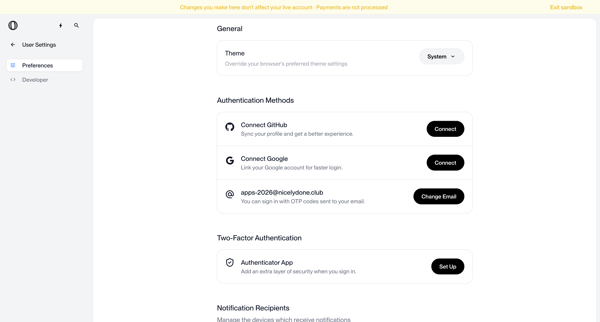
User configures personal information, identity verification, theme, authentication methods, MFA, notifications, and account deletion options across settings screens in sandbox mode

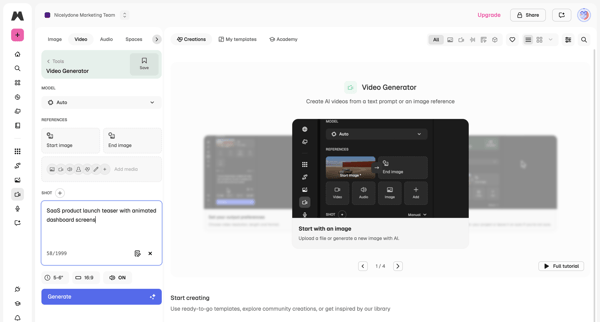
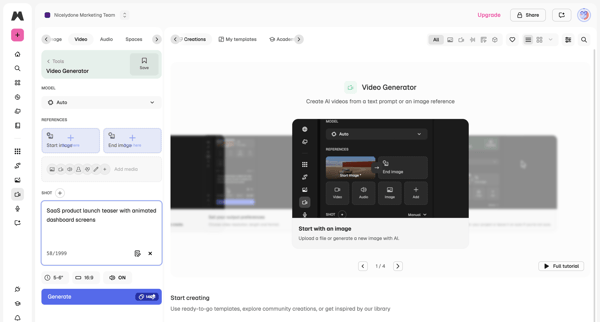

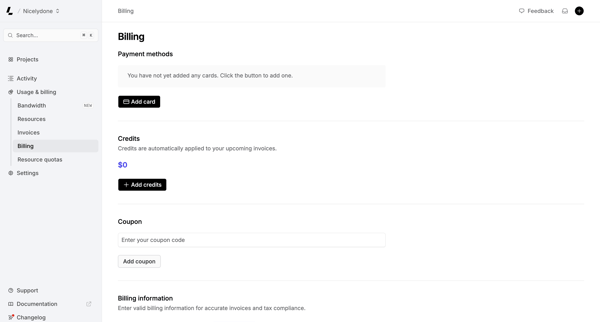
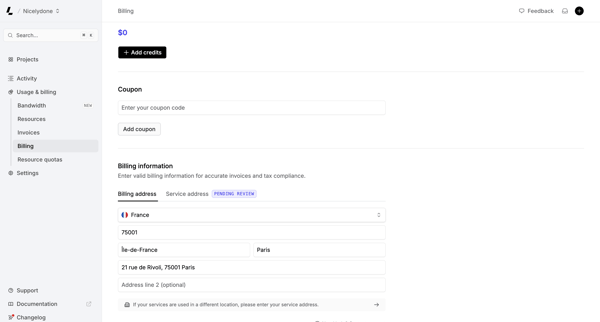
User views and manages payment methods, credits, coupons, and billing address on the billing settings page

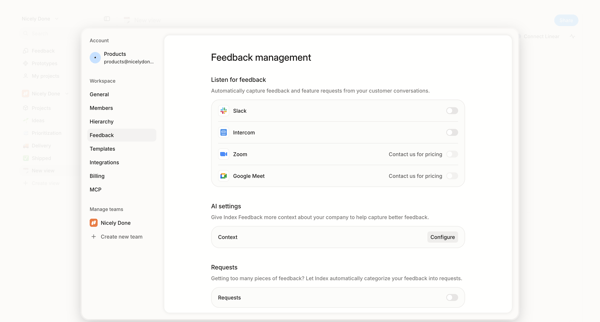
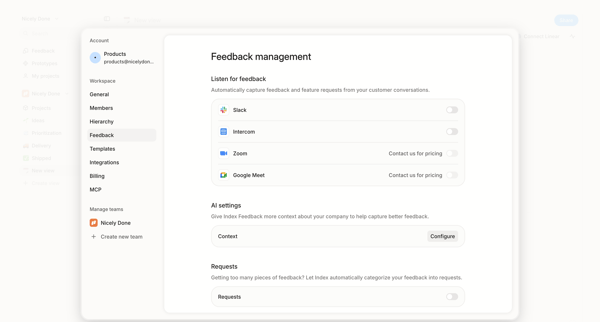
User configures workspace feedback ingestion sources including Slack and Intercom integrations, AI context rules, and request categorization in Alloy settings.

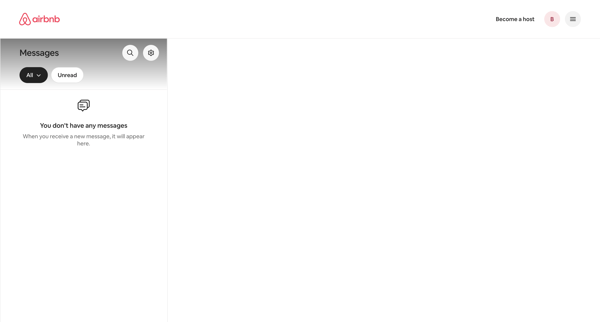
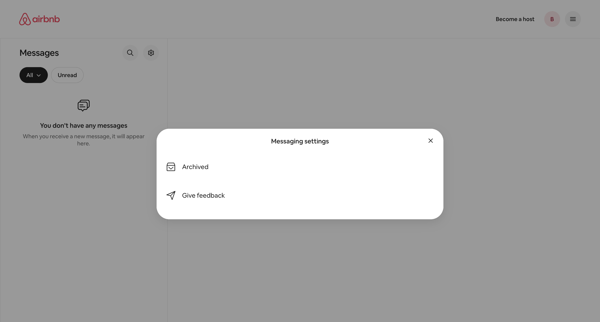
User accesses messaging settings modal from empty inbox to manage archived messages or provide feedback

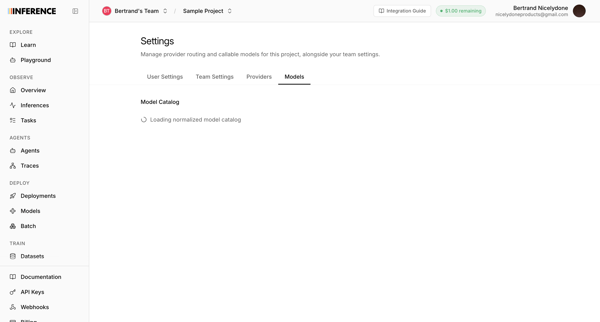
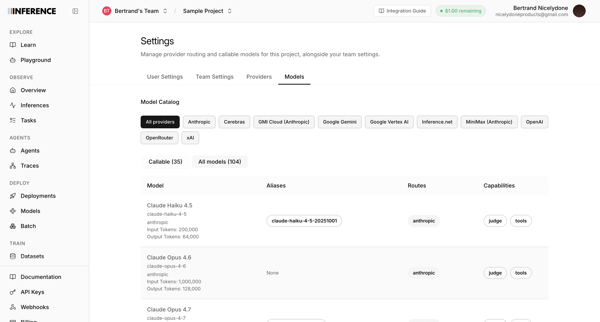
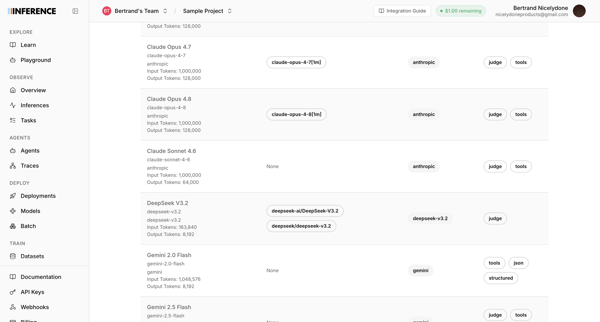
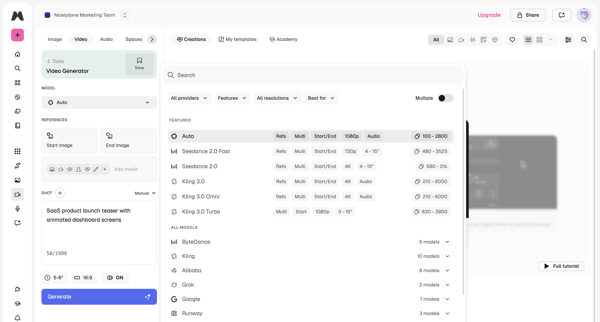
User accesses AI model catalog settings to manage provider routing, filter models by provider, and review token limits and capabilities across multiple list and table views

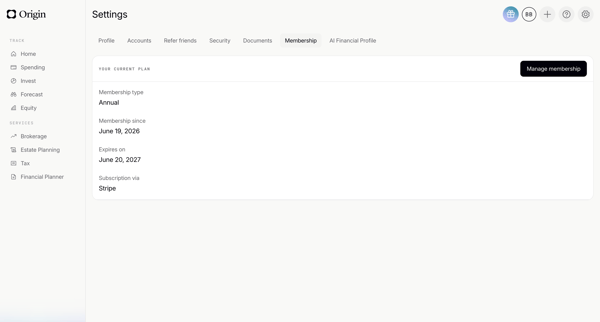
User enters membership settings after loading to view annual plan, expiration, membership date, and Stripe billing provider

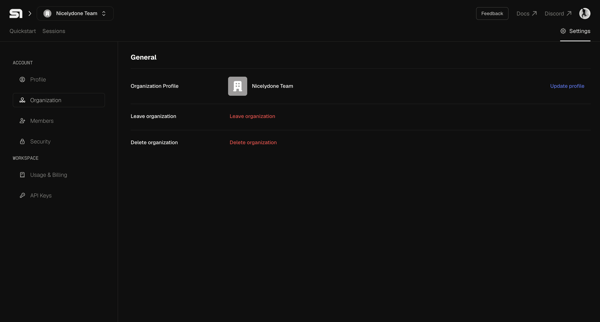
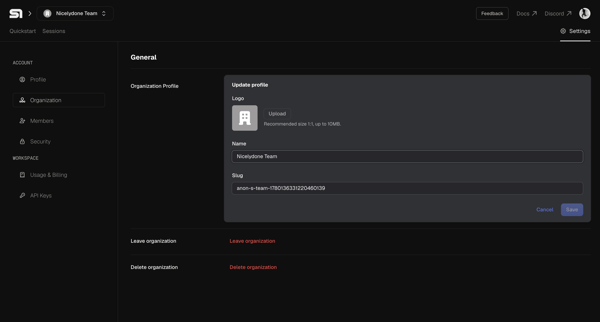

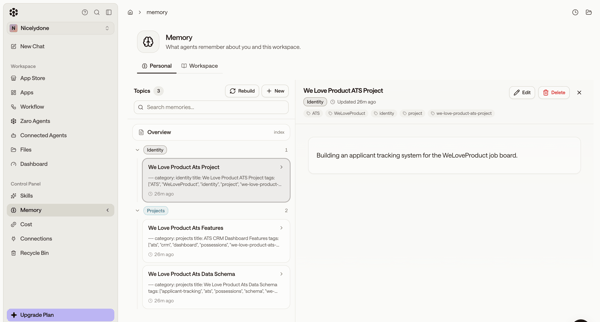
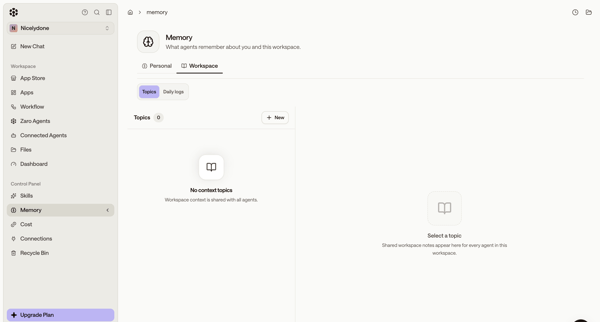
User manages AI agent memory topics for self and workspace via settings pages in default master-detail or empty states
Explore the full SaaS flow library
Browse the full SaaS flow library.
Trusted by the best teams







