Settings flow examples
Settings user flow examples from SaaS apps. See how apps lead people into changing a preference or configuration. Preview the opening steps for locating the relevant settings and choosing what to adjust.
Preview these flows

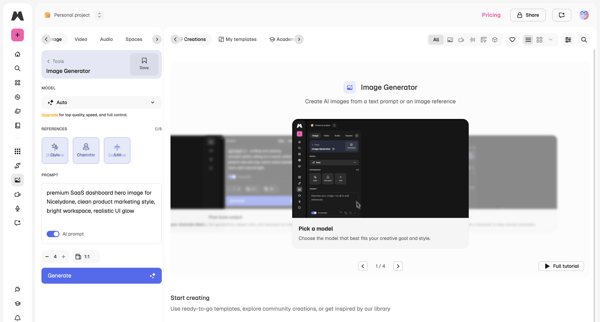
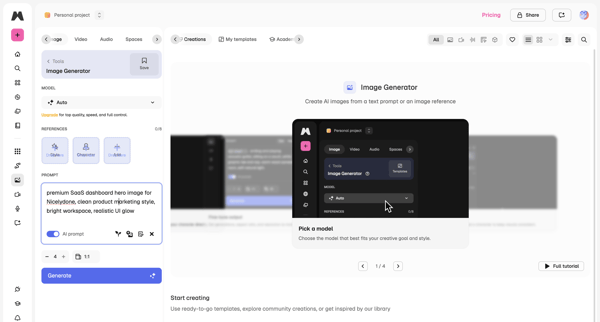
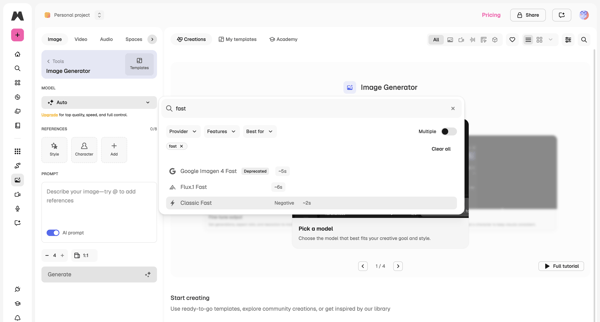
Creator configures AI image generation by selecting model, adding references, and writing prompt inside Magnific workspace, with product tour visible across screens

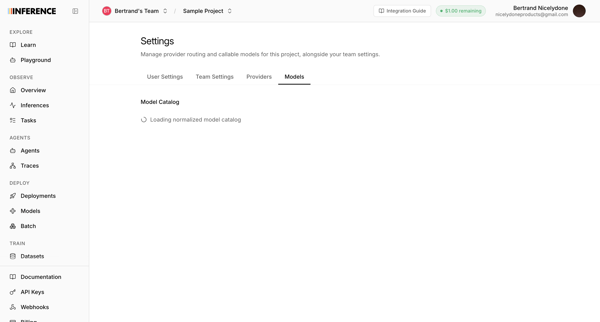
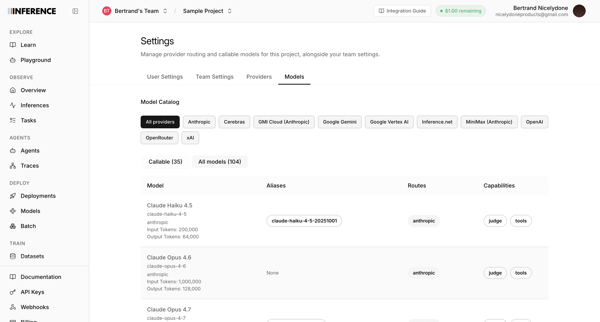
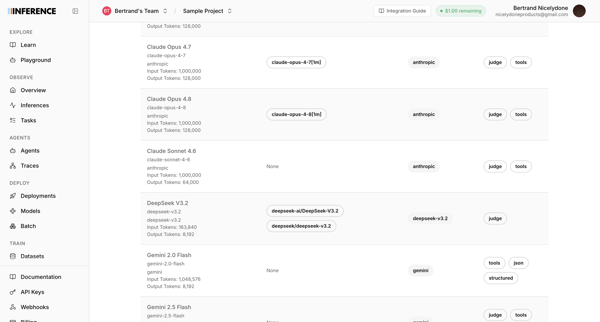
User accesses AI model catalog settings to manage provider routing, filter models by provider, and review token limits and capabilities across multiple list and table views

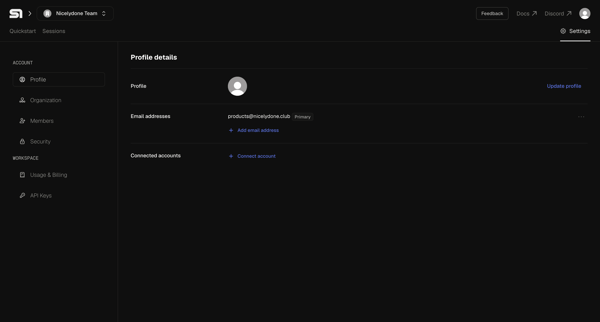
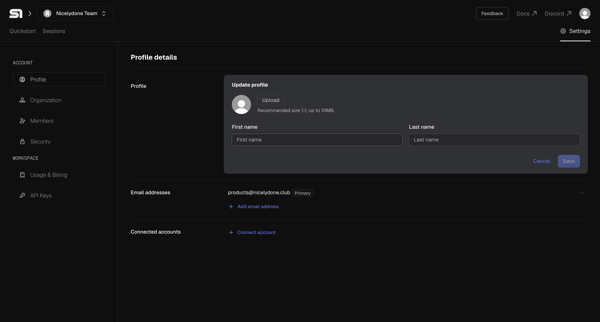
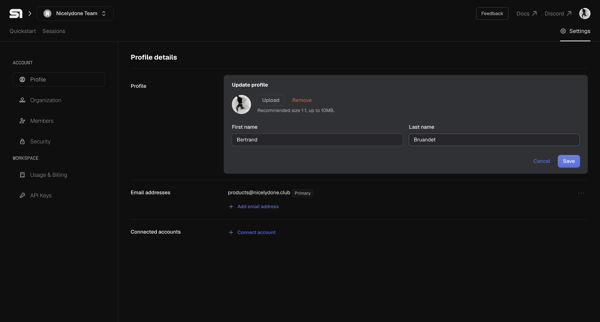
User manages avatar, personal details, email addresses, and connected accounts on the profile settings page in Steel

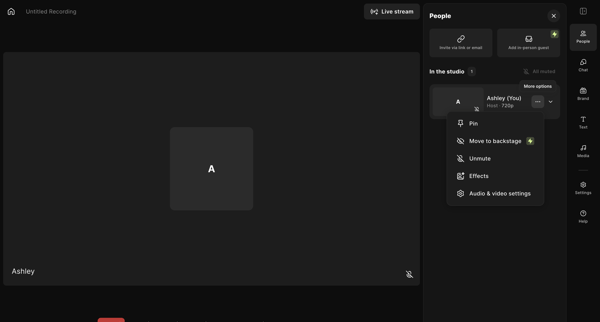
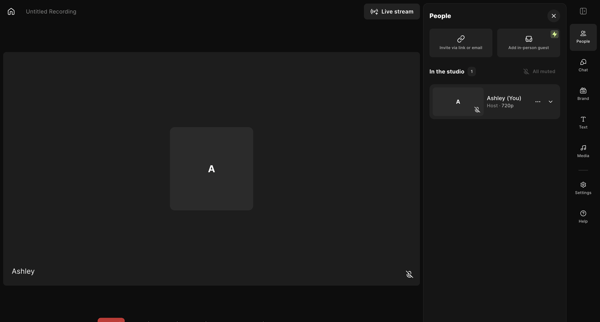
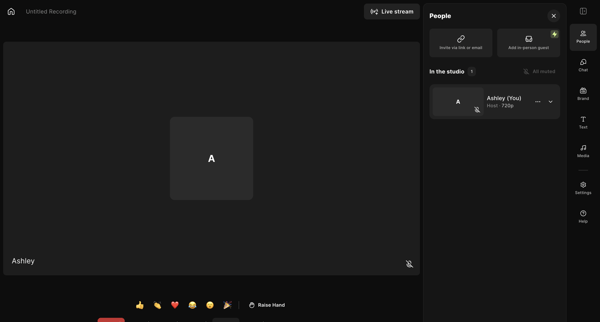
Host enters live recording studio to manage participants, configure AV and layout settings, add media assets, write scripts, and prepare for podcast or video capture

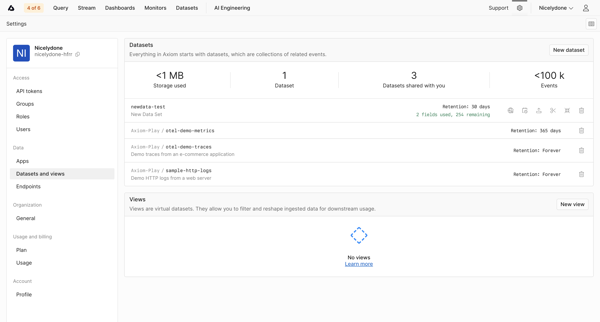
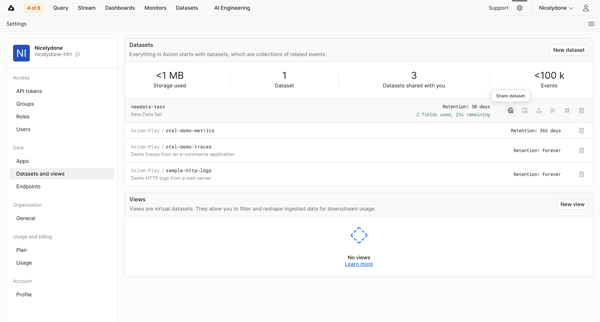
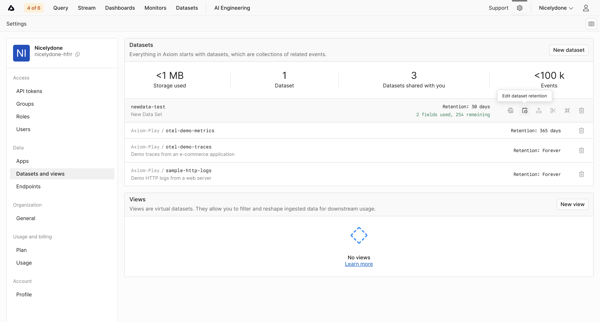
Navigating datasets settings page to monitor storage KPIs, list datasets and views, and configure retention policies

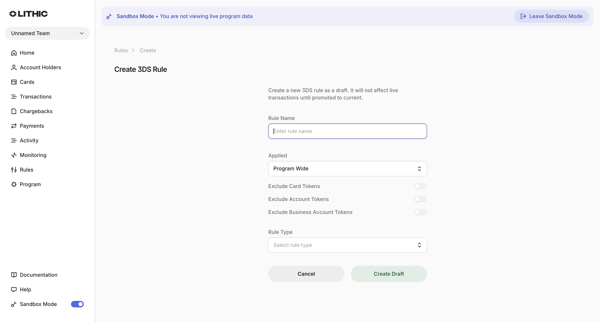
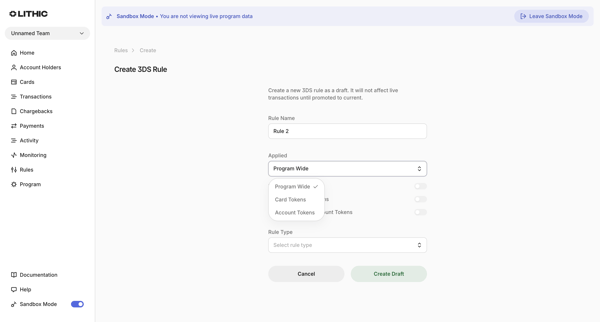
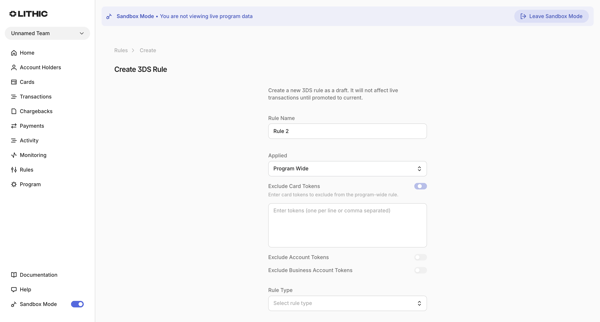
User creates a new 3DS rule draft in Lithic by completing a multi-state creation form that sets name, application scope, token exclusions, and rule type or custom logic

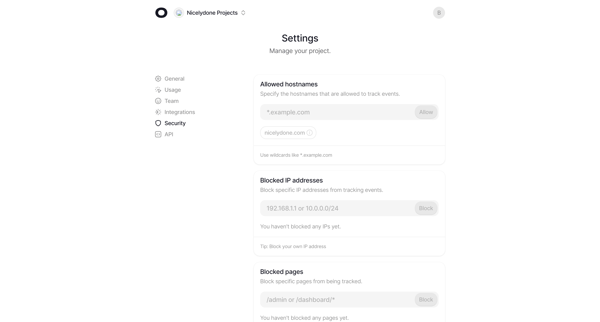
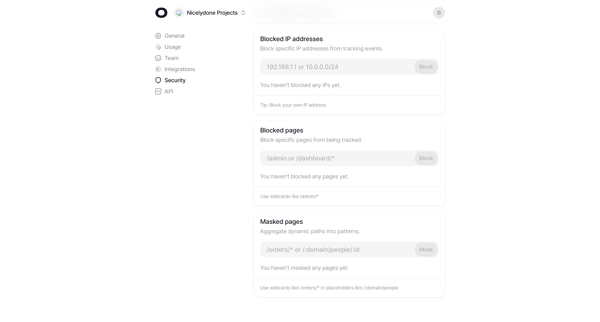
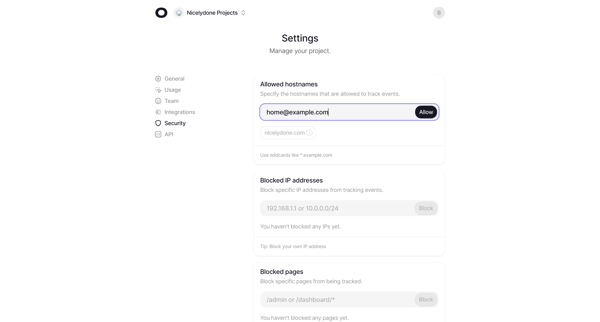
User configures allowed hostnames, blocked IP addresses, blocked pages, and dynamic path masking across multiple states of the security settings page

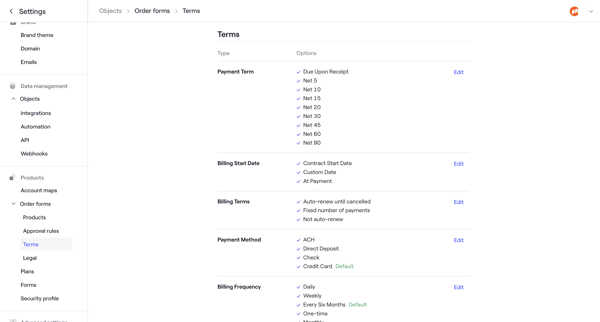
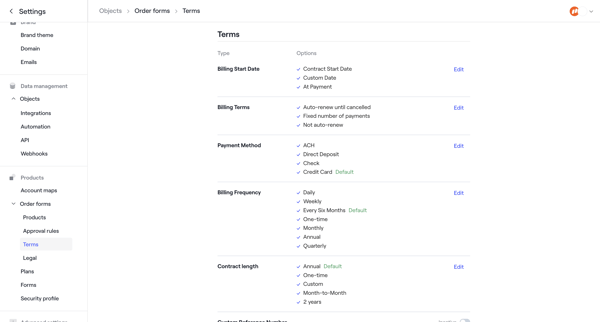
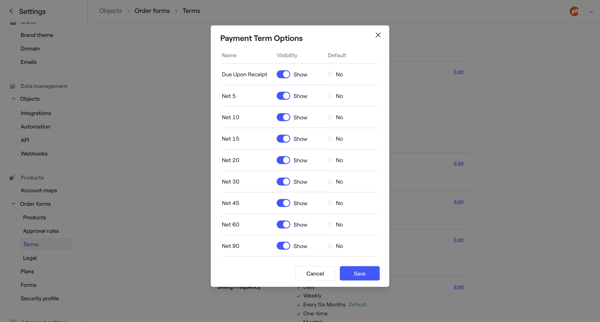
Admin configures default payment terms, billing options, contract lengths, additional legal terms, custom documents, and default signers across order form settings screens
Explore the full SaaS flow library
See 388 more SaaS user flows.
Trusted by the best teams








About Settings
See how apps lead people into changing a preference or configuration. Preview the opening steps for locating the relevant settings and choosing what to adjust.