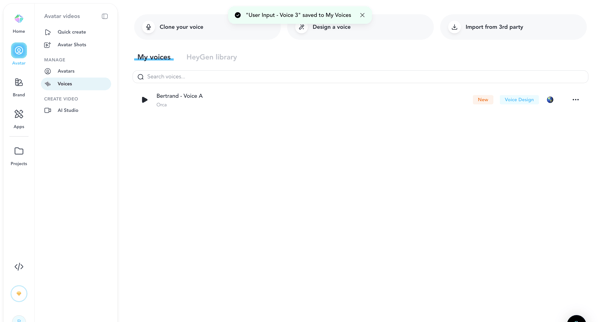
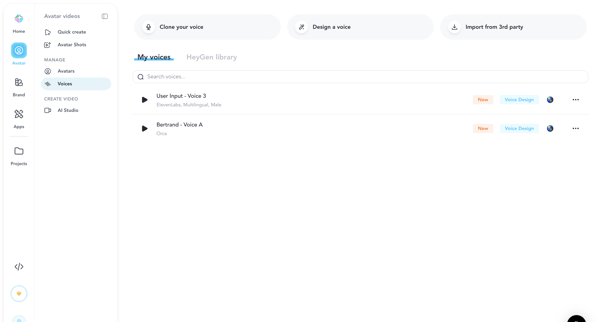
HeyGen Flow Example: Creating custom voices
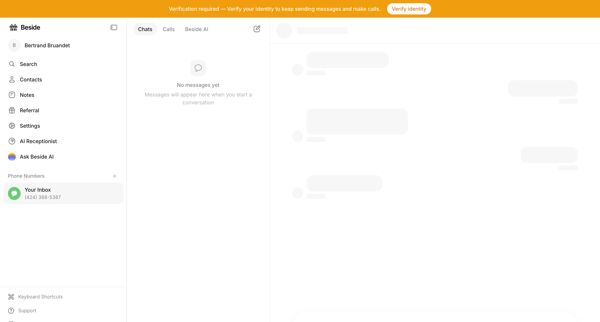
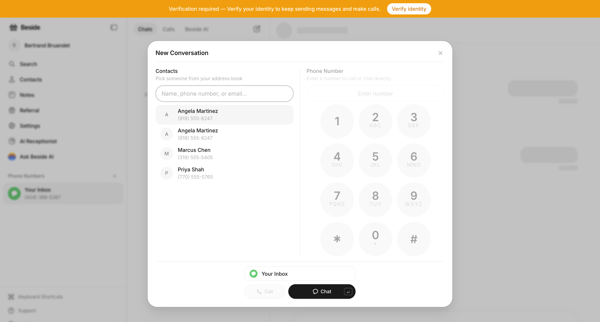
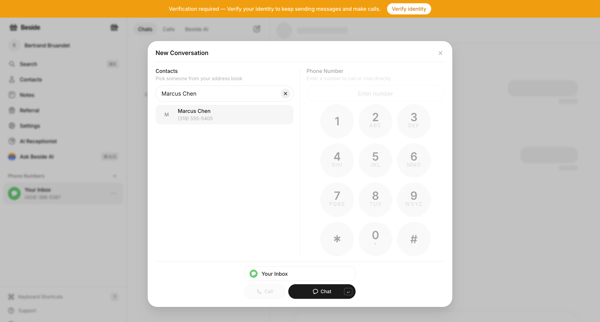
Preview this HeyGen user flow: Creating custom voices. Explore the opening screens.
Preview these flows

Related user flows

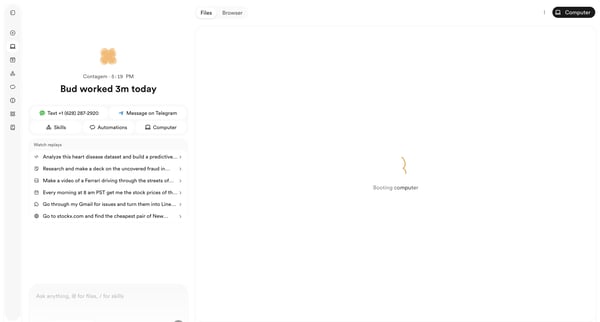
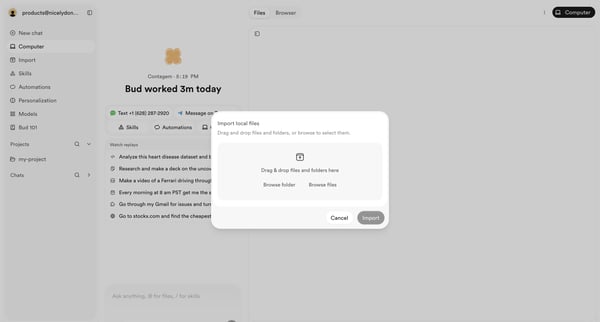
User opens file import modal from AI agent workspace dashboard to select local files or folders via drag-and-drop or browse

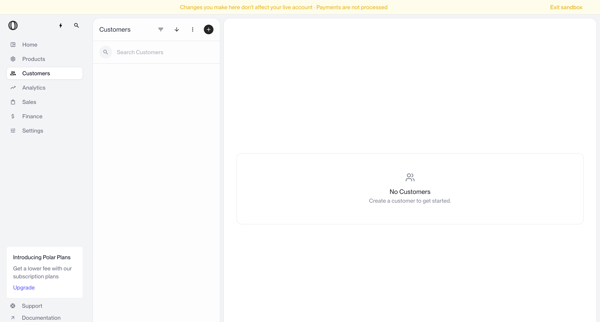
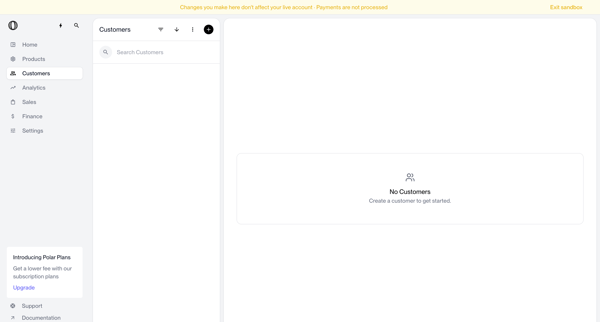
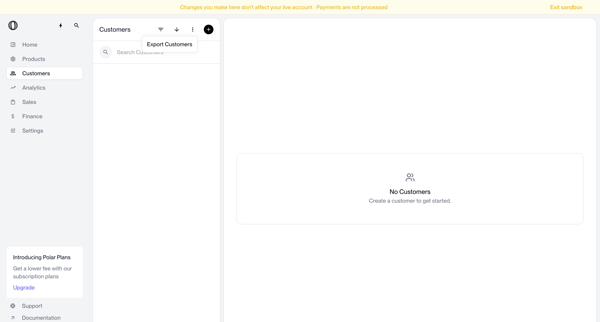
Navigating empty customer list states in sandbox with search bar, filter options, and create prompts visible

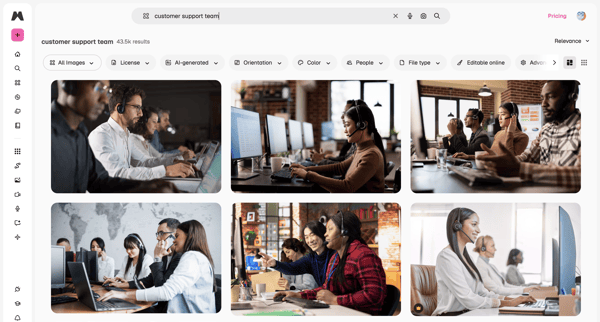
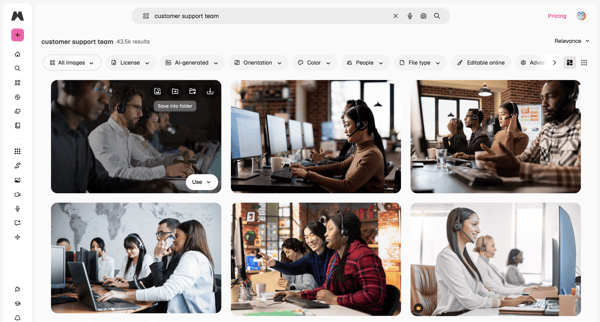
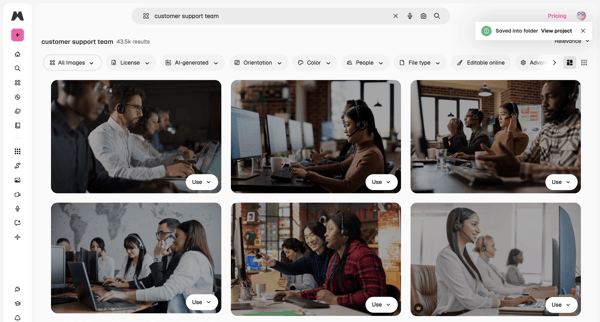
User enters search query for stock images, browses masonry grid results, applies filters by license/orientation/color, views AI suggestions in overlay, and saves or downloads assets

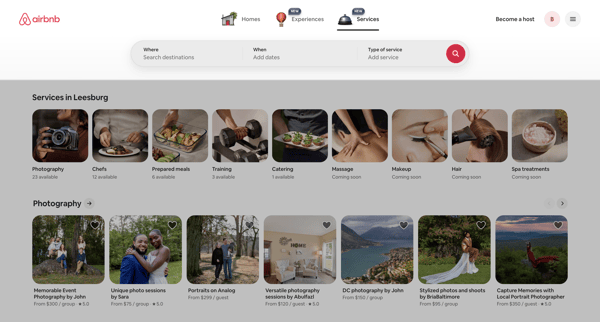
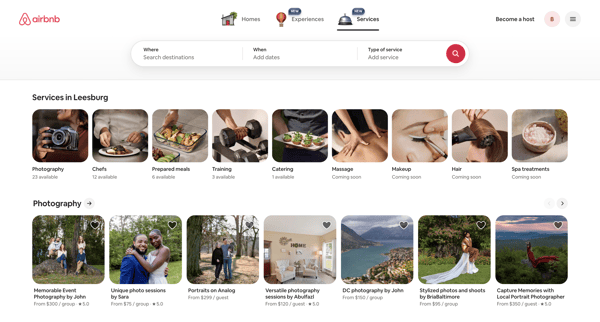
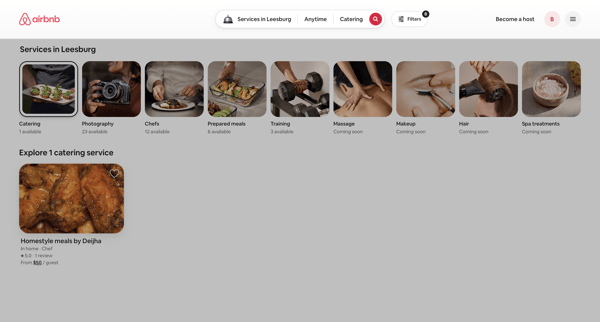
Browsing local services via category carousels and search results grids on Airbnb app

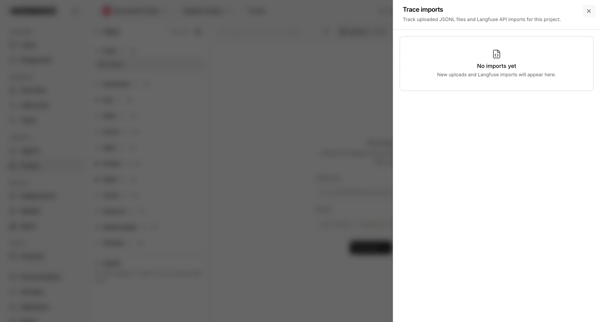
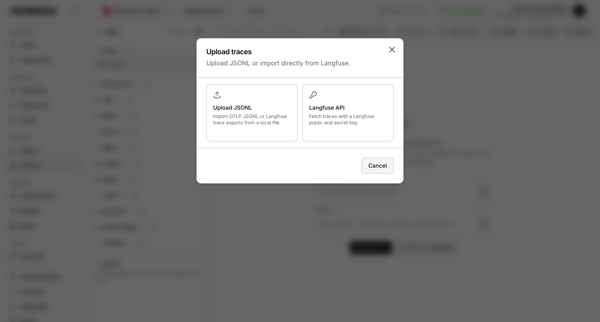
User opens trace imports drawer showing empty state then opens upload modal to choose JSONL file or Langfuse API import

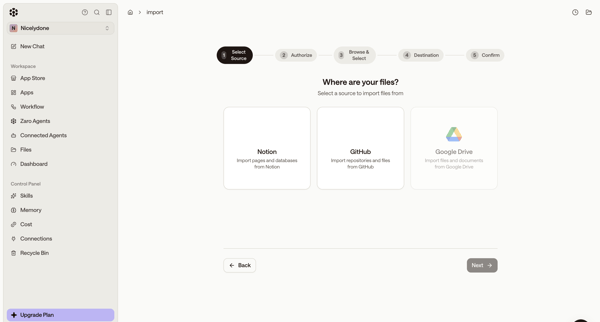
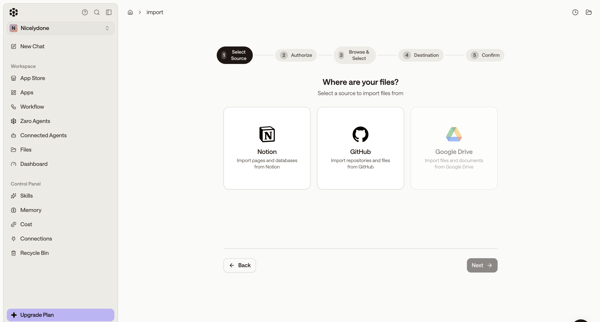
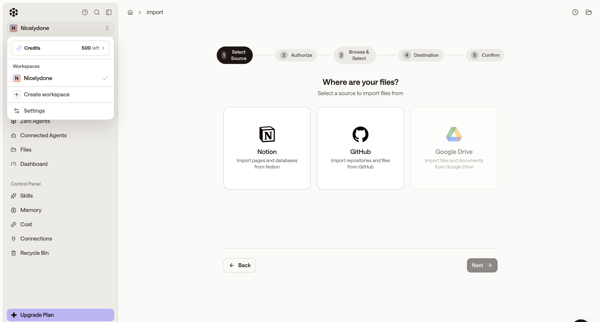
Wizard-based selection of third-party data source to import files into workspace

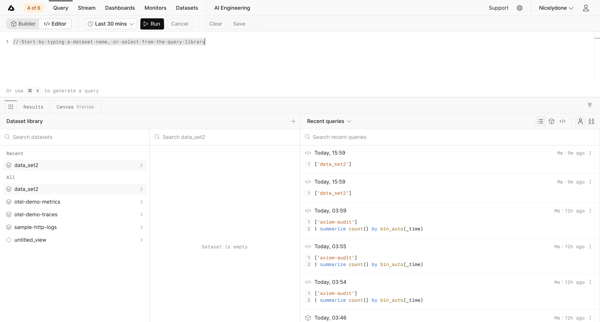
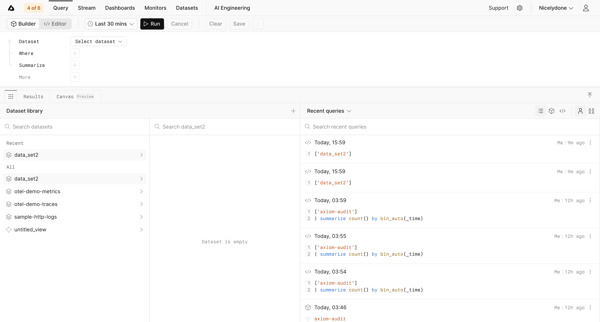
Journey through query editor and builder interfaces to search datasets and run data queries in Axiom

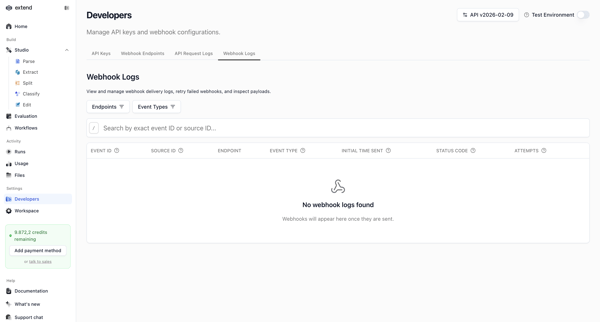
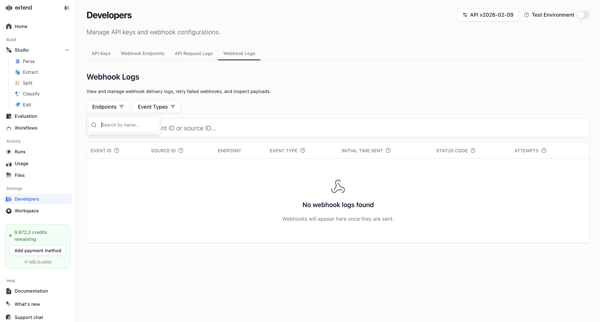
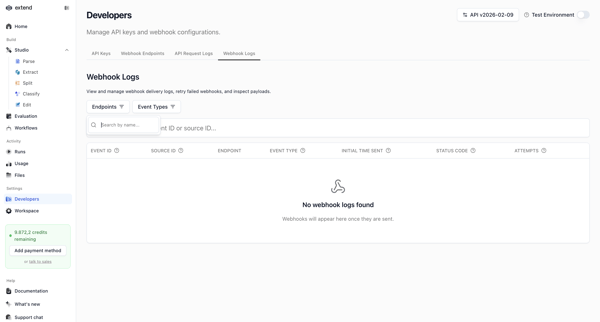
Developer accesses webhook settings page to search, filter, and view delivery logs, shown in multiple empty states with filter popovers and table views

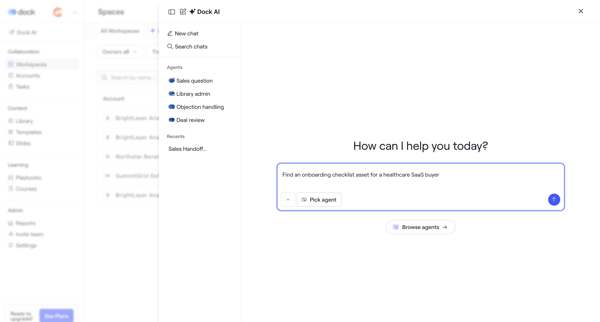
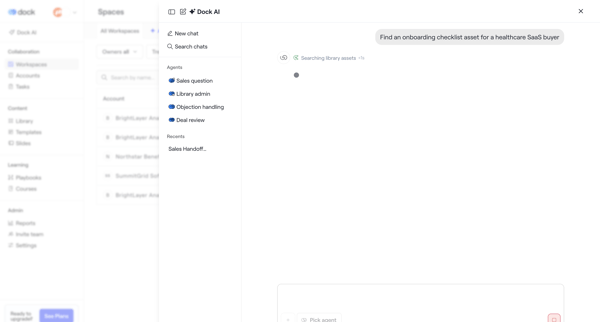
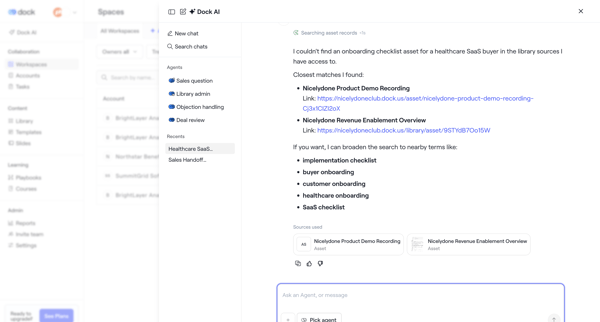
User opens AI assistant overlay in Dock to chat with specialized agents, request asset searches such as onboarding checklists, and review suggested records with alternatives and citations

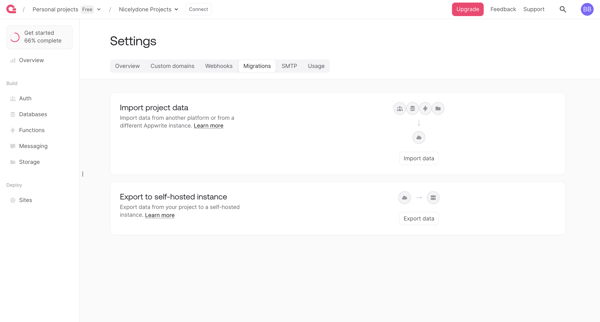
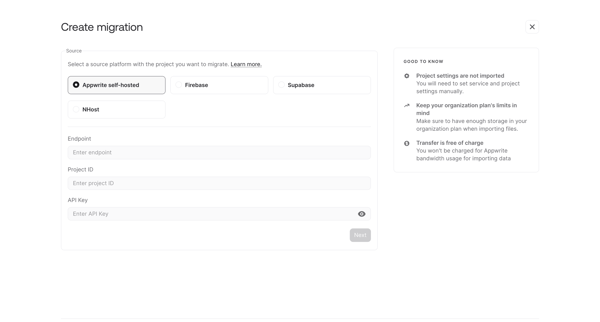
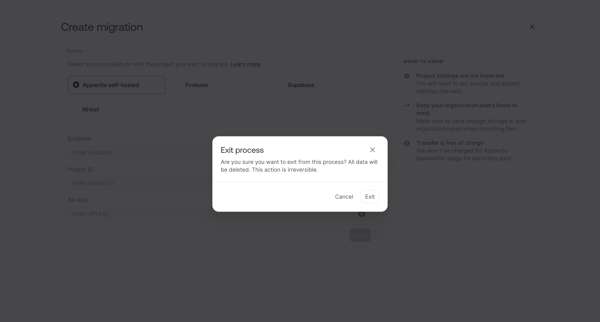
User starts data migration from Migrations Settings, configures source platform and credentials in wizard, and may exit with confirmation

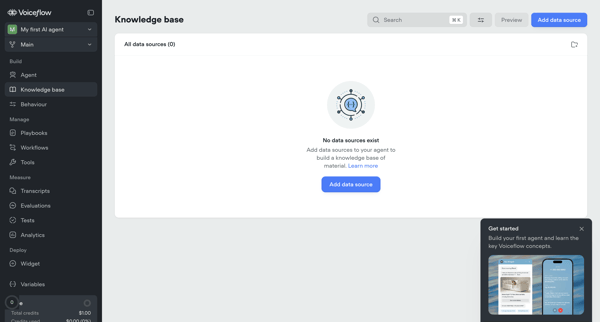
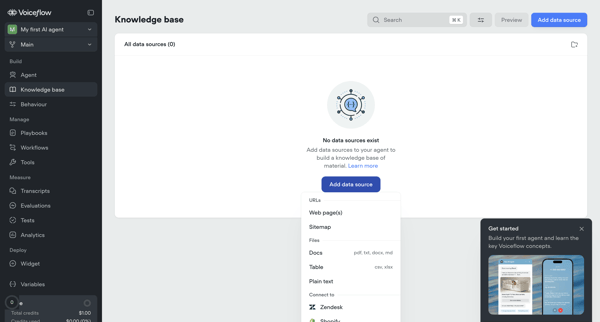
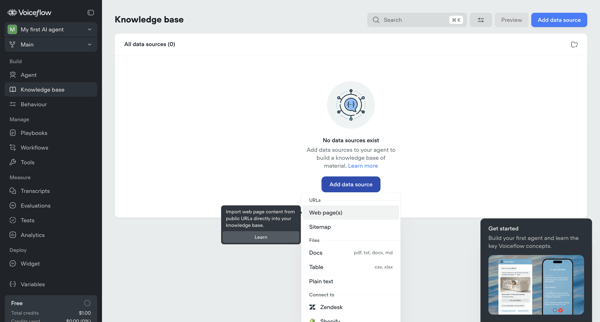
User starts from empty knowledge base state and adds/configures data sources via import modals for URLs and sitemaps, setting sync, chunking, and system prompt options before managing sources in list and settings views

Explore the full SaaS flow library
Browse the full SaaS flow library.
Trusted by the best teams







