MFA screen examples
MFA screen design examples from SaaS apps. See how SaaS apps introduce multi-factor authentication settings. Explore how setup instructions, verification steps, and recovery information appear…
Explore the examples
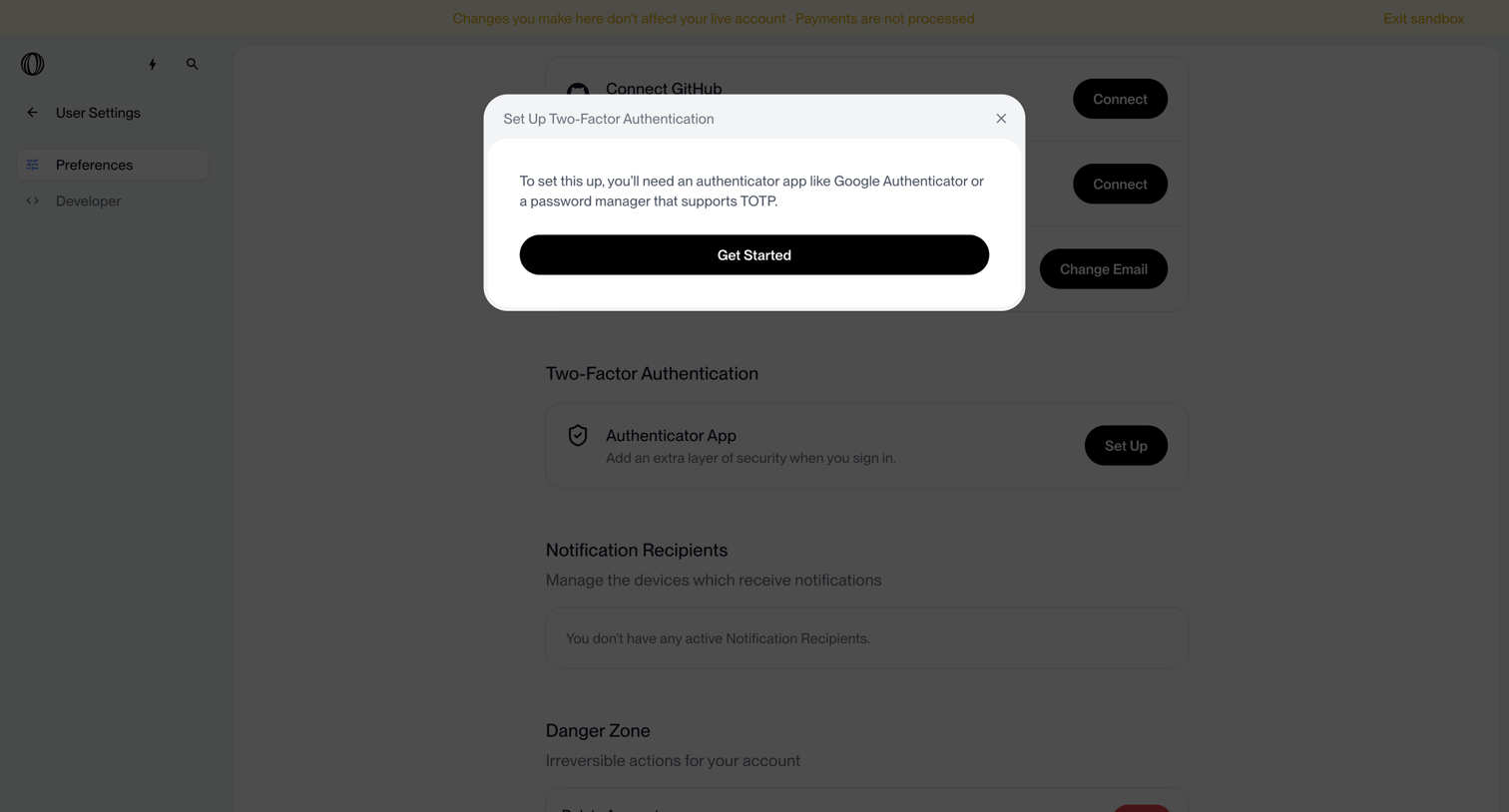

Settings page where the user is prompted to set up two-factor authentication via an authenticator app.
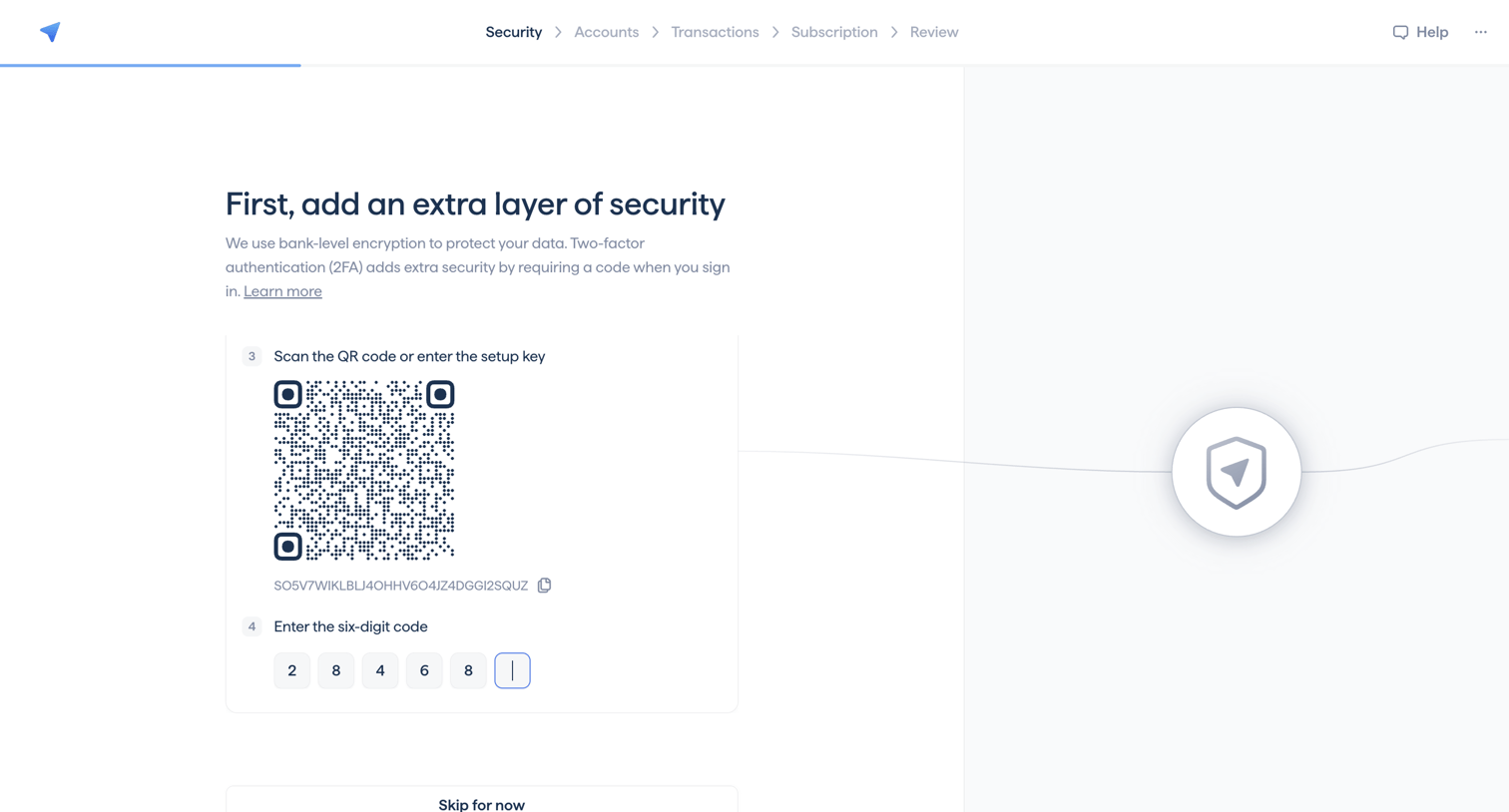

Onboarding step where the user sets up two-factor authentication by scanning a QR code and entering a six-digit verification code.
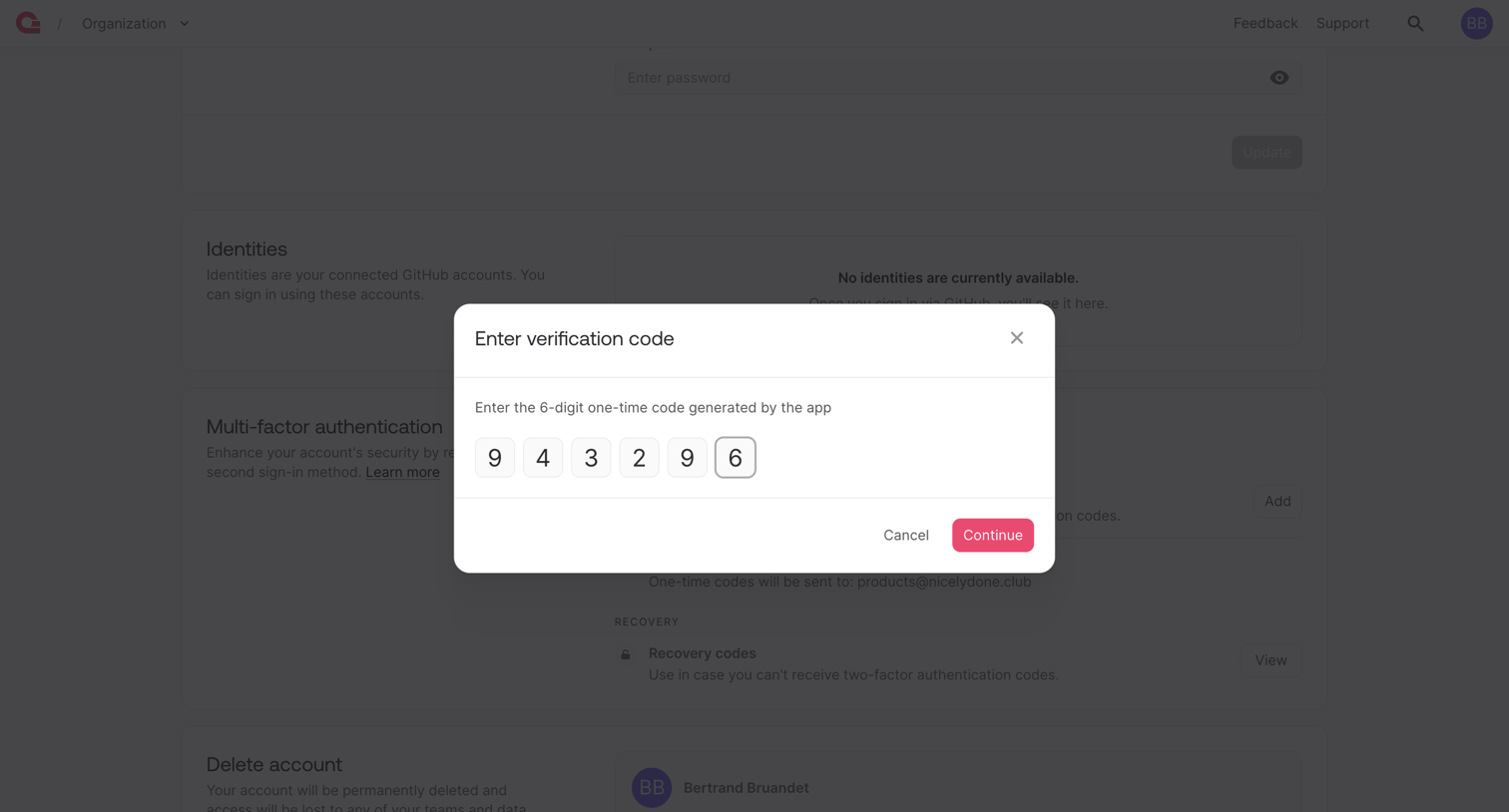

Settings page where the user enters a 6-digit verification code from their authenticator app to configure multi-factor authentication.
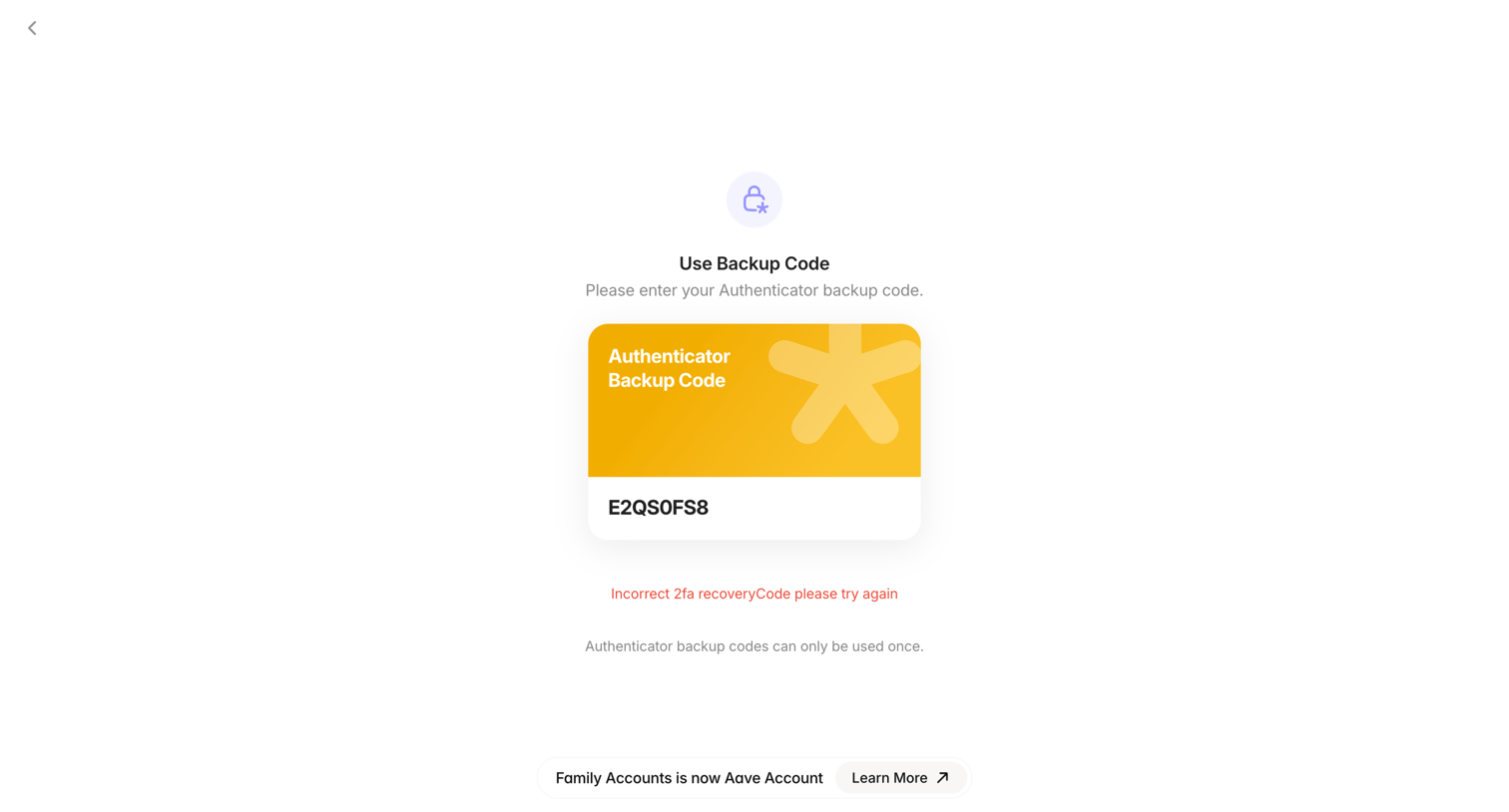

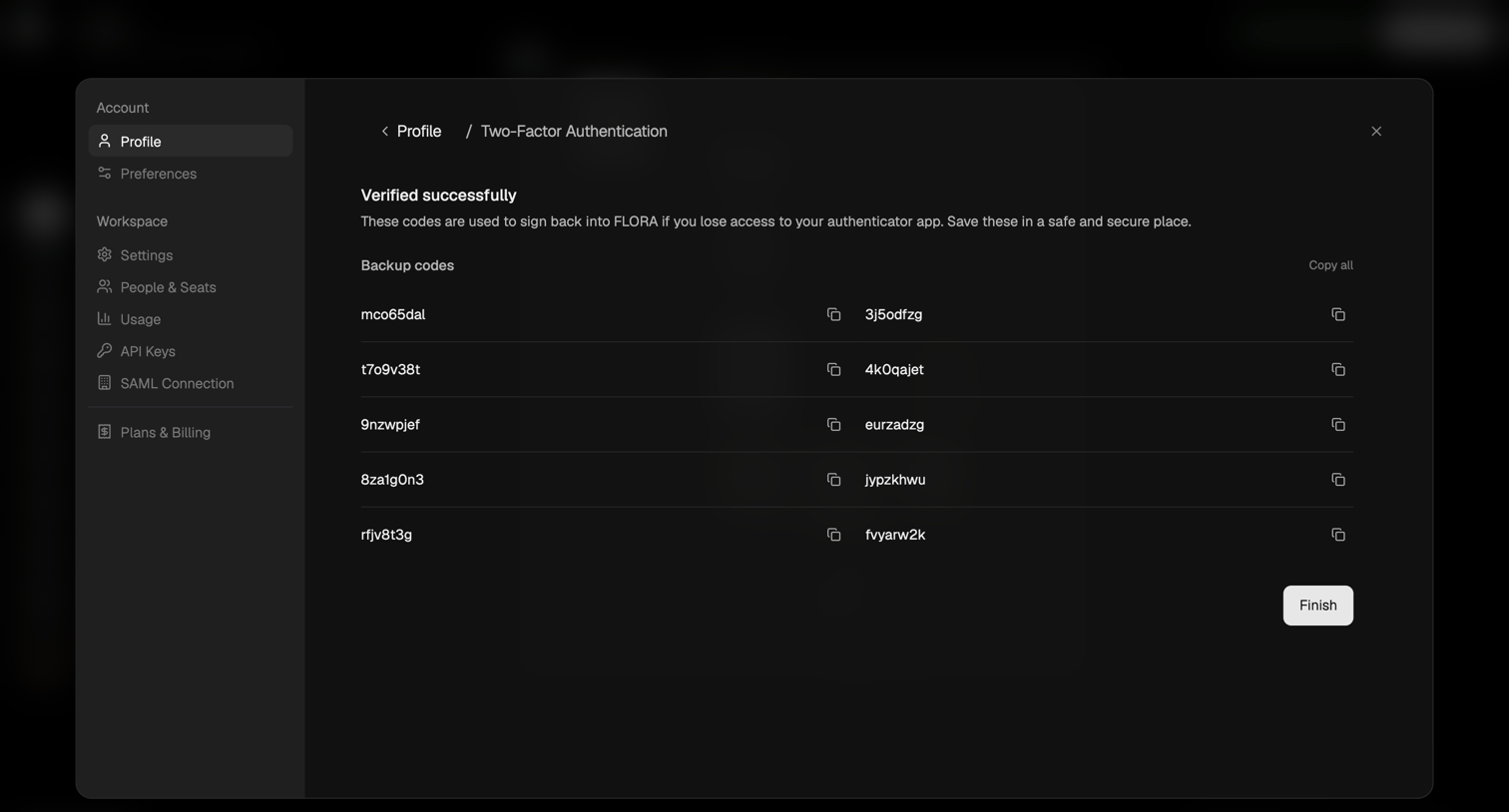

Settings modal where the user saves their two-factor authentication backup codes after successfully verifying their authenticator app.
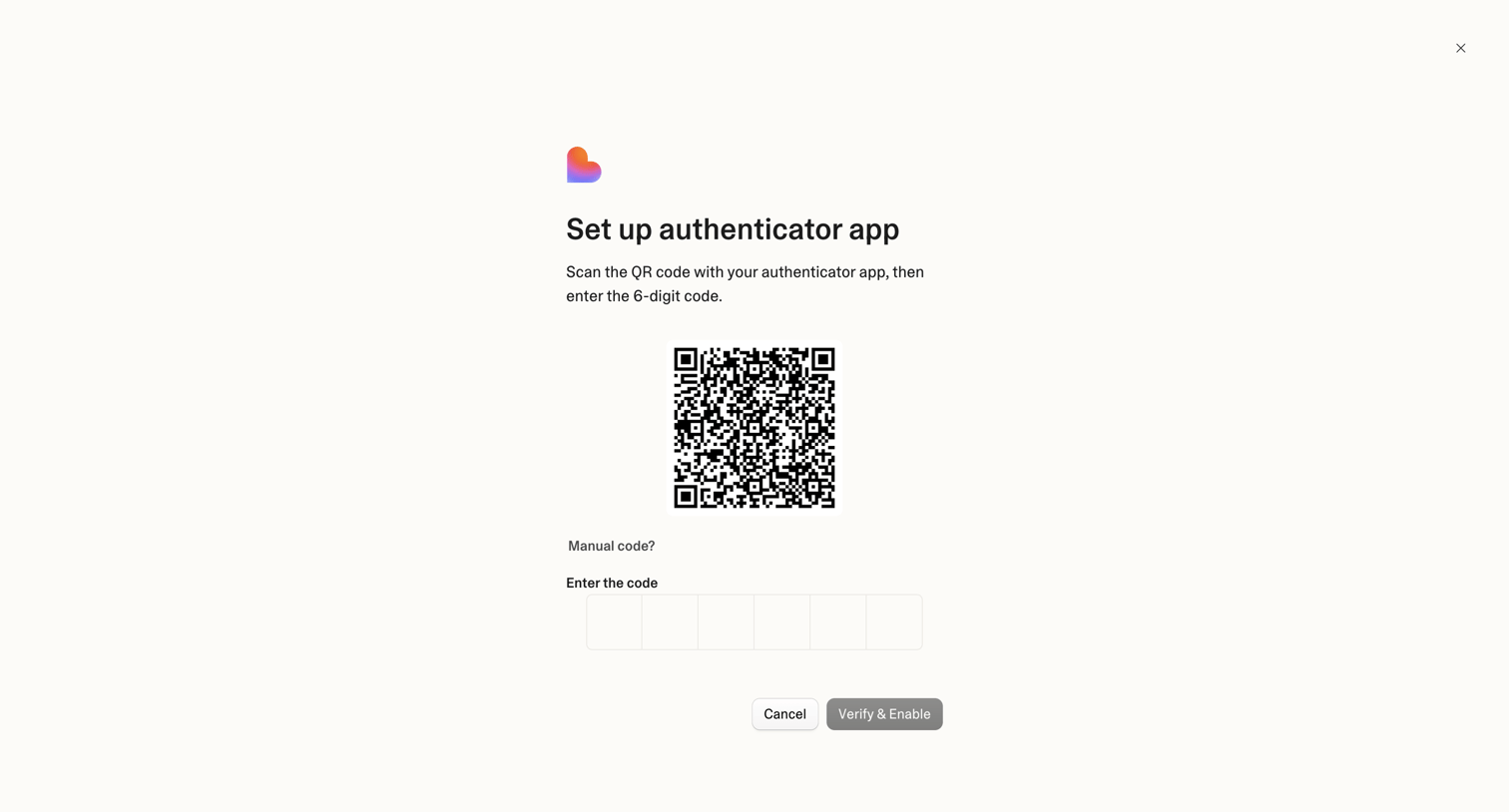

Verification screen where the user sets up an authenticator app by scanning a QR code and entering a 6-digit OTP.
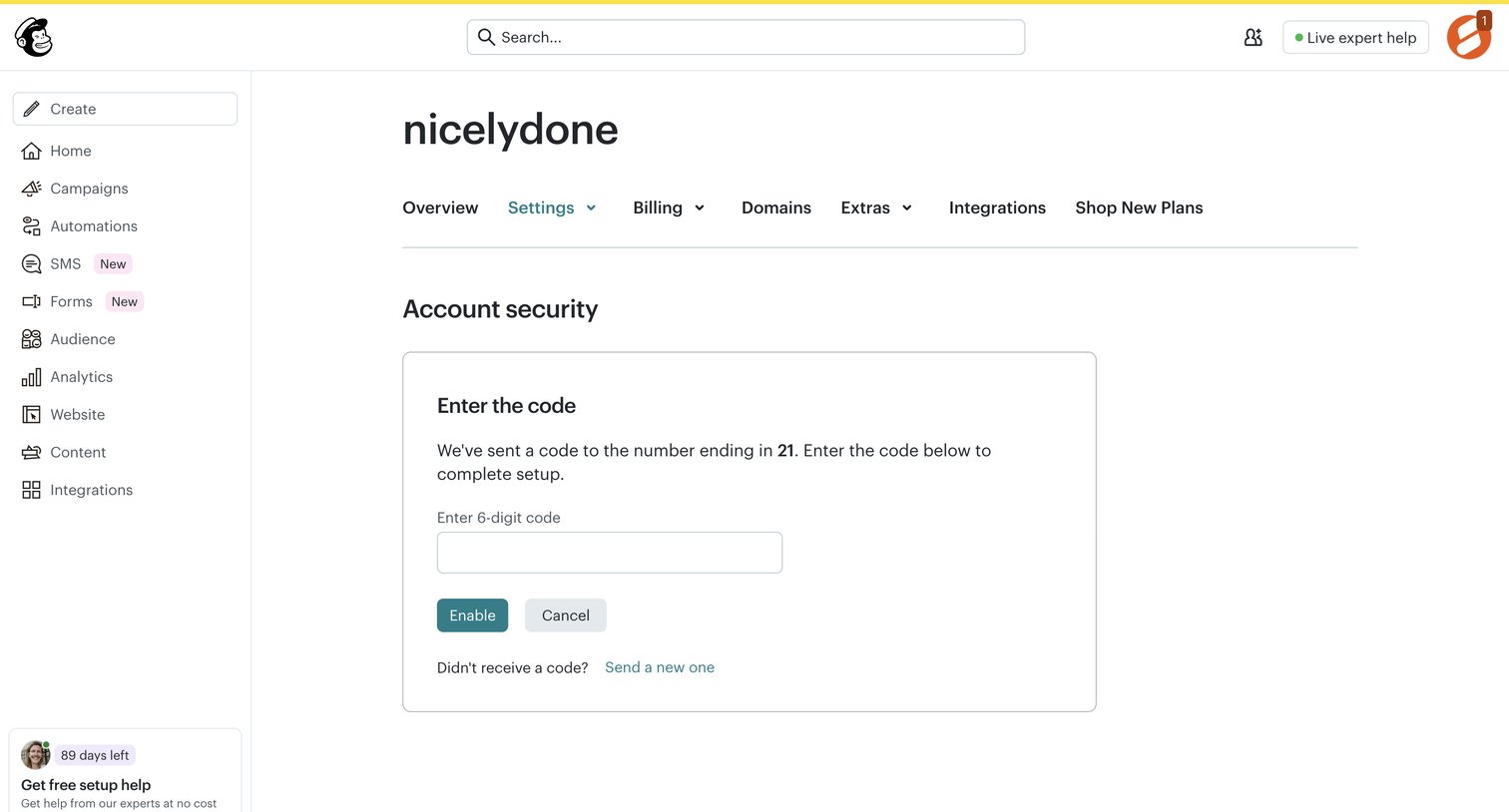

Settings page where the user enters a 6-digit SMS code to enable multi-factor authentication for their account.
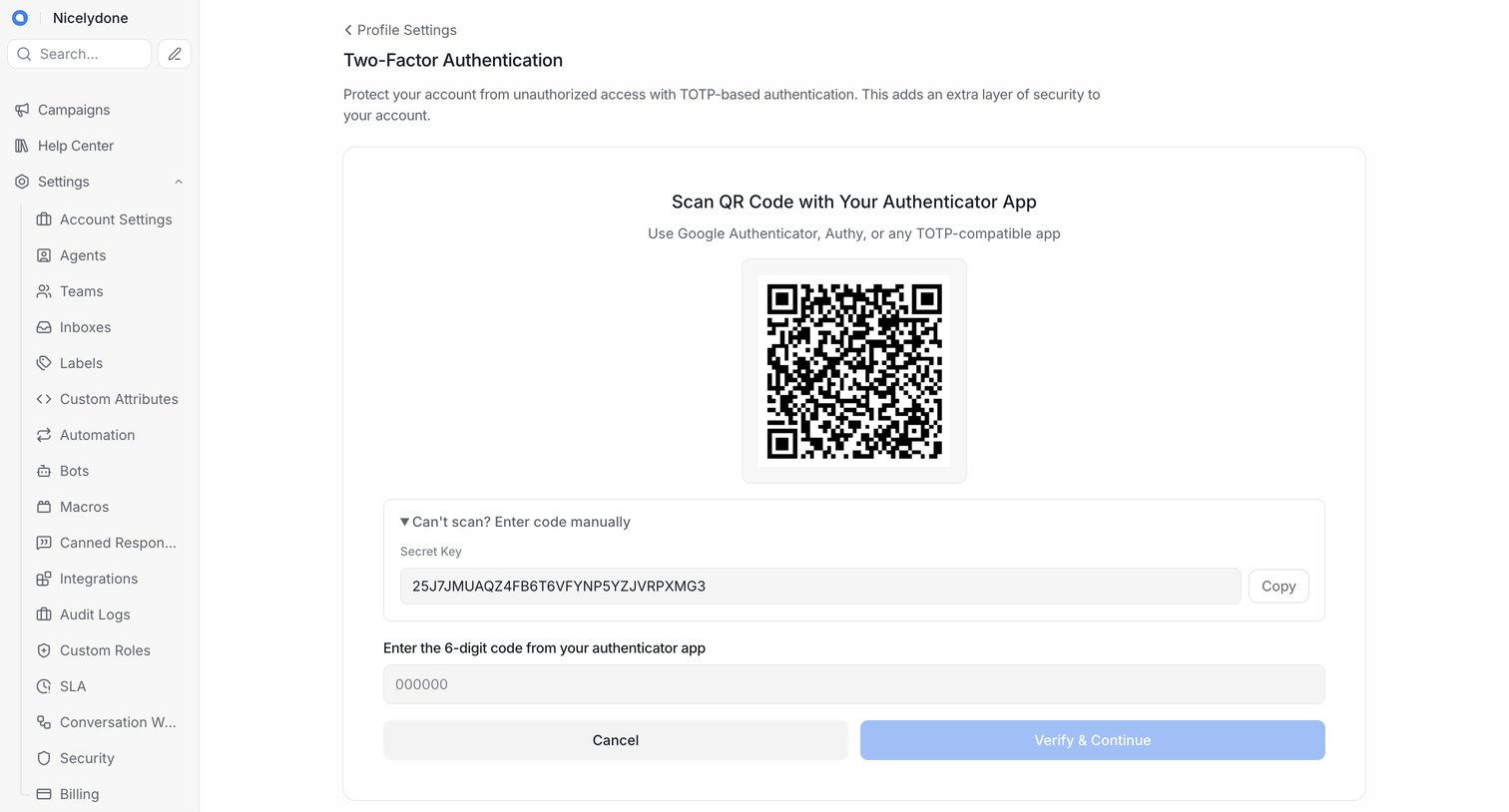

Settings page where the user configures two-factor authentication by scanning a QR code or entering a secret key manually.
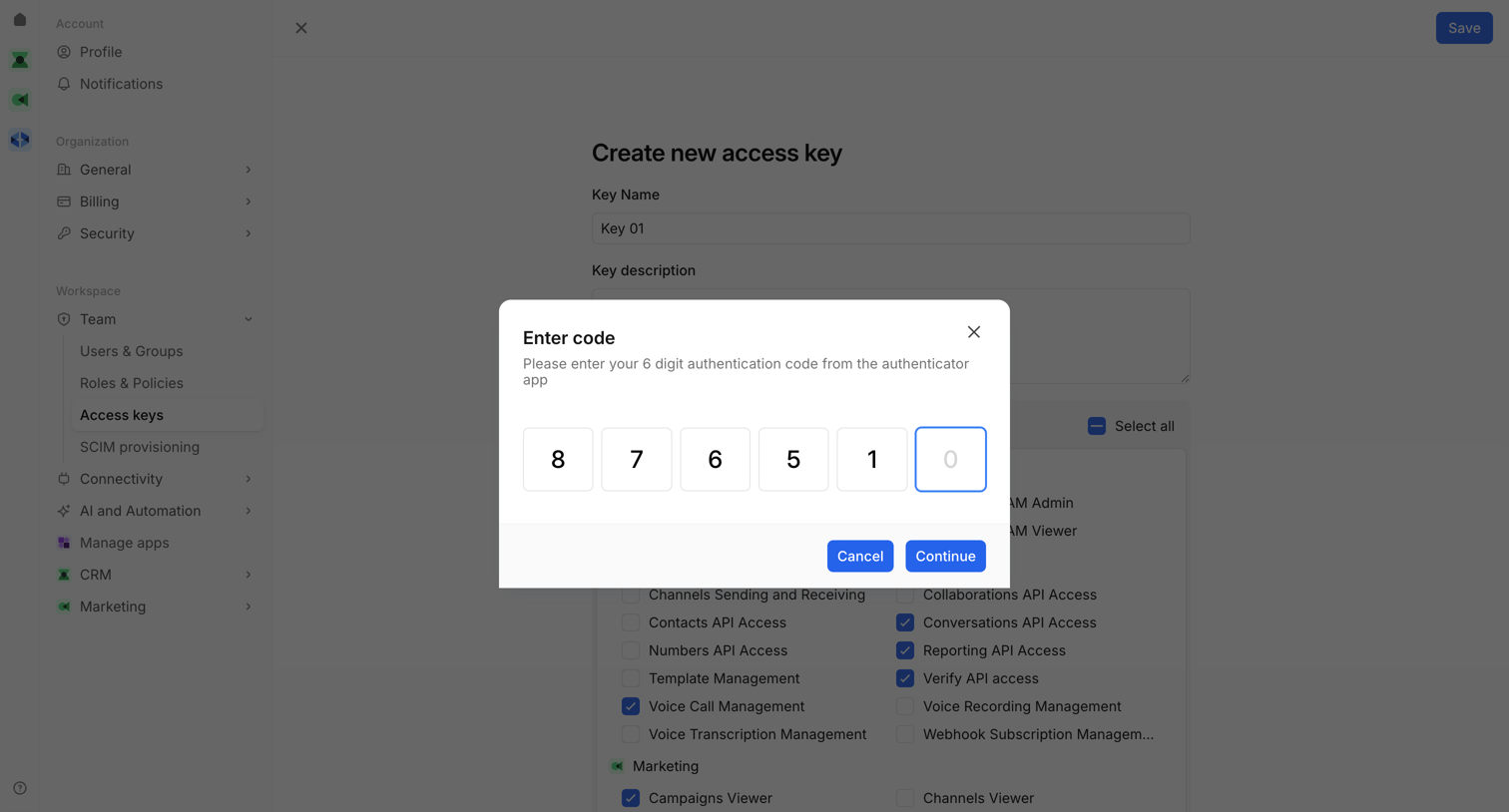

Settings page where the user must enter a 6-digit authenticator code to confirm the creation of a new access key.
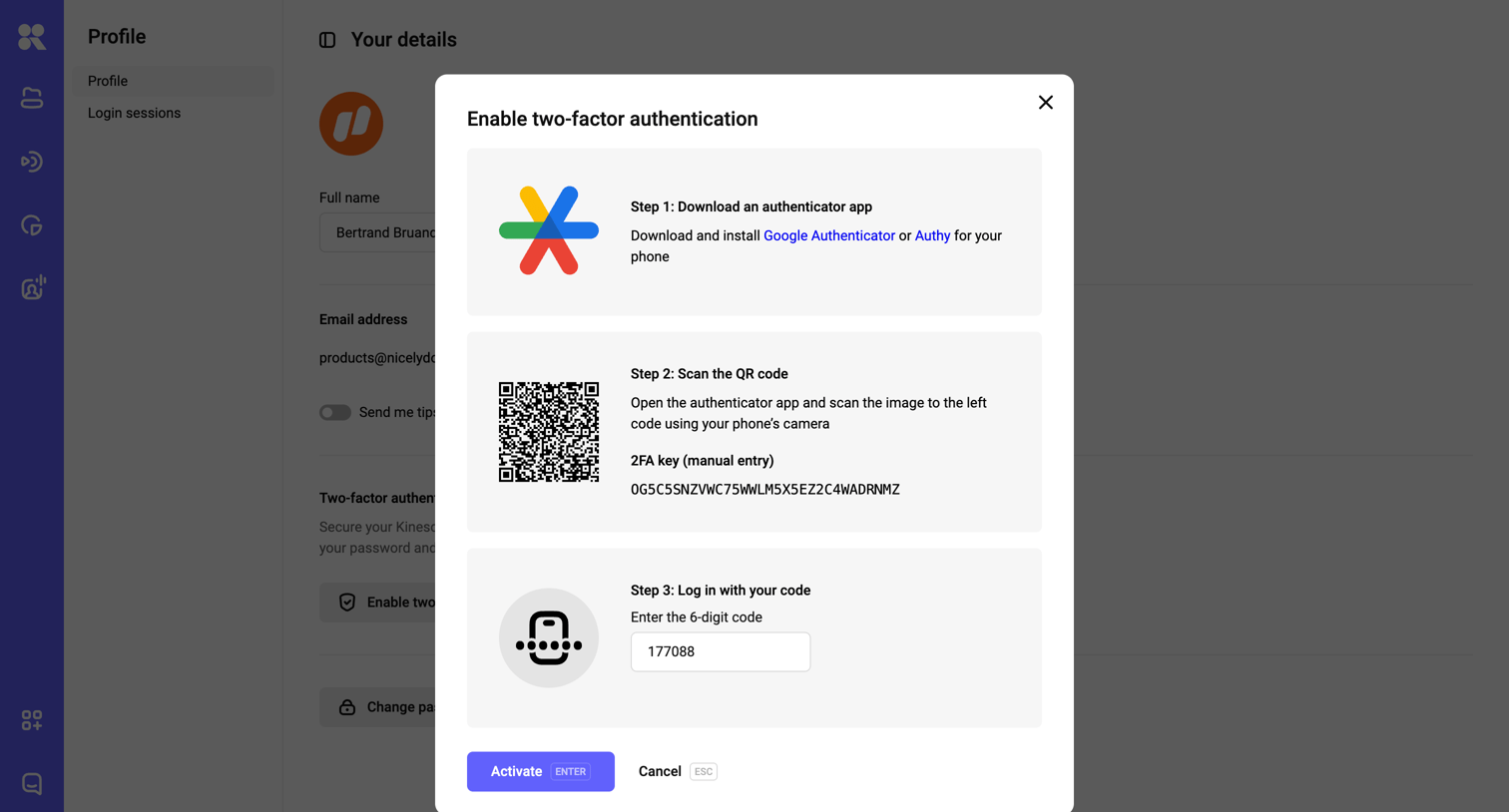

Settings page where the user configures two-factor authentication by scanning a QR code and entering a 6-digit verification code.
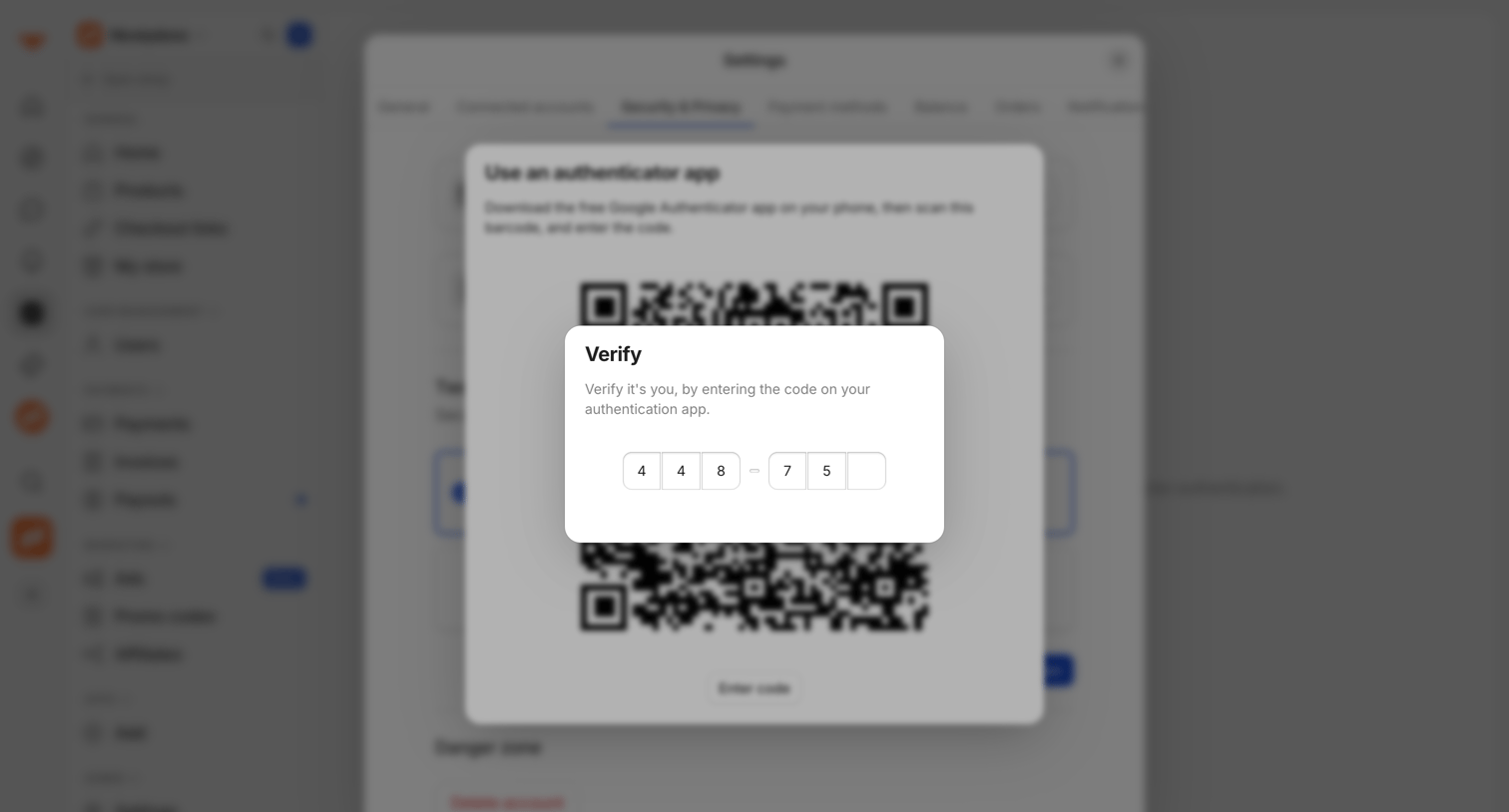

Settings page where the user enters a 6-digit code to verify their identity and complete authenticator app setup.
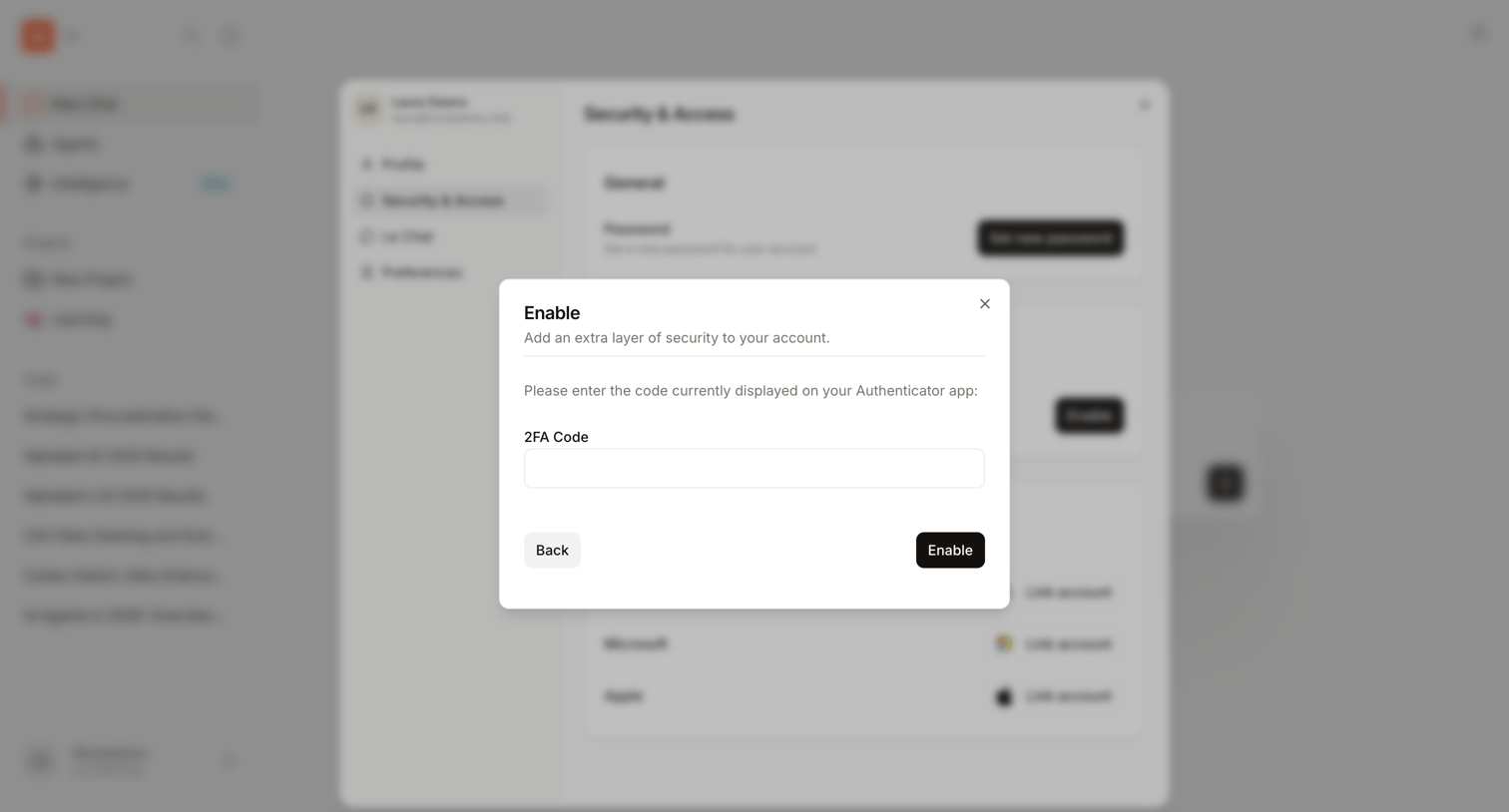

Verification modal where the user enters a 2FA code from their authenticator app to finish enabling multi-factor authentication.
Explore the full SaaS screen library
Upgrade to unlock the full library.
Trusted by the best teams








About MFA
See how SaaS apps introduce multi-factor authentication settings. Explore how setup instructions, verification steps, and recovery information appear alongside the account protection controls.