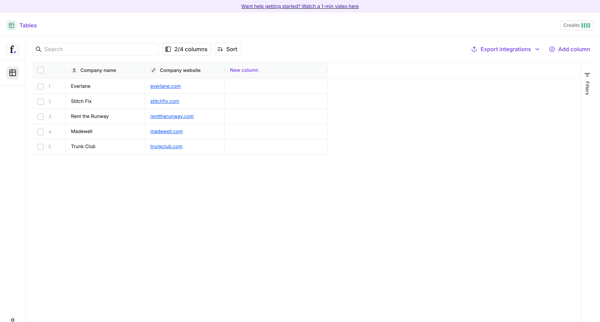
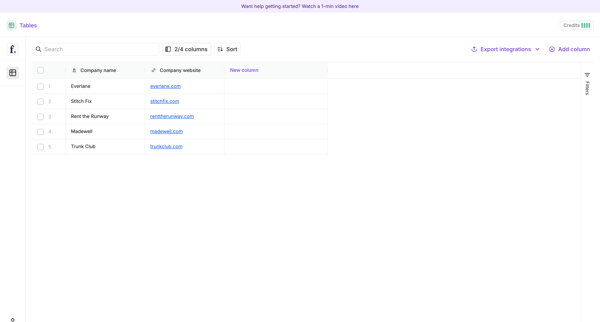
Managing tables
User flow from Freckle.
Preview these flows

Related user flows

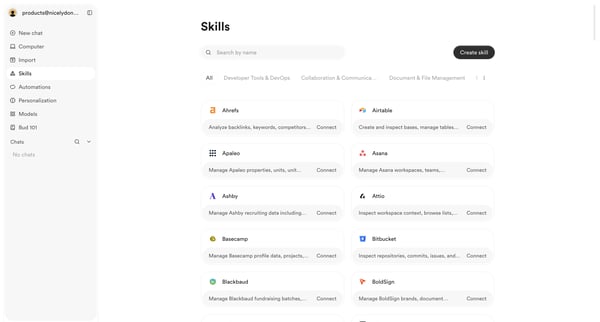
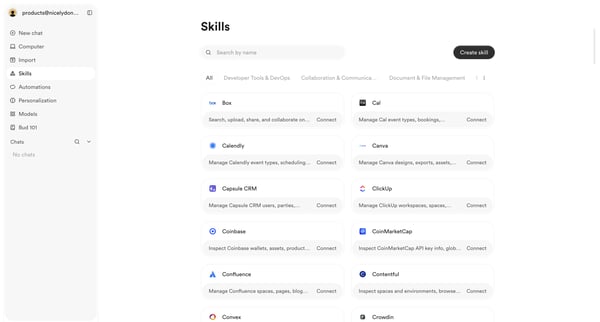
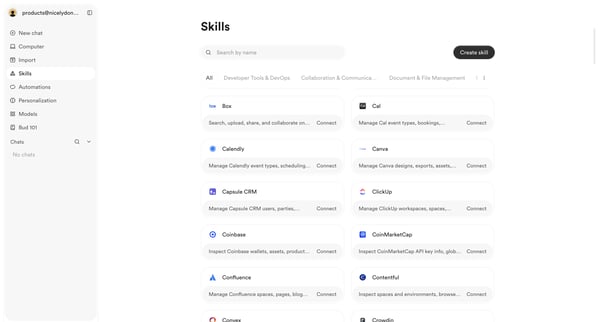
User browses, searches, and filters the skills integrations directory to discover and connect third-party tools

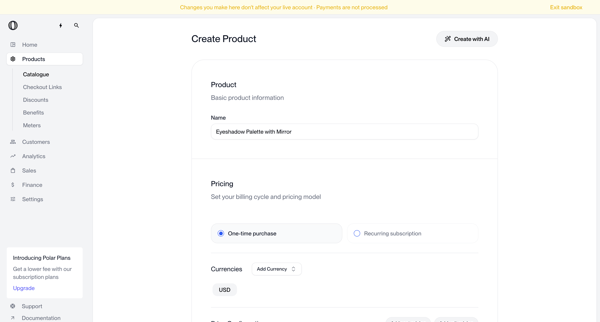
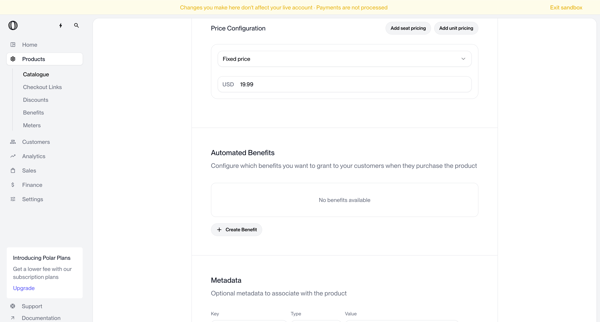
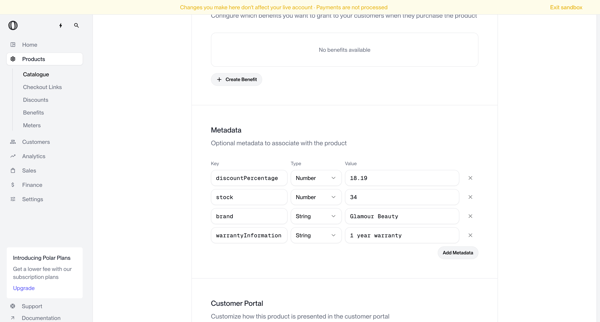
Multi-screen form journey configuring a new product name, pricing model, currencies, benefits, metadata, portal visibility, checkout description, images, and custom fields

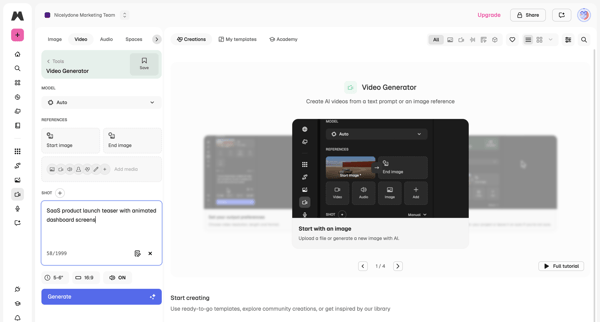
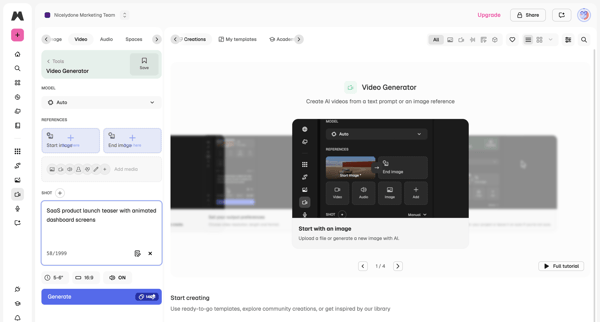
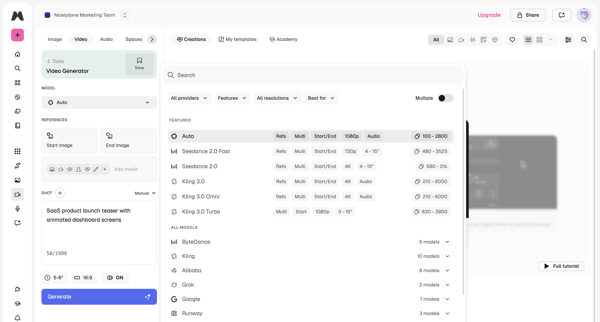
User configures AI model, text prompt, reference images, aspect ratio and duration in workspace then triggers generation and reviews output

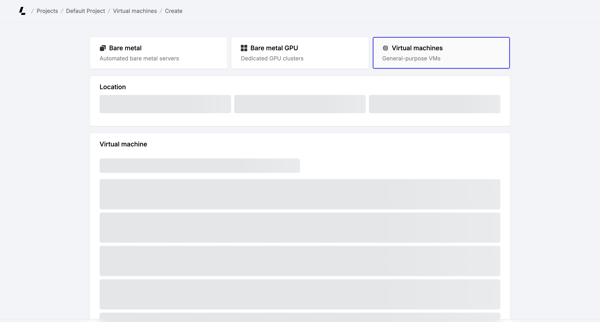
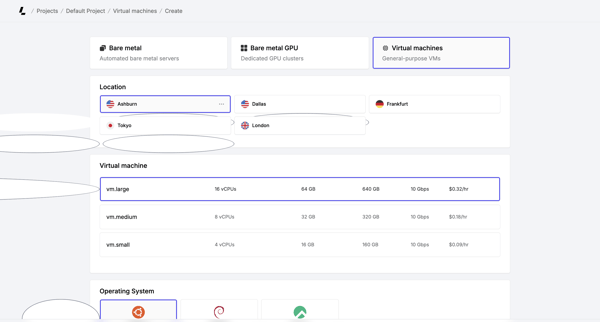
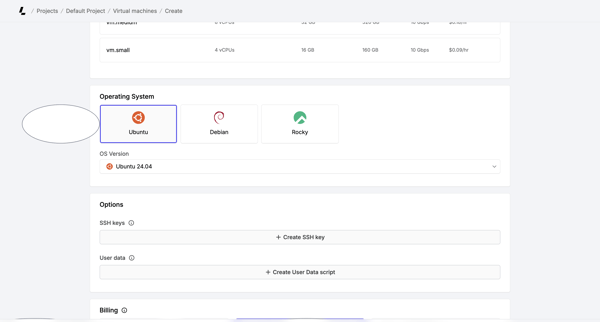
Multi-step creation flow where user selects server type, location, instance size, OS, SSH keys, billing cycle, and hostnames before account verification and deployment

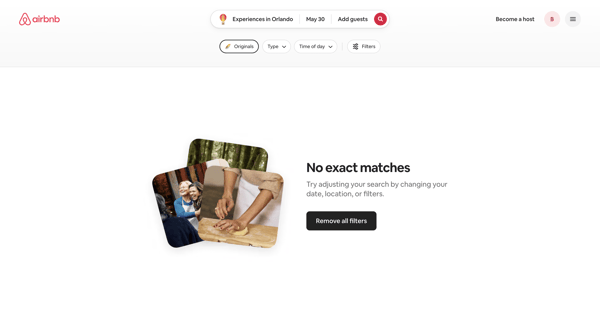
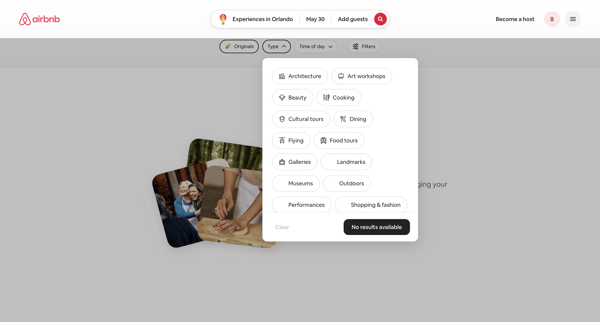
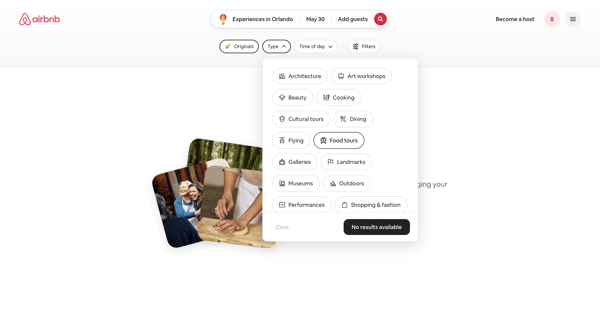
User refines Airbnb experience search results via popovers and modals, encountering repeated empty states while selecting categories, dates, price, and traveler groups until results populate

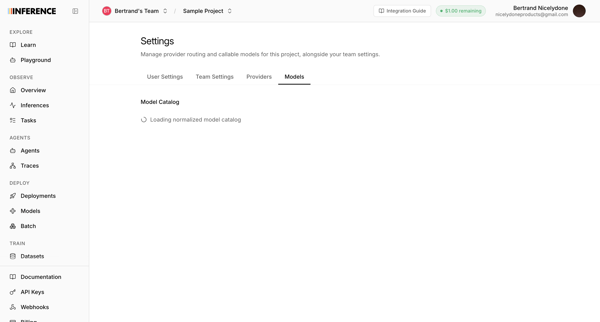
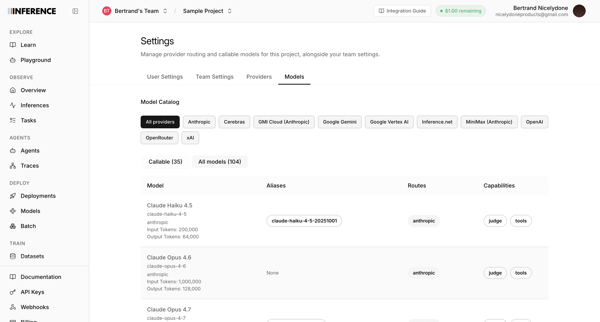
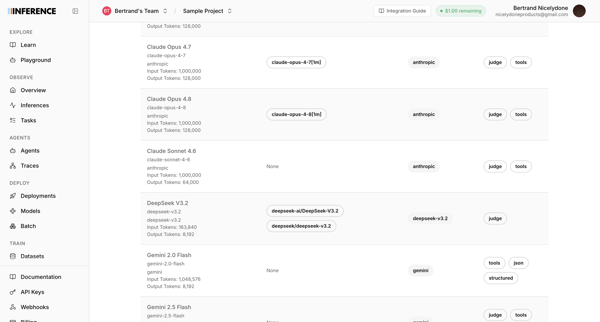
User accesses AI model catalog settings to manage provider routing, filter models by provider, and review token limits and capabilities across multiple list and table views

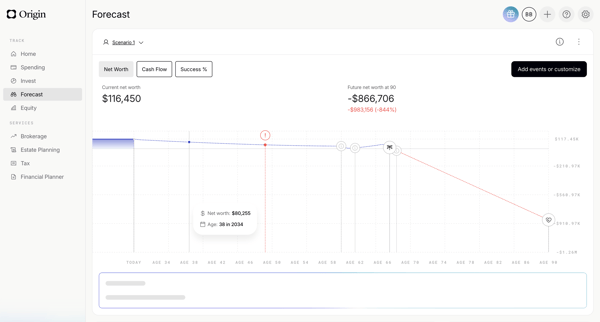
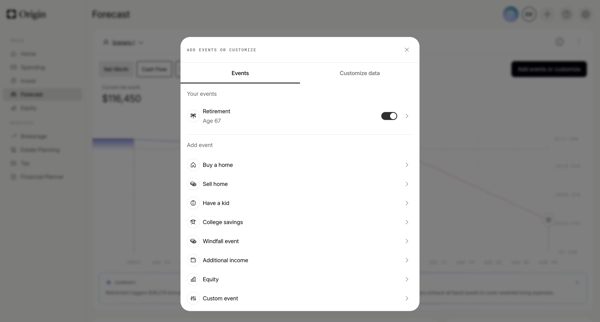
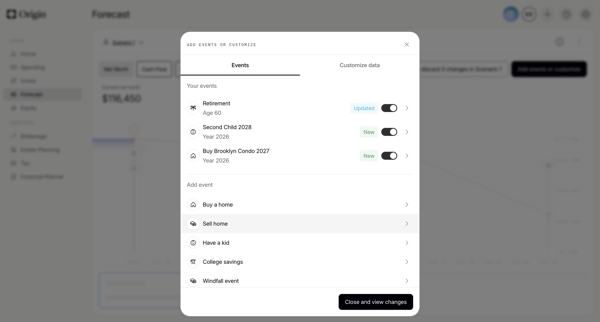
User starts on financial forecast dashboard, opens events modal to toggle or add life events, configures specific events like retirement via forms and sliders, then views updated scenario chart with AI summary

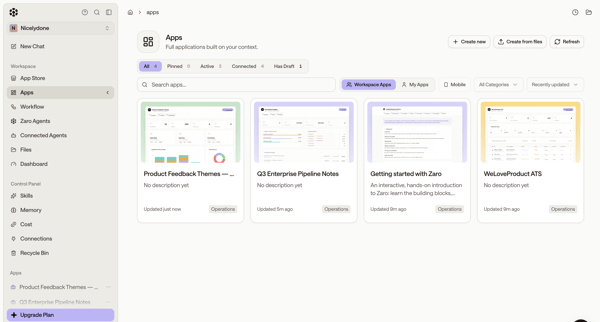
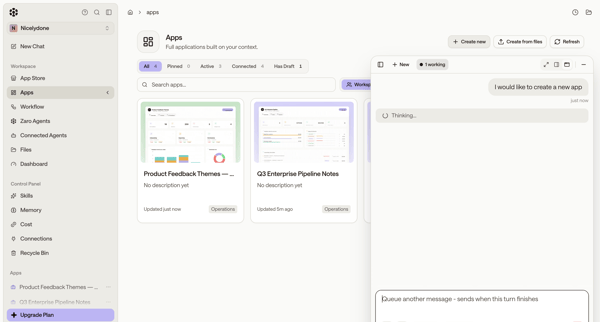
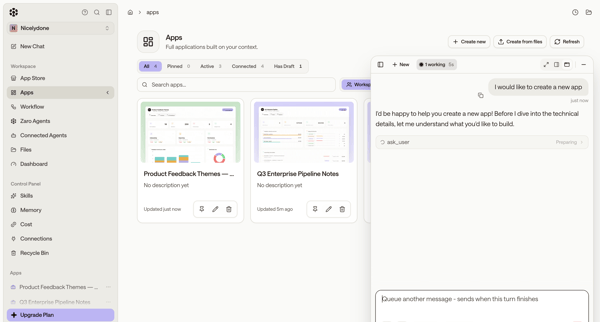
User browses app directory or list and uses floating AI assistant panel to generate new custom applications via conversation and agent execution

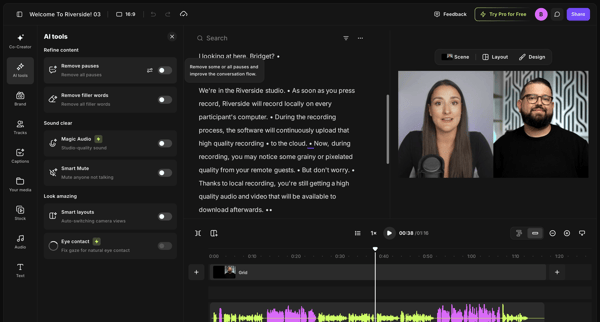
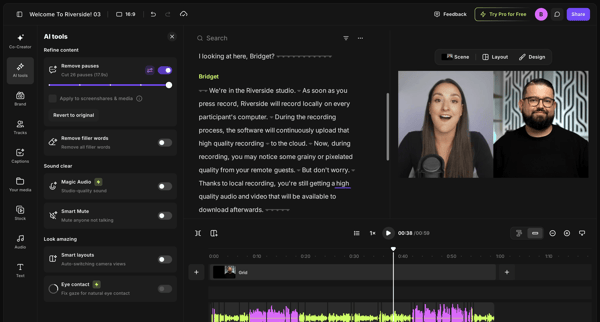
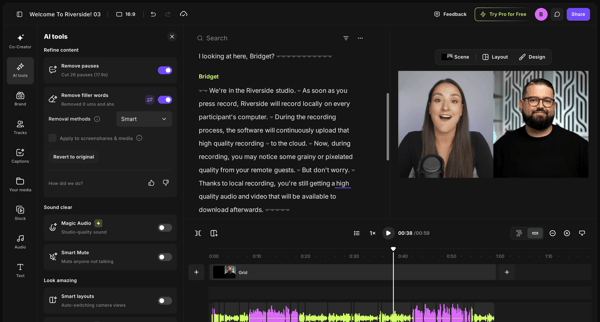
User refines video or podcast recordings in Riverside by editing via transcript and applying AI tools to remove pauses and filler words

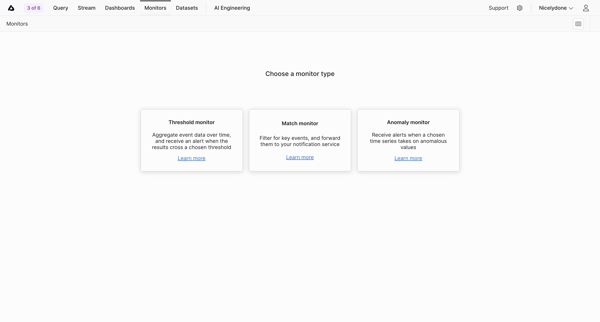
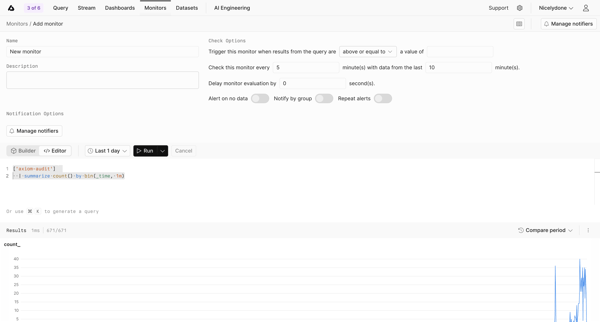
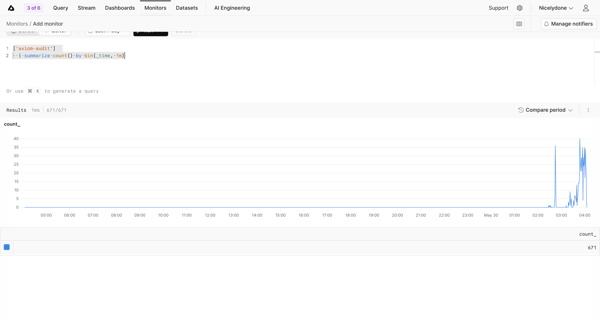
User selects monitor type then configures query, threshold conditions, evaluation intervals, and notifiers before saving and viewing the new monitor

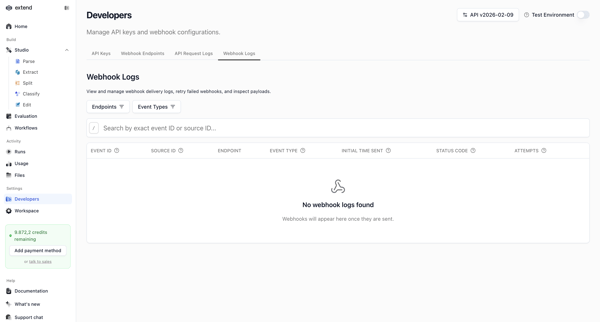
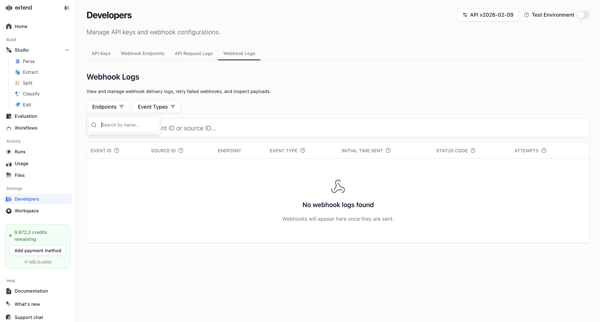
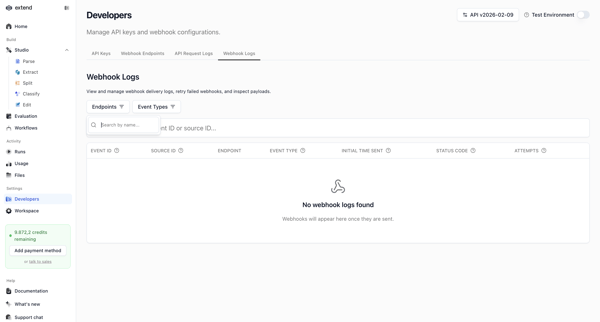
Developer accesses webhook settings page to search, filter, and view delivery logs, shown in multiple empty states with filter popovers and table views

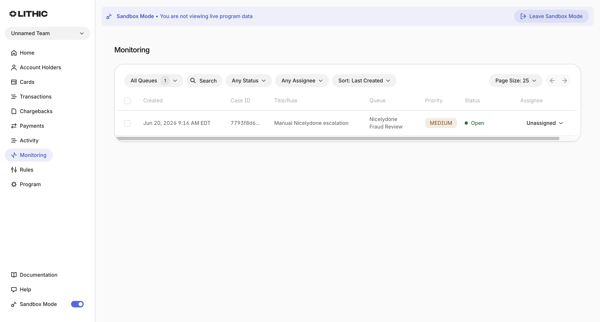
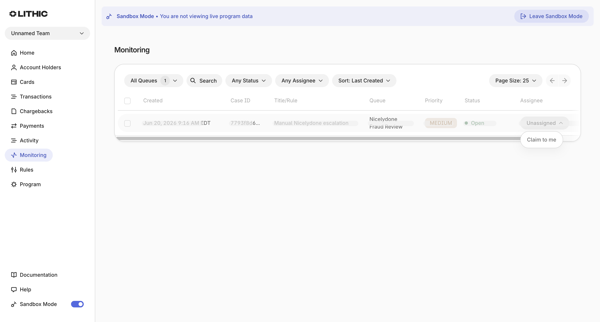
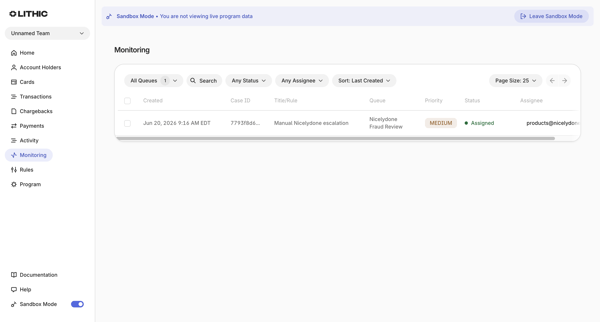
User applies filters for queues, status, assignee, search token, and sort on monitoring cases list in sandbox mode
Explore the full SaaS flow library
Browse the full SaaS flow library.
Trusted by the best teams







