Bloom Flow Example: Updating organization settings
Preview this Bloom user flow: Updating organization settings. Explore the opening screens.
Preview these flows

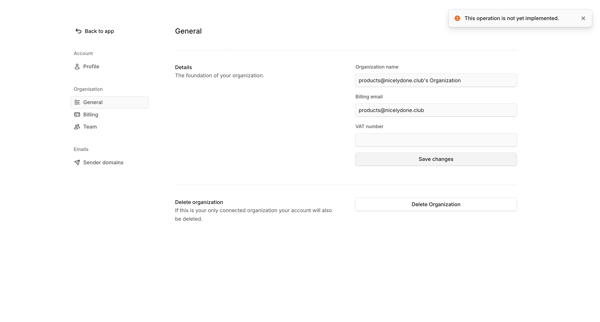
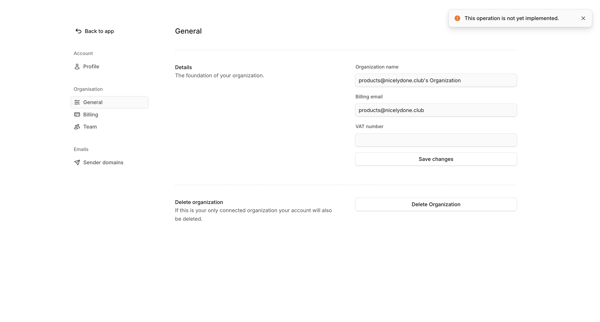
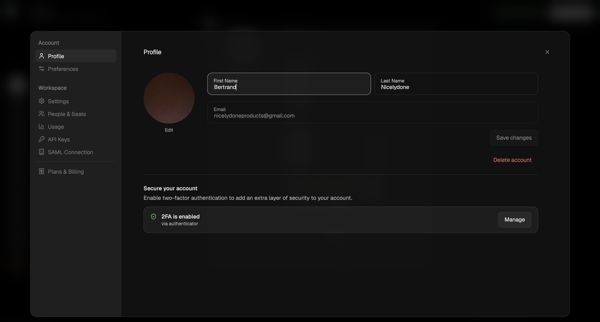
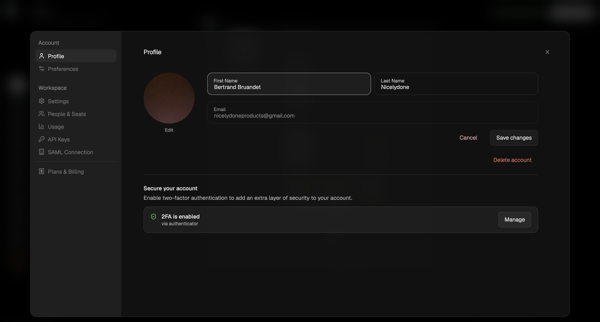
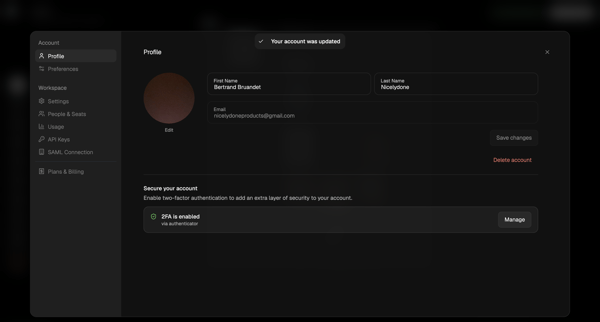
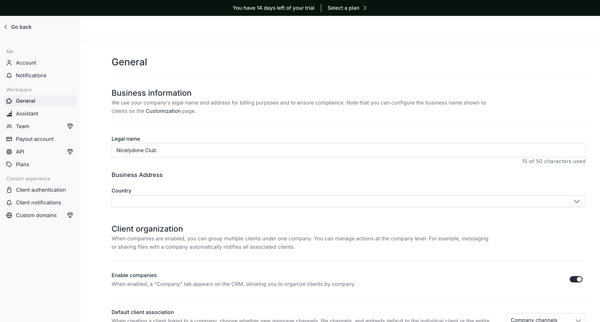
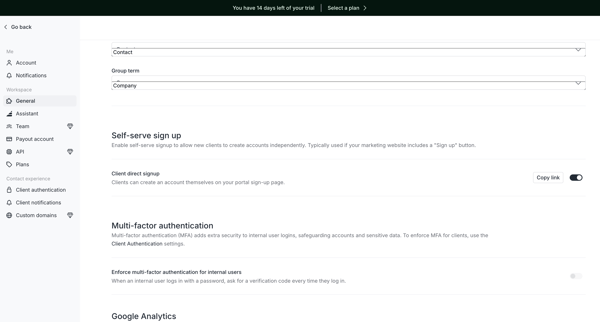
User views and edits organization name, billing email, and VAT number on the General settings page in Bloom, with an error shown on save attempt
Related user flows

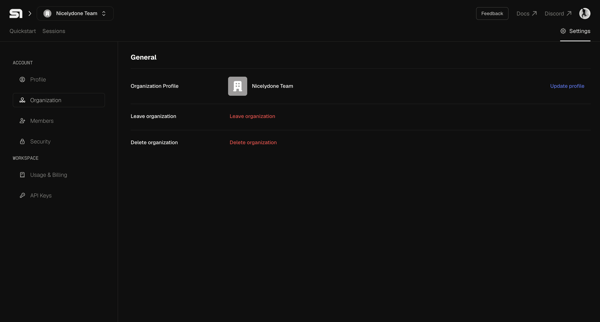
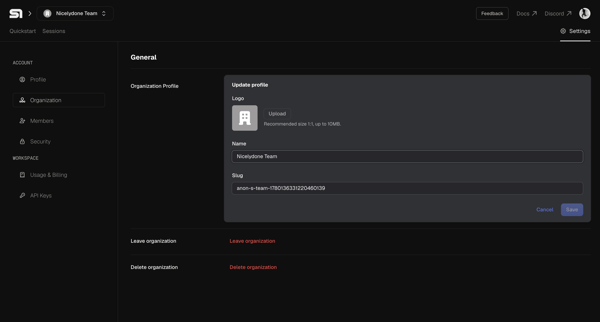

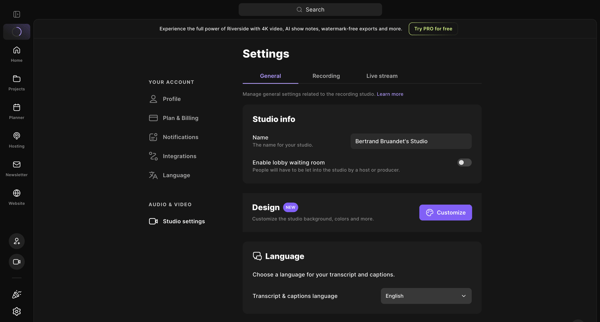
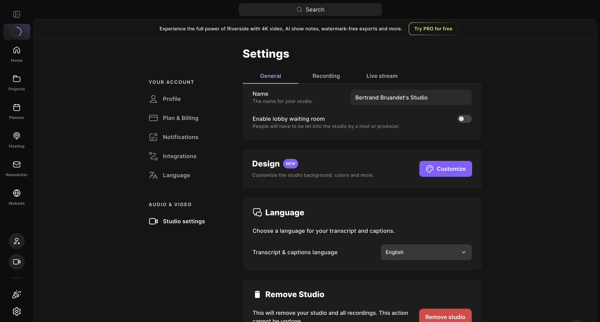
User opens studio settings general tab to review and edit name, lobby waiting room, design customization, transcript language, and remove studio option

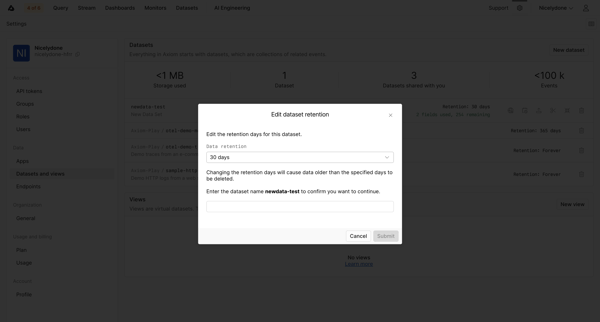
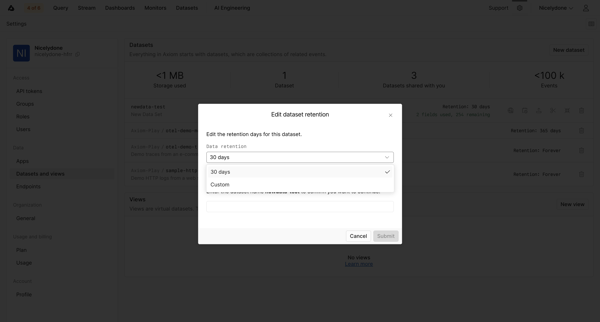
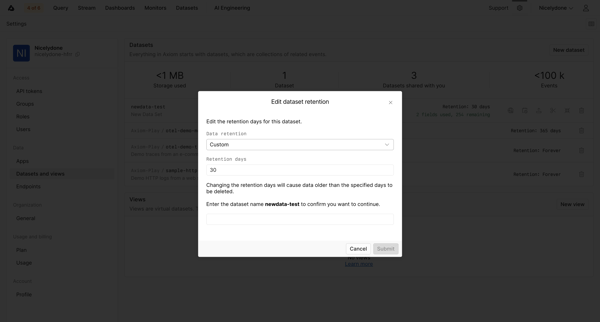
User opens edit retention modal from datasets settings and configures retention period with name confirmation for a dataset

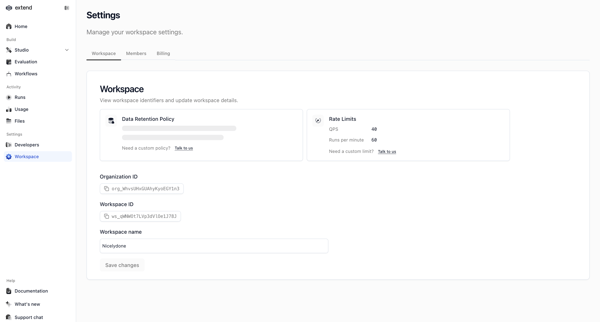
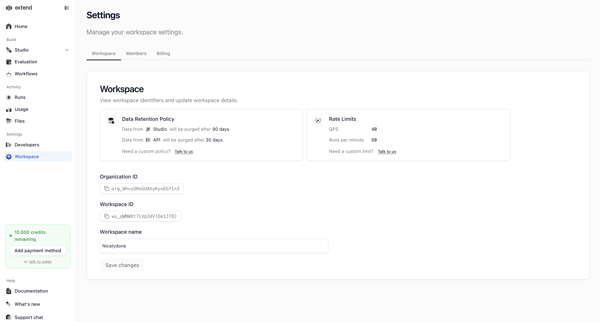
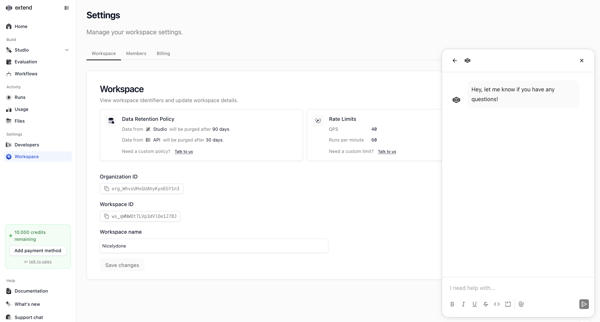

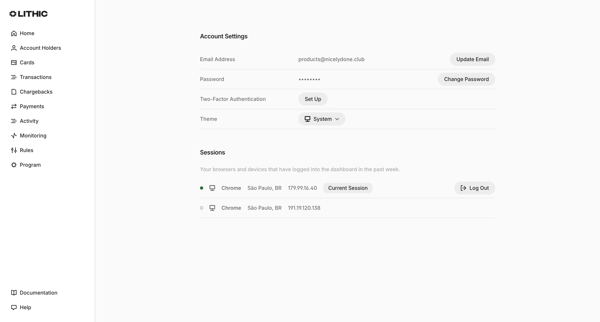
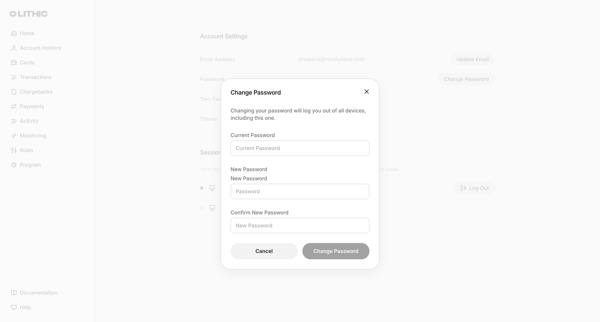
User opens account settings page and triggers change password modal requiring current password plus new password confirmation

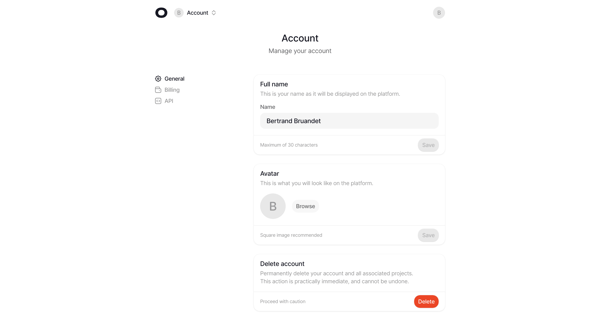
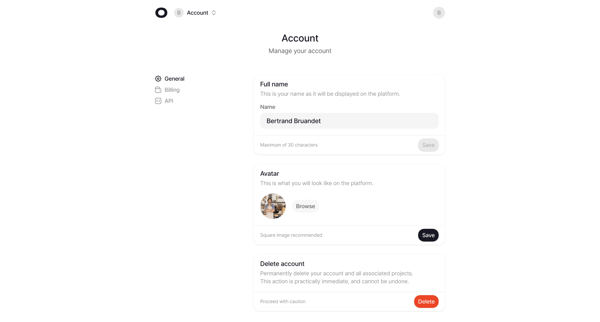
Accessing account settings page to edit full name, upload avatar, and access account deletion option

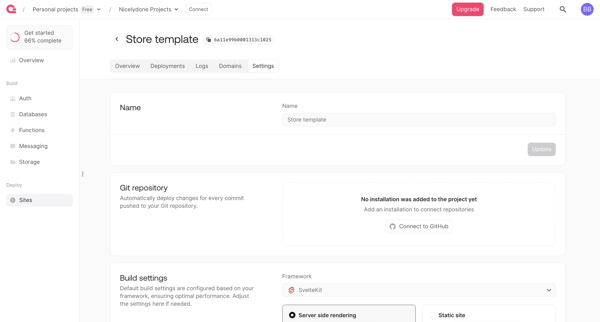
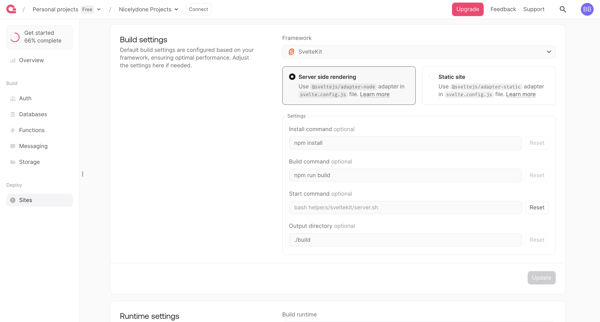
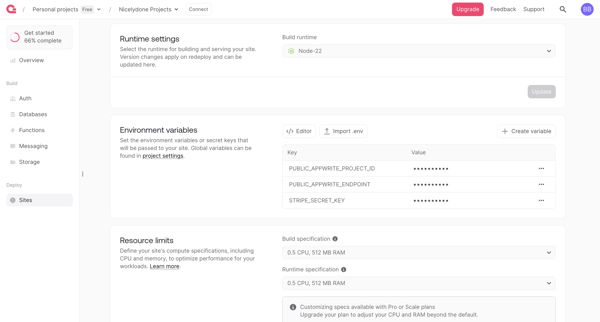

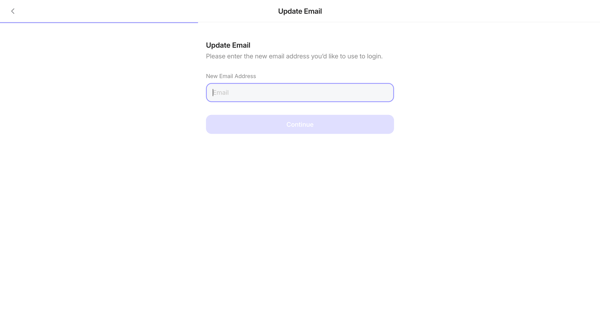
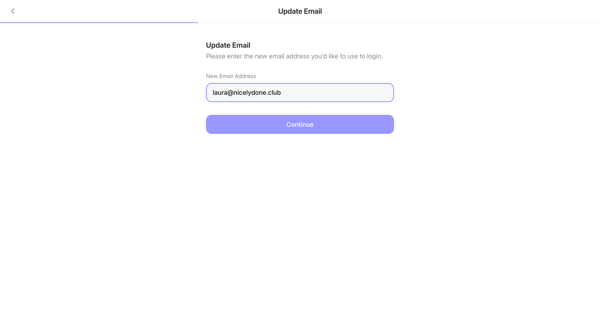
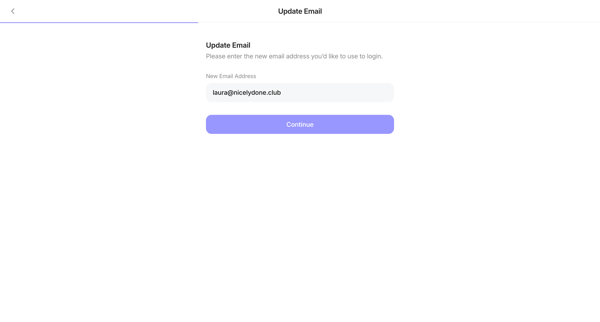
User opens update email form from settings, enters new address, and submits for login credential change

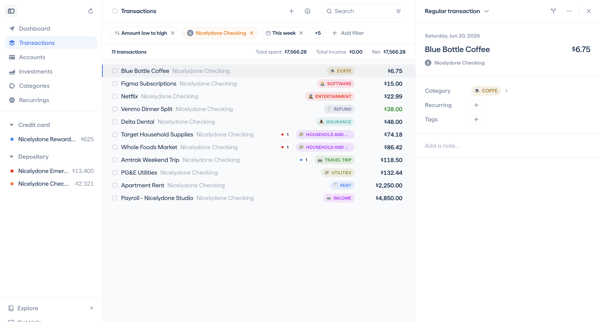
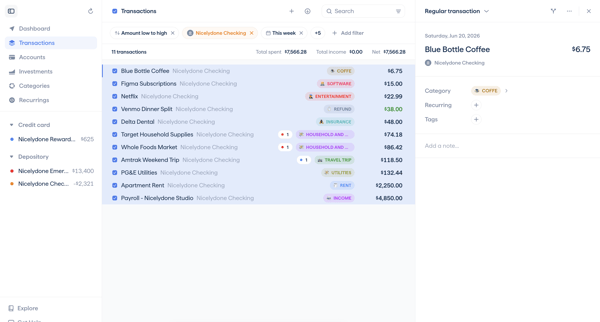
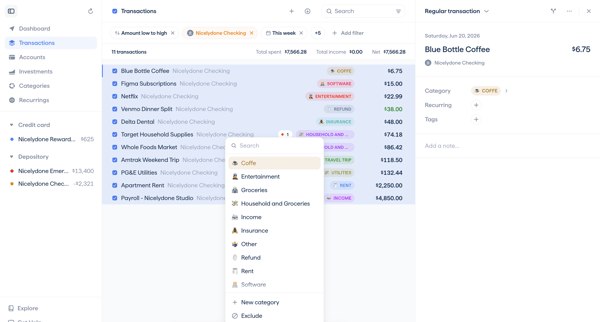
Selecting multiple transactions from the list view and applying bulk category or tag updates via the detail panel or action bar



Explore the full SaaS flow library
Browse the full SaaS flow library.
Trusted by the best teams







