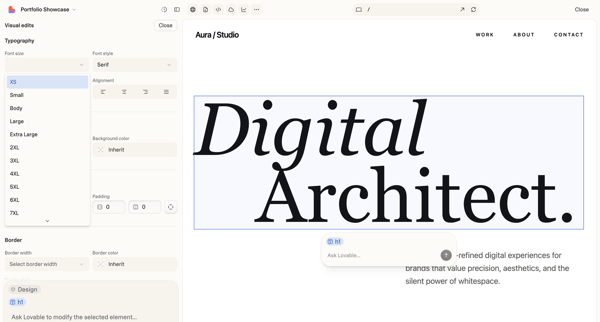
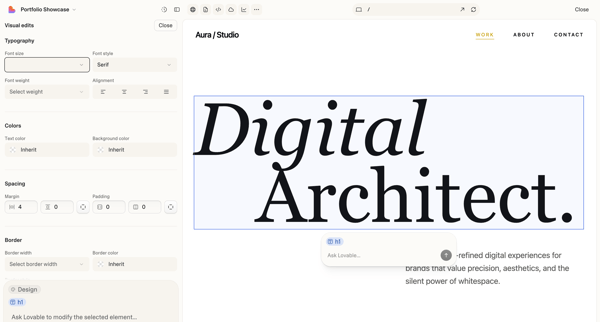
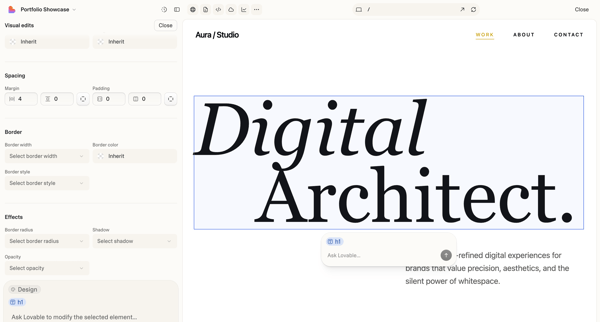
Lovable Flow Example: Styling element
Preview this Lovable user flow: Styling element. Explore the opening screens.
Preview these flows

Related user flows

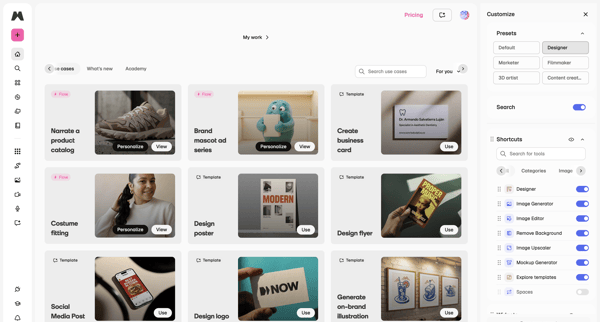
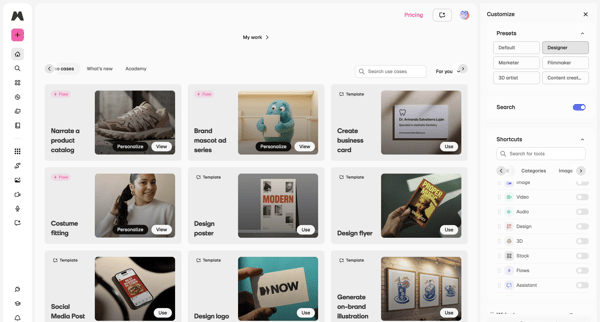
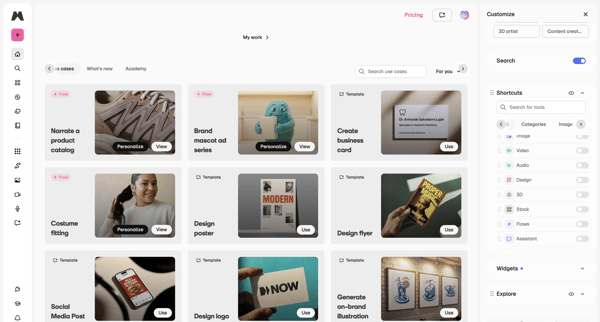
Browsing template galleries and use cases while customizing workspace presets, tool shortcuts, and side panel configuration

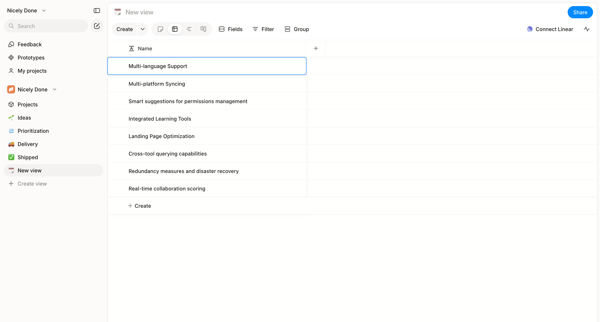
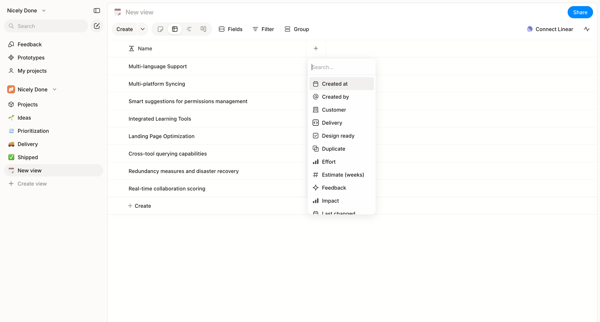
User starts in custom list view and adds columns to a data table via searchable picker in Alloy

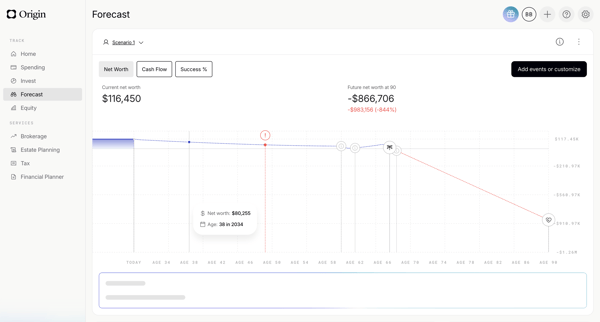
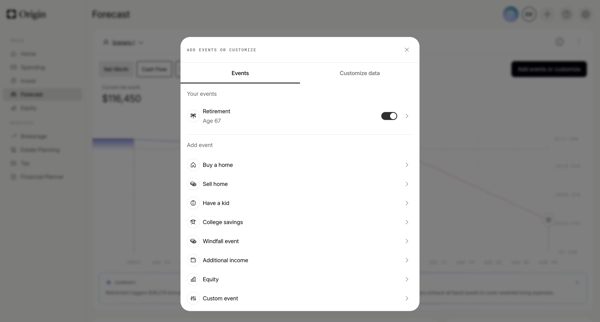
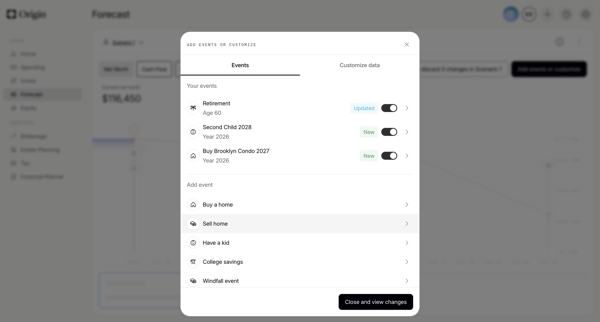
User starts on financial forecast dashboard, opens events modal to toggle or add life events, configures specific events like retirement via forms and sliders, then views updated scenario chart with AI summary

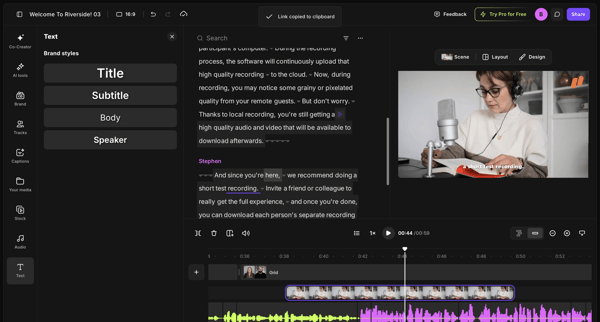
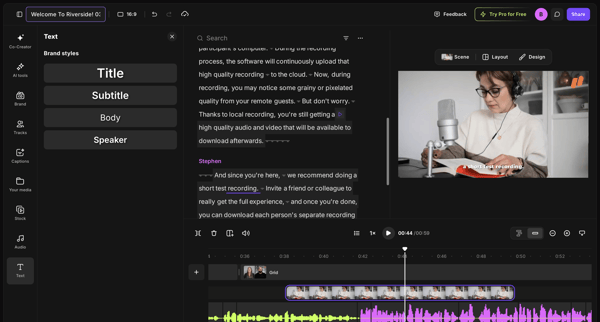
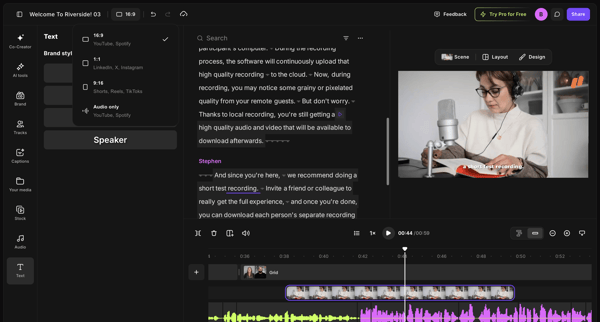
Editing brand styles, text elements, and timeline tracks in the video editor workspace

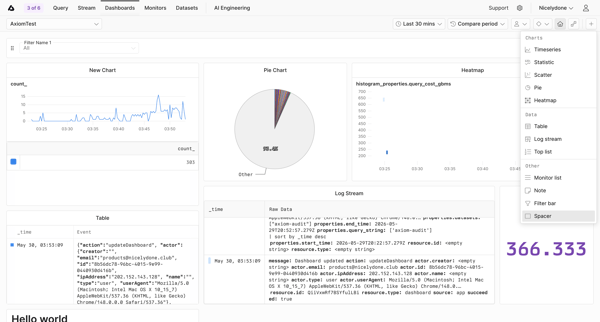
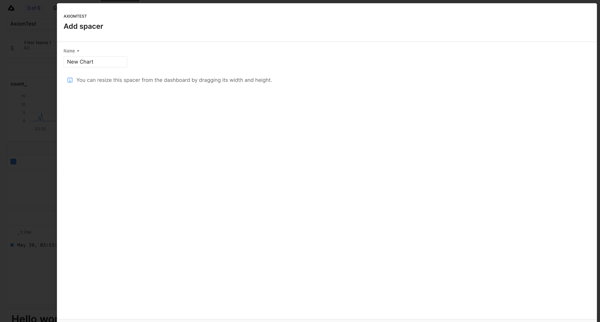
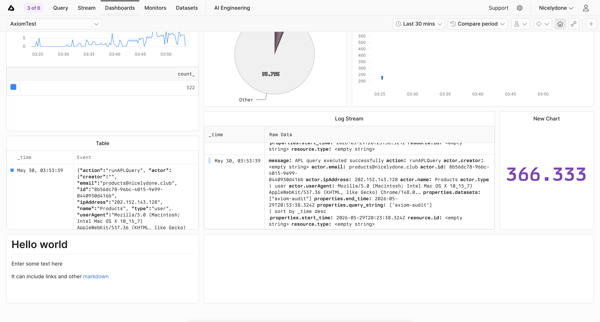
User opens widget popover on dashboard, selects Spacer, names it in modal, and sees unsaved changes banner on dashboard

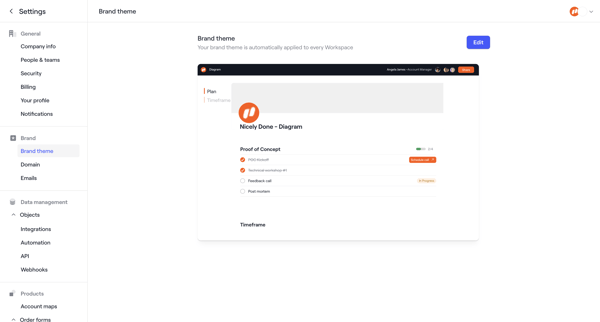
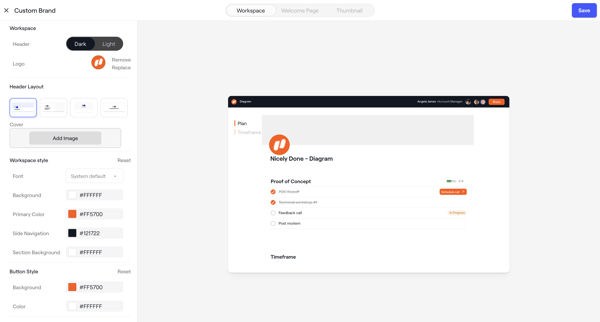
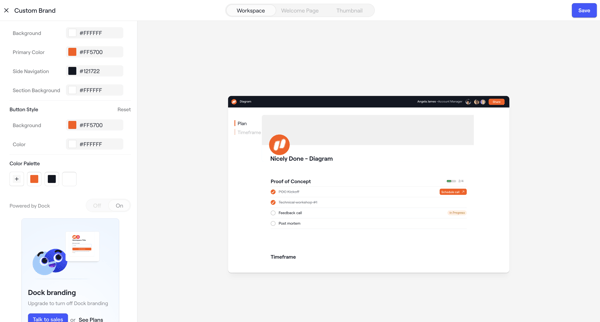
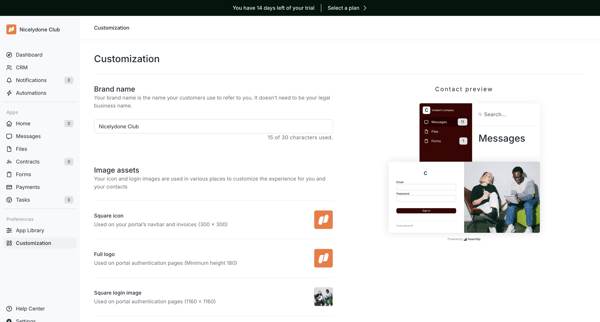
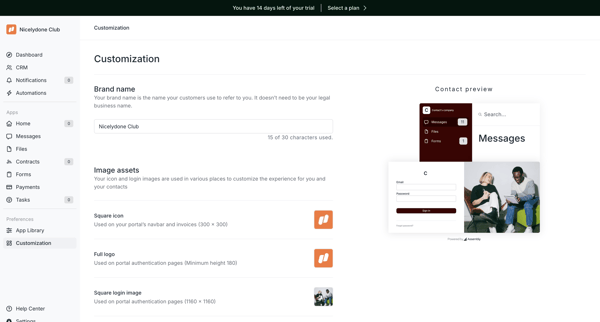
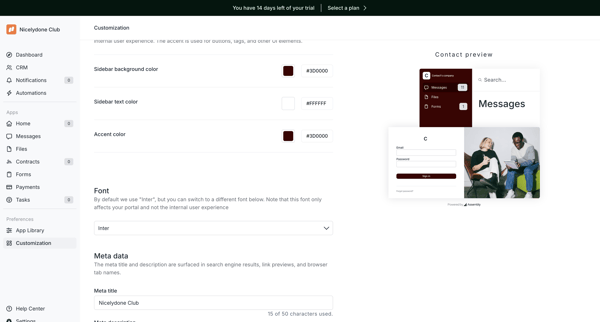
Admin configures workspace brand theme across appearance settings screens with live client portal preview, color/layout/font controls, asset uploads, and upgrade prompts

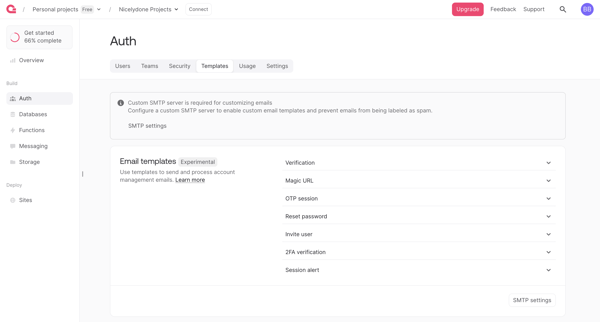
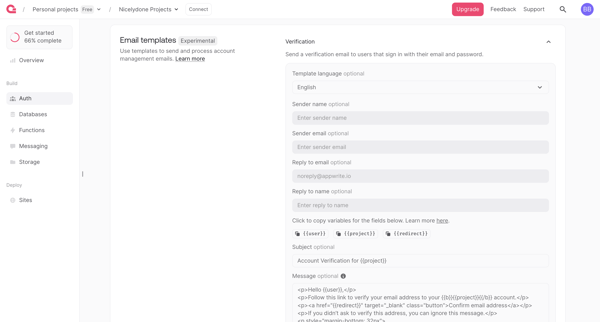
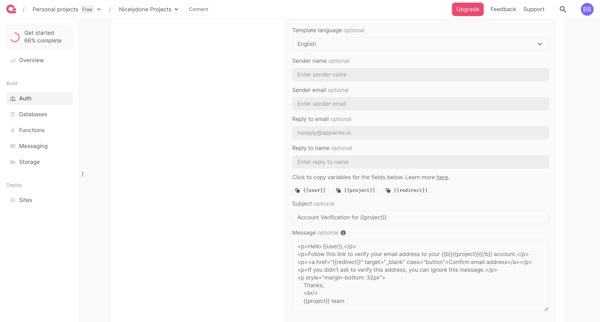
User navigates Auth settings to review and edit email templates for verification, magic URL, OTP, password reset and other auth flows, with SMTP requirement and upgrade gate for branding removal

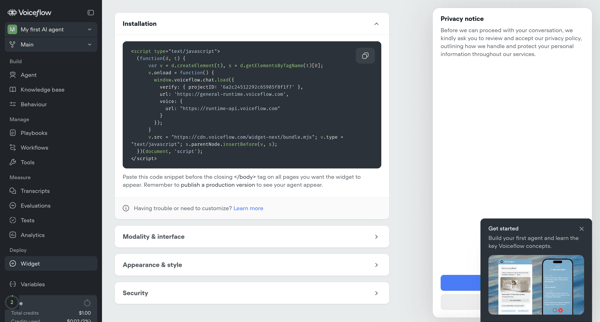
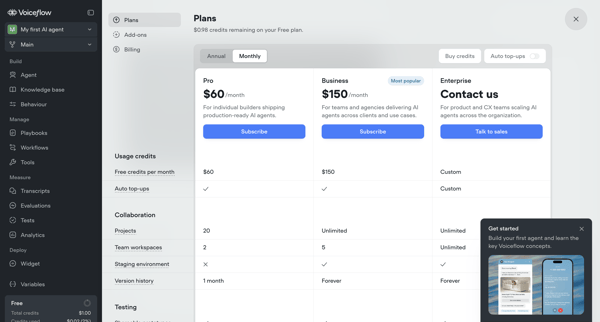
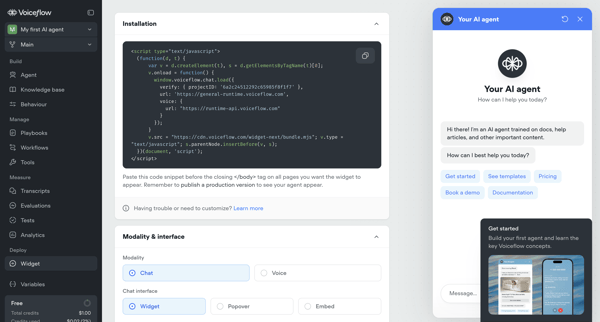
User configures installation snippet, appearance, security, and deployment options for Voiceflow AI agent's webchat widget across multiple settings screens, with upgrade prompts for advanced features

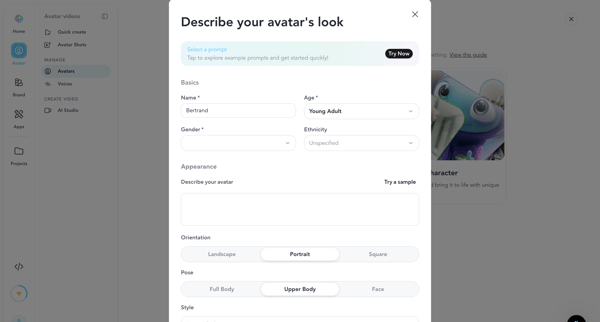
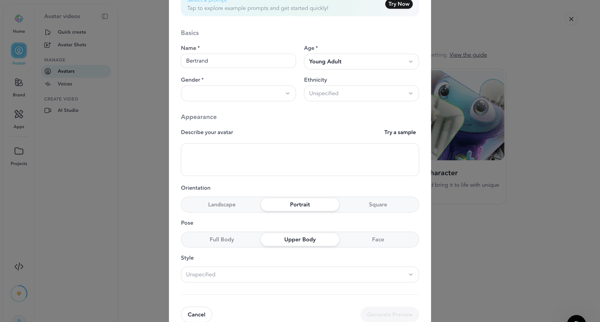
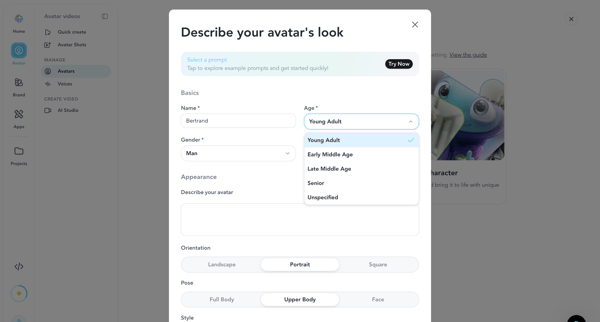
User configures AI avatar name, demographics, appearance prompt, orientation, pose and style inside creation modal before generating preview image or video

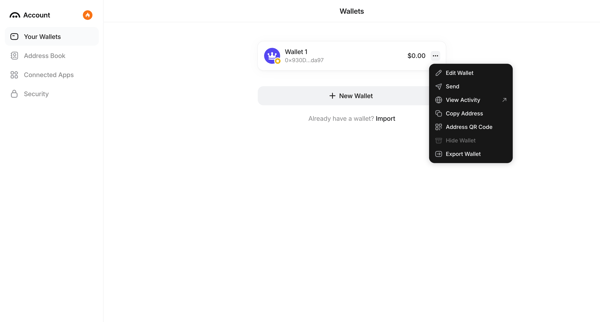
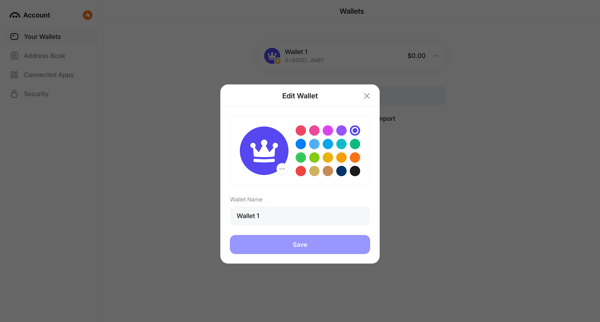
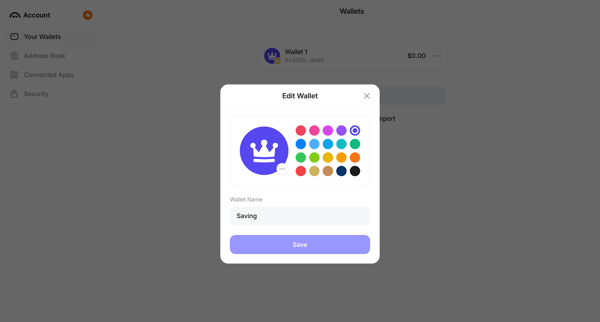
User opens context menu on a wallet in settings and edits its name and color identifier in a modal

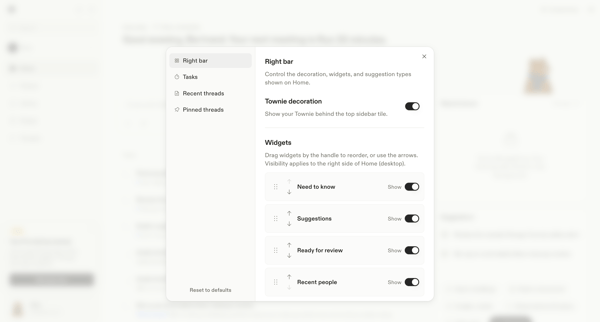
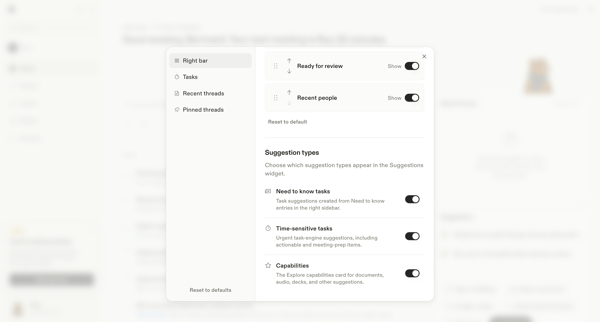
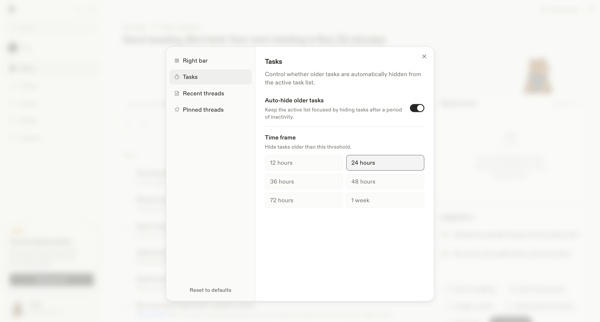
User opens Home Layout Settings Modal and navigates through five sequential modals to reorder widgets, toggle visibility, set auto-hide rules, and choose display locations for threads and tasks on the home screen and sidebars.

Explore the full SaaS flow library
Browse the full SaaS flow library.
Trusted by the best teams







