Appwrite Flow Example: Creating table indexes
Preview this Appwrite user flow: Creating table indexes. Explore the opening screens.
Preview these flows

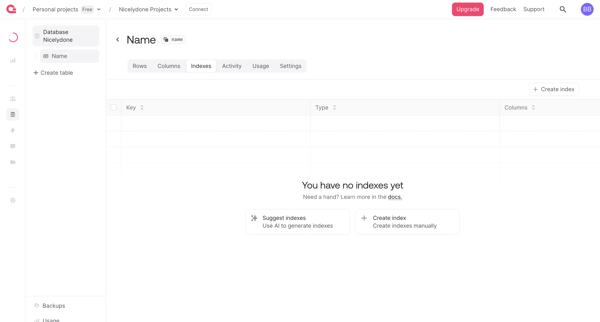
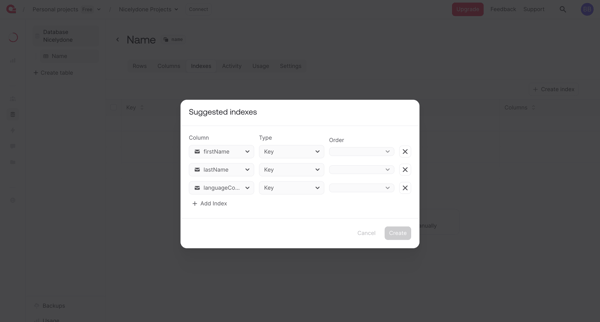
User creates database table indexes from an empty list view using manual creation or AI-generated suggestions in Appwrite
Related user flows

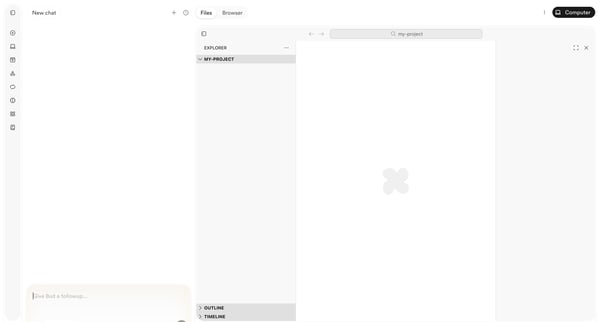
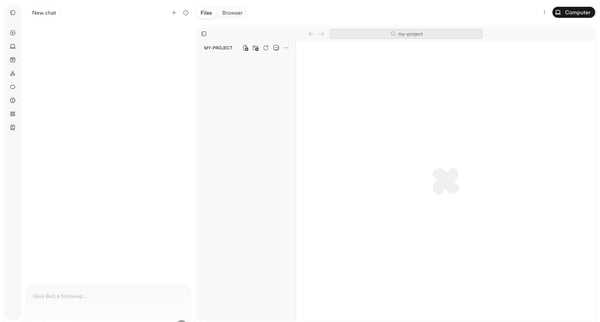
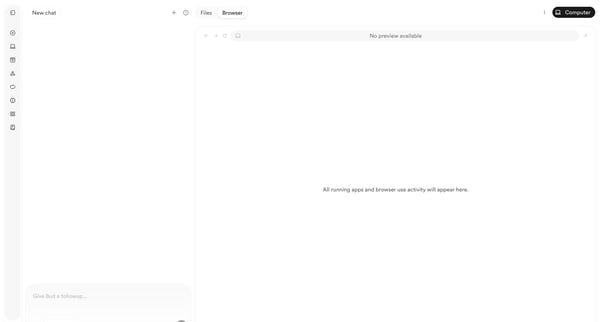
User starts in AI chat workspace and progresses through empty project states to browser preview with deployment menu while chatting with Bud agent

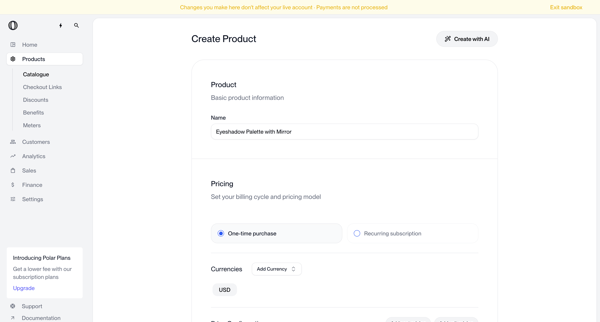
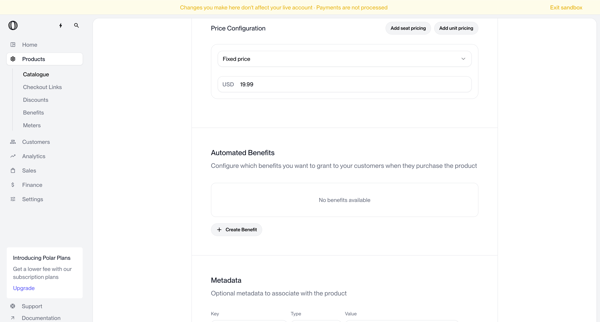
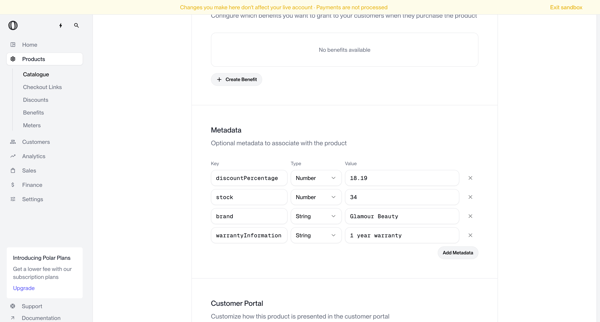
Multi-screen form journey configuring a new product name, pricing model, currencies, benefits, metadata, portal visibility, checkout description, images, and custom fields

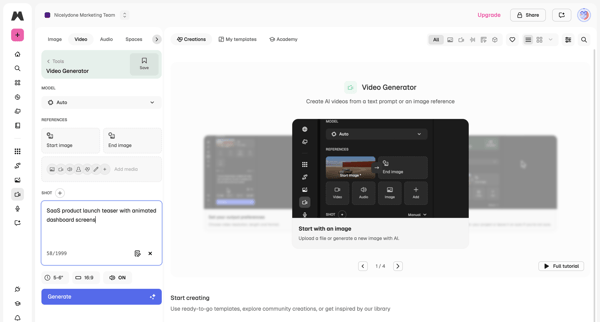
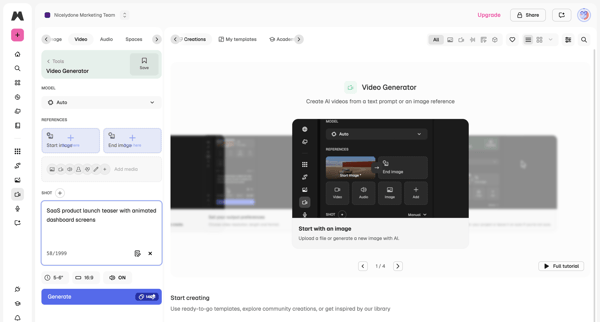
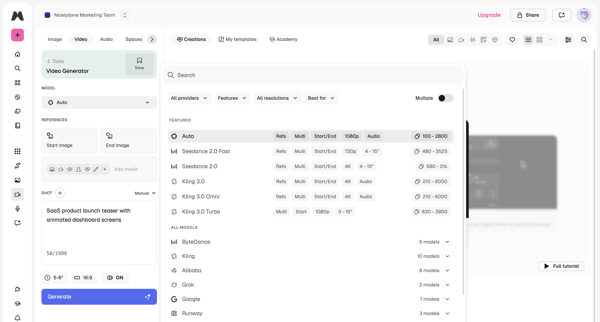
User configures AI model, text prompt, reference images, aspect ratio and duration in workspace then triggers generation and reviews output

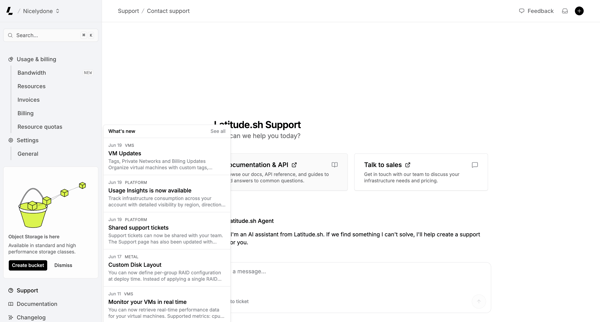
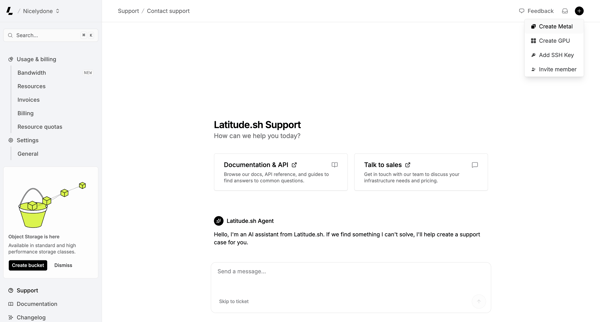
User engages with AI assistant on support page to resolve issues, browse documentation, or contact sales while viewing platform updates

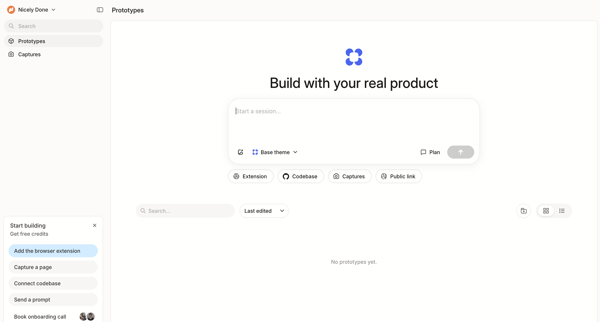
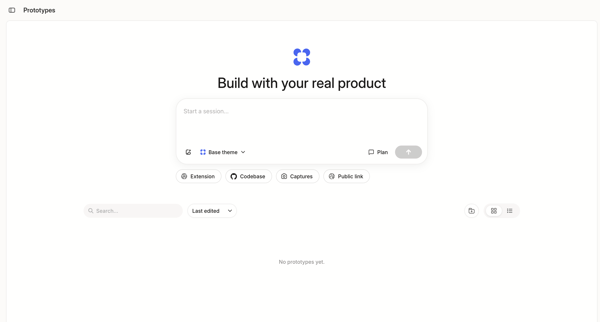
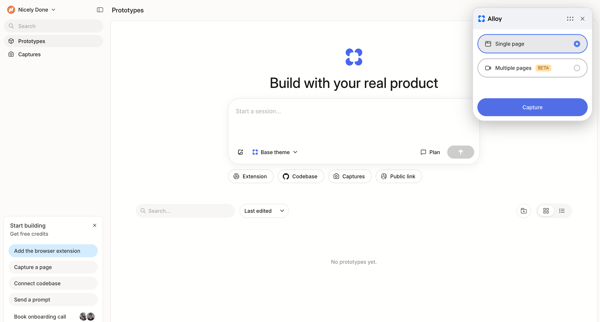
User initiates an AI prototype generation session from empty dashboard and list views using prompts or connected sources

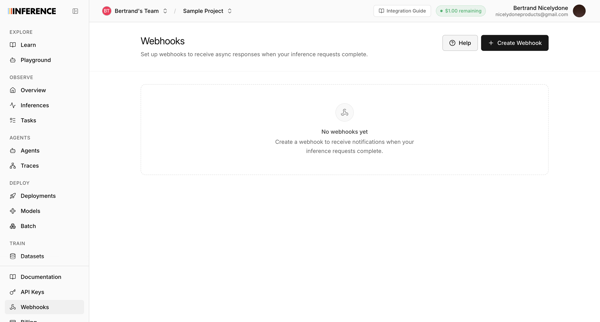
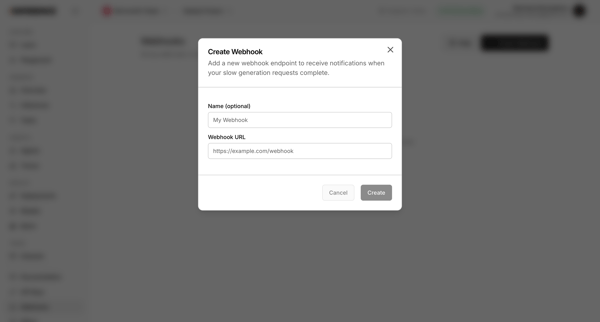
User starts from webhooks empty state in settings and configures a new endpoint name and URL via modal to receive async responses

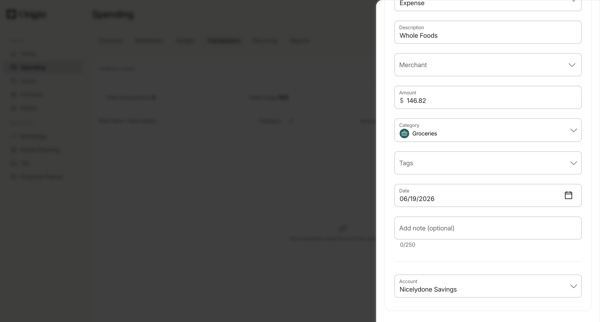
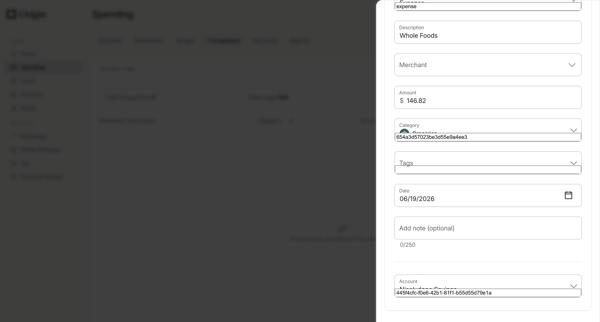
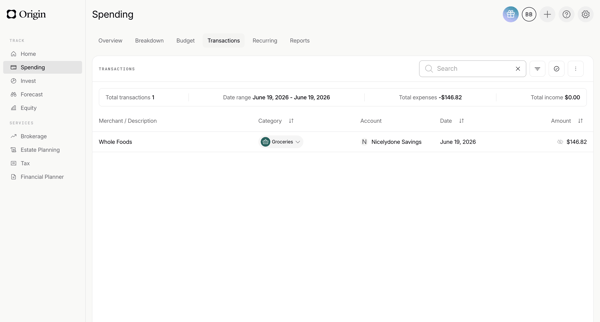
Manually add a new transaction via drawer form with merchant, amount, category, date and account fields, then view the updated list with summary metrics

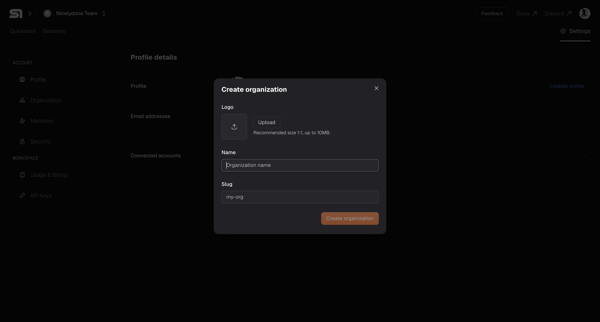
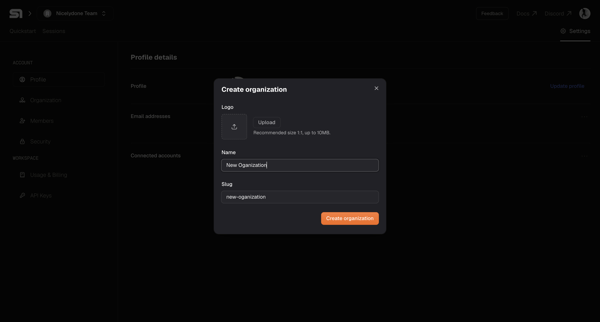
User opens Create Organization modal from settings workspace section and enters logo, name, and slug values

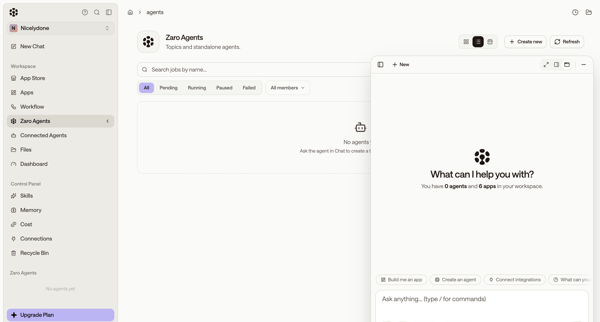
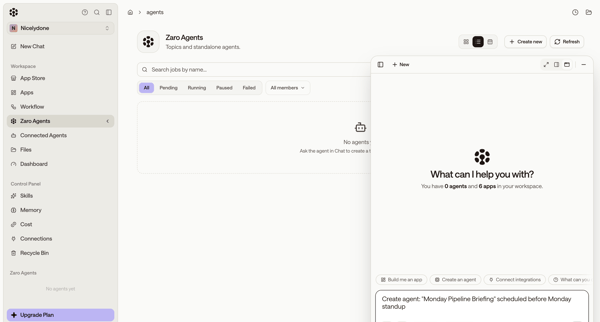
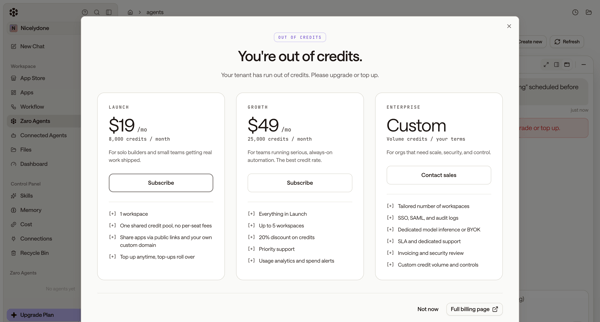
User starts from empty agents list, uses floating AI chat to request agent creation, then encounters out-of-credits paywall and error state

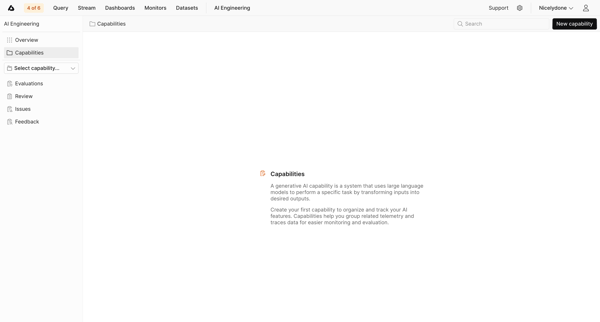
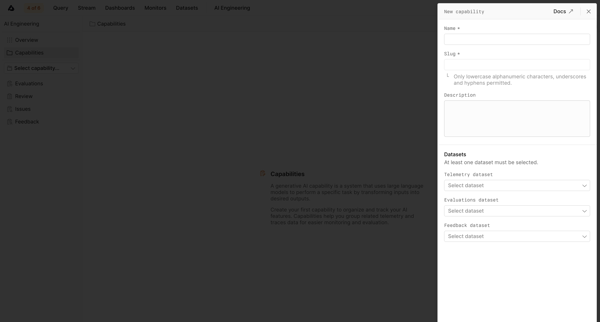
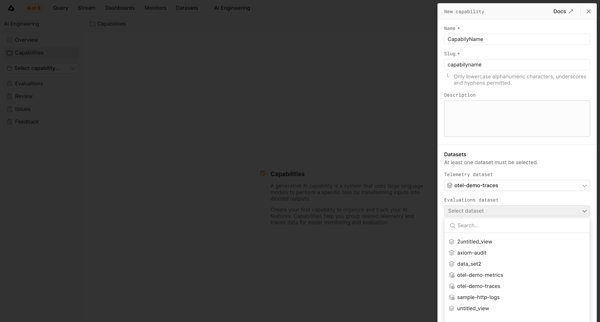
User starts from empty capabilities list and creates a new AI capability via side drawer form by naming it, setting slug and description, then selecting telemetry, evaluations, and feedback datasets.

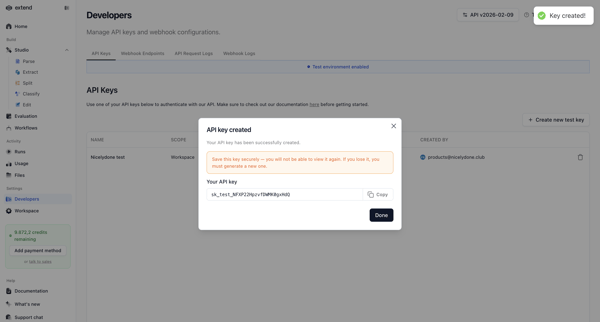
User opens Create API Key Modal in settings to name and scope a test key, then views and copies the generated key in the success modal

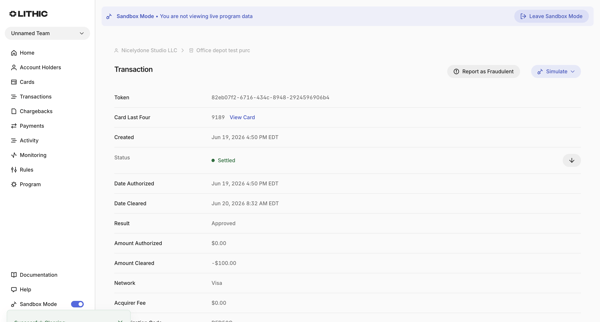
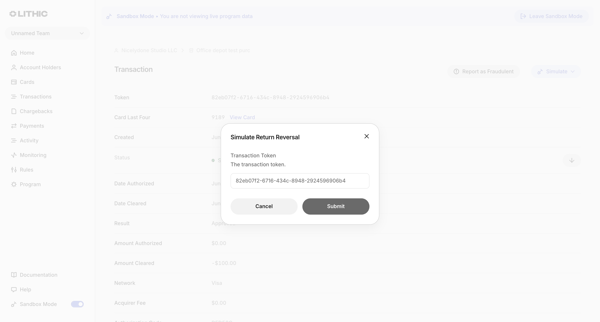
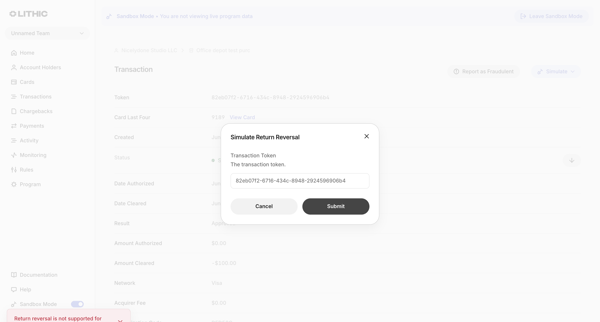
From a settled transaction detail view in sandbox, open simulation modal to attempt return reversal, submit and receive unsupported debit transaction error
Explore the full SaaS flow library
Browse the full SaaS flow library.
Trusted by the best teams







