Dock product screens examples
Browse Dock screen design examples. Preview the interface screenshots and explore related UI patterns. The new way to manage external relationships
Explore the examples

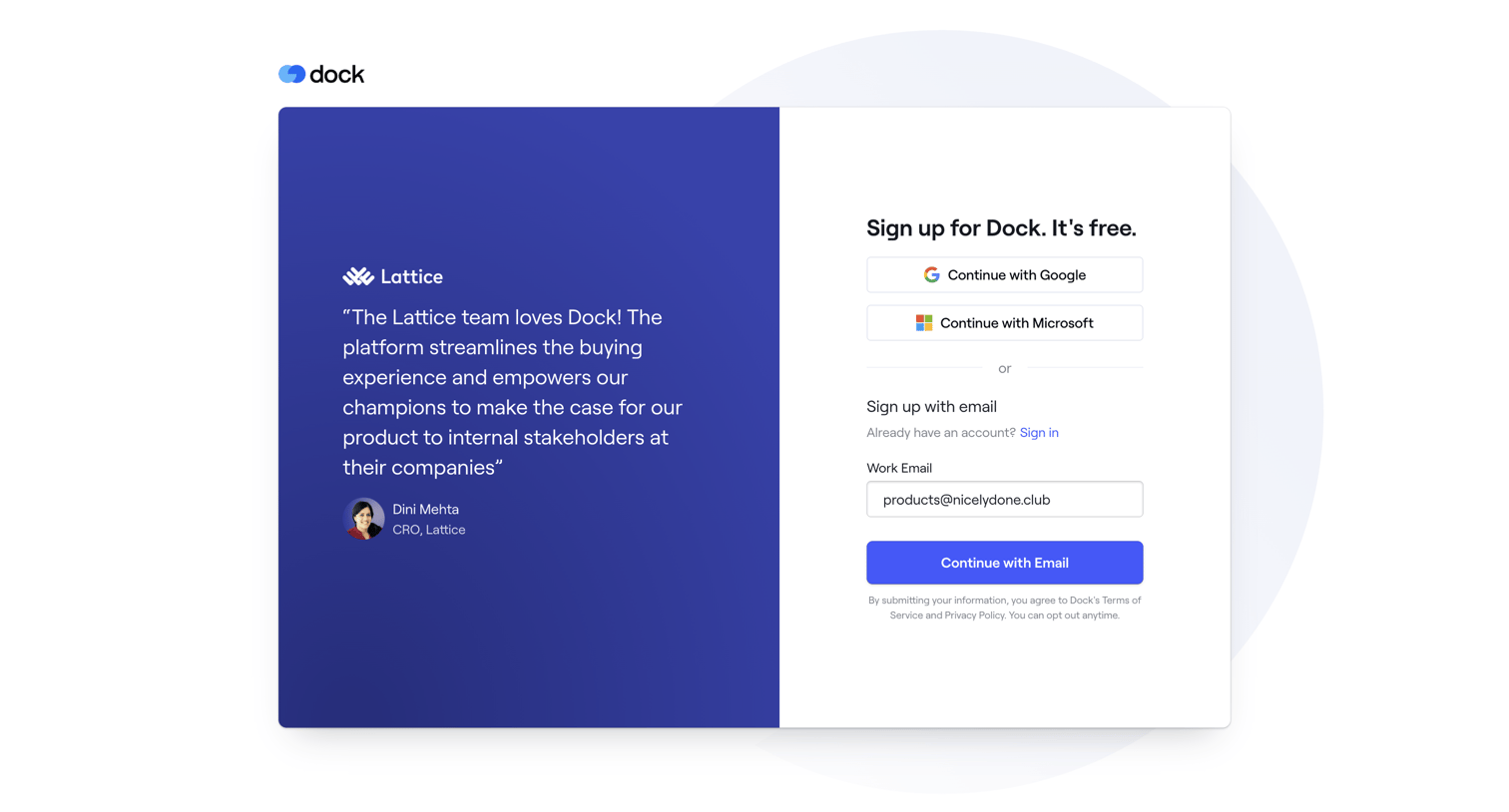
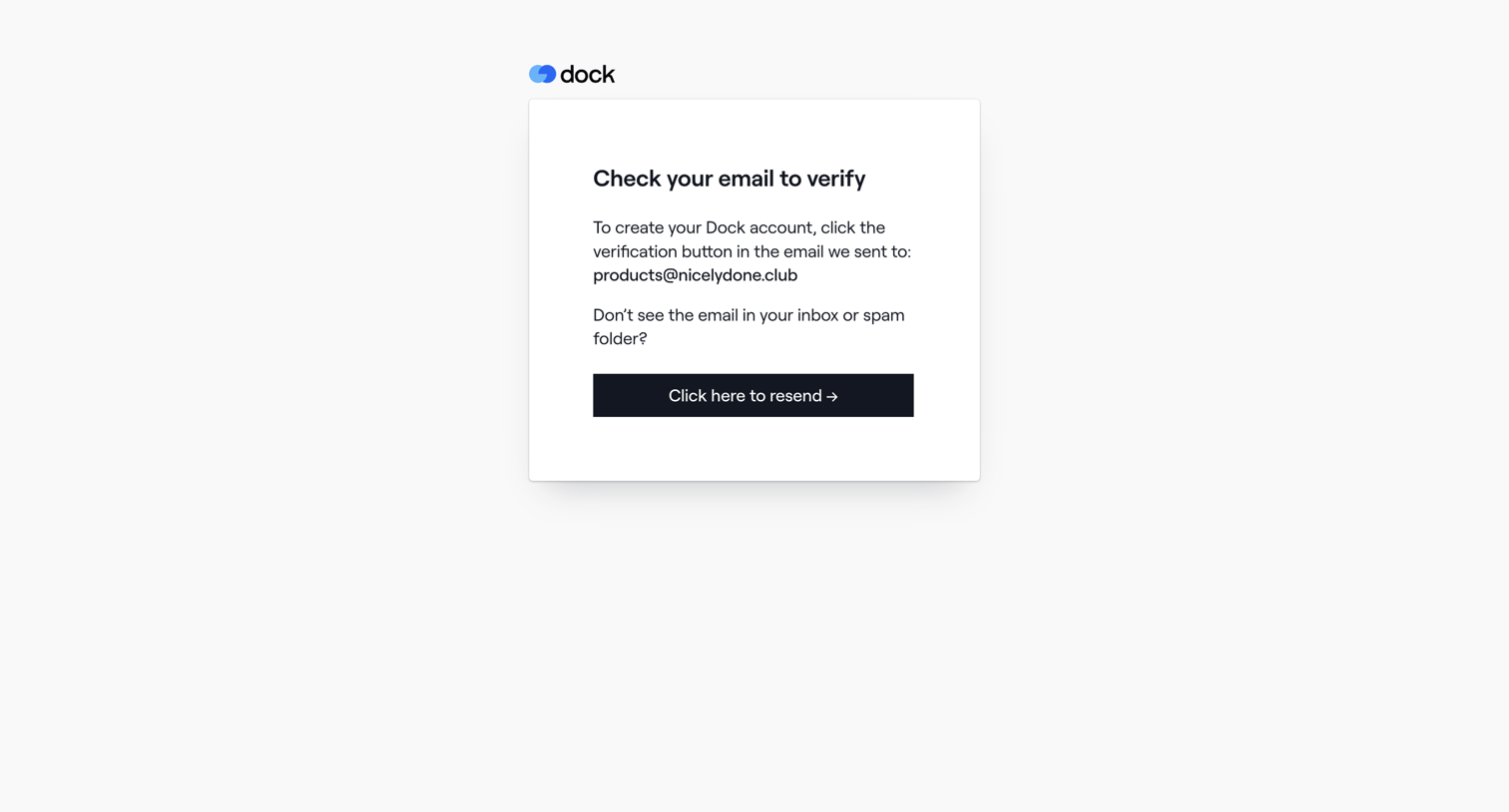

Verification screen where the user is instructed to check their inbox for a link to create their Dock account.
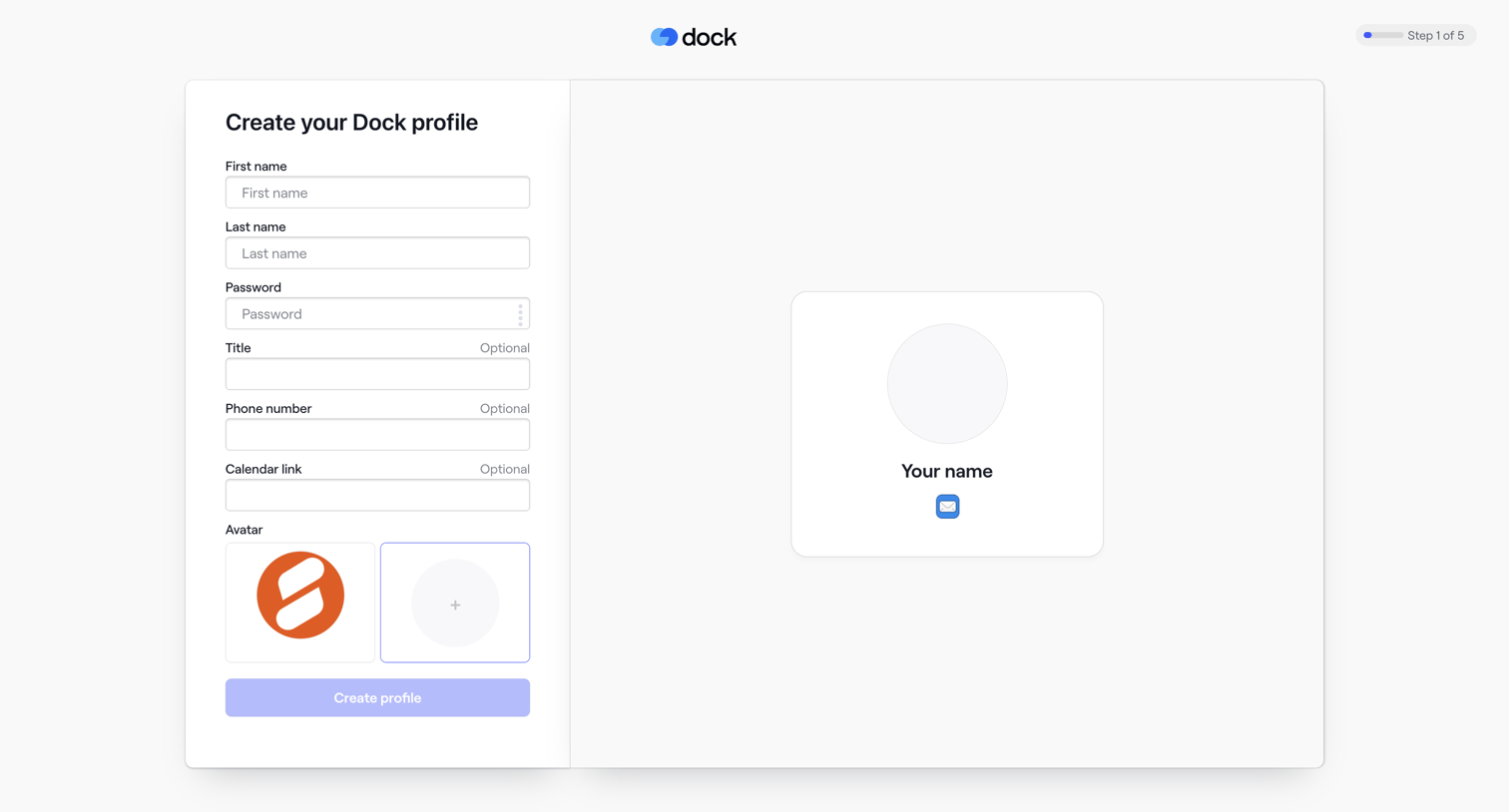
Signup step where the user creates their profile by entering their name, password, title, phone number, calendar link, and selecting an avatar.
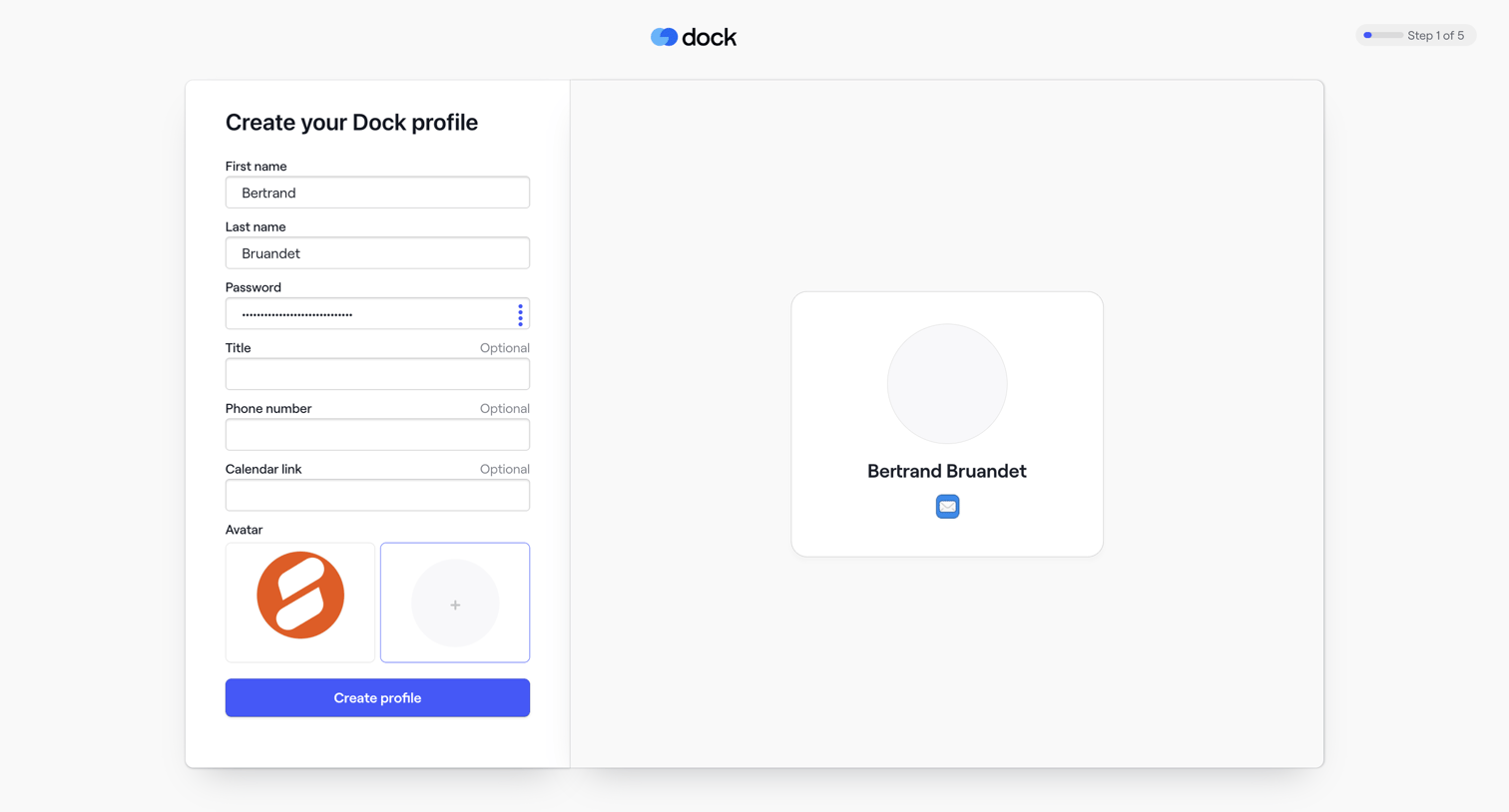
Signup step where the user creates their profile by entering their name, password, optional details, and selecting an avatar while viewing a live preview.
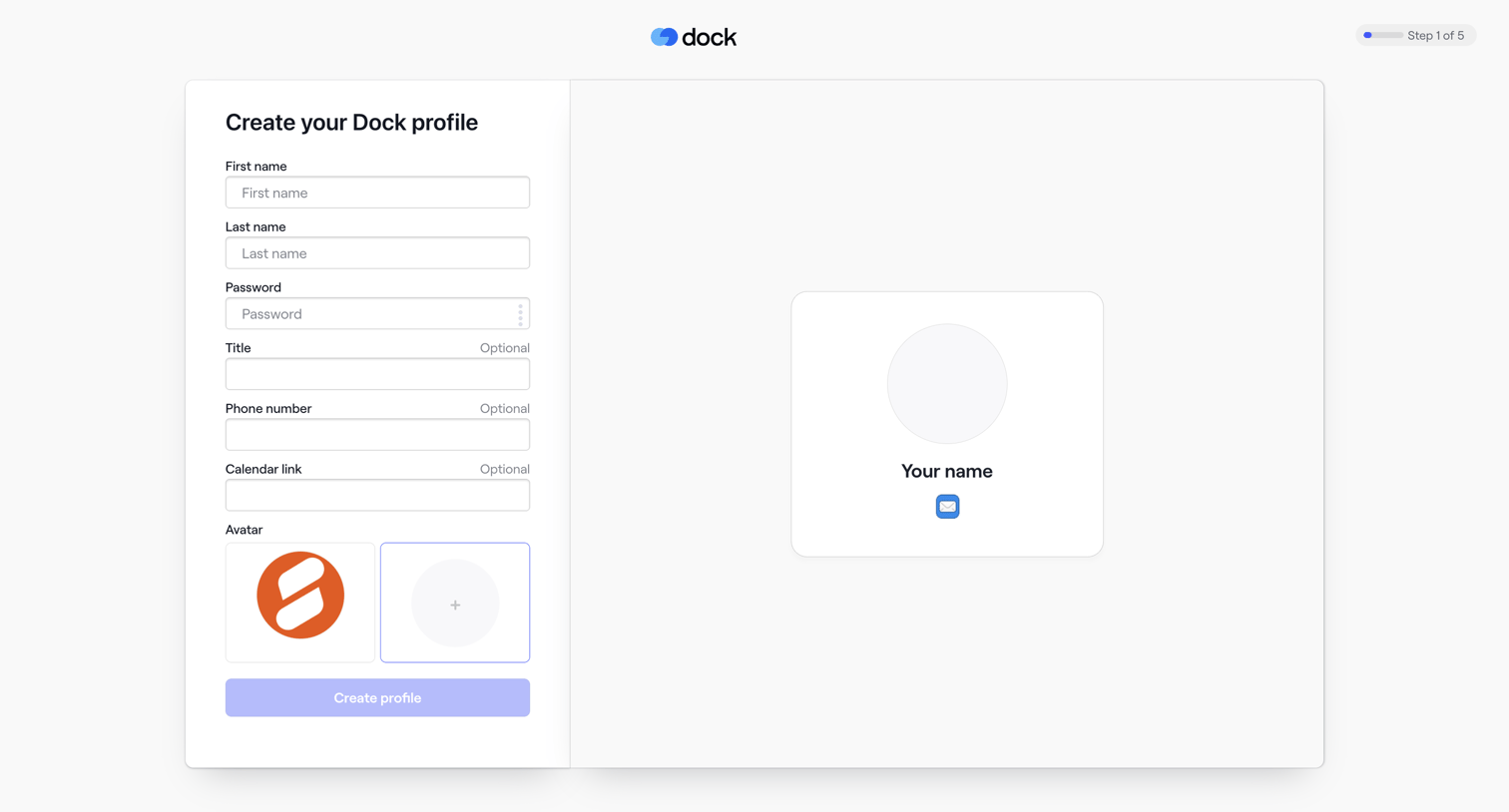
Onboarding step where the user sets up their profile by entering their name, password, and optional contact details while viewing a live preview card.
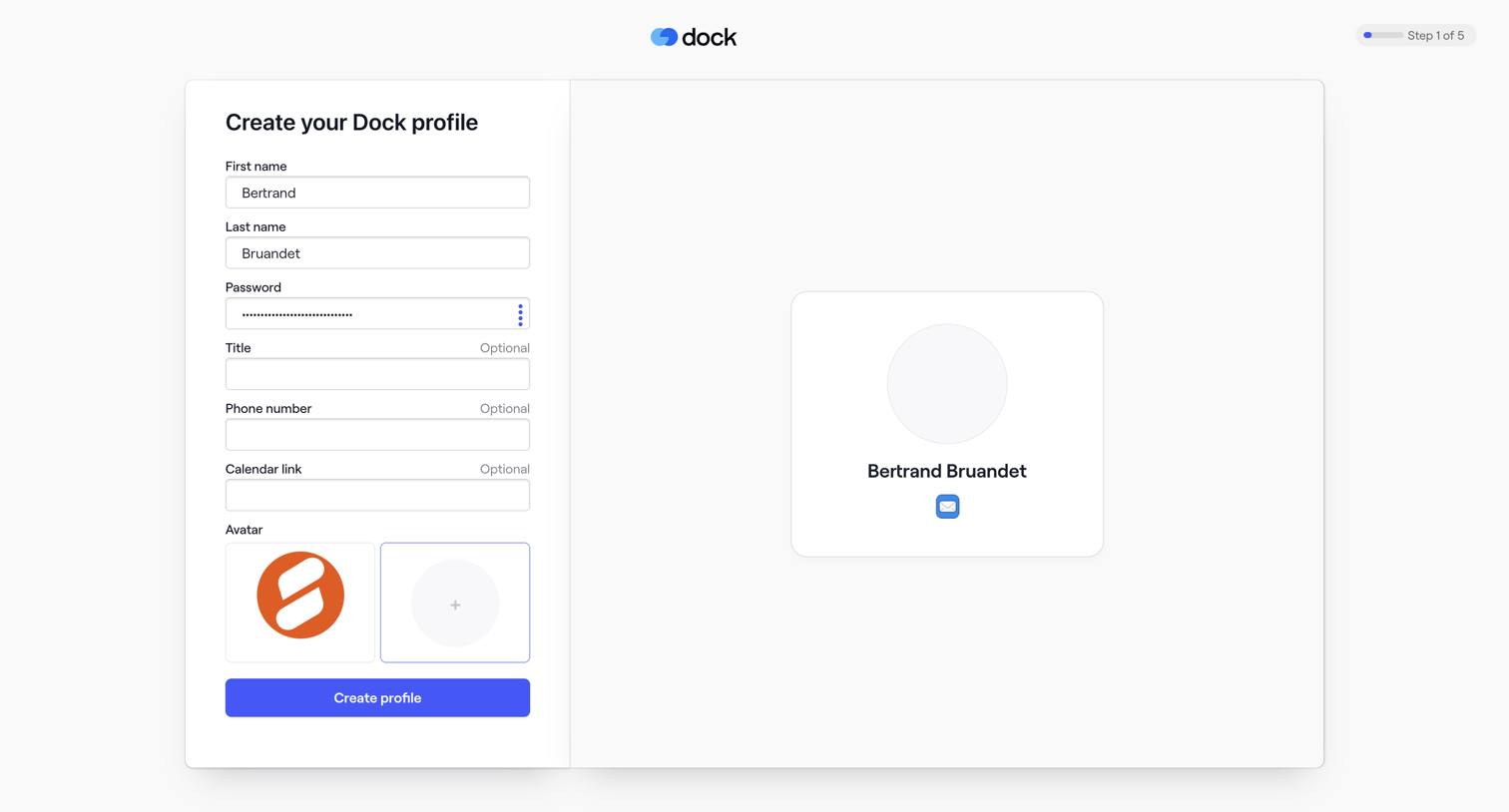
Onboarding step where the user creates their profile by entering their name, password, and optional details while seeing a live preview.
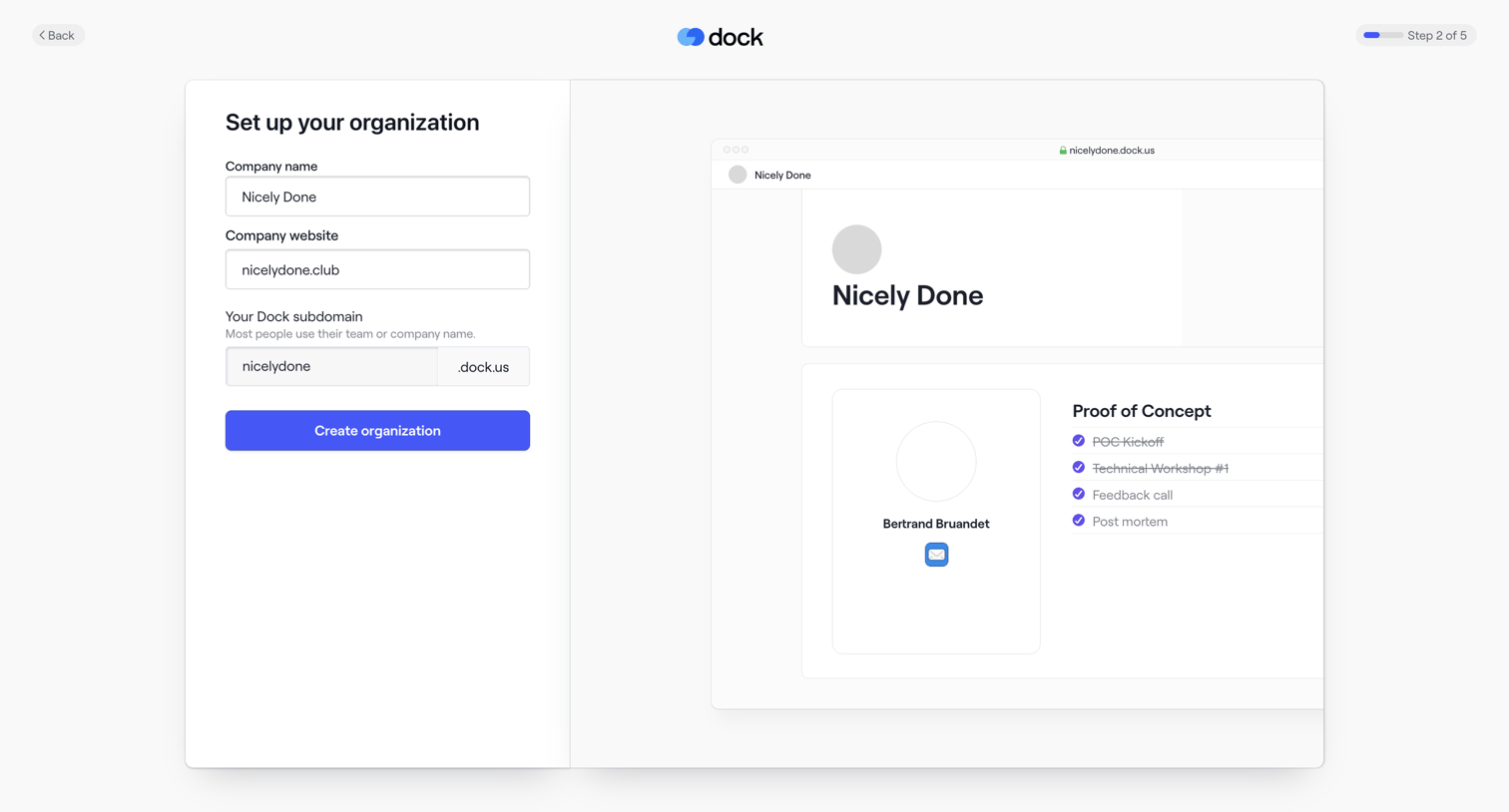
Onboarding step where the user sets up their organization by providing a company name, website, and custom Dock subdomain, alongside a live preview of their workspace.
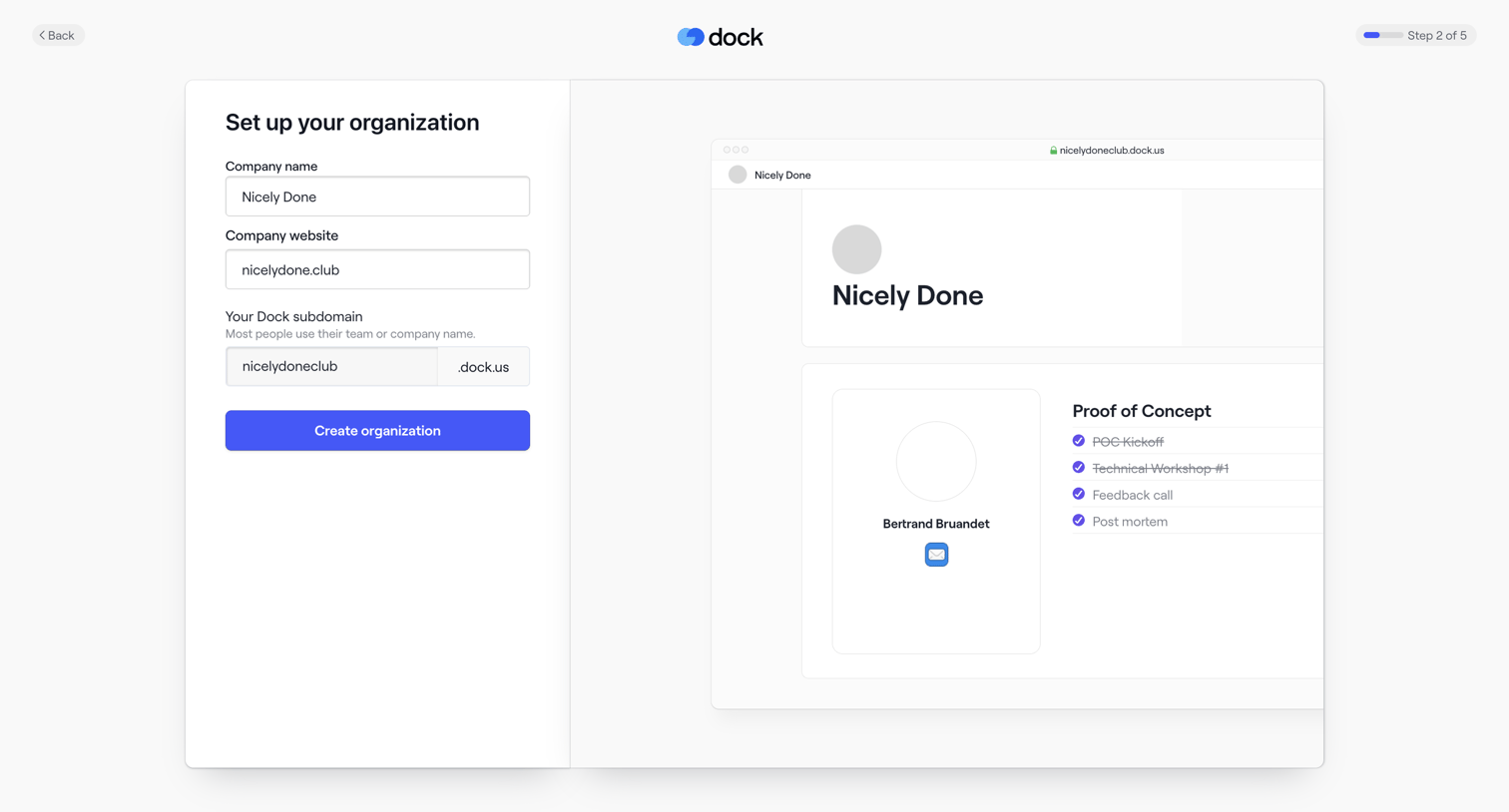
Onboarding step where the user sets up their organization by providing a company name, website, and custom subdomain, with a live preview of their workspace on the right.
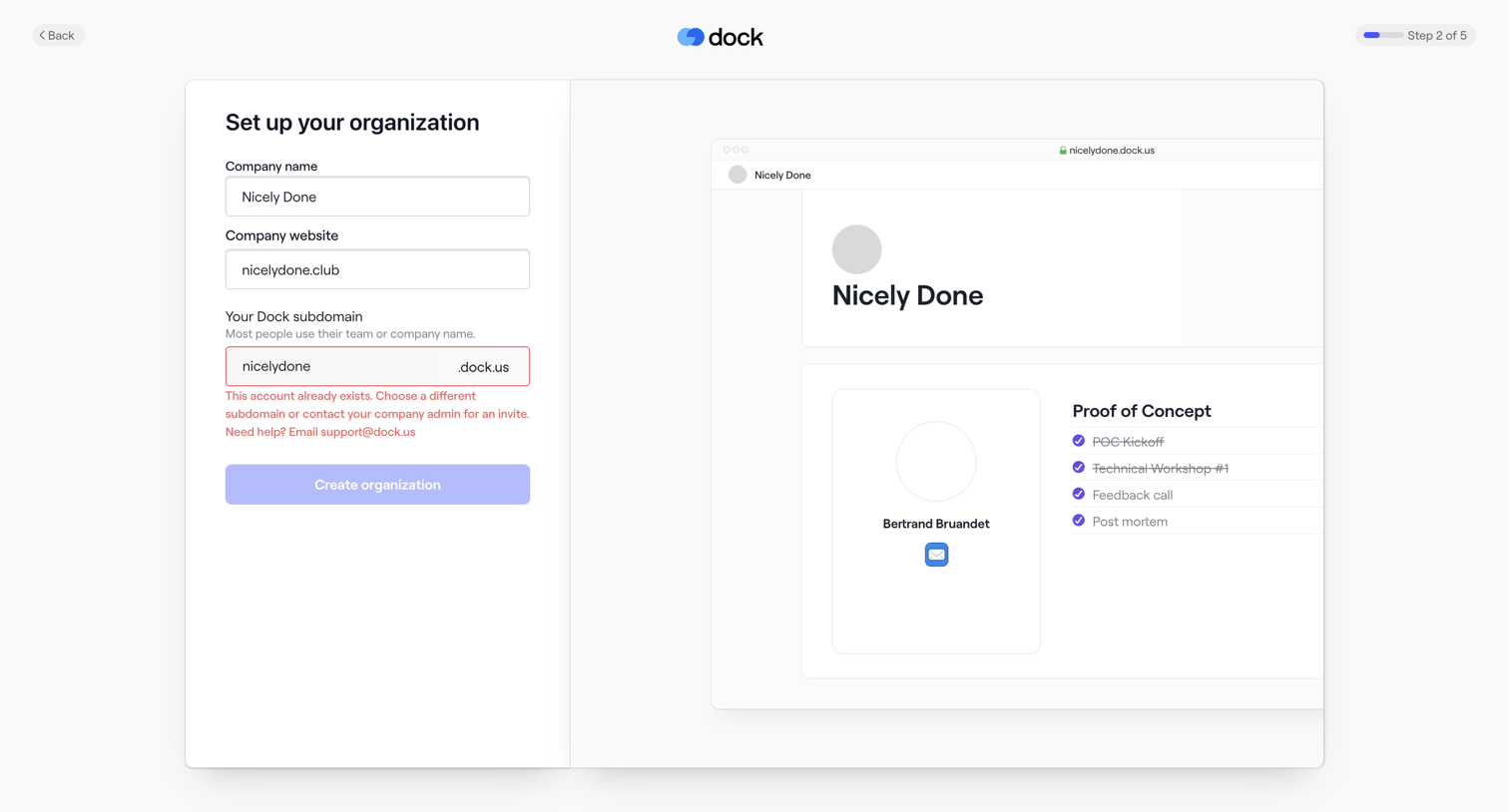
Onboarding step where the user sets up their organization by providing a company name, website, and subdomain, currently showing a validation error for an unavailable subdomain.
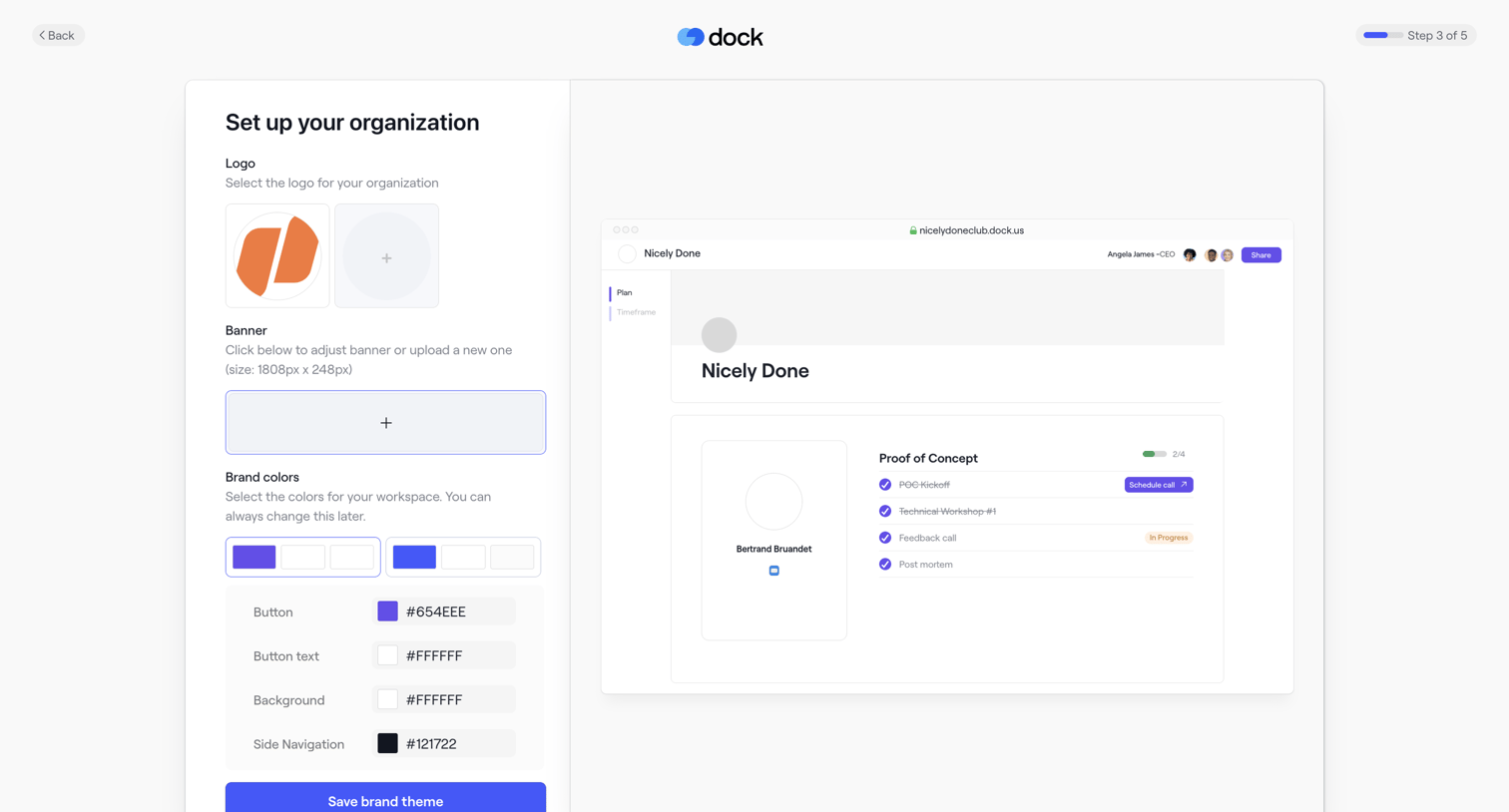
Onboarding step where the user configures their organization's logo, banner, and brand colors alongside a live preview.
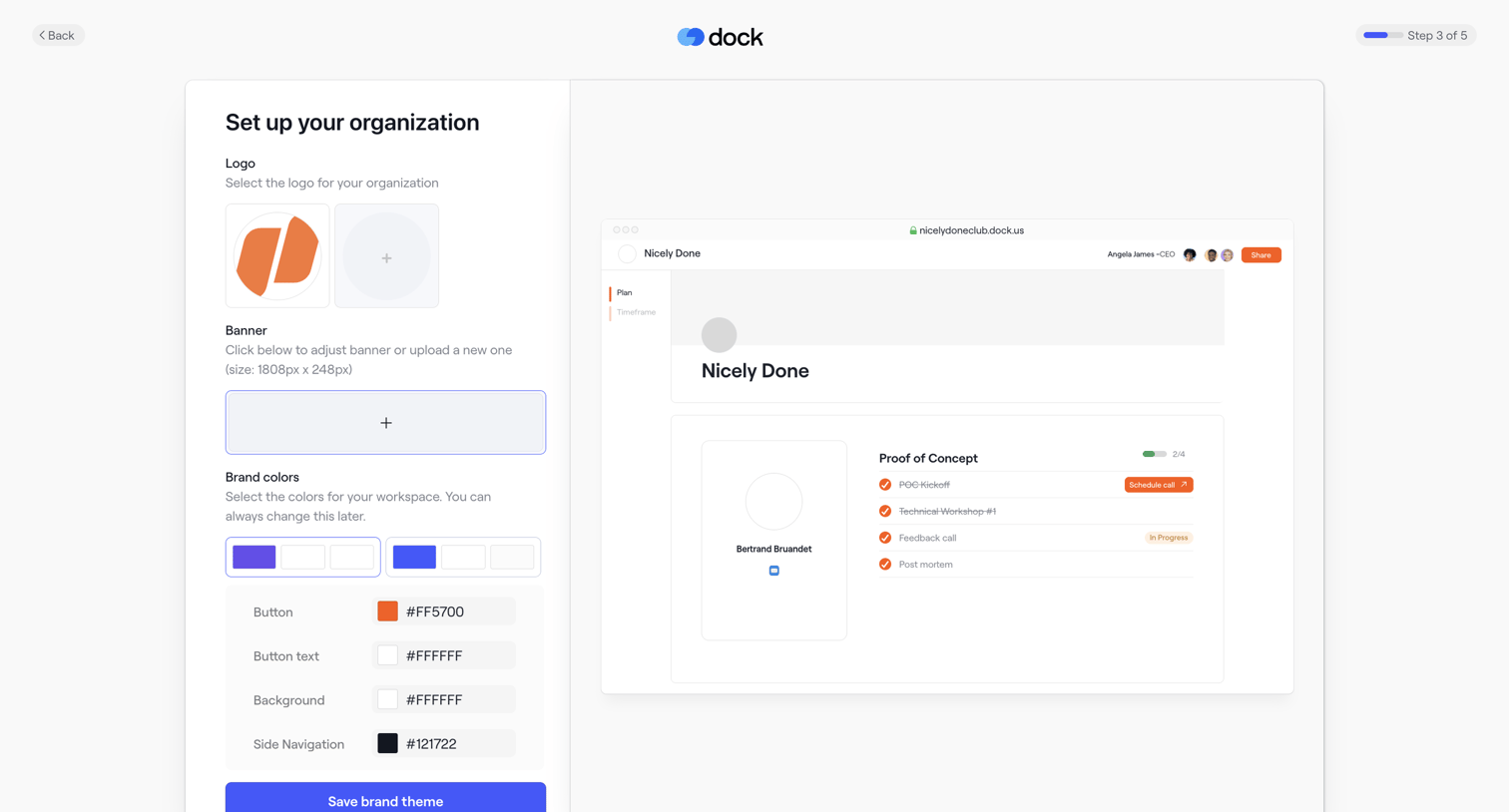
Onboarding step where the user sets up their organization's brand by uploading a logo and banner, and selecting brand colors via hex inputs, with a live preview of the resulting workspace on the right.
Explore the full SaaS screen library
Upgrade to unlock the full library.
Trusted by the best teams







