Todoist user flows examples
Explore Todoist user flow examples. Preview the opening screens and steps for each task. The to do list to organize work & life
Preview these flows

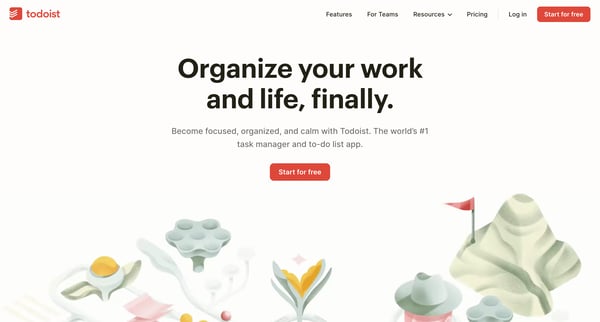
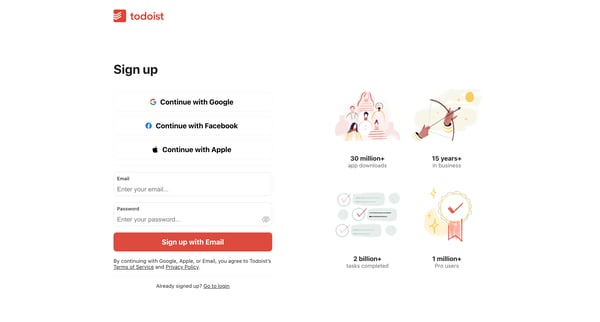
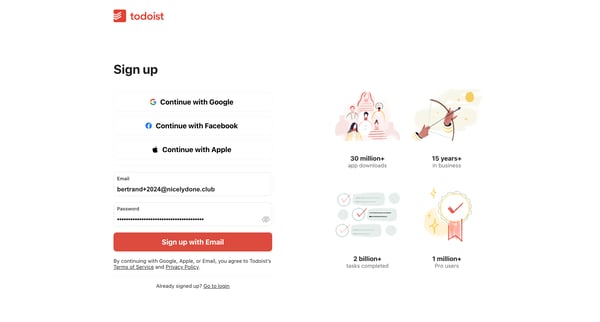
This user flow guides a new user through the process of setting up a Todoist account, creating a profile, customizing their experience based on role, creating a team, inviting team members, a
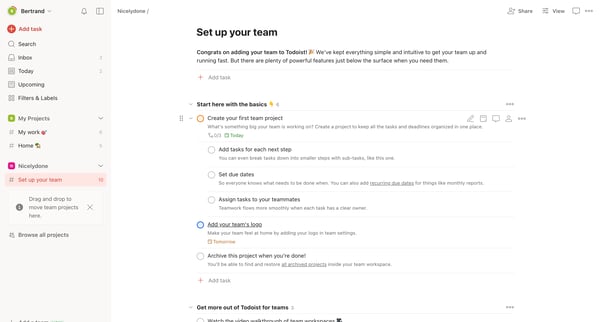
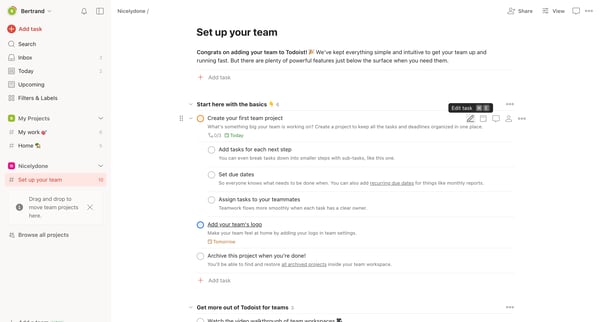
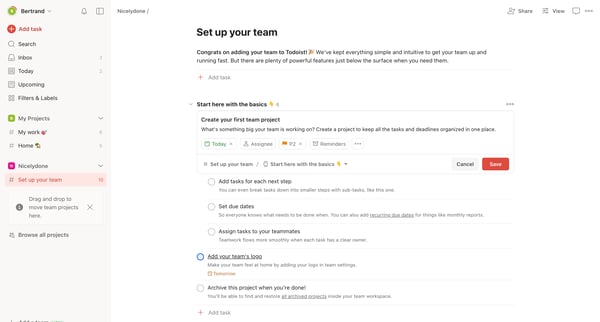
This flow guides a user through setting up a team project in Todoist, including creating tasks, setting due dates, and assigning tasks, with the goal of streamlining teamwork.
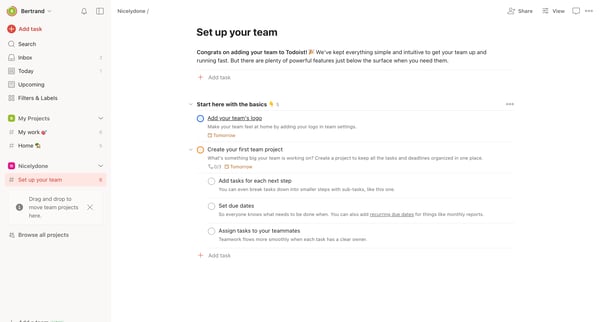
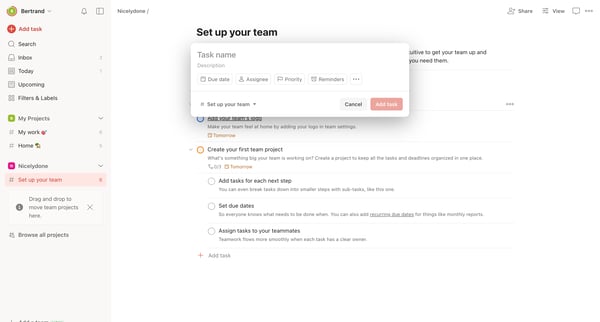
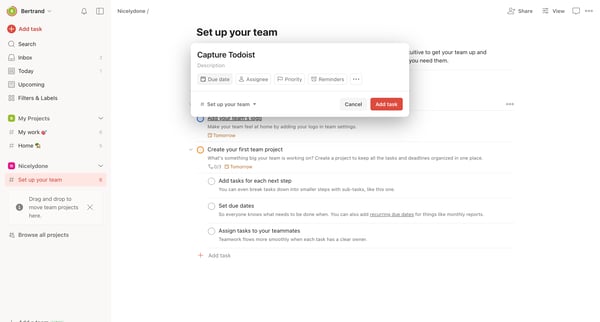
This flow guides a user through setting up their team on Todoist, including adding tasks, setting due dates, and assigning tasks, culminating in the creation of a team project.
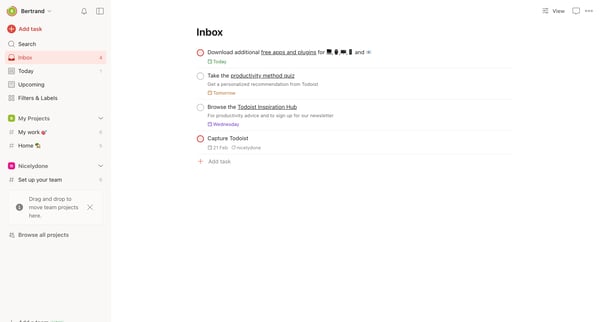
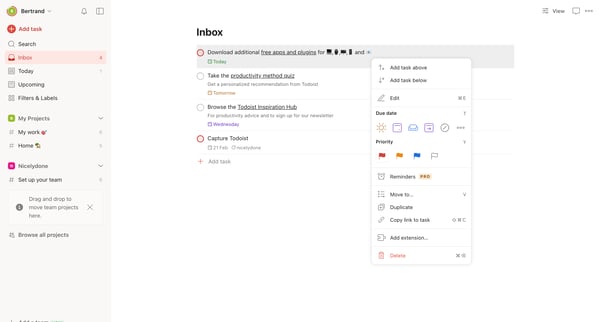
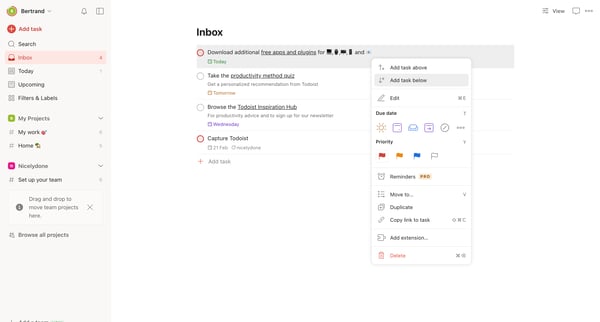
This flow guides a user through the process of adding a new task to their list in Todoist, from initiating the task addition to confirming the added task in their inbox.
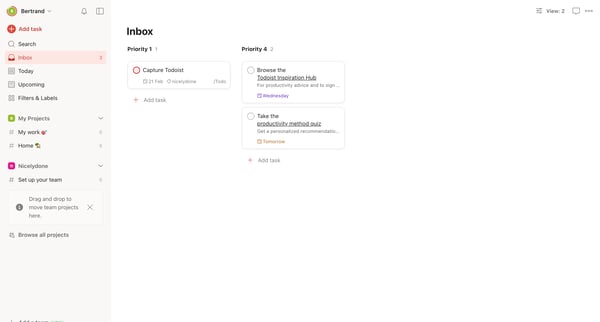
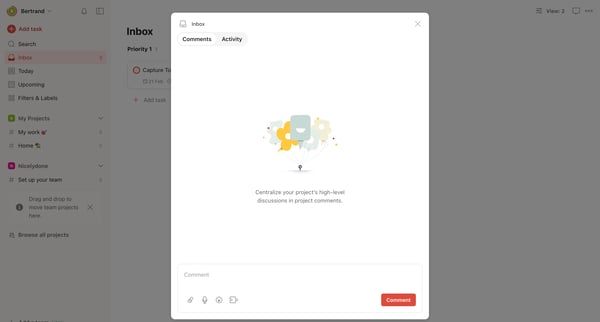
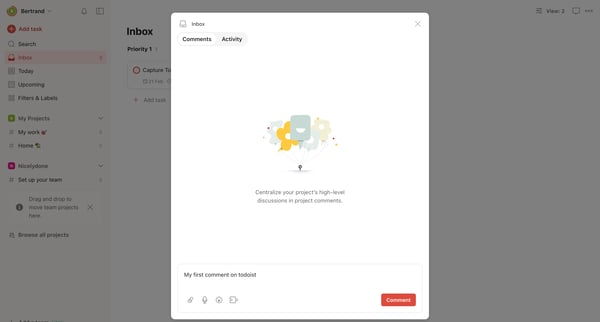
This flow enables users to engage with tasks through commenting, reacting, editing, and sharing within Todoist.
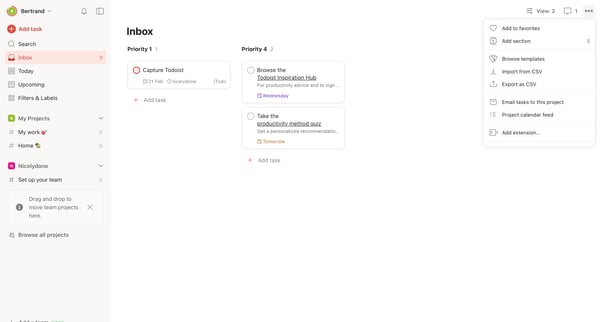
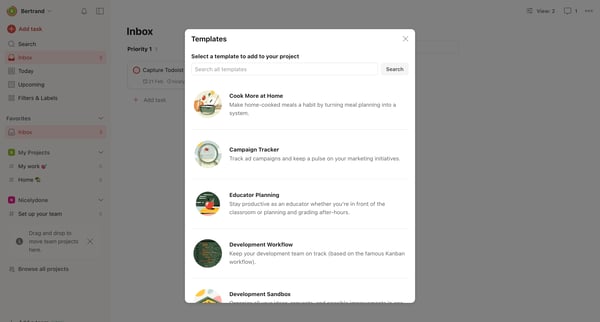
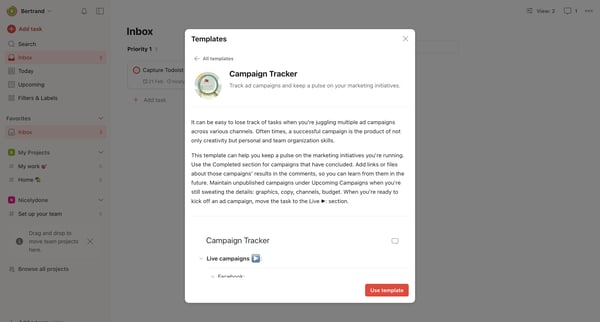
This flow outlines the process of selecting and applying a template to a project in Todoist, including browsing templates, viewing template details, applying the template, and confirming the
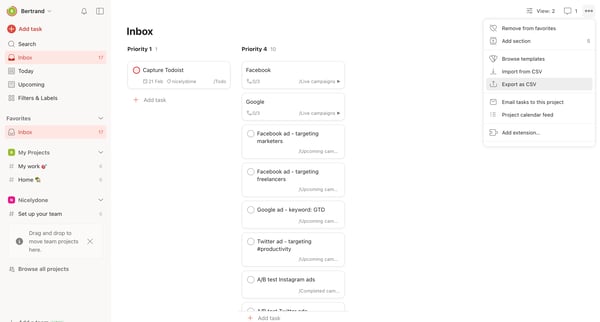
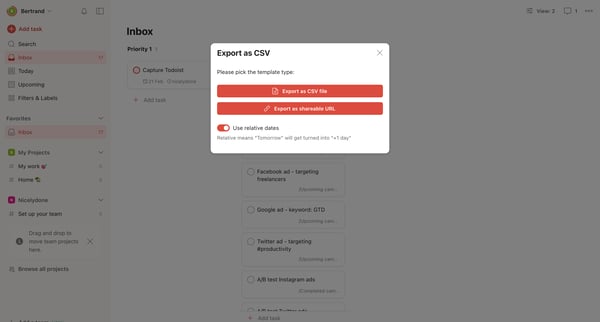
This user flow illustrates the process of exporting tasks from Todoist into a CSV file or as a sharable URL.
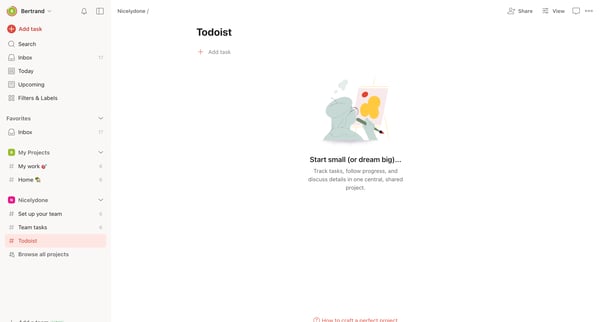
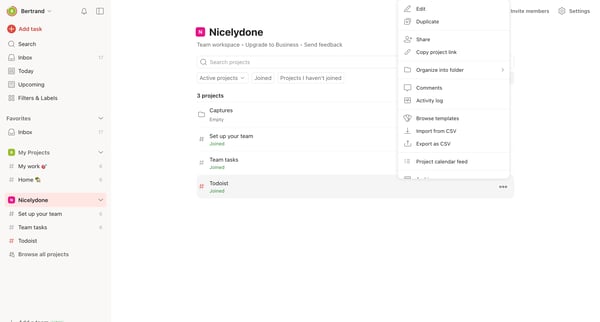
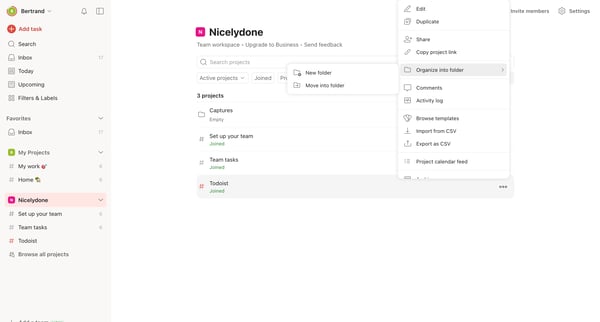
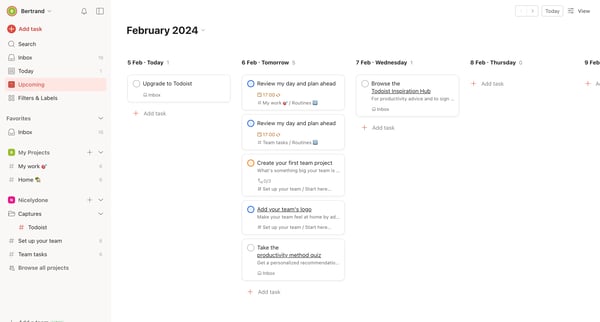
This flow allows the user to effectively organize their projects within Todoist by adding a project to a specific folder, thus enhancing project management and accessibility.
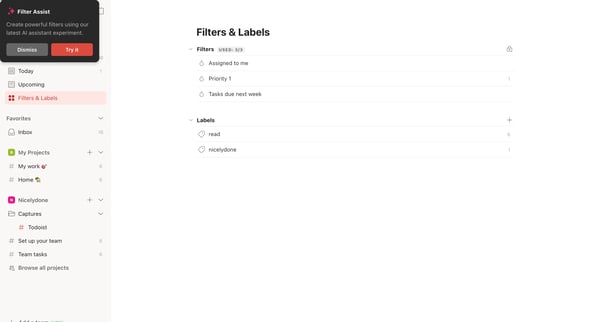
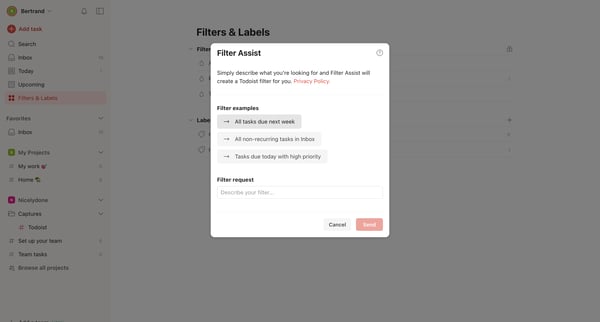
This user flow outlines the process of leveraging an AI assistant within ToDoist to create a custom filter for tasks based on user-specified criteria, enabling more efficient task management.
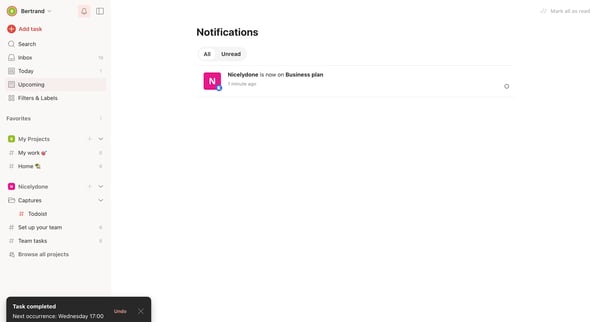
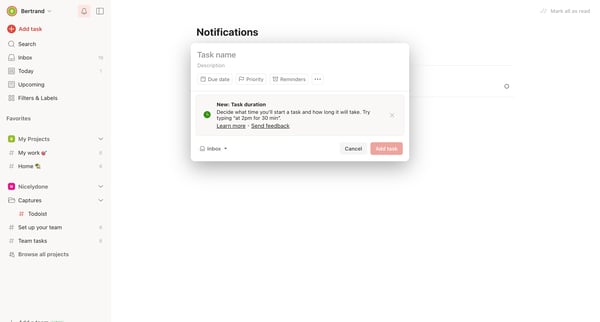
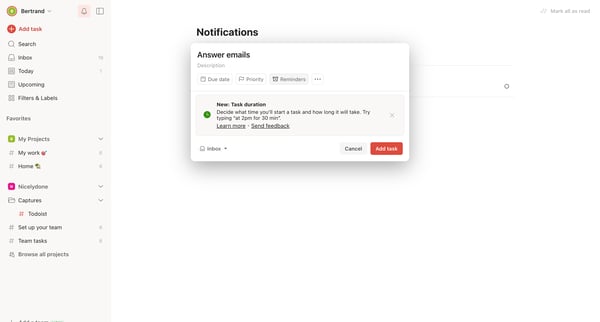
This flow outlines the process of adding a task in Todoist, from receiving a notification about a task completion to the confirmation of a new task addition.
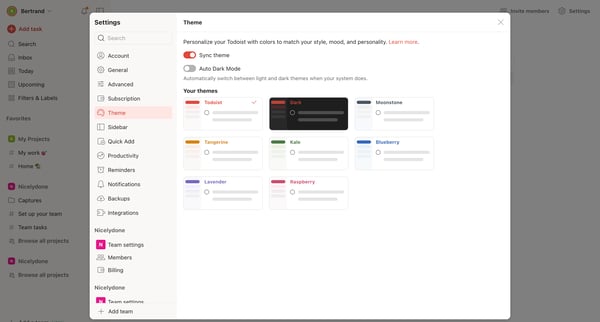
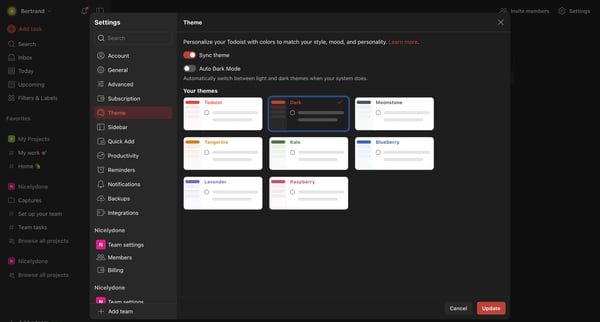
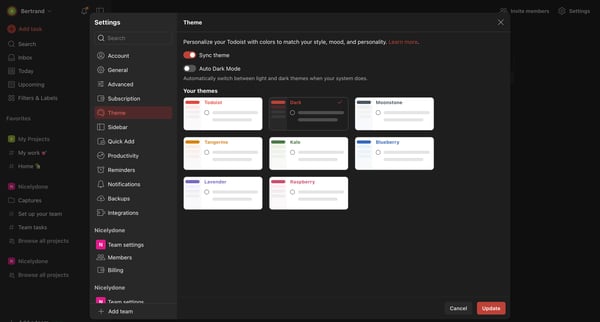
This user flow allows users to personalize their Todoist app by selecting and applying a new theme color, with options for automatic switching between light and dark modes based on system set
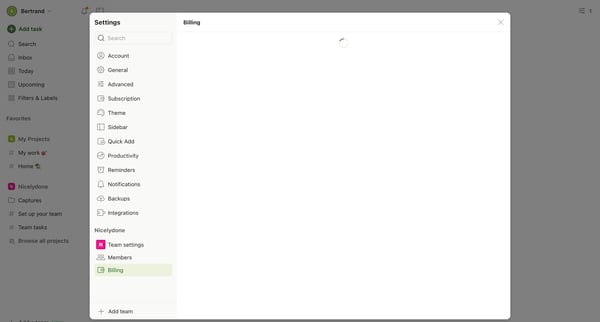
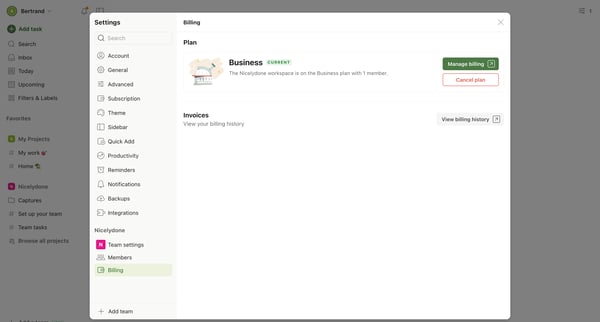
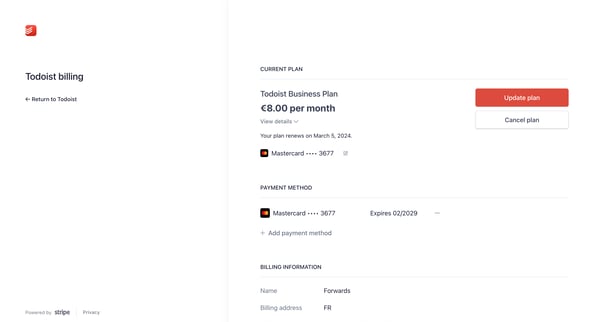
This user flow guides a user through the process of canceling their subscription, displaying interactions from initiating cancellation to confirmation of the canceled plan.
Explore the full SaaS flow library
Browse the full SaaS flow library.
Trusted by the best teams







