Tailscale Flow Example: Configuring SaaS app integrations
Preview this Tailscale user flow: Configuring SaaS app integrations. Explore the opening screens.
Preview these flows

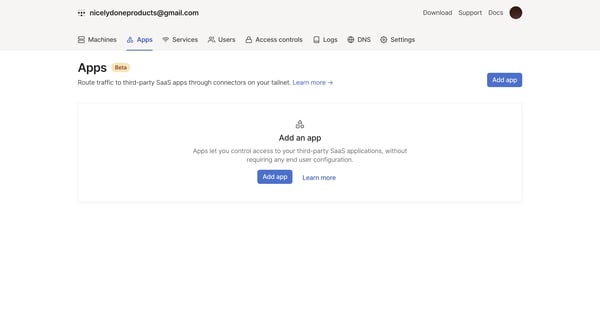
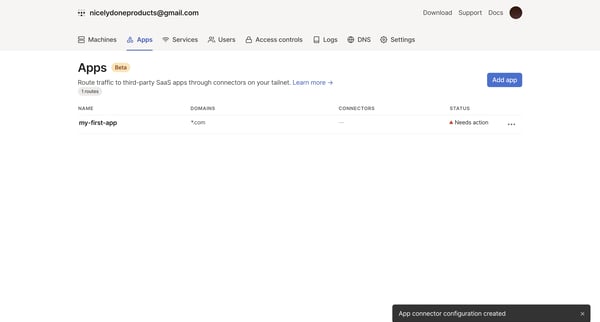
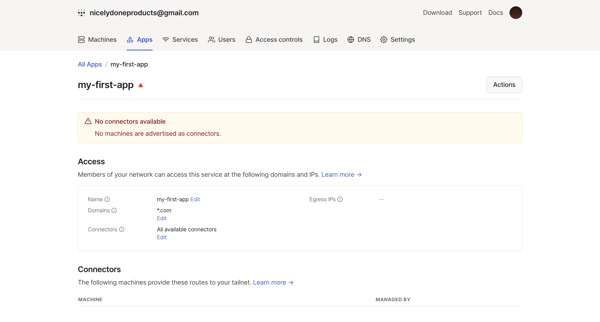
This user flow outlines the process of adding, configuring, and managing third-party SaaS app connections within a network.
Related user flows

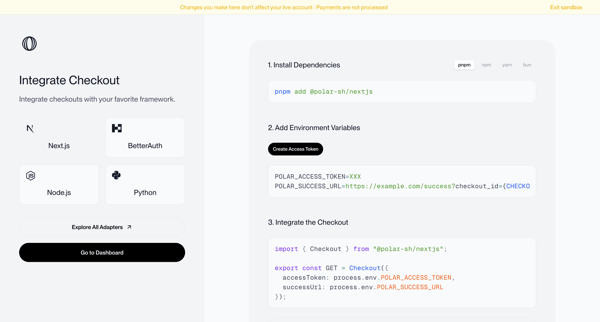
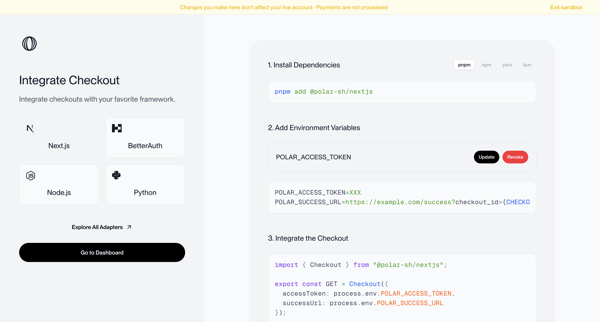
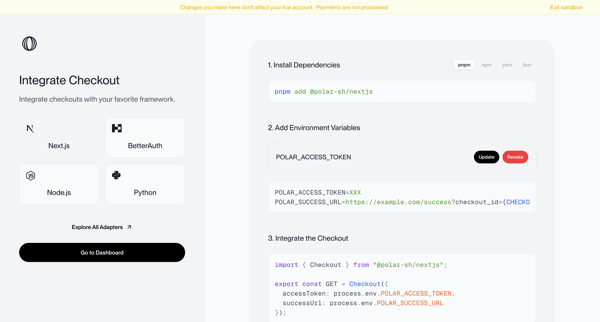
Onboarding journey selecting a framework and following numbered steps to install dependencies, configure environment variables, and integrate checkout code in sandbox mode

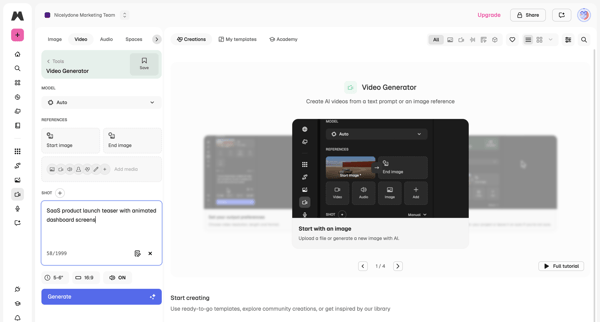
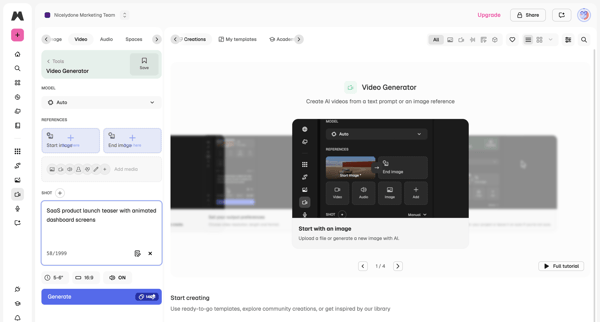
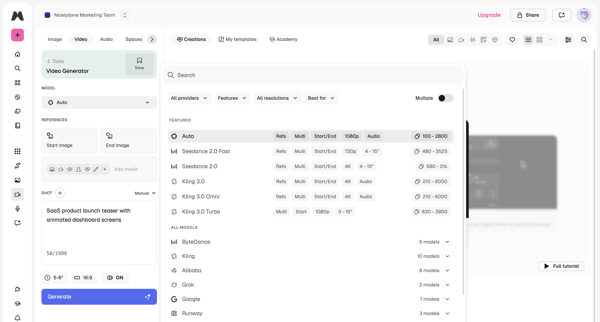
User configures AI model, text prompt, reference images, aspect ratio and duration in workspace then triggers generation and reviews output

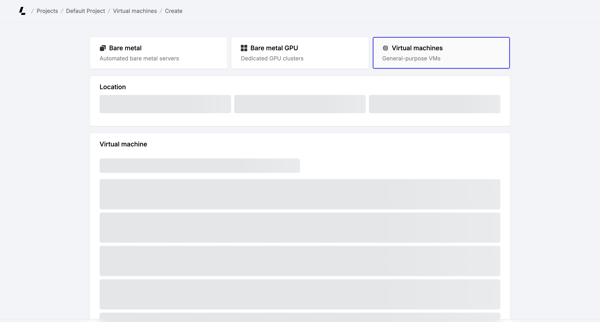
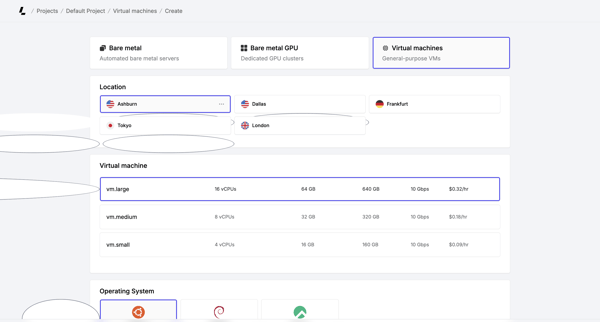
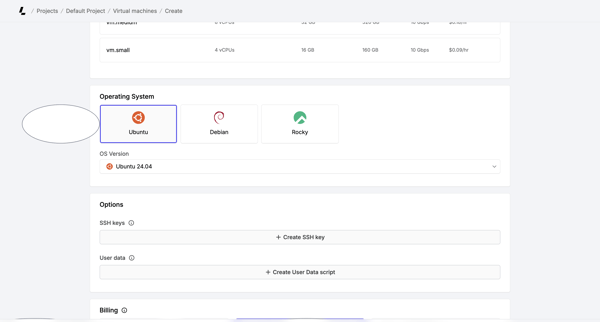
Multi-step creation flow where user selects server type, location, instance size, OS, SSH keys, billing cycle, and hostnames before account verification and deployment

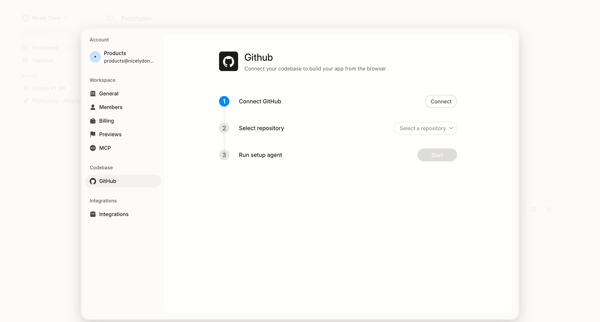
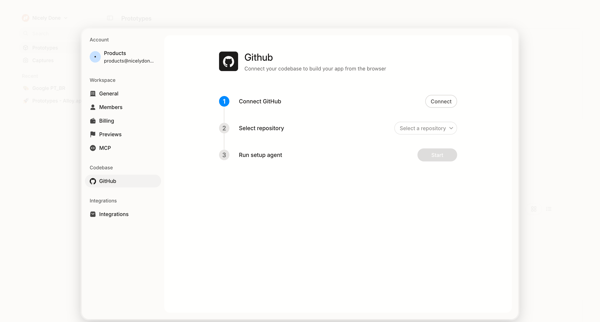
User initiates GitHub integration from settings to connect account, select repository, and run setup agent for browser-based app building

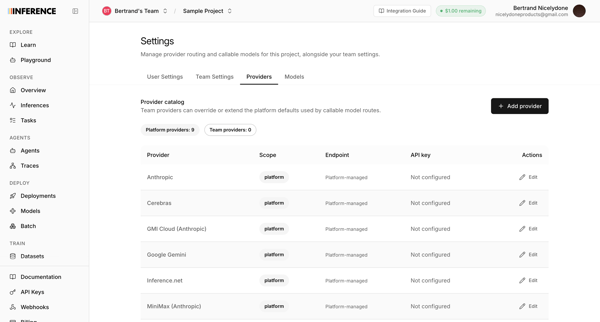
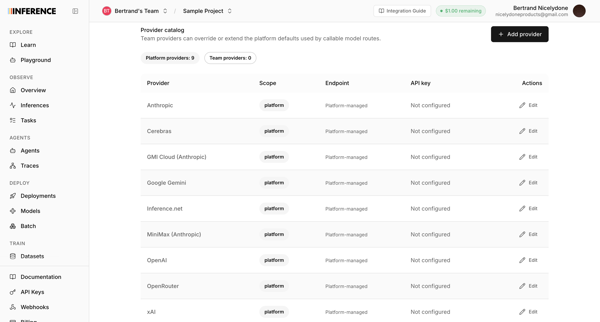
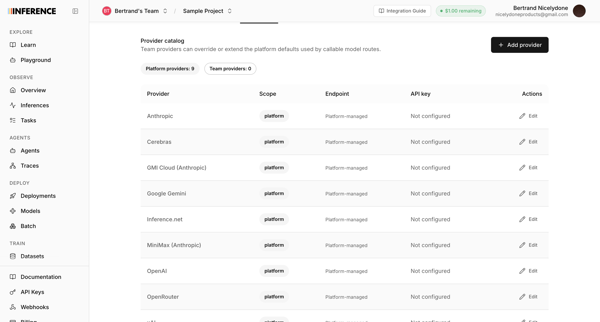
User configures AI provider routing, API keys, and model providers like Anthropic and OpenAI across three sequential settings screens.

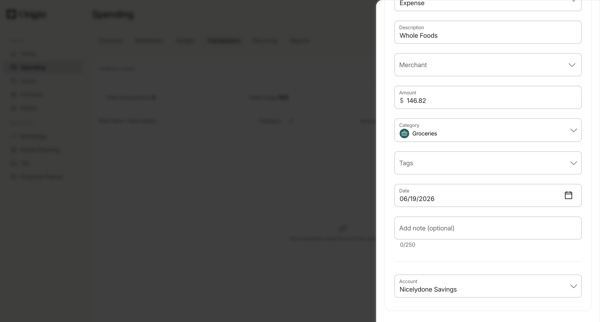
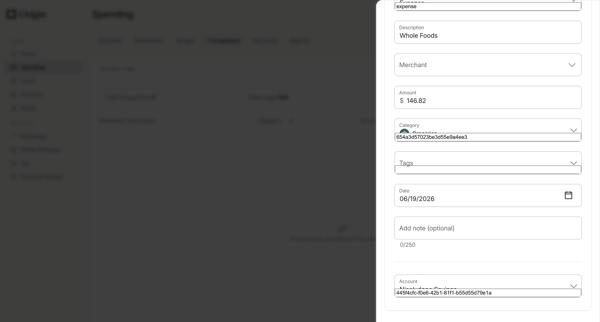
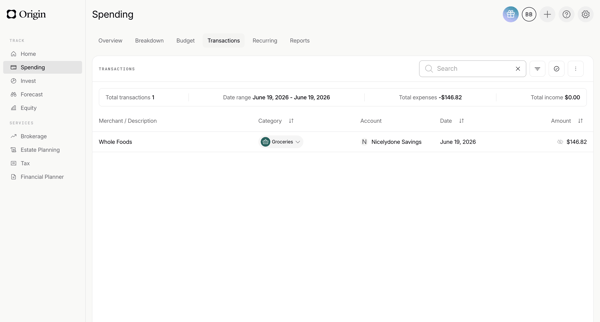
Manually add a new transaction via drawer form with merchant, amount, category, date and account fields, then view the updated list with summary metrics

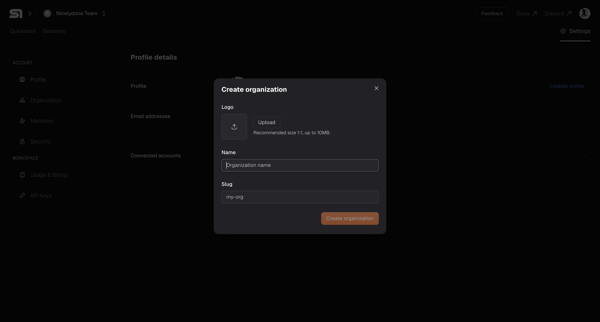
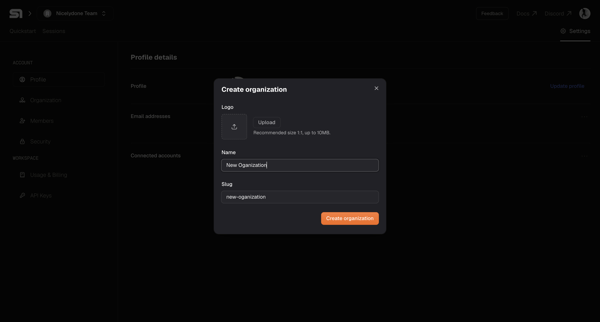
User opens Create Organization modal from settings workspace section and enters logo, name, and slug values

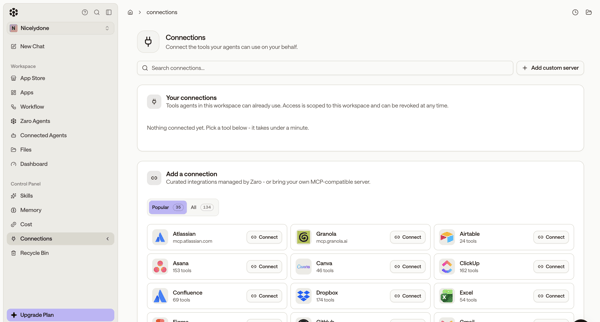
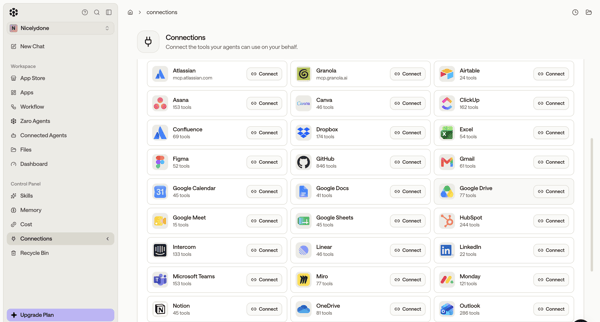
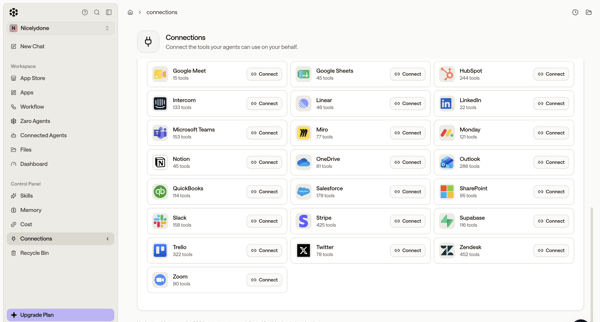
User browses integration directory in settings and connects third-party tools like Atlassian, GitHub, Figma, Asana, Slack for AI agents

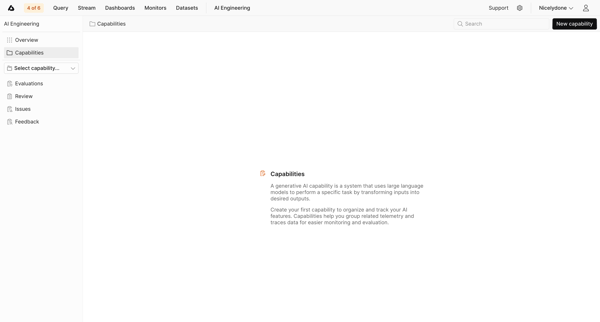
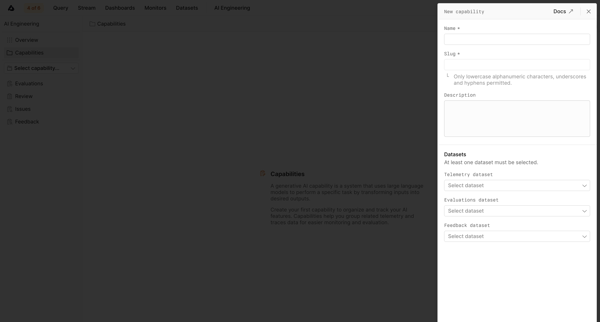
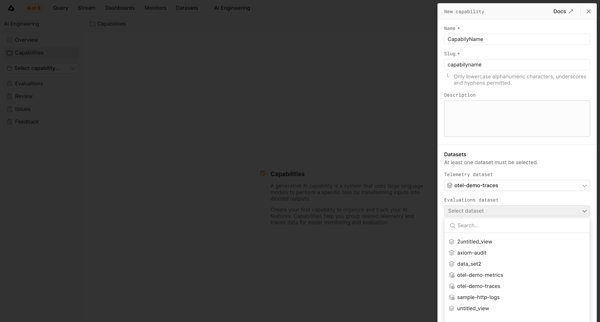
User starts from empty capabilities list and creates a new AI capability via side drawer form by naming it, setting slug and description, then selecting telemetry, evaluations, and feedback datasets.

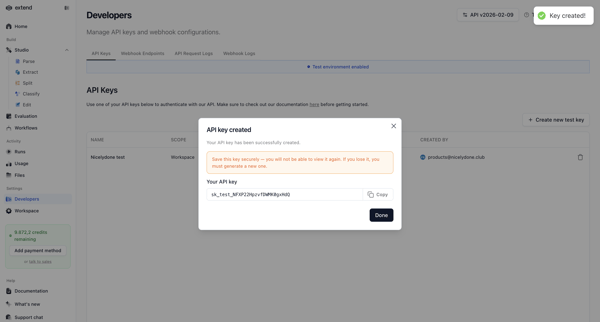
User opens Create API Key Modal in settings to name and scope a test key, then views and copies the generated key in the success modal

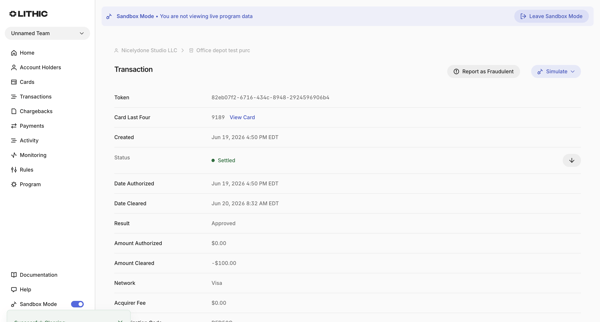
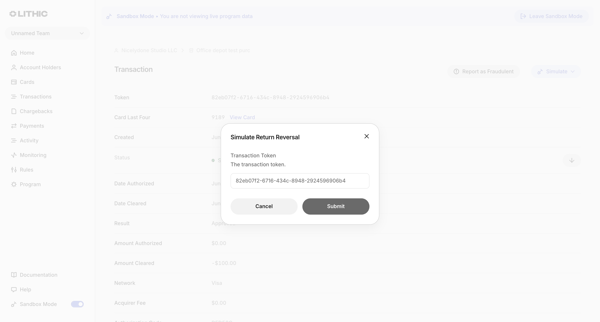
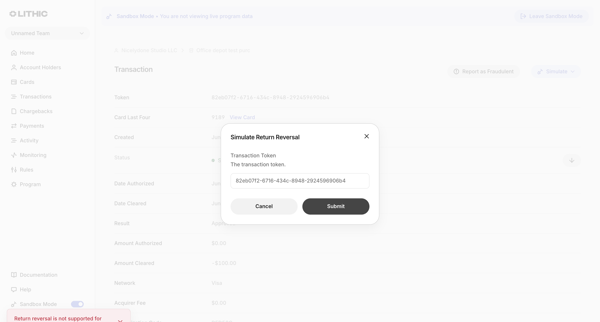
From a settled transaction detail view in sandbox, open simulation modal to attempt return reversal, submit and receive unsupported debit transaction error

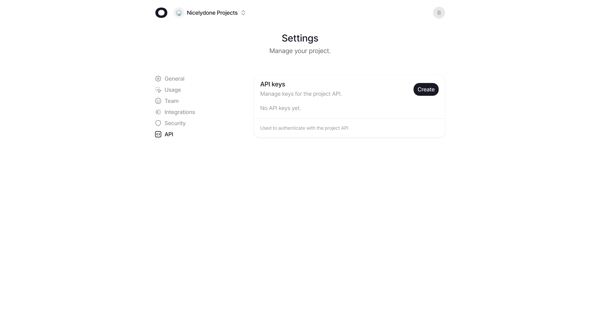
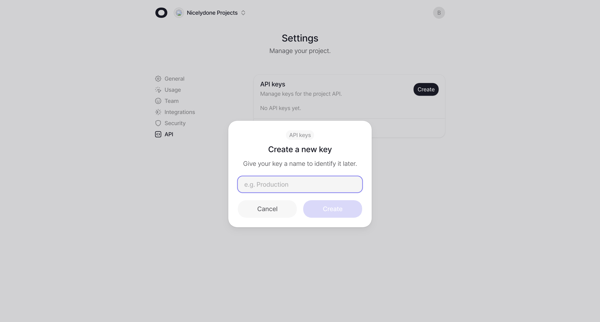
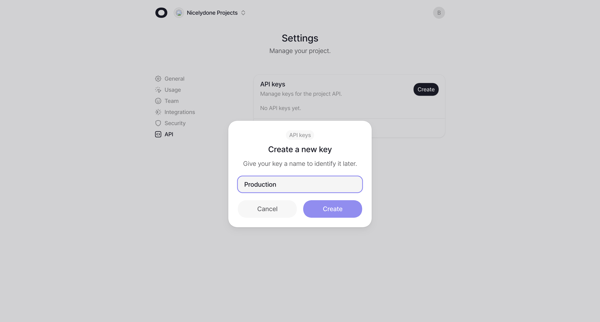
User starts from empty API keys settings, opens create modal to name the key, views generated key in success modal with copy option, and ends with the key listed in settings.
Explore the full SaaS flow library
Browse the full SaaS flow library.
Trusted by the best teams







