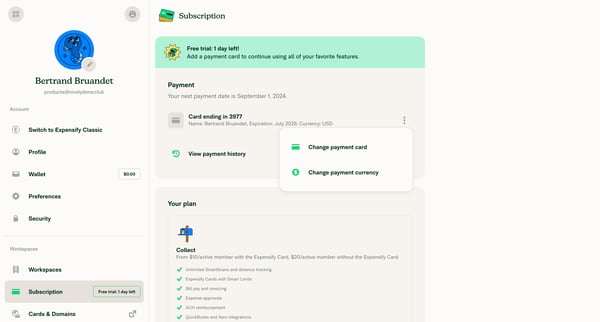
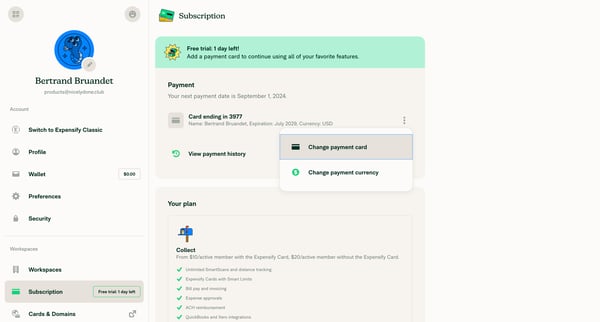
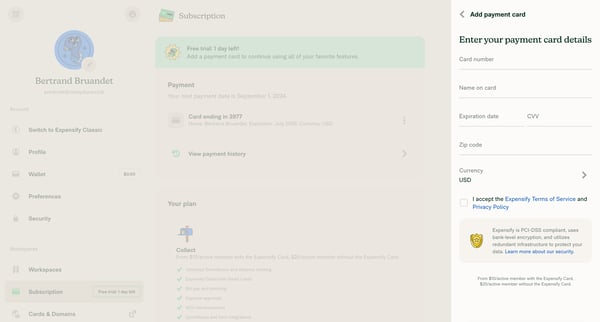
Expensify Flow Example: Changing payment card
Preview this Expensify user flow: Changing payment card. Explore the opening screens.
Preview these flows

Related user flows

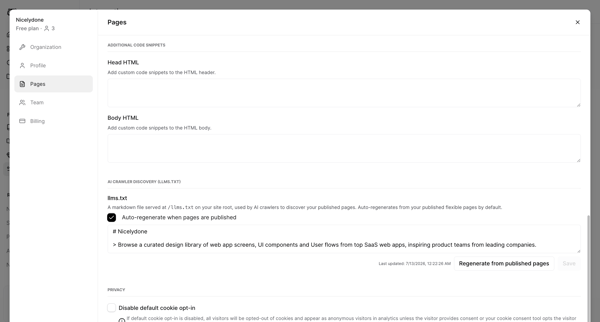

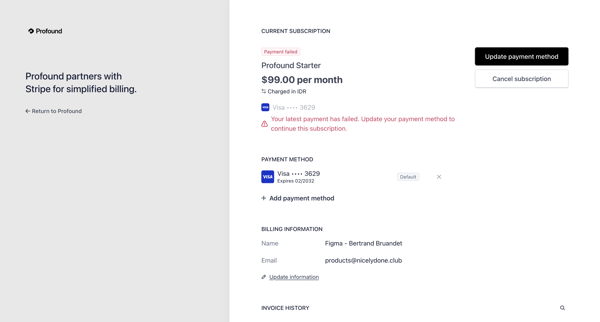
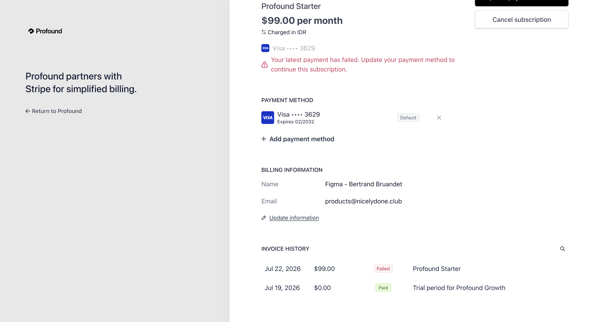
User enters Stripe Billing Portal from Tryprofound settings after a payment failure and views subscription details, failed invoice, current payment method, and options to add a new payment method or cancel subscription.

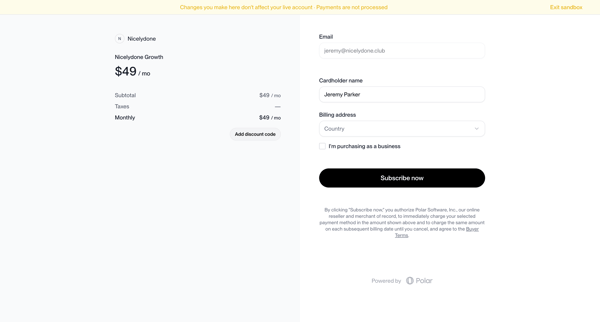
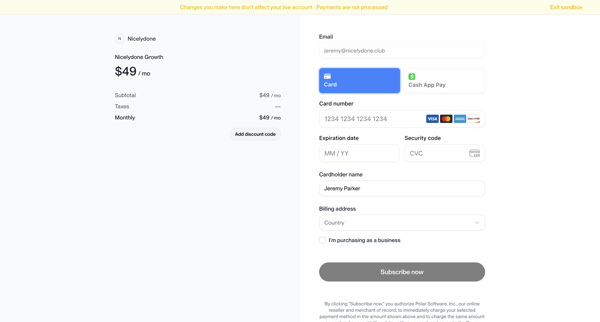
User reviews Nicelydone Growth order summary and enters payment details on checkout form in sandbox mode

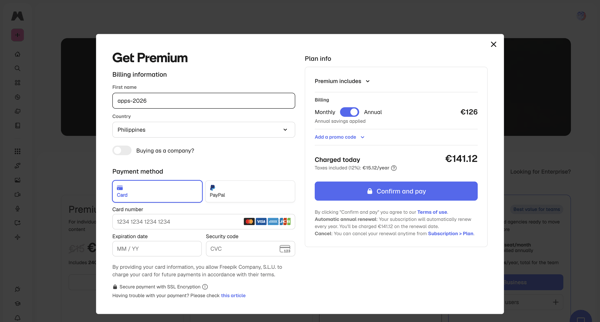
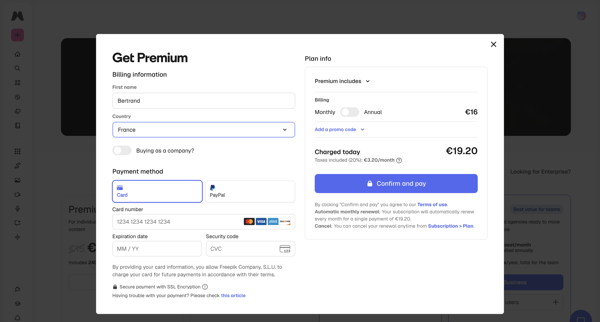
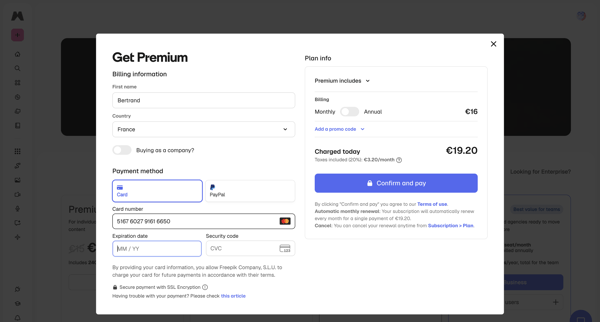
User enters billing details, selects payment method, reviews order summary, and confirms upgrade to Premium plan inside a checkout modal, handling loading and error states

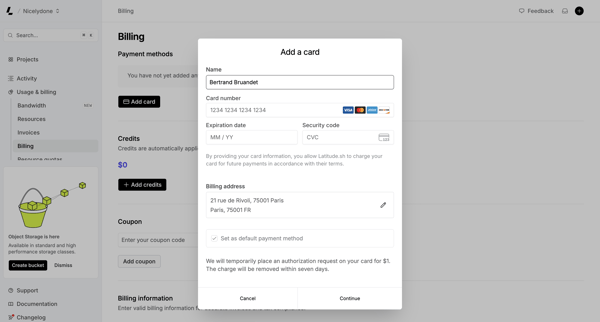
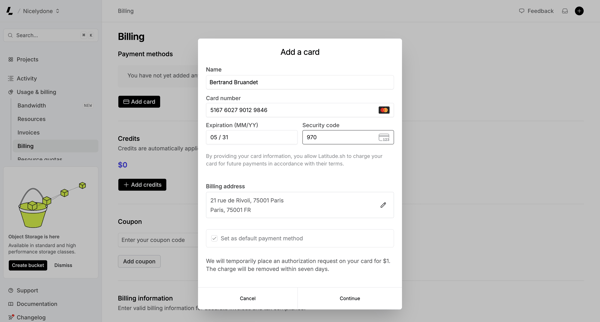
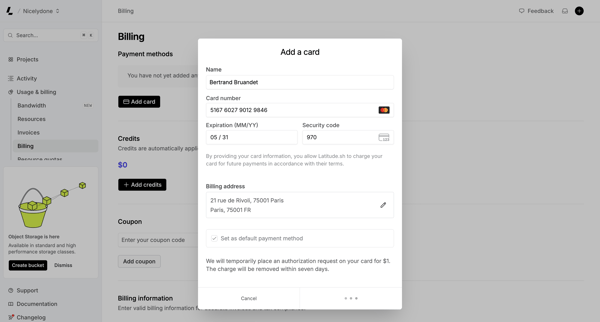
User opens Add Payment Method modal from billing settings and fills credit card and address details, encountering loading and connection error states

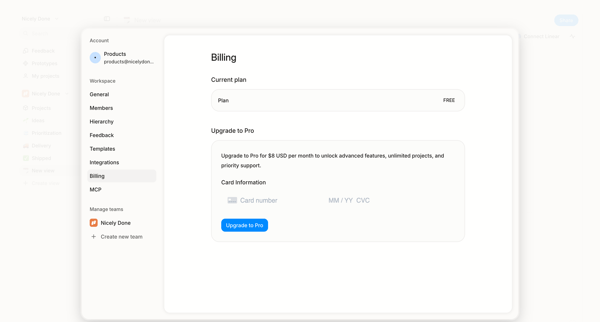
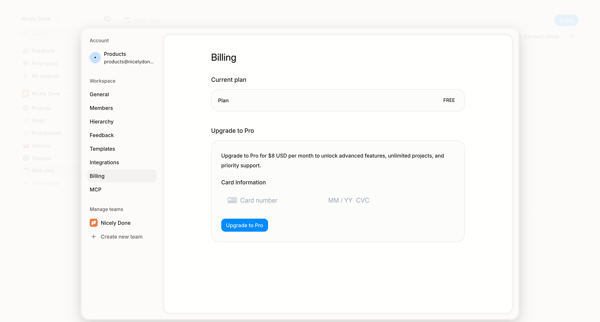
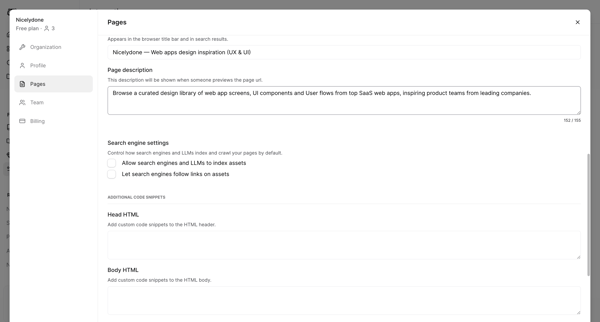
User opens billing settings overlay showing free plan and enters credit card details to upgrade to Pro

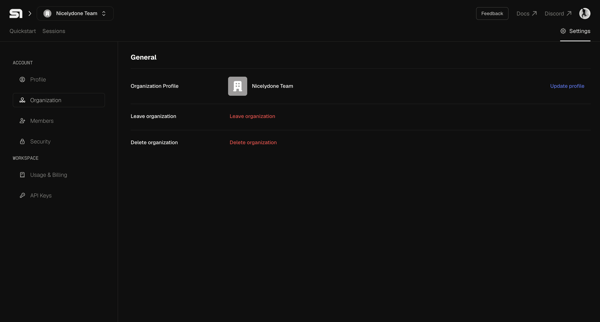
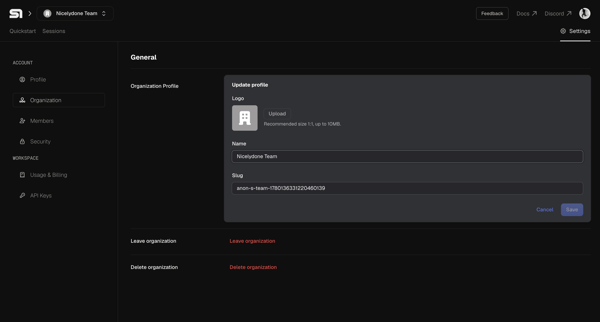

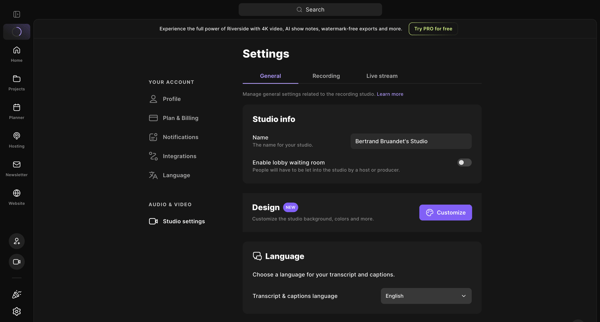
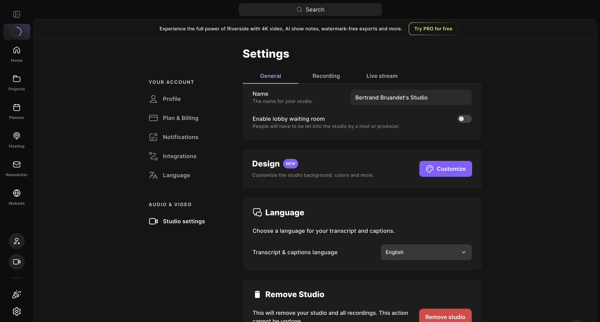
User opens studio settings general tab to review and edit name, lobby waiting room, design customization, transcript language, and remove studio option

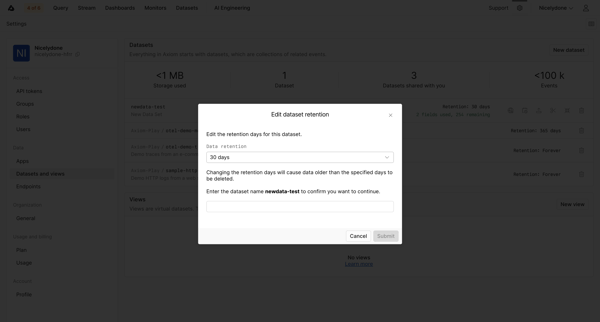
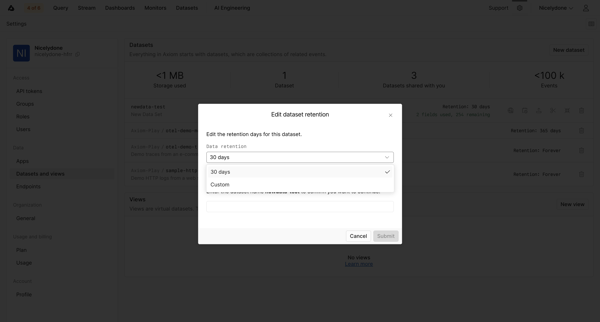
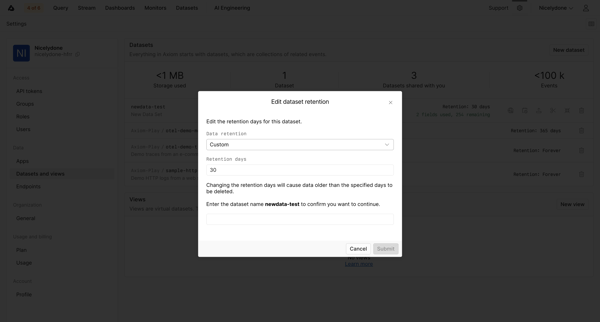
User opens edit retention modal from datasets settings and configures retention period with name confirmation for a dataset


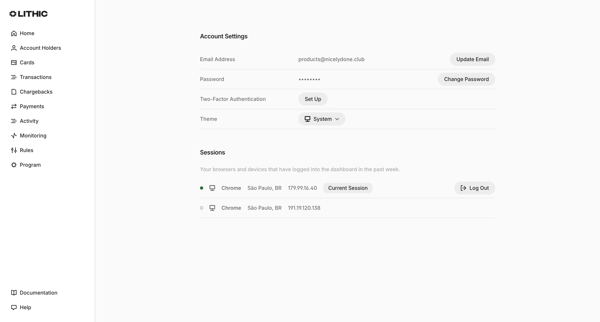
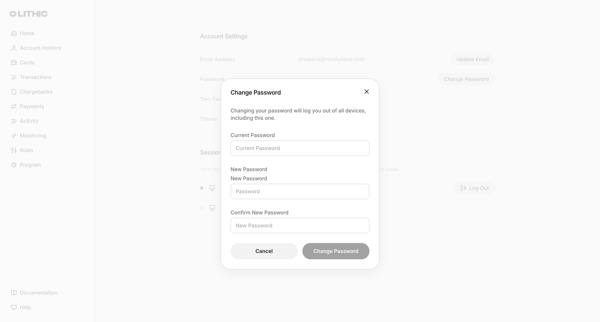
User opens account settings page and triggers change password modal requiring current password plus new password confirmation

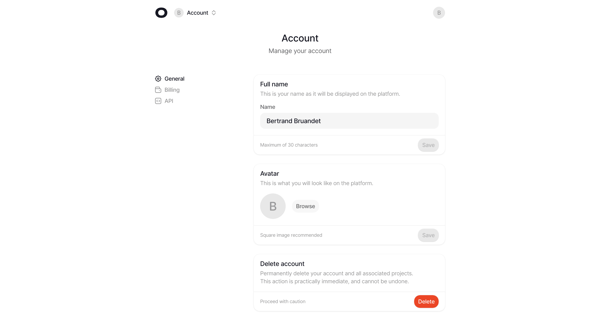
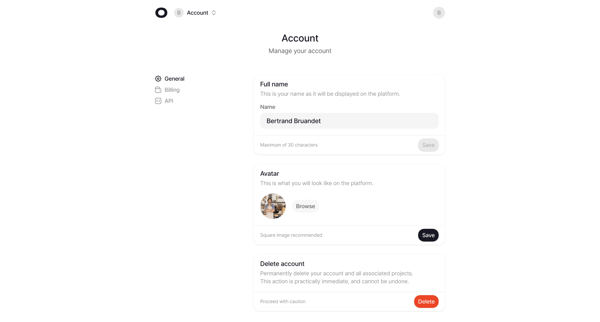
Accessing account settings page to edit full name, upload avatar, and access account deletion option
Explore the full SaaS flow library
Browse the full SaaS flow library.
Trusted by the best teams







