Vev user flows examples
Explore Vev user flow examples. Preview the opening screens and steps for each task. No-code web design platform for professional creatives
Preview these flows
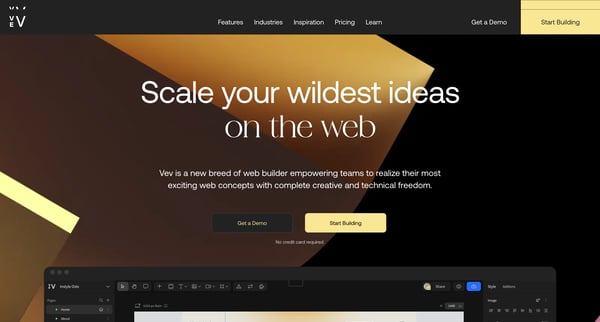
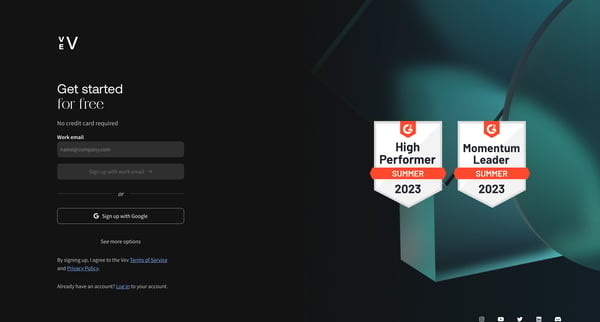
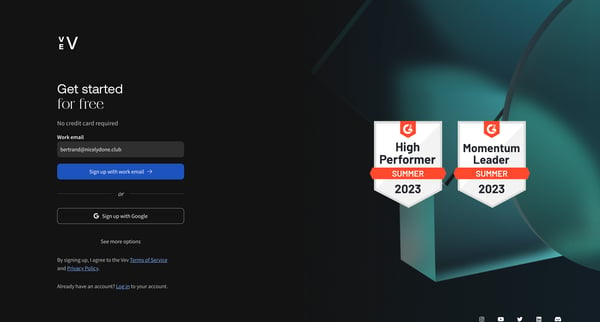
This flow guides a new user through the process of creating an account, specifying their work interests, and setting up their first project in Vev by selecting a template and claiming a stagi
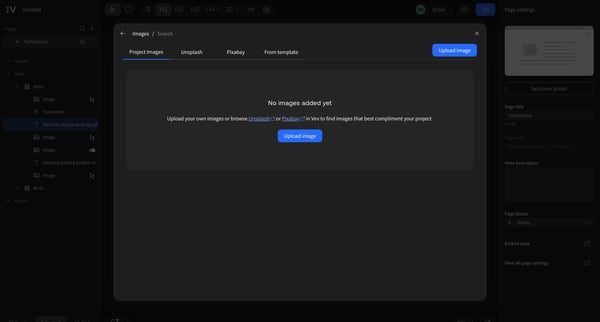
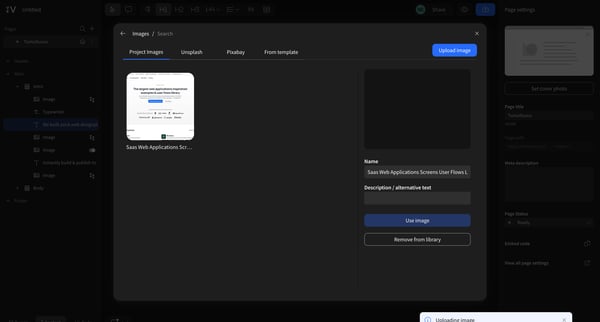
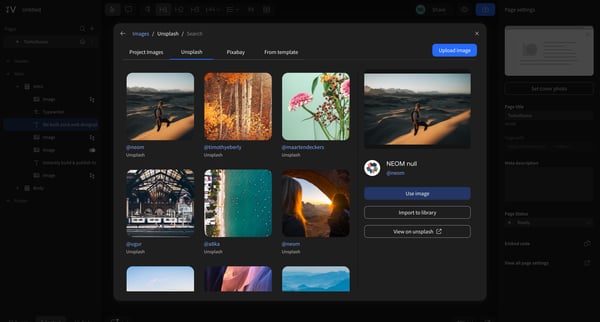
This flow guides the user through the process of importing and managing images within a web design platform, allowing for the selection, upload, and integration of imagery from various source
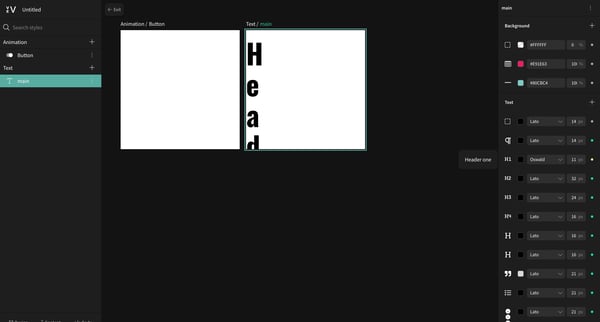
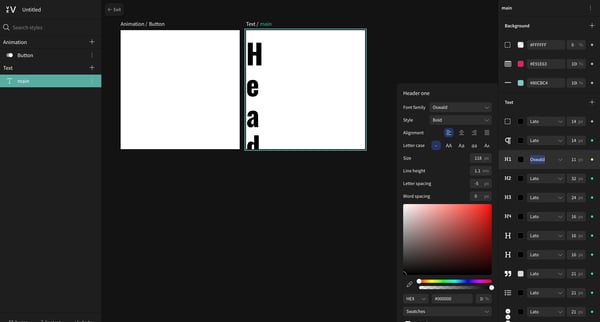
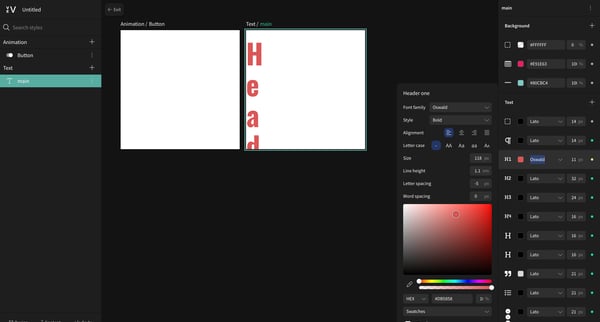
This user flow guides the user through the process of editing text styles, changing text color, updating design elements, and managing layers within a design editor interface.
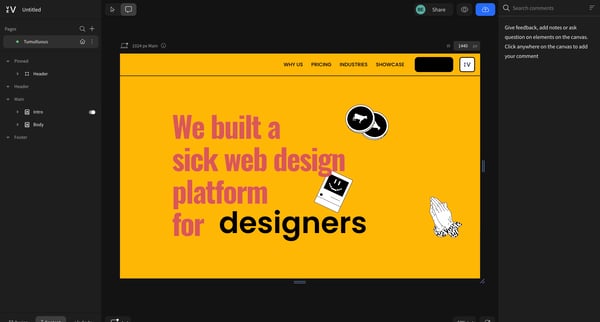
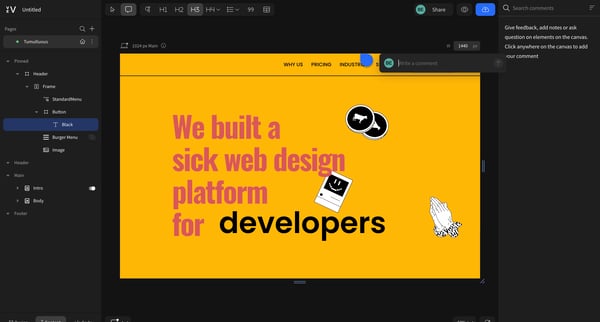
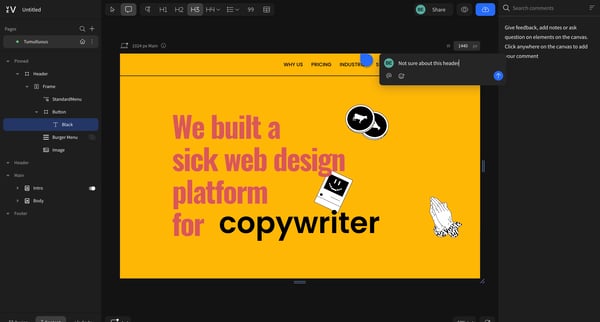
This flow enables users to engage with a web design platform by adding comments and feedback directly on the displayed project canvas.
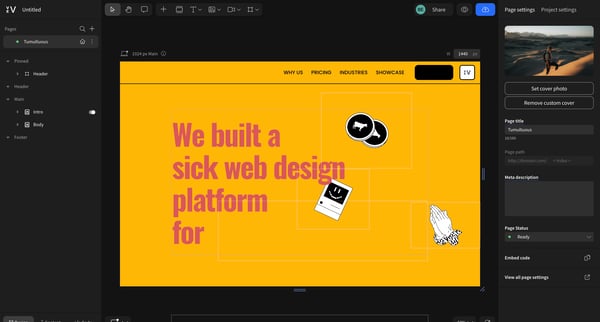
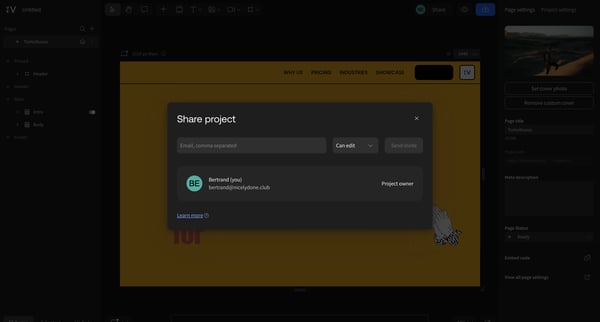
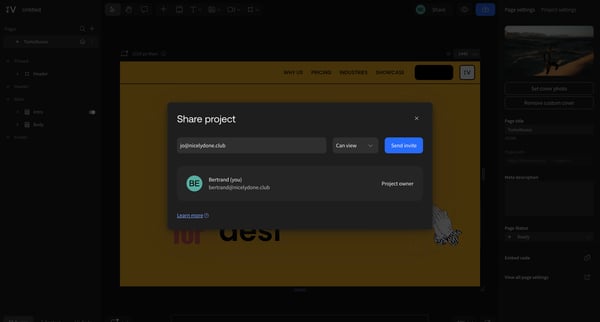
This user flow enables users to share a project through adding email addresses, setting permissions, and sending an invitation.
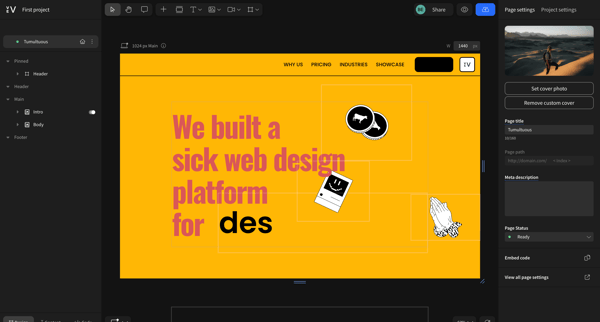
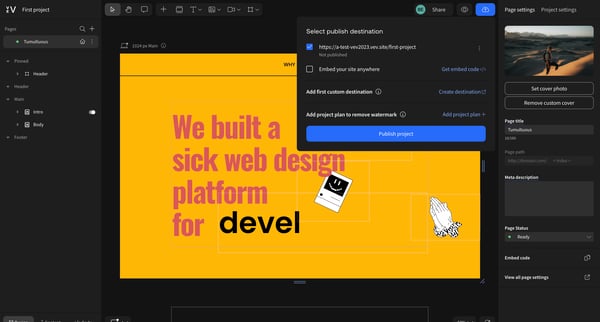
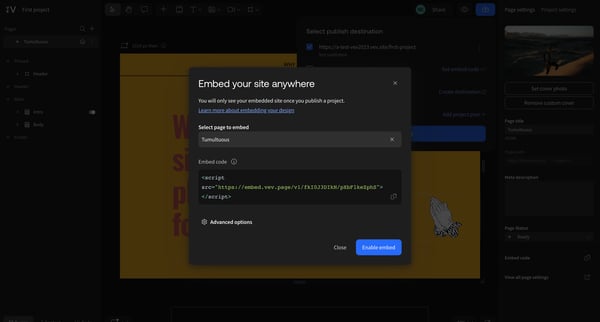
This flow enables users to navigate through various states of publishing and sharing a project on a web design platform, from initial settings adjustments to the final publishing and sharing
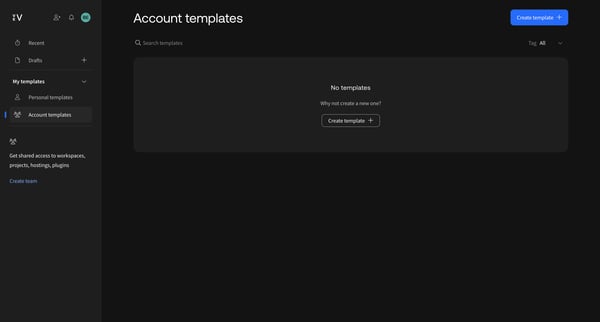
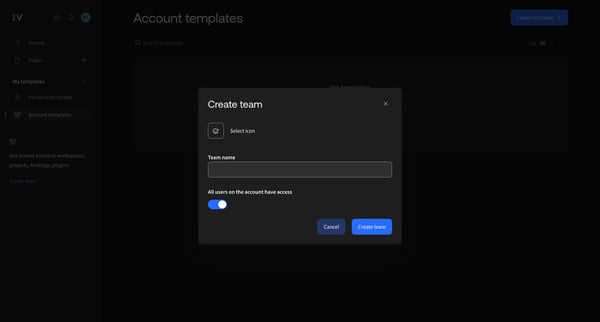
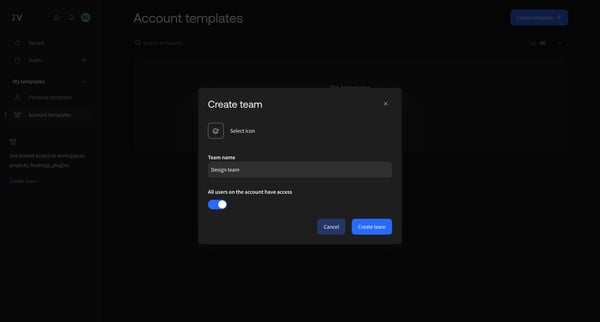
This flow guides users through the process of creating a team within Vev, enabling shared access to workspaces, projects, hostings, and plugins.
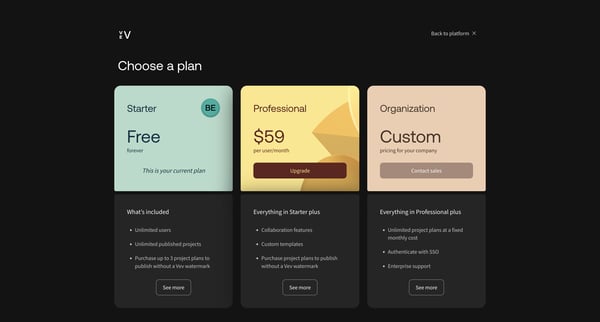
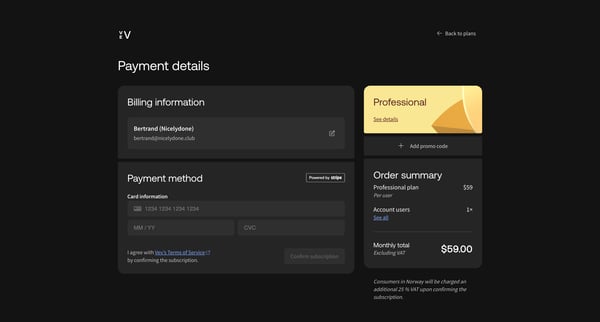
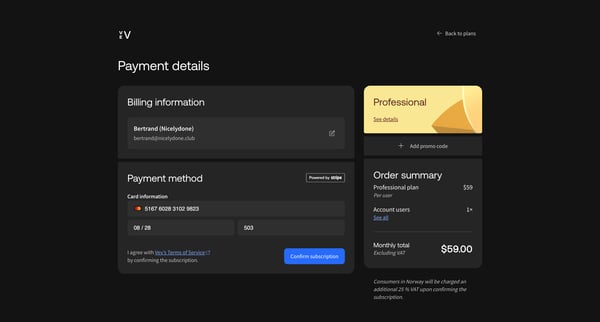
This flow guides a user through selecting a new subscription plan, entering payment information, confirming the subscription, and finally, reviewing the successful upgrade details.
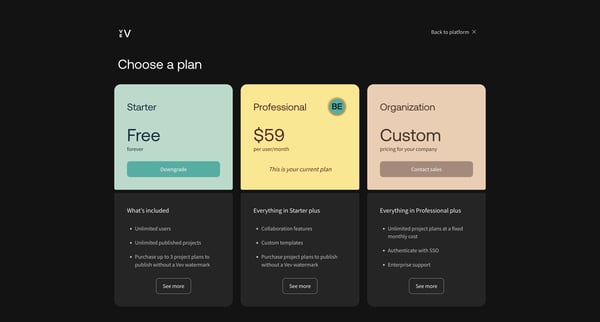
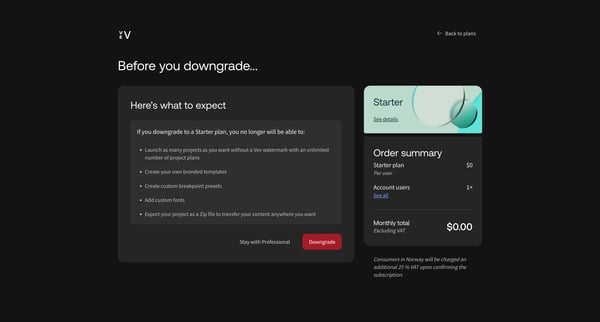
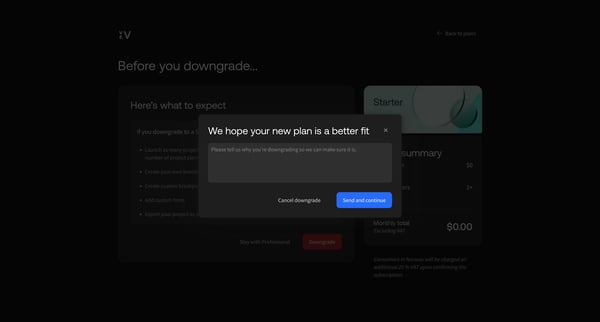
This flow guides a user through the process of downgrading their subscription plan, detailing the changes and confirming the downgrade before finalizing it.
Explore the full SaaS flow library
Browse the full SaaS flow library.
Trusted by the best teams







