Render UI components examples
Browse Render UI component design examples. Preview individual interface elements and explore related component categories. Cloud application hosting for developers
Explore the examples
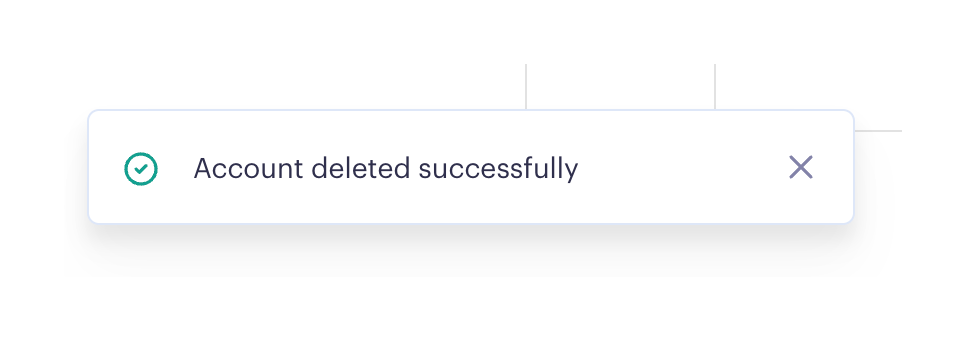

A toast notification indicating a successful action, featuring a green checkmark icon, a text message, and a close button.
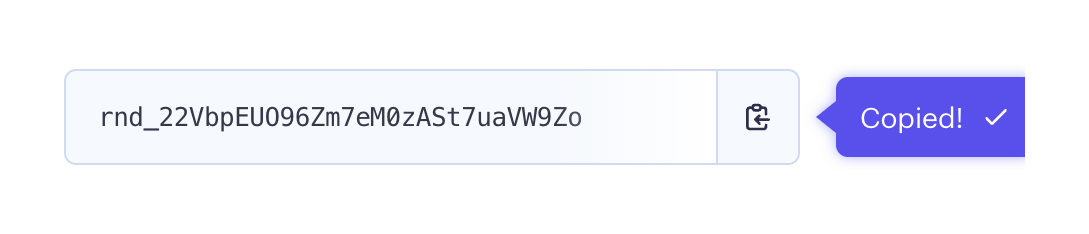
A read-only input field displaying an API key, paired with a copy button. A tooltip indicates the text has been successfully copied.
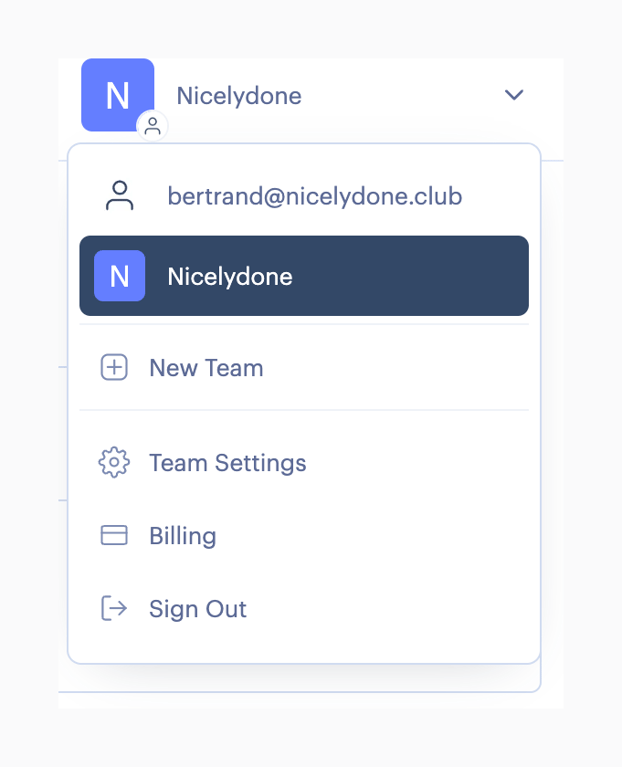
An expanded dropdown menu for switching workspaces or accounts, showing the current user email, active team, and links to create a new team, team settings, billing, and sign out.
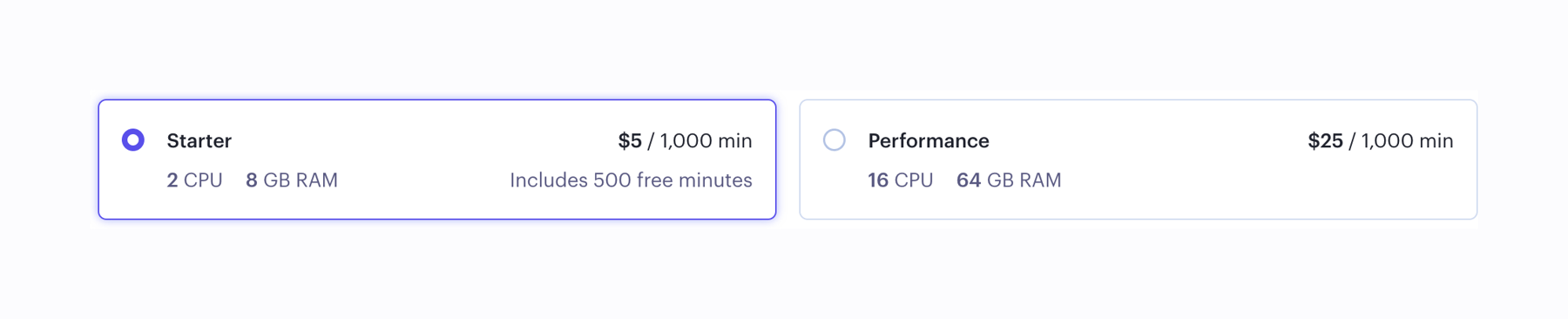
A horizontal radio group displaying two compute specification options as selectable cards. Each card shows the plan name, price per 1,000 minutes, CPU, and RAM details.
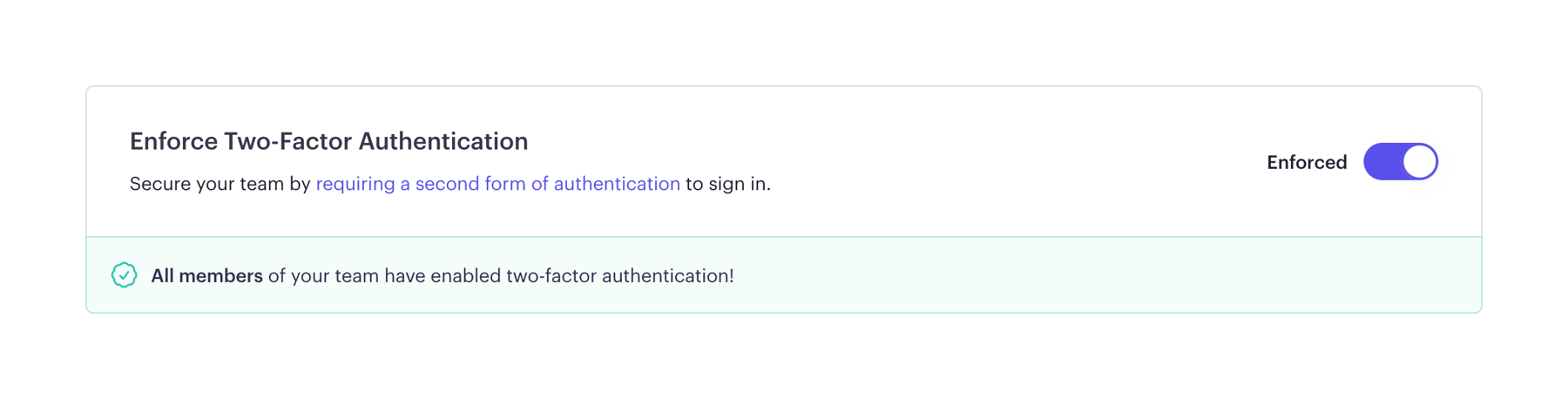

A horizontal settings row with a title, description containing a link, and a toggle switch to enforce two-factor authentication.
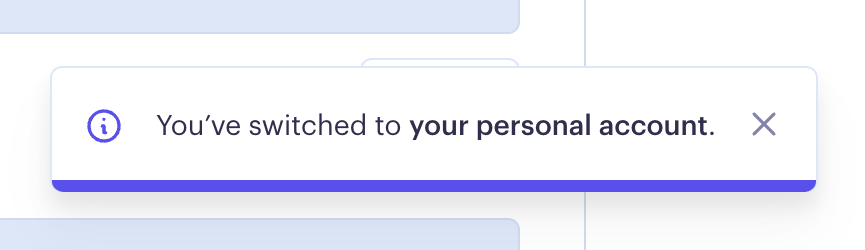
A toast notification confirming that the user has switched to their personal account. It features an info icon, a message, a close button, and a colored bottom border.

A horizontal settings row with a title, description containing a link, and a toggle switch indicating an 'off' state.
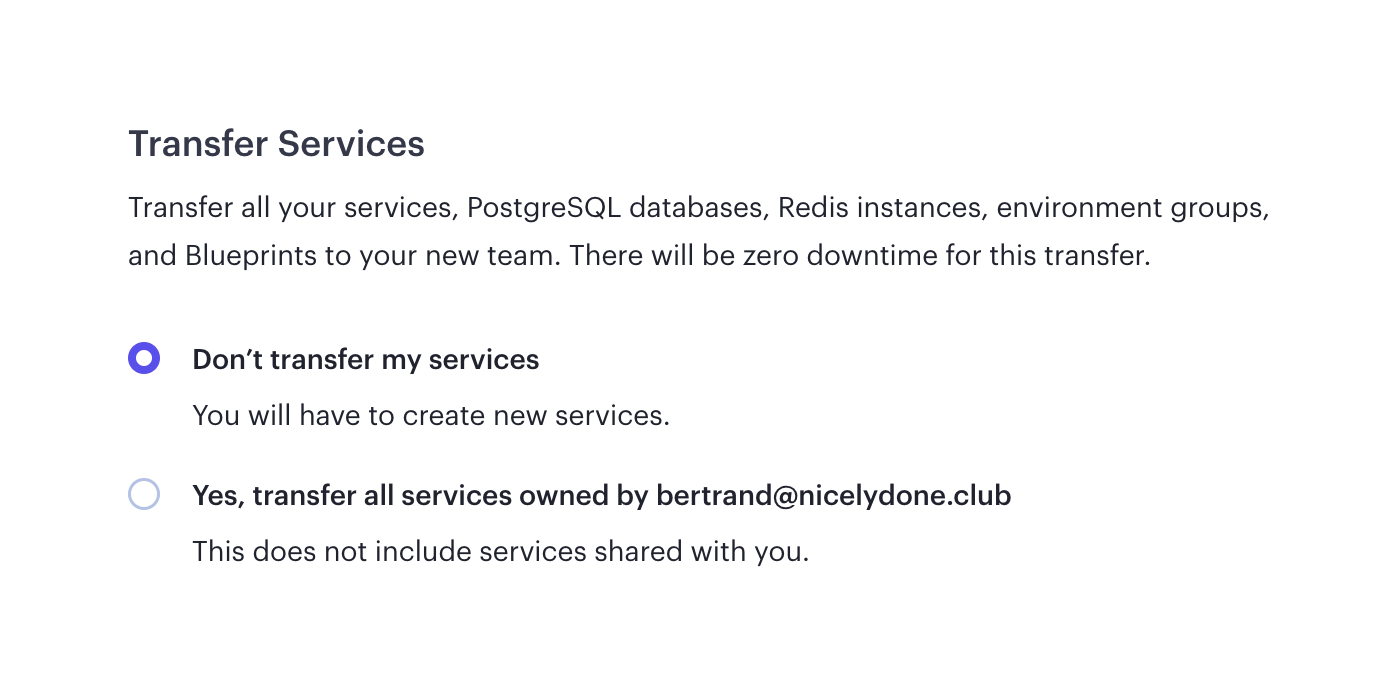
A radio group for selecting whether to transfer services to a new team, featuring a title, description, and two options with helper text.
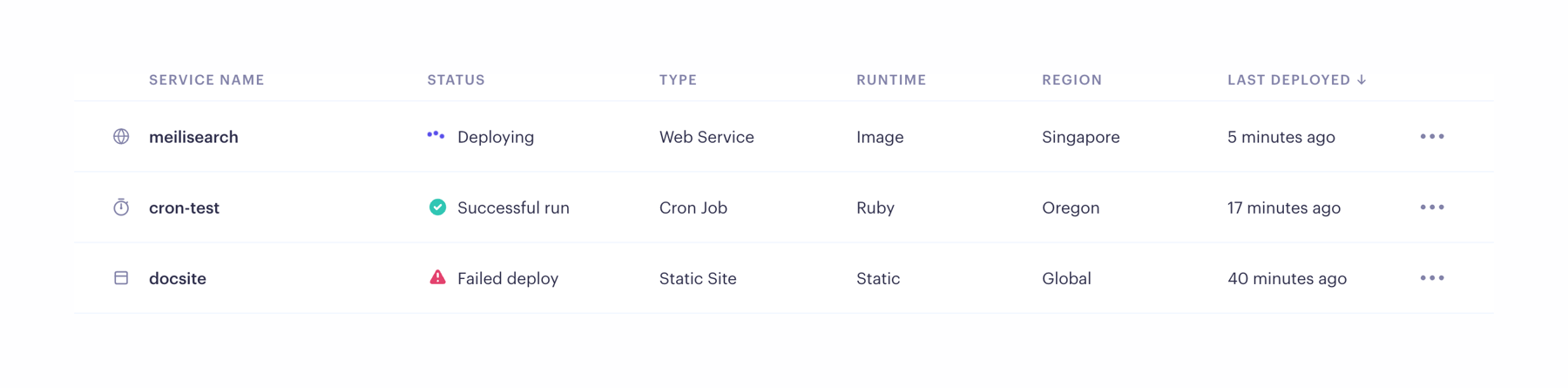
Browse the full component library
Browse the full UI component library.
Trusted by the best teams







