
Threads user flows examples
Explore Threads user flow examples. Preview the opening screens and steps for each task. Threads is a Slack replacement designed for makers
Preview these flows

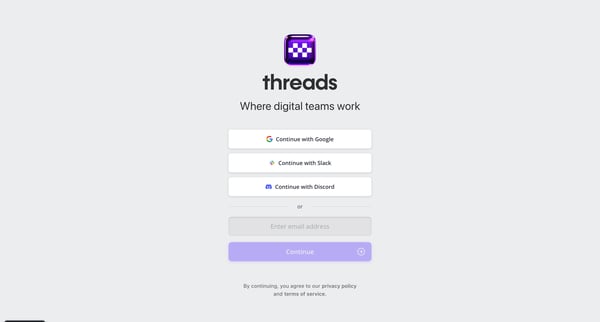
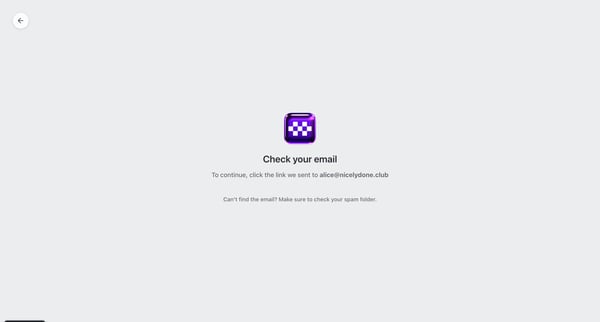
This flow guides a user through the process of signing into Threads, starting from the landing page, choosing a sign-in method, and verifying the sign-in through an email confirmation.
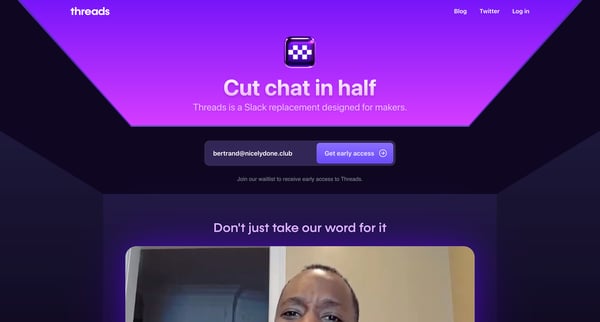

This user flow guides a user through the process of requesting early access to Threads by navigating from the landing page to joining the waitlist.
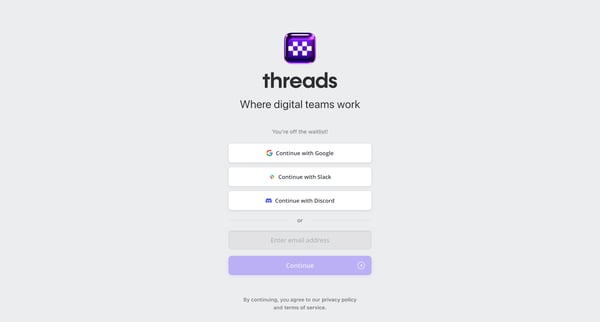
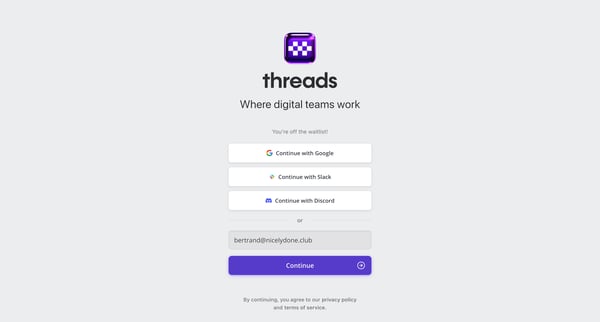
This flow guides a user through the process of transitioning from being waitlisted, through signup, onboarding, and initial setup of their Threads account, ultimately providing them with a co
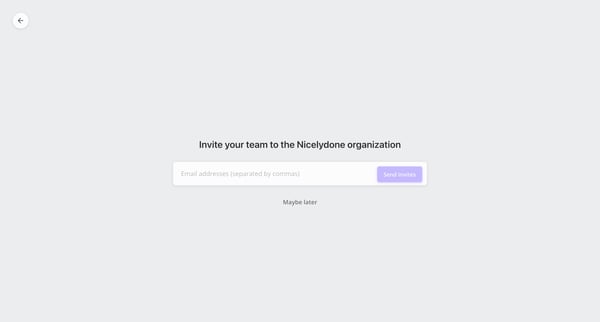
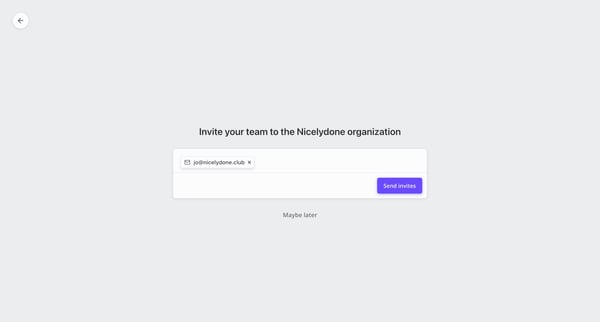
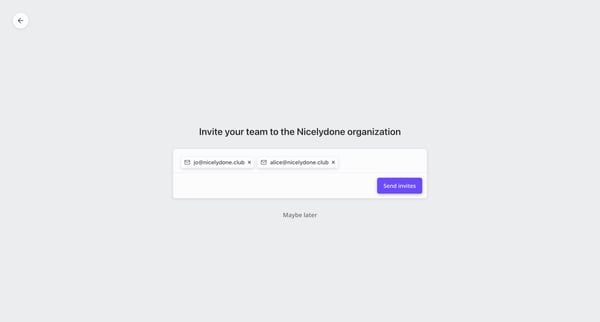
This flow guides a user through inviting teammates to join the Nicelydone organization, from entering email addresses to confirming the invites have been sent.
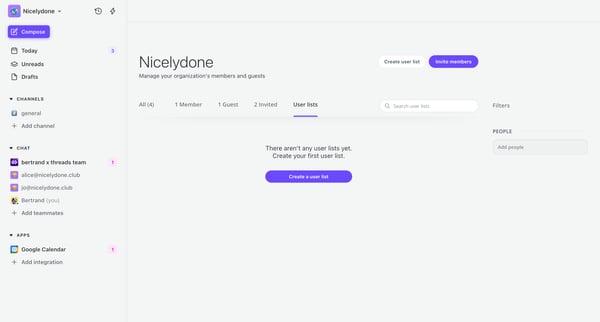
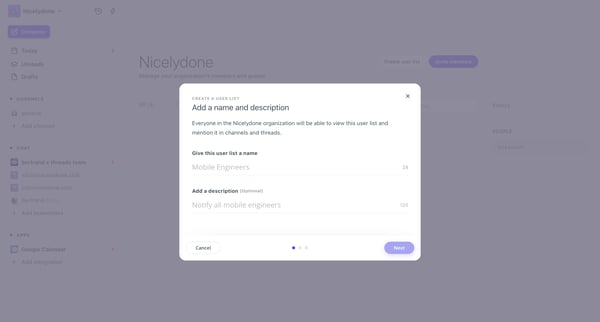
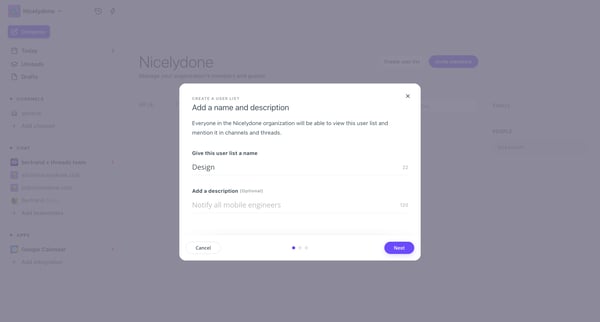
This flow facilitates the creation and configuration of a user list within a team, including naming, describing, importing members, setting privacy, and adding to channels.
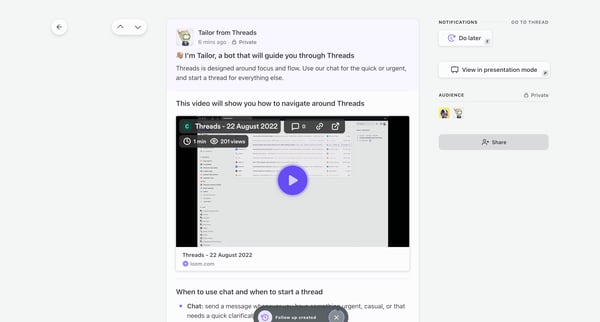
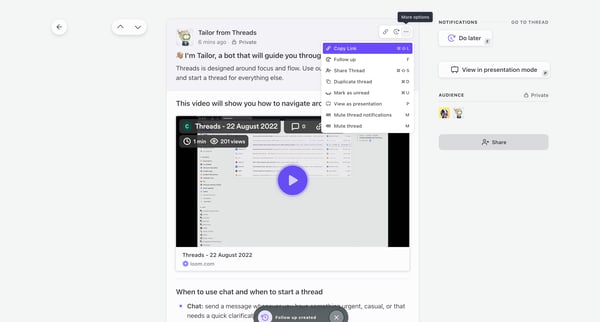
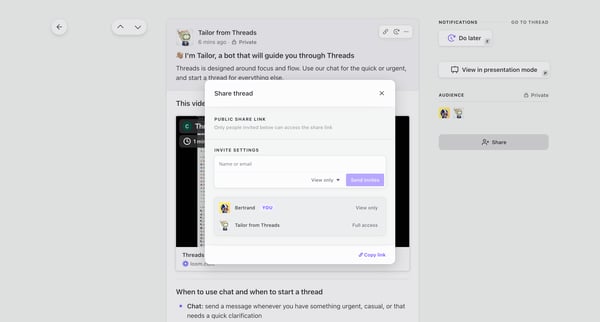
This user flow guides the user through sharing a thread on Threads, from the initial tooltip introduction to copying the share link and finally acknowledging that the link has been copied.
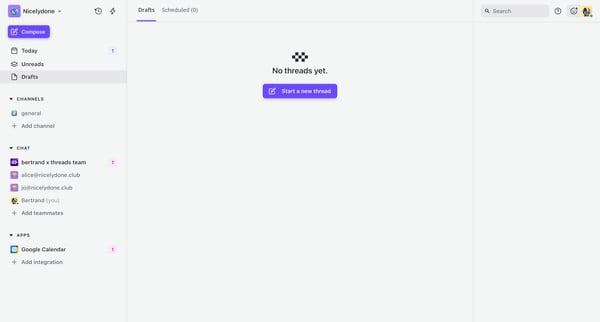
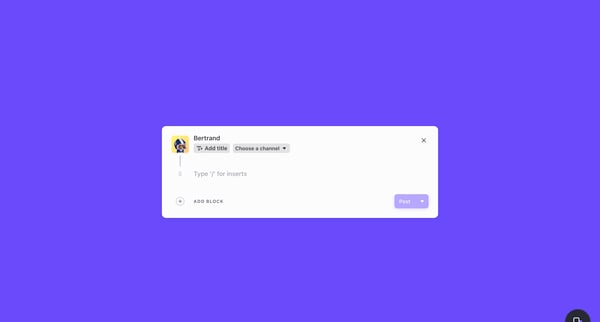
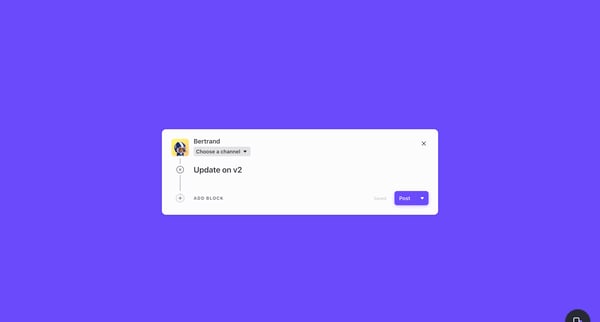
This flow guides a user through creating, editing, and scheduling a thread post within a collaborative platform.
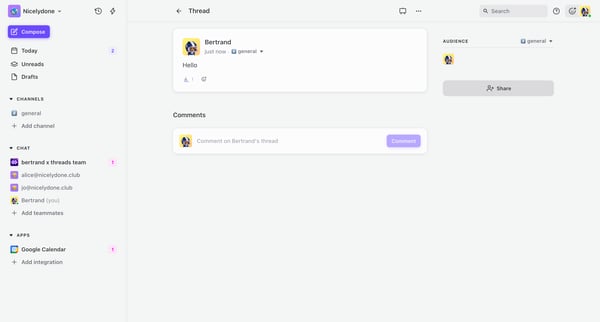
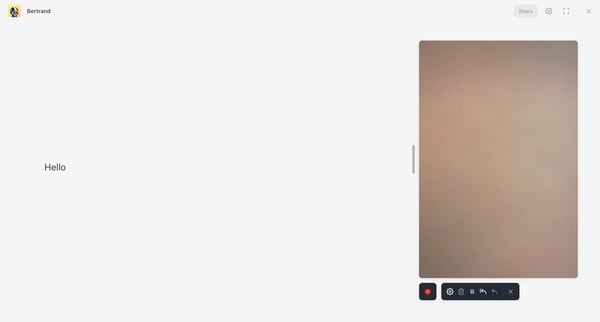
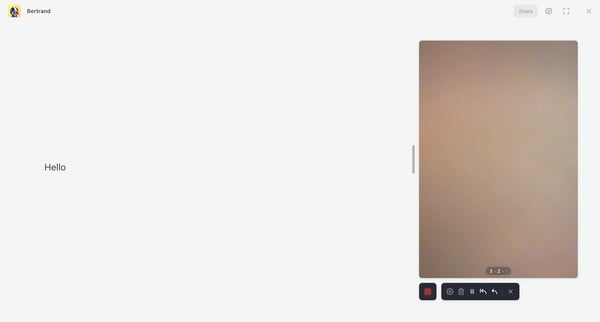
This flow guides a user through the process of creating and modifying a thread, including adding content and finalizing the post with confirmation.
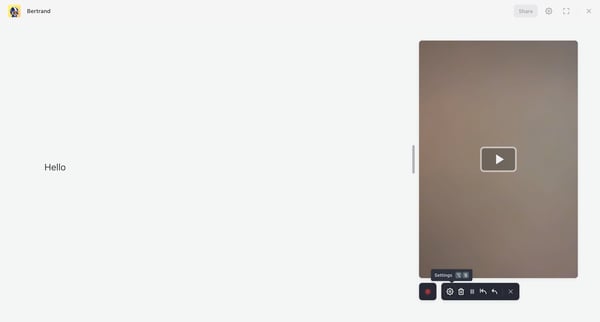
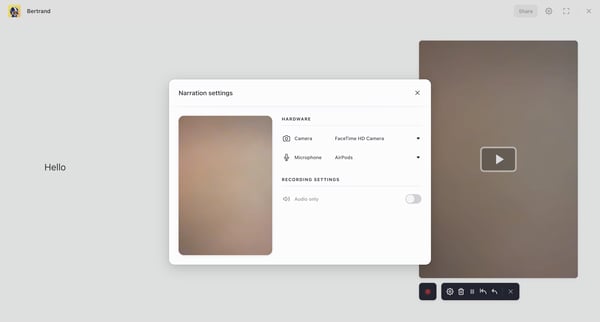
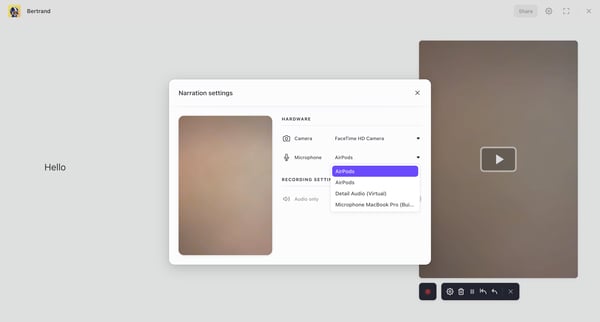
This flow enables a user to modify narration settings, including hardware preferences and editing narration specifics for a project.
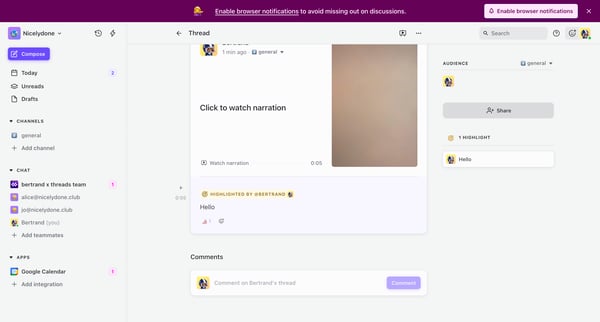
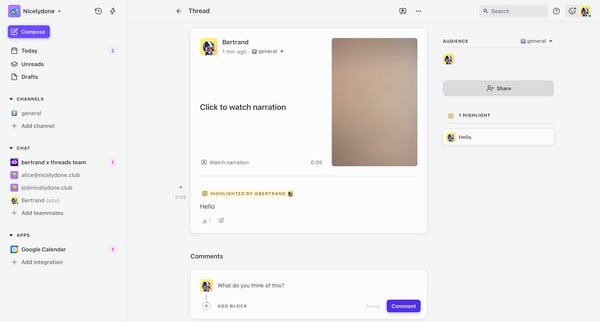
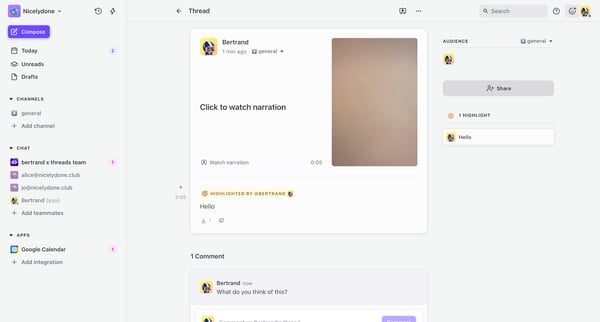
This flow enables users to engage with content by reacting to notifications, commenting on threads, and contributing to discussions in a collaborative environment.
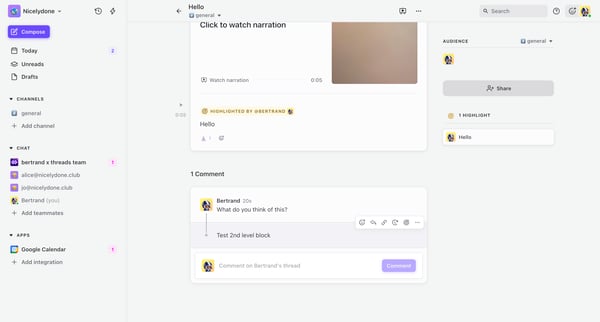
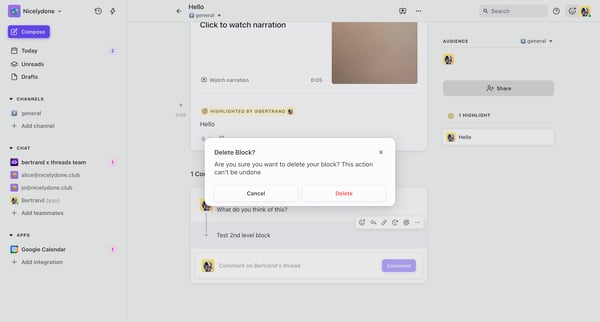
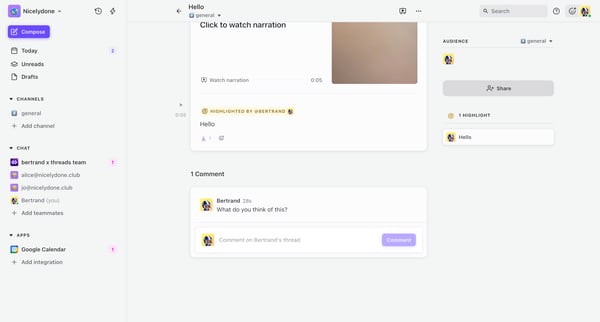
This flow allows a user to delete a specific piece of content within a messaging or thread-based application and confirms that action.
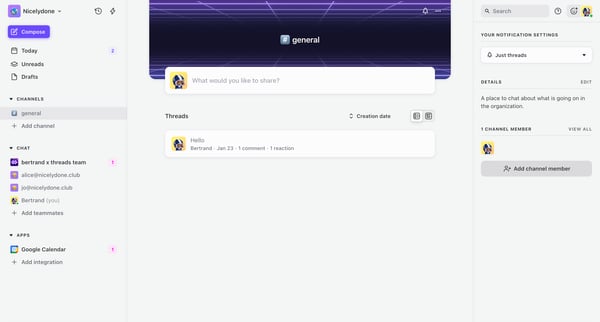
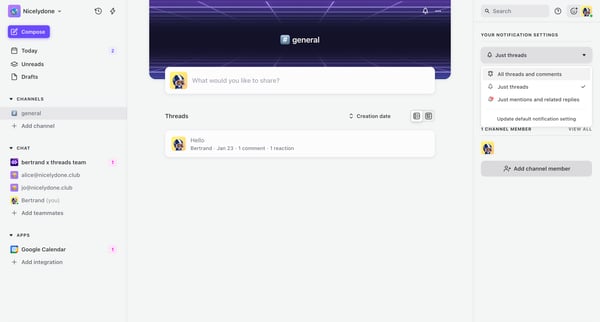
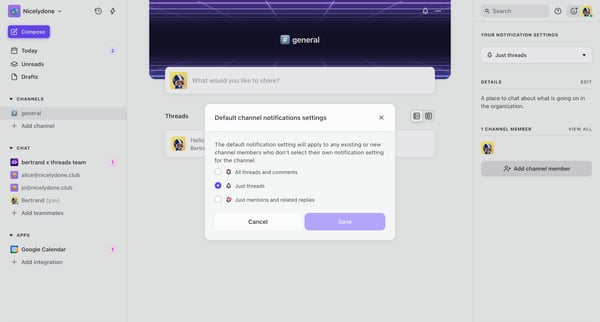
This user flow allows a user to navigate through and adjust notification settings for a communication channel, ensuring users can customize how they receive updates.
Explore the full SaaS flow library
Browse the full SaaS flow library.
Trusted by the best teams







