Super product screens examples
Browse Super screen design examples. Preview the interface screenshots and explore related UI patterns. AI search and agents, across all your company tools
Explore the examples
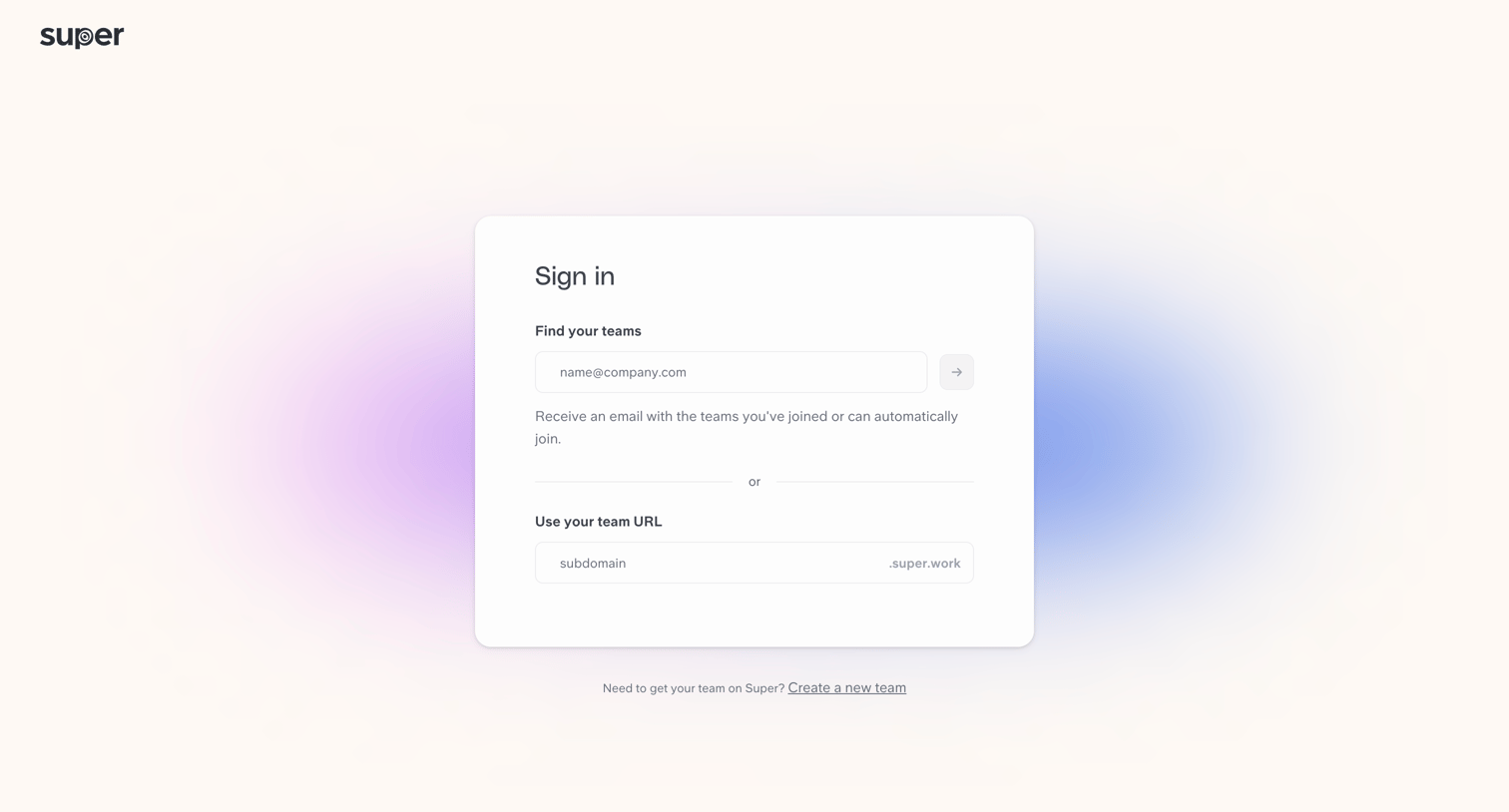
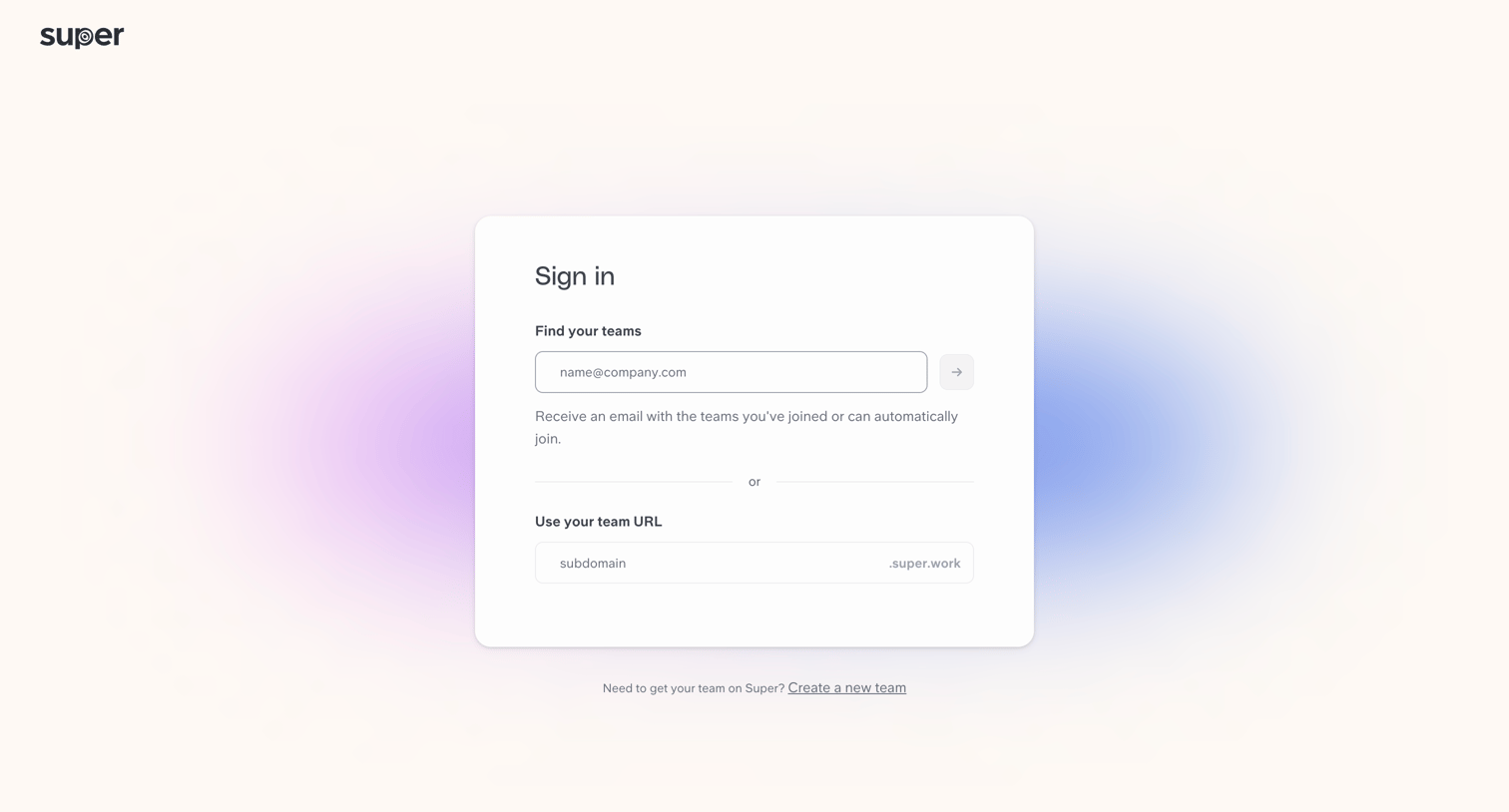
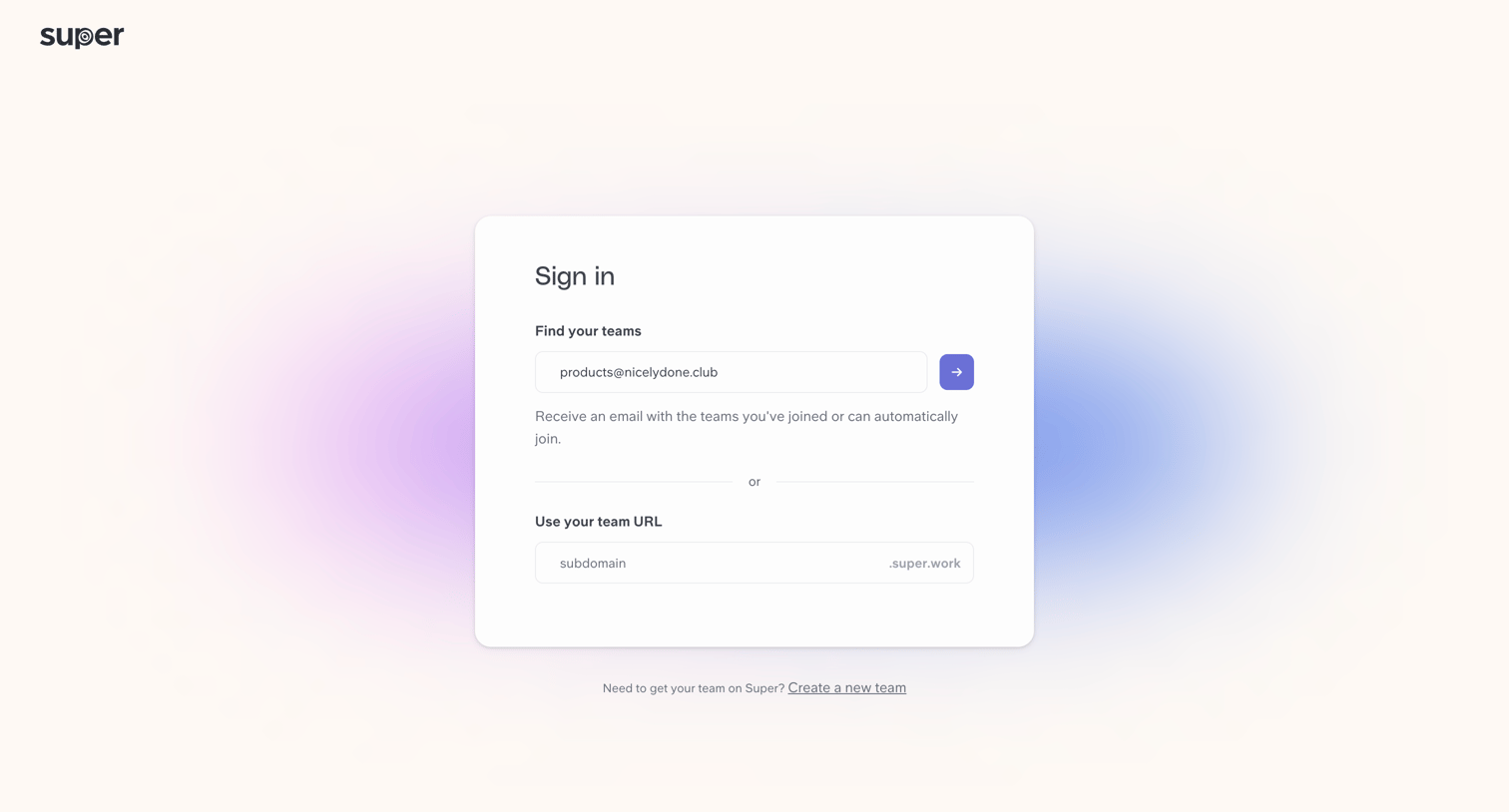
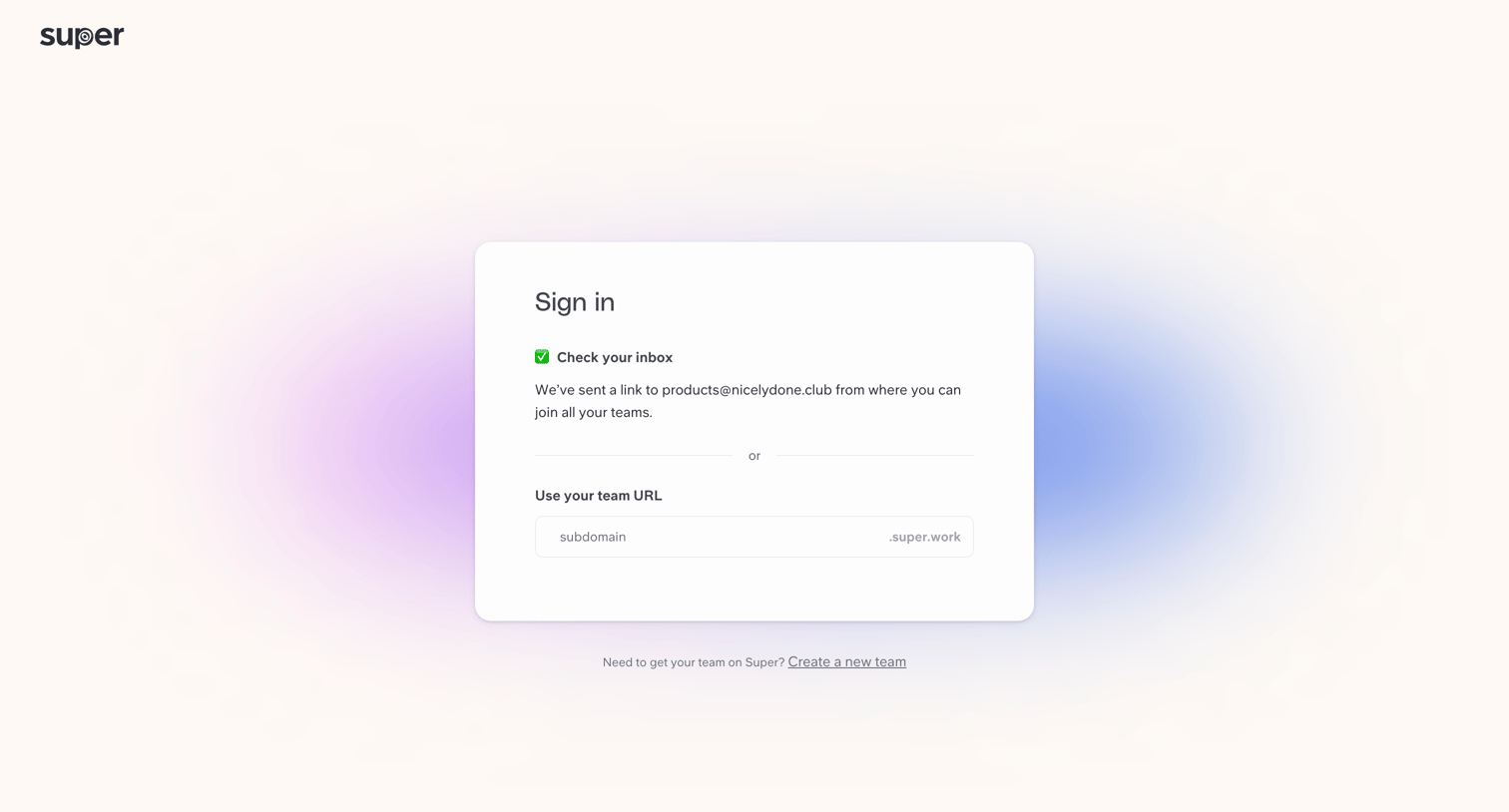

Sign-in screen where the user is prompted to check their inbox for a magic link or enter their team URL.
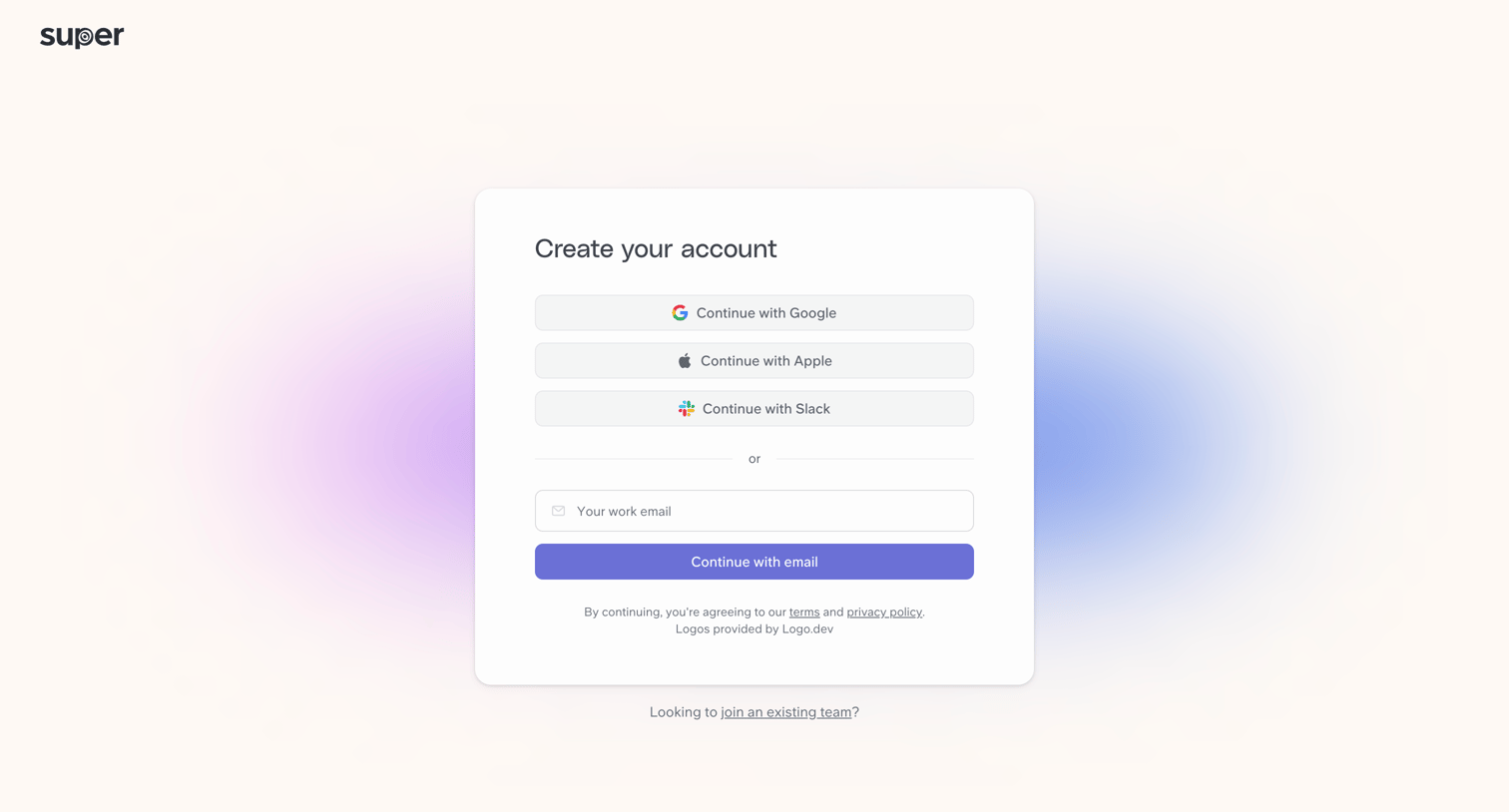
Signup screen where the user creates an account using Google, Apple, Slack, or a work email.
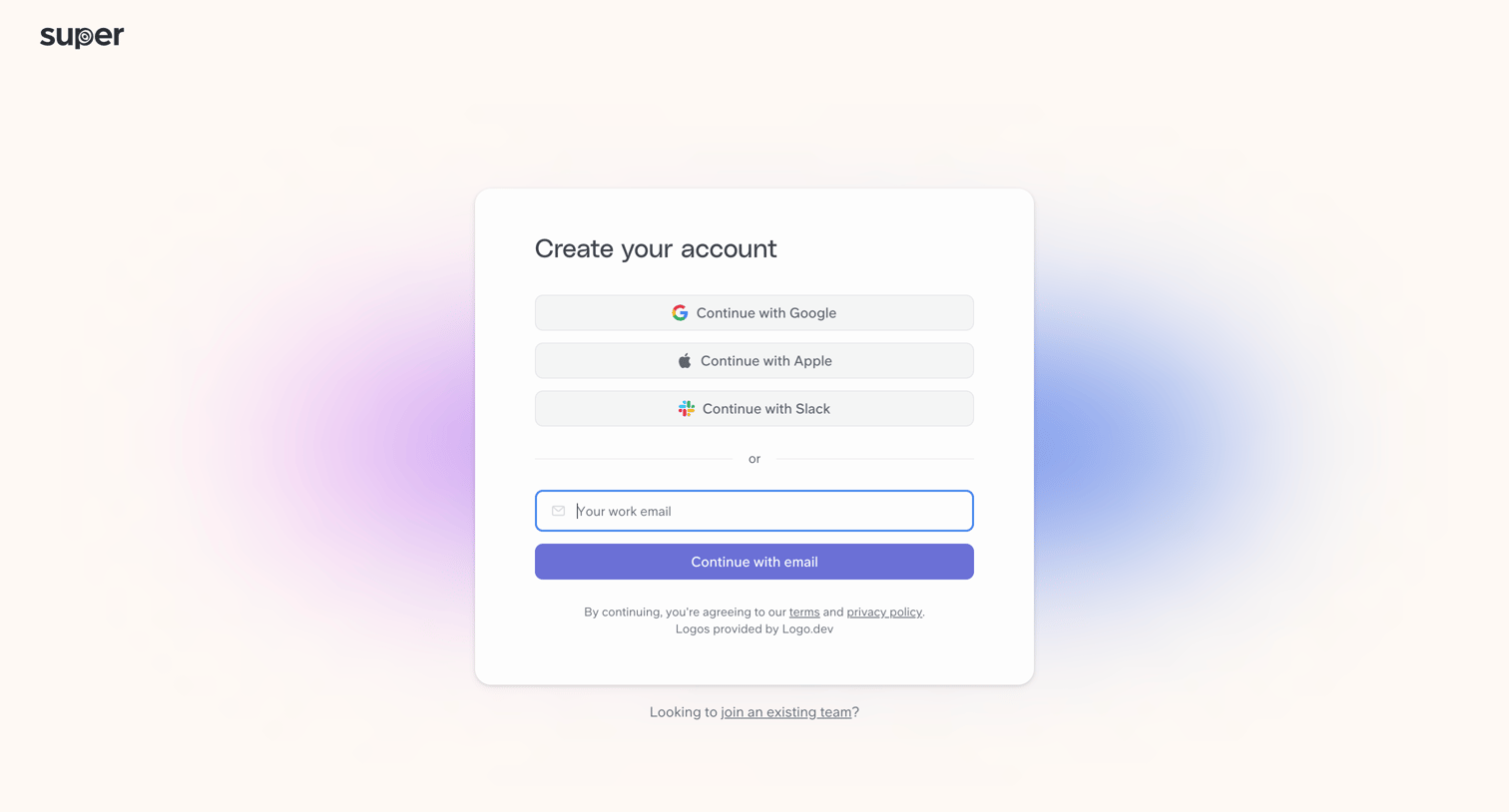
Signup screen where the user can create an account using Google, Apple, Slack, or their work email.
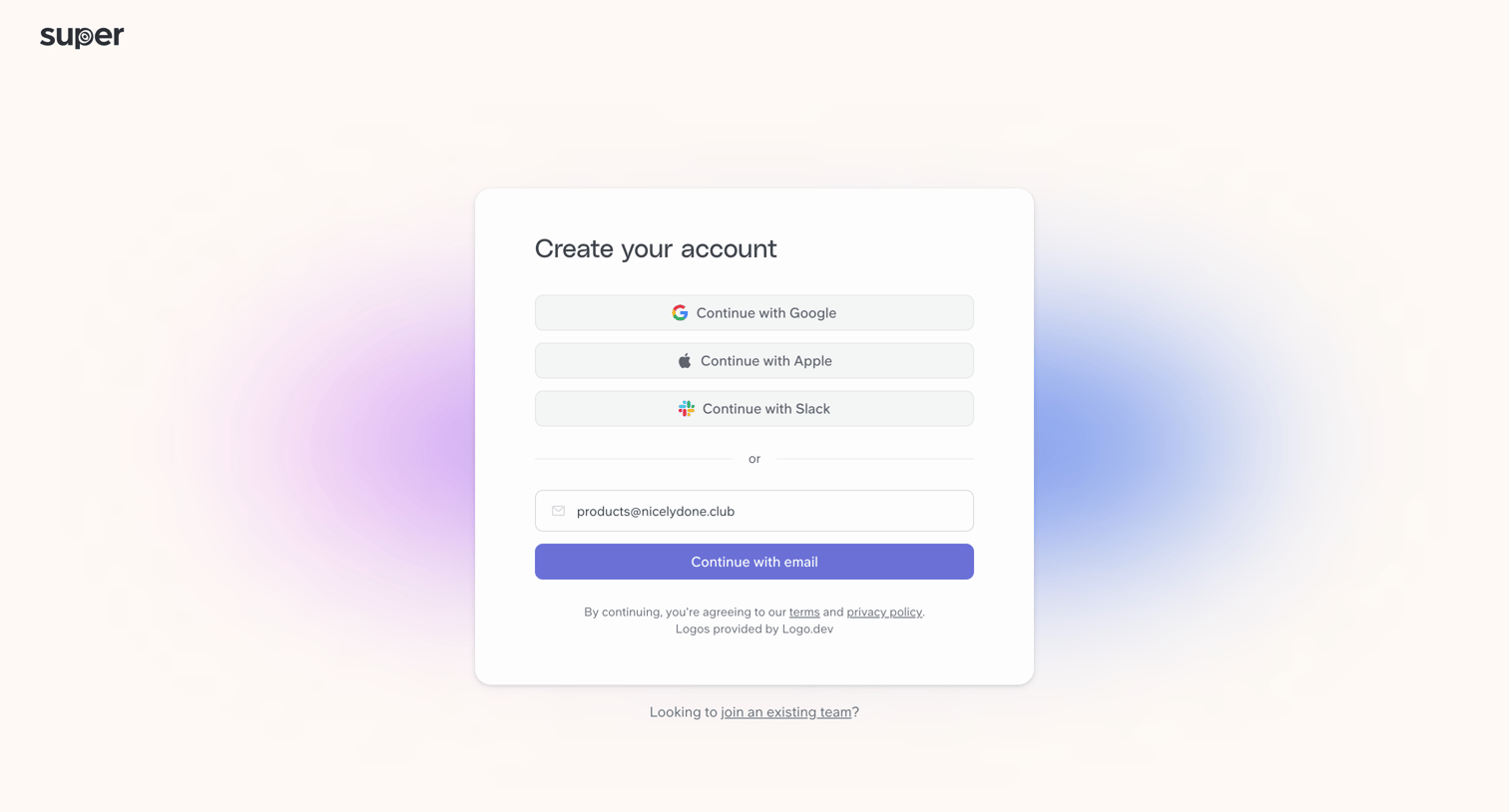
Signup screen where the user creates an account using Google, Apple, Slack, or an email address.
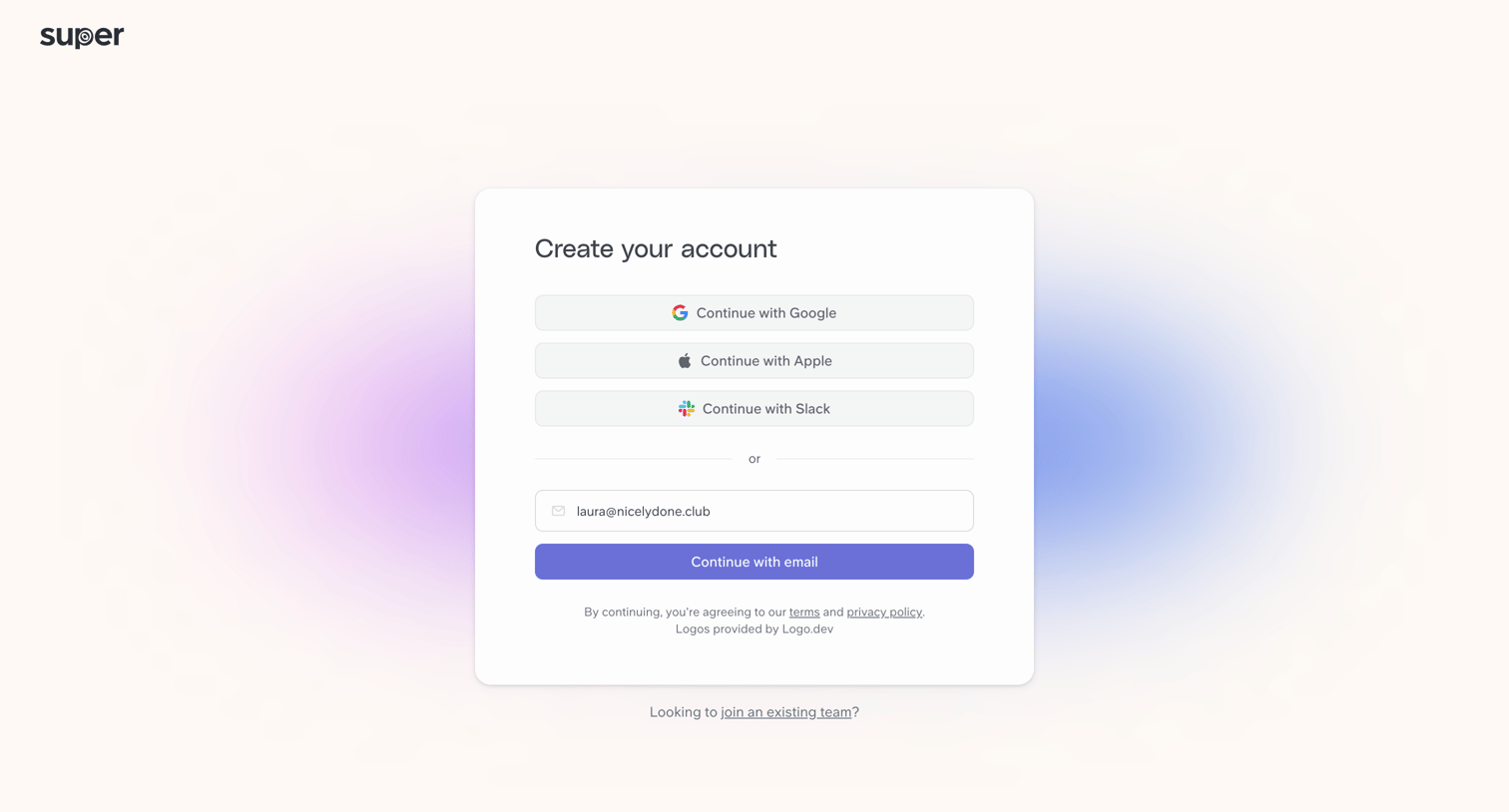
Signup screen where the user creates an account using Google, Apple, Slack, or an email address.
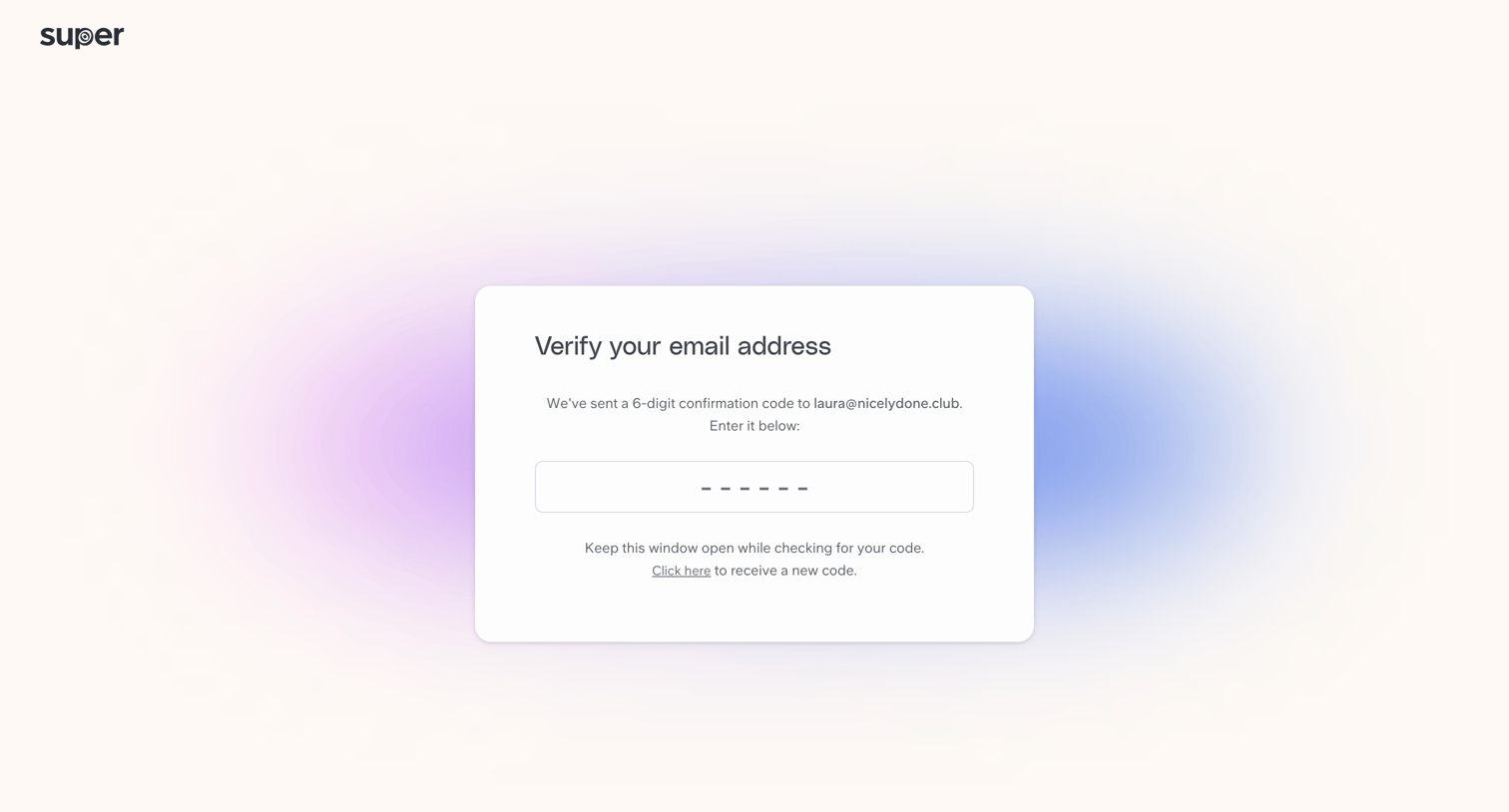
Verification screen where the user enters a 6-digit confirmation code sent to their email to proceed.
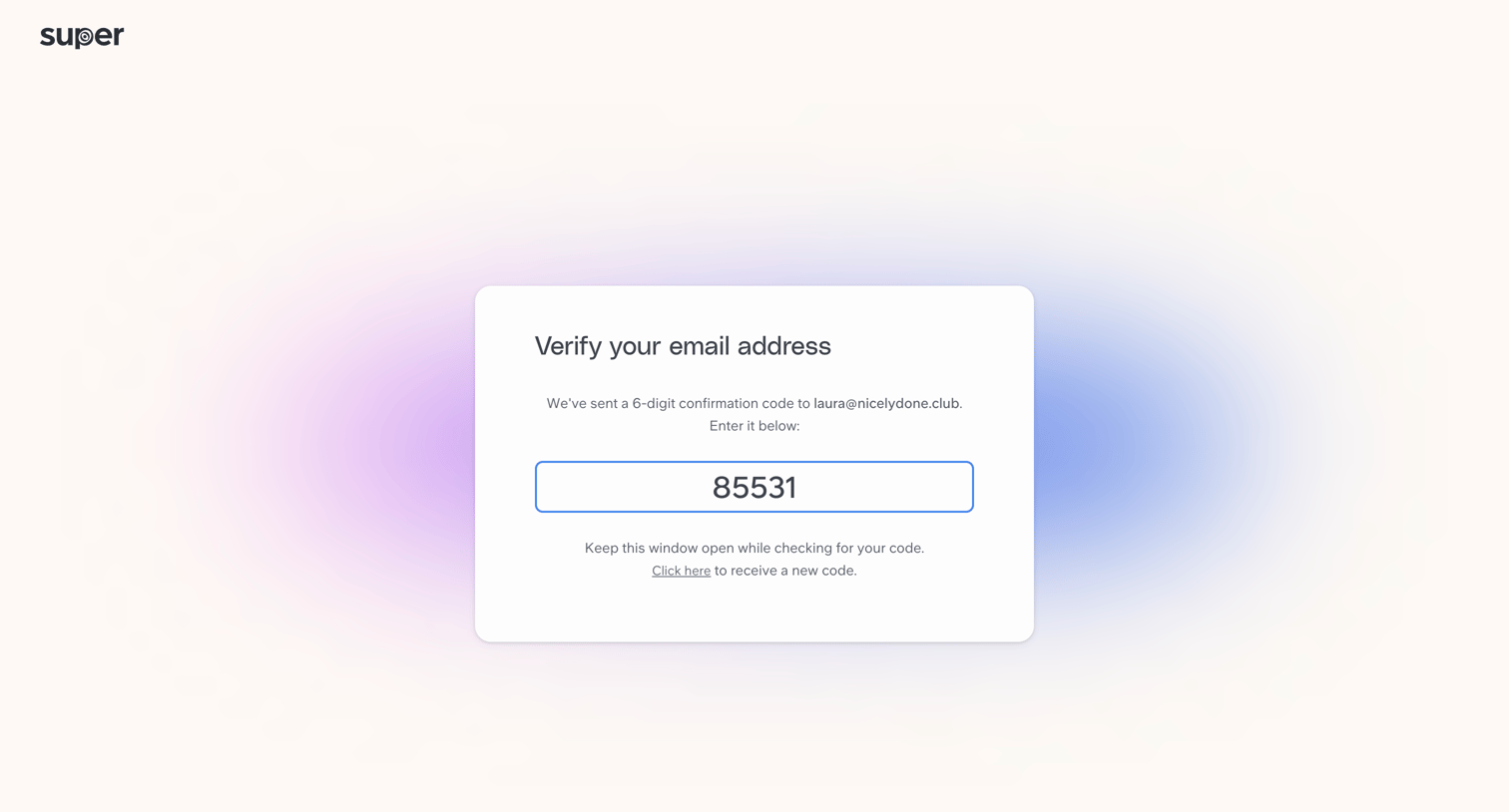
Verification screen where the user enters a 6-digit confirmation code sent to their email address.
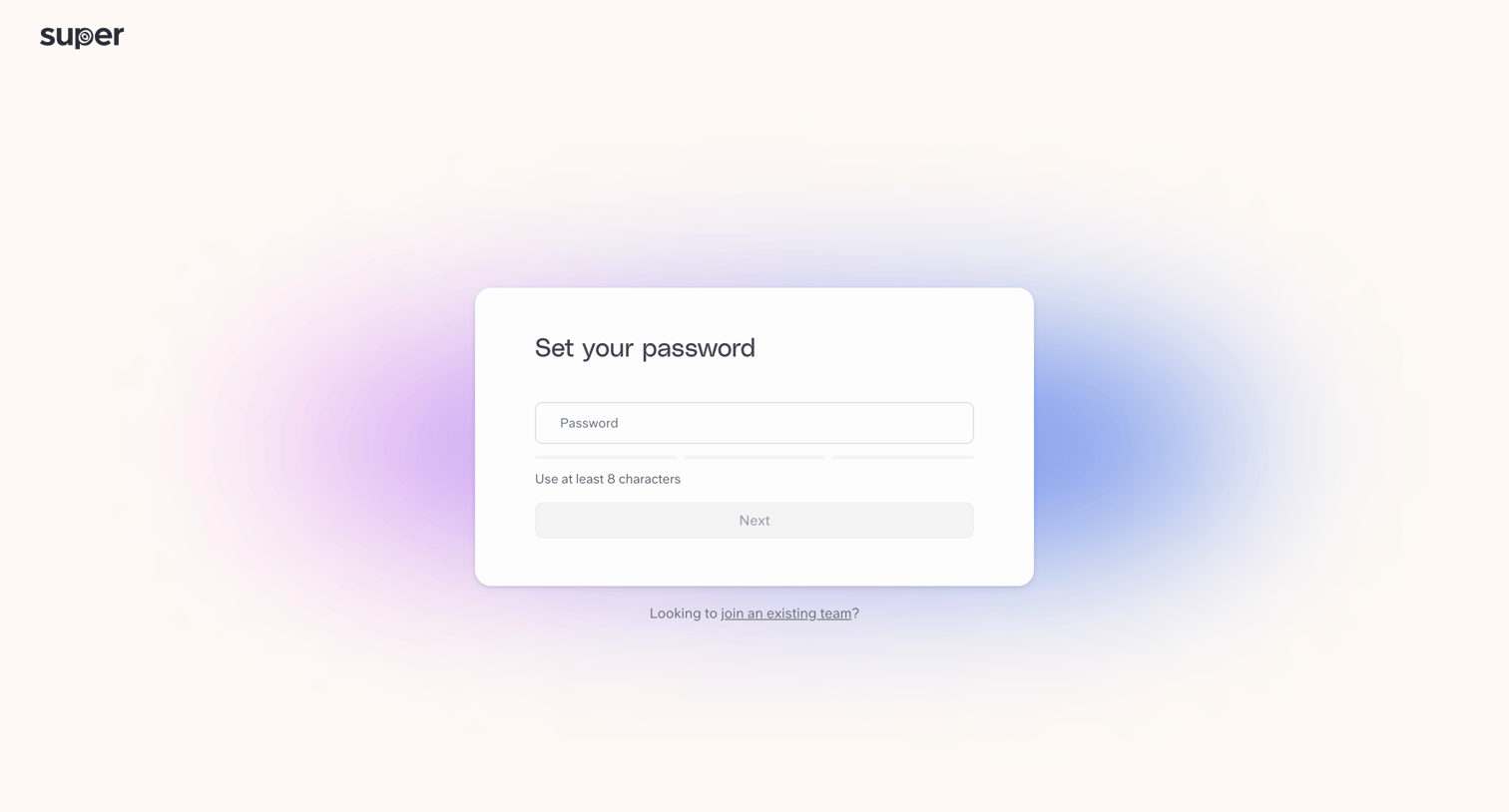
Signup step where the user sets a password of at least 8 characters to create their account.
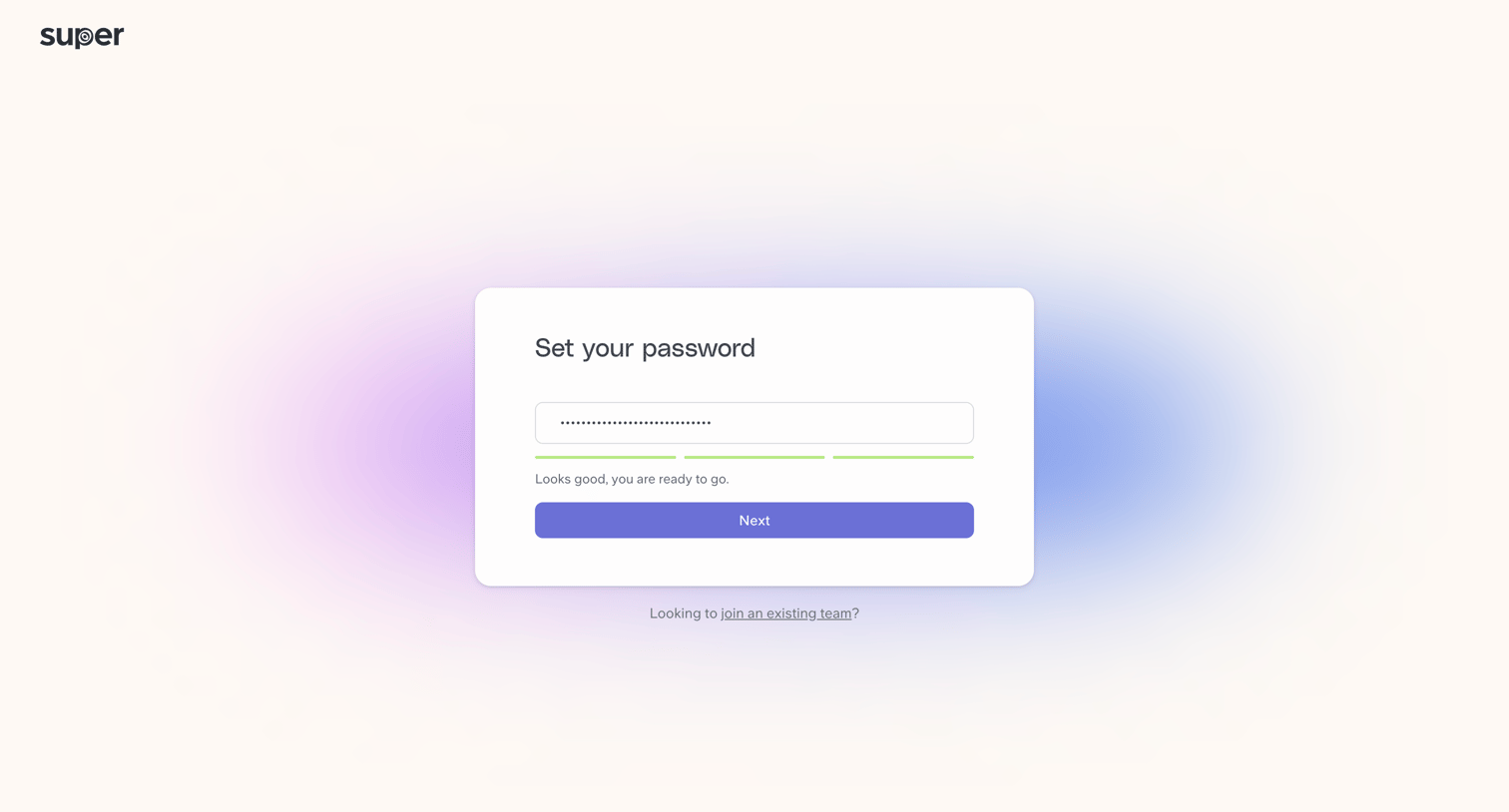
Signup step where the user sets a new password, featuring a three-segment visual strength indicator confirming the password meets requirements.
Explore the full SaaS screen library
Upgrade to unlock the full library.
Trusted by the best teams







