Intercom UI components examples
Browse Intercom UI component design examples. Preview individual interface elements and explore related component categories. A fundamentally new way to communicate with your customers
Explore the examples


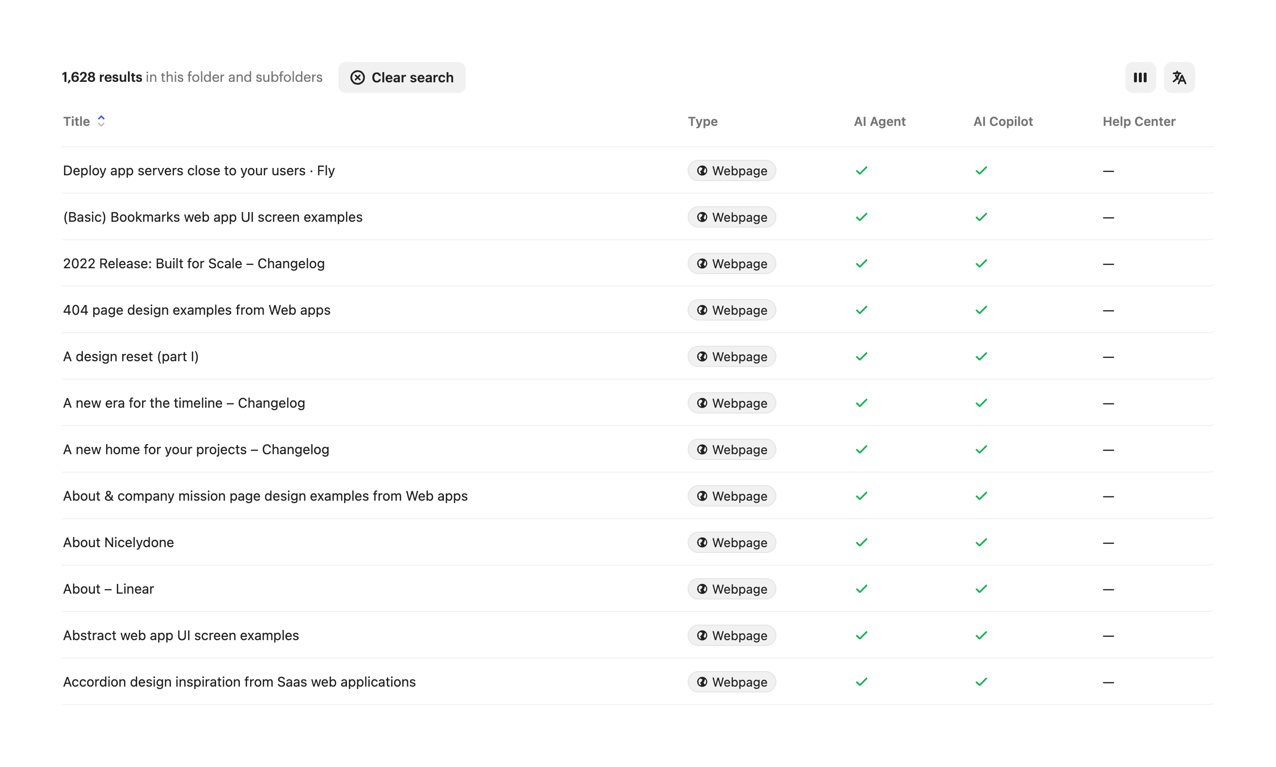
A toolbar containing a search input with an active query, applied filter chips, an add filter button, and a results count summary with a clear search action. It also includes view toggle buttons on the far right.
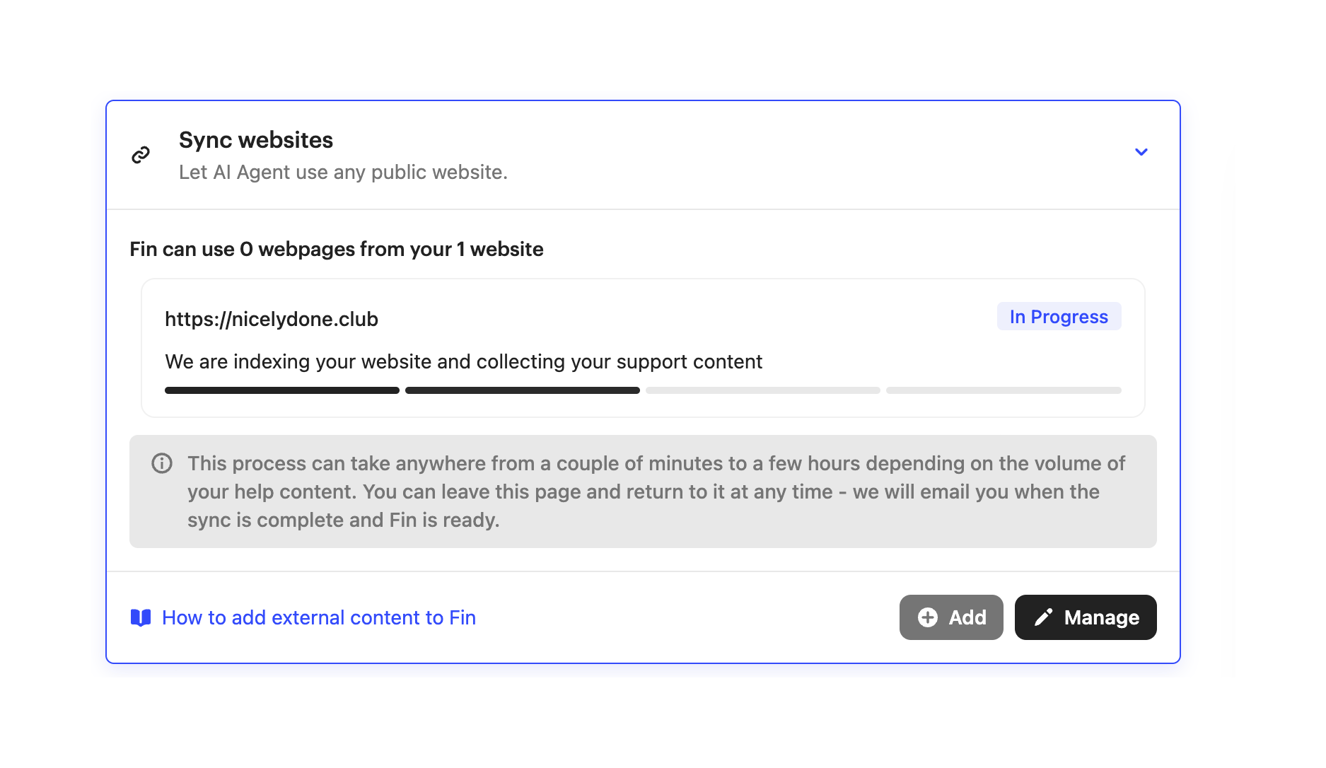
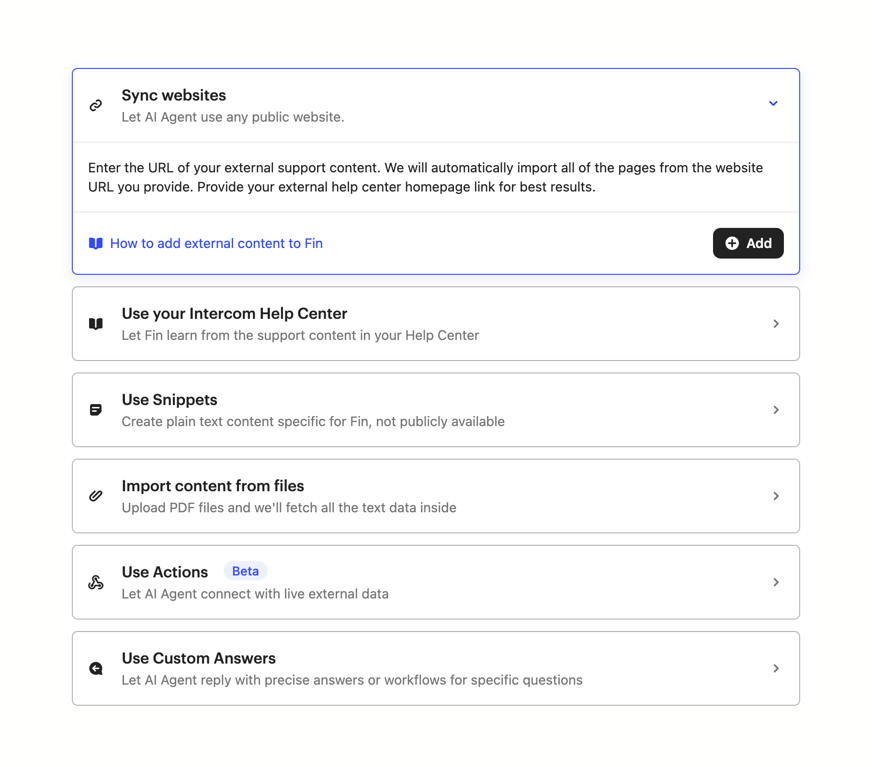
An expanded card showing the progress of syncing a website for an AI agent's knowledge base. It displays the URL being indexed, a segmented progress bar, an informational alert about the time required, and action buttons to add or manage content.
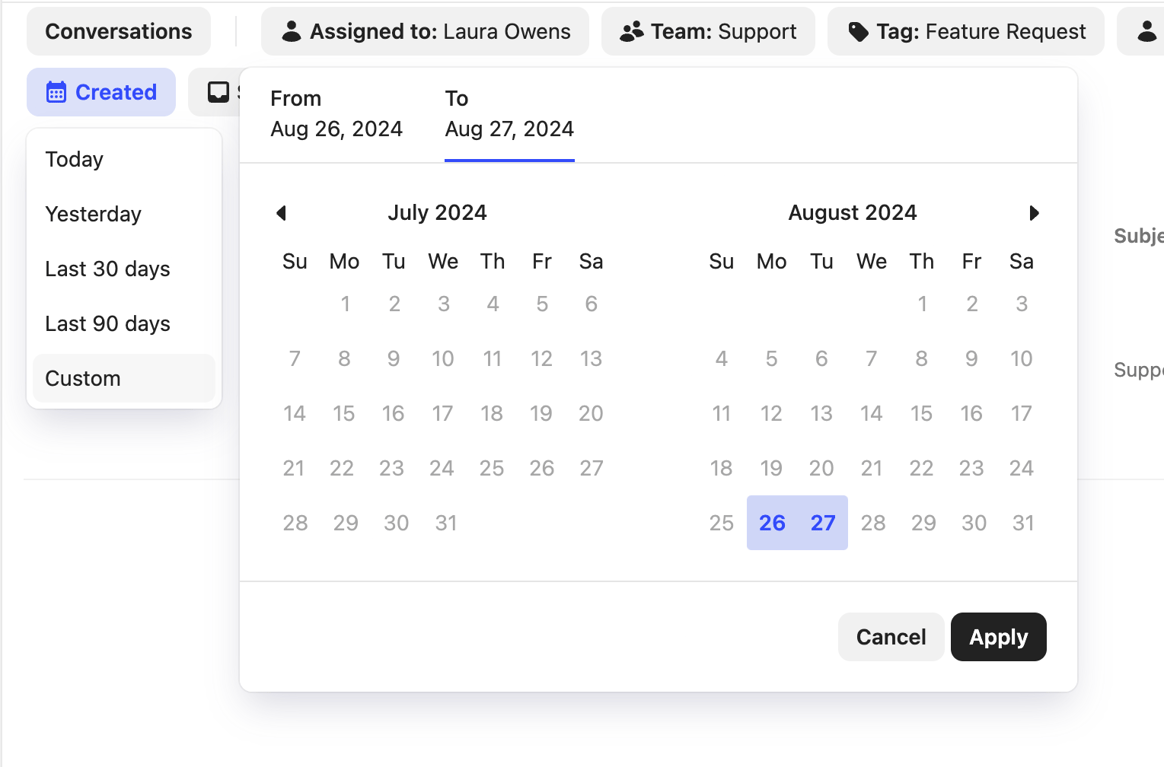
A date range picker component featuring a dual-month calendar view and a sidebar with preset date ranges. The user has selected a custom range from August 26 to August 27.

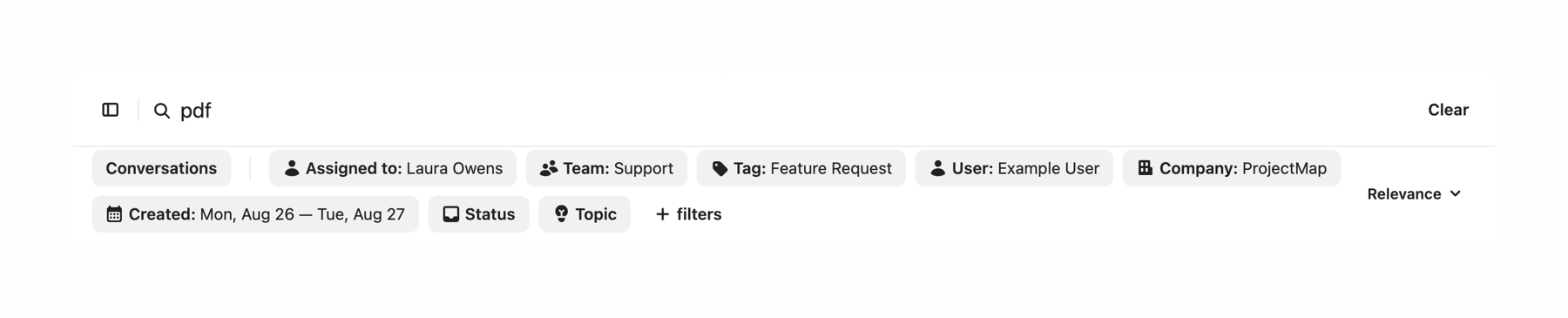
A horizontal toolbar combining a search input field with a row of filter chips below it. The search field contains an active query and a clear button. The filter row includes multiple categorized chips with icons, an add filter button, and a sort dropdown.

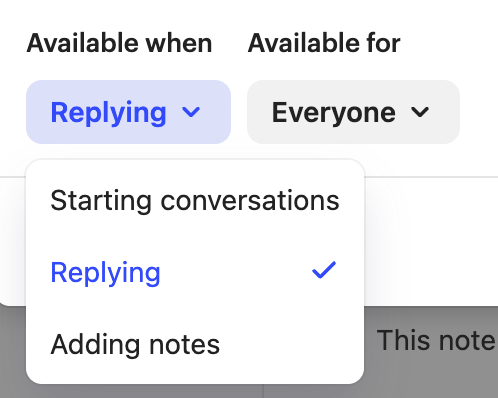
A pair of dropdown selectors for configuring macro availability. The first dropdown is open, showing options for when the macro is available, with 'Replying' currently selected.
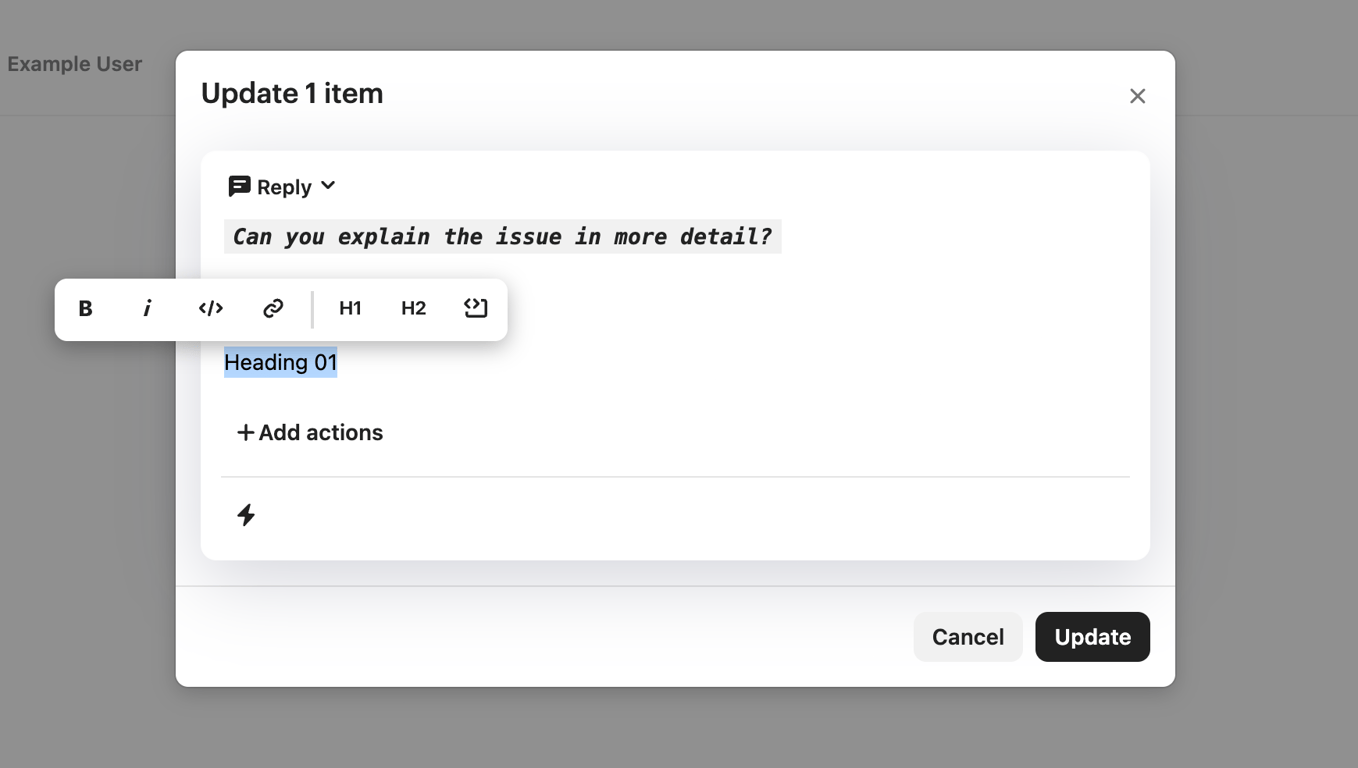

A dark-themed notification toast confirming an action, featuring an inline 'Undo' button with a keyboard shortcut and a close icon.
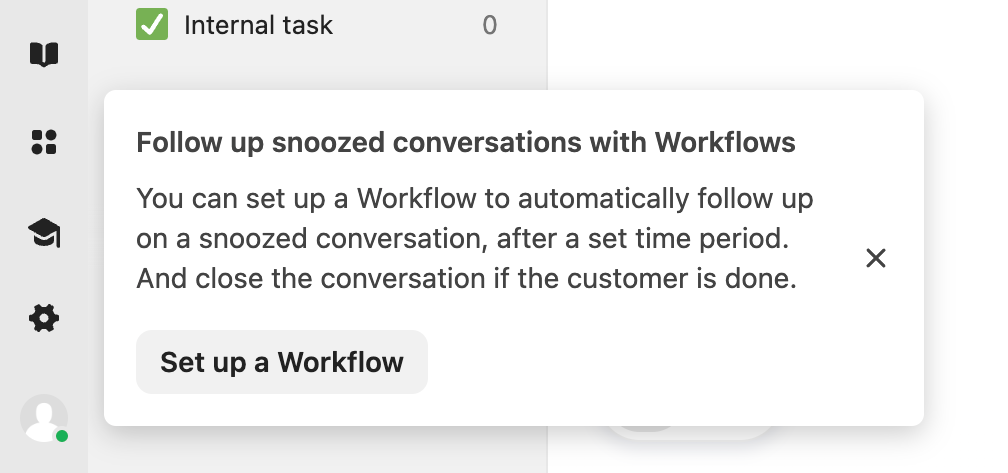
A floating notification toast introducing a new feature or workflow. It includes a title, a descriptive paragraph explaining the benefit, a primary action button, and a close icon.
Browse the full component library
Browse the full UI component library.
Trusted by the best teams







