
Super user flows examples
Explore Super user flow examples. Preview the opening screens and steps for each task. Create websites with Notion
Preview these flows
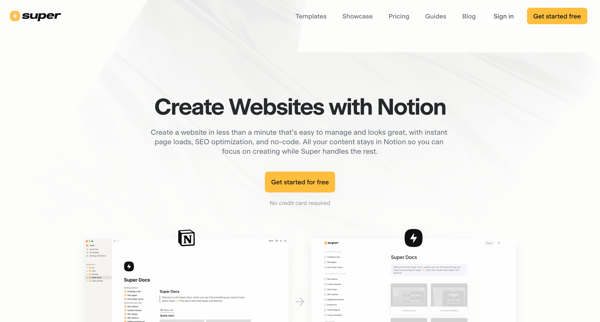
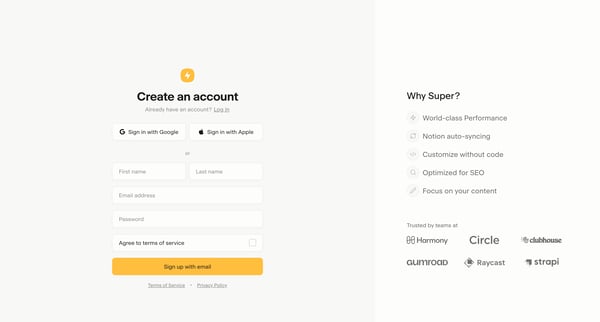
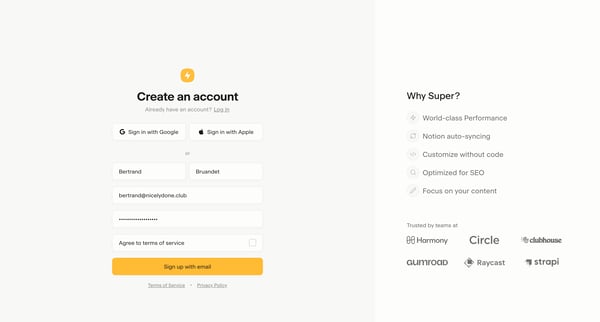
This flow guides the user through creating a Super account and initiating their first website project with an easy and seamless signup process, leveraging Notion for content management.
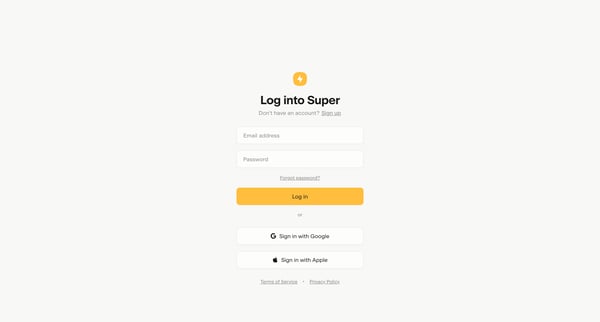
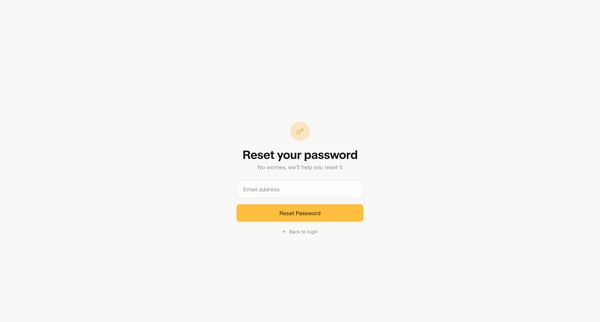
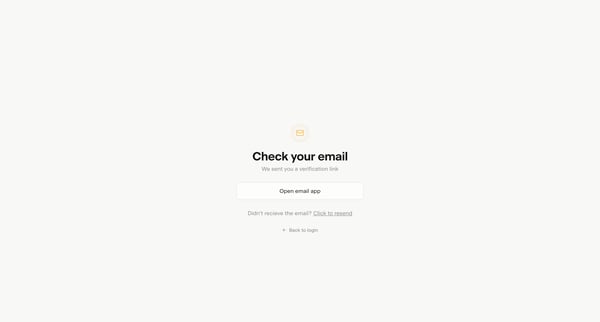
This flow guides a user through the process of resetting their password for their account.
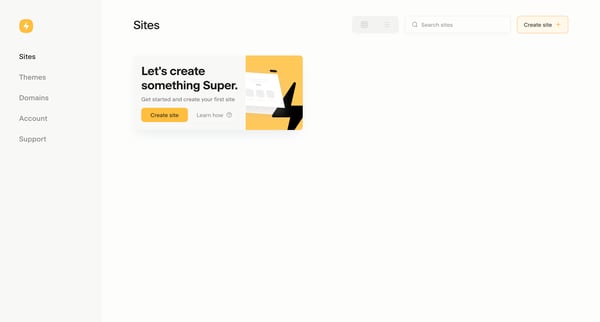
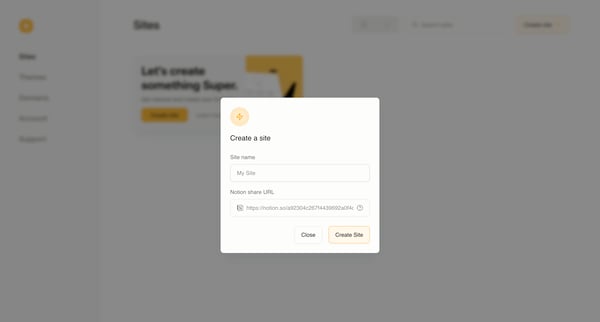
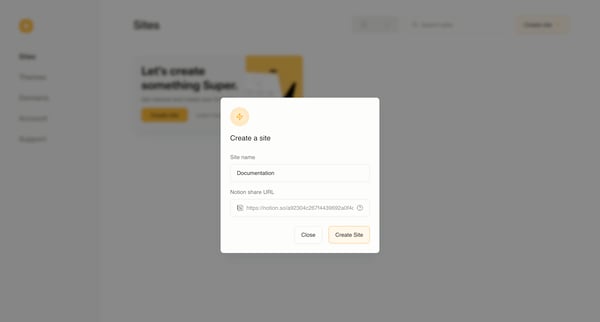
This flow guides users through the process of creating a new website, from initiation to the final creation, ensuring sharing is enabled and providing an option to upgrade and access premium
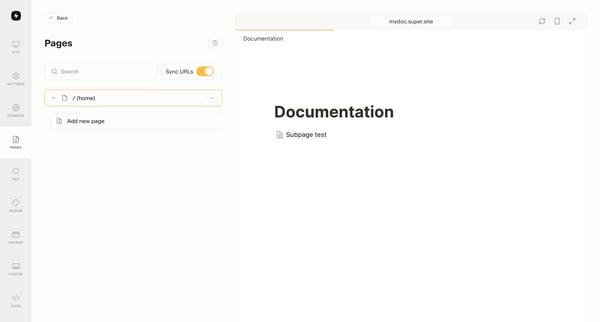
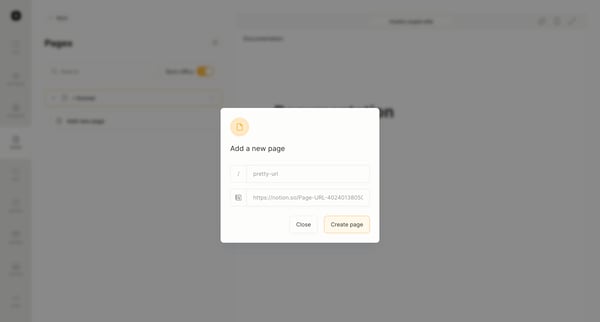
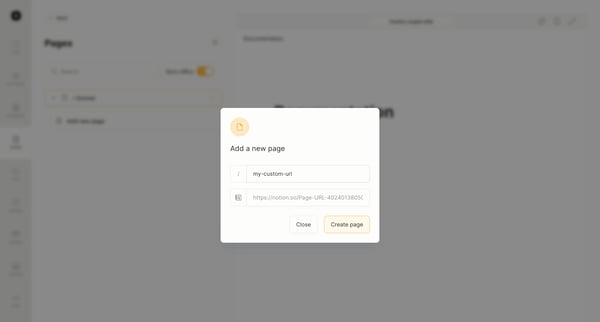
This flow facilitates the creation and confirmation of a new custom page within a website’s management platform.
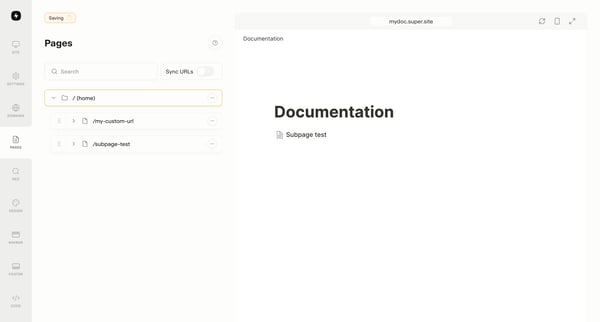
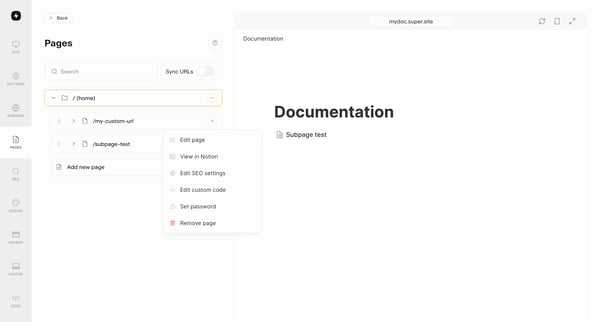
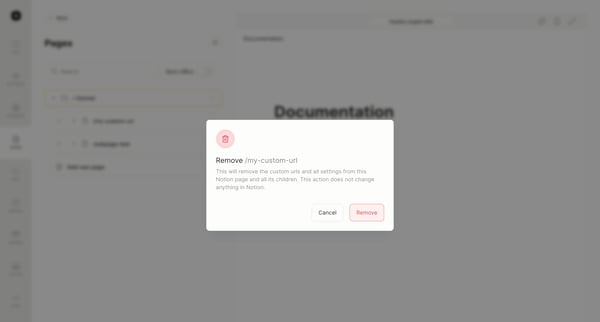
This flow guides the user through the process of removing a custom URL and its associated settings from a page within the site settings, without affecting the original content in Notion.
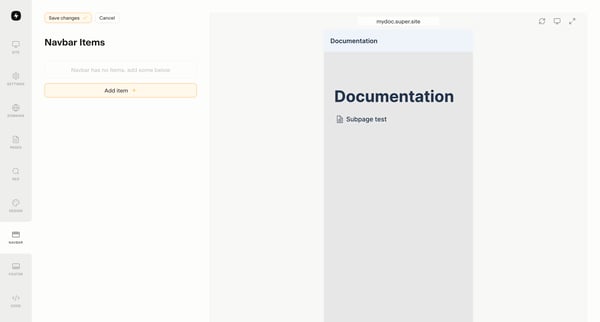
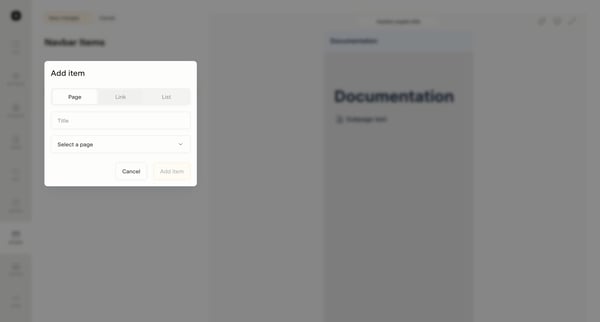
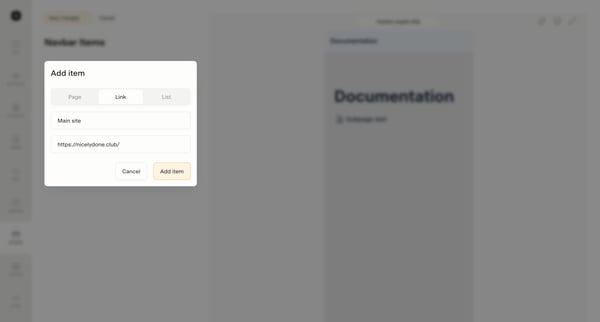
This flow guides a user through adding a new navigation item to their website's navbar.
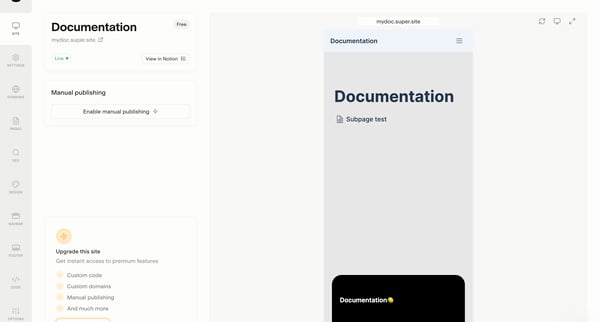
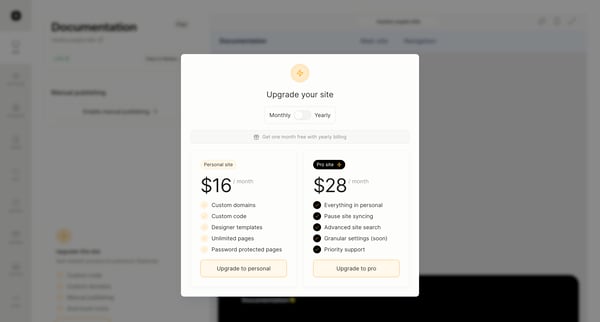
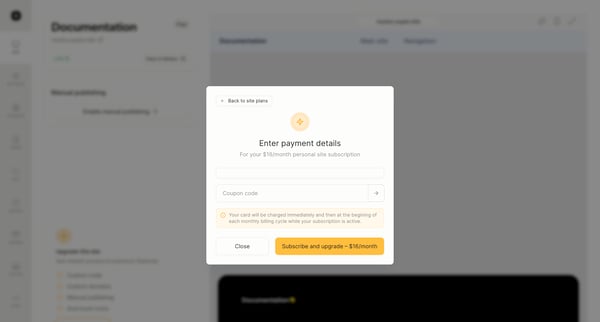
This flow guides a user through upgrading their subscription to access premium features, including selecting a new plan, entering payment details, and confirming the upgrade.
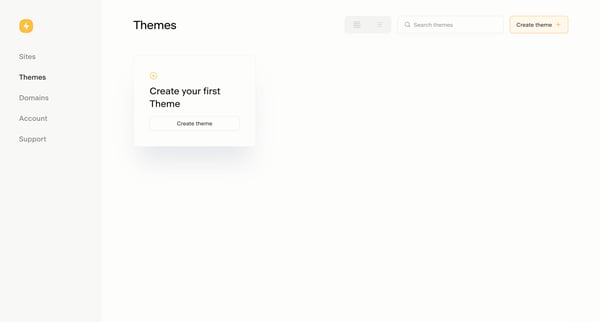
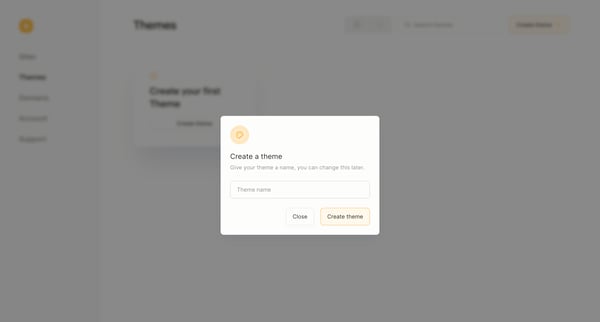
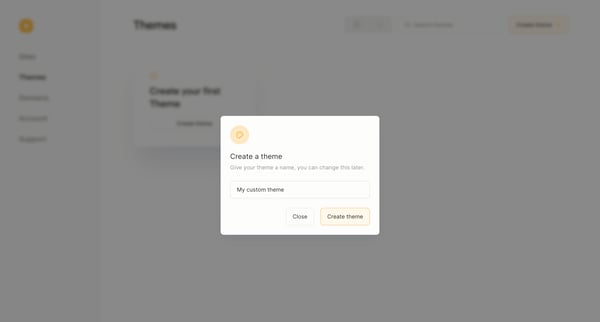
This flow guides the user through the process of creating and naming a new website theme, transitioning from an empty state to a confirmation of creation.
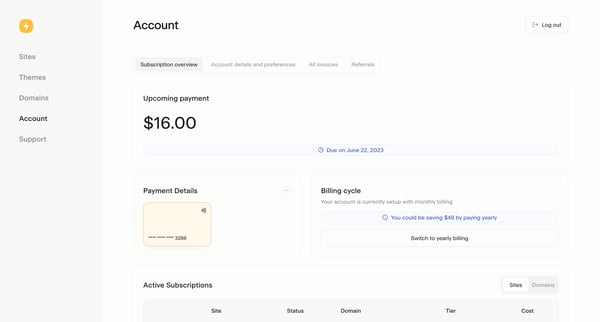
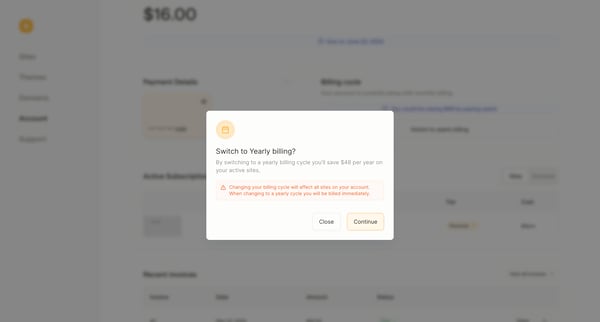
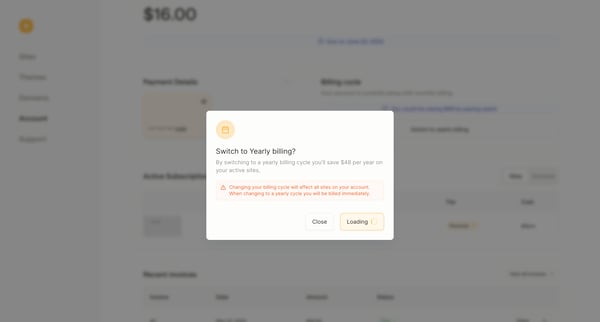
This flow guides the user through the process of upgrading their billing cycle from monthly to yearly, highlighting the savings achieved by making this switch.
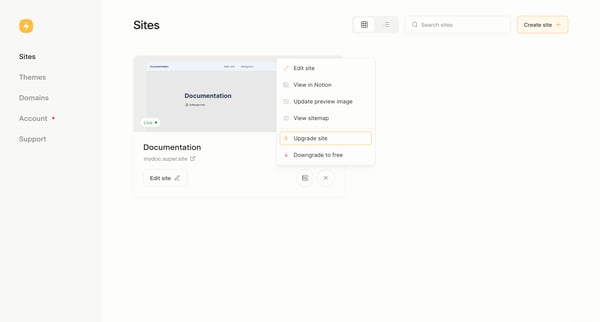
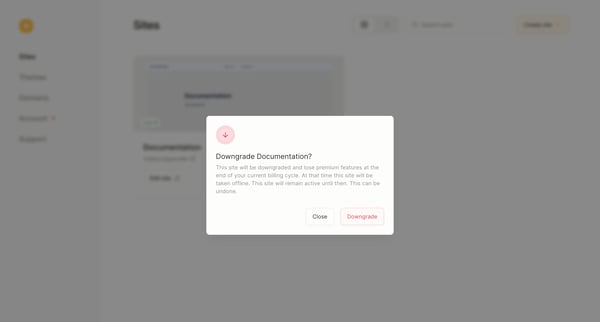
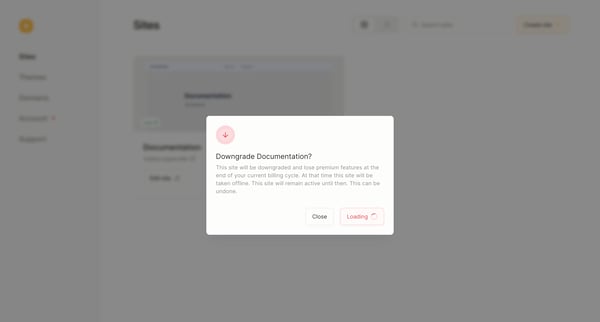
This user flow details the process of downgrading a subscription service, from selecting the downgrade option to the pending status of the downgrade request.
Explore the full SaaS flow library
Browse the full SaaS flow library.
Trusted by the best teams







